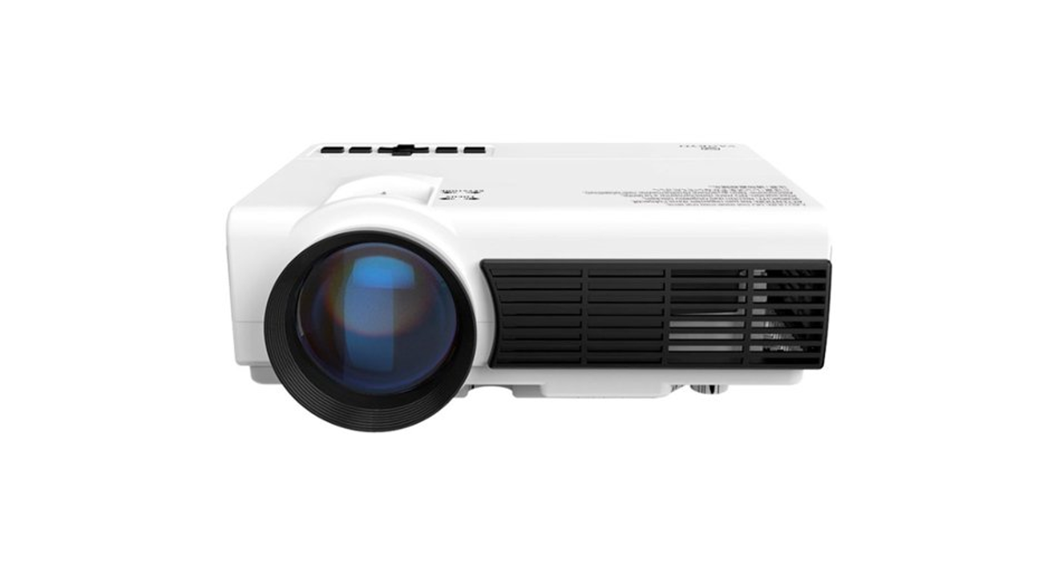
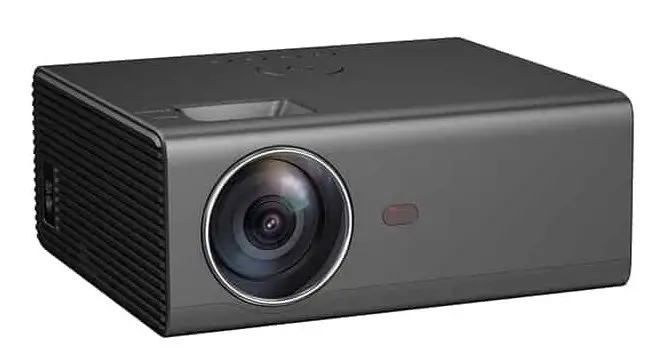
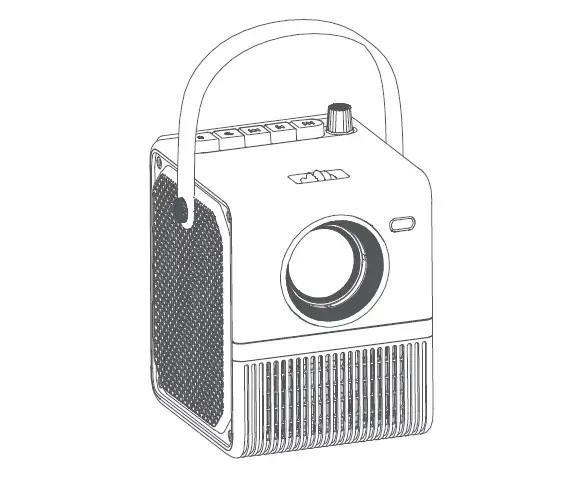
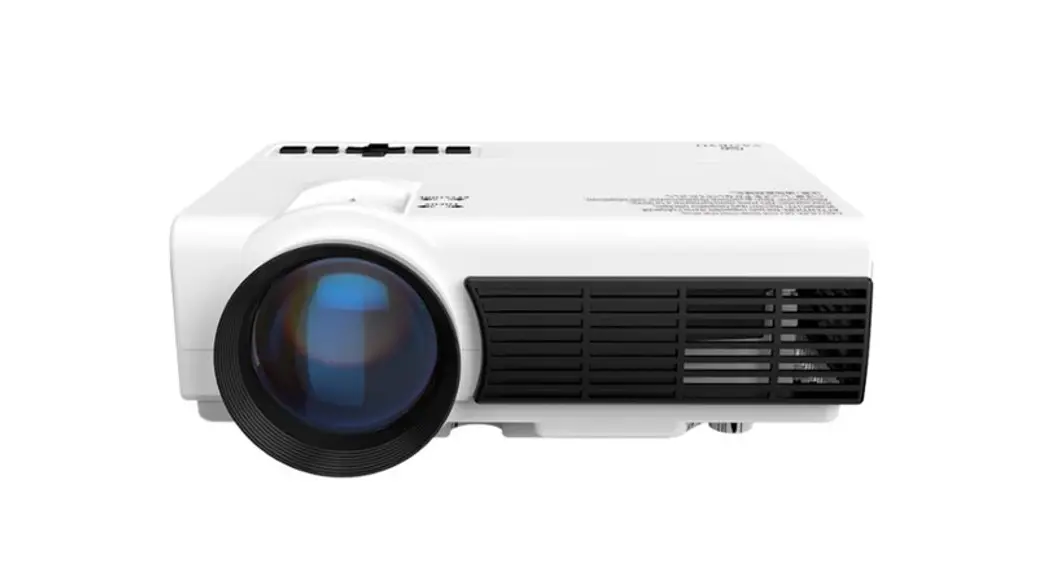
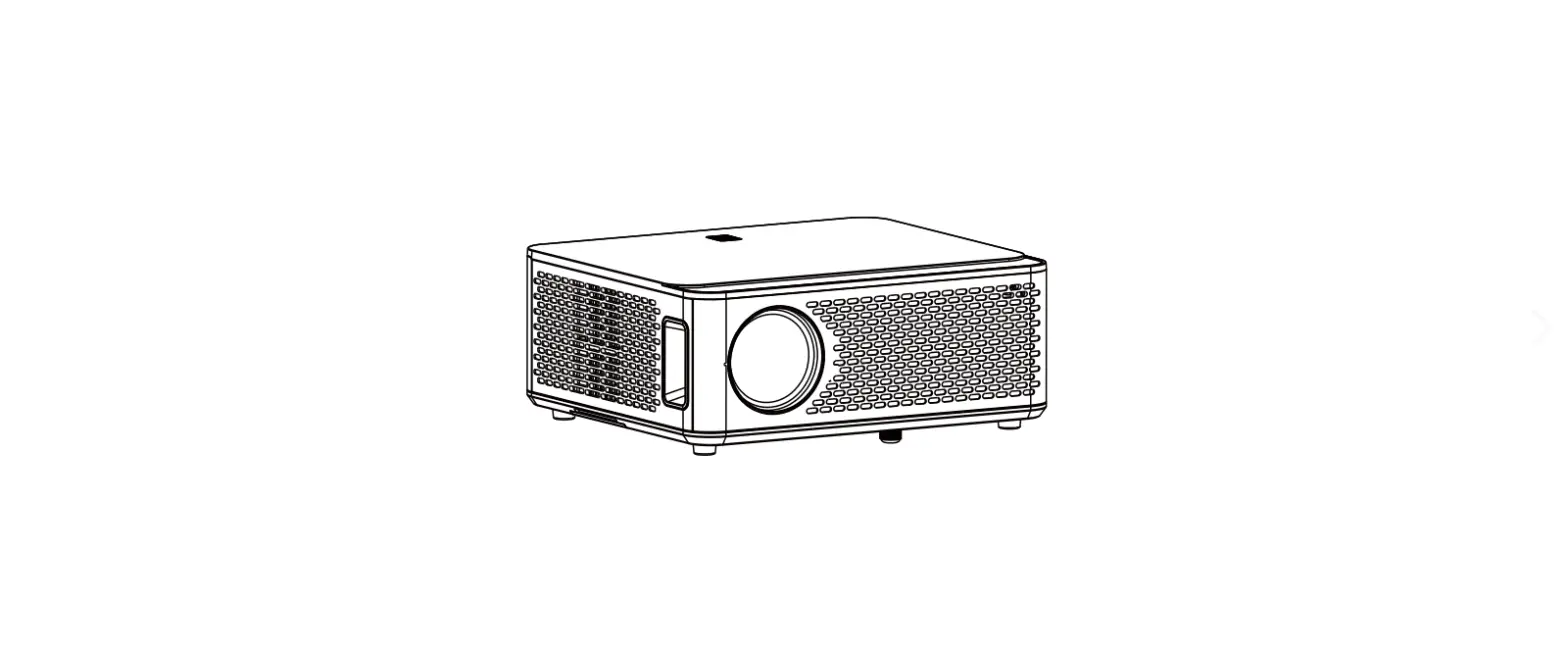
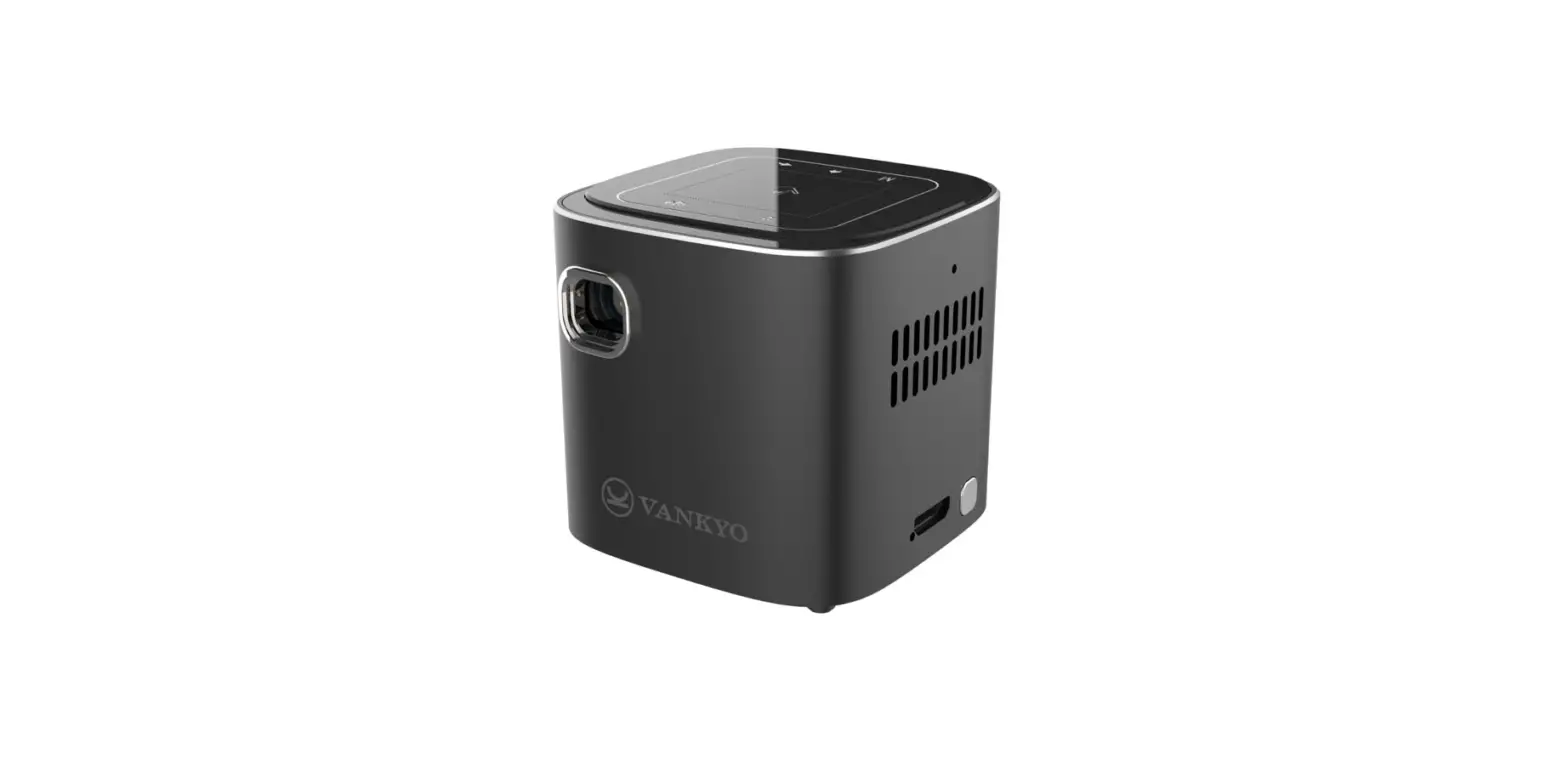
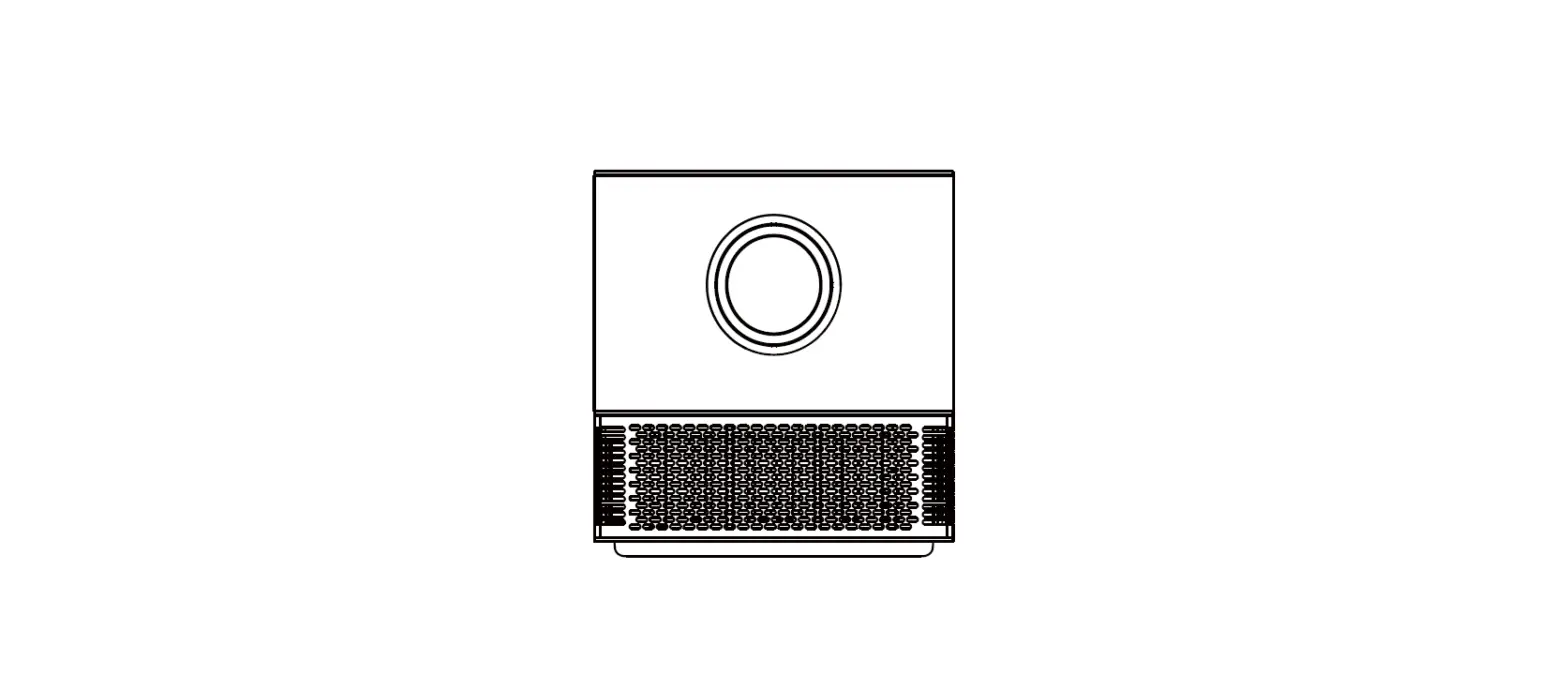
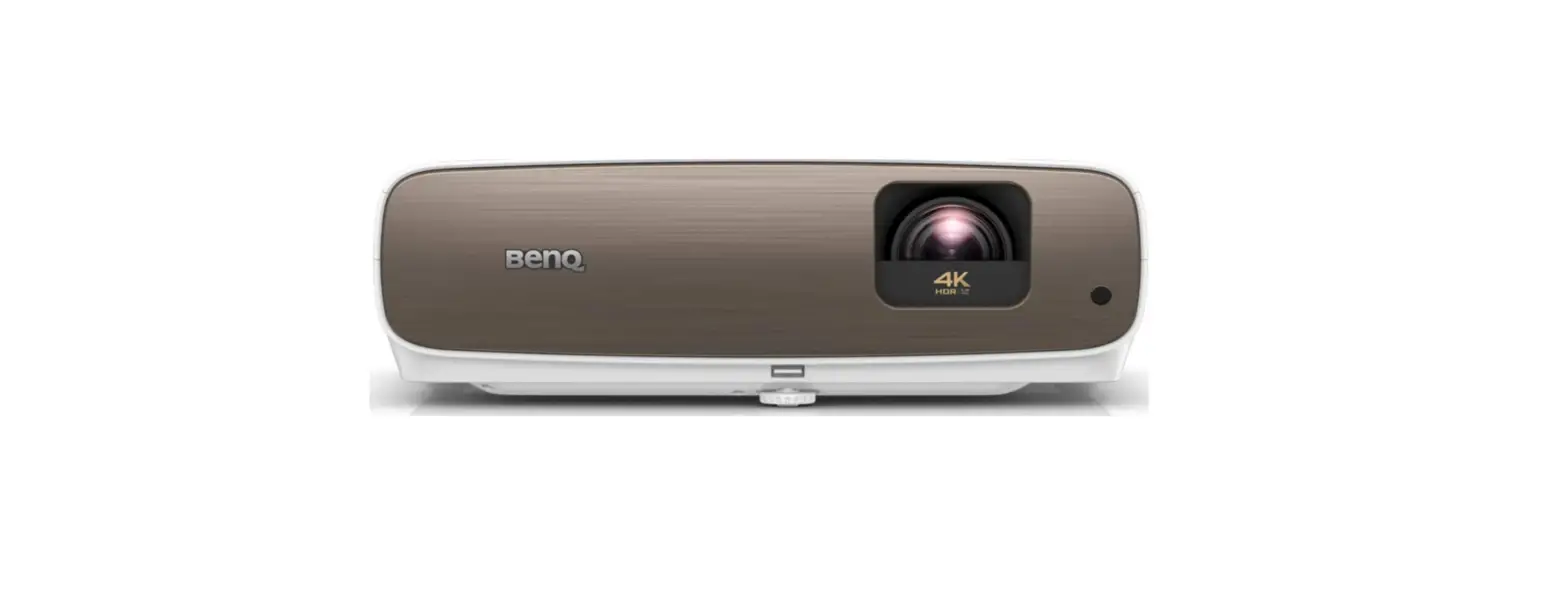
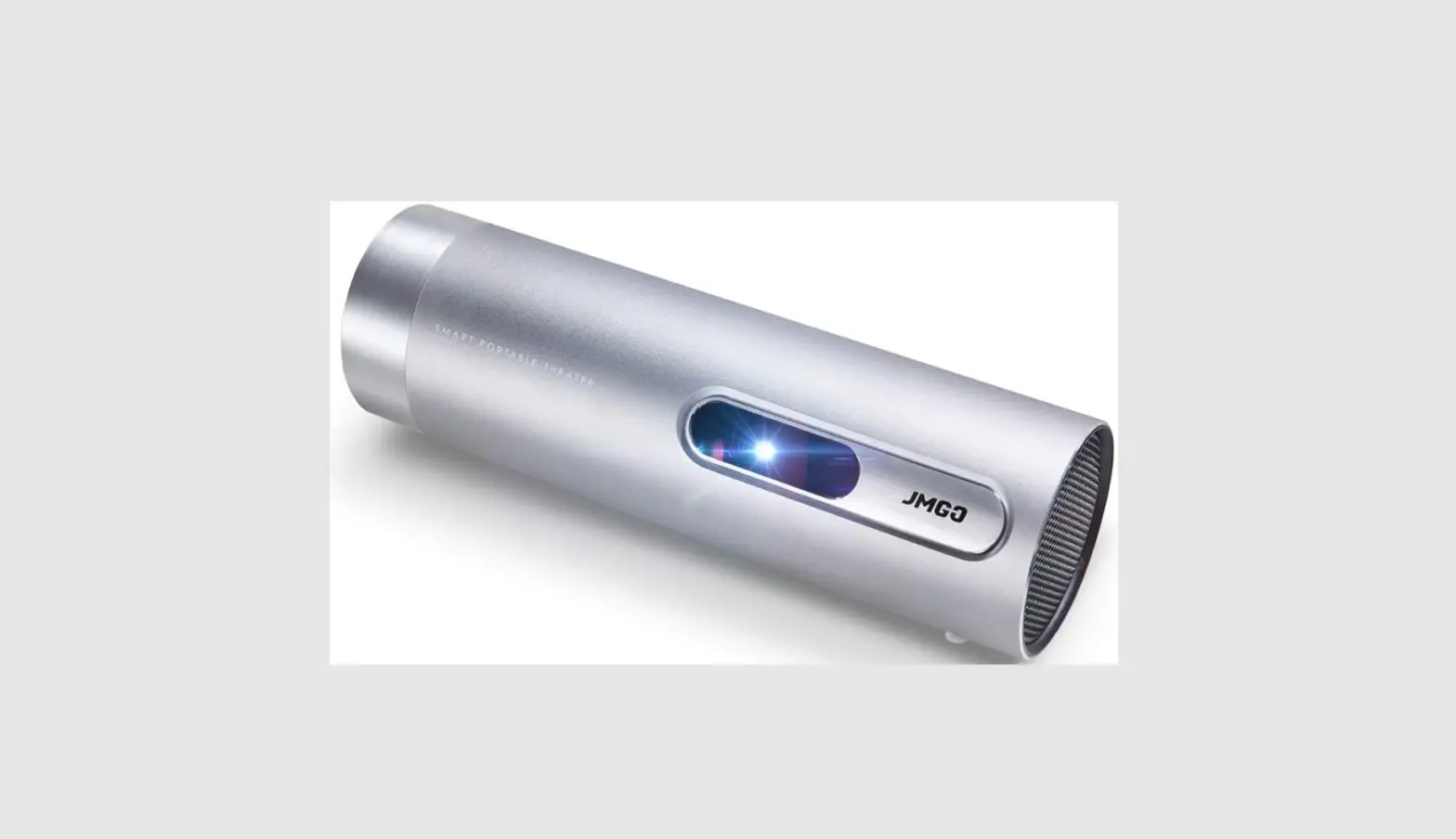
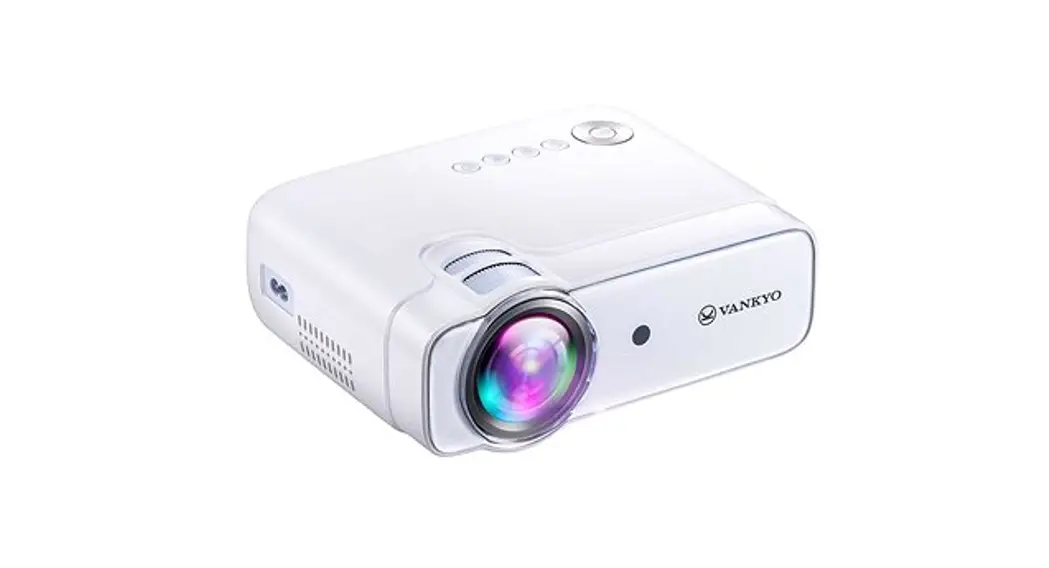
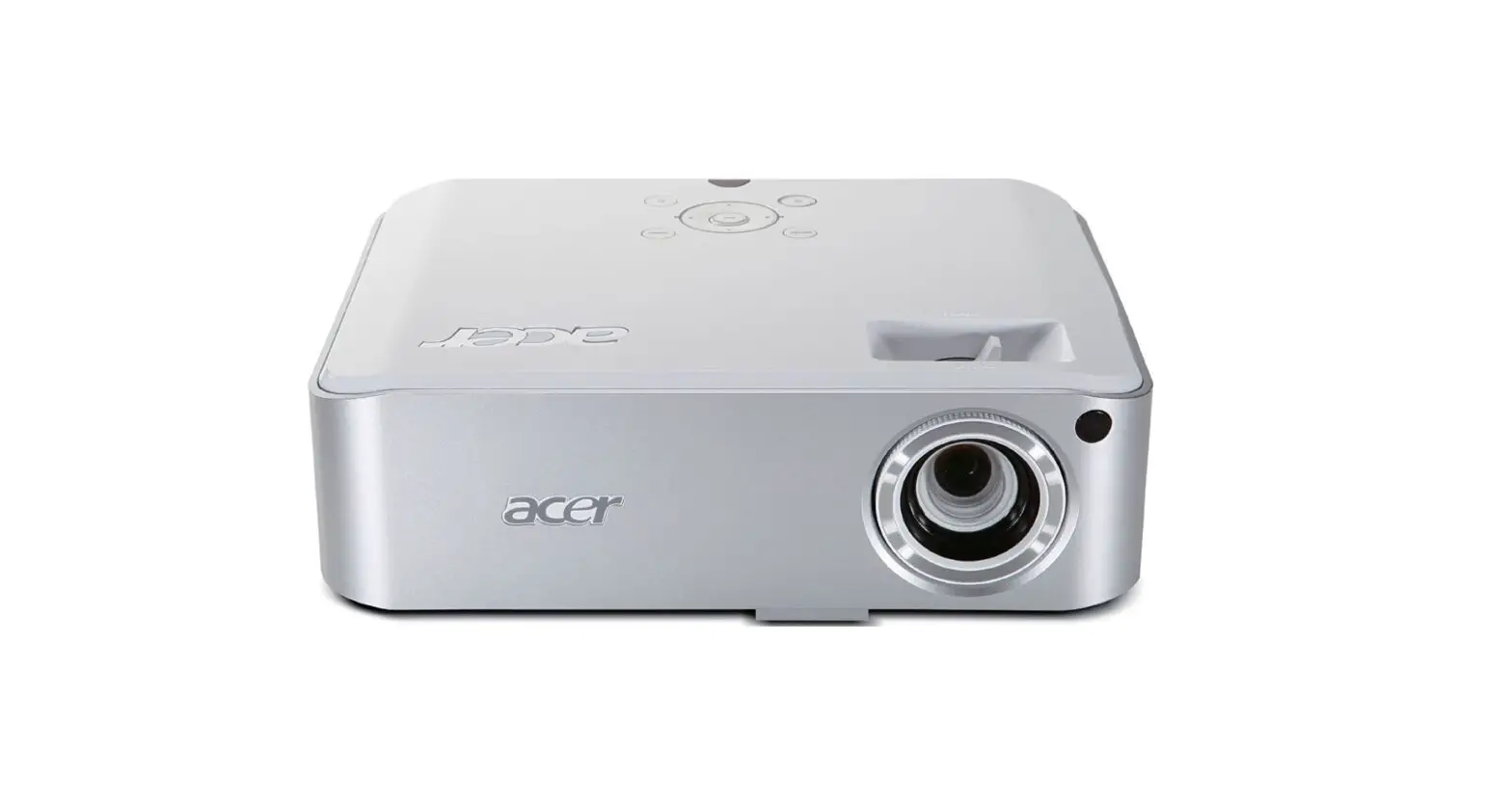
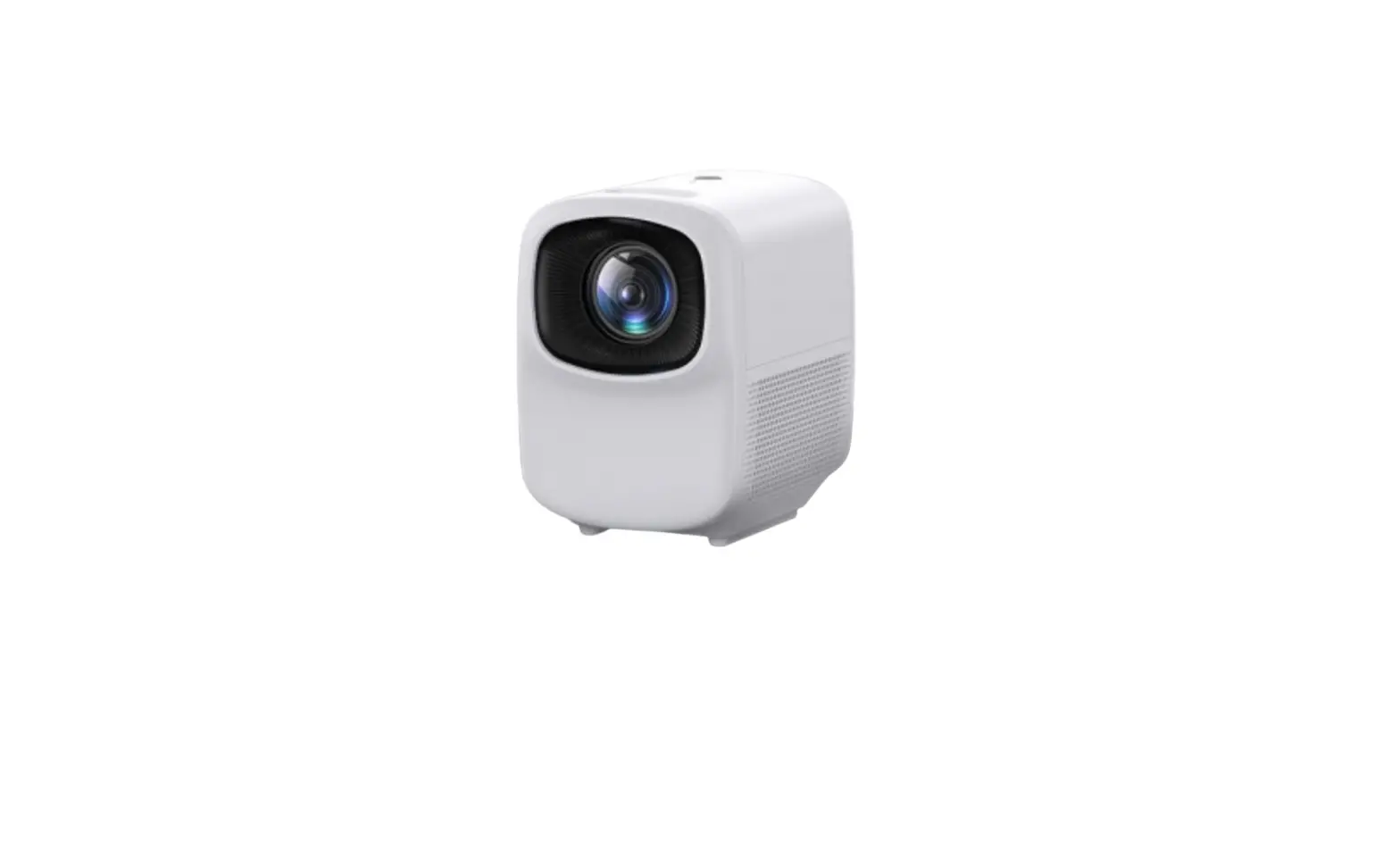
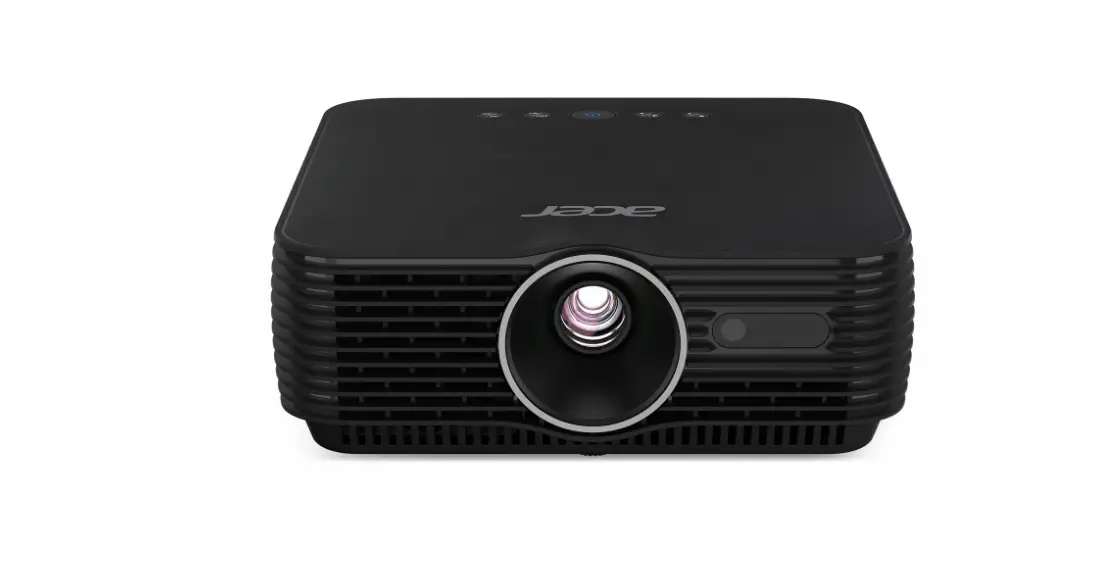
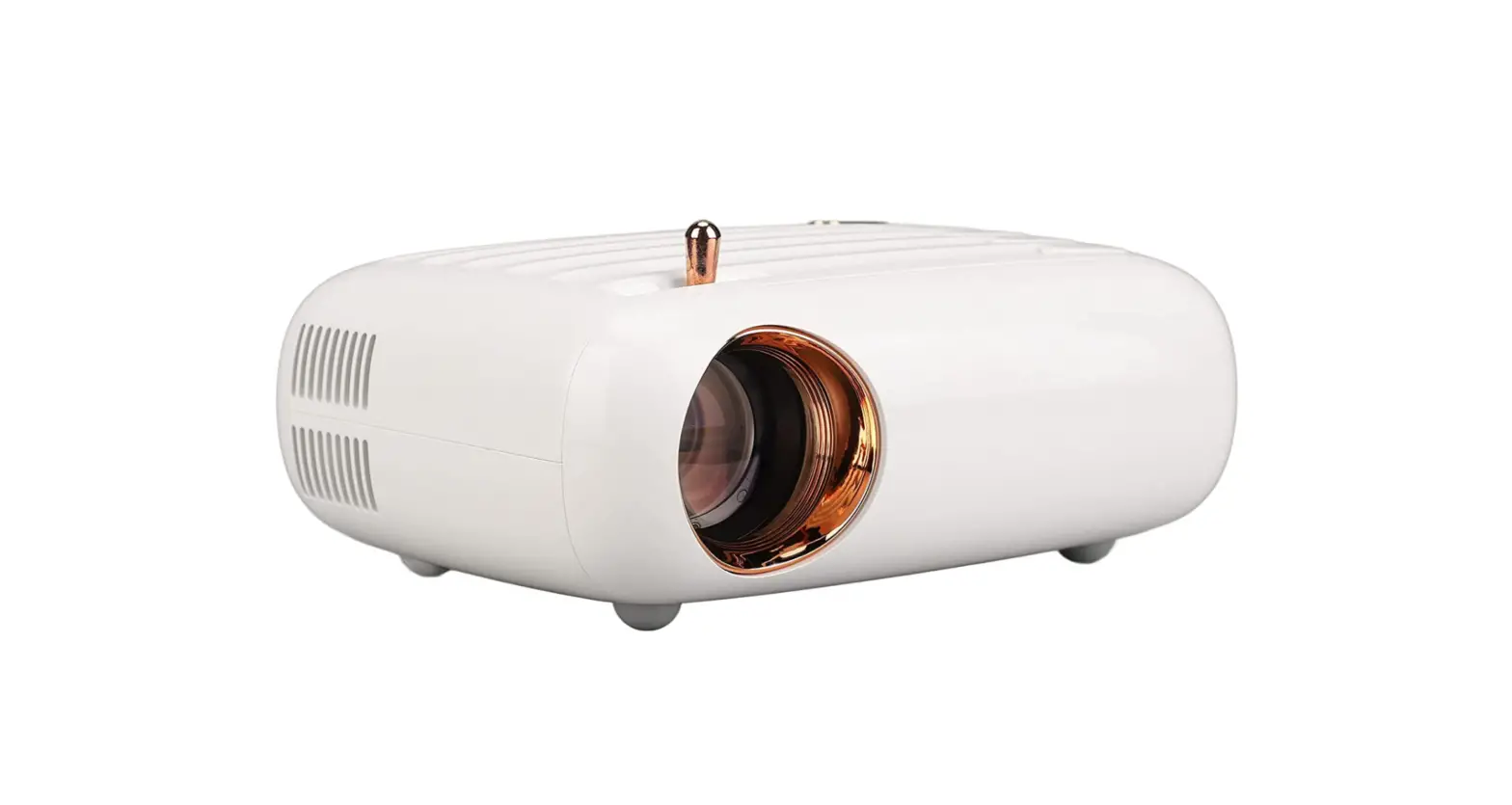
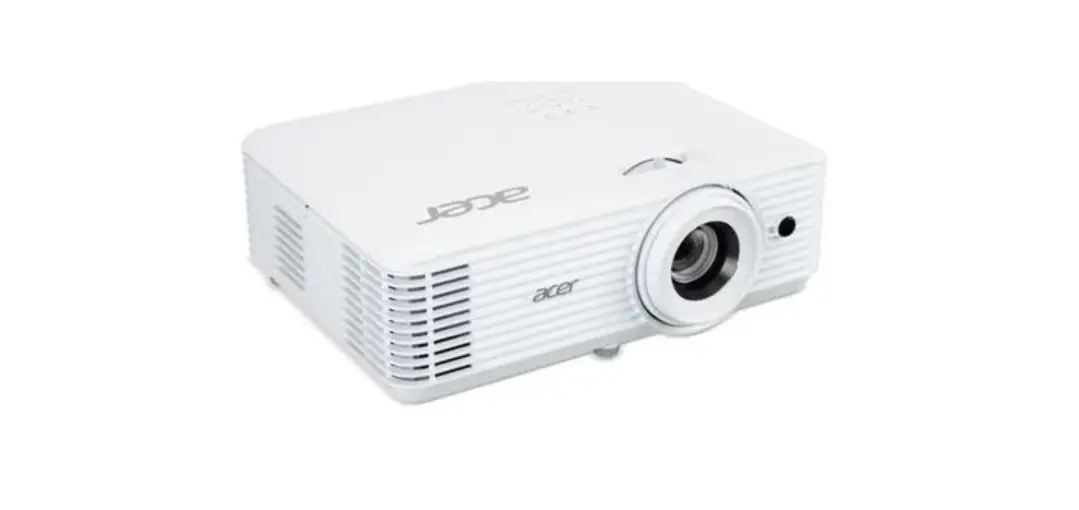
H89W 4K Portable Wireless Home Projector
Product Information
The smart projector is a high-tech device that combines
precision optics, electronics, and mechanics. It is designed to
provide users with high-quality image projection for various
purposes. The projector has features such as wireless projection,
which allows users to project content from their devices without
the use of cables. It also has a dustproof filter that requires
regular cleaning to ensure proper heat dissipation. The lens is
another crucial component of the projector that requires
maintenance to ensure clear image projection. The projector is also
prone to damage from strong impact, extrusion, and vibration, and
it should be placed on a stable and even surface to prevent
damage.
Product Usage
Maintenance of the projector is essential for its proper
functioning and durability. Follow these guidelines to ensure
optimal performance:
- Projector Connection: Connect the projector to
your device using the appropriate cables. - Wireless Projection: To use the wireless
projection feature, connect the projector to your device through
Wi-Fi or Bluetooth. Follow the instructions provided in the user
manual for wireless projection setup. - Maintenance of the Projector: Regularly clean
the dustproof filter every one and a half months to ensure proper
heat dissipation. Ensure that the air inlet and outlet of the
projector are not blocked by any objects to allow for cold air
convection and improve the working stability and life of the
projector. Clean the lens with a soft cotton cloth when it gets
dirty to avoid affecting image quality. Do not use hard cloth or
corrosive materials on the lens. Also, clean up excessive dust on
the surface of the projector in time to prevent it from affecting
heat dissipation. - Moisture-proof: Ensure that the working
humidity of the projector is between %-% to avoid affecting its
working stability. - Shockproof: Prevent strong impact, extrusion,
and vibration of the projector, especially when the machine is
working normally, to prevent internal circuit malfunction. - Installation: Install the projector on a
stable, even, and non-shaky table. Do not place containers filled
with liquids on top of the projector. - Power: Turn off the power switch or unplug the
power cord when the projector is not in use.
Product Warranty Policy Description
The product warranty period starts from the date of production
and is valid for a specified number of months. If the fault is not
caused by improper use or man-made reasons, you can enjoy free
maintenance services, return and exchange services, or free
replacement services with valid purchase receipts and
three-guarantee certificates within a specific number of days from
the date of purchase. Refer to the user manual for more information
on the warranty policy.
5 Projector connection
6 Wireless projection
IOS device Airplay: Using this function, the projector and iPhone/iPad can be displayed on the same screen. Note: Make sure the projector and the phone are connected to the same WiFi network (or the same hotspot). The operation steps on the mobile phone are as follows (the projection end does not need to be set); Step 1: Swipe up at the bottom of the phone screen Step 2: The console interface appears, click the AirPlay button Step 3: Select the device to be projected and turn on the mirroring switch The name of the projection device can be defined in the screen projection APP, which is subject to the specific machine; it is recommended to connect to 5G WiFi to avoid stuck on the same screen; Android device Miracast: Using this function, the projector and Android phone/tablet can be displayed on the same screen. The operation steps for the projector and mobile phone are as follows: Step 1: Projector, go to Settings>Network switch>Turn on the WiFi switch, you need to connect to the network; Step 2: On the mobile phone (take Xiaomi as an example), open the WiFi port, and go to Settings> Connect and Share > Projection; Step 3: During the connection process, a connection invitation will appear on the projector, click to accept. Different mobile phones have different Miracast setting paths and names. Common names are: media output/projection screen/multi-screen interaction, etc. Please refer to the mobile phone for details. Note: Due to the variety of mobile phones, it cannot be guaranteed that all mobile phone models are compatible with the same screen
7 Maintenance of the projector
Smart projector is a high-tech product that integrates precision optics, electronics, and mechanics. If it is not properly maintained in daily use, it will affect the service life and effect of the projector. The importance of maintenance of the projector is as follows:
. Dustproof: Due to the influence of the environment, excessive dust on the projector will affect the heat dissipation. It is recommended to clean the dustproof filter of the projector for one and a half months according to the actual environment.
. Ventilation: Since the projector is a sound-optical integrated device, the light source generates heat when it is working. During installation and use, make sure that there are no objects around to block the air inlet and outlet of the projector, because the heat dissipation of the projector is Rely on cold air convection to improve the working stability and life of the projector.
. Lens maintenance: The lens is the core component of the projector. It is directly related to the clarity and effect of the picture. Too much dust on the lens will affect the image quality. When the lens is dirty, please wipe the glass on the surface of the lens with a soft cotton cloth. The lens can be wiped with a hard cloth or something corrosive.
. Cleaning: Please clean up the excessive dust on the surface of the projector in time. Excessive dust will affect the heat dissipation of the fuselage.
. Moisture-proof: The projector is easily attacked by humid air. The working humidity of the projector is about %-%. If the air is too humid, it will affect the working stability of the projector.
. Shockproof: The projector must be strictly prevented from strong impact, extrusion and vibration. Especially when the machine is working normally, try not to move and knock the projector, which may cause the internal circuit of the machine to malfunction.
. Do not install the projector on an unstable, shaky or uneven table.
. Do not place containers filled with liquids on top of the projector. . Please turn off the power switch or unplug the power cord when the projector is not in use.
8 Product Warranty Policy Description
. Within days from the date of purchase, if the fault is not caused by improper use or man-made reasons, it is determined to be the fault caused by the product components, and you can enjoy the return and exchange service with the valid purchase receipt and three-guarantee certificate.
. Within – days from the date of purchase, if the fault is not caused by improper use or man-made reasons, it is determined to be a fault caused by the product components, and you can enjoy free replacement services with valid purchase receipts and three-guarantee certificates.
. The warranty service period of the product takes effect from the date of production. The mainframe of the projector series products (excluding accessories/accessories) is guaranteed for months. Failures not caused by improper use or human reasons are determined to be caused by the main components of the product. If the fault occurs, you can enjoy free maintenance services with valid purchase receipts and valid three-guarantee vouchers.
. The company has the final right to interpret the Three Guarantees service. The following problems do not enjoy the Three Guarantees service:
The equipment shell, manual, packaging, promotional items and random gifts are not included in the Three Guarantees service; The user disassembles and assembles by himself or is not authorized by the company or designated by the company. Damage to the product caused by the use of spare parts not manufactured or sold by the company; Damage caused by not using the machine in accordance with the product instruction manual; Failure to provide valid purchase receipts and valid three-guarantee certificates; damage.
5GHz
Warranty Card
Customer’s name Contact phone Customer’s address Model(S/N) Stores address Stores address Date of purchase
Mr./Miss
FCC Warning This device complies with part 15 of the FCC rules. Operation is subject to the following two conditions: (1) this device may not cause harmful interference, and (2) this device must accept any inte rference received, including interference that may cause undesired operation.
Changes or modifications not expressly approved by the party responsible for compliance could void the user’s authority to operate the equipment.
NOTE: This equipment has been tested and found to comply with the limits for a Class B digital device, pursuant to part 15 of the FCC Rules. These limits are designed to provide reasonable protection against harmful interference in a residential installation. This equipment generates uses and can radiate radio frequency energy and, if not installed and used in accordance with the instructions, may cause harmful interference to radio communications. However, there is no guarantee that interference will not occur in a particular installation. If this equipment does cause harmful interferenceto radio or television reception, which can be determined by turning the equipment off and on, the user is encouraged to try to correct the interference by one or more of the following measures: -Reorient or relocate the receiving antenna. ·Increase the separation between the equipment and receiver. ·Connect the equipment into an outlet on a circuit different from that to which the receiver is connected. ·Consult the dealer or an experienced radio/TV technician for help. Radiation Exposure Statement This equipment complies with FCC radiation exposure limits set forth for an uncontrolled environment. This equipment should be installed and operated with minimum distance 20cm between the radiator and your body.
PROJECTOR
QUICK GUIDE
STATEMENT
Warning: Operation of this equipment in a residential
environment may cause radio interference.
Warning
High brightness lamp! Avoid staring or directly looking at the light,especially for children.
1.Please wash the anti-dust mesh once a month in order
to protect your projector!
Tips 2.Before using this machine,please remove the protective
membrane from the top & bottom cover.
This <GUIDE>offer basic operation,please read the detail operation in<Electronic-directions>from projector software application; Please read this<GUIDE>carefully before use; The company reserves the right of final interpretation; Appearance of the product and the UI please in kind prevail; If product technology or software upgrades, without prior notice.
1 Important Notes
How to use the device correctly:
. Do not point the lens towards the human eye to avoid damage to the eyes caused by the strong light of the lens after the machine is turned on. . Please do not block the air inlet/outlet of the device to avoid damage to the internal electronic devices due to the failure of the device to dissipate heat normally. . Do not use paper, cloth and other cleaning tools to directly wipe the lens to avoid damage to the lens; please use a cleaning air blower to remove dust on the surface of the lens. . Please keep the device and its parts and accessories out of the reach of children. . Please ensure that the device is used in a dry and ventilated environment. . Do not store and use the device in overheated or cold places. High (low) temperature will shorten the life of electronic devices; the allowable operating environment is ~. . Do not forcefully squeeze the device or place shields above or on its back to avoid damage to the device. . Do not drop, knock or strongly vibrate the device to cause damage to the internal circuit board. . Do not attempt to disassemble the device without permission; if there is any problem, please contact the after-sales service. . Do not repair any products by yourself; if the equipment or any parts are not working properly, you should consult the after-sales service or return to the factory for repair. . The equipment must not be exposed to water droplets or splashes, and objects filled with liquids such as vases should not be placed on the equipment.
2 Projector
1 F- 2
3 F+
9
4
5
6
7
8
Note: The appearance of the product is subject to the actual product. This picture is for reference only.
1. Manual focus2. Power button 3. Manual focus+ 4. Headphone output 5.HD output 6/7.USB input 8.Infrared reception 9.Power input (110-240v~)
3 Remote control
Power
Home button Arrow button Menu Volume up Volume down
4 Device on/off
Mute key Set key
Step 1: Take out the machine from the packing box, remove the packing bag and lens cover, place the projector on a basic level table, plug in the matching power cord, and then connect to the AC power supply. At this time, the indicator light on the projector panel is Standby red.
Step 2: Press the on-off button ” ” on the body or the on-off button ” ” on the remote control to start the projector. At this time, the indicator light on the projector panel turns solid blue and the lens emits light, and the projector is started.
Return key Pause key Focus Plus Focus reduction
Signal
Please insert the plug firmly
Electric focus
Press the F+/F- key on the remote control and the manual focus key F+/F- on the body to adjust the focus.
Manual focusManual focus+
GLOBAL PROJECTION VerRK(Rev.0A