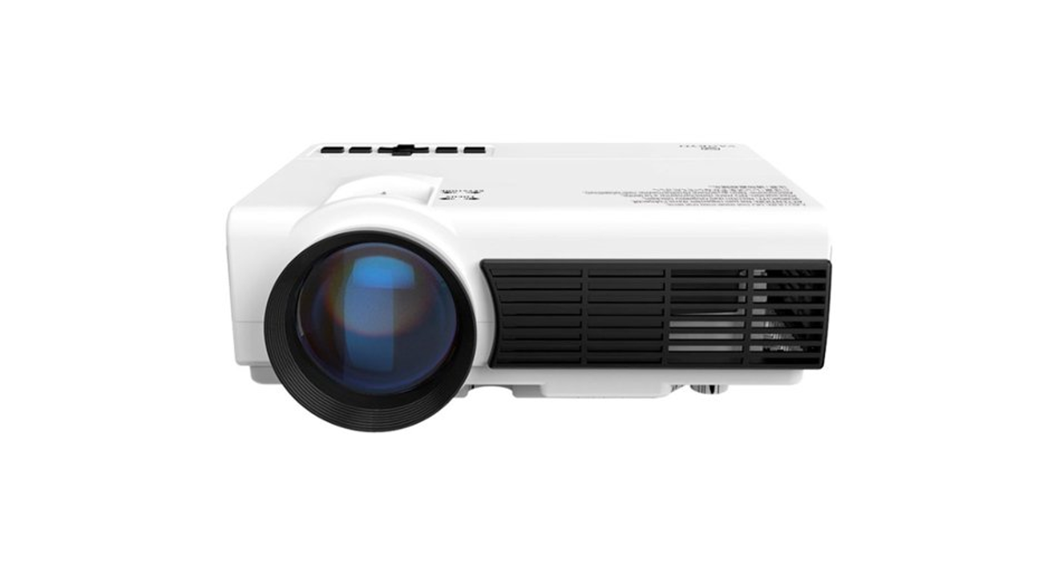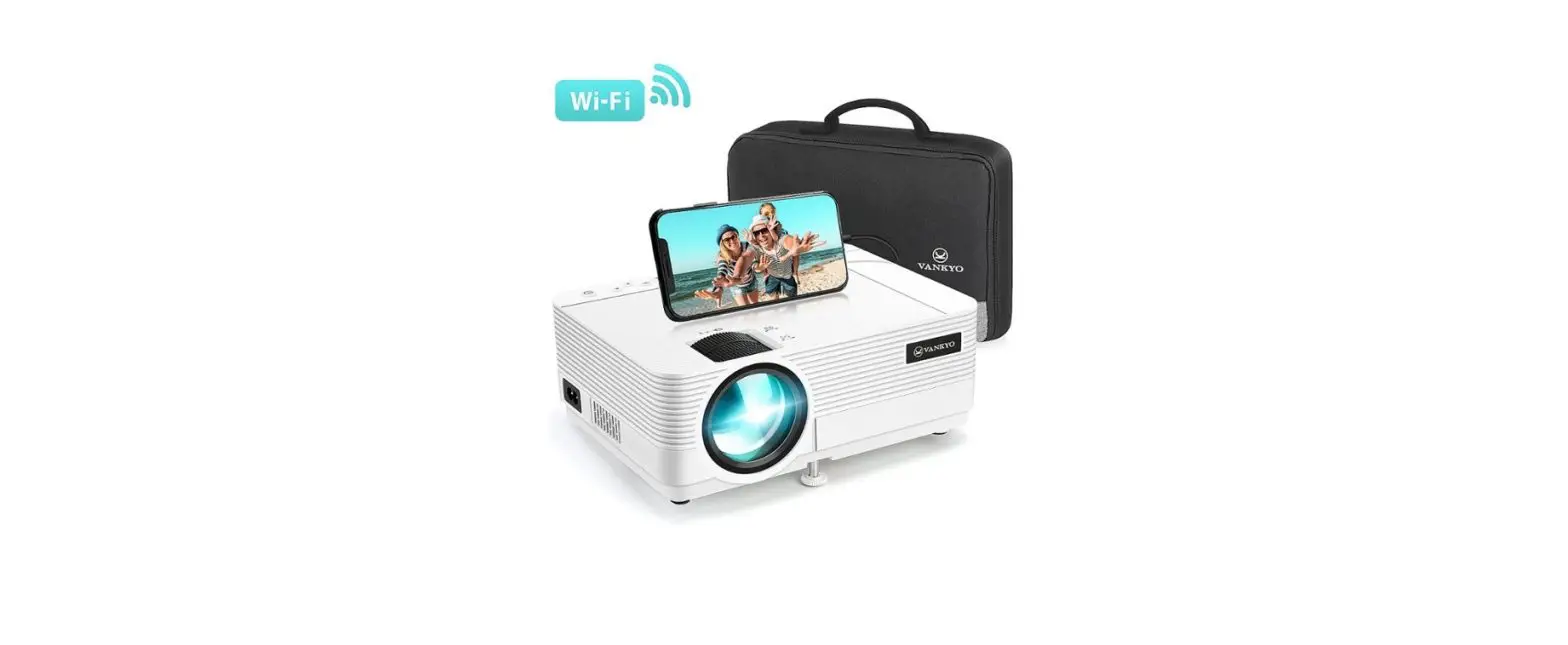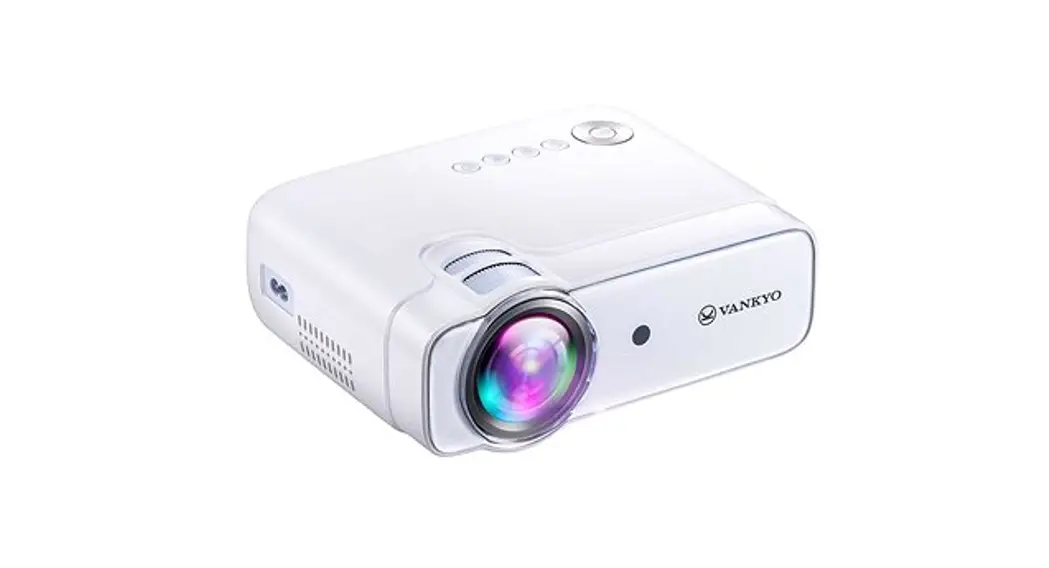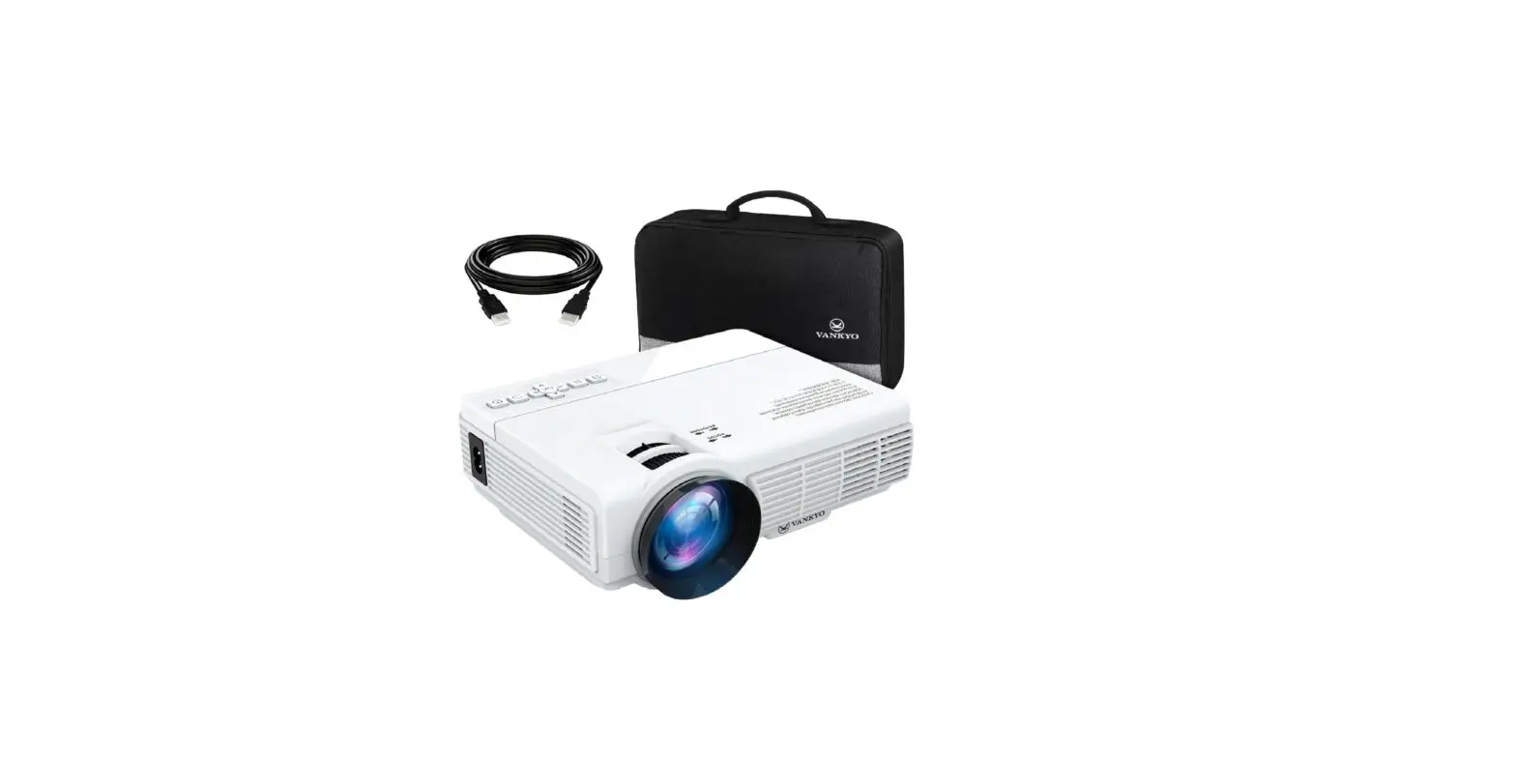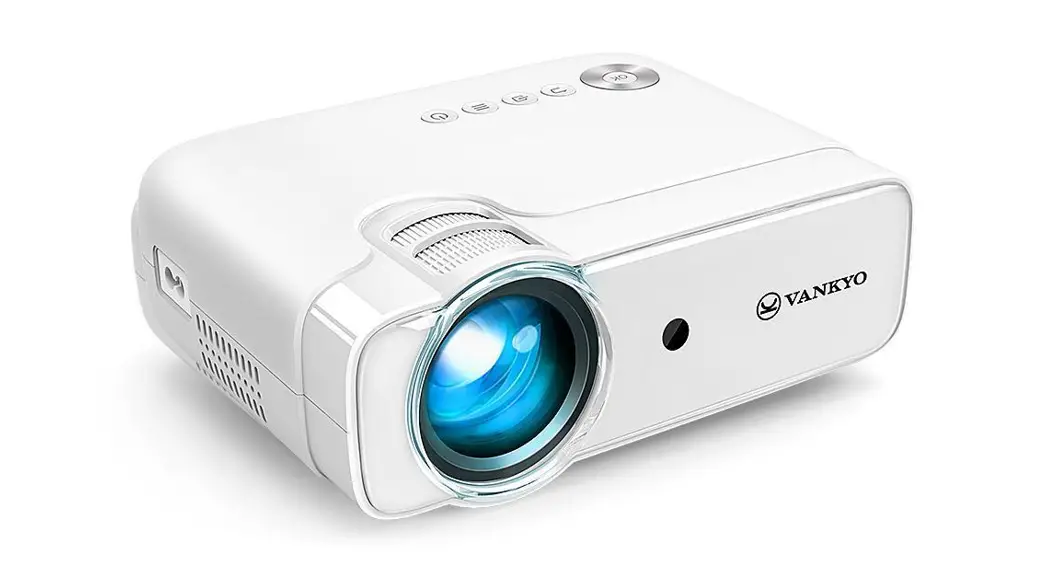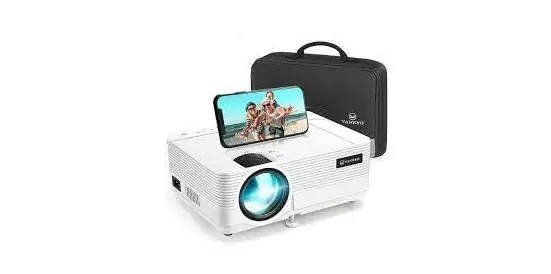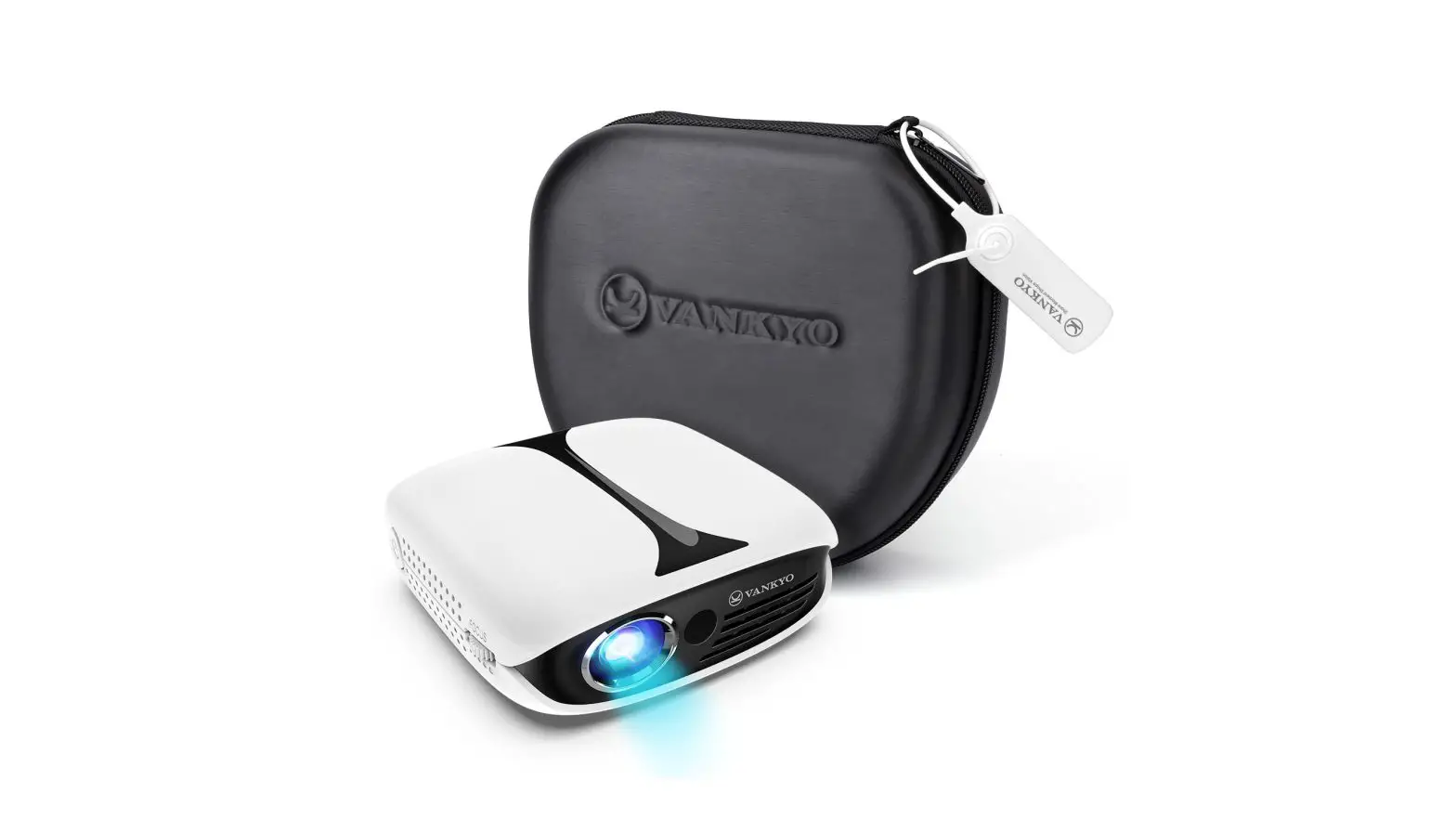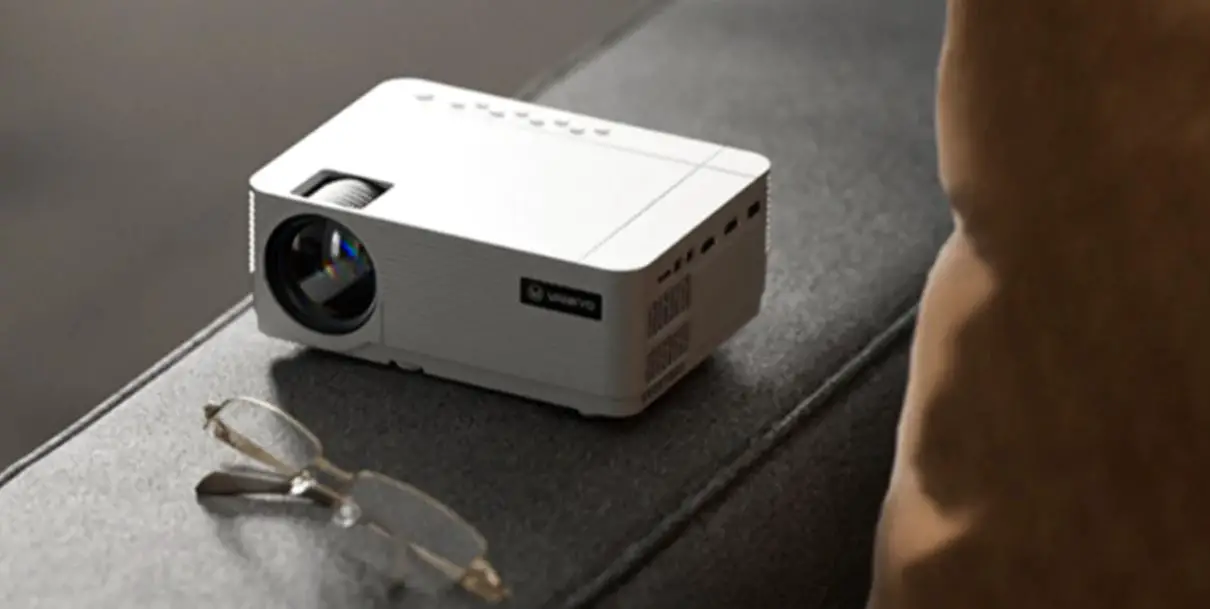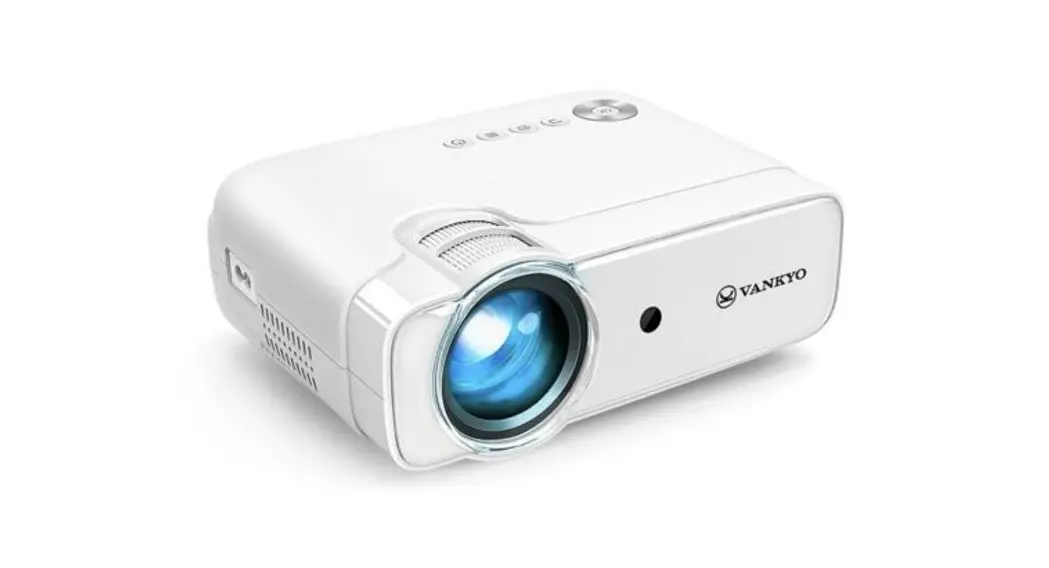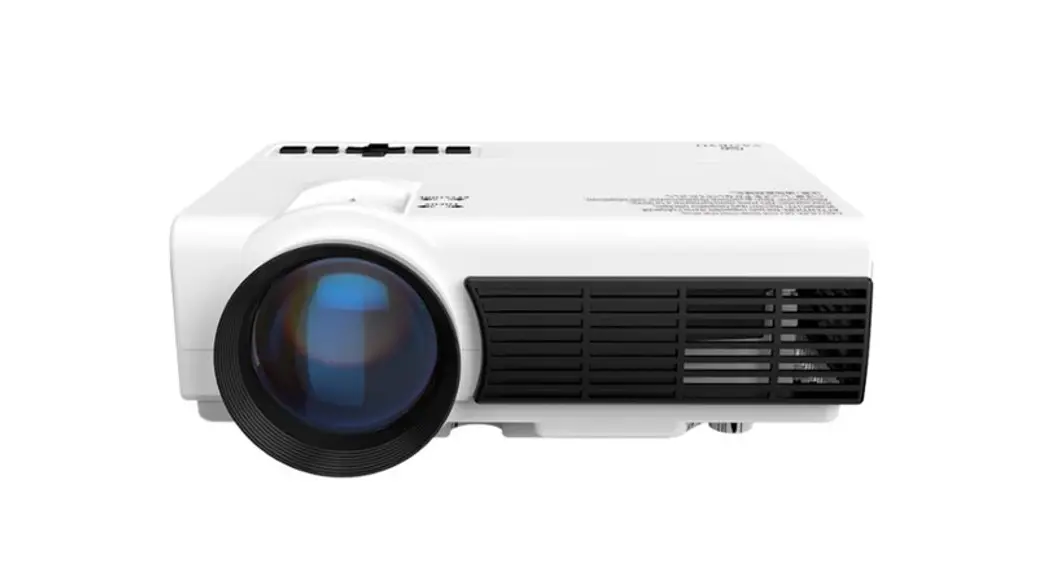
 LEISURE 3W PRO Portable Advanced Wireless Mini Projector
User Manual
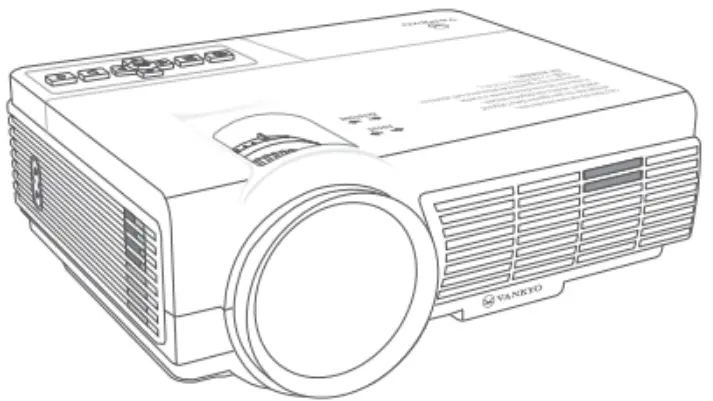
LEISURE 3W PRO Portable Advanced Wireless Mini Projector
Dear customer,
Thank you for purchasing our product. Please read the following instructions carefully before first use and keep this user manual for future reference. Pay particular attention to the safety instructions. If you have any questions or comments about the device, please contact the customer line.
✉ www.alza.co.uk/kontakt
✆ +44 (0)203 514 4411
Importer
Alza.cz a.s., Jankovcova 1522/53, Holešovice, 170 00 Praha 7, www.alza.cz
Vankyo support
 |  @VankyoOfficial @VankyoOfficial |  VANKYO VANKYO |
| www.invankyo.com | https://qrs.ly/awad7ea | https://qrs.ly/diad7dp |
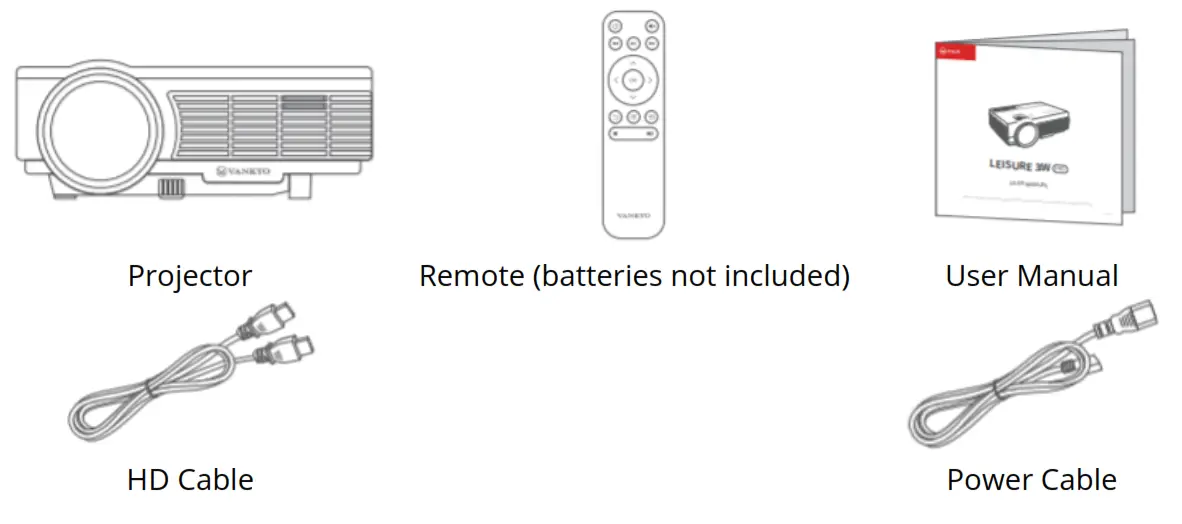
What’s included
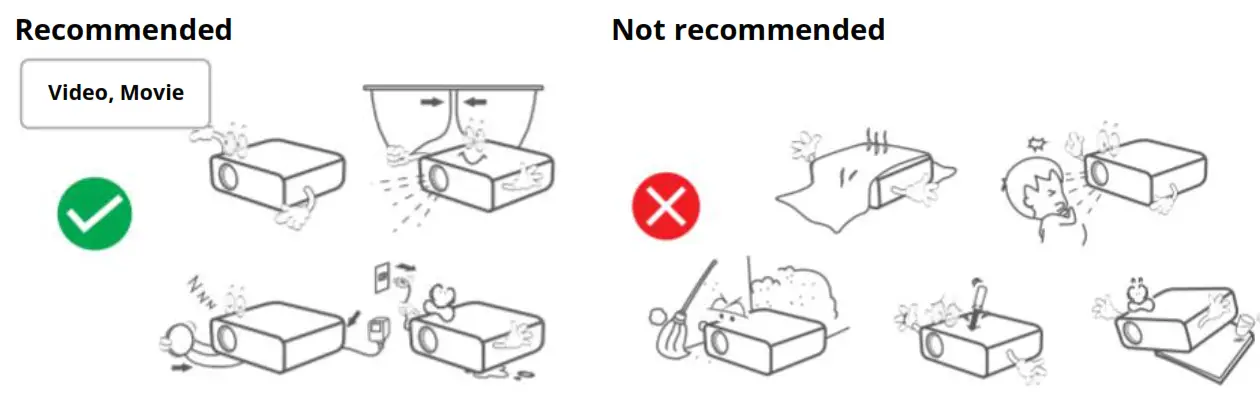
Notice
Product overview
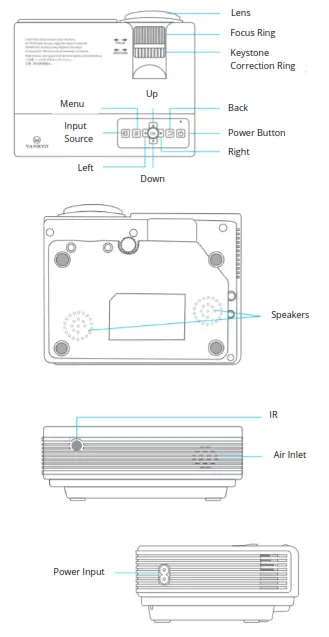 | 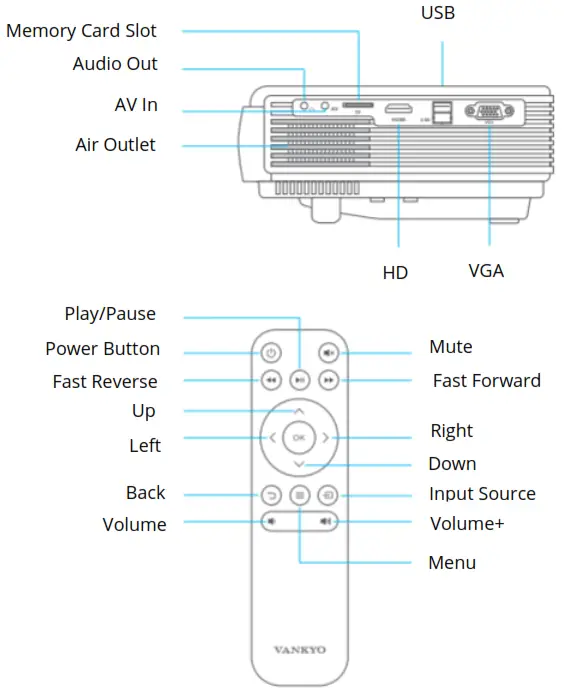 |
Quick start
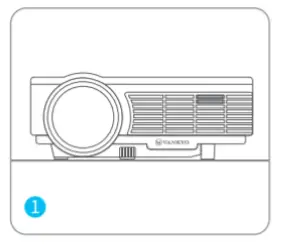
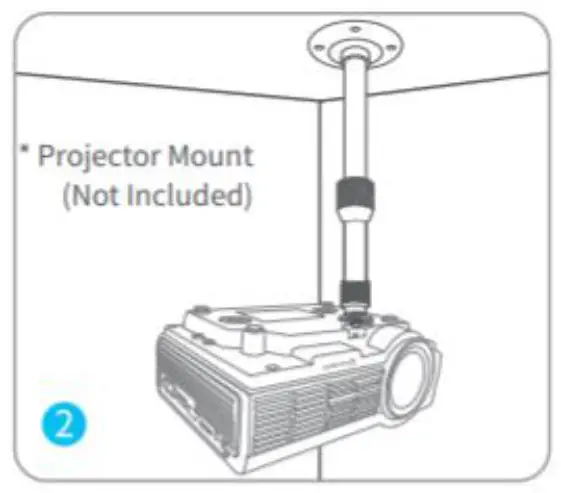
- Projector installation


Horizontal placement Calling Mounting (*Project Mount not included) Note:
Whichever installation option you select, please make sure:- The projector is cantered directly in front of the wall/screen, but not tilted or angled toward it.
- To select the corresponding projection mode so the images can be projected correctly.
- Power On/Off

Plug the power cord into an outlet Take off the lens cover Press the Power Button to turn on
projectorPress the Power Button twice to turn
off the projector - Images adjustment
a) Rotate the Keystone Correction Ring to correct Vertical Keystone Distortion until the image is evenly rectangular. b) Rotate the Focus Ring to sharpen the Image Focus until the blurred image becomes clear.
- Homepage overview
The default interface after booting is Homepage as shown. *Media – display life categories of Multimedia input (USB Disk or Memory Card), including movie, music, photo, and text.
*Source – displays three categories of input source, including HDMI, VGA, and AV.
*Miracast – enter to start screen mirroring for Android devices.
*iOS Cast – enter to start screen mirroring for iOS devices.
*Setup – guides you through all setting options for the projector.

 b) Rotate the Focus Ring to sharpen the Image Focus until the blurred image becomes clear.
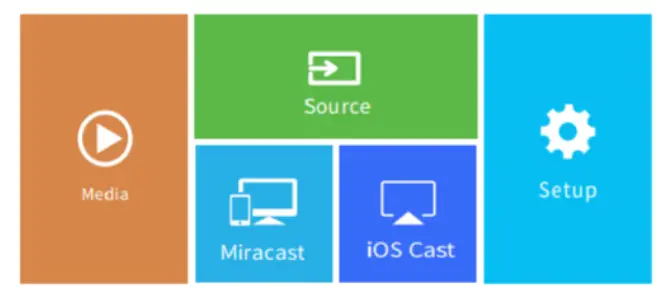 *Media – display life categories of Multimedia input (USB Disk or Memory Card), including movie, music, photo, and text.
Multimedia connection
USB Disk/Memory Card connection
Step 1: Turn on the projector and insert your USB Disk/Memory Card into the USB port/Memory Card slot.
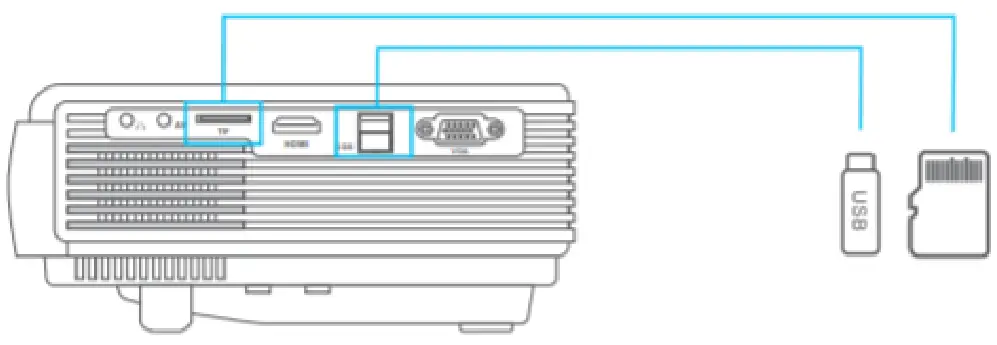 Step 2: Go to Homepage > Media and select the file category you would like to display among movie, music, photo, and text, then enter the inserted USB Disk/Memory Card to check all files stored.
Step 3: To play a video file, please follow the below steps:
a) Select Movie to correspondingly read video files stored.
b) Press OK/ on the projector/remote for a certain video file to enter full-screen display.
c) Press OK on the projector or press OK/  on the remote when playing a video to bring up the toolbar to control the video playing.
Note: Operation for playing a music file, a photo file and a text file is the same with that for playing a video file, but make sure to select the correct file category. That is, for playing a music file, select Music in Media interface, likewise for photo, select Photo, for text, select Text.
Step 4: Press on the projector/remote to go back to Homepage.
| File category | Format supported |
| Video: | AVI/MKV/MOV/MP4/FLV/VOB/MPEG1/MPEG/RMVB/3GP/H.264/XVID |
| Photo: | JPEG/BMP/PNG/JPG/GIF |
| Music: | MP2/MP3/WMA/ACC/FLAC/PCM |
| Text: | TXT |
HD connection
Step 1: Turn on the projector and connect your device to the HDMI port of the projector with provided HD cable.
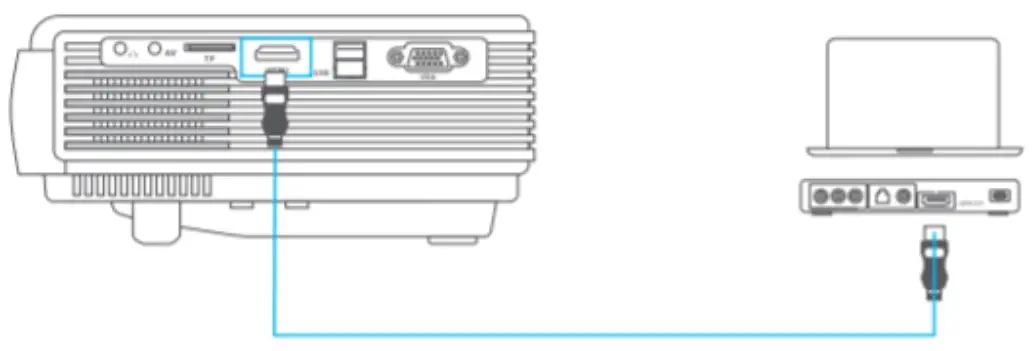
Step 2: Go to Homepage > Source, select HDMI as the input source, then contents of your device will be mirrored to the screen/wall.
Project
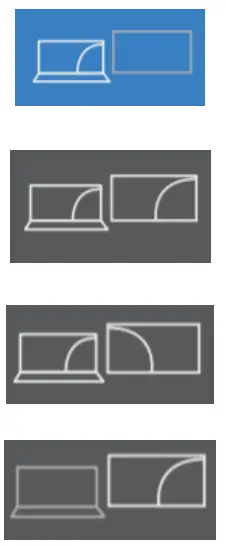 | PC screen only |
| Duplicate | |
| Extend | |
| Second screen only |
 Tip:
Tip:
For Windows 7 or higher system, press the “Window Logo + P” key combination to access the below four display modes.
- PC screen only option displays contents on computer screen only.
- Duplicate option displays the same contents on both computer screen and projected screen.
- Extend option splits the display between the computer screen and the projected screen.
- Second screen only option displays contents only on the projected screen.
AV connection
Step 1: Turn on the projector and connect your device to the AV Port of the projector with an AV cable (not included).
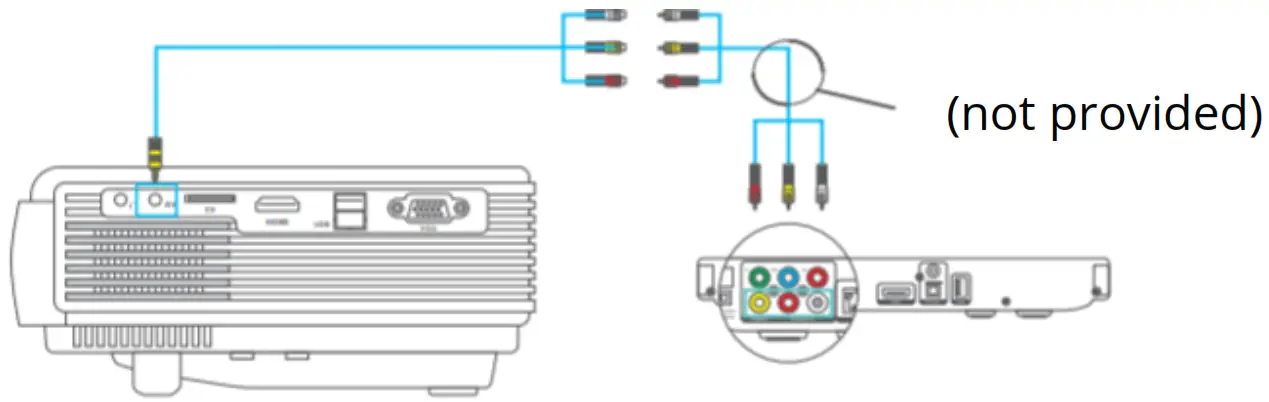
Step 2: Go to Homepage > Source, select AV as the input source, then the contents of your device will be mirrored to the screen/wall.
VGA connection
Step 1: Turn on the projector and connect your device to the VGA port of the projector with a VGA cable (not included).
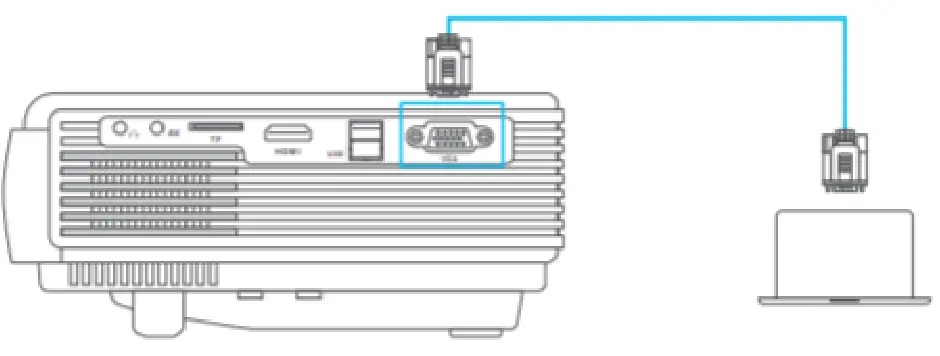
Step 2: Go to Homepage > Source, select VGA as the input source, then the contents of your device will be projected to the screen/wall.
Note: For better viewing experience, you can press to bring up the tool bar and change setting about Image, Sound and VGA Set (exclusive for VGA Input) for contents from HDMI, AV, and VGA connection.
*Image: enter to set Image Mode, Aspect Ratio, Brightness, Contrast, Colour and Sharpness.
*Sound: enter to select a desire Sound Mode and set Bass, Treble, Balance, and Equalizer.
*VGA Set: enter to access Auto Adjust, HPosition, VPosition, Phase and Frequency.
Screen mirroring for iOS system
Screen mirroring via router’s WIFI
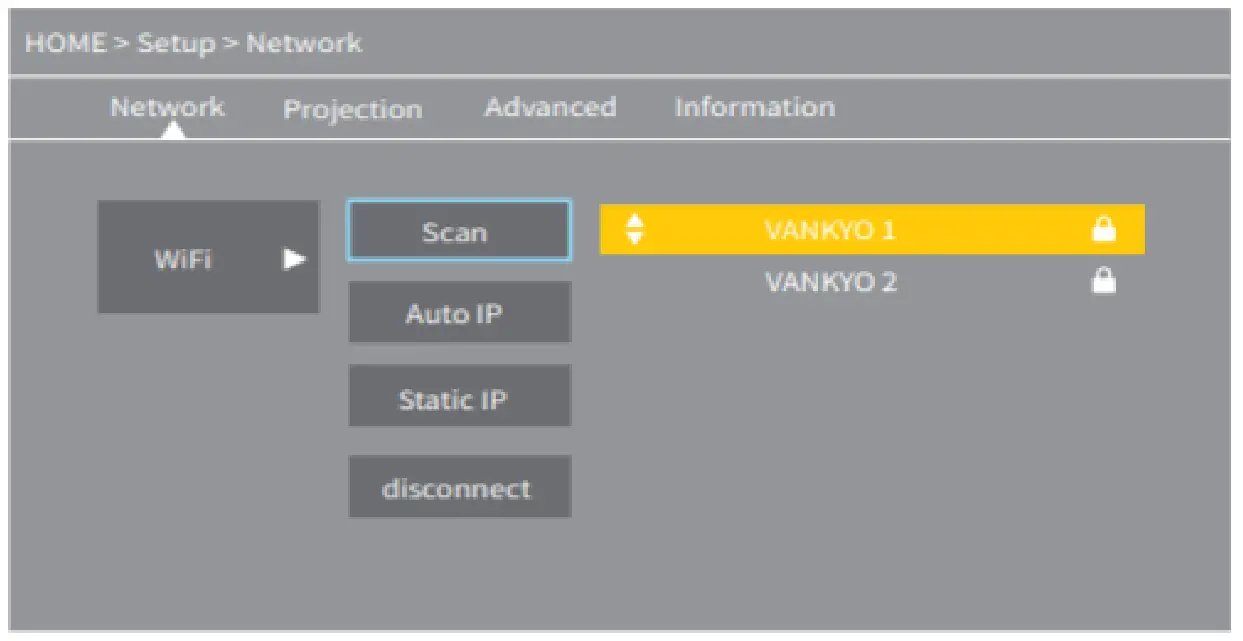
- Go to Homepage > Setup to enter Settings interface, then select Network > Wi-Fi > Scan to search and connect the projector to your router’s Wi-Fi.

- Enter Wi-Fi settings of your iOS device and connect it to the same router’s Wi-Fi.
- Return the screen back to Homepage, then select iOS Cast to enter the following interface.
Mirror your iPhone, iPad, or iPod touch
Make sure that your iOS device is connected to the same network as your projector or connect iOS device with AP by Projector: Projector AP-xxxx.
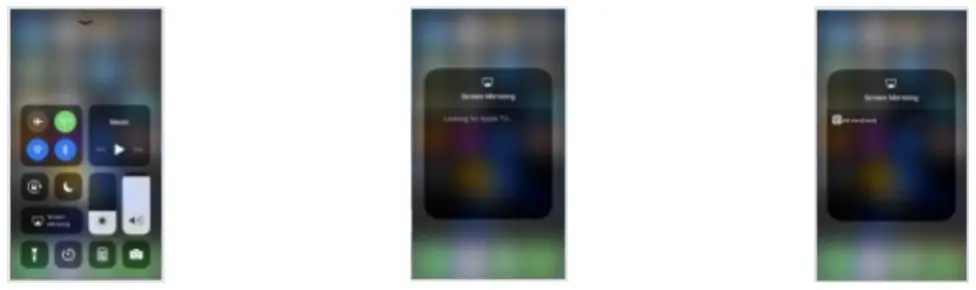 | ||
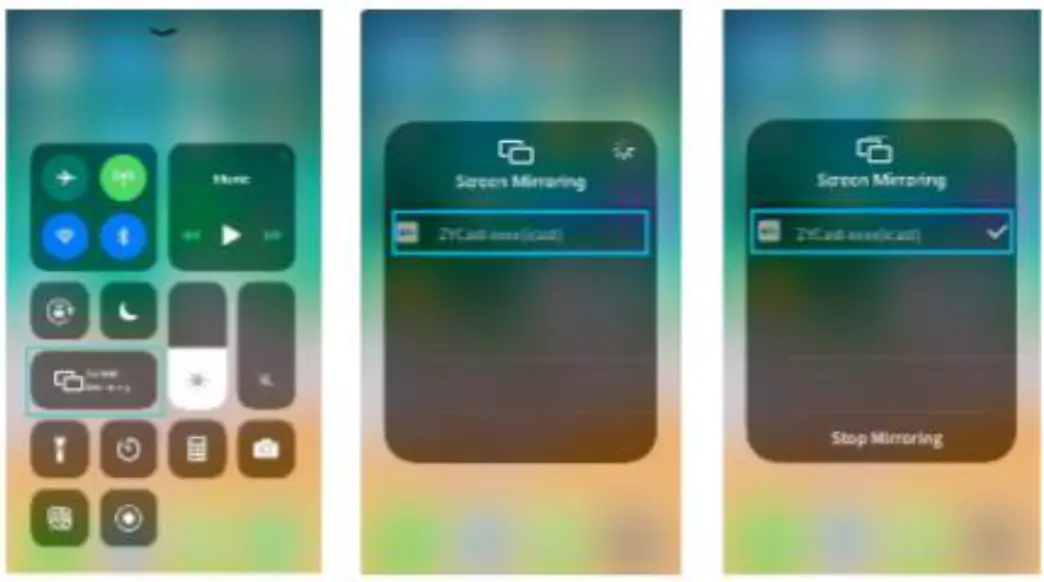
| 1. On your iOS device, open Control Center and tap Screen Mirroring. | 2. Looking for device that can be mirrored on. | 3. Select ZYCast-xxxx (icast) from the list. |
- Activate Screen Mirroring/AirPlay Mirroring in the Control Center of your iOS device and search for the projector.
- Select ZYCast-xxxx (icast) from the searching list to connect.

- The contents on your iOS device will be mirrored to the wall/screen after a successful connection.
Tip: To activate screen mirroring function of your MacBook, please follow the below stepsa) Click Control Center icon in the menu bar at the top of the Mac screen.
b) Click Screen Mirroring to search for the projector.
c) Select ZYCast-xxxx (icast) to connect.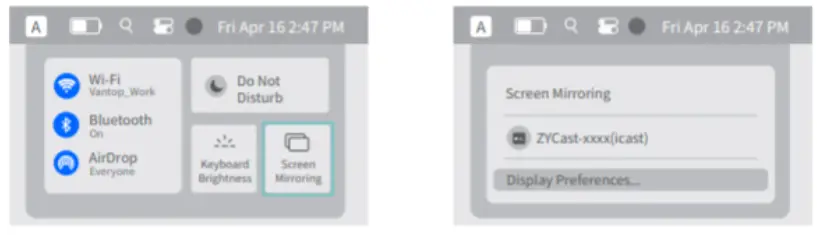
Screen mirroring via cellular data
- Go to Homepage > iOS Cast to enter the following interface.
- Enter Wi-Fi setting of your iOS device and connect it to the Wi-Fi of Projector AP-xxxx.
- Activate Screen Mirroring/AirPlay Mirroring in the Control Center of your iOS device and search for the projector.
- Select ZYCast-xxxx (icast) from the searching list to connect.
- The contents on your iOS device will be mirrored to the wall/screen.
Screen mirroring for Android system
To activate this function, please make sure your Android device supports Multiscreen/Wireless display. Names may be different from on Android device to another.
- Turn on the Wi-Fi switch on your Android device. Note: Successful Wi-Fi connection is not a must, but please make sure the Wi-Fi switch on your Android device is ON.
- Go to Homepage > Miracast to enter the following interface.
- Activate Multi-Screen function on your Android device and search for the projector.
- Select ZYCast-xxxx (mcast) from the searching list to connect.
- The contents on your Android device will be mirrored to the wall/screen after a successful connection.
Note: For screen mirroring through wired connection, please prepare an extra Lightning/Micro USB/Type-C to HDMI adapter to connect your mobile device with the
projector.
Notes:
- Due to copyright restrictions of Hulu, Netflix and similar services, the contents cannot be mirrored to cast.
- If the projected image freezes, check the network connection, or reboot the projector, then go to Homepage > Setup > Advanced > Restore Factory Default and select Confirm to do a reset on the projector.
- The fluency of screen mirroring will be affected by the network connection. A bandwidth of 100 Mbit or more is recommended when using screen mirroring.
- Make sure your mobile device is close to the projector when using wireless connection. A distance within 3ft is recommended.
- Some mobile devices may not support screen mirroring due to the compatibility.
Settings
Go to Homepage > Setup to enter the following interface, then press to toggle through menu options including Network, Projection, Advanced and Information and preview their corresponding submenu lists. Press to enter a certain submenu and pressto return to the main menu bar.
- Network
Go to Wi-Fi > Scan to search and connect the projector to your router’s Wi-Fi. - Projection
*Projection mode
Depending on how you position your projector, you may need to change projection modes so that the images can be projected correctly. Available option includes Front Desktop (default), Rear Desktop, Front Ceiling and Rear Ceiling. - Advanced
*Language
Enter to select a language for the projector.
*Boot source
Set your desire booting screen for the projector. Options include Home (default), HDMI, VGA, AV, and Media.
*Sleep timer
Set the time duration for the projector to shut down automatically. Options include Off, 10 min, 20 min, 30 min, 60 min, 90 min and 120 min.
*iOS Play Mode
Set to mirror or cast contents on your iOS devices. When you select screen mirroring SD, you are mirroring the screen of your device after a successful connection. Otherwise, when you select screen casting SD, you can cast a video to the projected screen and still use your device without interrupting the video.
*Local update
Update the projector using a USB disk with upgrade file (contact your customer service to get upgrade file).
*Online Update
Enter to update the firmware of the projector when a newer version is available.
*Restore factory default
Restore the projector to the factory settings. - Information
Displays detailed information of the projector, including Model Number, Memory, Extended Storage and Software Version.
Projection distance & size
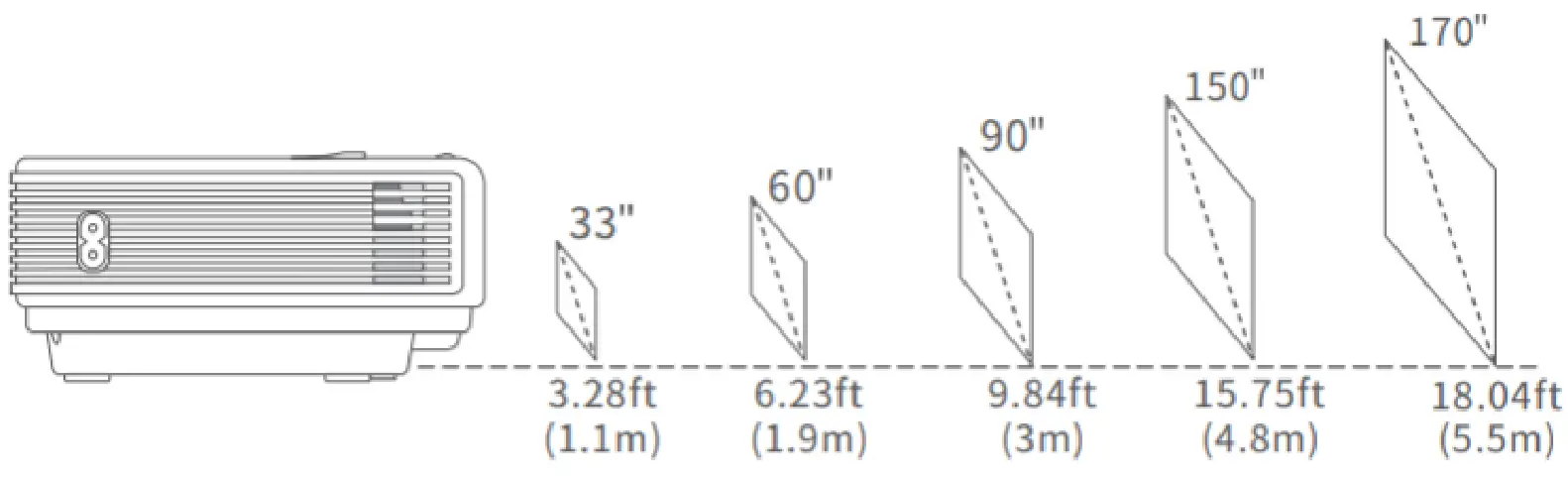
The recommended projection distance varies with different projection contents. Please adjust the distance between the wall/screen and the projector properly as needed.
Ambient darkness will improve clarity of the projected images.
Specification
| Display technology: | LCD | Light source: | LED |
| Resolution: | Native 1280 x 720 | Input signal: | 576i, 576P, 720i, 720P, 1080i, 1080P |
| Installation type: | Front/rear/ceiling | Aspect ratio: | 16:9/4:3/Auto |
| Focus: | Manual | Electronic keystone: | ±15° |
| Speaker: | 2 W/8 Ohm x 2 | Power supply: | AC 100-240 V, 50/60 Hz |
| Unit dimension: | 7.8 x 5.9 x 2.7 inches (198 x 148.6 x 68 mm) | Unit net weight: | 1.98 lbs (0.9 kg) |
| Photo format supported: | JPEG/BMP/PNG | Audio format supported: | ACC/MP2/MP3/PCM/FL AC/WMA |
| Mounting screws: | M4 Metric | Screw number: | 1 |
| Video format supported: | AVI/MP4/MKV/FLV/MOV/RMVB/3GP/MPEG2/H.264/XVID | ||
| Ports: | USB port x 1/HD in x 1/VGA port x 1/Audio out x 1/Memory card slot x 1 | ||
Troubleshooting guide
- The contents from Hulu, Netflix, and similar services can not be mirrored or cast.
Due to the copyright restriction from Hulu, Netflix, and similar services, the contents can not be mirrored or cast. - What should I do if I want to watch the content from Hulu, Netflix, and similar services via projector?
Please prepare a Fire TV stick, Roku stick or Chromecast (not included), then connect it to the projector. - Blurry image
Adjust focus ring/keystone.
Projector and screen/wall must be in effective distance. - Remote unresponsive
Make sure remote points at IR receiver directly.
Do not cover IR receiver.
Try a new pair of AAA batteries. - Upside down images
Go to Homepage > Setup > Projection > Projection Mode to flip the projection image. - Factory reset
Go to Homepage > Setup > Advanced > Restore Factory Default, then select Confirm to reset the projector to default settings.
Warranty Conditions
A new product purchased in the Alza.cz sales network is guaranteed for 2 years. If you need repair or other services during the warranty period, contact the product seller directly, you must provide the original proof of purchase with the date of purchase.
The following are considered to be a conflict with the warranty conditions, for which the claimed claim may not be recognized:
- Using the product for any purpose other than that for which the product is intended or failing to follow the instructions for maintenance, operation, and service of the product.
- Damage to the product by a natural disaster, the intervention of an unauthorized person or mechanically through the fault of the buyer (e.g., during transport, cleaning by inappropriate means, etc.).
- Natural wear and aging of consumables or components during use (such as batteries, etc.).
- Exposure to adverse external influences, such as sunlight and other radiation or electromagnetic fields, fluid intrusion, object intrusion, mains overvoltage, electrostatic discharge voltage (including lightning), faulty supply or input voltage and inappropriate polarity of this voltage, chemical processes such as used power supplies, etc.
- If anyone has made modifications, modifications, alterations to the design or adaptation to change or extend the functions of the product compared to the purchased design or use of non-original components.
EU Declaration of Conformity
Identification data of the manufacturer’s / importer’s authorized representative:
Importer: Alza.cz a.s.
Registered office: Jankovcova 1522/53, Holešovice, 170 00 Prague 7
CIN: 27082440
Subject of the declaration:
Title: Projector
Model / Type: VANKYO LEISURE 3W PRO
The above product has been tested in accordance with the standard(s) used to demonstrate compliance with the essential requirements laid down in the Directive(s):
Directive No. 2014/53/EU
Directive No. 2011/65/EU as amended 2015/863/EU Prague
WEEE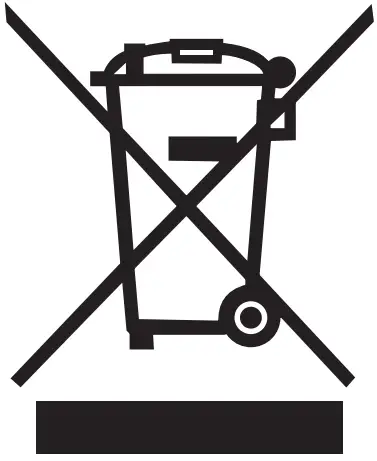 This product must not be disposed of as normal household waste in accordance with the EU Directive on Waste Electrical and Electronic Equipment (WEEE – 2012/19 / EU). Instead, it shall be returned to the place of purchase or handed over to a public collection point for the recyclable waste. By ensuring this product is disposed of correctly, you will help prevent potential negative consequences for the environment and human health, which could otherwise be caused by inappropriate waste handling of this product. Contact your local authority or the nearest collection point for further details. Improper disposal of this type of waste may result in fines in accordance with national regulations.
 alza.at
 alza.co.uk
 alza.de
 alza.hu
 alza.sk