
ENA Microsoft Teams Connector App
ENA’s Microsoft Teams Connector app allows you to access ENA Smart Voice from within Microsoft Teams. Use the Connector to instantly call contacts who you are chatting with in a Microsoft Teams Chat or Channel. You can also view and redial numbers in your Call History, view and call your ENA Smart Voice User Portal, Business Group, and Teams contacts, or use the keypad to dial any numbers on the public network.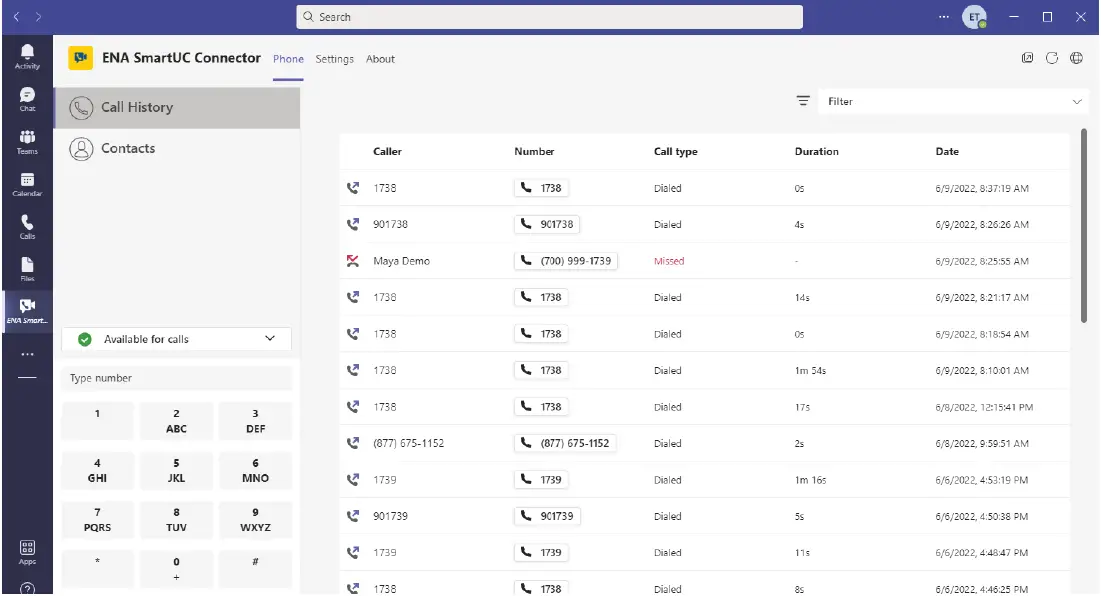
Install the App
Follow the instructions below to install the Connector app.
- Select the Apps icon on the left toolbar in Microsoft Teams.
- Search for ENA Smart UC Connector.

- ENA Smart UC Connector
ENA
You can now access your phone services from ENA without leaving Microsoft Teams. The ENA Smart UC Connector app allows you to: *Make…
- ENA Smart UC Connector
- Select the app and click Add.


You can now use the Connector to make calls directly from Microsoft Teams.
Pin the App
If the Connector does not automatically appear in the Microsoft Teams toolbar, follow the steps below to pin the app.
- Select New conversation in a Teams Channel to see the message compose area.

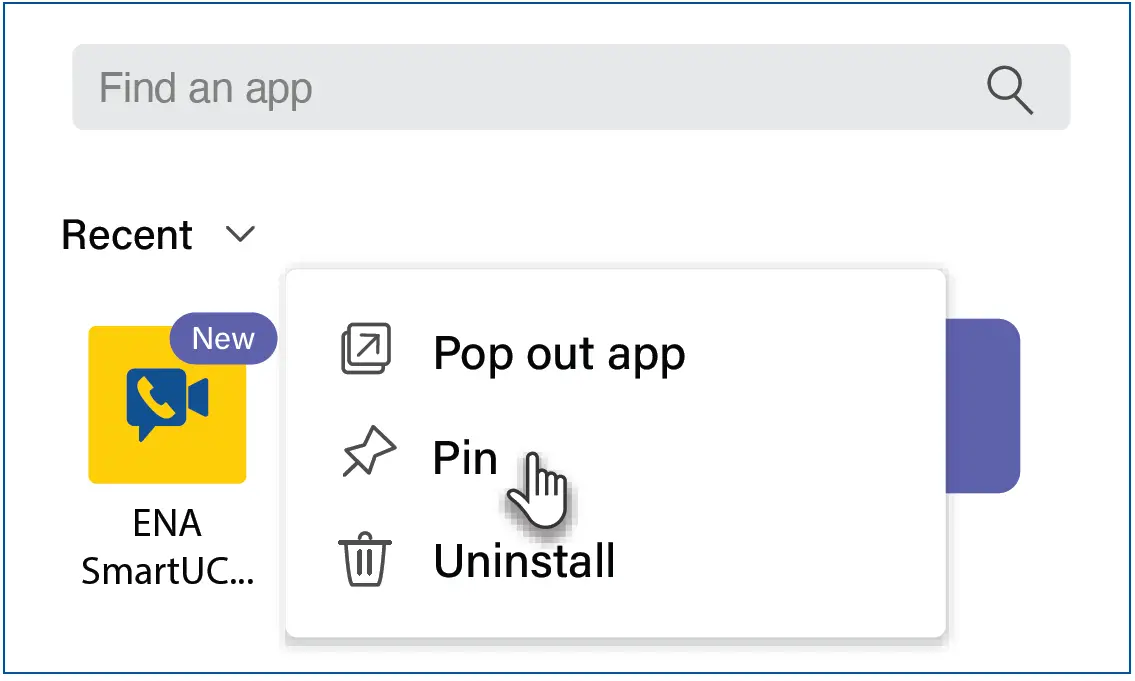
- Select the ellipsis in the message compose area.

- Search for ENA Smart UC Connector in the app tray.
- Right-click on the app and select Pin to add the icon to the message compose area toolbar.



If the Connector does not automatically appear in the Microsoft Teams left-hand app bar, follow the steps below to pin the app.
- Select the ellipsis in the left-hand app bar.
- Find and select ENA Smart UC Connector

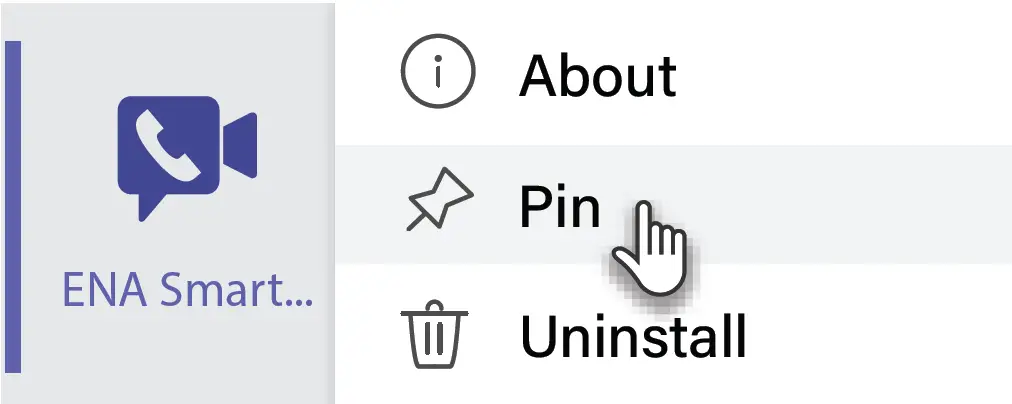
- The ENA Smart UC Connector icon appears in the left-hand app bar. Right-click on the icon and select Pin.

Use The ENA Smart UC Connector Tab
Select the ENA Smart UC Connector icon in the left-hand app bar to open the tab.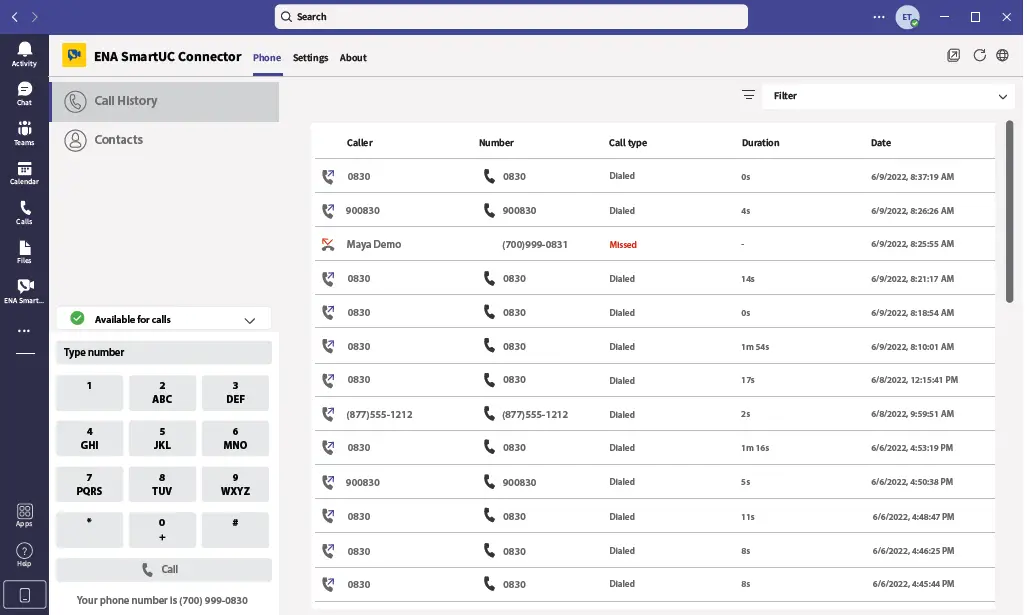 Call History
Select the Call History tab to view and redial numbers in your Call History. The Call History table contains a list of dialed, received, and missed calls. Use the Filter drop-down in the top right to select the type of calls you want to view.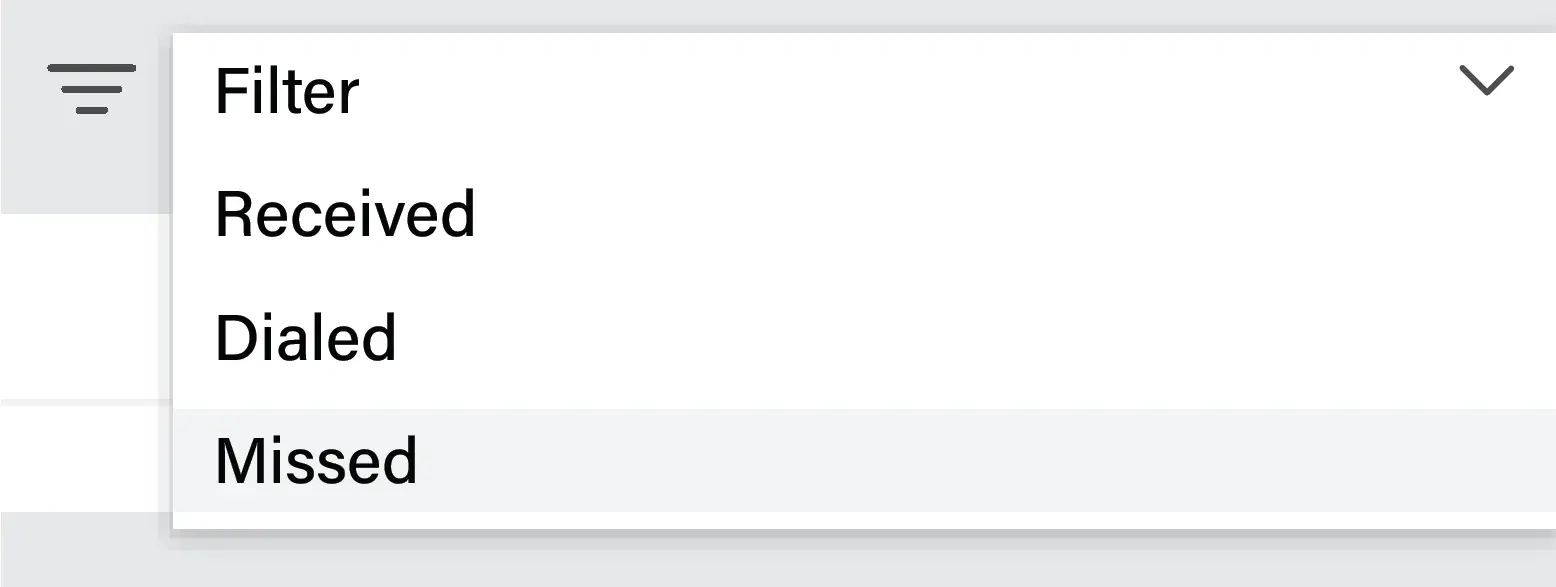 Contacts
Select the Contacts tab to view and call your contacts.
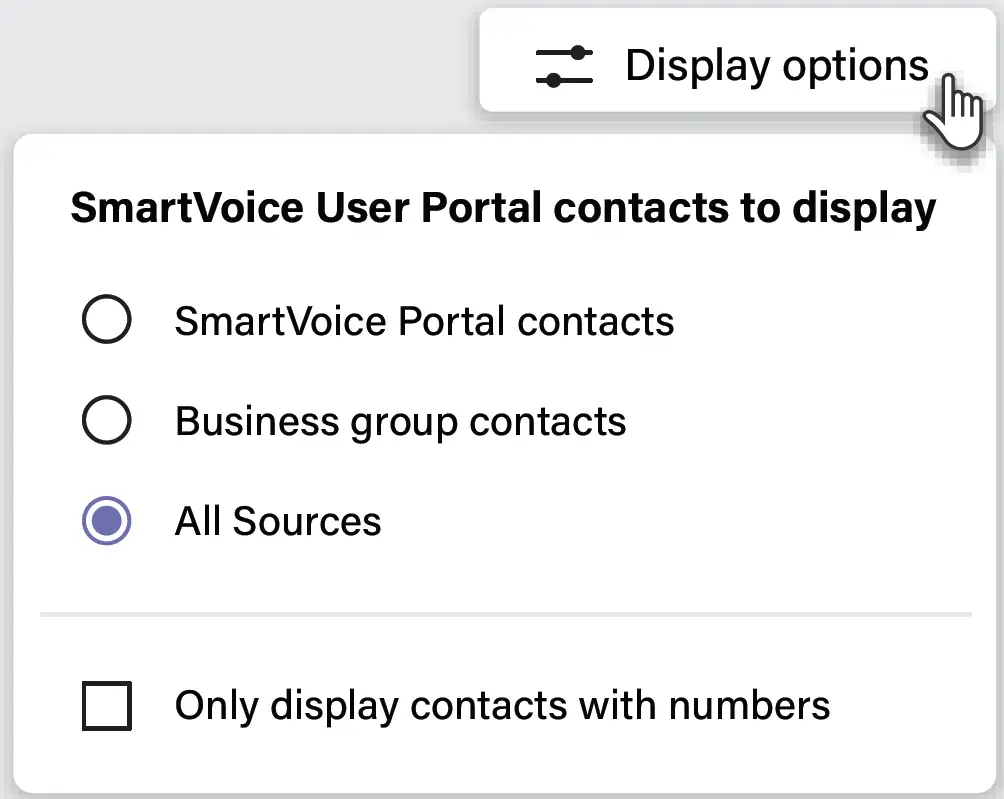
- Select Display options above your contact list to choose the contacts to display in the list. Select a single contact source (either ENA Smart Voice Portal contacts or Business Group contacts) or select All sources to display contacts from both sources.

- Use the Search for… box in the top left to search for a contact by name or number. The search results include contacts from ENA Smart Voice Portal, your Business Group, and Microsoft Teams.
- If supported by your current ENA Smart Voice package, you can change your call availability status in the left-hand menu by selecting Available for calls or Do Not Disturb.

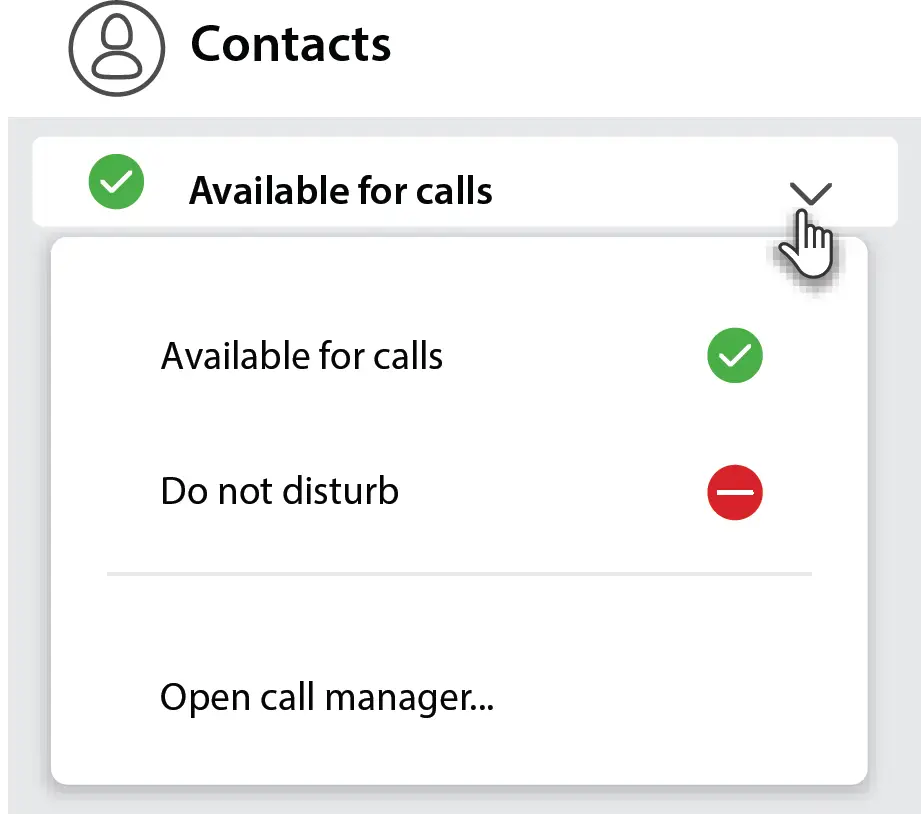
Select Open call manager to launch your Call Manager page in your ENA Smart Voice user portal. The web page opens in a new browser window and you are automatically signed in.
Dial pad
Use the dial pad to make a call to any number.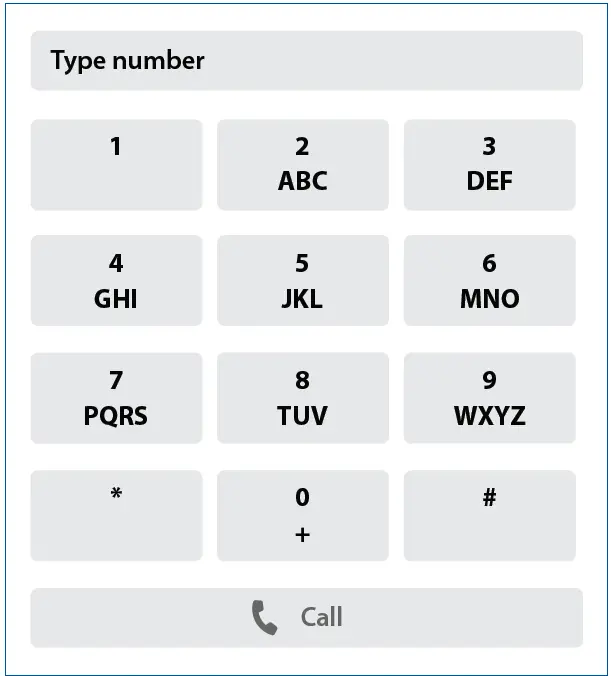 Call Contacts
Select a contact’s Number button to make a call to the number. If the contact has multiple numbers, the button contains a drop-down list showing the available numbers. Select any of the numbers to start a call.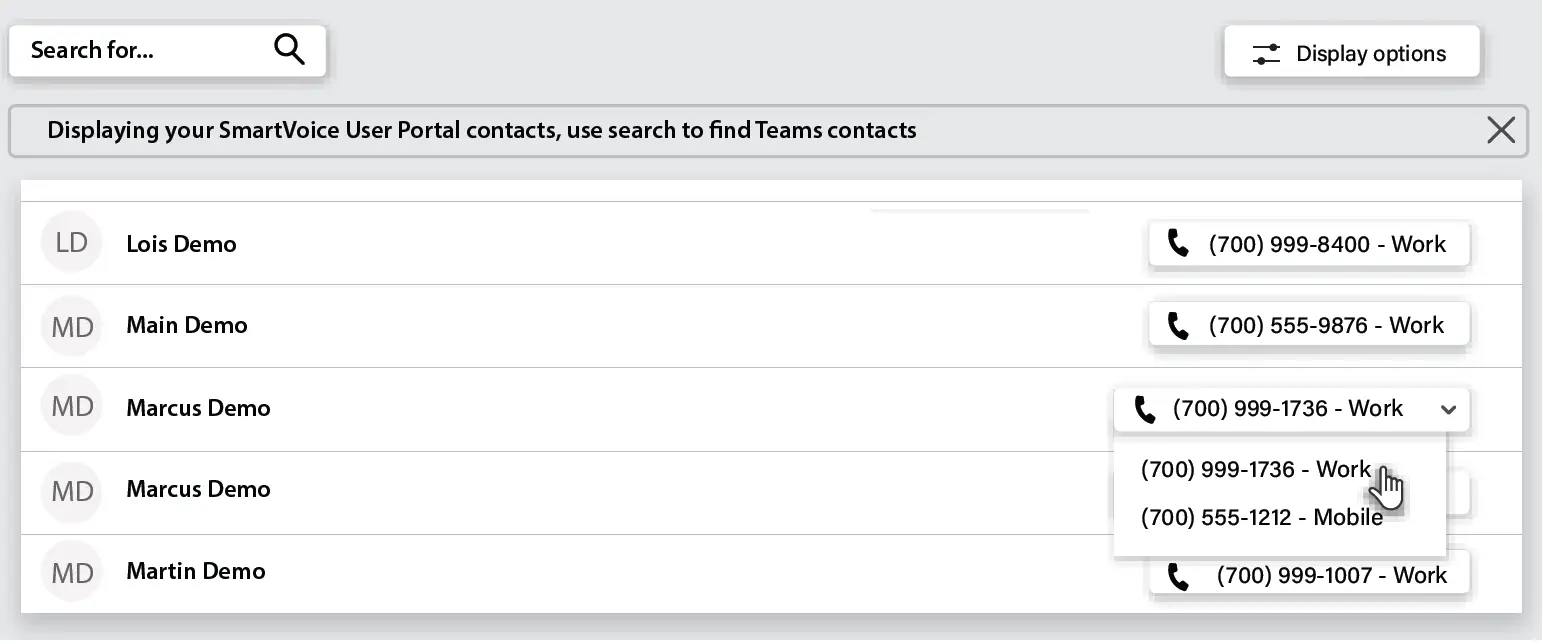 Calling
For Click-To-Dial calls using the Connector, the app calls your ENA Smart Voice number first and, once you answer your phone, the app then rings the destination phone to connect your call. If you have ENA Smart UC Desktop V3.01 or later, you can enable ENA Smart UC calling so that calls placed in Microsoft Teams immediately launch ENA Smart UC Desktop. If you have ENA Smart UC Desktop V2.32 or earlier, you can follow these instructions on a Windows PC to enable ENA Smart UC (Tel URI) calling, which allows calls placed in Microsoft Teams to launch ENA Smart UC Desktop.
When you use the dial pad or select a Number button in the Connector:
- If your PC is already running ENA Smart UC Desktop, your PC starts the call immediately using ENA Smart UC Desktop.
- If your PC is not running ENA Smart UC Desktop, your PC launches ENA Smart UC Desktop and starts the call.
Enable ENA Smart UC Calling
- Select the ENA Smart UC Connector icon in the left-hand app bar to open the tab.

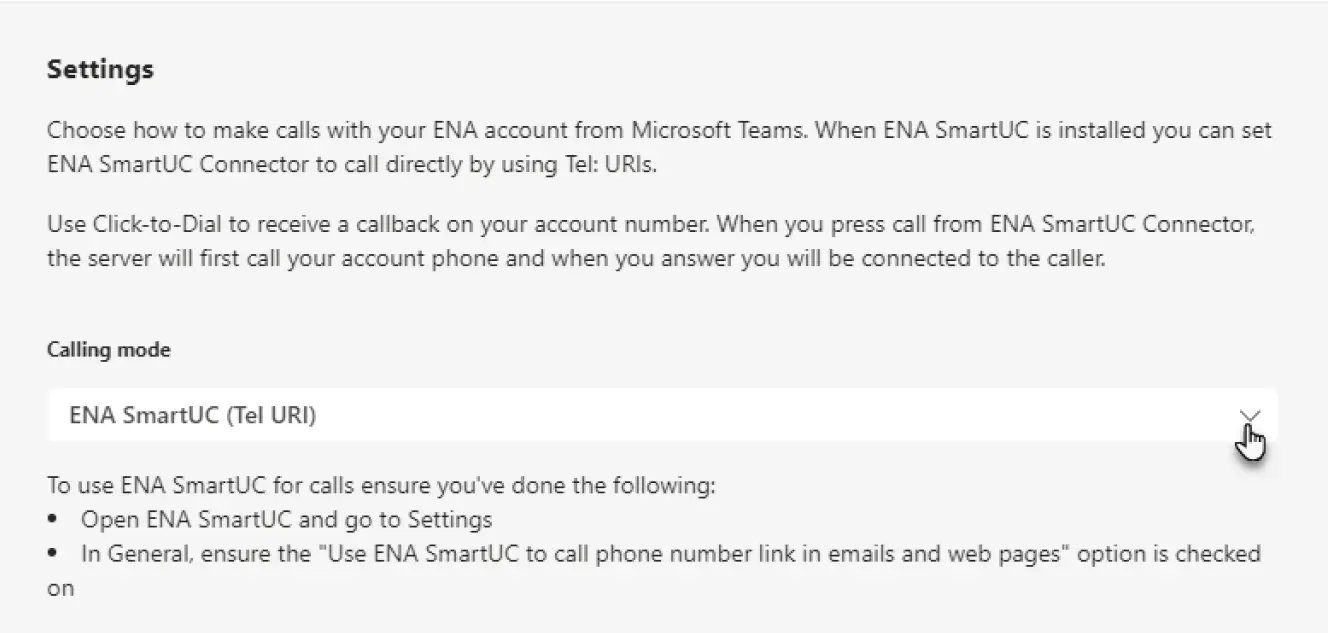
- Select the Settings tab.

- Under the Calling mode heading, select ENA Smart UC from the drop-down menu.
If you have ENA Smart UC Desktop V2.32 or earlier, select ENA Smart UC (Tel URI) calling.
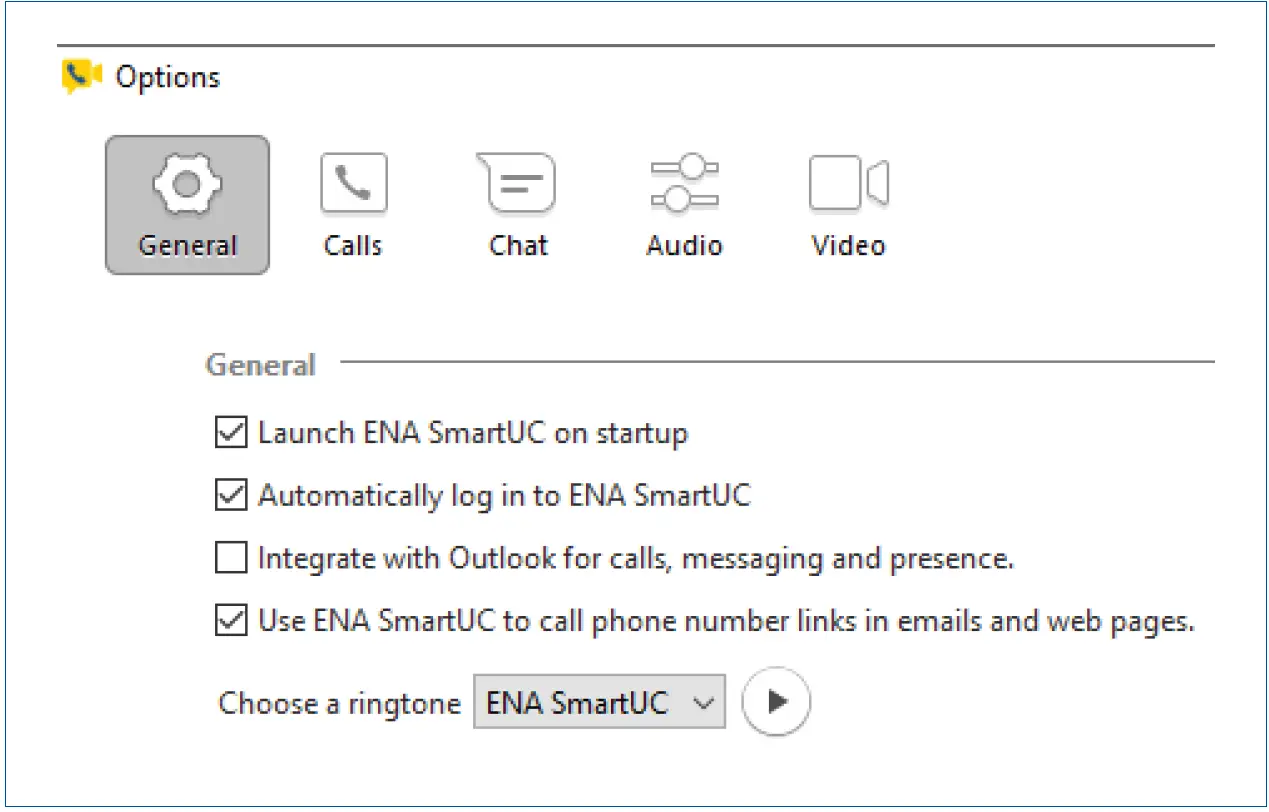
- You must also configure ENA Smart UC Desktop to accept call requests.

- Open ENA Smart UC Desktop.
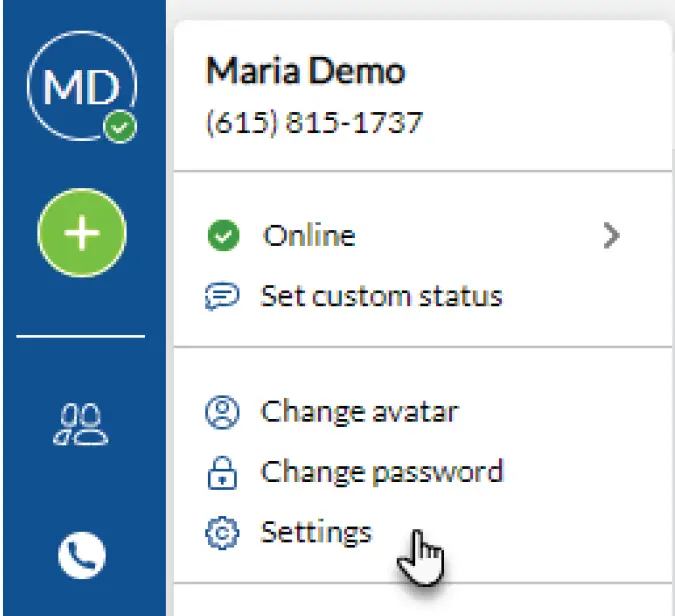
- Select your avatar then select Settings.

- On the General tab, click Use ENA Smart UC to call phone number links in emails and web pages.

Make A Call Using The Message Compose Area
You can make a call from the message compose area of a Chat or Teams Channel.
- Select the ENA Smart UC Connector icon in the message compose area.

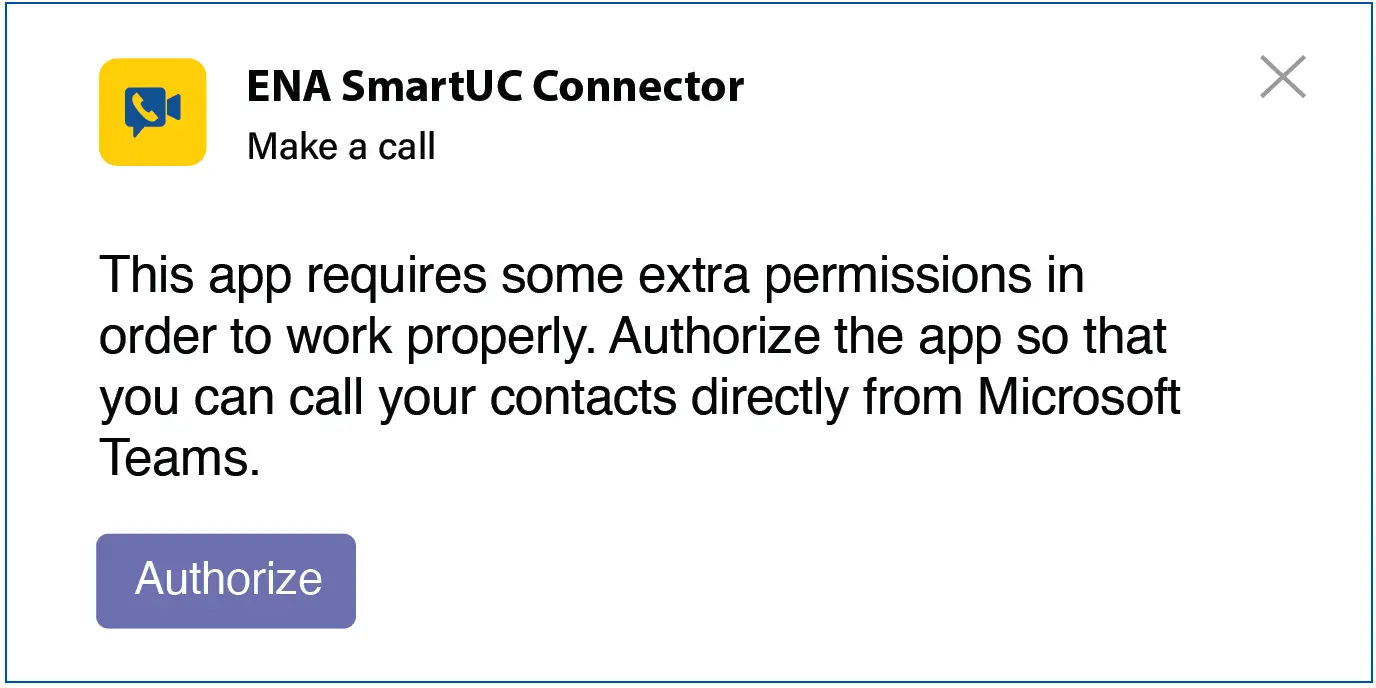
- The first time you make a call, a pop-up window appears asking you to allow the app to access your Microsoft Teams contacts. Select Authorize and wait for the window to close.

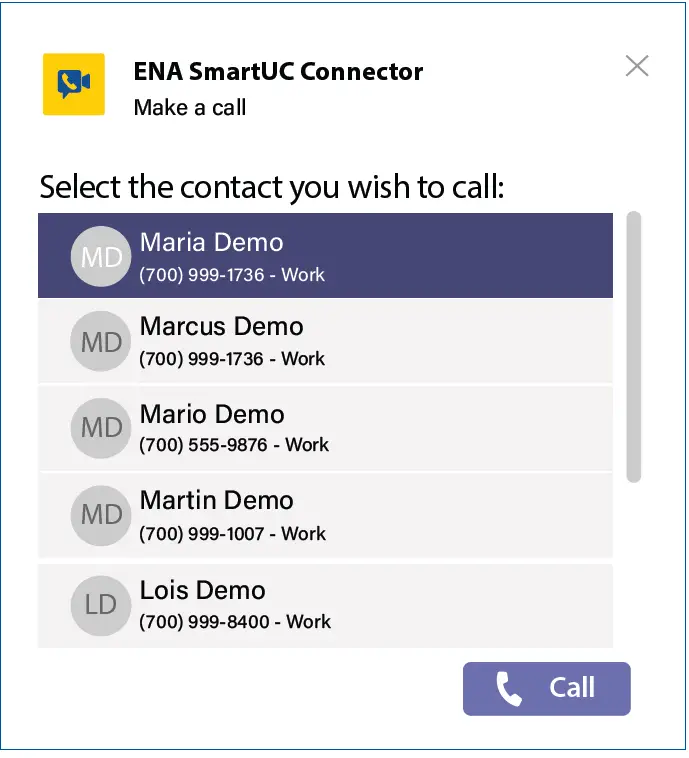
- In the Make a call window that appears, select a contact from the drop-down list and check the number.
Note that the drop-down list automatically populates with the name of the Chat participant or Teams Channel members.
- Select Call.
- For Click-To-Dial calls, the Connector calls your phone first. Once you answer your phone, the application rings the destination phone to connect your call. If you have enabled ENA Smart UC/ENA Smart UC (Tel URI) calling, the Connector makes the call directly using ENA Smart UC Desktop.