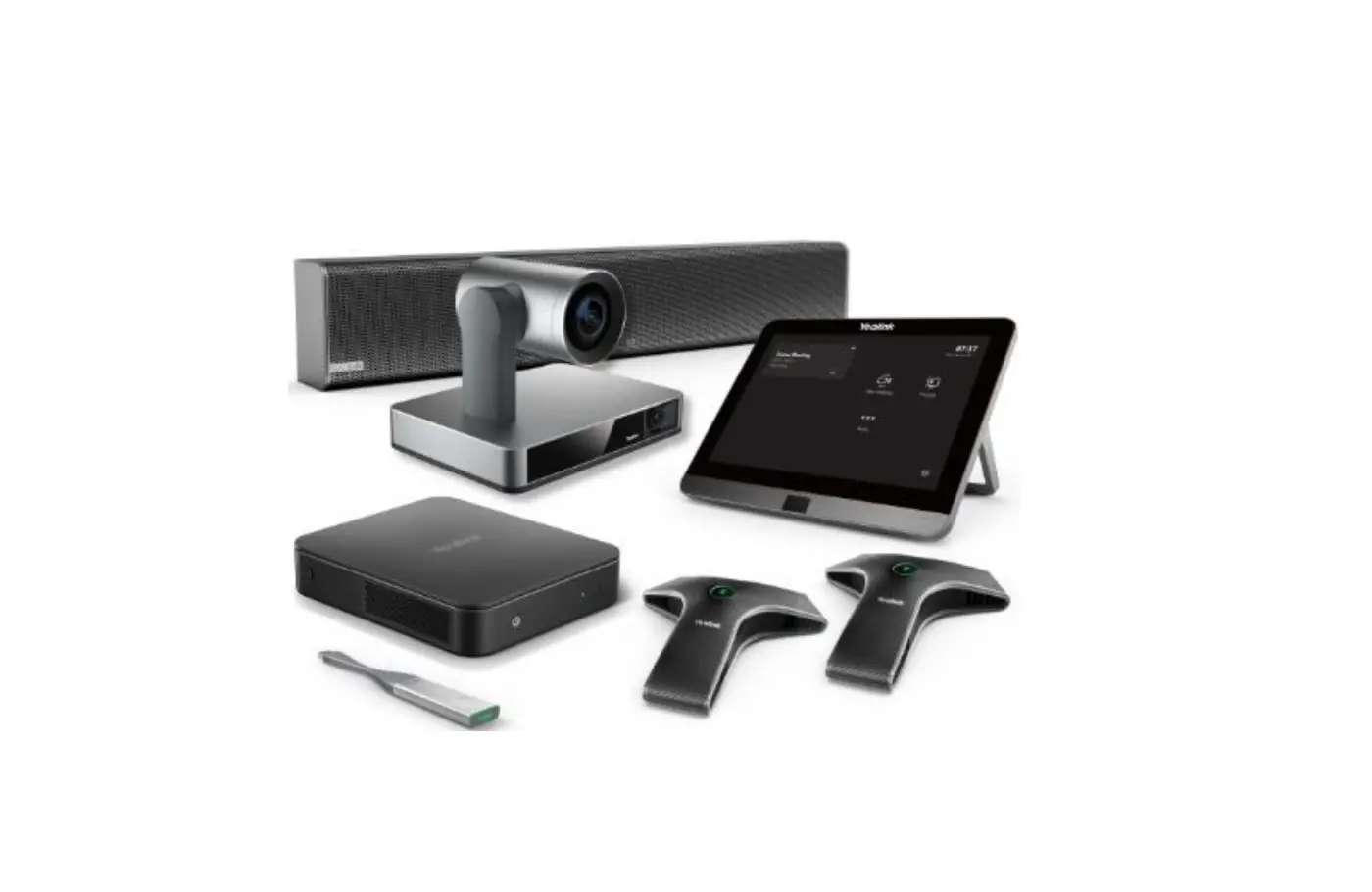
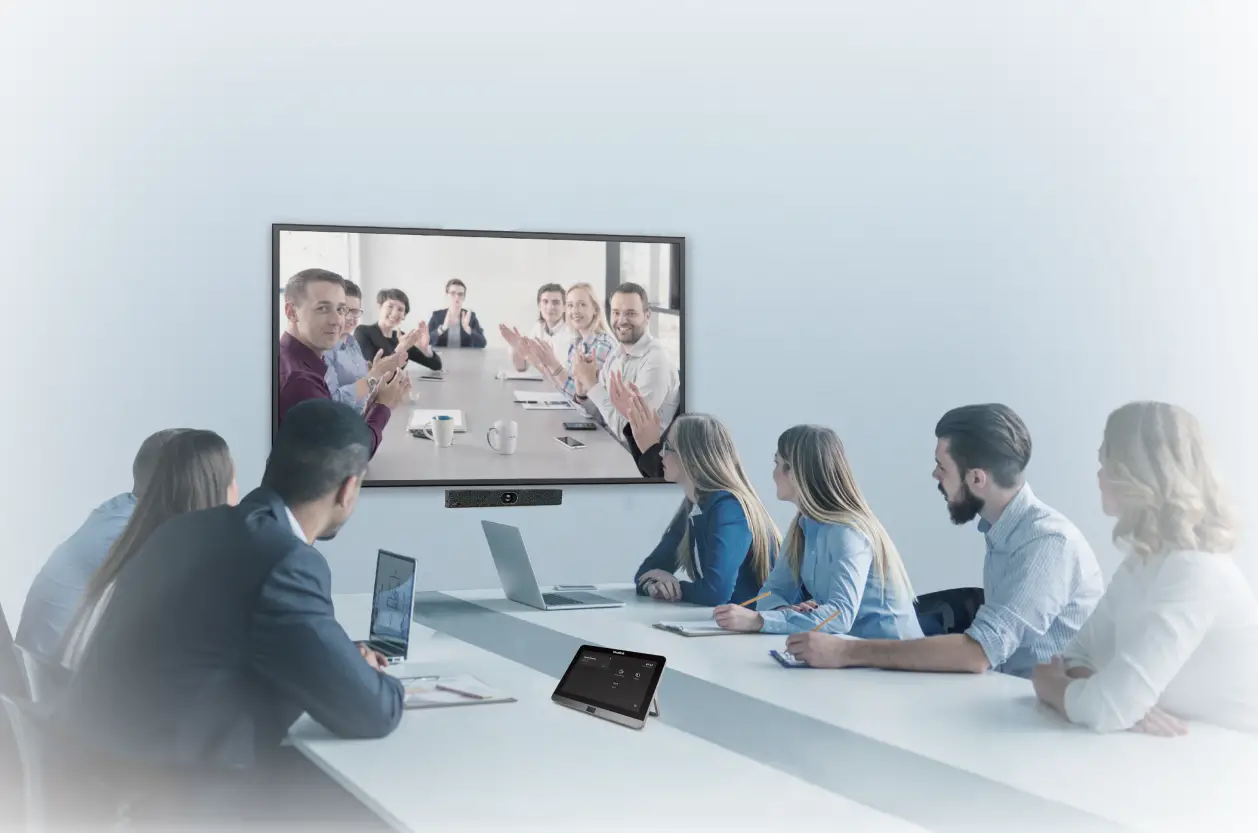
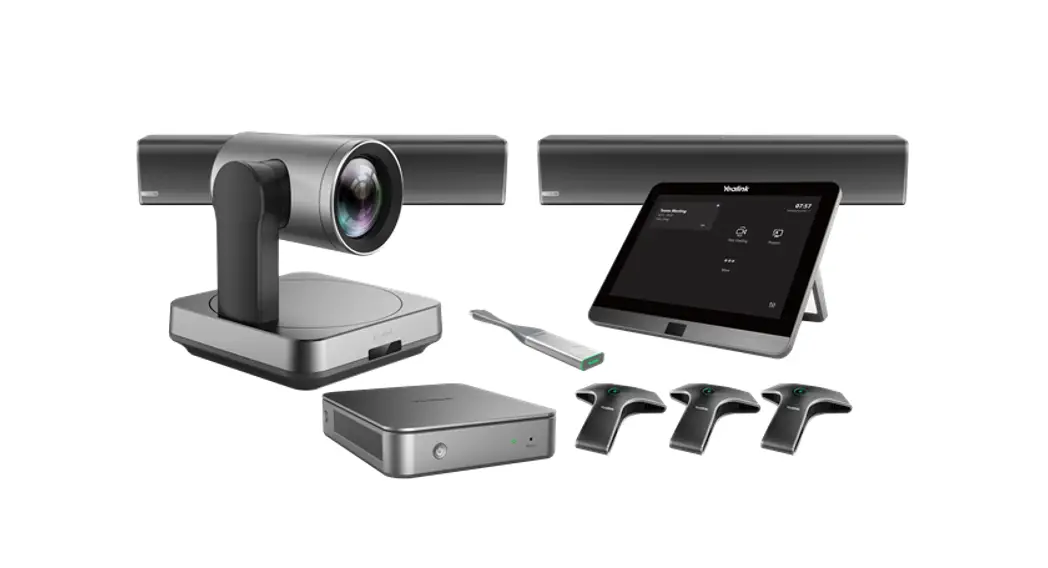
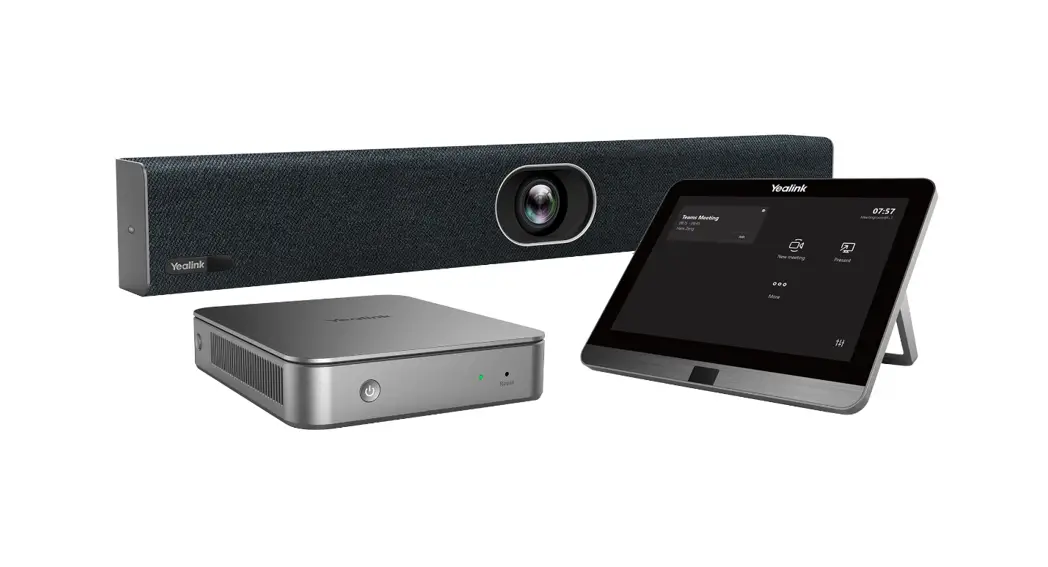
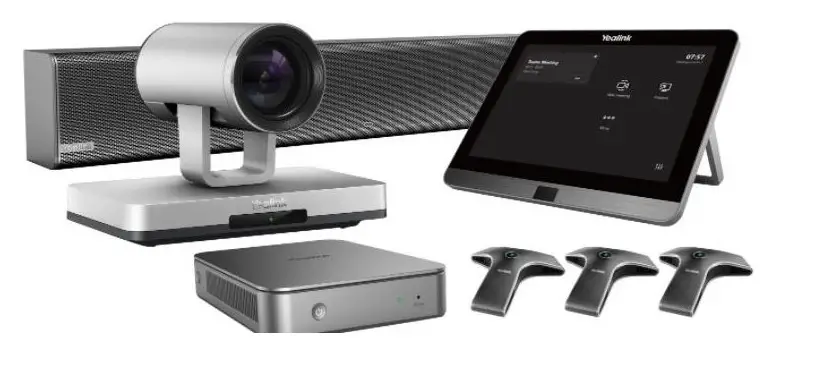
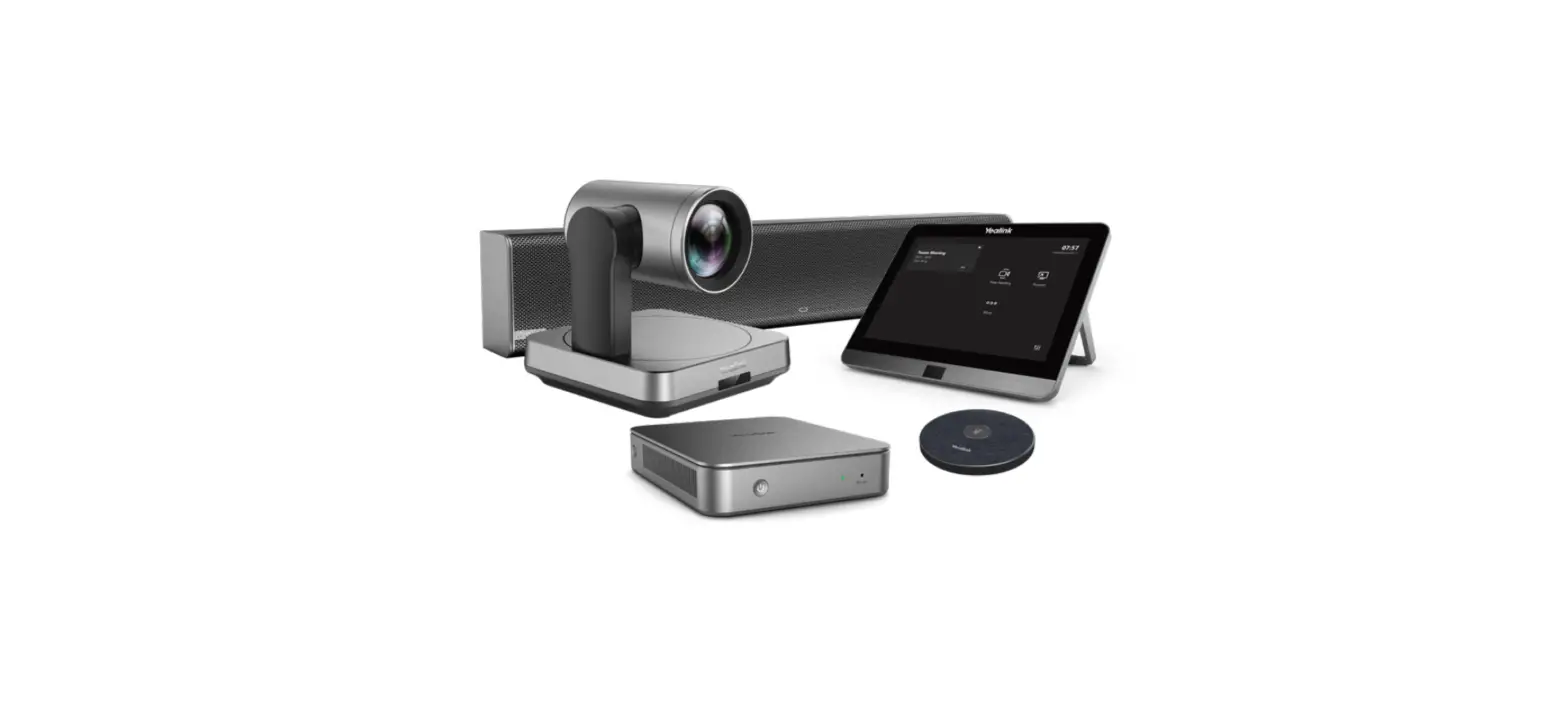
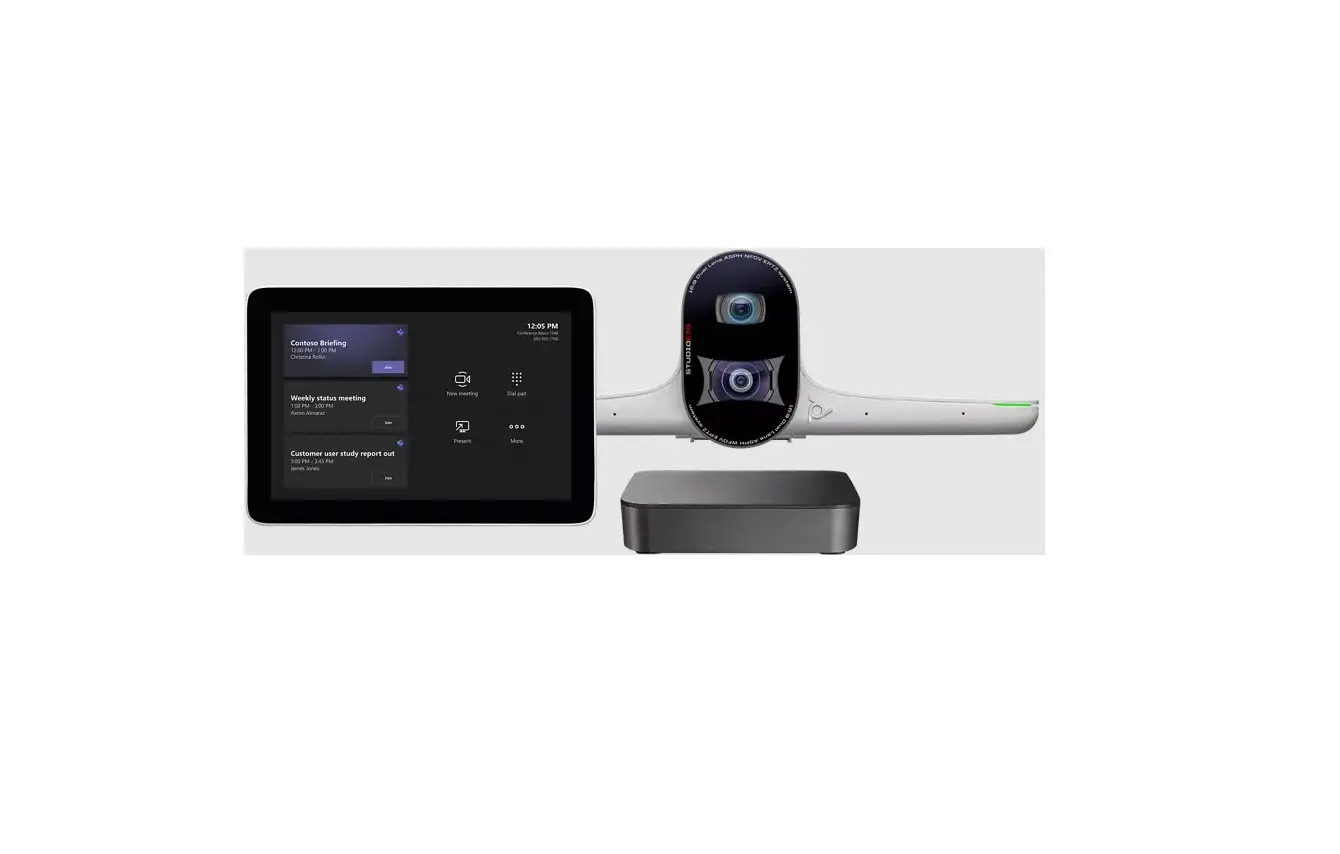
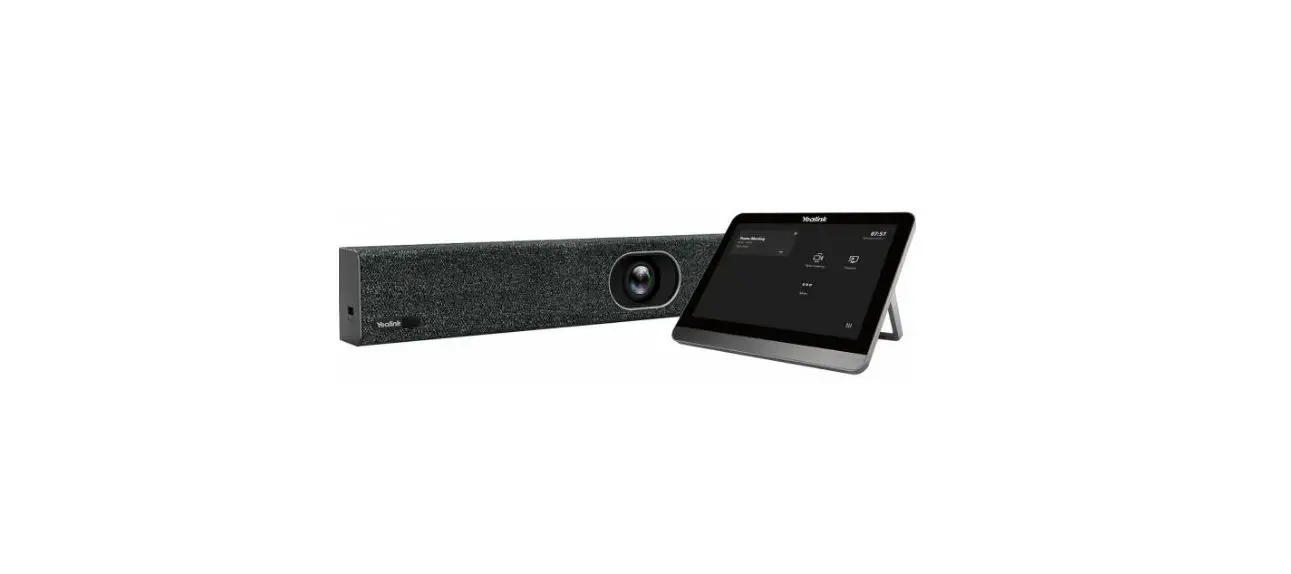
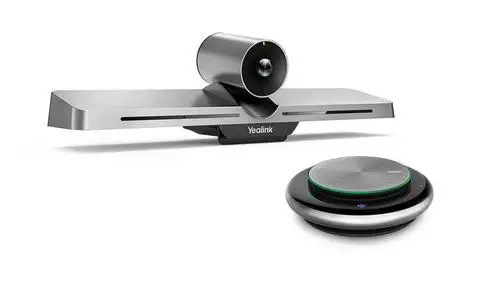
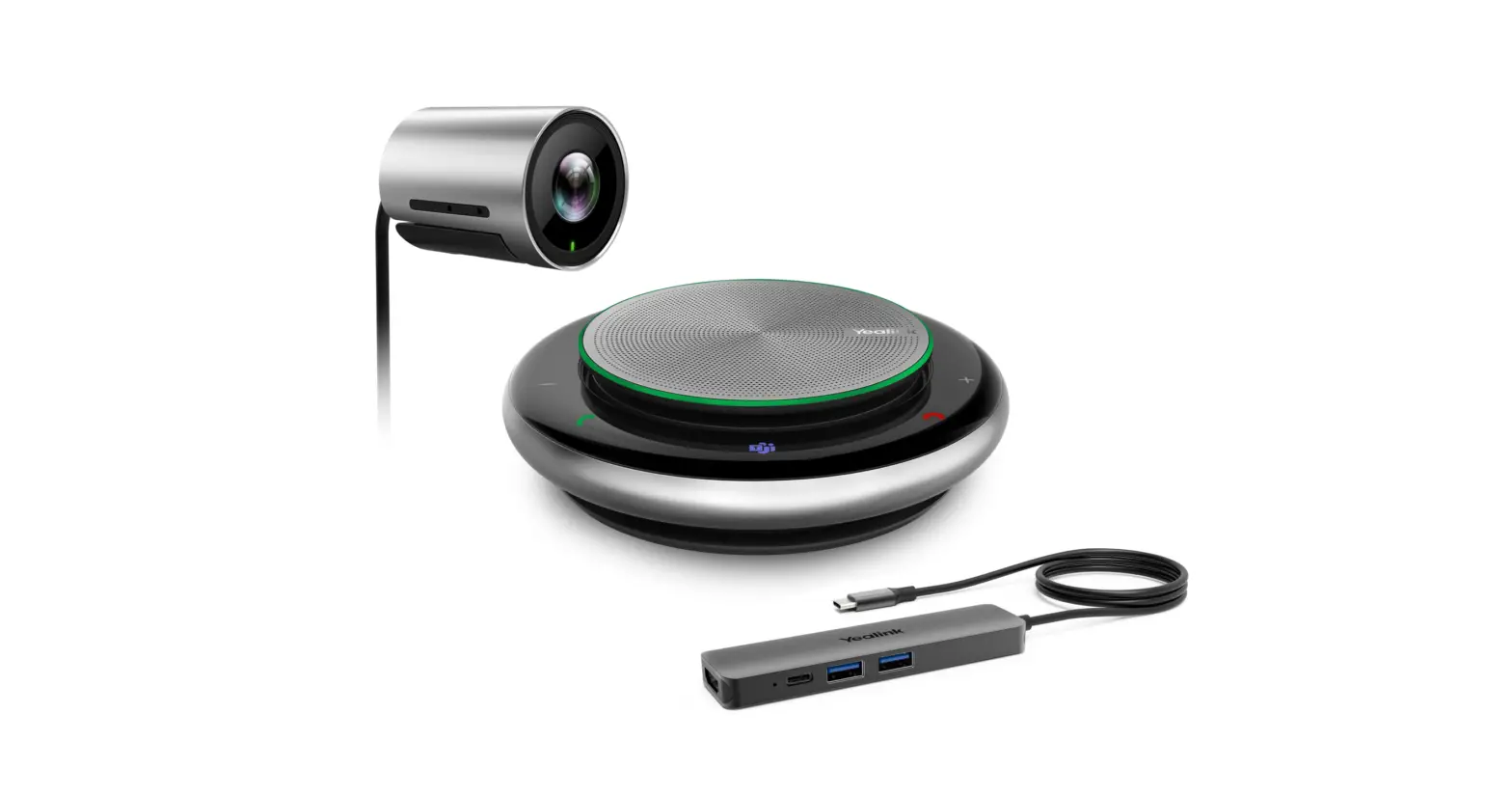
MVC320-C3-050 Microsoft Teams Rooms System
Product Information:
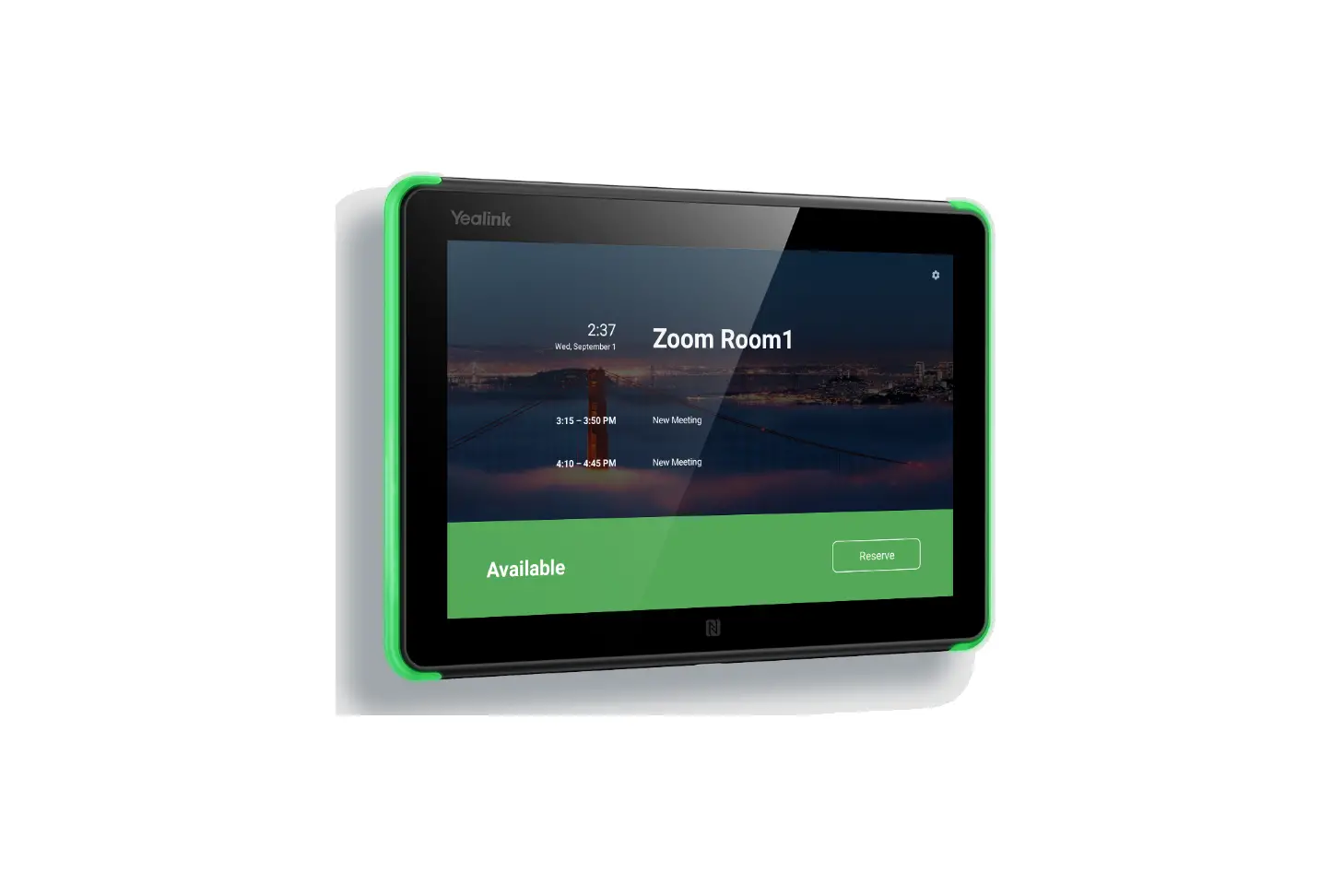
The MTouch is a touch panel designed for use with the Yealink
MVC system. It features a touch screen interface and various
hardware interfaces for connectivity.
Package Contents:
- MTouch
- Mounting Bracket and Accessories
- 7.5m Ethernet Cable
- Screwdriver
- USB Type-C Cable (with an HDMI adapter)
- Quick Start Guide
MTouch Connection:
To connect your MTouch to other devices in the Yealink MVC
system, follow these steps:
- Connect your MTouch to the CP900 or WPP20 for wireless
sharing. - Assemble your MTouch using the provided mounting bracket or
place it on a table. - If mounting on a wall, ensure that you have a suitable wall
mount and route the MTouch through the wall.
Hardware Interface Instructions:
The MTouch has several hardware interfaces for different
purposes:
| No. | Port | Description |
|---|---|---|
| 1 | 3.5mm Headset | Connect to a headset. |
| 2 | USB-A Port | Connect to the WPP20 for wireless sharing or to a USB audio device. |
| 3 | USB-C Port | Connect to the PC for wired sharing. |
| 4 | USB-A Port | Connect to a USB audio device, such as CP900. |
| 5 | VCH Port | Connect to the MCore for power and motion detection. |
Wireless Presentation:
You can use the Yealink WPP20 wireless presentation pod for
wireless content sharing. Follow these steps to set it up:
- Connect the WPP20 to the USB port of the MTouch.
- Wait for about 3 seconds until the WPP20 LED indicator glows
green. - Connect the WPP20 to the PC.
- If it’s the first time connecting the WPP20 to the computer,
manually start the Yealink Wireless Presentation Pod software and
upgrade the WPP20 firmware if prompted. - After the upgrade is successful, the WPP20 is ready for content
sharing. - Visit the Yealink website for the latest firmware version.
LED Indicator Instructions:
The MTouch and WPP20 have LED indicators that provide
information about their working status:
MTouch LED Indicator:
| LED Status | Description |
|---|---|
| Solid yellow | MTouch is not connected to a PC or WPP20 is not used for content sharing. |
| Solid green | MTouch is connected to a PC for wired sharing or WPP20 is used for wireless sharing. |
| Solid red | MTouch is in sleep mode. |
| Fast-flashing yellow | MTouch is upgrading firmware. |
| Slow-flashing red | Failed to upgrade firmware. |
WPP20 LED Indicator:
| LED Status | Description |
|---|---|
| Solid green | The WPP20 has been paired with the MTouch and is connected to a PC for content sharing. |
| Solid yellow | The WPP20 is not connected to the MTouch. |
| Solid red | MTouch is in sleep mode. |
Touch Panel
MTouch
English |
www.yealink.com
Quick Start Guide (V1.1)
Package Contents
MTouch
2 2 2
Mounting Bracket and Accessories
7.5m Ethernet Cable
Screwdriver
USB Tpye-C Cable (with an HDMI adapter)
Quick Start Guide
MTouch Connection
Connect your MTouch
CP900
WPP20 (Pair the WPP20 with MTouch)
Assemble your MTouch
(HDMI/USB-C Wired Presentation)
VCH
1
2
3
4
5
1
MTouch Installation
Put on a table You can place the system on the conference room table and adjust the touch screen as you need.
28° 50°
Mount on a Wall
100mm
1
2
3
4
5
6
If the conference room environment allows, you can also route the MTouchthrough the wall.
2
Hardware Interface Instructions
3
1
4
2
5
VCH
3
No.
Port
3.5mm Headset
USB-A Port
USB-C Port USB-A Port
VCH Port
Human Motion Sensor
6
Description
Connect to a headset.
Connect to the WPP20 to pair with WPP20 for wireless sharing. Connect to the PC for wired sharing.
Connect to a USB audio device, such as CP900.
Connect to the MCore, and the MTouch is powered by the MCore. The motion detection sensor, integrated in the front of the device, is used to automatically wake up the Yealink MVC system and light up the touch screen when you approach the touch screen.
Wireless Presentation
You can use Yealink WPP20 wireless presentation pod for wireless content sharing.
Procedure
1. Connect the WPP20 to the USB port of the MTouch.
2. Wait for about 3 seconds, and the WPP20 LED indicator
PC
glows green.
The WPP20 is paired with the MTouchsuccessfully. 3. Connect the WPP20 to the PC.
WPP20 Wireless Presentation Pod
4. If the WPP20 is first connected to the computer, you need to manually start
the Yealink Wireless Presentation Pod software from This PC in Windows
10 or from My Computer in Windows 7 and then upgrade the WPP20.
After starting the software, if it prompts that the firmware is different from the
host version, you need to upgrade the WPP20 according to the prompts.
For the WPP20 running older versions, after starting the software, you need to
manually upgrade the firmware on the software at the path of ->Version
Update.
After the upgrade is successful, the WPP20 is ready for content sharing.
Go to Yealink website(http://support.yealink.com) for the latest version of the firmware.
3
LED Indicator Instructions
Wi-Fi AP
Working status
LED Indicator of Working Status
LED Status
Description
Solid yellow
MTouch is not connected to a PC or you do not use WPP20 for content sharing.
Solid green Solid red
MTouch is connected to a PC for wired sharing or you use WPP20 for wireless sharing.
MTouch is in sleep mode.
Fast-flashing yellow MTouch is upgrading firmware.
Slow-flashing red Failed to upgrade firmware.
Wi-Fi AP LED Indicator LED Status
Description
Solid green
The WPP20 has been paired with the MTouch and is connected to a PC for content sharing.
Solid yellow
The WPP20 is not connected to the MTouch.
Solid red
MTouch is in sleep mode.
4
MTouch
2 2 2
7.5
USB Tpye-C HDMI
A
MTouch
MTouch
CP900
WPP20 (MTouch)
MTouch
(HDMI/USB-C)
VCH
1
2
3
4
5
5
MTouch
MTouchMTouch
28° 50°
100mm
1
2
3
4
5
6
MTouch
6
1 2
VCH
3.5 USB
USB Type-C
USB
VCH
3 4 5
6
WPP20
PC
USBCP900
MCoreMTouchMCore MTouch Yealink MVC
WPP20
1. WPP20 MTouchUSB 2. 3WPP20
WPP20MTouch
WPP20
PC
3. WPP20
4. WPP20Windows7Windows10
WPP20
WPP20 ->
http://support.yealink.com/
7
MTouch
Wi-Fi AP
Wi-Fi AP
MTouch WPP20 MTouch WPP20 MTouch
WPP20MTouch
WPP20MTouch
MTouch
8
Regulatory Notices
Operating Ambient Temperatures
Operating temperature: +32 to 104°F (0 to 40°C) Relative humidity: 5% to 90%, noncondensing Storage temperature: -22 to +160°F (-30 to +70°C)
Warranty
Our product warranty is limited only to the unit itself, when used normally in accordance with the operating instructions and the system environment. We are not liable for damage or loss resulting from the use of this product, or for any claim from a third party. We are not liable for problems with Yealink device arising from the use of this product; we are not liable for financial damages, lost profits, claims from third parties, etc., arising from the use of this product.
Explanation of the symbols DC symbol
is the DC voltage symbol.
WEEE Warning symbol
To avoid the potential effects on the environment and human health as a result of the presence of hazardous substances in electrical and electronic equipment, end users of electrical and electronic equipment should understand the meaning of the crossed-out wheeled bin symbol. Do not dispose of WEEE as unsorted municipal waste and have to collect such WEEE separately.
Restriction of Hazardous Substances Directive (RoHS)
This device complies with the requirements of the EU RoHS Directive. Statements of compliance can be obtained by contacting [email protected].
Safety Instructions Save these instructions. Read these safety instructions before use!
General Requirements
Before you install and use the device, read the safety instructions carefully and observe the situation during operation.
During the process of storage, transportation, and operation, please always keep the device dry and clean, avoid collision and crash.
Please attempt not to dismantle the device by yourself. In case of any discrepancy, please contact the appointed maintenance center for repair.
Please refer to the relevant laws and statutes while using the device. Legal rights of others should be respected as well.
Environmental Requirements
Place the device at a well-ventilated place. Do not expose the device under direct sunlight.
Keep the device dry and free of dusts. Do not place the device on or near any inflammable or fire-vulnerable object, such as rubber-made materials. Keep the device away from any heat source or bare fire, such as a candle or an electric heater.
Operating Requirements
Do not let a child operate the device without guidance. Do not let a child play with the device or any accessory in case of accidental swallowing. Please use the accessories provided or authorized by the manufacturer only. The power supply of the device shall meet the requirements of the input voltage of the device. Please use the provided surge protection power socket only. Before plugging or unplugging any cable, make sure that your hands are completely dry. Do not spill liquid of any kind on the product or use the equipment near water, for example, near a bathtub, washbowl, kitchen sink, wet basement or near a swimming pool. During a thunderstorm, stop using the device and disconnect it from the power supply. Unplug the power plug and the Asymmetric Digital Subscriber Line (ADSL) twisted pair (the radio frequency cable) to avoid lightning strike.
If the device is left unused for a rather long time, disconnect it from the power supply and unplug the power plug.
When there is smoke emitted from the device, or some abnormal noise or smell, disconnect the device from the power supply, and unplug the power plug immediately. Contact the specified maintenance center for repair. Do not insert any object into equipment slots that is not part of the product or auxiliary product. Before connecting a cable, connect the grounding cable of the device first. Do not disconnect the grounding cable until you disconnect all other cables.
Cleaning Requirements
Before cleaning the device, disconnect it from the power supply. Use a piece of soft, dry and anti-static cloth to clean the device. Keep the power plug clean and dry.
Troubleshooting
The unit cannot supply power to device other than Yealink device. There is a bad connection with the plug. 1. Clean the plug with a dry cloth. 2. Connect it to another wall outlet. The usage environment is out of operating temperature range. 1. Use in the operating temperature range. The cable between the unit and the Yealink device is connected incorrectly. 1. Connect the cable correctly. You cannot connect the cable properly. 1. You may have connected a wrong Yealink device. 2. Use the correct power supply. Some dust, etc., may be in the port. 1. Clean the port. Contact your dealer or authorized service facility for any further questions.
FCC Statement
This device complies with part 15 of the FCC Rules. Operation is subject to the following two conditions: (1) this device may not cause harmful interference, and (2) this device must accept any interference received, including interference that may cause undesired operation. Any Changes or modifications not expressly approved by the party responsible for compliance could void the user’s authority to operate the equipment.
IC Statement This device complies with Industry Canada’s licence-exempt RSSs. Operation is subject to the following two conditions: (1) this device may not cause interference; and (2) this device must accept any interference, including interference that may cause undesired operation of the device. CAN ICES-3(B) Le présent appareil est conforme aux CNR d’Industrie Canada applicables aux appareils radio exempts de licence. L’exploitation est autorisée aux deux conditions suivantes : (1) l’appareil ne doit pas produire de brouillage; (2) l’utilisateur de l’appareil doit accepter tout brouillage radioélectrique subi, même si le brouillage est susceptible d’en compromettre le fonctionnement.NMB-3(B)
Contact Information
YEALINK NETWORK TECHNOLOGY CO.,LTD. 309, 3rd Floor, No.16, Yun Ding North Road, Huli District, Xiamen City, Fujian, P.R. C YEALINK (EUROPE) NETWORK TECHNOLOGY B.V. Strawinskylaan 3127, Atrium Building, 8th floor, 1077ZX Amsterdam, The Netherlands YEALINK (USA) NETWORK TECHNOLOGY CO., LTD. 999 Peachtree Street Suite 2300, Fulton, Atlanta, GA, 30309, USA Made in China
About Yealink
Yealink is a global leading provider of enterprise communication and collaboration solutions, offering video conferencing service to worldwide enterprises. Focusing on research and development, Yealink also insists on innovation and creation. With the outstanding technical patents of cloud computing, audio, video and image processing technology, Yealink has built up a panoramic collaboration solution of audio and video conferencing by merging its cloud services with a series of endpoints products. As one of the best providers in more than 140 countries and regions including the US, the UK and Australia, Yealink ranks No.1 in the global market share of SIP phones shipments.
Technical Support
Visit Yealink WIKI (http://support.yealink.com/) for the latest firmware, guides, FAQ, Product documents, and more. For better service, we sincerely recommend you to use Yealink Ticketing system (https://ticket.yealink.com) to submit all your technical issues.
430104001351
Web: www.yealink.com Copyright©2020 YEALINK(XIAMEN) NETWORK TECHNOLOGY CO.,LTD.All rights reserved.
 Yealink Support
 Yealink | UC & C Terminal, Video Collaboration, Conference Phone, IP Phone, Headsets & Video Conferencing
 Yealink Ticket