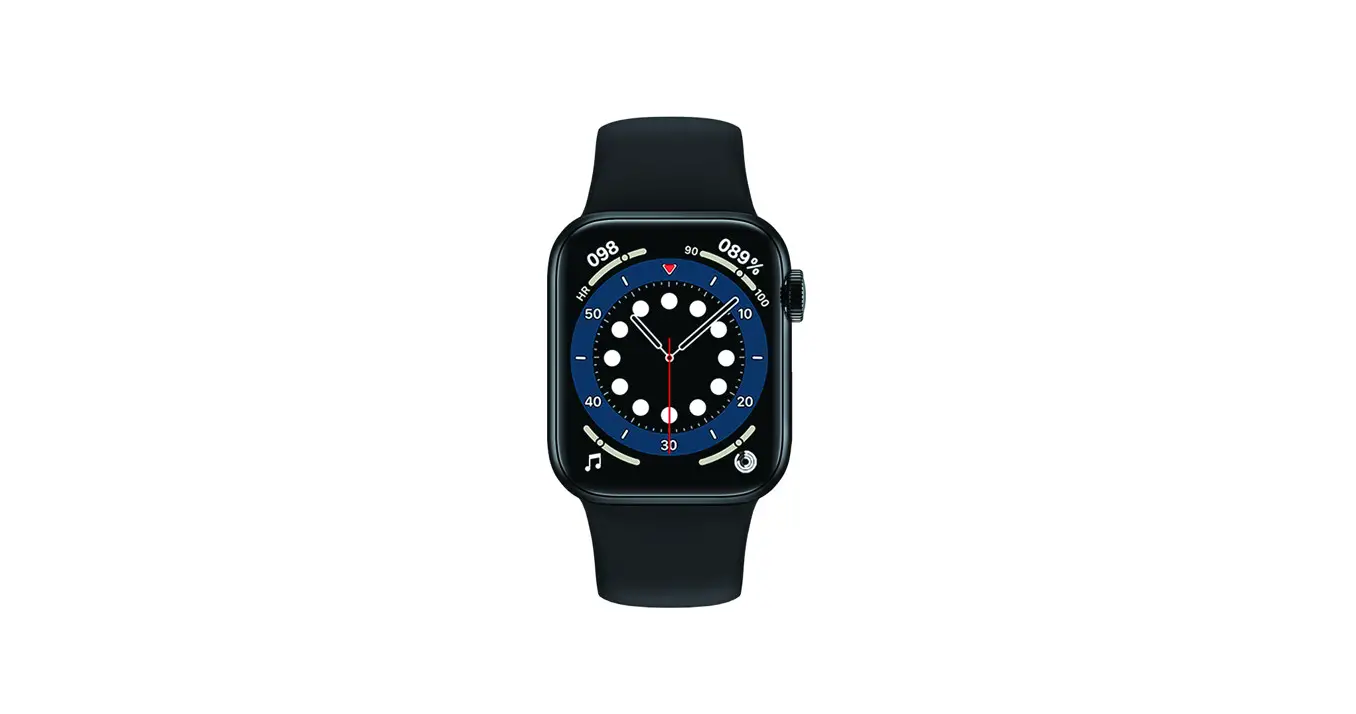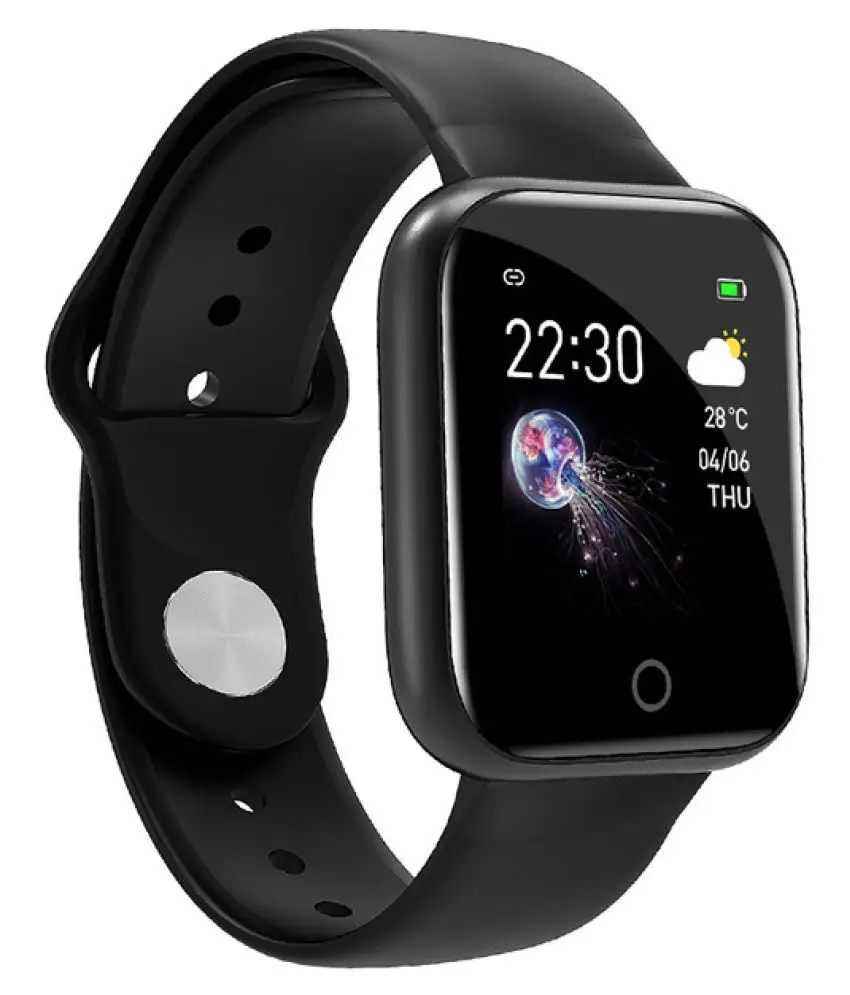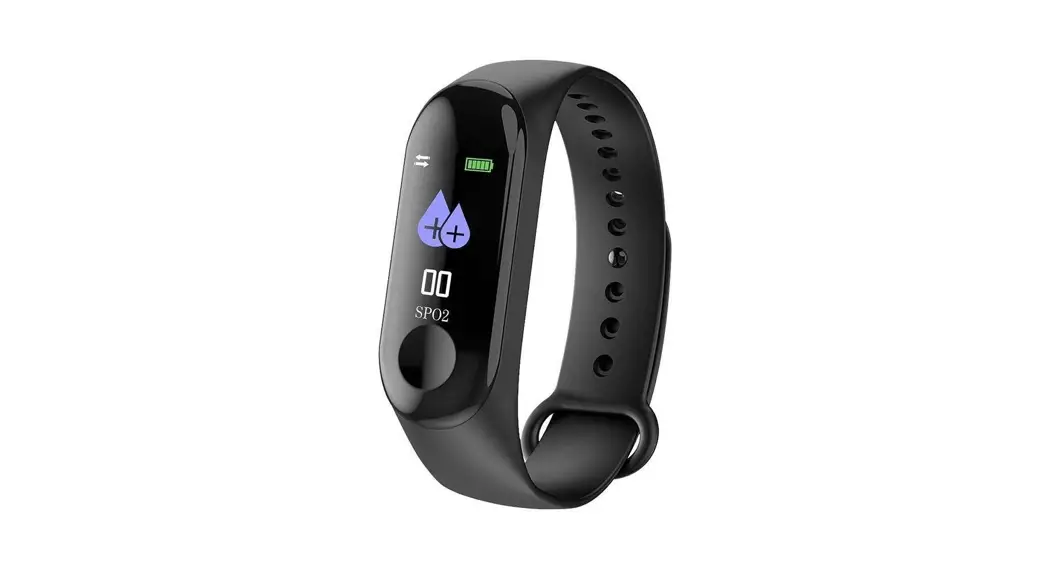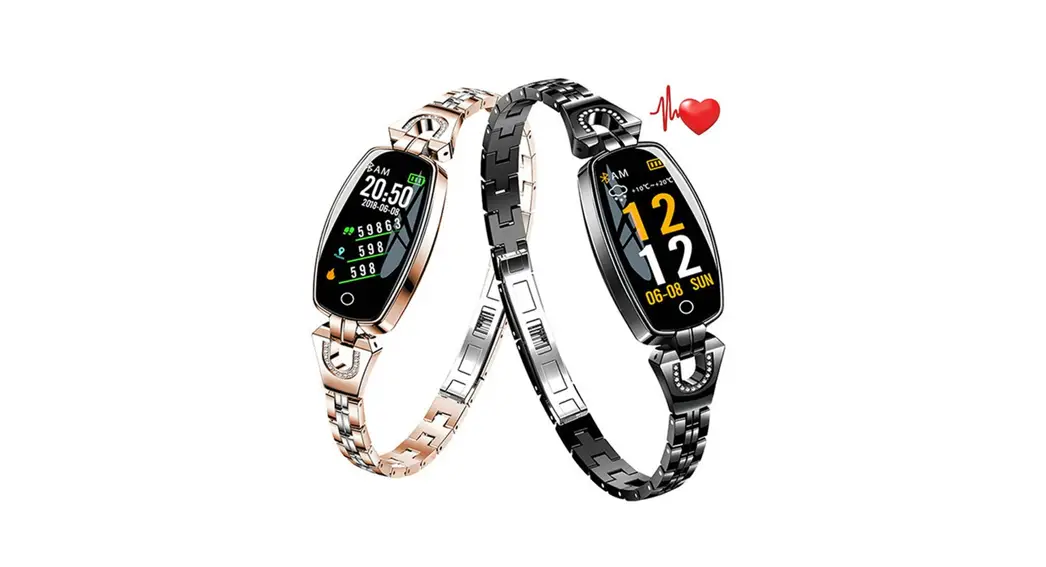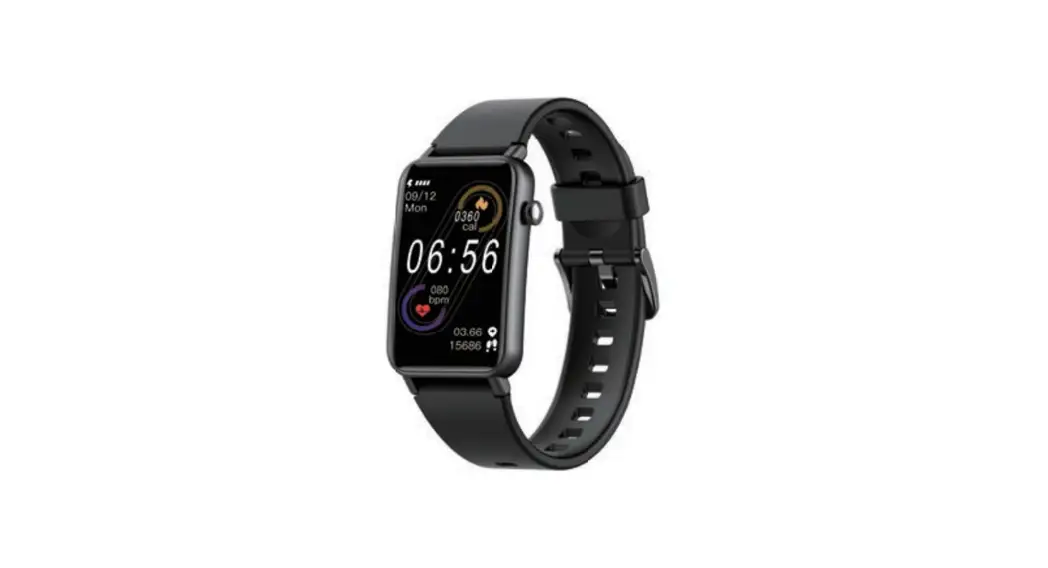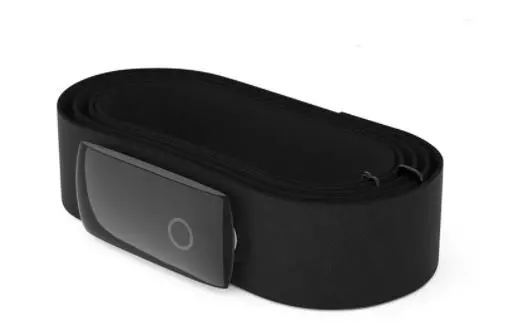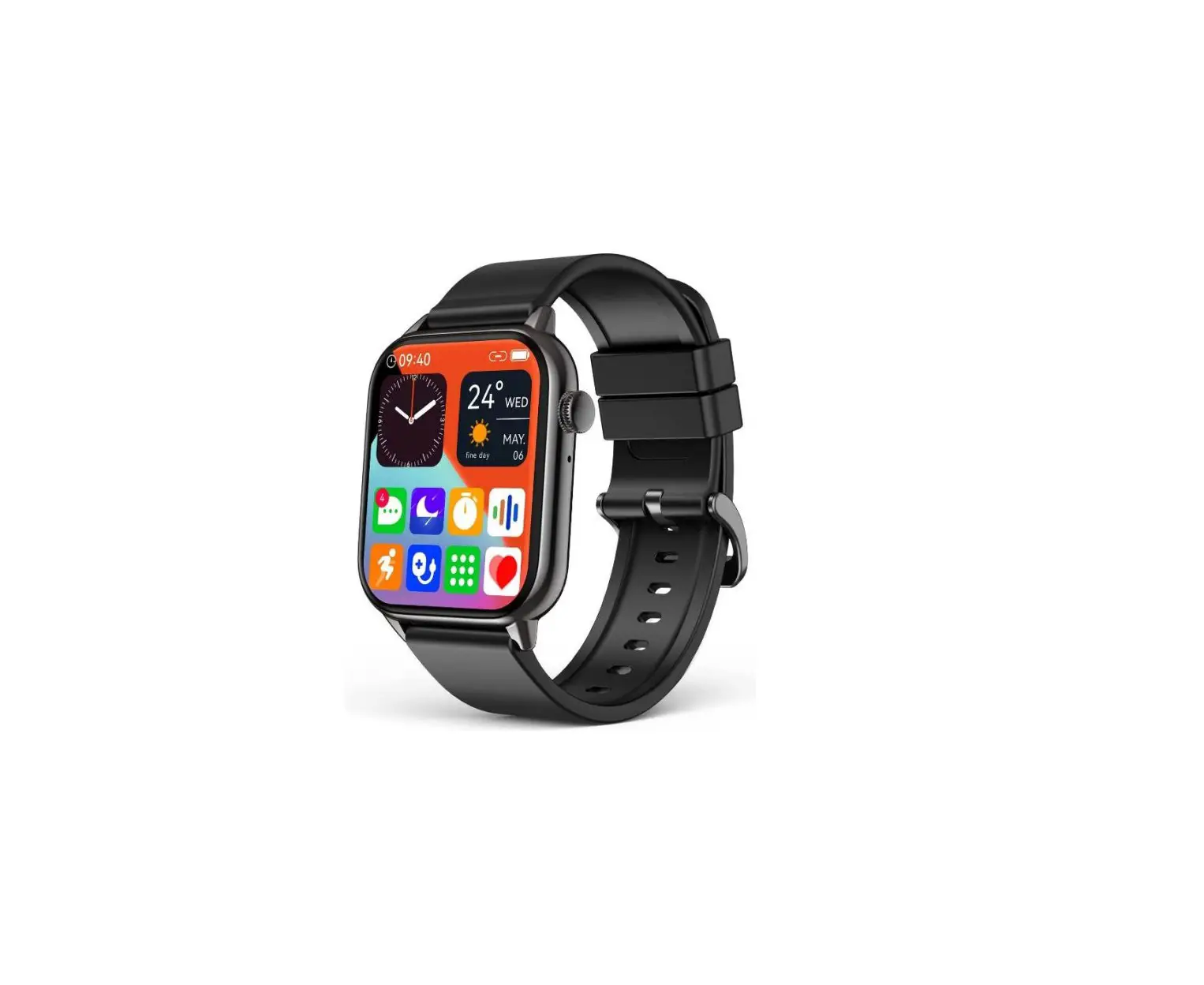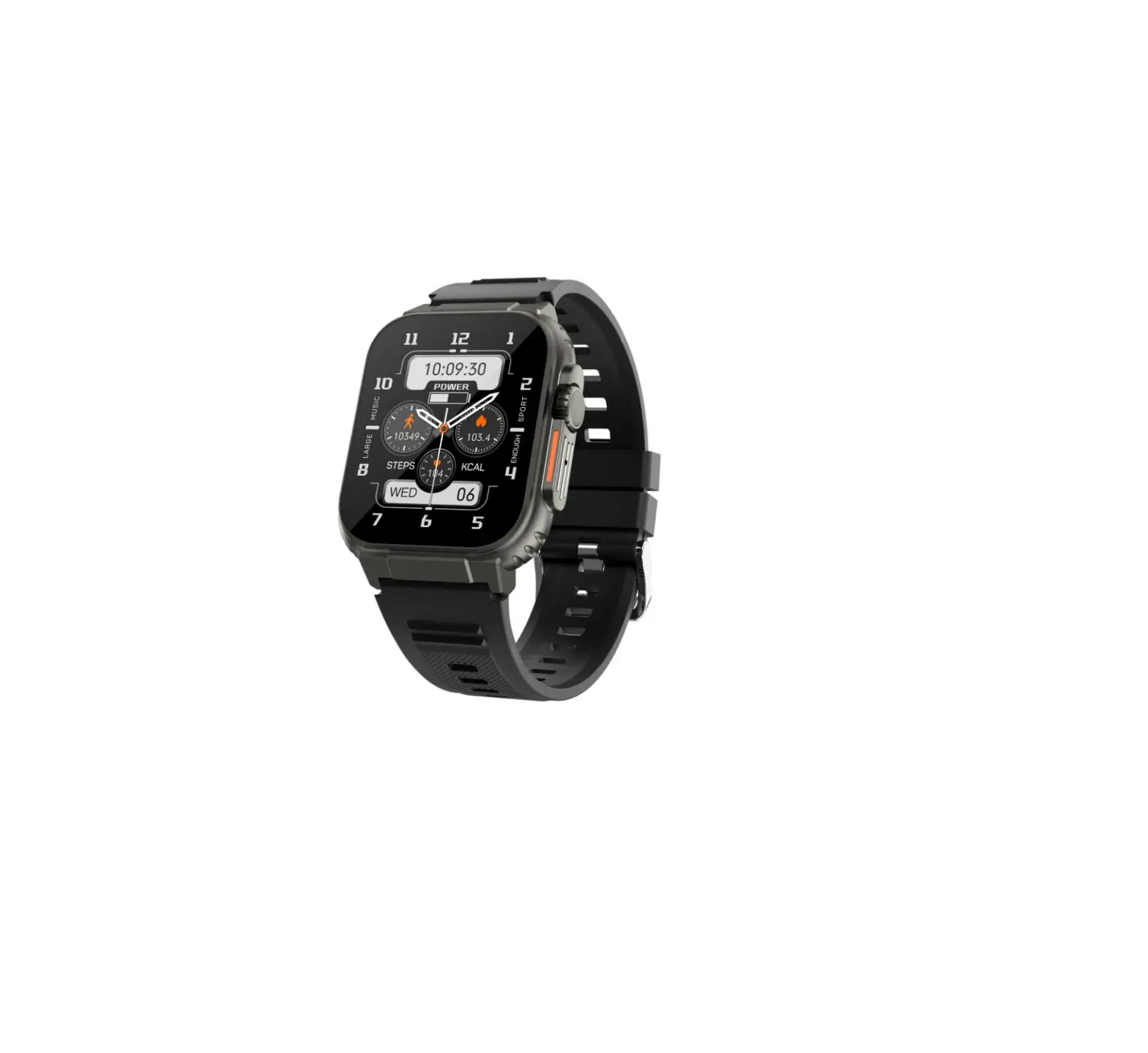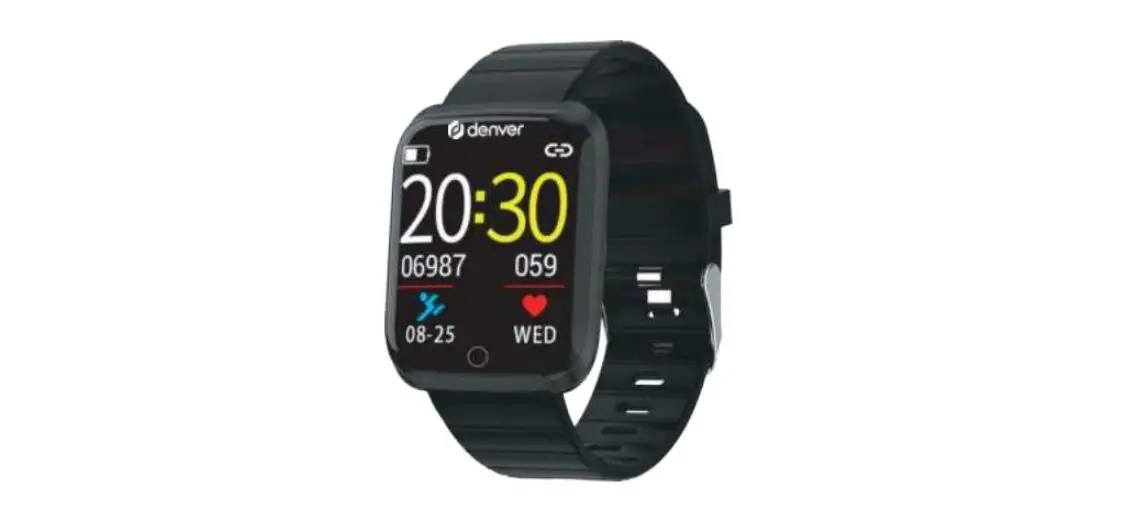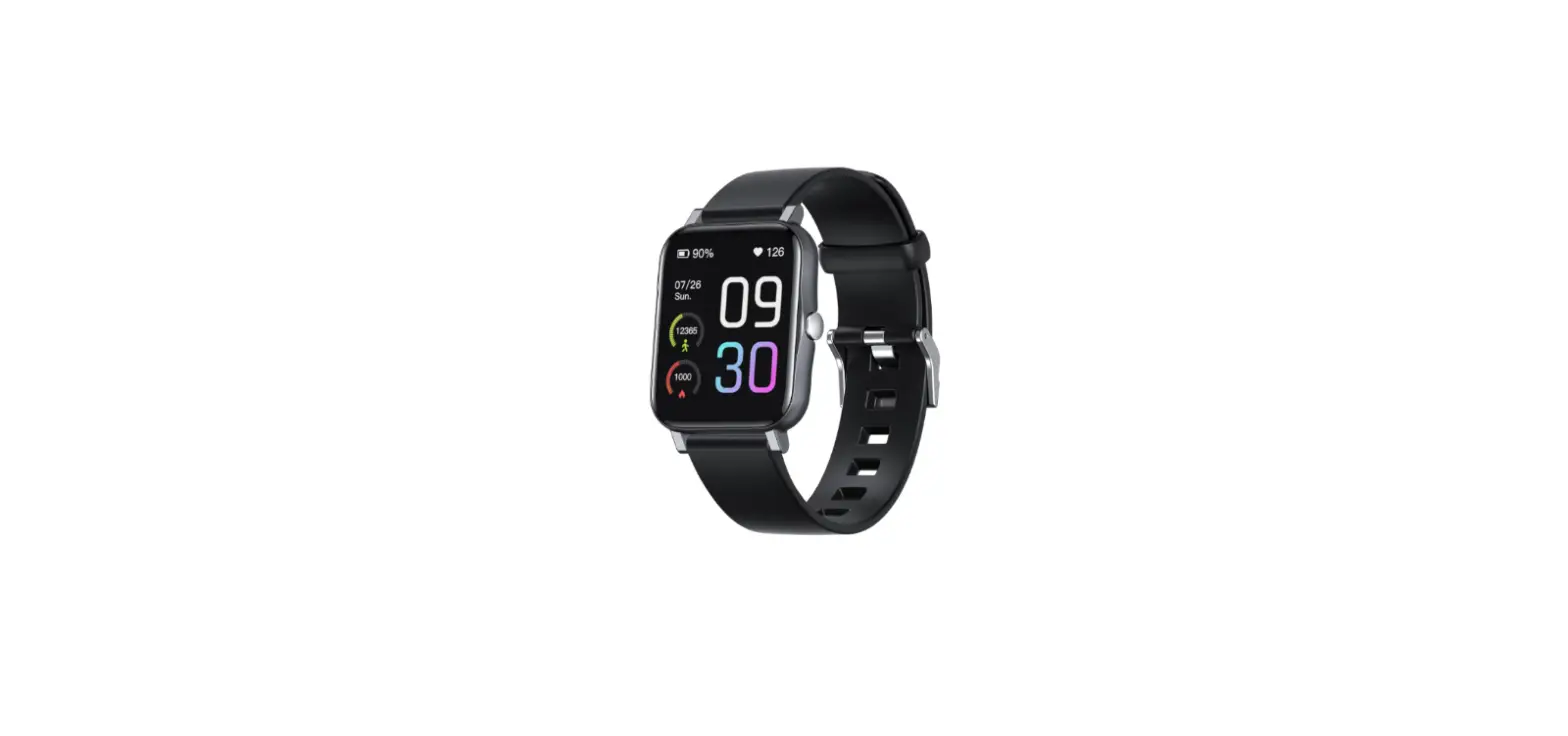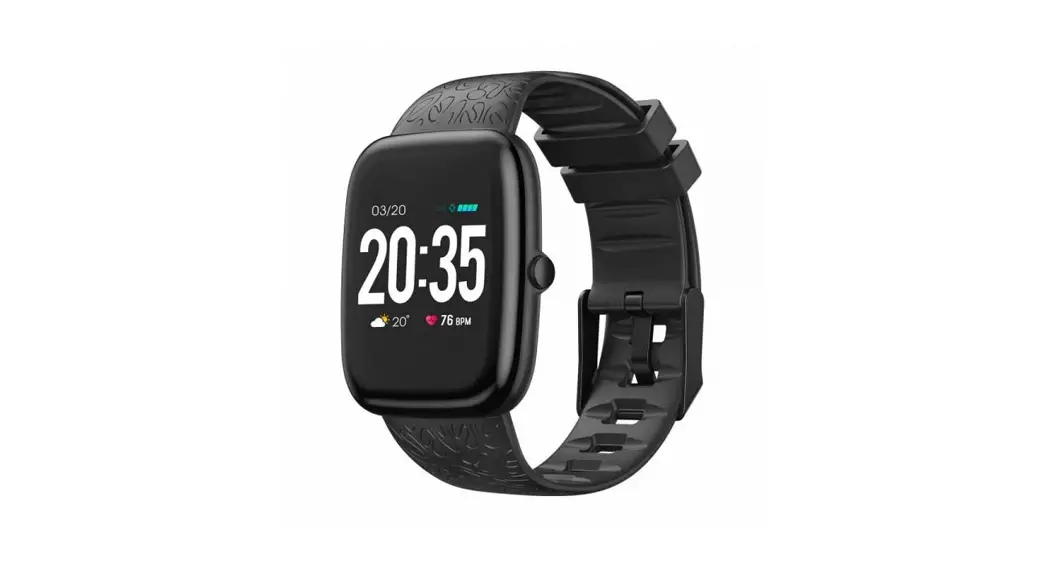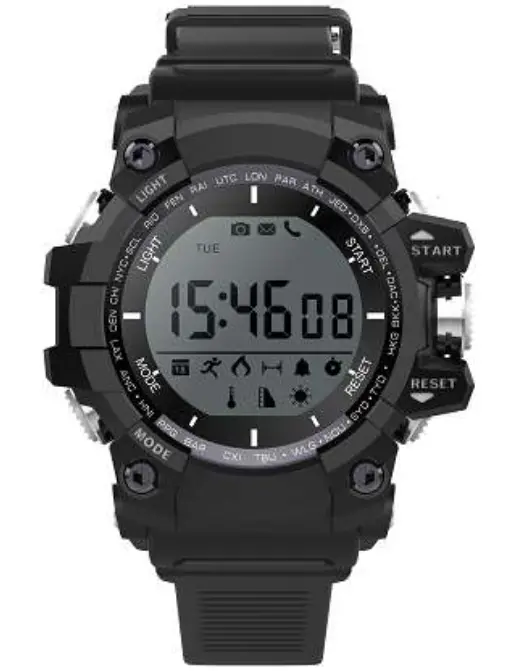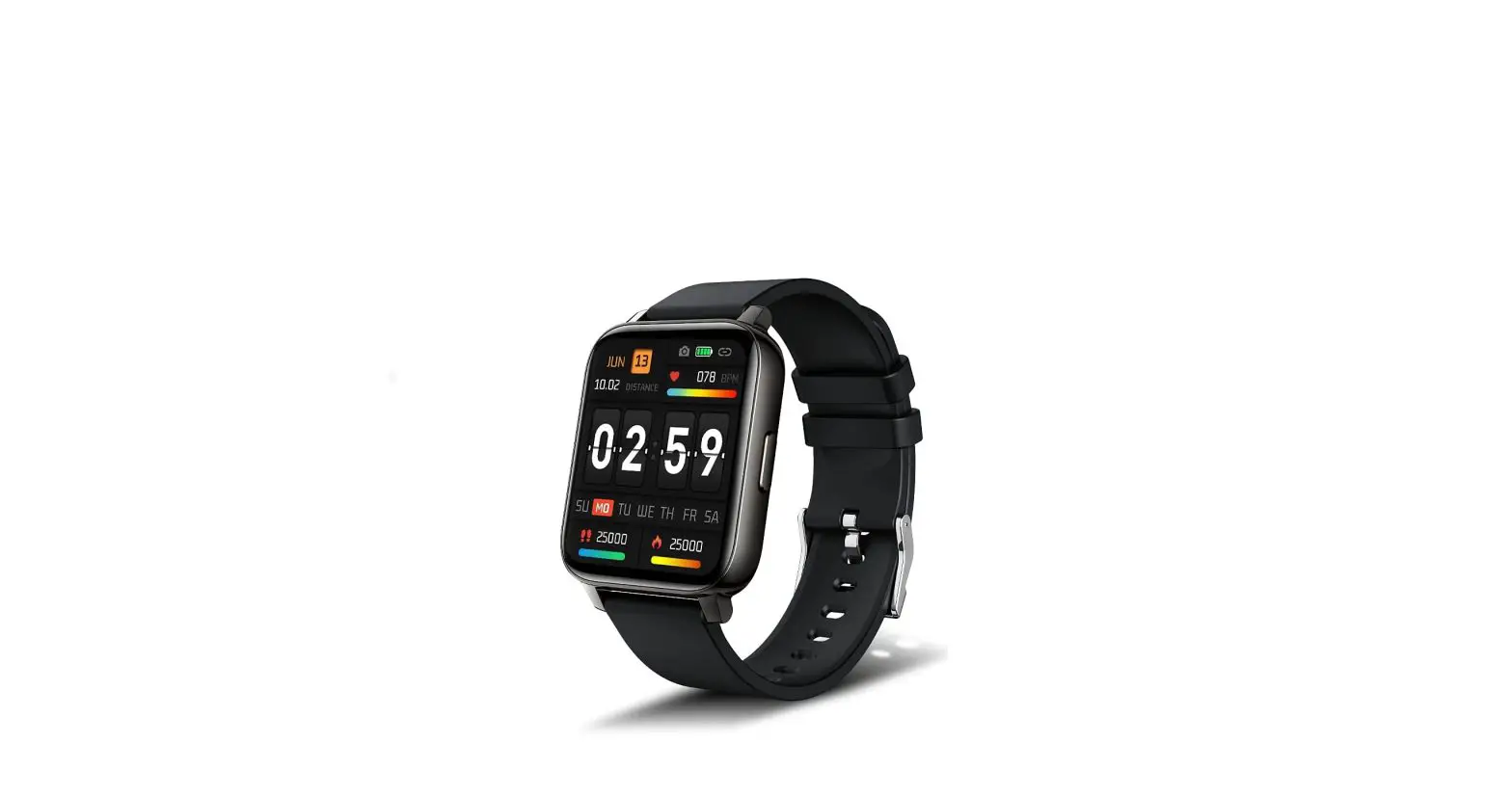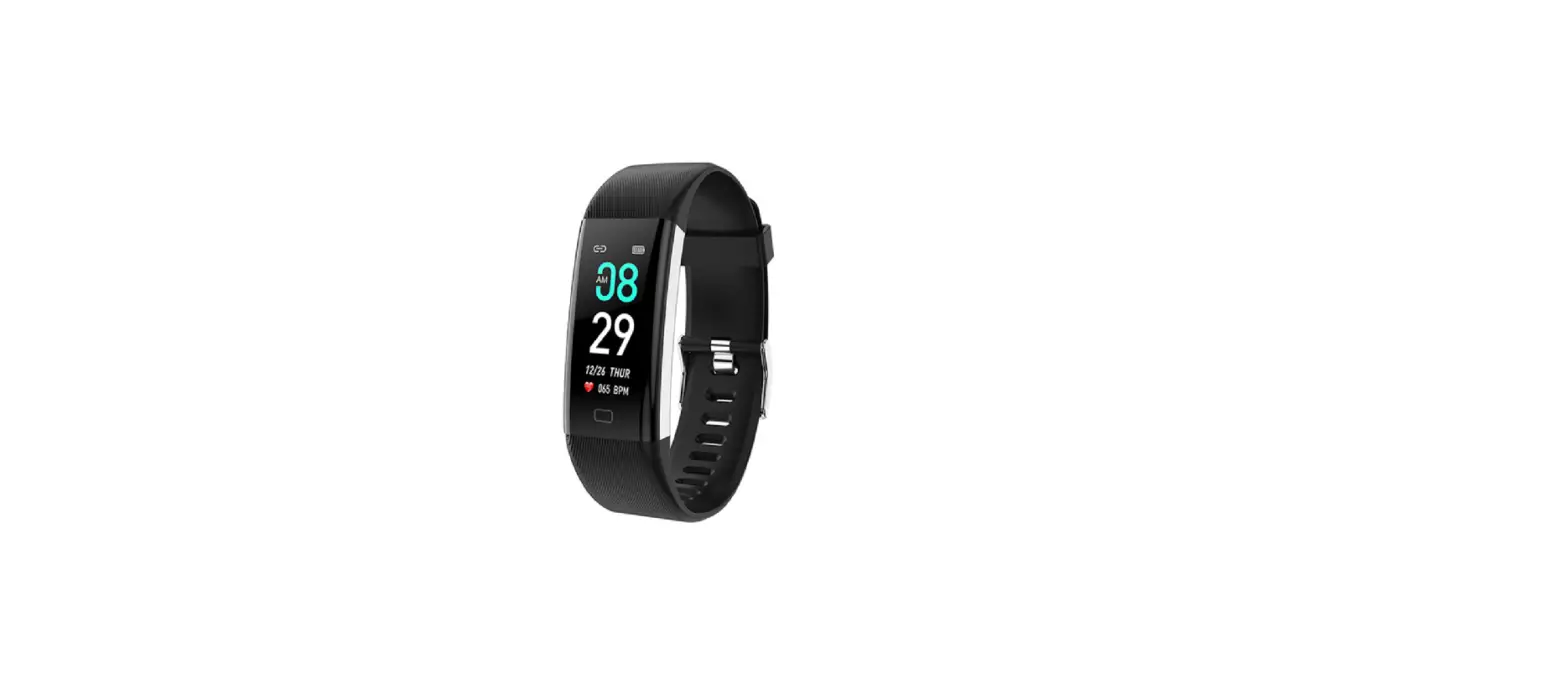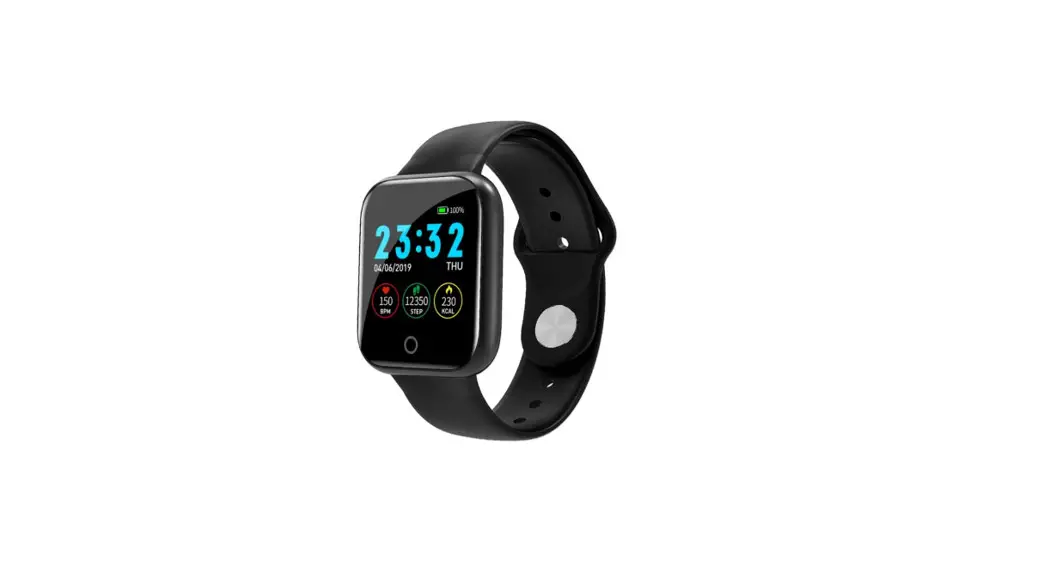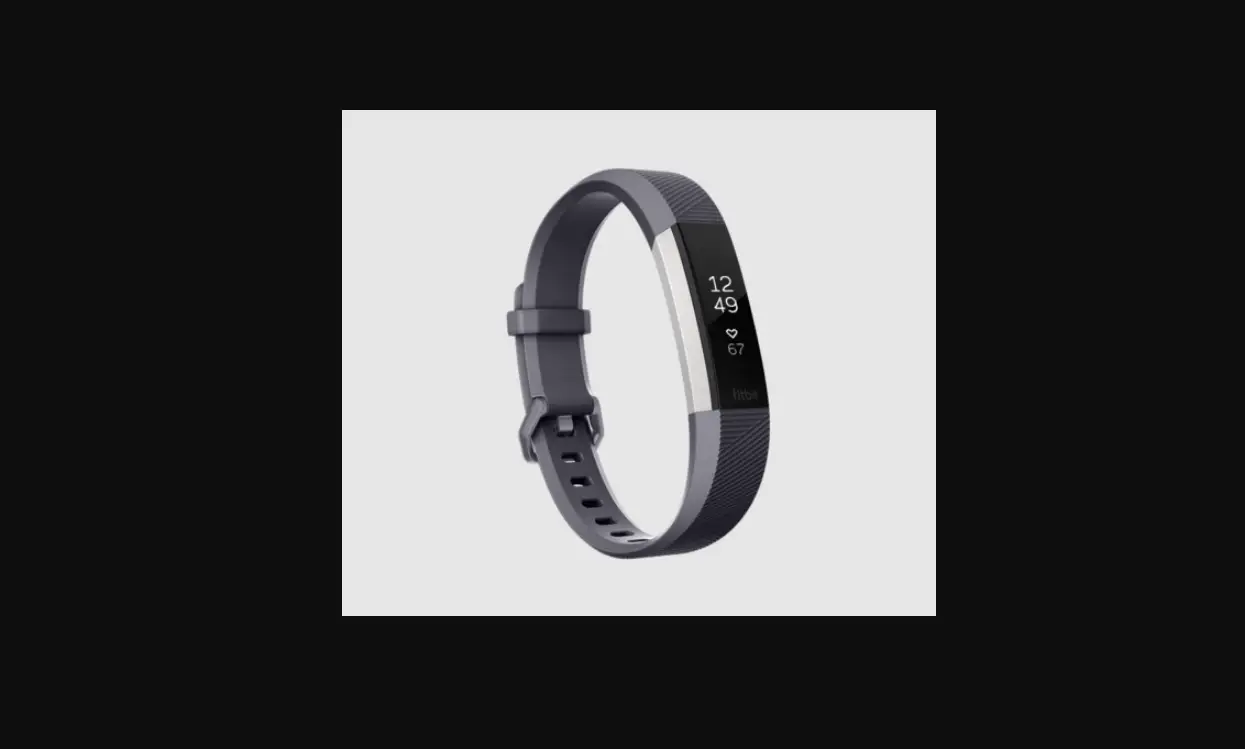

Smart Watch
User Manual 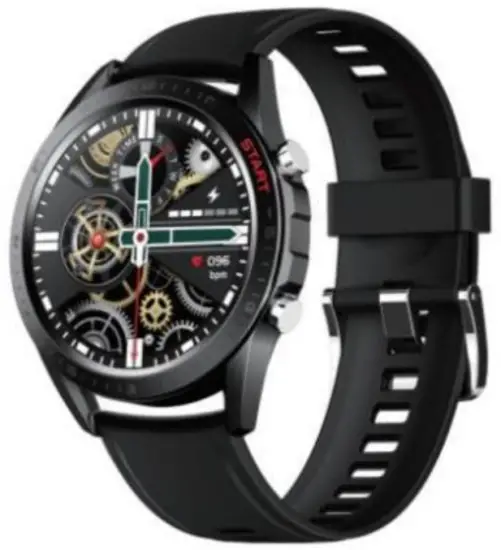
Downloading the App
Scan the following QR code, download, and install the App.
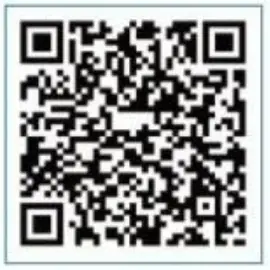 http://plus.crrepa.com/app-download/dafit
Charging and Active
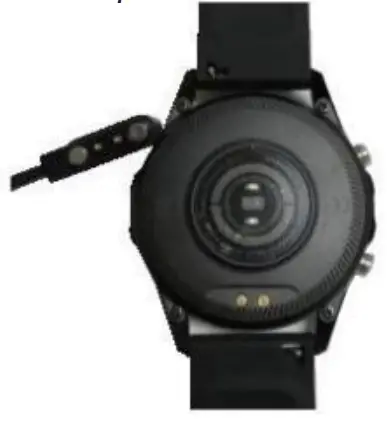
Charging the device to act before the first time using;To charge your device, plug the charging cable into the adapter or USB port on your computer.
Pairing
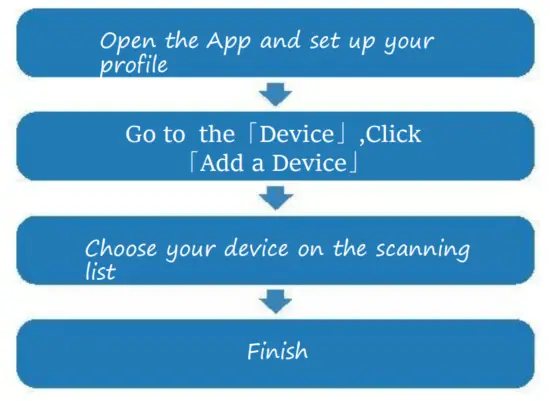
The MAC address on the “Setting”-” About” page could help you identify your device on the scanning list.
Use the Touch Screen
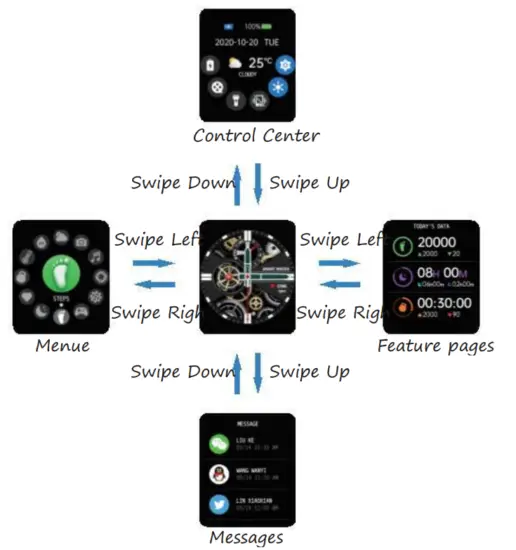
SmartWatch Features
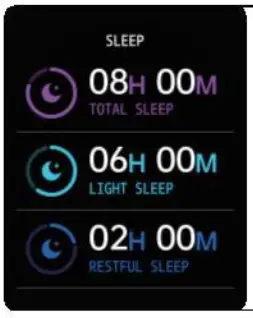 | Sleep If you keep wearing Smart Watch in your sleep, it can provide the hours slept and quality of sleep stats on both the screen and the APP. NOTE: Sleep stats reset to zero at8:00 pm. |
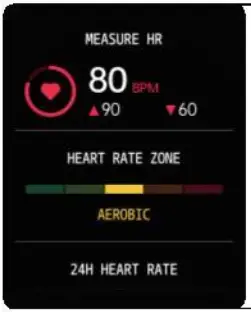 | Heart Rate Test The SmartWatch could record your heart rate all day. You also could tap on the page to start measuring heart rate. |
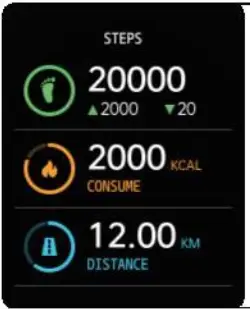 | Sports Smart Watch automatically tracks Steps taken on the screen. NOTE: Your movement stats reset to zero at midnight. |
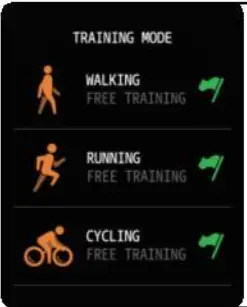 | Training Tap the training icon on the menu to start a new training measure recording, there are 8 sports modes to be chosen. The last training recording will be shown on the training page. |
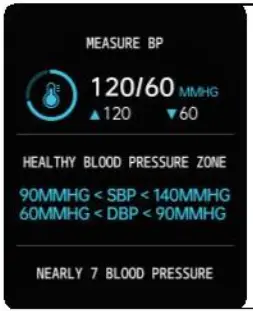 | Blood Pressure Test Tap on the blood pressure page to start measuring your blood pressure. On the blood pressure page, It can show the blood pressure measurement data of the last times. |
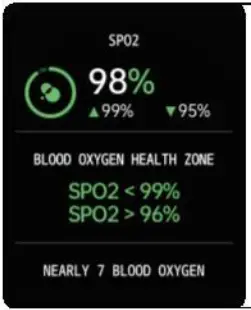 | SpO2 Test Tap the SpO2 page to start measuring your SpO2. On the SpO2 page, It can show the SpO2 measured data of the last times. |
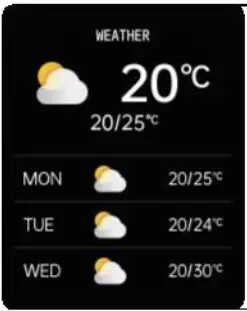 | Weather It could show the weather info for current and tomorrow on the weather page. Weather info is synced after connecting with the APP, it will not be updated after a long disconnect. |
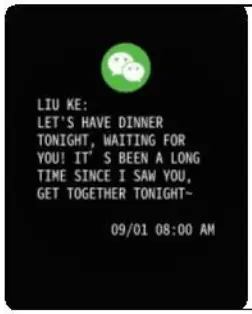 | Messages Reminder The device can sync incoming notifications from Twitter, Facebook, Whatsapp, Instagram, etc. Recently 5 messages can be stored. Note: You can switch/off the incoming notification in the APP. |
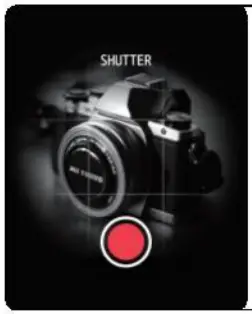 | Remote Shutter After connecting the device,you can remote control the camera on your phone. |
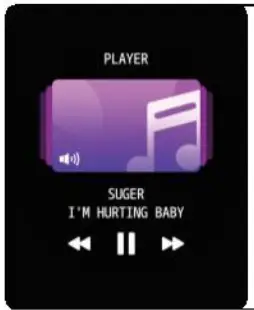 | Player Shutter After connecting the device, you can remote control the music player on your phone. |
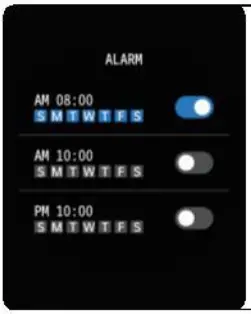 | Silent Alarms Set up the alarm on the APP, the device will vibrate to remind on time. |
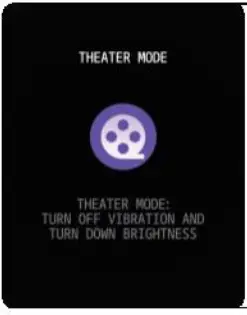 | Theater Mode The device will turn off the vibration and turn down the brightness when the theater mode is turned on. Note: You can turn on/off the theater mode in the control center. |
Using Quick View
With Quick View, you can check the time or the message from your phone on your Smart Bracelet without taping. Just turn your wrist towards you and the time screen will appear for a few seconds.
General Info & Specifications
- Environmental Conditions
Operating temperature: 14℉ to 122℉ (-10℃ to 50℃) Non-operating temperature: -4℉ to 140℉ (-20℃ to 60℃) 2.Size
Getting to Know Your Device
- Using in Wet Conditions
Your device is water-resistant, which means it is rain-proof and splash-proof and can stand up to even the sweatiest workout.
NOTE: Do not swim with your Smart Bracelet. We also don’t recommend showering with your wristband; though the water won’t hurt the device, wearing it 24/7 does not give your skin a chance to breathe. Whenever you get your bracelet wet, dry
FCC Statement
Changes or modifications not expressly approved by the party responsible for compliance could void the user’s authority to operate the equipment. This equipment has been tested and found to comply with the limits for a Class B digital device, pursuant to Part 15 of the FCC Rules. These limits are designed to provide reasonable protection against harmful interference in a residential installation. This equipment generates uses and can radiate radio frequency energy and, if not installed and used in accordance with the instructions, may cause harmful interference to radio communications. However, there is no guarantee that interference will not occur in a particular installation. If this equipment does cause harmful interference to radio or television reception, which can be determined by turning the equipment off and on, the user is encouraged to try to correct the interference by one or more of the following measures:
- Reorient or relocate the receiving antenna.
- Increase the separation between the equipment and receiver.
- Connect the equipment into an outlet on a circuit different from that to which the receiver is connected.
- Consult the dealer or an experienced radio/TV technician for help
This device complies with part 15 of the FCC rules. Operation is subject to the following two conditions (1)this device may not cause harmful interference, and (2) this device must accept any interference received, including interference that may cause undesired operation. This equipment complies with FCC radiation exposure limits set forth for an uncontrolled environment.