AXDSPX Mobile App
Product Information
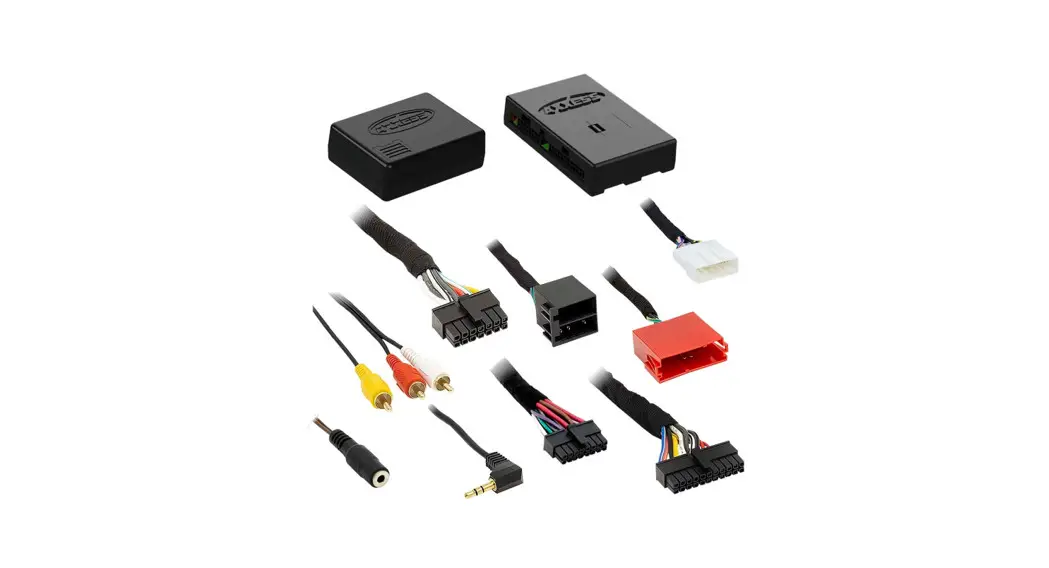
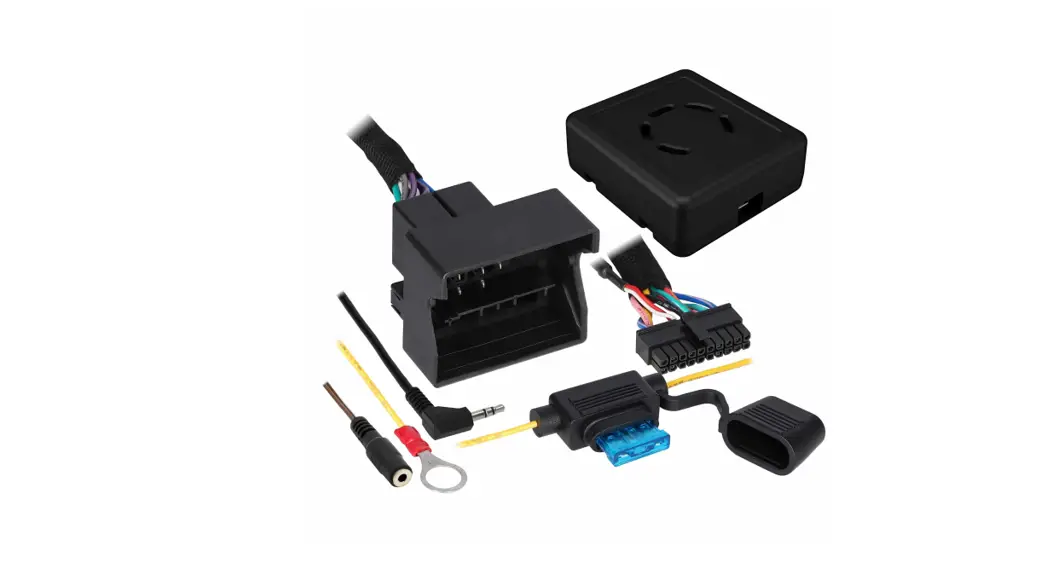
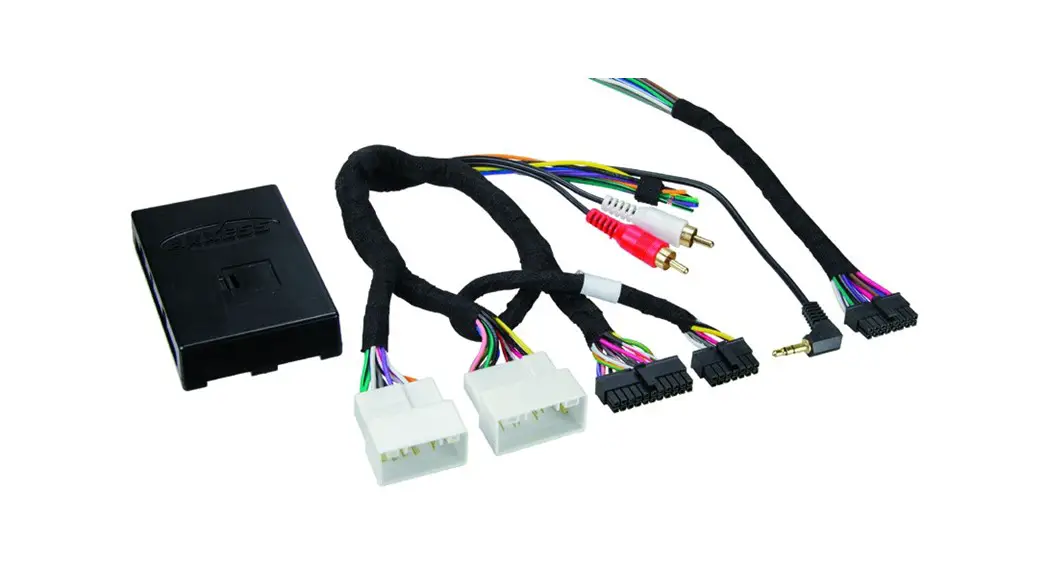
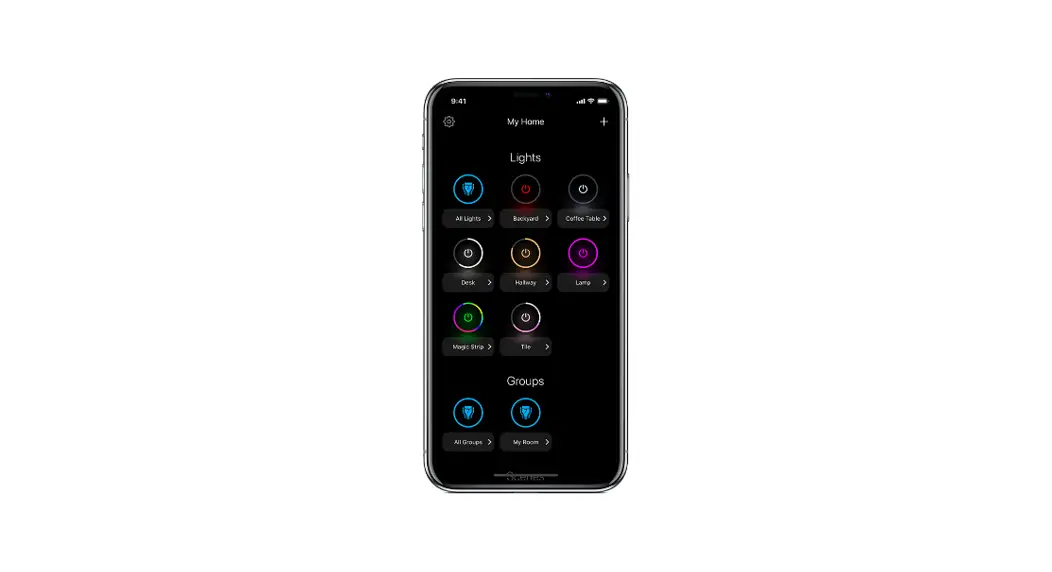
The AXDSPX Mobile App is a companion application for AXXESS
interfaces. It allows users to update their AXXESS interface and
configure various settings for optimal audio performance.
Key Features:
- Compatible with iOS 12.1 or higher
- Bluetooth connection for seamless interface
- Configuration options for output channels, crossover,
equalizer, delay, and parametric equalizer - Input/level settings to prevent audio clipping
- Data locking feature to secure configuration
Product Usage Instructions
- Visit axxessinterfaces.com to check
the current application list. - Download the Interface Updater App from Google Play Store or
Apple App Store. - Ensure your device is running on iOS 12.1 or higher.
- Use the provided QR code or visit axxessinterfaces.com to update
your existing AXXESS interface using the Interface Updater
App. - Make sure the ignition is cycled on during the Bluetooth
connection process. - Configure the settings before closing the app or cycling the
key to avoid losing any changes made. - Choose a 4-digit password for the interface to ensure
compatibility. - Adjust the output channels according to your audio setup.
- If necessary, modify the crossover points to ensure optimal
signal filtering for front and rear channels. - Use the equalizer settings to fine-tune the audio
response. - Delay adjust feature allows you to synchronize audio signals
for better audio imaging. - Utilize the parametric equalizer to further shape the audio
output. - Set the input/level sensitivity to prevent audio clipping and
maintain a normal audio level. - Lock down your configuration and cycle the key to secure your
settings.
Specifications:
- Input Impedance: Signal Input
- Output Impedance: Signal Output
- Frequency Response: Varies based on configuration
- Operating Voltage: Varies based on configuration
- Mounting: Depends on the AXXESS interface
- Input Voltage: Varies based on configuration
- Output Voltage: Varies based on configuration
- THD+N: Depends on the audio setup
AXDSPX MOBILE APP
INSTRUCTIONS
AXDSPX Mobile App Instructions
Visit axxessinterfaces.com for current application list.
Google Play Store
Apple App Store
iOS 12.1 or higher
TABLE OF CONTENTS Setup Instructions…………………………………………..2 Bluetooth Connection……………………………………..3 Configuration …………………………………………………4 Outputs …………………………………………………………. 5 Crossover Adjust …………………………………………….6 Equalizer Adjust……………………………………………..7 Delay Adjust …………………………………………………..8 Parametric EQ…………………………………………………9 Inputs/Levels……………………………………………….. 10 Locking Down Data……………………………………….. 11 Specifications ………………………………………………..12
Download the Interface Updater App at
axxessinterfaces.com
(or use the QR code at left) to update any current AXXESS interface
AxxessInterfaces.com
© COPYRIGHT 2023 METRA ELECTRONICS CORPORATION
REV. 2/7/23 INSTAXDSPX MOBILE APP
Setup Instructions
MOBILE APP
· General information tab for installing the interface.
2
Bluetooth Connection
MOBILE APP
· Scan – Press this button to start the Bluetooth pairing process, then select the available device once it is found. “Connected” will appear in the top left corner of the app once paired.
Note: The ignition must be cycled on during this process.
· Disconnect – Disconnects the interface from the app.
REV. 2/7/23 INSTAXDSPX MOBILE APP 3
Configuration
MOBILE APP
· Identify – Click this button to confirm that the interface is connected properly. If it is, a chime will be heard from the front left speaker. (Only installations using the front left output white RCA jack.)
· Reset to Defaults – Resets the interface to factory settings. During the reset process the amp(s) will shut off for 5-10 seconds.
· Vehicle Type – Select the vehicle type from the drop down box, then click the apply button.
· Equalizer (EQ) Type: User has the option of optimizing the vehicle’s sound quality with a Graphic or Parametric equalizer.
· Lock Down – Click this button to save the selected settings.
Attention! This must be done before closing the app or cycling the key otherwise all new changes will be lost!
· Save Configuration – Saves the current configuration to the mobile device.
· Recall Configuration – Recalls a configuration from the mobile device.
· About – Displays information about the app, vehicle, interface, and mobile device.
· Set Password – Assign a 4-digit password to lock the interface. If no password is desired, use “0000”. This will clear out any currently set password. It is not necessary to lock down the interface when setting a password.
Note: A 4-digit only password must be chosen otherwise the interface will show “password not valid for this device”.
4
Outputs
MOBILE APP
Output Channels
· Location – Location of speaker.
· Group – Used to join channels together for simple equalization. Example, left front woofer/ midrange and left front tweeter will be considered simply left front. The letter M indicates the speaker assigned as the master speaker.
· Invert – Will invert the phase of the speaker. · Mute – Will mute desired channel(s) in order to tune individual channels.
REV. 2/7/23 INSTAXDSPX MOBILE APP 5
Crossover Adjust
MOBILE APP
· Selecting High Pass and Low Pass will provide one crossover frequency adjustment. Selecting Band Pass will provide two crossover frequency adjustments: one for low pass, and one for high pass.
· Select the desired crossover slope per channel, 12db, 24db, 36db, or 48db.
· Select the desired crossover frequency per channel, 20hz to 20khz.
Note: The front and rear channels default to a 100Hz high pass filter to keep the low frequency signals out. If a subwoofer is not being installed, change the front and rear crossover points down to 20Hz for a full range signal, or to the lowest frequency the speakers will play.
6
Equalizer Adjust
MOBILE APP
Graphic EQ
· All channels can be adjusted independently within this tab with 31 bands of available equalization. It is best to tune this by using an RTA (Real Time Analyzer).
· The Gain slider on the far left is for the channel selected.
REV. 2/7/23 INSTAXDSPX MOBILE APP 7
Delay Adjust
MOBILE APP
· Allows a delay of each channel. If a delay is desired, first measure the distance (in inches) from each speaker to the listening position, then enter those values to the corresponding speaker. Add (in inches) to the desired speaker to delay it.
8
Parametric Equalizer
MOBILE APP
Parametric EQ · Each output has a 5 Band parametric EQ per channel. Each band will give the user the ability to adjust: Q Factor Frequency Gain · The FLAT button above Filter #1 will reset all curves back to flat.
REV. 2/7/23 INSTAXDSPX MOBILE APP 9
Inputs/Levels
MOBILE APP
· Chime Volume – Allows the chime volume to be adjusted up or down. · Clipping Level – Use this feature to protect sensitive speakers like tweeters from being driven
past their capabilities. If the output signal of the interface clips the audio will be reduced by 20dB. Turning down the stereo will allow the audio to come back at a normal level. The sensitivity of this feature can be adjusted to the listening preference of the user.
10
· Amp Turn On · Signal Sense – Will turn the amp(s) on when an audio signal is detected, and keep on for (10) seconds
after the last signal. This ensures the amp(s) won’t shut off between tracks. · Always On – Will keep the amp(s) on as long as the ignition is cycled on. · Turn on Delay – Can be used to delay audio output to avoid turn-on pops. · Subwoofer Input – Select Front + Rear or Subwoofer input depending on preference.
Locking Down Data
MOBILE APP
Last and the most important. You must lock down your
configuration and cycle the key!!!
REV. 2/7/23 INSTAXDSPX MOBILE APP 11
AXDSPX MOBILE APP
INSTRUCTIONS
SPECIFICATIONS
Input Impedance: Signal Input:
Output Impedance: Frequency Response: Operating Voltage: Mounting: Signal Output: Input Voltage:
Output Voltage: THD+N:
1M Ohms 6 Balanced Hi or Low Level Differential RCA Inputs 50 Ohms 20Hz 20KHz 9 16 VDC Behind Dash 10 Channels, 11 RCA Outputs High or Low Level up to 28V P-P Differential up to 5V RMS <0.03% @ 5V RMS Out
Signal-to-Noise: Crossover Type:
105 dBA (A-weighted)
High-Pass Low-Pass Band-Pass
Class:
Linkwitz-Riley
Crossover Frequency: Adjustable: 20 Hz to 20 KHz
Crossover Slope: Selectable 12/24/36/48 dB/Octave
EQ Frequency Centers: 31 Band, x 10 Channels
Delay:
Up to 10mS x 10 Channels
Tone Controls:
Bass/Mid/Treble x 10 Channels
Dimensions (H x W x D): 0.95″ x 3.83″ x 2.95″
(24.13 mm x 97.28 mm x 74.93 mm)
Having difficulties? We’re here to help.
Contact our Tech Support line at:
386-257-1187
Or via email at: [email protected]
Tech Support Hours (Eastern Standard Time) Monday – Friday: 9:00 AM – 7:00 PM Saturday: 10:00 AM – 7:00 PM Sunday: 10:00 AM – 4:00 PM
® KNOWLEDGE IS POWER
Enhance your installation and fabrication skills by enrolling in the most recognized and respected mobile electronics school in our industry. Log onto www.installerinstitute.edu or call 386-672-5771 for more information and take steps toward a better tomorrow.
Metra recommends MECP certified technicians
AxxessInterfaces.com
© COPYRIGHT 2023 METRA ELECTRONICS CORPORATION
REV. 2/7/23 INSTAXDSPX MOBILE APP
 Axxess Integrate - Comprehensive Interface Products for Vehicle Upgrades