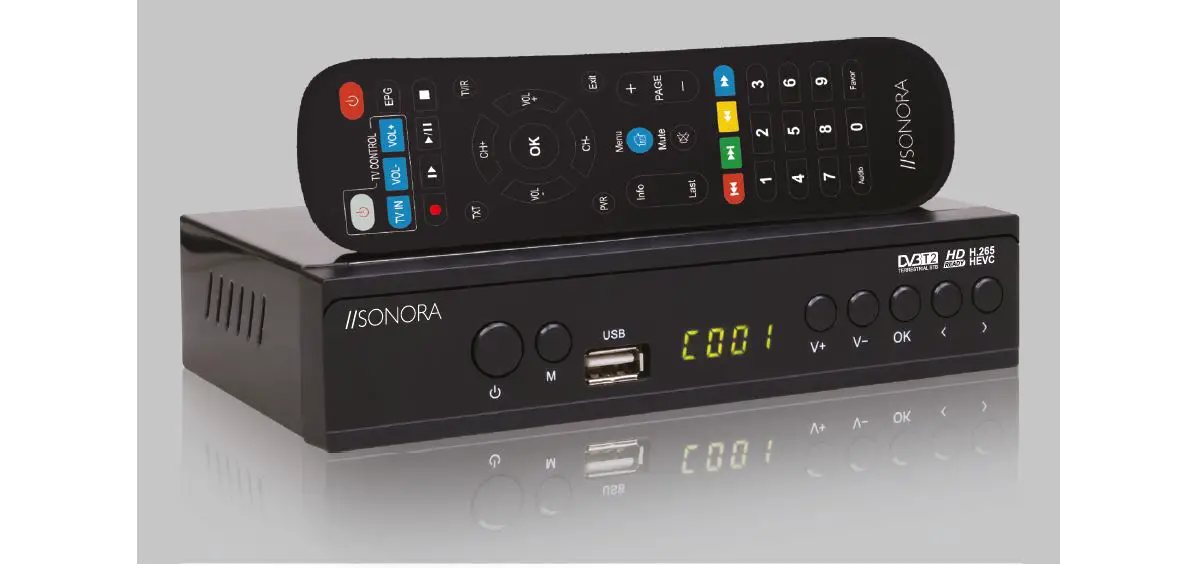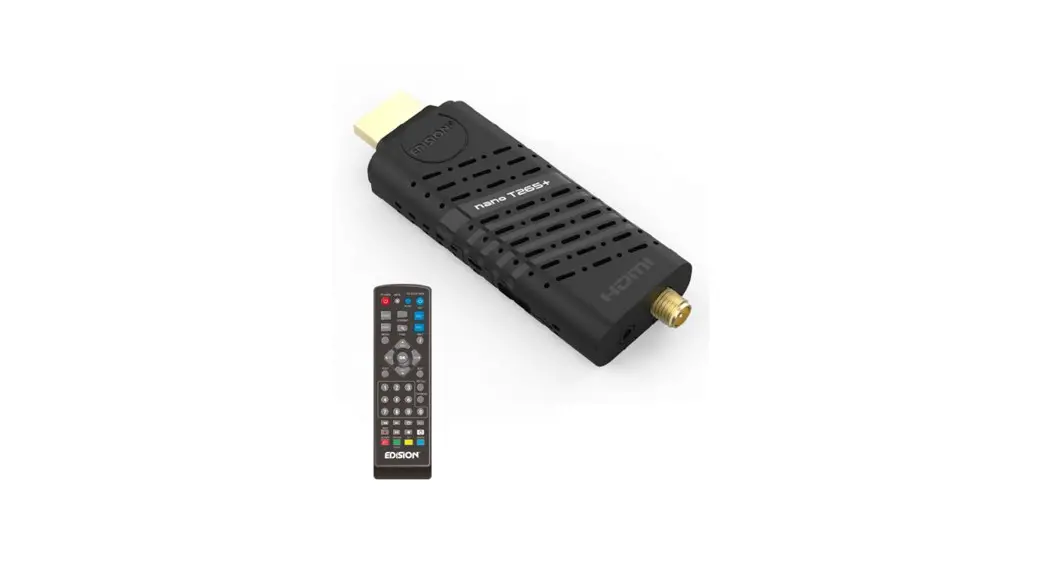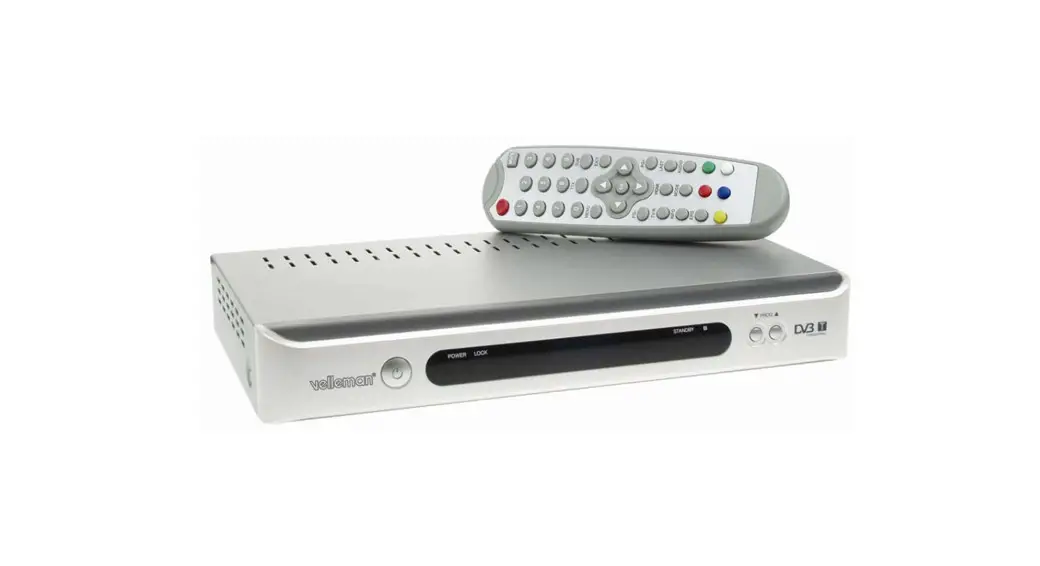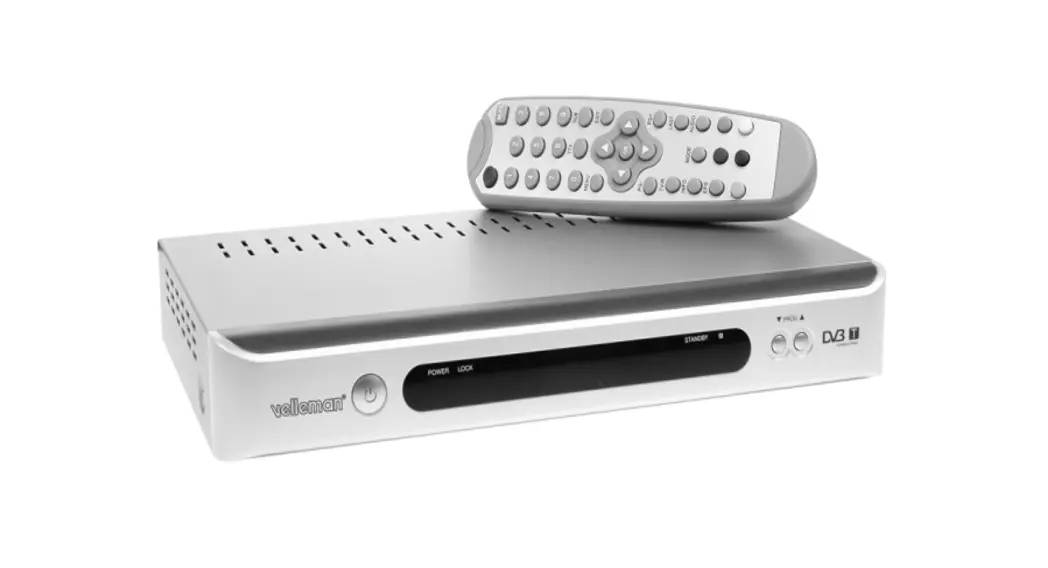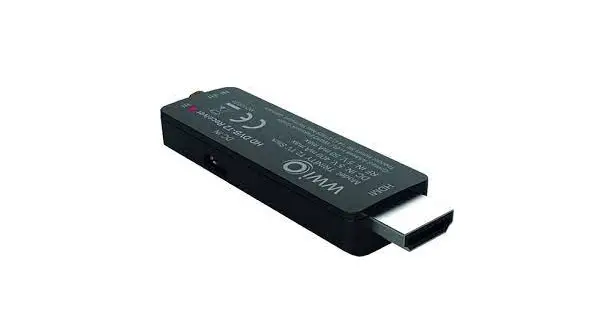
DCOLOR DVB-T2 Digital Terrestrial Television
User Manual
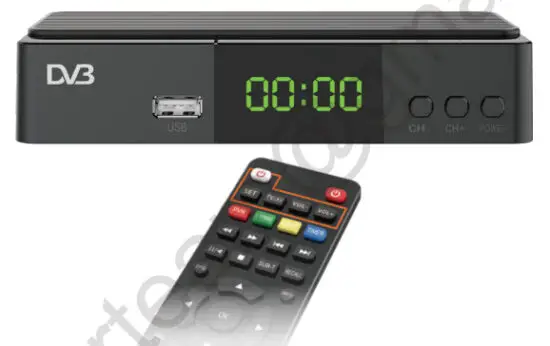
Easily Upgrade your TV to DVB-T2/C Happy? Tell the whole world
 Unhappy? Contact us to get help
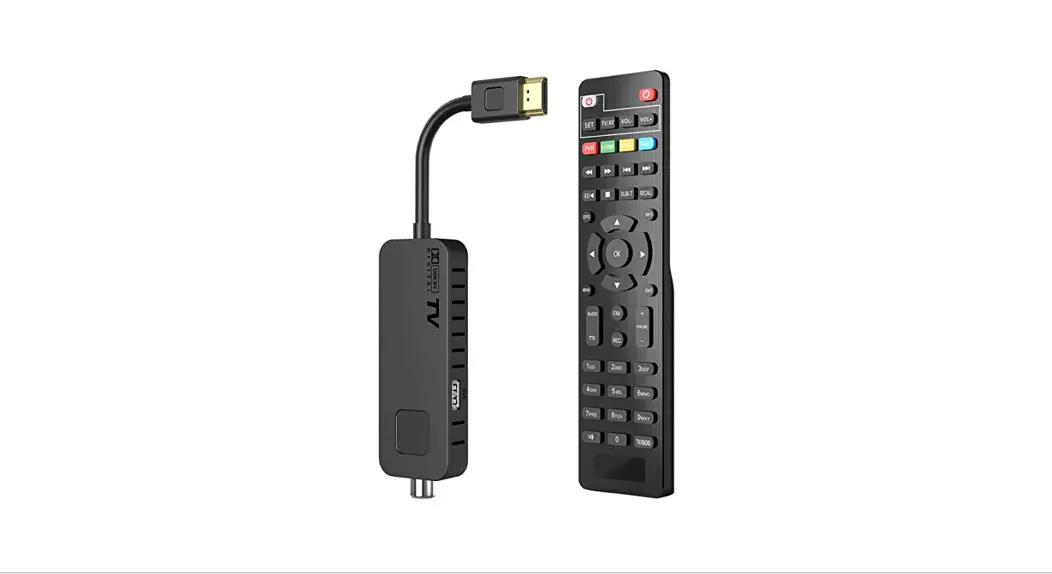
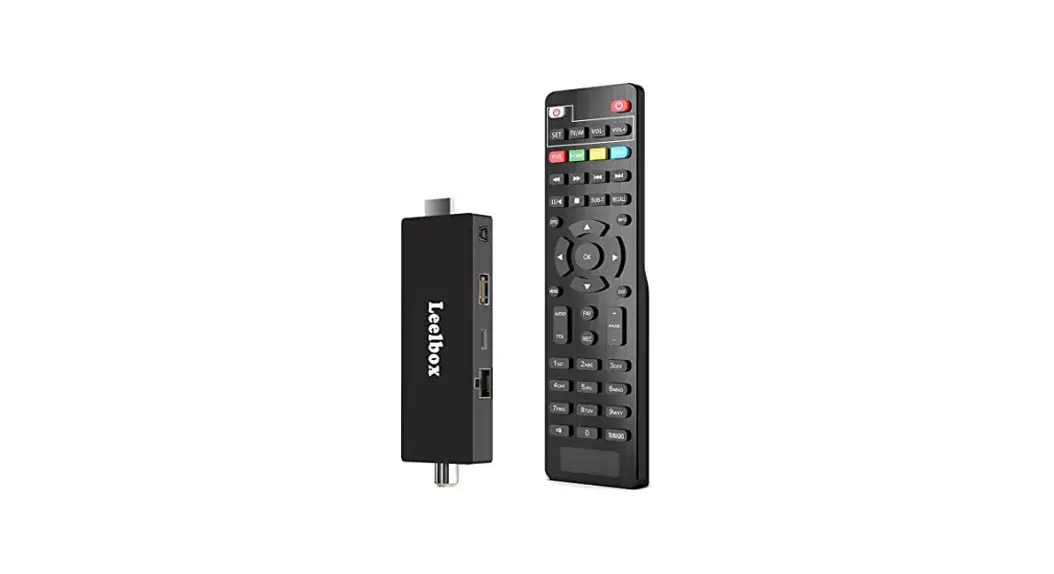
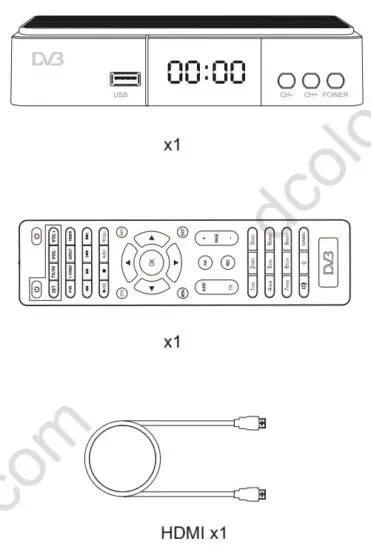
Packing list
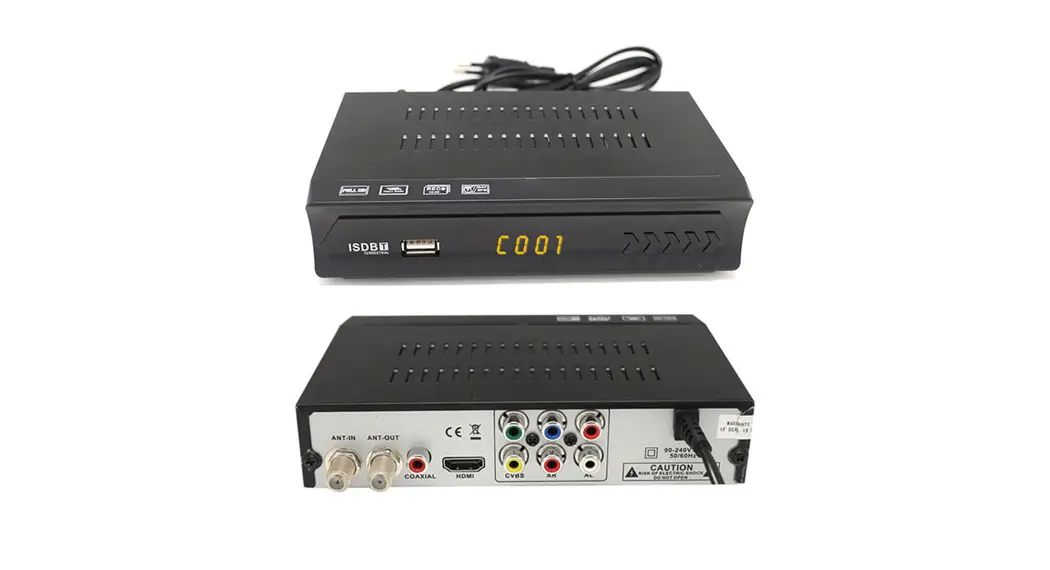
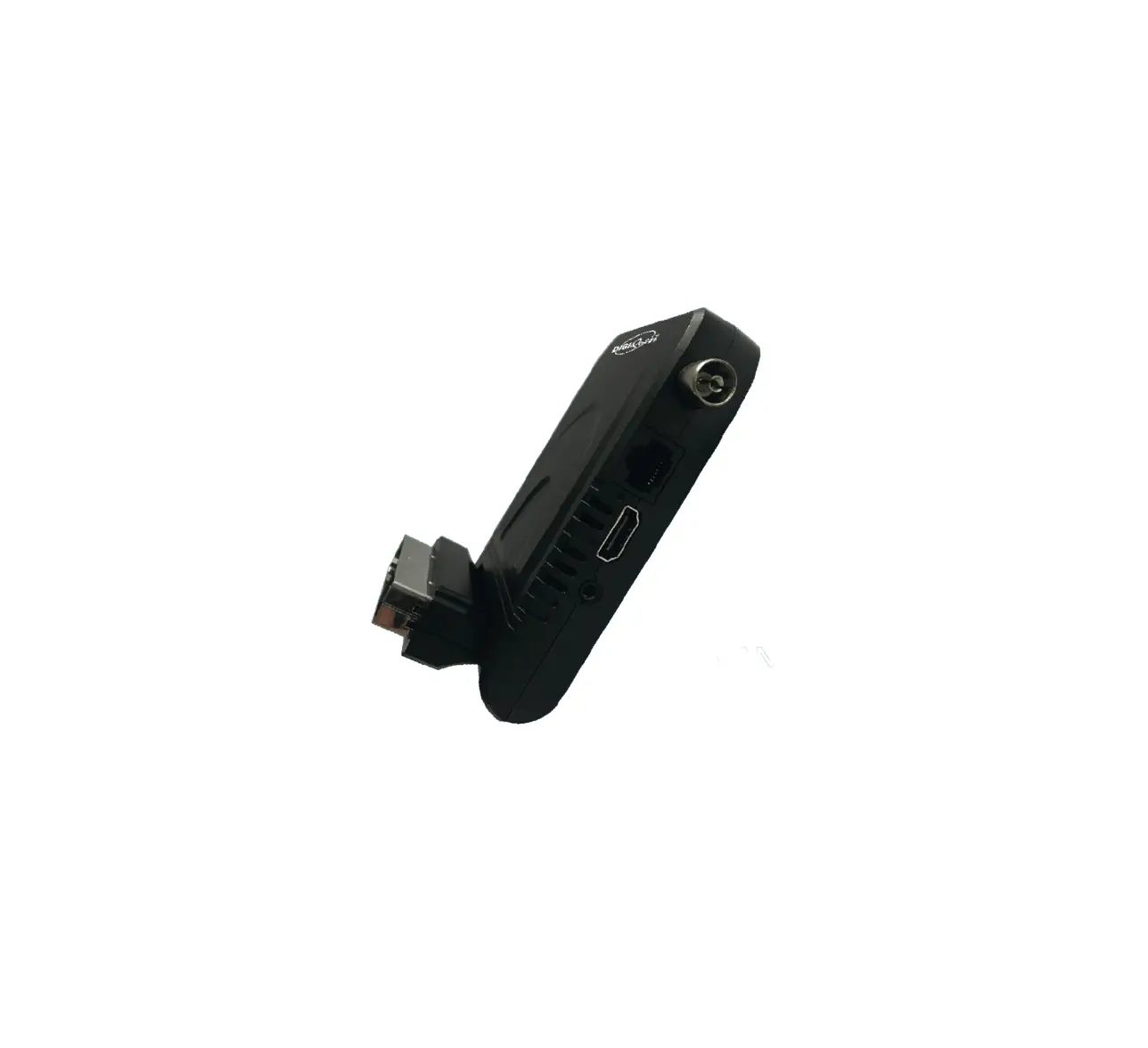
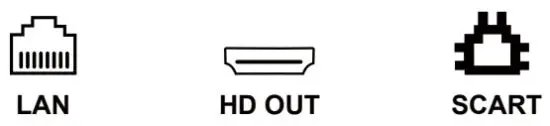
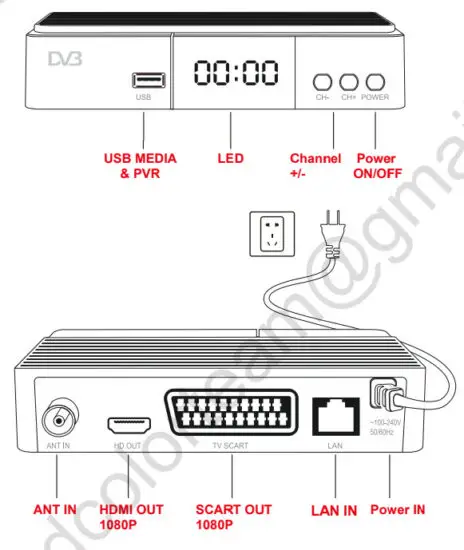
Functional Port
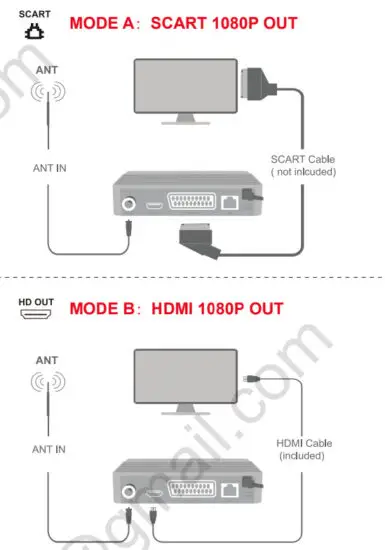
Update to DVB-T2/C
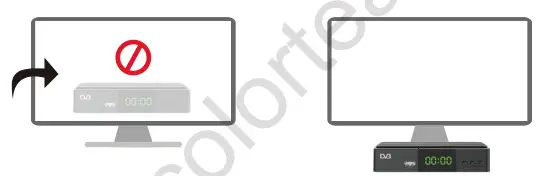
Attention
- Place the TERRESTRIAL Box in front of your TV Not behind it

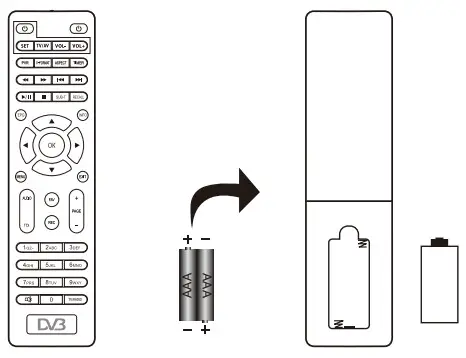
- Insert 2 AAA batteries (not included) into you’re remote

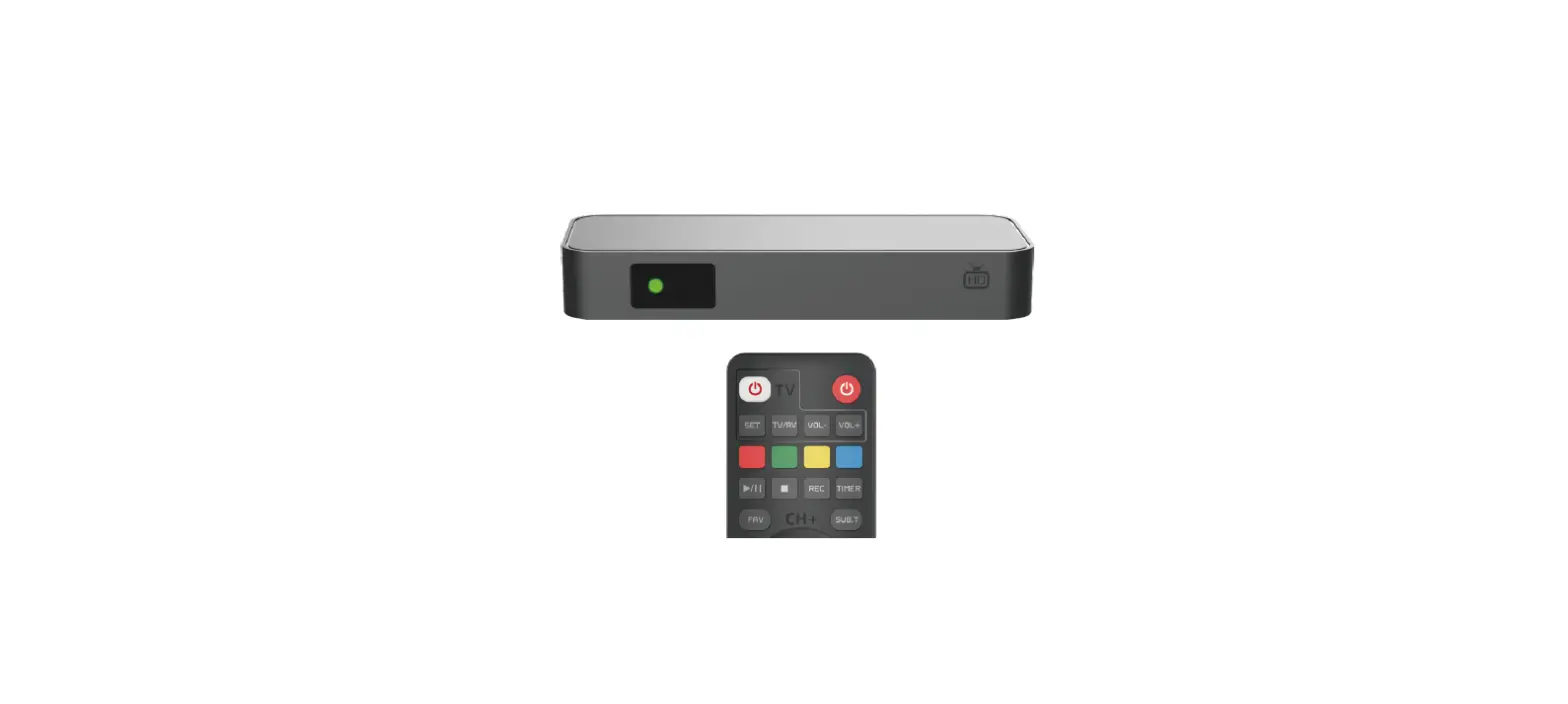
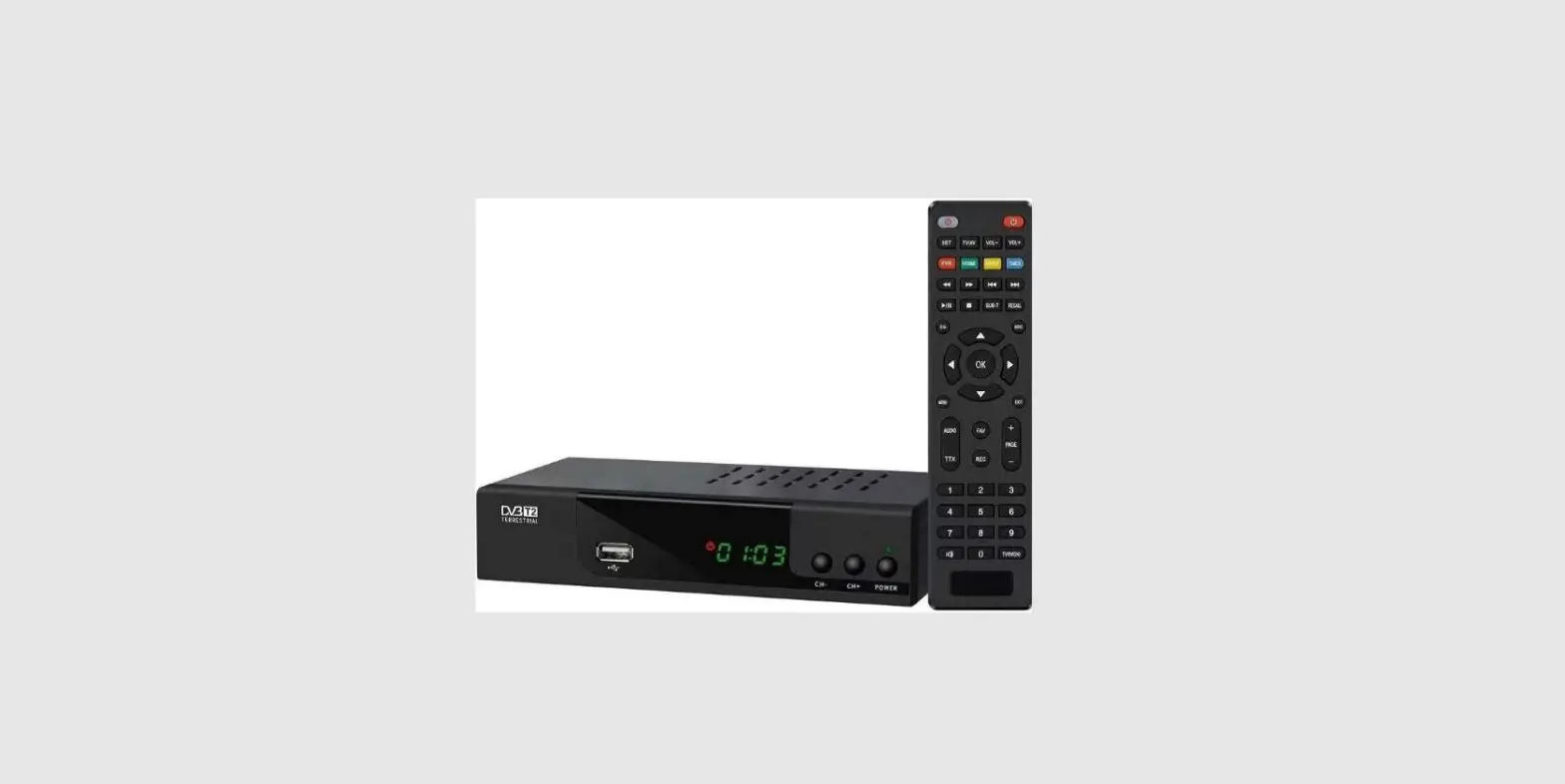
DVB Remote Control
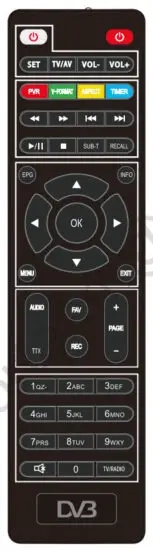
 POWER: turn ON/OFF the DVB device
TV Control POWER: turn ON/OFF the TV
SET: auto-learning setting
MEDIA Control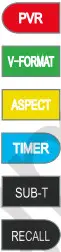 Show the REC media via the USB device
Switch 720P or 1080P
Switch 16:9 or 4:3
Book listing control
Show the subtitles (if available)
Skips to the previous channel
MENU Control Electronic guide (if available)
Info of the channel
MENU: open the main menu
EXIT: Exit from a menu
MORE Control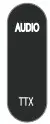 AUDIO: selects the language of the channel
TTX: Teletext ( if available)
 FAV: creates and shows the list of the favorite channels
 REC: start recording in the USB device
 PAGE: navigate inside the menu
CHANNEL Control:
TV/RADIO: switch TV or Radio channel
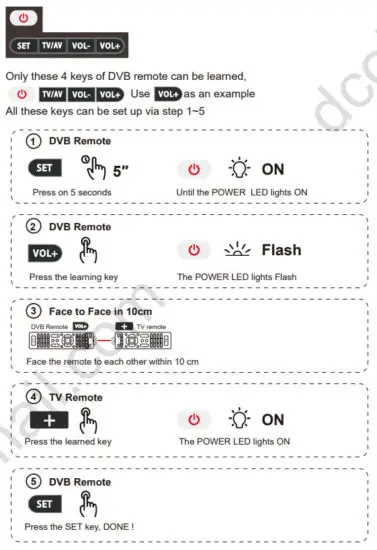
Remote Auto -learning Set
Troubleshooting
| Problem | Possible cause | Solutions |
| The front panel the display does not turn on | Lack of tension | Make sure the power cord is properly inserted into a powered outlet Verify that the switch is turned on |
| No image or sound | The cables connecting the W and the decoder are not connected correctly | Check that the output signal cable is well connected (SCART or HDMI). Also, check the antenna cable. |
| TV mode is incorrect | Make sure you have selected the correct input signal on the TV (SOURCE or INPUT key on the TV remote control) | |
| Incorrect video definition | Press V-FORMAT on the remote control and select a video resolution that allows correct viewing | |
| Intermittent t picture and audio | Insufficient signal strength | Check that the antenna cable is well connected and that the quality of the video signal is adequate. |
| Electrical interference | Check that the antenna cable is completely shielded | |
| No audio | The receiver or TV is in silent mode | Disable silent mode using the MUTE button |
| Volume level too low | Check that the volume level of the set-top box and television are adequate | |
| Audio CODEC is not supported | While watching multimedia content, audio encoding may not be supported (while video encoding maybe) and movies may appear without audio. The file is not completely readable. | |
| The remote control not working | Batteries not inserted | Insert the batteries into the remote control |
| Low battery | Replace the batteries | |
| Polarity reversal of batteries | Check that the batteries have been inserted according to their correct polarity, as indicated on the bottom of the battery compartment. | |
| The remote control is out of its operating range | Approach and point the remote control directly at the appliance. | |
| Media files on the USB stick are not played | The files are not of the supported format | Only some formats are supported |
| The compression codec is not supported | Only some codecs are supported |