Contents hide

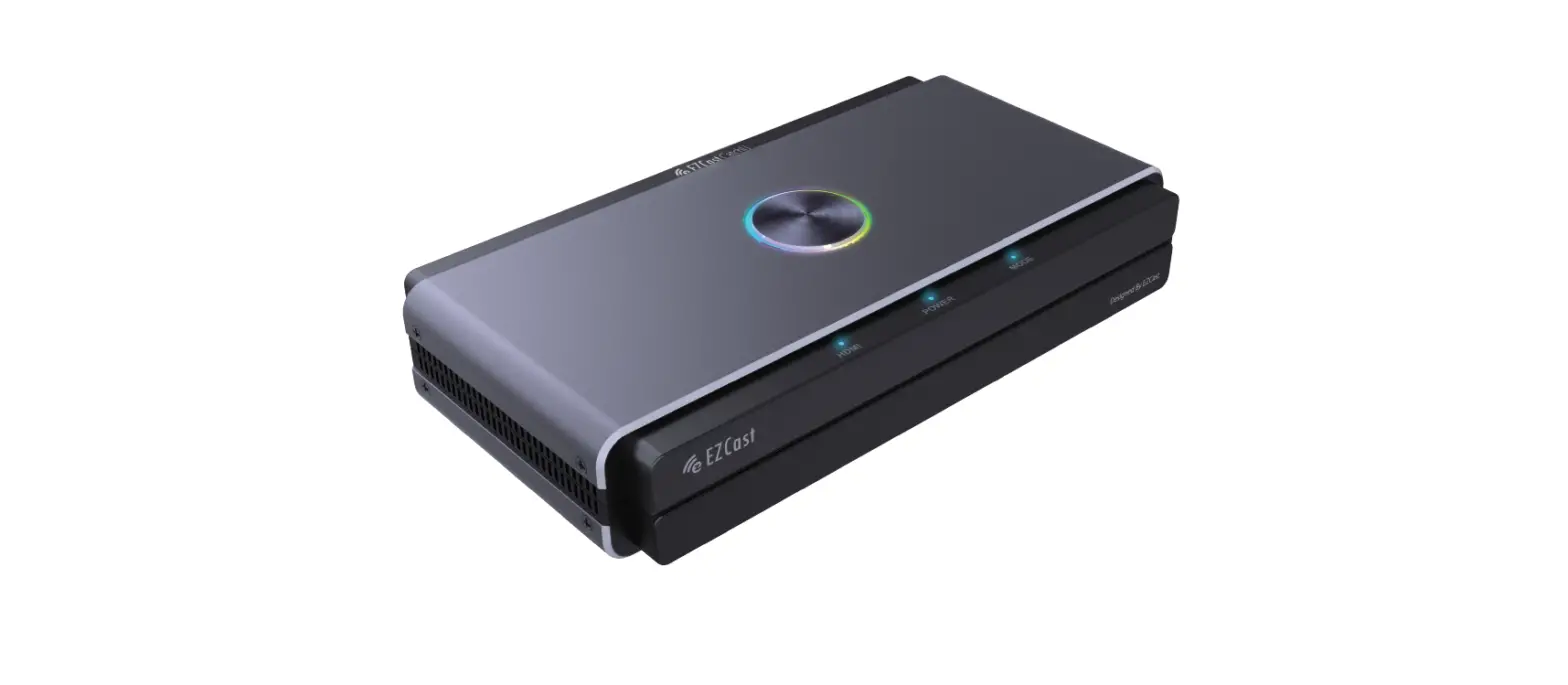
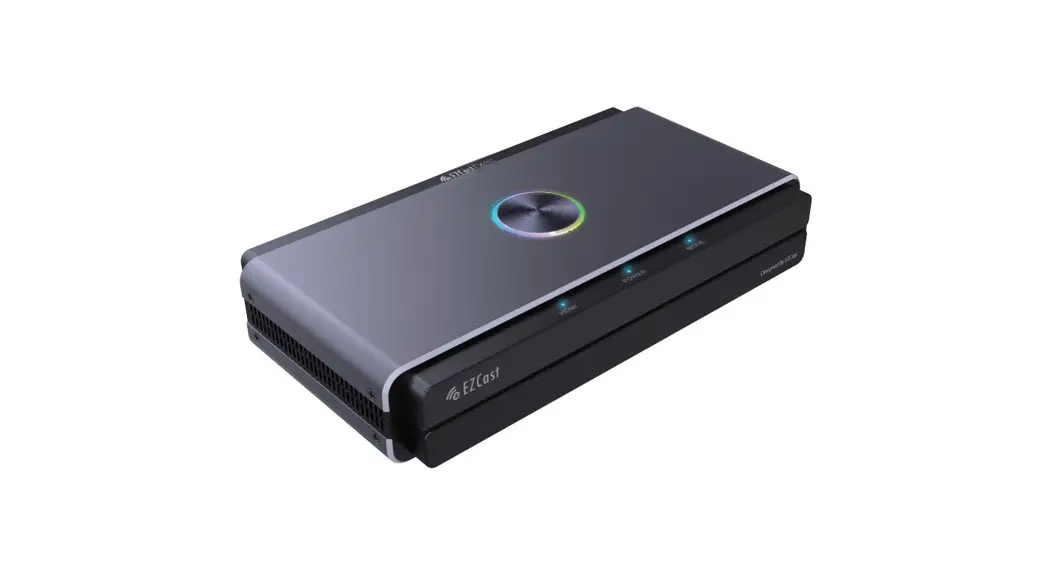
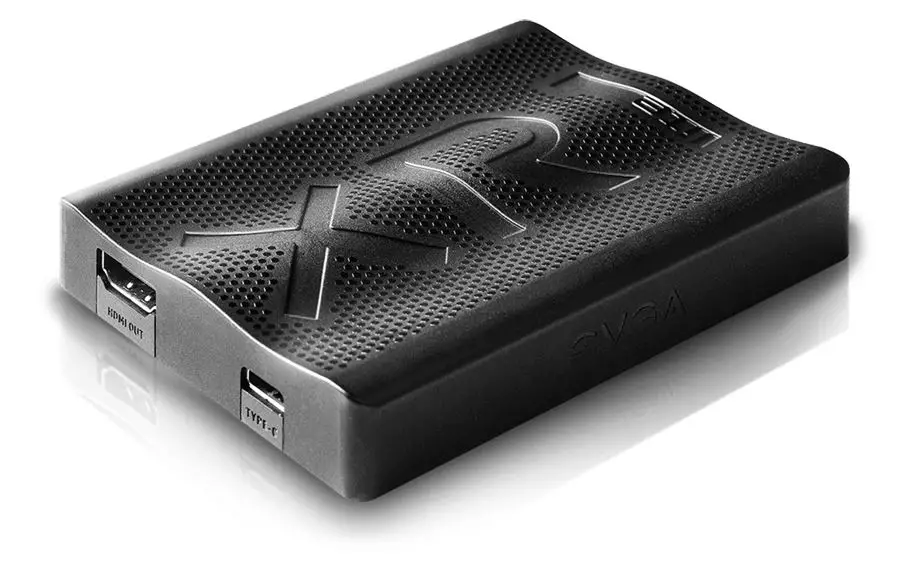
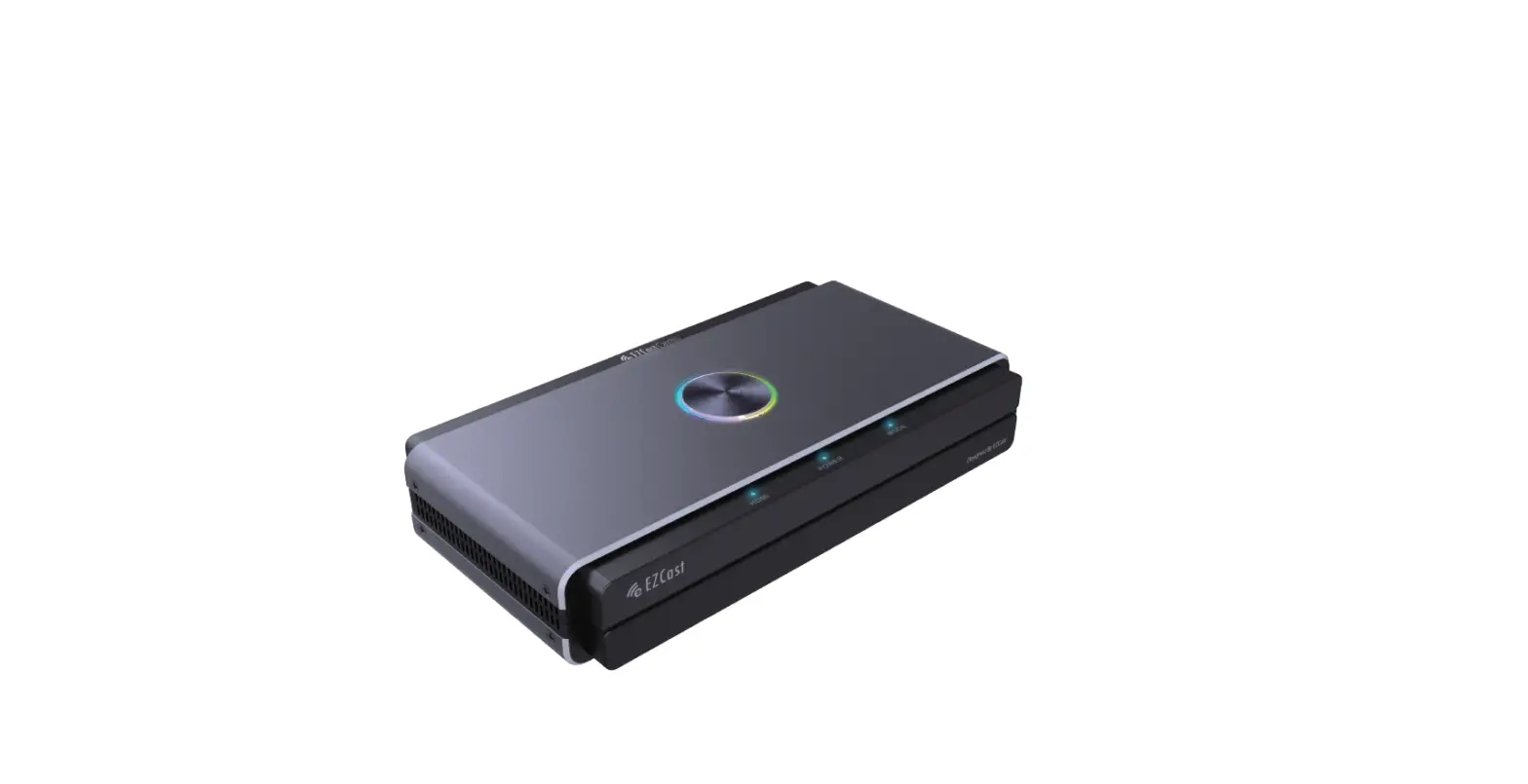
EZCast CatchU B1 Video Capture Card
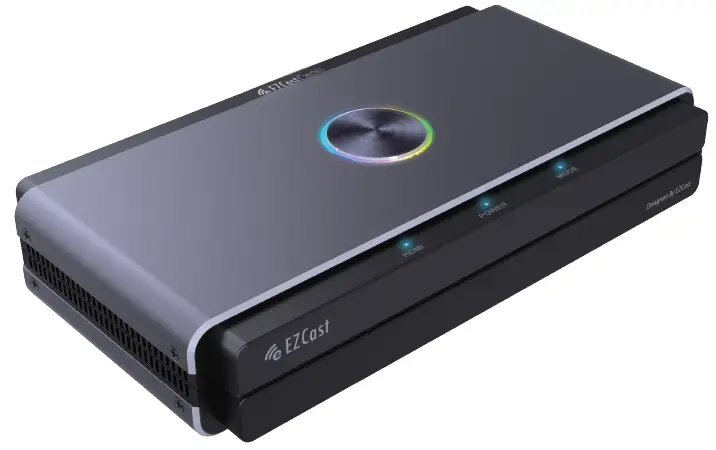
What’s In The Box

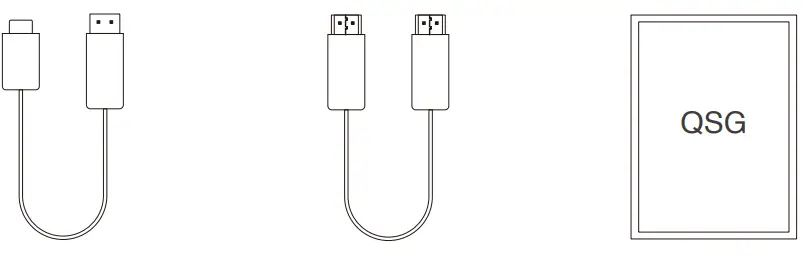
- Type-C to USB
- HDMI to HDMI
- Quick Start Guide
Installation
Scan the QRCode below to visit full-version user manual on our website.
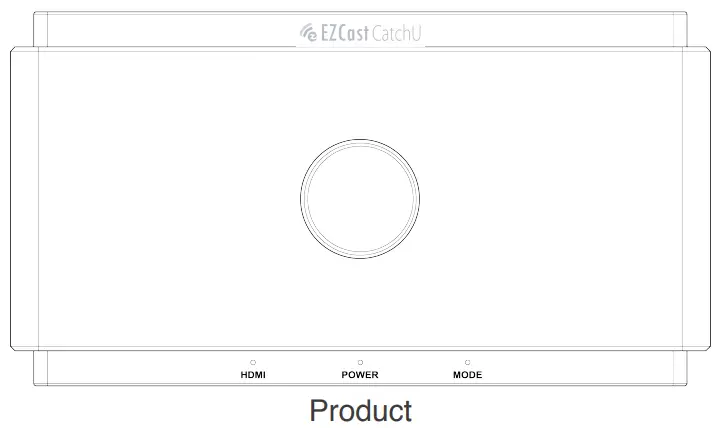
Signals and Buttons Instruction
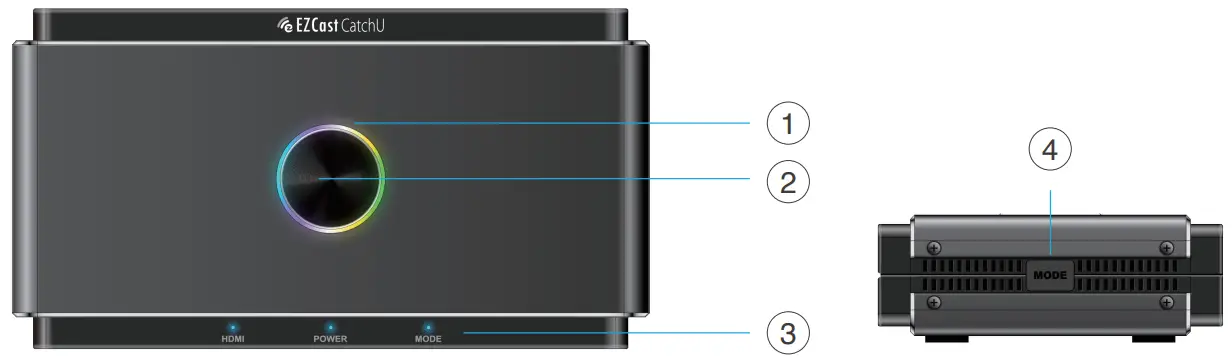
- LED light
- Multi-color: Ready to record
- Stable red light: Recording to external storage
- Flash in red: Warning message
- Light off: Power off
Note: When the LED light is flashing in red, it means the setup or configurations are incorrect: - No HDMI input signal
- No USB Storage inserted on Storage/ Phone port
- Incorrect System Format for USB Storage (Click MODE button to fix)
Incorrect Encoder Format for USB Storage (Click MODE button to fix) - The capacity of USB Storage is full.
- Existing hidden partition in USB Storage
- Record button
Click to record HDMI IN source to storage up to 1080p@60Hz. - Status signals
- HDMI: HDMI signal detected or not
- Power: Power ON/ OFF
- Mode: Stable light ON/ OFF for Auto HD Mode
Flash 2 times for MIC mix mode ON
Flash 4 times for MIC mix mode OFF
- MODE button
Turn on Compatible Mode to ensure the recording format is compatible with both USB storage and UVC/PC recording.- Compatible mode: 1080P@60Hz, H.264, MP4 format
- Don’t switch the mode while recording
Ports Introduction
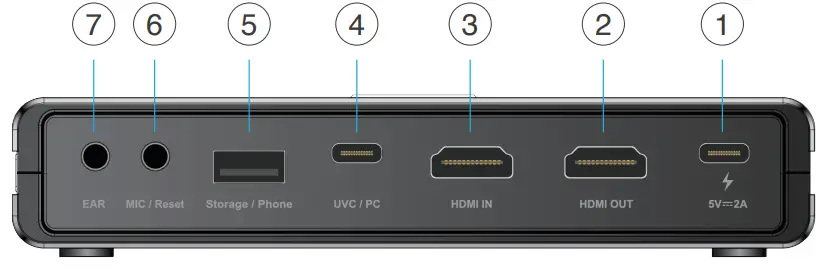
- POWER
Power up by a USB-C adapter with 5V/2A power supply. - HDMI OUT
Connect HDMI cable to a monitor for pass-thru of HDMI IN port with up to 4K@60Hz resolution. Note that the signals from Storage/ Phone port does not support pass-thru to HDMI output source. - HDMI IN
Connect HDMI cable to any device support HDMI output. Contents transfered by an hub/ adapter may not be transmitted. - UVC/ PC
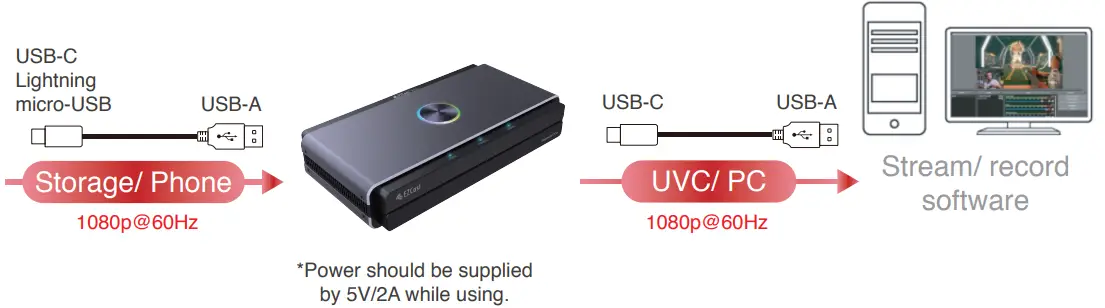
Connect USB-C to USB-A cable to a computer to stream or record the video/ audio from input source. Support third-party softwares like OBS, Potplayer, Xsplit, Skype, Zoom on Windows and OBS, Skype, Zoom, FaceTime, QuickTime Player on MacOS. Note that H.264 format is not supported for some Instant Message Applications like Facetime etc,. - Storage/ Phone
- Storage: Connect an external USB-A disk (exFAT/ FAT32 format supported) to record streaming video directly by pressing the Record button on the top of EZCast CatchU. Support simultaneously record to standalone USB storage and to UVC/ PC, however only as H.264 format.
- Phone: Connect a USB data cable to Android/ iOS phone to stream contents to UVC/ PC. For Android users, please download MiraPlug App before using. For iOS users, click “Trust the computer” to begin streaming/ recording.
- MIC/ Reset
- MIC: Connect a 3.5mm audio cable to a microphone to mix the audio to HDMI input.
- Reset: Use a pin to insert the MIC/ Reset jack for 10 seconds to reset to factory default.
- EAR
Connect a 3.5 mm earphone to listen to the mixed audio.
Hardware Installation and Connection
Capture to PC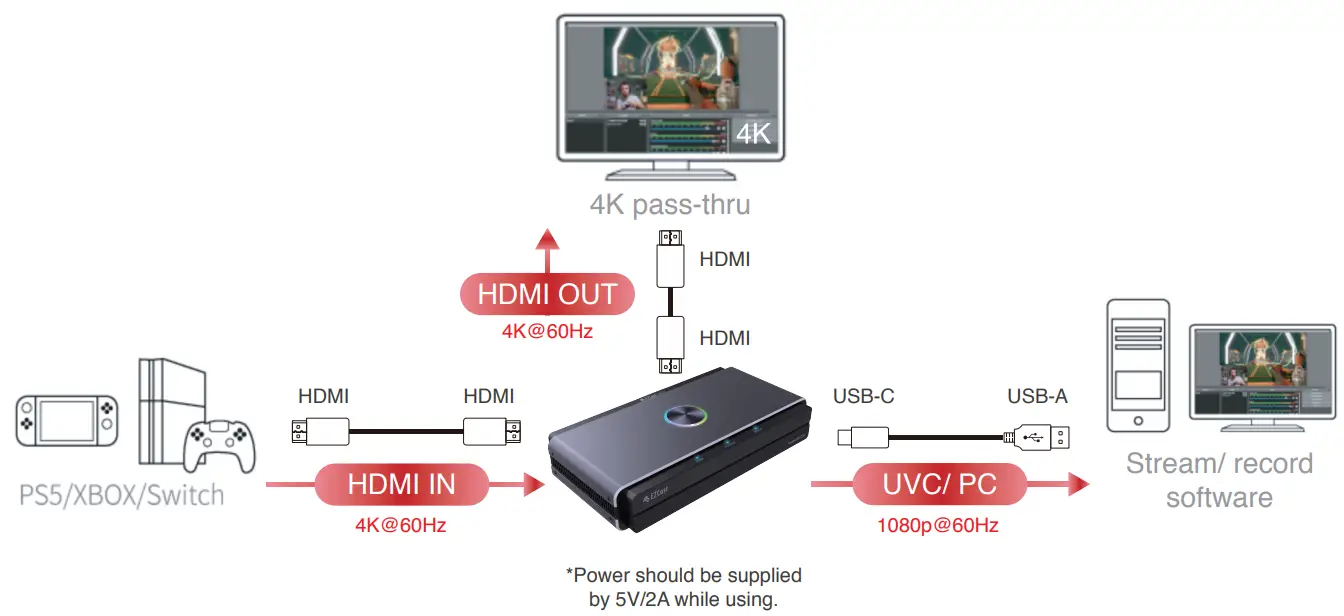
Capture to Standalone USB Disk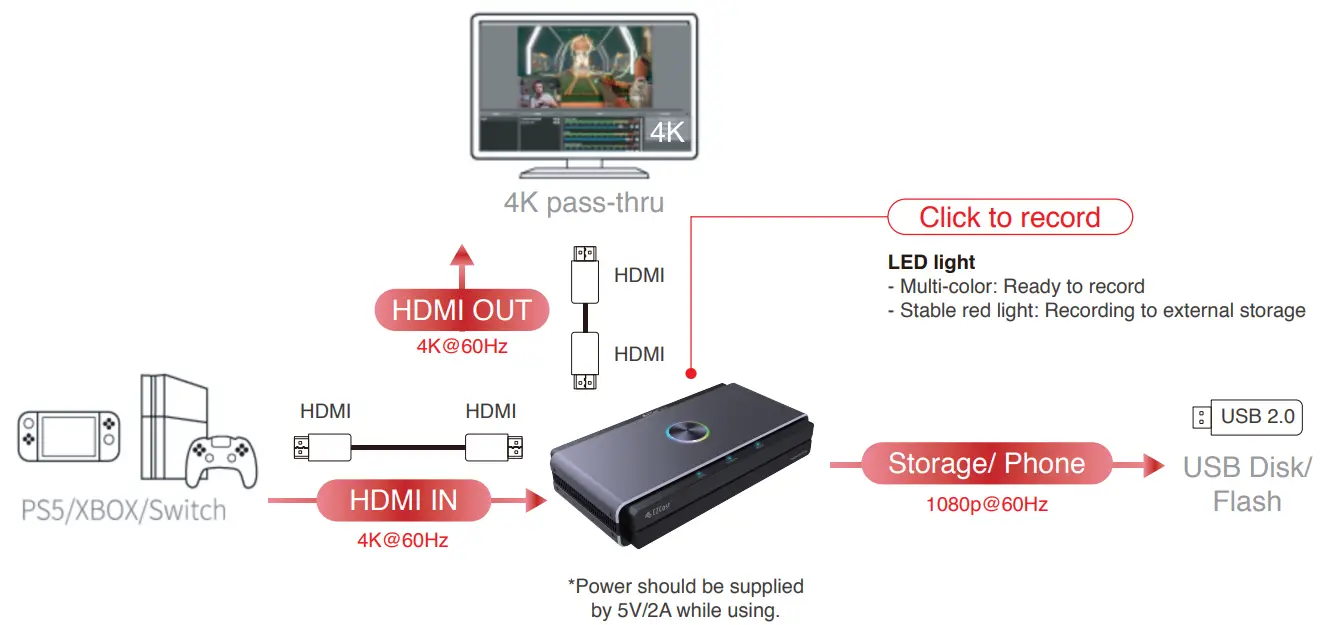
Capture to PC and Standalone USB Disk Simultaneously
UVC/ PC and Storage are able to record simultaneously only as H.264 format.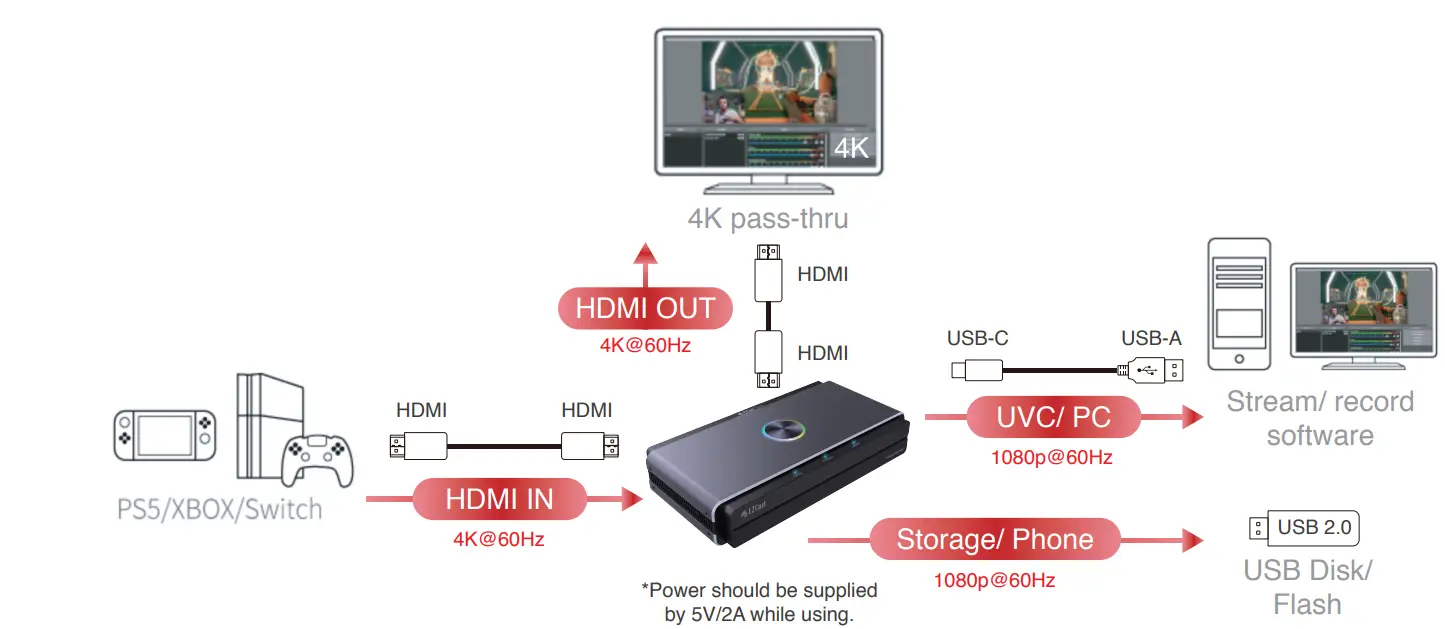
Capture in Compatible Mode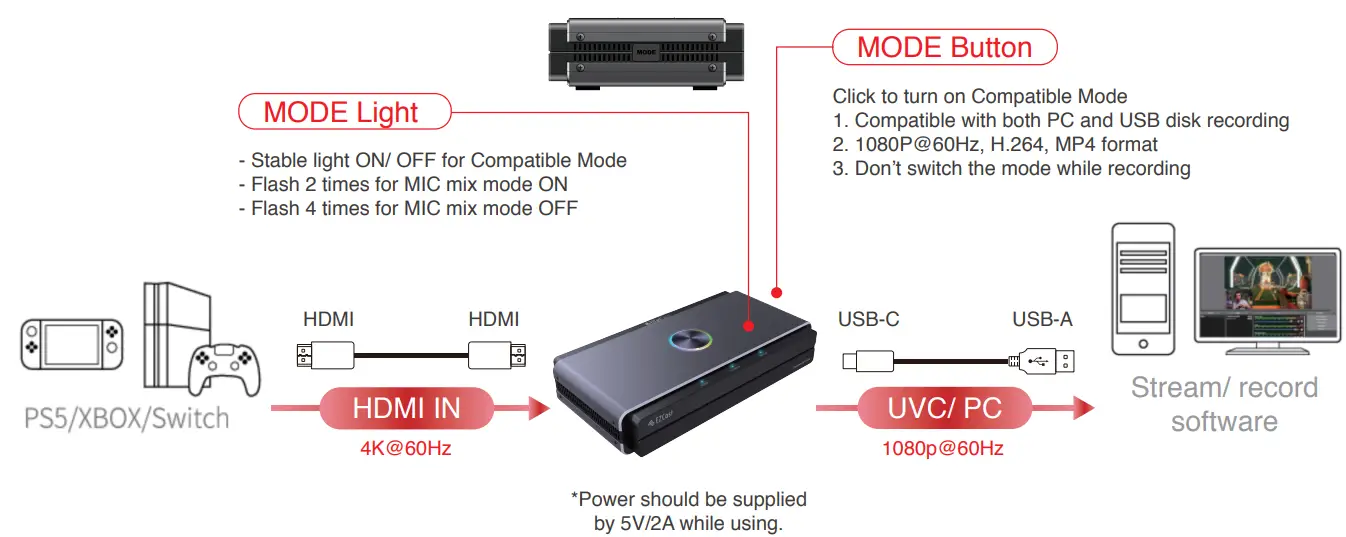
Capture from Laptop/ PC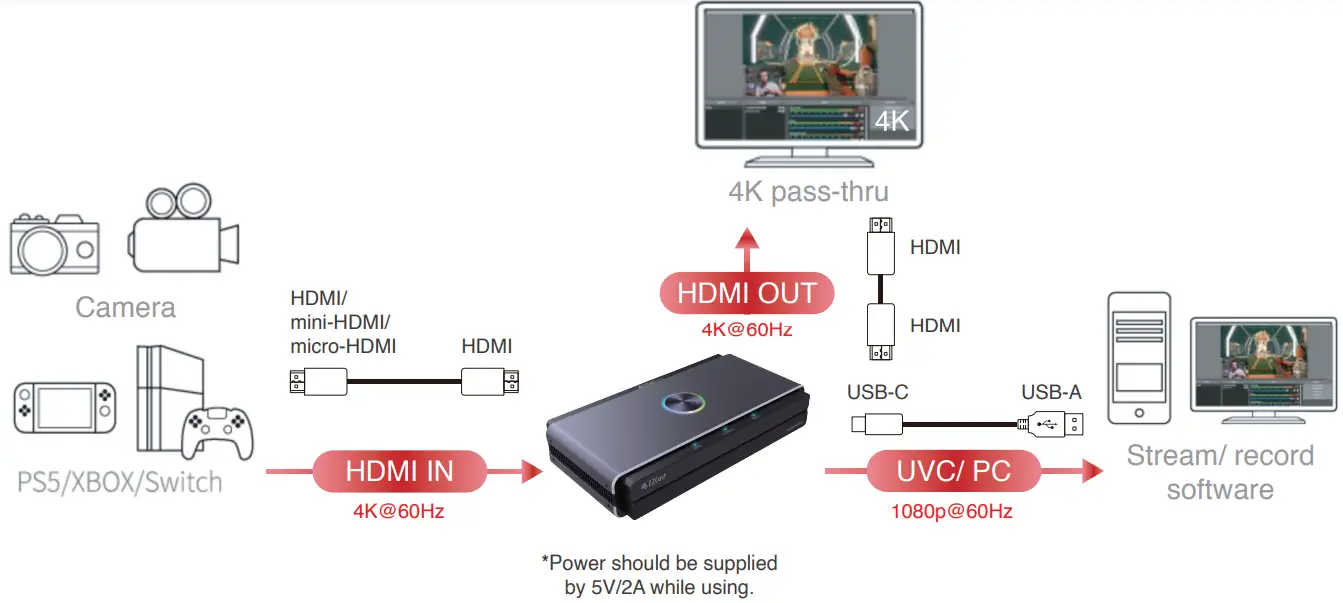
Capture from Phone
Android
Download MiraPlug App for capture and settings
iOS
Click “Trust the computer”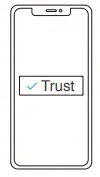
Mix Audio from MIC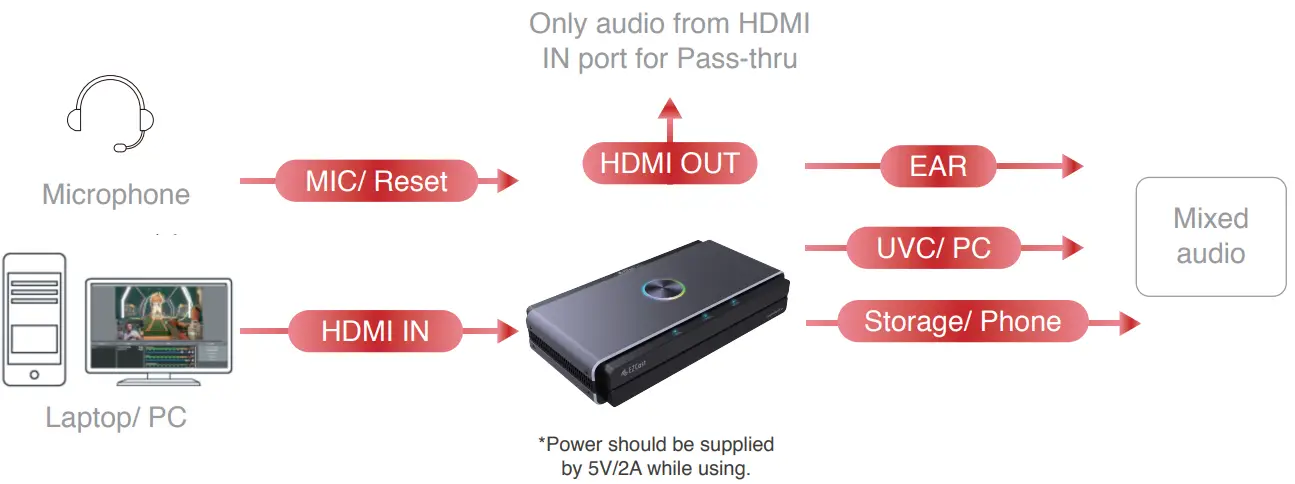
Settings on Android/ iOS Mobile
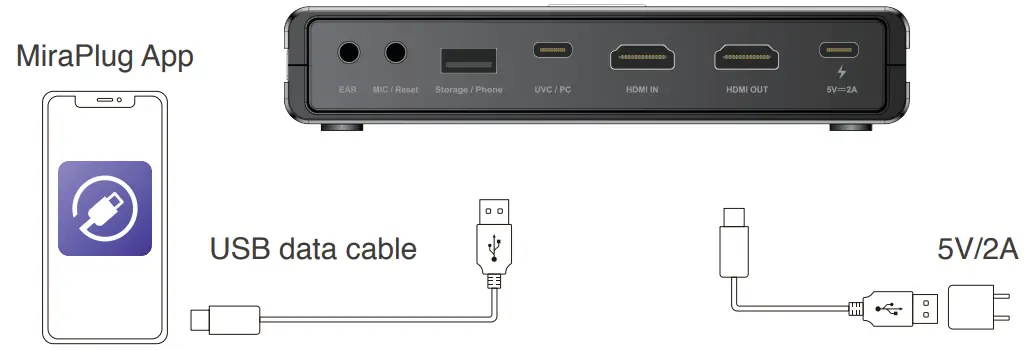
- Download MiraPlug App on your mobile (Android/ iOS supported).
- Connect your mobile by a USB data cable to EZCast CatchU powered up.
- Firmware upgrade and time correction for EZCast CatchU can be done by MiraPlug App.
System/ Hardware Requirement
Operating System
- Windows10 (64bits)
- Mac OS X 10.14 or later
PC
- Intel® CoreTM i5 CPU i5-8xxx or above / AMD Ryzen 7 or above
- NVIDIA® GeForce® GTX 660 or above / AMD RadeonTM RX 870 or above
- 8GB RAM (dual channel) or above
Laptop
- Intel® CoreTM i5 CPU i7-7xxx or above / AMD Ryzen 7 or above
- NVIDIA® GeForce® GTX 1050ti or above
- 8GB RAM (dual channel) or above
Product informations
| Product | EZCast CatchU B1 |
| Input | HDMI In 2.0, USB 2.0 Type A |
| Output | HDMI Out 2.0, USB 3.0 Type C |
| Pass Through | 480p@60Hz, 720p@60/50Hz, 1080i@60Hz, 1080p@60/50Hz, 4K@30/60Hz |
| Video Capture Resolution | USB 3.0 Type C (UVC) : 640x480p@60/30Hz, 720p@60/30Hz, 1080p@60/30Hz USB 2.0 Type A (External Storage): 640x480p@60/30Hz; 720p@60/30Hz, 1080p@60/30Hz |
| External Storage File System | exFAT/ FAT32 |
| External Storage Recording Format | MPEG 4 (H264) |
| Audio Mixing | 3.5mm (EAR) 4-pole, 3.5mm(MIC) 4-pole |
| For Use With | MiraPlug App |
| Weight | 235g |
| Dimensions | 150 x 80 x 30mm |
| Power | 5V/2A |
Learn More
- Visit https://www.EZCast.com for more information.
- Visit https://www.YouTube.com/EZCast for video tutorials.
 Universal wireless screen mirroring solution - EZCast