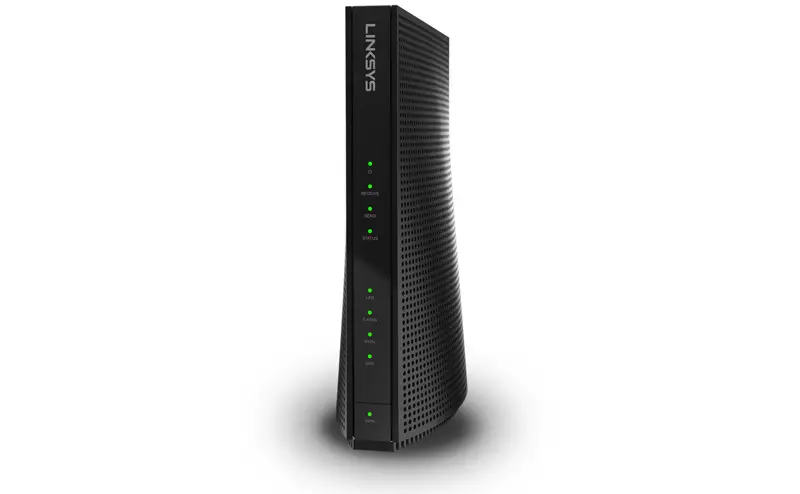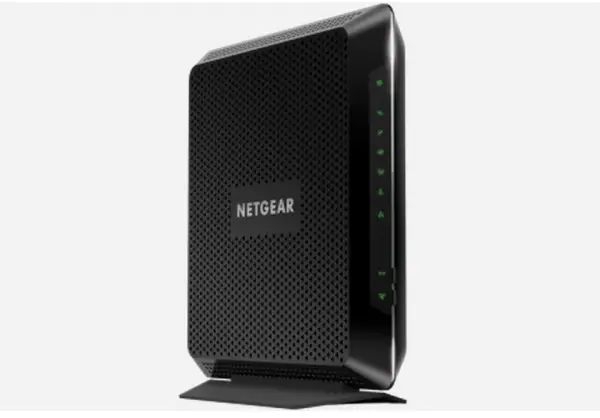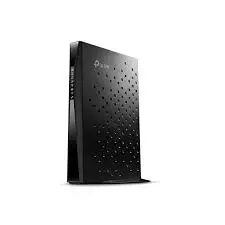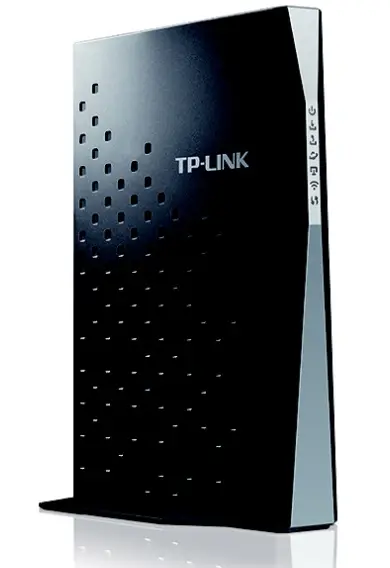
TP-Link Archer CR1900 Wireless Wi-Fi Cable Modem
Modem InformationDOCSIS 3.0 Dual Band 802.11-AC WiFi Modem 24×8 channel bonding To achieve Gigablast or Ultimate Classic speeds, a DOCSIS 3.1 modem is required | Highest Service LevelUltimate 500 |
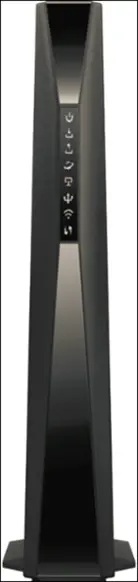
Front View
| After the cable modem is successfully registered on the network, the Power, Downstream, Upstream, and Internet indicators illuminate continuously to indicate that the cable modem is online and fully operational. | |
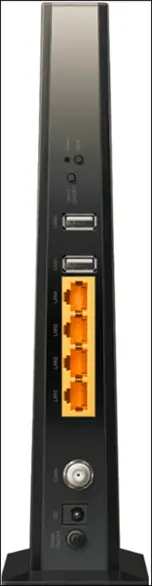
Back View
| The following ports are available on the back of the modem.
| |
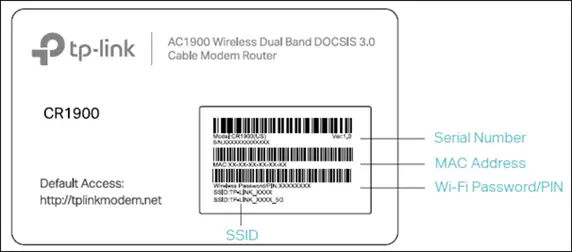
MAC Address / WiFi Network Label
| This label is located on the bottom of the device.
|
Troubleshooting
The lights indicate the current status of your modem. To troubleshoot any connection problems, use the table below.
| Modem Light | Status | Problem |
|---|---|---|
| Power
| On | None – the modem is powered on. |
| Off | No power. Verify power supply connections and electrical outlet. Ensure the outlet is not connected to a switch. Press the Power ON/OFF button on the back of the modem to ensure it is turned on. | |
| Downstream
| Green | None – multiple downstream channels are in use. |
| White | None – one downstream channel is in use. | |
| Flashing | None – scanning for downstream channels. Verify all cable connections and try resetting the modem. | |
| Off | Cable modem offline. Verify all cable connections and try resetting the modem. | |
| Upstream
| Green | None – multiple upstream channels are in use. |
| White | None – one downstream channel is in use. | |
| Flashing | None – scanning for an upstream channel. Verify all cable connections and try resetting the modem. | |
| Off | No upstream channels are in use. Verify all cable connections and try resetting the modem. | |
| Internet
| On | None – the modem is online. |
| Flashing | None – the modem is initializing. | |
| Off | The modem is offline. Verify all cable connections and try resetting the modem. | |
| LAN
| On | None – a device is connected to a LAN port. |
| Off | No devices are detected connected to a LAN port. | |
| Wireless
| On | None – the wireless network is enabled. |
| Off | The wireless network is disabled. Press the WiFi ON/OFF button on the back of the modem to ensure it is turned on. | |
| WPS
| On/Off | None – the light stays on for 5 minutes after WPS is established. |
| Flashing | None – WPS connection in progress. This may take up to two minutes. |


Manufacturer Resources
For more detailed technical information on the CR1900, use the resources below.
- TPLink_CR1900(US)_V1_QIG [PDF]
- TPLink_CR1900(US)_V1_UG [PDF]


![Archer Cr500 Manual [docsis 3.0 Cable Modem/router]](https://static-data1.manualsee.com/1/img/37/19944/2020/12/Explanations-of-the-Symbols-on-the-product-label.png "Archer Cr500 Manual [docsis 3.0 Cable Modem/router]")