Smart Power Strip
Smart Power Strip Troubleshooting Guide
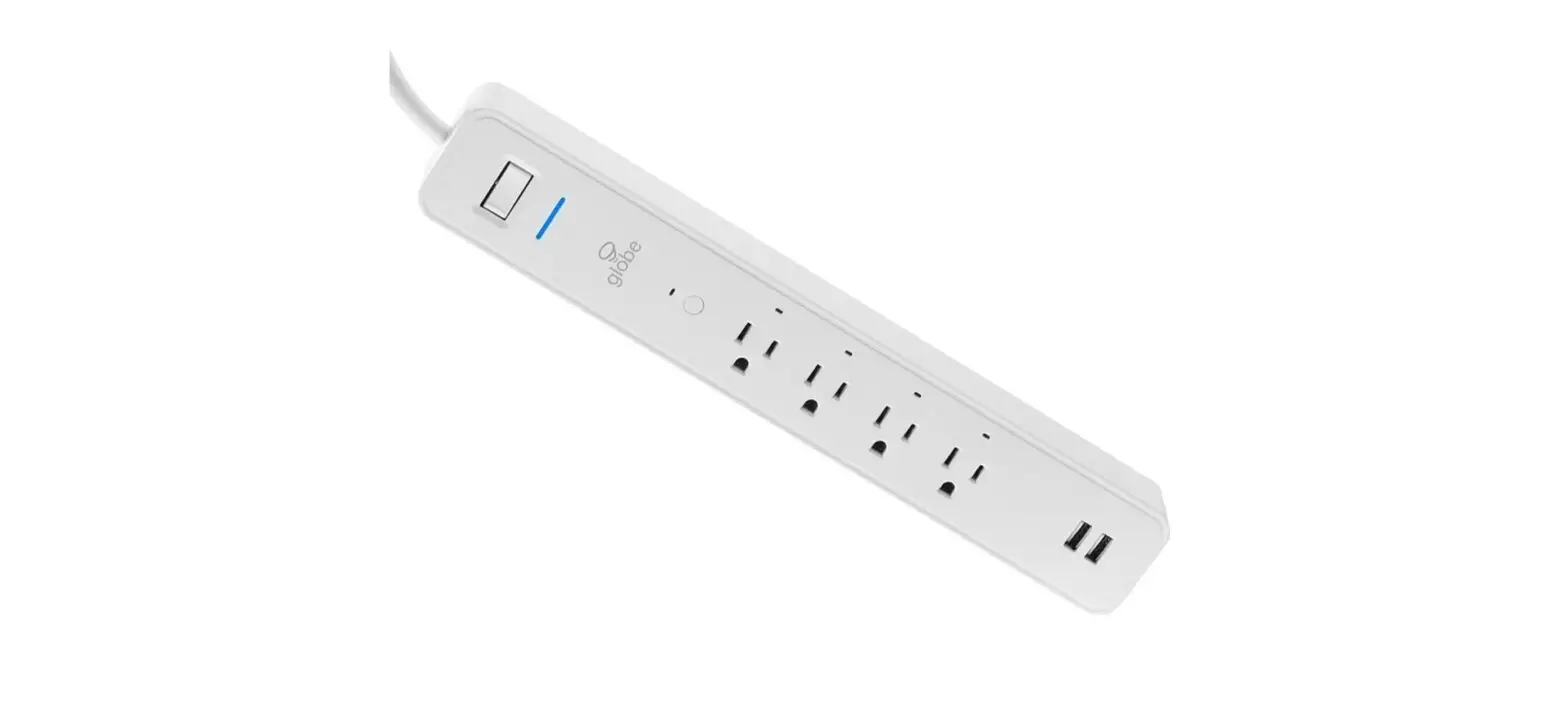
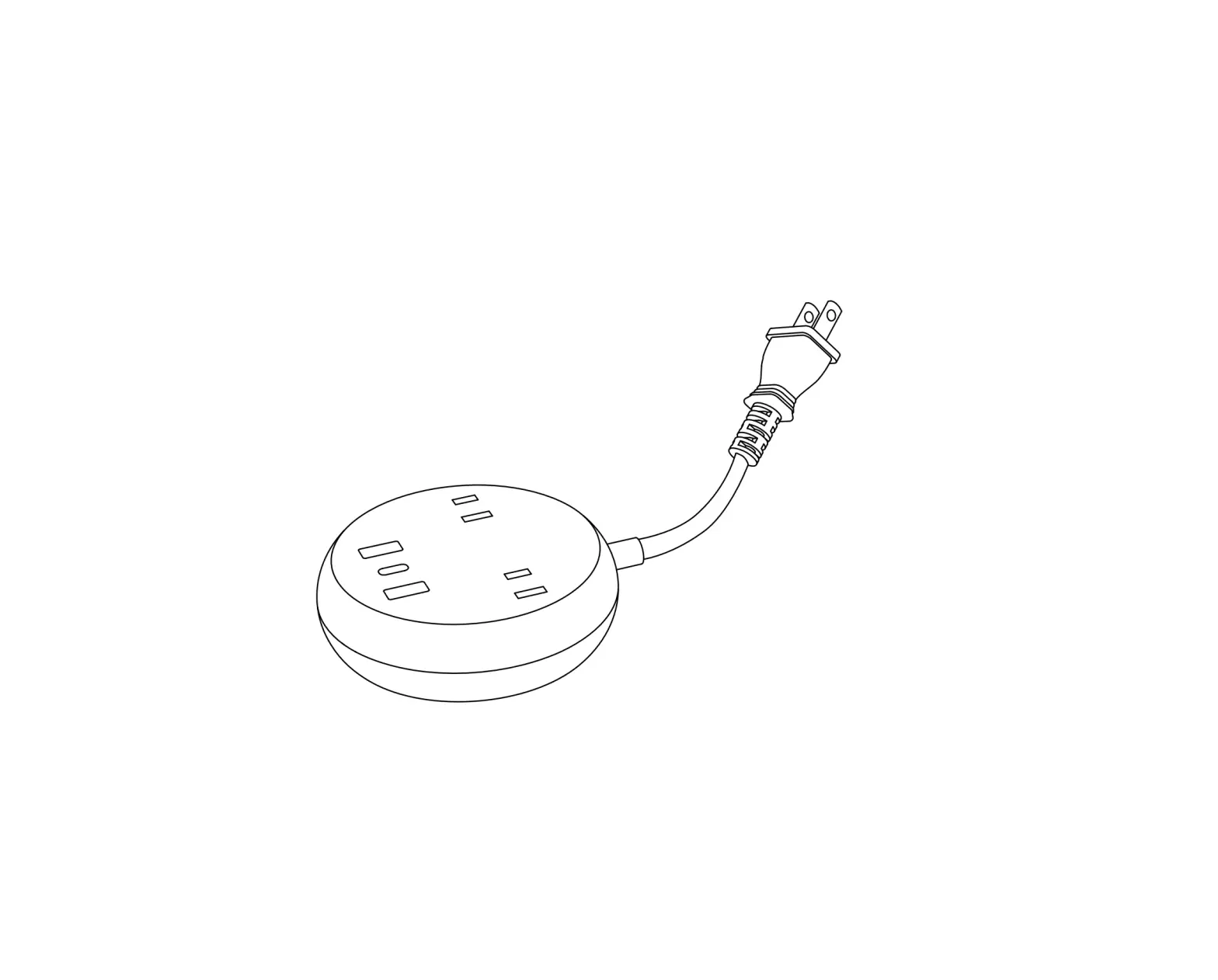
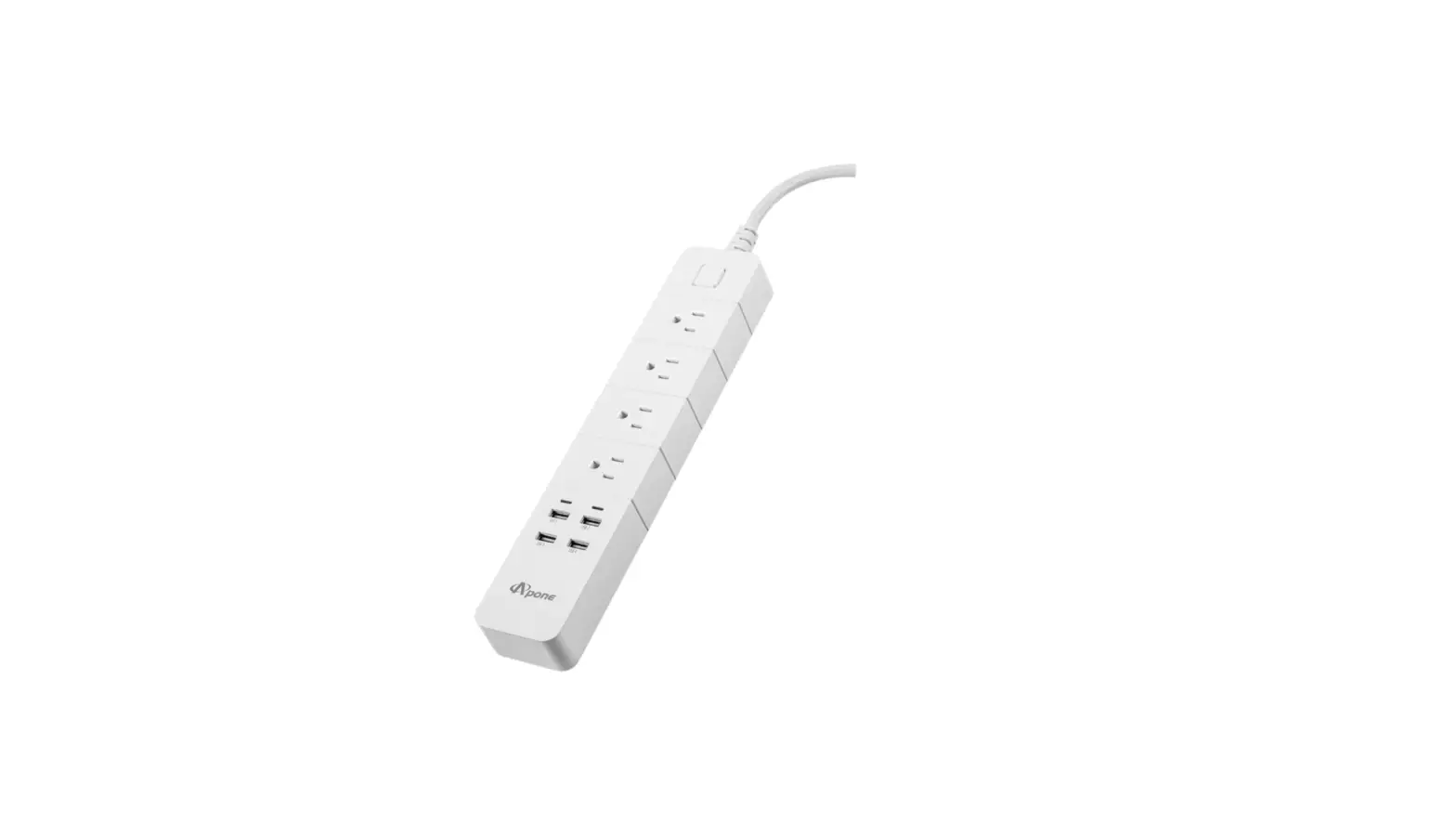
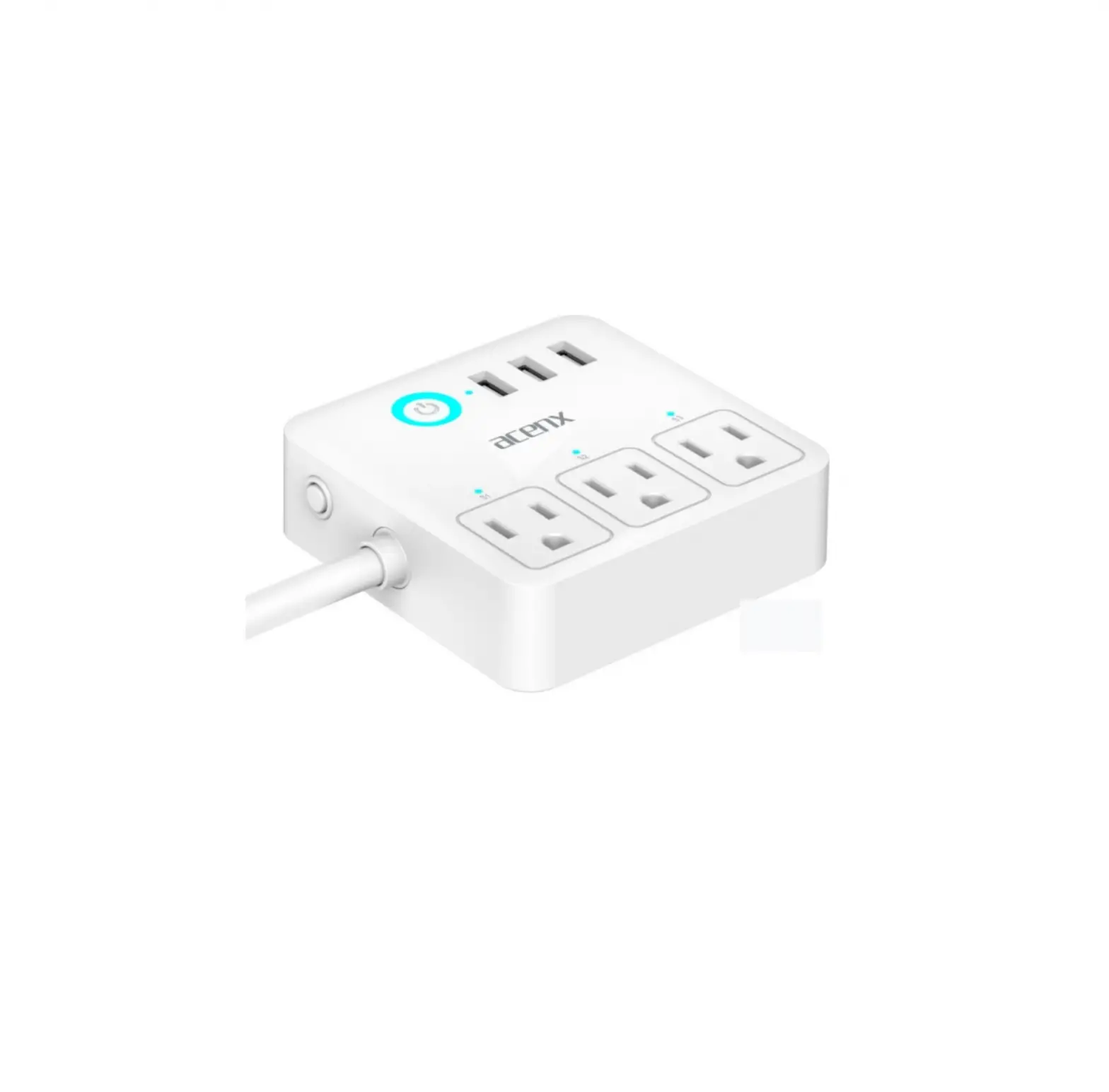
The Amazon Basics Smart Power Strip is a device that allows you
to control up to three plugs individually using the Alexa app.
Below is the troubleshooting guide for installation and setup:
Getting Started
Q: How do I download the Alexa App?
A: Download and install the Alexa app from your mobile device
app store by following these steps:
- Open the app store on your mobile device.
- Search for Amazon Alexa app.
- Select Install.
- Select Open and sign in with your Amazon Account.
- Install Alexa widgets (optional).
Q: Is 2.4GHz Wi-fi required?
A: Yes. A 2.4GHz network is required for setup.
Q: I have a dual wifi router. How could I use
it?
A: The smart power strip only works with 2.4GHz wifi. It is not
compatible with 5G. Follow these steps:
- If it is broadcasting only 1 signal, you will need to go to the
wifi management and create a 2.4GHz wifi signal first, choose it
and enter the password. - If it is broadcasting both signals, the 5G signal will be
ignored. You’ll just choose the 2.4GHz WIFI and enter the password
of it.
Setup & Use with Alexa App
Q: Where can I find the barcode for Alexa
setup?
A: You can find the barcode on the back plate of the power
strip. The barcode on the packaging box is used for fulfillment
purposes, not for Alexa setup.
Q: How do I set up the Amazon Basics smart power strip
with my Alexa app?
A: Once the device is installed and the LED indicator light
blinks green, you can complete the setup process by following these
steps:
- Download the latest version of the Alexa app.
- Open the Alexa app and tap the More icon on the bottom-right
side of the screen. - Tap Add a Device.
- Select Plug – Amazon Basics and select your device.
- Follow the onscreen instructions: the app may prompt to ask you
to use your mobile camera to scan the 2D barcode located on the
back of the power strip. Please do not scan the barcode on the box
that is for fulfillment purpose.
Q: How do I rename my Amazon Basics smart power strip in
Alexa app?
A: Follow these steps:
- Open the Alexa app.
- From the Devices tab, select the plug that you want to
rename. - Tap on the gear icon for Settings to proceed.
- Tap on Edit Name to rename the plug.
Q: How do I use my Amazon Basics smart power strip with
Alexa?
A: You can control each of the 3 plugs of the power strip
individually by tapping Devices to find your device and control
within Alexa app. You can also use Alexa Voice Commands, just say
“Alexa, turn on the first plug.”
Q: How do I create Alexa routines?
A: Follow these steps to create individual routines:
- Open the Alexa app.
- Open More and select Routines.
- Select Plus.
- Select “When this happens” and follow the steps to choose what
triggers the routine.
Troubleshooting
If you encounter any issues during installation and setup,
follow these steps:
Q: Have an issue with connectivity?
A: Check your wifi connection and ensure that it is a 2.4GHz
network. Try resetting the power strip and starting the setup
process again.
Q: Have an issue with Barcode scan?
A: Ensure that you are scanning the correct barcode located on
the back of the power strip, not the one on the packaging box. If
the issue persists, try resetting the power strip and starting the
setup process again.
Q: How to Factory reset?
A: Press and hold the button on the power strip for 5 seconds
until the LED indicator light turns off. Release the button and
wait for the LED indicator light to turn on again. The power strip
has been reset to factory settings.
Smart Power strip Troubleshooting Guide
Smart power strip Troubleshooting Guide
This guide provides troubleshooting tips during installation and setup of the Amazon Basics Smart power strip. Additional product information is included on the product detail page, including installation and feature videos and user manual.
1. Getting Started I. Download the Alexa App II. Network requirement
2. Setup & Use with Alexa app I. Barcode scan for setup with Alexa II. Add device in Alexa app
III. Rename you device IV. Use your device with Alexa V. Create Alexa routines VI. Delete your device VII. Learn more about Alexa App 3. Troubleshooting
I. Have issue with connectivity II. Have issue with Barcode scan III. Factory reset
1
Smart Power strip Troubleshooting Guide Getting Started
Q: How do I Download the Alexa App? A: Download and install the Alexa app from your mobile device app store.
1. Open the app store on your mobile device. 2. Search for Amazon Alexa app. 3. Select Install. 4. Select Open and sign in with your Amazon Account. 5. Install Alexa widgets (optional).
Q: Is 2.4GHz Wi-fi required? A: Yes. 2.4GHz network is required for setup
Q: I have a dual wifi router. How could I use it? A: The smart power strip only works with 2.4GHz wifi. It is not compatible with 5G.
1. If it is broadcasting only 1 signal, you will need to go to the wifi management and create a 2.4GHz wifi signal first, choose it and enter the password.
2. If it is broadcasting both signals, the 5G signal will be ignored. You’ll just choose the 2.4GHz WIFI and enter the password of it.
Setup & Use with Alexa app
Q: Where can I find the barcode for Alexa setup? A: You can find the barcode on the back plate of the power strip. The barcode on the packaging box is used for fulfillment purposes, not for Alexa setup.
Q: How do I set up the Amazon Basics smart power strip with my Alexa app? A: Once the device is installed and the LED indicator light blinks green, you can complete the setup process by following these steps:
1. Download the latest version of the Alexa app 2. Open the Alexa app and tap the “More” icon on the bottom-right
side of the screen
2
Smart Power strip Troubleshooting Guide
3. Tap “Add a Device” 4. Select “Plug” – “Amazon Basics” and select your device 5. Follow the onscreen instructions: the app may prompt to ask you
to use your mobile camera to scan the 2D barcode located on the back of the power strip. Please do not scan the barcode on the box that is for fulfillment purpose.
Q: How to rename your Amazon Basics smart power strip? A: The Amazon Basics smart power strip contains 3 individually controllable plugs and 2 always-on USB ports. Once you finish adding the smart power strip into Alexa app, the 3 plugs of the power strip will show as “first plug”, “second plug” and “third plug”. Recommend to rename each of the 3 plugs by function, purpose or location so that makes it easier for you to find and control specific appliances connected to each plug. You can simply rename each plug by:
1. Open the Alexa app 2. From the “Devices” tab, select the plug that you want to rename 3. Tap on the gear icon for “Settings” to proceed 4. Tap on “Edit Name” to rename the plug
Q: How to use your Amazon Basics smart power strip with Alexa? A: You can control each of the 3 plugs of the power strip individually by tapping “Devices” to find your device and control within Alexa app. You can also use Alexa Voice Commands, just say “Alexa, turn on the first plug”.
Q: How do I create Alexa routines? A: Follow these steps to create individual routines:
1. Open the Alexa app 2. Open “More” and select “Routines” 3. Select “Plus” 4. Select “When this happens” and follow the steps to choose what
starts your routine 5. Select “Add action” and follow the steps to choose the action of
your routine; you can select multiple actions for the same routine
3
Smart Power strip Troubleshooting Guide
6. Select “Save”
Q: How do I remove the Amazon Basics smart power strip from the Alexa app? A: Follow these steps to remove the device from your Alexa app:
1. Open the Alexa app 2. Select “Devices” 3. Select the plug you wish to remove and tap on the gear icon for
“Settings” to proceed 4. Select “Trash” icon on the top right corner. Then you have
successfully removed the power strip from your Alexa app Note: When deleting either of the 3 plugs of your Amazon Basics smart power strip, the other 2 plugs of the same power strip will be automatically deleted from Alexa app.
Learn more about Alexa App Amazon.com Help: Download the Alexa App Amazon.com Help: Alexa Routines Amazon.com Help: Alexa App Settings
Troubleshooting
Q: What should I do if I cannot turn on the Amazon Basics smart power strip manually? A: If the power strip doesn’t respond when pressing the physical button: Make sure that you restore power to the power strip at the circuit breaker
Q: What should I do if Alexa can’t discover my Amazon Basics smart power strip, the LED blinks red, or the device stops working? A: To resolve most discovery issues, try these steps:
1. Check that your Alexa-enabled device and the Alexa app have the latest software version
2. Make sure that your Alexa-enabled device and your power strip are connected to the same 2.4GHz Wi-Fi network
3. Check that your paired device is within 30 ft (9 m) of your power strip
4. Reset your smart power strip: Press and hold the reset button for
4
Smart Power strip Troubleshooting Guide
10 seconds, release the button once you see the reset indicator blinks green and red alternatively. Once the reset indicator blinks green, reset is complete and the device is ready to set up Q: What should I do if I don’t have a barcode or setup with the barcode failed? A: If you don’t have a barcode or setup with the barcode has failed, try the user guide setup: 1. When asked to scan barcode, select “Don’t have a barcode?” 2. Press and hold the reset button of your smart power strip until the reset LED on the front blinks green and red alternatively 3. Press “Next” to continue your setup
Q: How do I factory reset my Amazon Basics smart power strip? A: To reset your power strip, follow these steps:
1. Press and hold the reset button for 10 seconds 2. Release the reset button once you see the reset indicator blink
green and red alternatively. 3. When the indicator blinks green, reset is complete and the device
is ready to set up
If you need additional support, contact us by calling +1 877-485-0385 or start a chat here: https://www.amazon.com/gp/help/customer/contact-us
5
 Amazon.com. Spend less. Smile more.
 Amazon Sign-In