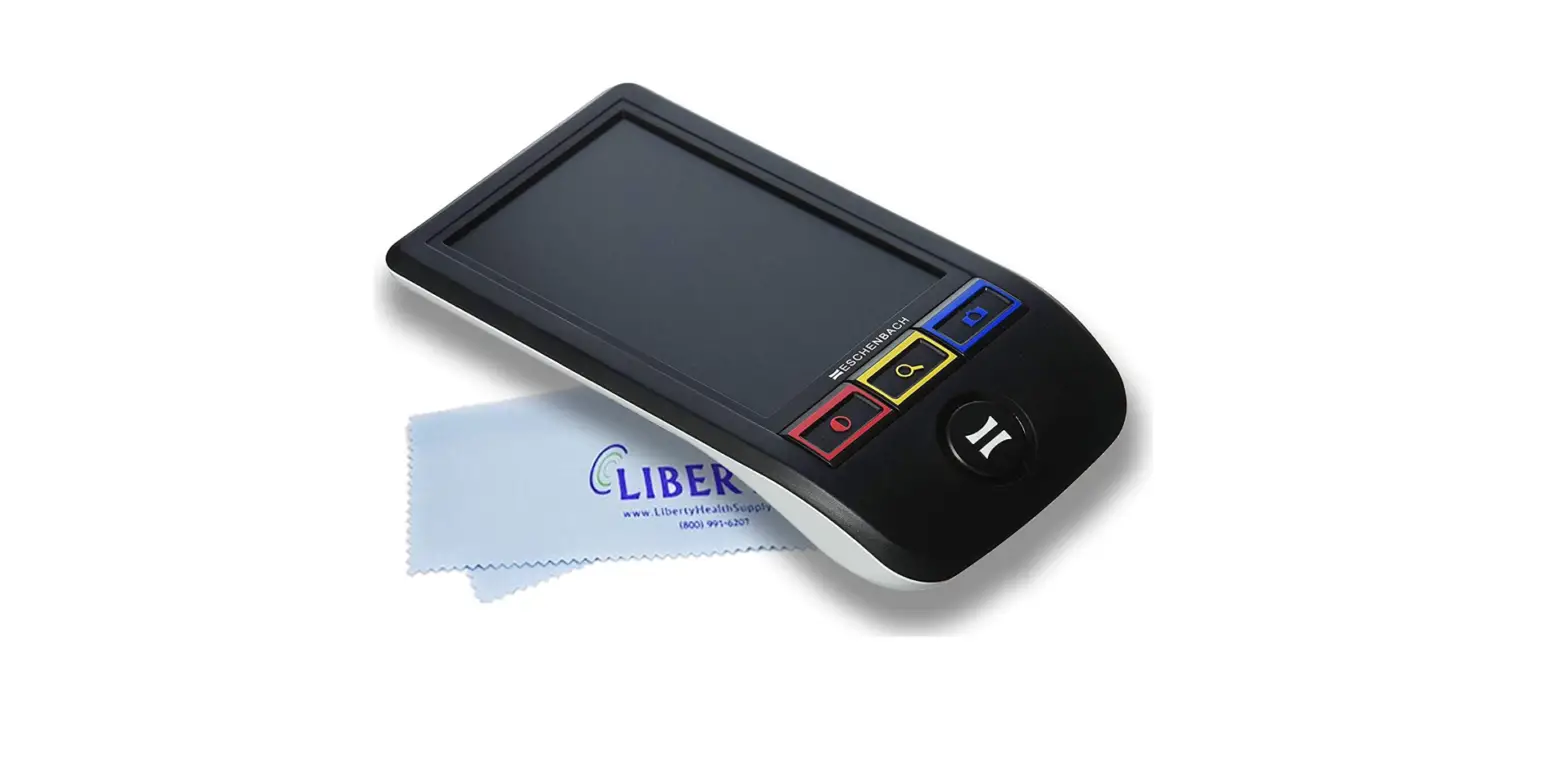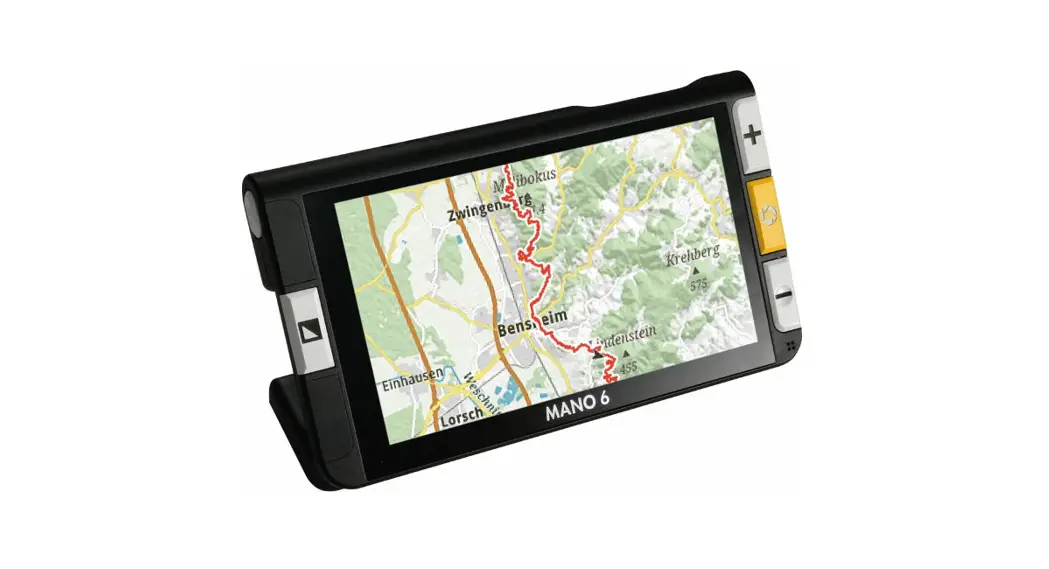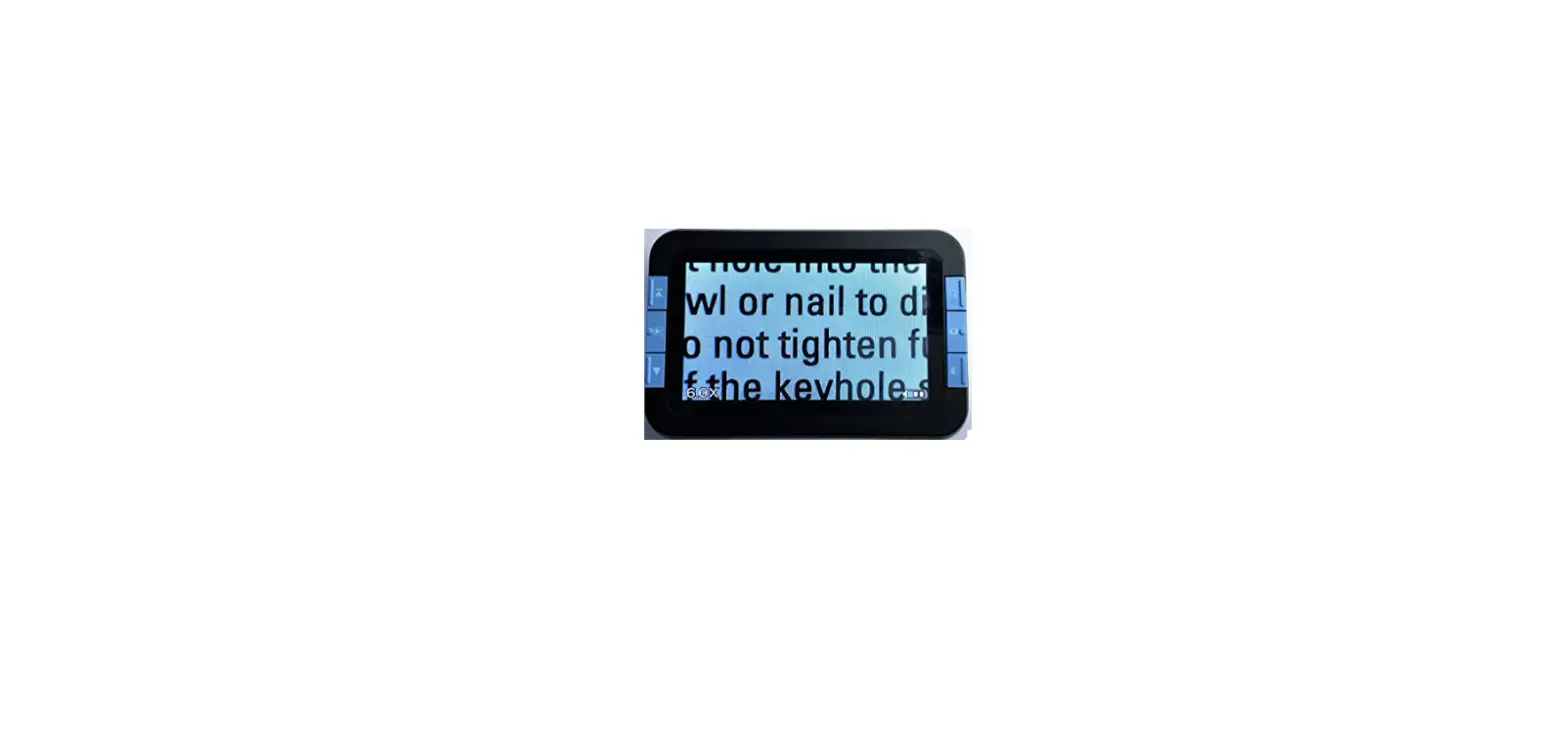

Visee LVM-480 4.3 Digital Magnifier
Welcome
Thank you for purchasing the ViSee® LVM-480 Portable Digital Magnifier.
Please take a moment to read through this manual. This will help you get the best use of the device.
Precaution
Federal Communications Commission Notice
This equipment has been tested and found to comply with the limits for a Class B digital device, pursuant to Part 15 of the FCC Rules. These limits are designed to provide reasonable protection against harmful interference in a residential installation.
Overview
Package contains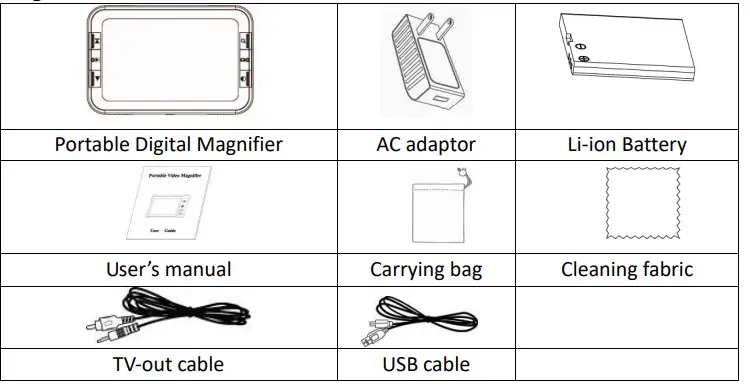
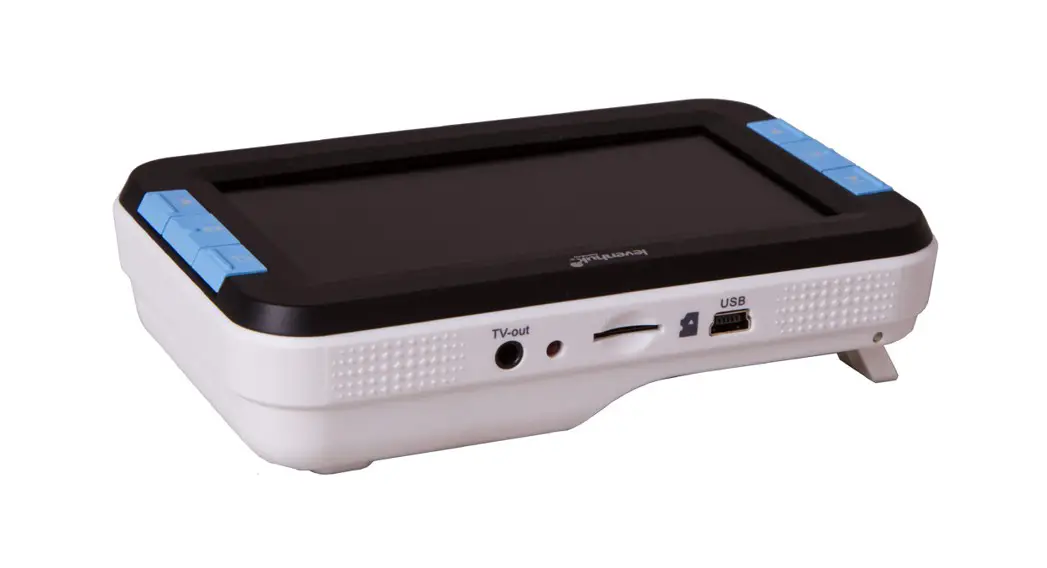
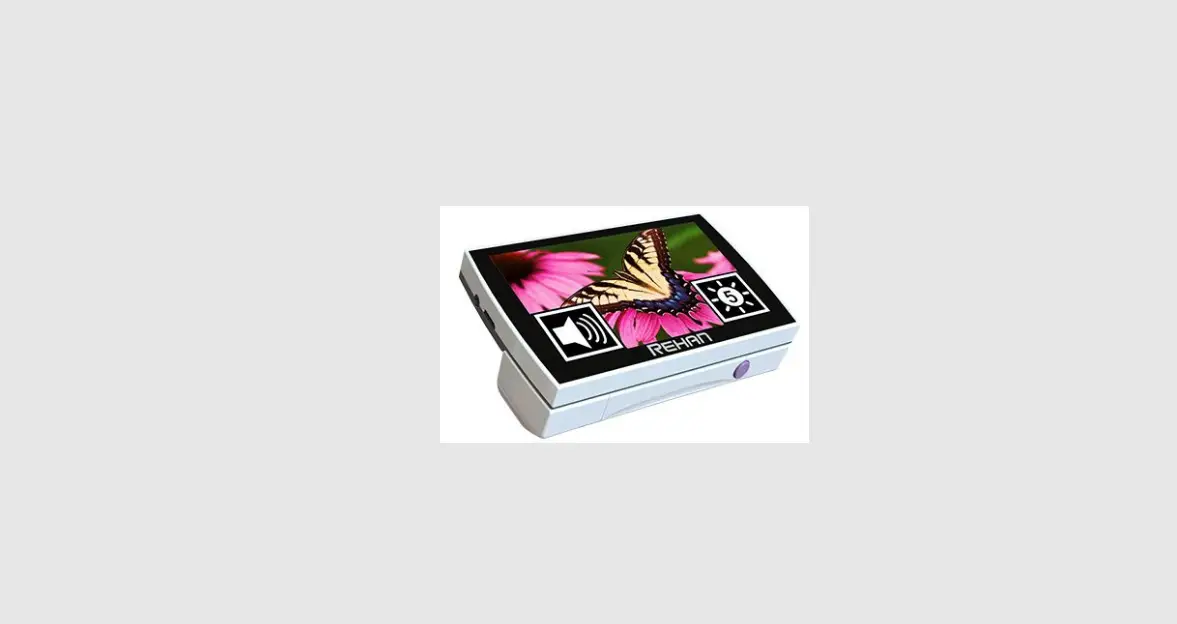
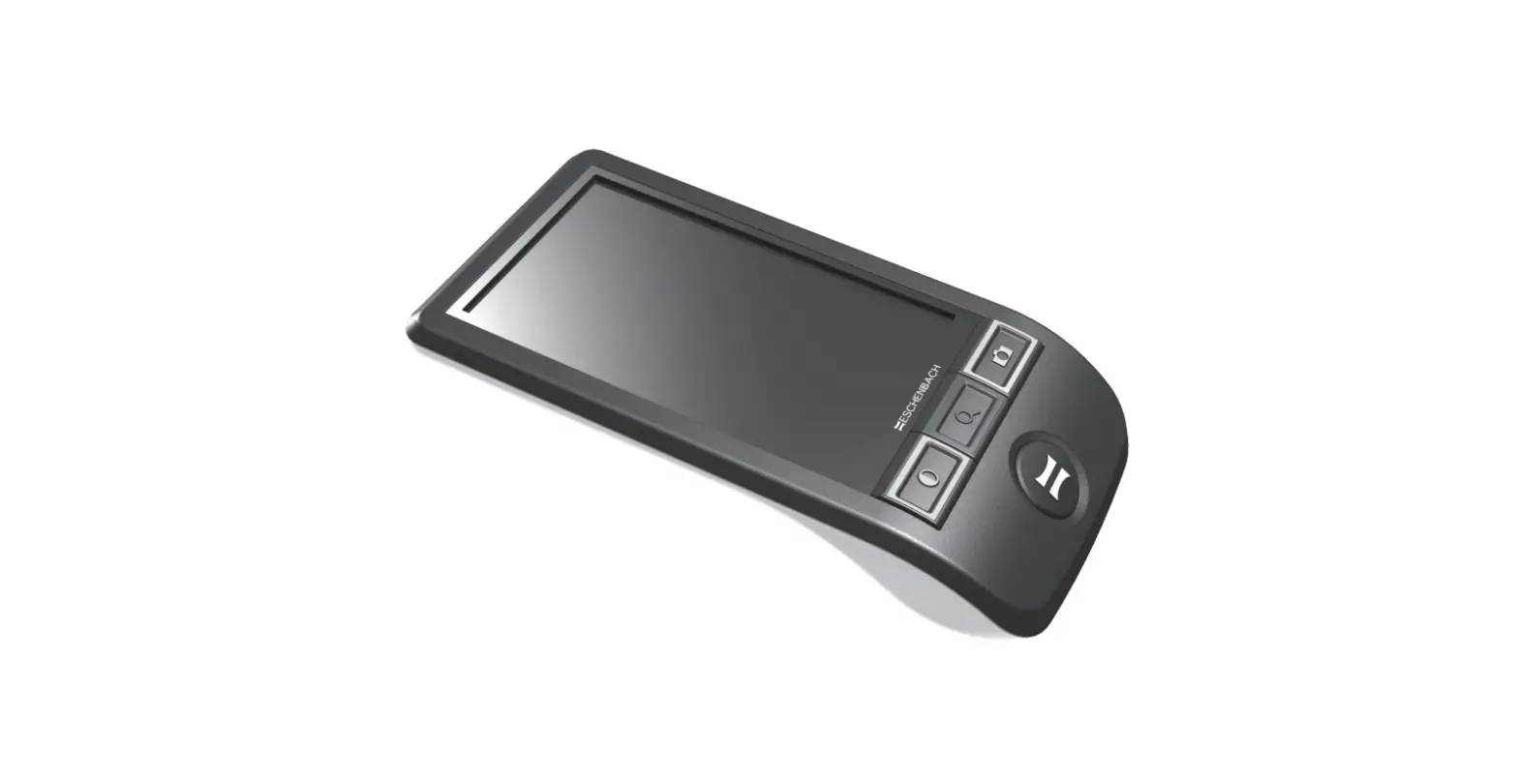
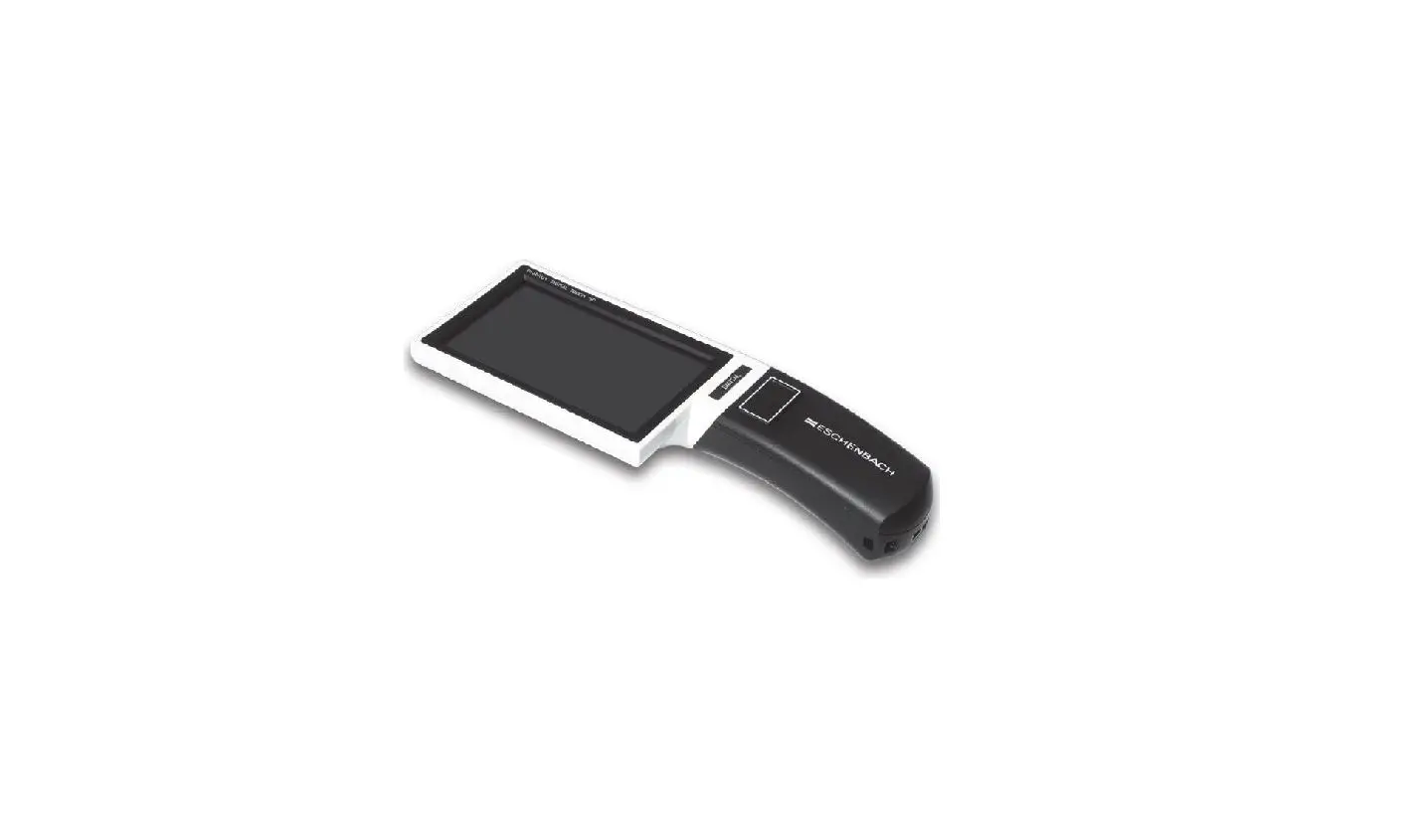
Part Names & Functions
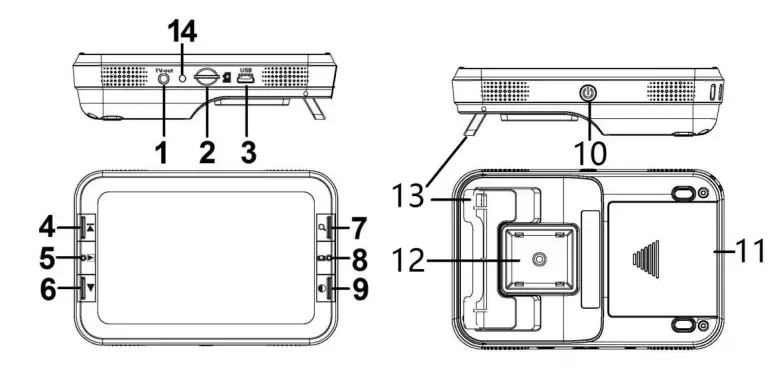
- TV out
- Micro-SD slot
- USB port/DC in
- Forward/Freeze
- Playback
- ackward
- Magnify
- Capture/Delete
- Color mode
- Power on/off
- Battery compartment
- Lens window
- Foldable stand
- indicator light
Safety and Maintenance
To keep your Magnifier in good condition, observe the following guidelines:
- Read the instructions in this user’s manual before attempting to use the unit.
- Do not attempt to repair the Magnifier or open its case. This product contains no user-serviceable parts.
- Keep the Magnifier away from wet areas, rain, and other sources of liquids. Do not submerge the unit.
- Always operate the Magnifier in a place where the temperature is between 32°F and 113°F.
- Always store the Magnifier in a cool and dry place at normal room temperature.
- Do not attempt to force any connector into the unit’s USB and Micro-SD ports. All appropriate connectors should fit easily into the ports.
Getting Started
Loading Battery
Please use the lithium battery. Slightly push and pull the battery door latch to open the battery compartment. Load the battery according to the polarities shown inside the battery compartment, and then snap close the battery door.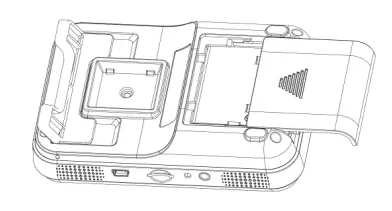
Note: Remove the battery when it is not in use for a long period of time.
Charging the Battery
Before using the Magnifier, you must charge its battery.
- Connect the adaptor with USB cable. Plug the mini USB port
 of the power adaptor into the USB port located on the right side of the unit. Then plug the other end of the power adaptor into a standard AC outlet.
- When the battery is finished charging, the battery indicator LED will be off. Unplug the unit. Then the battery indicator LED will turn off.
- You can now use your Magnifier for up to two hours of continuous use. When the battery is low, the low-power indicator
 will blink on the right-down corner of the screen. Then you have to connect the power adaptor and plug it in to recharge the battery.
Note: Always turn the Magnifier off during charging. The battery will not charge if the Magnifier is left on.
 of the power adaptor into the USB port located on the right side of the unit. Then plug the other end of the power adaptor into a standard AC outlet.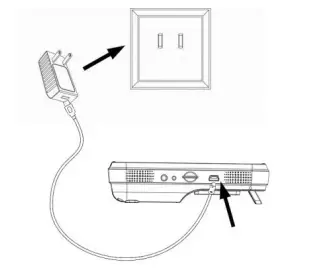
Reading with the Magnifier
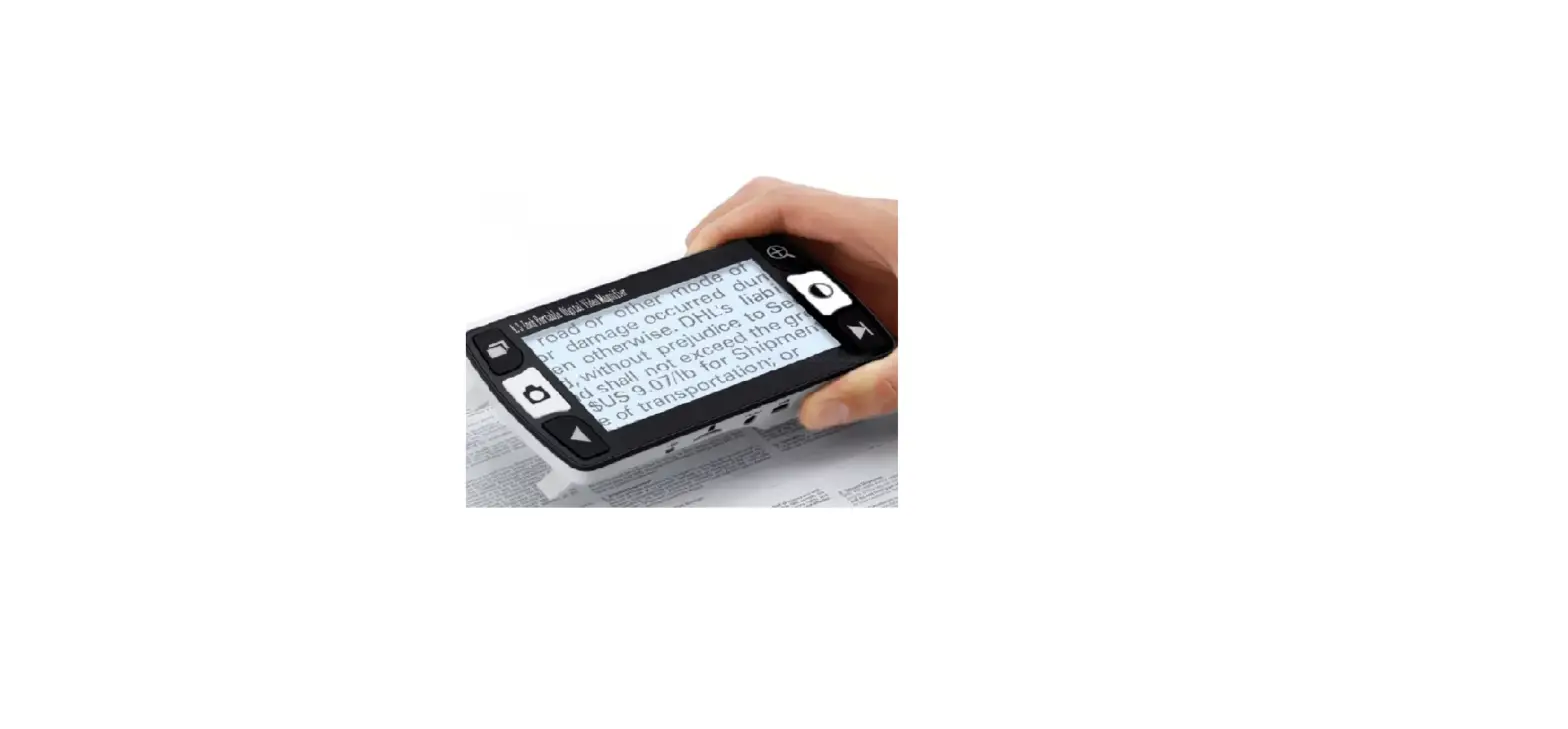
To read with the Magnifier, operate as the following:
- Turn on the unit by pressing the Power on/off switch ⑩ located on the side.
- Pull out the foot of the Magnifier until it sits at its maximum range.
- Place the Magnifier flat against the text you want to read.
- Slide the unit gradually to the right to read to the end of the line. Slide the unit down and back to the left to read the next line of text.
- To change the level of magnification, press the Magnify button.
- To change the colors used on the screen, press the Color Mode button until you find the mode best suited for your vision needs.
Using the Magnifier
Color Mode selection
Press the Color Mode button to cycle through the Magnifier’s 3 different color modes as follows:
- Full color
- Enhanced positive image (black on white)
- Enhanced negative image (white on black)
Magnification Adjustment
Press Magnify button . to cycle through the four levels of magnifications 6X, 8X, 10X or 14X.
Freeze Image
Press Freeze/Unfreeze button to switch between freezing and unfreezing the current image.
Capture Photo
Load a micro SD card (not included. the micro SD card is available at many local drugs, electronics, and department stores and online stores) into the micro SD card slot. Press the snapshot capture  button to capture a photo. The captured photos will be automatically stored in the micro SD card.
Playback
Press the Playback button to view captured photos. Press the backward button
  and the Forward button to move forward and backward.
Pressing the Playback button again will return the magnifier to reading mode.
Delete
When press the Playback button to view captured photos and in case you want to delete the pictures, p ress capture/ delete button to delete them.
Download Captured Pictures to a PC
Connect the Magnifier to a PC with a USB Cable to the USB port, turn the power on, and then you can download the captured pictures to the computer.
Output to Monitor with TV
Output to Monitor with TV–inin Connect the MMagnifier with magnifier with a monitor with TVmonitor with TV–in by TVTV video scalable, turn the power on and then you can and then you can see live video on the monitor. see the live video on the monitor.
Low Battery Indication
If battery power is low, there will be a  symbol ((blank) on the lower right corner of the screen, indicating that you have to of the screen, indicating that you have to charge the batter battery.
Power Off
Turn off the power of the unit by pressing the Power on/off unit by pressing Power on/off switch ⑩ located witch ⑩ located at the at the side.side.
To prolong the battery life, please always turn off the Magnifier when not using it., please always turn off the Magnifier when not using it The Magnifier will turn off automatically if it is not in use vertically if it is not in use for 5 minutes.5 minutes.
Troubleshooting
| Problem | Solution |
|
The screen is blank | Ensure that the power is on.
Ensure the battery has enough power. Verify that the item you want to magnify is positioned correctly under the center of the screen |
| The unit can’t be turned on | Change the battery with a new one.
Check the installed battery’s position |
| The image on the screen is dark and/or distorted. | Ensure that the unit is positioned flat on the page you are reading.
Ensure that the foot of the magnifier flips out to its maximum position. |
| There are smudges or
blemishes on the screen | Clean the screen and the Lens (located on the
bottom of the unit). |
| Text is too small to read | Press the magnify button. |
This symbol on the product or in the instructions means that your electrical and electronic equipment should be disposed at the end of its life separately from your household waste. There are separate
collection systems for recycling in the EU. For more information, please contact the local authority or the retailer where you purchased the product.
ViSee ® Magnifiers ViSee Tech
www.viseetech.com
FAQS
What is the effectrive range from this device to the object to be magnified ? Such as reading labels on merchandise on store shelves.
The device is not placed directly on the reading material but held an inch or more above. It was very effective for my mother (82) who was almost blind.
Due to my eye problem, and also am on a scooter when in a store, I more often hold item in my hand to read it depending on the size of the print and of course, the print can be enlarged, but depending on a can or flat box also makes the difference. The larger the magnification, the less you see on the screen without moving the magnifier back and forth. I use it all the time but cannot hold the magnifier up very long close to the item as I also have vey much pain in my upper arms and very little strength.
in case that my mom may not maneuver the device or cant see the letters even at its highest zoom. is the product returnable for a full refund?
Sure. If you are not satisfied with the product for any reason, you can return and get refund as long as you send all the package back.
We understand that every low-vision situation is different and our product can not meet everyone’s needs.
What is the length of time needed for charging?
Honestly, I’ve had mine for a while now and I have absolutely no clue! I just throw it on the charger every once in a while when I’m not using it. I’ve never had the battery run out either. Since it has a battery similar to a cell phone battery I just always assumed throwing it on the charger for a few hours every so often was sufficient LoL.
I was looking for something to help my mom read menus at restaurants, where the writing is small, and dimly lit. Will this help?
Yes. It’s ideal for any kind of small print. My Mom is 90% blind due to glaucoma and still manages to do a lot of reading by connecting this device to the TV or by plain scanning and reading directly from it. I strongly recommend it also because it is quite durable and can take a few drops etc which are bound to happen when older people handle objects.
Hope this has been useful.
Best regards,
Col PK Vasudevan
+91 7589134885
will this work in Europe, as in can it charge with 240v?
The power adapter works from 100V to 240V, while it is only US type power plug.
what are the dimensions?
Overall about 6.5 in x 3.5 in. Screen size4 in x 2.4 in. Lightweight and easily used.
is it 110v or 220v?
The AC adapter is compatible with voltage range from 110V – 230V.
Will the charger work in Germany? If it does not, what do I need to adapt it
Yes, you need a universal plug like this one on Amazon. http://www.amazon.com/eForCity-272897-Travel-Power-Adapter/dp/B003AMEUS8/ref=sr_1_1?ie=UTF8&qid=1399995422&sr=8-1&keywords=universal+power+plug
will this work in Europe, as in can it charge with 240v?
The power adapter works from 100V to 240V, while it is only US type power plug.
Does it have a stand to read by?
Not really. There’s a built-in stand that’s about a 1/2 inch high that’s hard to use and doesn’t work very well.
What type of battery does it use ? Are replacement batteries available ?
It is standard type Lithium battery. Yes replacement batteries are available.
What are the dimensions?
The dimension of magnifier: 6.25″(Length) x 3.5″(Width) x 1.25″(Height). The dimension of 4.3″ screen: 3.75″(Length) x 2.25″(Width).