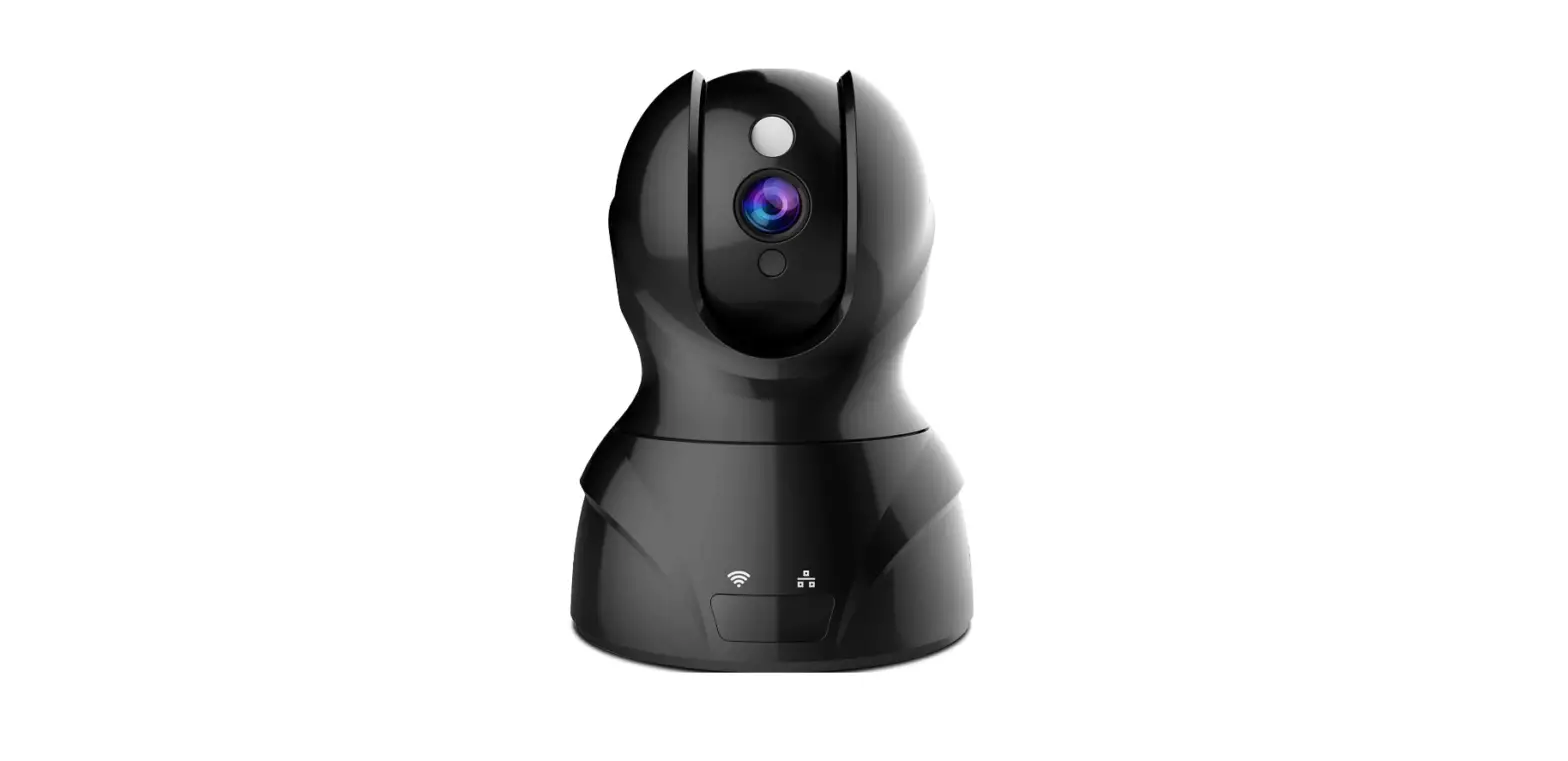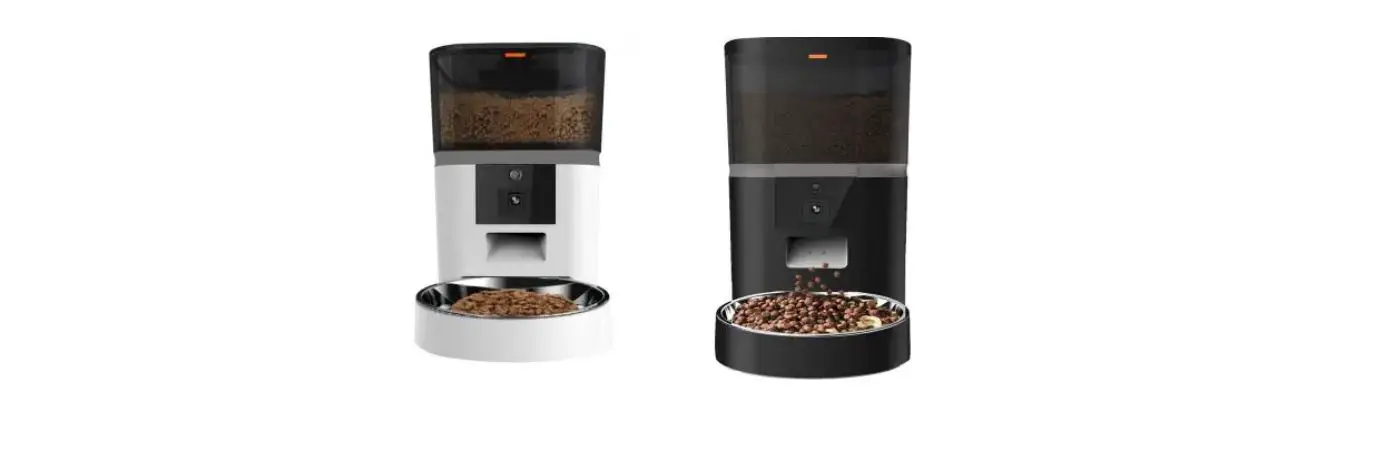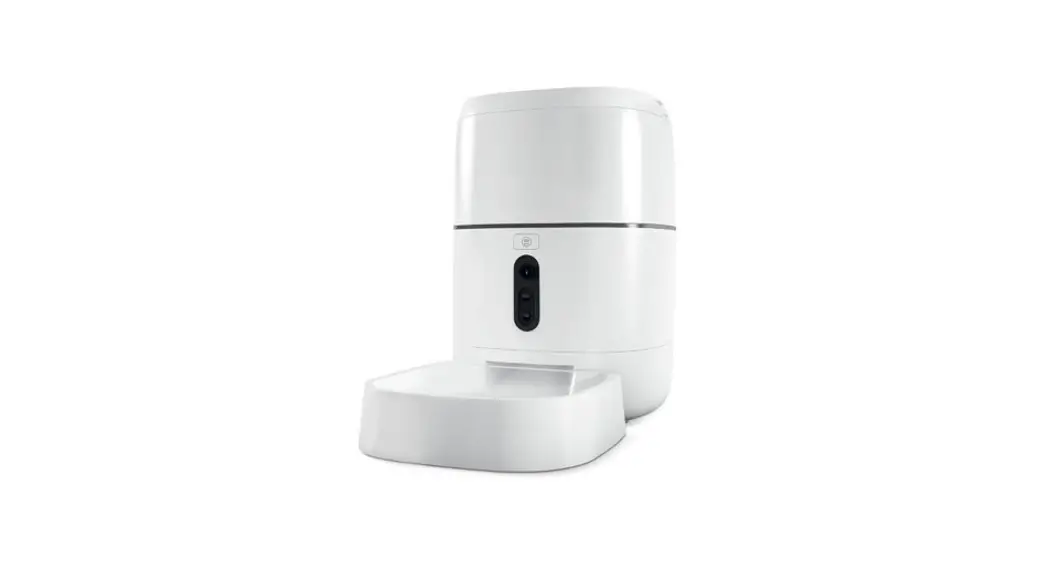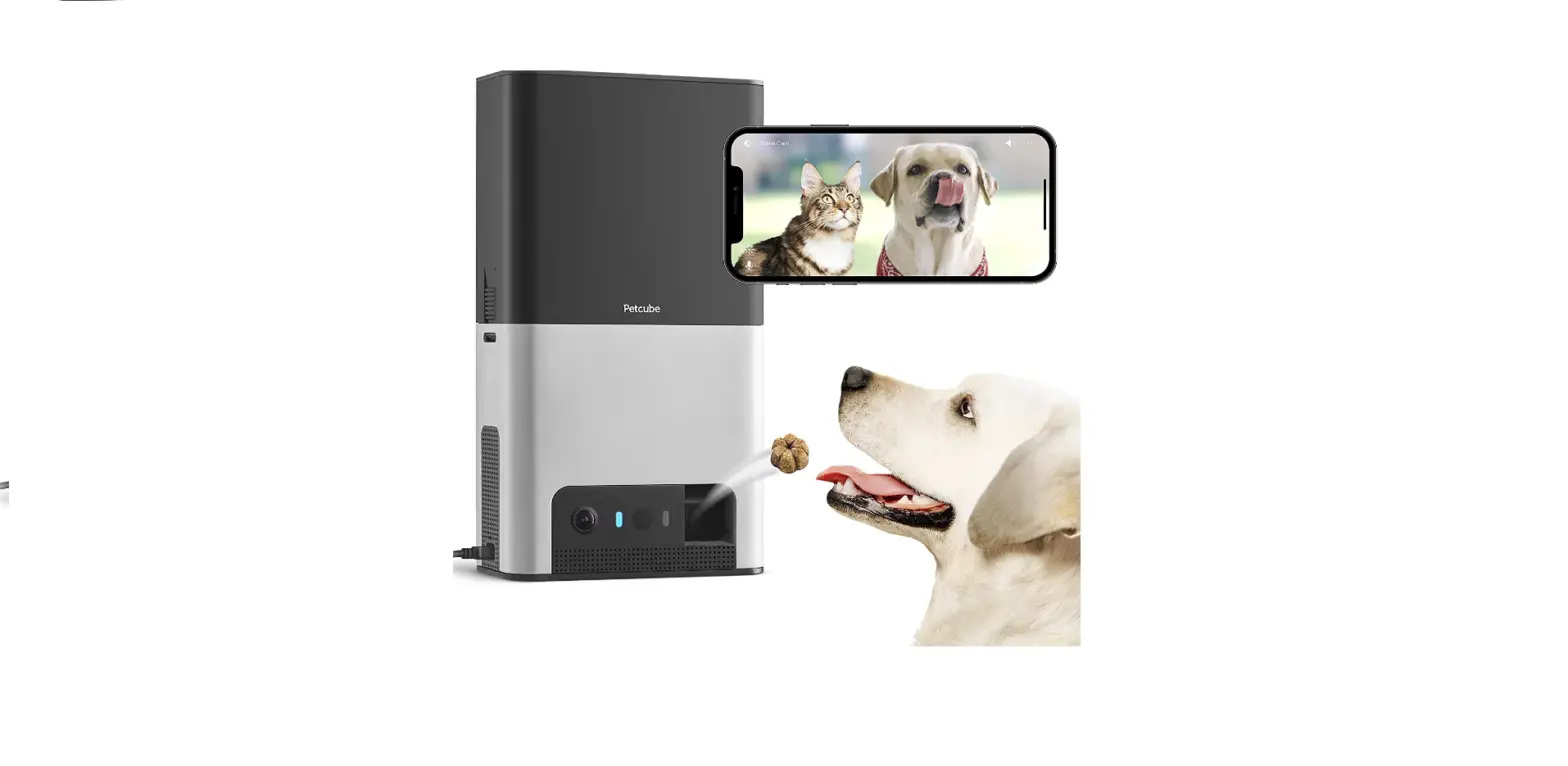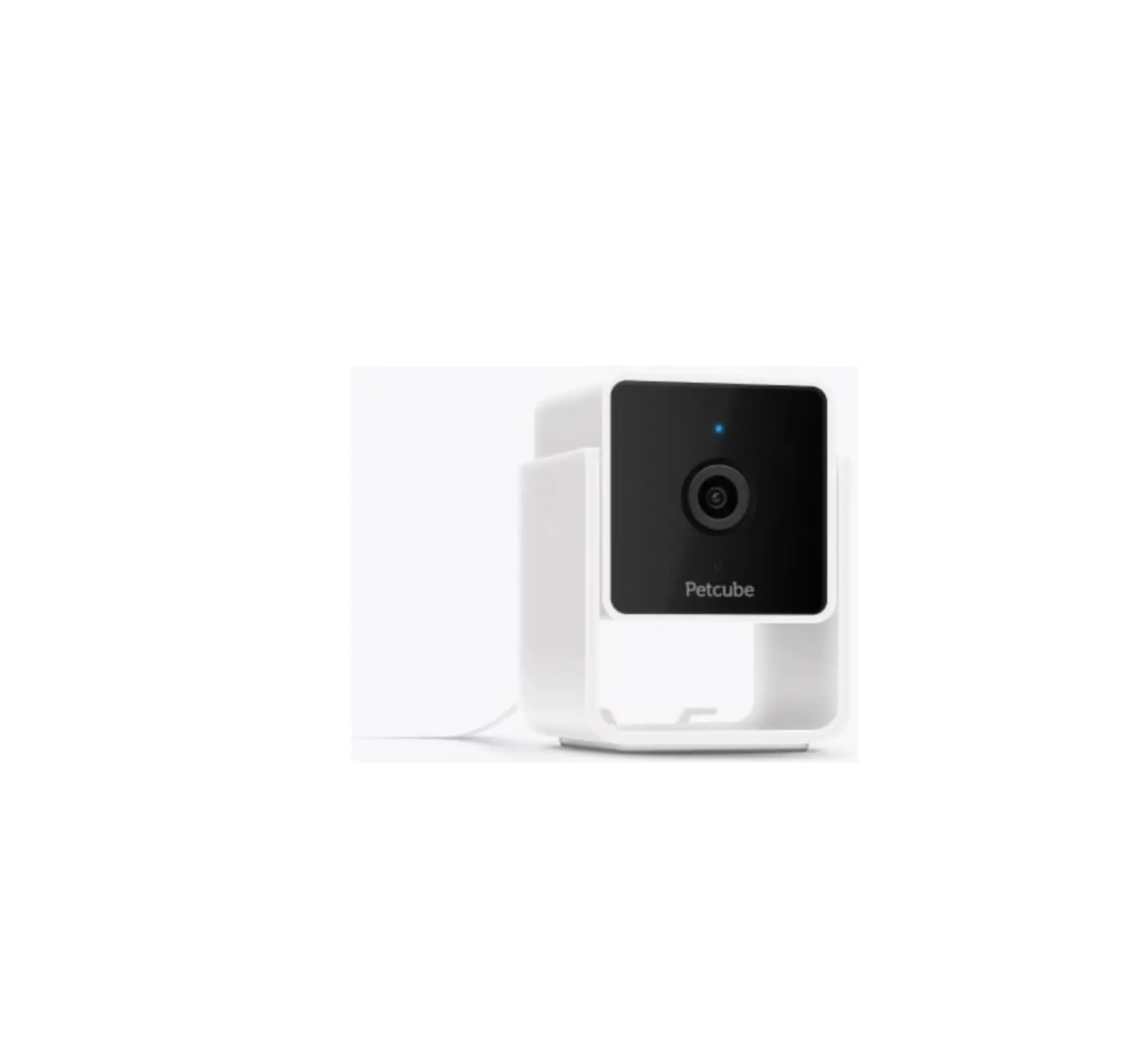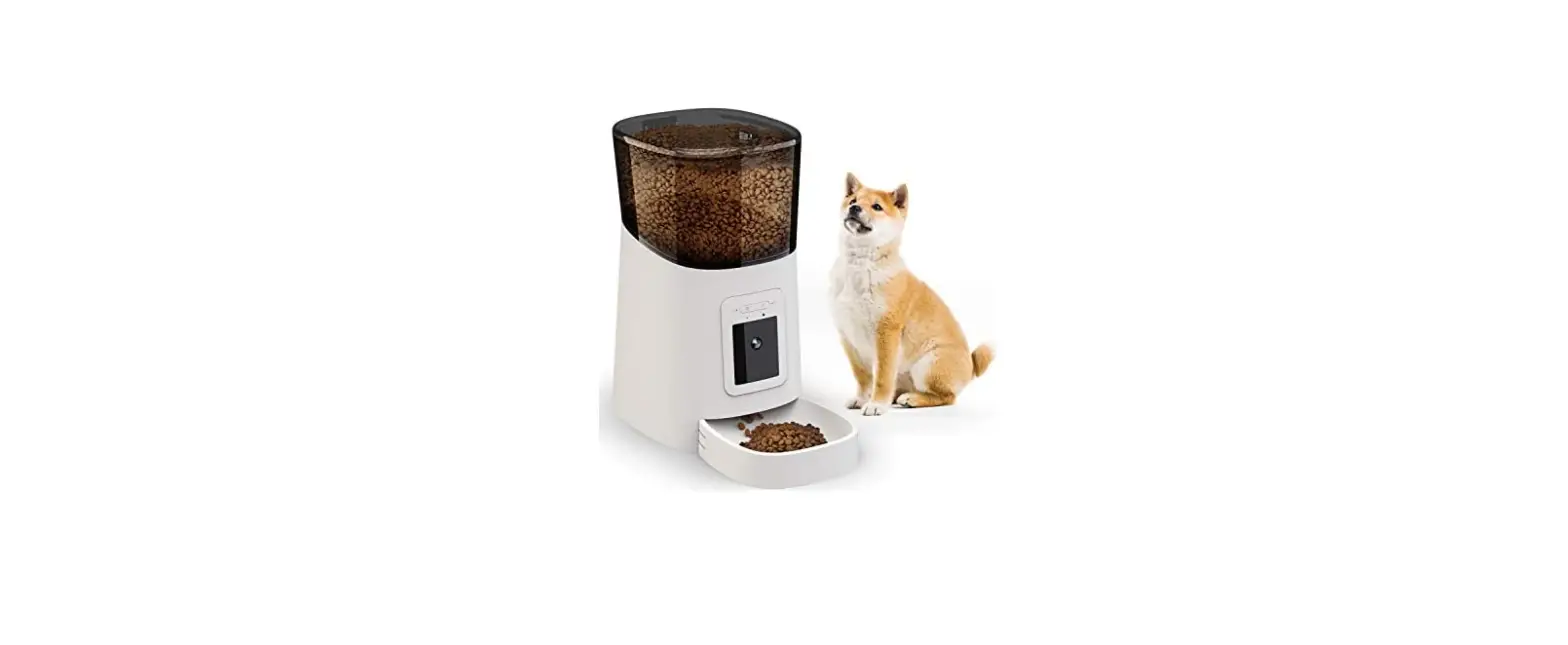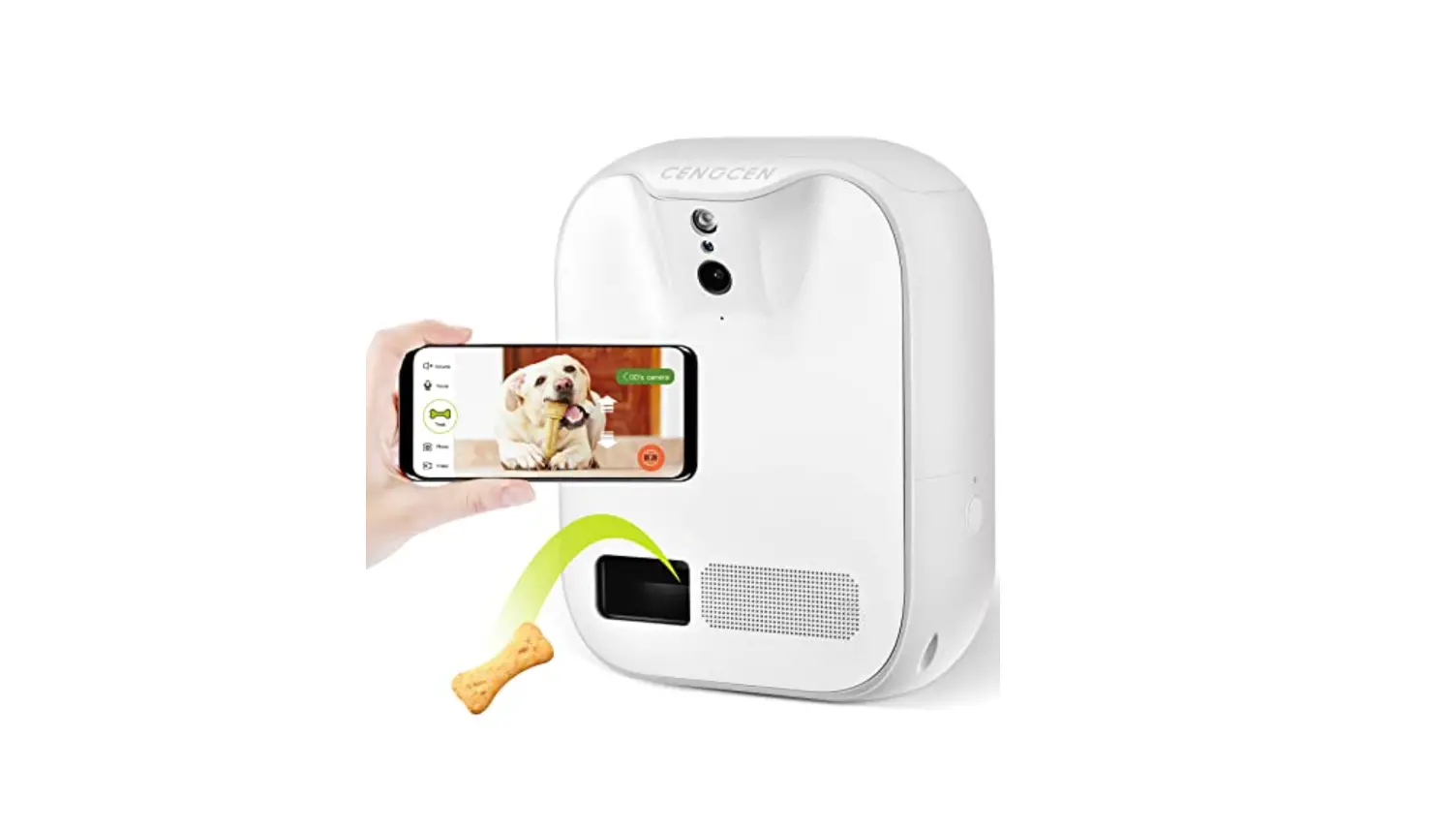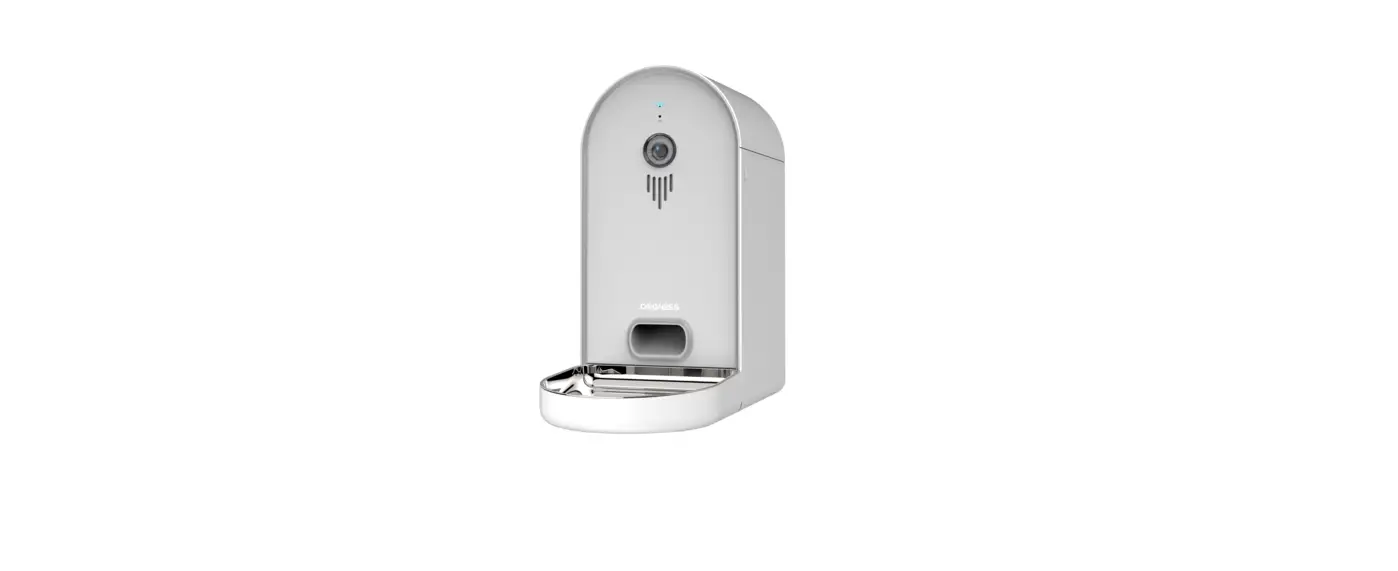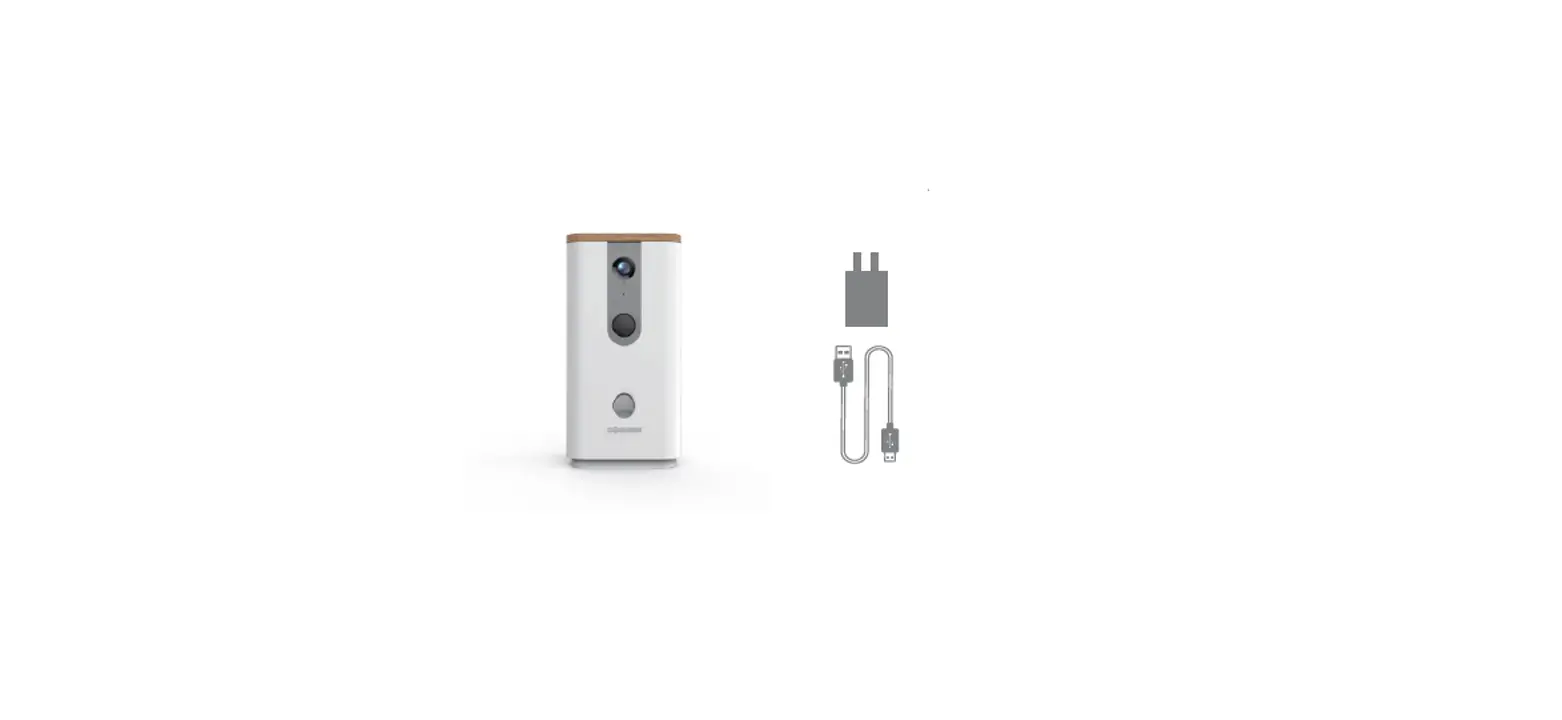

QVC E240576 Dogness Wi-Fi Smart Pet Camera
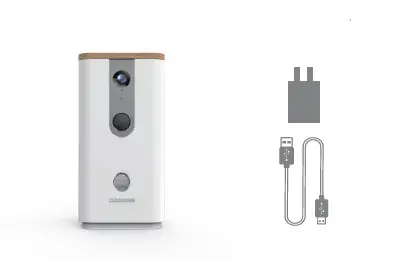
Dogness Smart CAM Treater Instruction
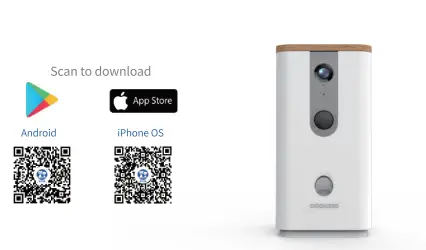
- Download App and set up account

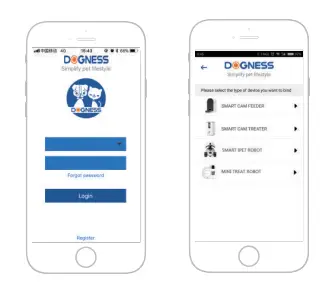
- Login your account and add smart product

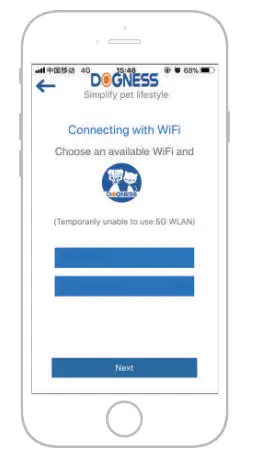
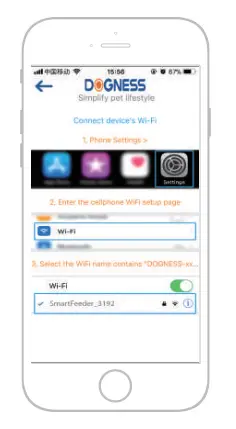
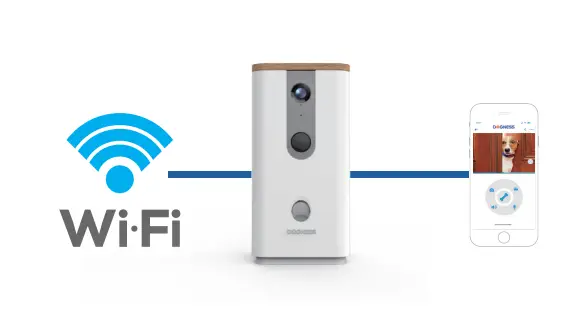
- Connect with WiFi

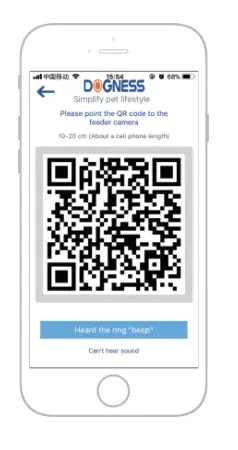
- Use the device camera to scan the QR code in the App to pair the device

- Complete paring the device via the network connection

- Note: Position the device within 10 meters from the WiFi source for best experience

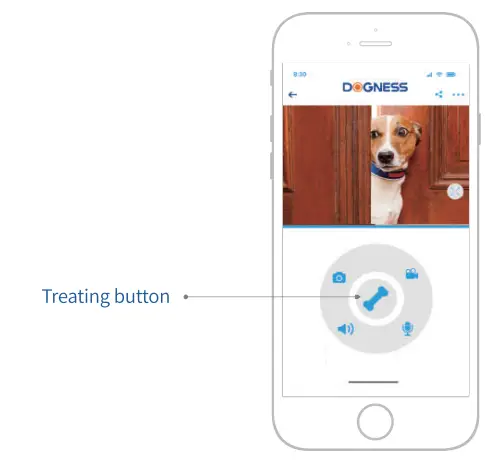
- Main control

- Other controls
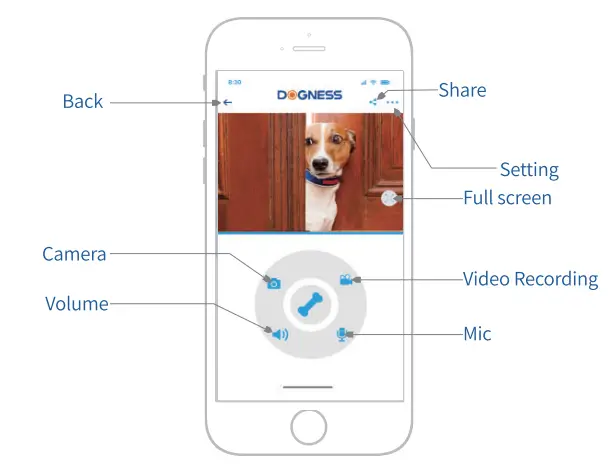
Specifications
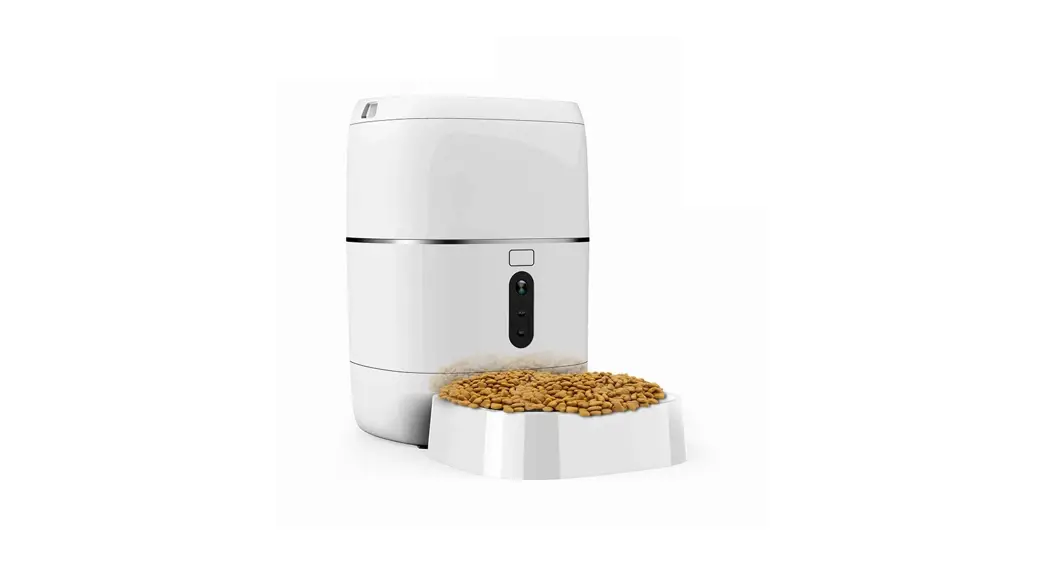
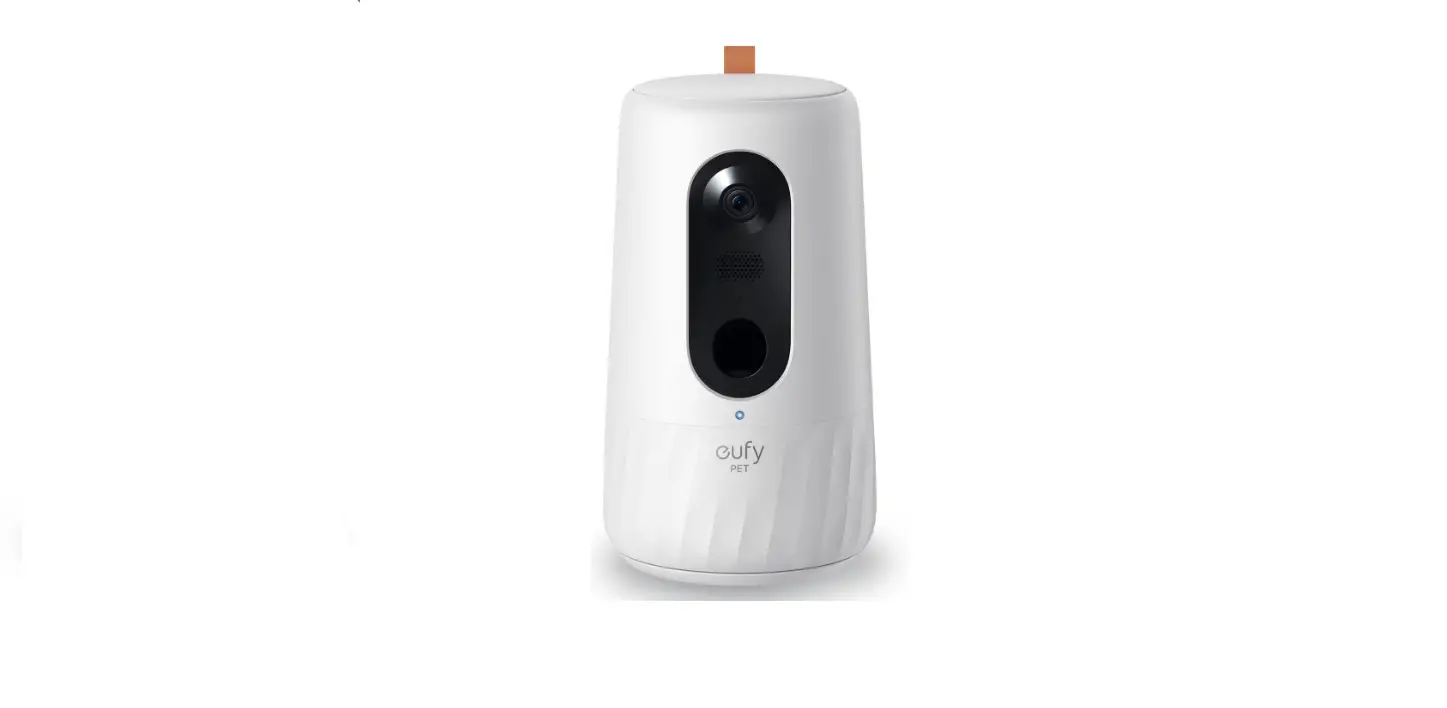
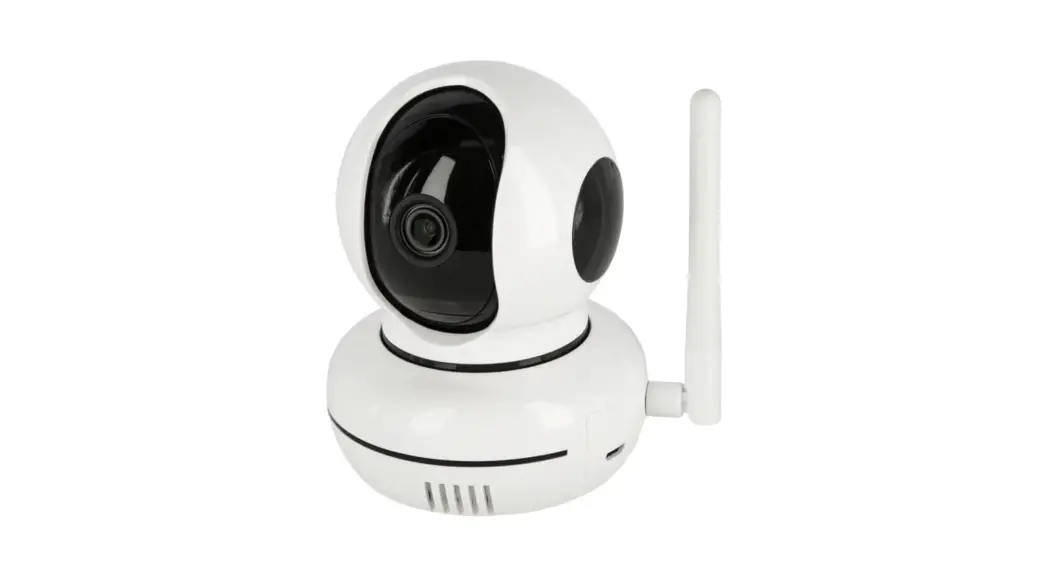
- Description: Dogness Smart CAM Treater
- Product Size: Ll2.5*Wl2.5*H25 cm
- Net Weight: 1.08 kg
- Capacity: 4.5 lbs (around 220 g)
- Product Material: ABS (except natural bamboo lid) Camera: 165° wide angle HD with night vision
- WiFi Frequency: 2.4 G
- App Installation min requirement: Android 5.0 or IOS 7.0 Power Adapter:
- Input : 110-240 V, 50/60 HZ, 0.4 A
- Output : 5.0 V, 1000 mA
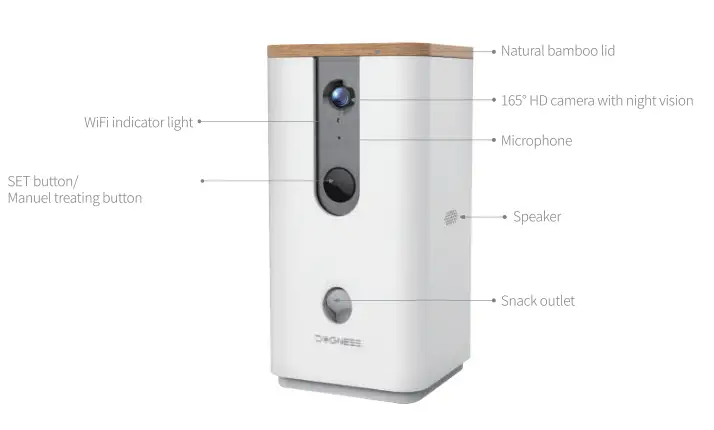
- SET button: Short press to treat manually, hold for SS to restore factory setting.
Wifi Indicator light: Flashing green means connecting. Solid green means connection successful.
CAUTION
- Do not pull the power cord directly when plugging in or unplugging the adapter.
- Do not put any foreign object in the device.
- Do not disassemble th is a product by yourself.
- Keep out of reach of children.
- Do not use the adapter if the power cord is damaged or not working properly.
- Indoor use only.
- Dry food only for the snack container. The suggested snack size is between 5-15mm.
- This product contains electronic components. It is not water proof. Do not place the device in wet areas.
- Stop using the device and contact customer service if there is a sign of malfunction such as abnormal odor, smoke, or heat.
FAQs
- Why there is no treat coming out when pressing the treat button from the App?
Answer:- Probably the treat container is out of treats. Please fill in the treats.
- If the treat container is not empty but the App indicates no treat, please check if the food outlet is blocked or damaged. Clean the food outlet if necessary.
- Probably the network connection is delayed or interrupted. Please check your network connection and press the treat button again.
- The video is not playing smoothly? What should I do?
Answer: Please check your network connection and play the video again. - Unable to log in the existing account, what should I do?
Answer: First, check if your network is connected appropriately.
Second, check if there is another user using your account.
If necessary, unload the App and re-download the App, and try again.
If you are using the Android system, please try the following steps:
Mobile-> Setting-> Apps & notifications-> Dogness App-> Storage -> Clear data, then login again. - If there is any other question, please visit following
website:http://www.dognessnetwork.com/help/index.html