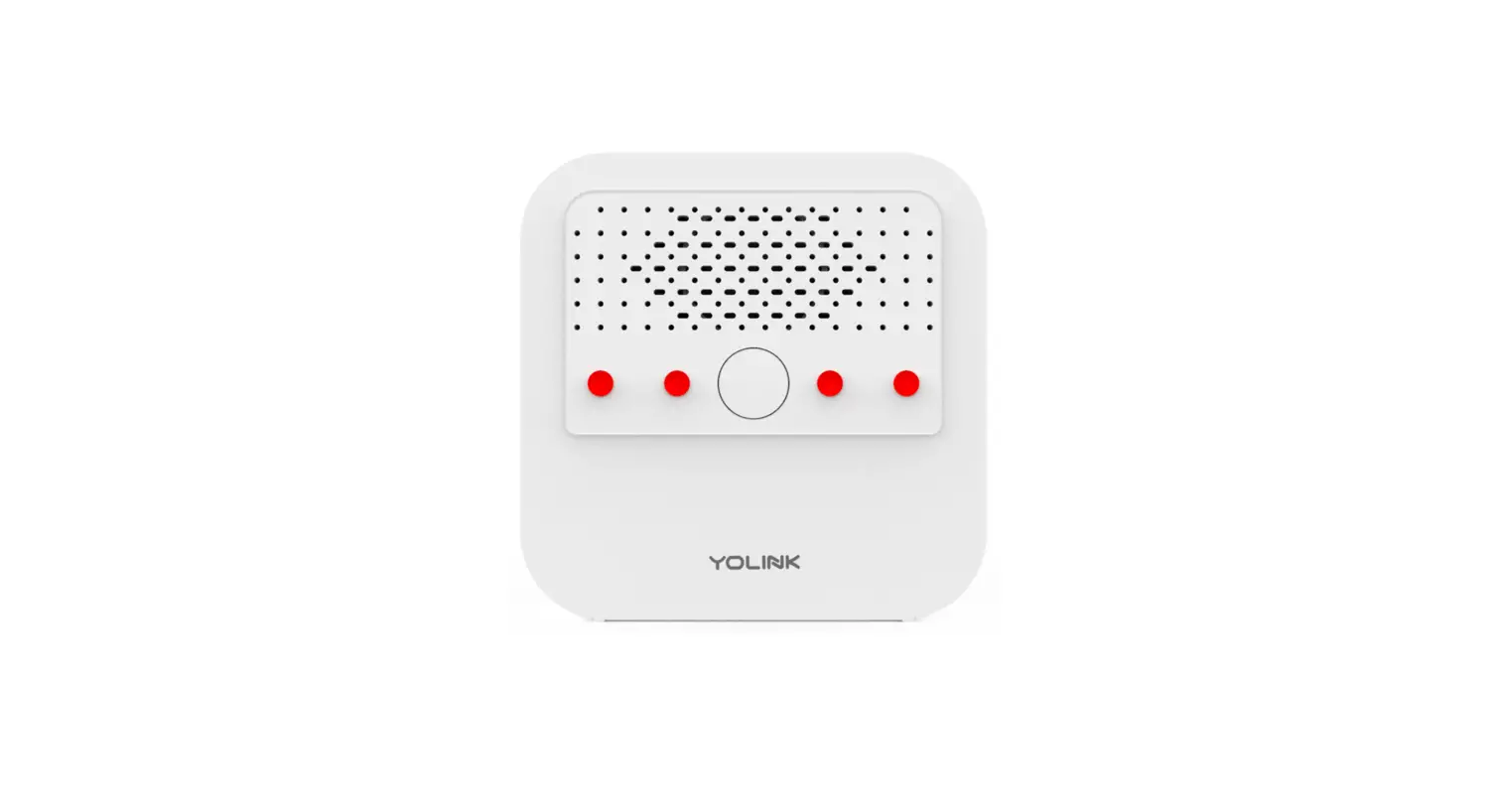
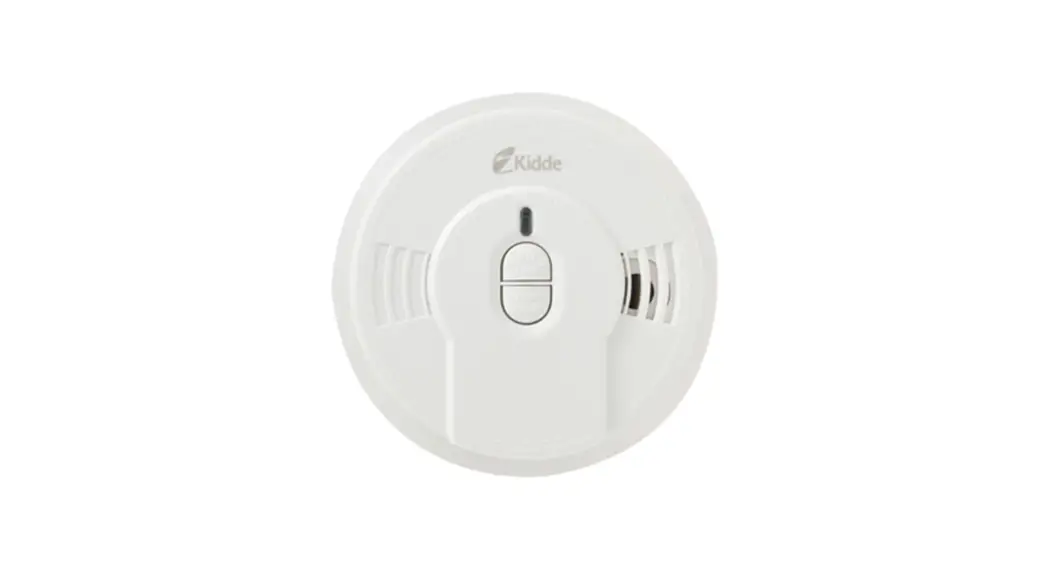
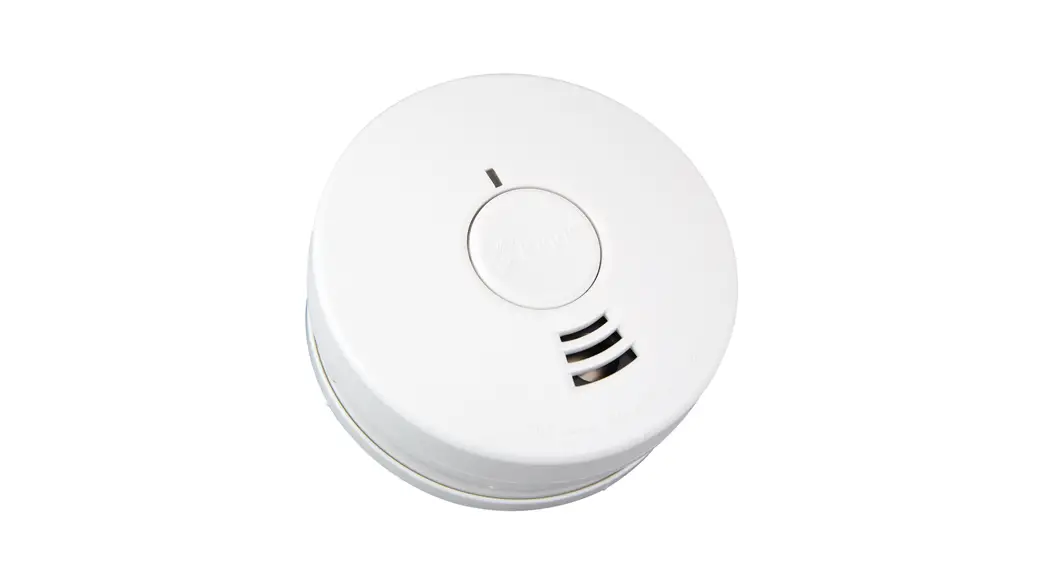
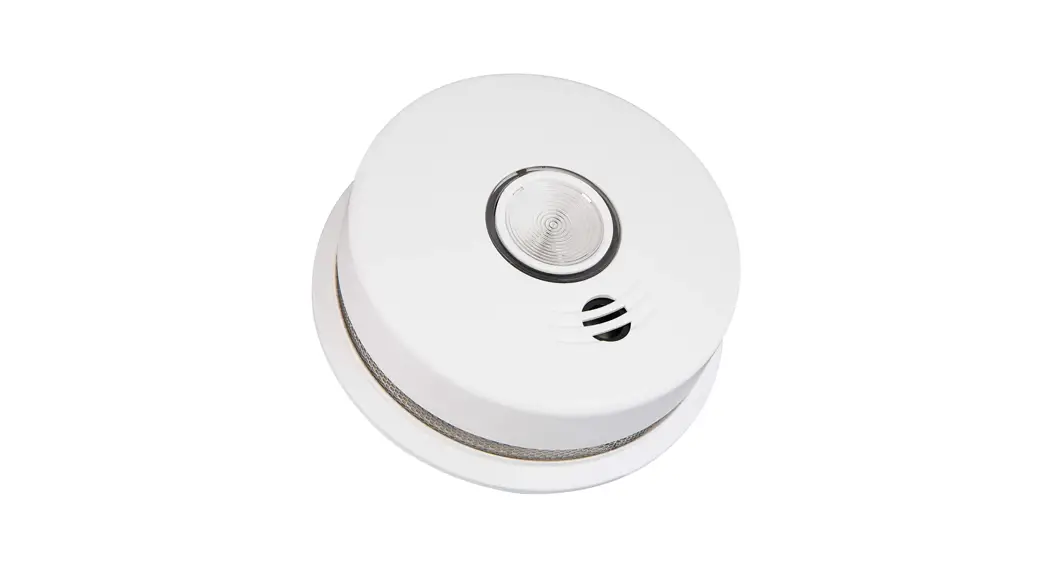
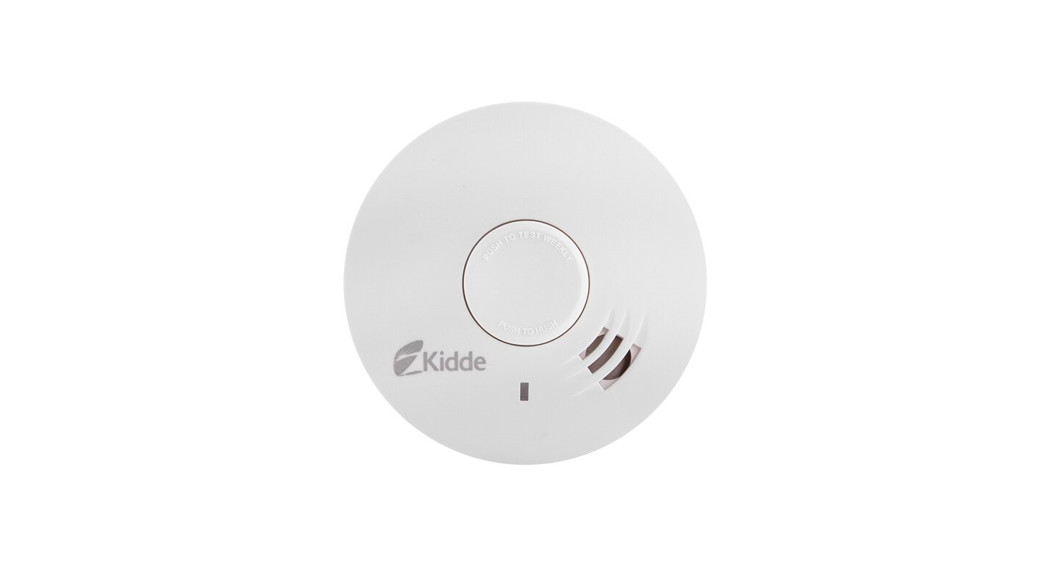
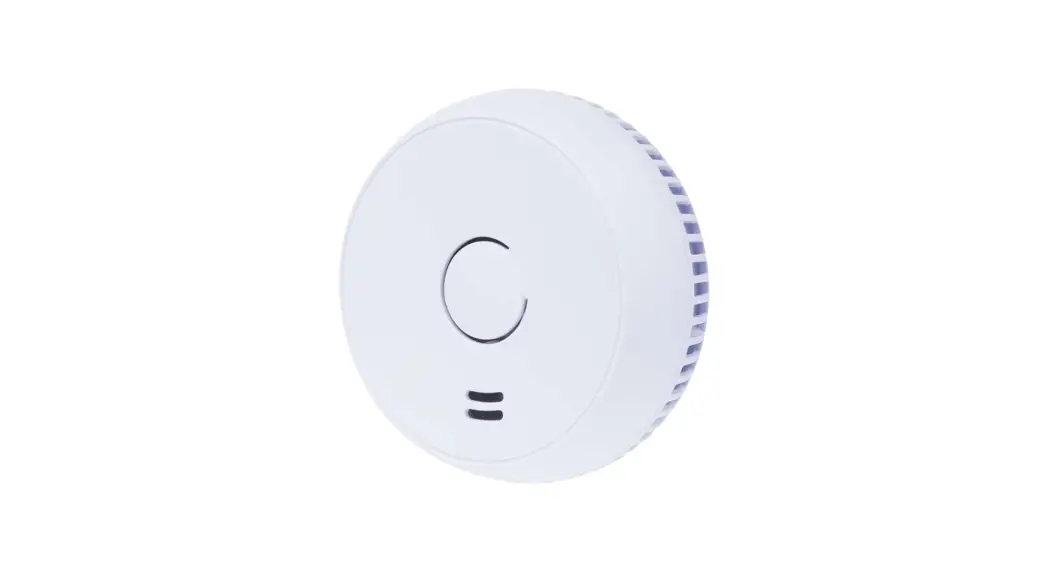
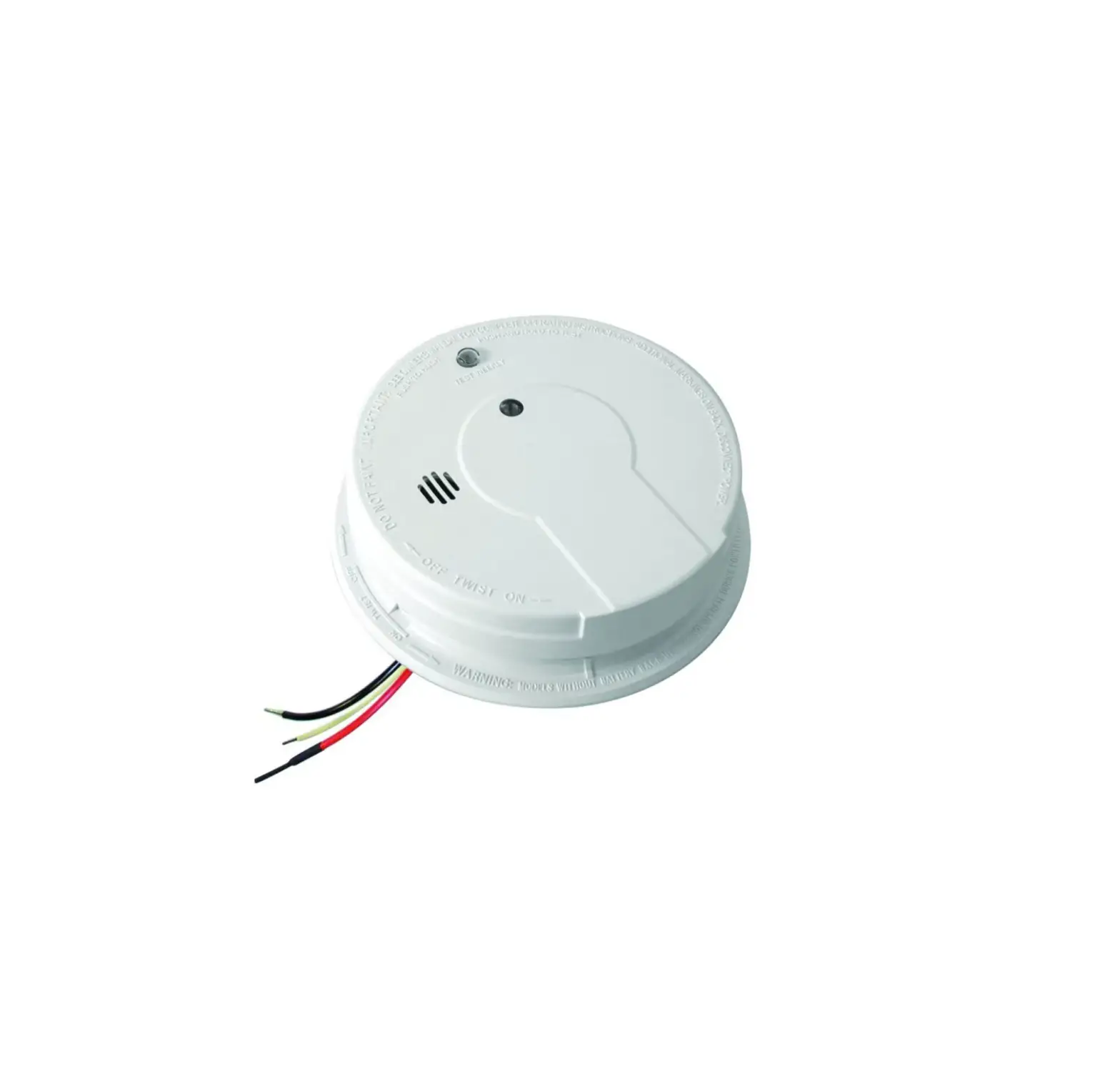
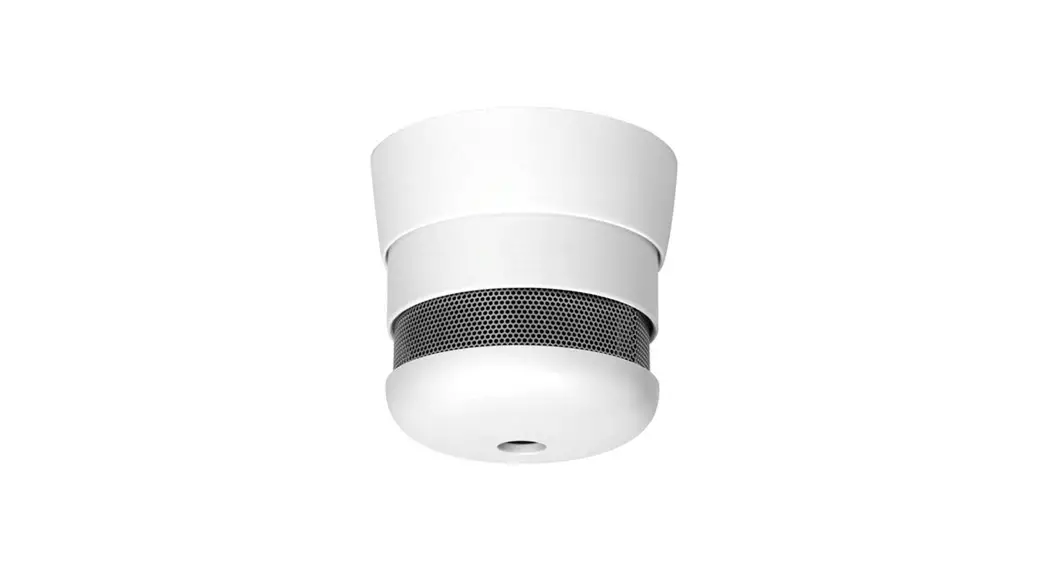
YS7A02 Smoke Alarm
Product Information
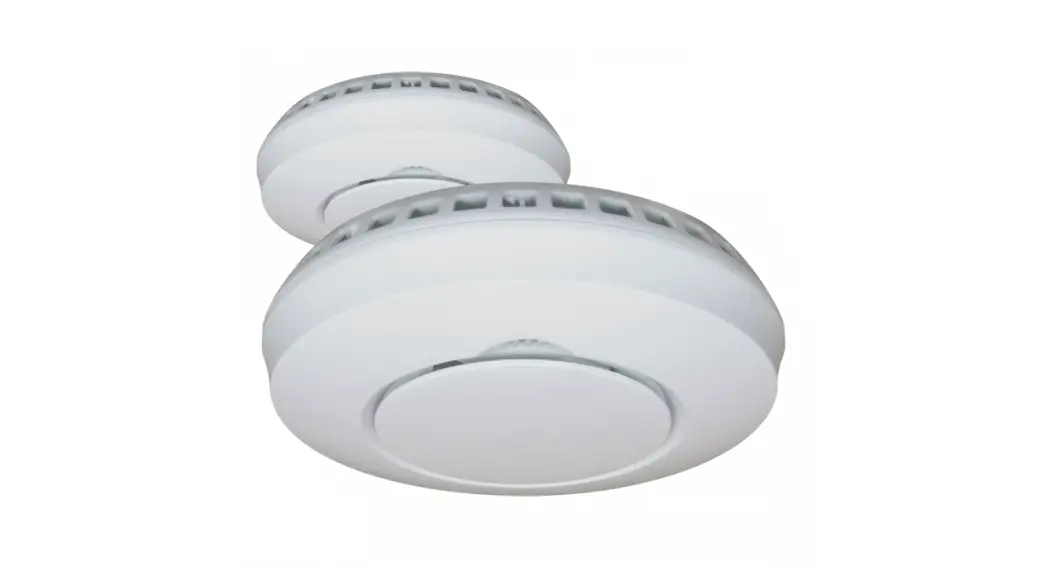
The YoLink Smoke Alarm is a smart home device that connects to
the internet via a YoLink hub. It comes with a Communication Base
and a Smoke Head AJ-732. The Smoke Alarm requires two AA batteries
to function (already installed). The device has an Activate Button,
Deactivate Switch, Test/Silence Button, and SET Button & Status
LED. It also has LED behaviors that indicate its status, such as
blinking green when connecting to the cloud and blinking red when
the batteries are low.
What’s in the Kit
- Communication Base
- Smoke Head AJ-732
- Two AA Batteries (Installed)
- Quick Start Guide
- Phillips Screws (2)
- Plastic Anchors (2)
User Guide Conventions
The user guide uses icons to convey specific types of
information. Very important information is indicated with an icon
that can save time. The guide is available in multiple languages,
including French and Spanish. Additional resources, such as videos
and troubleshooting instructions, can be found on the YoLink Smoke
Alarm Product Support Page.
Required Items
You may require a Phillips screwdriver, drill & bits, or
special anchors when installing the Smoke Alarm.
Get to Know Your Smoke Alarm
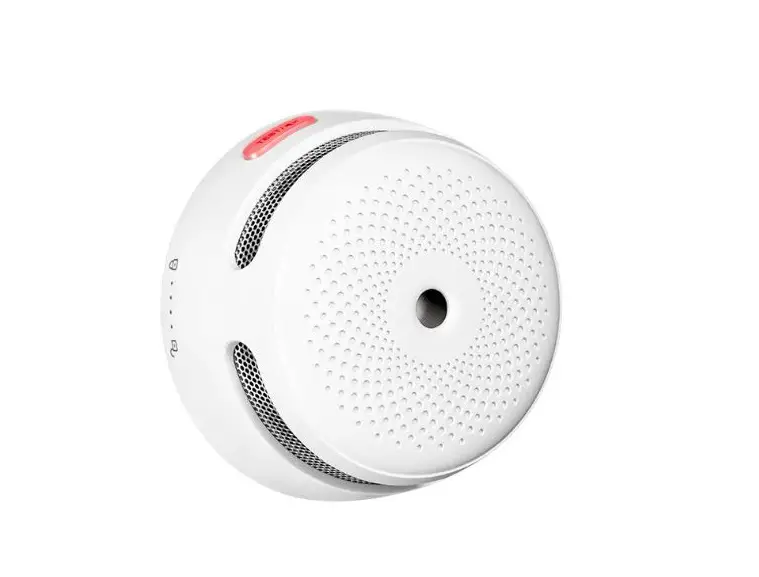
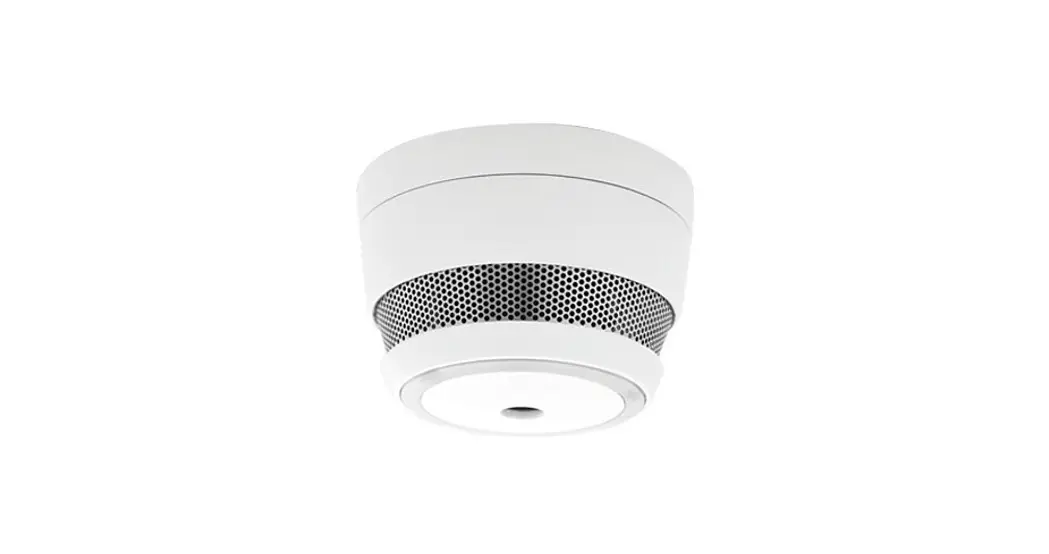
The Smoke Alarm has a Battery Compartment, Communications Base,
and Smoke Head Top. It also has LED behaviors and Sound Behaviors
that indicate its status, such as 1 Yellow LED Flash and 1 Chirp
for low battery.
Product Usage Instructions
Before You Begin
Please note that this is a quick start guide intended to get you
started on the installation of your Smoke Alarm. Download the full
Installation & User Guide by scanning the QR code provided.
Power Up
To turn on the Communication Base, briefly press the SET button
until you see the LED flash red then green.
Install the App
If you are new to YoLink, install the YoLink app on your phone
or tablet. If you have already installed the app, proceed to the
next section.
Connecting to the Hub
The Smoke Alarm connects to the internet via a YoLink hub
(SpeakerHub or the original YoLink Hub) and does not connect
directly to your WiFi or local network. To connect to the hub, make
sure that a YoLink hub is installed and online (or your location,
apartment, condo, etcetera, is already served by a YoLink wireless
network).
Checking Status
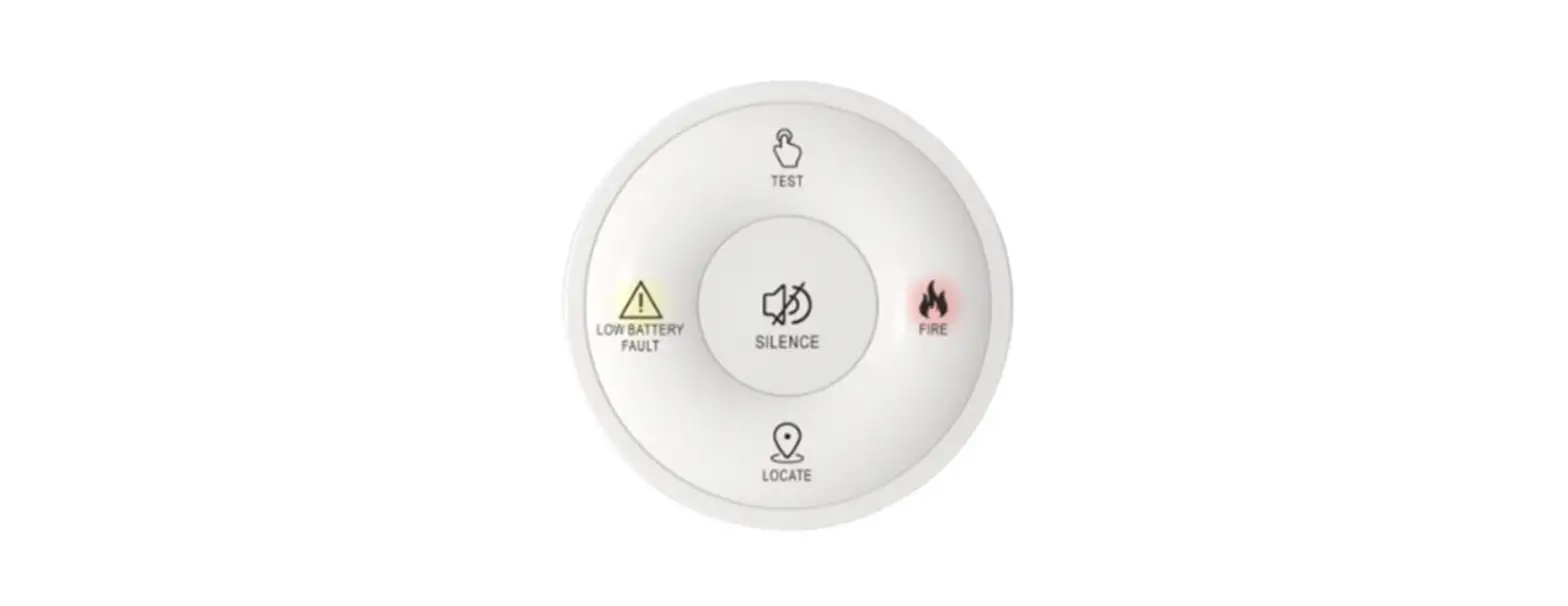
The Smoke Alarm has LED behaviors and Sound Behaviors that
indicate its status. Refer to the User Guide Conventions section to
understand the different behaviors and what they indicate.
Replacing Batteries
If the Smoke Alarm’s batteries are low, the device will blink
red every 30 seconds. When this happens, replace the batteries with
two new AA batteries.
Troubleshooting
If you experience any problems with your installation or with
the Smoke Alarm, refer to the full Installation & User Guide or
contact YoLink for assistance.
B Before You Begin
Please note: this is a quick start guide, intended to get you started on the Installation of your Smoke Alarm. Download the full Installation & User Guide by scanning this QR code:
Installation & User Guide
C In the Kit
Communication Base
Smoke Head AJ-732
E
Get to Know Your Smoke Alarm, Cont.
Activate Button Deactivate Switch
Smoke Head Bottom
Smoke Alarm
YS7A02 & AJ-732
Quick Start Guide Revision Jan. 16, 2023
A Welcome!
Thank you for purchasing YoLink products! We appreciate you trusting YoLink for your smart home & automation needs. Your 100% satisfaction is our goal. If you experience any problems with your installation, with our products or if you have any questions that this manual does not answer, please contact us right away. See the Contact Us section for more info.
Thank you!
Eric Vanzo Customer Experience Manager
User Guide Conventions
The following icons are used in this guide to convey specific types of information:
Very important information (can save you time!)
Pour des instructions en
Fr
français, scannez les codes
QR dans la section suivante.
Para obtener instrucciones en
Es
español, escanee los códigos
QR en la siguiente sección.
You can also find all guides and additional resources, such as videos and troubleshooting instructions, Smoke Alarm Product Support Page by scanning the QR code below or by visiting:
https://shop.yosmart.com/pages/ smoke-alarm-product-support
Product Support Support produit Soporte de producto
Your Smoke Alarm connects to the internet via a YoLink hub (SpeakerHub or the original YoLink Hub), and it does not connect directly to your WiFi or local network. In order for remote access to the device from the app, and for full functionality, a hub is required. This guide assumes the YoLink app has been installed on your smartphone, and a YoLink hub is installed and online (or your location, apartment, condo, etcetera, is already served by a YoLink wireless network).
Two AA Batteries (Installed)
Quick Start Guide
Phillips Screws (2) Plastic Anchors (2)
D Required Items
You may require these items:
Phillips Screwdriver
Drill & Bits
Special Anchors
E
Get to Know Your Smoke Alarm
Battery Compartment Screws
SET Button & Status LED
Communications Base
Test/Silence Button
Status LED
Smoke Head Top
LED Behaviors
Blinking Red Once, then Green Once Device Start Up
Blinking Red And Green Alternately Restoring to Factory Default Settings
Blinking Green Connecting to the Cloud
Fast Blinking Green Control-D2D Pairing in Progress
Slow Blinking Green Updating
Blinking Red Once Device is Connected to the Cloud and is Functioning Normally
Fast Blinking Red Control-D2D Unpairing in Progress
Fast Blinking Red Every 30 Seconds Batteries Are Low; Replace the Batteries
Head LED & Sound Behaviors:
1 Yellow LED Flash 1 Chirp, 60 Second Pause Low Battery (Head Must be Replaced)
2
2 Red LED Flash
2 Beeps, 60 Second Pause
Trouble (Head Must be Replaced)
1 Yellow LED Flash 2 Chirps, 60 Second Pause Head End-of-Life (Head Must be Replaced)
F Power Up
Turn on the Communication Base by briefly pressing the SET button, until you see the LED flash red then green.
F Install the App
If you are new to YoLink, please install the app on your phone or tablet, if you have not already. Otherwise, please proceed to the next section
Scan the appropriate QR code below or find the “YoLink app” on the appropriate app store.
Apple phone/tablet Android phone or iOS 9.0 or higher tablet 4.4 or higher
Open the app and tap Sign up for an account. You will be required to provide a username and a password. Follow the instructions, to set up a new account. Allow notifications, when prompted.
You will immediately receive a welcome email from [email protected] with some helpful information. Please mark the yosmart.com domain as safe, to ensure you receive important messages in the future.
Log in to the app using your new username and password.
The app opens to the Favorite screen. This is where your favorite devices and scenes will be shown. You can organize your devices by room, in the Rooms screen, later.
Add Your Communication G Base to the App
1. Tap Add Device (if shown) or tap the scanner icon:
Scanner icon
2. Approve access to your phone’s camera, if requested. A viewfinder will be shown on the app.
3. Hold the phone over the QR code so that the code appears in the viewfinder. If successful, the Add Device screen will be displayed. You can change the device name and assign it to a room later. Tap Bind device. If successful, the screen will appear as shown. Tap Done.
Smoke Alarm
4. Confirm the device is noted as online per the figure above, before proceeding to the next section. Repeat the Power Up step, as needed.
H Installation
Before physically installing the device, please review the guide included with the smoke head, in particular, location considerations. We suggest reviewing the full installation guide, as well. Please refer to the product support page for additional information. It is also recommended that you configure and test your Smoke Alarm prior to installing it.
1. You must activate the head before installation. Depress the Activation Button on the head. This is a one-time button that remains depressed. Pressing this button activates the head and starts the End-of-Life timer, so do not press this button until you are ready to install the device.
2. “Bench test” your new Smoke Alarm before installation. Twist the head into the base until it snaps in place and is not loose. Press the test button on the top of the head, until the alarm sounds and the LEDs flash. Check and confirm the alarm is displayed in the app, as well. Confirm this result before proceeding to the next step.
3. Determine the appropriate location for your Smoke Alarm. Review the guide packaged with the head, as well as information in the full installation guide and the product support page.
4. Remove the head from the base, as required. Secure the base to the ceiling or wall, using the two supplied screws and anchors, or using your own specialty anchors (e.g. toggle bolts or concrete anchors).
5. Twist the head into the base.
6. Test the device.
Refer to the full Installation & User Guide, to complete the setup of your Smoke Alarm.
I Contact Us
We are here for you, if you ever need any assistance installing, setting up or using a YoLink app or product! Need help? For fastest service, please email us 24/7 at [email protected] Or call us at 831-292-4831 (US phone support hours: Monday – Friday, 9AM to 5PM Pacific) You can also find additional support and ways to contact us at: www.yosmart.com/support-and-service Or scan the QR code:
Support Home Page
Finally, if you have any feedback or suggestions for us, please email us at [email protected] Thank you for trusting YoLink! Eric Vanzo Customer Experience Manager
15375 Barranca Parkway Ste. J-107 | Irvine, California 92618
© 2022 YOSMART, INC IRVINE, CALIFORNIA
 Facebook icon
 Facebook icon