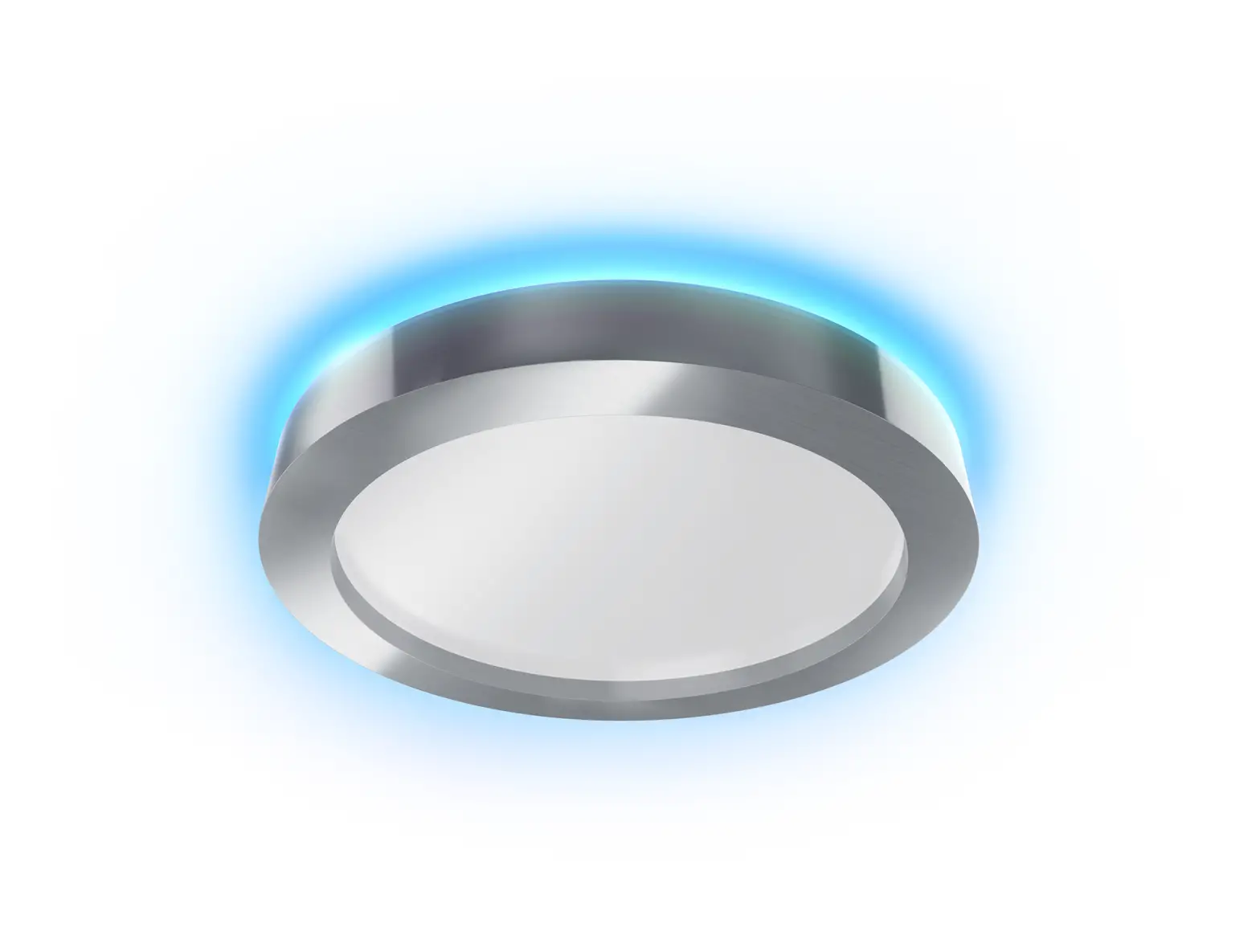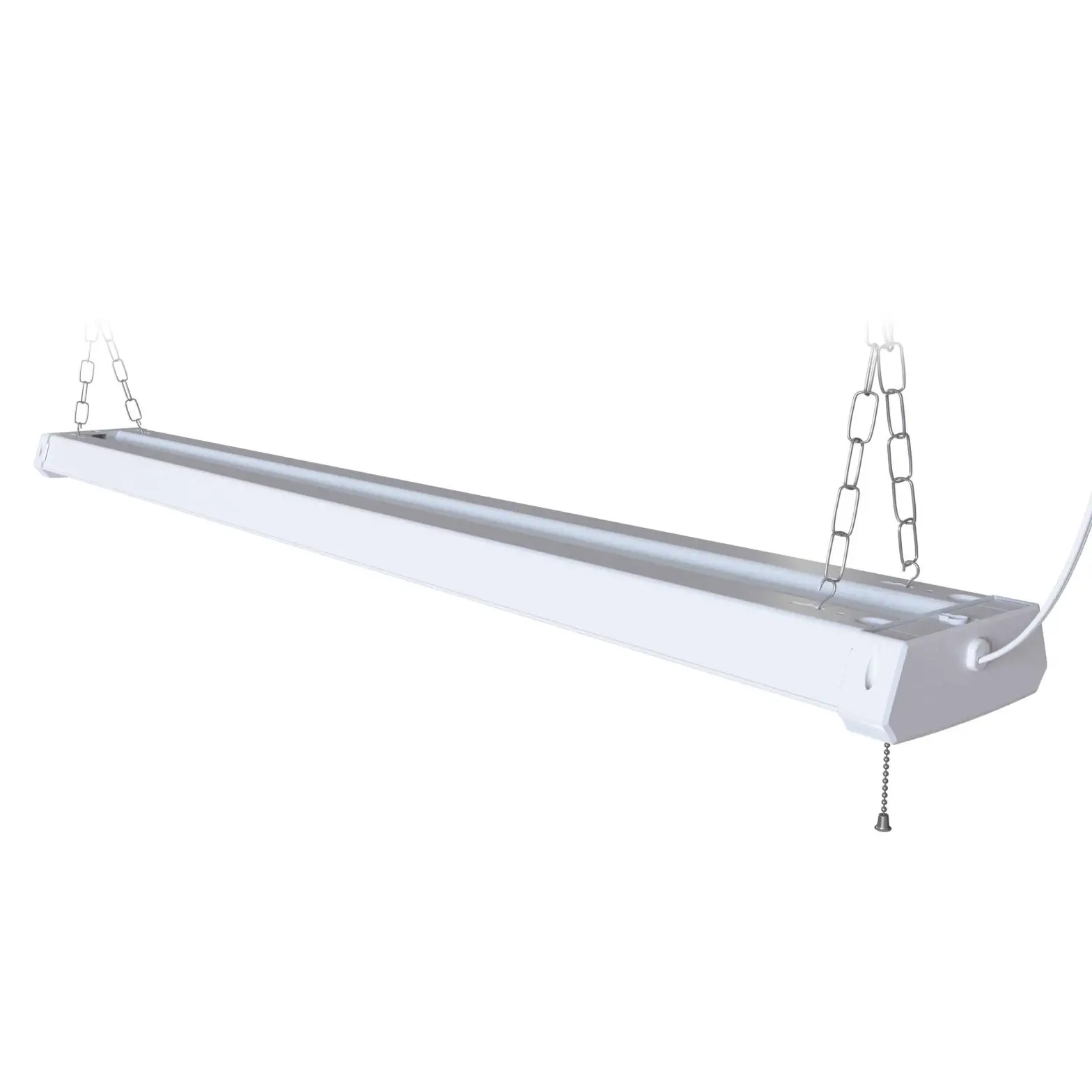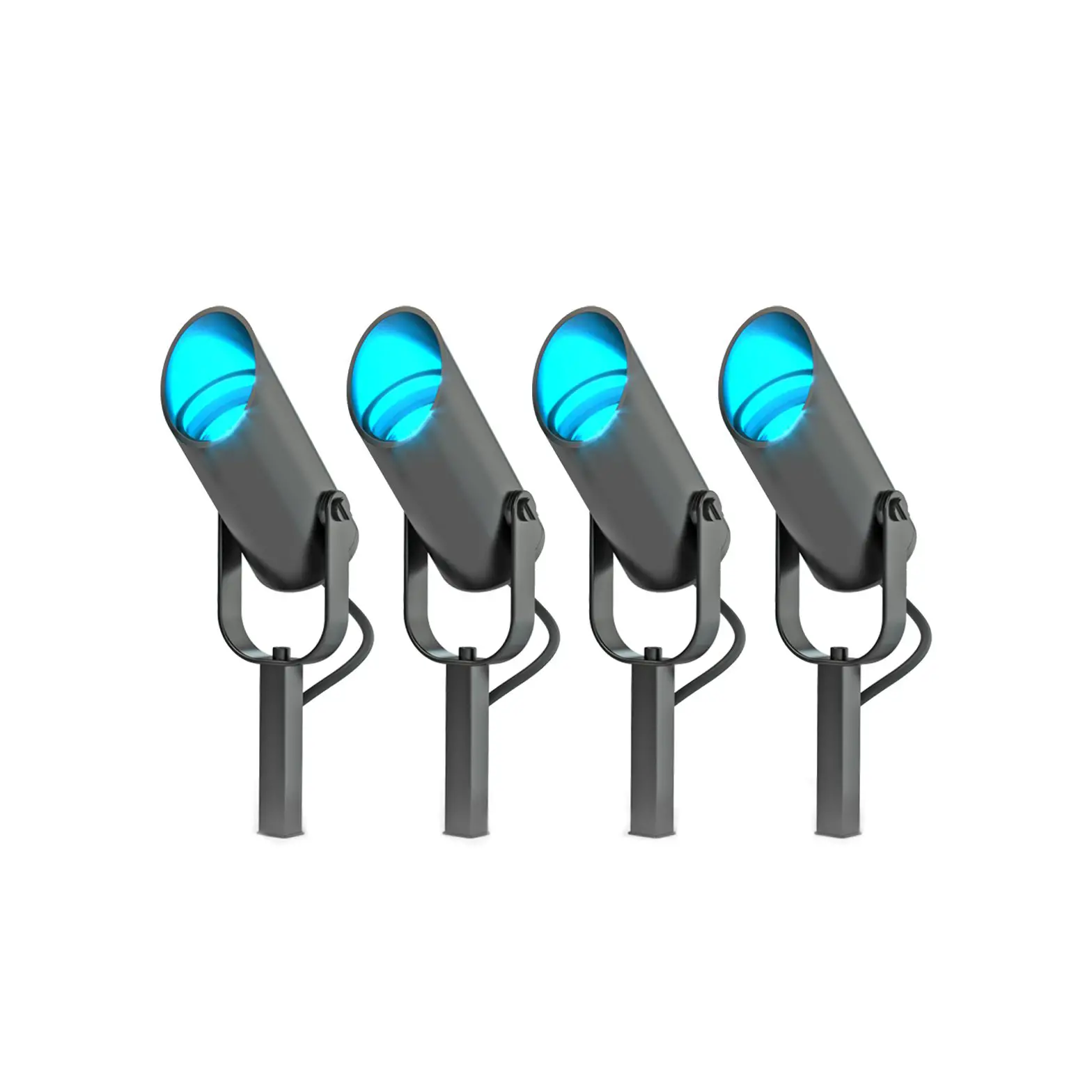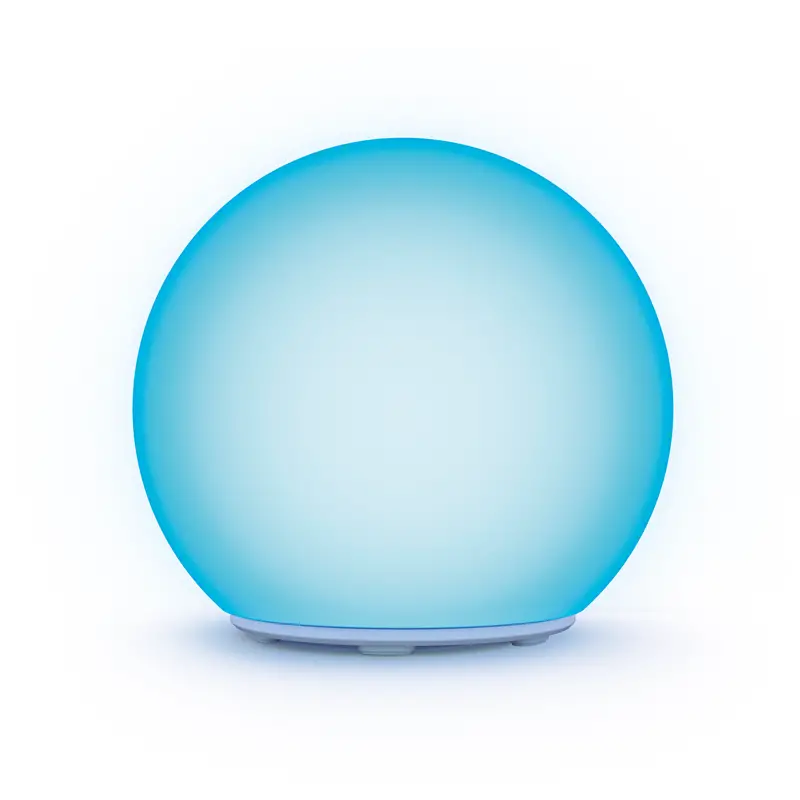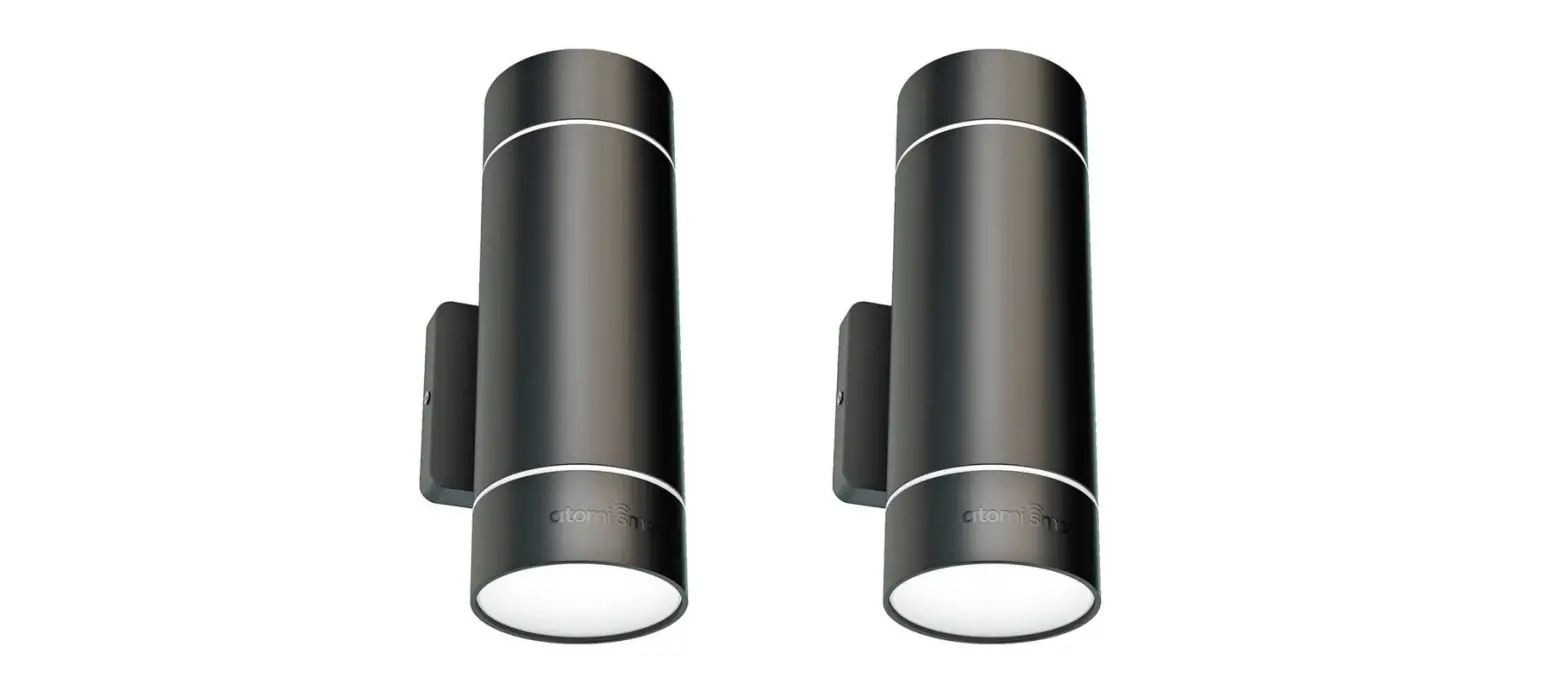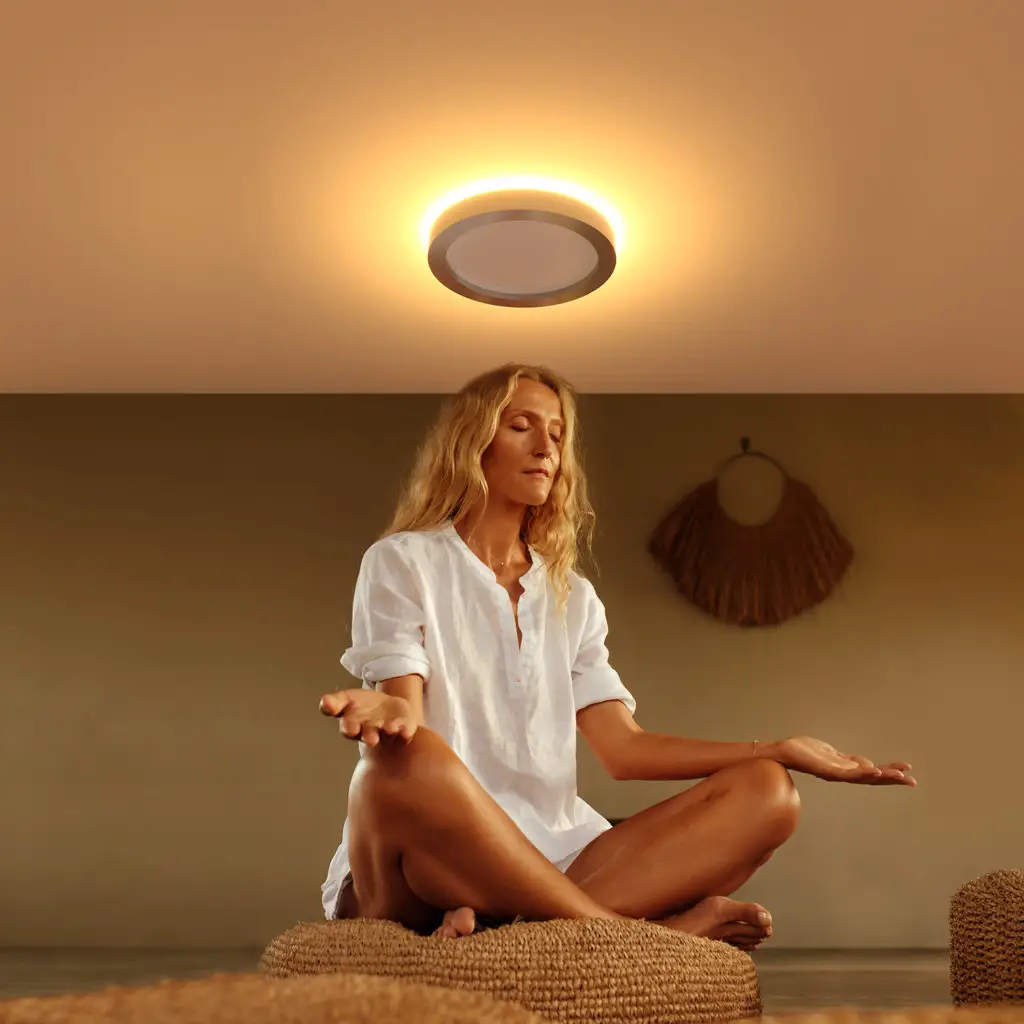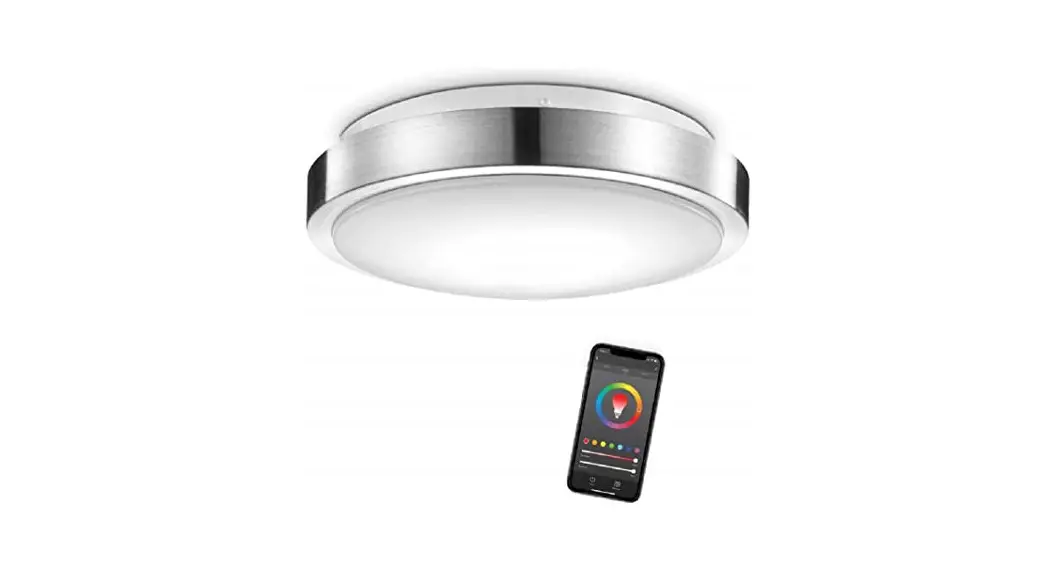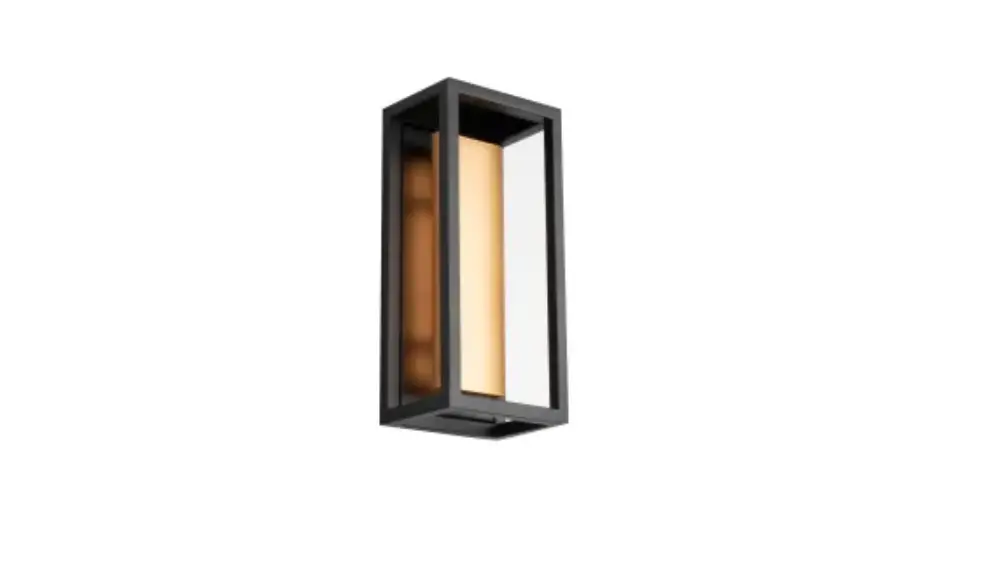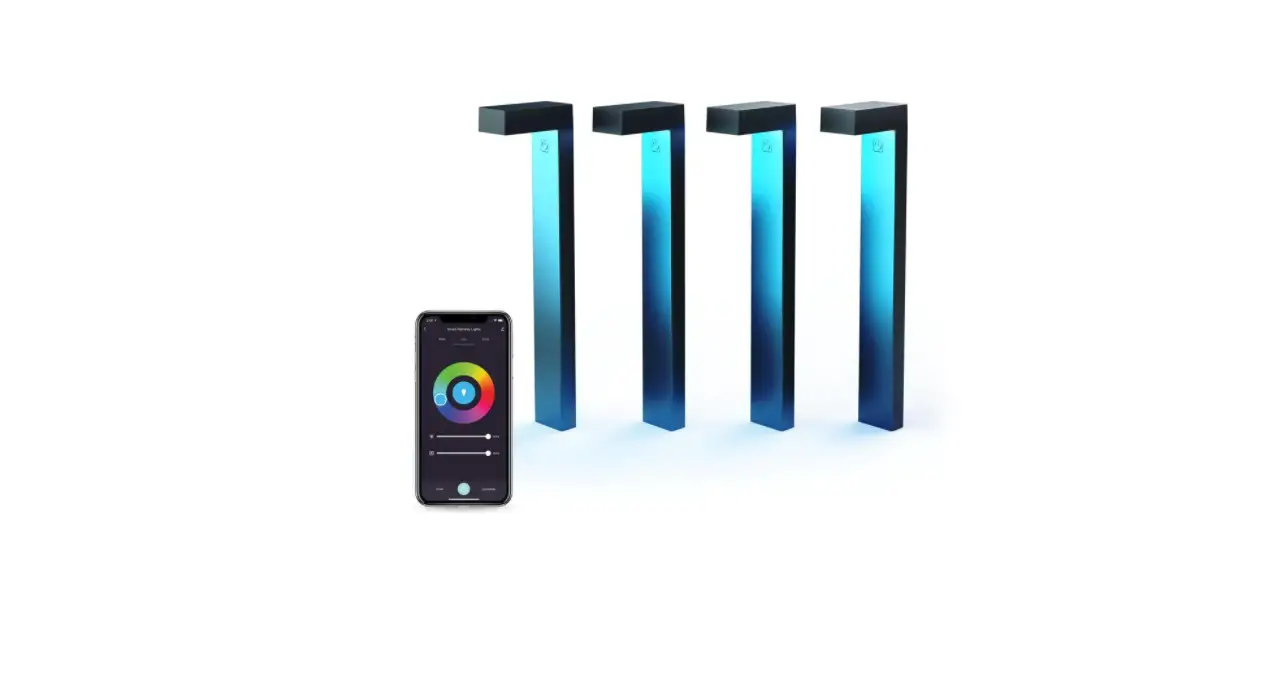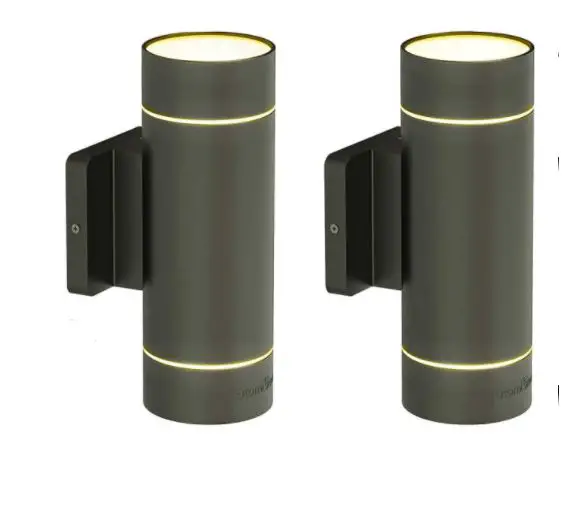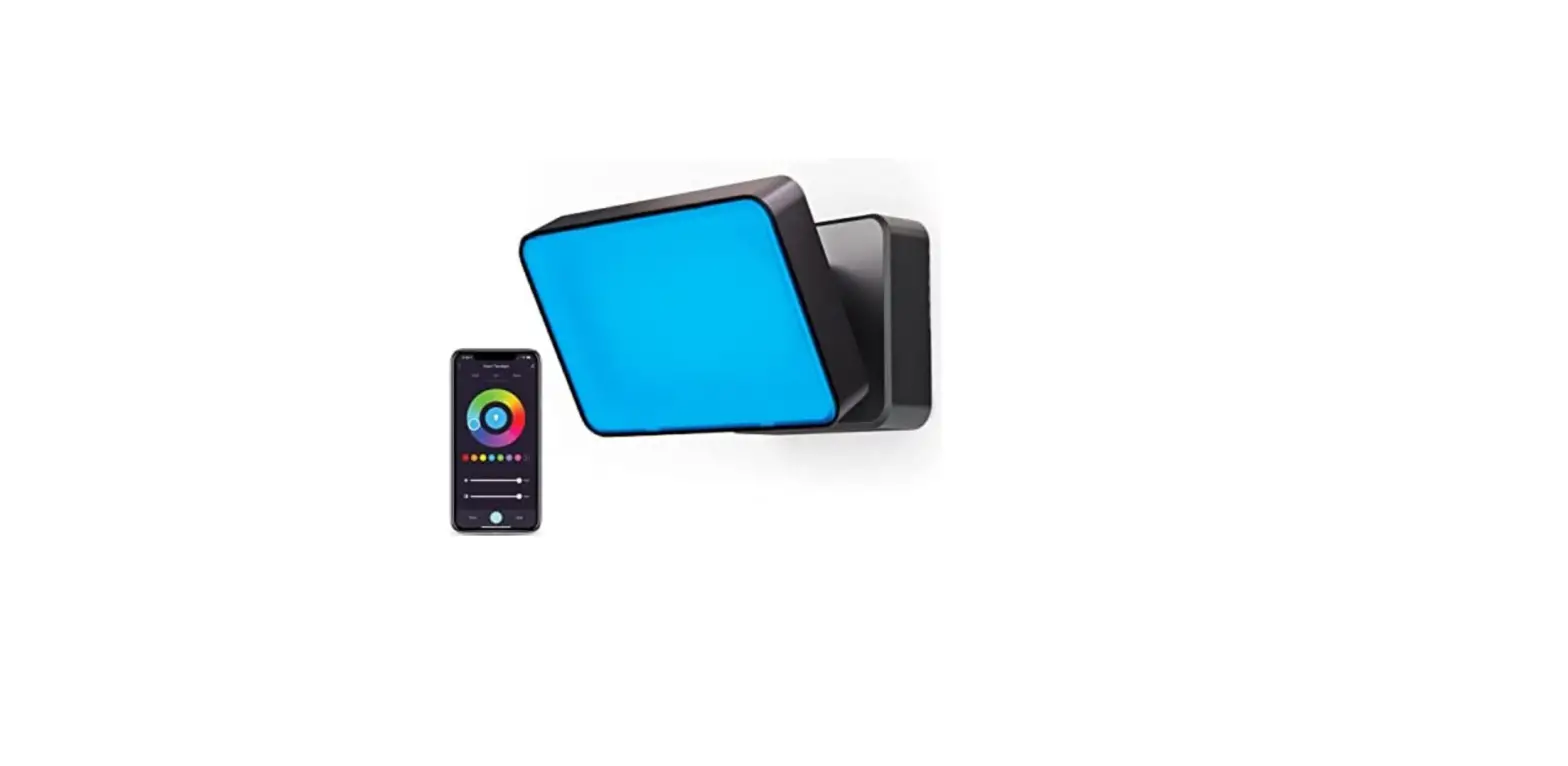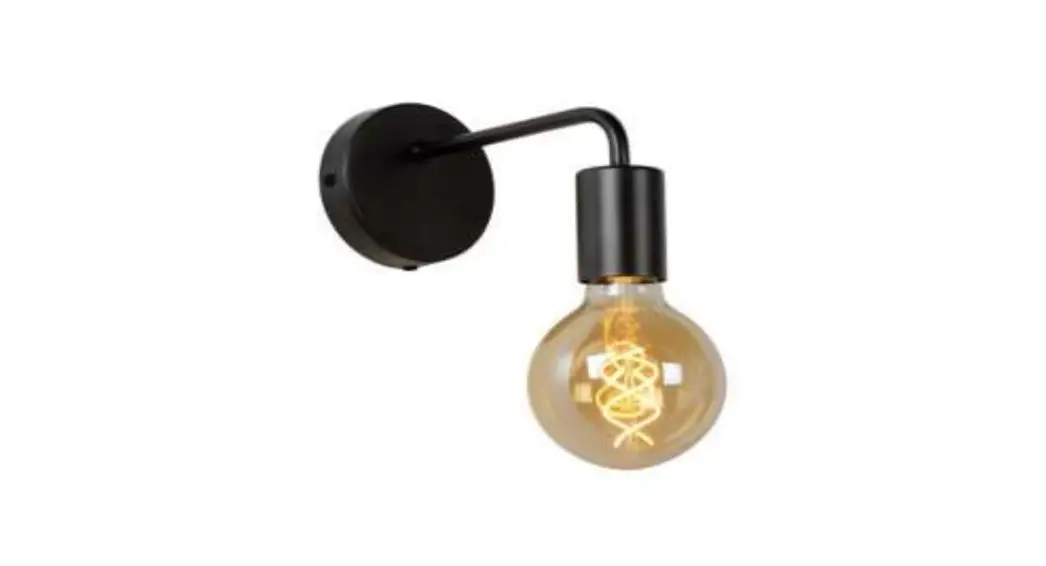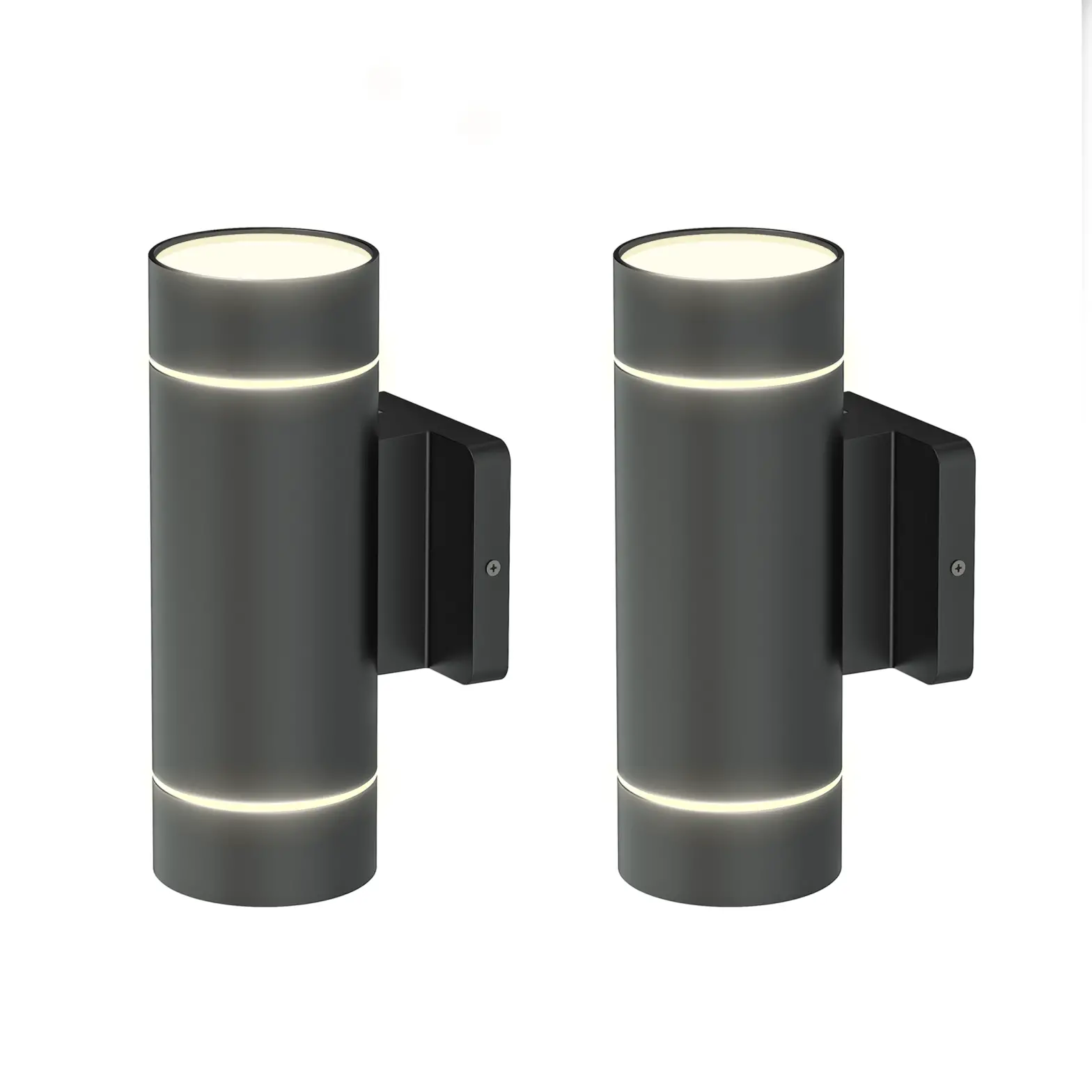
Atomi Smart Wall Light
Introduction
1. Know your Wi-Fi network and password
2. Make sure your mobile device is running iOS® 8 or higher or Android™ 4.1× or higher
3. Make sure you’re connected to a 2.4GHz Wi-Fi network (Atomi Smart can’t connect to 5GHz networks).
Installation
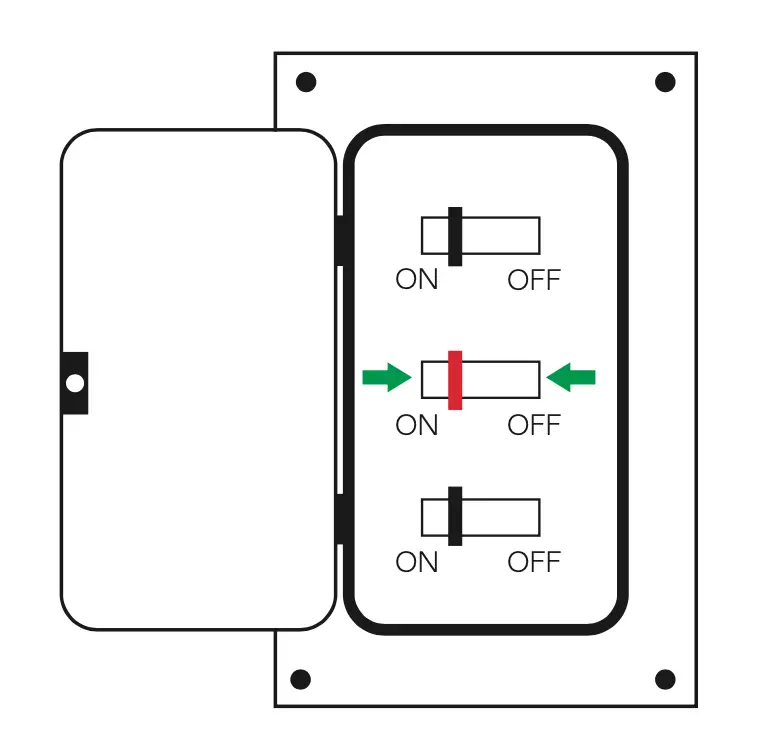
Step 1: Turn off the circuit breaker
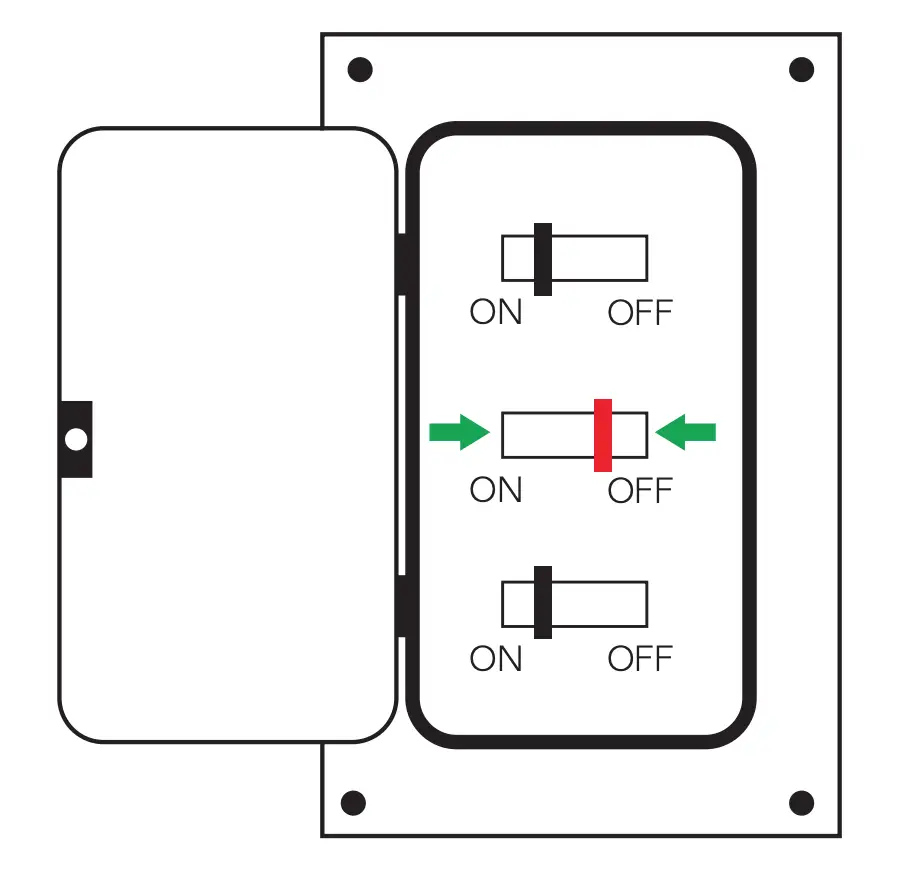
Find your light’s control in your circuit breaker and turn it off. Then make sure the power is off by flipping your switch a few times.
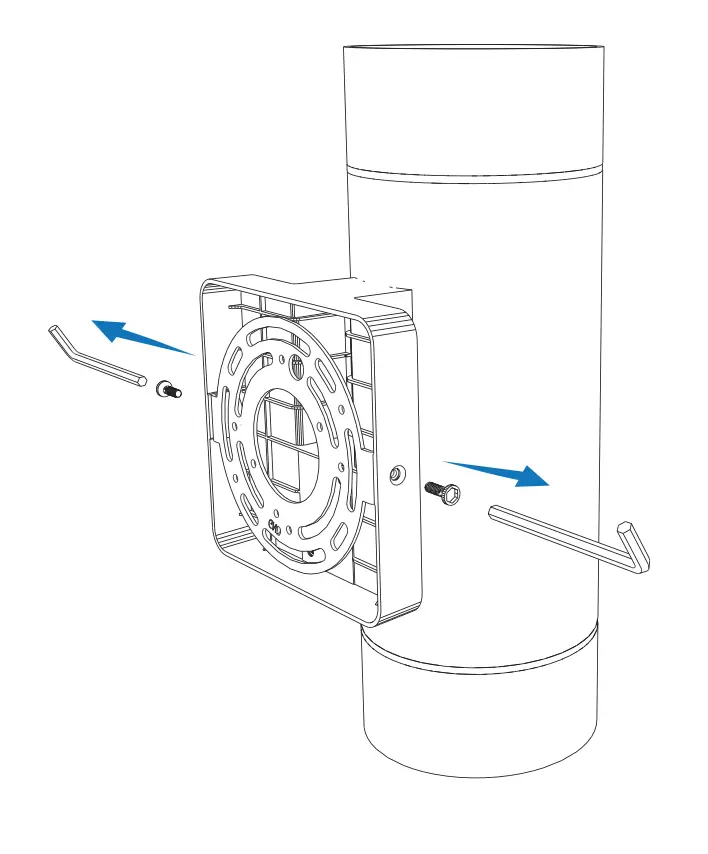
Step 2: Unscrew the mounting bracket from the Wall Light using the included allen key
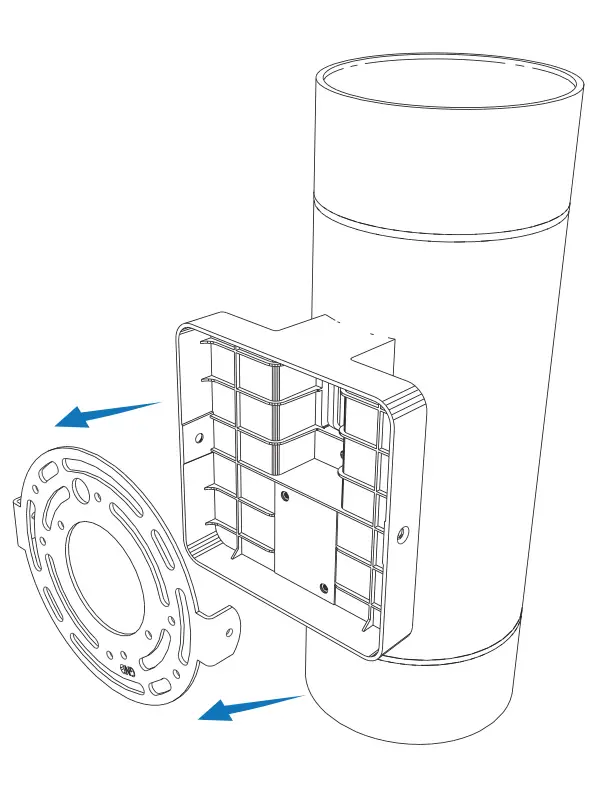
Step 3: Remove the mounting bracket from the Wall Light
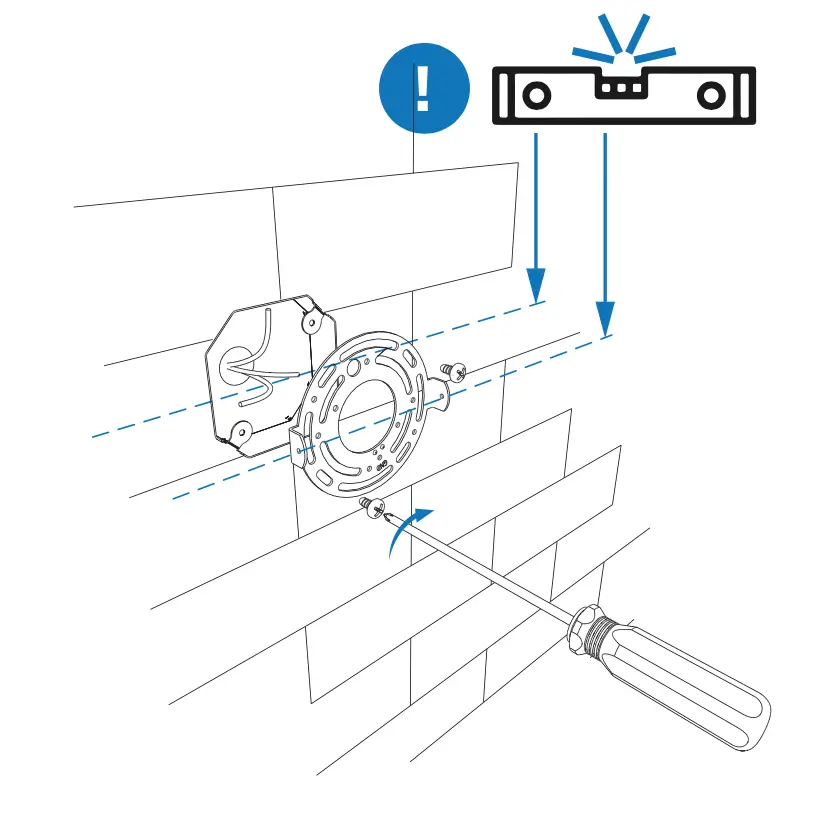
Step 4: Align and install the mounting bracket to your existing junction box
Step 5: Connect the corresponding wires using the wire nuts
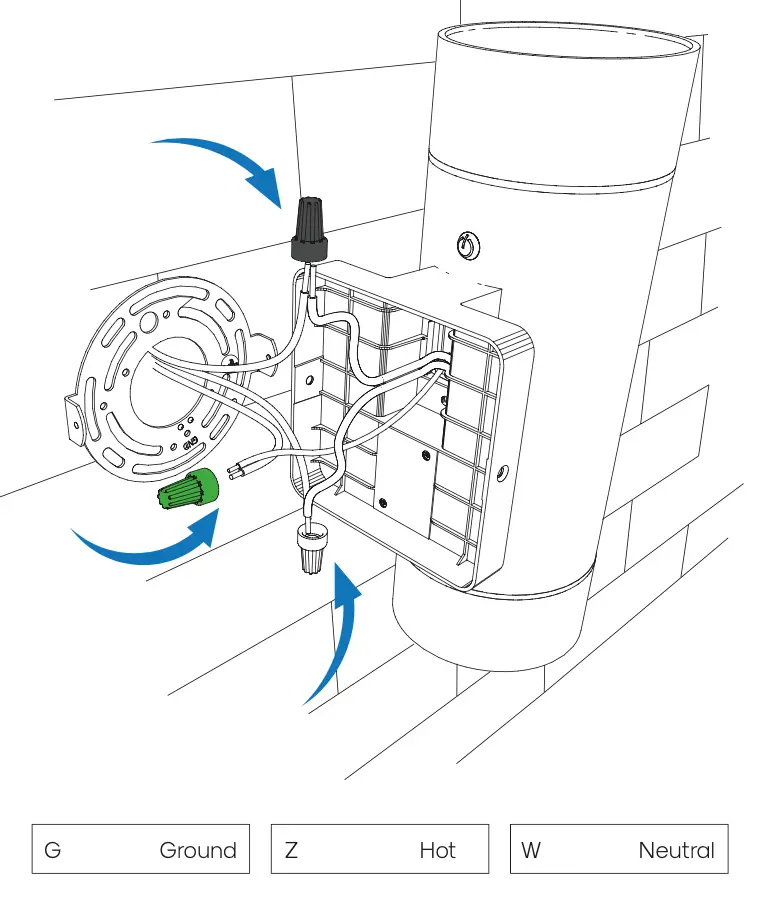
Step 6: Install the Wall Light to the mounting bracket
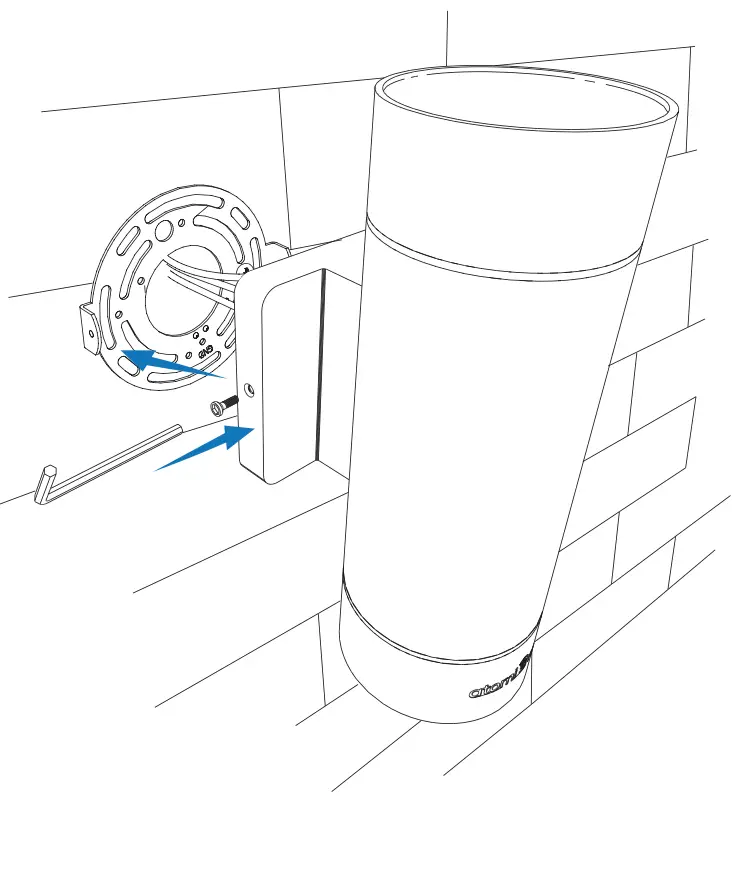
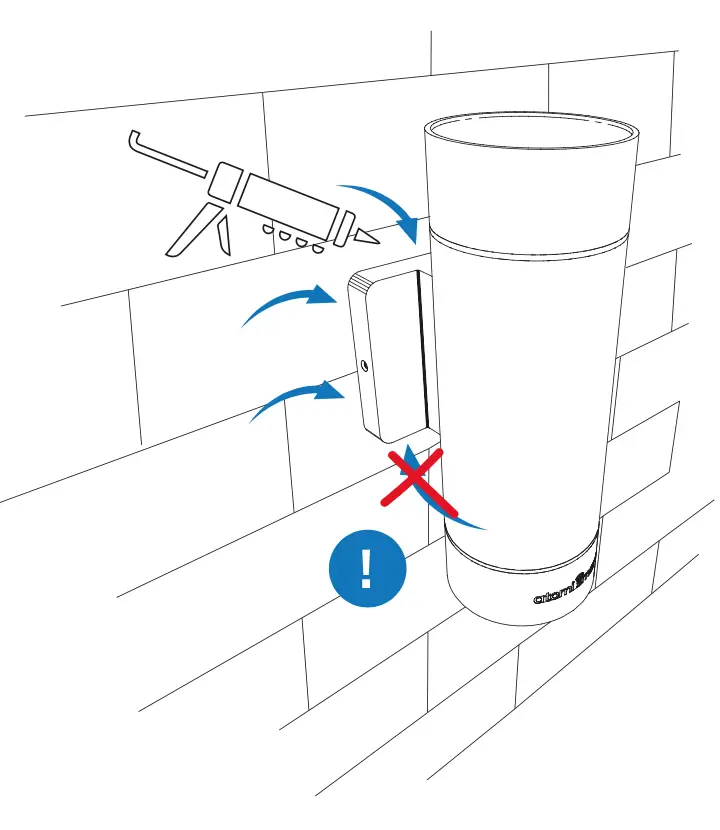
Step 7: Turn on your switch’s power from the circuit breaker and confirm that the Wall Light powers on (Solid white or flashing)
Connecting Your Device
Step 1: Download App
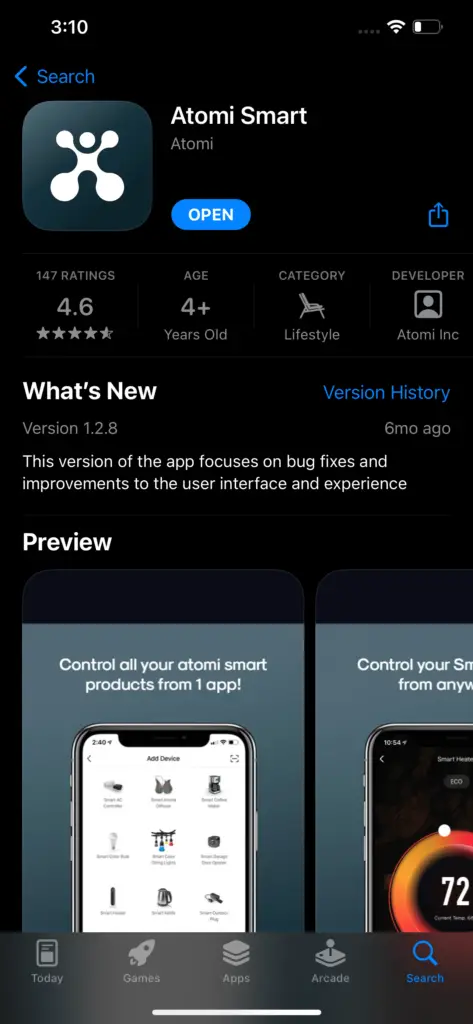
Download the Atomi Smart app from the App Store or Google Play and create an account. If you already have the app installed, please make sure to check for any updates as they will improve your experience with the Atomi Smart app.
Step 2: Adding Your Device
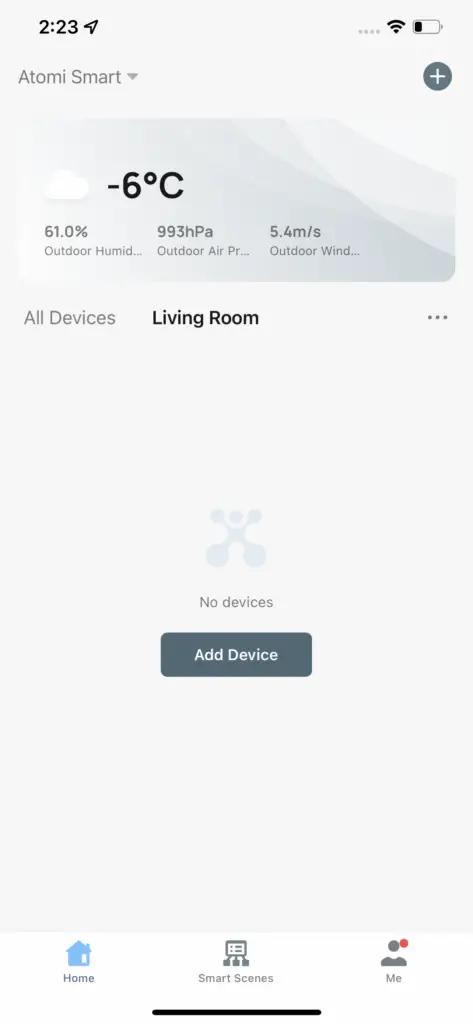
- Confirm that the Wall light is flashing white. If not, press and hold the ‘Power’ button located at the back of the light.
- Once it’s flashing, open the Atomi Smart app and select “Add Device” or click (+) at the top right corner of the screen.
- Press ‘Connect device’ on the banner that appears. If the popup does not appear, select the device from the list (Add Manually)
- Follow the on-screen instructions
Step 3: Connecting to Wi-Fi
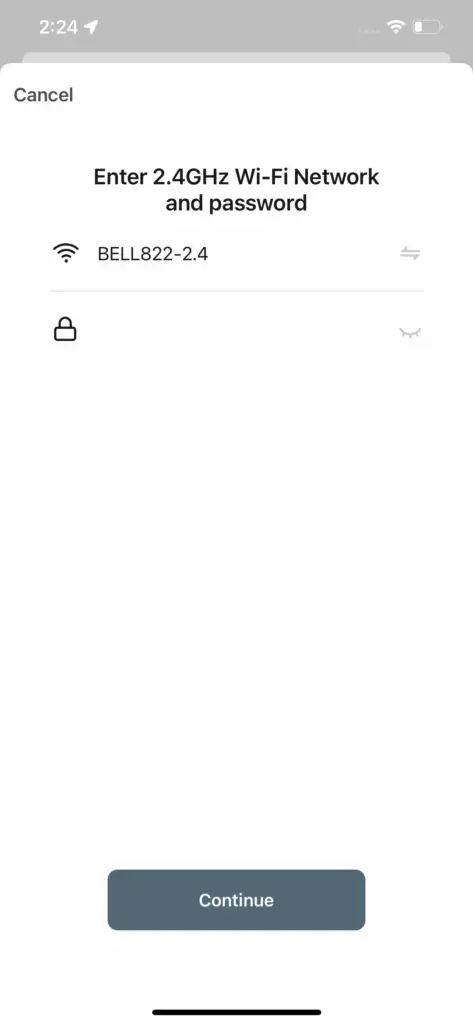
1. Enter your home Wi-Fi network (2.4 GHz only) and password
2. Press ‘Continue’ to complete the connection
Controlling your Smart Wall Light
Power
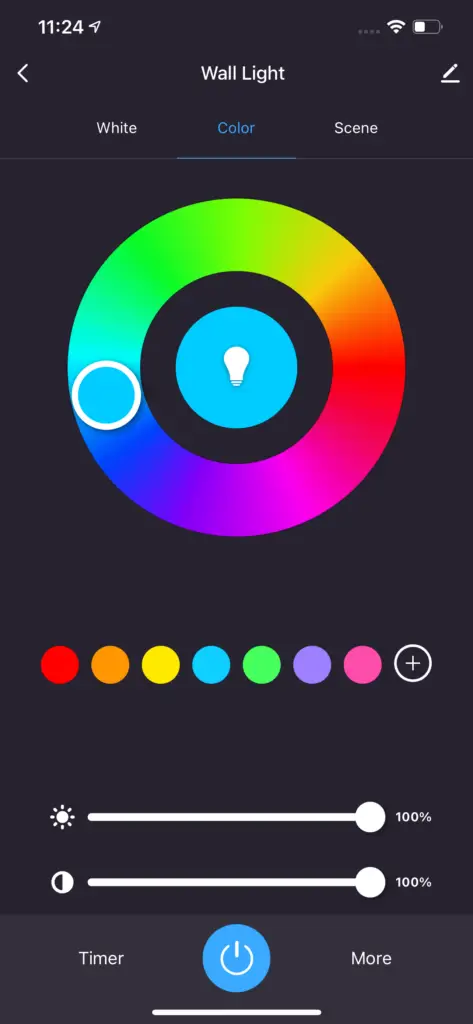
ON/OFF – Press ‘Power’ to turn ON/OFF your Smart Wall Light
White Mode
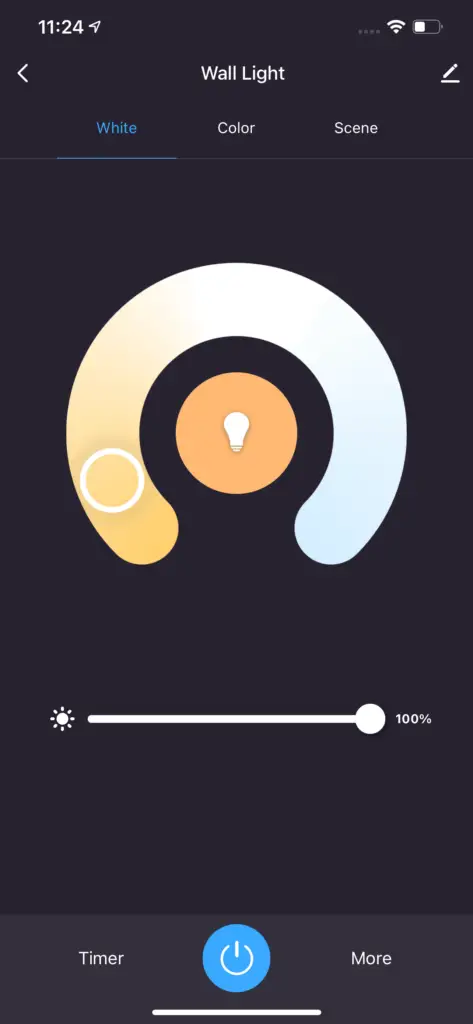
Brightness – Change your Smart Wall Light intensity
Color Mode
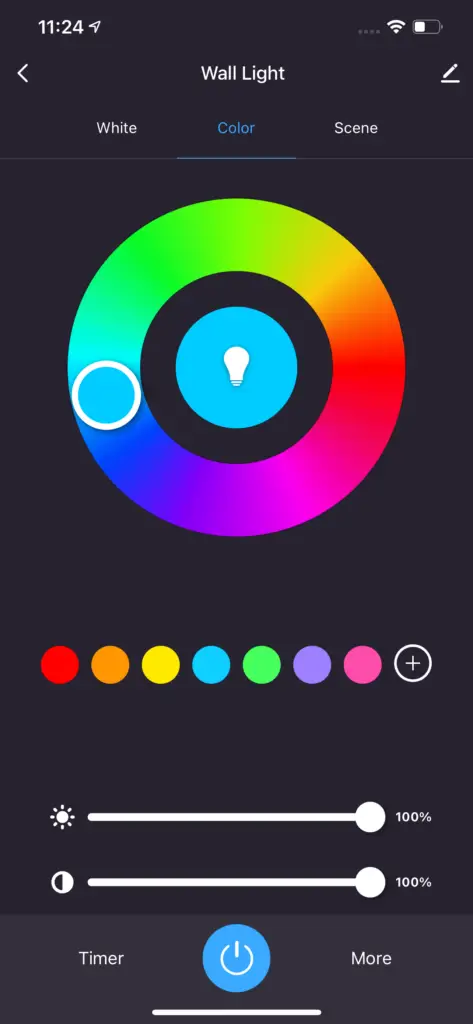
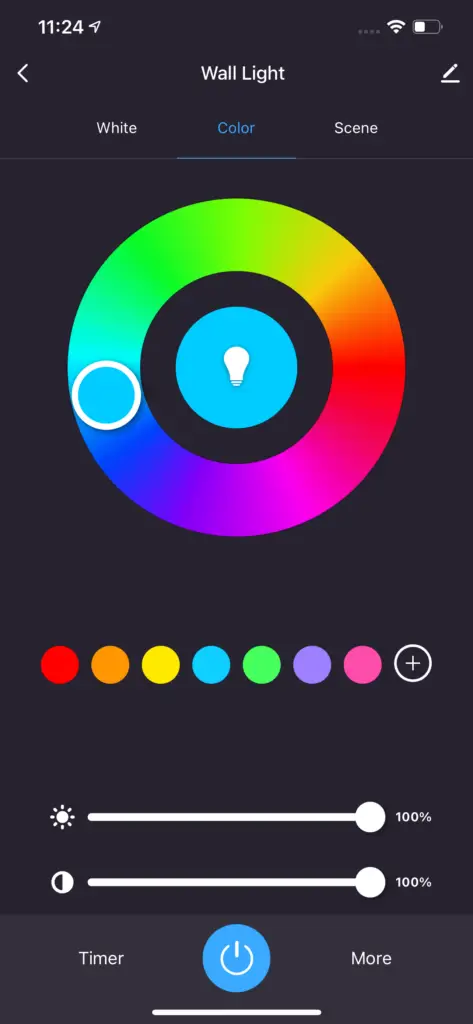
Color Wheel – Broad spectrum of colors to create the perfect ambiance.
Color Swatches – Add swatches to quickly access your favorite colors. Press and hold on a color to edit/remove your saved color
Slider 1 – Increase or decrease light brightness
Slider 2 – Change color saturation
Power-on behavior (Do Not Disturb)
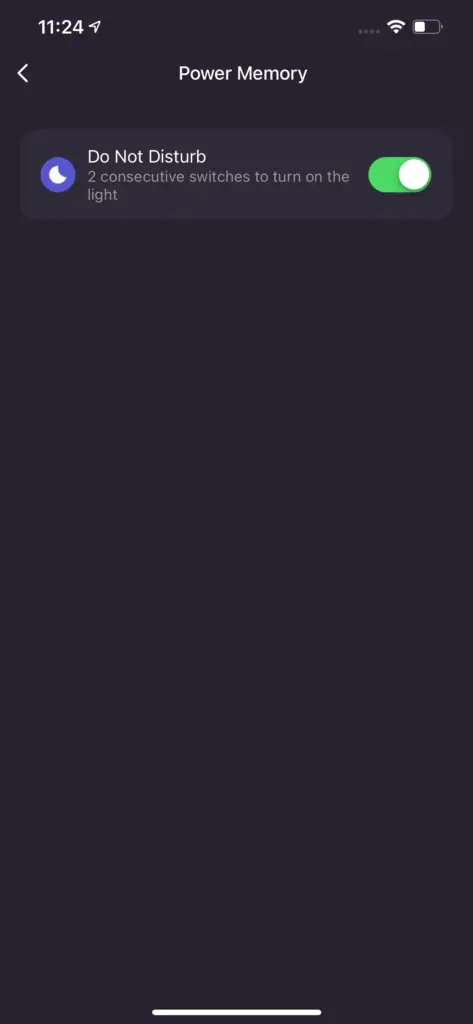
Disabled: Light will always turn ON after a power outage (or when you turn ON your physical light switch)
Enabled: If the light status was OFF (in the app), it will remain OFF after a power outage (or when you turn ON your physical light switch)
In order to turn it on again using your physical light switch, follow the steps below:
– Start with the light switch OFF and wait a few seconds
– Turn ON and wait 2 seconds
– Turn OFF and wait 2 seconds
– Turn ON
Scenes
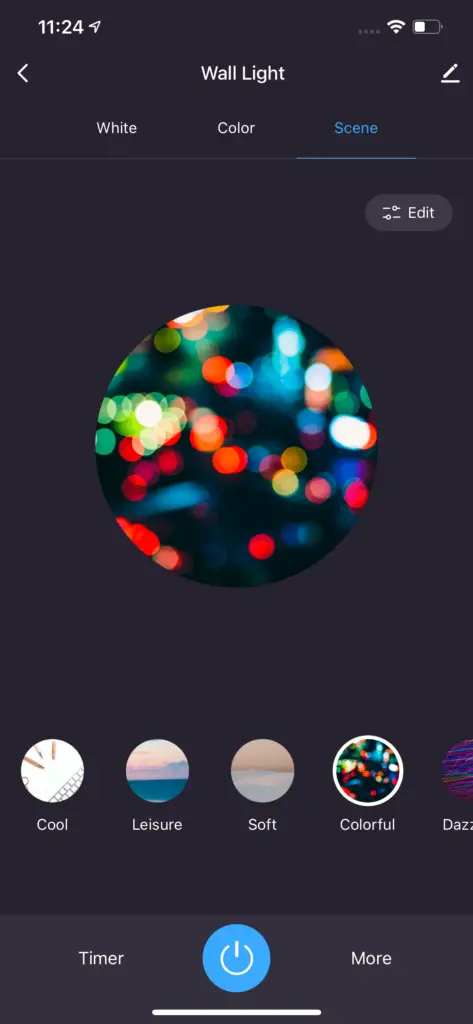
Select curated color scenes based on your mood.
Animated Scene Presets
Soft – Fades in and out between 2 colors
Colorful – Cycles between preset colors (Slow)
Dazzling – Cycles between preset colors (Fast)
Gorgeous – Fades between preset colors
* You can also edit any of the available scenes by pressing the ‘Edit/Sync light’ button.
Scheduling
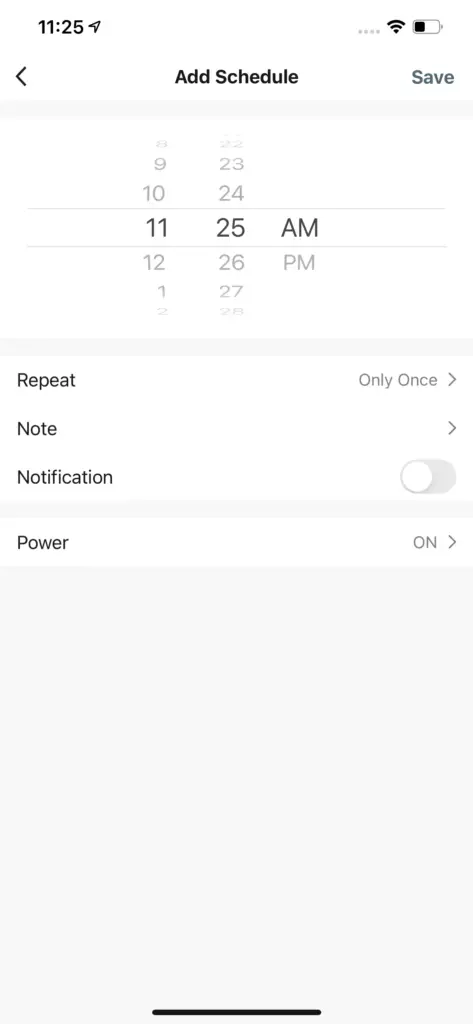
Time – Select the time to run the schedule
Repeat – Select what days of the week to repeat the schedule
Note – Adds a note/label to the schedule
Power – Select to turn ON or OFF the light
Hint: Create a group to schedule all of your Wall Lights to turn On/Off together. Learn more on the ‘Creating Groups’ section
More information about Creating Schedules is available here
You can also use smart automations to create advanced schedules. Click here to learn more.
Creating Groups to control multiple lights together
1. Make sure that all of your Smart Wall Lights are online and powered ON
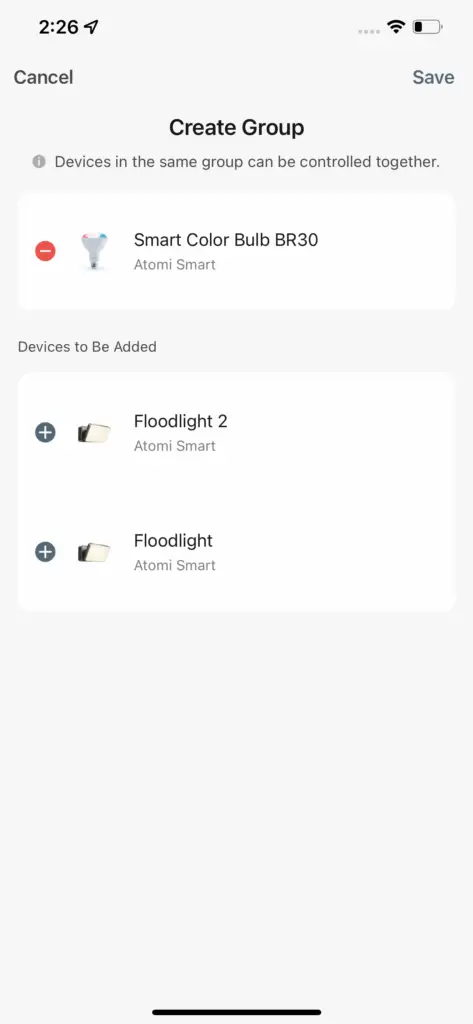
3. Press ‘Create Group’ and select the devices you wish to be included. Press ‘Save’. You can now control your lights simultaneously.
FAQ & Troubleshooting
What are the available voice commands?
Alexa
“Alexa, turn on [device name]”
“Alexa, turn off [device name]”
“Alexa, change [device name] to blue”
“Alexa, change [device name] to 50%”
Google Assistant
“Hey Google, turn on [device name]”
“Hey Google, turn off [device name]”
“Hey Google, change [device name] to blue”
“Hey Google, change [device name] to 50%”
How to group multiple Smart Wall Lights and control them simultaneously?
In order to connect multiple lights and control with the Atomi Smart app you are required to create a group.
– On the Atomi Smart app, select one of the lights that you’ve added
– Press the top right button (Pencil icon)
– Press “Create Group” and select all the lights you want to group
– Press “Save”. You can now control all your Smart Wall Lights simultaneously!
What is power-on behavior / Do Not Disturb?
This function allows you to choose the light behavior after a power outage.
Disabled: Light will always turn ON after a power outage (or when you turn the physical light switch off/on)
Enabled: If the light status was OFF (in the app), it will remain OFF after a power outage. In order to turn it on again using your physical light switch, turn OFF/ON 2 consecutive times
I’m having issues to connect. And why do I need to connect to a 2.4GHz network?
In order to successfully connect Atomi Smart devices, a 2.4GHz connection is required.
The 2.4GHz frequency waves travel further than the 5GHz. This means that if your device is in another room or far from your phone, you will have a better signal reception (compared to 5Ghz) which is essential for your smart device to function correctly and stay online.
All modern routers come with 2.4GHz and 5GHz. Depending on your router type, these bands may appear as separate WiFi networks (Example: Name-2.4GHz and Name-5GHz) or combined. If you only have one WiFi network, you should still be able to connect since the Atomi Smart app automatically finds the 2.4GHz frequency when connecting to your router.
However, if you experience any issues, please follow the points below:
– Make sure that you are connecting to a 2.4GHz network
– Keep your mobile device close to the router during connection
– If you have two SSID for your WiFi (Example: Name-2.4GHz / Name-5GHz), please temporarily disable “Auto-Join” on your Name-5GHz network)
– If you have two SSID for your WiFi, make sure that your 2.4GHz and 5GHz WiFi have different names
– If your router gives the option to disable the 5GHz network, please disable it temporarily
– Disable any VPN apps/services in order to connect successfully
– If you are having issues to connect, turn on Airplane Mode (Keep only WiFi activated when connecting your smart device)
– Make sure that you’ve entered the correct password for your 2.4GHz WiFi on the “Select 2.4GHz Wi-Fi Network” screen (Case sensitive, and make sure that there are no extra spaces)
– If you have too many devices connected to your 2.4GHz (more than 10), please turn off some of them temporarily and retry connecting your smart device to the app
– If you have a Mesh router, you may not be able to manually switch to a 2.4GHz frequency. Since this frequency travels further than the 5GHz, you can force your device to connect to it by moving your phone far from the router
– If you are still experiencing issues to connect, delete the app and reinstall it
– If the issue persists, restart your router
My Wi-Fi network doesn’t appear in the Atomi Smart app
Use your smartphone to confirm that you have at least two Wi-Fi bars in the vicinity of your Atomi Smart device. If not, move your Atomi Smart device closer to your router. (The list will refresh every 10 seconds).
Cannot connect to your WiFi network
Make sure you entered the correct WiFi password during the WiFi setup. Check if there are problems with your internet connection. If the WiFi signal is too weak, reset your WiFi router and try again.
Refresh the device list.
My Atomi Smart app is frozen
Force quit and re-launch the Atomi Smart app.
How to reset my device
Press and hold the ‘Power’ button on your Wall Light for 10 seconds. The light should start flashing white.
Download User Guide
Atomi Smart Wall Light User Guide (Installation)- Download PDF
Atomi Smart Wall Light User Guide (Connection)- Download PDF