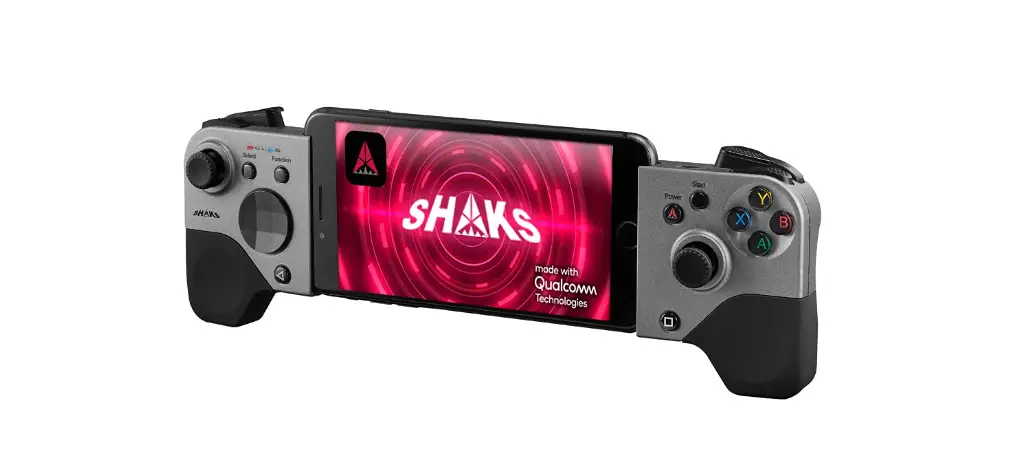

SHAKS S5 with Call of Duty Mobile
Quick Quide for Android/iOS
This guide is valid for iOS 13, Android 9 later version. If your android phone no work, refer to “Deep-Dive” guide.
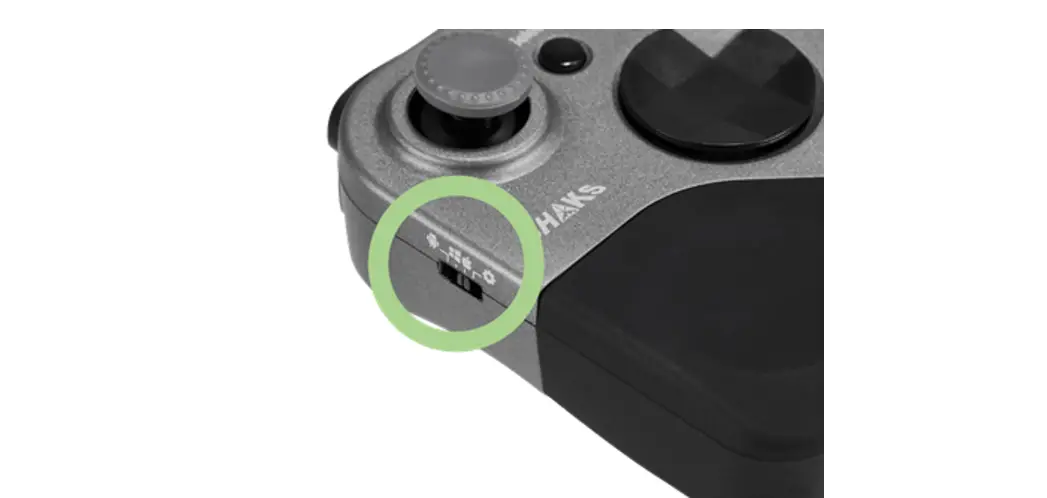
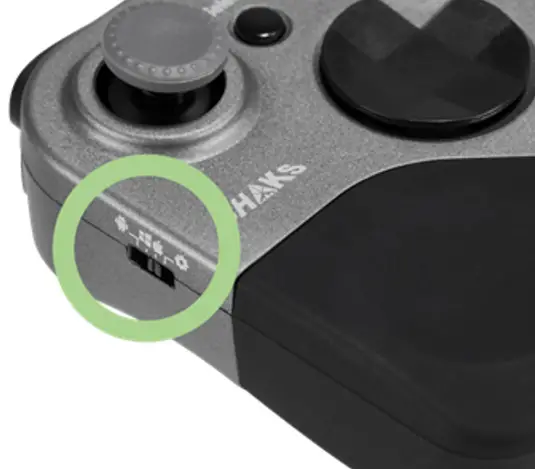
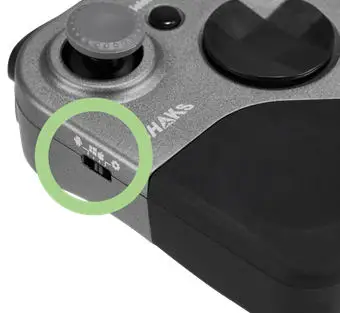
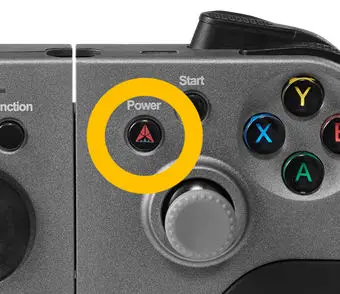
- Move slide switch into “iOS” mode”, 3rd position

- Power off and on again S5

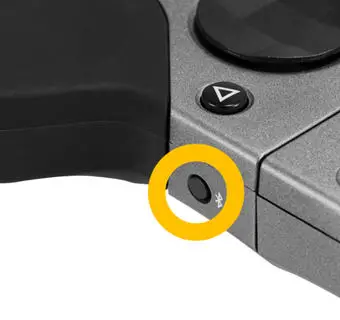
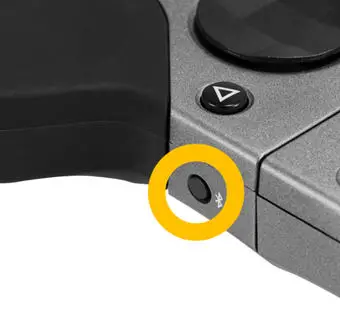
- Press BT log button for 3 seconds more.

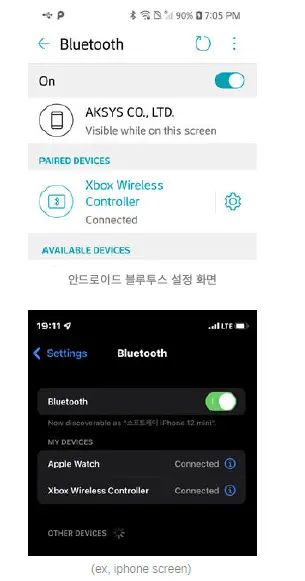
- Search BT device on your Bluetooth setting menu. Find “Xbox Wireless Controller” (this is pre-set name, can’t changible)

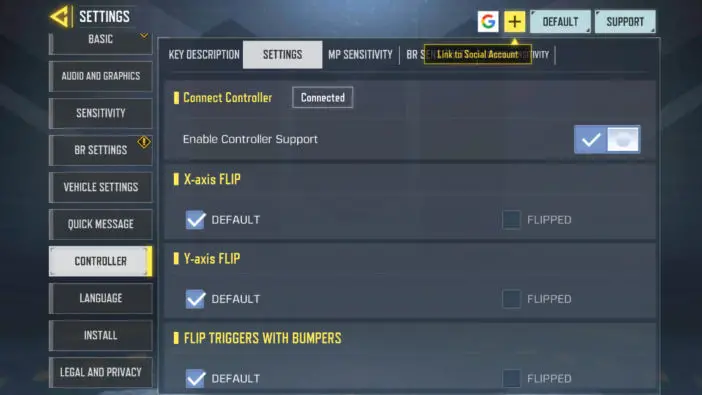
- Run CoD-M

Deep-dive Gudie for iOS/iPadOS
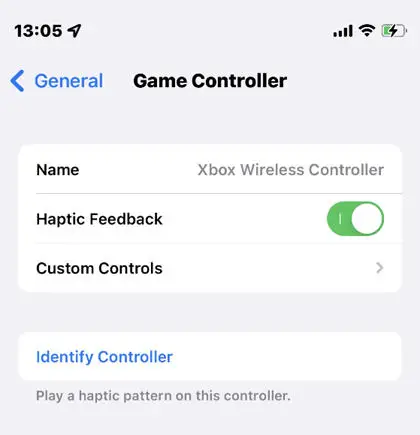
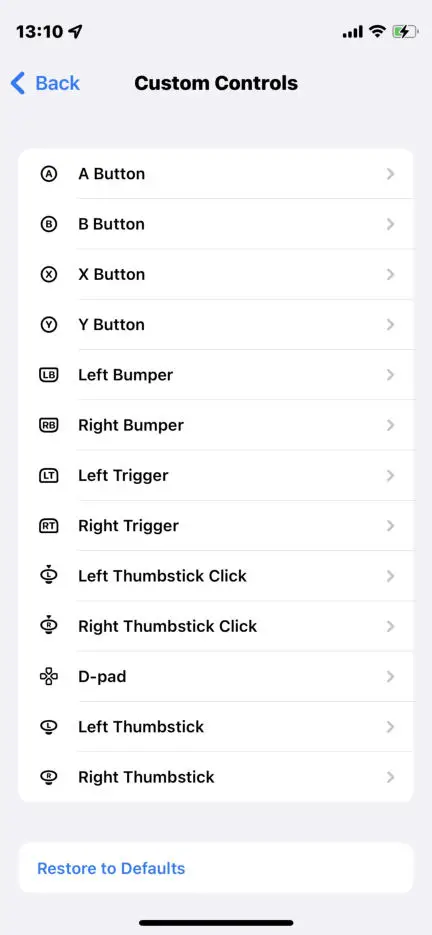
ℹ The pairing process, please see above. This is to show how to personalize button layout
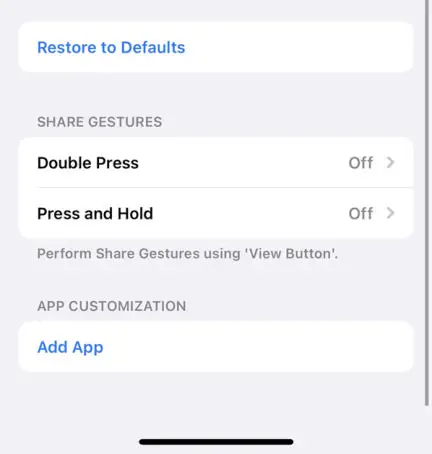
- Go to iOS “Game Controller” Menu. Select “Custom Controls” to modify layout and feature.


- By pressing “Select” button, you can see the map. If it does not pop up quickly, set “off” status of Double Press, and Press and Hold.

Deep-Dive Gudie for Android player
- This guide is to use the following features along with Shaks Gamehub application
- Back – one touch
- Home – one touch
- Function
- Mouse
- Snipper
- Screen shot (to be released soon)
- Coverting stick and button direction (to be released soon)
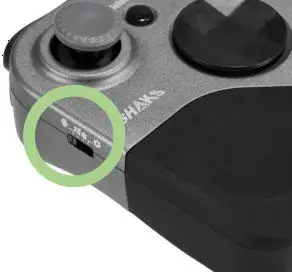
- Move mode switch into “Andrioid”, 1st position

- Power off and on again S5
- Press BT button for 3 sec more
- Run SHAKS Gamehub application. Check S5 name display on the screen

- Touch Gamepad, Go to Gamepad Setting.
 Touch Gamepad Setting
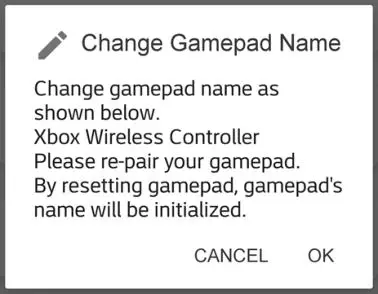
 - Select “Name Change” 다.

- Select “Xbox Wireless Controller” (this is Mandatory, please select this name)

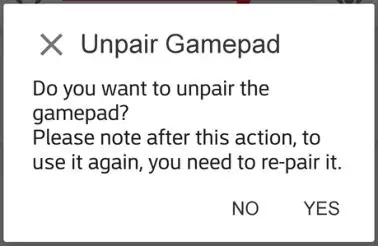
- Confirm “OK” then, select Yes to “unpair”


- Press BT button for 3 sec more (to pair it again with new name changed above) Select “Xbox Wireless Controller” to pair from your phone BT setting
 Andrioid Phone BT setting
 - Run CoD-M and enjoy
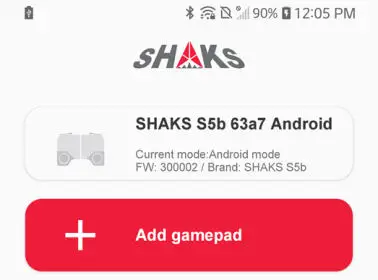
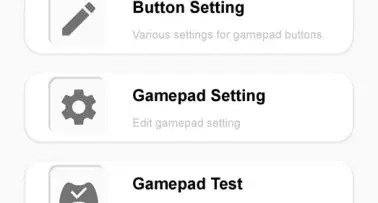 Touch Gamepad Setting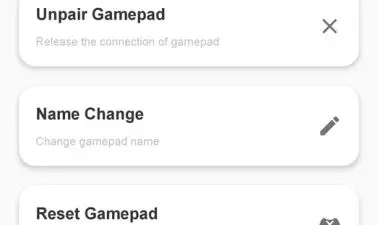
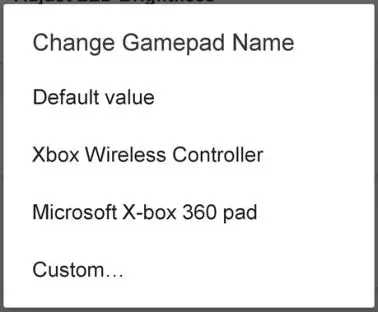
 Select “Xbox Wireless Controller” to pair from your phone BT setting
 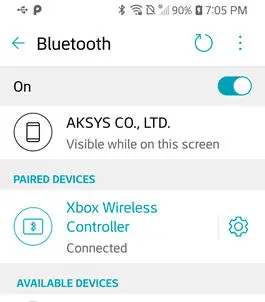 Andrioid Phone BT setting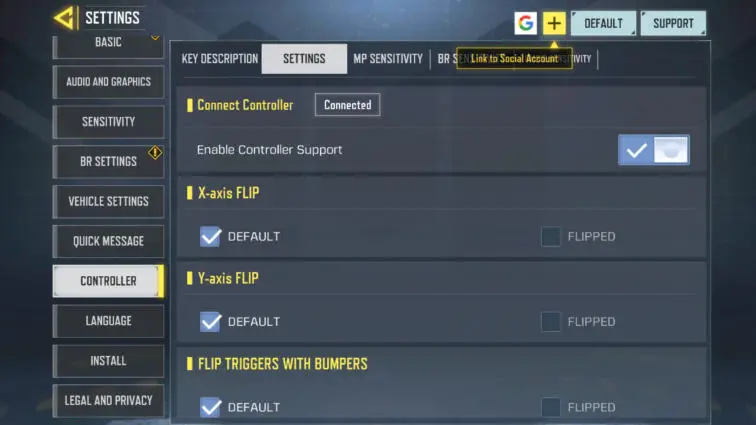
Deep-Dive : playing with Andorid User by Mapping
This method is playing with android player using screen touch control.
- Move mode switch into Mapping, the 4th position
- Power off and on again S5
- Press BT button for 3 sec longer
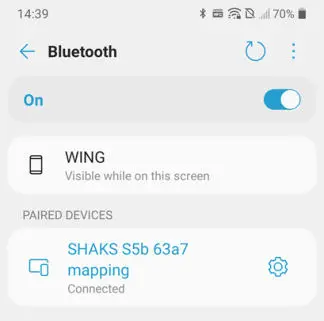
- Open your android phone and search ‘S5 xxx mapping” and click to pair. If no that name display, search again.

- Run SHAKS Gamehub application
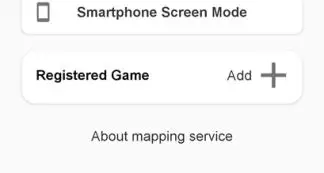
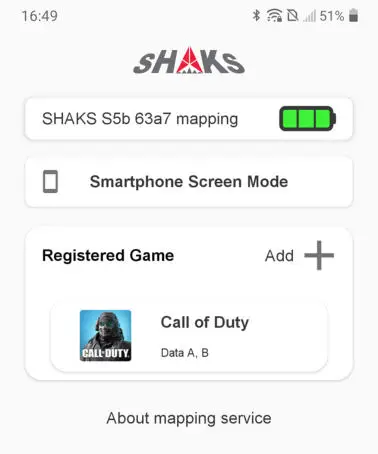
- Select S5 and move to “Mapping” memu
- Press Add.

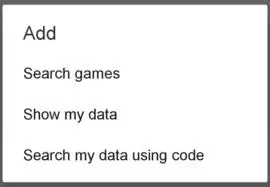
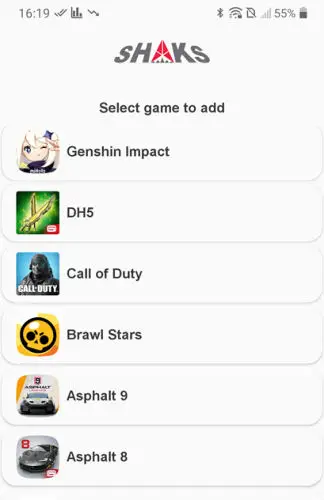
- If show popup, press Search games.

- Search and select “Call Of Duty”.

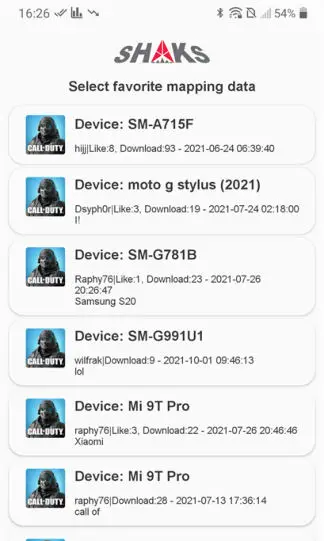
- Select “preset mapping data” among 10 according to your device type.

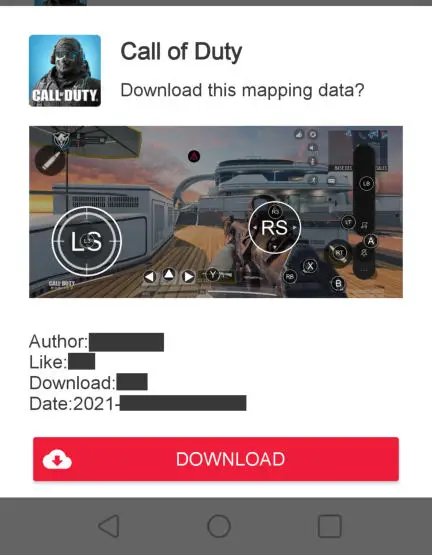
- Check the mapping data detail. If OK, select Download

- Download and Store mapping data file

- Check the mapping data detail. If OK, select Download
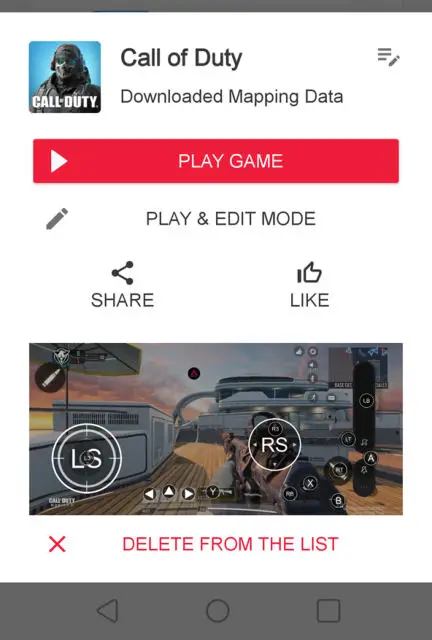
- Select data and play game

- PLAY GAME → Send mapping data to your cloud and run game
- PLAY & EDIT MODE → Edit it more according to your game style
- Check Shak icon pops up

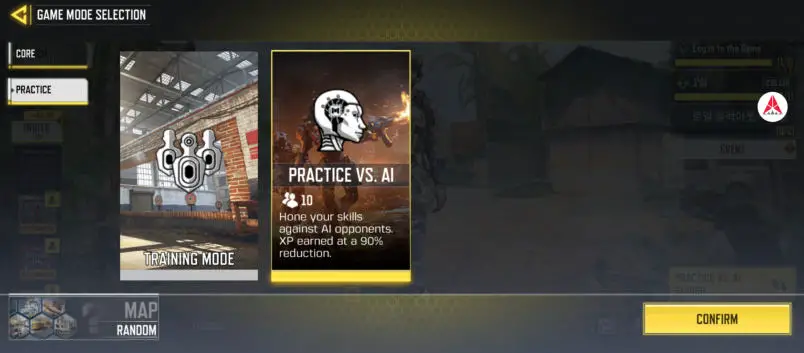
- Select Practive vs. AI and prepare test play

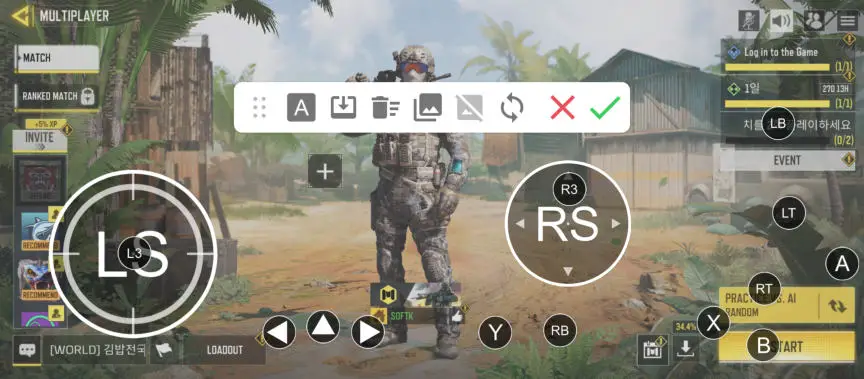
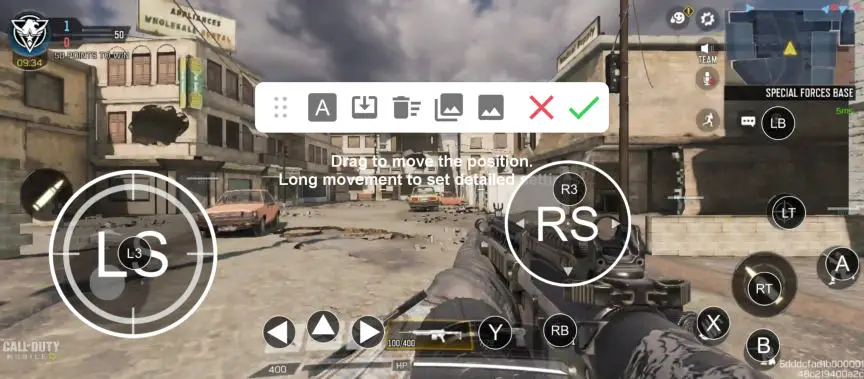
- Adjust mapping position according to your phone screen resolution.
 Click “check ✔ ” to save and continue test play
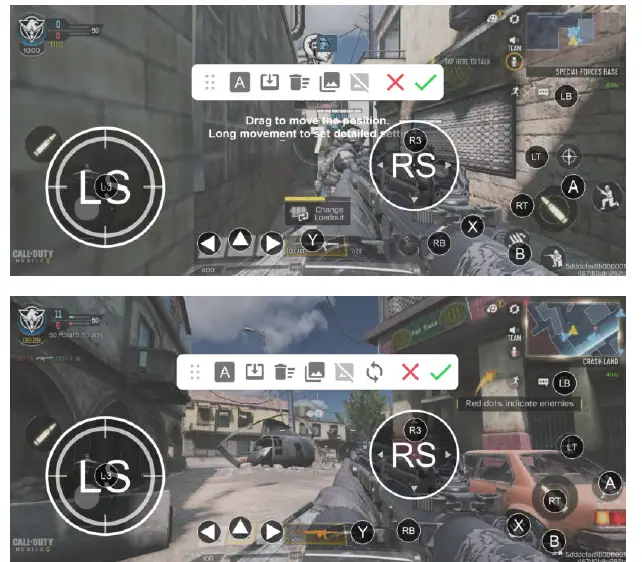 Click “check ✔ ” to save and continue test play
Tips) Edit mapping with “pre-captured screen layout”
- If you are not play more than 30 seconds, you might become unactie status by the game rule. or some smartphone become idle mode. in this case, you can use “pre-captured screen layout” Captured screen picture

- Open the mapping edit screen at lobby
- Call the picture by clicking “4th position picture”.
- Edit and save by “check ✔ “