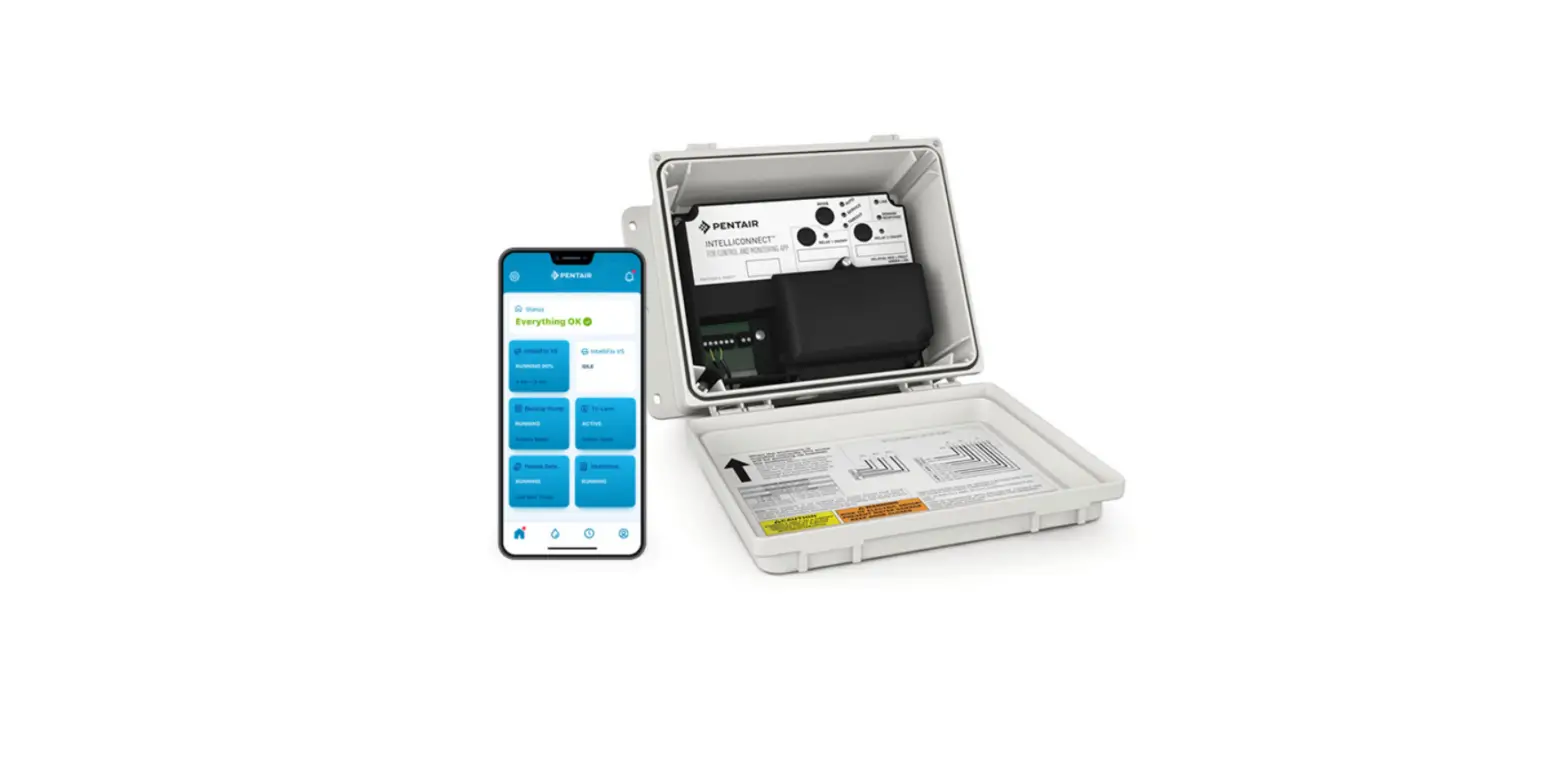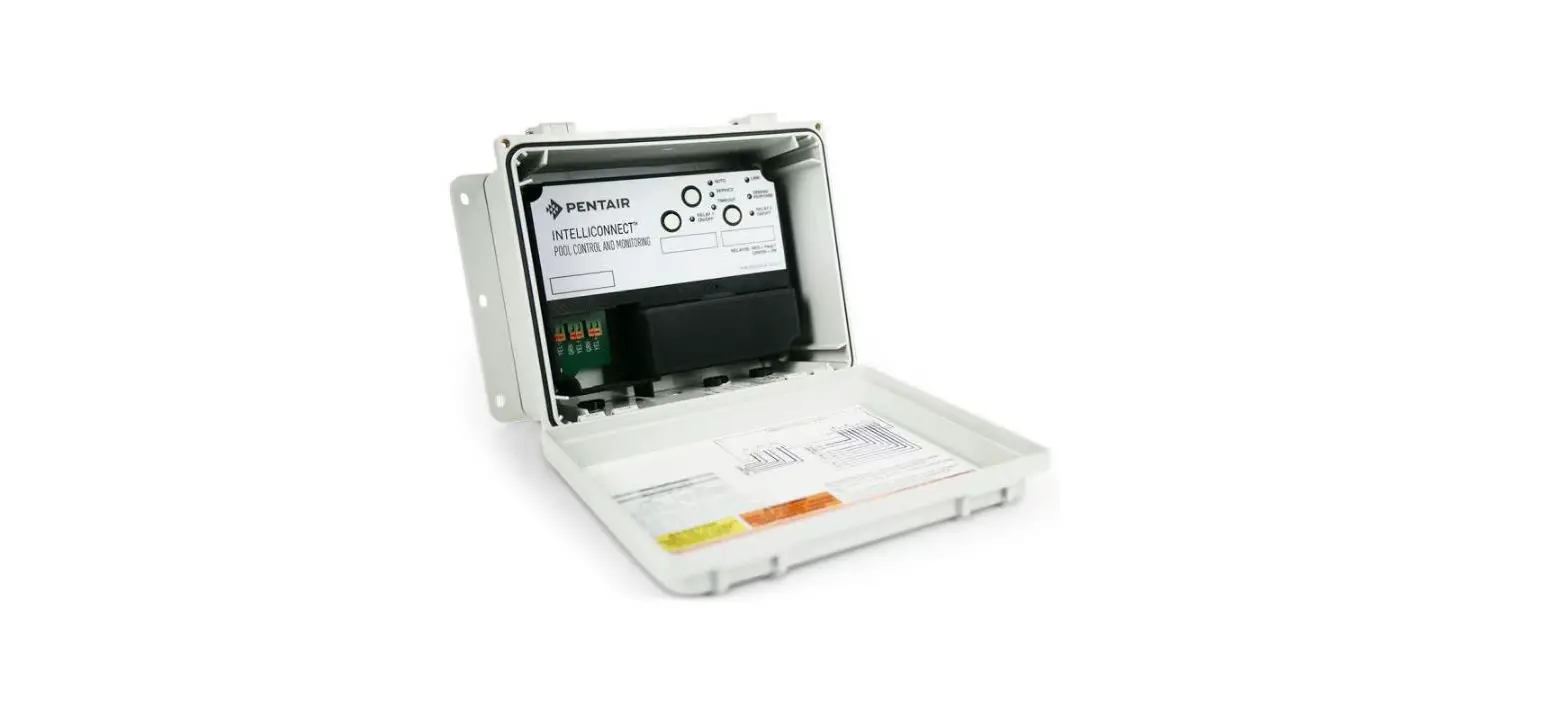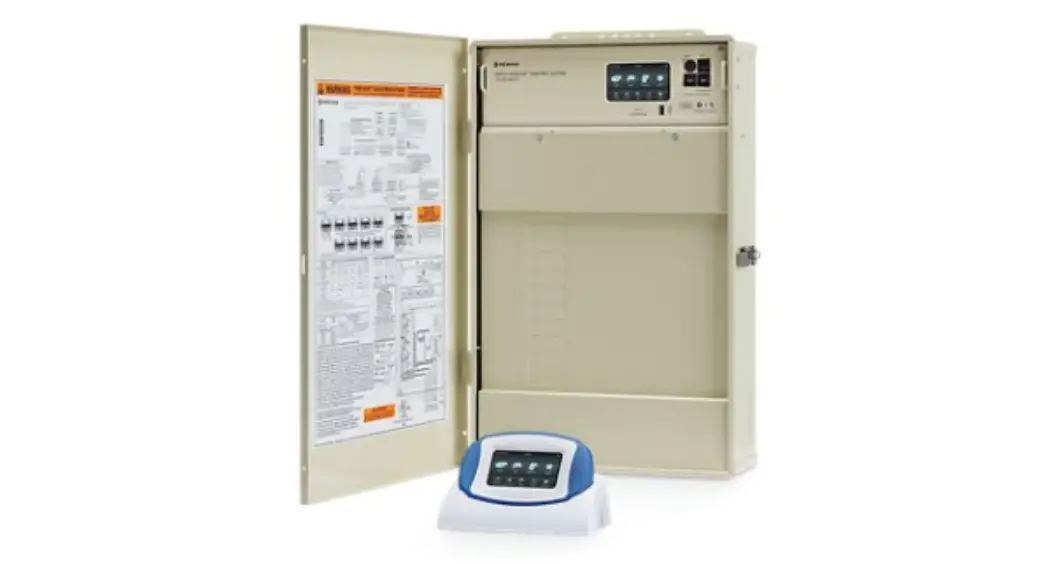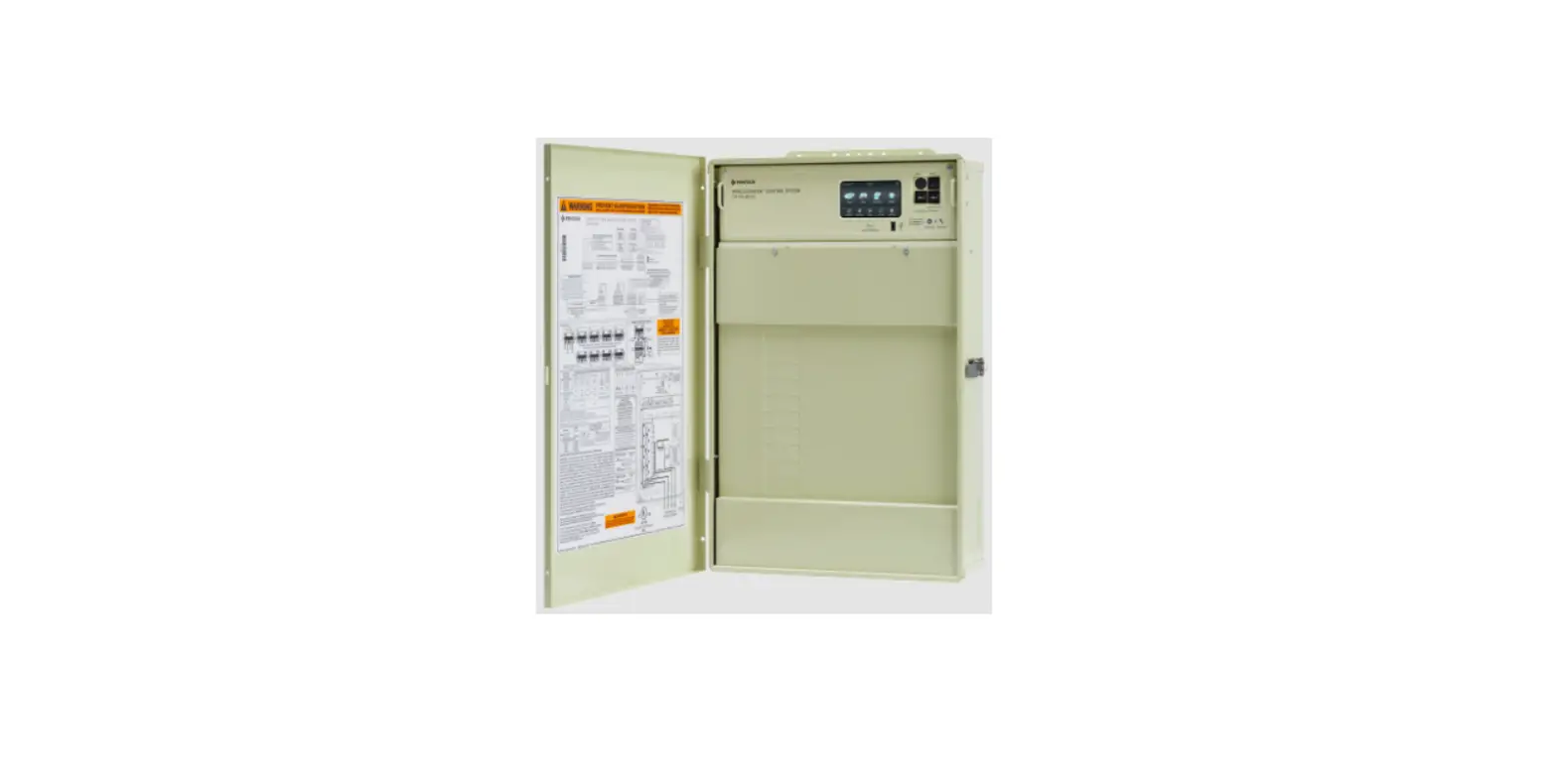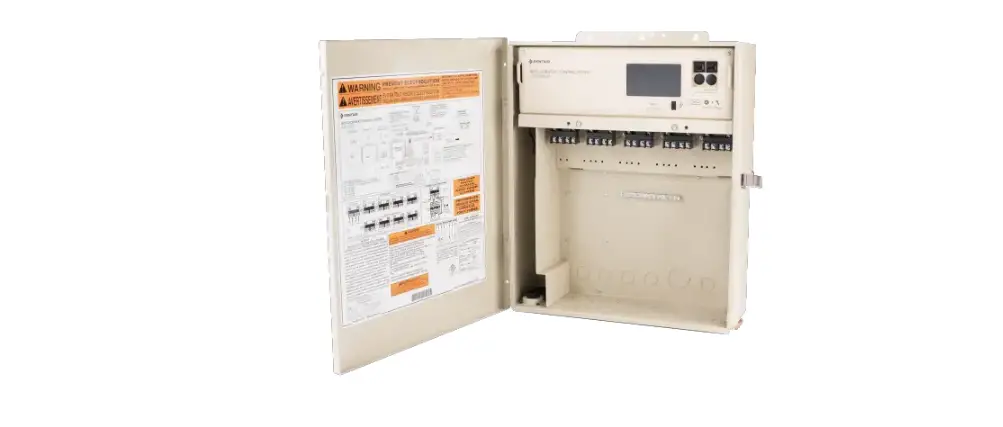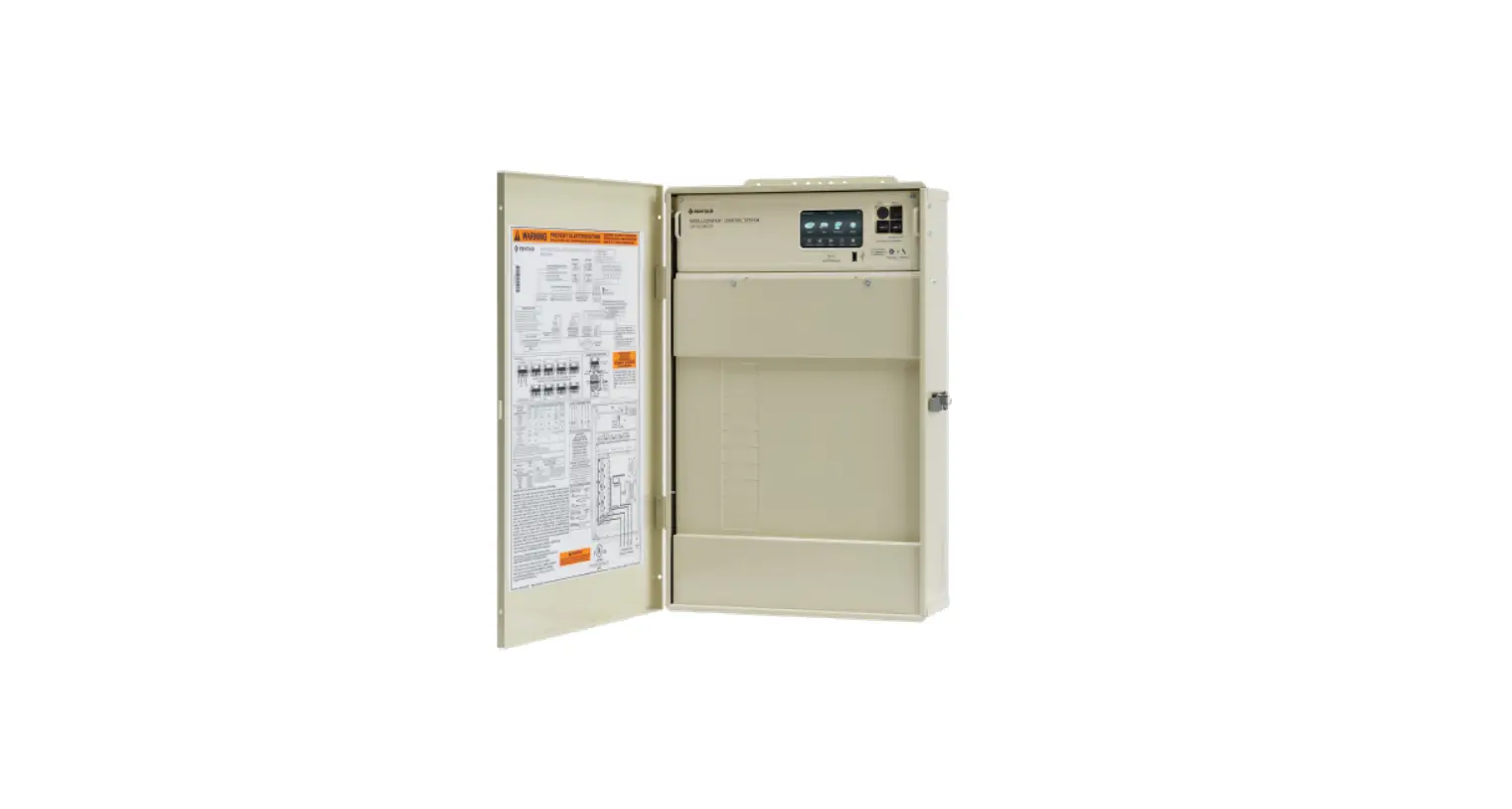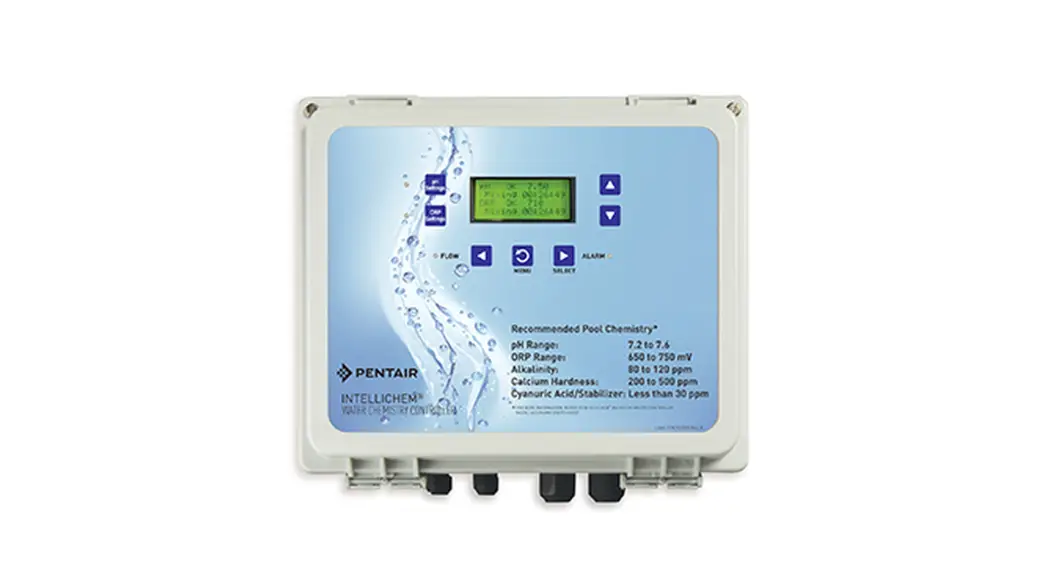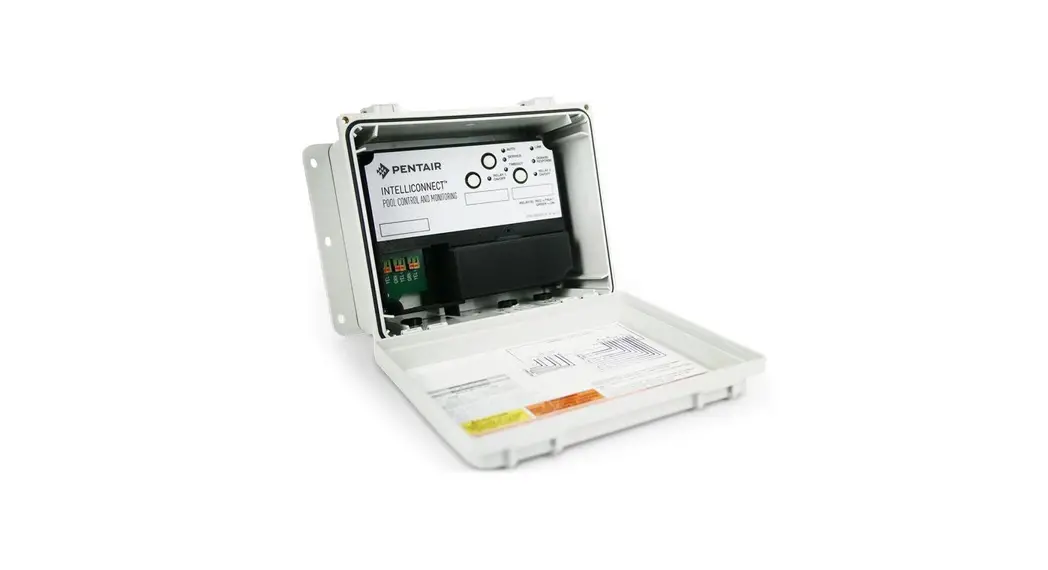
 INTELLICONNECT CONTROL® AND MONITORING SYSTEM
User Manual
523317 Intelliconnect Control and Monitoring System
Downloading Pentair Home and setting up your IntelliConnect
Before you begin
To start this process, you will need to power down your IntelliConnect. To begin the process, follow these steps:
- Power down at the breaker.
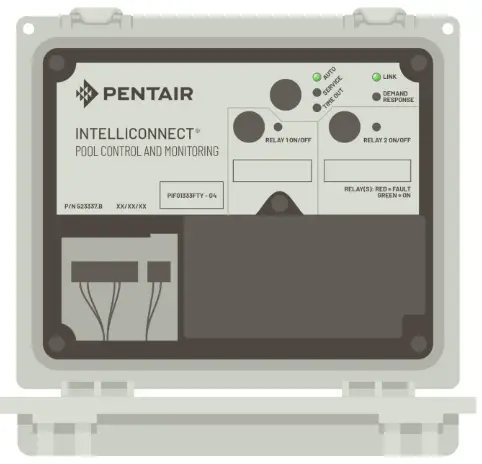
- Verify the green lights on the control panel are turned off. Wait 30 seconds.
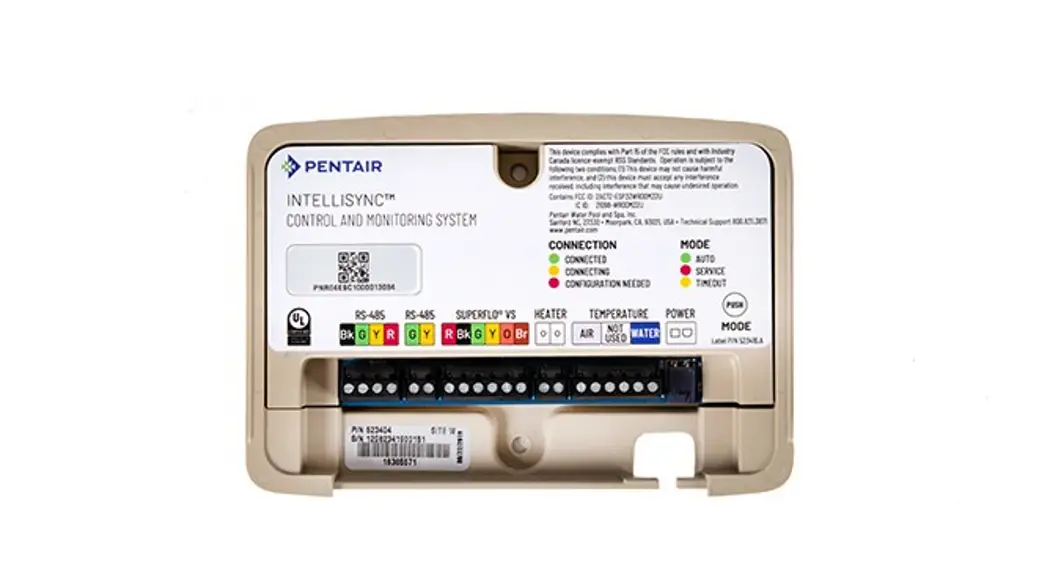
- When the machine is turned off, write down the PIF (13 characters) number located on the control panel.
- Turn the control panel on and wait for the LINK light to turn solid green.
- Make sure the unit is in auto mode.
CAUTION: Failure to follow the next steps exactly may result in equipment damage that will not be covered under the terms and condition of the Limited Warranty. If you require additional assistance in setting up your system, please contact the Technical Support team at (800) 831-7133
Power Down, wait 30 seconds and return power
Let’s get started
The following steps will take approximately 10 minutes.
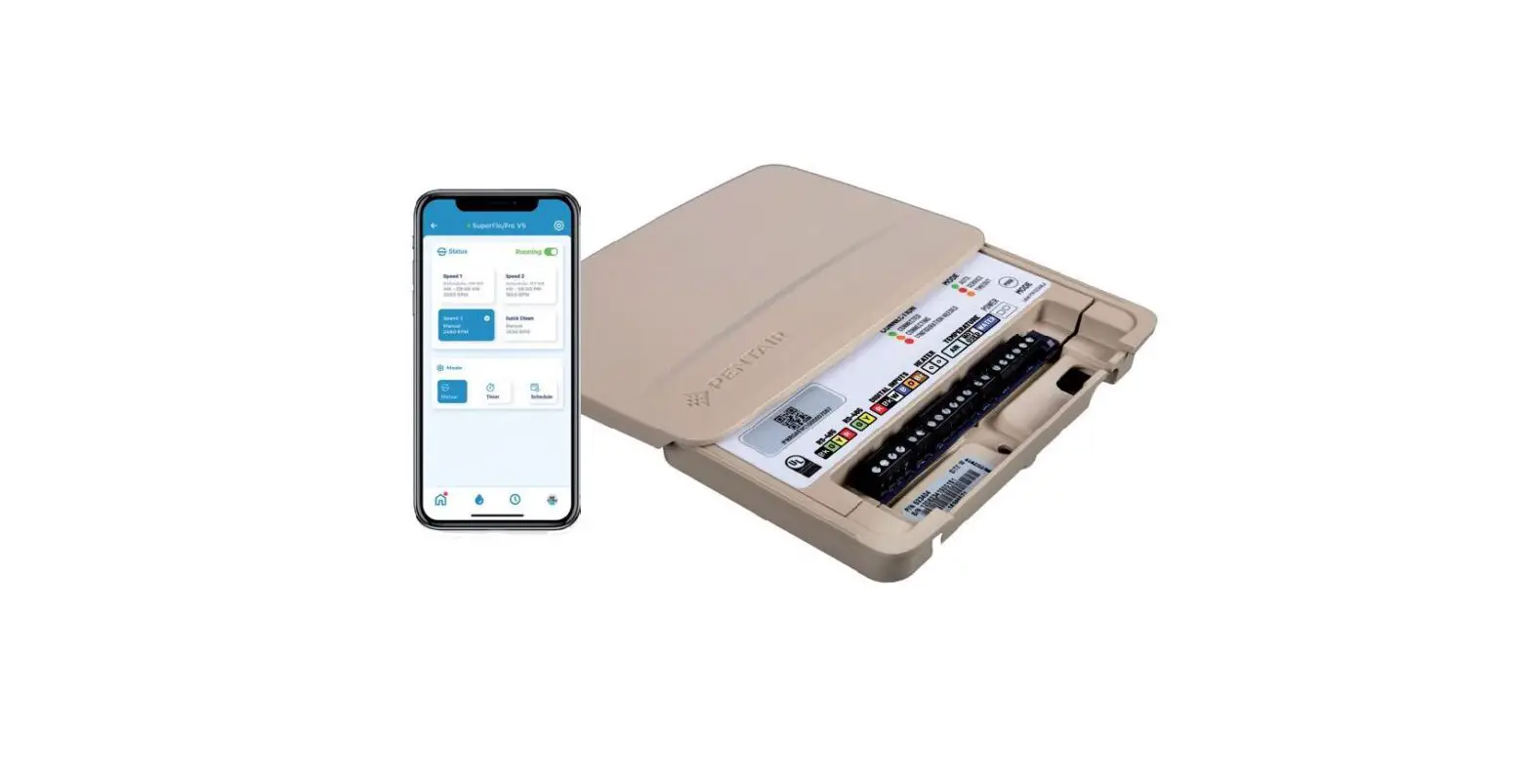
Scan the appropriate QR code below so you can download the Pentair Home
App on your device or go to your app store and search “Pentair Home.”
 |  |
| https://play.google.com/store/apps/details?id=com.pentair.pentairhome | http://www.inliteresearch.com |
Download the app
Pentair Home App
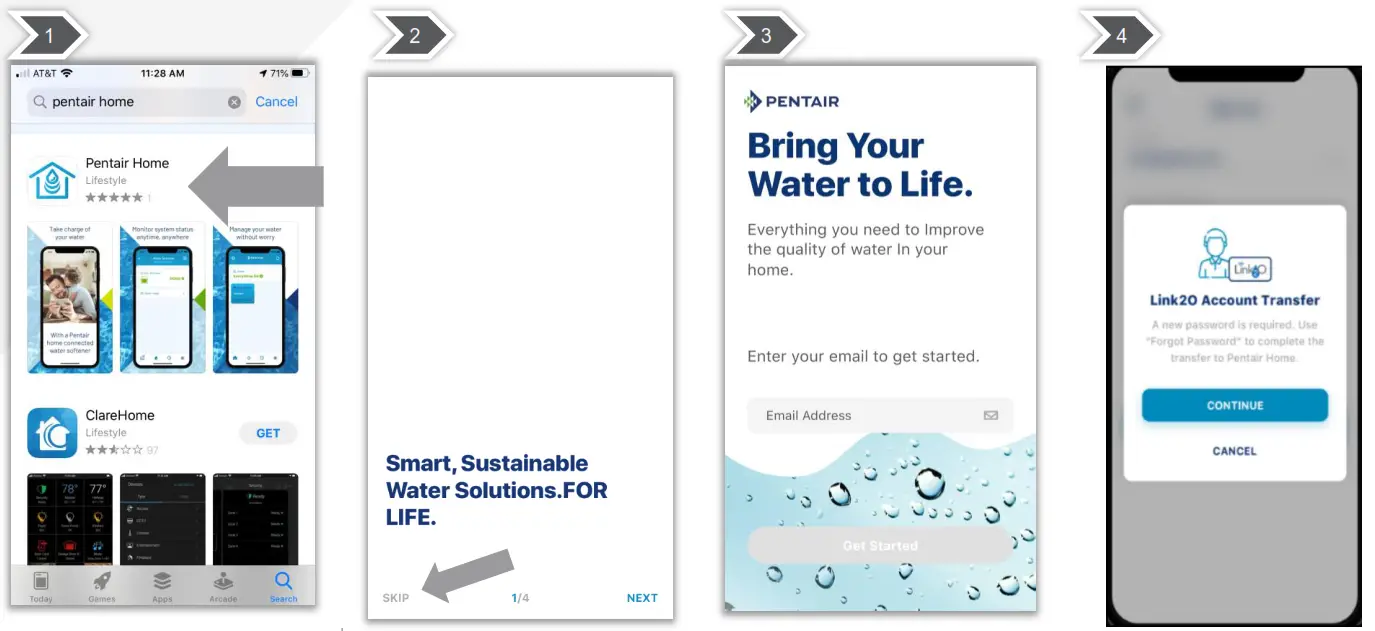 | |||
| Download the Pentair Home App from the App Store (iOS) or Google Play Store (Android). | Once downloaded, open the app and select Skip. | Please enter the email address you are CURRENTLY using to log into your Link2O app. | Choose Continue. You will use the “Forgot Password feature to set a new password. |
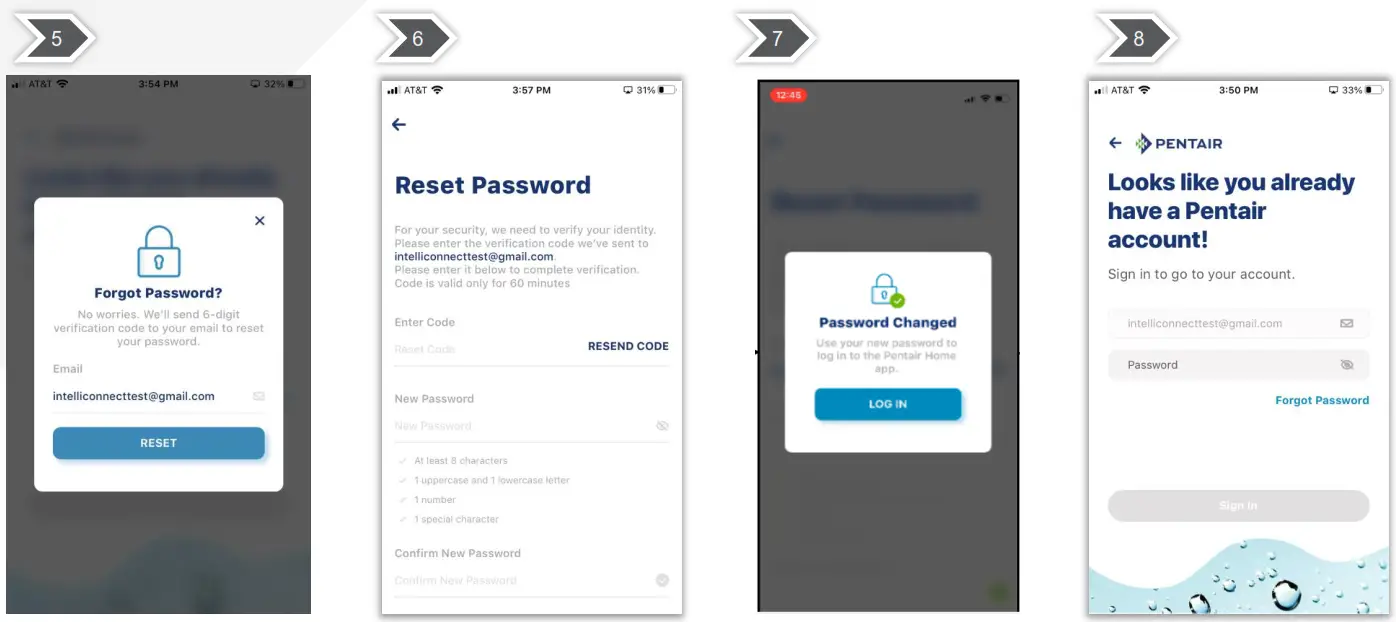 | |||
| Choose Reset. We will send a code to your email. | Enter the Code and set a new password which meets the password criteria. Choose Submit | Choose Log In | Login again using your Link2O email and newly created password. |
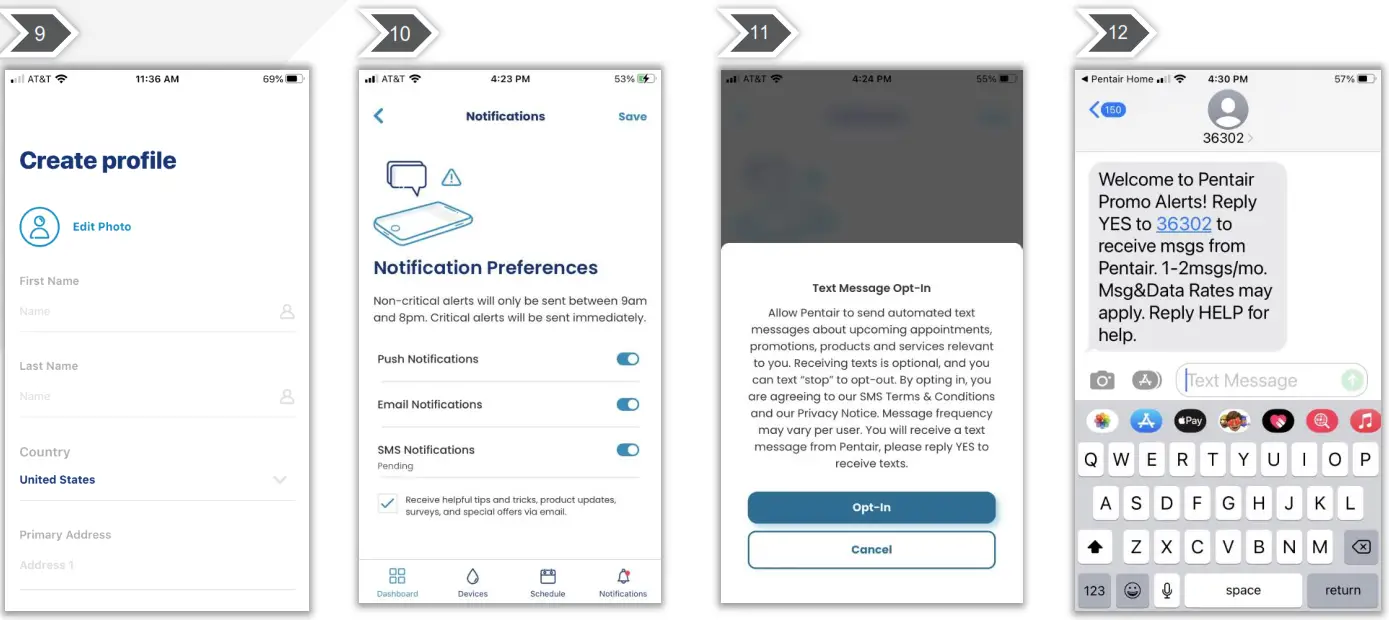 | |||
| Verify your account information and Save | Set Notifications Preferences | If you allowed SMS texts you will need to Opt-In. | You will then receive a text. Respond with a YES to the text. |
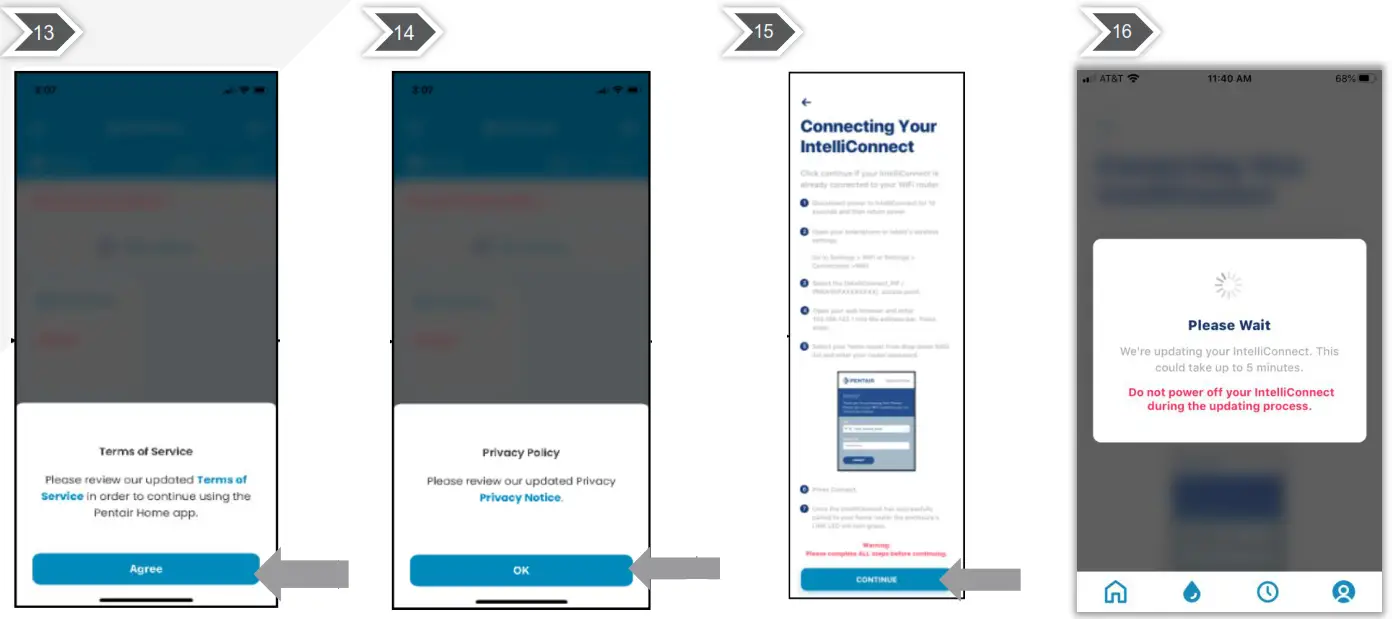 | |||
| Review and agree to our terms of service | Review and agree to our Privacy Policy | Choose Continue since your IntelliConnect is already connected. | If an update is available we will perform it now. Please do not power off your IntelliConnect during the update process. The number must include the two characters after the dash. See example above. |
Zip code or state information not matching?
Try surrounding zip codes in your surrounding area. This can be fixed later.
Migration to the Pentair Home App
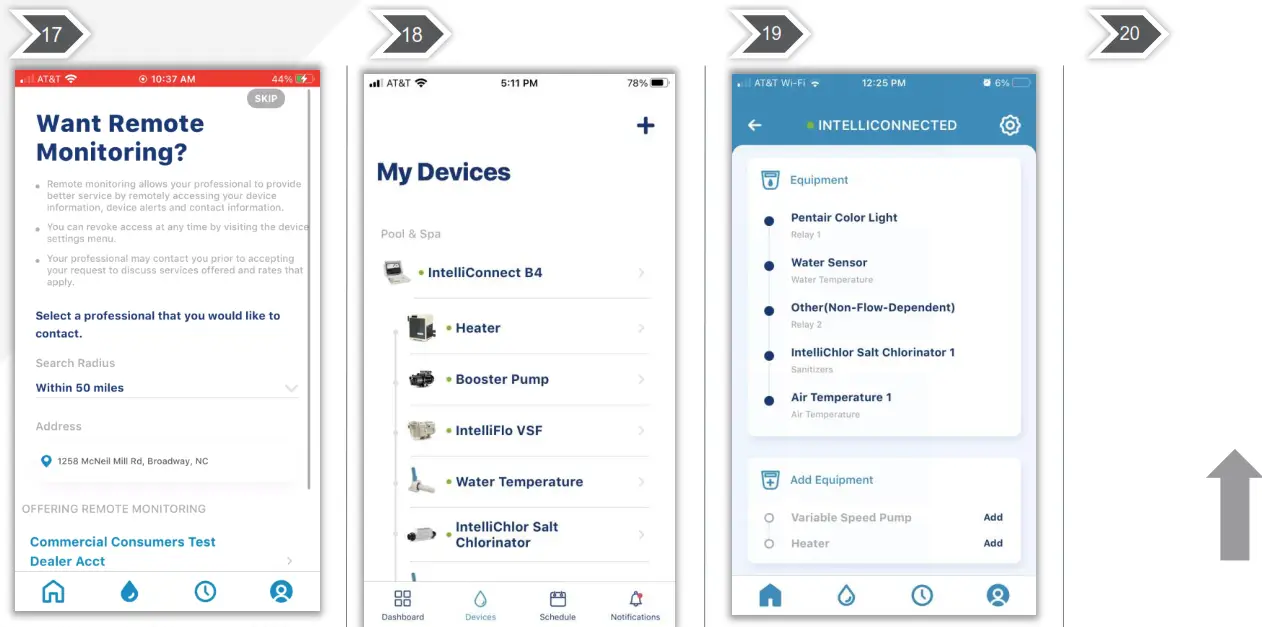 | ||
| You will be asked if you would like to request remote monitoring. Until this is completely implemented, the user will select SKIP. | You can view equipment which has been added on Devices Tab. If you choose IntelliConnect you will move to a page where you can add equipment if needed. Select CONTINUE. | You can view the equipment that is on your IntelliConnect and add equipment on this screen. |
©2020 Pentair. All Rights Reserved. Confidential property of Pentair. Do not reproduce or distribute without express permission of Pentair.
l indicated Pentair trademarks and logos are property of Pentair. Third party registered and unregistered trademarks and logos are the
property of their respective owners.
©2020 Pentair. All Rights Reserved. Pentair.com
 Pentair