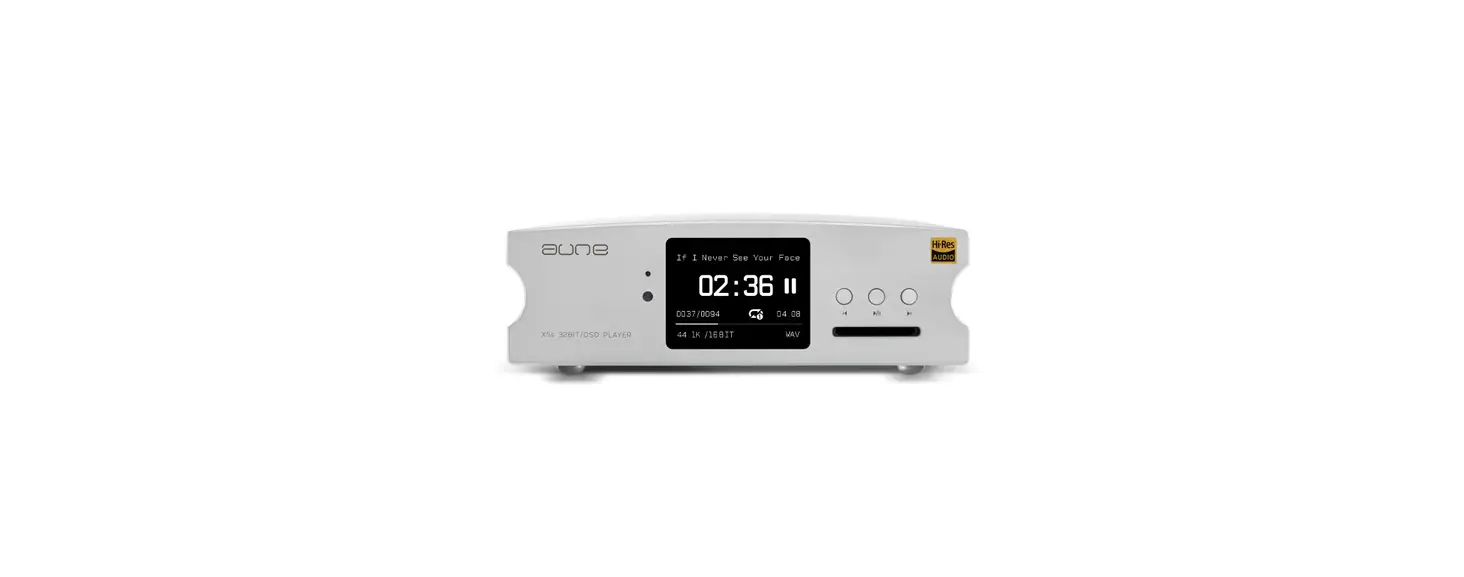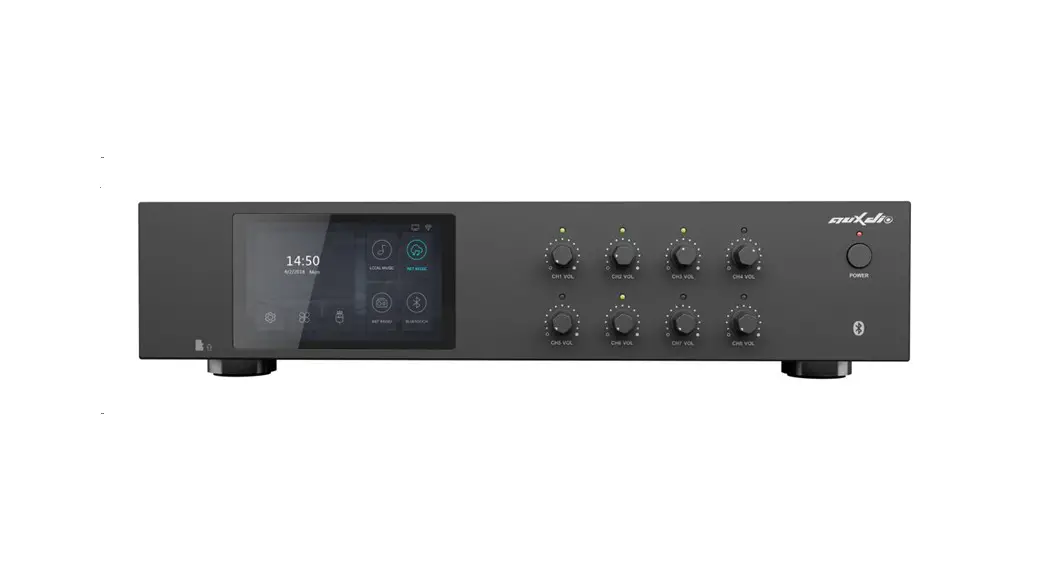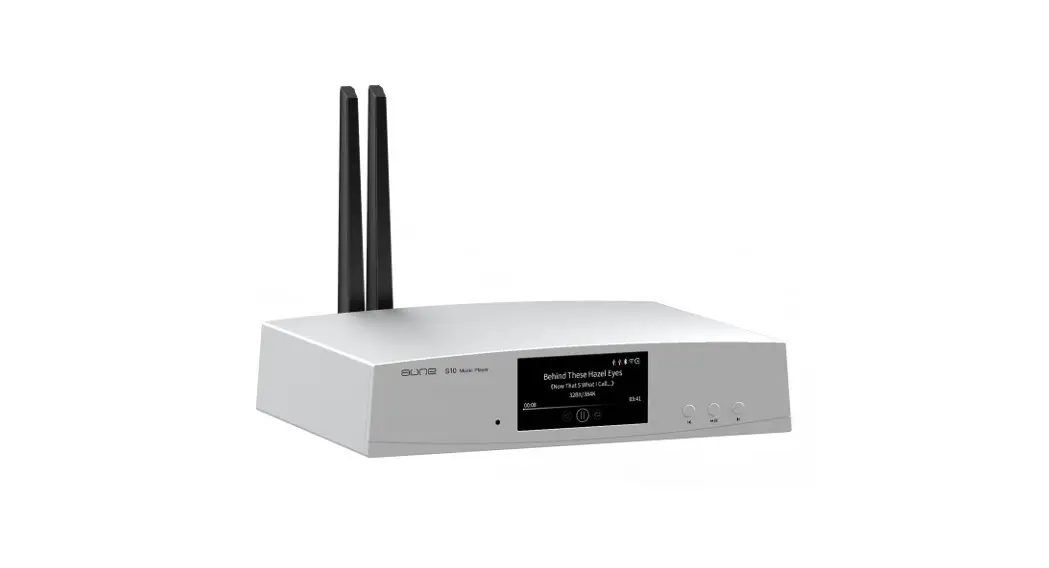

S10N Network Music Player
User Manual
Preface
Dear Customer,
Thanks for purchasing the aune S10N and congratulations on choosing this high-quality network music player.
We sincerely hope the S10N will bring you excellent Hi-Fi experience. Please read this manual carefully before using the device.
S10N at Glance
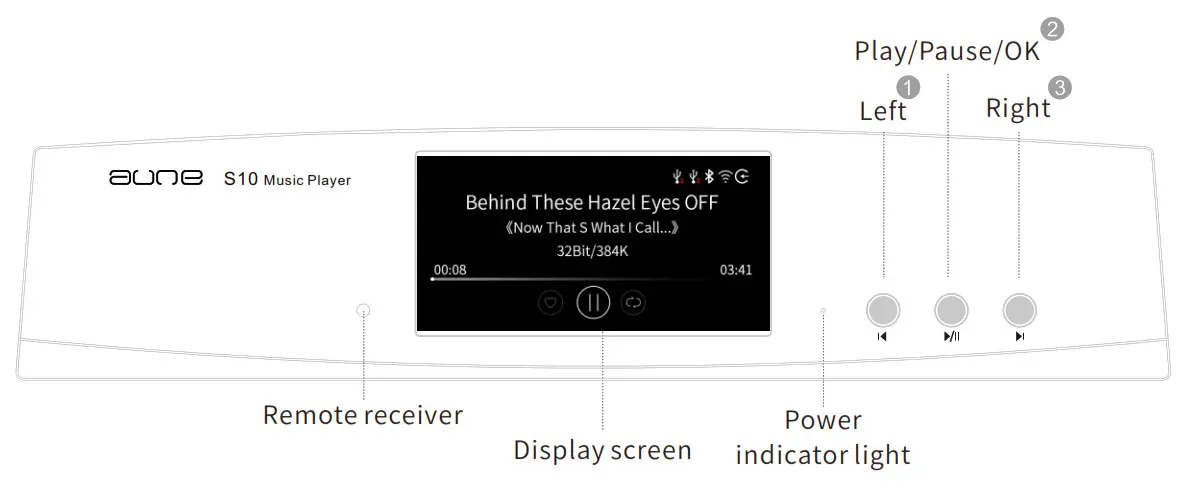
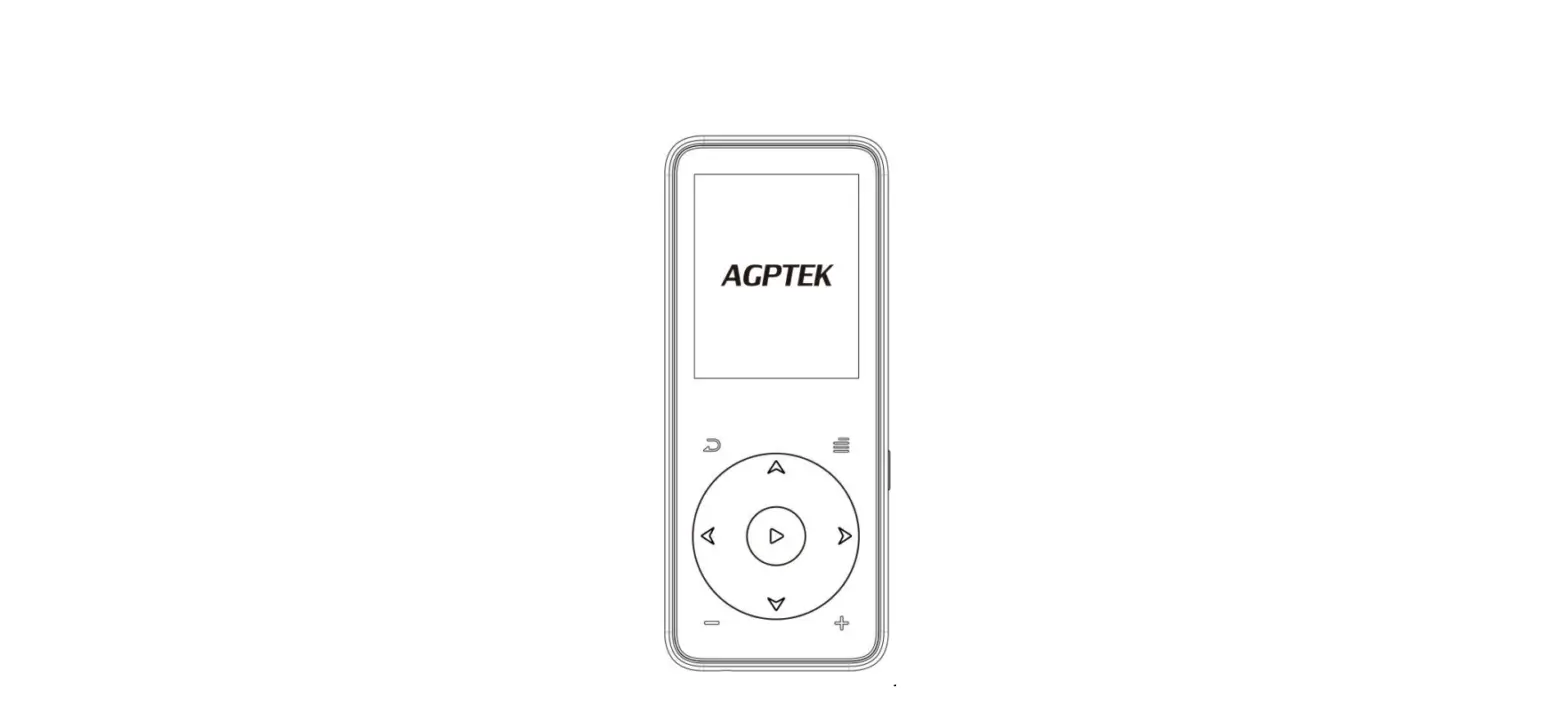
- Left
Previous item On the playing screen, long press —> main menu - Play/Pause/OK
One short press—’OK/Confirm On the playing screen -‘ Play/Pause Long press —> standby mode - Right
Next item On the playing screen, long press-‘back to playlist
1 + 2 Combo
2+ 3 Combo
Press the play button and the left button at the same time to switch between local mode and streaming
Press the play button and the right button at the same time to switch between local mode and Bluetooth
S10N at Glance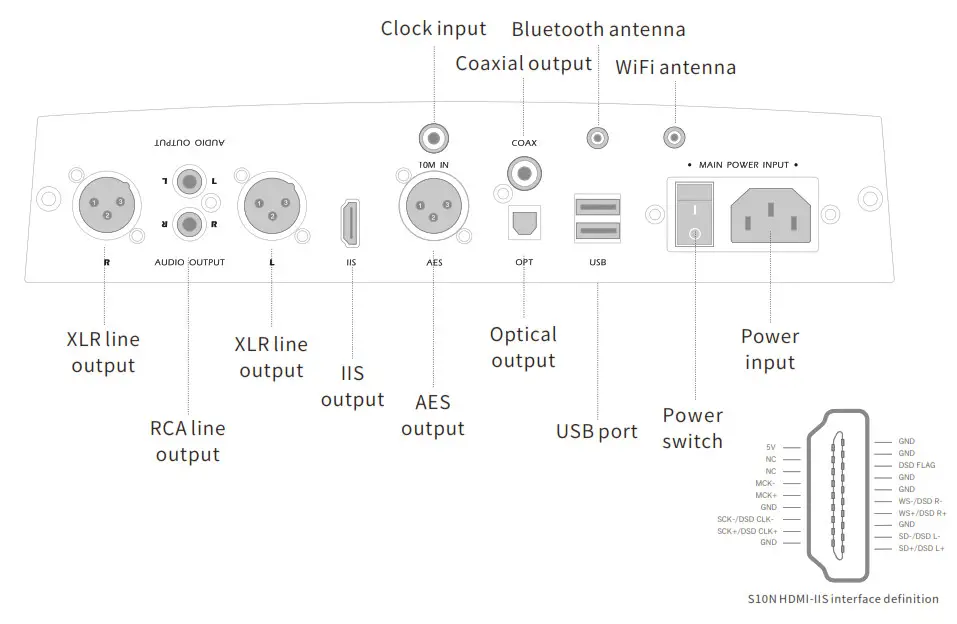
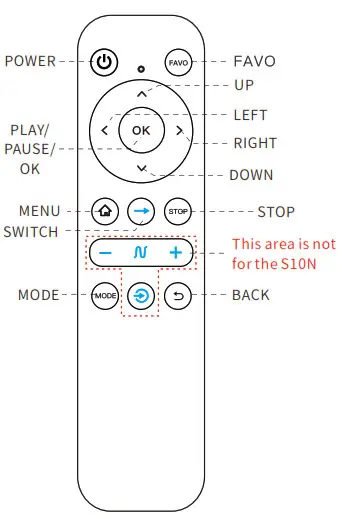
Remote Control
| Button | When Browsing | When Playing |
| POWER | On/Standby mode | On/Standby mode |
| FAVO | Add to/remove from Favorites | |
| SWITCH | Switch between Bluetooth receiving/streaming receiving/standard input | |
| UP | Previous item | Volume+ |
| LEFT | Page up | Previous track/long press-*rewind |
| RIGHT | Page down | Next track/long press-‘fast forward |
| DOWN | Next item | Volume- |
| PLAY/PAUSE/OK | Confirm | Play/Pause |
| MODE | Change play mode | Change play mode |
| MENU | Go to main menu | Go to main menu |
| STOP | Stop playing | Stop playing |
| BACK | Back to previous page | Back to previous page |
Introduction
The S10N is aune’s new generation multi-core network music player that purely focuses on sound. It uses the dedicated processor and FPGA; supports PCM768k and DSD512. The two USB ports support hard disk drives and USB flash drives. The HD Bluetooth and streaming make it more convenient to enjoy music. The tuning is based on real instrument sounds and music pieces referencing, leading to the signature that is natural and full of musicality.
Specifications
| Digital Output | |
| THD+N | 24bit/96k -147.6dB |
| Jitter | 24bit/44.1k 181ps (120hz-100Khz) |
| Analog Output | |
| Frequency response | ±0.5dB |
| ( Noise floor | 4.39uV |
| THD+N @1kHz | 0.00068% 24 bit/44.1k |
| Resolution Support | |
| (Max) Coaxial/AESdigital out | 384k/32bit DoP128 |
| Optical digital out | 192k/24bit DoP64 |
| HDMI-IIS (for local playback only) | 768k/32bit DSD512 |
| RCA line out | 768k/32bit DSD512 |
| Supported Formats | |
| DSD | DSD64/128/256/512 |
| APE | 192kHz/24bit (MAX) |
| FLAC | 384kHz/32bit (MAX) |
| WAV | 768kHz/32bit (MAX) |
| MP3/WMA/AAC | ALL |
| ALAC/AIFF/CUE | ALL |
| Streaming | |
| Playback support (max) | 192k/24 bit |
| SPDIF output (max) | 44.1k |
| Bluetooth | |
| Supported codecs | LDAC/aptX-H D/AAC/aptX/SBC |
| Resolution support (max) | 96k/24bit |
| Interface | |
| Digital output | RCA coaxial/AES/optical/HDMI-IIS’ |
| Analog output | RCA line out (variable)/balanced XLR |
| Clock input | 10M clock in |
| Wireless | 2.4G Bluetooth, 2.4G WiFi |
| Dimensions | 288’211’63(mm) |
| Weight | 3kg |
Now Playing Screen
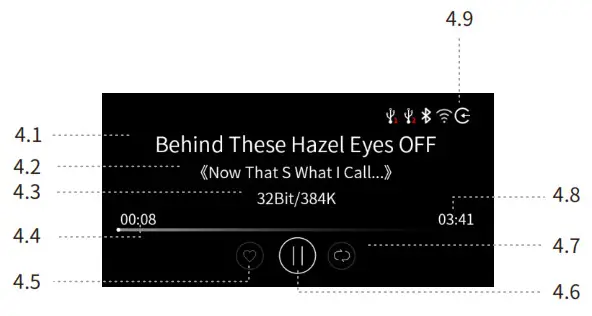
4.1 Track title
4.2 Artist
4.3 Bit depth/Sampling rate
4.4 Elapsed time
4.5 Whether added to Favorites
4.6 Play/pause
4.7 Play mode
4.8 Totaltime
4.9 Status bar
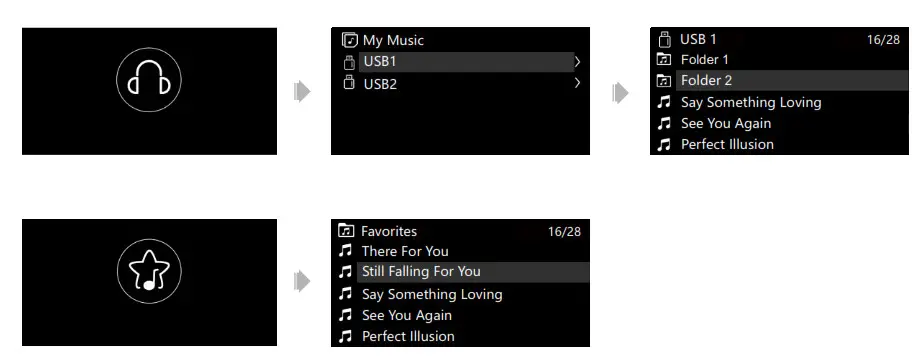
Selecting Songs
Settings
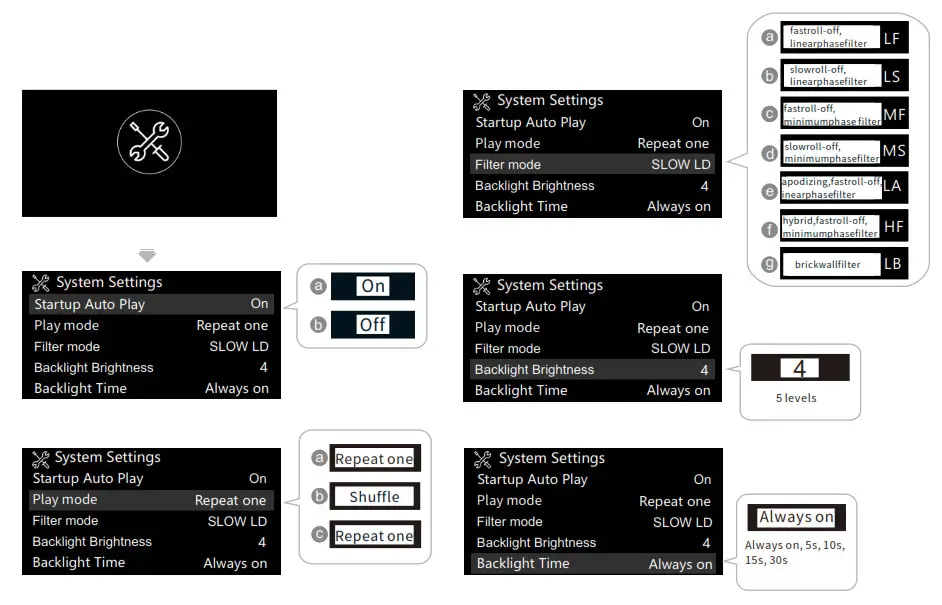
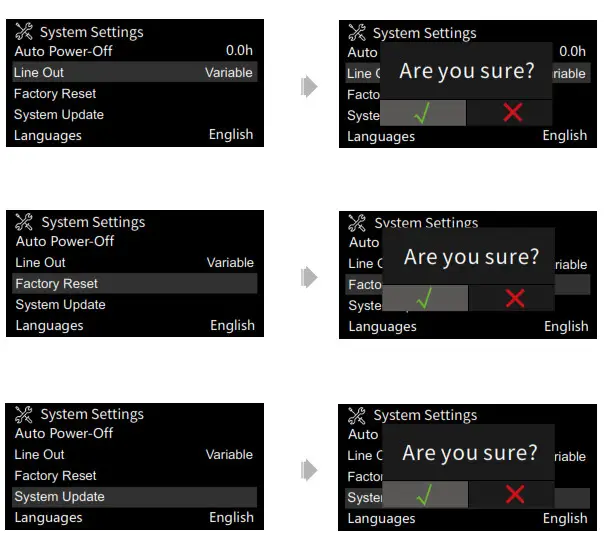
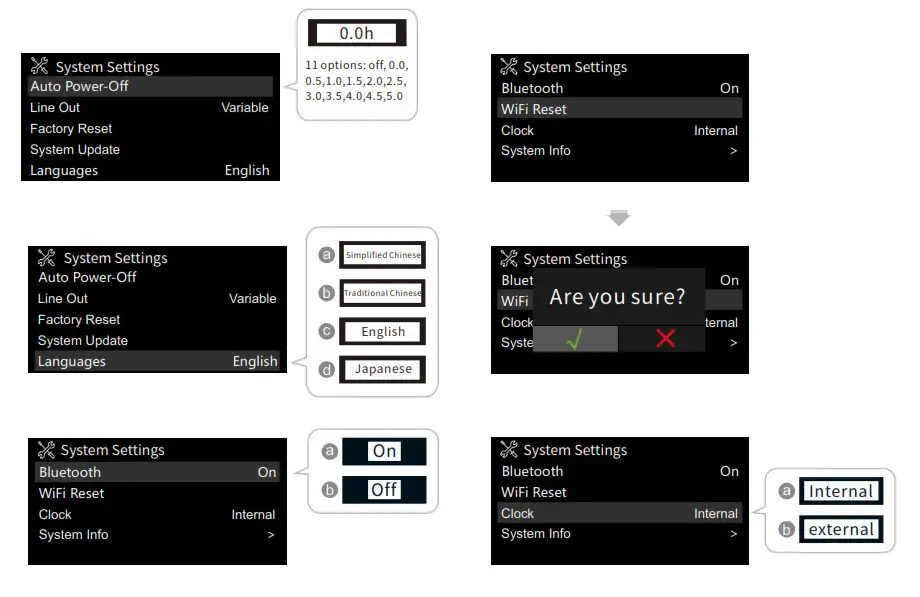
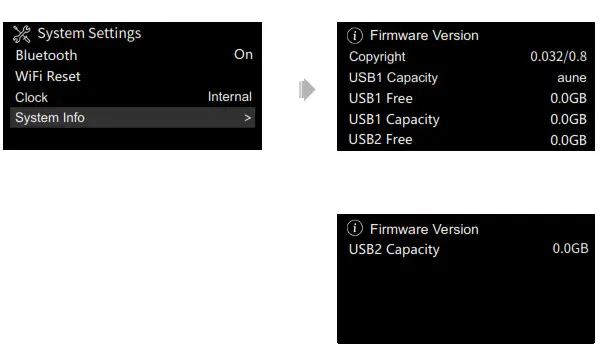
Connections
As a Digital Transport
Connection: S10N via COAX/OPT/AES/IIS — DAC (e.g. S9c, with headphone amp) — headphones. Or: DAC via RCA AUDIO OUT/LINE OUT — active speakers/ power amp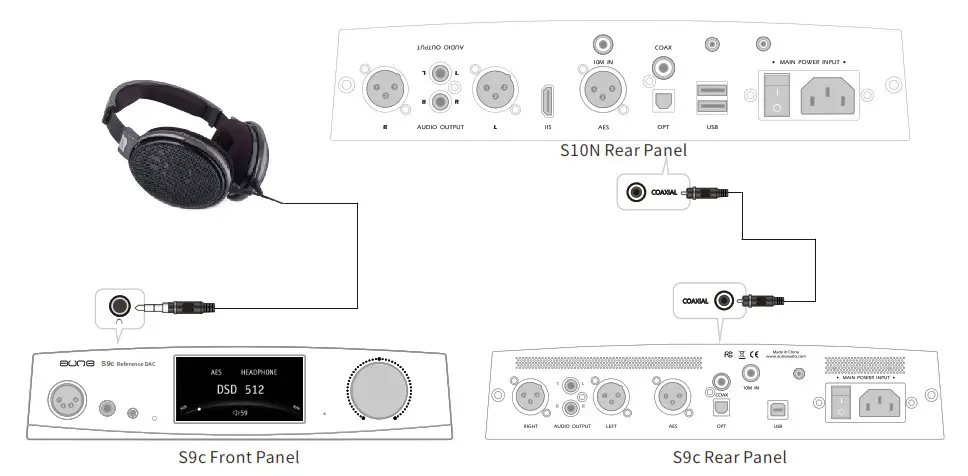
As a DAC
S10N via RCA AUDIO OUT/LINE OUT → LINE IN of the active speakers/power amp/headphone amp.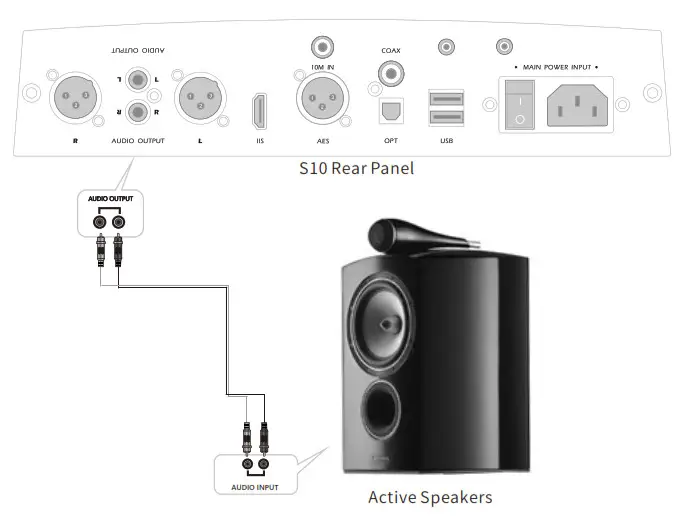
To Connect with an External Clock
S10N via 10M OUT > BNC cable (75Q) > 10M IN of the audio clock (e.g. SC1) Go to SYSTEM SETTINGS to set the clock to EXTERNAL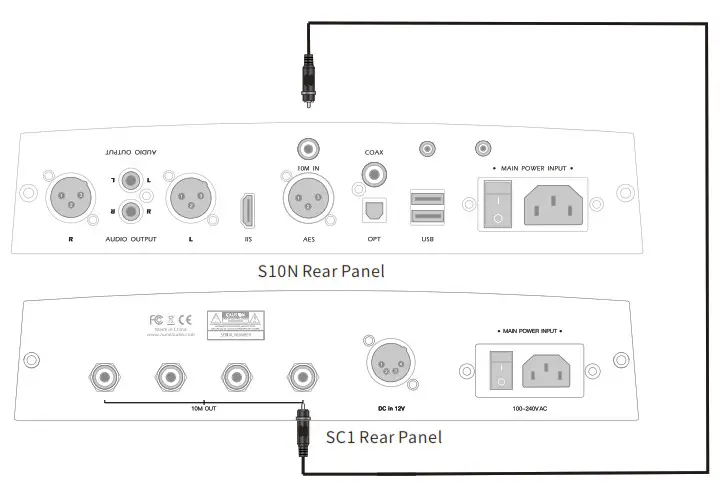 Bluetooth
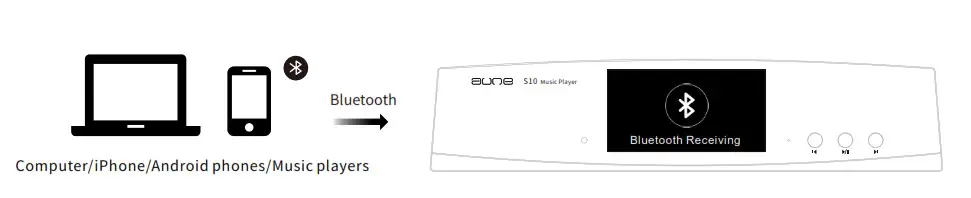
- Turn on Bluetooth on the smartphone/computer/player, search for “aune S10”,connect
- Enable Bluetooth mode on the S10N
- Play music from the connected smartphone/computer/player
Connections Streaming from a Smartphone
- Download and install lEAST


https://apps.apple.com/cn/app/ieast-controller/id1574482205 http://aune.hifidiy.net/S10/S10.apk - Press the “—>” button on the remote twice to switch to streaming receiving mode.
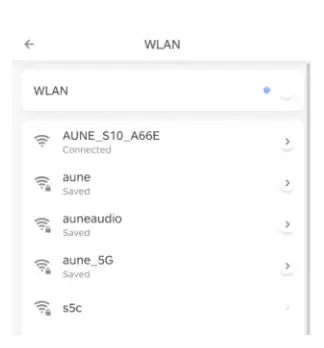
- Turn on WiFi on the smartphone; Search for “aune S10 XXXX” and connect to it.

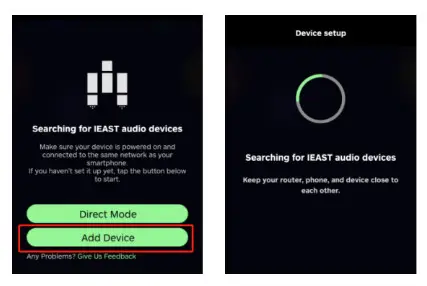
- Open I EAST. Tap “Add Device”

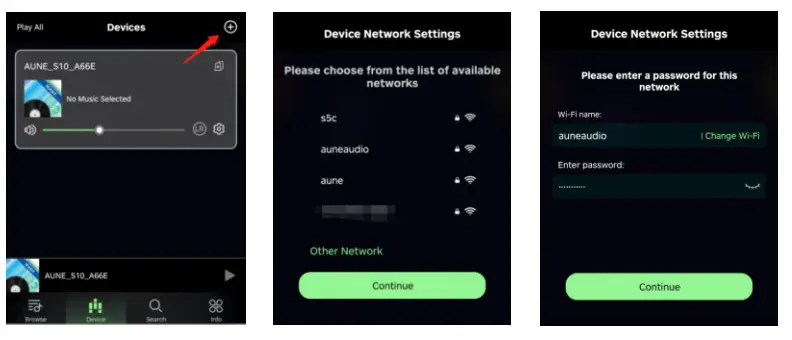
- Tap “+” and choose the WiFi you want to connect to.

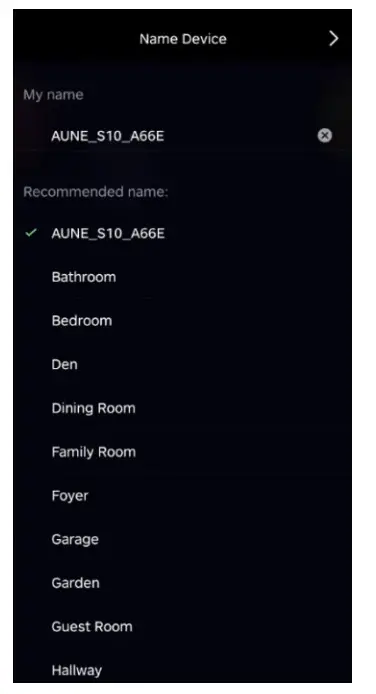
- (Make sure that your phone is connected to the same WiFi from now on.) (EAST leads to you to name the device.

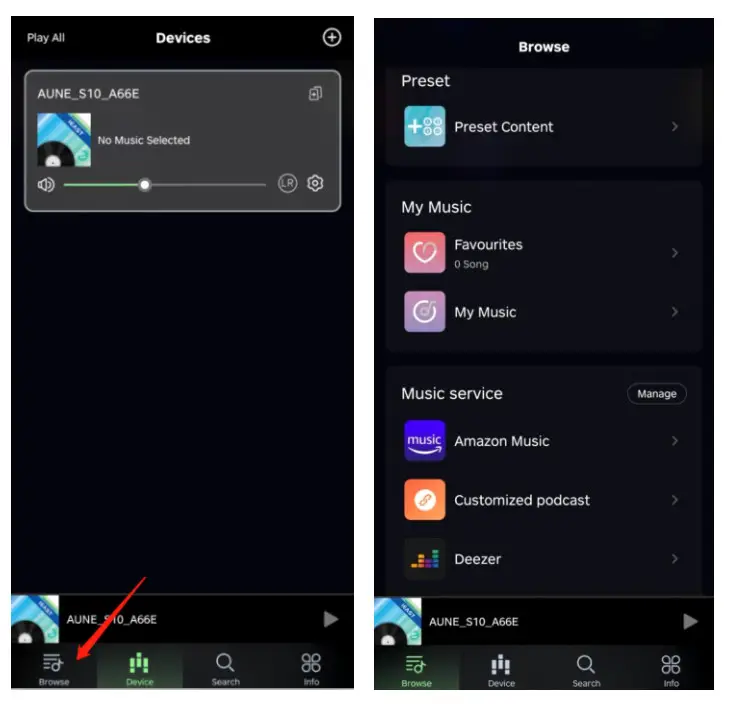
- Tap “Browse” to browse the streaming services.

Now you can use the streaming services.




www.auneaudio.com
Wuhan Aune Acoustics Co., Ltd.
ADD:No.17,Gutian5thRd, Qiaokou District, Wuhan 430000, China
Web:www.auneaudio.com
Email: [email protected]
Email:[email protected]
Fax:+86-27-85840435
www.auneaudio.com
 奥莱尔科技发展有限公司