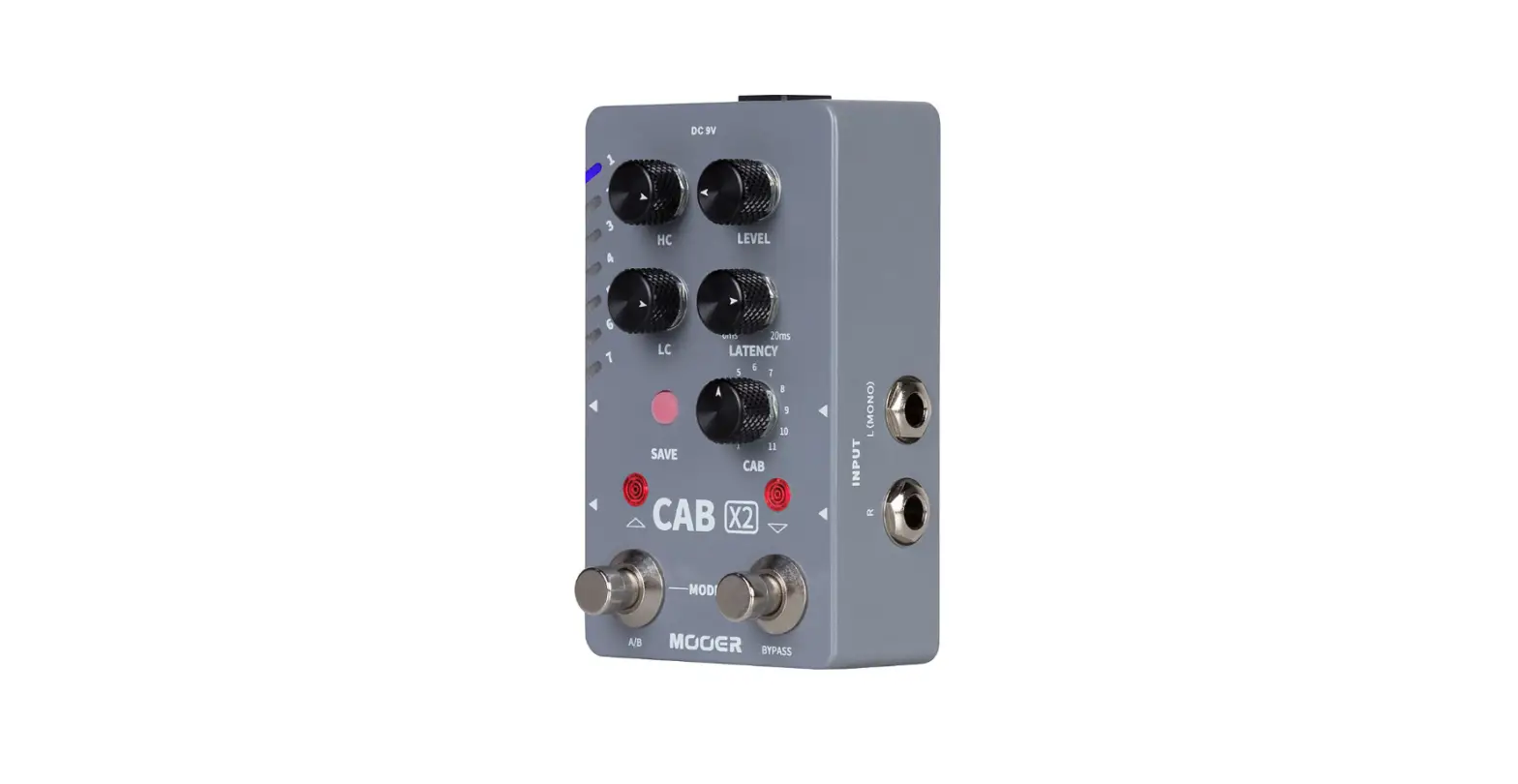
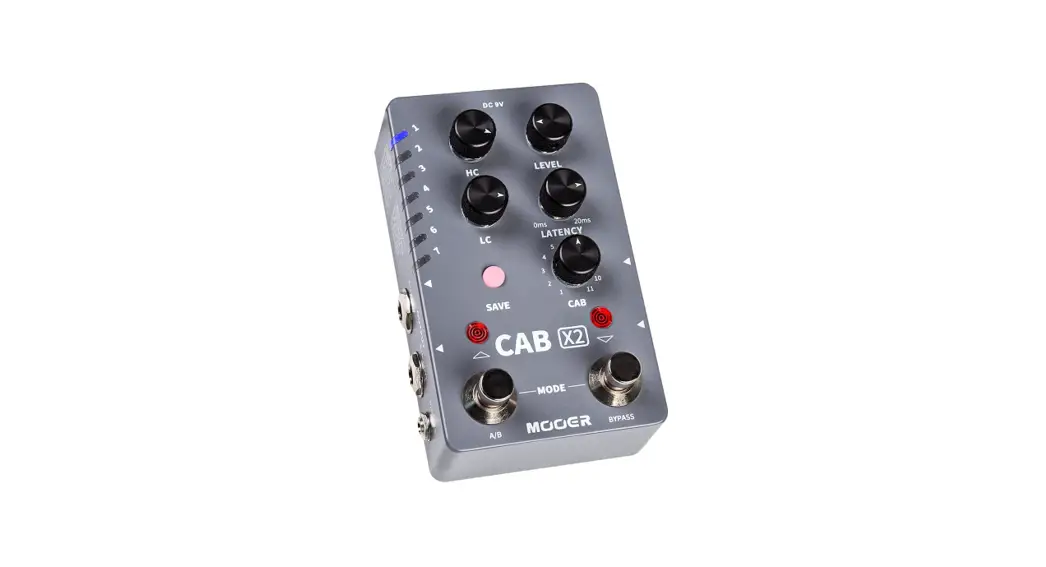
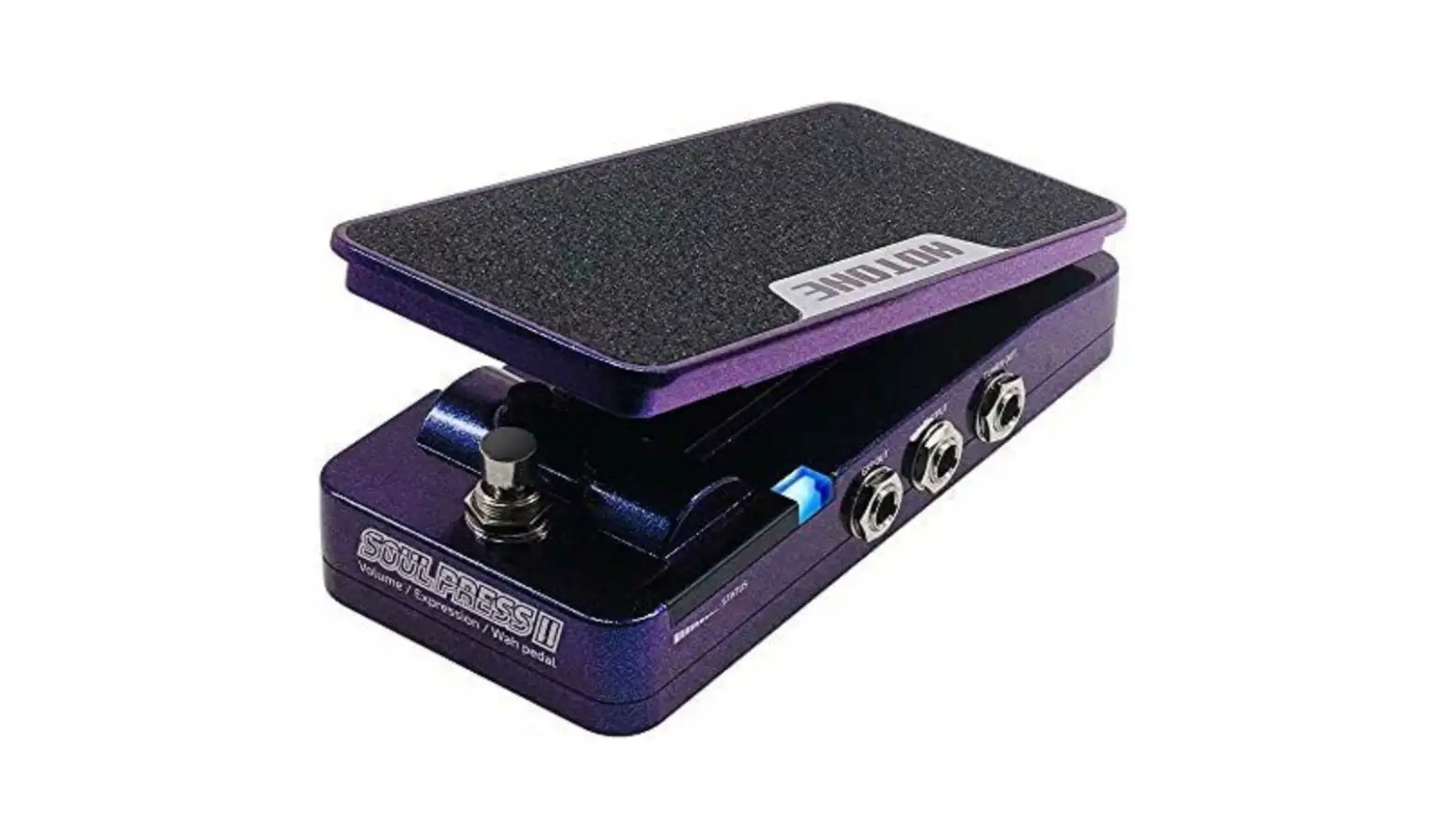
OMP-6 Impulse Response Cabinet Speaker Sim Effect Pedal
Product Information: – Product Name: [Product Name] – Model:
[Model Number] – Manufacturer: [Manufacturer] – Design Inspiration:
The product design is inspired by [inspiration source]. –
Specifications: The specifications and content of the product,
including appearances, packaging design, manual content,
accessories, size, parameters, and display screen, are subject to
change without prior notice. Please check with the local supplier
for exact offers. – Features: The product offers various features
including [list of features]. – Panel Introduction: The panel
consists of the following components: 1. MASTER: Controls the
overall output. 2. FUNC. : Used for switching presets/IRs, editing
presets, saving, etc. 3. XLR OUT: Feeds a balanced signal to
mixers, interfaces, etc. 4. LIFT/GND: Switch to LIFT position to
lift the ground wire of XLR OUT jack. 5. OUT: Unbalanced output
jack. 6. OLED SCREEN: Shows preset numbers, setting values, and
other operation info. 7. THRU: Feeds unprocessed dry signal to
other devices or reamping. 8. IN: For plugging in instruments or
other effects. 9. ASSIGNABLE FOOTSWITCH. 10. USB: USB Type-C jack
for connecting to a computer. 11. AUX IN: Stereo aux in jack for
connecting audio players (won’t be affected by Omni IR). 12. DC 9V:
Plug in your power supply here (DC 9V, center negative). 13.
PHONES: Stereo headphones jack. Product Usage Instructions:
1. Connections: – For practicing/jamming: – [Provide instructions
for connecting the product for practicing/jamming] – For live
performance: – [Provide instructions for connecting the product for
live performance] – For reamping: – [Provide instructions for
connecting the product for reamping] 2. Main Display: – After
plugging in the power supply, the main display will show the
following information: 1. Current preset number (ranging from 00 to
39) 2. IR name used in the current preset 3. EQ status (shown only
when the EQ is on) 3. Selecting a Preset: – In the main display,
turn the FUNC. knob to change presets. – Turn the knob clockwise to
cycle through presets in ascending order (00, 01, 02, …, 39, 00).
– Turn the knob counterclockwise to change presets in descending
order. 4. Bypass/Mute: – To set the unit to bypass: tap the
footswitch. “BYPASS” will appear on the screen. Tap the footswitch
again to go back to normal. – To set the unit to mute: hold the
footswitch until “MUTE” appears on the screen. Hold the footswitch
again to go back to normal. – Note: In bypass/mute status, the LED
halo will go out. AUX IN will not be affected in mute status. 5.
Edit: 1. Selecting a different IR file: – In the main display,
press the FUNC. knob to enter the IR Select menu. – Use the FUNC.
knob to select an IR file. The file name will be inverted. 2.
Editing detailed parameters: – In the IR select menu, press the
FUNC. knob to enter the Edit Menu. – Use the FUNC. knob to move the
cursor on EDIT PRESET and press the FUNC. knob to enter the Preset
Edit Menu. – Preset Edit Menu options: 1. Return to the previous
menu. 2. Indicates the current cursor position (the PRESET VOL is
now selected). Please refer to the full user manual for more
detailed instructions and information.
Owner’s Manual
DESIGN INSPIRATION
In the interest of product improvement, the specifications and/or the content of products (including but not limited to appearances, packaging design, manual content, accessories, size, parameters and display screen), are subject to change without prior notice. Please check with local supplier for exact offers. Specifications and features (including but not limited to appearances, colors and size) may vary
by model owing to environmental factors, and all images are illustrative.
Contents
Welcome ·································································································1 Features ···································································································1 Panel Introduction ·················································································2 Connections ····························································································2 Main Display ···························································································4 Select a Preset ·······················································································4 Bypass/Mute (default setting) ·····························································4 Edit ············································································································4
SelectadifferentIRfile ·······································································4 Editdetailedparameters ······································································5 Preset Edit Menu ···················································································5 Save ··········································································································5 Assign Footswitch Function ································································6 Software ··································································································6 Factory IR files list ·················································································6 Specifications·························································································7
DESIGN INSPIRATION
Welcome
Thank you for purchasing a Hotone product. Please read this manual carefully to get the most out of your Omni IR. Please keep this manual in a safe place to use for further reference. The Omni IR is a compact-sized, Impulse Response based cabinet simulator delivering organic, precise guitar/bass cabinet sounds. An internal voltage boost circuit provides tons of headroom, a clear, detailed OLED screen lets you get set up quickly, and variable I/O makes it perfect for any live or recording scenario.
Features
Compact, easy-to-use IR loader pedal Advanced DSP platform with high quality 24-bit A/D/A conversion and great dynamic response Internal voltage boost circuit for great headroom with standard 9V DC power supply 40 high quality legendary guitar/bass cabinet IRs Detailed 4-band EQ with flexible frequency range and 12dB max. boost/cut Supports 3rd party IR files USB jack for firmware updating, loading/managing IRs with free PC/Mac software Aux In and headphone output for practicing and jamming 40 Presets Built-in hi-res OLED screen Assignable footswitch with LED 9V DC power supply
DESIGN INSPIRATION
·1·
Panel Introduction
1. MASTER: Controls the overall output 2. FUNC. : For switching presets/IRs, editing presets, saving, etc. 3. XLR OUT: Feeds balanced signal to mixers, interfaces, etc. 4. LIFT/GND: Switch to LIFT position to lift the ground wire of XLR OUT jack 5. OUT: Unbalanced output jack 6. OLED SCREEN: Shows preset numbers, setting values and other operation info 7. THRU: Feeds unprocessed dry signal to other devices or reamping 8. IN: For plugging in instruments or other effects 9. ASSIGNABLE FOOTSWITCH
1
3
2
4
7
6
5
10. USB: USB Type-C jack for connecting to computer 11. AUX IN: Stereo aux in jack for connecting audio players (won’t be affected by Omni IR) 12. DC 9V: Plug in your power supply here (DC 9V, center egative) 13. PHONES: Stereo headphones jack
10
11
12 13
8 9
Connections
For practicing/jamming
MANU
DESIGN INSPIRATION
·2·
Connections
For live performance
For reamping OR
Note: Always mute the mixer/audio interface or turn down the volume knob on your amp before plugging or unplugging power jacks, cables, etc. This will reduce the chance of hearing/device damage.
DESIGN INSPIRATION
·3·
Main Display
The Main Display will come up as shown below after you plug in your power supply:
2
2
1
1
3
3
1- Current preset number, Omni IR supports 40 presets ranging from 00 to 39
2- Indicates the IR name you’re using in current preset
3- Shows only when the EQ is on
Select a Preset
In Main Display, turn the FUNC. knob to change presets. Turn the knob clockwise to cycle through presets in the order of 00, 02, 03, …, 39 then 00. Turn the knob counterclockwise to change presets in the opposite order.
Bypass/Mute (default setting)
To set the unit to bypass: tap the footswitch. “BYPASS” will appear on the screen. Tap the footswitch again to go back to normal.
To set the unit to mute: hold the footswitch until “MUTE” appears on the screen. Hold the footswitch again to go back to normal.
Note: 1.In bypass/mute status, the LED halo will go out. 2.AUX IN will not be affected in mute status.
Edit
1. Select a different IR file In Main Display, press the FUNC. knob to enter IR Select menu. The screen will come up as shown below: Turn the FUNC. to select an IR file. The file name will be inverted.
DESIGN INSPIRATION
·4·
Edit
2. Edit detailed parameters In IR select menu, press the FUNC. knob to enter Edit Menu. The screen will come up as shown below:
Turn the FUNC. knob to move the cursor on EDIT PRESET, then press FUNC. knob to enter Preset Edit Menu:
Preset Edit Menu: 1-Return to previous menu 2-Indicates current cursor position (the PRESET VOL is now selected).
1
2
In this menu, turn FUNC. knob to select a parameter (hollow cursor) or edit parameters (solid cursor), press the FUNC. knob to confirm
selection/finish editing.
All available parameters are shown below:
(1) PRESET VOL: Controls the current preset volume
(2) EQ: Switches the EQ on/off
(3) LOW FREQ: Controls the EQ low frequency range (4) LOW GAIN: Controls the EQ low frequency boost/cut amount (5) MID FREQ: Controls the EQ mid frequency range
The EQ frequency and boost/cut range are shown below:
BAND
FREQ range
GAIN range
(6) MID GAIN: Controls the EQ mid frequency boost/cut amount (7) HIGH FREQ: Controls the EQ high frequency range (8) HIGH GAIN: Controls the EQ high frequency boost/cut amount
LOW 50Hz-500Hz measured by 10Hz -12~0~+12(dB) MID 500Hz-1kHz measured by 10Hz -12~0~+12(dB)
(9) PRES FREQ: Controls the EQ presence range
HIGH 1kHz-5kHz measured by 0.1kHz -12~0~+12(dB)
(10) PRES GAIN: Controls the EQ presence boost/cut amount (11) SAVE: Enter Save Menu
PRES 5kHz-16kHz measured by 0.1kHz -12~0~+12(dB)
Save
To enter Save Menu, select SAVE in Preset Edit Menu or hold FUNC. knob in IR Select menu. The screen will come up as shown below:
Turn FUNC. knob to choose a location. Press the FUNC. knob to confirm saving. Press the footswitch to cancel saving.
DESIGN INSPIRATION
·5·
Assign Footswitch Function
In Edit Menu, select FS FUNCTION to enter Footswitch Function Assign Menu. The screen will come up as shown below:
You can assign 2 different functions to FS TAP (tap the footswitch) and FS HOLD (hold the footswitch): MUTE BYPASS PRESET + PRESET The functions cannot be same.
Software
Connect Omni IR to your computer and access the free software to manage your Omni IR device, adjust tonal settings, update firmware, restore settings, and upload third party IR files. Omni software is compatible with Windows and macOS platforms. Log on to www.hotoneaudio.com/support to download the free software–it’s easy to install and comes with a software user manual.
Factory IR files list*
PRESET
0 1 2 3 4 5 6 7 8 9 10 11 12 13
14 15 16 17 18 19
OMNI IR NAME
BRIT 60A 4×12 BRIT 60B 4×12 FLY BOY 4X12 JUIC M25 4×12 EGNL PRO 4×12 GVH 5153 4×12 DIZZ RLD 4×12 MES STAT 4×12 RDL XL 4×12 EC ELCT 4×12 BGR STAD 4×12 MES TDST 4×12 BRIT 60TV 4X12 MES SRF 4×12
ZIDA TWIN 2×12 TR 65 2×12
US 65TW 2×12 BOST ZC30 2×12
MES RF 2×12 JUIC PPC 2×12
BASED ON 4X12 Cabinet Marshall 1960A* 4×12 Marshall 1960B * 4×12 Boutique UK-style 4×12 cabinet Orange PPC412* Engl Pro* 4×12 EVH 5150 III* 4×12 Diezel* 4×12 Mesa/Boogie Standard * 4×12 Randall RS412XLT* 4×12 4×12 cabinet with Electro-Voice EVM-12L* speakers Bogner * 4×12 Mesa/Boogie Traditional * 4×12 Marshall 1960TV* 4×12 Mesa/Boogie Rectifier* 4×12 2X12 Cabinet Selmer Zodiac* 2×12 Two-Rock* 2×12 Fender 65 Twin Reverb* 2×12 Vox AC30* 2×12 Celestion G12H* loaded Mesa/Boogie* cabinet Orange PPC212*
MIC TYPE
Shure SM57* Royer R121* Neumann U87* Shure SM57* Shure SM57* Gefell UMT70S* Royer R121* Shure SM57* Shure SM57* Shure SM57* Beyerdynamic M160* Shure SM57* Shure SM57* Sennheiser MD421*
Royer R121* Royer R121* Shure SM57* Sennheiser E609* Shure SM57* Royer R121*
* The Manufacturers and product names mentioned above are trademarks or registered trademarks of their respective owners. The trademarks were used merely to identify the sound character of the products.
SPEAKER
4×12 4×12 4×12 4×12 4×12 4×12 4×12 4×12 4×12 4×12 4×12 4×12 4×12 4×12
2×12 2×12 2×12 2×12 2×12 2×12
DESIGN INSPIRATION
·6·
Factory IR files list*
PRESET
20 21 22 23
24 25 26 27 28 29 30
31 32 33
34 35 36 37 38 39
OMNI IR NAME
BRIT 66B 2×12 US STDO 2X12 BGR SVA 2×12 MESH RC2x12
DELX VERB 1×12 US CHAP 1×12 BRIT 74CX 1×12 GIBS 30RV 1×10 JUIC PPC 1×12 BOST ZC15 1×12
PROJR1x10
LOW MAN 4×10 BGR BLUE 4×10 BRIT 65B 4×10
US PRFX 1×15 ED XLT 4×10 US SVT 8×10 SVT HLF 4×10 SVT AV 2×10 US GKCX 4×10
BASED ON 2X12 Cabinet Marshall 1966B* 2×12 1980s Mesa/Boogie* 2×12 cabinet Bogner Shiva* 2×12 Mesa/Boogie Rectifier* 2×12 1×12 & 1×10 Cabinet Fender Deluxe Reverb* 1×12 Fender Champ* 1×12 Marshall 1974CX* 1×12 Gibson GA-30* 1×10 Orange PPC112* Vox AC15* 1X12 Fender Pro Junior* 1×10 4×10 Cabinet Fender ’59 Bassman Reissue* 4×10 Bogner* 4×10 Marshall 1965B* 4×10 Bass Cabinet Ampeg B-15N* 1×15 Eden* 4×10 Ampeg SVT-810E* 8×10 Ampeg SVT-410HLF* 4×10 Ampeg SVT-210AV* 2×10 Gallien-Krueger CX410* 4×10
MIC TYPE
SPEAKER
Royer R121*
2×12
Shure SM57*
2×12
Shure SM57*
2×12
AKG C414*
2×12
Shure SM57*
1×12
Shure SM57*
1×12
Beyerdynamic M160*
1×12
Shure SM57*
1×10
Shure SM57*
1×12
Shure SM57*
1×12
Shure SM57*
1×10
Shure SM57*
4×10
Shure SM57*
4×10
Royer R121*
4×10
Royer R121*
1×15
Shure Beta 87A*
4×10
Neumann U67*
8×10
Shure SM57*
4×10
Neumann U67*
2×10
Neumann U67*
4×10
* The Manufacturers and product names mentioned above are trademarks or registered trademarks of their respective owners. The trademarks were used merely to identify the sound character of the products.
Specifications
Input Impedance: 1M Output Impedance: 100 Power Requirement: 9V DC center negative Current Consumption: 200mA Dimensions: 101mm (D) x58mm (W) x47mm (H) Weight: 220g
DESIGN INSPIRATION
·7·
DESIGN INSPIRATION
 Support - Hotone Audio