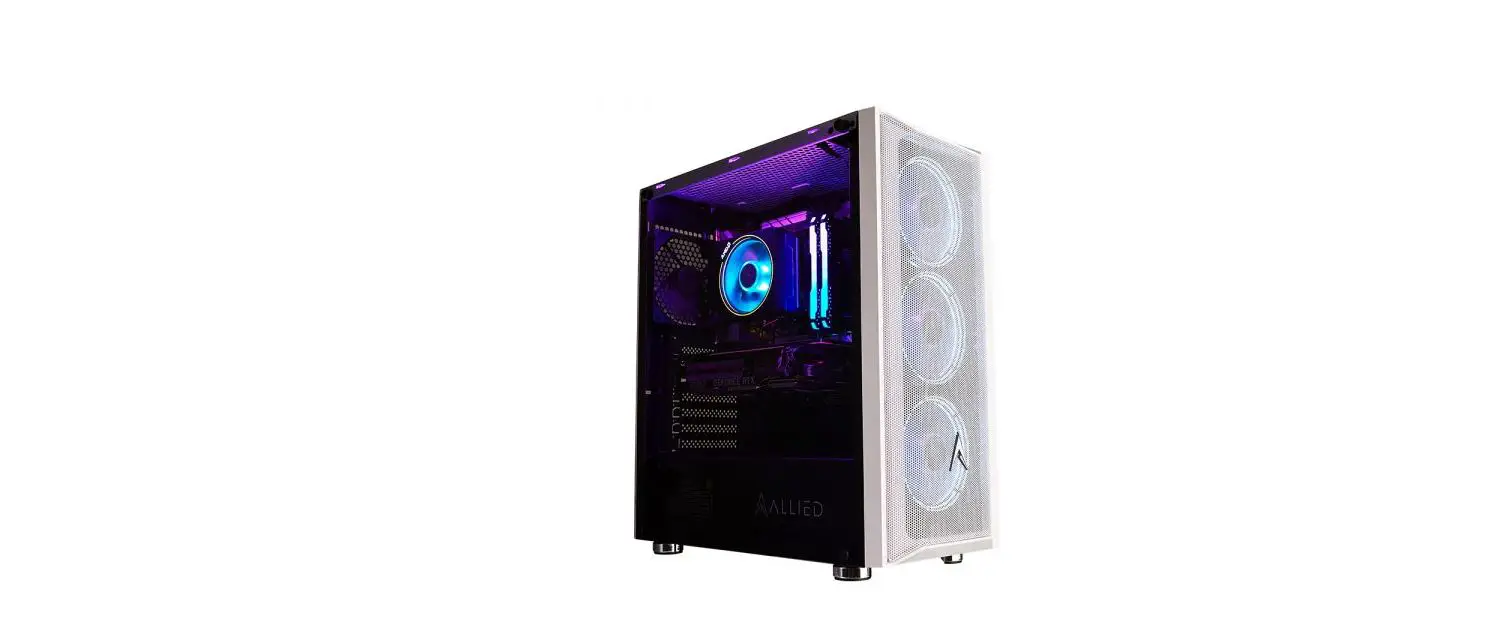

Allied PC Setup Guide
Game As One.
WELCOME TO ALLIED.
Thanks for choosing Allied for your new PC. We hope it brings you countless hours of enjoyment and productivity. Here is a bit of preliminary information to get you started.
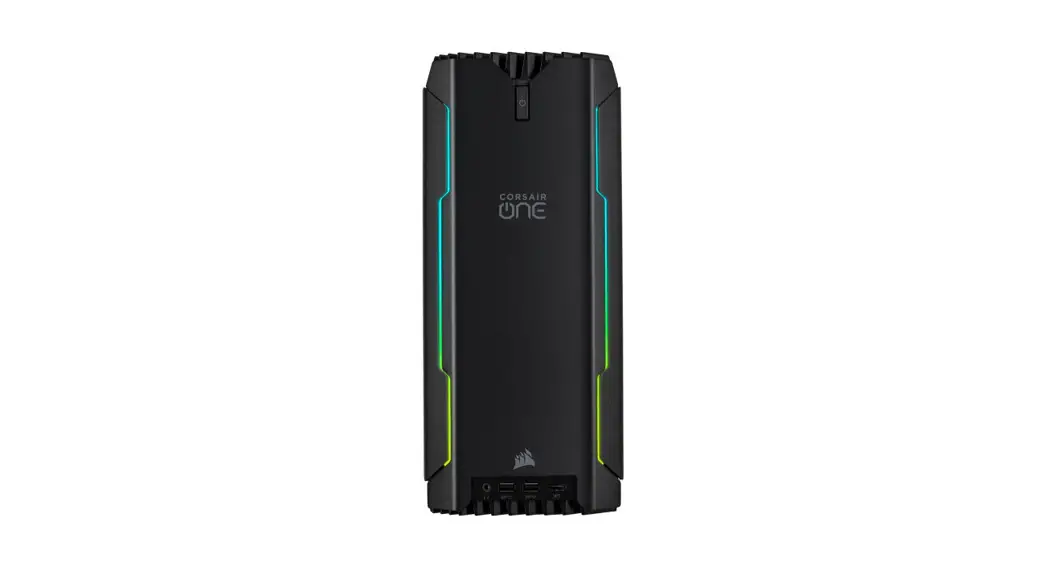
- Remove your PC from the box, lay the system on its side, unscrew the side panel and remove the protective packaging inside the system. Do not discard any of this packaging – you may need it!
- Lift it carefully into your desired position, then plug it into the power source, your monitor, and peripherals, following the guide opposite.
- Press the power button and follow the prompts during Startup to personalize your PC.
- If your PC does not power on, boot into Windows, or appears damaged in any way, please contact us immediately via email to [email protected].
IMPORTANT WARRANTY INFORMATION
ALL TECHNICAL SUPPORT REQUESTS MUST BE LODGED VIA EMAIL TO
[email protected]
Your Allied PC is backed by a return to base warranty as standard. This means we must be the ones to repair it for you if it needs it. There are no exceptions.
If you purchased your Allied PC through a retail store or online retailer other than the Allied website, please direct all after-sales inquiries to us via email to [email protected].
Altering your PC without explicit instructions or approval from an Allied Support representative, or taking your PC to an unauthorized repairer (e.g. your local PC store) may adversely affect or void your warranty. Allied will not reimburse any money paid to any unauthorized repairer under any circumstances.
 KEEP ALL YOUR PACKAGING! IN THE EVENT OF A RETURN TO ORIGINAL BOXES WITH THE PROTECTIVE PACKAGING INSIDE T SO MAY ADVERSELY AFFECT
Plugging In Your Monitor
- Your Microsoft Windows 10 Home Edition product activation key if ordered (Location of sticker may vary.)
- Plug the PC’s power cable in here and ensure the switch is in the ON position before powering on.
- Your PC’s USB, network, and other ports. Connect USB devices and ethernet cables here. Don’t plug your monitor in here; you won’t get a display.
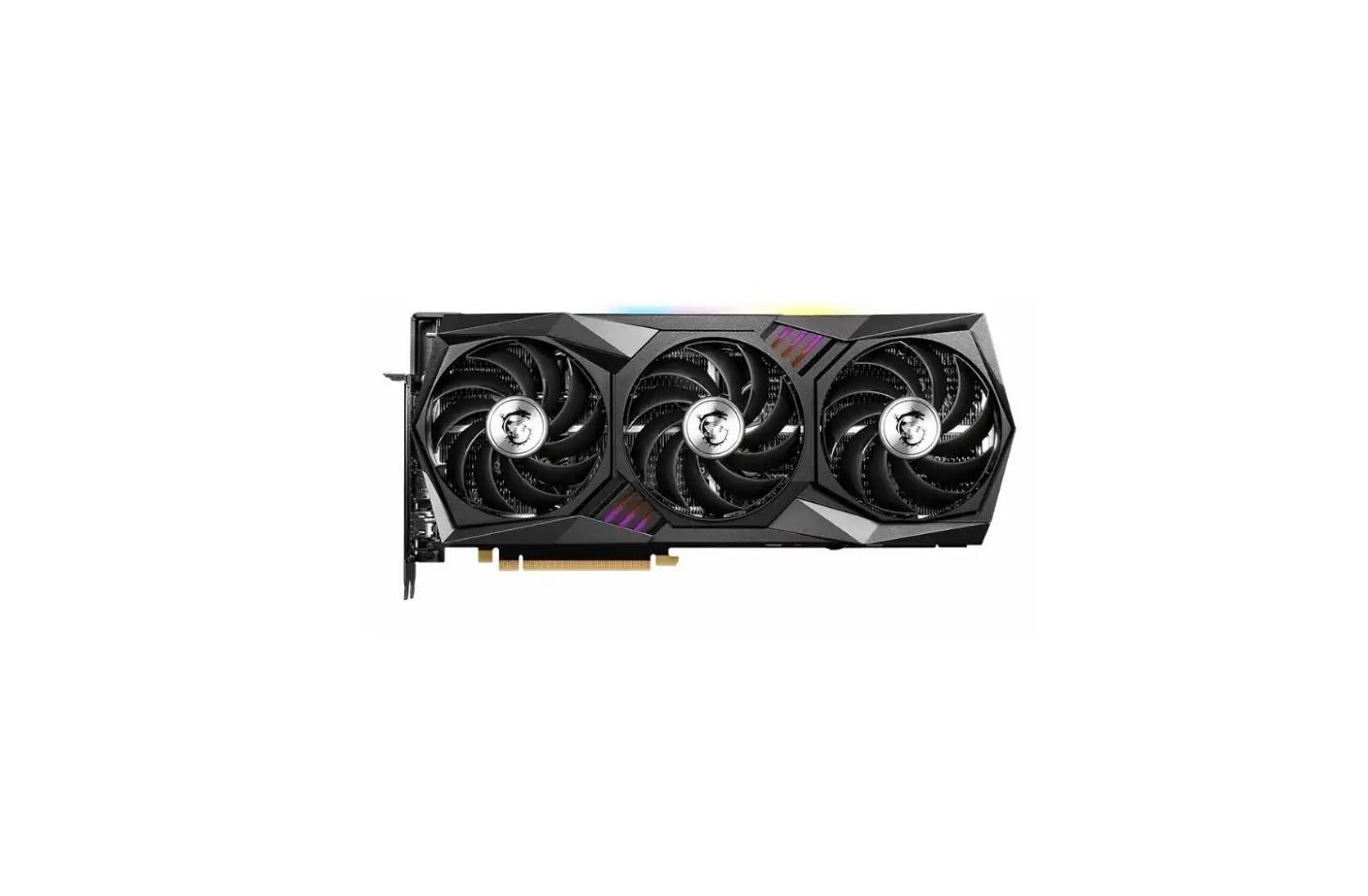
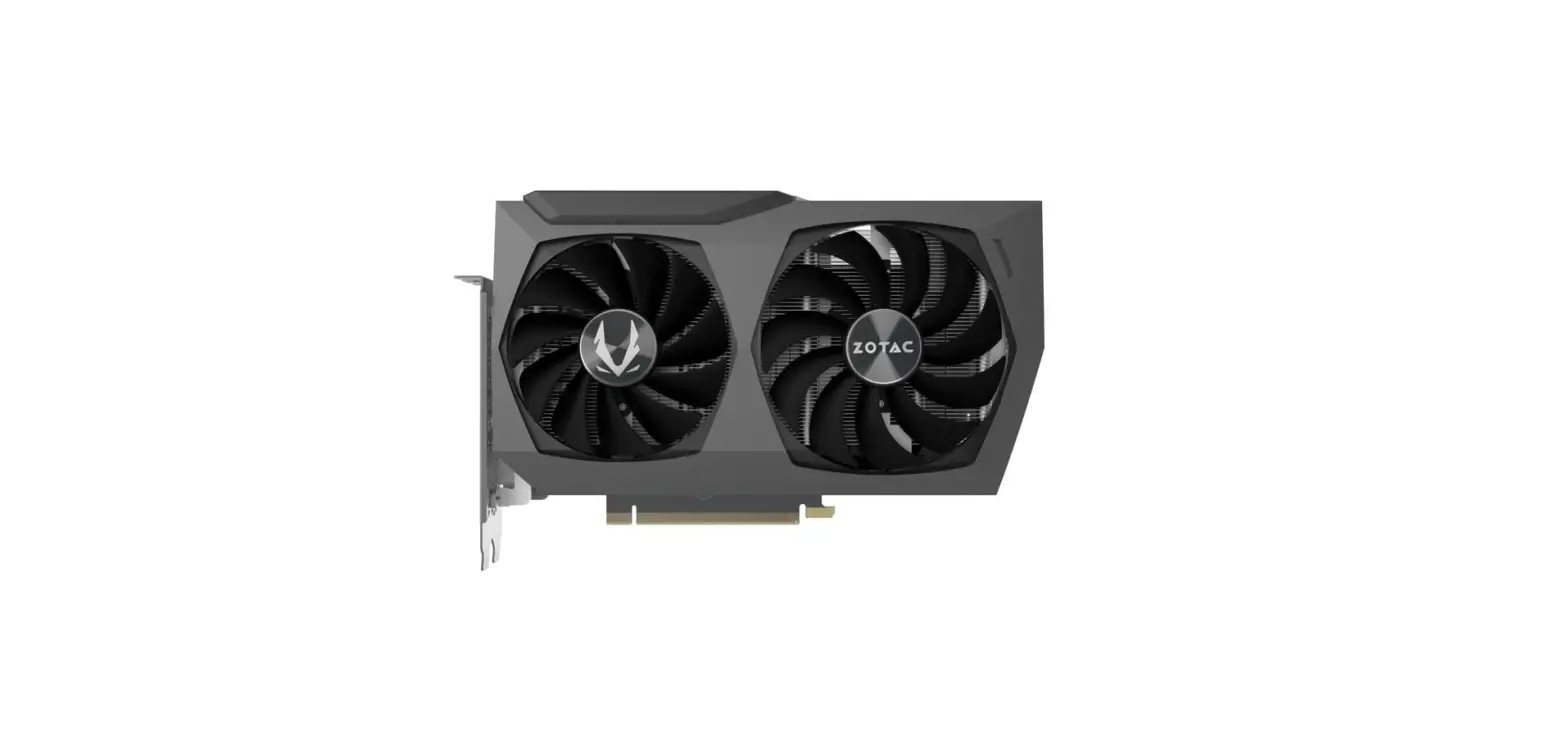
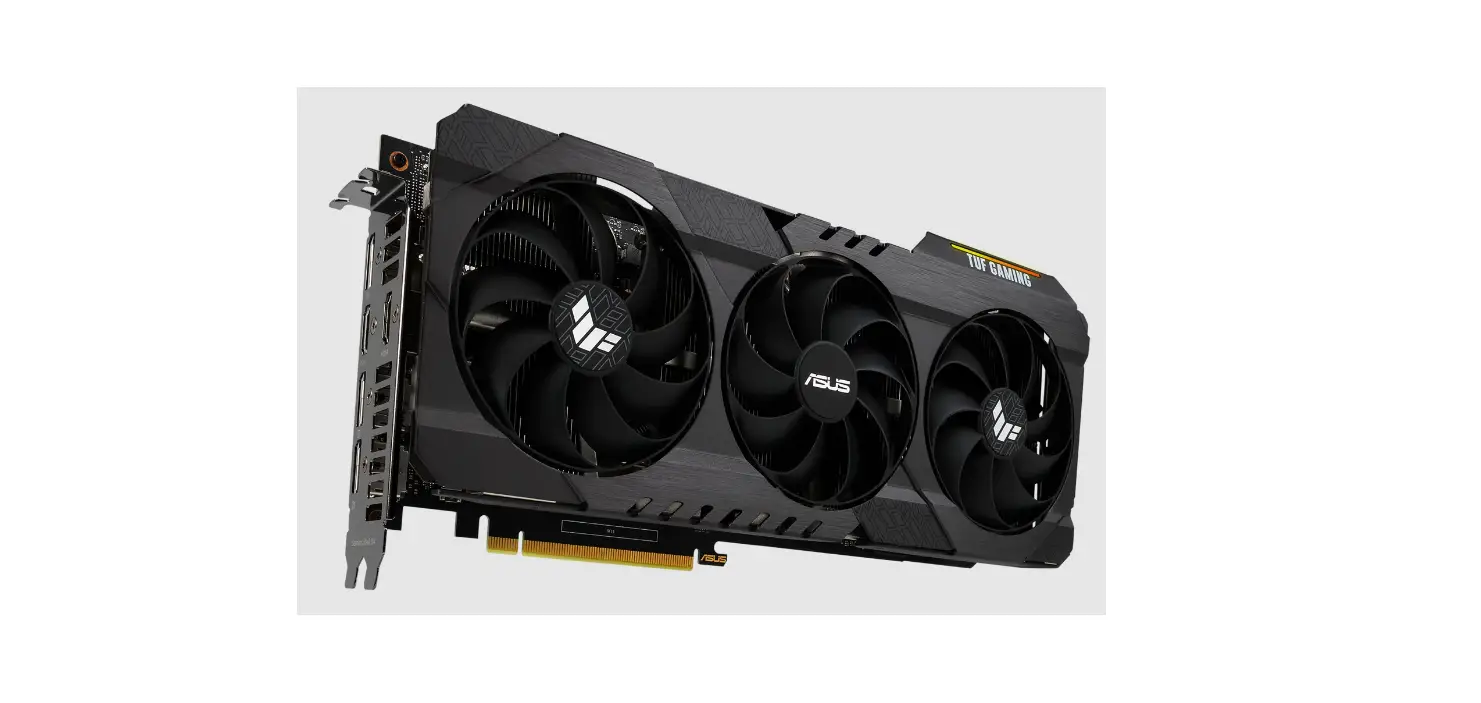
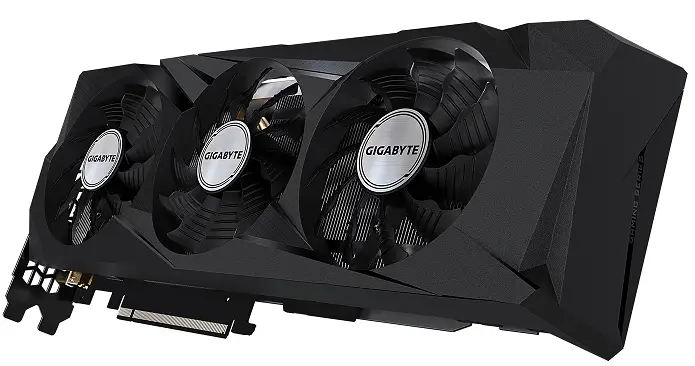
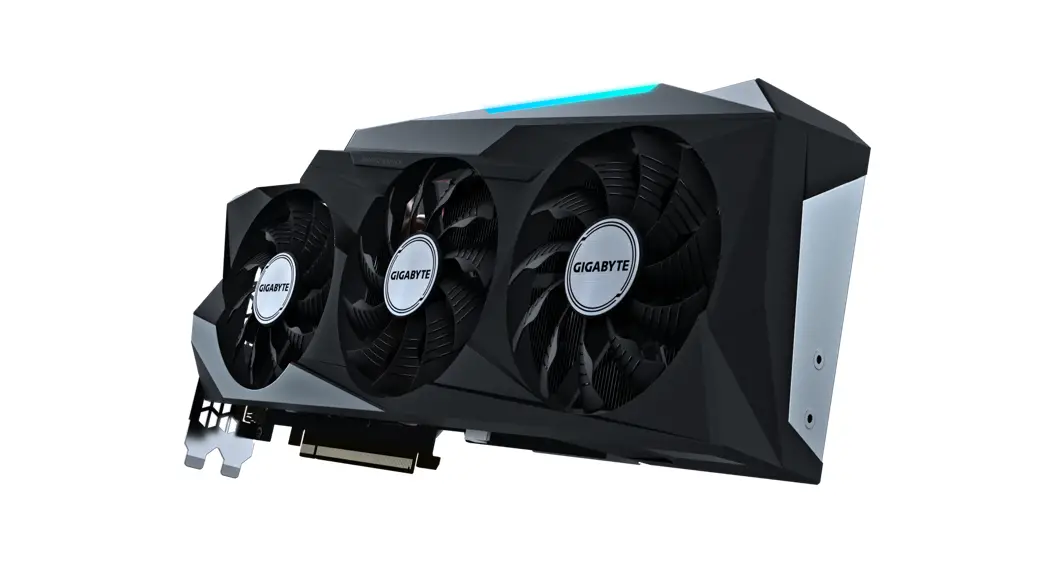
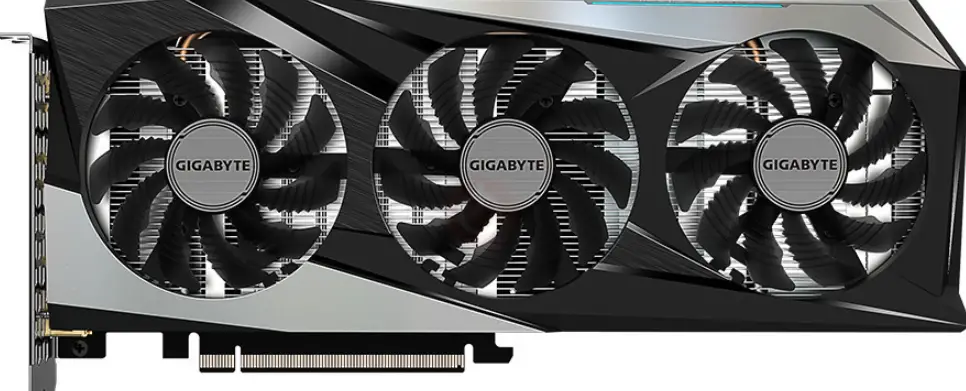
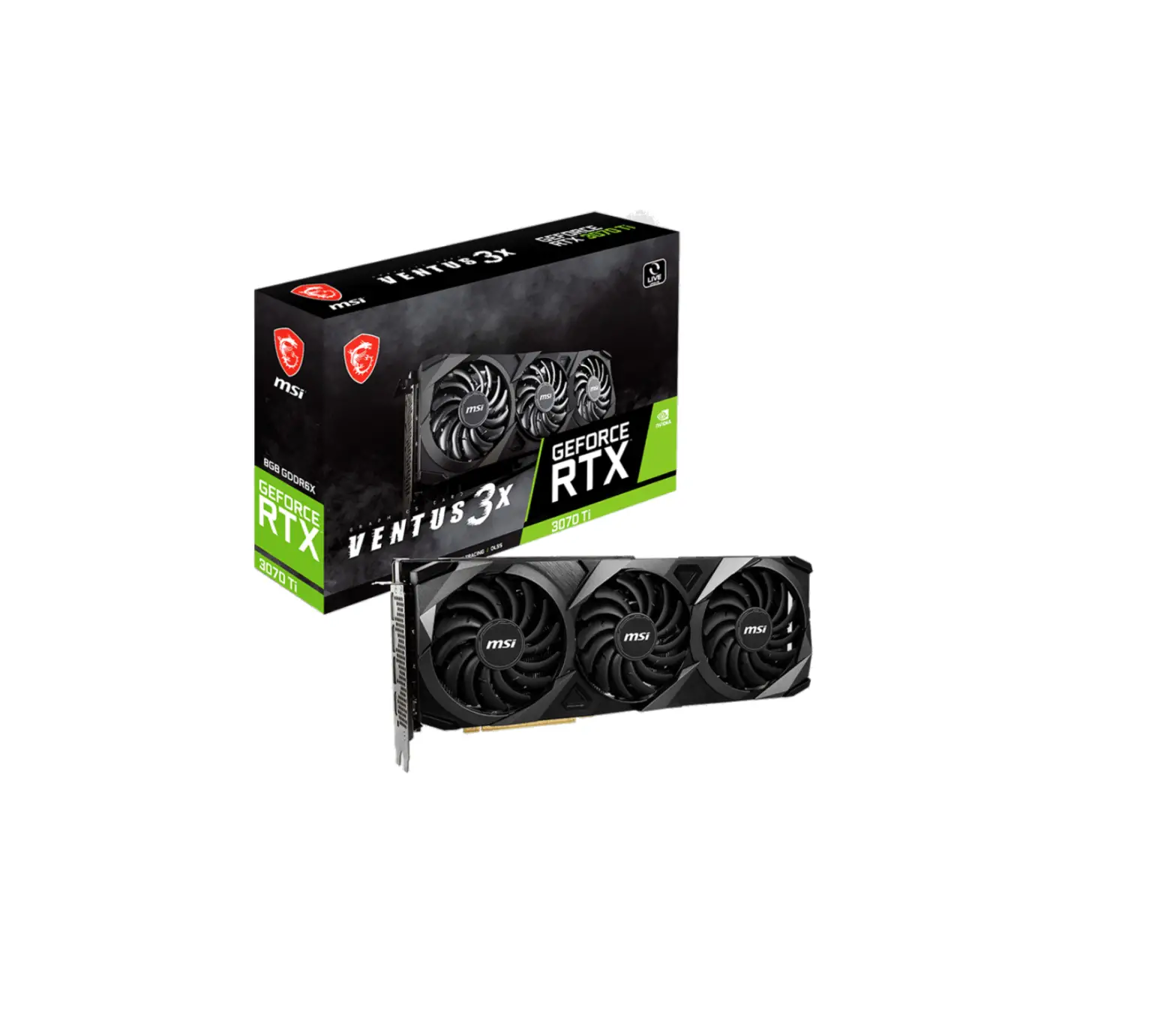
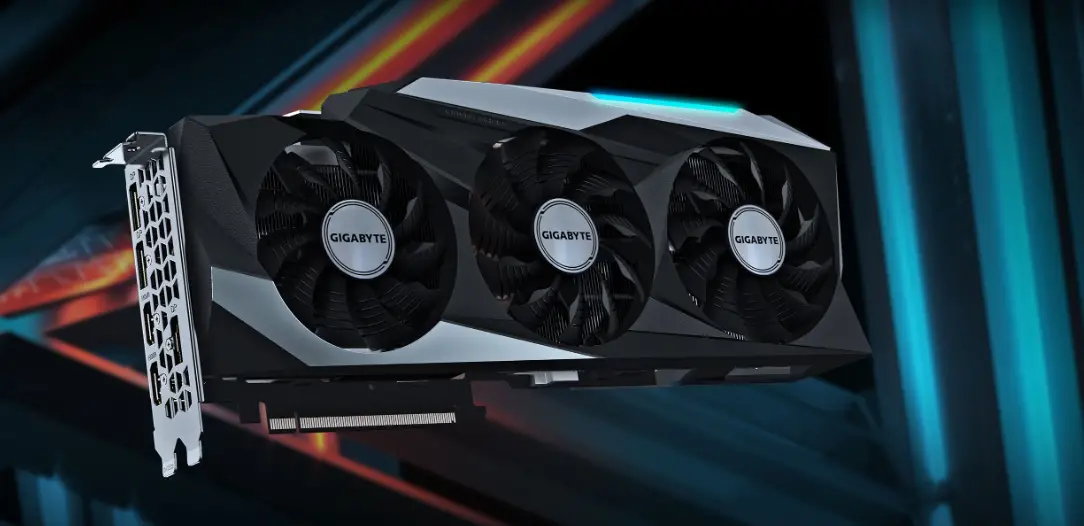
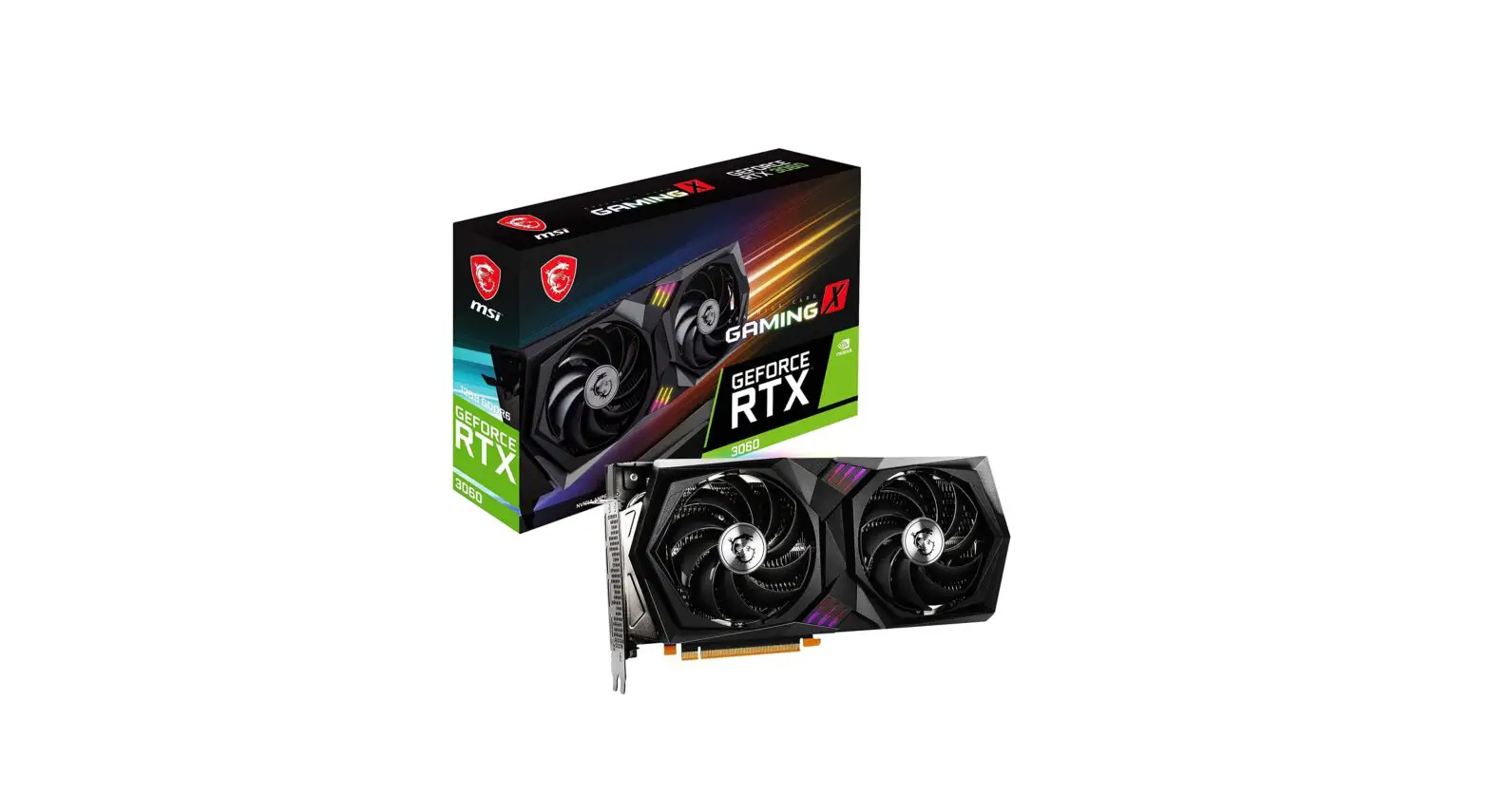
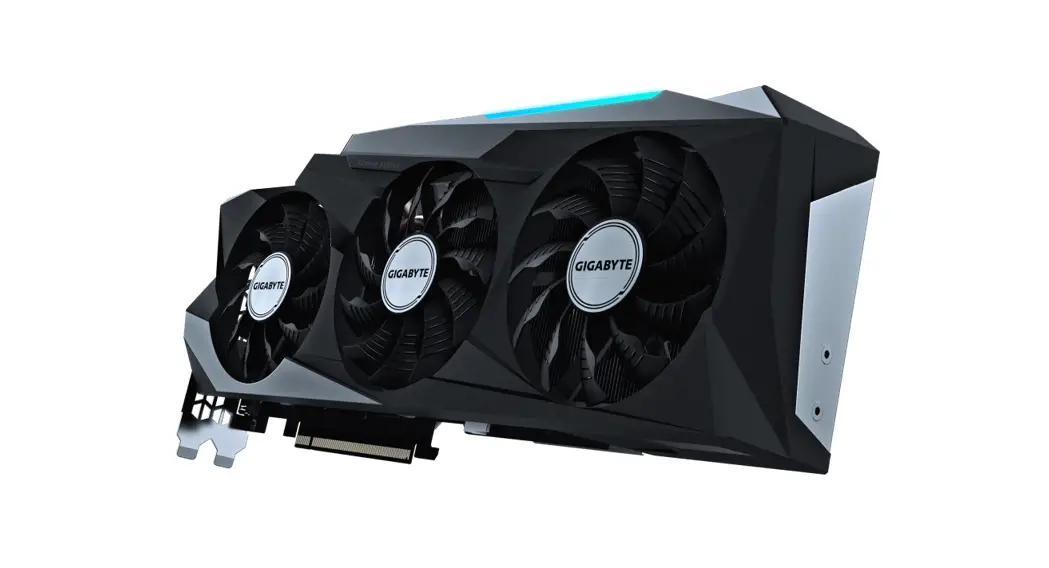
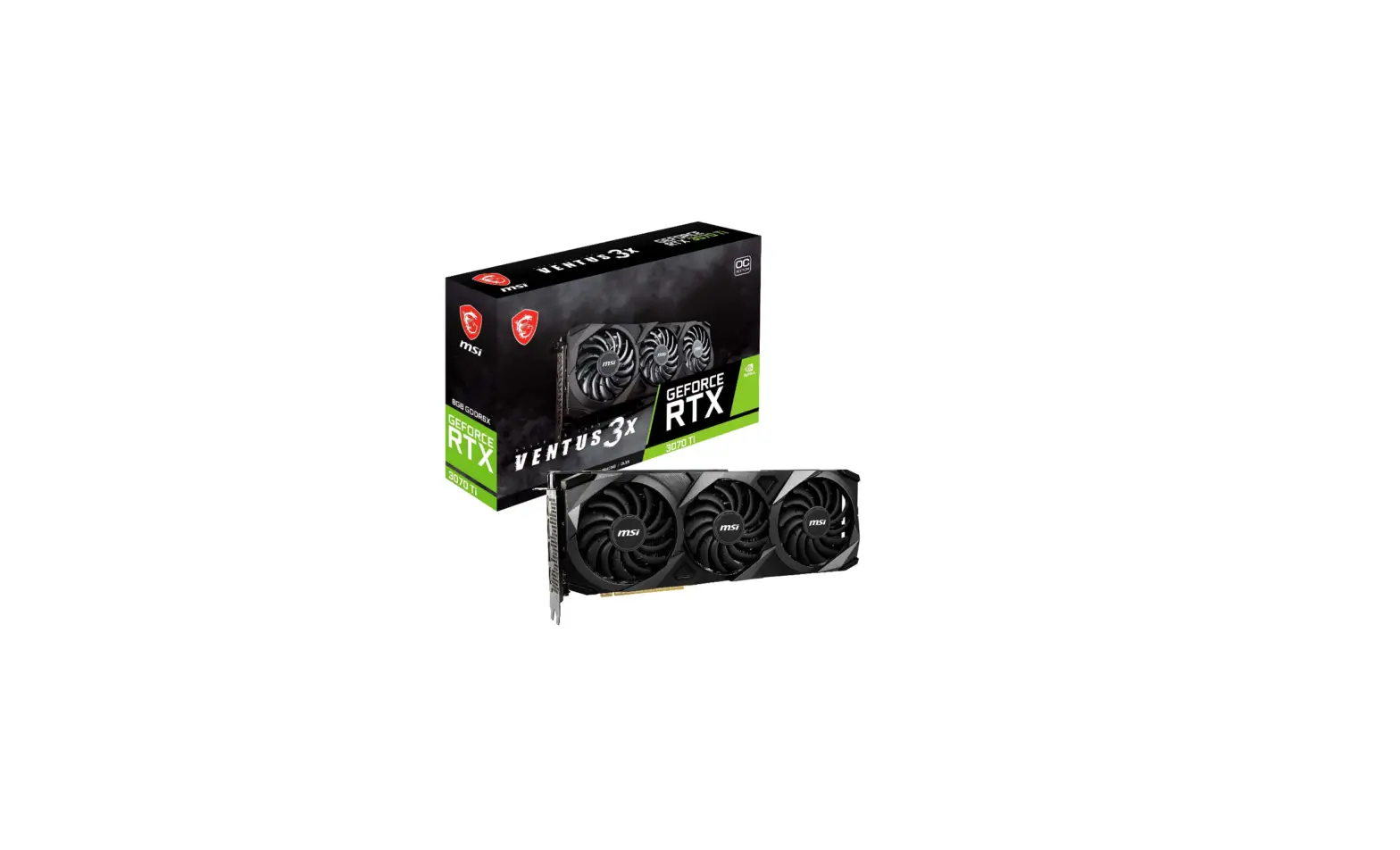
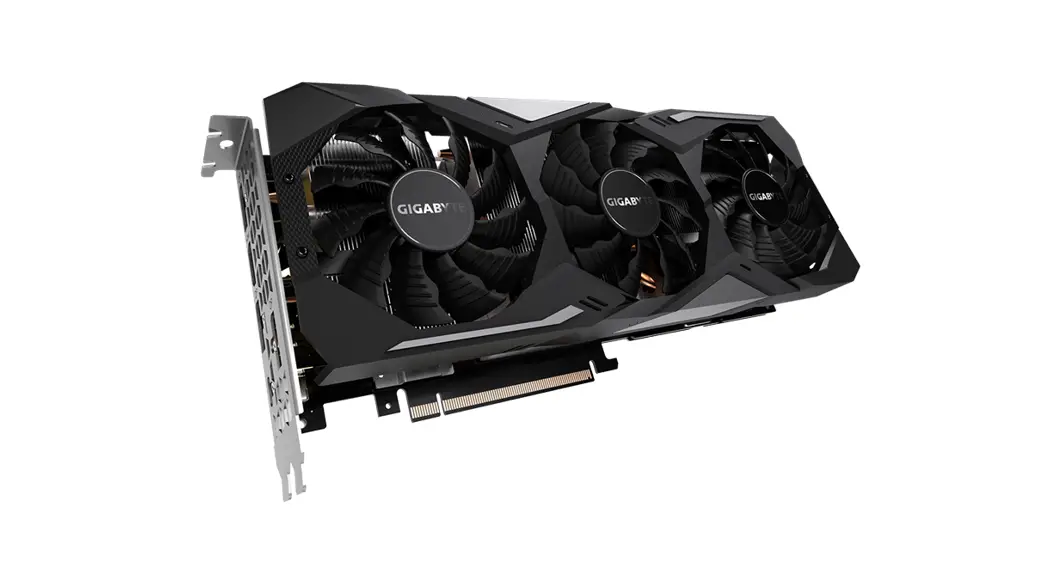
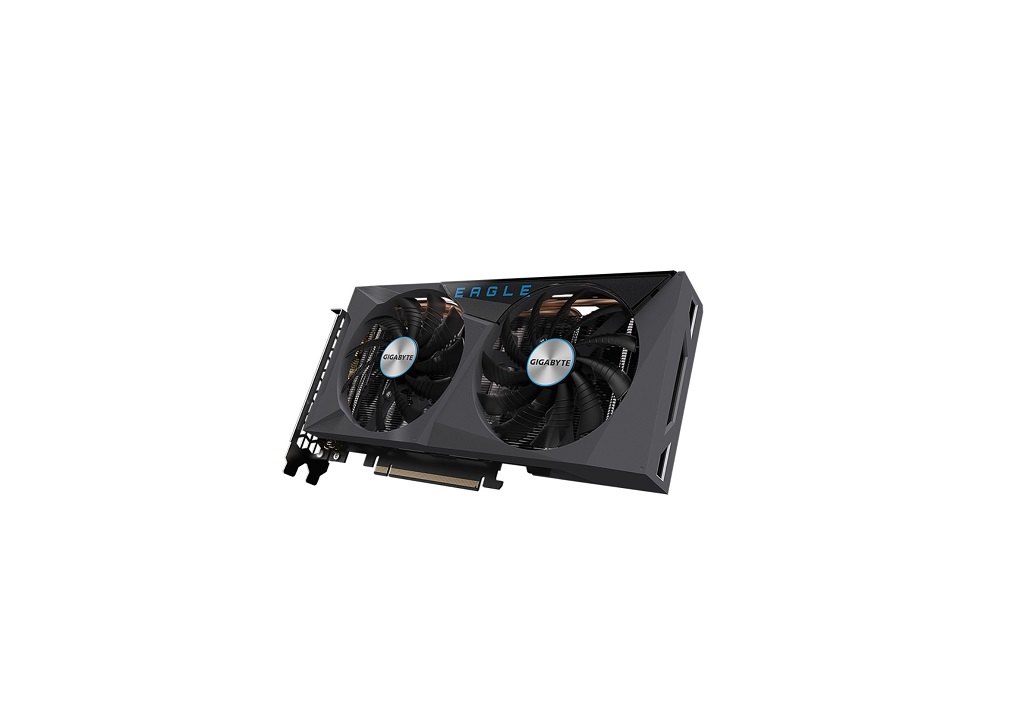
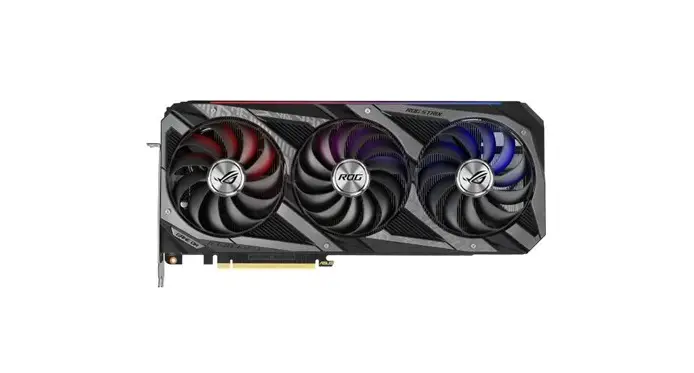
- Your PC’s powerful graphics card. Plug your monitor cable into one of these ports.
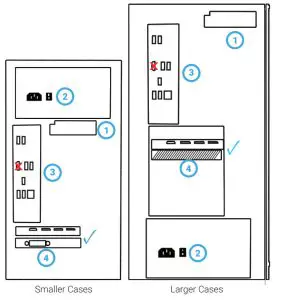
| Plugging In Your Monitor’s Cable: |  Into the Graphics Card Into the Graphics Card |
 Into the Motherboard Into the Motherboard |
– Be sure to plug your monitor cable into your graphics card (blue tick areas above).
– If you plug a monitor cable into the motherboard ports (red cross areas above) your monitor will not receive a signal.
– You will need to ensure that your monitor supports, and you have the cable for, one of the ports on the graphics card in your PC (HDMI and DisplayPort [DP] are the most common.)
BASE WARRANTY CLAIM THE PC MUST BE RETURNED IN THE THE CASE TO PROTECT INTERNAL COMPONENTS. NOT DOING T OR VOID YOUR WARRANTY.
LOOKING FOR ACCESSORIES
TO MATCH YOUR NEW RIG?
Check out our range of gaming monitors, keyboards, mice, headsets, and more at alliedgaming.com.au

SAVE 5% ON YOUR NEXT
PURCHASE FROM US
Enter Coupon Code
ALLIEDAGAIN
at checkout!
Feel free to share this code with your ppl. Coupon code use limit 1 per customer. Cannot be combined with any other coupon code.

/alliedgamingpc