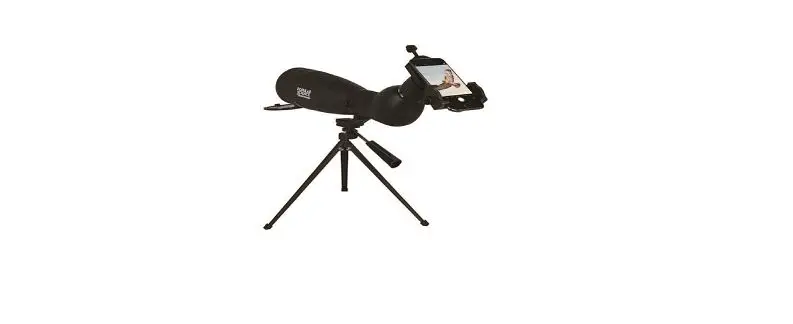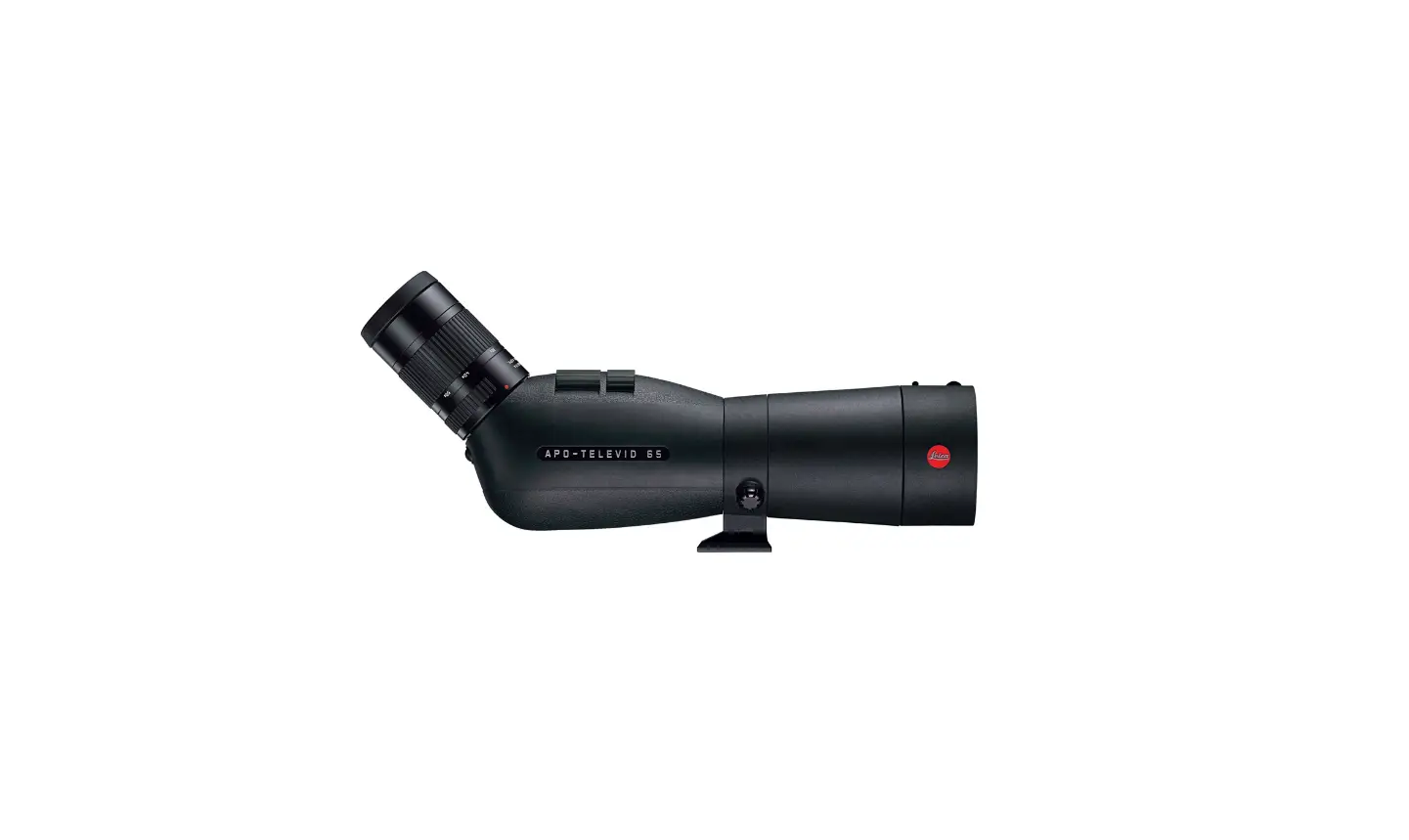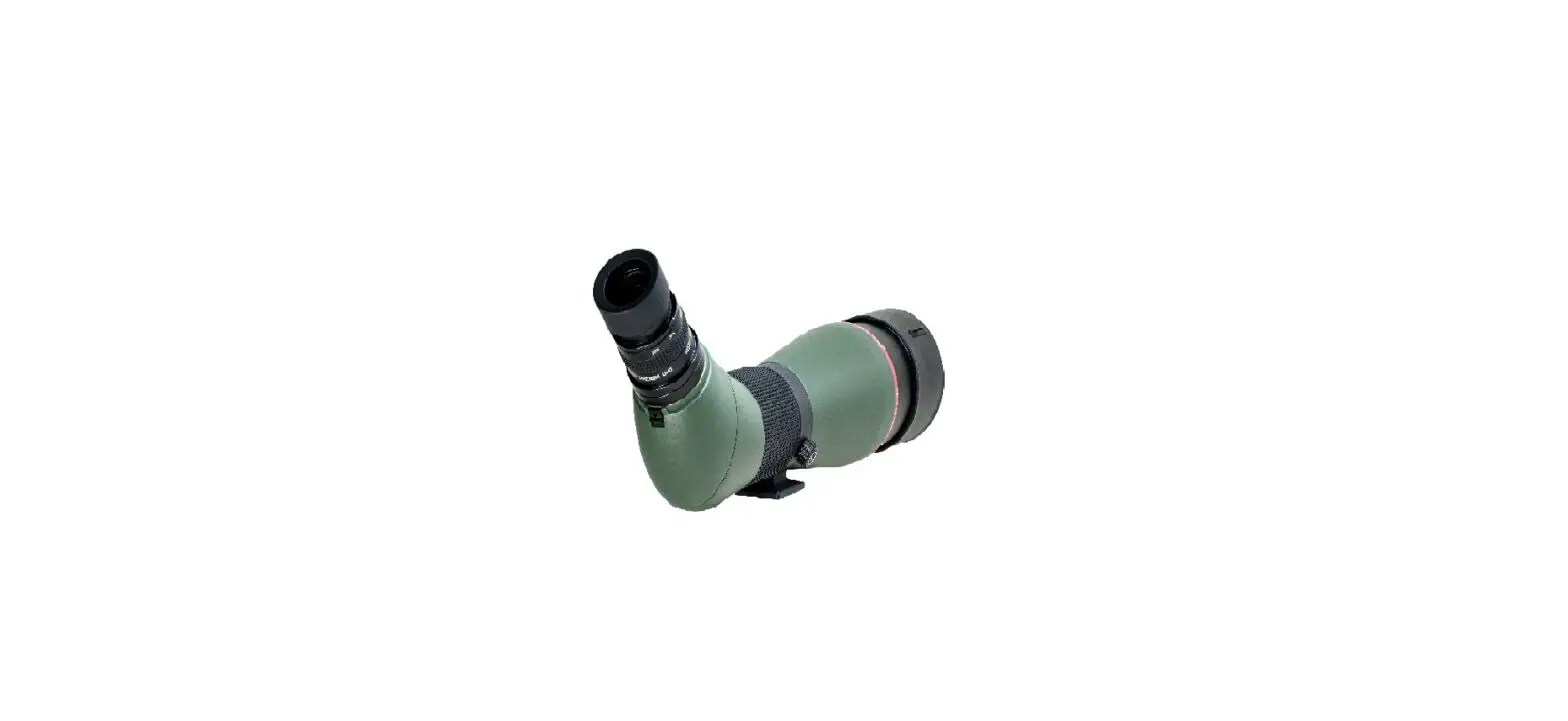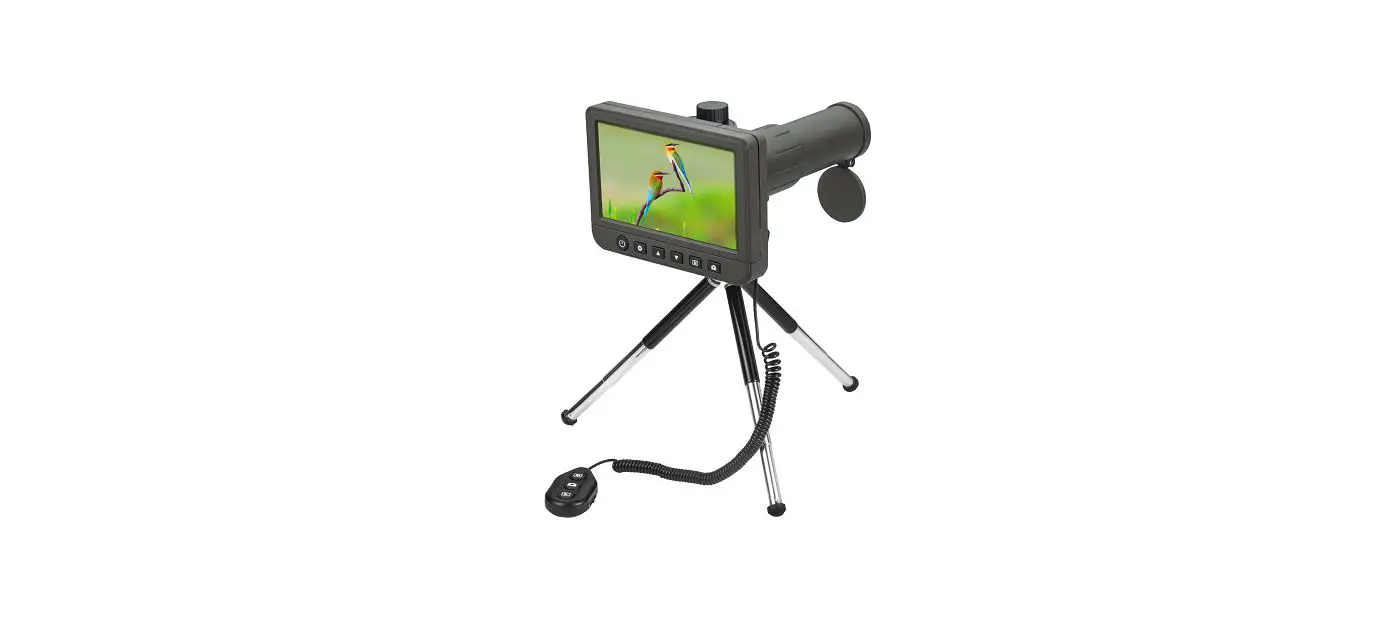

VIVIDIA SS-550 Spotting Scope 5 Inch LCD Digital Telescope
Welcome
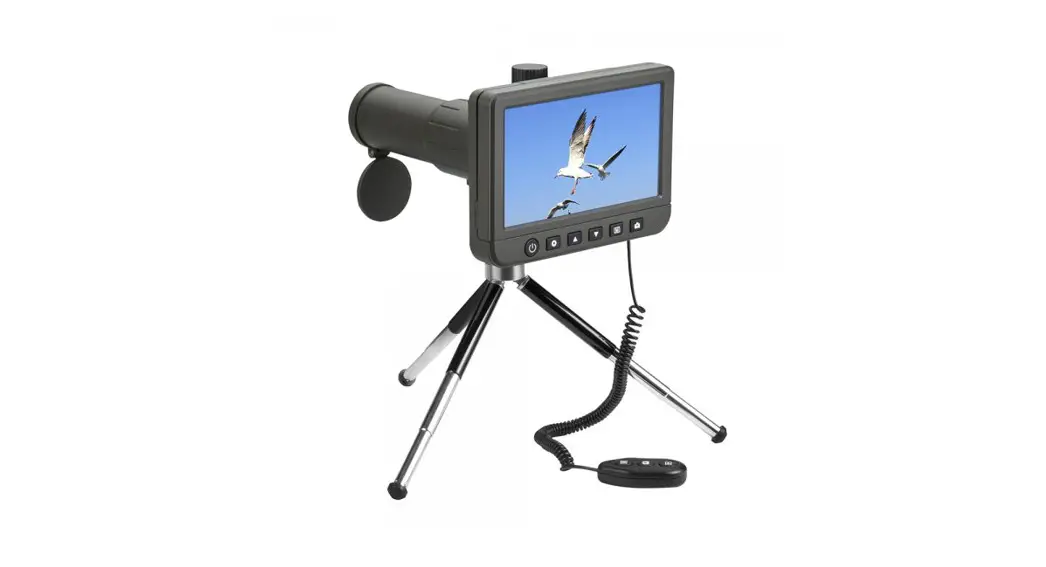
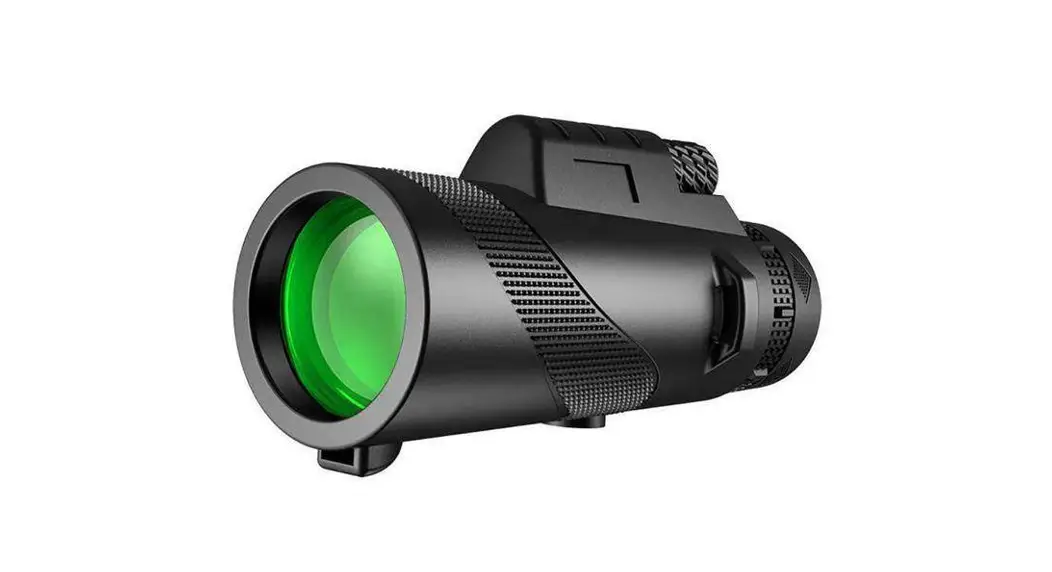
Thank you for purchasing the LCD Digital Telescope. The 5-inch LCD 50x Digital Telescope & Monocular DV is a new-generation portable, easy to operate digital telescope that allows you to see what in the distance on its 5-inch display clearly. It allows you to capture 1080p video and 14M photo so easy. For example, it enables you to see and capture a car plate number at 1000ft (300m) away, helpful for bird watching, wildlife watching and sports watching etc.
Please take a moment to read through this manual. Its contents will help you to get the best use of the smart telescope.
Precaution
Before using the LCD Digital Telescope, please ensure that you read and understand the safety precautions described below. Always ensure that the Digital Telescope is operated correctly.
- The telescope is not waterproof, so keep it dry.
- Do not use it in a humid place like bathrooms. A dry environment will maintain its life to maximum.
- Use the Telescope only at -5℃-50℃.
- Sudden temperature change may form dew inside the telescope like entering a warm room in cold winter. Put it inside a handbag or plastic bag to slow down temperature changes.
- Do not point the telescope lens to the sun or strong light for a long time. The lens is Powerful light may hurt the light-sensitive electronics.
- Avoid touching the lens.
FCC Notice
This device complies with Part 15 of the FCC Rules. Operation is subject to the following two conditions:
- This device may not cause harmful interference, and
- This device must accept any interference received, including interference that may cause undesired operation.
Preparation
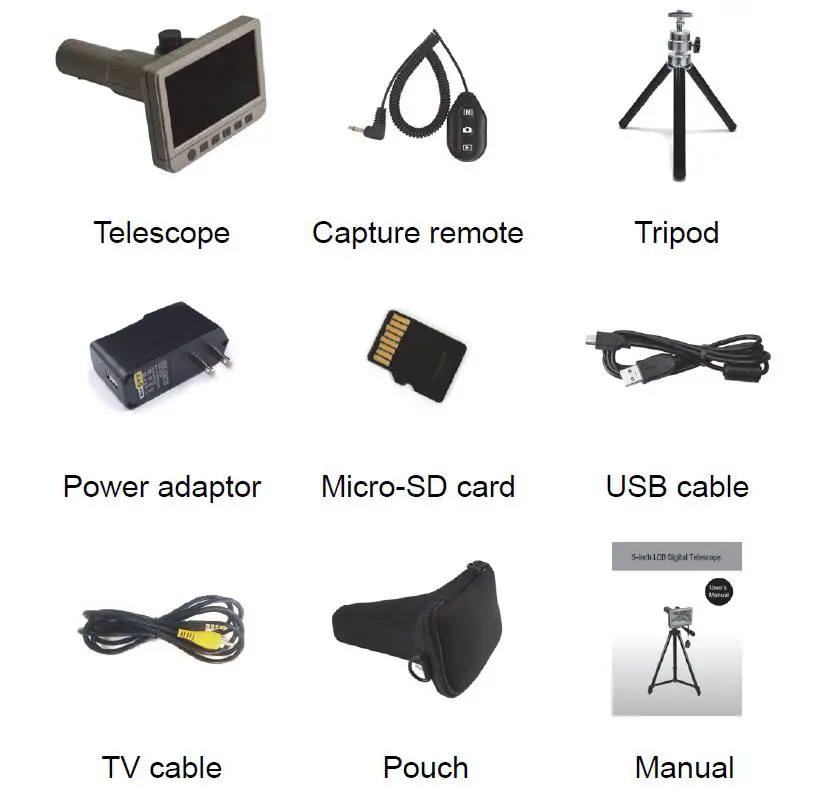
Package Contents
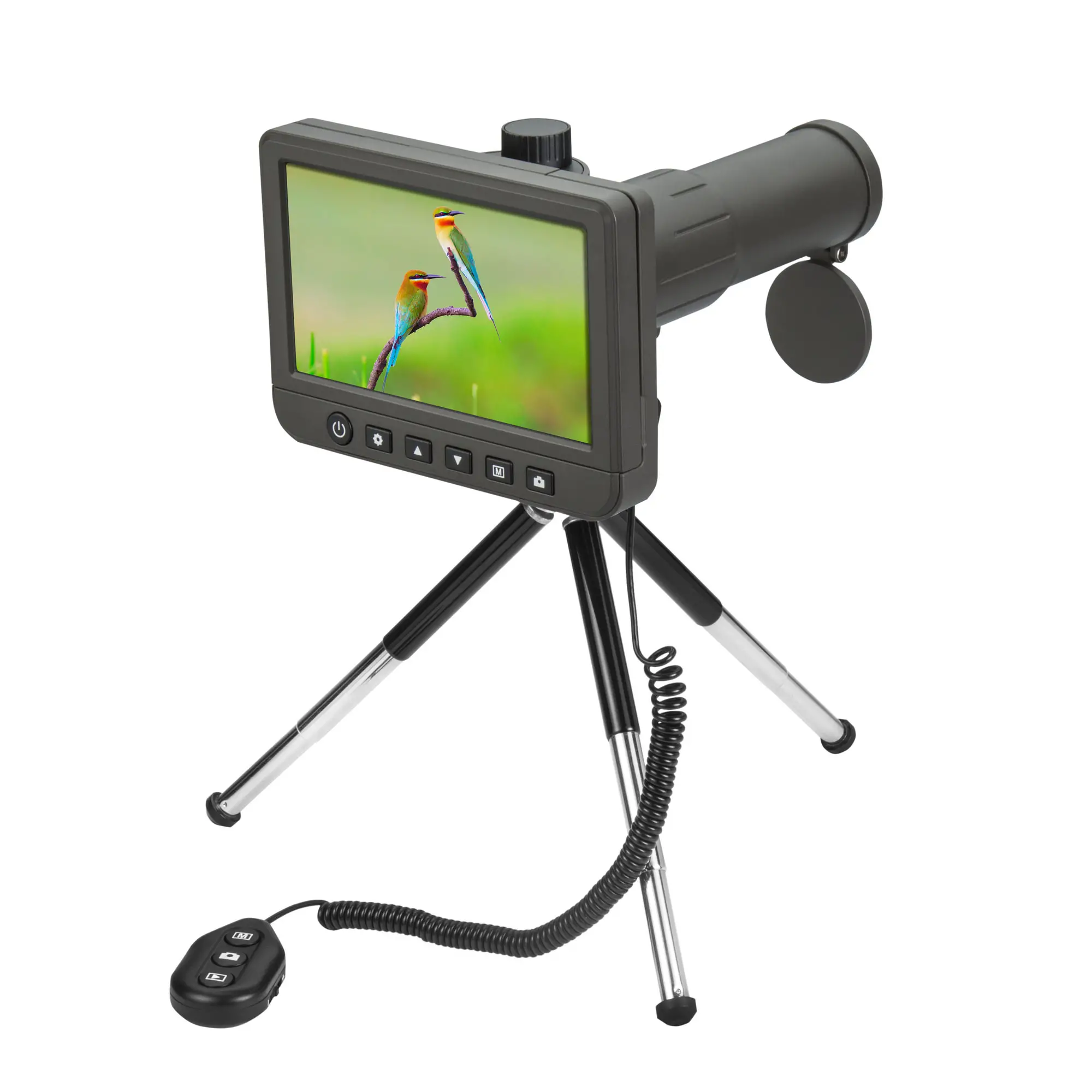
Parts Names & Functions
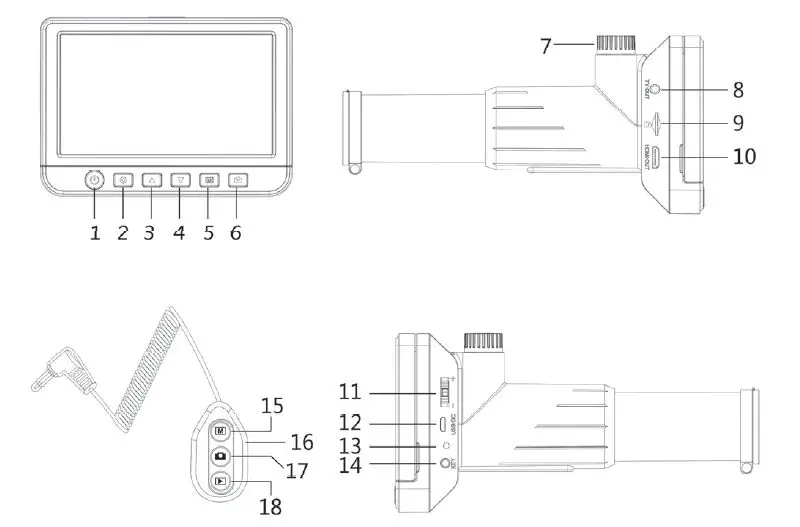
| 1 | Power on/off | 10 | HDMI-out |
| 2 | Setup | 11 | Digital zoom |
| 3 | Up/EV increase | 12 | 5V DC: charge battery USB: download storage |
| 4 | Down/EV decrease | 13 | Charge indicator |
| 5 | Photo/Video/Playback | 14 | Capture remote input |
| 6 | Capture | 15 | Photo/Video/Playback |
| 7 | Focus adjust | 16 | Digital zoom |
| 8 | TV-out | 17 | Capture |
| 9 | Micro-SD slot | 18 | Playback |
Specifications
- Magnification Ratio: 50x
- LCD: 5.0-inch IPS panel, 960×540
- Video resolution: 1080P/720P
- Photo resolution: 14M/12M/10M/8M/5M
- Video format: MP4
- Photo format: JPEG
- Battery: built-in rechargeable Li-ion battery
- DC input: 5V/1A or 2A
- TV-out: to any monitor with TV-in
- HDMI-out: to any monitor with HDMI-input
- Storage: Micro-SD card
- Size: 189mm (L) x132mm (W) x 94mm (H)
- Weight: 435g
Use the Telescope
As it is a high magnification telescope, it is highly suggested to mount it on a photography tripod.
- Charge the Built-in Battery
Before using the telescope, you are suggested to charge the built-in battery by the 5V/USB port.
The required DC input is 5V.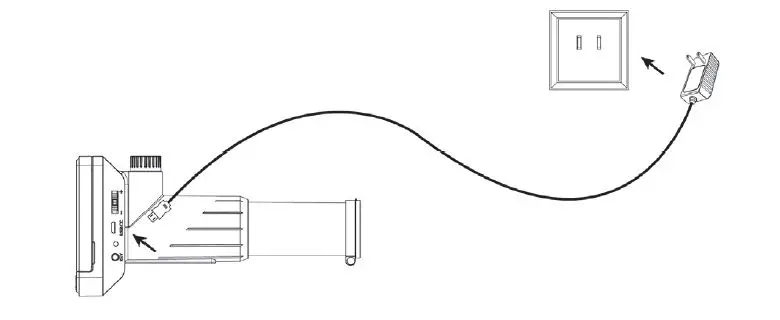 When charging, the indication LED will be in red; it will be off when charging finished, which means the battery is fully charged.
The charging time (from empty to full) is around 3hrs. After fully charged, the battery can last around 3hrs. - Insert a Micro-SD Card
- Turn off the telescope
- Insert the Micro-SD card into the Micro-SD card slot; gently press in until card is latched.
Note: Do not force the card into the slot; forcing may damage telescope and the Micro-SD memory card. Align Micro-SD card position (as marked) and try again. The Micro-SD memory card must be formatted before capture. Please refer to 5.12 on how to format.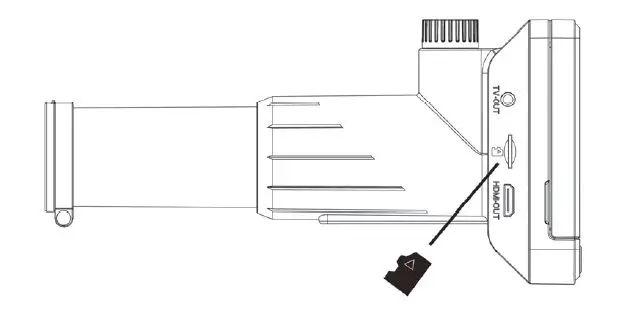
- Display Icons & Meanings
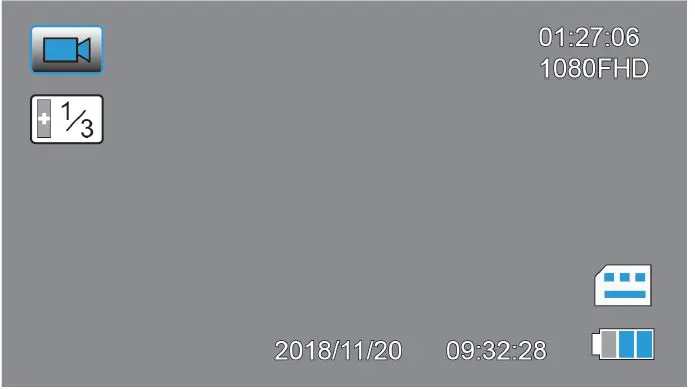
Icon Meaning 
Photo capture mode 
Video capture mode 
Exposure 01:27:06 Time length that still could be captured (based on the current resolution) 1080FHD Current resolution 
Micro-SD card inserted 
Battery capacity Note: The icon displays will be off when there is no key pressed for 10s.
- Turn On/Off the Telescope
Press the On/Off button for 3s to power on the telescope. Press the button again to turn it off.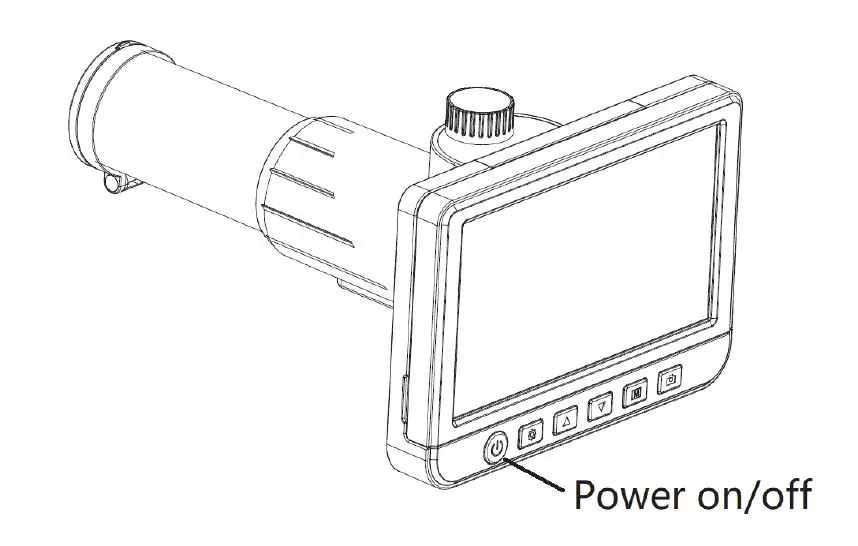
- Adjust focus
After pointing the telescope to a target object in the distance, you can rotate the Focus wheel slightly to get fine focus.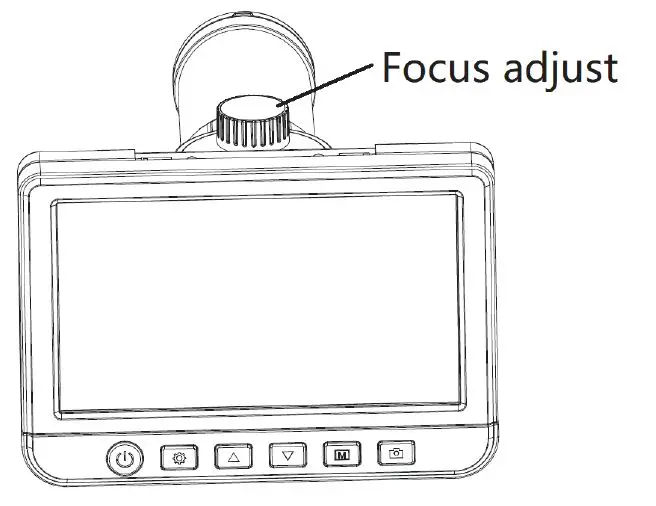
- Capture
Turn on the telescope, target an object in distance, rotate the Focus wheel to get a fine focus, press button and a photo will be captured and saved on Micro-SD card. By pressing
  button, you can switch to video mode. Then you can press button to start video recording.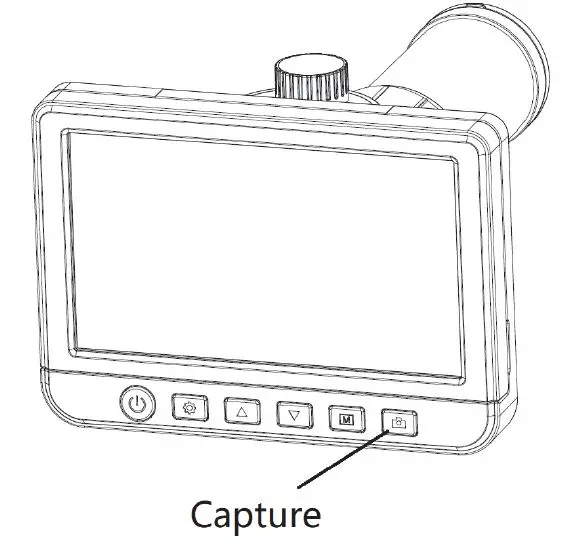
- Playback
Press button, you can switch to playback mode, and then you can press and
and to scroll the captured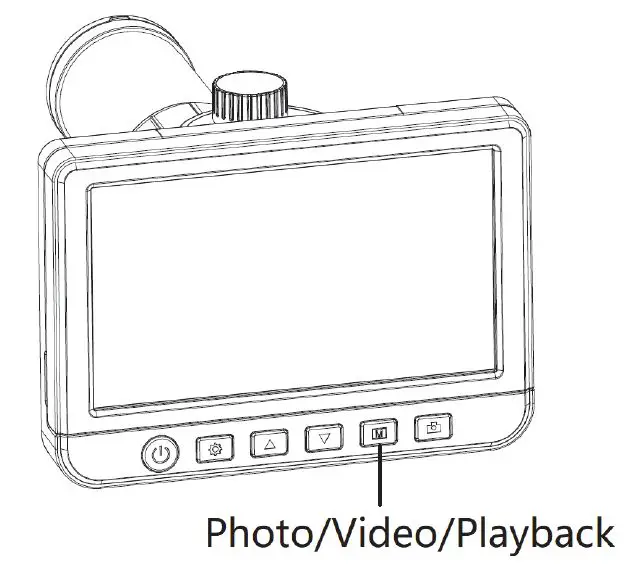
- Delete
At playback status, press setting , you can choose to delete the current file or all files. - Zoom in/out
At previewing status, you can push the digital zoom button on the telescope body or on the capture remote to zoom in or out digitally.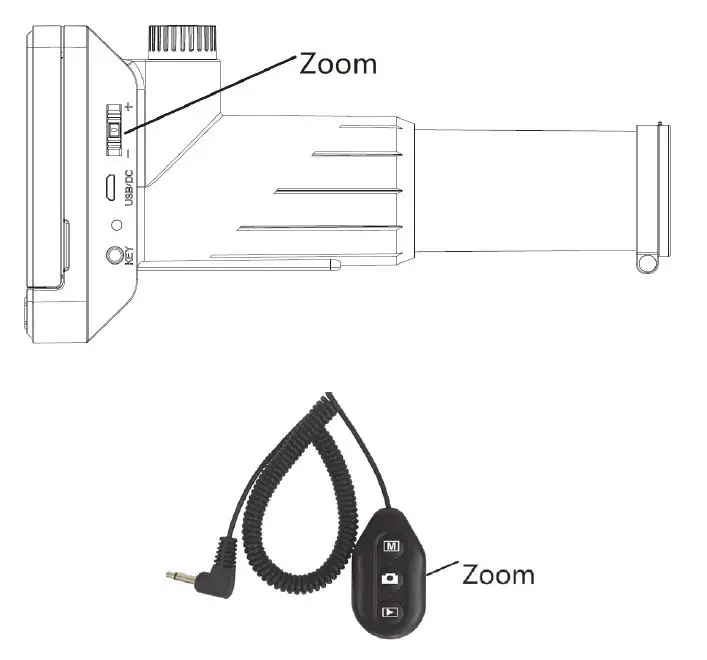
- Download Files to Computer by USB
Connect the telescope to computer by USB cable and then you can view stored photos & videos.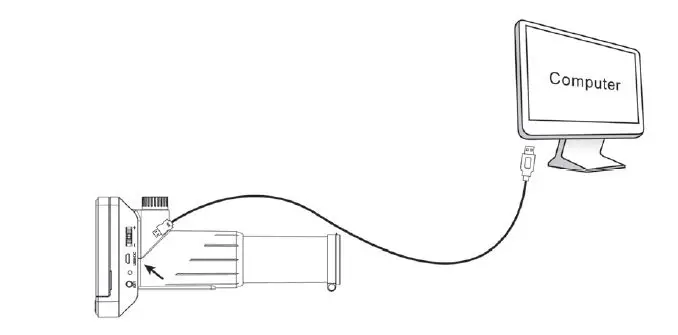
- Output to Monitor by TV-out or HDMI-out
It can output to any monitor with TV input or HDMI input.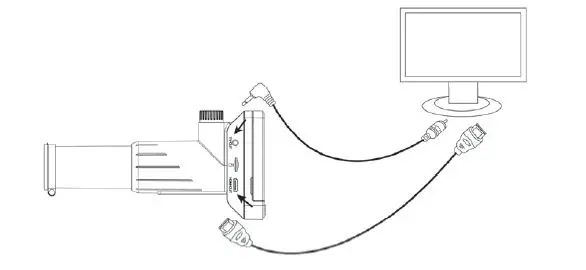
You can press setting to enter camera setup, with options as follows.
- Photo Resolution
At photo mode, press setting , you can choose to select a resolution for photo taken among 14M/12M/10M/8M/5M.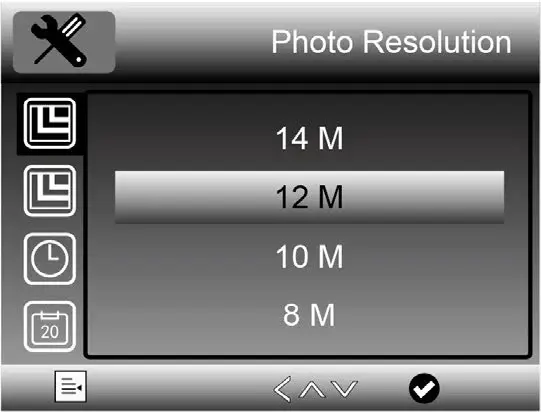
- Video Resolution
At video mode, press setting , you can choose to select a resolution for video recording between 1080P/720P. - Capture Mode
At photo mode, press setting , you can choose Capture Mode to setup interval capture. For example, setup the microscope to take a photo every 5 seconds.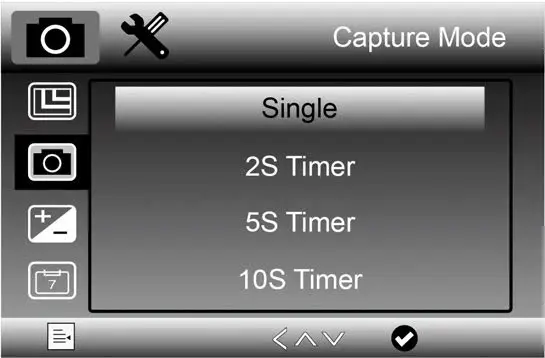
- Exposure
You can adjust the Exposure Value (EV) from the menu as follows.
You can also adjust the EV by pressing .
Note: EV adjustment is helpful to get better image when the environment light is too high or too low.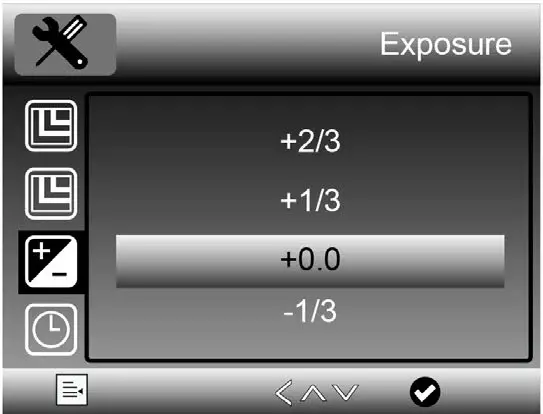
- Date/Time
Press setting twice, you can choose to setup system date and time.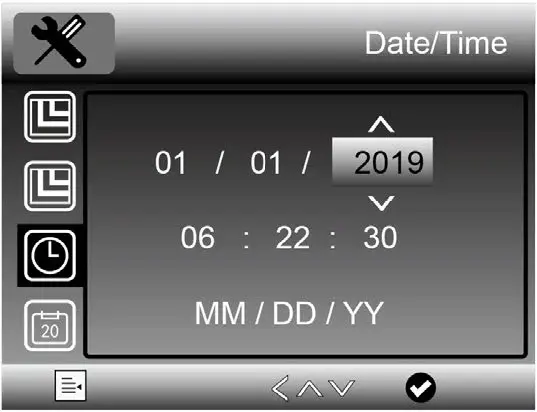
- Date Stamp
At photo mode, press setting to choose to setup whether put date and time mark on capture photos and videos.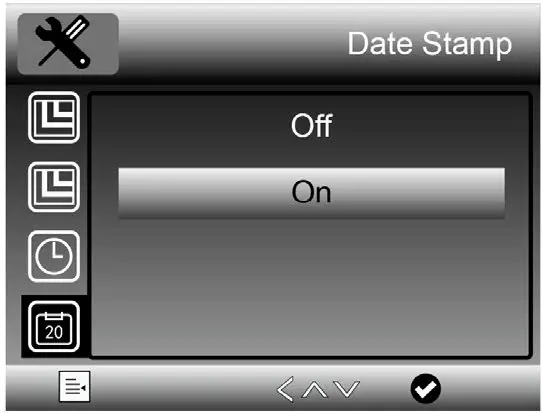
- TV-out Mode
Press setting twice, you can choose to select between NTSC and PAL for the TV output of the telescope, make it compatible with that of your TV.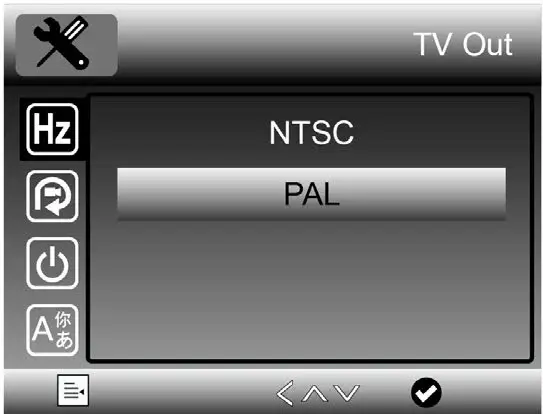
- Loop Recording
At video mode, Press setting to choose to setup the length of each video clip; Off means not to turn on loop recording.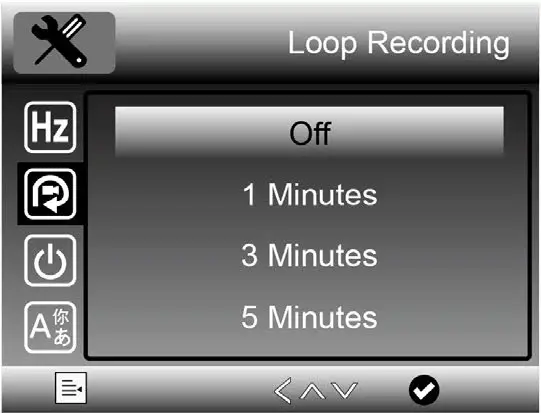
- HDR
At video mode, press setting to choose to setup HDR to be on or off. ON is normally selected for backlight environment.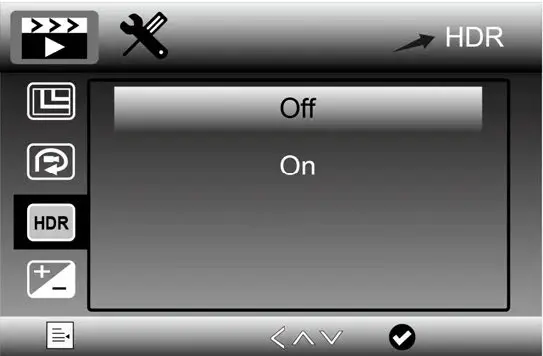
- Auto Power Off
Press setting twice, you can choose to select a time for the telescope to power off automatically without key operation.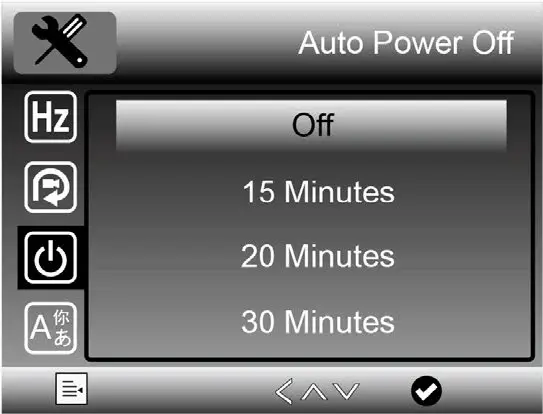
- Language
Press setting twice, you can choose to setup OSD language.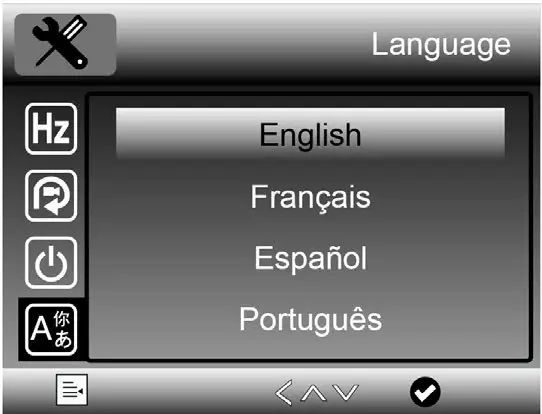
- Format SD
Press setting twice, you can choose to format the inserted Micro-SD card.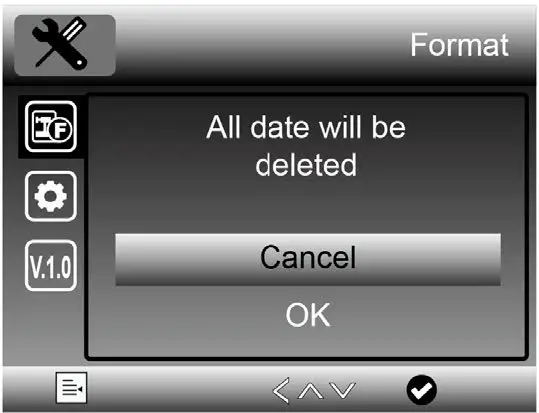
- Default Setting
Press setting twice, you can choose to reset the telescope configuration to default setting.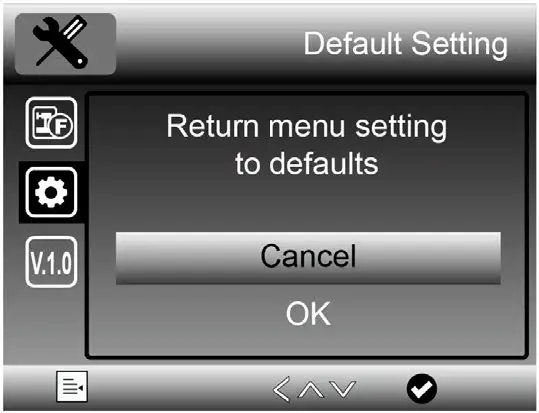
Troubleshooting
| Problems | Solution |
| The unit does not turn on. | Charge the battery. |
|
The screen is blank. | Ensure that the power is on. Ensure the battery capacity is enough. Adjust the object e.g. point the telescope to a colorful object in the distance since the viewing field of telescope is small. There will be no obvious image on the screen if the object is too close or not pointed properly. |
| There are smudges or blemishes on the screen | Clean the screen and lens carefully with soft fabric |
|
Telescope is connected to a television, but no image appears on the television screen. | Ensure that the television is on. Switch to the appropriate video input channel on your television. Ensure that the HDMI/TV cable is securely connected to the telescope Video-out port and plugged into the correct video input on your television. |
| The battery indicator LED is not in red, even though the power adaptor is connected and plugged into a wall socket. -or- The battery is not charging. |
Plugged into the Telescope’s DC-in port (USB port).
Ensure that the outlet has power and is not malfunctioning. If the outlet is connected to a wall switch, make sure that the switch is on. |
This symbol on the product or in the instructions means that your electrical and electronic equipment should be disposed at the end of its life separately from your household waste. There are separate collection systems for recycling in the EU.
For more information, please contact the local authority or your retailer where you purchased the product.
Vividia Technologies www.vividia-tech.com
 Vividia Technologies: Borescopes, Videoscopes, Microscopes, Inspection Cameras - Vividia