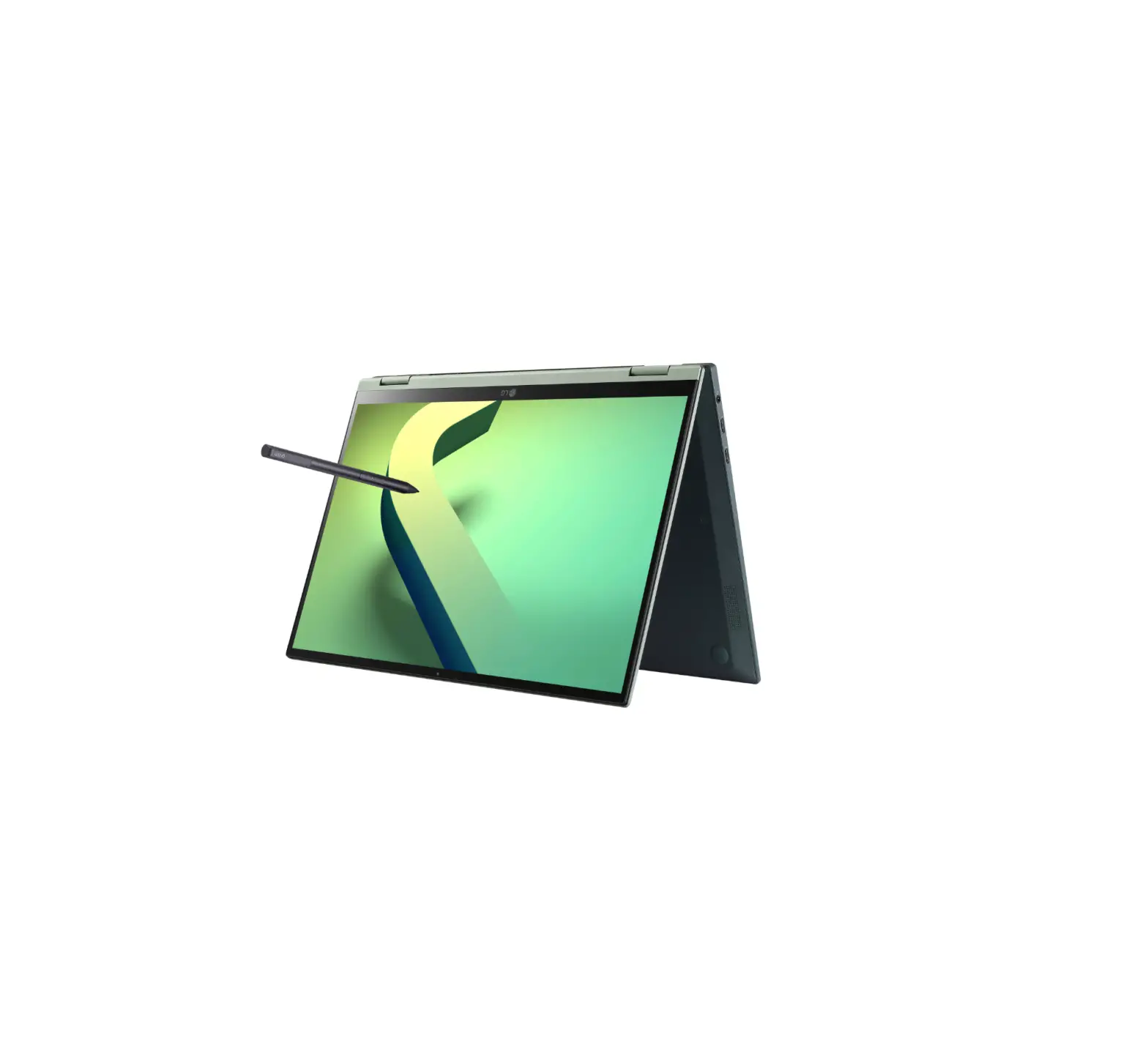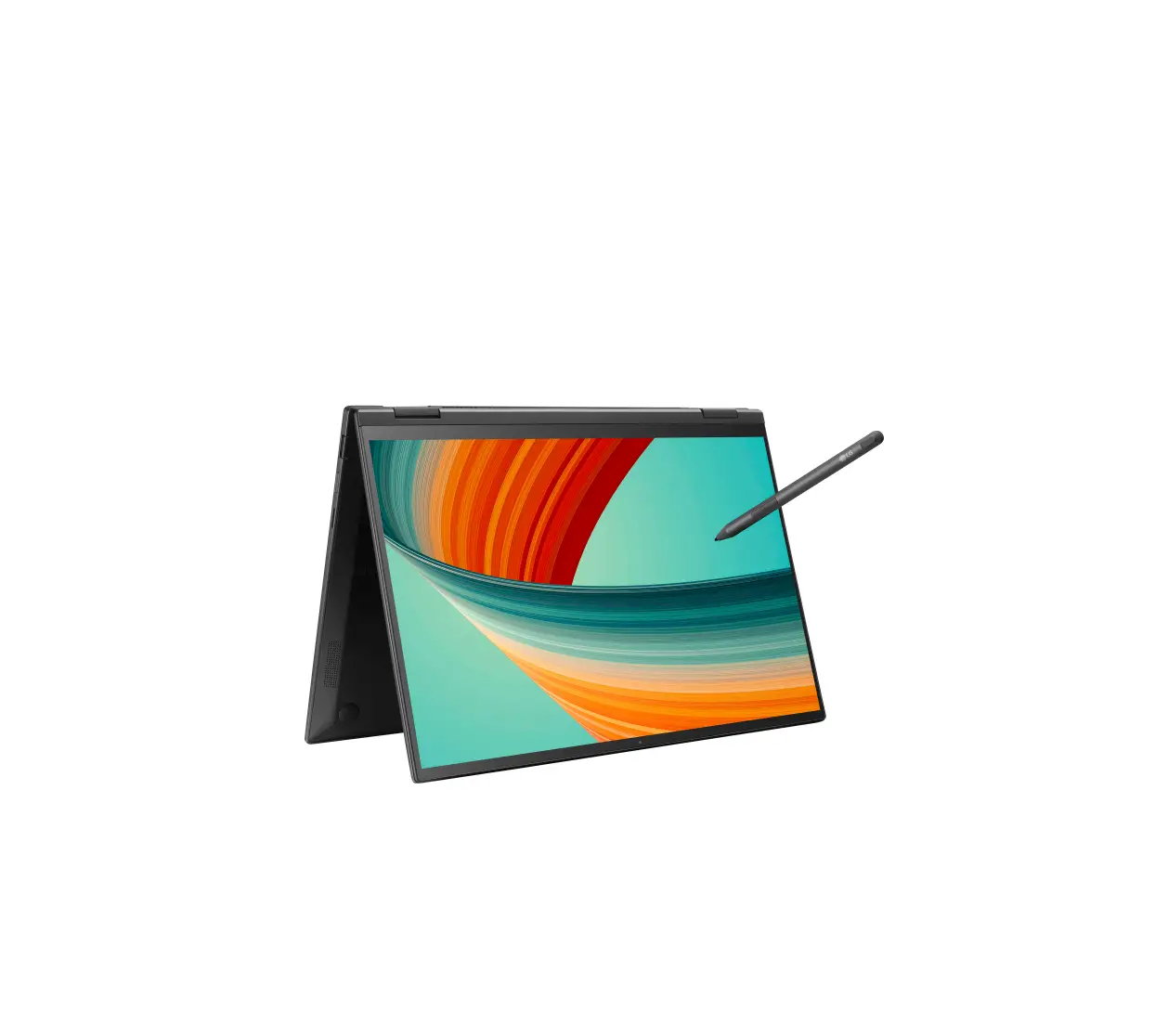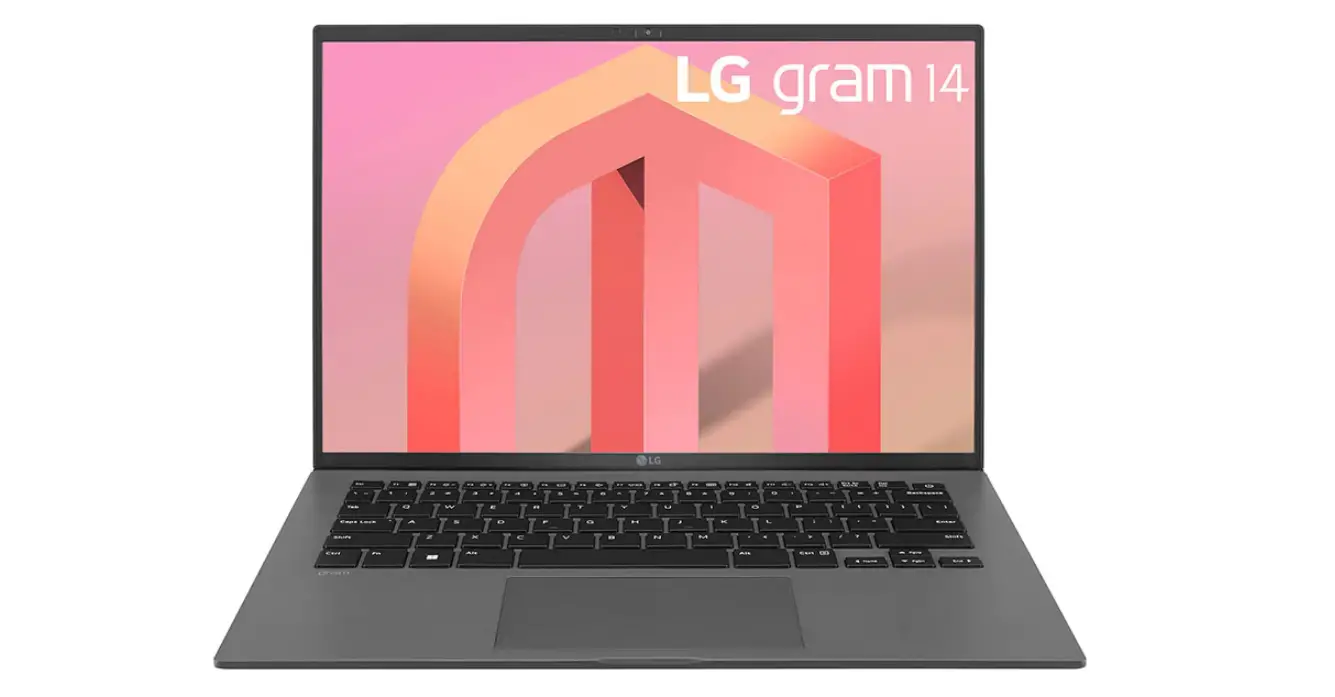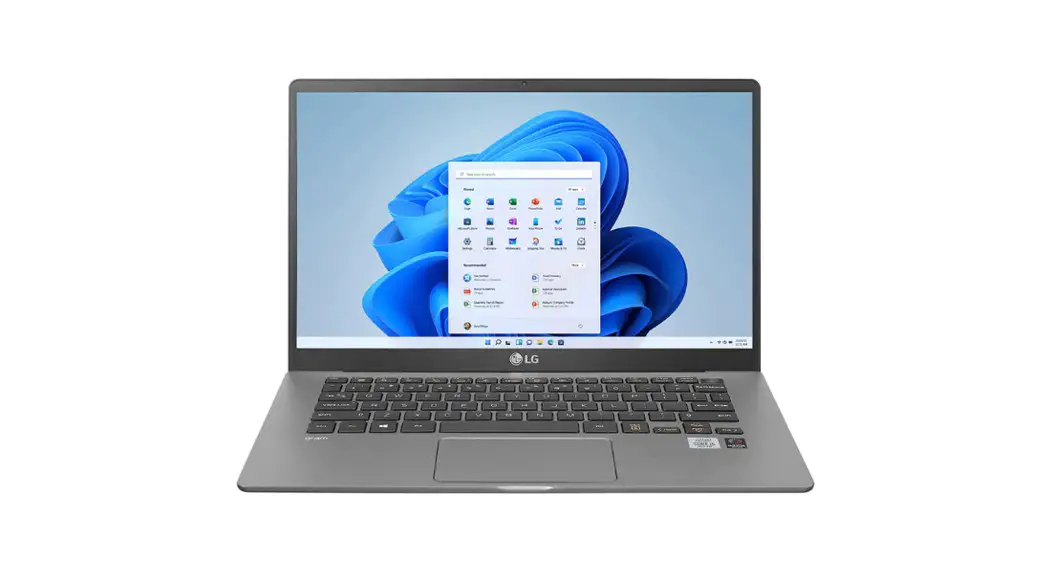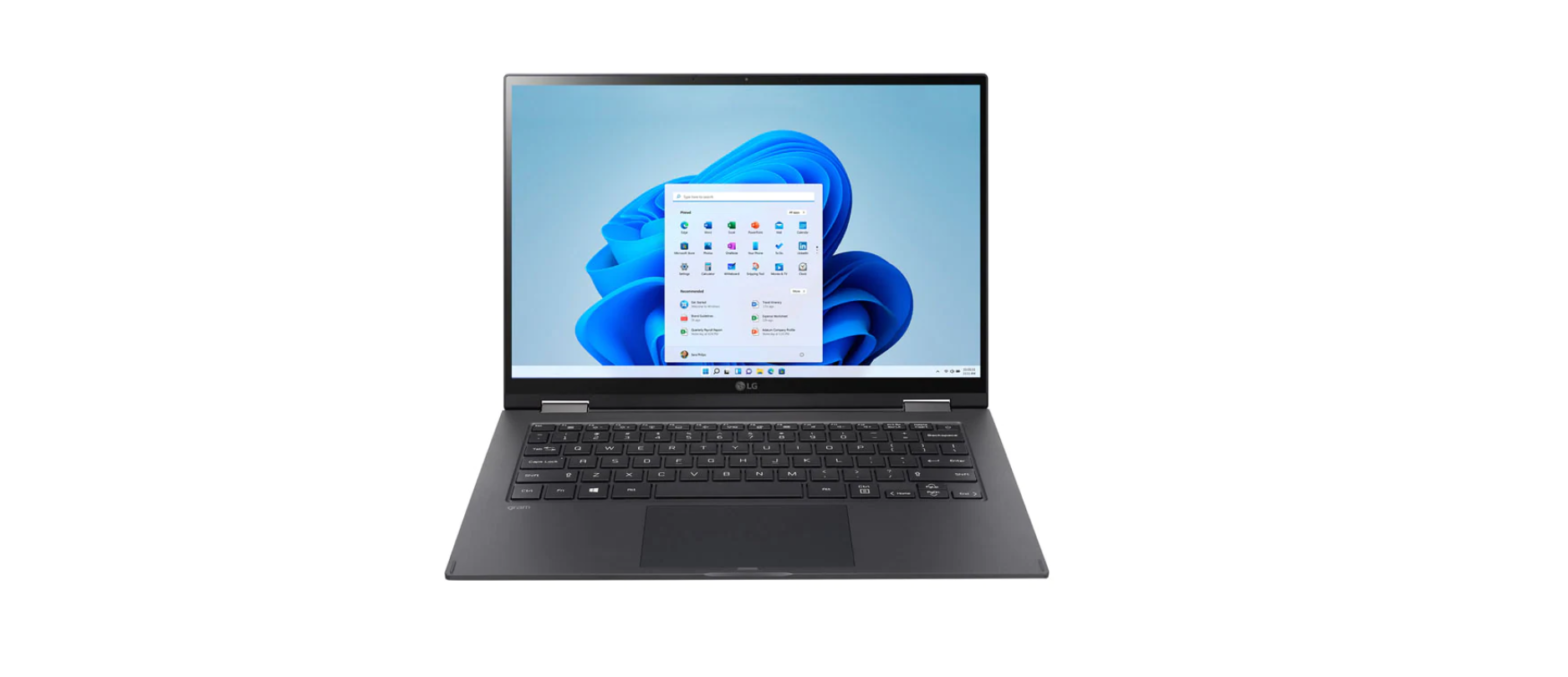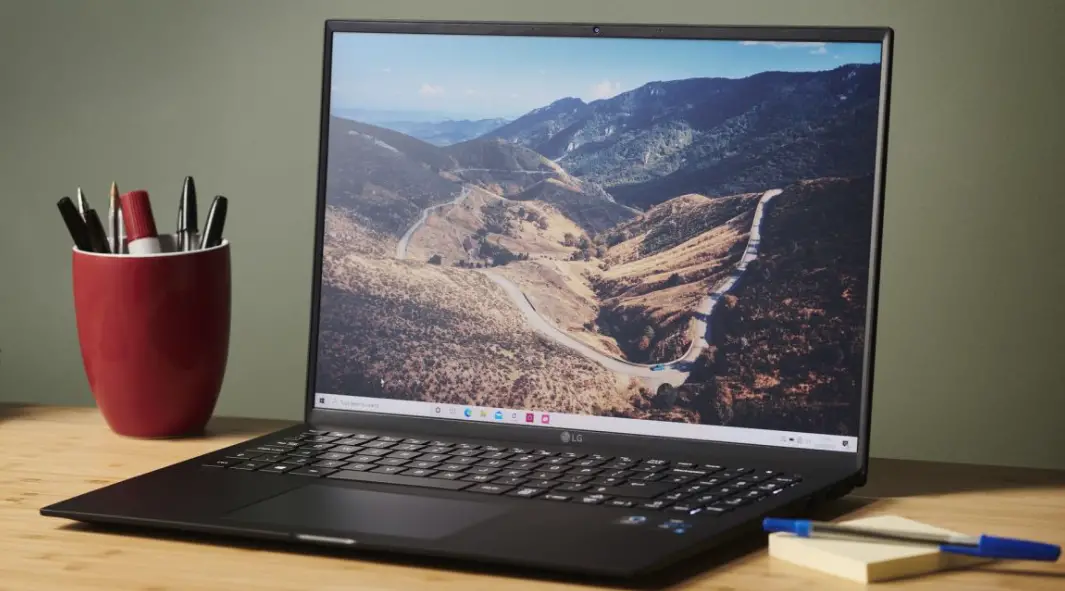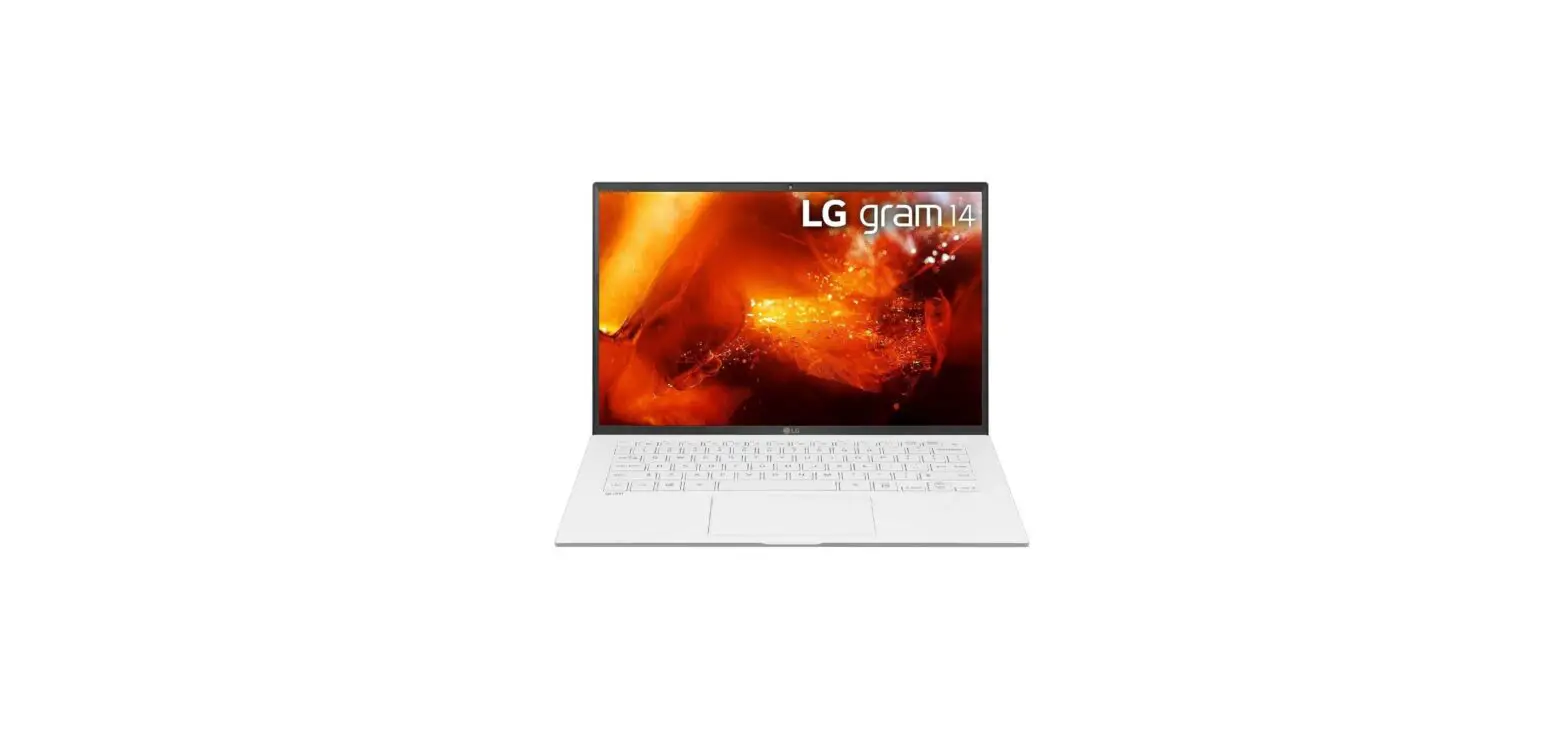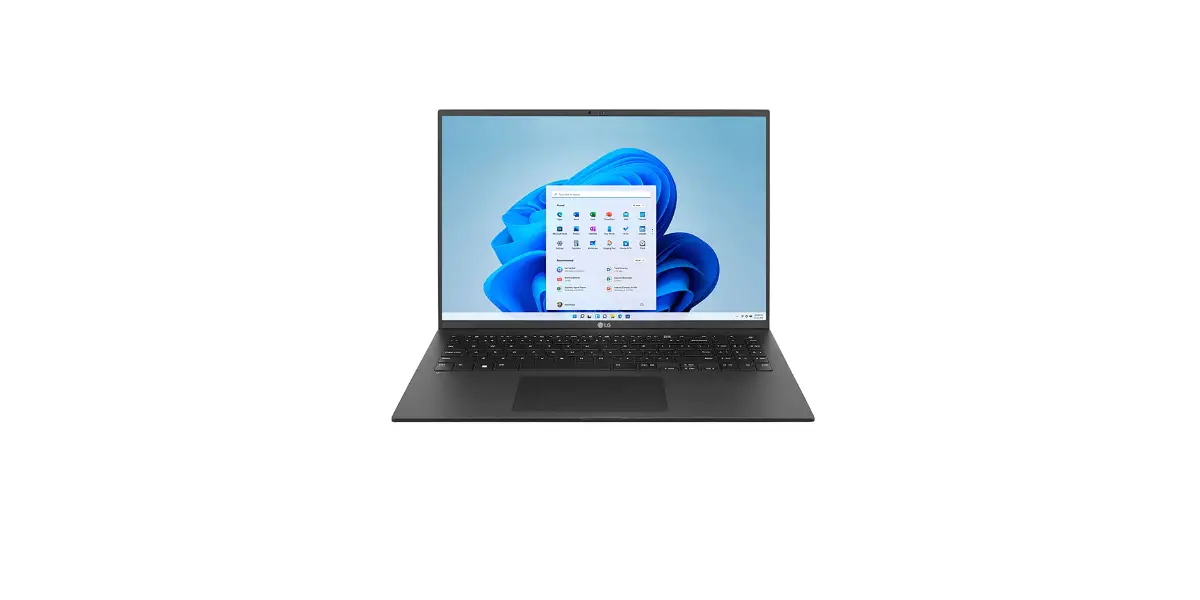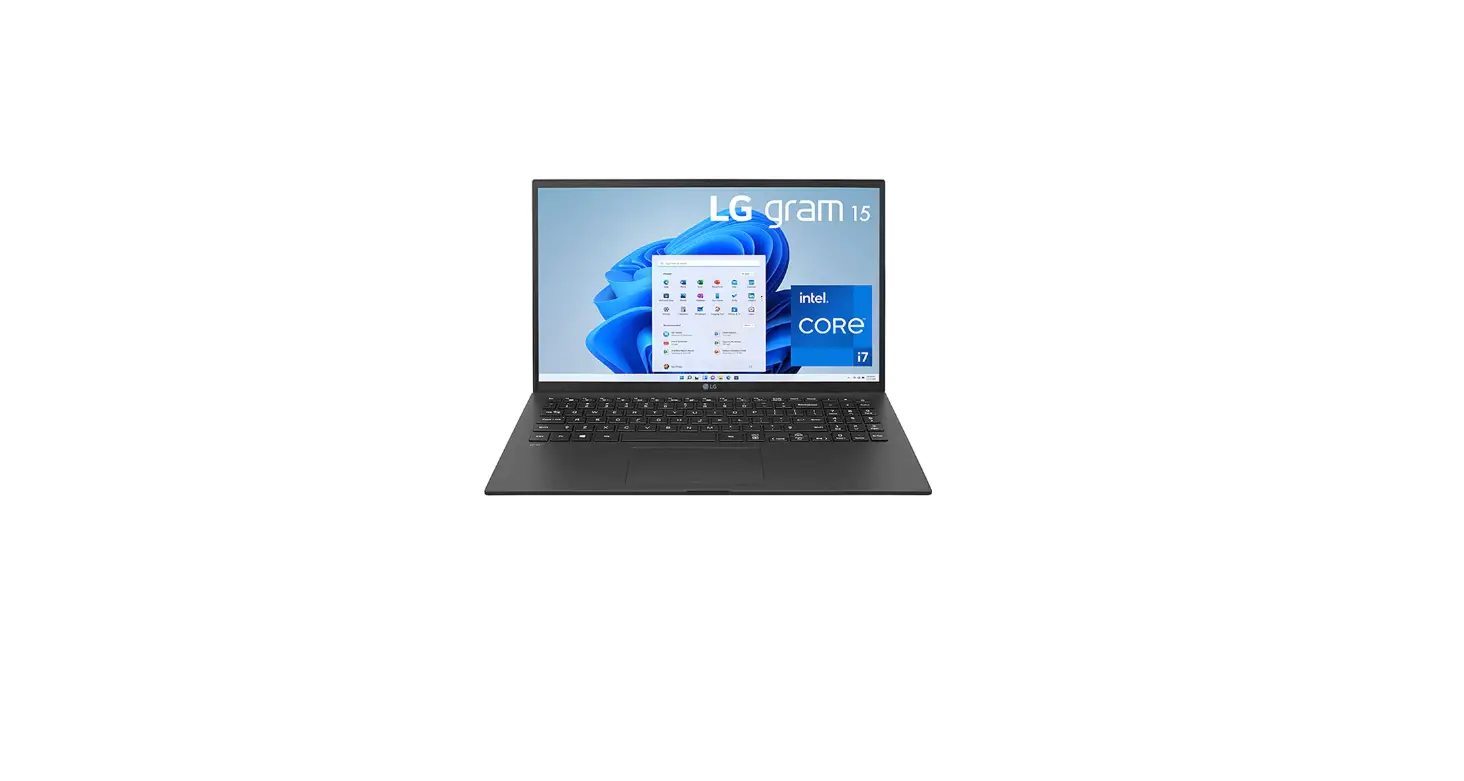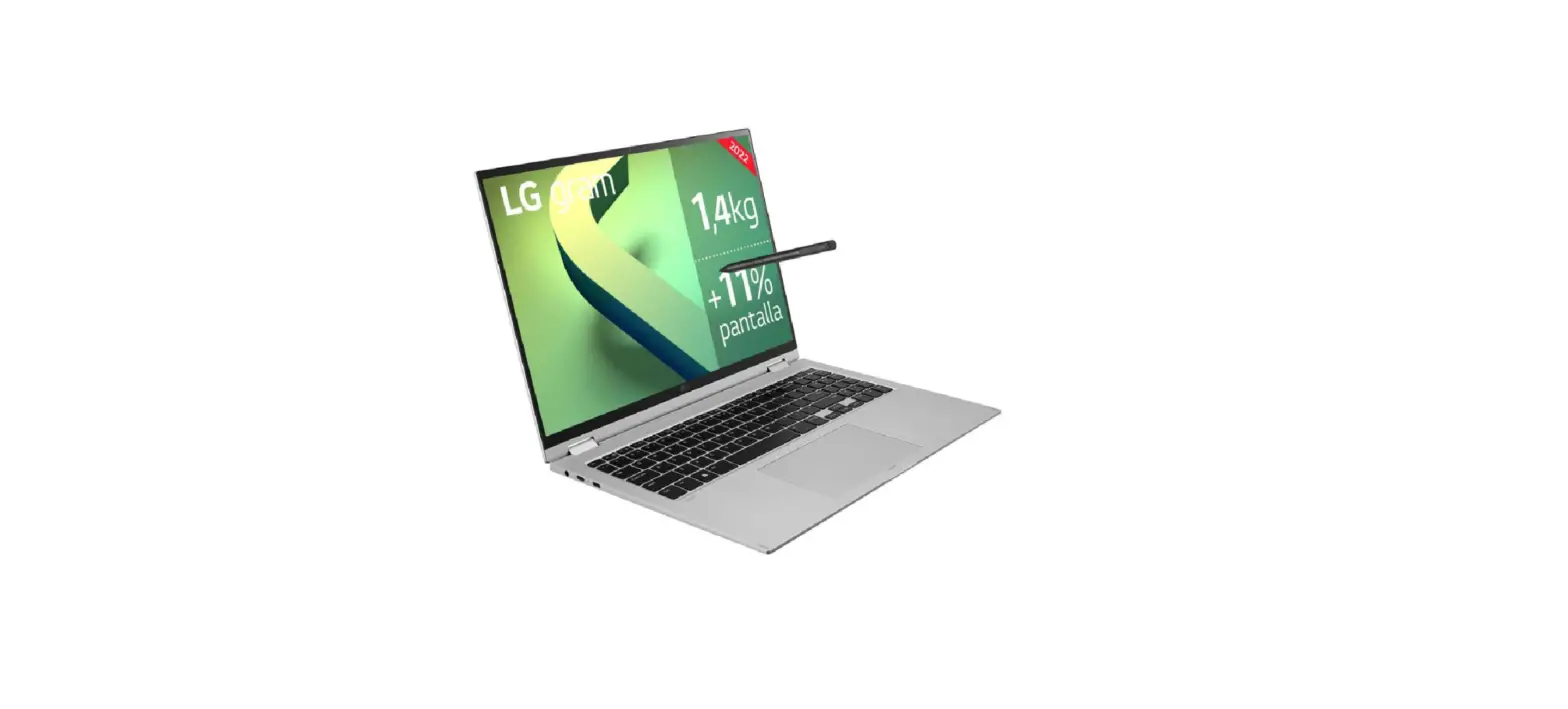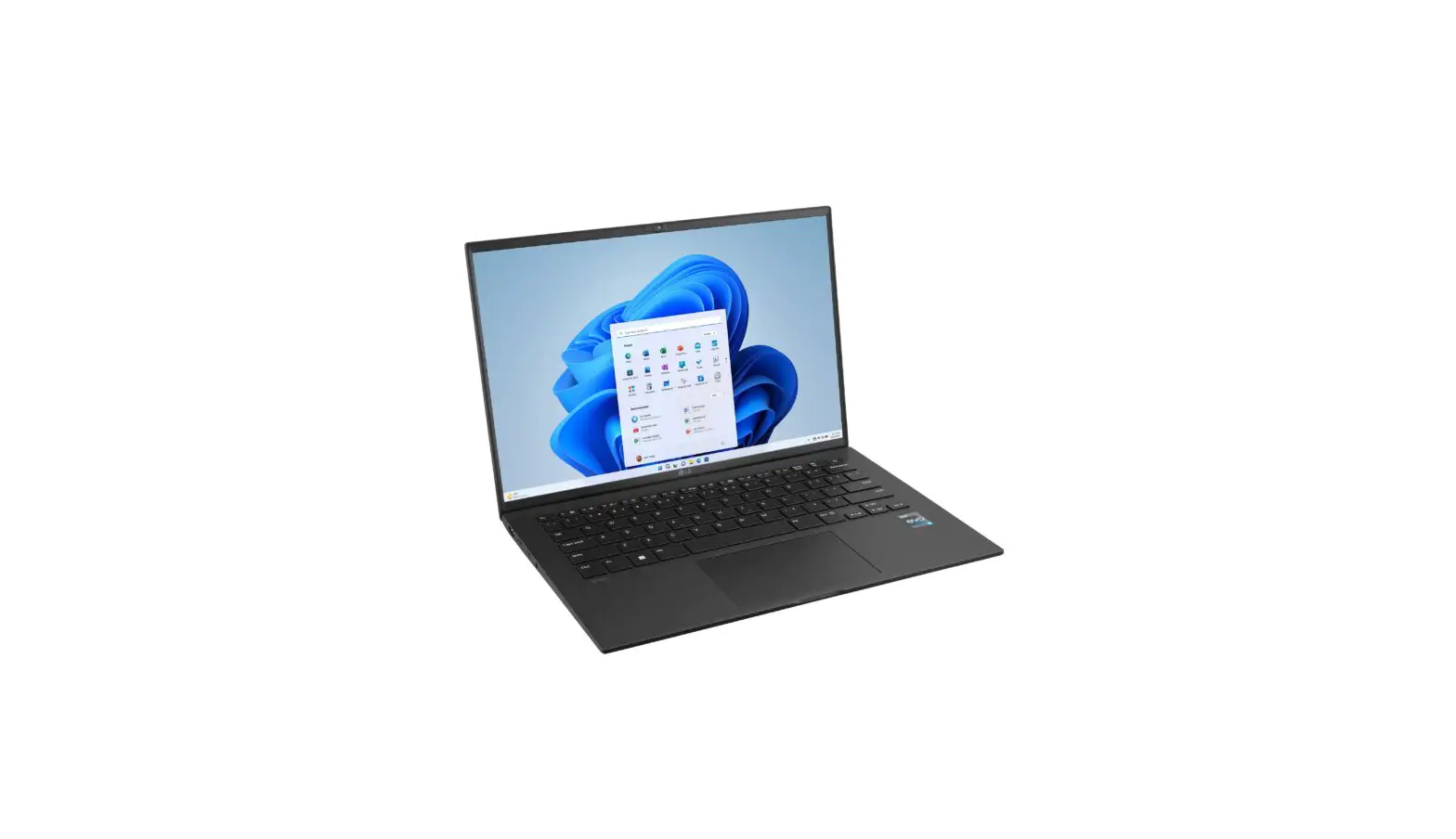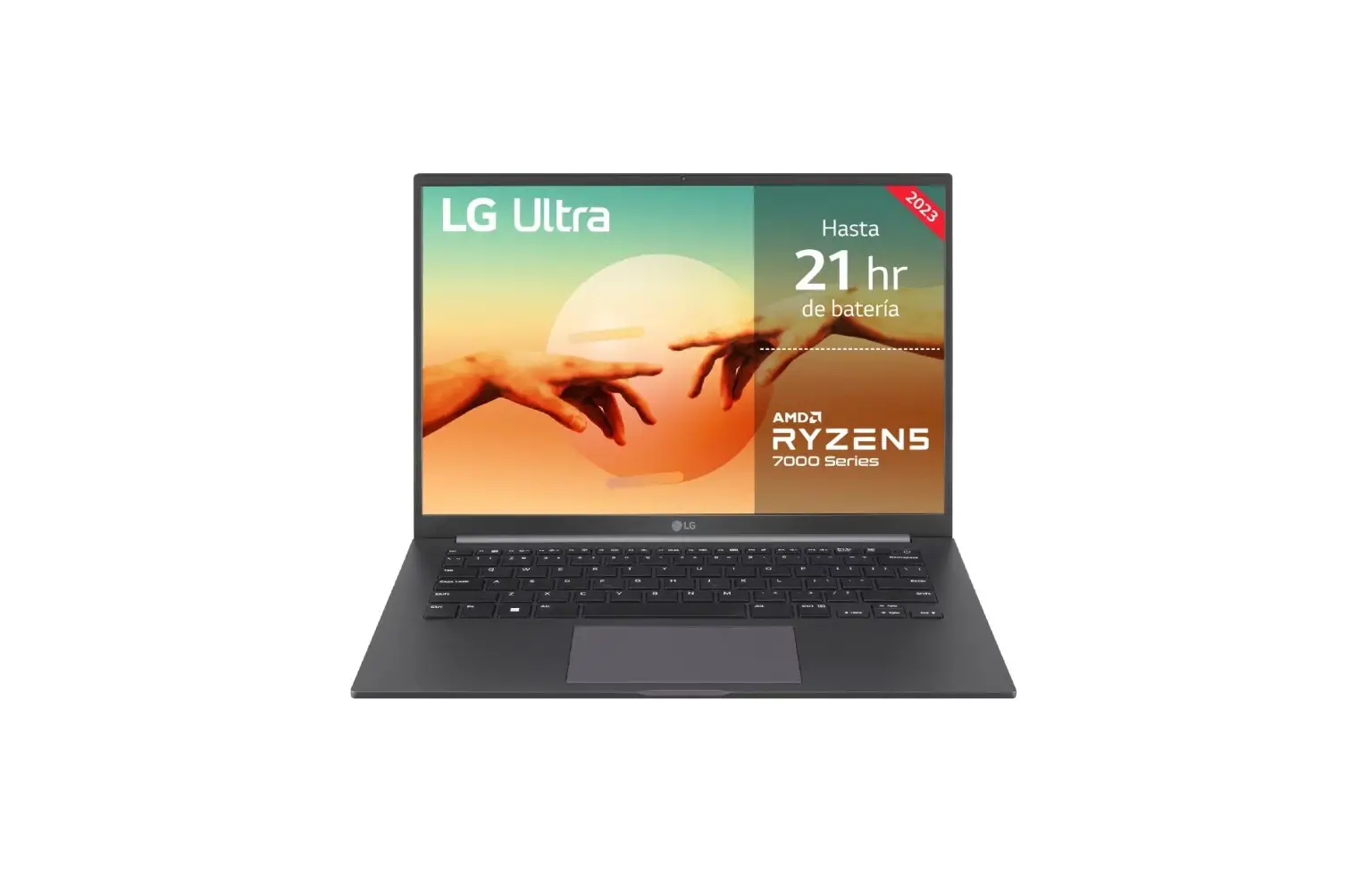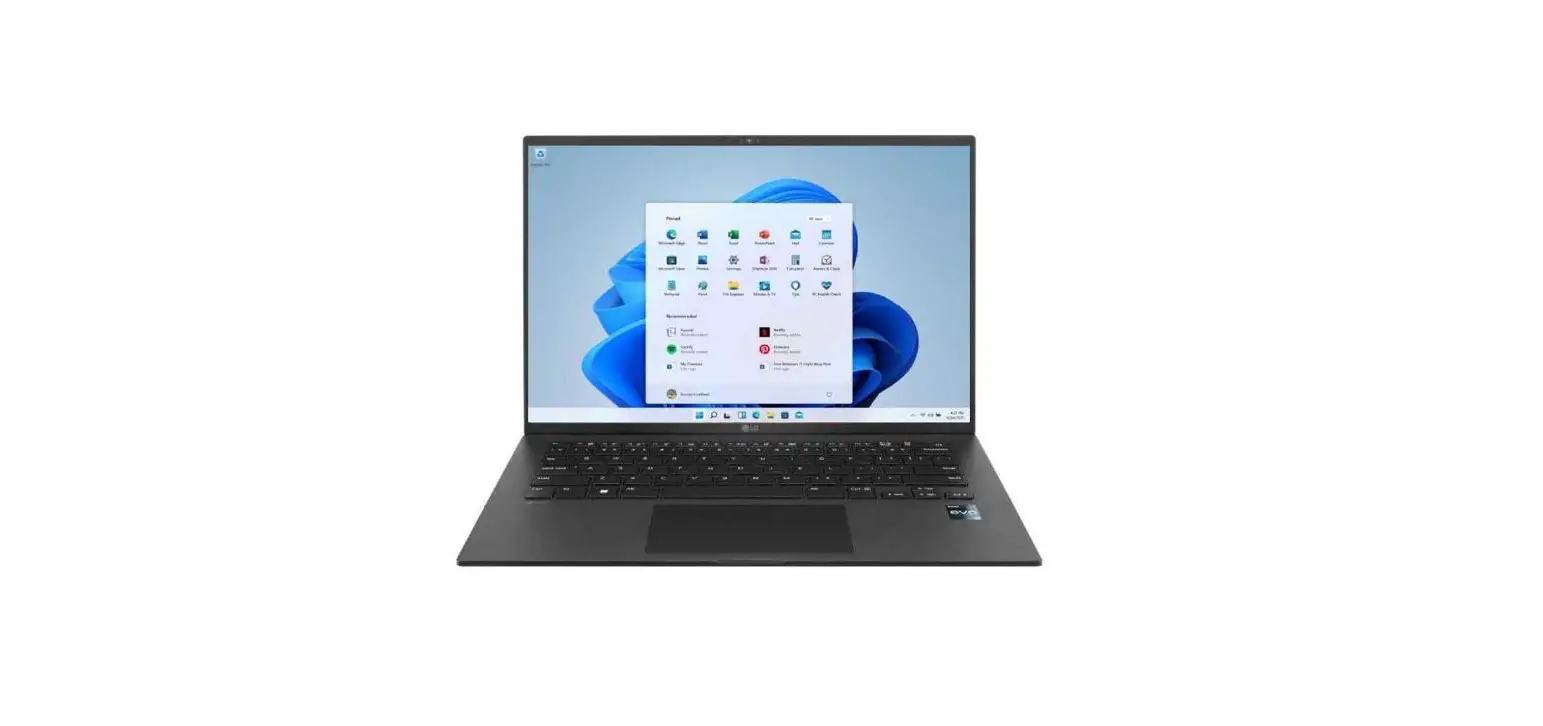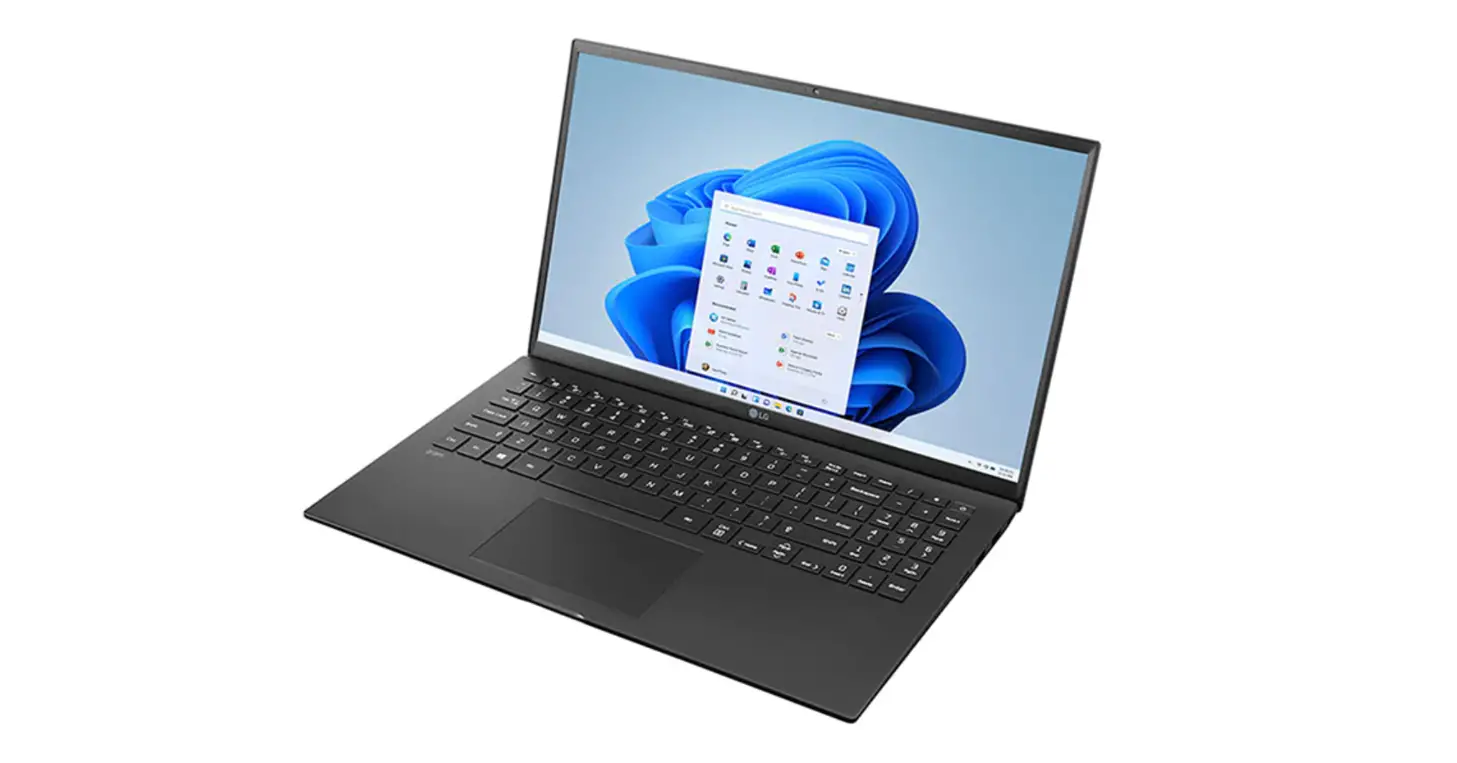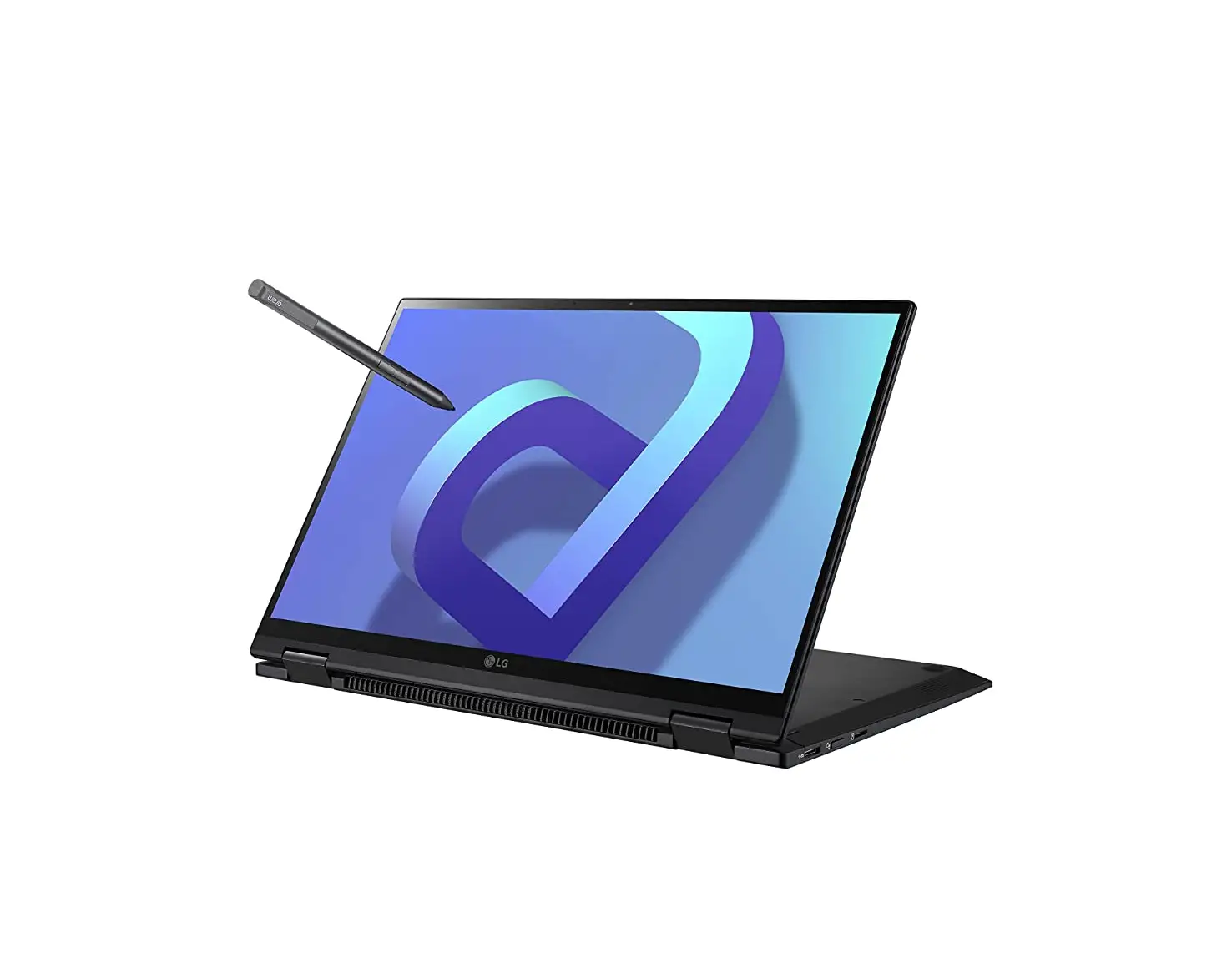
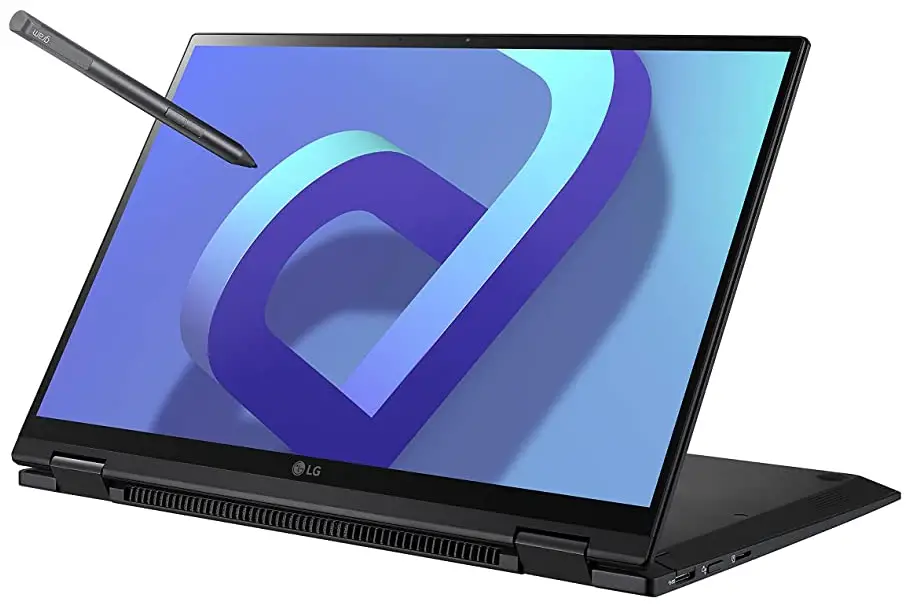
LG 14T90Q Series 14 Inch Gram Multi-Touch 2-in-1 Laptop
Precautions before Product Use
For the convenience of users, LG PC Manuals are provided in an electronic format.
The images in the owner’s manual may differ depending on the language selected and are subject to change without prior notice.
Any malfunction in the built-in solid state drive (SSD) may result in loss of stored data. You must back up all critical user data to an external storage device (USB HDD, memory card, etc.).
If you shut the system down before it is completely loaded, the product may not shut down properly. Shut down the system after it is completely loaded. (It takes about one or two minutes to completely load the system and may vary depending on the conditions.)
For more information on how to use the product, refer to the LG Easy Guide of the LG PC Manuals.
Checking the Components
The components shown below are provided when you purchase the product.
Check the components before use.
- When cleaning the product, use a cleaning agent dedicated to the PC. If you use thinner, benzene, alcohol or other similar agent, the product may be damaged or deformed.
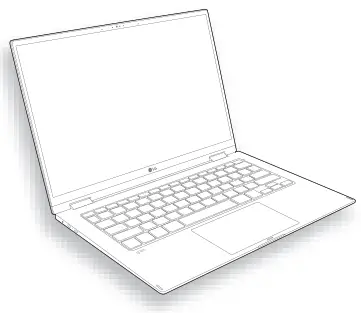
- PC Main Body

- Owner’s Manual

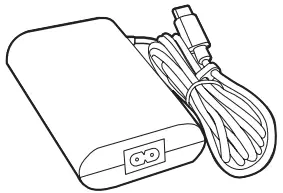
- AC Adapter

- Power Cable

- HDMI Adapter

- Stylus Pen

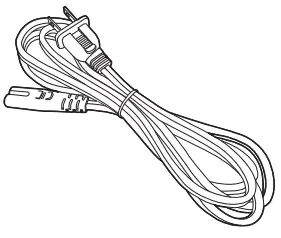
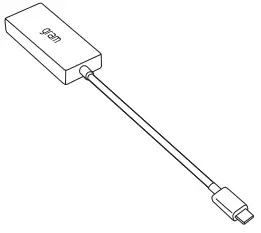
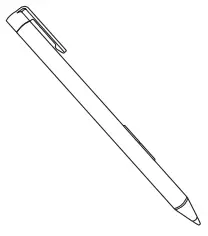
Product Tour
Front
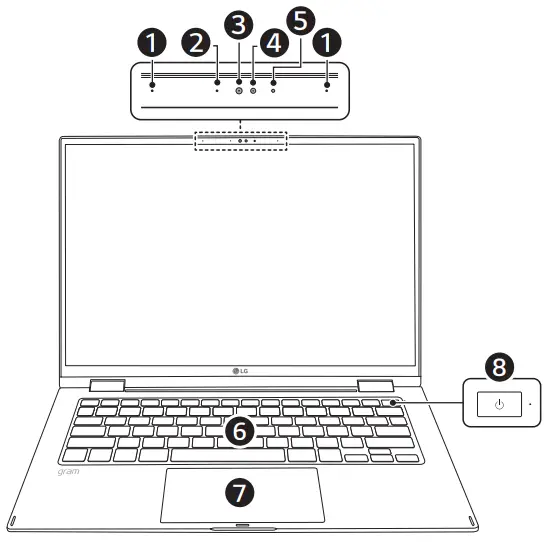
➊ Built-in Microphone
➋ Webcam Operation Status Lamp
➌ Webcam
➍ IR Camera
➎ IR LED
➏ Keyboard
➐ Touchpad
➑ Power Button [  ]
]
 NOTE
NOTE
- You can use hot keys to use Windows more conveniently.
For details, refer to the LG Easy Guide of the LG PC Manuals.
Left

Right

Back

➊ Headphone Port
(4-pole Ear Microphone Port 1 )
➋ USB-C™ Port 2
(USB 4.0 Gen 3×2 / Thunderbolt™ / Can connect to a LAN adapter / HDMI Connectable Port / Power Port)
➌ Built-in Speakers
➍ UFS/microSD Card Slot
➎ Sleep Button
➏ USB Port (USB 3.2 Gen 2×1 3 )
➐ Vent
- The 4-pole ear microphone port supports US 4-pole standards, but not the European 4-pole ear microphone.
When using ear microphone (or Bluetooth headset), audio input and output are directed to the connected device and the microphone and speaker on PC do not work.
The 4-pole ear microphone port does not support external microphone. - Depending on the specifications of the device connected to the USB-C™ port, it acts as a USB or Thunderbolt™ port.
The USB-C™ port provides Quick Charging and Always-On Charging functions for devices that support USB PD (Power Delivery). - The names of USB versions have changed from USB 3.0 (or USB 3.1 Gen 1) and USB 3.1 (or USB 3.1 Gen 2) to USB 3.2 Gen 1×1 and USB 3.2 Gen 2×1. Devices that are not authorized with USB may not operate normally when connected to the USB port. The transmission speed of a USB port may differ depending on the type of storage device (NVMe™, SSD, HDD, etc.) in the system and the connected USB device.
Using Stylus Pen
The buttons on the stylus pen work similar to those of a mouse.
NOTE
- You need to apply some pressure to use the stylus pen.
- Depending on the application used, the button operation of the stylus pen may be different.
- When the stylus pen is idle for more than 10 minutes or the pen tip stays pressed for more than 4 minutes, the pen goes into a power saving mode in order to conserve battery.
- To leave the standby mode, simply touch the screen with the Stylus Pen or click the left or right button on the pen.
- For details on the Stylus Pen, refer to the LG Easy Guide of the LG PC Manuals.
|
|
|
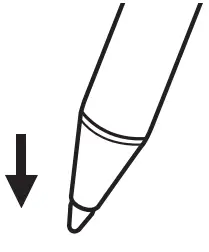 Single click (press once)
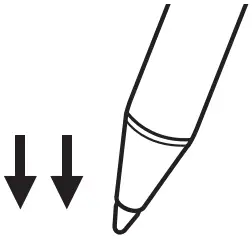 Double click (press twice)
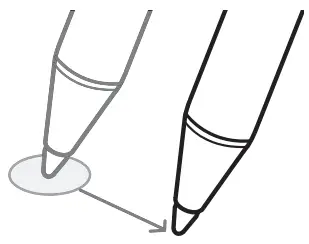 Drag (moving while pressing down)
Using Tablet PC Mode
Unfold the notebook and rotate the LCD as shown in the picture to use it as a tablet PC.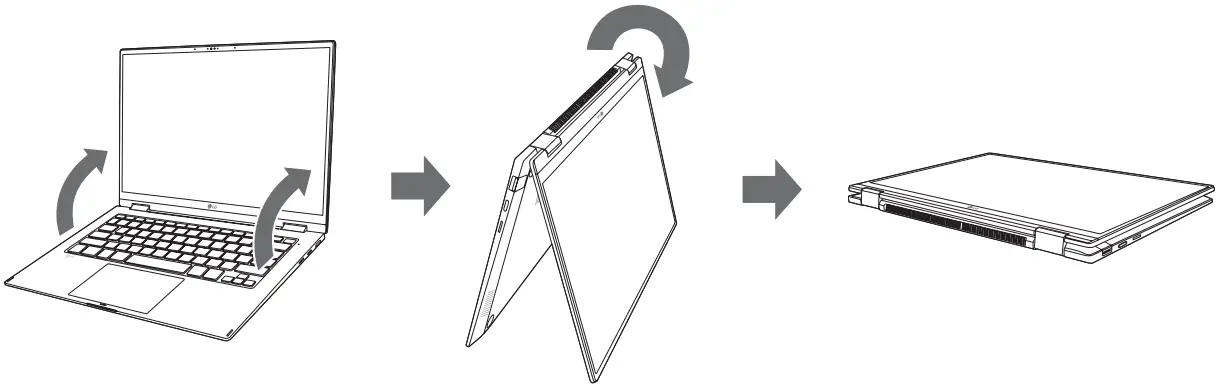
 CAUTION
- When packing or moving the product, close the LCD panel to protect it.
- Be careful not to pinch your fingers between the PC main body and the LCD panel.
- Do not rotate the LCD panel with excessive force. This may damage the hinge connecting the PC body and the LCD panel.
- In tablet PC mode, the keyboard faces the bottom of the product. Clean around the product to prevent the keyboard and PC body from being damaged.
NOTE
- When rotating the product, the screen is rotated vertically or horizontally according to the current screen angle.
- To leave standby mode (LCD off), press the power button or sleep button.
- For details on tablet PC mode, refer to the LG Easy Guide of the LG PC Manuals.
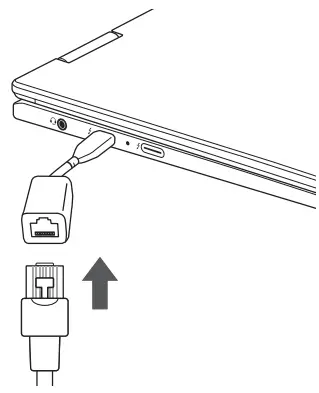
Connecting LAN Adapter
To connect to the wired LAN, you must purchase a LAN adapter separately.
- Connect the LAN adapter to the USB-C™ port on the PC.
• The USB-C™ port can be used without having to differentiate between the top and bottom surfaces. - Connect the network cable (LAN) to the LAN adapter.
- Check if you can connect to the Internet properly.

Power Connection
The AC adapter is used to power and charge the PC.
- Do not use any other AC adapter than the one that was provided when you purchased this product.
1 Connect an end of the cable to the AC adapter and the other end to a power outlet. - The AC adapter can be used from 100 V to 240 V.
2 Connect the AC adapter jack to the PC USB-C™ port. - Ensure that the power jack linked to the AC adapter and product is connected firmly

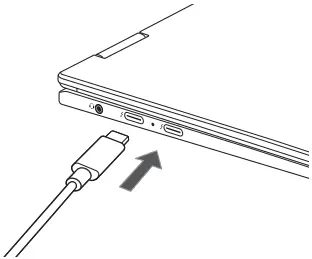
When the AC adapter is connected, the AC adapter lamp turns on.
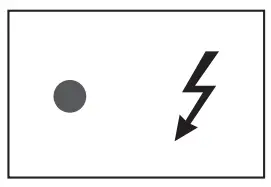 | Status | Power Lamp |
| White | When the AC adapter is connected and charging is complete. | |
| Orange | When the AC adapter is connected and is charging. | |
| Off | The AC adapter is not connected. |
- If you try to turn on the system that has entered the Hibernates mode or been turned off after a low-battery alarm, the system will not be turned on but the lamp will blink three times. If this is the case, connect the AC adapter and
charge the battery sufficiently before using it.
System Shutdown / Power Off
Press the [  ] key or [Ctrl] + [ESC] to display the Start menu.
– Press the Start button [  ] > Power button [ ] and select [Shut down].
Important Safety Precautions
Check the following ‘Important Safety Precautions’ to prevent unexpected danger or damage in advance.
‘Important Safety Precautions’ is divided into ‘WARNING’ and ‘CAUTION.’
 WARNING: Noncompliance with the instruction may cause serious physical damage or fatal injuries. CAUTION: Noncompliance with the instruction may cause minor damage to the body or the machine.
While Using the Product
WARNING
 | Use batteries certified and acknowledged by LG Electronics Inc.
|
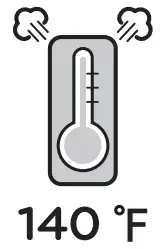 | Avoid humidity and heat above 140 °F as in cars or saunas.
|
 | Keep the battery away from heat.
|
 | If you find leakage or smell bad odor from the battery, contact the local service center.
|
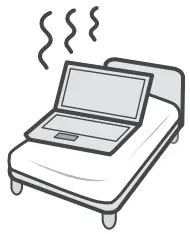 | Do not use the product on top of carpet, blanket or bed. Also, do not put the adapter under the blanket.
|
 | Do not leave the powered on product in a space without enough ventilation (i.e. bags) repeatedly or for an extended time.
|
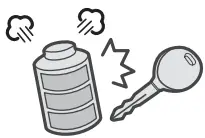 | Prevent the battery from coming in contact with any metallic object like a car ignition key or a paper clip.
|
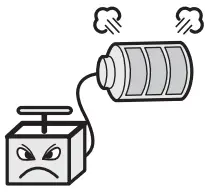 | Charge the battery only with the provided charger.
|
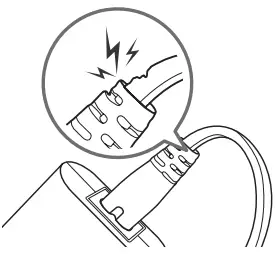 | Do not bend the cable for the AC adapter too much.
|
Guide on Battery Usage
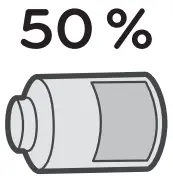 | When the PC is not used for an extended period of time, keep the battery level at about 50 % to increase the battery lifespan. |
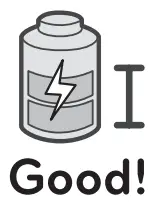 | To increase battery lifespan, use the battery for a while before charging it rather than keeping the battery completely charged. |
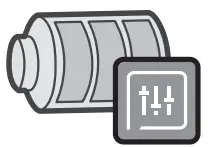 | Use the Extend Battery Life function in the LG Smart Assistant. You can limit the battery charge to 80 % of the maximum charging capacity to increase the battery lifespan. |
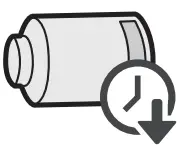 | If you don’t use the product for a long time with the battery completely charged, the battery lifespan may decrease. |
NOTE
- This product has a built-in battery pack. After purchasing your PC, be sure to charge the battery pack completely before using it for the first time.
- The battery is a wearable good and thus the battery may not last as long as before after the battery has been used for a long time.
- The internal battery cannot arbitrarily be removed or replaced. Removing it may void the warranty.
- If you need to remove or replace the battery, visit a designated service center.
- We charge a fee for removing or replacing the battery
Pre-Tech Support Checklist
Troubleshooting
If the following symptoms appear while using the product, check again.
It may not be a malfunction.
| Symptom | Cause and Solution |
| Some of the Windows functions do not work normally or are not supported. |
|
| Part of LG Software is not installed. |
|
| The screen color does not display properly. |
|
| The power does not turn on. |
|
| The system stops during use or does not properly turn off. |
|
| The touchpad is not functioning properly. |
|
| The wireless network is not connected. |
|
| I want to reinstall the driver. |
|
| An error message appears. |
|
 ] > [System] > [Display] > [Night light] > [Off].
 ] icon on the right side of the taskbar and check if AP displays properly.
Appendix
Registered Trademark and Open Source Information Microsoft™, MS™, WinPE™ and Windows® are registered trademarks of Microsoft Corporation™ USB Type-C™ and USB-C™ are the trademarks of USB Implementers Forum.
Thunderbolt™ is a trademark of Intel Corporation or its subsidiaries in the U.S. and/or other countries. microSD® and the microSD logo are trademarks or registered trademarks of SD-3C, LLC.
Wi-Fi® is a registered trademark of Wi-Fi Alliance Corporation.
To obtain the source code that is contained in this product, under GPL, LGPL, MPL, and other open source licenses that have the obligation to disclose source code, and to access all referred license terms, copyright notices and other relevant documents please visit https://opensource.lge.com. LG Electronics will also provide open source code to you on CD-ROM for a charge covering the cost of performing such distribution (such as the cost of media, shipping, and handling) upon email request to [email protected]. This offer is valid to anyone in receipt of this information for a period of three years after our last shipment of this product.
Battery take-back information
In case rechargeable battery is included in this product, the entire device should be recycled in compliance with rechargeable battery recycling standards because of the internal battery. To dispose of properly, call (800) 822-8837 or visit www.call2recycle.org.
Customer Support
Supplier’s Declaration of Conformity
Englewood Cliffs, New Jersey 07632
Email [email protected]

 call2recycle.org
 LG Open Source
 Microsoft – Cloud, Computers, Apps & Gaming