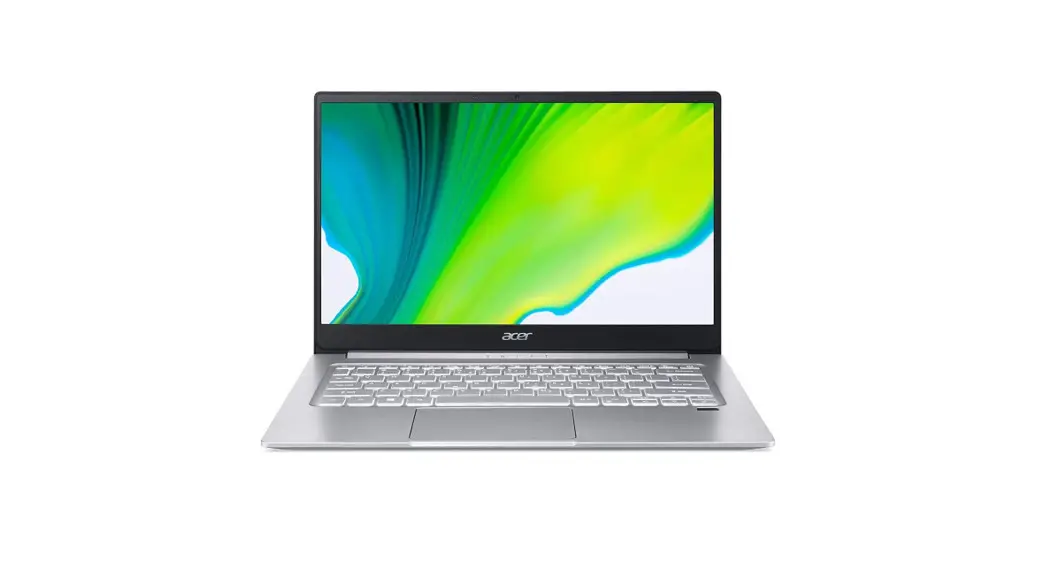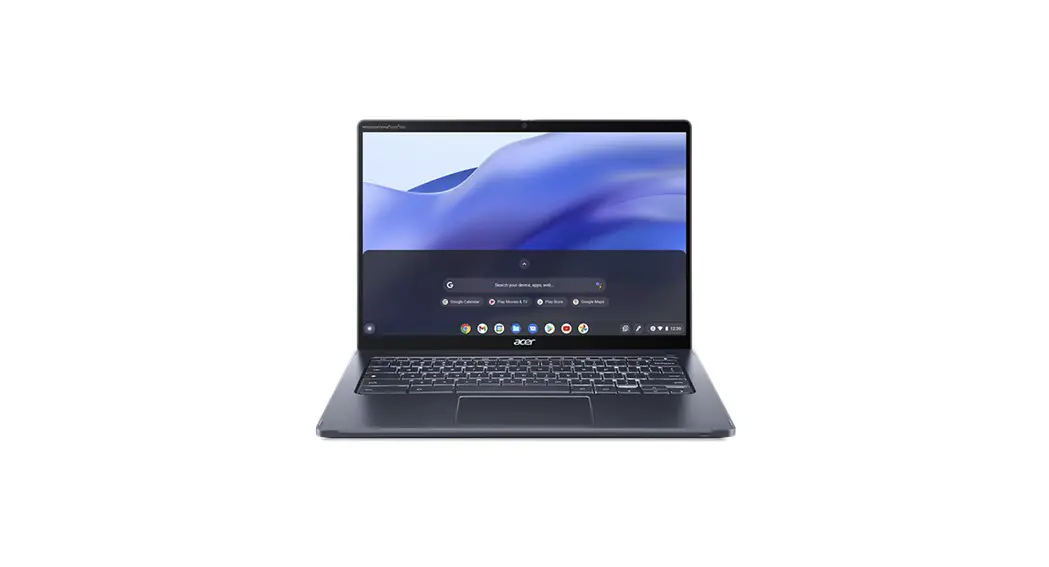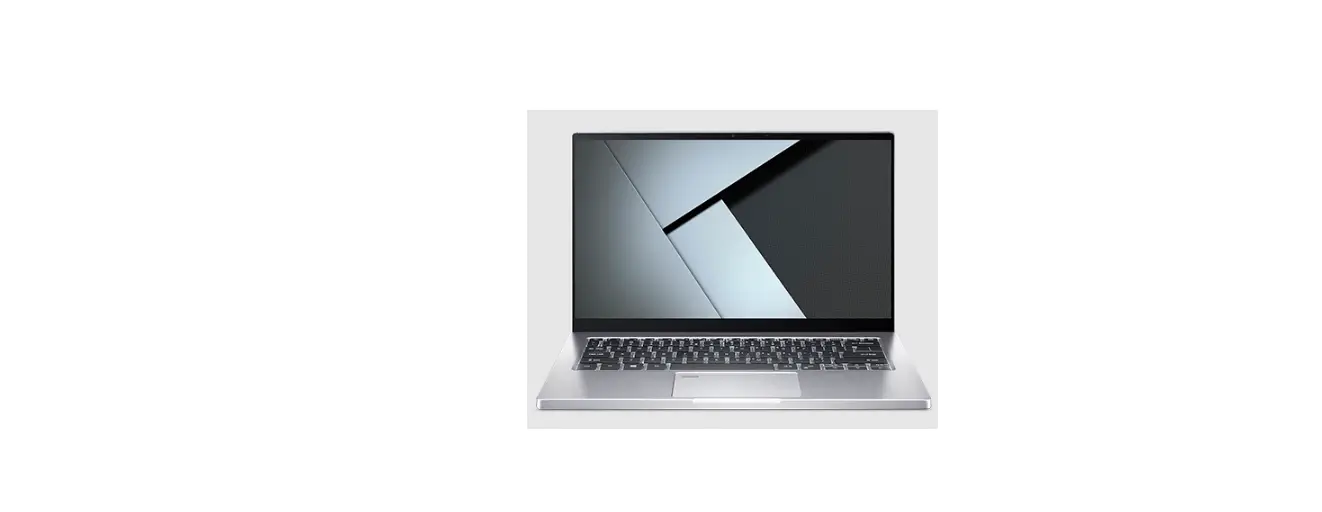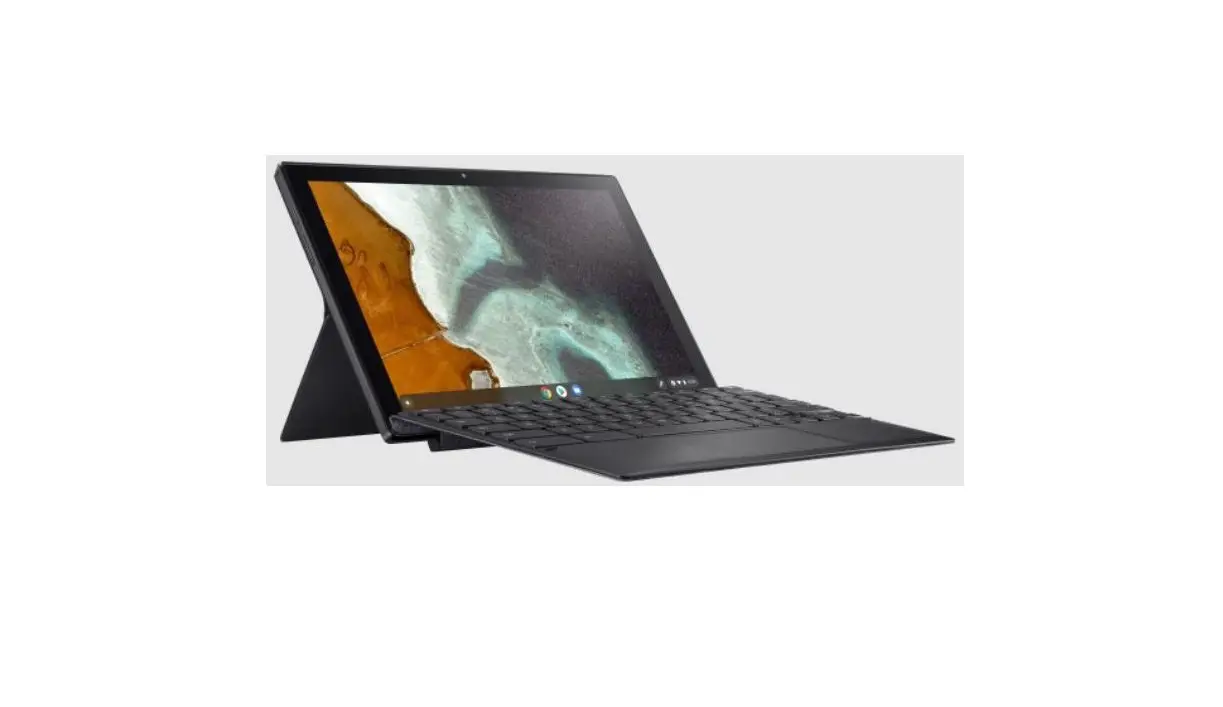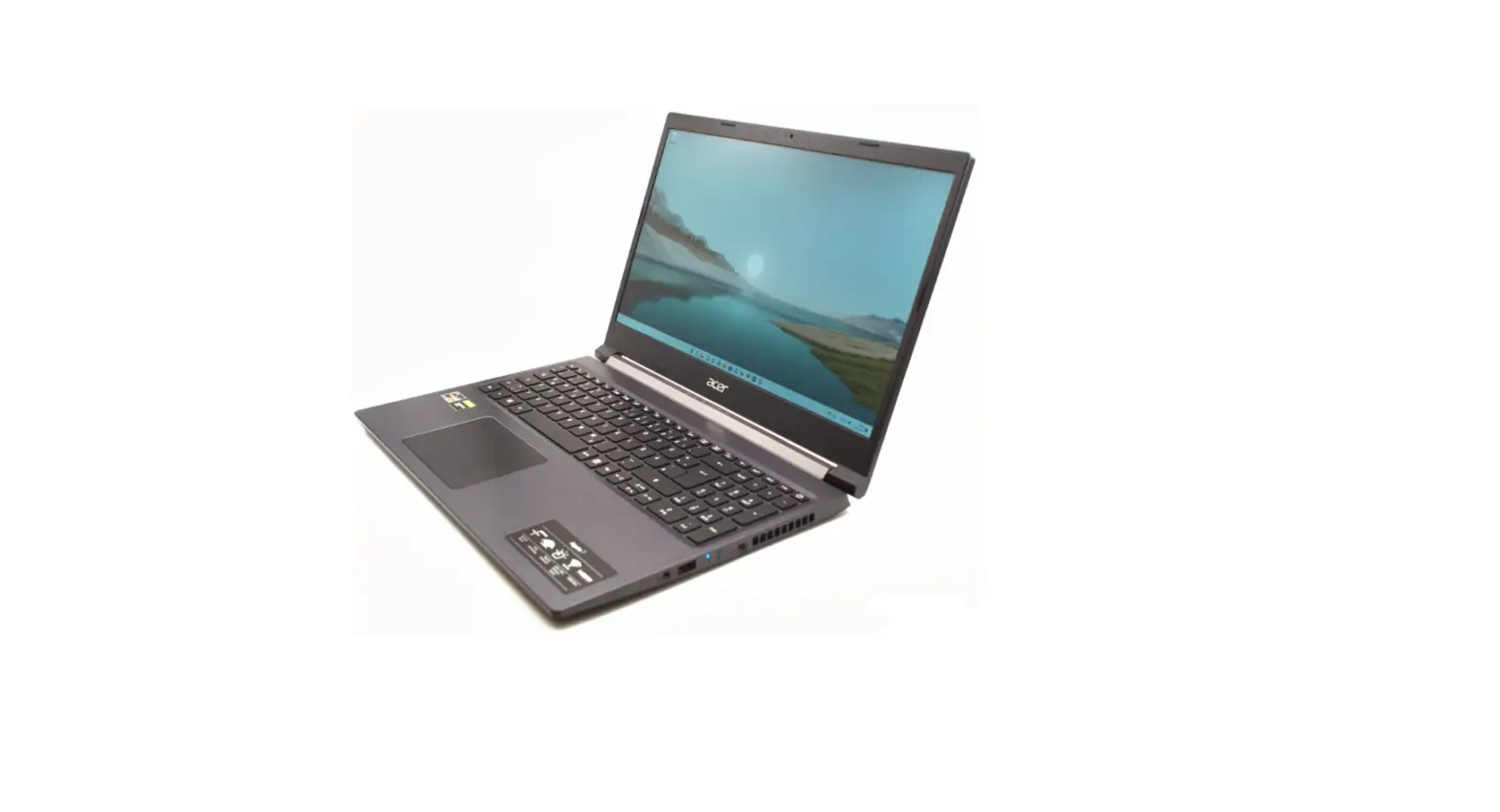

acer MT7921 Portable Laptop
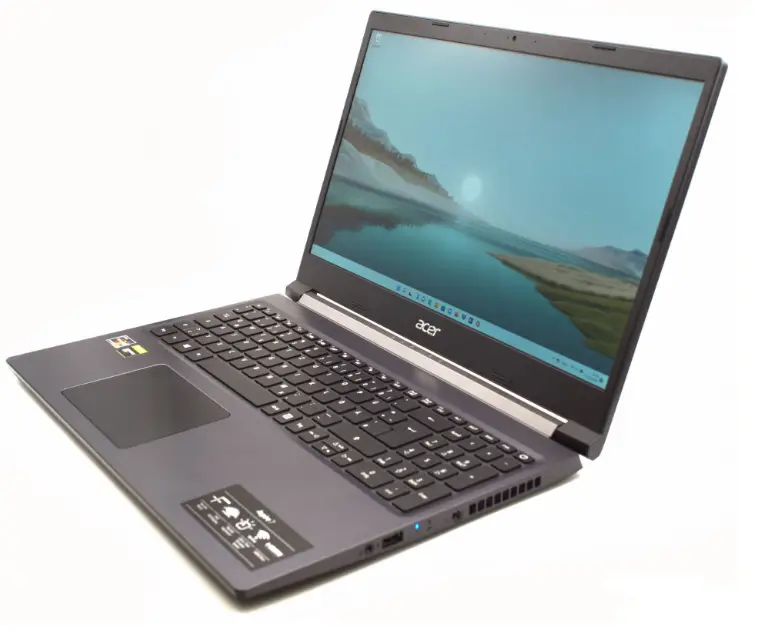
This manual contains proprietary information that is protected by copyright laws. The information contained in this manual is subject to change without notice. Some features described in this manual may not be supported depending on the Operating System version. Images provided herein are for reference only and may contain information or features that do not apply to your computer. Acer Group shall not be liable for technical or editorial errors or omissions contained in this manual.
ENVIRONMENT
Temperature
- Operating: 5 °C to 35 °C
- Storage: -20 °C to 60 °C
Humidity (non-condensing)
- Operating: 20% to 80%
- Storage: 20% to 60%
Your Acer Chromebook tour
Front view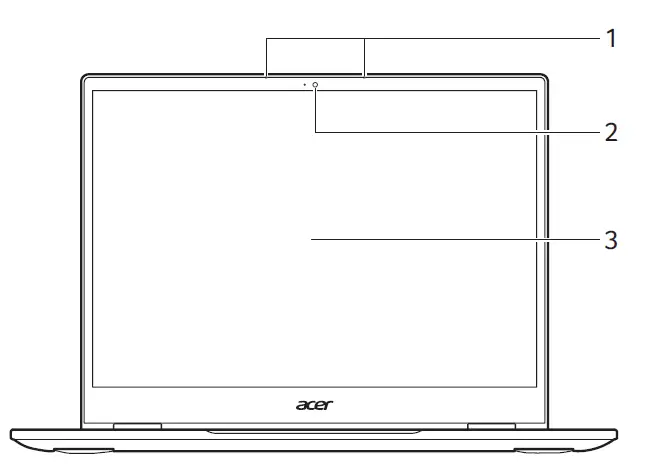
| # | Icon | Item | Description |
| 1 | Microphones | Internal microphones for sound recording. | |
| 2 | Webcam | Web camera for video communication. A light next to the webcam indicates that the webcam is active. | |
| 3 | Touchscreen | Displays computer output, supports multi-touch input. |
Keyboard view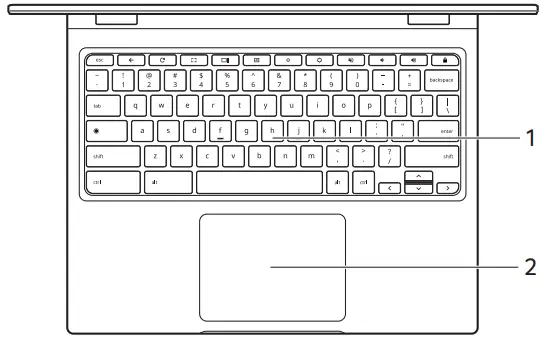
| # | Icon | Item | Description |
| 1 | Keyboard | For entering data into your computer. | |
|
2 |
Touchpad / click button | Touch-sensitive pointing device which functions like a computer mouse. Pressing down anywhere on the pad functions like the left button of a mouse. Pressing down anywhere with two fingers functions like the right button of a mouse. |
Function keys
The Chromebook uses function keys or key combinations to access some hardware and software controls, such as screen brightness and volume. The dedicated function keys each have a specific function.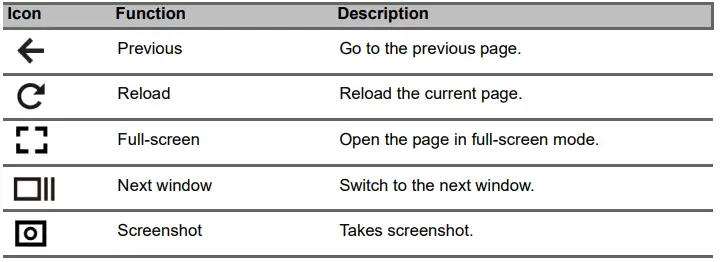
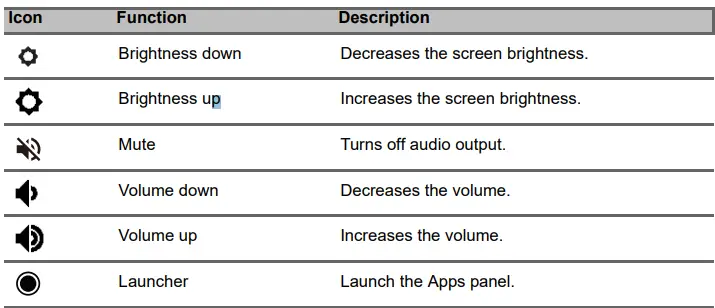
Common keyboard shortcuts
You can use shortcuts to complete some tasks more quickly.
Note: For a complete list of keyboard shortcuts, press Ctrl + Alt + /
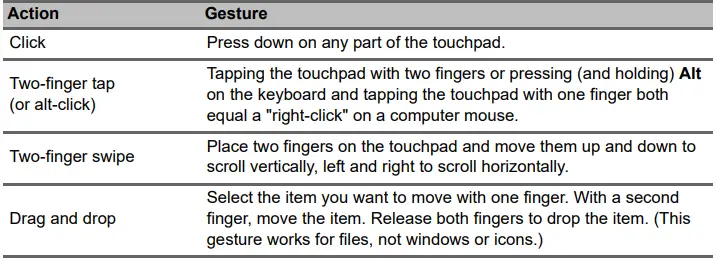
Touchpad
The built-in touchpad is a pointing device that senses movement on its surface. This means the cursor responds as you move your fingers across the surface of the touchpad.
Left view
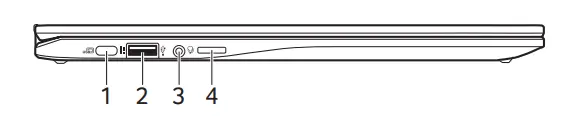
| # | Icon | Item | Description |
|
1 | 
| USB Type-C port with DC-in | Connects to the provided USB Type-C power adapter and to USB devices with a USB Type-C connector. Supports DisplayPort™ over USB-C™. |
| 2 |  | USB port | Connects to USB devices. |
| 3 |  | Headset/speaker jack | Connects to audio devices (e.g., speakers, headphones), or a headset with microphone. |
| 4 |  | MicroSD card slot | Insert a microSD card into this slot. |
USB 3.2 Gen 1 information
- USB 3.2 Gen 1 compatible ports are blue.
- Compatible with USB 3.2 Gen 1 and earlier devices.
- For optimal performance, use USB 3.2 Gen 1-certified devices.
- Defined by the USB 3.2 Gen 1 specification (SuperSpeed USB).
USB Type-C information
- Supports DisplayPort™ audio/video output.
- Delivers up to 3 A at 5 V DC for USB charging.
- DC-in: requires power adapter or power source providing 45 W at 5~20 V.
For optimal performance, please use a certified Acer power adapter or USB Power Delivery device.
Right view

| # | Icon | Item | Description |
| 1 | + / – | Volume control key | Adjusts the system volume. |
|
2 | 
| USB Type-C port with DC-in | Connects to the provided USB Type-C power adapter and to USB devices with a USB Type-C connector. Supports DisplayPort™ over USB-C™. |
 | Power button | Turns the computer on and off. | |
| 3 |  | Indicates the computer’s battery status. Charging: The light shows amber when the battery is charging. Fully charged: The light shows blue when in AC mode. | |
| Battery indicator |
Bottom view
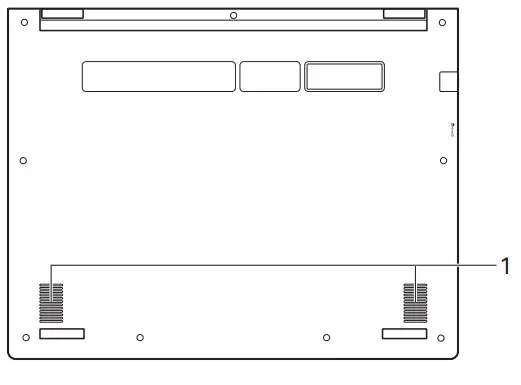
| # | Icon | Item | Description |
| 1 | Speakers | Deliver stereo audio output. |