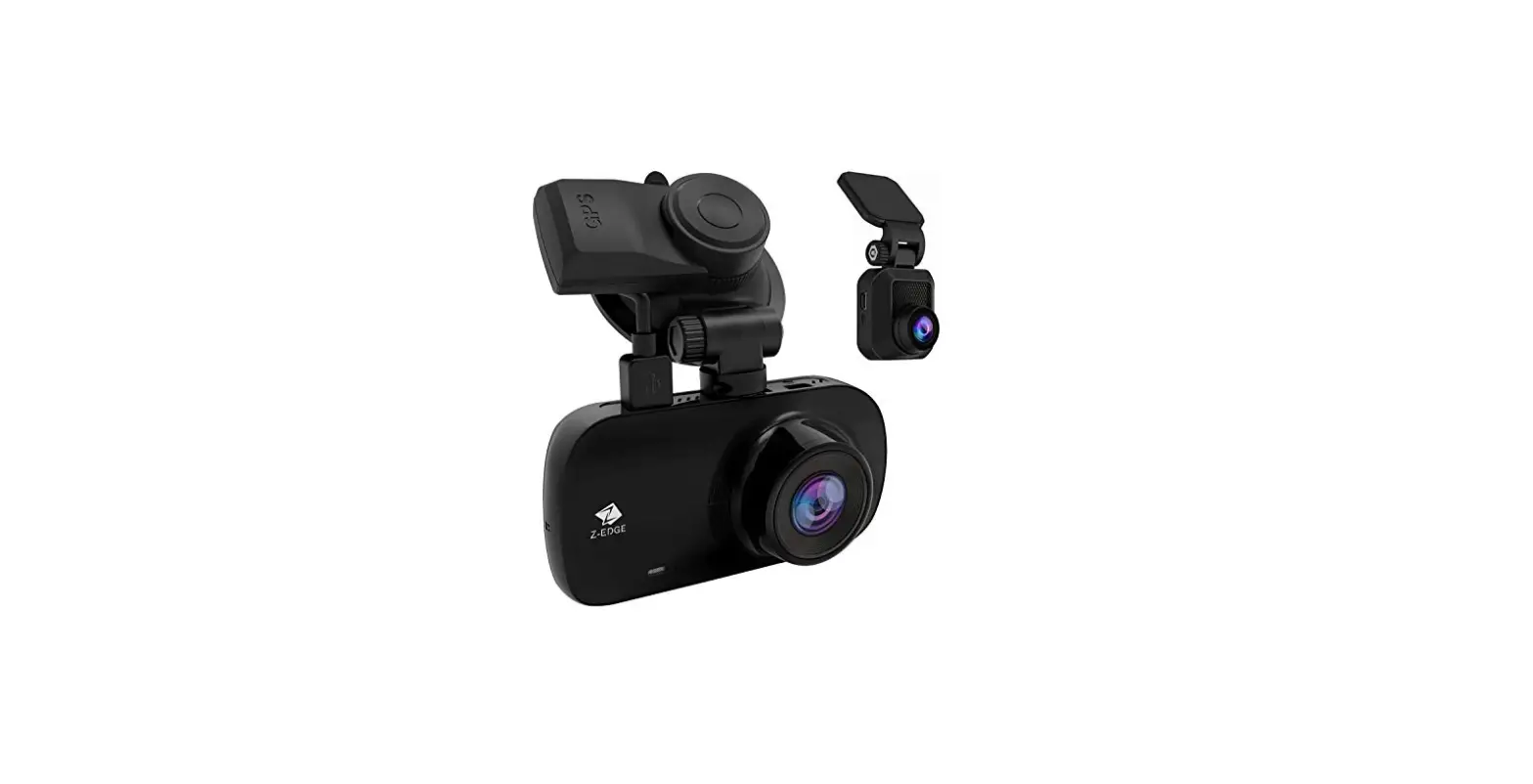

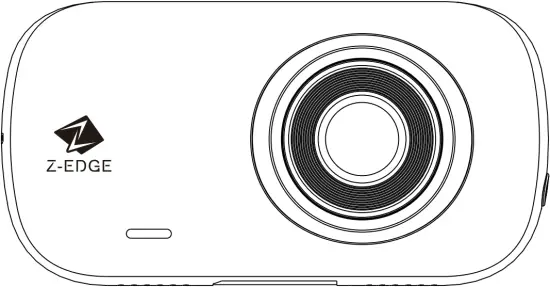
Z3D
USER GUIDE
1 Introduction
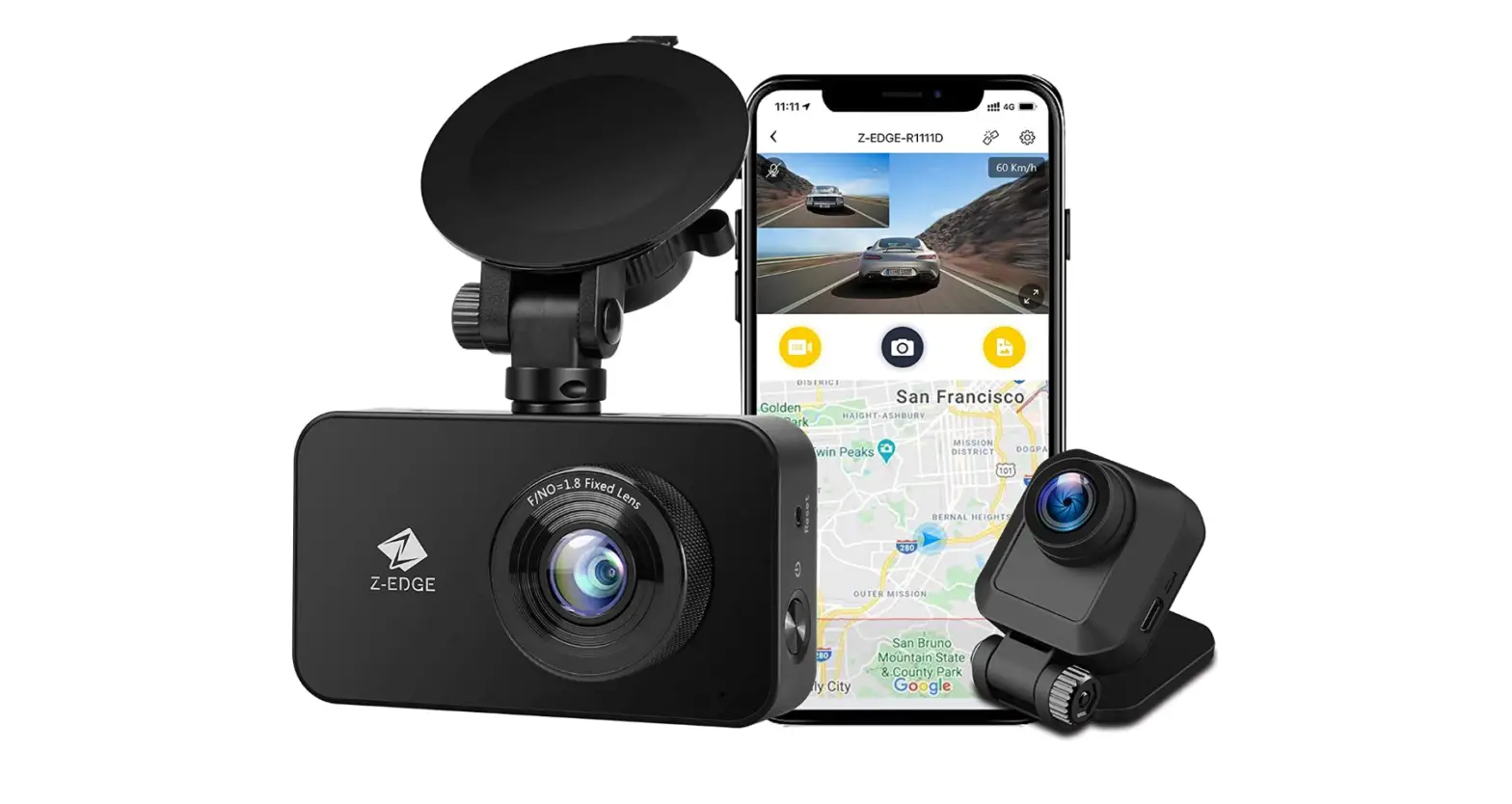
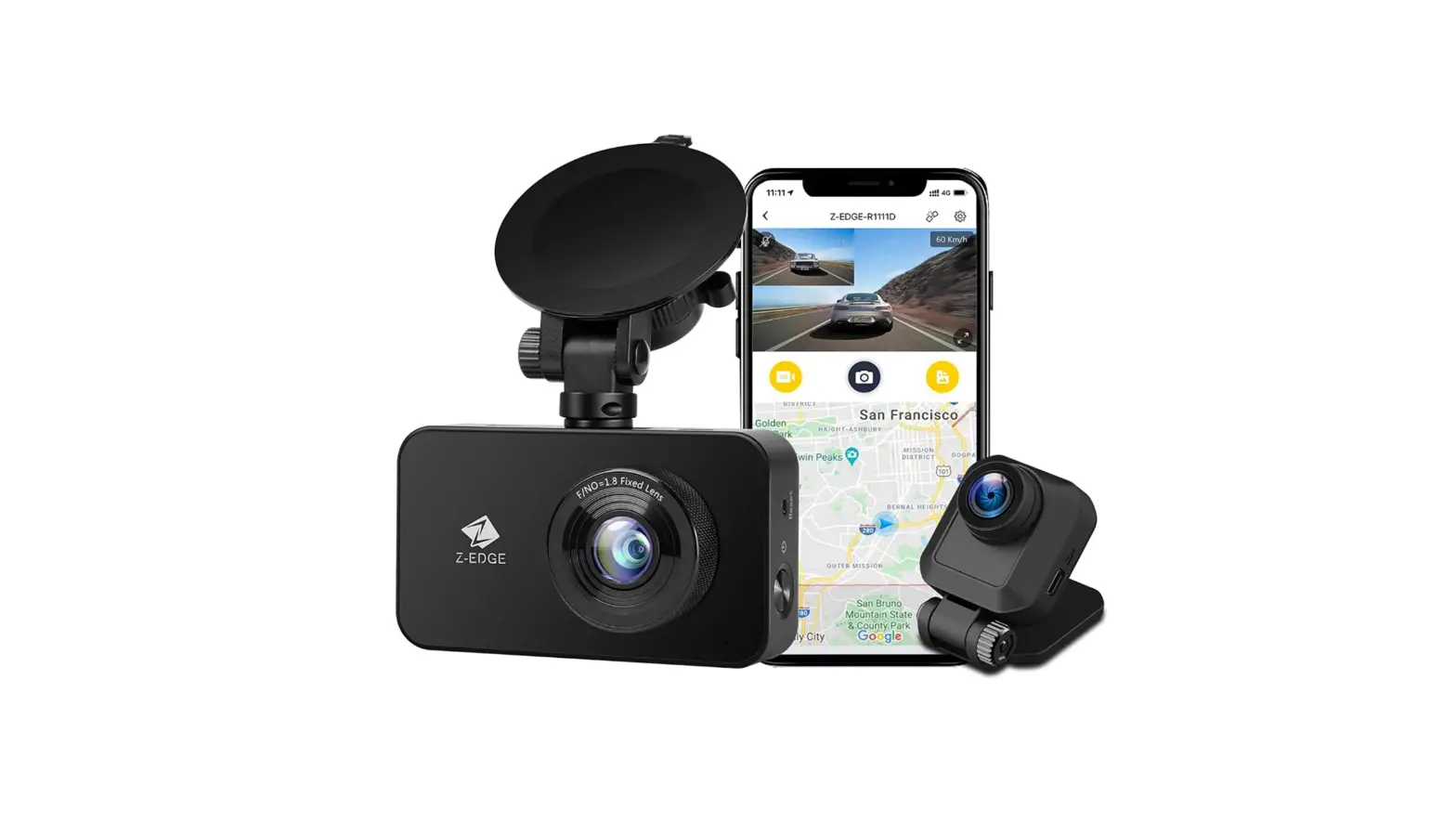
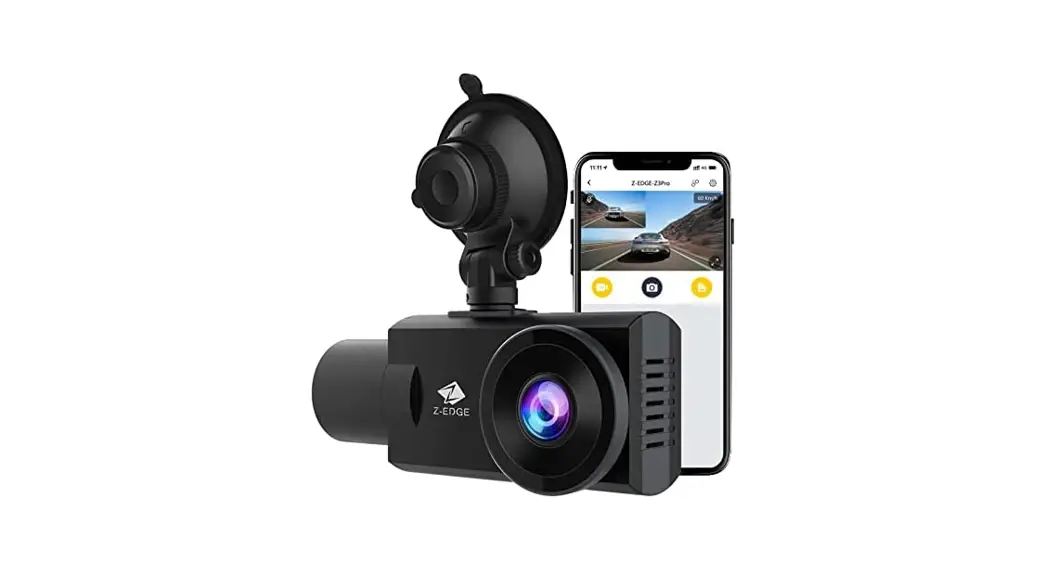
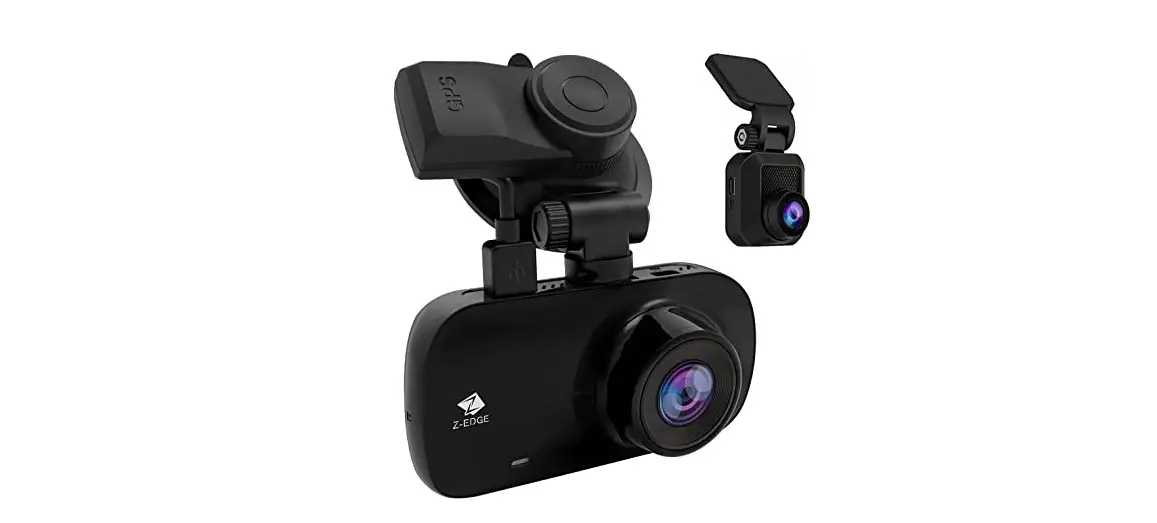
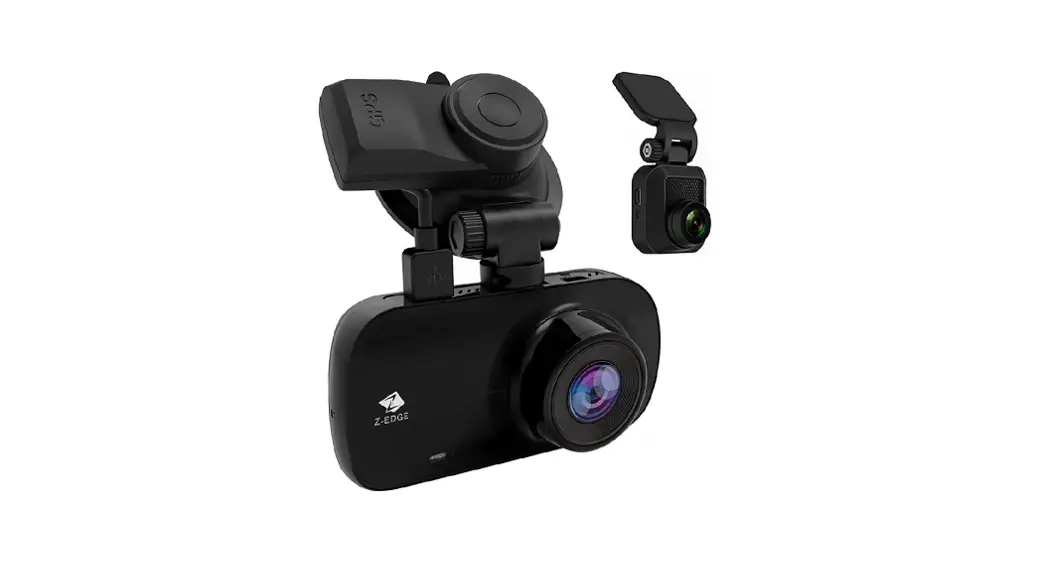
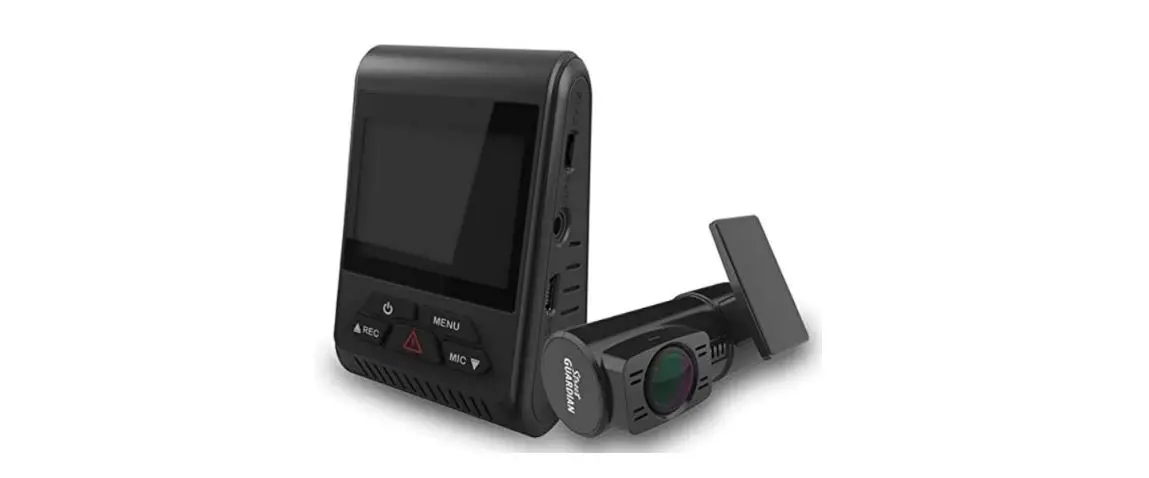
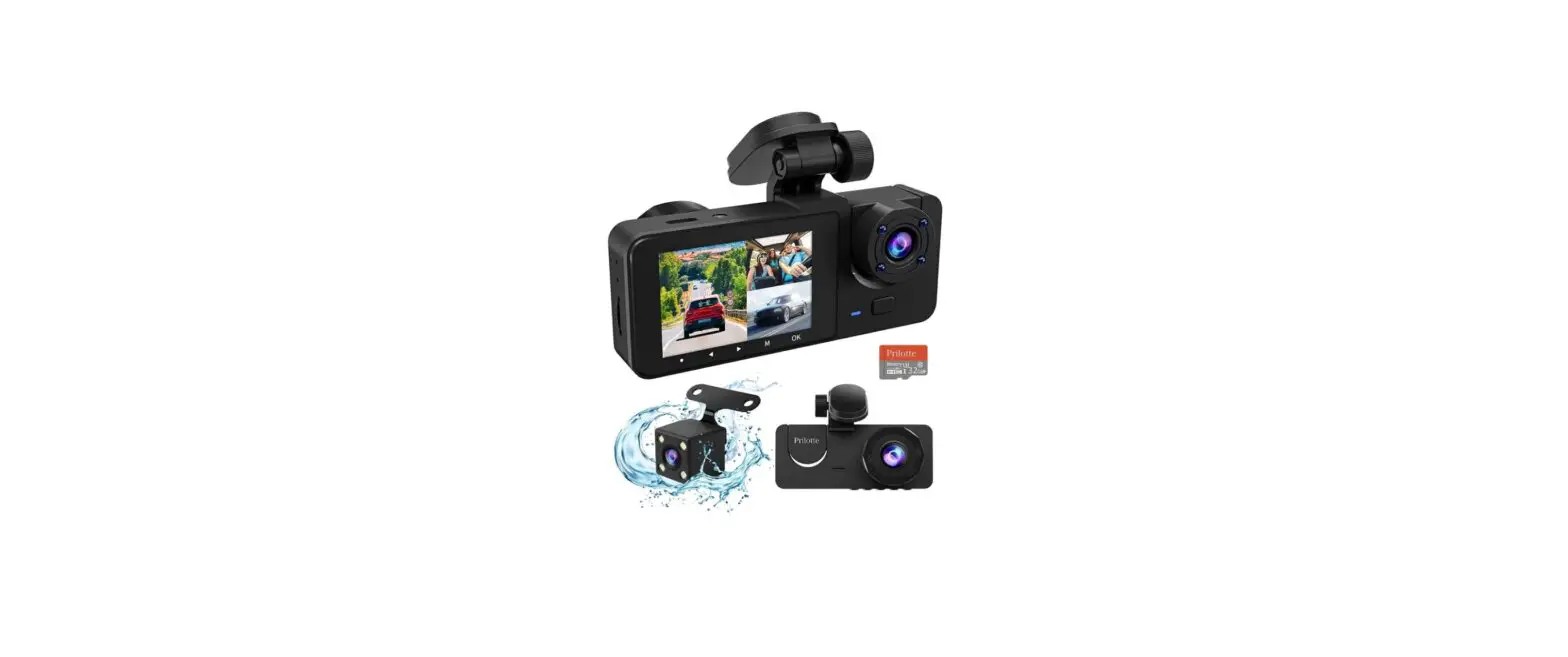
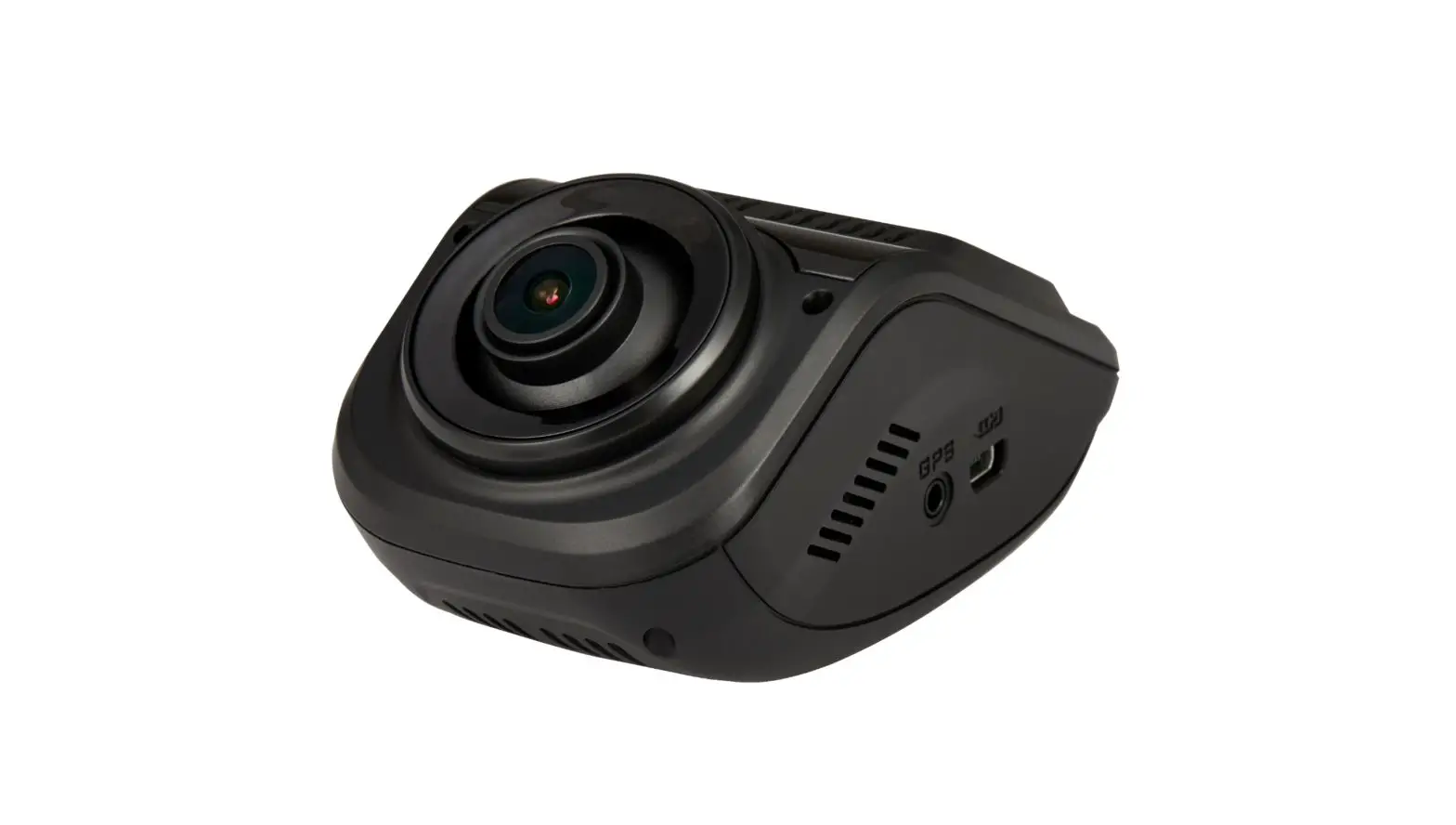
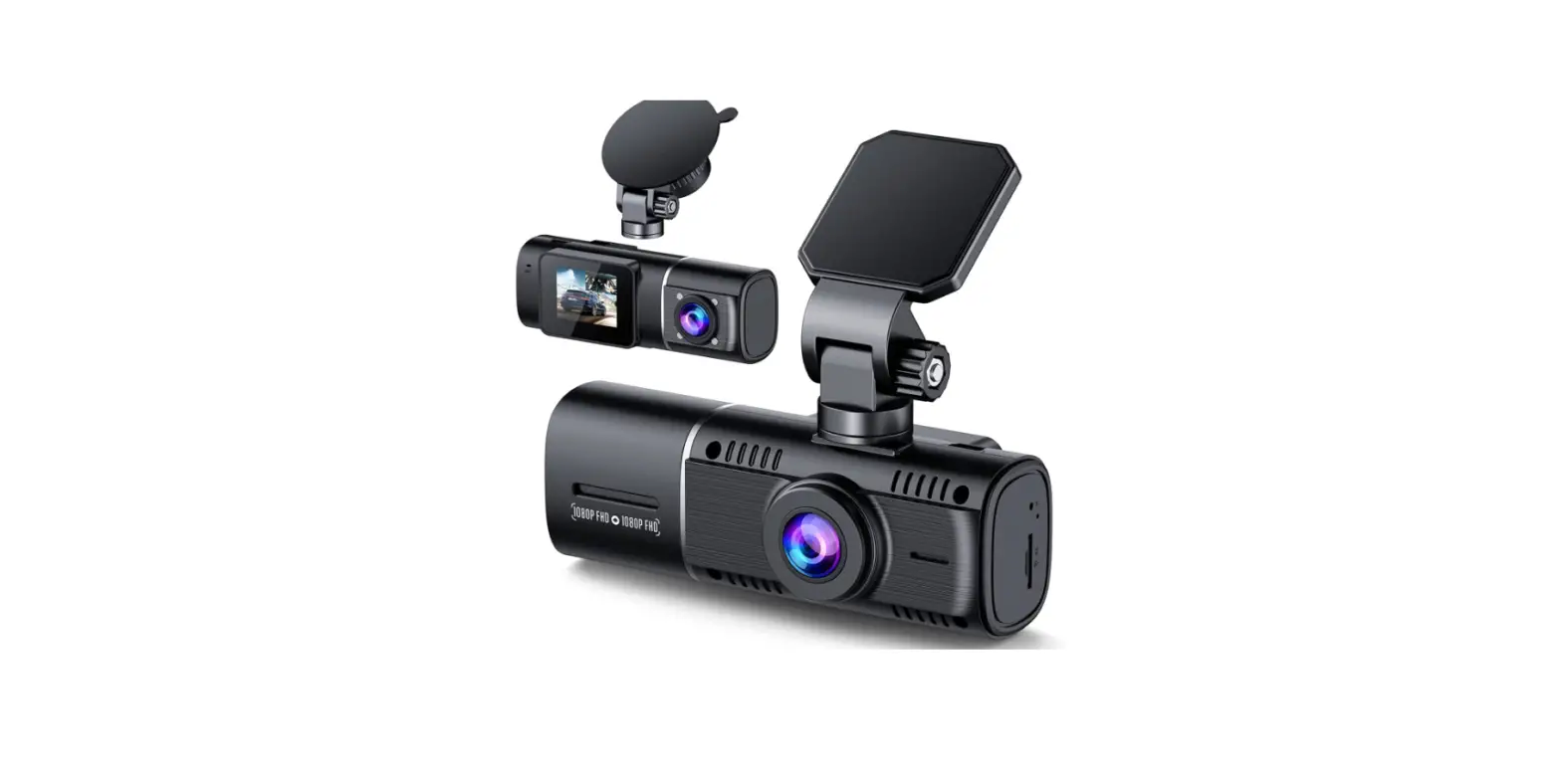
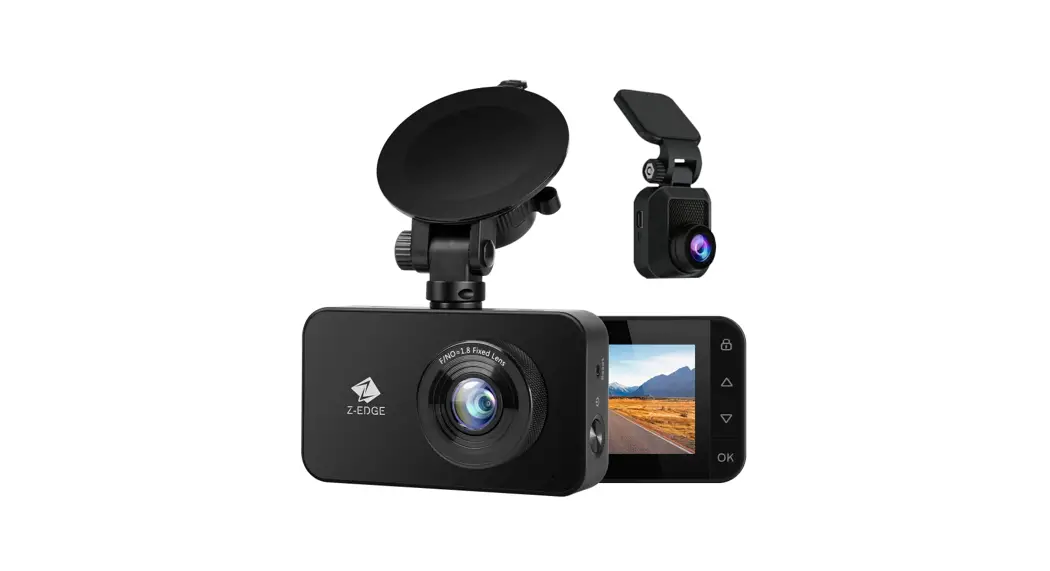
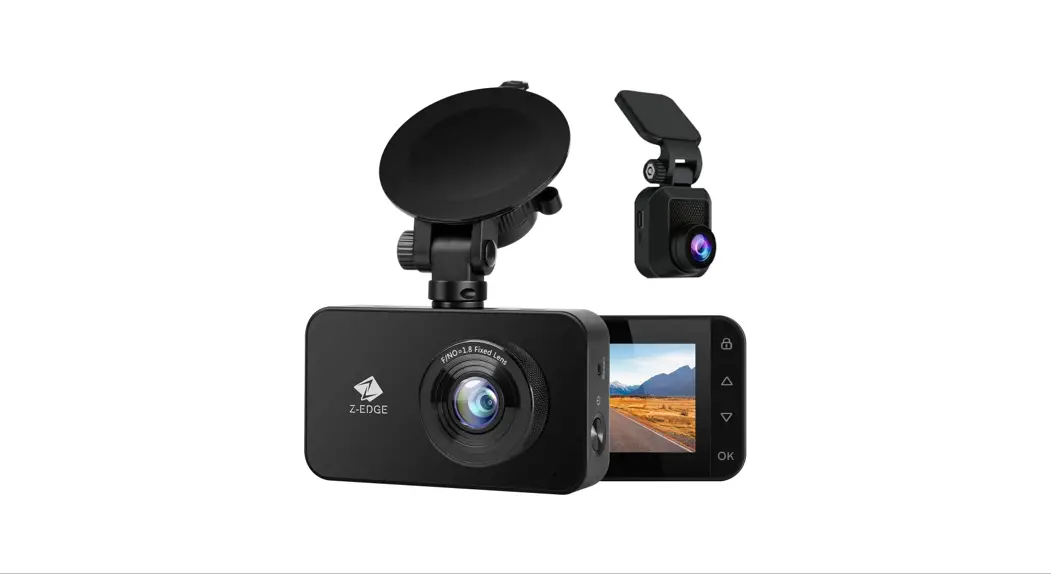
Welcome to buy the Z3D car dash cam. Protect you and your vehicle with real-time video and audio recording whilst you’re driving. Featuring a stealth size design and dual-lens for recording front and back. Please read this manual carefully before using this product. We hope you enjoy using this product.
1.1 Features
- 2560x1440P resolutions
- 2 7″ LCD Color screen
- Up to 150-degree wide angle lens
- Built-in G-Sensor
- Motion Detection
- Parking Mode
- Audio Recording
- GPS
1.2 What’s in the Box
Car Dash Cam Car Mount with Built-in GPS
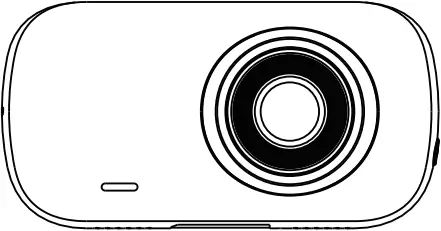
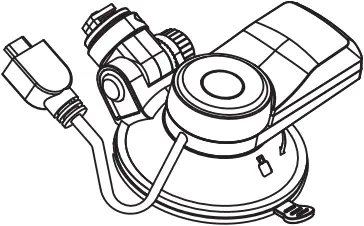
Rear Camera with 26-foot USB Cable Car Charger with USB Cable
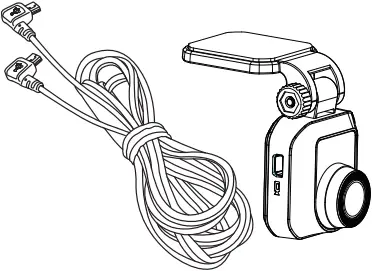
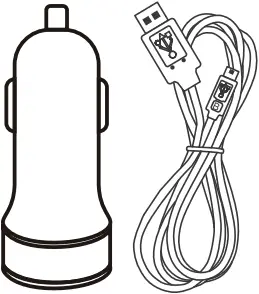
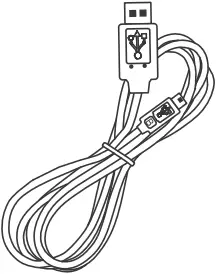
USB Cable User Guide Warranty Card
1.3 Product Overview
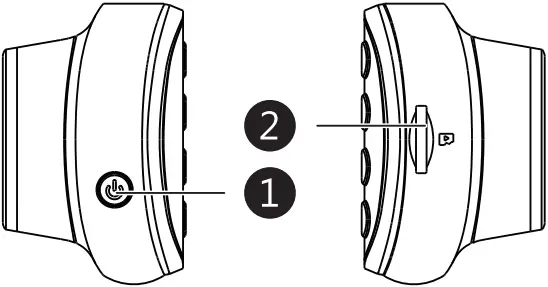
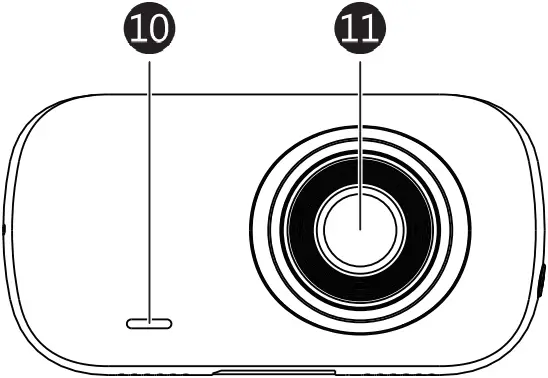
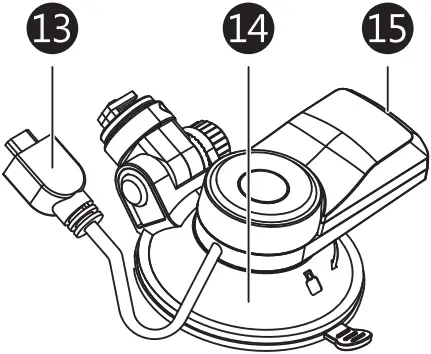
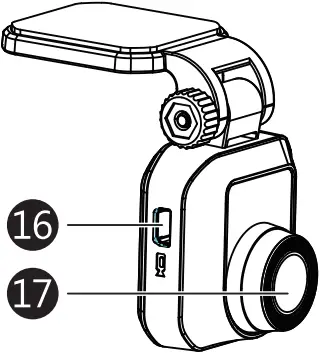
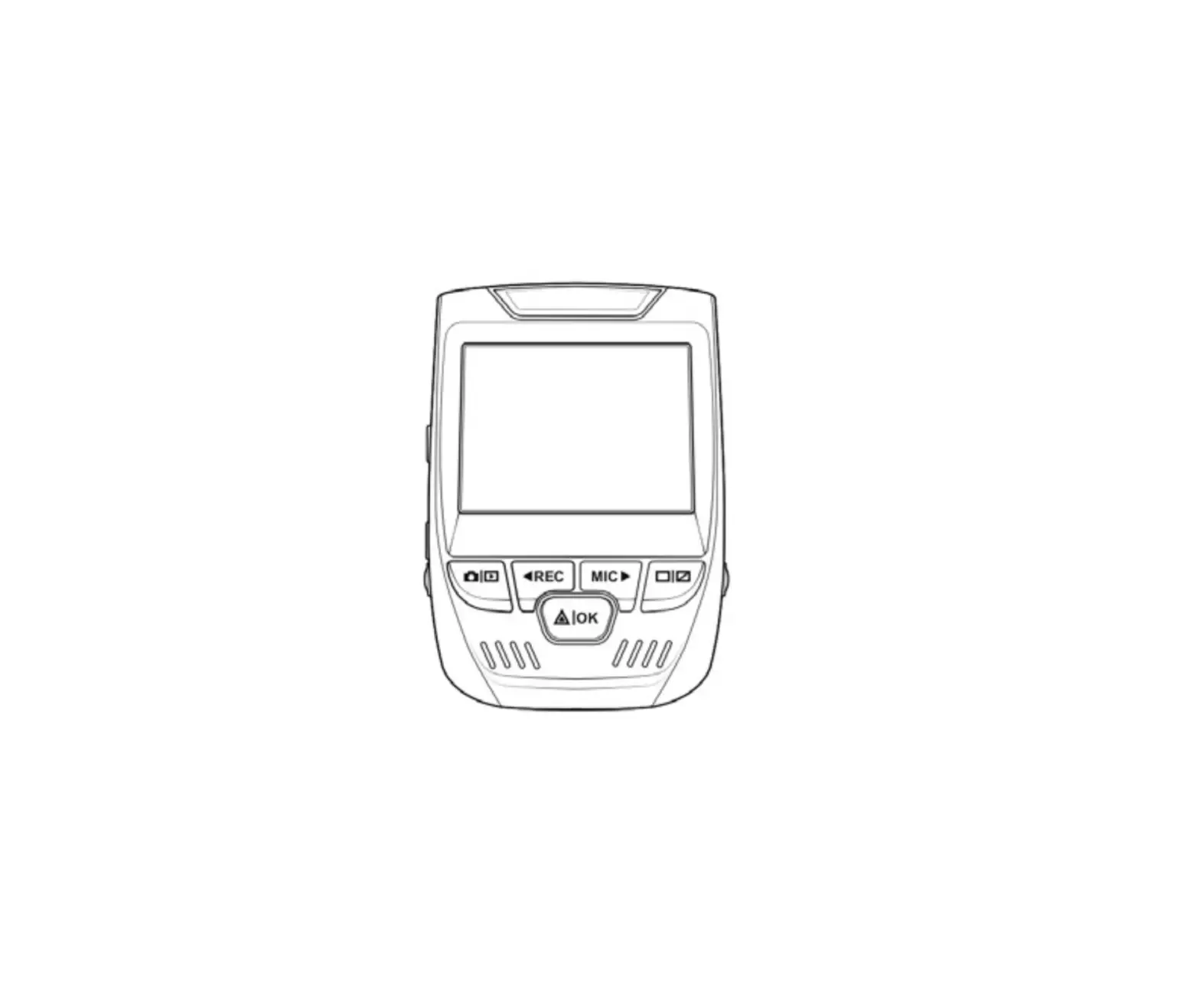
- Power Button
- TF/MicroSD Card Slot
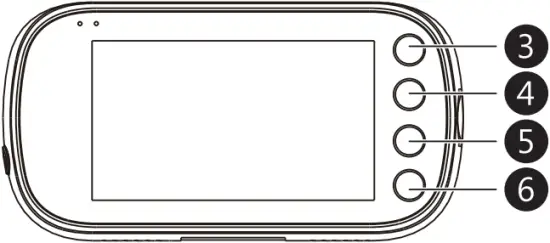
- ESC/Menu Button
- Up Button
- Down Button
- OK/Record Button
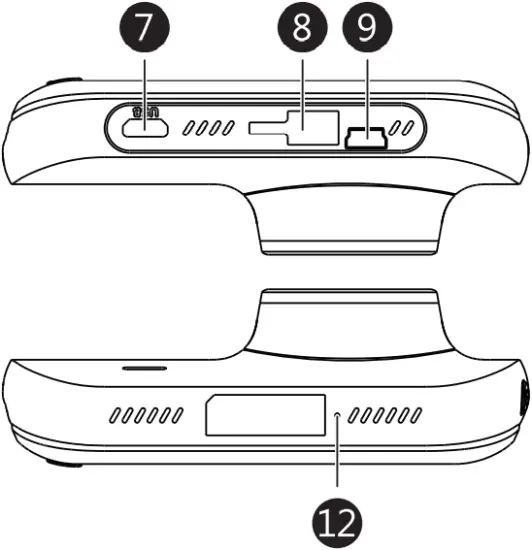
- Micro USB Port
- Suction Mount Slot
- Mini USB Port
- Speaker
- Front-View Lens
- Mic
- USB cable
- Suction Cup Mount
- USB connector
- Mini USB Port
- Rear-View Lens
2 Getting Started
2.1 Inserting the Memory Card
Insert the memory card, with the pins facing towards the back of the device, until it clicks into place.
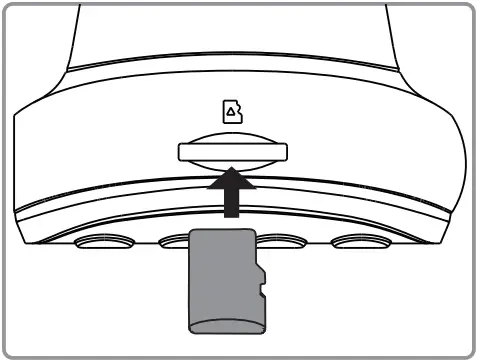
Remove Memory Card
Push the edge of the memory card inward until you feel it click, then allow it to push out until you can remove it from the slot.
 WARNING:
It is recommended to format the memory card in the dash cam directly in Menu>General Setting>Format SD card before initial use Please note that all data saved on the memory card will be erased after formatting.
Note:
- Supports Micro SDXC cards up to 256GB.
- Do not remove or insert memory card whilst the device is powered on – this may damage the memory card.
| Storage Capacity | Video Recording Time |
| 16GB | 1.5 Hours |
| 32GB | 3 Hours |
| 64GB | 6 Hours |
| 128GB | 12 Hours |
| 256GB | 24 Hours |
| For reference only | |
2.2 Installation
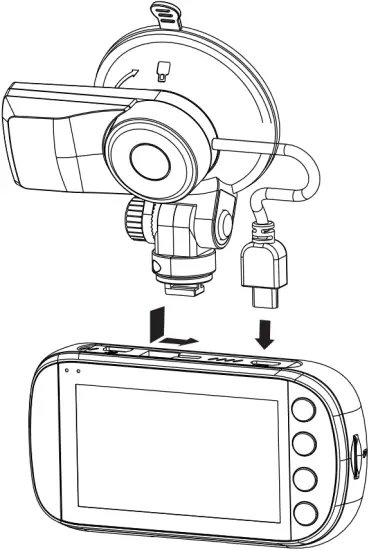
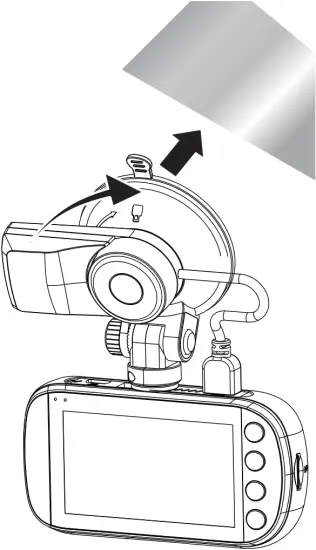
Please follow the below instructions for mounting your dash cam to your vehicles windshield:
- Slide the car mount into the slot on top of the device until a click sound is heard.
- Press the suction-cup firmly against your windshield, and rotate the lever clockwise (12 o’clock) to secure.
1 2
WARNING:
Do not install the device on a tinted window – doing so may damage the tint film.
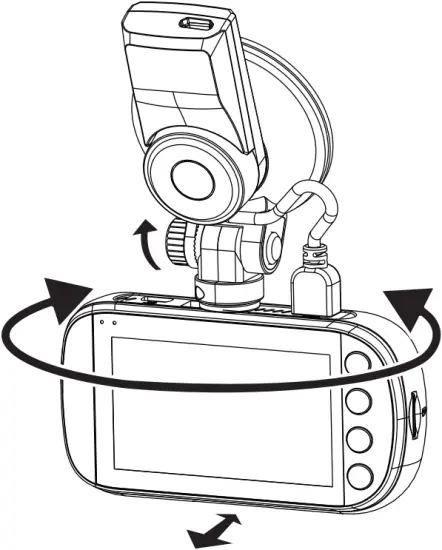
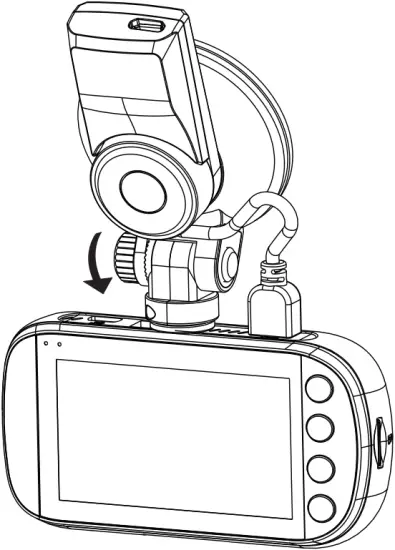
2.3 Adjust Device Position
- Loosen the nut to swivel the device vertically. Click into place and secure by tightening the nut.
- Swivel the device horizontally for a clear view.
1 2
2.4 Powering the Dash Cam
Use only the supplied car charger to power the dash cam and charge the built-in battery.
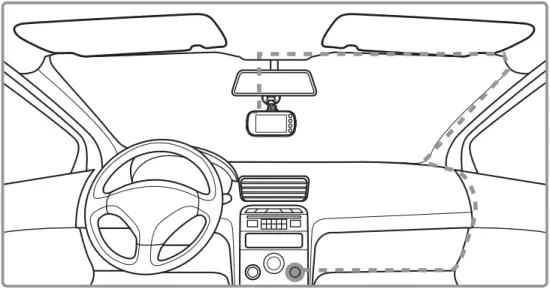
- Plug the USB cable (13) on the car mount into the car dash cam’s USB connector (7).
- Plug one end of the USB charging cable into the USB Connector on the car mount (15).
- Plug the other end into the car charger, and insert that into your vehicles lighter socket.
Automatic Power
- Once the vehicle’s engine is switched on, the dash cam will automatically power on.
- When the vehicle engine is switched off, the dash cam will automatically save the recording and power off within 10 seconds.
Manual Power
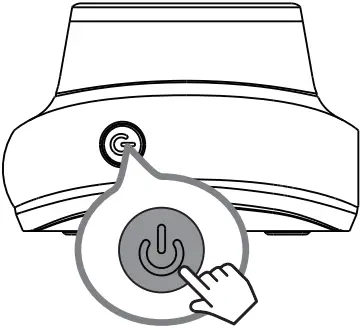
- To manually turn the power on, press and hold the ‘Power’ Button (1) for up to 3 seconds.
- To manually turn the power off, press and hold the ‘Power’ Button (1) for 3 seconds.
WARNING:
If the environment reaches 115-degrees Fahrenheit or above, the car charger may stop charging the dash cam battery This is characteristic of a Lithium Polymer battery and is not a malfunction.
2.5 Set Date & Time
Before using the device, we recommend you set the correct date and time:
- If the device is recording, short press the ‘OK/REC’ button (6) to stop and enter Standby Mode
- Press the ‘Esc/Menu’ button (3) to enter the General Settings menu.
- Press the ‘Up’ and ‘Down’ buttons (4 & 5) to select Date/Time and press ‘OK/REC’ button (6) to confirm.
- Press the ‘Up’ and ‘Down’ buttons (4 & 5) to adjust the value and then press ‘OK/REC’ button (6) to confirm and move to the next field.
- With all fields correct, press the ‘OK/REC’ button (6) to save and exit the menu.
WARNING:
Date/Time settings may automatically reset themselves if the battery is allowed to completely drain. To ensure the correct time you must set the time to your local time zone.
2.6 Default Settings
| Default Settings | |||
| Resolution | 1080P 30, 1080P 30 | Button Beep | ON |
| Loop Recording | 3 mins | Language | English |
| Motion Detect | OFF | Frequency | 60 Hz |
| Voice Setup | ON | LCD auto Off | 3 Minutes |
| Date Stamp | ON | Auto Power Off | OFF |
| G-Sensor sensitivity | Normal | Parking monitoring | OFF |
2.7 Factory Reset
To reset the dash cam to factory default settings long press the ‘Power’ button (1) for 7 seconds.
2.8 Rear Camera Installation
- Connect one end of the Mini USB cable into the Mini USB Port (9) on the dash camera. Connect the other end into the Mini USB Port (16) on the rear camera.
- Turn the camera on. The rear-lens view will automatically appear on the display screen in Dual (PiP) format.
Tip: To view full-screen, press the ‘Esc/Menu’ button (3) to enter the General Settings menu Use the ‘Up’ and ‘Down buttons (4 & 5) to select the Screen Display option and press the ‘OK/REC’ button (6) to confirm. Then select Rear Camera using Up’ and ‘Down’ buttons (4 & 5) and confirm with the ‘OK/REC’ button (6). - Whilst looking at the display screen and without removing the adhesive backing, find a suitable location for installing your rear-lens camera on your rear windshield.
- Having found a suitable location on your rear windshield, peel off the protective plastic backing from the adhesive mount. Press firmly against your rear windshield to secure.
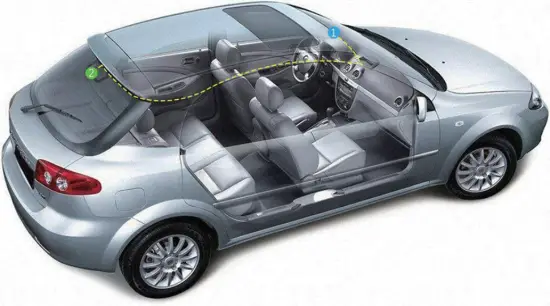
- For a more organized car environment, the rear camera USB cable can be routed as indicated by the dashed line in the diagram.
3 Using the Car Dash Cam
3.1 Recording Videos
With an SD card inserted and the device connected to power, when the car engine is switched on the dash cam will automatically power on and start recording. When the vehicle engine is switched off, the dash cam will automatically save the recording and power off within 10 seconds. Alternatively, short press the ‘OK/REC’ button (6) to stop/start video recording manually.
3.2 Recording Screen
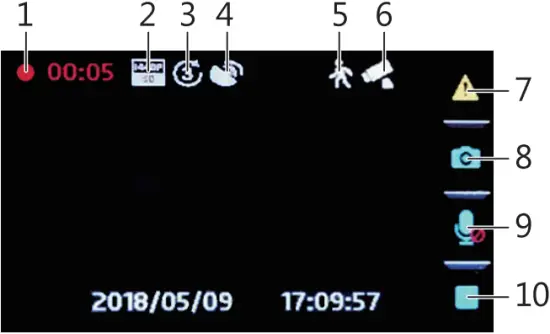
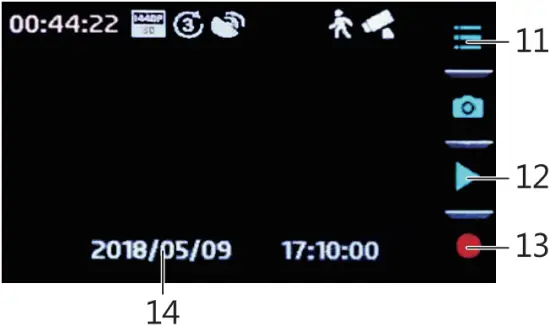
| No. | Item | Description |
| 1 | Recording | Flashing red light indicates device is recording with time showing current duration of recording. |
| 2 | Resolution | Indicates current resolution settings. |
| 3 | Loop Recording | Indicates loop recordings length 1, 2 or 3 minutes. |
| 4 | GPS | Indicates if the GPS is connected. |
| 5 | Motion Detection | Indicates if motion detection on/off. |
| 6 | Parking Monitor | Indicates if parking monitor is on/off. |
| 7 | Video Protection | Indicates if video protection is active. Press ‘Esc/Menu’ button (3) to activate when recording. |
| 8 | Camera button | Press ‘Up’ button (4) to enter camera mode. |
| 9 | Audio recording | Indicates if audio recording active, press ‘Down’ button (5) to turn on/off when recording. |
| 10/13 | Record / Stop | Indicates if device is recording, press ‘OK/REC’ button (6) to start/stop recording. |
| 11 | Menu | Press ‘Esc/Menu’ button (3) to enter menu. |
| 12 | Preview | Press ‘Down’ button (5) to preview video/photo. |
| 14 | Time Stamp | Time and date |
3.3 Adjusting the Settings
Customize the video recording and other general settings via the on-screen display (OSD) menus:
If the device is recording, short press the ‘OK/REC’ button (6) to stop and enter Standby Mode.
- Press the ‘Esc/Menu’ button (3) to enter the General Settings menu.
- Press the ‘Up’ and ‘Down’ buttons (4 & 5) to select a menu option and press the ‘OK/REC’ button (6) to enter the selected menu.
- Press the ‘Up’ and ‘Down’ buttons (4 & 5) to select the desired setting and press the ‘OK/REC’ button (6) to confirm the setting.
- From the General Settings menu Press the ‘Esc/Menu’ button (3) to enter the Feature Settings menu.
- Press the ‘Up’ and ‘Down’ buttons (4 & 5) to select the desired setting and press the ‘OK/REC’ button (6) to confirm the setting.
3.4 Loop Recording
Videos are recorded and saved to the memory card in set intervals. Once the memory card is full, Loop Recording automatically overwrites the earliest unprotected saved file. This prevents long duration video clips from being lost in a single overwrite. Video files can be saved to the memory card in 1, 2 or 3 mins intervals. General Settings > Loop Recording
3.5 Emergency Video Protection
If Vibration Detection is enabled and senses an unusual impact or collision the dash cam will automatically protect the currently recorded video file from being overwritten. A  icon appears top left to signify the current recording is protected. To manually protect a video file during a recording, short press the Esc/Menu button (3).
3.6 Motion Detection
With Motion Detection enabled, video recording is automatically started when movement is detected by the camera lens. After approximately 10 seconds with no movement detected, video recording is automatically paused. Enable/disable feature: Feature Settings > Motion Detect
3.7 Vibration Detection
The Vibration Detection feature senses for unusual impacts or collisions detected by the built-in G-Sensor. It automatically triggers the Emergency Video Protection and Parking Mode features.
Set the sensitivity to automatically trigger these features with smaller or larger vibrations (feature can also be turned Off): Feature Settings > G-Sensor Sensitivity
3.8 Parking Monitoring
Enable Parking Monitoring for the dash cam to continue monitoring your vehicle for unusual impact or collision when the engine is turned off and parked. If a vibration is detected, the device will automatically turn on and begin recording. Approximately 20 seconds after the motion or vibration is finished, the device will automatically return to monitoring mode. All recordings are automatically protected from being overwritten.
Enable/disable feature: Feature Settings > Parking Monitoring
Please note: When protection space (30% TF card capacity) is full, The protected files will be overwritten with newly recorded protected files
3.9 Taking a Snapshot
- If the device is recording, short press the ‘OK/REC’ button (6) to stop and enter Standby Mode
- Short press the ‘Up’ button (4) to enter Photo Mode.
- Press the ‘Up’ button (4) to take a snapshot.
3.10 Playback Videos & Photos
- If the device is recording, short press the ‘OK/REC’ button (6) to stop and enter Standby Mode.
- Press the ‘Down’ button (5) to enter Playback Mode.
- Press the ‘Up’ and ‘Down’ buttons (4 & 5) to select between Normal Video, Emergency Video or Photo. Press the ‘OK/REC’ button (6) to select or press the ‘ESC/Menu’ button (3) to return to standby mode.
- Press the ‘Up’ and ‘Down’ buttons (4 & 5) to choose the file to preview and ‘OK/REC’ button (6) to select.
- Press the ‘OK/REC’ button (6) to preview the file.
- Press the ESC/Menu’ button (3) to return to the playlist menu.
3.11 Managing Video & Photo Files
- Go to the Playlist menu (see 3.10).
- Navigate to the file you wish to manage and press the ‘OK/REC’ button (6) to select.
- Press the ‘Up’ button (4) to delete the file.
- Press the ‘Up’ and ‘Down’ buttons (4 & 5) to select between Yes and No.
- Use the ‘OK/REC’ button (6) to confirm choice.
WARNING:
Deleted files cannot be recovered. Please ensure you backup important files before deleting them.
3.12 GPS
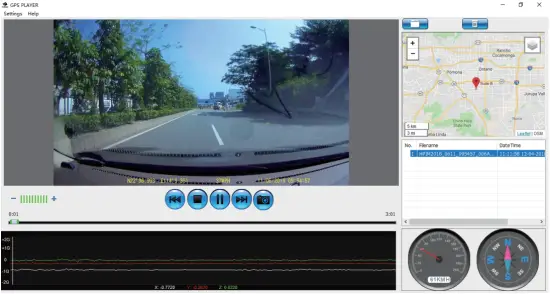
Integrated into the car mount suction cup is a GPS receiver which can pinpoint the location of your car dash cam anywhere on Earth. Video recordings include GPS tracking data which records location, speed, time and other variables that can be viewed on a GPS Multimedia Player.
- Ensure the car mount USB cable is plugged into the car dash cams’ USB connector to enable GPS tracking.
- Go to http://zeroedgetechnology.com/downloads/ to download the compatible GPS Multimedia Player.
- Install GPS Multimedia Player on your laptop or computer.
- Run the program and click ‘Open File’ to search and playback a video recording.
Note:
- GPS Multimedia Player compatible with Microsoft Windows and Apple Mac.
- GPS tracking data may not be viewable using other GPS Players.
- Car dash cam videos can be played from the SD card or from the car dash cam when connected to a computer via the USB port.
| Menu | Feature | Description | Available option |
| General Settings | Resolution | Set the resolution of the videos to be recorded. | Front camera and rear camera connected: 1080P30, 1080P30Front camera only: 2560x1440P 30 fps 2304x1296P 30 fps 1920x1080P 60 fps 1920x1080P 30 fps 1280x720P 120 fps 1280x720P 60 fps 1280x720P 30 fps |
| Screen Display | Sets the screen display | Front Camera, Rear Camera, PIP | |
| Loop Recording | Set the duration of each video file recorded to the memory card (see 3.4) | 1 min / 2 mins / 3 mins | |
| Voice Setup | Enable/disable audio recording. | On / Off | |
| Exposure | Set the dash cam exposure | +2.0, +5/3, +4/3, +1.0, +2/3, +1/3, +0.0, -1/3, -2/3, -1.0, -4/3, -5/3, -2.0 | |
| Stamp Setup | Add/remove a date and time stamp, Driver ID, and Logo stamp visible on saved video recordings. | Date Stamp On / Off, Driver ID Setting On / Off, Logo Stamp On / Off | |
| Language | Set dash cam language | English, French, German, Portuguese, Spanish, Italian | |
| Time Setup | Set the date/time (see 2.5). | YYYY / DD / MM / GMT HH : MM : SS | |
| Driver ID Setting | Input Driver ID setting | ||
| Button Beep | Enable/Disable Key Tone | On / Off | |
| Auto Power Off | Set the duration for Auto Power Off | 1 min / 3 mins / 5 mins / Off | |
| LCD Auto Off | Set the duration for LCD Auto Off | 1 min / 3 mins / Off | |
| WDR | Enable/Disable Wide Dynamic Range | On /Off | |
| Frequency | Change frequency | 50Hz / 60Hz | |
| Format | Format the micro SD card | OK / Return | |
| Default | Restore the car dash cam to default settings | OK / Return | |
| Version Info | Displays firmware version | ||
| Feature Settings | Driver fatigue alarm | Set the fatigue alarm | 1 Hour, 2 Hours, 4 Hours, Off |
| Remind lights | Enable/Disable remind light | On / Off | |
| Motion Detect | Enable/Disable the motion detection feature | On / Off | |
| Parking Monitoring | Enable/Disable to protect your vehicle from hit-and-run incidents when the engine is off (see 3.8). | On/Off | |
| G-Sensor Sensitivity | Adjust the light G-Sensor Sensitivity | Off / High / Normal / Low |
5 FAQs
Where should I place the dash cam?
• We recommend that you mount the car dash cam as close to the center of the windshield as possible. This should neither distract the driver nor block the drivers view (see 2.4).
Why does the dash cam stop recording after some time?
• If motion detection is enabled, the dash cam will automatically stop recording when no movements is detected for more than 15 seconds (see 3.6).
• Your micro SD card may be full and need to be formatted before using again. 1080P HD videos are big in size and G-sensor locked videos cannot be erased automatically. We recommend formatting your memory card every 14 days.
Why do you recommend Class 10 micro SD card or above?
• 1080P HD video has a bigger data flow and hence requires a micro SD card with faster writing speed. If memory cards below Class 10 are used, they may cause the dash cam to freeze or other related video recording/erasing issues.
How do I turn off audio during recording?
• To turn off the Audio Recording, short press the ‘Down’ button (5) during recording (Please note: this does not interrupt the video recording)
How long will my battery last after a full charge?
• The dash cam battery usually takes 2-3 hours to fully charge. This can happen simultaneously whilst the dash cam is plugged into your car and recording. The battery can last 15 mins on a full charge depending on the model and environmental temperature.
How do I record videos?
• All dash cams are programmed to automatically record when there is power connected and a memory card inserted. When the engine is turned off, or power is disconnected, the dash cam will stop recording approximately after 3-10 secs. Manually start/stop recording by pressing the ‘OK/Rec’ button (6).
6 Customer Support
For customer support inquiries please contact via Email:
[email protected]
Or visit our official website: www.z-edge.com
 @zeroedgeGA
facebook.com/zeroedgeGA/
 @zeroedgeGA
twitter.conn/zeroedgeGA
 @zeroedgeGA
pinterest.com/zeroedgeGA

Follow us to get the latest updates, your opinion is important to us!
7 Warranty
Thank you for choosing Z-EDGE. Your satisfaction is always our first priority.
All Z-Edge customers have a 30-day money back guarantee, to make sure your shopping experience is worry-free.
By default, the unit warranty-period is set to 12 months from the unit-shipped date.
You can be corrected to 18 months by register your product in our official website.
Product Registration URL:
www.z-edge.com/pages/register
8 Product Specifications
| Item | Description |
| Image Sensor | CMOS sensor |
| Effective Pixels | 2560x1440P |
| Storage Media | Supports Micro SDXC, up to 256GB |
| LCD Display | 2.7″ LCD color TFT |
| Lens | Wide Angle Fixed Focus lens F2.0 |
| Focus Range | 1.5m~Infinity |
| Movie Clip | Resolution: Front camera and rear camera connected: 1920x1080P 30fps + 1920x1080P 30fpsFront camera only: 2560x1440P 30fps 2304x1296P 30fps 1920x1080P 60fps 1920x1080P 30fps 1280x720P 120fps 1280x720P 60fps 1280x720P 30fps |
| MP4 | |
| Still Image (Photo Mode) | Sensor Resolution: 4032×3024 (12M) |
| JPEG | |
| G-Sensor | Yes |
| Microphone | Yes |
| Speaker | Yes |
| Interface | Micro USB x1, Mini USB x1 |
| Battery | Internal Li-ion battery rechargeable (This battery is NOT replaceable) |
| Operating Temperature | -10 to 60°C / 14 to 140°F |
| Storage Temperature | -20 to 70°C / -4 to 158°F |
| Dimensions | Front camera: 3.82 inch x 1.97 inch x 1.28 inch (97mm x 50mm x 32.5mm) (LxWxH) |
| Rear camera: 2.1 inch x 1.6 inch x 1.3 inch (54.5 mm x 40mm x 32mm)(LxWxH) | |
| Weight | Front camera: 3.0oz/85g Rear camera: 1.4oz / 40g |
| Car Charger | INPUT: DC 12-24V, OUTPUT: DC 5V 2.4A |
| GPS Logger | Built-in |
FCC Statement
This equipment has been tested and found to comply with the limits for a Class B digital device, pursuant to Part 15 of the FCC Rules. These limits are designed to provide reasonable protection against harmful interference in a residential installation. This equipment generates, uses and can radiate radio frequency energy and, if not installed and used in accordance with the instructions, may cause harmful interference to radio communications. However, there is no guarantee that interference will not occur in a particular installation. If this equipment does cause harmful interference to radio or television reception, which can be determined by turning the equipment off and on the user is encouraged to try to correct the interference by one or more of the following measures:
• Reorient or relocate the receiving antenna.
• Increase the separation between the equipment and receiver.
• Connect the equipment into an outlet on a circuit different from that to which the receiver is connected.
• Consult the dealer or an experienced radio/TV technician for help.
This device complies with Part 15 of the FCC Rules. Its operation is subject to the following two conditions: (1) This device may not cause harmful interference, and (2) this device must accept any interference received, including interference that may cause undesired operation.
FCC Caution: Any changes or modifications not expressly approved by the party responsible for compliance could void the user’s authority to operate this equipment.
www.z-edge.com
Email: [email protected]
Z3DZ21UM-03