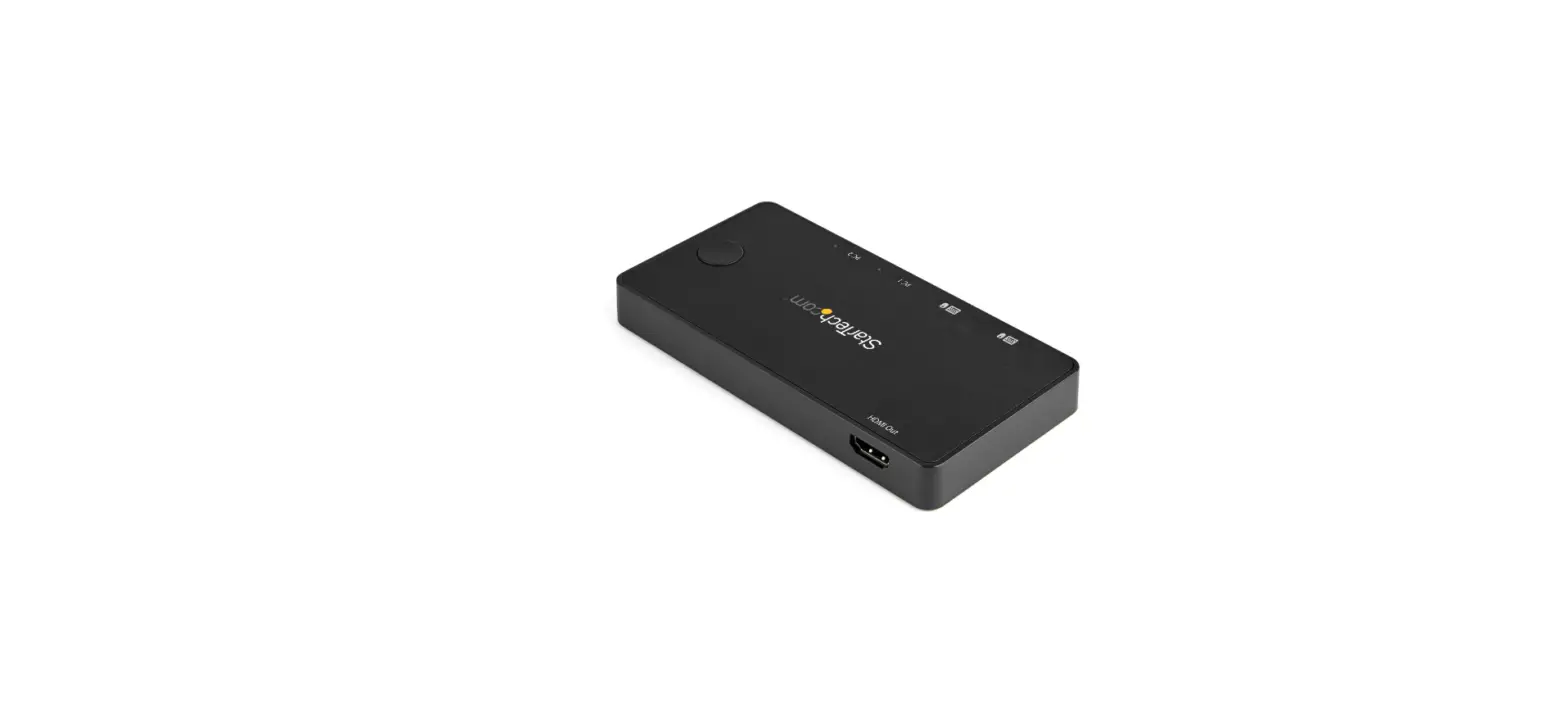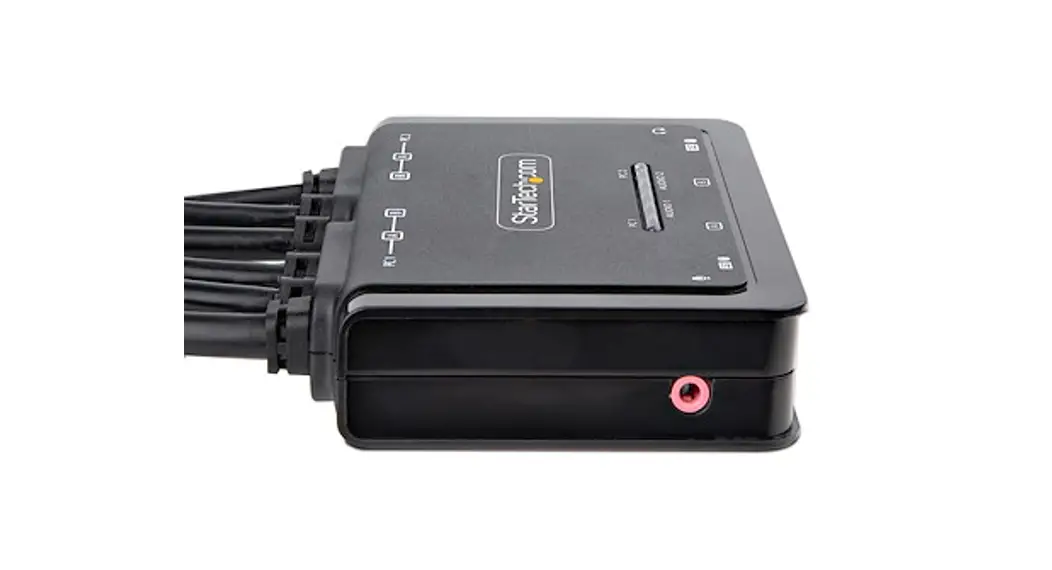
 2-Port Dual Monitor Cable KVM Switch – HDMI – 4K 60Hz
User Guide
C2-DH46-UA2-CBL-KVM 2 Port Dual Monitor Cable KVM Switch
Product ID
C2-DH46-UA2-CBL-KVM
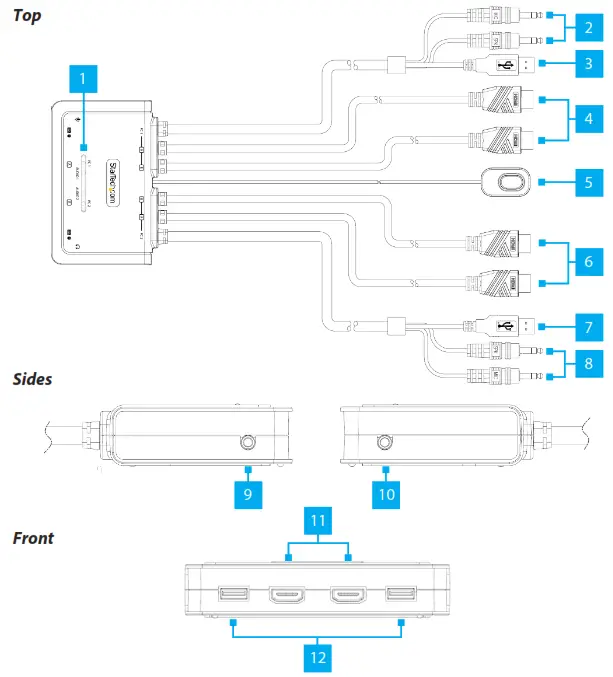
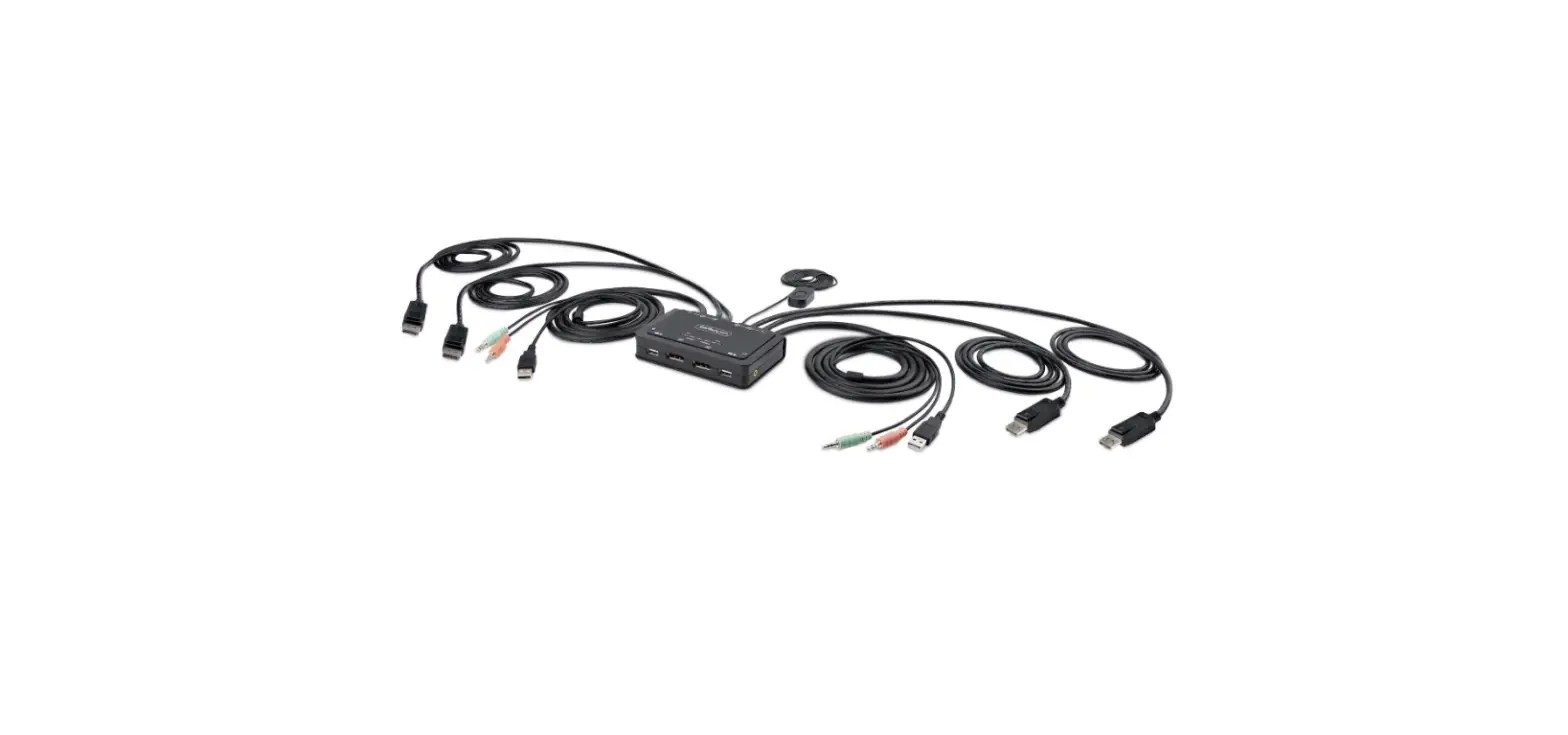
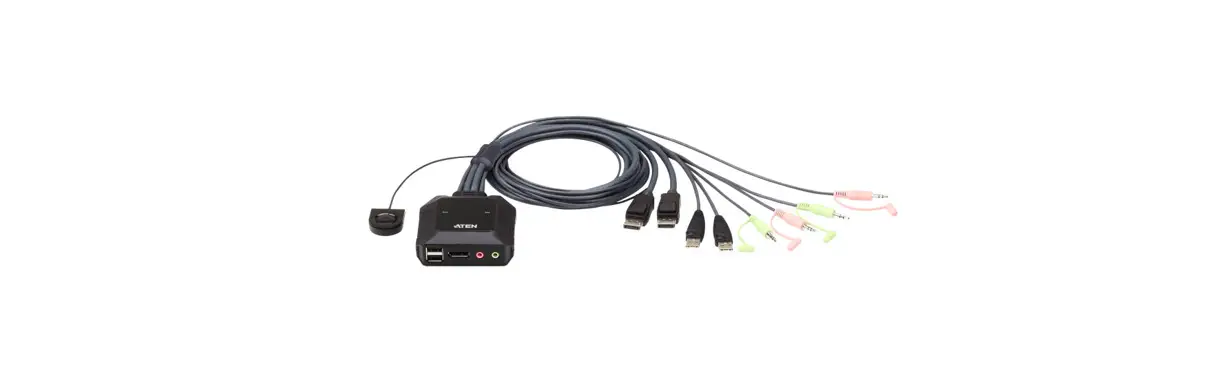
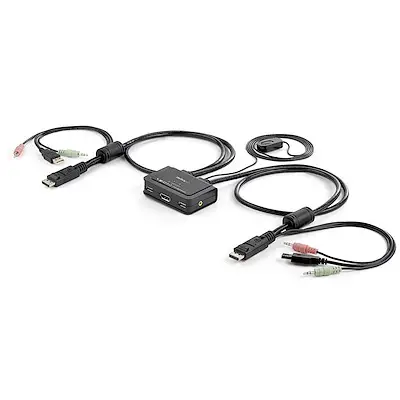
| Component | Function | ||
| • | Solid Green = Selected PC is Connected | ||
| 1 | LED Indicators | • | Blinking Green = Selected PC is not detected |
| • | Amber LED = Selected Audio Source | ||
| 2 | PC 1 Audio Connectors | • • | Green: Connect to 3.5mm Headphone Port Pink: Connect to a 3.5mm Microphone Port |
| 3 | PC 1 USB-A Host Connector | • | Connect to a USB-A port on PC 1 |
| 4 | PC 1 HDMI Connectors | • | Connect to an HDMI Enabled Computer |
| • | A wired button used to switch between PC 1 and PC 2 | ||
| 5 | Remote Port Selector | • | Press and Release the Remote Switch to switch between PC 1 and PC 2 |
| 6 | PC 2 HDMI Connectors | • | Connect to an HDMI Enabled Computer |
| PC 2 USB-A Host Connector | • | Connect to a USB-A port on PC 2 | |
| 8 | PC 2 Audio Connectors | • • | Green: Connect to a 3.5mm Headphone Port Pink: Connect to a 3.5mm Microphone Port |
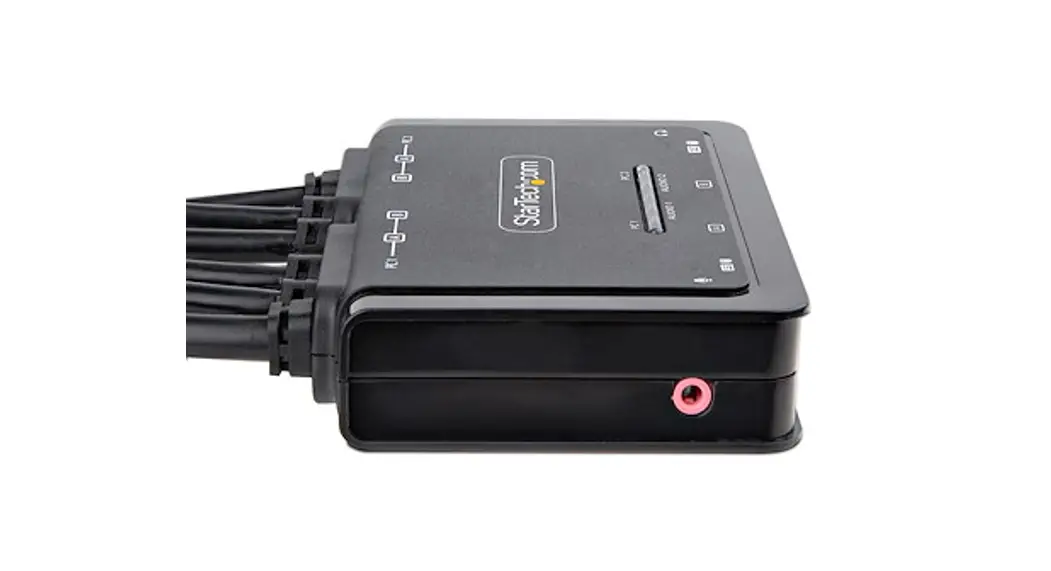
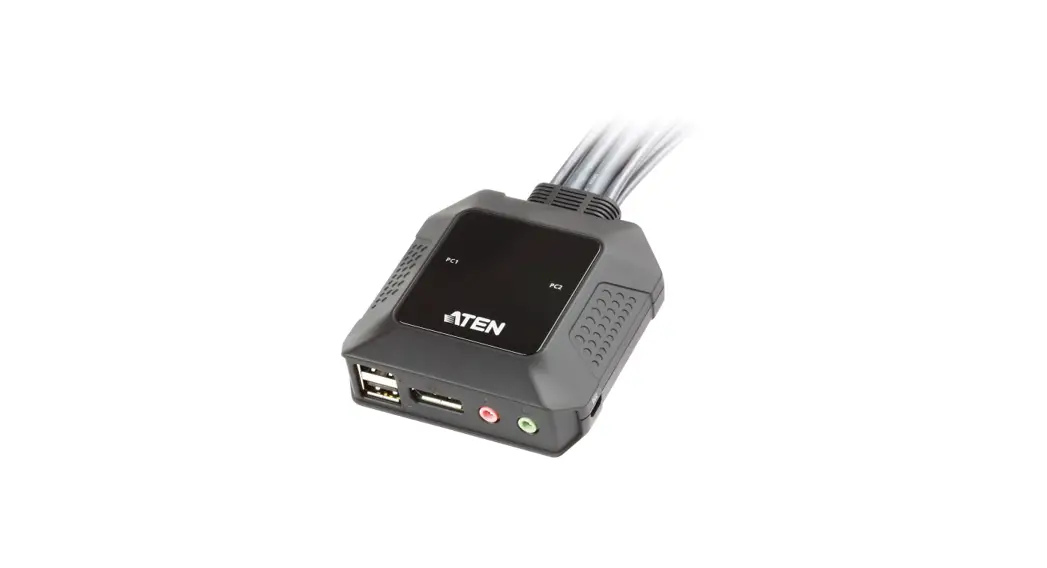
| Port Console Microphone | • | Pink: Connect a Microphone | |
| 10 | Console Audio Output | • • | Green: Connect an Audio Device (ie. Speakers or Headphones) |
| 11 | Console HDMI Output Ports | • | Connect to two HDMI Displays |
| 12 | Console USB HID Ports | • | Connect a USB Mouse and Keyboard |
Product Information
For the latest manuals, product information, technical specifications, and declarations of conformance, please visit: www.StarTech.com/C2-DH46-UA2-CBL-KVM
Package Contents
- KVM Switch x 1
- Quick-Start Guide x 1
Requirements
- HDMI Enabled Computers x 2
- HDMI Cables x 2
- HDMI Display x 2
- USB HID Devices (Keyboard / Mouse) x 2
- (Optional) Microphone x 1
- (Optional) Powered/Active Stereo Speakers or Headphones x1
- (Optional) Headset x 1
Note: A Headset may require the use of a Headset Adapter. Please check with the manufacturer of the Headset for more details.
Installation
Connect the Computers
Note: Power off all Computers, Displays, and Peripherals before completing the following installation steps.
- Connect the built-in PC 1 HDMI Connectors to the HDMI Output Ports on PC 1.
- Connect the built-in PC 1 USB Host Connector to a USB-A Port on PC 1.
- (Optional) Connect the built-in PC 1 Audio Connectors to the corresponding 3.5 mm Audio Ports on PC 1.
- Repeat Steps 1-3 to install PC 2.
Connect the Console
- Connect a USB Mouse and Keyboard to the Console USB HID Ports, located on the front of the KVM Switch.
- Connect an HDMI Cable from each HDMI Display, to each of the Console HDMI Output Ports, located on the front of the KVM Switch.
- (Optional) Connect a 3.5 mm Audio Cable from the Stereo Speakers or Headphones to the Speaker Audio Port (green), located on the side of the KVM Switch.
- (Optional) Connect a 3.5 mm Audio Cable from the Microphone to the Microphone Audio Port (pink), located on the side of the KVM Switch.
Operation
Switching with the Remote Port Selector
To switch between which Host Computer is active, press and release the button on the Remote Port Selector.
Software Operation
Install the KVM Switching Software on each computer connected to the KVM Switch to use features such as auto scan, fixed audio, and more.
Note: To download the latest KVM Switching Software, please visit: www.StarTech.com/C2-DH46-UA2-CBL-KVM
Hotkey Reference Guide
Note: Each hotkey sequence keystroke should be pressed within two seconds.
Keyboard with Scroll Lock: To switch Computers the hotkey combination is Scroll Lock + Scroll Lock + 1 – 2
Keyboard with no Scroll Lock: Use the available software to define the new hotkey sequence
FCC Compliance Statement
This equipment has been tested and found to comply with the limits for a Class B digital device, pursuant to part 15 of the FCC Rules. These limits are designed to provide reasonable protection against harmful interference in a residential installation.
This equipment generates, uses and can radiate radio frequency energy and, if not installed and used in accordance with the instructions, may cause harmful interference to radio communications. However, there is no guarantee that interference will not occur in a particular installation. If this equipment does cause harmful interference to radio or television reception, which can be determined by turning the equipment off and on, the user is encouraged to try to correct the interference by one or more of the following measures:
- Reorient or relocate the receiving antenna.
- Increase the separation between the equipment and receiver.
- Connect the equipment into an outlet on a circuit different from that to which the receiver is connected.
- Consult the dealer or an experienced radio/TV technician for help
This device complies with part 15 of the FCC Rules. Operation is subject to the following two conditions:
- This device may not cause harmful interference, and
- this device must accept any interference received, including interference that may cause undesired operation.
Changes or modifications not expressly approved by StarTech.com could void the user’s authority to operate the equipment.
Industry Canada Statement
This Class B digital apparatus complies with Canadian ICES-003.
CAN ICES-3 (B)/NMB-3(B)
This device complies with Industry Canada licence-exempt RSS standard(s). Operation is subject to the following two conditions:
- This device may not cause interference, and
- This device must accept any interference, including interference that may cause undesired operation of the device.
Warranty Information
This product is backed by a two-year warranty.
For further information on product warranty terms and conditions, please refer to www.startech.com/warranty.
Limitation of Liability
In no event shall the liability of StarTech.com Ltd. and StarTech.com USA LLP (or their officers, directors, employees or agents) for any damages (whether direct or indirect, special, punitive, incidental, consequential, or otherwise), loss of profits, loss of business, or any pecuniary loss, arising out of or related to the use of the product exceed the actual price paid for the product.
Some states do not allow the exclusion or limitation of incidental or consequential damages. If such laws apply, the limitations or exclusions contained in this statement may not apply to you.
Safety Measures
- If product has an exposed circuit board, do not touch the product under power.
| StarTech.com Ltd. | StarTech.com LLP | StarTech.com Ltd. |
| 45 Artisans Cres London, Ontario N5V 5E9 Canada | 4490 South Hamilton Road Groveport, Ohio 43125 U.S.A. | Unit B, Pinnacle 15 Gowerton Rd, Brackmills Northampton NN4 7BW |
StarTech.com Ltd.
Siriusdreef 17-27
2132 WT Endorphin
The Netherlands
 StarTech.com | IT Pro's Trusted Source for Connectivity Accessories
 2-Port Dual-Monitor Cable KVM Switch - KVM Switches | StarTech.com