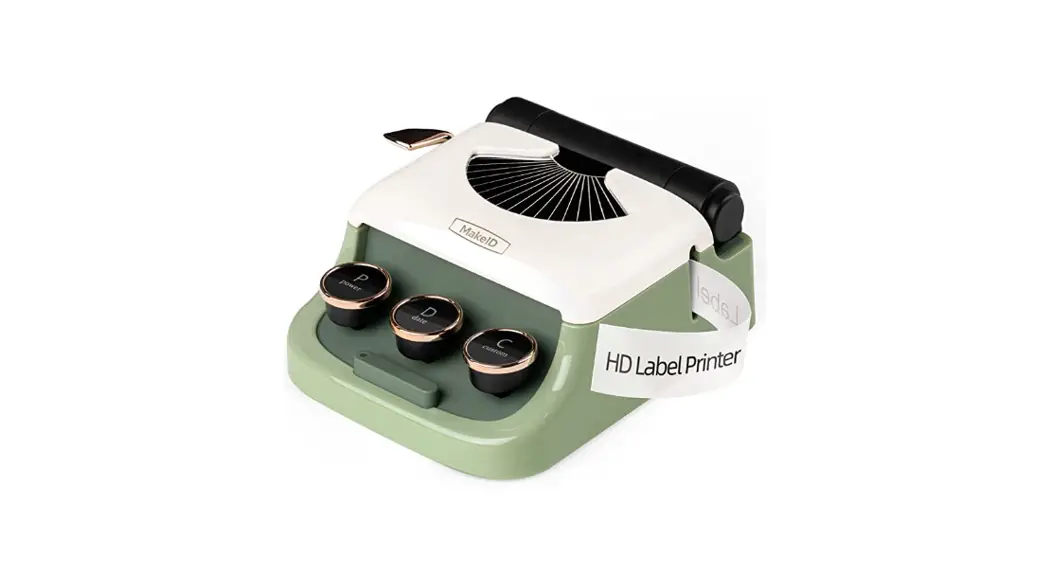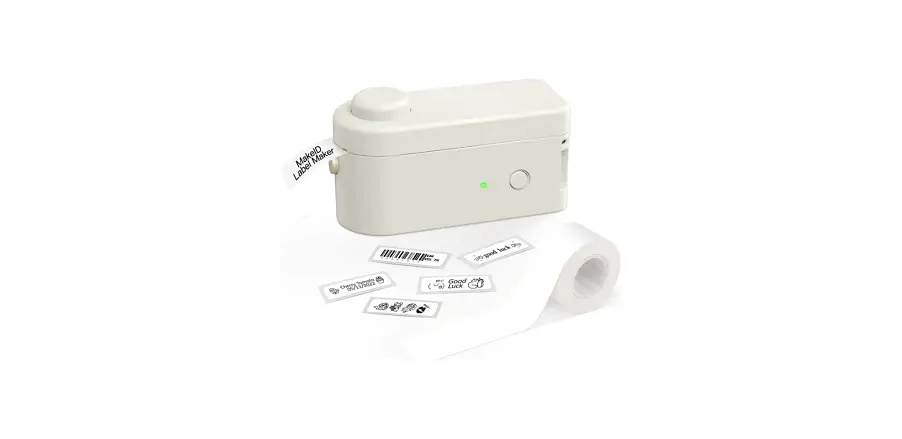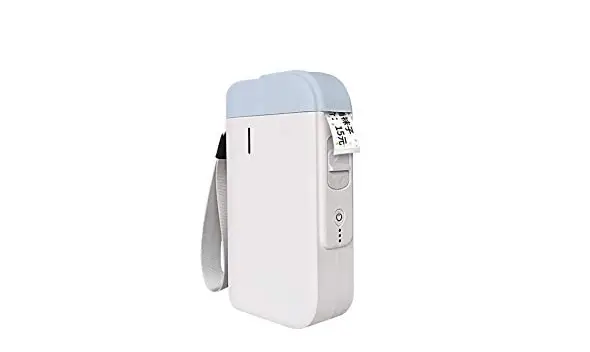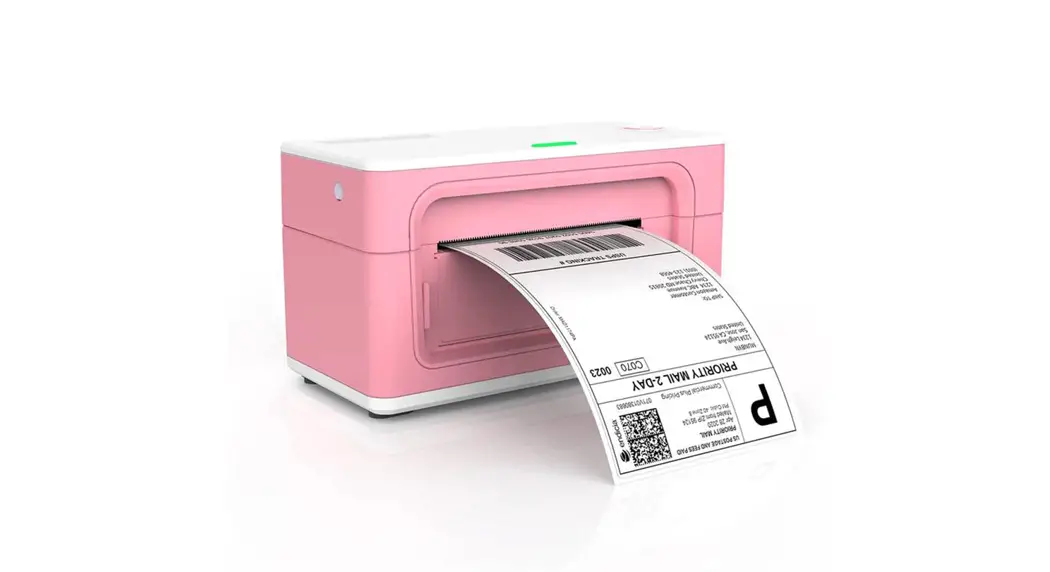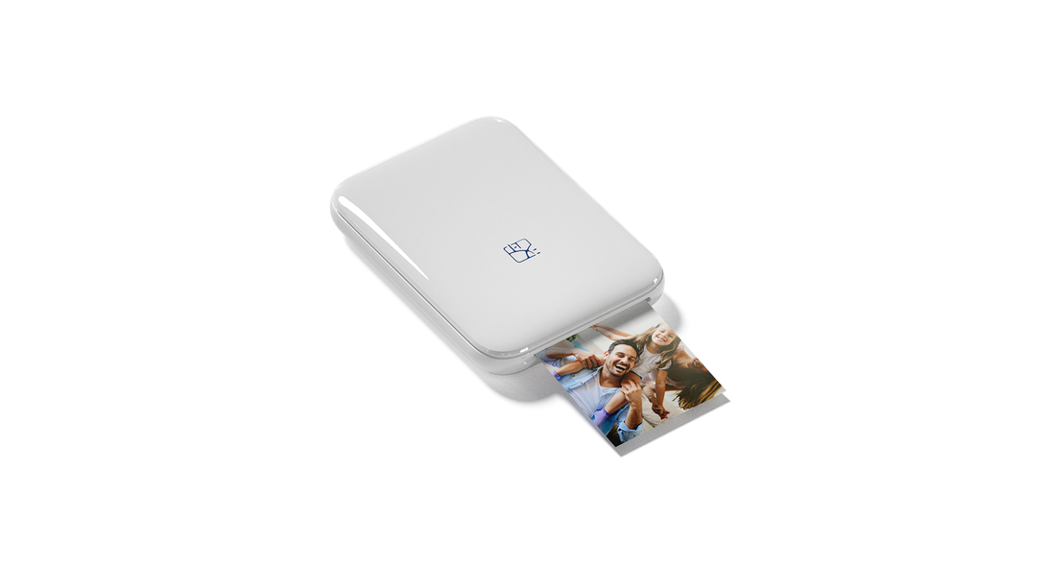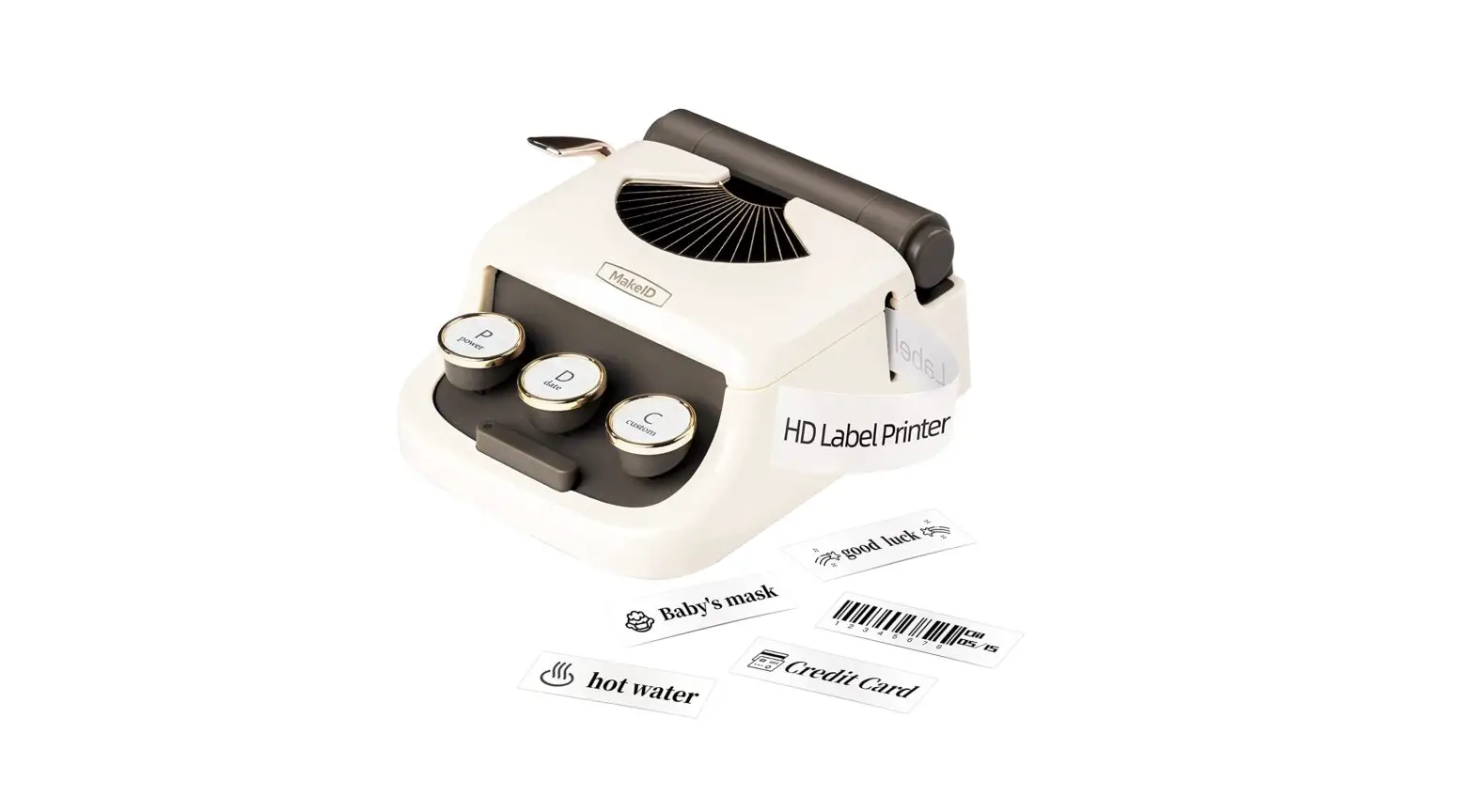
Q1-1 HD Label Printer
MakeID
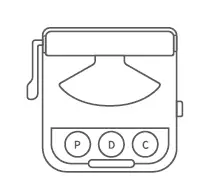
Q1-1 HD
LABEL PRINTER INSTRUCTION
Under the environment with Electrostatic Discharge Test Results the sample may be disconnected, but it can be resumed to normal operation by user after test.
This device complies with part 15 of the FCC Rules
Operation is subject to the following two conditions: (1) This device may not cause harmful interference, and
(2) This device must accept any interference received, including interference that may cause undesired operation.
NOTE: This equipment has been tested and found to comply with the limits for a Class B digital device, pursuant to part 15 of the FCC Rules. These limits are designed to provide reasonable protection against harmful interference in a residential installation. This equipment generates, uses and can radiate radio frequency energy and, if not installed and used in accordance with the instructions, may cause harmful interference to radio communications. However, there is no guarantee that interference will not occur in a particular installation. If this equipment does cause harmful interference to radio or television reception, which can be determined by turning the equipment off and on, the user is encouraged to try to correct the interference by one or more of the following me sures:
- Reorient or relocate the receiving antenna.
- Increase the separation between the equipment and receiver.
- Connect the equipment into an outlet on a circuit different from that to which the receiver is connected.
- Consult the dealer or an experienced radio/TV technician for help.
FCC Radiation Exposure Statement
The device has been evaluated to meet general RF exposure requirement. The device can be used in portable exposure condition without restriction. Warning: Changes or modifications to this unit not expressly approved by the part responsible for compliance could void the user‘s authority to operate the equipment.
MakeID
Chongqing Jingranyouxu Technology Co.,Ltd.
Web: WWW.MakeID.com
How to get the APP? Scan the QR code below to download the APP directly, or you may go to Android/Apple APP Store to search for “MakelD-Life” and to download the APP.

RIGHTS: All rights to this manual are reserved by Makeld Any sharing, translation or modification of the contents of this manual without the permission of Makeld is permission of MakeId is prohibited.
TRADEMARKS: The trademark of Makeld has been registered in the U.S, Europe and elsewhere, and all other trademarks are the properties of their respective owners.

Box List (subject to the actuality)
1* Printer
1* Cable
1* Label Tape
1* Instruction (With Warranty Card And Quality Certificate)
 Main Components
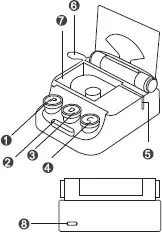 Main Components
- Power On/Off
- Indicator
- Date
- Customization
- Paper Exit
- Cutter
- Label Storage
- Type–C
One click on the Date button to print out the date of today. No need to connect to the APP for this operation.
Connect to the printer in the “MakelD-Life” APP before the initial setting or if you need to change the customized content. After successful setting, click on the Customization button to print out the customized content. No need to connect to the APP every time for this operation.
★ Status of indicator
GREEN: fully charged/printing/paper feeding/standby/ready
YELLOW: charging
RED: lid open/label improperly installed
★ Charging instruction
Type-C Input 5V=-2A input for charging. The product does not come with a power adapter. A standard Type-C charging plug is sufficient.
Battery: 7.4V/500MAH. It takes 1.5 hours to be fully charged. Please charge at intervals of 3 months for long periods of non–use so that the lithium battery does not wear out naturally over time.
Tips: Long press the Power On/Off button to turn off the printer, or leave it for 30 mins for automatic shutdown.
How to Install the Labels? Please use the Makeld official labels, otherwise it might cause damage to the printer or poor printing.
Step 1: When using a new roll of label, pull out the transparent label lead all the way to the paper exit.
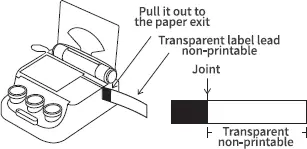
Step 2: Close the top cover, then edit and print in the APP. (If the label is improperly installed, the indicator will be in red)
How to Connect Your Phone to the Printer?
Open the APP and connect to the printer (remember to grant Bluetooth permission)
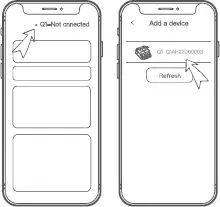 “MakelD-Life” APP is required in order to use the printer. Connect to the printer in the APP rather than the Bluetooth in the phone system.
Step 1: Open the APP, search and connect to the printer (remember to grant Bluetooth permission).
Step 2: Select the printer type for first–time users.
Step 3: Click on the right top of the APP to search for the device, and then click to connect.
How to Print the Label?
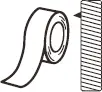
Continuous label
No limitation on label length
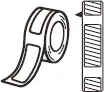
Discontinuous Label
Fixed label length with space between each label
Print Continuous Label
- Create New Label on the APP home page, and choose the Continous Label.
- Click “A” to edit the text, and “O” to change the font.
- Click “@” to add more icons.
- Click “Print” to print. Press the Cutter button to cut off the label.
Print Discontinuous Label
- Create New Label on the APP home page, and choose the Discontinuous Label.
- Select the label size (Tips: Wrong size may result in misplaced printing)printing)

- Click “A” to edit the text.
- Click the Print icon “Print” and choose how many labels to print.

Since the first discontinuous label identifies the label position, and may not print completely. We suggest that you print2 or 3 labels when first printing. The printing effect shall be good from the 2nd on. (The label position shall be re-identified when discontinuous label is replaced, or the printer cover is opened.)
How to use the label?
Step 1: Remove the back paper from the back of the label.
Step 2: Stick the label onto any dry and smooth objects.
Usage Notice of Thermal Materials
- Please don‘t stick the label onto the place where your hands often touch. Sweat and friction make the printings fade.
- Don‘t leave the label contact with chemical liquids for a long time, such as liquid soap, laundry detergent and dish washing liquid etc, otherwise it will shorten its life.
- Please don‘t wipe the label with alcohol–based cleaning items.
- Keep away from high temperatures or sun exposures, otherwise it will make the label‘s colour lighter.
Conclusion: Thermal inkless printing is a special printing technology. If wrongly used, the printing‘s colour will fade. Please use the label at room temperature, dry and smooth places that are not often touched.
Common troubleshooting
- Unable to connect to the printer with the phone.
A: Make sure the printer is powered on and the Bluetooth has also been turned on.
B: The APP agrees to all permissions.(Only to guarantee the connection, no privacy risks)
Č: Power off the printer, uninstall and re–install the APP, and agree to all permissions to connect again. - The printer’s red indicator flashes.
A: Make sure the label has been put in the printer, and it is correctly installed (When using a new label, please remove the transparent label lead, then pull the label to the line mark. Please refer to the figure below.
B: The printer‘s top cover is securely locked. - Abnormal printing
Makeld MakelD Normal printing Abnormal Printing Messy Printing
A: Restart the printer. Log out the APP and try again.
B: Restart the printer. Uninstall and re-install the APP and try again. If you still fail to solve the problem, please contact the customer service from the shop where you purchased the product. - Blurred printing
A: Using under low temperature situation may result in blurred printing. Recom mended temperature range: 10°C–35°C.
B: Connect to the printer, then adjust to the highest print density by clicking the Printer Density in Device Management and try again.
C: The printer‘s head may be dirty. Please wipe the print head gently with alcohol, and wait for 2 minutes before use it again.
Three-Year Warranty by Makeld
Our products are covered by a three-year warranty period from the date of purchase. During the warranty period, MakelD shall repair your product free of charge due to quality and functionality problems.
★ To repair or replace your product within the warranty period, you must provide the order number, contact details and shipping details, which include your name, phone, and full address
★ Products returned to Makeld must be in full packaging. Makeld will not hold any responsibilities for products lost or damaged by customers during shipping.
The product must be used strictly in accordance with the instructions provided. MakelD shall not be liable for any problems caused by accident, misuse, modification or negligence.
★ Makeld label printers are exclusively designed for the use of Makeld label papers. This warranty does not cover any failure or damage caused by the use of label papers from any third-party.
★ This warranty does not affect your legal rights as a consumer. If any further assistance is needed, please contact us: jryx@jingjingfun.com