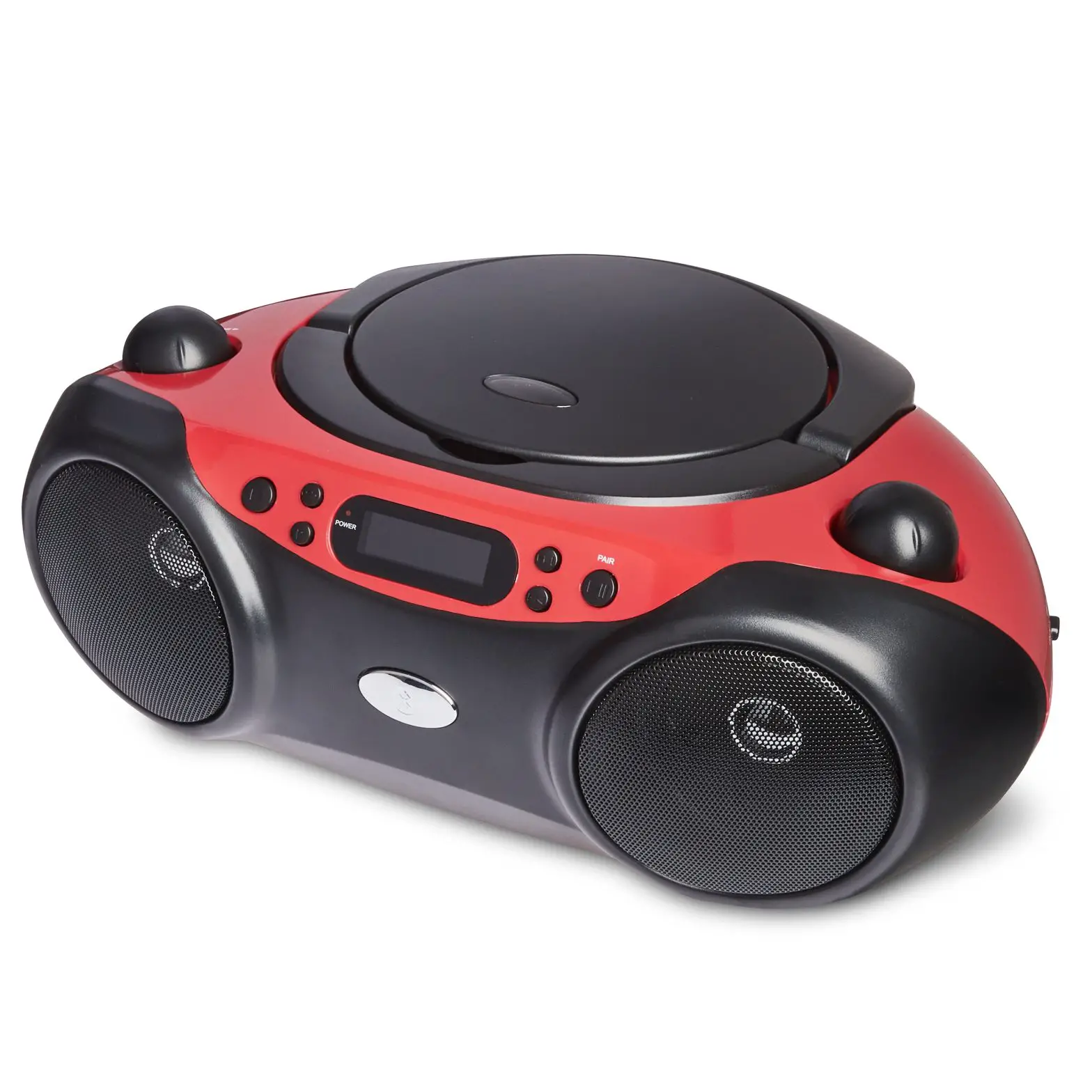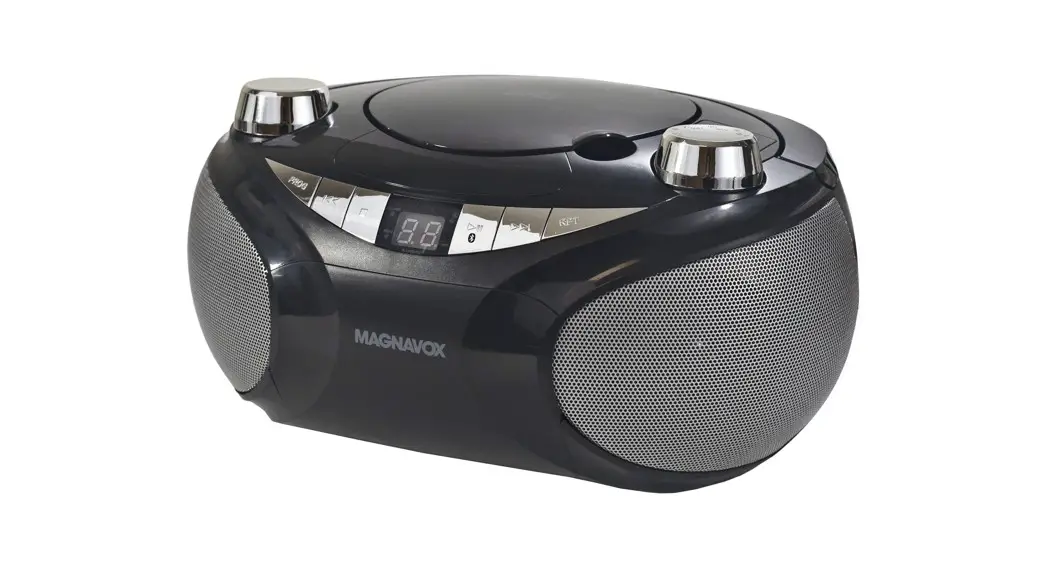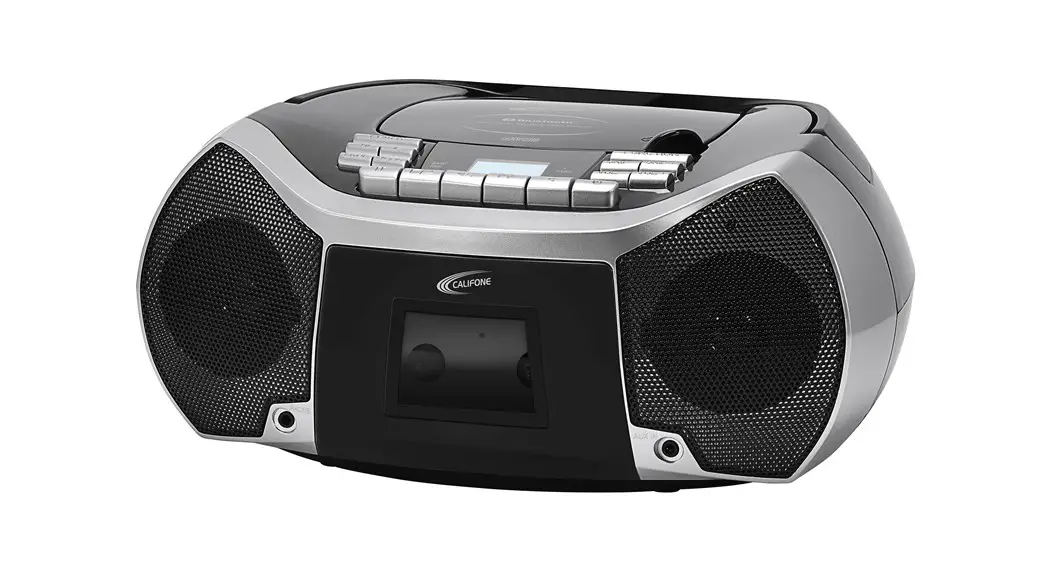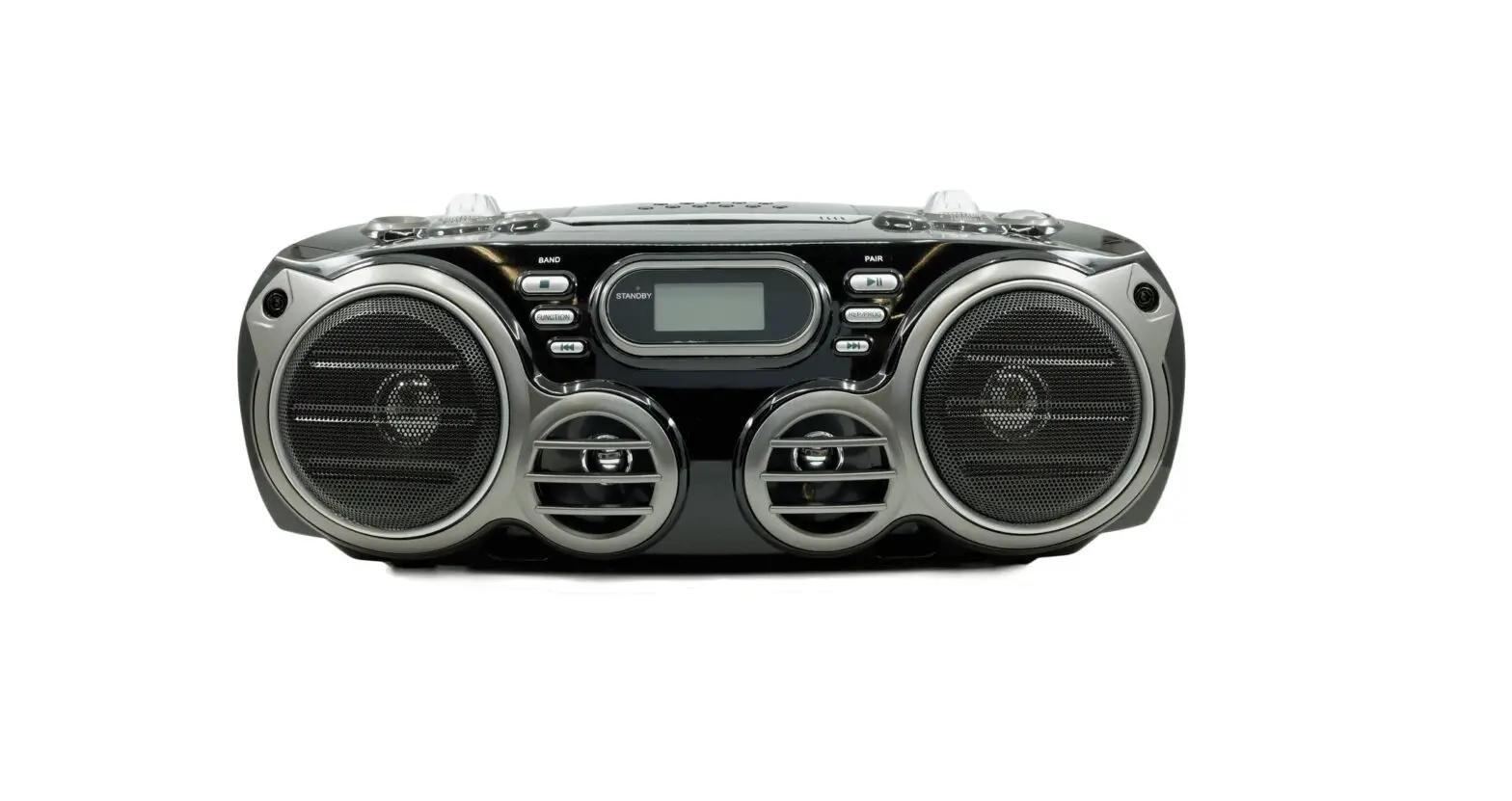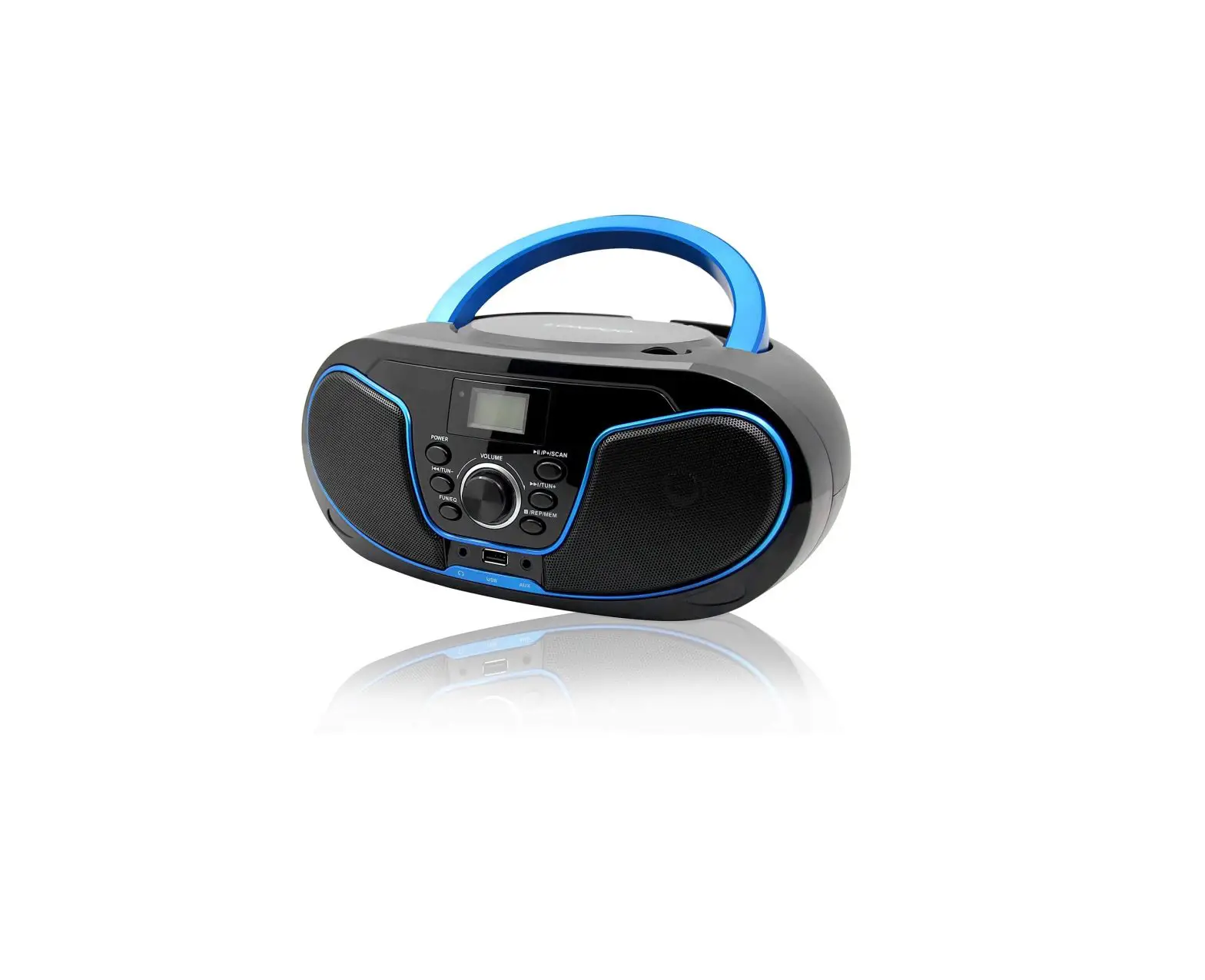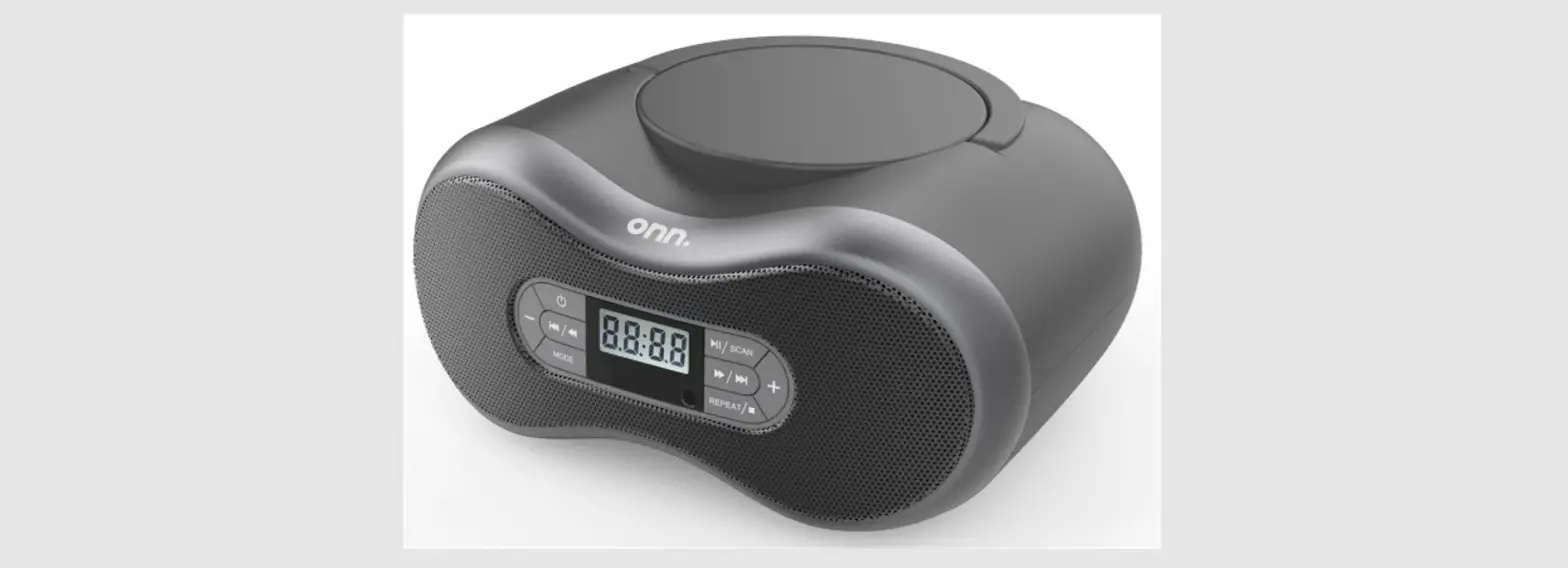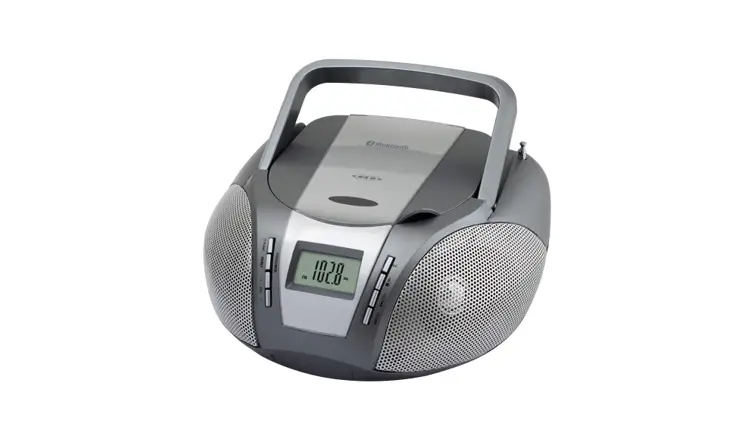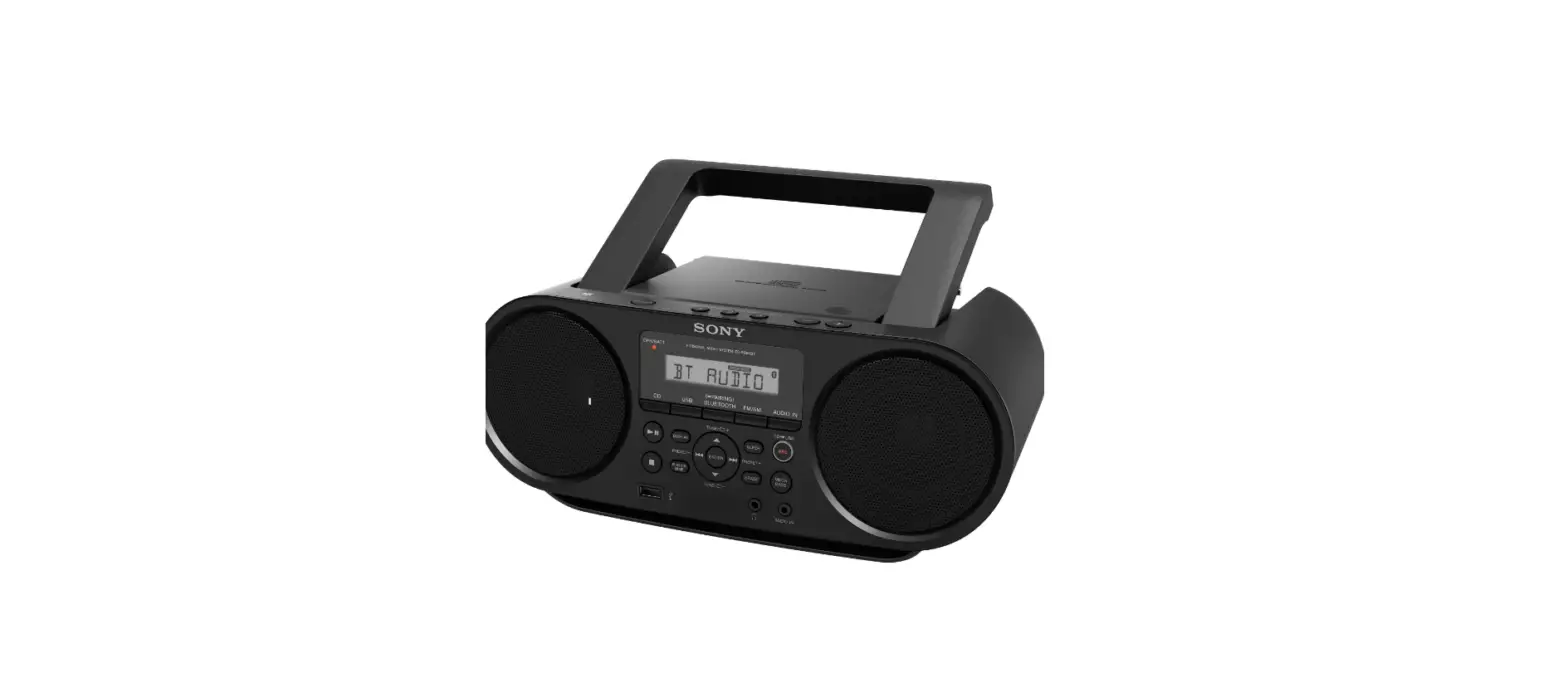

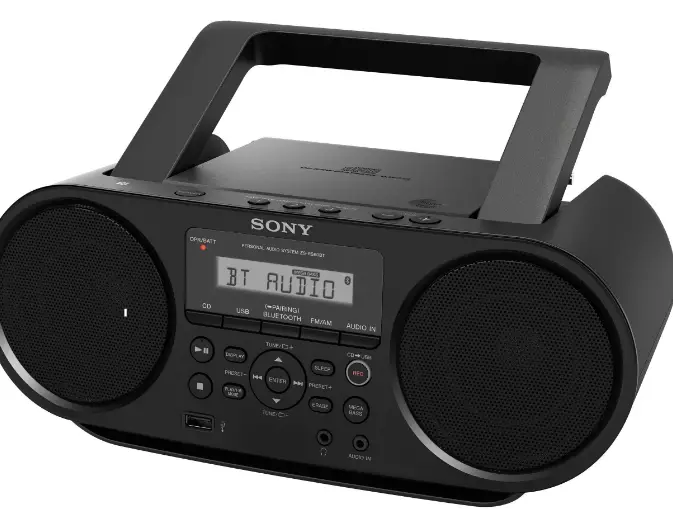
Sony ZSRS60BT CD Boombox with Bluetooth and NFC
Important Safety Instructions
- Read these instructions.
- Keep these instructions.
- Heed all warnings.
- Follow all instructions.
- Do not use this apparatus near water.
- Clean only with dry cloth.
- Do not block any ventilation openings. Install in accordance with the manufacturer’s instructions.
- Do not install near any heat sources such as radiators, heat registers, stoves, or other apparatus (including amplifiers) that produce heat.
- Do not defeat the safety purpose of the polarized or grounding-type plug. A polarized plug has two blades with one wider than the other. A grounding type plug has two blades and a third grounding prong. The wide blade or the third prong are provided for your safety. If the provided plug does not fit into your outlet, consult an electrician for replacement of the obsolete outlet.
- Protect the power cord from being walked on or pinched particularly at plugs, convenience receptacles, and the point where they exit from the apparatus.
- Only use attachments/accessories specified by the manufacturer.12) Use only with the cart, stand, tripod, bracket, or table specified by the manufacturer, or sold with the apparatus. When a cart is used, use caution when moving the cart/apparatus combination to avoid injury from tip-over.
- Unplug this apparatus during lightning storms or when unused for long periods of time.
- Refer all servicing to qualified service personnel. Servicing is required when the apparatus has been damaged in any way, such as power-supply cord or plug is damaged, liquid has been spilled or objects have fallen into the apparatus, the apparatus has been exposed to rain or moisture, does not operate normally, or has been dropped.
Basic Operations
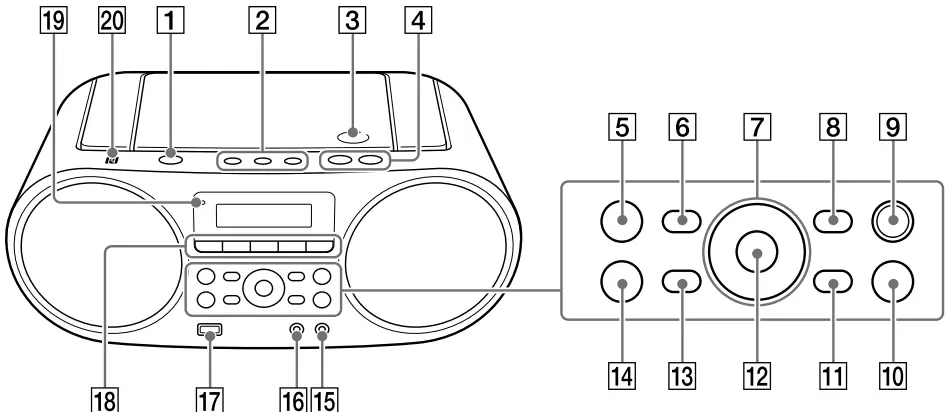
Playing a music disc
- Press CD to turn on the CD function.
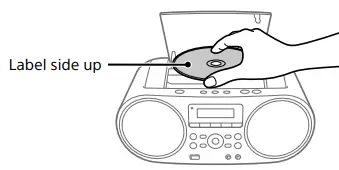
- Press PUSH OPEN/CLOSE , place a disc in the CD compartment and then close the compartment cover
Audio CD
MP3/WMA disc
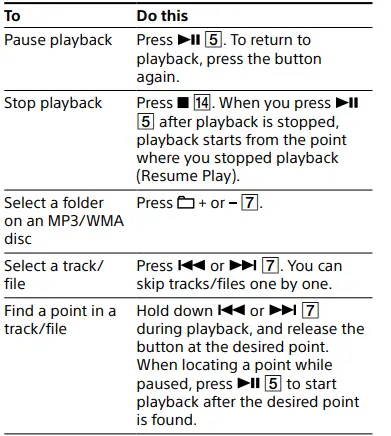
Other operations
Listening to music wirelessly on a BLUETOOTH device
Using the BLUETOOTH connection, you can listen to music from wirelessly connected BLUETOOTH devices such as mobile phones, smartphones, music players, etc.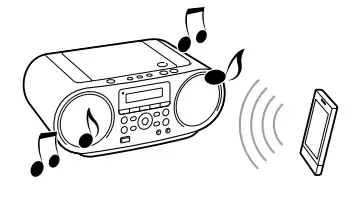
Transferring music from a disc to a USB device
You can transfer a whole disc (CD SYNC transfer) or the currently playing track or file (REC1 transfer) to a USB device (digital music player or USB storage media, etc.). When transferring from a CD, the tracks are transferred as MP3 files with a sampling frequency of 44.1 kHz at 128 kbps (CBR). When transferring from an MP3/WMA disc, MP3/WMA files are transferred with the same bit rate as the original MP3/WMA files.
CD SYNC transfer
To erase audio files or folders from the USB device
- Press or repeatedly to select an audio file, or press + or repeatedly to select a folder.
- Press ERASE
- “ERASE?” appears on the display.
- Press ENTER
- “TRACK ERASE?” or “FOLDER ERASE?” appears on the display.
- Press ENTER .
- The selected audio file or folder is erased, and “COMPLETE” appears on the display.
Notes
- If you start transferring in shuffle play or repeat play mode, the selected play mode is automatically changed to normal play.
- Do not remove the USB device during transferring or erase operations. Doing so may corrupt the data on the device or damage the device itself.
- While transferring, no sound is output and “HI-SPEED” appears on the display.
- CD-TEXT information is not transferred in the created MP3 files.
- Transferring stops automatically if:
- the USB device runs out of space during transferring.
- the number of audio files and folders on the USB device reaches the limit that the unit can recognize.
- Non-MP3/WMA/AAC format files or sub folders in the folder are not erased.
- Radio sound and sound from an optional component cannot be transferred to a USB device
Listening to music wirelessly on a BLUETOOTH device
Using the BLUETOOTH connection, you can listen to music from wirelessly connected BLUETOOTH devices such as mobile phones, smartphones, music players, etc.
Pairing this unit with a BLUETOOTH device
BLUETOOTH devices must be “paired” with each other beforehand. Once BLUETOOTH devices are paired, there is no need for pairing again, unless the pairing information is cleared. Choose the pairing method below depending on your device.
Listening to the radio
- Press FM/AM repeatedly to turn on the radio function and select the band “FM” or “AM.”
- Hold down TUNE + or until the frequency digits begin to change on the display.
- The unit automatically scans the radio frequencies and stops when it finds a clear station.
- If you cannot tune to a station using automatic tuning mode, press TUNE + or repeatedly to change the frequency step by step.
- When an FM stereo broadcast is received, “ST” lights up on the display.
Presetting stations to FAVORITE RADIO STATIONS
- You can preset up to three favorite stations to FAVORITE RADIO STATIONS (1-3) buttons. Assign one FM or AM program for each button.
- Press FM/AM repeatedly to turn on the radio function and select the band “FM” or “AM.”
- Tune to the station you want to preset.
- Press and hold the desired FAVORITE RADIO STATIONS (–SET) (1-3) button until you hear a beep.
- The tuned station is preset to the selected button of FAVORITE RADIO STATIONS (1-3) and the same number as that of the button will light up on the display.
Power Sources
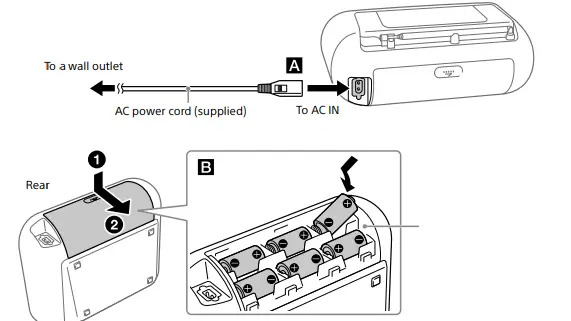
Notes
- When using the radio on batteries and the battery power drops to a certain level, the OPR/BATT indicator dims or the power of the radio may go off during playback.
- If this happens, replace all the batteries with new ones. Even after the OPR/BATT indicator becomes dim, you can use the radio function for some time, although you cannot use the CD player. Before you replace the batteries, be sure to remove any CD and disconnect any USB devices or optional components from the unit.
- To use the unit on batteries, disconnect the AC power cord from the unit and the wall outlet.
- Batteries have a recommended use-by date for proper use. When using expired batteries, battery life will be extremely short. Check the use-by date on the batteries and if they are expired, replace them with new ones.
- In standby mode with the AC power cord connected, “STANDBY” appears on the display.
Selecting play mode
You can set the unit to play tracks or files repeatedly or in random order while a disc/USB device is stopped.
Additional Information
Compatible devices
Compatible USB devices
Compatibility requirements for the USB devices are as follows. Before using a device with this unit, check that it meets the requirements.
- Compliance with USB 2.0 (Full Speed)
- Supports Mass Storage mode* * Mass Storage mode is a mode that allows a USB device to become accessible to a host device, enabling file transfers. Most USB devices support Mass Storage mode. Notes on the USB device
- When a USB device is connected, the unit reads all the files on the device. If there are many folders or files on the device, it may take a long time for the unit to finish reading them.
- Do not connect a USB device to the unit through a USB hub.
- With some connected USB devices, after an operation is performed, there may be a delay before it is performed by this unit.
- This unit may not support all the functions provided with a connected USB device.
- The playback order on this unit may differ from the playback order on a connected USB device.
Compatible BLUETOOTH devices
- Compatibility requirements for the devices are as follows. Before using a device with this unit, check that it meets the requirements.
- Devices must conform to BLUETOOTH Standard version 2.1 + EDR.
- Devices must support A2DP (Advanced Audio Distribution Profile) and AVRCP (Audio/Video Remote Control Profile).
- NFC capability (required only when using the NFC pairing function of the unit).
What is BLUETOOTH wireless technology?
BLUETOOTH wireless technology is a short-range wireless technology that enables wireless data communication between digital devices, such as a computer and digital camera. BLUETOOTH wireless technology operates within a range of about 10 m (33 feet). Connecting two devices as necessary is common, but some devices can be connected to multiple devices at the same time. You do not need to use a cable for connection, nor is it necessary for the devices to face one another, such is the case with infrared technology. For example, you can use such a device in a bag or pocket. BLUETOOTH standard is an international standard supported by thousands of companies all over the world, and employed by various companies worldwide. Maximum communication range Maximum communication range may shorten under the following conditions.
- There is an obstacle such as a person, metal, or wall between the unit and BLUETOOTH device.
- A wireless LAN device is in use near the unit.
- A microwave oven is in use near the unit.
- A device that generates electromagnetic radiation is in use near the unit.
- The unit is placed on a shelf made of steel.
Precautions
Discs that this unit CAN play
- Audio CD (CD-DA*1 tracks)
- CD-R/CD-RW that contains MP3/WMA files and is finalized*2 correctly.
- 1 CD-DA is the abbreviation for Compact Disc Digital Audio. It is a recording standard used for audio CDs.
- 2 Finalizing is the process to make the CD-R/CD-RW discs playable on the consumer disc player products, and the finalizing can be enabled or disabled as optional settings during disc creation in most recording software.
Discs that this unit CANNOT play
- CD-R/CD-RW other than those recorded in audio CD format or formats conforming to ISO 9660 Level 1/Level 2 or Joliet
- CD-R/CD-RW of poor recording quality, CD-R/CD-RW with scratches or that is dirty, or CD-R/CD-RW recorded using an incompatible recording device
- CD-R/CD-RW that is unfinalized or finalized incorrectly
Notes on discs
- Clean the CD with a cleaning cloth if the disc is dirty. Wipe the disc from the center out. If there are scratches, dirt or fingerprints on the disc, a tracking error may occur.
- Do not use solvents such as benzine, thinner, commercially available cleaners or anti-static spray intended for vinyl LPs.
- Do not expose the CD to direct sunlight or heat sources such as hot air ducts, or leave it in a car parked in direct sunlight as there can be a considerable rise in temperature inside the car.
- Do not stick paper or a sticker on the CD, or scratch the surface of the CD.
- After playing, store the CD in its case.
Note on Dual Discs
A DualDisc is a two sided disc product which mates DVD recorded material on one side with digital audio material on the other side. However, since the audio material side does not conform to the Compact Disc (CD) standard, playback on this product is not guaranteed.
Troubleshooting
The power does not turn on.
- Make sure the AC power cord is connected to the wall outlet securely.
- Make sure the connector of AC power cord is inserted into the AC IN jack securely.
- Check if the batteries are inserted correctly, matching the polarities.
- Replace all the batteries with new ones when the OPR/BATT indicator dims.
There is no sound.
- Make sure the appropriate function is selected for the music or sound source you want to listen to.
- Unplug the headphones when listening through speakers.
The sound is noisy.
- Is someone using a mobile phone or other equipment emitting radio waves near the unit? If so, move the unit and the BLUETOOTH device away from such devices.
- Devices such as mobile phones, etc., can affect BLUETOOTH communication.
- A small humming noise is heard from the radio.
- This is not a malfunction. You may hear a small humming noise from the radio depending on the status of the power supply.
- “NOT IN USED” appears.
- You pressed an invalid button.
- CD/MP3/WMA player
- The CD player does not play even when a CD is in place.
- Place the CD with the label side up.
Clean the CD.
- Take out the CD and leave the CD compartment open for about an hour to dry moisture condensation.
- The CD-R/CD-RW is blank or unfinalized.
- There are no playable MP3/WMA files on the disc.
- There is a problem with the quality of the CD-R/CD-RW, recording device or application software.
- Replace all the batteries with new ones when the OPR/BATT indicator dims.
- “NO CD” appears when the disc is loaded.
- No disc is set in the CD compartment. Set a disc.
- The CD may have a reading problem. Replace the disc.
- The CD may be placed upside down. Place the disc with the label side up.
- An unplayable disc (DVD, BD, etc.) is loaded. Replace the disc.
- “NO TRACK” appears on the display when the disc is loaded.
- No audio files recorded in supported formats, or a file to be played back has an unsupported file extension.
- “DISC ERR” appears when the disc is loaded.
- The CD may be dirty. Clean the disc.
- The CD may have scratches. Replace the disc.
- The CD may have a reading problem. Replace the disc.
- A blank disc may be set in the CD compartment.
The sound drops out.
- Reduce the volume.
- Clean the CD, or replace it if the CD is badly damaged.
- Place the unit in a location free from vibrations.
- Clean the lens with a commercially available blower.
- The sound may drop out or noise may be heard when using a poor quality CD-R/CD-RW or if there is a problem with the recording device or application software.
- Starting playback takes more time than usual.
- The following discs take a longer time to start playback.
- A disc recorded with a complicated tree structure.
- A disc that has m
Specifications
AUDIO POWER SPECIFICATIONS
POWER OUTPUT AND TOTAL HARMONIC DISTORTION
With 6-ohm loads, both channels driven from 150 Hz 10 000 Hz; rated 1.5 W per channel-minimum RMS power, with no more than 10 % total harmonic distortion in AC operation.
- Radio section
- Frequency range
- FM: 87.5 MHz 108 MHz (100 kHz step)
- AM: 530 kHz 1 710 kHz (10 kHz step)
- Intermediate frequency
- FM: 128 kHz
- AM: 45 kHz
- Antennas
- FM: Telescopic antenna
- AM: Built-in ferrite bar antenna
- Input
- AUDIO IN
- Stereo mini jack
- (USB) port
- Type A, maximum current 500 mA, USB 2.0 Full Speed compatible
- Output
- (headphones) stereo mini jack
- For 16 Ω 32 Ω impedance headphones
- Supported audio formats
- Supported bit rates
- MP3 (MPEG 1 Audio Layer-3):
- 32 kbps 320 kbps, VBR
- WMA:
- 48 kbps 192 kbps, VBR
- AAC*:
- 8 kbps 320 kbps, VBR
- * USB function only
- Sampling frequencies
- MP3 (MPEG 1 Audio Layer-3):
- 32/44.1/48 kHz
- WMA:
- 32/44.1/48 kHz
- AAC*:
- 32/44.1/48 kHz
- * USB function only
License and Trademark Notice
- MPEG Layer-3 audio coding technology and patents licensed from Fraunhofer IIS and Thomson.
- Windows Media is either a registered trademark or trademark of Microsoft Corporation in the United States and/or other countries.
- This product is protected by certain intellectual property rights of Microsoft Corporation. Use or distribution of such technology outside of this product is prohibited without a license from Microsoft or an authorized Microsoft subsidiary.
- The Bluetooth® word mark and logos are registered trademarks owned by Bluetooth SIG, Inc. and any use of such marks by Sony Group Corporation and its subsidiaries is under license.
- The N-Mark is a trademark or registered trademark of NFC Forum, Inc. in the United States and in other countries.
- Android is a trademark of Google LLC.
- Other trademarks and trade names are those of their respective owners.
- ™ and ® marks are omitted in the documents.
For customers in the USA
Please register this product on line at the following website. https://www.sony.com/productregistration Proper registration will enable us to send you periodic mailings about new product, services and other important announcements. Registering your product will also allow us to contact you in the unlikely event that the product needs adjustment or modification.
FCC
This equipment has been tested and found to comply with the limits for a Class B digital device, pursuant to Part 15 of the FCC Rules. These limits are designed to provide reasonable protection against harmful interference in a residential installation. This equipment generates, uses and can radiate radio frequency energy and, if not installed and used in accordance with the instructions, may cause harmful interference to radio communications. However, there is no guarantee that interference will not occur in a particular installation. If this equipment does cause harmful interference to radio or television reception, which can be determined by turning the equipment off and on, the user is encouraged to try to correct the interference by one or more of the following measures:
- Reorient or relocate the receiving antenna.
- Increase the separation between the equipment and receiver.
- Connect the equipment into an outlet on a circuit different from that to which the receiver is connected.
- Consult the dealer or an experienced radio/TV technician for help.
FAQS
Can I plug it into a wall outlet
Yes, of course. The nice thing is that you have BOTH options to use with batteries and make it portable or easily plug into an ouitlet
Can I connect the player to external Bluetooth speakers?
You can. For example, I have the August MS515 ( I am pretty sure it is the right model number) Bluetooth speaker system
Could someone give me the height and depth of this unit?
Here are the dimensions of this stereo. Approx. 320 mm × 133 mm × 215 mm (12 5/8 in × 5 1/4 in × 8 1/2 in) (W/H/D) (incl. projecting
can it play mp3 recorded on cd?
Yes. CD-R and CD-RW. It can also play mp3 from USB.
Can I plug it into a wall outlet
Yes, of course. The nice thing is that you have BOTH options to use with batteries and make it portable or easily plug into an ouitlet
Can I connect the player to external Bluetooth speakers?
You can. For example, I have the August MS515 ( I am pretty sure it is the right model number) Bluetooth speaker system
Could someone give me the height and depth of this unit?
Here are the dimensions of this stereo. Approx. 320 mm × 133 mm × 215 mm (12 5/8 in × 5 1/4 in × 8 1/2 in) (W/H/D) (incl. projectin
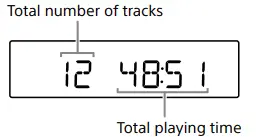
Does the screen on the box show the time?
This unit shows the track number and the playing time once you start or resume to play. You can check the operating instruction from this link for more details:
can i record musics/transfer musics from cd to usb
No You can not, it can read the music from a usb but not record
Doe the cd player have a repeat function?
Yes it does have REPEAT 1 and REPEAT ALL function. Press PLAY MODE button.
Does this unit have presets for fm stations? Manufactor said yes but seller said no
Yes, you can preset up to 30 radio stations, 20 for FM and 10 for AM
How loud is it? My son needs something to play over him practicing his drums
It is plenty loud for a small unit–but playing anything loud enough to be clearly heard over drums perhaps just a room away
Is it dual voltage or just 120?
This unit requires 120V AC, 60 Hz. For further information please check the manual: https://docs.sony.com/release//ZSRS60BT.pdf
Does this radio have RCA output jacks?
No. Please check the parts of this Boombox in the link below. https://docs.sony.com/release//ZSRS60BT.pdf
Can you charge a phone from the USB?
Yes. Just remember to push the USB button on the box after/before you plug in the phone.