Vision VR Training and Wellness
Product Information: The REAL Vision VR Training
and Wellness is a digital hardware and software platform that
utilizes virtual reality technology. It is designed for Learning
and Development training as well as employee wellness needs. The
device is not intended for therapeutic or medical purposes, but
rather for applications such as harassment and discrimination
prevention training, and workforce wellness. Device
Description: The REAL Vision VR Training and Wellness
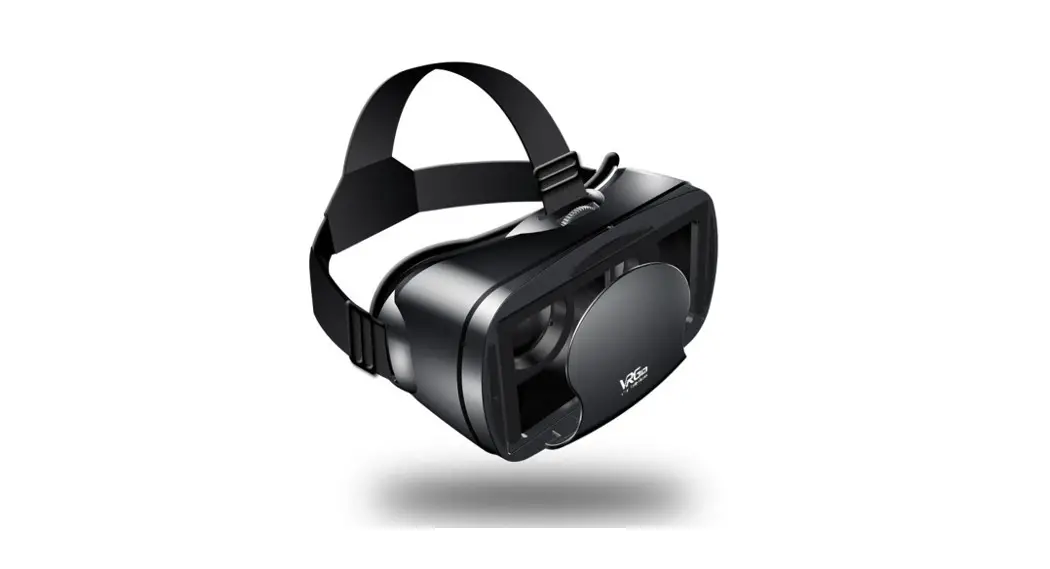
consists of the following components: 1. Virtual Reality (VR)
Headset: This headset allows users to experience REAL Vision VR
Training lessons and wellness experiences in an immersive
environment. It features a power button, LED status light, USB
Type-C connector, tracking sensors, back head support, adjustment
dial, adjustment head strap, speaker, 3.5 mm headset jack, volume
buttons, face cushion, microphone, IPD adjustment slider, and
proximity sensor. 2. Charging Adapter and Cable for Headset: This
adapter and cable are used to charge the VR headset. If any
components are missing, please contact REAL Product Technical
Support at 1.855.732.5797 or [email protected]. To ensure
safety, only plug the device into a grounded outlet and always
unplug it before cleaning. Handling Information: –
Headset tracking may be lost or compromised if large objects
obscure the headset. Therefore, it is important to use the product
in a well-lit area and avoid sitting in front of mirrors and
reflective surfaces while using the system. – Do not drop the
system as it may cause damage to the headset and headset
controller. Avoid any liquid products near the system components. –
Do not use the device adjacent to other equipment as it may result
in improper operation. If such use is necessary, observe both this
equipment and the other equipment to ensure they are operating
normally. – Do not tamper with or modify any component of the
device. – Only use accessories, transducers, and cables specified
or provided by the manufacturer. Using other accessories may result
in increased electromagnetic emissions or decreased electromagnetic
immunity, leading to malfunction. – Regularly inspect the
equipment, electrical cords, and cables for damage or signs of
wear. Do not use damaged components and replace them as needed. –
Power adapters and cables should only be replaced with identical
accessories to that of the REAL Vision VR Training and Wellness.
Any changes or replacements may impact the compliance of the
device. Product Usage Instructions: 1. Charging
the Headset: – Connect the charging cable to the VR headset’s USB
Type-C connector. – Plug the charging adapter into a grounded
outlet. – Allow the headset to charge until fully powered. 2.
Setting Up REAL Vision VR Training and Wellness: – Ensure that the
headset is charged and powered off. – Connect the headset to a
compatible device using the provided cables. – Follow the
instructions on the compatible device to set up the VR training and
wellness software. 3. Wearing the Headset: – Adjust the head strap
to fit securely and comfortably on your head. – Use the adjustment
dial to achieve a clear and focused view. – Ensure that the face
cushion is positioned correctly for comfort. 4. Navigating with
Gaze-Select: – When using the VR headset, navigate through menus
and select options by looking at them. – Use your gaze to highlight
the desired option, then press the appropriate button or gesture as
instructed by the software. Please refer to the complete user
manual for troubleshooting information, technical specifications,
and symbols glossary.
REAL VisionTM VR Training and Wellness
USER MANUAL
1
Table of Contents
Purpose of Device
3
Storage, Charging and Cleaning
8
Device Description
3
Disposing REAL Vision VR Training and Wellness
8
· REAL Vision VR Training and Wellness Components
3
Troubleshooting Information
8
Important Safety Information
3
Technical Specification
9
Important Handling Information
3
Symbols Glossary
9
Getting Started
4
Technical Information
10
Charging the Headset
4
Setting Up REAL Vision VR Training and Wellness
5
· Turning on the Headset
5
Wearing the Headset
5
· Adjusting the Volume
5
· Adjusting the Interpupillary Distance (IPD)
5
· Using REAL Vision VR Training and Wellness
6
· Onboarding Tutorial Overview
6
Navigating with Gaze-Select
6
· Selecting and Launching Training and Wellness Sessions
7
· Connecting to Wi-Fi
7
· Submitting Testing Results
7
2
CAUTION: PLEASE READ ALL INSTRUCTIONS PROVIDED IN THIS USER MANUAL.
PURPOSE OF DEVICE
REAL Vision VR Training and Wellness is a digital hardware and software platform utilizing virtual reality technology designed for Learning and Development training as well as employee wellness needs. Learning and development and employee wellness is not of therapeutic or medical intent and is, instead, intended for applications such as harassment and discrimination prevention training, and workforce wellness.
DEVICE DESCRIPTION REAL Vision VR Training and Wellness Components:
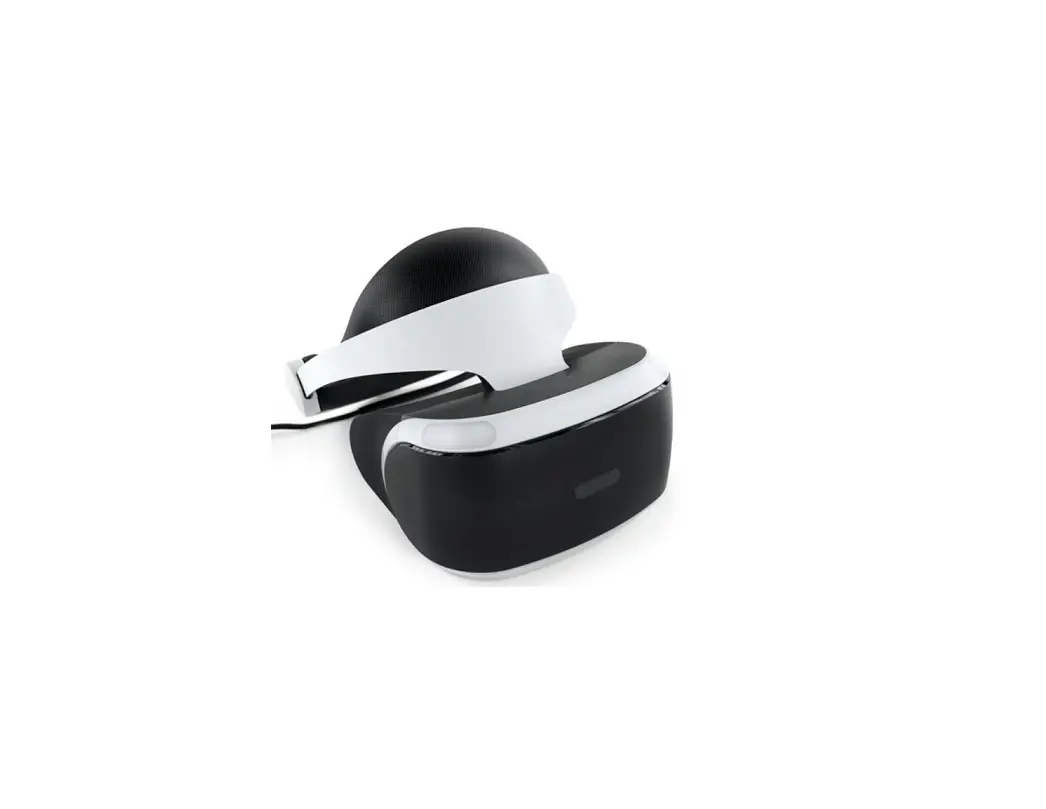
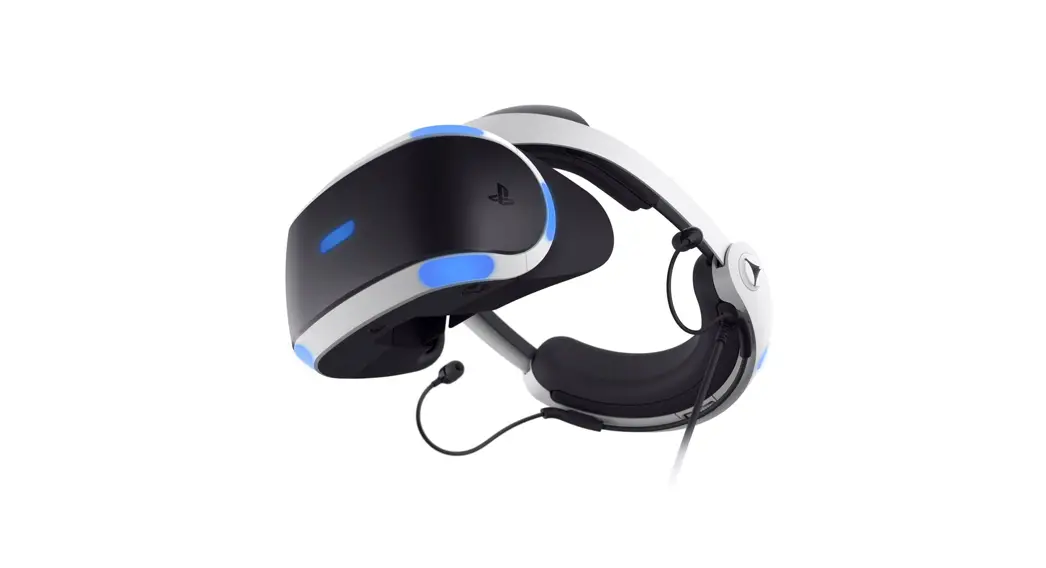
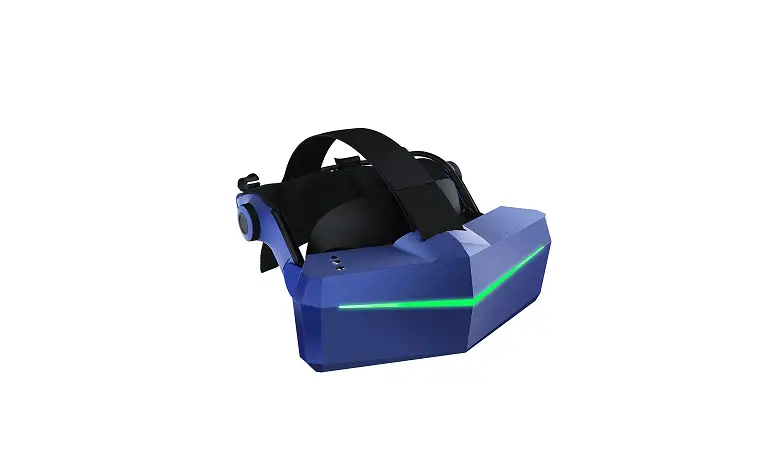
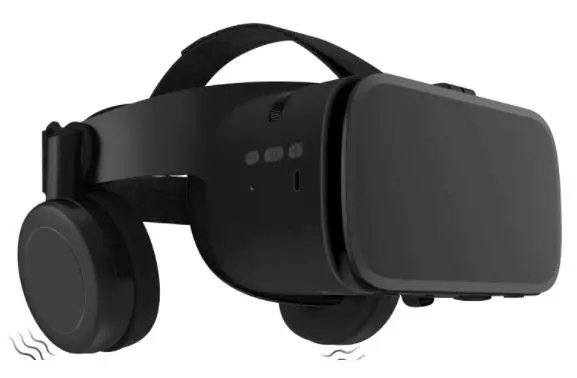
1. Virtual Reality (VR) Headset: Allows the user to experience REAL Vision VR Training lessons and wellness experiences in an immersive environment.
Front
1 Power button 2 LED (Status light) 3 USB Type-C connector 4 Tracking sensors 5 Back head support 6 Adjustment dial
7 Adjustment head strap
Back
4 5
6 7
1 Speaker 2 3.5 mm headset jack 3 Volume buttons 4 Face cushion 5 Microphone 6 IPD adjustment slider 7 Proximity sensor
2. Charging Adapter and Cable for Headset: Allows charging of the VR headset.
3. Headset Controller: Provides access to advanced settings. Note: Only to be used in certain troubleshooting and administrative tasks by REAL Product Technical Support specialists. · 2 x AAA batteries: Required to turn on controller
If you’re missing any components, please contact REAL Product Technical Support at 1.855.732.5797 or [email protected].
IMPORTANT SAFETY INFORMATION Some users may experience motion sickness, dizziness, headache, eye strain, or fatigue. Visual stimulation through head mounted displays also has a small possibility to cause an epileptic seizure. If any of these events occur, stop using the system immediately. Users should use caution when using this device if they have a history of inner ear issues that might cause vertigo, or motion sickness. Before use of the system, make sure to remove all surrounding obstacles within two feet to ensure a safe environment. Be aware of the limitations inrange of motion and avoid excessive gestures to prevent injuries. It is recommendedto be seated at all times when using the system to avoid trips and falls.
To avoid risk of electric shock, only plug the device into a grounded outlet and always unplug the device before cleaning it.
Do not continue to use the system if components start to overheat (exceed 105.8 °F or 41 °C). Keep this device out of the reach of children.
IMPORTANT HANDLING INFORMATION Headset tracking may be lost or compromised if large objects obscure headset. Ensure the product is used in a well-lit area. Avoid sitting in front of mirrors and reflective surfaces while system is in use.
3
Do not drop the system. The headset and headset controller may suffer damage when dropped or struck against another object. Do not allow liquid products to be near any system component.
Do not use the device adjacent to other equipment because it could result in improper operation. If such use is necessary, this equipment and the other equipment should be observed to verify that they are operating normally.
Do not tamper with or modify any component.
Use of accessories, transducers, and cables other than those specified or provided by the manufacturer of this equipment could result in increased electromagnetic emissions or decreased electromagnetic immunity of this equipment and result in malfunction.
Periodically inspect equipment, electrical cords and cables for damage or signs of wear. Do not use damaged components and replace as needed.
Accessories such as power adapters and cables should only be replaced with identical accessories to that of the REAL Vision VR Training and Wellness. Any changes or replacements ofaccessories will likely impact compliance of REAL Vision VR Training and Wellness.
Make sure the device is used on a secure network to ensure the security of any data processed by the device.
GETTING STARTED Charging the Headset
1. Insert the small end of the charging cable into the USB port located on the top side of the headset.
2. Connect the other end of the charging cable into the adapter. 3. To start charging the headset, connect the power adapter to a power outlet.
An orange LED light will appear when the headset is charging.
4. LED light becomes solid white when fully charged. Full charge requires approximately 60 minutes.
Headset LED Status
4
SET-UP
Turning on the Headset
1. After the headset is fully charged, unplug the charging cable from the headset.
2. Power on the headset by holding down the top button for approximately 2 seconds. A flashing white light will appear on top of the headset.
Adjusting the Volume
Wearing the Headset
1. Loosen the straps located on the top of the headset.
2. Loosen the back head support using the adjustment dial.
3. Put on the headset, then pull down the back head support until it rests at thebase of your head.
a. If you have long hair, position the back head support above the base of your head.
Audio can be heard via the headset’s built-in speakers or by plugging in wired headphones (or earphones) with a 3.5 mm connector in the headphone jack located on the bottom side of the headset.
· To adjust the volume of the speakers or headphones, press the volume button at the bottom of the headset.
Adjusting the Interpupillary Distance (IPD) on the Headset To avoid blurry and out-of-focus virtual experiences, adjust the IPD of the headset lenses using the adjustment slider on the underside of the headset.
1. With the headset on, move the adjustment slider towards the left or right until the view is clear and focused.
4. Tighten the straps on top and turn the adjustment dial to tighten the back head support, until the fit is comfortable. Note: Eyeglasses and hearing aids can be worn during system use.
5
USING REAL Vision VR Training and Wellness Activation for Training Content The headset must be connected to the internet via Wi-Fi and a PIN code must be entered to use the device in its full capacity. PIN codes are provided by your organization administrator. If no PIN code is entered, the user will only have the option to select “Product Demo.” Please note that the demonstration version of the app does not offer the full training content nor issues a certificate of completion. After activation, REAL Vision VR Training and Wellness can be utilized without internet during training experience with reduced functionality. Using the device without internet limits the number of PIN codes the headset will accept. Also, quiz results and the certificate of completion will remain stored in the device until it is connected to the internet. Please reach out directly to your organization administrator and/or Penumbra representative with any questions. To activate the headset:
1. Move your head and use the Gaze-Circle to select “Activate”.
2. Select the Wi-Fi icon from the main menu. 3. Choose your preferred Wi-Fi network from the list. 4. If the selected Wi-Fi network requires a password, enter the password
thenselect `Connect.’ If the selected Wi-Fi network requires logging in via webpage, please contact REAL Product Technical Support at 855.732.5797 or [email protected] for further assistance.
Tutorial Overview The tutorial is recommended for first time users. Follow the prompts on the screen to complete the tutorial. The tutorial reviews the following:
1. How to use VR. 2. How to adjust the headset.
Using Gaze-Based Navigation / How to Make a Selection REAL Vision VR Training and Wellness features an intuitive gaze-based navigation.
1. Look at the selection icons for Training and Wellness. 2. A light blue Gaze-Circle will follow your gaze, as you move your head. 3. To select, move your head and use the Gaze-Circle to select the desired
icon and hold until the progress circle completes.
Connecting to Wi-Fi To connect your headset to Wi-Fi after activation:
1. Select the Wi-Fi icon from the main menu. 2. Choose your preferred Wi-Fi network from the list. 3. If the selected Wi-Fi network requires a password, enter the password
thenselect `Connect.’ If the selected Wi-Fi network, requires logging in via webpage, please contact REAL Product Technical Support at 855.732.5797 or [email protected] for further assistance. 4. Select `Back’ to return to the main menu.
6
Selecting and Launching Training
1. To launch a Training session, move your head and use the Gaze-Circle to select “Training” from the main menu.
2. To get to the Training Menu, enter a PIN provided by the organization administrator.
3. Select the appropriate training activity using the GazeCircle. It is recommended to select [START TRAINING] to play all training sessions sequentially.
4. The timeline control menu supports the training experience:
1. Close button: close video playback and returns to the previous menu.
2. Back button: goes to the previous experience or to the main menu if there is no previous video.
3. Play/Pause button: selects to play or pause experience.
4. Timeline slider: jumps to a time segment of the experience (Note: Seeking backwards is always allowed. Seeking forward is only available if user is returning to a previously watched session).
5. Forward button: goes to the next experience (only available to users returning to a previously watched session. Users are not allowed to skip towards the end of the video. The entire video needs to be watched, at least once, to allow seeking and jumping forward).
6. Narration: turns the narration on/off during an experience (not available on all content).
7. Closed captions or subtitles: Turns closed captions on/off during an experience (not available on all episodes).
Selecting and Launching Wellness Experiences 1. To launch a Wellness session, move your head and use the Gaze-Circle to select “Wellness” from the main menu.
2. Then, select the wellness experience using the GazeCircle from the Wellness menu.
3. The timeline control menu supports the wellness experiences: 1. Close button: close video playback and returns to the previous menu 2. Back button: goes to the previous experience or to the main menu if there is no previous video. 3. Play/Pause button: selects to play or pause experience. 4. Timeline slider: jumps to a time segment of the experience 5. Forward button: goes to the next experience 6. Repeat: Will restart video from beginning until canceled. 7. Narration: turns the narration on/off during an experience (not available on all content). 8. Closed captions or subtitles: Turns closed captions on/off duringan experience (not available on all episodes).
Submitting Quiz Results for REAL Vision VR Training 1. Connect headset to Wi-Fi. 2. Any saved training data will be uploaded automatically 3. To manually check if training data was uploaded correctly: Look at the REAL VISION logo for 15 seconds. It will open a system menu and display the ACTIVATE button and the SYNC button, which will show a progress bar reporting the progress to sync any offline data.
7
STORAGE, CHARGING AND CLEANING 1. After completing training and/or wellness experiences, remove headset. 2. Power off the headset by pressing and holding the power button
for approximately 2 seconds.
Hold power button until headset turns OFF
3. Charge the headset using the supplied charging accessories.
Notes: · The headset outer and inner plastic components may be cleaned with
sanitizing wipes. Use only water-based solvents for cleaning. Do not use petroleum-based compounds, acids, caustics, or chlorinated solvents to clean or lubricate any parts. · Headset lenses may be cleaned by gently wipe lenses with a soft clothto avoid smears or scratches.
DISPOSING REAL Vision VR Training and Wellness REAL Vision VR Training and Wellness contains a lithium-ion battery. Dispose of REAL Vision VR Training and Wellness separate from household and/or commercial waste, according to local laws and regulations. For further information, contact your local REAL representative or Product Technical Support at 1.855.732.5797 or [email protected].
TROUBLESHOOTING For additional assistance, please contact REAL Product Technical Support at 1.855.732.5797 or [email protected].
1. Headset is not charging a. Check both ends of the charging cable for a possible loose connection. b. Make sure the charging adapter is plugged correctly into the power outlet.
2. Headset is not turning on a. Charge the headset for at least 30 minutes and try again. b. Make sure the LED light on the headset shows blinking/solid white before use.
3. Headset falls asleep a. Put the headset on. This should automatically wake it up. If it does not, tap the power button.
4. Cannot connect headset to Wi-Fi a. Confirm the selected Wi-Fi network is available. b. Confirm the correct Wi-Fi password is entered.
5. Headset loses tracking a. Ensure REAL Vision VR Training and Wellness is used in a well-lit area. Avoid irregular or dim lighting in the room. b. Ensure you have at least 2 feet of clear space around you. c. Do not cover the front of the headset. d. Stay seated at all times. e. Wipe the external lenses with a dry, microfiber cloth to remove any smudges. f. Ensure REAL Vision VR Training and Wellness is used when facing walls with contrast. Avoid blank, mirrored, reflective, or glass walls.
6. Headset was exposed to liquid a. Remove headset. Power down theequipment if possible and do not use the equipment. Pat the wet equipment dry and do not plug in cables. Contact REAL Product TechnicalSupport at 1.855.732.5797 or [email protected].
8
TECHNICAL SPECIFICATIONS
Latency Input Supply Voltage Range Operating Temperature Operating Pressure Operating Relative Humidity Operating Elevation Transportation and Storage Temperature Transportation and Storage Pressure Transportation and Storage Relative Humidity
35 milliseconds 100-240V AC, 50-60 Hz 15 °C to 30 °C (59 to 86 °F) 102 kPa or less (14.8 psi or less) 15% to 90% 2,500 meters or less (8202.1 ft. or less) 0°C to 30 °C (32 to 59 °F) 102 kPa or less (14.8 psi or less) 15% to 90%
SYMBOL GLOSSARY
Refer to User Guide (Instruction Manual) Type BF Applied Part
WEEE Manufacturer Catalog Number Lot Number Date of Manufacture Alternating Current Class II Equipment Serial Number
US and Canada Certification
Keep Dry Transportation Temperature Range Transportation Atmospheric Pressure Range
Transportation Humidity Range
Protection against ingress of solid foreign objects level 2 and water level 2
9
TECHNICAL INFORMATION
The REAL Vision VR Training and Wellness is a Type BF Applied Part.
REAL Vision VR Training and Wellness is intended for use in the electromagnetic environment specified below. The customer or the user of REAL Vision VR Training and Wellness should assure that it is used in such an environment.
Emissions Test
Compliance
RF emissions CISPR 11
RF emissions CISPR 11
Group 1 Class B
REAL Vision VR Training and Wellness uses RF energy only for its internalfunction. Therefore, its RF emissions are very lowand are not likely to cause any interference in nearby electronic equipment.
REAL Vision VR Training and Wellness is suitable for use in any residential or commercial environment.
Harmonic emissions IEC 61000-3-2
Class A
Voltage Fluctuations/ Flicker emissions
Complies
REAL Vision VR Training and Wellness is intended for use in the electromagnetic environment specified below. The customer or the user of REAL Vision VR Training and Wellness should assure that is it used in such an environment.
Immunity test
IEC 60601 test level
Compliance level
Electromagnetic environment guidance
Electrostatic discharge (ESD) IEC 61000-4-2
±8 kV contact ±15 kV air
±8 kV contact ±15 kV air
Floors should be wood, concrete, or ceramic tile. If floors are covered with synthetic material, the relative humidity should be at least 30%.
Electrical fast transient/burst IEC 61000-4-4
±2 kV for power supply lines ±1 kV for input/output lines
±2 kV for power supply lines ±1 kV for input/output lines
Mains power quality should be that of a typical commercial environment.
Surge IEC 61000-4-5
±1 kV differential mode ±2 kV common mode
±1 kV differential mode ±2 kV common mode
Mains power quality should be that of a typical commercial environment.
Voltage dips, short interruptions, and voltage variations on power supply input lines IEC 61000-4-11
Voltage Dips 30% reduction, 25/30 periods At 0°
Voltage Dips > 95% reduction, 0.5 period At 0°, 45°, 90°, 135°, 180°, 225°, 270° and 315°
Voltage Dips > 95% reduction, 1 period At 0°
Voltage Interruptions > 95% reduction, 250/300 periods
Voltage Dips 30% reduction, 25/30 periods At 0°
Voltage Dips > 95% reduction, 0.5 period At 0°, 45°, 90°, 135°, 180°, 225°, 270° and 315°
Voltage Dips > 95% reduction, 1 period At 0°
Voltage Interruptions > 95% reduction, 250/300 periods
Mains power quality should be that of a typical residential or office environment. If the userof the EQUIPMENT requires continued operation during power mains interruptions, it is recommended that REAL Vision VR Training and Wellness be powered from an uninterruptible power supply or a battery.
(50/60 Hz) magnetic field IEC 61000-4-8
30 A/m
30 A/m
Power frequency magnetic fields should be at levels characteristic of a typical location in a typical commercial environment.
REAL Vision VR Training and Wellness is intended for use in the electromagnetic environment specified below. The customer or the user of REAL Vision VR Training and Wellness should assure that it is used in such an environment.
Immunity test
IEC 60601 test level
Compliance level
Electromagnetic environment guidance
Conducted RF IEC 61000-4-6
3 Vrms 150 kHz to 80 MHz (6 Vrms in ISM radio Bands within 150kHz 80MHz)
3 Vrms
Portable and mobile RF communications equipment should be used no closer to any part of REAL Vision VR Training and Wellness, including cables, than the recommended separation distance calculated from the equation applicable to the frequency of the transmitter.
Radiated RF IEC 61000-4-3
10 V/m 80 MHz to 2.7 GHz
10 V/m
Recommended separation distance
d = 1.2P d = 1.2P 80 MHz to 800 MHz d = 2.3P 800 MHz to 2.7 GHz
where P is the maximum output power rating of the transmitter in watts (W) according to the transmitter manufacturer and d is the recommended separation distance in meters (m).
Field strengths from fixed RF transmitters, as determined by an electromagnetic site survey, a should be less than the compliance level in each frequency range.b.
NOTE 1 At 80 MHz and 800 MHz, the higher frequency range applies. NOTE 2 These guidelines may not apply in all situations. Electromagnetic propagation is affected by absorption and reflection from structures, objects, and people.
a Field strengths from fixed transmitters, such as base stations for radio (cellular/cordless) telephones and land mobile radios, amateur radio, AM and FM radio broadcast and TV broadcast cannot be predicted theoretically with accuracy. To assess the electromagnetic environment due to fixed RF transmitters, an electromagnetic site survey should be considered. If the measured field strength in the location in which REAL Vision VR Training and Wellness is used exceeds the appli-cable RF compliance level above, REAL Vision VR Training and Wellness should be observed to verify normal operation. If abnormal performance is observed, additional measures may be necessary, such as reorienting or relocating REAL Vision VR Training and Wellness.
b Over the frequency range 150 kHz to 80 MHz, field strengths should be less than 3 V/m.
Recommended separation distances between portable and mobile RF communications equipment and REAL Vision
VR Training and Wellness
REAL Vision VR Training and Wellness is intended for use in an electromagnetic environment in which radiated RF disturbances are controlled. Thecustomer or the user of REAL Vision VR Training and Wellness can help prevent electromagnetic interference by maintaining a minimum distance between portable and mobile RF communications equipment (transmitters) and REAL Vision VR Training and Wellness as recommended below, according to the maximum output power of the communications equipment.
Rated maximum output power of transmitter W
Separation distance according to frequency of transmitter m
150 kHz to 80 MHz d = 1.2P
80 MHz to 800 MHz d = 1.2P
800 MHz to 2.7 GHz d = 2.3P
0.01
0.12
0.12
0.23
0.1
0.38
0.38
0.73
1
1.2
1.2
2.3
10
3.8
3.8
7.3
100
12
12
23
For transmitters rated at a maximum output power not listed above, the recommended separation distance d in meters (m) can be estimated using the equation applicable to the frequency of the transmitter, where P is the maximum output power rating of the transmitter in watts (W) according to the transmitter manufacturer. NOTE 1 At 80 MHz and 800 MHz, the separation distance for the higher frequency range applies. NOTE 2 These guidelines may not apply in all situations. Electromagnetic propagation is affected by absorption and reflection from structures, objects, and people.
10
Immunity to RF Wireless Communications Equipment
Test Frequency
(MHz)
Band a) (MHz)
Service a)
Modulation b)
Maximum Power (W)
Distance (m)
IMMUNITY TEST LEVEL
(V/m)
385
380-390
TETRA 400
Pulse
1.8
0.3
27
modulation b)
18 Hz
450
430-470
GMRS 460,
FM c)
2
0.3
28
FRS 460
±5 kHz deviation
1 kHz sine
710
704 787
LTE Band 13, 17
Pulse
0.2
0.3
9
745
modulation b)
217 Hz
780
810
800-960
GSM 800/900,
Pulse
2
0.3
28
870
TETRA 800, iDEN 820,
modulation b) 18 Hz
930
CDMA 850,
LTE Band 5
1720
1700-1990
GSM 1800;
Pulse
2
0.3
28
1845 1970
CDMA 1900; GSM 1900;
DECT;
modulation b) 217 Hz
LTE Band 1, 3,
4, 25; UMTS
2450
2400-2570
Bluetooth,
Pulse
2
0.3
28
WLAN,
modulation b)
802.11 b/g/n, RFID 2450,
217 Hz
LTE Band 7
5240
5100-5800
WLAN 802.11
Pulse
0.2
0.3
9
5500
a/n
modulation b)
217 Hz
5785
a) For some services, only the uplink frequencies are included. b) The carrier shall be modulated using a 50 % duty cycle square wave signal. c) As an alternative to FM modulation, 50 % pulse modulation at 18 Hz may be used because while it does not represent actual modulation, it would be worst case.
This equipment has been tested and found to comply with the limits for a Class B digital device, pursuant to part 15 of the FCC Rules. These limits are designed to provide reasonable protection against harmful interference when the equipment is operated in a residential setting. This equipment generates, uses, and can radiate radio frequency energy and, if not installed and used in accordance with the instruction manual, may cause harmful interference to radio communications. However, there is no guarantee that interference will not occur in a particular installation. If this equipment does cause harmful interference to radio or television reception, which can be determined by turning the equipment off and on, the user is encouraged to try to correct the interference by one or more of the following measures:
–Reorient or relocate the receiving antenna.
–Increase the separation between the equipment and receiver.
–Connect the equipment into an outlet on a circuit different from that to which the receiver is connected.
–Consult the dealer or an experienced radio/TV technician for help.
The full expected latency of the device, including movement detection, processing, and visual representation is 35 milliseconds or less. This value is considered minimal and sufficiently low enough so that movement can be quickly detected.
Reference FCC ID: NM82Q27200
Mode of Operation: Charging mode and battery mode
Product availability varies by country. REAL Vision VR Training and Wellness is not intended to diagnose or treat any medical condition and should notbe relied on for any medical purposes. REAL Vision VR Training and Wellness is a digital hardware and software platform utilizing virtual reality technology designed for Learning and Development training as well as employee wellness needs. Learning and development and employee wellness is not of therapeutic or medical intent and is, instead, intended for applications such as harassment and discrimination prevention training, and workforce wellness.
Copyright ©2023 Penumbra, Inc. All rights reserved. The Penumbra P logo, REAL Hero logo, REAL, REAL Vision VR Training and Wellness, are registered trademarks or trademarks of Penumbra, Inc. in the USA and other countries. All other trademarks arethe property of their respective owners.
This device complies with part 15 of the FCC Rules. Operation is subject to the following two conditions: (1) This device may not cause harmful interference, and (2) this device must accept any interference received, including interference that may cause undesired operation.
This device contains license-exempt transmitter(s)/receiver(s) that comply with Innovation, Science and Economic Development Canada’s license-exempt RSS(s). Operation is subject to the following two conditions:
1. This device may not cause interference. 2. This device must accept any interference, including interference that may cause undesired operation of the device.
L’émetteur/récepteur exempt de licence contenu dans le présent appareil est conforme aux CNR d’Innovation, Sciences et Développement économique Canada applicables aux appareils radio exempts de licence. L’exploitation est autorisée aux deux conditions suivantes :
1. L’appareil ne doit pas produire de brouillage; 2. L’appareil doit accepter tout brouillage radioélectrique subi, même si le brouillage est susceptible d’en compromettre
le fonctionnement.
Changes or modifications not expressly approved by the party responsible for compliance could void the user’s authority to operate the equipment.
Les changements ou les modifications qui n’ont pas été expressément approuvés par la partie responsable de la conformité peuvent faire perdre à l’utilisateur son droit d’utiliser l’appareil.
Manufacturer: Penumbra, Inc. One Penumbra Place Alameda, CA 94502 USA
Email: [email protected] Tel: 1.855.REAL-SYS
1.855.732.5797
VSN-25547 2023-03
11