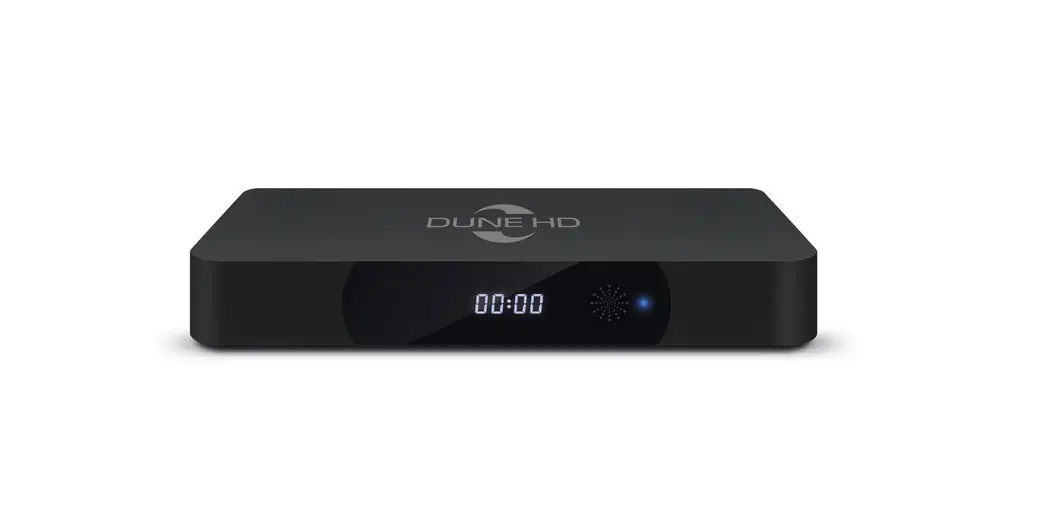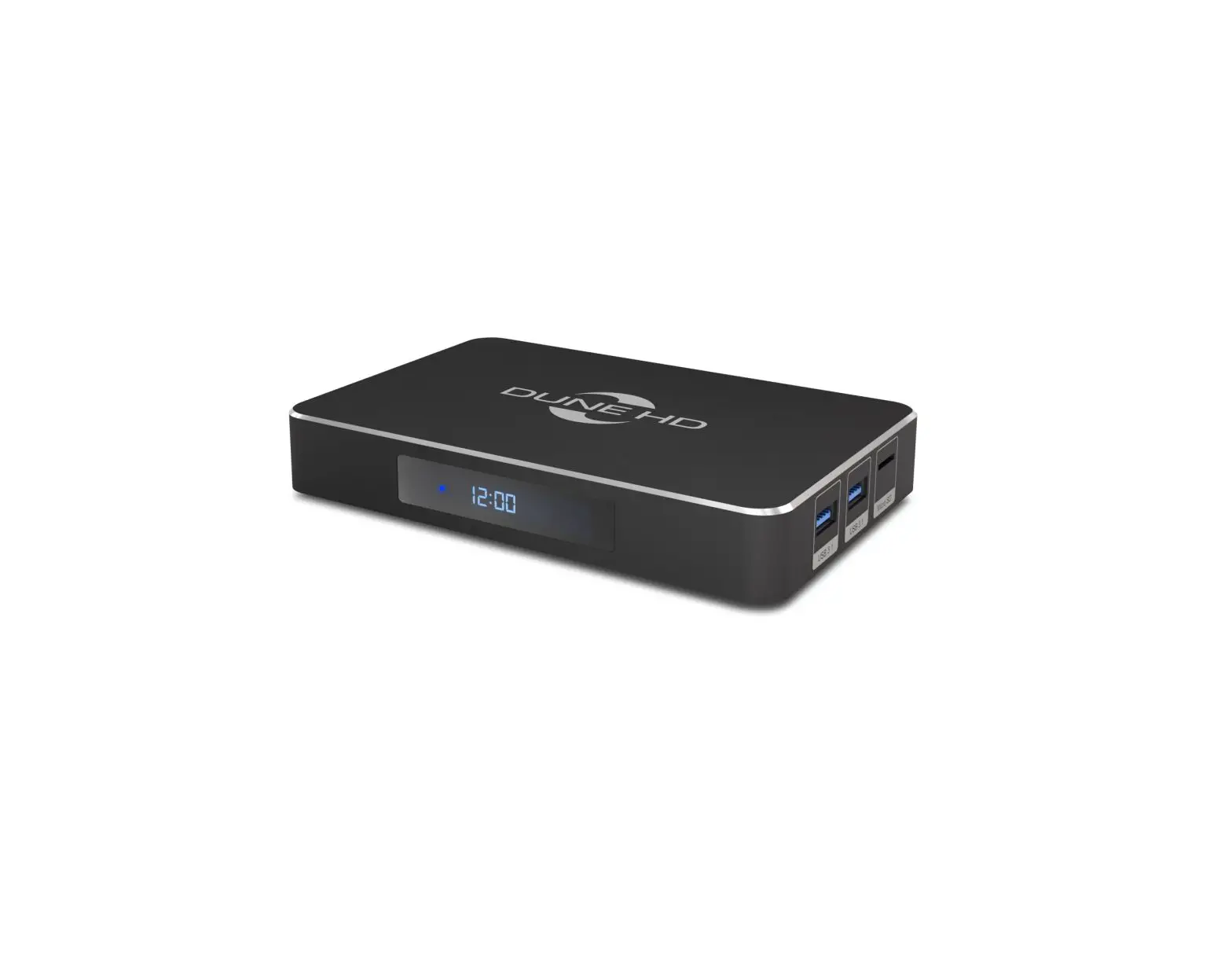
DUNE HD Real Vision 4K
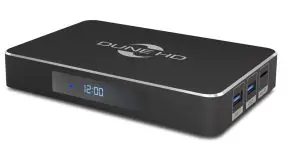
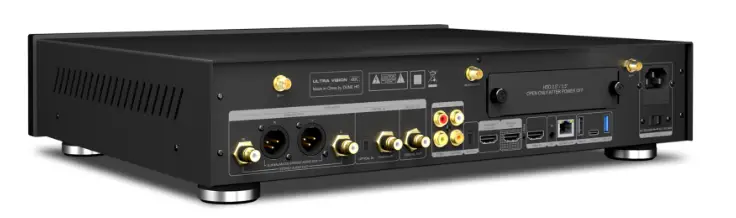
Interface
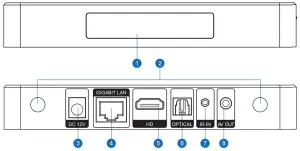
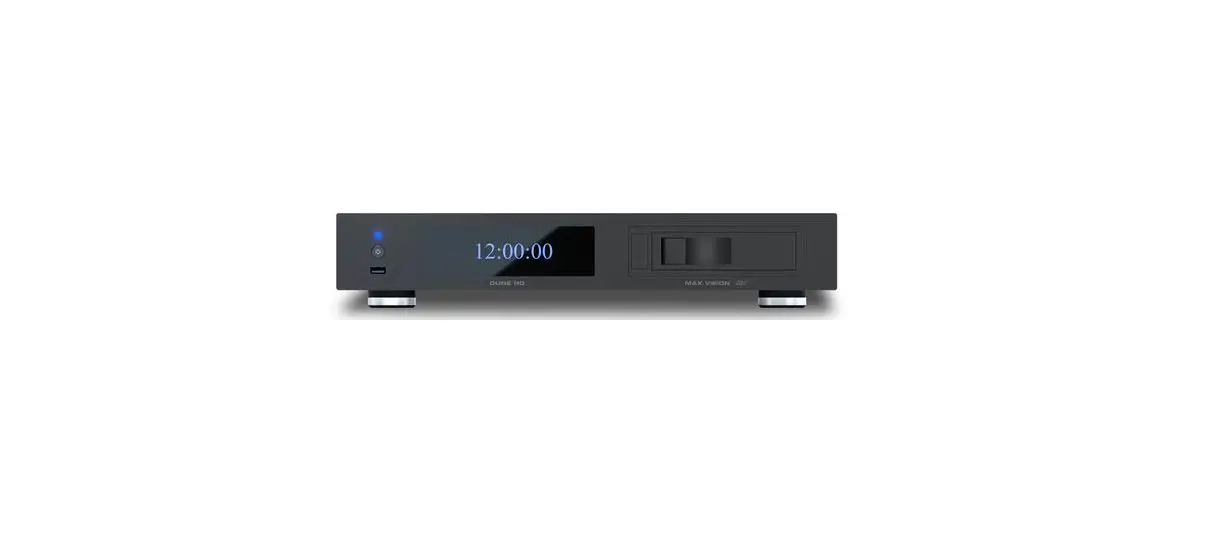
- Display
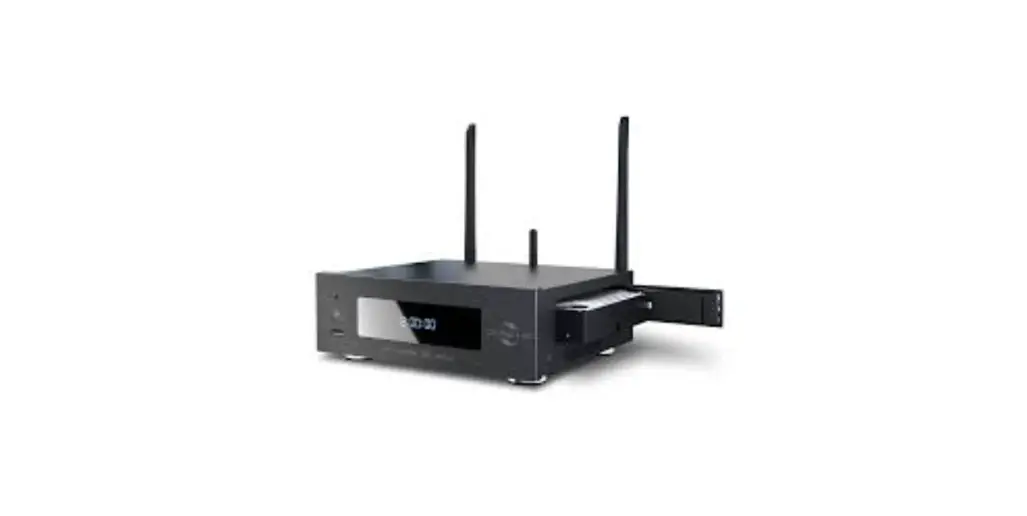
- 2 x Wi-Fi + Bluetooth antenna connector
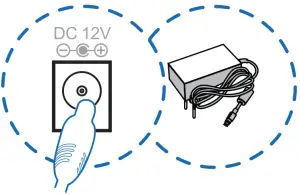
- 12V DC inpu
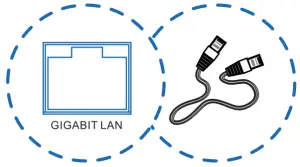
- Ethernet 10/100/1000
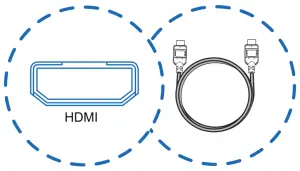
- HDMI 2.0b output
- Optical S/PDIF output
- IR input (2.5mm minijack, T-R-S: 3.3V-IR-GND, L=11mm)
- A/V output (composite video + analog stereo audio)
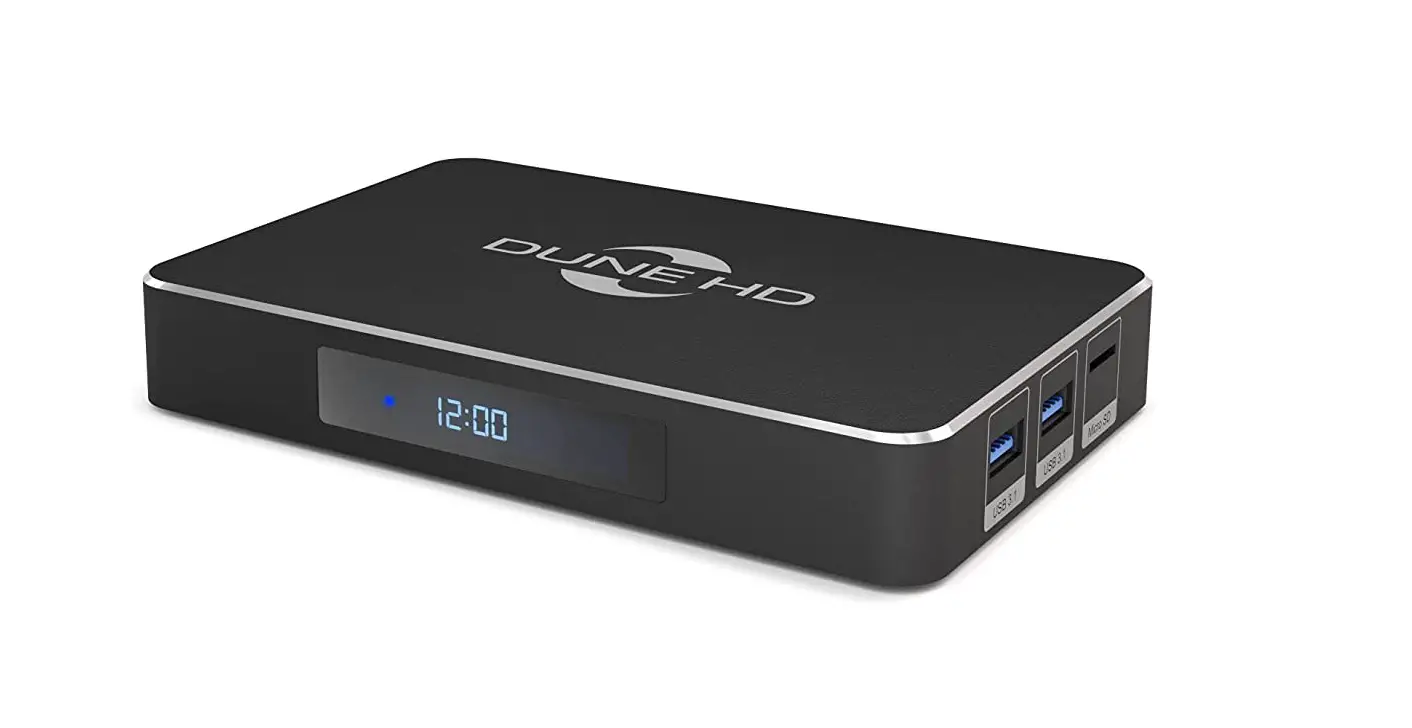
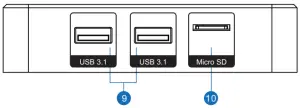
- 2 x USB 3.1 host
- SD card slot
Package content
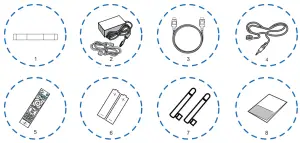
- Dune HD player
- Power supply
- HDMI cable
- IR extende
- Bluetooth remote
- 2 x AAA batterie
- 2 x Wi-Fi+Bluetooth antenna
- Quick Start Guide
Installation
- Connect antennas to the connectors on the back of the Dune HD player
- Connect your Dune HD Player to TV by HDMI-cable

- Connect the power adaptor and switch the player on

- Use Ethernet-cable (not included) to connect Dune HD player to the Internet (or use Wi-Fi)

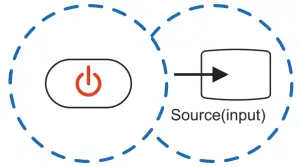
- Turn on the Dune HD player and TV. Choose the proper input on the TV
Remote
Remote must be paired to the player via Bluetooth before use:
- Direct remote to the player and press any button on the remote. The remote and the player will pair automatically.
- If the remote was already paired before, or in case of any problems: press and hold the “ENTER” and “V+” buttons on the remote for 3 seconds to put the remote into pairing mode. Use “Setup” / “System” / “Remotes & accessories” menu to unpair and pair the remote again.
- POWER — turn the player on/off.
- TV section (TV DOWN, TV UP, TV INPUT, TV POWER) — learnable buttons to control TV or other equipment (see “Using Remote to Control TV” section).
- FAV1 (
 ) — “Recent” menu or user-defined function.
 - FAV2 (
 ) — “Favorites” menu or user-defined function.
 - MIC (
 ) — microphone / search.
 - Arrows (
 ), ENTER, RETURN (
  ), TOP MENU (
  ),
),
POP UP MENU ( ), INFO ( i ) — main buttons for controlling the player (navigate across the items on the screen, open/use the currently selected
item, go back to the previous screen, go to the main menu, show/hide popup menu with actions for the currently selected item or the current player state, show/hide information about the currently selected item or the current player state, control some other player functions). - MUTE (
 ) — turn the sound on/off.
 - AUDIO (AUD), SUBTITLE (SUB) — toggle audio tracks and subtitle tracks.
- MOUSE (
 ) — toggle mouse mode (air mouse).
 - PLAY/PAUSE (
 ), STOP (
  ) — control the playback and some other
player functions. - V+/V- (volume up / volume down) — adjust the volume.
- P+/P- (page up / page down) — scroll up and down in various lists, switch to the next/previous TV channel, control some other player functions.
- 0–9 — enter numbers and text; control some other player functions.
- CLEAR — delete the last entered character, delete the currently selected item, control some other player functions.
- SELECT — switch text input mode, add the item to the selection list, control some other player functions.
- A (Red), B (Green), C (Yellow), D (Blue) — control various player
functions.
 ) — “Recent” menu or user-defined function.
 ) — “Favorites” menu or user-defined function.
 ) — microphone / search.
 ), ENTER, RETURN (
  ), TOP MENU (
  ),
), ), INFO ( i ) — main buttons for controlling the player (navigate across the items on the screen, open/use the currently selected
 ) — turn the sound on/off.
 ) — toggle mouse mode (air mouse).
 ), STOP (
  ) — control the playback and some other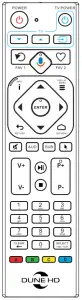
NOTE: Button support and functions depend on particular applications. Not all apps support all buttons.
Using Remote to Control TV
You can program 4 learnable buttons (located in “TV” section: “TV DOWN”, “TV UP”, “TV INPUT”, “TV POWER”) to control your TV or other equipment:
- Press and hold the “TV UP” and “TV DOWN” buttons on the remote for 3 seconds. LED –

- Press one of 4 learnable buttons on the remote. LED

- Place your remote and the other remote on a table so that the IR emitters of both remotes are directed towards each other and are at a distance of about 1 cm
- Press and hold a button on the other remote until the LED indicator on your remote stops blinking. This means that the button learning is complete
- Learn other buttons the same way if needed (repeat steps 1-4).


Reset Remote to Factory Defaults
Press and hold “ENTER” and “TOP MENU” buttons on the remote for 3 seconds
More information on functions of the remote: Dune-HD.com/support/rcu