MHUB-FL-U USB Multi-mode Gateway
Product Information
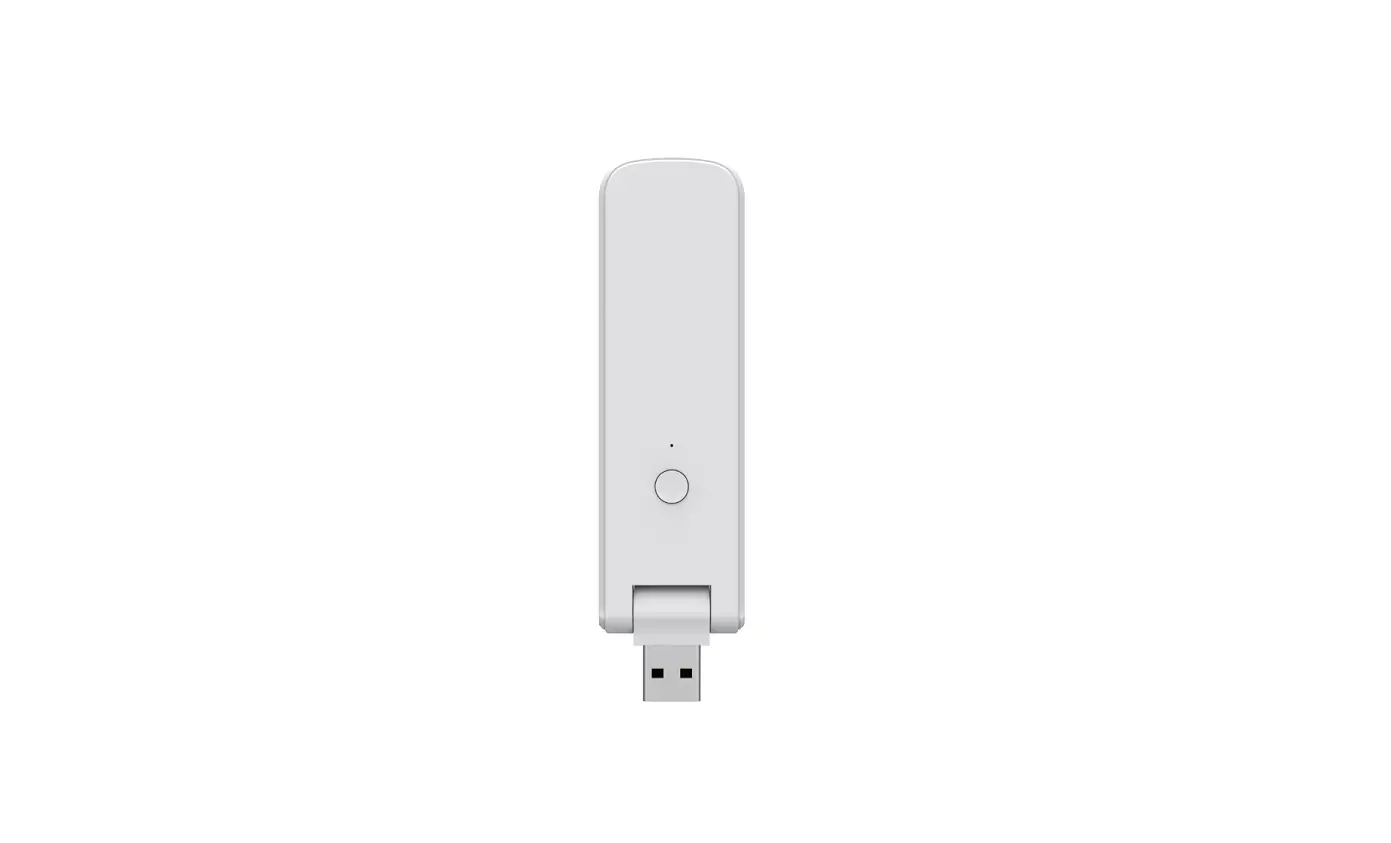
The product is a USB Multi-mode Gateway, designed by MOES HOME.
It allows users to add different types of tuya zigbee and bluetooth
devices and control them remotely through a mobile app. The gateway
has a compact size of 114*30.4*10mm and comes with a reset button
and LED indicator.
Product Specification:
- Model: MHUB-FL-U
- Size: 114*30.4*10mm
- USB Input: DC 5V/1A
- Indicator: Red (Wi-Fi), Blue (Zigbee+BLE)
- Wi-Fi: 2.4GHz IEEE 802.11b/g/n
- Zigbee Frequency: IEEE 802.15.4
- Bluetooth: Low-energy 5.0
Product Usage Instructions
- Before using the device, make sure the following checklist is
completed:
- Your smartphone is connected to a 2.4GHz Wi-Fi network.
- Input the correct Wi-Fi password.
- Your smartphone must be running Android 4.4+ or iOS 8.0+.
- Your Wi-Fi router is MAC-open.
- If the number of devices connected to the Wi-Fi router reaches
the limit, try disabling a device or using another router.
- Download the MOES App from the App Store or scan the QR code
provided. - Open the MOES App and click on the “+” button to add a device.
Follow the prompts and enter the Wi-Fi password. Click “Next” and
wait for the connection to be completed. - Note: The MOES App is recommended for better compatibility and
new features, but the Tuya Smart/Smart Life App can still be
used. - Make sure Bluetooth is turned on in your smartphone
settings. - Confirm that the indicator on the device is flashing. If not,
press and hold the reset button for five seconds until the red
indicator flashes, then release your finger. The device will enter
the APP configuration state. - Click “Done” to enter the device page and start enjoying your
smart life with home automation.
- How many devices can be added to this
gateway?
This gateway can add up to 50 ZigBee/Bluetooth devices each. - What should I do when the device configuration process
fails?
You can try the following steps:
1) Check if the device is powered on.
2) Check your network connectivity and ensure that the Wi-Fi router
is working properly.
3) Make sure the Wi-Fi password is correct. - What should I do if the device is often
offline?
You can try the following steps:
1) Check if the router is powered off or disconnected from the
network.
2) Check if the router has been replaced or if the Wi-Fi name or
password has been changed.
3) If the device has recently updated its firmware, it may
temporarily be disconnected from the network. It will automatically
reconnect after the update is completed.
4) Ensure that the Wi-Fi signal of the device is strong
enough.
5) Use your phone’s hotspot to check if the network is causing the
issue.
Size : 90*63MM
HOME, SMART MOES HOME
Instruction Manual
USB Multi-mode Gateway
English
4. Add the device successfully, you can edit the name of the device to enter the device page by click “Next”
9
Bitte scannen Sie den QR-Code, um das deutsche Handbuch, das Installationsvideo und die Funktionseinführung zu erhalten
Escanee el código QR para obtener el manual en español, el video de instalación y la introducción de la función
Veuillez scanner le code QR pour obtenir le manuel en français, la vidéo d’installation et l’introduction des fonctions
QR-, ,
Leia o código QR para obter o manual em português, o vídeo de instalação e a introdução das funções
Thanks for choosing our product !
With this multi-mode gateway, you can add different types of tuya zigbee and bluetooth devices, and control them remotely on your mobile app.
Please read the user manual carefully before use and keep it for future reference.
Product Presentation
USB Pivot ( can rotate 210°
Reset Button
LED Indicator
Product Specification
Model: MHUB-FL-U Size: 114*30.4*10mm USB Input: DC 5V/1A Indicator: Red(Wi-Fi) Blue(Zigbee+BLE) Wi-Fi: 2.4GHz IEEE 802.11b/g/n Zigbee Frequency: IEEE 802.15.4 Bluetooth: Low-energy 5.0
Checklist before using the device
a. Your smartphone has connected to 2.4GHz Wi-Fi network.
b. Input the correct Wi-Fi password. c. Your smartphone must be Android
4.4 + or iOS 8.0 +. d. Your Wi-Fi router is MAC-open. e. If the numbers of devices connected to the
Wi-Fi router reach the limit, you can try to disable a device to vacate the channel or try with another router.
Download the MOES APP
Download MOES App on App store or scan the QR code
Registration or Log in. · Download “MOES” Application. · Enter the Register/Login interface; tap “Register” to create an account by entering your phone number to get verification code and “Set password”. Choose “Log in” if you already have a MOES account.
3. Open MOES App and Click”+” Choice”Add Device”, then the prompt page will automatically show on the screen. Click “Add”. Enter Wi-Fi Password and click “Next”, waiting for the connection completed.
MOES App is upgraded as much more compatibility than Tuya Smart/Smart Life App, functional well for scene controlled by Siri, widget and scene recommendations as the fully new customized service. (Note: Tuya Smart/Smart Life App still works, but MOES App is highly recommended)
Steps for connecting the APP to the device
1. First, make sure that Bluetooth is turned on. If not, turn on Bluetooth. 2. Confirm the indicator is flashing, if not, Press and hold the reset button for five seconds until the red indicator flashes before releasing your finger, then the device enters the APP configuration state.
2
3
4
5
6
7
5. Click”Done”to enter the device page to enjoy your smart life with home automation.
FAQ
1. How many devices can be added to this gateway? Hello, this gateway can add 50 ZigBee/Bluetooth devices each
2. What should i do when device configuration process fail? You can:
1) Check whether the device has been powered on. 2) Check your network connectivity, make sure the
Wi-Fi router is working properly. 3) Make sure the wifi password is correct.
How to Reset/Re-pair Device
Press and hold the reset button for five seconds until the red indicator flashes before releasing your finger, then the device enters the APP configuration state.
10
3. What should i do if the device is often offline? 1)Check whether the router is powered off or
disconnected from the network. 2)Check whether the router has been replaced, or
Wi-Fi name or password has been changed. 3)Please confirm whether the device has just
updated the firmware. The device will be
11
disconnected from the network when the firmware is updated, and will automatically connect to the network after update completed.
4)The Wi-Fi signal of the device is too poor.
5)You can also use phone hotspot to check whether it is the problem of network.
SERVICE
1.During the free warranty period, if the product breaks down during normal use, we will offer free maintenance for the product. 2.Natural disasters/man-made equipment failures, disassembly and repair without the permission of our company, no warranty card, products beyond the free warranty period, etc., are not within the scope of free warranty. 3.Any commitment (oral or written) made by the third party (including the dealer/service provider) to the user beyond the warranty scope shall be executed by the third party. 4.Please keep this warranty card to ensure your rights.
12
5.Our company may update or change the products without notice. Please refer to the official website for the updates.
RECYCLING INFORMATION
All products marked with the symbol for separate collection of waste electrical and electronic equipment (WEEE Directive 2012/19 / EU) must be disposed of separately from unsorted municipal waste. To protect your health and the environment, this equipment must be disposed of at designated collection points for electrical and electronic equipment designated by the government or local authorities. Correct disposal and recycling will help prevent potential negative consequences for the environment and human health. To find out where these collection points are and how they work, contact the installer or your local authority.
WARRANTY CARD
Product Information Product Name__________________________________ Product Type___________________________________ Purchase Date__________________________________ Warranty Period_________________________________ Dealer Information_______________________________ ________________________________________________ Customer’s Name_______________________________ Customer Phone________________________________ Customer Address_______________________________ ________________________________________________
Maintenance Records Failure date Cause Of Issue Fault Content Principal
Thank you for your support and purchase at we
Moes, we are always here for your complete satisfaction, just feel free to share your great shopping experience with us.
If you have any other need, please do not hesitate to contact us first, we will try to meet your demand.
@moessmart @moes_smart @moes_smart
MOES.Official @moes_smart www.moes.net
13
14
15
8
EVATOST CONSULTING LTD Address: Suite 11, First Floor, Moy Road Business Centre, Taffs Well, Cardiff, Wales, CF15 7QR Tel: +44-292-1680945 Email: [email protected]
AMZLAB GmbH Laubenhof 23, 45326 Essen Made In China Manufacturer: WENZHOU NOVA NEW ENERGY CO.,LTD Address: Power Science and Technology Innovation Center, NO.238, Wei 11 Road, Yueqing Economic Development Zone, Yueqing, Zhejiang, China Tel: +86-577-57186815 After-sale Service: [email protected]
16
BJ06