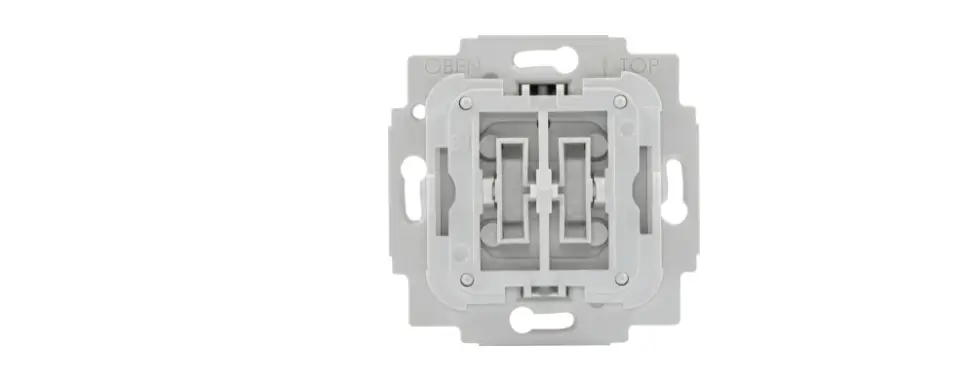
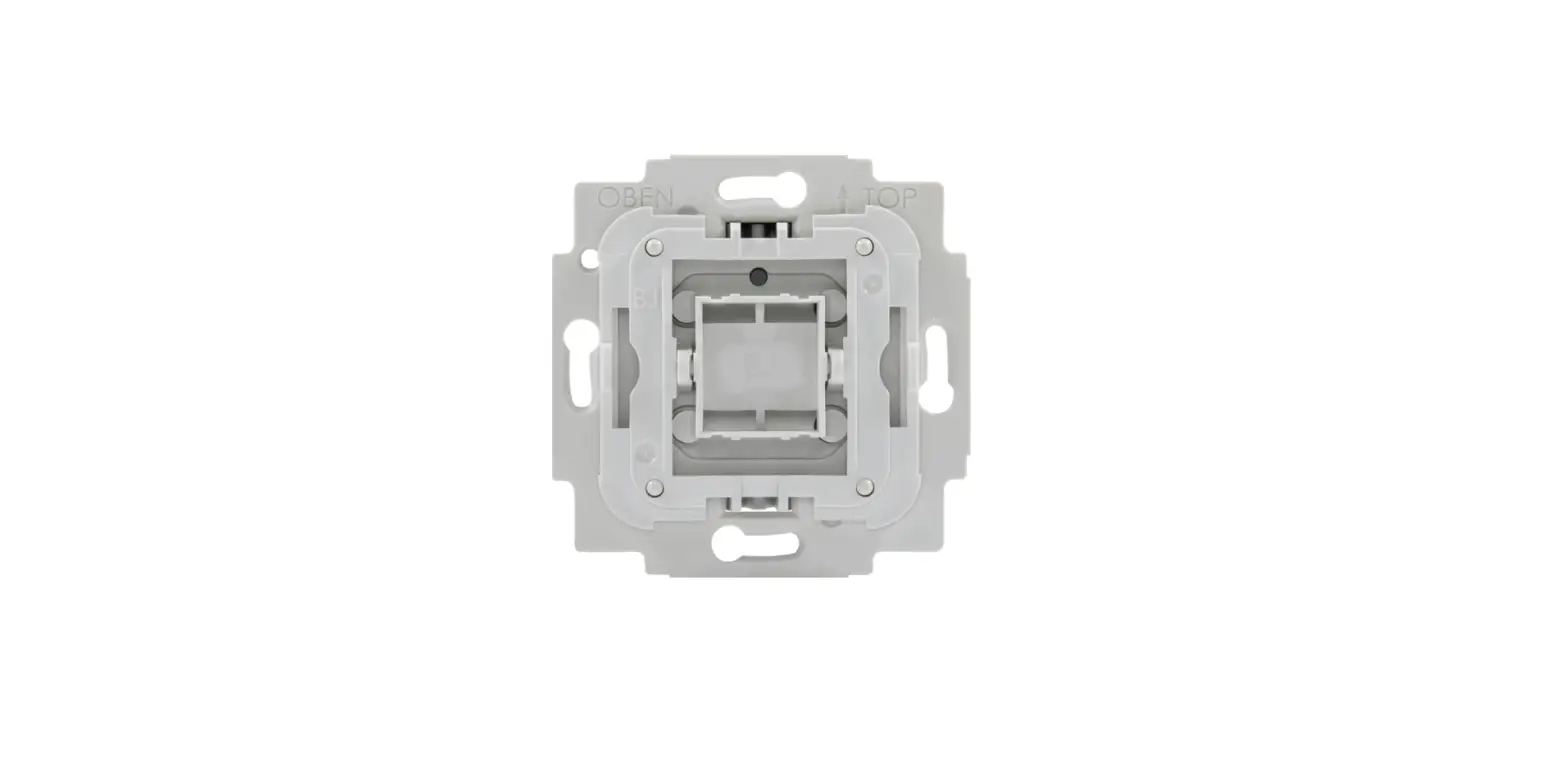
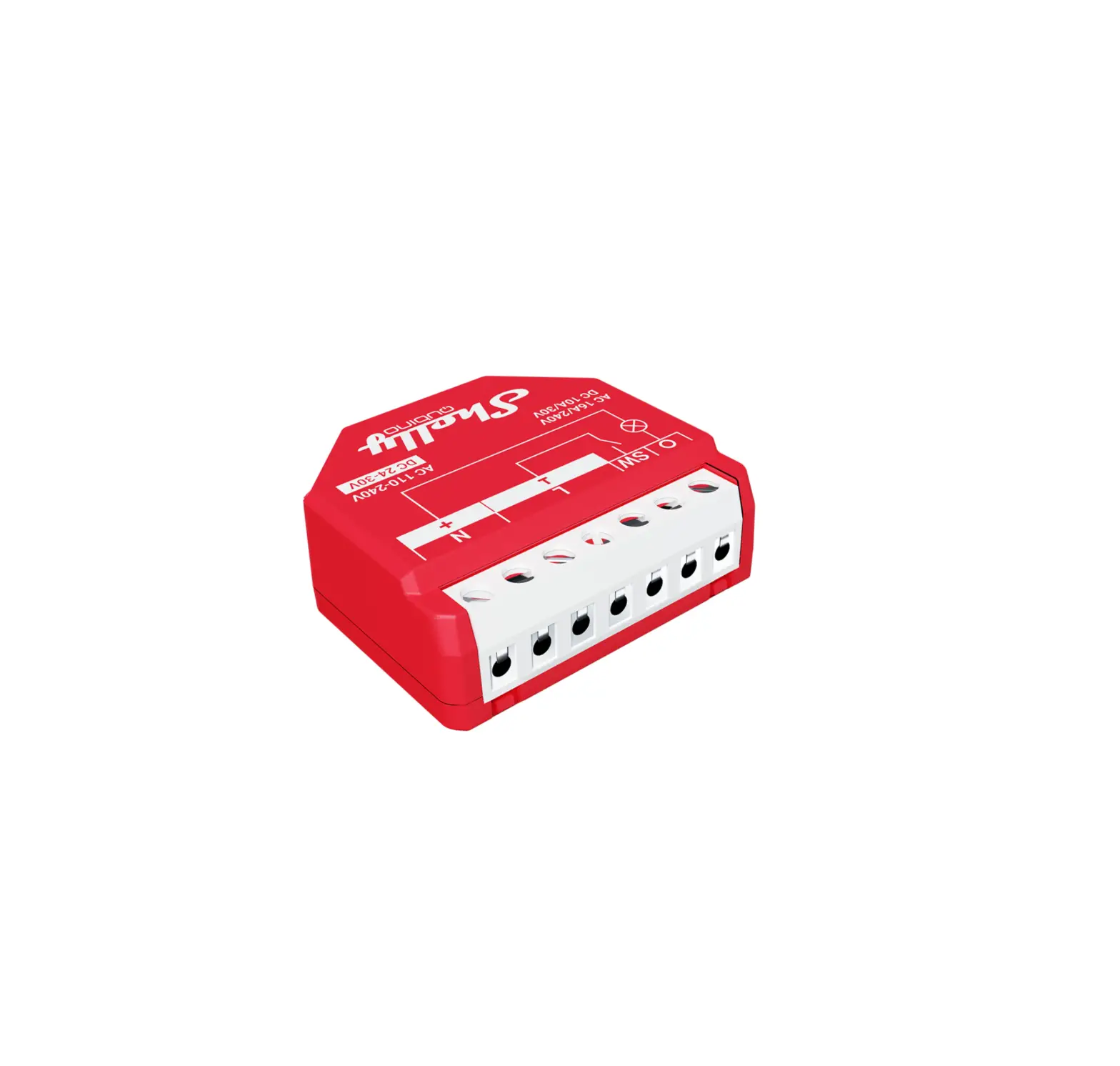
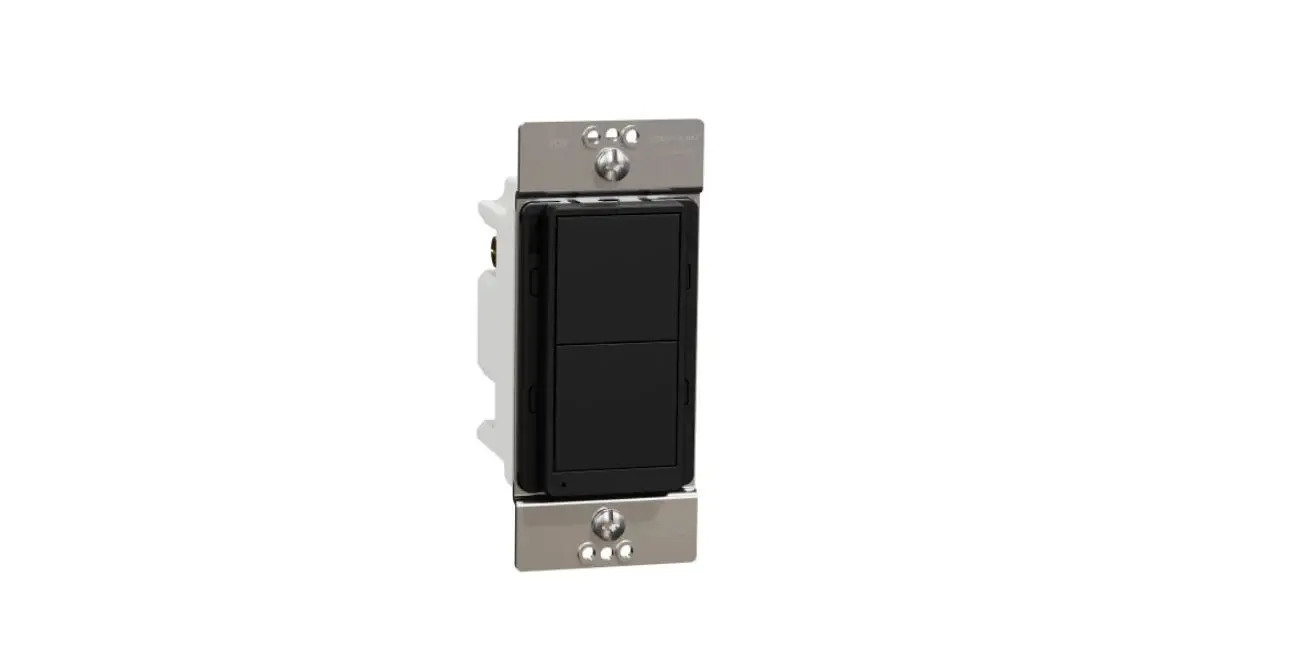
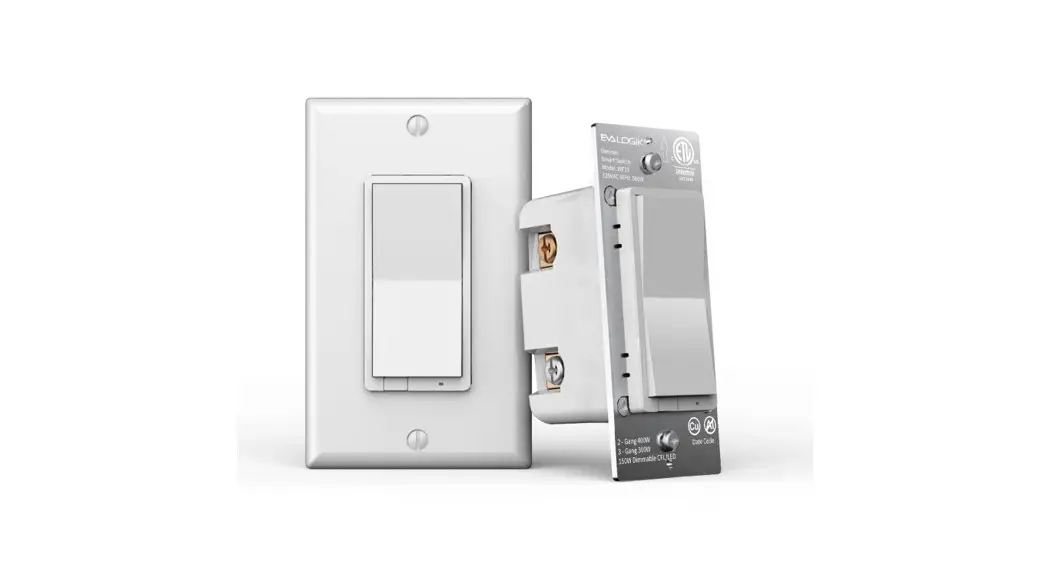
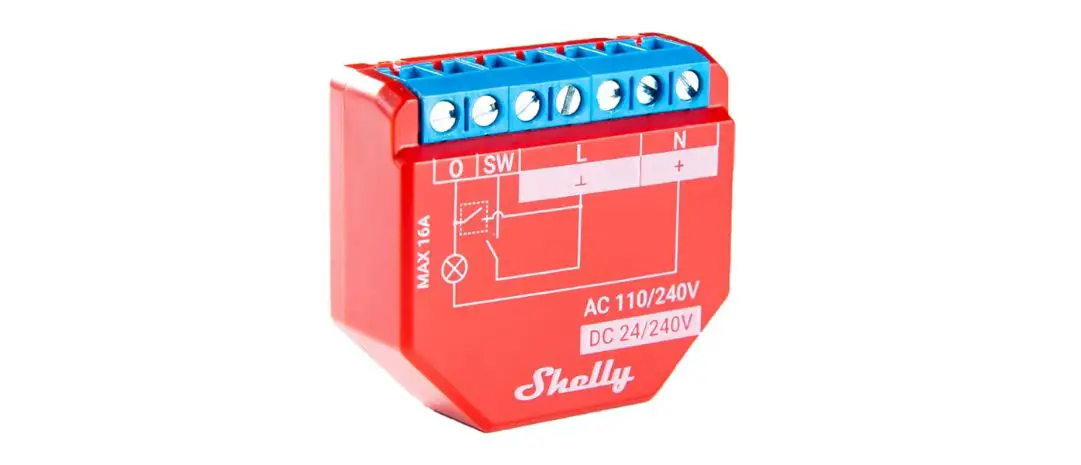
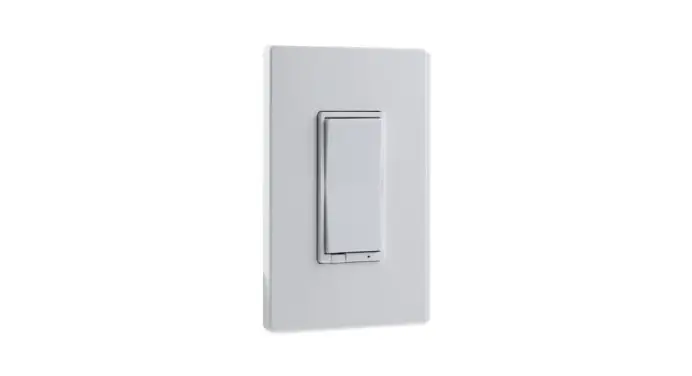
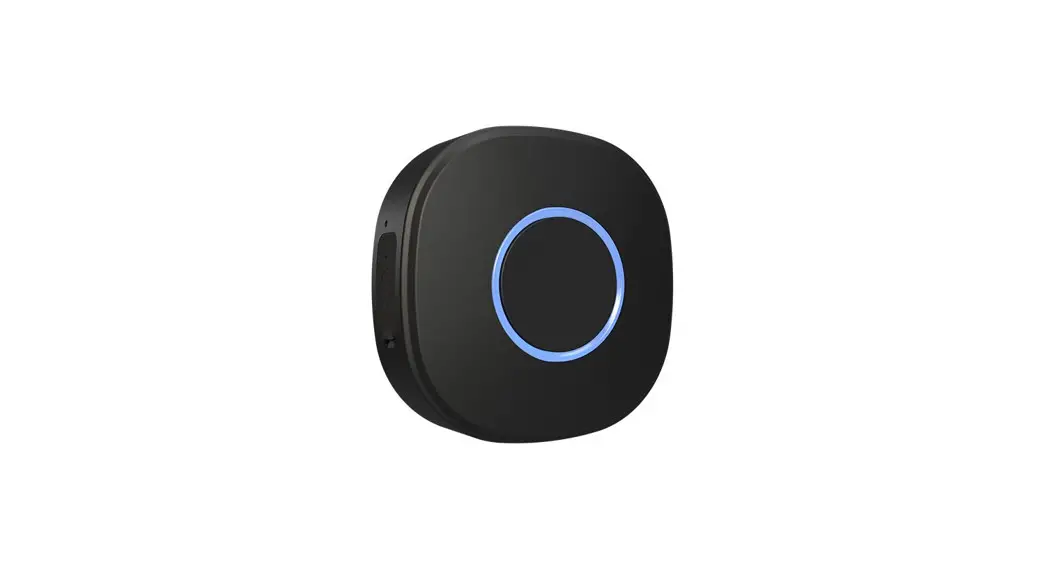
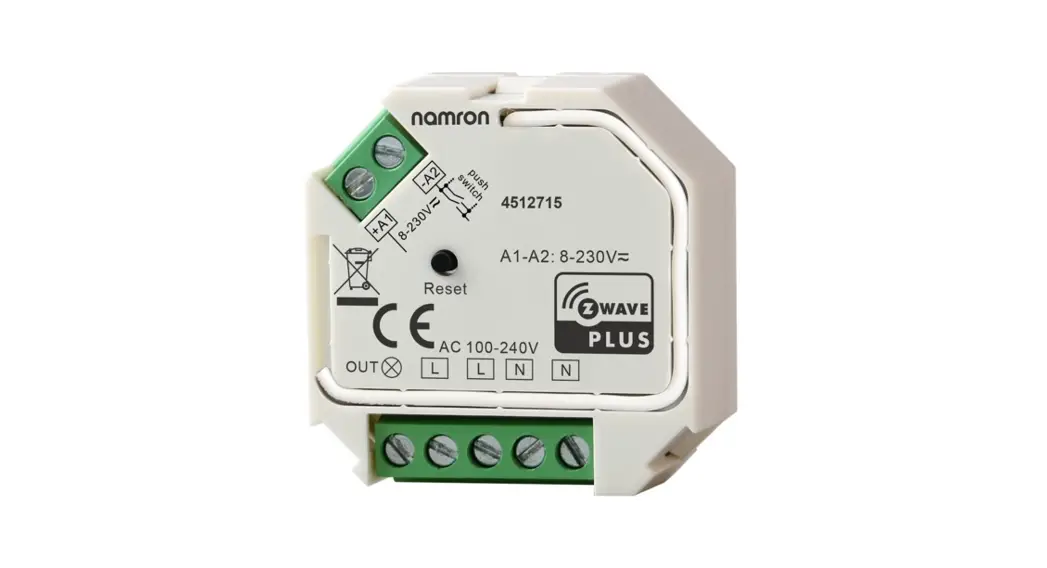
Wave 1 Z-Wave Smart Switch
Product Information: The Wave 1 is a Z-WaveTM
smart switch with potential-free contacts. It is designed to
control the on/off function of electrical devices such as bulbs,
ceiling fans, IR heaters, electrical locks, garage doors, and
irrigation systems. The device has a potential-free (dry contact)
output contact, allowing for the connection of different power
supply loads up to 16 A. It is compatible with push-buttons and
switches by default. The electrical diagram shows three different
power supply options: 1. 110-240 V AC 2. 24-48 V DC 3. 12 V DC
Product Usage Instructions: 1. Installation
Instructions: – Connect the load circuit to the Device I and O
terminals. – If using AC power supply, connect the Live wire to the
Device L terminal and the Neutral wire to the N terminal (refer to
Fig. 1). – If using 24-48 V DC power supply, connect the + wire to
the + terminal and the GND wire to the Device terminal (refer to
Fig. 2). 2. Z-WaveTM Adding/Removing (Inclusion/Exclusion): –
SmartStart adding (inclusion): – Scan the Z-WaveTM QR Code present
on the Device with a gateway providing SmartStart inclusion. – The
Device will be added automatically within 10 minutes of being
switched on in the network vicinity. – Adding (inclusion) with a
switch/push-button: – Follow the instructions provided by your
gateway or controller for adding devices using a switch or
push-button. – Adding (inclusion) with the S button: – Press and
release the S button on the Device. – The Device will enter Setting
mode and can be added to a Z-WaveTM network within a certain time
frame. – For Security 2 (S2) adding (inclusion), enter the
corresponding PIN code (5 underlined digits) from the DSK label on
the side of the Device or the packaging. – Removing (exclusion)
with a switch/push-button: 1. Connect the Device to a power supply.
2. Check if the green LED is blinking in Mode 1, indicating it is
added to a Z-WaveTM network. 3. Enable add/remove mode on the
gateway or controller to remove the Device from the network. 4.
Follow the instructions provided by your gateway or controller for
removing devices using a switch or push-button. – Removing
(exclusion) with the S button: – Press and release the S button on
the Device. – The Device will enter Setting mode and can be removed
from a Z-WaveTM network within a certain time frame. 3. Factory
Reset: – To perform a factory reset, follow the instructions
provided by your gateway or controller.
Wave 1
max. 240 V AC max. 30 V DC
110 – 240 V AC
OI
SW 12V L N
AC 16A/240V DC 10A/30V
max. 240 V AC max. 30 V DC
DC 12V AC 110-240V DC 24-48V
GND
Fig.1/ Abb.1/ Imagen 1/ Image 1
24 – 48 V DC
+
OI
SW 12V L N
AC 16A/240V DC 10A/30V
max. 240 V AC max. 30 V DC
DC 12V AC 110-240V DC 24-48V
GND
Fig.2/ Abb.2/ Imagen 2/ Image 2
12 V DC
+
OI
SW 12V L N
AC 16A/240V DC 10A/30V
DC 12V AC 110-240V DC 24-48V
Fig.3/ Abb.3/ Imagen 3/ Image 3
S
Fig.4/ Abb.4/ Imagen 4/ Image 4
EN
LEGEND
Device terminals: · N: Neutral terminal · L: Live terminal (110240 V AC) · SW: Switch/push-button input terminal (controlling O) · I: Load circuit input terminal · O: Load circuit output terminal · 12V+: 12 V DC positive terminal · +: 24 – 48 V DC positive terminal · : 12 / 24 – 48 V DC ground terminal · S: S button (Fig. 4) Wires: · N: Neutral wire · L: Live wire (110-240 V AC) · +: 12 / 24-48 V DC positive wire · GND: 12 / 24-48 V DC ground wire
DE
LEGENDE
Geräteanschlüsse: · N: Klemme für Neutralleiter · L: Klemme für Phase (110-240 V AC) · SW: Klemme für Schalterkeingang (Steuerung O) · I: Eingangsklemme des Lastkreises · O: Ausgangsklemme des Lastkreises · 12V+: 12 V DC Klemme für Pluspol · +: 24 – 48 V DC Klemme für Pluspol · : 12 / 24 – 48 V DC Klemme für Minuspol · S: Die S-Taste (Abb. 4) Kabel: · N: Neutralleiter · L: Phasenleiter (110 – 240 V AC) · +: 12 / 24-48 V DC Pluspolkabel · GND: 12 / 24-48 V DC Massekabel
IT
LEGENDA
Terminali del Dispositivo: · N: Terminale neutro · L: Terminale sotto tensione (110-240 V CA) · SW: Terminale di ingresso interruttore/pulsante (controllo O) · I: Terminale di ingresso del circuito di carico · O: Terminale di uscita del circuito di carico · 12V+: Terminale positivo 12 V CC · +: Terminale positivo 24 – 48 V CC · : Terminale di terra 12 / 24 – 48 V CC · S: Pulsante S (Fig. 4) Fili: · N: Filo neutro · L: Filo sotto tensione (110 – 240 V CA) · +: Filo del positivo 12 / 24-48 V CC · GND: Filo di terra 12 / 24-48 V CC
20/2023
V 0.0.9
EN
USER AND SAFETY GUIDE
Z-WaveTM smart switch with potential-free contacts
READ BEFORE USE
This document contains important technical and safety information about the Device, its safe use and installation. CAUTION! Before beginning the installation, please read carefully and entirely this guide and any other documents accompanying the device. Failure to follow the installation procedures could lead to malfunction, danger to your health and life, violation of law or refusal of legal and/or commercial guarantee (if any). Allterco Robotics EOOD is not responsible for any loss or damage in case of incorrect installation or improper operation of this Device due to failure of following the user and safety instructions in this guide.
TERMINOLOGY
Gateway A Z-WaveTM gateway, also referred to as a Z-WaveTM controller, Z-WaveTM main controller, Z-WaveTM primary controller, or Z-WaveTM hub, etc., is a device that serves as a central hub for a Z-WaveTM smart home network. The term “gateway” is used in this
document.
S button – The Z-WaveTM Service button, which is located on Z-WaveTM devices and is used for various functions such as adding (inclusion), removing (exclusion), and resetting the device to its fac-
tory default settings. The term “S button” is used in this document.
Device In this document, the term “Device” is used to refer to
the Wave 1 device.
ABOUT SHELLY QUBINO
Shelly Qubino is a line of innovative microprocessor-managed devices, which allow remote control of electric circuits with a smartphone, tablet, PC, or home automation system. They work on Z-WaveTM wireless communication protocol, using a gateway. When the gateway is connected to the internet, you can control Shelly Qubino devices remotely from anywhere. Shelly Qubino devices can be operated in any Z-WaveTM network with other Z-WaveTM certified devices from other manufacturers. All mains operated nodes within the network will act as repeaters regardless of vendor to increase reliability of the network. Devices are designed to work with older generations of Z-WaveTM devices and gateways.
ABOUT THE WAVE 1
The Wave 1 (Device) controls on/off function for one electrical device, e.g., bulb, ceiling fan, IR heater, electrical locks, garage doors, irrigation system, etc. The output contact is potential-free (dry contact), so different power supply loads (up to 16 A) can be connected to the Device. It is compatible with push-buttons and switches (default).
ELECTRICAL DIAGRAM (110-240 V AC / 24-48 V DC / 12 V DC)
Refer to the schematics (Fig. 1-3) in this user guide.
INSTALLATION INSTRUCTIONS
The Device can control a various type of loads (e.g., bulbs) in one electrical circuit up to 3.5 kW / 240 V AC. It can be retrofitted into standard electrical wall boxes, behind power sockets and light switches or other places with limited space. CAUTION! Danger of electrocution. Mounting/installation of the Device to the power grid has to be performed with caution, by a qualified electrician. WARNING! Danger of electrocution. Every change in the connections has to be done after ensuring there is no voltage present at the Device terminals. CAUTION! Use the Device only with a power grid and appliances that comply with all applicable regulations. A short circuit in the power grid or any appliance connected to the Device may damage it. CAUTION! Do not connect the Device to appliances exceeding the given max. load! CAUTION! Do not shorten the antenna. RECOMMENDATION: Place the antenna as far away as possible from metal elements as they can cause signal interference. CAUTION! Connect the Device only in the way shown in these instructions. Any other method could cause damage and/or injury. CAUTION! Do not install the Device where it can get wet. CAUTION! Do not use the Device if it has been damaged! CAUTION! Do not attempt to service or repair the Device yourself! RECOMMENDATION: Connect the Device using solid single-core wires with increased insulation heat resistance not less than PVC T105°C (221°F). CAUTION! Before starting the mounting/installation of the Device, check that the breakers are turned off and there is no voltage on their terminals. This can be done with a phase tester or multimeter. When you are sure that there is no voltage, you can proceed to connecting the wires.
Connect the load circuit to the Device I and O terminals.
If you are using AC power supply for the Device, connect the Live wire to the Device L terminal, and the Neutral wire to the N terminal as shown on Fig. 1. Connect a switch or a push-button to the Device SW terminal and the Live wire.
If you are using 24-48 V DC power supply (Fig. 2), connect the + wire to the + and the GND wire to the terminal of the Device.
If you are using stabilized 12 V DC power supply (Fig. 3), connect the + wire to the 12V+ terminal, instead to the + terminal. Connect the switch/push-button to the “SW” terminal and the GND wire. RECOMMENDATION: For inductive appliances that cause voltage spikes during switching on/off, such as electrical motors, fans, vacuum cleaners and similar ones, RC snubber (0.1 µF / 100 / 1/2 W / 600 VAC) should be connected parallel to the appliance. CAUTION! Do not allow children to play with the push-buttons/ switches connected to the Device. Keep the devices for remote control of Shelly Qubino (mobile phones, tablets, PCs) away from children.
Z-WAVETM ADDING/REMOVING (INCLUSION/EXCLUSION)
SmartStart adding (inclusion):
SmartStart enabled products can be added into a Z-WaveTM network by scanning the Z-WaveTM QR Code present on the Device with a gateway providing SmartStart inclusion. No further action is required, and the SmartStart device will be added automatically within 10 minutes of being switched on in the network vicinity.
1. With the gateway application scan the QR code on the Device label and add the Security 2 (S2) Device Specific Key (DSK) to the Provisioning List in the gateway. 2. Connect the Device to a power supply. 3. Check if the blue LED is blinking in Mode 1. If so, the Device is not added to a Z-WaveTM network. 4. Adding will be initiated automatically within a few seconds after connecting the Device to a power supply, and the Device will be added to a Z-WaveTM network automatically. 5. The blue LED will be blinking in Mode 2 during the adding process. 6. The load connected to O will be blinking 1s on/1s off/1s on/1s off if the Device is successfully added to a Z-WaveTM network. 7. The green LED will be blinking in Mode 1 if the Device is successfully added to a Z-WaveTM network.
Adding (inclusion) with a switch/push-button:
1. Connect the Device to a power supply. 2. Check if the blue LED is blinking in Mode 1. If so, the Device is not added to a Z-WaveTM network. 3. Enable add/remove mode on the gateway. 4. Toggle the switch/push-button connected to the SW terminal 3 times within 3 seconds (this procedure puts the Device in LEARN MODE*). The Device must receive on/off signal 3 times, which means pressing the push-button 3 times, or toggling the switch on and off 3 times. 5. The blue LED will be blinking in Mode 2 during the adding process. 6. The load connected to O will be blinking 1s on/1s off/1s on/1s off if the Device is successfully added to a Z-WaveTM network. 7. The green LED will be blinking in Mode 1 if the Device is successfully added to a Z-WaveTM network. *LEARN MODE state allows the Device to receive network information from the gateway.
Adding (inclusion) with the S button:
1. Connect the Device to a power supply. 2. Check if the blue LED is blinking in Mode 1. If so, the Device is not added to a Z-WaveTM network. 3. Enable add/remove mode on the gateway. 4. To enter the Setting mode, quickly press and hold the S button on the Device until the LED turns Solid blue. 5. Quickly release and then press and hold (> 2 s) the S button on the Device until the blue LED starts blinking in Mode 3. Releasing the S button will start the LEARN MODE. 6. The blue LED will be blinking in Mode 2 during the adding process. 7. The load connected to O will be blinking 1s on/1s off/1s on/1s off if the Device is successfully added to a Z-WaveTM network. 8. The green LED will be blinking in Mode 1 if the Device is successfully added to a Z-WaveTM network.
Note! In Setting mode, the Device has a timeout of 10s before entering again into Normal mode.
Note! In case of Security 2 (S2) adding (inclusion), a dialog will appear asking you to enter the corresponding PIN code (5 underlined digits) that are written on the DSK label on the side of the Device and on the DSK label inserted in the packaging.
IMPORTANT: The PIN code must not be lost.
Removing (exclusion) with a switch/push-button:
1. Connect the Device to a power supply. 2. Check if the green LED is blinking in Mode 1. If so, the Device is added to a Z-WaveTM network. 3. Enable add/remove mode on the gateway.
4. Toggle the switch/push-button connected to the SW terminal 3 times within 3 seconds (this procedure puts the Device in LEARN MODE*). The Device must receive on/off signal 3 times, which means pressing the push-button 3 times, or toggling the switch on and off 3 times. 5. The blue LED will be blinking in Mode 2 during the removing process. 6. The load connected to O will be blinking 1s on/1s off/1s on/1s off if the Device is successfully removed from a Z-WaveTM network. 7. The blue LED will be blinking in Mode 1 if the Device is success-
fully removed from a Z-WaveTM network.
Removing (exclusion) with the S button:
1. Connect the Device to a power supply. 2. Check if the green LED is blinking in Mode 1. If so, the Device is added to a Z-WaveTM network. 3. Enable add/remove mode on the gateway. 4. To enter the Setting mode, quickly press and hold the S button on the Device until the LED turns Solid blue. 5. Quickly release and then press and hold (> 2s) the S button on the Device until the blue LED starts blinking in Mode 3. Releasing the S button will start the LEARN MODE. 6. The blue LED will be blinking in Mode 2 during the removing process. 7. The load connected to O will be blinking 1s on/1s off/1s on/1s off if the Device is successfully removed from a Z-WaveTM network. 8. The blue LED will be blinking in Mode 1 if the Device is successfully removed from a Z-WaveTM network.
Note! In Setting mode, the Device has a timeout of 10s before enter-
ing again into Normal mode.
FACTORY RESET
After Factory reset, all custom parameters and stored values (associations, routings, etc.) will return to their default state. HOME ID and NODE ID assigned to the Device will be deleted. Use this reset procedure only when the gateway is missing or otherwise
inoperable.
Factory reset with a switch/push-button:
Note! Factory reset with the switch/push-button is only possible within the first minute after the Device is connected to a power supply.
1. Connect the Device to a power supply. 2. Toggle the switch/push-button connected to the SW terminal 5 times within 3 seconds. The Device must receive on/off signal 5 times, which means pressing the push-button 5 times, or toggling the switch on and off 5 times. 3. During factory reset, the LED will turn solid green for about 1s, then the blue and red LED will start blinking in Mode 3 for approx. 2s. 4. The blue LED will be blinking in Mode 1 if the Factory reset is successful.
Factory reset with the S button:
Note! Factory reset with the S button is possible anytime.
1. To enter the Setting mode, quickly press and hold the S button on the Device until the LED turns Solid blue. 2. Press the S button multiple times until the LED turns Solid red. 3. Press and hold (> 2s) S button on the Device until the red LED starts blinking in Mode 3. Releasing the S button will start the factory reset. 4. During factory reset, the LED will turn solid green for about 1s, then the blue and red LED will start blinking in Mode 3 for approx. 2s. 5. The blue LED will be blinking in Mode 1 if the Factory reset is successful.
NOTE: For more information about this Device refer to the Extended
User Guide available at: https://kb.shelly.cloud/
LED SIGNALIZATION
LED blinking modes
Mode 1
0,5s On/2s Off
Mode 2
0,5s On/0,5s Off
Mode 3
0,1s On/0,1s Off
Mode 4
(1x to 6x – 0,2s On/0,2s Off) + 2s Off
Normal mode
Colour LED mode
Removed/Excluded
Blue Mode 1
Added/Included
Green Mode 1
Setting mode (with S button)
Adding/Removing (Inclusion/Exclusion) Blue menu selected
Solid
Adding/Removing (Inclusion/Exclusion) Blue menu – while pressing S button Adding/Removing (Inclusion/Exclusion) process selected
Mode 3
Factory reset menu selected
Red
Solid
Factory reset – while pressing S button – Red Factory reset process selected
Mode 3
“Setting in progress” mode
Factory reset and reboot
B l u e / ** Red/ Green
Adding/Removing (Inclusion/Exclusion) Blue Mode 2
OTA firmware updating
B l u e / Mode 2 Red
Alarm mode
Overheat detected
Red
Mode 4 (2x)
** The LED will turn solid green for about 1s, then the blue and red LED will start blinking in Mode 3 for approx. 2s.
LED will turn off 30 minutes after the power cycle. Every time you press on the S button, the LED will turn on for 30 minutes. If alarm is active, LED will not turn off.
OPERATIONAL INSTRUCTIONS
If the SW is configured as a switch (default), each toggle of the switch will change the output O state to the opposite state – on, off, on, etc. If the SW is configured as a push-button in the Device settings, each press of the push-button will change the output O state to the opposite state – on, off, on, etc.
SUPPORTED LOAD TYPES
· Resistive (incandescent bulbs, heating devices) · Capacitive (capacitor banks, electronic equipment, motor start
capacitors) · Inductive with RC Snubber (LED light drivers, transformers, fans,
refrigerators, air-conditioners)
SPECIFICATIONS
Power supply
110-240 V AC / 24-48 V DC / 12 V DC ± 10%
Power consumption
< 0.3 W
Max. switching voltage AC
240 V
Max. switching current AC
16 A
Max. switching voltage DC
30 V
Max. switching current DC
10 A
Overheating protection
Yes
Distance
Up to 40 m indoors (131 ft.) (depends on local condition)
Z-WaveTM repeater
Yes
CPU
Z-WaveTM S800
Z-WaveTM frequency bands
868,4 MHz; 865,2 MHz; 869,0 MHz; 921,4 MHz; 908,4 MHz; 916 MHz; 919,8 MHz; 922,5 MHz; 919,7-921,7-923,7 MHz; 868,1 MHz; 920,9 MHz
Maximum radio frequency < 25 mW power transmitted in frequency band(s)
Size (H x W x D)
37x42x16 ±0.5 mm / 1.46×1.65×0.63 ±0.02 in
Weight
26 g / 0.92 oz.
Mounting
Wall console
Screw terminals max. torque 0.4 Nm / 3.5 lbin
Conductor cross section
0.5 to 1.5 mm² / 20 to 16 AWG
Conductor stripped length
5 to 6 mm / 0.20 to 0.24 in
Shell material
Plastic
Color
Blue
Ambient temperature
-20°C to 40°C / -5°F to 105°F
Humidity
30% to 70% RH
Max. altitude
2000 m / 6562 ft.
IMPORTANT DISCLAIMER
Z-WaveTM wireless communication may not always be 100% reliable. This Device should not be used in situations in which life and/or valuables are solely dependent on its functioning. If the Device is not recognized by your gateway or appears incorrectly, you may need to change the Device type manually and ensure that your gateway sup-
ports Z-Wave PlusTM multi-level devices.
ORDERING CODE: QNSW-001X16XX
XX Values define product version per region.
DECLARATION OF CONFORMITY
Hereby, Allterco Robotics EOOD declares that the radio equipment type Wave 1 is in compliance with Directive 2014/53/ EU, 2014/35/EU, 2014/30/EU, 2011/65/EU. The full text of the EU declaration of conformity is available at the following internet address: https://shelly.link/Wave1-DoC
MANUFACTURER:
Allterco Robotics EOOD Address: 103 Cherni vrah Blvd., 1407 Sofia, Bulgaria Tel.: +359 2 988 7435 E-mail: [email protected] Support: https://support.shelly.cloud/ Web: https://www.shelly.cloud Changes in the contact data are published by the Manufacturer at the official website: https://www.shelly.cloud
DE
BENUTZER- UND SICHERHEITSHANDBUCH
Smarter Z-WaveTM-Switch mit potenzialfreien Kontakten
BITTE VOR GEBRAUCH DURCHLESEN
Dieses Dokument enthält wichtige technische und sicherheitstechnische Informationen über das Gerät und seine sichere Verwendung und Installation. ACHTUNG! Bevor Sie mit der Installation beginnen, lesen Sie bitte die Begleitdokumentation sorgfältig und vollständig durch. Die Nichtbeachtung der empfohlenen Verfahren kann zu Fehlfunktionen, Lebensgefahr oder Gesetzesverstößen führen. Allterco Robotics EOOD haftet nicht für Verluste oder Schäden im Falle einer falschen Installation oder Bedienung dieses Geräts.
TERMINOLOGIE
Gateway – Ein Z-WaveTM-Gateway, auch als Z-WaveTM-Controller, Z-WaveTM-Hauptcontroller, Z-WaveTM-Primärcontroller oder Z-WaveTMHub usw. bezeichnet, ist ein Gerät, das als zentraler Hub für ein Z-WaveTM-Smart-Home-Netzwerk dient. In diesem Dokument wird
der Begriff “Gateway” verwendet.
S-Taste – Die Z-WaveTM Service-Taste, die sich auf Z-WaveTM-Geräten befindet und für verschiedene Funktionen wie die Aufnahme (Hinzufügen), der Ausschluss (Entfernen) und das Zurücksetzen des Geräts auf die Werkseinstellungen verwendet wird. In diesem
Dokument wird der Begriff “S-Taste” verwendet.
Gerät – In diesem Dokument wird der Begriff “Gerät” für das Wave
1 Gerät verwendet.
ÜBER SHELLY QUBINO
Shelly Qubino ist eine Reihe innovativer, mikroprozessorgesteuerter Geräte, die die Fernsteuerung von Stromkreisen mit einem Smartphone, Tablet, PC oder einem Hausautomatisierungssystem ermöglichen. Sie arbeiten mit dem drahtlosen Z-WaveTM-Kommunikationsprotokoll unter Verwendung eines Gateways. Wenn das Gateway mit dem Internet verbunden ist, können Sie die Shelly Qubino Geräte von überall aus fernsteuern. Shelly Qubino Geräte können in jedem Z-WaveTM Netzwerk mit anderen Z-WaveTM zertifizierten Geräten anderer Hersteller betrieben werden. Alle netzbetriebenen Knotenpunkte innerhalb des Netzwerks werden unabhängig vom Hersteller als Repeater fungieren, um die Zuverlässigkeit des Netzwerks zu erhöhen. Die Geräte sind so konzipiert, dass sie mit älteren Generationen von Z-WaveTM-Geräten und Gateways funktionieren.
ÜBER DAS WAVE 1
Das Wave 1 (Gerät) steuert die Ein- und Ausschaltfunktion für ein elektrisches Gerät, z. B. Glühbirne, Deckenventilator, IR-Heizung, elektrische Schlösser, Garagentore, Bewässerungsanlage, etc. Der Ausgangskontakt ist potentialfrei (Trockenkontakt), so dass verschiedene Stromversorgungslasten (bis zu 16 A) an das Gerät angeschlossen werden können. Es ist kompatibel mit Drucktasten und Schaltern (Standard).
ELEKTRISCHER SCHALTPLAN
(110240 V AC / 2448 V DC / 12 V DC) Sehen Sie sich die Schaltpläne (Abb. 13) in diesem Benutzerhandbuch an.
INSTALLATIONSANLEITUNG
Das Gerät kann verschiedene Arten von Lasten (z. B. Glühbirnen) in einem Stromkreis bis zu 3,5 kW / 240 V AC steuern. Es kann in eine Standard-Unterputzkonsole nachgerüstet werden, hinter Steckdosen und Lichtschaltern oder an anderen Orten mit begrenztem Platz vorgesehen. VORSICHT! Gefahr eines Stromschlages. Die Montage/Installation des Geräts an das Stromnetz muss von einem qualifizierten Elektriker mit Vorsicht durchgeführt werden! VORSICHT! Es besteht Stromschlaggefahr. Bei jeder Änderung der Anschlüsse muss sichergestellt werden, dass an den Klemmen des Geräts keine Spannung anliegt! VORSICHT! Verwenden Sie das Gerät nur mit einem Stromnetz und Geräten, die allen geltenden Vorschriften entsprechen. Ein Kurzschluss im Stromnetz oder in einem an das Gerät angeschlossenen Gerätes kann dieses beschädigen! VORSICHT! Schließen Sie das Gerät nicht an Geräte an, die die angegebene Höchstlast überschreiten! VORSICHT! Kürzen Sie die Antenne nicht! EMPFEHLUNG: Stellen Sie die Antenne möglichst weit von metallischen Gegenständen auf, da diese Signalstörungen verursachen können. VORSICHT! Schließen Sie das Gerät nur auf die in dieser Anleitung beschriebene Weise an. Jede andere Methode kann zu Schäden und/oder Verletzungen führen! VORSICHT! Installieren Sie das Gerät nicht an einem Ort, an dem es nass werden kann! VORSICHT! Verwenden Sie das Gerät nicht, wenn es beschädigt ist! VORSICHT! Versuchen Sie nicht, das Gerät selbst zu warten oder zu reparieren! EMPFEHLUNG: Schließen Sie das Gerät mit massiven einadrigen Kabeln mit erhöhter Isolationswärmebeständigkeit von mindestens PVC T105°C (221°F) an! VORSICHT! Bevor Sie mit der Installation/Montage des Geräts beginnen, prüfen Sie, ob die Leitungsschutzschalter (Sicherungen) ausgeschaltet sind und keine Spannung an den Klemmen anliegt. Dies kann mit einem Phasenprüfer oder Multimeter erfolgen. Wenn Sie sicher sind, dass keine Spannung anliegt, können Sie mit dem Anschluss der Kabel fortfahren!
Verbinden Sie den Lastkreis mit den Klemmen I und O.
Wenn Sie das Gerät mit Wechselstrom versorgen, verbinden Sie die Phase mit der L-Klemme des Geräts und den Neutralleiter mit der N-Klemme, wie in Abb. 1 dargestellt. Verbinden Sie einen Schalter/Druckknopf mit der Klemme SW und der Phase.
Wenn Sie eine 24-48 V Gleichstromversorgung verwenden (Abb. 2), verbinden Sie +-Kabel mit der +-Klemme und GND mit der -Klemme des Geräts.
Wenn Sie eine konstante 12 V Gleichstromversorgung verwenden (Abb. 3), verbinden Sie das +-Kabel mit der 12V+-Klemme und GND mit der -Klemme des Geräts. Verbinden Sie den Schalter/Druckknopf mit der SW-Klemme und dem GND-Kabel. EMPFEHLUNG: Bei induktiven Geräten, die beim Ein- und Ausschalten Spannungsspitzen verursachen, wie z. B. Elektromotoren, Ventilatoren, Staubsauger und ähnliche, sollte ein RC-Snubber (0,1 µF / 100 / 1/2 W / 600 VAC) parallel zum Gerät angeschlossen werden. VORSICHT! Erlauben Sie Kindern nicht, mit den an das Gerät angeschlossenen Druckknopf /Schaltern zu spielen. Halten Sie die Geräte zur Fernsteuerung des Shelly Qubino (z.B.: Mobiltelefone, Tablets, PCs) von Kindern fern.
Z-WAVETM HINZUFÜGEN/ENTFERNEN (AUFNAHME/ AUSSCHLUSS)
Hinzufügen (Aufnahme) von SmartStart:
SmartStart-fähige Produkte können in ein Z-WaveTM-Netzwerk aufgenommen werden, indem der Z-WaveTM QR-Code auf dem Gerät mit einem Gateway gescannt wird, das die SmartStart-Einbindung ermöglicht. Es sind keine weiteren Schritte erforderlich, und das SmartStart-Gerät wird innerhalb von 10 Minuten nach dem Einschalten automatisch in der Nähe des Netzwerks hinzugefügt.
1. Scannen Sie mit der Gateway-Anwendung den QR-Code auf dem Geräteetikett und fügen Sie den Security 2 (S2) Device Specific Key (DSK) zur Provisioning List im Gateway hinzu. 2. Schließen Sie das Gerät an eine Stromversorgung an. 3. Prüfen Sie, ob die blaue LED in Modus 1 blinkt. Ist dies der Fall, wird das Gerät nicht in ein Z-WaveTM-Netzwerk hinzugefügt. 4. Die Aufnahme (Hinzufügen) wird automatisch innerhalb weniger Sekunden nach dem Anschluss des Geräts an die Stromversorgung eingeleitet und das Gerät wird automatisch in das Z-WaveTM-Netzwerk aufgenommen. 5. Die blaue LED blinkt im Modus 2 während des Aufnahmevorgangs (Hinzufügen). 6. Die an O angeschlossene Last blinkt 1 s Ein/1 s Aus/1 s Ein/1 s Aus, wenn das Gerät erfolgreich in ein Z-WaveTM-Netzwerk hinzugefügt wurde. 7. Die grüne LED blinkt im Modus 1, wenn das Gerät erfolgreich zu einem Z-WaveTM-Netzwerk hinzugefügt wurde.
Hinzufügen (Aufnahme) mit einem Schalter/Druckknopf:
1. Schließen Sie das Gerät an eine Stromversorgung an. 2. Prüfen Sie, ob die blaue LED in Modus 1 blinkt. Ist dies der Fall, wird das Gerät nicht in ein Z-WaveTM-Netzwerk hinzugefügt. 3. Aktivieren Sie den Hinzufügen/Entfernen-Modus auf dem Gateway. 4. Schalten Sie den Schalter/Druckknopf, der mit der SW-Klemme verbunden ist, 3 Mal innerhalb von 3 Sekunden um (dieser Vorgang versetzt das Gerät in den LEARN MODE*). Das Gerät muss 3 Mal ein Ein/Aus-Signal empfangen, d. h. 3 Mal den Druckknopf drücken oder den Schalter 3 Mal ein- und ausschalten. 5. Die blaue LED blinkt im Modus 2 während des Aufnahmevorgangs (Hinzufügen).
6. Die an O angeschlossene Last blinkt 1 s Ein/1 s Aus/1 s Ein/1 s Aus, wenn das Gerät erfolgreich in ein Z-WaveTM-Netzwerk hinzugefügt wurde. 7. Die grüne LED blinkt im Modus 1, wenn das Gerät erfolgreich zu einem Z-WaveTM-Netzwerk hinzugefügt wurde. *Der Status LEARN MODE ermöglicht es dem Gerät, Netzwerkinfor-
mationen vom Gateway zu empfangen.
Hinzufügen (Aufnahme) mit der S-Taste:
1. Schließen Sie das Gerät an eine Stromversorgung an. 2. Prüfen Sie, ob die blaue LED in Modus 1 blinkt. Ist dies der Fall, wird das Gerät nicht in ein Z-WaveTM-Netzwerk hinzugefügt. 3. Aktivieren Sie den Hinzufügen/Entfernen-Modus auf dem Gateway. 4. Um den Einstellungsmodus aufzurufen, halten Sie die S-Taste Sauf dem Gerät kurz gedrückt, bis die LED dauerhaft blau leuchtet. 5. Lassen Sie die S-Taste am Gerät schnell los und halten Sie sie dann gedrückt (> 2 s), bis die blaue LED im Modus 3 zu blinken beginnt. Wenn Sie die S-Taste loslassen, wird der LEARN MODE gestartet. 6. Die blaue LED blinkt im Modus 2 während des Aufnahmevorgangs (Hinzufügen). 7. Die an O angeschlossene Last blinkt 1 s Ein/1 s Aus/1 s Ein/1 s Aus, wenn das Gerät erfolgreich in ein Z-WaveTM-Netzwerk aufgenommen wurde. 8. Die grüne LED blinkt im Modus 1, wenn das Gerät erfolgreich zu
einem Z-WaveTM-Netzwerk hinzugefügt wurde.
Achtung! Im Einstellungsmodus hat das Gerät einen Timeout von 10s, bevor es wieder in den Normalmodus wechselt.
Achtung! Im Falle der Aufnahme (Hinzufügen) von Security 2 (S2) erscheint ein Dialog, in dem Sie aufgefordert werden, die entsprechende PIN-Code (5 unterstrichene Ziffern) einzugeben, die auf dem DSK-Etikett an der Seite des Geräts und auf dem DSK-Etikett in der
Verpackung angegeben ist.
WICHTIG: Der PIN-Code darf nicht verloren gehen.
Entfernen (Ausschluss) mit dem Schalter/Druckknopf:
1. Schließen Sie das Gerät an eine Stromversorgung an. 2. Prüfen Sie, ob die grüne LED in Modus 1 blinkt. Wenn ja, wird das Gerät zu einem Z-WaveTM-Netzwerk hinzugefügt. 3. Aktivieren Sie den Hinzufügen/Entfernen-Modus auf dem Gateway. 4. Schalten Sie den Schalter/Druckknopf, der mit der SW-Klemme verbunden ist, 3 Mal innerhalb von 3 Sekunden um (dieser Vorgang versetzt das Gerät in den LEARN MODE*). Das Gerät muss 3 Mal ein Ein/Aus-Signal empfangen, d. h. 3 Mal den Druckknopf drücken oder den Schalter 3 Mal ein- und ausschalten. 5. Die blaue LED blinkt im Modus 2 während des Ausschlussverfahrens (Entfernen). 6. Die an O angeschlossene Last O blinkt 1 s Ein/1 s Aus/1 s Ein/1 s Aus, wenn das Gerät erfolgreich aus einem Z-WaveTM-Netzwerk entfernt wurde. 7. Die blaue LED blinkt im Modus 1, wenn das Gerät erfolgreich aus
einem Z-WaveTM-Netzwerk entfernt wurde.
Entfernen (Ausschluss) mit der S-Taste:
1. Schließen Sie das Gerät an eine Stromversorgung an. 2. Prüfen Sie, ob die grüne LED in Modus 1 blinkt. Wenn ja, wird das Gerät zu einem Z-WaveTM-Netzwerk hinzugefügt. 3. Aktivieren Sie den Hinzufügen/Entfernen-Modus auf dem Gateway. 4. Um den Einstellungsmodus aufzurufen, halten Sie die S-Taste auf dem Gerät kurz gedrückt, bis die LED dauerhaft blau leuchtet. 5. Lassen Sie die S-Taste am Gerät schnell los und halten Sie sie dann gedrückt (> 2 s), bis die blaue LED im Modus 3 zu blinken beginnt. Wenn Sie die S-Taste loslassen, wird der LEARN MODE gestartet. 6. Die blaue LED blinkt im Modus 2 während des Ausschlussverfahrens (Entfernen). 7. Die an O angeschlossene Last O blinkt 1 s Ein/1 s Aus/1 s Ein/1 s Aus, wenn das Gerät erfolgreich aus einem Z-WaveTM-Netzwerk entfernt wurde. 8. Die blaue LED blinkt im Modus 1, wenn das Gerät erfolgreich aus
einem Z-WaveTM-Netzwerk entfernt wurde.
Achtung! Im Einstellungsmodus hat das Gerät einen Timeout von
10s, bevor es wieder in den Normalmodus wechselt.
ZURÜCKSETZEN AUF DIE WERKSEINSTELLUNGEN
Nach dem Zurücksetzen auf die Werkseinstellungen werden alle benutzerdefinierten Parameter und gespeicherten Werte (Zuordnungen, Routings usw.) auf den Standardzustand zurückgesetzt. HOME ID und NODE ID, die dem Gerät zugewiesen sind, werden gelöscht. Verwenden Sie dieses Verfahren zum Zurücksetzen nur, wenn das Gateway fehlt oder aus anderen Gründen nicht funktions-
fähig ist.
Zurücksetzen auf die Werkseinstellungen mit dem Schalter/Druckknopf:
Achtung! Das Zurücksetzen auf die Werkseinstellungen mit dem Schalter/Druckknopf ist nur innerhalb der ersten Minute möglich, nachdem das Gerät an eine Stromversorgung angeschlossen wurde.
1. Schließen Sie das Gerät an eine Stromversorgung an. 2. Schalten Sie den Schalter/Druckknopf, der mit dem SW-Anschluss verbunden ist, 5 Mal innerhalb von 3 Sekunden um. Das Gerät muss 5 Mal ein Ein/Aus-Signal empfangen, d. h. 5 Mal den Taster drücken oder 5 Mal den Schalter ein- und ausschalten. 3. Während des Zurücksetzens auf die Werkseinstellungen leuchtet die LED für ca. 1 s durchgehend grün, dann beginnen die blaue und rote LED im Modus 3 für ca. 2 s zu blinken. 4. Die blaue LED blinkt im Modus 1, wenn das Zurücksetzen auf die
Werkseinstellungen erfolgreich war.
Zurücksetzen auf die Werkseinstellungen mit der S-Taste:
Achtung! Das Zurücksetzen auf die Werkseinstellungen mit der
S-Taste ist jederzeit möglich.
1. Um den Einstellungsmodus aufzurufen, halten Sie die S-Taste auf dem Gerät kurz gedrückt, bis die LED blau leuchtet. 2. Drücken Sie die S-Taste mehrmals, bis die LED dauerhaft rot leuchtet. 3. Halten Sie (> 2 s) die S-Taste am Gerät gedrückt, bis die rote LED im Modus 3 zu blinken beginnt. Wenn Sie die S-Taste loslassen, wird der Werksreset gestartet. 4. Während des Zurücksetzens auf die Werkseinstellungen leuchtet die LED für ca. 1 s durchgehend grün, dann beginnen die blaue und rote LED im Modus 3 für ca. 2 s zu blinken. 5. Die blaue LED blinkt im Modus 1, wenn das Zurücksetzen auf die Werkseinstellungen erfolgreich war.
HINWEIS: Weitere Informationen zu diesem Gerät finden Sie im Erweiterten Benutzerhandbuch auf der Website:
https://kb.shelly.cloud/
LED-SIGNALISIERUNG
LED-Blinkmodus
Modus 1
0,5 s Ein/2 s Aus
Modus 2
0,5 s Ein/0,5 s Aus
Modus 3
0,1 s Ein/0,1 s Aus
Modus 4
(1x bis 6x – 0,2 s Ein/0,2 s Aus) + 2 s Aus
Normalmodus
Farbe LED-Modus
Entfernt/Ausgeschlossen
Blau Modus 1
Hinzugefügt/Aufgenommen
Grün Modus 1
Einstellungsmodus (mit der S-Taste)
Menü Hinzufügen/Entfernen (Aufnahme/Ausschluss) ausgewählt
Blau Dauerhaft
Menü Hinzufügen/Entfernen (Aufnahme/ Blau Ausschluss) – bei gedrückter S-Taste Prozess Hinzufügen/Entfernen (Aufnahme/ Ausschluss) ausgewählt
Modus 3
Menü Zurücksetzen auf die Werksein- Rot stellungen ausgewählt
Dauerhaft
Zurücksetzen auf die Werkseinstellun- Rot gen – bei gedrückter S-Taste – Zurücksetzen auf die Werkseinstellungen Prozess ausgewählt
Modus 3
Modus “Einstellung im Gange”
Zurücksetzen auf die Werkseinstellun- B l a u / **
gen und Neustart
Rot/
Grün
Hinzufügen/Entfernen (Aufnahme/ Ausschluss)
Blau Modus 2
Firmware-Aktualisierung OTA
B l a u / Modus 2 Rot
Alarmmodus
Überhitzung erkannt
Rot
Modus 4 (2x)
** Die LED leuchtet für ca. 1 s durchgehend grün, dann beginnen die blaue und rote LED im Modus 3 für ca. 2 s zu blinken.
Die LED schaltet sich 30 Minuten nach dem Stromzyklus aus. Jedes Mal, wenn Sie die S-Taste drücken, leuchtet die LED 30 Minuten lang. Wenn der Alarm aktiv ist, schaltet sich die LED nicht aus.
BETRIEBLICHE ANWEISUNGEN
Wenn der SW als Schalter konfiguriert ist (“Standard”), ändert sich der Zustand des Ausgangs O bei jeder Schaltung des Schalters in den entgegengesetzten Zustand – ein, aus, ein… Wenn der SW in den Geräteeinstellungen als Druckknopf konfiguriert ist, ändert jeder Druck auf den Druckknopf den Zustand des Ausgangs O in den entgegengesetzten Zustand – ein, aus, ein…
UNTERSTÜTZTE LASTTYPEN · Widerstandsfähig (Glühbirnen, Heizgeräte)
· Kapazitiv (Kondensatorbatterien, elektronische Geräte, Motorstartkondensatoren)
· Induktiv mit RC Snubber (LED-Lichttreiber, Transformatoren, Ven-
tilatoren, Kühlschränke, Klimageräte)
SPEZIFIKATION
Energieversorgung
110-240 V AC / 24-48 V DC / 12 V DC ± 10%
Stromverbrauch
< 0.3 W
Max. Schaltspannung Wechsel- 240 V strom AC
Max. Schaltstrom Wechselstrom AC
16 A
Max. Schaltspannung Gleichstrom DC
30 V
Max. Schaltstrom Gleichstrom 10 A DC
Überhitzungsschutz
Ja
Entfernung
Bis zu 40 m in Innenräumen (131 ft.) (abhängig von den örtlichen Gegebenheiten)
Z-WaveTM Repeater
Ja
CPU
Z-WaveTM S800
Z-WaveTM Frequenzbänder
868,4 MHz; 865,2 MHz; 869,0 MHz; 921,4 MHz; 908,4 MHz; 916 MHz; 919,8 MHz; 922,5 MHz; 919,7-921,7-923,7 MHz; 868,1 MHz; 920,9 MHz
Maximale übertragene Funkfrequenzleistung in Frequenzband(en)
< 25 mW
Größe (H × B × T)
37x42x16 ±0.5 mm / 1.46×1.65×0.63 ±0.02 in
Gewicht
26 g / 0.92 oz.
Montage
Wandkonsole
Schraubklemmen max. Drehmoment
0.4 Nm / 3.5 lbin
Querschnitt des Leiters
0.5 bis 1.5 mm² / 20 bis 16 AWG
Länge des abisolierten Leiters 5 bis 6 mm / 0.20 bis 0.24 in
Gehäusematerial
Kunststoff
Farbe
Blau
Umgebungstemperatur
-20°C bis 40°C / -5°F bis 105°F
Luftfeuchtigkeit
30% bis 70% RH
Max. Höhe
2000 m / 6562 ft.
WICHTIG
Die Z-WaveTM drahtlose Kommunikation ist nicht immer 100 % verlässlich. Dieses Modul soll nicht in Situationen verwendet werden, in denen menschliches Leben oder Wertgegenstände allein von der Funktion des Moduls abhängen. Falls das Modul von Ihrem Controller nicht erkannt oder falsch angezeigt wird, müssen Sie eventuell den Gerätetyp manuell eingeben und sicherstellen, dass ihr Gateway- Controller Z-Wave PlusTM Helligkeitsregler unterstützt.
BESTELLCODES : QNSW-001X16XX
XX – Werte geben die Produktversion bezogen auf die Region an.
KONFORMITÄTSERKLÄRUNG Hiermit erklärt Allterco Robotics EOOD, dass der Funkanlagentyp Wave 1 der Richtlinie 2014/53/EU, 2014/35/EU, 2014/30/EU, 2011/65/EU entspricht. Den vollständigen Text der EU-Konformitätserklärung finden Sie unter folgender Internetadresse: https://shelly.link/Wave1-DoC
HERSTELLER: Allterco Robotics EOOD Adresse: 103 Cherni vrah Blvd., 1407 Sofia, Bulgarien Tel.: +359 2 988 7435 E-mail: [email protected] Kundensupport: https://support.shelly.cloud/ Offizielle Website: https://www.shelly.cloud Änderungen der Kontaktdaten werden vom Hersteller auf dessen offiziellen Website veröffentlicht: https://www.shelly.cloud
IT
GUIDA ALL’USO E ALLA SICUREZZA
Interruttore intelligente Z-WaveTM con contatti a potenziale zero
LEGGERE PRIMA DELL’USO
Questo documento contiene importanti informazioni tecniche e di sicurezza sul Dispositivo e sul suo uso e installazione in sicurezza. ATTENZIONE! Prima di iniziare l’installazione leggere attentamente e completamente la documentazione allegata. La mancata osservanza delle procedure consigliate potrebbe portare a malfunzionamenti, pericolo per la vita o violazione della legge. Allterco Robotics EOOD non è responsabile per eventuali perdite o danni in caso di installazione o funzionamento errati di questo Dispositivo.
TERMINOLOGIA
Gateway Un gateway Z-WaveTM, anche chiamato controller Z-WaveTM, controller principale Z-WaveTM, hub Z-WaveTM, ecc., è un dispositivo che funge da hub centrale per una rete domestica intelligente in tecnologia Z-WaveTM. In questo documento si utilizzerà semplicemente il termine “gateway”.
Pulsante S E’ il pulsante di Servizio Z-WaveTM, che si trova sui dispositivi Z-WaveTM e viene utilizzato per varie funzioni come per l’inclusione (aggiunta), l’esclusione (rimozione) e il ripristino delle impostazioni predefinite di fabbrica del dispositivo. In questo documento si utilizzerà semplicemente il termine “pulsante S”.
Dispositivo – In questo documento, il termine “Dispositivo” viene
utilizzato per fare riferimento al dispositivo Wave 1.
A PROPOSITO DI SHELLY QUBINO
Shelly Qubino è una linea di dispositivi innovativi gestiti da microprocessore, che consentono il controllo remoto dei circuiti elettrici con smartphone, tablet, PC o sistema domotico. Funzionano su protocollo di comunicazione wireless Z-WaveTM, utilizzando un gateway. Quando il gateway è connesso a Internet, puoi controllare i dispositivi Shelly Qubino in remoto da qualsiasi luogo. I dispositivi Shelly Qubino possono essere utilizzati in qualsiasi rete Z-WaveTM con altri dispositivi certificati Z-WaveTM di altri produttori. Tutti i nodi gestiti dalla rete all’interno della rete fungeranno da ripetitori indipendentemente dal fornitore per aumentare l’affidabilità della rete. I dispositivi sono progettati per funzionare con le generazioni precedenti di dispositivi e gateway Z-WaveTM.
A PROPOSITO DI WAVE 1
Il Wave 1 (Dispositivo) controlla la funzione on/off per un dispositivo elettrico, ad es. lampadina, ventilatore da soffitto, riscaldatore IR, serrature elettriche, porte del garage, sistema di irrigazione, ecc. Il contatto di uscita è a potenziale zero (contatto pulito), quindi al Dispositivo possono essere collegati diversi carichi di alimentazi-
one (fino a 16 A). È compatibile con pulsanti e interruttori (default).
SCHEMA ELETTRICO (110-240 V CA / 24-48 V CC / 12 V CC)
Fare riferimento agli schemi (Fig. 1-3) in questa guida per l’utente.
ISTRUZIONI PER L’INSTALLAZIONE
Il Dispositivo può controllare vari tipi di carichi (ad es. lampadine) in un circuito elettrico fino a 3,5 kW / 240 V CA. Può essere adattato a una console da incasso standard, dietro prese di corrente e interruttori della luce o in altri luoghi con spazio limitato. ATTENZIONE! Pericolo di folgorazione. Il montaggio/installazione del Dispositivo alla rete elettrica deve essere eseguito con cautela da un elettricista qualificato. ATTENZIONE! Pericolo di folgorazione. Ogni modifica dei collegamenti deve essere effettuata dopo essersi assicurati che non ci sia tensione sui terminali del Dispositivo. ATTENZIONE! Utilizzare il Dispositivo solo con una rete elettrica e con apparecchi conformi a tutte le norme vigenti. Un cortocircuito nella rete elettrica o in qualsiasi apparecchio collegato al Dispositivo può danneggiarlo. ATTENZIONE! Non collegare il Dispositivo ad apparecchi che superano il carico massimo indicato! ATTENZIONE! Non accorciare l’antenna. RACCOMANDAZIONE: Posizionare l’antenna il più lontano possibile da elementi metallici in quanto essi potrebbero causare interferenze di segnale. ATTENZIONE! Collegare il Dispositivo solo nel modo indicato in queste istruzioni. Qualsiasi altro metodo potrebbe causare danni e/o lesioni. ATTENZIONE! Non installare il Dispositivo in un luogo che possa bagnarsi. ATTENZIONE! Non utilizzare il Dispositivo se è stato danneggiato! ATTENZIONE! Non tentare di riparare o riparare il Dispositivo da soli! RACCOMANDAZIONE: Collegare il Dispositivo utilizzando cavi unipolari solidi con una maggiore resistenza termica dell’isolamento non inferiore a PVC T105°C (221°F). ATTENZIONE! Prima di iniziare l’installazione/montaggio del Dispositivo, controllare che gli interruttori siano spenti e che non ci sia tensione sui loro terminali. Questo può essere fatto con un misuratore di fase o un multimetro. Quando siete sicuri che non c’è tensione, potete procedere al collegamento dei cavi.
Collegare il circuito di carico ai terminali I e O del Dispositivo.
Se si utilizza l’alimentazione CA per il Dispositivo, collegare il filo Sotto tensione al terminale L del Dispositivo e il filo Neutro al terminale N come mostrato in fig. 1. Collegare un interruttore o un pulsante al terminale SW del Dispositivo e al filo Sotto tensione.
Se si utilizza un’alimentazione 24-48 V CC (fig. 2), collegare il filo + al + e il filo GND ai terminali del Dispositivo.
Se si utilizza un alimentatore stabilizzato a 12V CC (fig. 3), collegare il filo + al terminale 12V+, anziché al morsetto +. Collegare l’interruttore/pulsante al terminale SW e al filo GND. RACCOMANDAZIONE: Per gli apparecchi induttivi che causano picchi di tensione durante l’accensione e lo spegnimento, come motori elettrici, ventilatori, aspirapolvere e simili, è necessario collegare in parallelo all’apparecchio uno snubber RC (0,1µF / 100 / 1/2 W / 600 VAC). ATTENZIONE! Non permettere ai bambini di giocare con i pulsanti/interruttori collegati al Dispositivo. Tenere i dispositivi per il controllo remoto di Shelly Qubino (telefoni cellulari, tablet, PC) lontano dai bambini.
AGGIUNTA/RIMOZIONE (INCLUSIONE/ESCLUSIONE) Z-WAVETM
Aggiunta (inclusione) SmartStart:
Se il tuo gateway fornisce l’inclusione SmartStart, i prodotti abilitati SmartStart possono essere aggiunti a una rete Z-WaveTM scansionando il codice QR Z-WaveTM presente sul Dispositivo. Non sono necessarie ulteriori azioni e il dispositivo SmartStart verrà aggiunto automaticamente entro 10 minuti dall’accensione nelle vicinanze della rete. 1. Utilizzando l’applicazione del gateway, scansionare il codice QR sull’etichetta del Dispositivo e aggiungere la Device Specific Key (DSK) Security 2 (S2) all’elenco di provisioning del gateway. 2. Collegare il Dispositivo a un alimentazione. 3. Controllare se il LED blu lampeggia in modalità 1. In tal caso, il Dispositivo non è ancora stato aggiunto a una rete Z-WaveTM. 4. L’inclusione (aggiunta) verrà avviata automaticamente entro pochi secondi dal collegamento del Dispositivo a un alimentazione e il Dispositivo verrà aggiunto automaticamente alla rete Z-WaveTM. 5. Il LED blu lampeggerà in modalità 2 durante il processo di inclusione (aggiunta). 6. Il carico collegato a O lampeggerà per 1s acceso/1s spento/1s acceso/1s spento quando il Dispositivo risulterà aggiunto correttamente a una rete Z-WaveTM. 7. Il LED verde lampeggerà in modalità 1 se il Dispositivo viene ag-
giunto correttamente a una rete Z-WaveTM.
Aggiunta (inclusione) con interruttore/pulsante:
1. Collegare il Dispositivo a un alimentazione. 2. Controllare se il LED blu lampeggia in modalità 1. In tal caso, il Dispositivo non è ancora stato aggiunto a una rete Z-WaveTM. 3. Abilitare la modalità aggiungi/rimuovi sul gateway. 4. Azionare 3 volte nell’arco di 3 secondi l’interruttore/pulsante collegato al terminale SW (questa procedura pone il Dispositivo in LEARN MODE*). Il Dispositivo deve ricevere il segnale di accensione/spegnimento 3 volte, il che significa premere il pulsante per 3 volte o accendere e spegnere l’interruttore per 3 volte. 5. Il LED blu lampeggerà in modalità 2 durante il processo di inclusione (aggiunta). 6. Il carico collegato a O lampeggerà per 1s acceso/1s spento/1s acceso/1s spento quando il Dispositivo risulterà aggiunto correttamente a una rete Z-WaveTM 7. Il LED verde lampeggerà in modalità 1 se il Dispositivo viene aggiunto correttamente a una rete Z-WaveTM. *Lo stato LEARN MODE consente al Dispositivo di ricevere infor-
mazioni di rete dal gateway.
Aggiunta (inclusione) con il pulsante S:
1. Collegare il Dispositivo a un alimentazione. 2. Controllare se il LED blu lampeggia in modalità 1. In tal caso, il Dispositivo non è ancora stato aggiunto a una rete Z-WaveTM. 3. Abilitare la modalità aggiungi/rimuovi sul gateway. 4. Per accedere alla modalità di impostazione, premere rapidamente e tenere premuto il pulsante S sul Dispositivo finché il LED non diventa blu fisso. 5. Rilasciare rapidamente e quindi tenere premuto (> 2s) il pulsante S sul Dispositivo fino a quando il LED blu inizia a lampeggiare in modalità 3. Rilasciando il pulsante S si avvia la LEARN MODE. 6. Il LED blu lampeggerà in modalità 2 durante il processo di inclusione (aggiunta). 7. Il carico collegato a O lampeggerà per 1s acceso/1s spento/1s acceso/1s spento quando il Dispositivo risulterà aggiunto correttamente a una rete Z-WaveTM. 8.Il LED verde lampeggerà in modalità 1 se il Dispositivo viene aggiunto correttamente a una rete Z-WaveTM.
Nota! In modalità Impostazioni il Dispositivo ha un timeout di 10s
prima di entrare nuovamente in modalità Normale.
Nota! In caso di aggiunta (inclusione) Security 2 (S2), apparirà una finestra di dialogo che chiede di inserire il codice PIN corrispondente (5 cifre sottolineate) che è scritto sull’etichetta DSK apposta sul
lato del Dispositivo e sull’etichetta DSK inserita nella confezione..
IMPORTANTE: il codice PIN non deve essere perso.
Rimozione (esclusione) con interruttore/pulsante:
1. Collegare il Dispositivo a un alimentazione. 2. Verificare se il LED verde lampeggia in modalità 1. In tal caso, il Dispositivo è aggiunto a una rete Z-WaveTM. 3. Abilitare la modalità aggiungi/rimuovi sul gateway. 4. Azionare 3 volte nell’arco di 3 secondi l’interruttore/pulsante collegato al terminale SW (questa procedura pone il Dispositivo in LEARN MODE*). Il Dispositivo deve ricevere il segnale di accensione/spegnimento 3 volte, il che significa premere il pulsante per 3 volte o accendere e spegnere l’interruttore per 3 volte. 5. Il LED blu lampeggerà in modalità 2 durante il processo di esclusione (rimozione). 6. Il carico collegato a O lampeggerà per 1s acceso/1s spento/1s acceso/1s spento quando il dispositivo risulterà rimosso con successo da una rete Z-WaveTM. 7. Il LED blu lampeggerà in modalità 1 se il Dispositivo viene rimos-
so con successo da una rete Z-WaveTM.
Rimozione (esclusione) con il pulsante S:
1. Collegare il Dispositivo a un alimentazione. 2. Verificare se il LED verde lampeggia in modalità 1. In tal caso, il Dispositivo è aggiunto a una rete Z-WaveTM. 3. Abilitare la modalità aggiungi/rimuovi sul gateway. 4. Per accedere alla modalità di impostazione, premere rapidamente e tenere premuto il pulsante S sul Dispositivo finché il LED non diventa blu fisso. 5. Rilasciare rapidamente e quindi tenere premuto (> 2s) il pulsante S sul Dispositivo fino a quando il LED blu inizia a lampeggiare in modalità 3. Rilasciando il pulsante S si avvia la LEARN MODE. 6. Il LED blu lampeggerà in modalità 2 durante il processo di esclusione (rimozione). 7. Il carico collegato a O lampeggerà per 1s acceso/1s spento/1s acceso/1s spento quando il Dispositivo risulterà rimosso con successo da una rete Z-WaveTM. 8. Il LED blu lampeggerà in modalità 1 se il Dispositivo viene rimosso con successo da una rete Z-WaveTM.
Nota! In modalità Impostazione il Dispositivo ha un timeout di 10s prima di entrare nuovamente in modalità Normale.
RIPRISTINO DI FABBRICA
Dopo il ripristino delle impostazioni di fabbrica, tutti i parametri personalizzati e i valori memorizzati (associazioni, instradamenti, ecc.) torneranno allo stato predefinito. HOME ID e NODE ID assegnati al Dispositivo verranno eliminati. Utilizzare questa procedura di ripristino solo quando il gateway è mancante o altrimenti non
funzionante.
Ripristino delle impostazioni di fabbrica con l’interruttore/pulsante:
Nota! Il ripristino delle impostazioni di fabbrica con l’interruttore/ pulsante è possibile solo entro il primo minuto dopo che il Dispositivo è stato collegato all’alimentazione.
1. Collegare il Dispositivo a un alimentazione. 2. Azionare 5 volte l’interruttore/pulsante collegato al terminale SW entro 3 secondi. Il Dispositivo deve ricevere il segnale di accensione/spegnimento 5 volte, il che significa premere il pulsante 5 volte o accendere e spegnere l’interruttore 5 volte. 3. Durante il ripristino delle impostazioni di fabbrica, il LED diventerà verde fisso per circa 1 secondo, quindi i LED blu e rosso inizieranno a lampeggiare in modalità 3 per circa 2s. 4. Il LED blu lampeggerà in modalità 1 se il ripristino delle im-
postazioni di fabbrica ha esito positivo.
Ripristino delle impostazioni di fabbrica con il pulsante S:
Nota! Il reset di fabbrica con il pulsante S è possibile in qualsiasi
momento.
1. Per accedere alla modalità di impostazione, premere rapidamente e tenere premuto il pulsante S sul Dispositivo finché il LED non diventa blu fisso. 2. Premere più volte il pulsante S fino a quando il LED diventa rosso fisso. 3. Tenere premuto (> 2s) il pulsante S sul Dispositivo finché il LED rosso non inizia a lampeggiare in modalità 3. Il rilascio del pulsante S avvia il ripristino delle impostazioni di fabbrica. 4. Durante il ripristino delle impostazioni di fabbrica, il LED diventerà verde fisso per circa 1s, quindi i LED blu e rosso inizieranno a lampeggiare in modalità 3 per circa 2s. 5. Il LED blu lampeggerà in modalità 1 se il ripristino delle impostazioni di fabbrica ha esito positivo.
NOTA: per ulteriori informazioni su questo dispositivo, fare riferimento alla Guida utente estesa disponibile su: https://kb.shelly.cloud/
SEGNALAZIONE LED
Modalità di lampeggio del LED
Modalità 1
0,5s On/2s Off
Modalità 2
0,5s On/0,5s Off
Modalità 3
0,1s On/0,1s Off
Modalità 4
(1x a 6x – 0,2s On/0,2s Off) + 2s Off
1/2
Wave 1
max. 240 V AC max. 30 V DC
110 – 240 V AC
OI
SW 12V L N
AC 16A/240V DC 10A/30V
max. 240 V AC max. 30 V DC
DC 12V AC 110-240V DC 24-48V
GND
Fig.1/ Abb.1/ Imagen 1/ Image 1
24 – 48 V DC
+
OI
SW 12V L N
AC 16A/240V DC 10A/30V
max. 240 V AC max. 30 V DC
DC 12V AC 110-240V DC 24-48V
GND
Fig.2/ Abb.2/ Imagen 2/ Image 2
12 V DC
+
OI
SW 12V L N
AC 16A/240V DC 10A/30V
DC 12V AC 110-240V DC 24-48V
Fig.3/ Abb.3/ Imagen 3/ Image 3
S
Fig.4/ Abb.4/ Imagen 4/ Image 4
IT
LEGENDA
Terminali del dispositivo: · N: Terminale neutro · L: Terminale sotto tensione (110-240 V CA) · SW: Terminale di ingresso interruttore/pulsante (controllo O) · I: Terminale di ingresso del circuito di carico · O: Terminale di uscita del circuito di carico · 12V+: Terminale positivo 12 V CC · +: Terminale positivo 24 – 48 V CC · : Terminale di terra 12 / 24 – 48 V CC · S: Pulsante S (Fig. 4) Fili: · N: Filo neutro · L: Filo sotto tensione (110 – 240 V CA) · +: Filo del positivo 12 / 24-48 V CC · GND: Filo di terra 12 / 24-48 V CC
SP
LEYENDA
Terminales del Dispositivo: · N: Terminal Neutro · L: Terminal de Línea (110240 V CA) · SW: Terminal de entrada Interruptor/Pulsador (Control O) · I: Terminal de entrada del circuito · O: Terminal de salida del circuito · 12V+: 12 V CC Terminal positivo · +: 24 – 48 V CC Terminal negativo · : 12 / 24 – 48 V CC Terminal de tierra · S: Botón S (Imagen 4) Cableado: · N: Cable Neutro · L: Cable de fase (110 – 240 V CA) · +: 12 / 24-48 V CC Cable Positivo · GND: 12 / 24-48 V CC Cable de toma a Tierra
FR
LÉGENDE
Bornes du Dispositif : · N : Borne pour le Neutre · L : Borne pour la Phase (110240 V CA) · SW : Borne d’entrée pour interrupteur/bouton-poussoir (contrôle O) · I : Borne d’entrée du circuit de charge · O : Borne de sortie du circuit de charge · 12V+ : Borne positive de 12 V CC · + : Borne positive de 2448 V CC · : Borne de terre 12 / 2448 V CC · S : Le bouton S (Image 4) Fils : · N : Fil neutre · L : Fil phase (110240 V CA) · + : Fil positif de 12 / 2448 V CC · GND : Fil de terre de 12 / 2448 V CC
20/2023
V 0.0.9
Modalità normale
Colore ModalitàLED
Rimosso/Escluso
Blu
Modalità 1
Aggiunto/Incluso
Verde Modalità 1
Modalità di impostazione (con pulsante S)
Menu aggiunta/rimozione (inclusione/ Blu esclusione) selezionato
Fisso
Menu aggiunta/rimozione (inclusione/ Blu esclusione) – mentre si preme il pulsante S – Processo di aggiunta/rimozione (inclusione/esclusione) selezionato
Modalità 3
Menu di ripristino delle impostazioni di Rosso Fisso fabbrica selezionato
Ripristino delle impostazioni di fabbrica – mentre si preme il pulsante S – Processo di ripristino delle impostazioni di fabbrica selezionato
Rosso
Modalità 3
Modalità “Impostazione in corso”.
Ripristino delle impostazioni di fabbrica B l u / **
e riavvio
Rosso/
Verde
Aggiunta/Rimozione (Inclusione/Esclusione) Blu
Modalità 2
Aggiornamento Firmware OTA
B l u / Modalità 2 Rosso
Modalità allarme
Surriscaldamento rilevato
Rosso Modalità 4 (2x)
**Il LED diventerà verde fisso per circa 1s, quindi i LED blu e rosso inizieranno a lampeggiare in modalità 3 per circa 2s.
Il LED si spegnerà 30 minuti dopo il ciclo di alimentazione. Ogni volta che si preme il pulsante S, il LED si accenderà per 30 minuti. Se l’allarme è attivo, il LED non si spegne.
ISTRUZIONI OPERATIVE
Se il SW è configurato come interruttore (impostazione predefinita), ogni commutazione dell’interruttore cambierà lo stato dell’uscita O nello stato opposto: on, off, on, ecc. Se il SW è configurato come pulsante nelle impostazioni del Dispositivo, ogni pressione del pulsante cambia lo stato dell’uscita O in opposto: on, off, on, ecc.
TIPI DI CARICO SUPPORTATI
· Carico resistivo (lampadine a incandescenza, dispositivi di riscaldamento)
· Carico capacitivo (banchi di condensatori, apparecchiature elettroniche, condensatori di avviamento motore)
· Carico induttivo con RC Snubber (driver luci LED, trasformatori, ventole, frigoriferi, condizionatori d’aria)
SPECIFICHE Alimentazione elettrica
110-240 V CA / 24-48 V CC / 12 V CC ± 10%
Consumo di energia
< 0.3 W
Massimo. tensione di commutazione CA
240 V
Massimo. corrente alternata di 16 A commutazione
Massimo. tensione di commutazione CC
30 V
Massimo. corrente di commutazione CC
10 A
Protezione da surriscaldamento Si
Distanza
fino a 40 m al chiuso (131 piedi) (dipende dalle condizioni locali)
Ripetitore Z-WaveTM
Sì
Processore
Z-WaveTM S800
Bande di frequenza Z-WaveTM
868,4 MHz; 865,2 MHz; 869,0 MHz; 921,4 MHz; 908,4 MHz; 916 MHz; 919,8 MHz; 922,5 MHz; 919,7-921,7-923,7 MHz; 868,1 MHz; 920,9 MHz
Potenza massima in radiofre- < 25 mW quenza trasmessa nelle bande di frequenza
Dimensioni (A x L x P)
37x42x16 ±0.5 mm / 1.46×1.65×0.63 ±0.02 in
Peso
26 g / 0.92 oz.
Montaggio
Quadro elettrico
Morsetti a vite max. coppia
0.4 Nm / 3.5 lbin
Sezione del conduttore
da 0,5 a 1,5 mm² / da 20 a 16 AWG
Lunghezza spelata del conduttore da 5 a 6 mm / da 0,20 a 0,24 pollici
Materiale guscio
Plastica
Colore
Blu
Temperatura ambiente
Da -20°C a 40°C / da -5°F a 105°F
Umidità
Dal 30% al 70% RH
Massima altitudine
2000 m / 6562 ft.
AVVISO IMPORTANTE La comunicazione wireless Z-WaveTM potrebbe non essere sempre affidabile al 100%. Questo Dispositivo non deve essere utilizzato in situazioni in cui la vita e/o gli oggetti di valore dipendono esclusivamente dal suo funzionamento. Se il Dispositivo non viene riconosciuto dal gateway o viene visualizzato in modo errato, potrebbe essere necessario modificare manualmente il tipo di dispositivo e assicurarsi che il gateway supporti i dispositivi multilivello Z-Wave PlusTM.
CODICE DI ORDINAZIONE: QNSW-001X16XX
XX – I valori definiscono la versione del prodotto per regione.
DICHIARAZIONE DI CONFORMITÀ Con la presente, Allterco Robotics EOOD dichiara che il tipo di apparecchiatura radio Wave 1 è conforme alla Direttiva 2014/53/UE, 2014/35/UE, 2014/30/UE, 2011/65/UE. Il testo completo della dichiarazione di conformità UE è disponibile al seguente indirizzo internet: https://shelly.link/Wave1-DoC
PRODUTTORE: Allterco Robotics EOOD Indirizzo: 103 Cherni vrah Blvd., 1407 Sofia, Bulgarien Tel.: +359 2 988 7435 E-mail: [email protected] Supporto: https://support.shelly.cloud/ Sito web ufficiale: https://www.shelly.cloud Le modifiche ai dati di contatto sono pubblicate dal Produttore sul sito Web ufficiale: https://www.shelly.cloud
SP
MANUAL DE USO Y SEGURIDAD
Interruptor inteligente Z-WaveTM con contactos libres de potencial
LEA ANTES DE UTILIZAR Este documento contiene información técnica y de seguridad importante sobre el Dispositivo, su uso y su instalación segura. ¡ATENCIÓN! Antes de comenzar la instalación, lea atentamente y por completo la documentación adjunta. El incumplimiento de los procedimientos recomendados puede provocar un mal funcionamiento, un peligro para su vida o una violación de la ley. Allterco Robotics no se hace responsable de cualquier pérdida o daño debido a una instalación o uso inadecuado de este Dispositivo.
TERMINOLOGIA
Gateway Un gateway Z-WaveTM controlador domotico Z-WaveTM tambien denominado controlador Z-WaveTM, controlador principal Z-WaveTM o hub Z-WaveTM etc. es el dispositivo que sirve de centro de control para una red de hogar inteligente Z-WaveTM. Se utilizara el término “gateway” en este documento.
Botón S El botón de servicio Z-WaveTM, que se encuentra en los dispositivos Z-WaveTM, se utiliza para diversas funciones como la inclusión (añadir), exclusión (eliminar) y el restablecimiento del dispositivo a su configuración predeterminada de fábrica. El término “Botón S” se utiliza en este documento.
Dispositivo En este documento, el término “Dispositivo” se utilizarapara referirse al dispositivo Wave 1.
SOBRE SHELLY QUBINO Shelly Qubino es una línea de dispositivos controlados por microprocesador, que permiten el control remoto de circuitos eléctricos desde un dispositivo móvil, tablet, ordenador o sistema domótico. Funcionan bajo el protocolo de comunicación inalámbrica Z-WaveTM a través de un gateway. Cuando el gateway esta conectado a internet puedes controlar los dispositivos Shelly Qubino de forma remota desde cualquier parte. Los dispositivos Shelly Qubino pueden ser utilizados en cualquier red Z-WaveTM con otros dispositivos certificados Z-WaveTM de otros fabricantes. Todos los nodos que esten operativos en la red funcionarán como repetidores sin importar su fabricante para mejorar la fiabilidad de la red. Los dispositivos estan diseñados para funcionar con generaciones antiguas de dispositivos Z-WaveTM y gateways.
SOBRE WAVE 1
El Wave 1 (Dispositivo) controla la funcion de encendido/apagado de un Dispositivo electrónico, por ejemplo una bombilla, un ventilador, un calentador infrarojo, cerraduras electricas, puertas de garaje, sistemas de riego, etc. El contacto de salida es libre de potencial (contacto seco), por lo que distintas cargas de fuente de alimentacion (hasta 16 A) pueden ser conectadas al dispositivo. Es compatible con pulsadores e interruptores (por defecto).
DIAGRAMA ELÉCTRICO (110-240 V CA / 24-48 V CC / 12 V CC)
Referido a los esquemas (Imagen 1-3) en esta guía.
INSTRUCCIONES DE INSTALACIÓN
El Dispositivo puede controlar varios tipos de cargas (por ejemplo bombillas) en un circuito hasta 3.5 kW /240 V CA. Pueden instalarse en un cuadro eléctrico, detrás de los enchufes e interruptores de luz o en otros lugares con poco espacio. ¡ATENCIÓN! Peligro de descarga eléctrica. El montaje/instalación del Dispositivo a la red eléctrica debe ser realizado con cuidado, por un electricista cualificado. ¡ATENCIÓN! Peligro de descarga eléctrica. Cualquier modificación de las conexiones debe realizarse después de asegurarse de que no hay tensión en los terminales del Dispositivo. ¡ATENCIÓN! Utilice el Dispositivo sólo con una fuente de alimentación y un equipo que cumplan con todas las normas aplicables. Un cortocircuito en la red eléctrica o en cualquier aparato conectado al Dispositivo puede dañarlo. ¡ATENCIÓN! No conecte el Dispositivo a aparatos que superen la carga máxima indicada. ¡ATENCIÓN! No cortar la antena. ¡RECOMENDACIÓN: Ubicar la antena tan lejos como sea posible de elementos metálicos que puedan causar interfencias en la señal. ¡ATENCIÓN! Conecte el Dispositivo sólo de la manera indicada en estas instrucciones. Cualquier otro método puede causar daños y/o lesiones. ¡ATENCIÓN! No instale el Dispositivo en un lugar donde pueda mojarse. ¡ATENCIÓN! No utilice el Dispositivo si está dañado. ¡ATENCIÓN! No intente manipular o o reparar el Dispositivo usted mismo. ¡RECOMENDACIÓN! Conecte el Dispositivo con cables monoconductores sólidos con una resistencia térmica del aislamiento superior a la del PVC T105°C (221°F). ¡ATENCIÓN! Antes de iniciar la instalación/montaje del Dispositivo, compruebe que los disyuntores están desconectados y que no haya tensión en sus bornes. Esto puede hacerse con un medidor de fase o un multímetro. Cuando esté seguro de que no haya tensión, puede proceder a conectar los cables.
Conecte el circuito de carga a los terminales I y O del Dispositivo.
Si utiliza una fuente de alimentación de CA para el Dispositivo, conecte el cable de Fase al terminal L del Aparato y el cable Neutro al terminal N, como se muestra en la imagen 1. Conecte un interruptor o pulsador al terminal SW del Dispositivo y al cable de Fase.
Si utiliza una fuente de alimentación de 24-48 V CC (imagen 2), conecte el cable + al terminal positivo (+) y el cable de tierra (GND) a los terminales de tierra ( ) del Dispositivo.
Si utiliza una fuente de alimentación estabilizada de 12 V CC (imagen 3), conecte el cable de + al terminal de 12V+ en lugar de al terminal +. Conecte el interruptor/pulsador al terminal SW y al cable GND. RECOMENDACIÓN: En el caso de los aparatos inductivos que provocan picos de tensión durante el encendido y el apagado, como los motores eléctricos, los ventiladores, las aspiradoras y otros similares, debe conectarse un amortiguador RC (0,1 µF / 100 / 1/2 W / 600 VCA) en paralelo al aparato. ¡ATENCIÓN! No permita que los niños jueguen con los botones/ interruptores conectados al Dispositivo. Mantenga los dispositivos que permiten el control remoto de Shelly Qubino (teléfonos móviles, tabletas, ordenadores) fuera del alcance de los niños.
AÑADIR/ELIMINAR (INCLUSIÓN/ ESXCLUSIÓN) Z-WAVETM
Añadir (inclusión) SmartStart:
Si su gateway proporciona inclusión SmartStart, los productos habilitados con SmartStart se pueden agregar a una red Z-WaveTM escaneando el código QR de Z-WaveTM presente en el Dispositivo. No se requiere ninguna acción adicional y el dispositivo SmartStart se agregará automáticamente dentro de los 10 minutos posteriores a su encendido en la cercanía de la red.
1. Con la aplicación del gateway, escanee el código QR de la etiqueta del Dispositivo y agregue la Device Specific Key (DSK) de Security 2 (S2) a la lista de aprovisionamiento en el gateway. 2. Conecte el Dispositivo a la fuente de alimentación. 3. Verifique si el LED azul está parpadeando en el Modo 1. Si es así, el Dispositivo no está añadido a una red Z-WaveTM. 4. La inclusión (añadir) comenzará automaticamente unos segundos después de alimentar el Dispositivo, y el Dispositivo se añadirá a la red Z-WaveTM automaticamente. 5. El LED azul parpadeará en el Modo 2 durante el proceso de inclusión (añadido). 6. La carga conectada a O parpadeará 1s encendido/1s apagado/1s encendido/1s apagado si el Dispositivo se añadió correctamente a una red Z-WaveTM. 7. El LED verde parpadeará en Modo 1 si el Dispositivo se ha añadido correctamente a una red Z-WaveTM.
Añadir (inclusión) con el Interruptor/pulsador:
1. Conecte el Dispositivo a la fuente de alimentación. 2. Verifique si el LED azul está parpadeando en el Modo 1. Si es así, el Dispositivo no está añadido a una red Z-WaveTM 3. Active el modo añadir/eliminar en el gateway. 4. Accione el Interruptor/presione el Pulsador conectado al terminal SW, 3 veces dentro de 3 segundos (este procedimiento pone al Dispositivo en LEARN MODE*). El Dispositivo debe recibir la señal de encendido/apagado 3 veces, lo que significa presionar el pulsador 3 veces o accionar el interruptor de encendido y apagado 3 veces. 5. El LED azul parpadeará en modo 2 durante el proceso de inclusion (añadido). 6. La carga conectada a O parpadeará 1s encendido/1s apagado/1s encendido/1s apagado si el Dispositivo se añadió correctamente a una red Z-WaveTM. 7. El LED verde parpadeará en Modo 1 si el Dispositivo se ha añadido correctamente a una red Z-WaveTM. *El estado LEARN MODE permite al Dispositivo recibir informacion del gateway sobre la red.
Añadir (inclusión) con el Botón S:
1. Conecte el Dispositivo a la fuente de alimentación. 2. Verifique si el LED azul está parpadeando en el Modo 1. Si es así, el Dispositivo no está añadido a una red Z-WaveTM 3. Active el modo añadir/eliminar en el gateway. 4. Para ingresar al modo de ajustes, presione rápidamente y mantenga presionado el Botón S en el Dispositivo hasta que el LED se vuelva de color azul sólido. 5. Soltar rápidamente y después pulsar y mantener (> 2s) el Botón S del Dispositivo hasta que la luz comience a parpadear en Modo 3. Soltar el Botón S comenzará el LEARN MODE. 6. El LED azul parpadeará en el Modo 2 durante el proceso de inclusión (añadido). 7. La carga conectada a O parpadeará 1s encendido/1s apagado/1s encendido/1s apagado si el Dispositivo se añadió correctamente a una red Z-WaveTM. 8. El LED verde parpadeará en Modo 1 si el Dispositivo se ha añadido correctamente a una red Z-WaveTM.
¡Nota! En el modo de ajustes, el Dispositivo tiene un tiempo de espera de 10 segundos antes de volver a ingresar al modo normal.
¡Nota! En caso de hacer la añadir (inclusión) con Security 2 (S2), aparecera un diálogo pidiendo el código PIN correspondiente (5 dígitos subrayados) que están escritos en la etiqueta DSK que esta fijada en el lateral del Dispositivo y en la etiqueta DSK dentro del embalaje.
IMPORTANTE: No pierda el código PIN.
Eliminar (exclusión) con el interruptor/pulsador:
1. Conecte el Dispositivo a la fuente de alimentación. 2. Compruebe si el LED verde esta parpadeando en Modo 1. Si es así el Dispositivo esta añadido a la red Z-WaveTM 3. Active el modo añadir/eliminar en el gateway. 4. Accione el Interruptor/presione el Pulsador conectado al terminal SW, 3 veces dentro de 3 segundos (este procedimiento pone al Dispositivo en LEARN MODE*). El Dispositivo debe recibir la señal de encendido/apagado 3 veces, lo que significa presionar el pulsador 3 veces o accionar el interruptor de encendido y apagado 3 veces. 5. El LED azul parpadeará en el Modo 2 durante el proceso de exclusión (eliminado). 6. La carga conectada a O parpadeará 1s encendido/1s apagado/1s encendido/1s apagado si el Dispositivo se elimminó correctamente de una red Z-WaveTM. 7. El LED verde estará parpadeando en Modo 1 si el Dispositivo es correctamente eliminado de una red Z-WaveTM.
Eliminar (exclusión) con el Botón S:
1. Conecte el Dispositivo a la fuente de alimentación. 2. Compruebe si el LED verde esta parpadeando en Modo 1. Si es así el Dispositivo esta añadido a la red Z-WaveTM. 3. Active el modo añadir/eliminar en el gateway. 4. Para ingresar al modo de ajustes, presione rápidamente y mantenga presionado el Botón S en el Dispositivo hasta que el LED se vuelva de color azul sólido. 5. Soltar rápidamente y después pulsar y mantener (> 2s) el Botón S del Dispositivo hasta que la luz comience a parpadear en Modo 3. Soltar el Botón S comenzará el LEARN MODE. 6. El LED azul parpadeará en el Modo 2 durante el proceso de exclusión (eliminado). 7. La carga conectada a O parpadeará 1s encendido/1s apagado/1s encendido/1s apagado si el Dispositivo se elimminó correctamente de una red Z-WaveTM. 8. El LED verde estará parpadeando en Modo 1 si el Dispositivo es correctamente eliminado de una red Z-WaveTM.
¡Nota! En el modo de ajustes, el Dispositivo tiene un tiempo de espera de
10 segundos antes de volver a ingresar al modo normal.
RESTABLECER VALORES DE FÁBRICA
Después de un reinicio de fábrica, todos los parámetros personalizados y los valores almacenados (asociaciones, enrutamientos, etc.) volverán a su estado predeterminado. Se eliminarán el HOME ID y el NODE ID de nodo asignados al Dispositivo. Utilice este procedimiento de reinicio solo cuando falte el gateway o de lo contrario no esté en funcionamiento.
Restablecer valores de fábrica con interruptor/pulsador:
¡Nota! El reinicio de fábrica con el interruptor/pulsador solo es posible dentro del primer minuto después de que el Dispositivo se conecta a una fuente de alimentación.
1. Conecte el Dispositivo a la fuente de alimentación. 2. Alternar el interruptor/pulsador conectado a la entrada SW 5 veces en 3 segundos. El Dispositivo debe recibir la señal encendido apagado 5 veces, por lo que debemos presionar el pulsador 5 veces o el interruptor encender 5 veces y apagar 5 veces. 3. Durante el reinicio de fábrica, el LED se volverá verde sólido durante aproximadamente 1s, luego el LED azul y rojo comenzarán a parpadear en el Modo 3 durante aproximadamente 2s. 4. El LED azul parpadeará en el modo 1 si el reinicio de fábrica se ha realizado con éxito.
Restablecer valores de fábrica con Botón S:
Nota! El restablecimiento de fábrica con el botón S es posible en
cualquier momento.
1. Para ingresar al modo de ajustes, presione rápidamente y mantenga presionado el Botón S en el Dispositivo hasta que el LED se vuelva de color azul sólido. 2. Presione el Botón S varias veces hasta que el LED se vuelva rojo sólido. 3. Presione y mantenga presionado (> 2s) el Botón S en el Dispositivo hasta que el LED rojo comience a parpadear en el modo 3. Soltar el Botón S iniciará el reinicio de fábrica. 4. Durante el reinicio de fábrica, el LED se volverá verde sólido durante aproximadamente 1s, luego el LED azul y rojo comenzarán a parpadear en el Modo 3 durante aproximadamente 2s. 5. El LED azul parpadeará en el modo 1 si el reinicio de fábrica se ha realizado con éxito.
NOTA: Para obtener más información sobre este Dispositivo, consulte la Guía de usuario extendida disponible en: https://kb.shelly.cloud/
SEÑALIZACIÓN LED
Modos de parpadeo de LED:
Modo 1
0,5s Encendido/2s Apagado
Modo 2
0,5s Encendido/0,5s Apagado
Modo 3
0,1s Encendido/0,1s Apagado
Modo 4
(1x a 6x – 0,2s Encendido/0,2s Apagado) + 2s Apagado
Modo normal
Color
Modo del LED
Eliminado/Excluido
Azul Modo 1
Añadido/Incluido
Verde Modo 1
Modo de ajustes (Con el Botón S)
Menú añadir/eliminar (inclusión/exclu- Azul sion) seleccionado
Sólido
Menú añadir/eliminar (inclusión/ex- Azul clusion) – mantener el Botón S pulsado – proceso de añadir/eliminar (inclusión/ exclusion) seleccionado
Modo 3
Menú restablecer valores de fábrica Rojo seleccionado
Sólido
Restablecer valores de fábrica – manten- Rojo er el Botón S pulsado – proceso de Resta-
blecer valores de fábrica seleccionado
Modo 3
“Modo “Ajustes en progreso”
Restablecer valores de fábrica y reinicio A z u l / ** Rojo/ Verde
Añadir/Eliminar (Inclusión/Exclusion) Azul Modo 2
Actualización de firmware OTA
A z u l / Modo 2 Rojo
Modo alarma
Sobrecalentamiento detectado
Rojo Modo 4 (2x)
** El LED se volverá verde sólido durante aproximadamente 1s, luego el LED azul y rojo comenzarán a parpadear en el Modo 3 durante aproximadamente 2s.
El LED se apagará a los 30 minutos de haber conectado la alimentacion. Cada vez que pulse el Botón S, El LED se encenderá 30 minutos. Si
la alarma esta activa el LED no se apagará.
INSTRUCCIONES OPERATIVAS
Si SW esta configurado como un interruptor (por defecto) cada cambio del interruptor cambiará el estado de salida O al estado opuesto: encendido, apagado, encendido, etc. Si el SW está configurado como un pulsador en la configuración del Dispositivo, cada vez que presione el botón cambiará el estado de salida O al estado opuesto: encendido, apagado, encendido, etc.
TIPOS DE CARGA SOPORTADOS
· Resistivo (bombillas incandescentes, Dispositivos de calefacción) · Capacitivo (bancos de capacitores, equipos electrónicos, capa-
citores de arranque de motores) · Inductivo con filtro RC (controladores de luces LED, transformado-
res, ventiladores, refrigeradores, aires acondicionados)
ESPECIFICACIONES
Fuente de energía
110-240 V CA / 24-48 V CC / 12 V CC ± 10%
Consumo de energía
< 0.3 W
Voltaje máx. de conmutación CA 240 V
Corriente máx. de conmutación CA 16 A
Voltaje máx. de conmutación CC 30 V
Corriente máx. de conmutación CC 10 A
Protección contra
Sí
sobrecalentamiento
Distancia
Hasta 40 m en interiores (131 pies) (depende de las condiciones locales)
Repetidor Z-WaveTM
Sí
Procesador
Z-WaveTM S800
Bandas de frecuencia Z-WaveTM
868,4 MHz; 865,2 MHz; 869,0 MHz; 921,4 MHz; 908,4 MHz; 916 MHz; 919,8 MHz; 922,5 MHz; 919,7-921,7-923,7 MHz; 868,1 MHz; 920,9 MHz
Máxima potencia de
< 25 mW
radiofrecuencia transmitida en
banda(s) de frecuencia
Tamaño (Alto x Ancho x Profundidad)
37x42x16 ±0.5 mm / 1.46×1.65×0.63 ±0.02 in
Peso
26 g / 0.92 oz.
Montaje
Consola de pared
Máx. torque tornillos de las ter- 0.4 Nm / 3.5 lbin minales
Sección transversal del conductor 0.5 a 1.5 mm² / 20 a 16 AWG
Longitud pelada del conductor 5 a 6 mm / 0.20 a 0.24 in
Material de la carcasa
Plástico
Color
Azul
Temperatura ambiente
-20°C a 40°C / -5°F a 105°F
Humedad
30% a 70% RH
Altitud Máxima
2000 m / 6562 ft.
AVISO IMPORTANTE La comunicación inalámbrica Z-WaveTM puede no ser siempre 100% confiable. Este Dispositivo no debe ser utilizado en situaciones en las que la vida y/o los objetos de valor dependan únicamente de su funcionamiento. Si su gateway no reconoce el Dispositivo o aparece incorrectamente, es posible que deba cambiar el tipo de Dispositivo manualmente y asegurarse de que su gateway admita Dispositivos multilevel Z-Wave PlusTM.
CÓDIGO PARA PEDIDOS: QNSW-001X16XX Los valores XX definen la versión del producto por región
DECLARACIÓN DE CONFORMIDAD Allterco Robotics EOOD declara por medio de la presente que el equipo de radio tipo Wave 1 cumple con las directivas 2014/53/UE, 2014/35/UE, 2014/30/UE, 2011/65/UE. El texto completo de la declaración de conformidad de la UE está disponible en la siguiente dirección web: https://shelly.link/Wave1-DoC
FABRICANTE:
Allterco Robotics EOOD Dirección: 103 Cherni vrah Blvd., 1407 Sofia, Bulgarien Tel.: +359 2 988 7435 Correo electrónico: [email protected] Soporte: https://support.shelly.cloud/ Sitio web oficial: https://www.shelly.cloud Los cambios en la información de contacto son publicados por el fabricante en el sitio web oficial: https://www.shelly.cloud
FR
NOTICE D’UTILISATION ET CONSIGNES DE SÉCURITÉ
Commutateur connecté Z-WaveTM avec contacts libres de potentiel
À LIRE AVANT UTILISATION
Ce document contient des informations techniques et des consignes de sécurité importantes concernant le dispositif, son utilisation et son installation. ATTENTION ! Avant de commencer l’installation, veuillez lire attentivement et entièrement cette notice d’utilisation. Le non-respect des procédures recommandées peut entraîner un dysfonctionnement, représenter un danger ou être une violation de la loi. Allterco Robotics EOOD n’est pas responsable des pertes ou des dommages causés lors d’une installation ou utilisation inadéquate de ce Dispositif.
TERMINOLOGIE
Passerelle – Une passerelle Z-WaveTM, également appelée contrôleur Z-WaveTM, contrôleur principal Z-WaveTM, contrôleur primaire Z-WaveTM ou hub Z-WaveTM, etc. est un dispositif qui sert de plaque tournante centrale pour un réseau domestique intelligent Z-WaveTM. Le terme ” passerelle ” est utilisé dans le présent document.
Bouton S – Le bouton de service Z-WaveTM, qui se trouve sur les dispositifs Z-WaveTM et qui est utilisé pour diverses fonctions telles que l’inclusion (ajout), l’exclusion (suppression) et la réinitialisation du dispositif à ses paramètres d’usine par défaut. Le terme ” bouton S ” est utilisé dans ce document.
Dispositif – Dans le présent document, le terme “Dispositif” est utilisé pour désigner le dispositif Wave 1.
À PROPOS DE SHELLY QUBINO
Shelly Qubino est une gamme des dispositifs innovants gérés par microprocesseur, qui permettent de contrôler à distance des circuits électriques à l’aide d’un Smartphone, d’une tablette, d’un PC ou d’un système domotique. Ils fonctionnent sur le protocole de communication sans fil Z-WaveTM, à l’aide d’une passerelle. Lorsque la passerelle est connectée à Internet, vous pouvez contrôler les dispositifs Shelly Qubino à distance, où que vous soyez. Les dispositifs Shelly Qubino peuvent fonctionner dans n’importe quel réseau Z-WaveTM avec d’autres dispositifs certifiés Z-WaveTM provenant d’autres fabricants. Tous les noeuds du réseau alimenté par le réseau électrique serviront de répéteurs, quel que soit le fournisseur, afin d’accroître la fiabilité du réseau. Les dispositifs sont conçus pour fonctionner avec les anciennes générations des dispositifs et de passerelles Z-WaveTM.
À PROPOS DU WAVE 1
Le Wave 1 (Dispositif) contrôle la fonction marche/arrêt d’un dispositif électrique, p. ex. une ampoule, un ventilateur de plafond, un radiateur IR, des serrures électriques, des portes de garage, un système d’irrigation, etc. Le contact de sortie est libre de potentiel (contact sec), de sorte que différentes charges d’alimentation (jusqu’à 16 A) peuvent être raccordées au Dispositif. Il est compatible avec les boutons-poussoirs et les interrupteurs (par défaut).
DIAGRAMME ÉLECTRIQUE (110240 V CA / 2448 V CC/ 12 V CC) Reportez-vous aux schémas (Image 13) de ce guide de l’utilisateur.
INSTRUCTIONS D’INSTALLATION
Le Dispositif peut contrôler différents types de charges (p. ex., des ampoules) dans un circuit électrique jusqu’à 3,5 kW/240 V CA. Il peut être installé dans votre tableau électrique, derrière vos prises et interrupteurs ou dans d’autres endroits où l’espace est limité. ATTENTION ! Risque d’électrocution. Le montage/l’installation du Dispositif sur le réseau électrique doit être effectué avec prudence, par un électricien qualifié. ATTENTION ! Risque d’électrocution. Chaque modification des connexions doit être effectuée après que vous vous soyez assurés qu’il n’y ait aucune tension aux bornes du Dispositif. ATTENTION ! N’utilisez le Dispositif qu’avec un réseau électrique et des appareils conformes à toutes les réglementations applicables. Un court-circuit sur le réseau électrique ou tout appareil connecté au Dispositif peut l’endommager. ATTENTION ! Ne branchez pas le Dispositif à d’autres appareils dont la charge maximale indiquée est dépassée ! ATTENTION ! Ne raccourcissez pas l’antenne. RECOMMANDATION : Placez l’antenne le plus loin possible de tout élément métallique afin d’éviter les interférences avec le signal. ATTENTION ! Suivez les instructions indiquées pour connecter le Dispositif. Toute autre méthode pourrait engendrer des dommages et/ou des blessures. ATTENTION ! N’installez pas le Dispositif dans un endroit susceptible d’être exposé à l’humidité. ATTENTION ! N’utilisez pas le Dispositif s’il a été endommagé ! ATTENTION ! N’essayez pas d’entretenir ou de réparer le Dispositif vous-même ! RECOMMANDATION : Branchez le Dispositif à l’aide de câbles monoconducteurs solides dont la résistance thermique de l’isolation est supérieure à celle du PVC T105°C (221°F). ATTENTION ! Avant de commencer l’installation/le montage du Dispositif, vérifiez que le disjoncteur soit éteint et qu’il n’y ait pas de tension aux bornes. Ceci peut être fait avec un testeur de phase ou un multimètre. Lorsque vous êtes sûrs qu’il n’y a pas de tension, vous pouvez procéder au raccordement des câbles.
Branchez le circuit de charge aux bornes I et O du Dispositif.
Si vous utilisez une alimentation CA pour le Dispositif, branchez la Phase à la borne L du Dispositif et le Neutre à la borne N, comme indiqué sur l’image 1.Branchez un interrupteur ou un bouton-poussoir à la borne SW du Dispositif et à la Phase.
Si vous utilisez une alimentation 24-48 V CC (image 2), branchez le fil + à la borne positive (+) et le fil de terre (GND) aux bornes de terre ( ) du Dispositif.
Si vous utilisez une alimentation stabilisée de 12 V CC (image 3), branchez le fil + à la borne 12V+ au lieu de la borne +. Branchez l’interrupteur/bouton-poussoir à la borne SW et au fil GND. RECOMMANDATION : Pour les appareils inductifs qui provoquent des pics de tension lors de la mise en marche/arrêt tels que les moteurs électriques, les ventilateurs, les aspirateurs et similaires, un amortisseur de pics de tension pour charges inductives (RC Snubber) (0,1µF / 100 / 1/2 W / 600 V CA) doit être connecté en parallèle à l’appareil électrique. ATTENTION ! Ne laissez pas les enfants jouer avec les boutons/ interrupteurs connectés au Dispositif. Gardez les dispositifs permettant de contrôler Shelly Qubino à distance (téléphone portable, tablette, ordinateur), hors de portée des enfants.
AJOUT/SUPPRESSION (INCLUSION/EXCLUSION) DE Z-WAVETM
Ajout (inclusion) SmartStart : Les produits compatibles SmartStart peuvent être ajoutés dans un réseau Z-WaveTM en scannant le QR code Z-WaveTM présent sur le Dispositif avec une passerelle assurant l’inclusion de SmartStart. Aucune autre action n’est requise et le dispositif SmartStart sera ajouté automatiquement dans les 10 minutes suivant sa mise en marche dans le voisinage du réseau.
1. Avec l’application de la passerelle, scannez le QR code sur l’étiquette du Dispositif et ajoutez la Device Specific Key (DSK) Security 2 (S2) à la Liste d’approvisionnement de la passerelle. 2. Raccordez le Dispositif à une source d’alimentation. 3. Vérifiez si le voyant LED bleu clignote en Mode 1. Si c’est le cas, le Dispositif n’est pas ajouté dans un réseau Z-WaveTM. 4. L’inclusion (ajout) sera automatiquement lancée quelques secondes après avoir raccordé le Dispositif à une source d’alimentation, et le Dispositif sera automatiquement ajouté au réseau Z-WaveTM. 5.Le voyant LED bleu clignote en Mode 2 pendant le processus d’inclusion (ajout). 6. La charge raccordée à O clignotera 1 s Marche/1 s Arrêt/1 s Marche/1 s Arrêt si le Dispositif est ajouté avec succès dans un réseau Z-WaveTM. 7.Le voyant LED vert clignote en Mode 1 si le Dispositif est ajouté avec succès à un réseau Z-WaveTM.
Ajout (inclusion) avec l’interrupteur/le bouton-poussoir :
1. Raccordez le Dispositif à une source d’alimentation. 2. Vérifiez si le voyant LED bleu clignote en Mode 1. Si c’est le cas, le Dispositif n’est pas ajouté dans un réseau Z-WaveTM. 3. Activez le mode ajout/suppression sur la passerelle. 4. Basculez l’interrupteur/bouton-poussoir raccordé à la borne SW 3 fois en l’espace de 3 secondes (cette procédure met le Dispositif en LEARN MODE*). Le Dispositif doit recevoir 3 fois le signal de marche/arrêt, ce qui signifie qu’il faut appuyer 3 fois sur le bouton-poussoir ou sur l’interrupteur à bascule. 5.Le voyant LED bleu clignote en Mode 2 pendant le processus d’inclusion (ajout). 6. La charge raccordée à O clignotera 1 s Marche/1 s Arrêt/1 s Marche/1 s Arrêt si le Dispositif est ajouté avec succès dans un réseau Z-WaveTM. 7.Le voyant LED vert clignote en Mode 1 si le Dispositif est ajouté avec succès à un réseau Z-WaveTM. * L’état LEARN MODE permet au Dispositif de recevoir des informations sur le réseau de la part de la passerelle.
Ajout (inclusion) avec le bouton S :
1. Raccordez le Dispositif à une source d’alimentation. 2. Vérifiez si le voyant LED bleu clignote en Mode 1. Si c’est le cas, le Dispositif n’est pas ajouté dans un réseau Z-WaveTM. 3. Activez le mode ajout/suppression sur la passerelle. 4. Pour passer en mode Réglage, appuyez rapidement sur le bouton S du Dispositif et maintenez-le enfoncé jusqu’à ce que le voyant LED devienne bleu fixe. 5. Relâchez rapidement puis maintenez enfoncé (>2 s) le bouton S du Dispositif jusqu’à ce que le voyant LED bleu se mette à clignoter en Mode 3. Si vous relâchez le bouton S, le LEARN MODE démarre. 6. Le voyant LED bleu clignote en Mode 2 pendant le processus d’inclusion (ajout). 7. La charge raccordée à O clignotera 1 s Marche/1 s Arrêt/1 s Marche/1 s Arrêt si le Dispositif est ajouté avec succès dans un réseau Z-WaveTM. 8. Le voyant LED vert clignote en Mode 1 si le Dispositif est ajouté
avec succès à un réseau Z-WaveTM.
Remarque ! En mode Réglage, le Dispositif dispose d’un délai de 10 secondes avant de repasser en mode Normal.
Remarque ! En cas ajout (d’inclusion) de la Security 2 (S2), une boîte de dialogue apparaîtra vous invitant à saisir le code PIN correspondant (5 chiffres soulignés) qui est inscrit sur l’étiquette DSK apposée sur le côté du Dispositif et sur l’étiquette DSK insérée dans
l’emballage.
IMPORTANT : Le code PIN ne doit pas être perdu.
Suppression (exclusion) avec l’interrupteur/le bou-
ton-poussoir :
1. Raccordez le Dispositif à une source d’alimentation. 2. Vérifiez si le voyant LED vert clignote en Mode 1. Si c’est le cas, le Dispositif est ajouté dans un réseau Z-WaveTM. 3. Activez le mode ajout/suppression sur la passerelle. 4. Basculez l’interrupteur/bouton-poussoir raccordé à la borne SW 3 fois en l’espace de 3 secondes (cette procédure met le Dispositif en LEARN MODE*). Le Dispositif doit recevoir 3 fois le signal de marche/arrêt, ce qui signifie qu’il faut appuyer 3 fois sur le bouton-poussoir ou sur l’interrupteur à bascule. 5. Le voyant LED bleu clignote en Mode 2 pendant le processus d’exclusion (suppression). 6. La charge raccordée à O clignotera 1 s Marche/1 s Arrêt/1 s Marche/1 s Arrêt si le Dispositif est supprimé avec succès d’un réseau Z-WaveTM. 7. Le voyant LED bleu clignote en Mode 1 si le Dispositif est sup-
primé avec succès d’un réseau Z-WaveTM.
Suppression (exclusion) avec le bouton S :
1. Raccordez le Dispositif à une source d’alimentation. 2. Vérifiez si le voyant LED vert clignote en Mode 1. Si c’est le cas, le Dispositif est ajouté dans un réseau Z-WaveTM. 3. Activez le mode ajout/suppression sur la passerelle. 4. Pour passer en mode Réglage, appuyez rapidement sur le bouton S du Dispositif et maintenez-le enfoncé jusqu’à ce que le voyant LED devienne bleu fixe. 5. Relâchez rapidement puis maintenez enfoncé (>2 s) le bouton S du Dispositif jusqu’à ce que le voyant LED bleu se mette à clignoter en Mode 3. Si vous relâchez le bouton S, le LEARN MODE démarre. 6. Le voyant LED bleu clignote en Mode 2 pendant le processus d’exclusion (suppression). 7. La charge raccordée à O clignotera 1 s Marche/1 s Arrêt/1 s Marche/1 s Arrêt si le Dispositif est supprimé avec succès d’un réseau Z-WaveTM. 8. Le voyant LED bleu clignote en Mode 1 si le Dispositif est supprimé avec succès d’un réseau Z-WaveTM.
Remarque ! En mode Réglage, le Dispositif dispose d’un délai de 10
secondes avant de repasser en mode Normal.
RÉINITIALISATION D’USINE
Après la Réinitialisation d’usine, tous les paramètres personnalisés et les valeurs enregistrées (associations, routages, etc.) reviendront à leur état par défaut. HOME ID et le NODE ID attribués au Dispositif seront supprimés. N’utilisez cette procédure de réinitialisation que
s’il manque la passerelle ou qu’elle ne peut pas être utilisée.
Réinitialisation d’usine avec l’interrupteur/le bouton-poussoir :
Remarque ! La Réinitialisation d’usine à l’aide de l’interrupteur/du bouton-poussoir n’est possible que la première minute qui suit le raccordement du Dispositif à une source d’alimentation.
1. Raccordez le Dispositif à une source d’alimentation. 2. Basculez l’interrupteur/bouton-poussoir raccordé à la borne SW 5 fois en l’espace de 3 secondes. Le Dispositif doit recevoir 5 fois le signal de marche/arrêt, ce qui signifie qu’il faut appuyer 5 fois sur le bouton-poussoir ou actionner 5 fois l’interrupteur. 3. Pendant la réinitialisation d’usine, le voyant LED devient vert fixe pendant environ 1 s, puis les voyants LED bleu et rouge commencent à clignoter en Mode 3 pendant environ 2 s. 4. Le voyant LED bleu clignote en Mode 1 si la Réinitialisation
d’usine est réussie.
Réinitialisation d’usine avec le bouton S :
Remarque ! La réinitialisation d’usine à l’aide du bouton S est pos-
sible à tout moment.
1. Pour passer en mode Réglage, appuyez rapidement sur le bouton S du Dispositif et maintenez-le enfoncé jusqu’à ce que le voyant LED devienne bleu fixe. 2. Appuyez plusieurs fois sur le bouton S jusqu’à ce que le voyant LED devienne rouge fixe. 3. Appuyez sur le bouton S du Dispositif et maintenez-le enfoncé (>2 s) jusqu’à ce que le voyant LED rouge commence à clignoter en Mode 3. Le fait de relâcher le bouton S lance la réinitialisation d’usine. 4. Pendant la réinitialisation d’usine, le voyant LED devient vert fixe pendant environ 1 s, puis les voyants LED bleu et rouge commencent à clignoter en Mode 3 pendant environ 2 s. 5. Le voyant LED bleu clignote en Mode 1 si la Réinitialisation d’usine est réussie.
REMARQUE : Pour plus d’informations sur ce Dispositif, reportez-vous au Guide de l’utilisateur étendu disponible sur : https://kb.shelly.cloud/
SIGNALISATION À LEDS
Modes de clignotement des LED
Mode 1
0,5 s Marche/2 s Arrêt
Mode 2
0,5 s Marche/0,5 s Arrêt
Mode 3
0,1 s Marche/0,1 s Arrêt
Mode 4
(1x à 6x – 0,2s Marche/0,2s Arrêt) + 2s Arrêt
Mode normal
Couleur Mode LED
Supprimé/Exclu
Bleu Mode 1
Ajouté/Inclus
Vert
Mode 1
Mode réglage (avec le bouton S)
Menu ajout/suppression (inclusion/ex- Bleu Fixe clusion) sélectionné
Menu ajout/suppression (inclusion/ex- Bleu clusion) – tout en appuyant sur le bouton S – processus d’ajout/suppression (inclusion/exclusion) sélectionné
Mode 3
Menu de réinitialisation d’usine sélectionné Rouge Fixe
Réinitialisation d’usine – tout en appuy- Rouge ant sur le bouton S – Processus de réinitialisation d’usine sélectionné
Mode 3
Mode ” réglage en cours ”
Réinitialisation d’usine et redémarrage
B l e u / ** Rouge/ Vert
Ajout/Suppression (Inclusion/ Exclusion)
Bleu Mode 2
Mise à jour du firmware OTA
B l e u / Mode 2 Rouge
Mode alarme
Surchauffe détectée
Rouge Mode 4 (2x)
** Le voyant LED devient vert fixe pendant environ 1 s, puis les voyants LED bleu et rouge commencent à clignoter en Mode 3 pendant environ 2 s.
La LED s’éteint 30 minutes après le cycle d’alimentation. Chaque fois que vous appuyez sur le bouton S, la LED s’allume pendant 30 minutes. Si l’alarme est active, la LED ne s’éteint pas.
INSTRUCTIONS OPÉRATIONNELLES
Si le SW est configuré comme un interrupteur (par défaut), chaque basculement de l’interrupteur fait passer l’état de la sortie O à l’état opposé: marche, arrêt, marche, etc. Si le SW est configuré comme un bouton-poussoir dans les réglages du Dispositif, chaque pression sur le bouton-poussoir changera l’état de la sortie O à l’état opposé: marche, arrêt, marche, etc.
TYPES DE CHARGE SUPPORTÉS
· Résistif (ampoules à incandescence, dispositifs de chauffage) · Capacitif (batteries de condensateurs, équipement électronique,
condensateurs de démarrage de moteur) · Inductif avec Snubber RC (pilotes de voyants LED, transforma-
teurs, ventilateurs, réfrigérateurs, climatiseurs)
CARACTÉRISTIQUES
Alimentation électrique
110-240 V CA / 24-48 V CC / 12 V CC ± 10%
Consommation électrique
< 0.3 W
Tension de commutation max CA 240 V
Courant de commutation max CA 16 A
Tension de commutation max CC 30 V
Courant de commutation max CC 10 A
Protection contre la surchauffe Oui
Distance
Jusqu’à 40 m à l’intérieur (131 ft.) (en fonction des conditions locales)
Répéteur Z-WaveTM
Oui
CPU
Z-WaveTM S800
Bandes de fréquences de 868,4 MHz; 865,2 MHz; 869,0
Z-WaveTM
MHz; 921,4 MHz; 908,4 MHz;
916 MHz; 919,8 MHz; 922,5
MHz; 919,7-921,7-923,7 MHz;
868,1 MHz; 920,9 MHz
Puissance maximale de la ra- < 25 mW diofréquence transmise dans la (les) bande(s) de fréquences
Taille (H x L x P)
37x42x16 ±0.5 mm / 1.46×1.65×0.63 ±0.02 in
Poids
26 g / 0.92 oz.
Montage
Console murale
Couple max bornes à vis
0.4 Nm / 3.5 lbin
Section transversale du conducteur
De 0,5 à 1,5 mm²/de 20 à 16 AWG
Longueur dénudée du conducteur
De 5 à 6 mm/de 0,20 à 0,24 po
Matériau de la coque
Plastique
Couleur
Bleu
Température ambiante
de -20 °C à 40 °C/de -5 °F à 105 °F
Humidité
30% à 70% RH
Altitude maximale
2000 m / 6562 ft.
CLAUSE DE NON-RESPONSABILITÉ IMPORTANTE La communication Z-WaveTM sans fil n’est pas toujours fiable à 100 %. Par conséquent, ce Dispositif ne doit pas être utilisé dans des situations où des vies et/ou des objets de valeur dépendent uniquement de son fonctionnement. Si le Dispositif n’est pas reconnu par votre contrôleur où s’il est affiché de façon incorrecte, vous devrez peut-être changer manuellement le type de Dispositif et vous assurer que votre contrôleur de passerelle peut fonctionner avec des dispositifs de commutation multiniveaux Z-Wave PlusTM.
CODES DES COMMANDES : QNSW-001X16XX XX les valeurs définissent la version du produit par région.
DÉCLARATION DE CONFORMITÉ Par la présente, Allterco Robotics EOOD déclare que l’équipement radio de type Wave 1 est conforme à la directive 2014/53/UE, 2014/35/ UE, 2014/30/UE, 2011/65/UE. Le texte complet de la déclaration de conformité de l’UE est disponible à l’adresse internet suivante: https:// shelly.link/Wave1-DoC
Fabricant Allterco Robotics EOOD Adresse : 103, Boulevard “Cherni vrah”, 1407 Sofia, Bulgarie Tél : +359 2 988 7435 Email : [email protected] Soutien : https://support.shelly.cloud/ Site officiel : https://www.shelly.cloud Les modifications des coordonnées, faites par le fabricant, sont publiées sur le site officiel : https://www.shelly.cloud
2/2
 Welcome to Shelly Knowledge Base!
 Support : Customer Support
 Shelly - Shelly