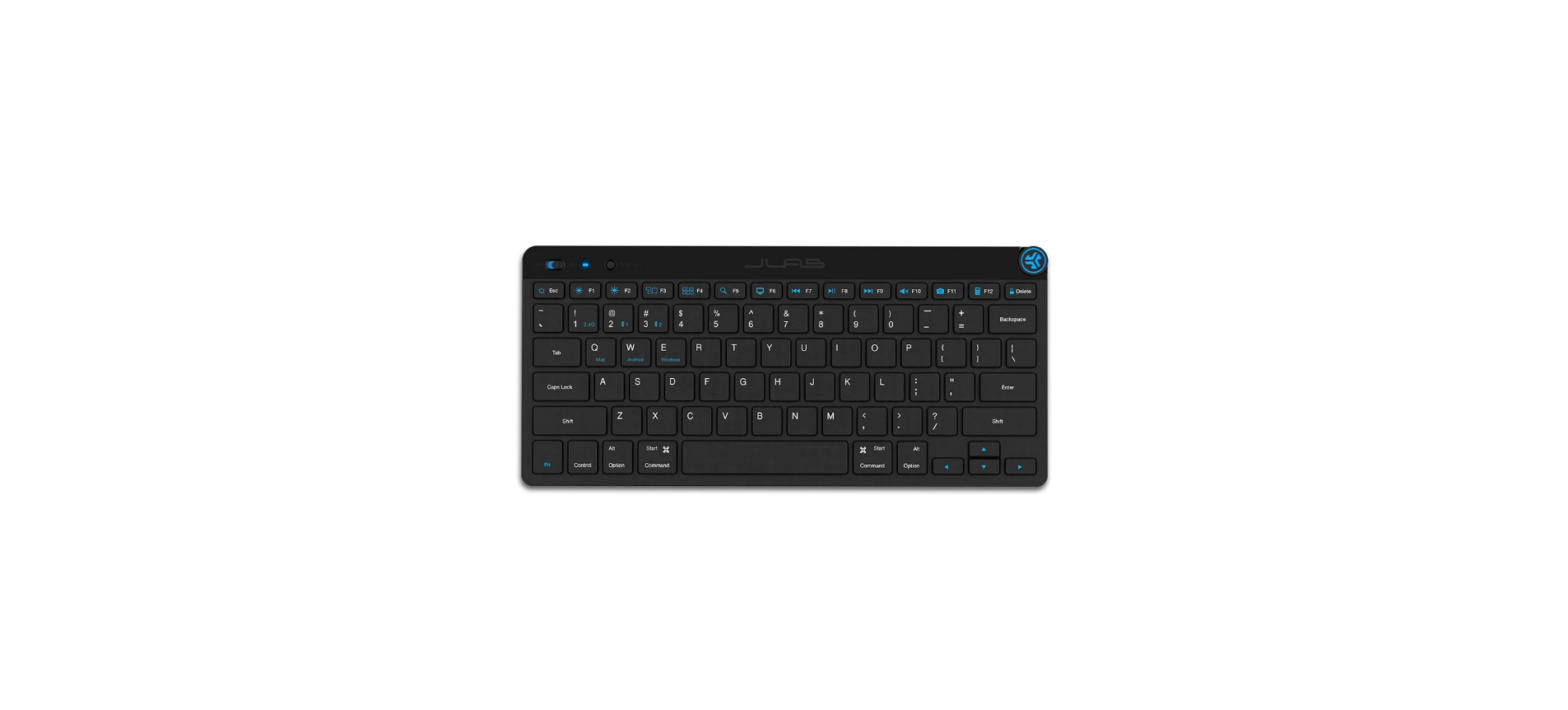
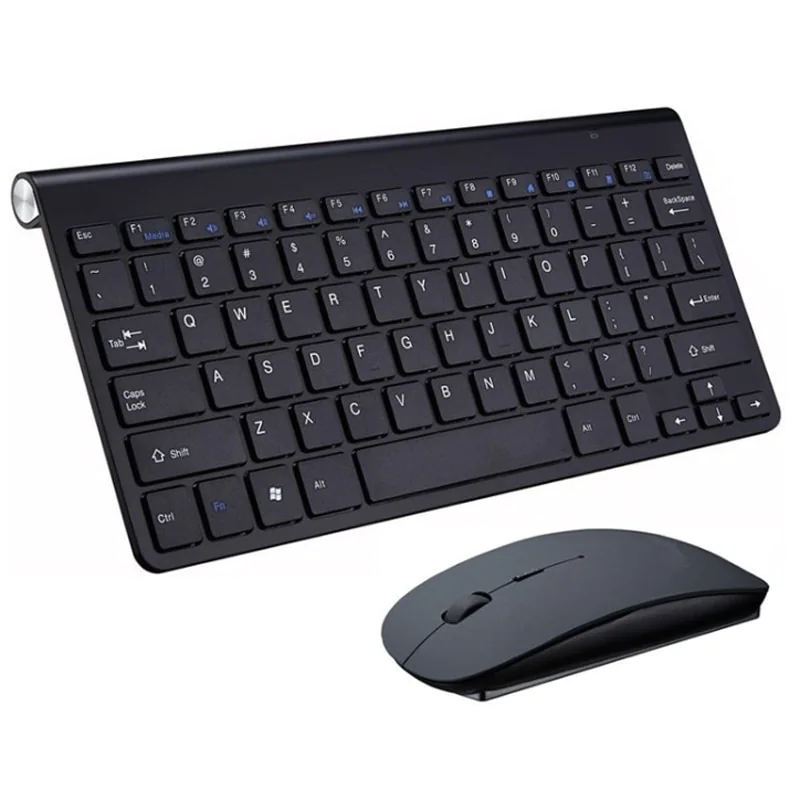
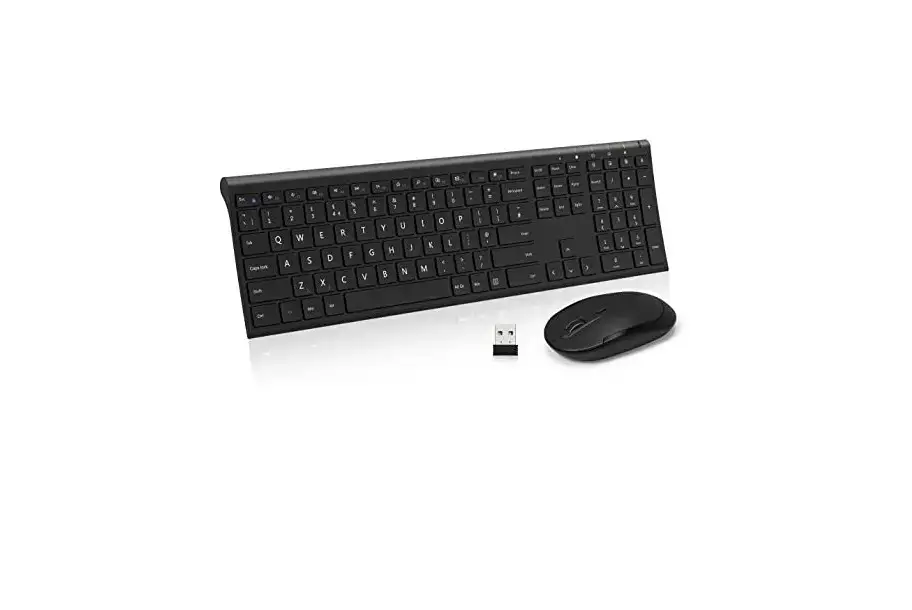
WGJP-045-3 Wireless Keyboard
Product Information:
- Product Name: Keyboard
- Model: 105G
- PANTONE Color: 573 C
- Package Contents:
- 1 Keyboard and key skin
- 1 USB Receiver
- 1 User manual
- 1 Hairbrush
- Applicable Systems: WIN 7 (and above) system, MAC OS,
Android - Battery Specifications: Dry cell 2*AAA
- Standby Time: 600 hours
- Button Life: 3 million tap tests
- Working Current: 3 mA
- Continuous Working Time: Depends on the battery used
- Product Size: 433*130.6*19.8mm
- Effective Transmission Distance: Within 10 meters
- Sleep Time (Bluetooth Mode): Automatic sleep after 30 minutes
without operation - Wake-up Method: Press any key to wake up
Product Usage Instructions:
2.4G Connection:
- Turn on the keyboard power switch.
- Take out the USB receiver from the receiver hole on the bottom
of the keyboard. - Plug the USB receiver into your computer’s USB port.
- Press the button on the keyboard to switch to the 2.4G channel,
the channel light will be on, indicating a successful
connection.
Bluetooth Connection:
- Turn on the keyboard power switch.
- Single-click on BT1 to switch to Bluetooth 1 channel, then
press and hold for 3 seconds to enter Bluetooth pairing mode. The
indicator light will flash for 180 seconds and then turn off.
Note:
- If the keyboard is not connected and used normally, please
repeat the above steps to reconnect and use. - If you want the Bluetooth of other devices to continue to be
connected, please follow the above steps to connect and use again
on channel 2. - If other devices are reconnected to the existing Bluetooth
channel, the keyboard defaults to the memory of the last connected
device.
Keys and Function:
- Task Center: Unknown function (not specified in the
manual). - Sleep Mode: If the keyboard is not used for more than 30
minutes, it will enter sleep mode and the indicator light will turn
off. Tap any button to wake up the keyboard and the indicator light
will light up.
2.4G Mode Re-pairing Method:
If you plug the USB receiver into the computer and turn on the
power switch, but the keyboard or mouse is not responding and
cannot be used normally, please re-pairing by yourself. The
keyboard can be paired separately by following these steps:
- Reorient or relocate the receiving antenna.
- Increase the separation between the equipment and
receiver. - Connect the equipment into an outlet on a circuit different
from that to which the receiver is connected.
105G
PANTONE 573 C
Thank you very much for purchasing this product. Please read the manual carefully before use to confirm that the product can be used normally.
Package Contents
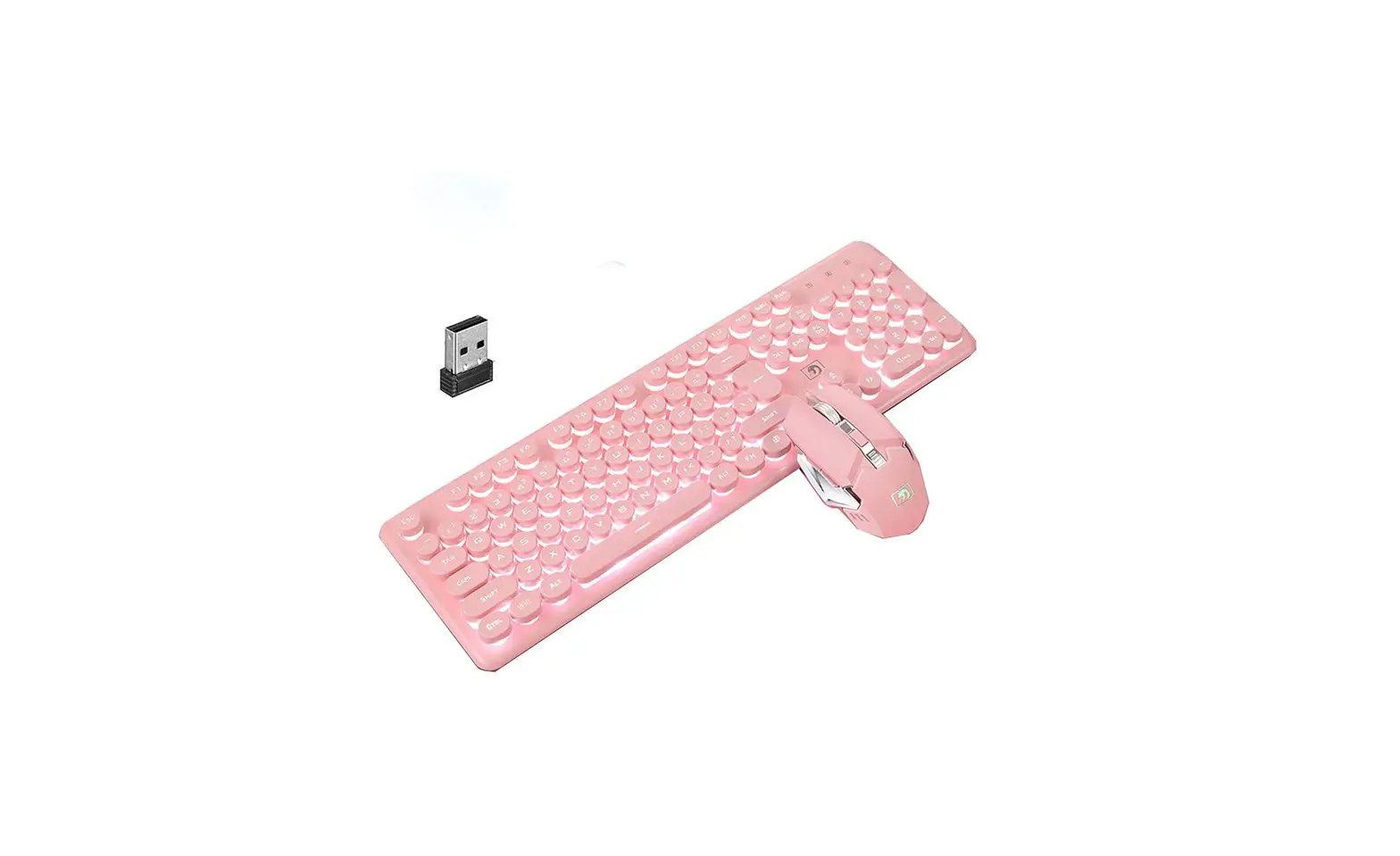
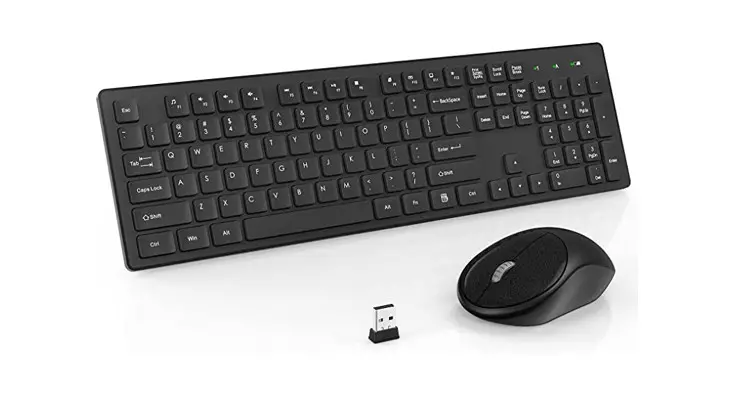
1* Keyboard and key skin 1* USB Receiver 1* User manual 1* Hairbrush
Specification of Keyboard
Applicable system
WIN 7 (and above) system, MAC OS,Android
Battery specifications
Dry cell 2*AAA
Standby time Button life
600 hours 3 million tap tests
Working current
3 mA
Continuous working time
Depends on the battery used
Product Size
433*130.6*19.8mm
Effective transmission distance Within 10 meters Sleep timecBluetooth mode Automatic sleep after 30 minutes without operation
Wake-up method
Press any key to wake up
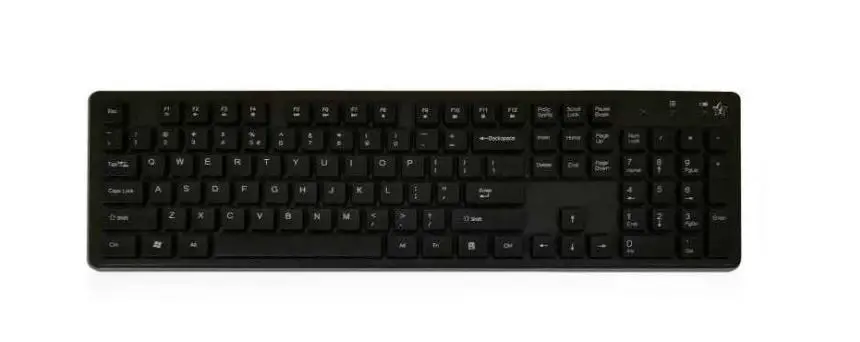
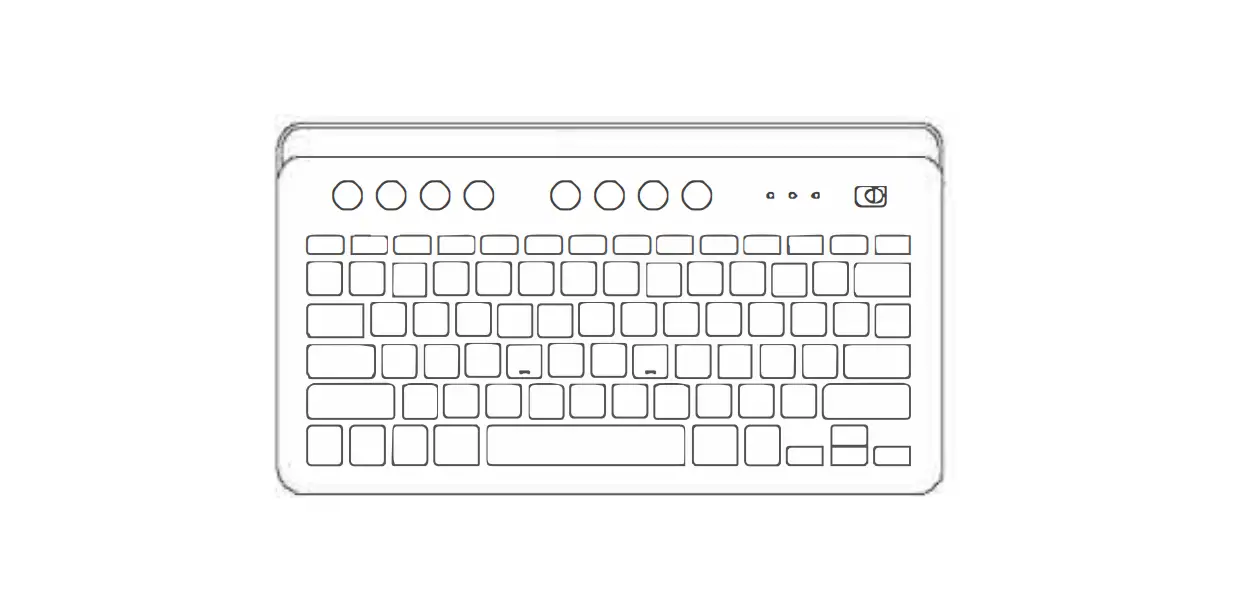
Product Layout
Channel indicator light
2.4G BT1 BT2
OFF
ON
Remove the USB receiver
2*AAA
2.4G Press to select 2.4G modeRed indicator light
Press to select BT1 modeGreen indicator light
BT1
Click once to switch to this channel; Press and hold for 3 seconds to enter Bluetooth pairing mode, the indicator
light flashes for 180 seconds and then turns off.
Press to select BT2 modeBlue indicator light
BT2 Click once to switch to this channel; Press and hold for 3 seconds to enter Bluetooth pairing mode, the indicator light flashes for 180 seconds and then turns off.
Channel indicator light 2.4G lights up in red, BT1 lights up in green; BT2 lights up in blue.
Caps Lock indicator light Turn on the Caps Lock,the green light will be on.Press it again to turn off.
Power indicator light: Turning on the power, the red light will light up for 3 seconds; When the voltage is too low, the red light flashes.
2.4G Connection
1. Turn on the keyboard power switch.
2. Take out the USB receiver from the receiver hole on the bottom of the keyboard.
3. Plug the USB receiver into your computer”s USB port.
4. Press the
on the keyboard to switch to the 2.4G channel
, the channel light will be on, and then the keyboard is successfully
connected.
Bluetooth Connection
1. Turn on the keyboard power switch. 2. Single-click on BT1 to switch to Bluetooth 1 channel, then press and
hold the button for 3 seconds, the indicator light starts flashing rapidly, indicating that the keyboard has entered the pairing mode. 3. Turn on the bluetooth function on your computer settings,click the bluetooth search and then find “BT 3.0” or “BT 5.0” in the search list and click connect(No bluetooth pairing password required) If your device supports Bluetooth 5.0, please click to select “BT 5.0”; If not supported, please choose to connect to “BT 3.0”. 4. The light is always on then you can use the keyboard normally. The BT2 channel connection method is the same as in the above steps
Note:
1. If the keyboard are not connected and used normally, please repeat the above steps to reconnect and use.
2. If you want the Bluetooth of other devices to continue to be connected, please follow the above steps to connect and use again on channel 2.
3. If other devices are reconnected to the existing Bluetooth channel, the keyboard default to the memory of the last connected device.
Keys and Function
Task Center
Sleep Mode
If the keyboard is not used for more than 30 minutes, it will enter sleep mode and the indicator light will turn off; Tap any button, the keyboard will wake up and the indicator light will light up.
2.4G mode re-pairing method
We completed the 2.4G mode pairing during the product production process. If you plug the USB receiver into the computer and turn on the power switch, the keyboard or mouse is no response, can not use nomally, please re-pairing by yourself. The keyboard can be paired separately as follows steps.
NOTE: This equipment has been tested and found to comply with the limits for a Class B digital device, pursuant to part 15 of the FCC Rules. These limits are designed to provide reasonable protection against harmful interference in a residential installation. This equipment generates, uses and can radiate radio frequency energy and, if not installed and used in accordance with the instructions, may cause harmful interference to radio communications. However, there is no guarantee that interference will not occur in a particular installation. If this equipment does cause harmful interference to radio or television reception, which can be determined by turning the equipment off and on, the user is encouraged to try to correct the interference by one or more of the following measures:
– Reorient or relocate the receiving antenna. – Increase the separation between the equipment and receiver. – Connect the equipment into an outlet on a circuit different from that to which the
receiver is connected. – Consult the dealer or an experienced radio/TV technician for help.
Changes or modifications not expressly approved by the party responsible for compliance could void the user’s authority to operate the equipment.