ZANCHIE
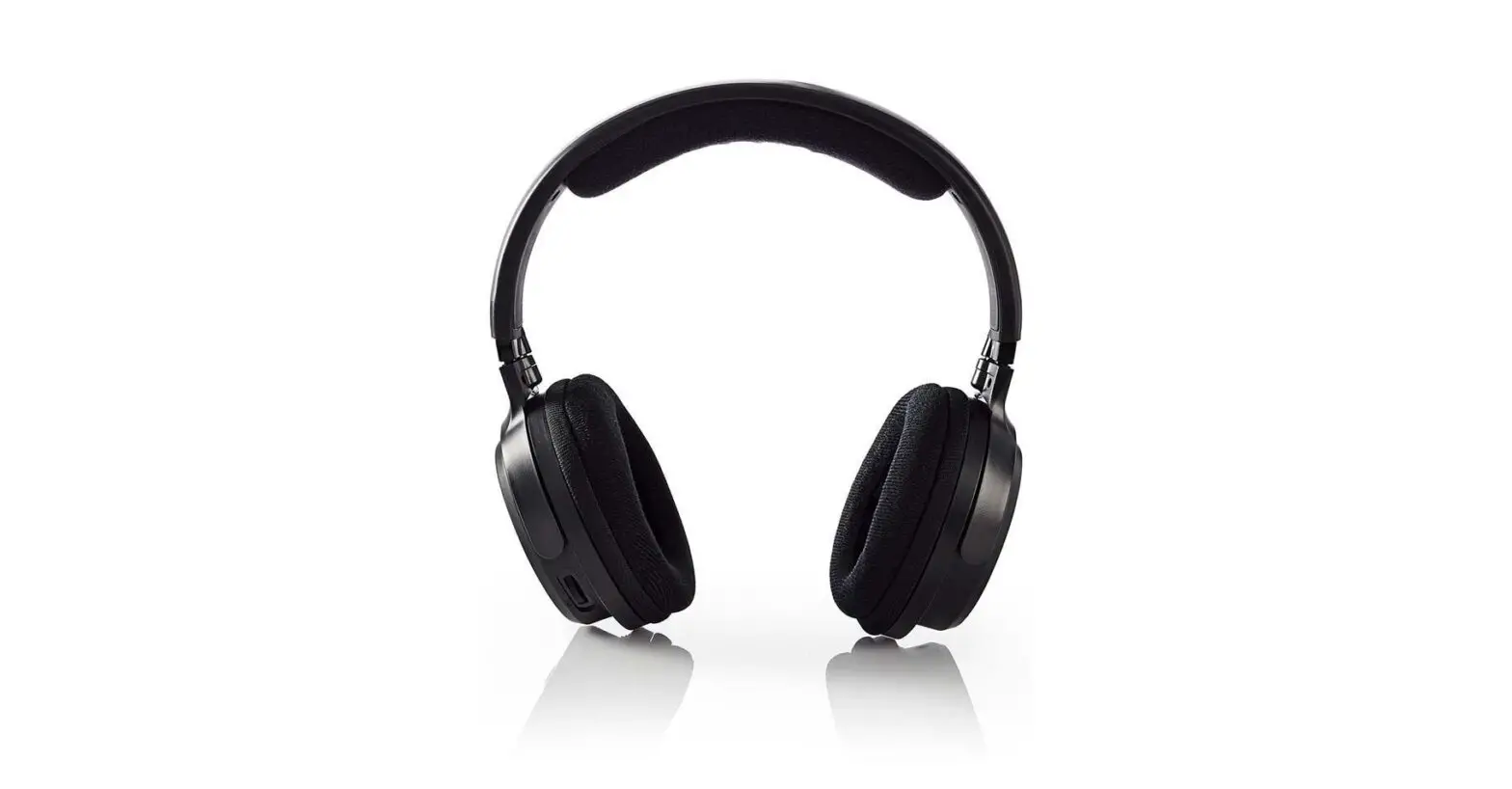
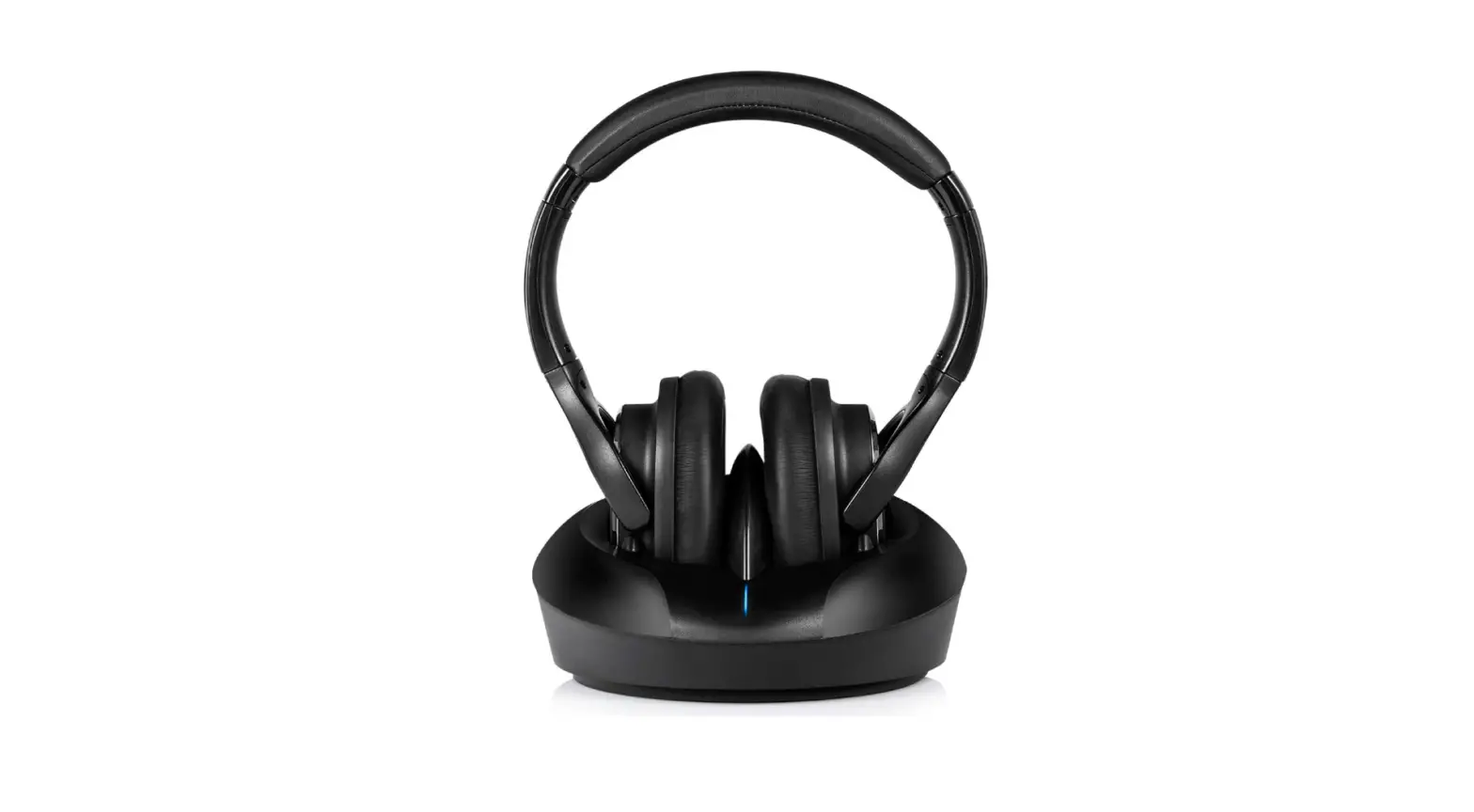
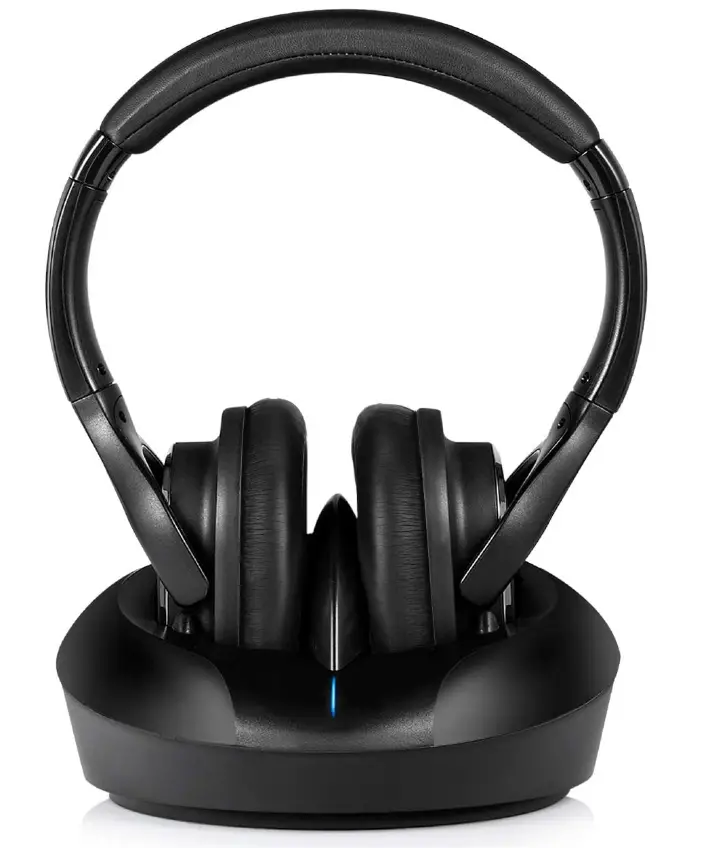
ZANCHIE ZEH003 Headphones Over Ear Headsets
Specifications
- SYSTEM: UHF/RF
- MODULATION: FM
- MODE: Stereo
- S/N RATIO: >70dB
- RECEIVING SENSITIVITY: >10dBuVemf
- FREQUENCY RESPONSE: 60-15000HZ
- POWER SUPPLY OF TRANSMITTER: 5VDC/ 70mA
- HEADPHONE CHARGE TIME ABOUT: 3 hours
- HEADPHONE WORK TIME ABOUT: 10 hours
- BRAND: Zanchie
Introduction
Wireless headphones are those that connect to a device without the use of a wire or connection, such as a smartphone, stereo speaker, television, gaming console, computer, or other electronic device.
Headphones that have a base station are referred to as dedicated wireless tv headphones. When the base station is linked to the TV, it functions as a transmitter that sends audio signals to the headphones. Since the base station and TV are rarely separated, the term “dedicated” was coined.
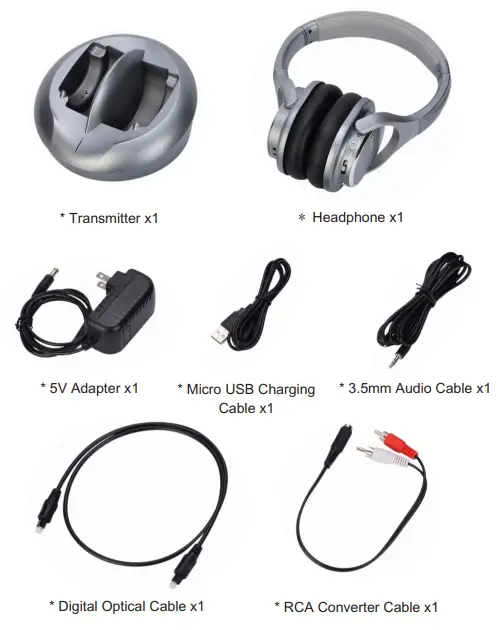
Package Contents
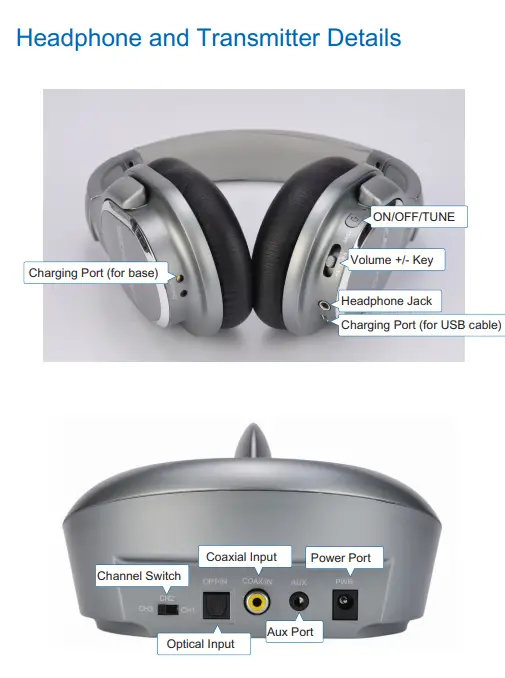
Headphone and Transmitter Details
Placing the Transmitter Charging Dock
Select an ideal location near your chosen audio source. We suggest you place the transmitter in an open and visible location. Create a 20 inch (50 cm) gap between the dock and other wireless devices to avoid interference.
Place transmitter dock away from:
- Metal objects
- Metal Shelving
- Furniture containing metal.
- Reinforced concrete walls
- Behind the TV
- Inside Cabinets or Dressers
These environments can reduce the wireless headphone range.

Test headphone and transmitter with your phone
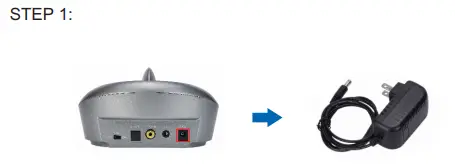
- STEP 1: Plug the power supply cable into the Dock/Transmitter Plug the adaptor into the wall socket or power strip.

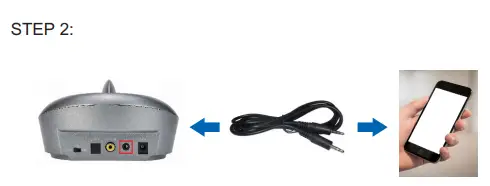
- STEP 2: Connect the Dock/Transmitter to your cellphone with the 3.5mm audio cable. Play the music on your cellphone. And then turn on the headphone by pressing power button 3 seconds. Listen to the headphone, check if there is music in it. If yes, there’s no problem with the headphone and transmitter.

TV Setup Instructions
- Plug in charging dock and place headphones in to charge BEFORE beginning setup.
- Check the connection available for your TV (audio output, usually marked “OUT”).
- Select the corresponding connection cable from the chart below.
- Depending on the connection option selected, go to the respective chapter and follow the instructions on how to connect the transmitter to an audio source.
Connection options available for your audio source
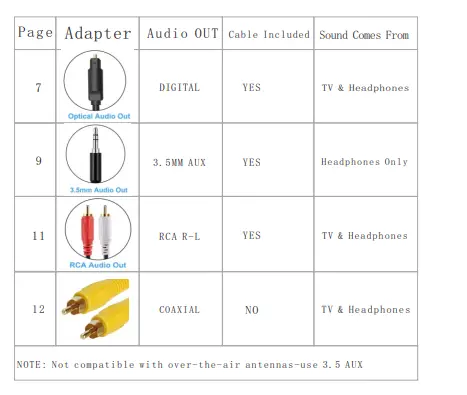
Setting up the Transmitter to your TV’s Audio Port or Cable Box.
Connect Option A: The Preferred Method: Digital Optical
STEP 1: Please adjust your TV Sound Settings per followed:
- Access the sound menu of your TV to change your “audio settings”.
- Within TV Menu Settings, look for “Sound Settings”.
- Within sound settings select “Digital Optical OUT.”
- Within Digital Optical Out select the “PCM” Digital Sound Output. Selecting “PCM” may be in an advanced sound setting, navigate your menu to find this setting. DO NOT SELECT “Bitstream” – Selection must be PCM
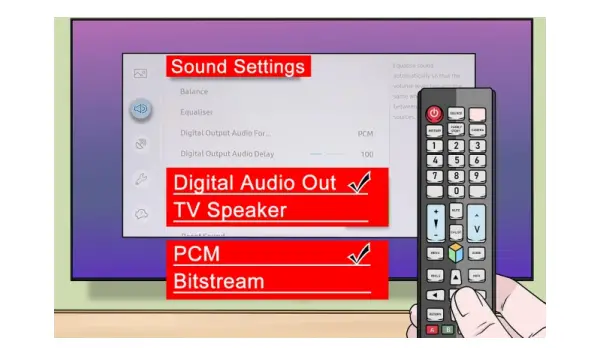
Sound menus vary by TV
If unable to find the correct menu, attempt alternative setting adjustments and consult your TV manufacturers online manual.
STEP 2: Find the Digital Optical jack from your TV back.
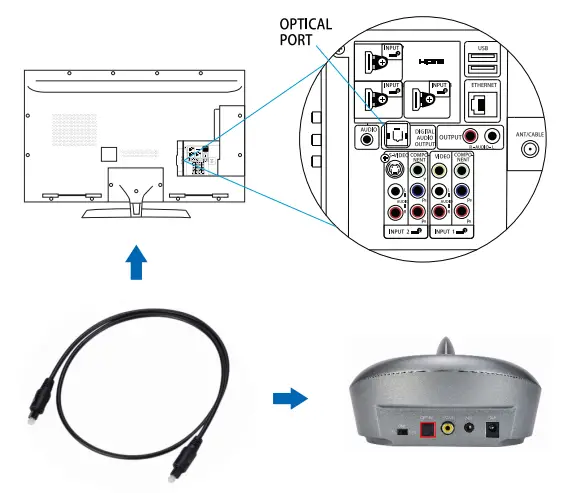
This jack may be called Toslink, Optical, or Digital Audio Output. Plug one head of the provided optical cable into this jack on your TV, while the other head into the Optical input on the back of the transmitter base. (Please note: This method allows sound to be heard through the headphones and the TV. If you need sound to come only through the headphones, mute the TV.)
Connect Option B: 3.5MM AUX / Headphone Jack
STEP 1: Please adjust your TV Sound Settings per followed:
- Access the sound menu of your TV to change your “audio settings”.
- Within TV Menu Settings, select “External Speaker” or “Audio Out”.
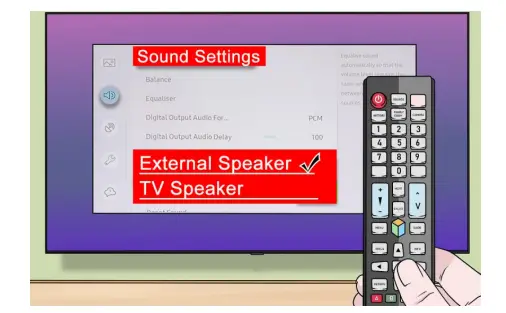
Sound menus vary by TV
If unable to find the correct menu, attempt alternative setting adjustments and consult your TV manufacturers online manual.
STEP 2: Find the 3.5MM AUX / Headphone Jack from your TV back.
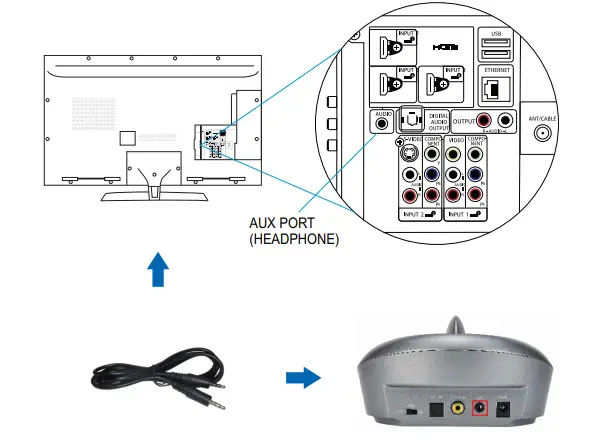
Plug one end of the AUX cable into the TV’s AUX Port. Plug the other end into the AUX Port on the back of the transmitter. (Please note: This AUX connection method – makes the sound go EXCLUSIVELY through the TV Headphones. Adjust the volume of your TV if you cannot hear anything coming from the Headphones)
Connect Option C: RCA Audio OUT
- STEP 1: Please adjust your TV Sound Settings referred to option 2 – Step 1 in page 9
- STEP 2: Find the RCA AUDIO OUT Jack from your TV back.
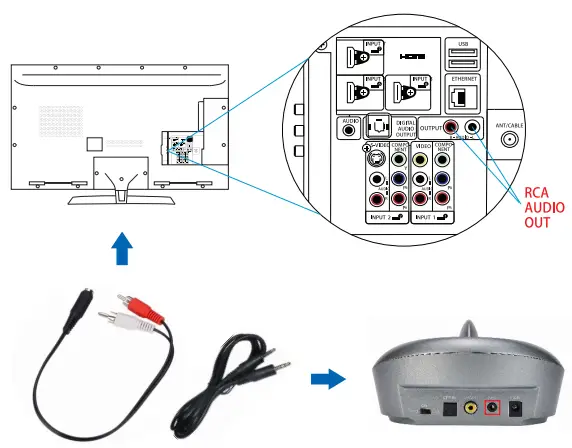
These are circular red and white Audio Out jacks, also called RCA jacks. Connect the included RCA adapter cable to the Audio Out or Output jacks on your TV. Then, connect the included AUX cable to the adapter and plug the other end of the AUX cable into the Audio In jack on the back of the transmitter. (Please note: This RCA connection method – MAY make the sound go through the TV & Headphones. For just listening from Headphone, please mute your TV.)
Only use RCA cables if you have output ports on your TV. They do not work on the input ports.
Connect Option D: Coaxial Audio Out (Cable Not Included)
Find the Coaxial audio output jack on your TV or cable box, use coaxial cable(need to buy separately) to connect your TV or cable box with the transmitter.

STEP 3: Using the ZANCHIE Headphones
- Make sure that the transmitter has been set up and is powered ON.
- Press the power button for 3 seconds to turn on the headphones. The headphones should automatically pair to the transmitter.
- Adjust the volume. To adjust the volume, push the +/- button (located on the right headphone) to the desired volume. When the transmitter is only connected via the AUX cable, you need to adjust the volume through your TV remote.
Charging your Wireless Headphones
(Please turn off your headphones before charging!!!)
OPTION 1: Docking Charging
The dock/transmitter LED light glows RED while the headphone is being charged. LED light turns to BLUE when the headphone are fully charged. Tips as below:
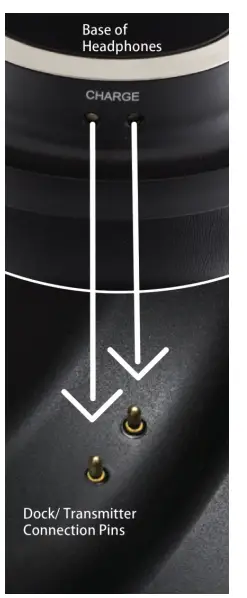
Before place the headphone on the transmitter, make sure that the charging port of the headphone (left side) is the same direction as the charging pin of the transmitter!!!
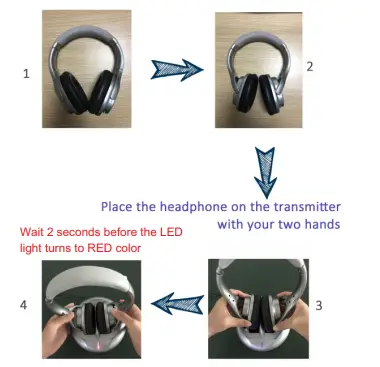
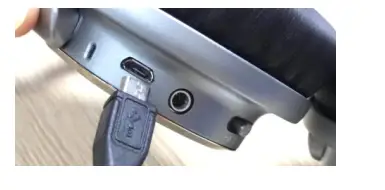
OPTION 2: Direct Cable Charging
Use USB cable. When the headphone is being charged, headphone GREEN LED light keeps on, and the LED turns off when headphone is fully charged.
Troubleshooting
- I can’t hear any audio from my headphones.
- Check that the transmitter and your headphones are both turned ON.
- Check that all cables from the TV to the transmitter are connected properly.
- Check that the transmitter is plugged in to the AC outlet.
- Check that your headphones are fully charged
- Check that the headphones are within 100 feet of the transmitter.
- Check that the TV is not on mute.
- Check that the headphones are turned all the way up.
- Check that the audio output port is being used.
- Turn the TV volume to at least half maximum.
I can hear audio, but there is static interference.
Follow these steps to check the audio playback from your headphones.
- Make sure that you are in range or move closer to the transmitter.
- If that does not help, adjust the volume on your headphones and on the TV. Audio turned up to maximum or close to maximum can have static interference or hissing effect.
- If you are not receiving a quality signal you can change the Channel on the back of the Dock/Transmitter. There are 3 Channels to choose from. Simply slide the switch from Channel 1 to Channel 2 or 3. Next press the headphone Power ON Button one time and wait 3 seconds. Now the headphone is programmed to the proper channel.
Note On some newer TV sets, it may be necessary to increase the output level of the headphone jack or the Audio Out jacks. Check your TV’s owner manual for details. - If steps (1) and (2) and (3) do not address the issue, check to see that the transmitter is properly connected to the TV.
- I followed these steps, but I still don’t hear anything from my headphones.
- If you have a second TV at home, set up the Wireless Headphones on that TV and see if the audio works. If it works on the second TV, you may need to adjust the settings on the first TV. Review your TV’s manual for more details.
Can’t charge headphone on the dock
If your headphones are not charged after being docked, be sure that you are placing the headphones with charging pins aligned with charging contacts. Clean contact points of any dust or debris. When charging, the Dock will display a RED LED Indicator Light. Please refer to page 9.
If you have trouble with the connection, write back with the pictures showing all the ports on your TV and cable box, we will help you within 24hours. Also with 2 Year warranty on parts and labor, For additional help, please contact us at [email protected]. —ZANCHIE Store
Frequently Asked Questions
There are no batteries to replace. The headphone battery recharges when it sits in its cradle which you will want to do between uses. There is a red LED light that illuminates when it is charging and then goes to blue when fully charged. I used mine a lot and have never had the battery get too low. I’ve watched up to 4 or 5 hours between recharging.
Yes, but you have to purchase (through Amazon), a digital optical splitter because the TV only has one digital optical port, to which you sound bar was already connected. Once this was connected and TV settings adjusted accordingly, we have sound through the TV and headphones simultaneously or we can mute the TV and listen only through the headphones.
Plugs into any 3.5 mm audio jack, RCA or digital optical output on your TV, Laptop, PC, Tablet, iPad, Cellphone, Radio, CD, MP3 players or Computers. Not Compatibility zoom meetings,
I checked the adapter (2 prong) and it’ll handle input of 100v-240v.
I have the same problem and have been chasing it for a while. I get the regular cable TV (in my case) through the optical out, but not any of the streaming services. I also have a Samsung Smart TV. I think the problem is that the Wireless headphones only convert true digital audio from a cable or satellite box since it’s being supplied from HDMI over linear QAM, but Netflix,YouTube, and all of the other streaming services are being provided at IP streaming protocols (IPV4),
My solution was getting a digital optical splitter. I connected to splitter to the optical port on the TV and then connected my sound bar into one port on back of splitter and the headphones transmitter to the second port on back of slitter. Now everything works perfectly. I can have sound through the headphones and sound bar or I can mute the sound bar and have sound only through the headphones.
Yes if you turn tv volume up.
Yes, I believe they are all included.
I doubt it. It has such high background noise which will definitely amplify further when you wear hearing aid.
Mine fit firmly I would imagine you could bend the head band a small amount but be careful not to break the sliders.
They are difficult to charge but sadly I’ve had to return both sets. The first set worked fine for a while but within a month the right side volume quit working. They sent a replacement set which didn’t work either. I could hear music but no talking. I just sent them back and will purchase a different brand.
Yes they can, or they can mute the tv and you will still hear it on your head phones.
110V
Yes, volume control V+ V- channel 1-2-3.
100-240V US plug.
Well it has been installed for some time now, but I’m thinking at least three, maybe four feet. I know I connected to back of my TV which sits on mantel above fireplace and transmitter is at left most edge of mantel. There was plenty of cable I had to push back into the recessed area behind the TV.
If your headphones are not charged after being docked, be sure that you are placing the headphones with charging pins aligned with charging contacts.