BLUEBOT APP
Product Information
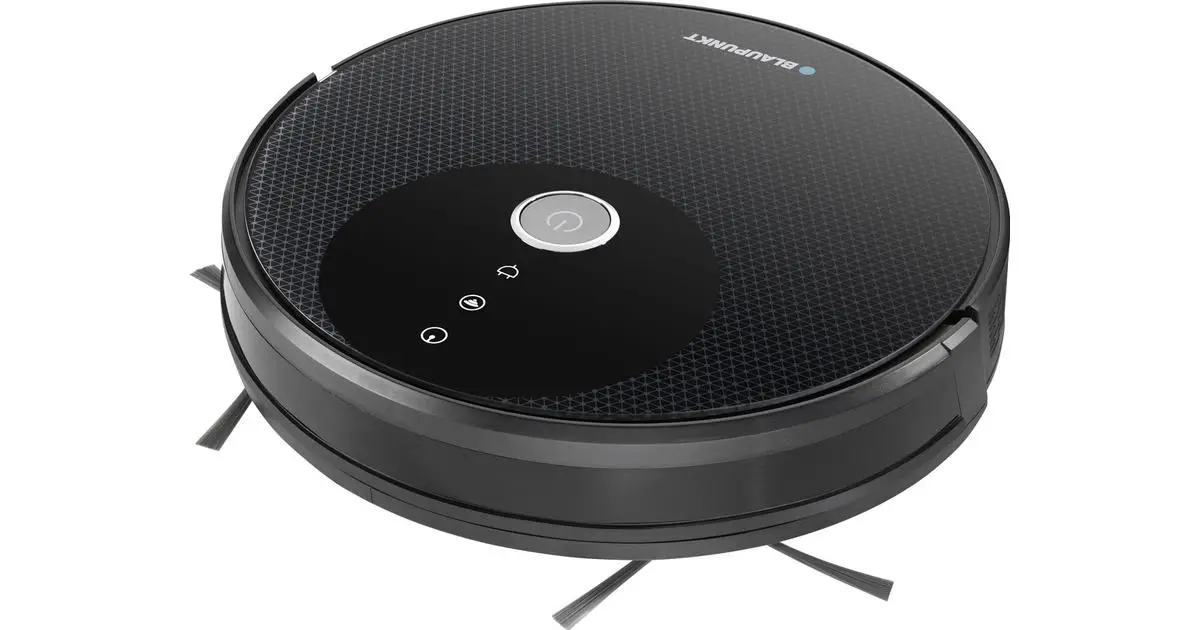
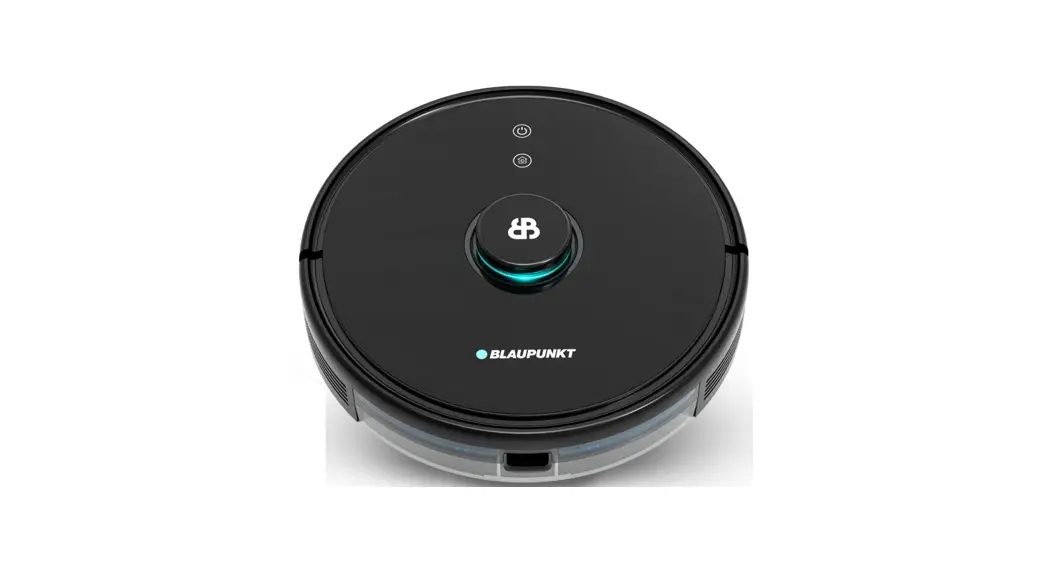
The product is a robot called Bluebot that requires the
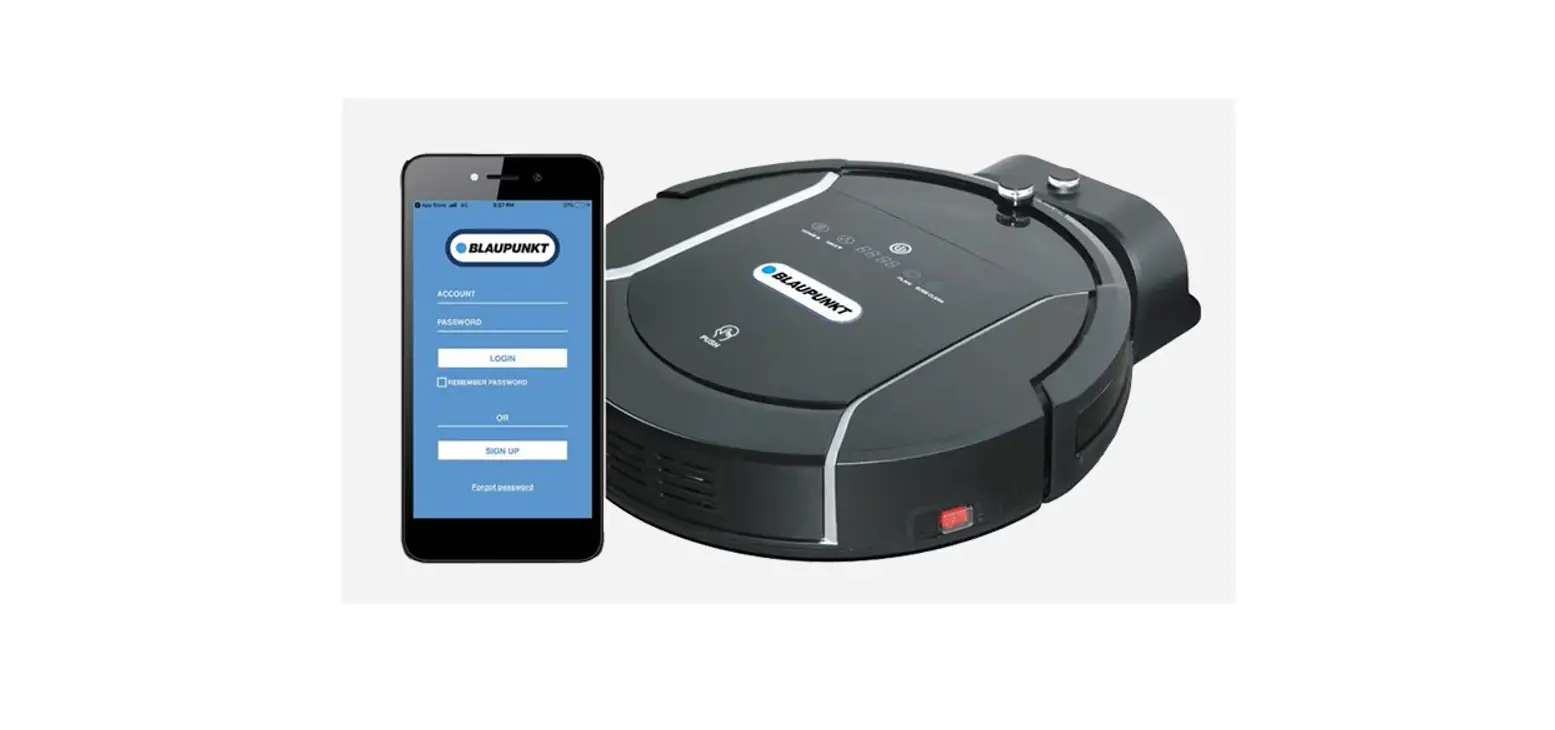
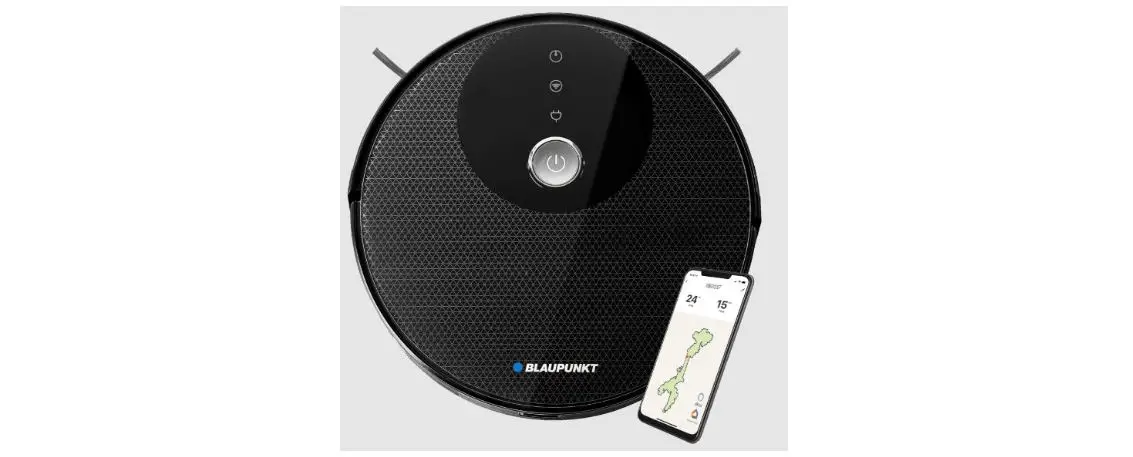
installation of a corresponding mobile application called Bluebot
App. The robot needs to be fully charged before use and can be
placed in a charging station for this purpose. The Bluebot App can
be downloaded from the Appstore or Google Play. Users need to
register a new account if they are not existing users. The robot
model supported by the app is called Bluebot Precision. The robot
should be turned on by pressing the ‘On button’ for a few seconds.
The app provides instructions for connecting the robot to the
network and the app itself.
Product Usage Instructions
- Place the robot in the charging station to charge and ensure it
is fully charged. - Remove the robot from the charging station.
- Turn on the Robot by holding the ‘On button’ on top of the
robot for a few seconds. - Download the Bluebot app from the Appstore or Google Play.
- If you are a new user, register a new account.
- Open the Bluebot app and tap on the ‘+’ icon to add your
device. - Select the Bluebot Precision model.
- Enter your password and confirm that the power key is blinking
blue slowly, then press ‘Next’. - Press the ‘Go to connect’ button at the bottom of your
screen. - Make sure the robot is removed from its charging station after
registration. - To establish a connection, turn on your Robot by pressing both
the ‘Home button’ and ‘On button’ simultaneously for more than 3
seconds. - Select the ‘SmartLife xxx’ network from the list and return to
the Bluebot app. The robot will now connect to the app.
4. INSTALLATION BLUEBOT APP
BLUEBOT APPLICATION 1 Fully charge robot 2 Download Bluebot app 3 Steps for registration
1
2
3
EN 4 Connect robot with app (steps)
Place the robot in the charging station to charge and make sure it’s fully charged before use.
Remove the robot from the charging station.
Make sure the Robot is on, by holding in the `On button’ for a few seconds on top of the robot. Wait until the robot has started fully.
4
5
Download the Bleubot app. The app can be found in the Appstore and Google Play.
Register a new account if you are not yet an existing user.
6
Open the Bluebot app and press the `+ icon’ to add your device.
11
INSTALLATION BLUEBOT APP
7
8
Select the BLUEBOT PRECISION
10
enter the password and
BLUEBOT PRECISION
11
Tick `Confirm the power key is blinking blue slowly’ when applicable and press `Next’.
Next
Press on the ‘Go to connect’ button in the bottom of your screen.
Go to connect
9
After your registration, make sure the robot is removed from it’s charging station. Turn on your Robot by pressing the ‘On button’ . After that is done, press both the ‘Home button’ and ‘On button’ simultaneously for more than 3 seconds connection.
12
Select the ‘SmartLife xxx’ network from the list and return to the Bluebot app. Your robot will now connect to the App.
12