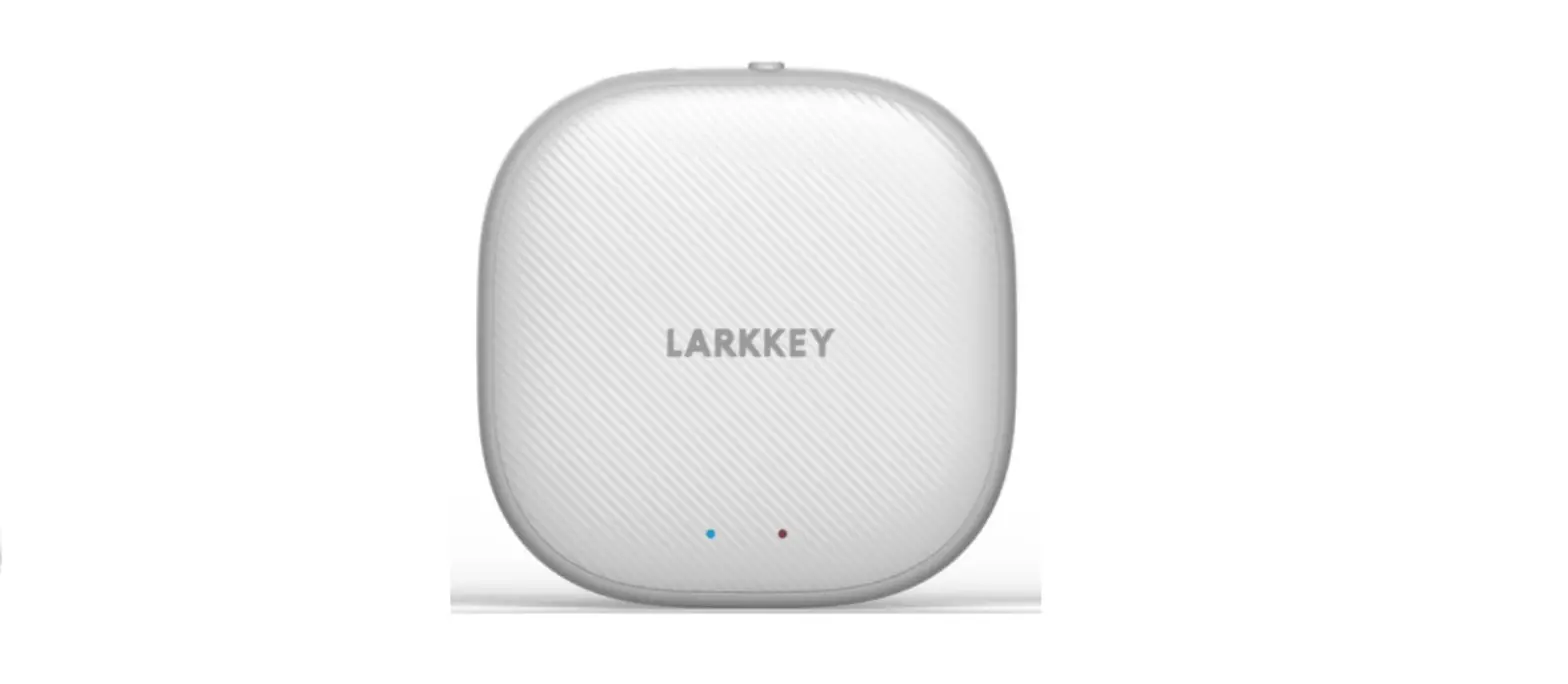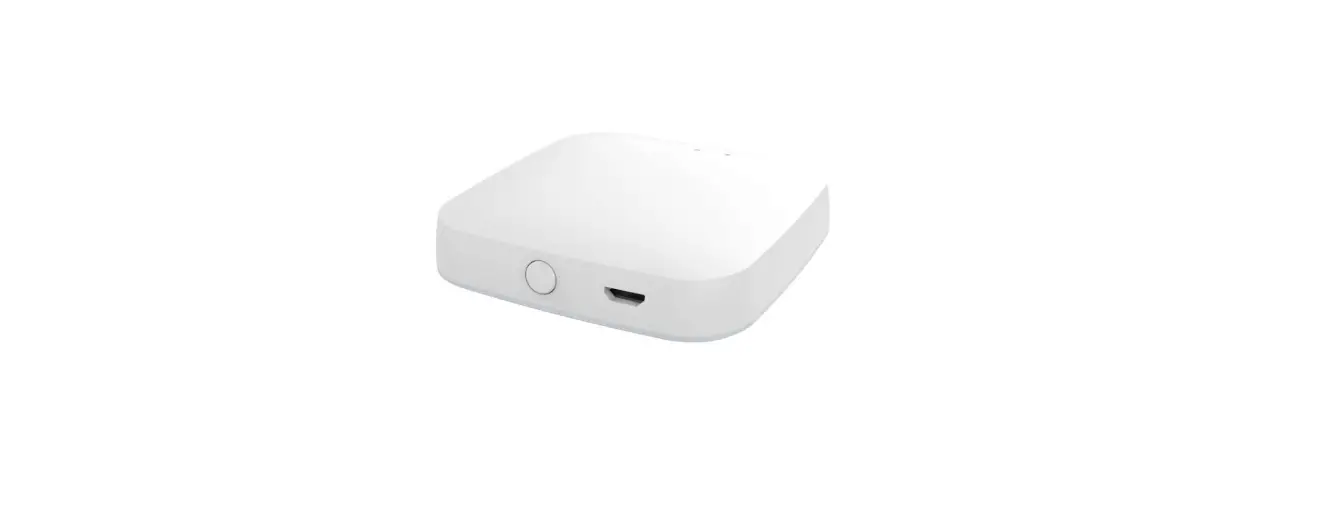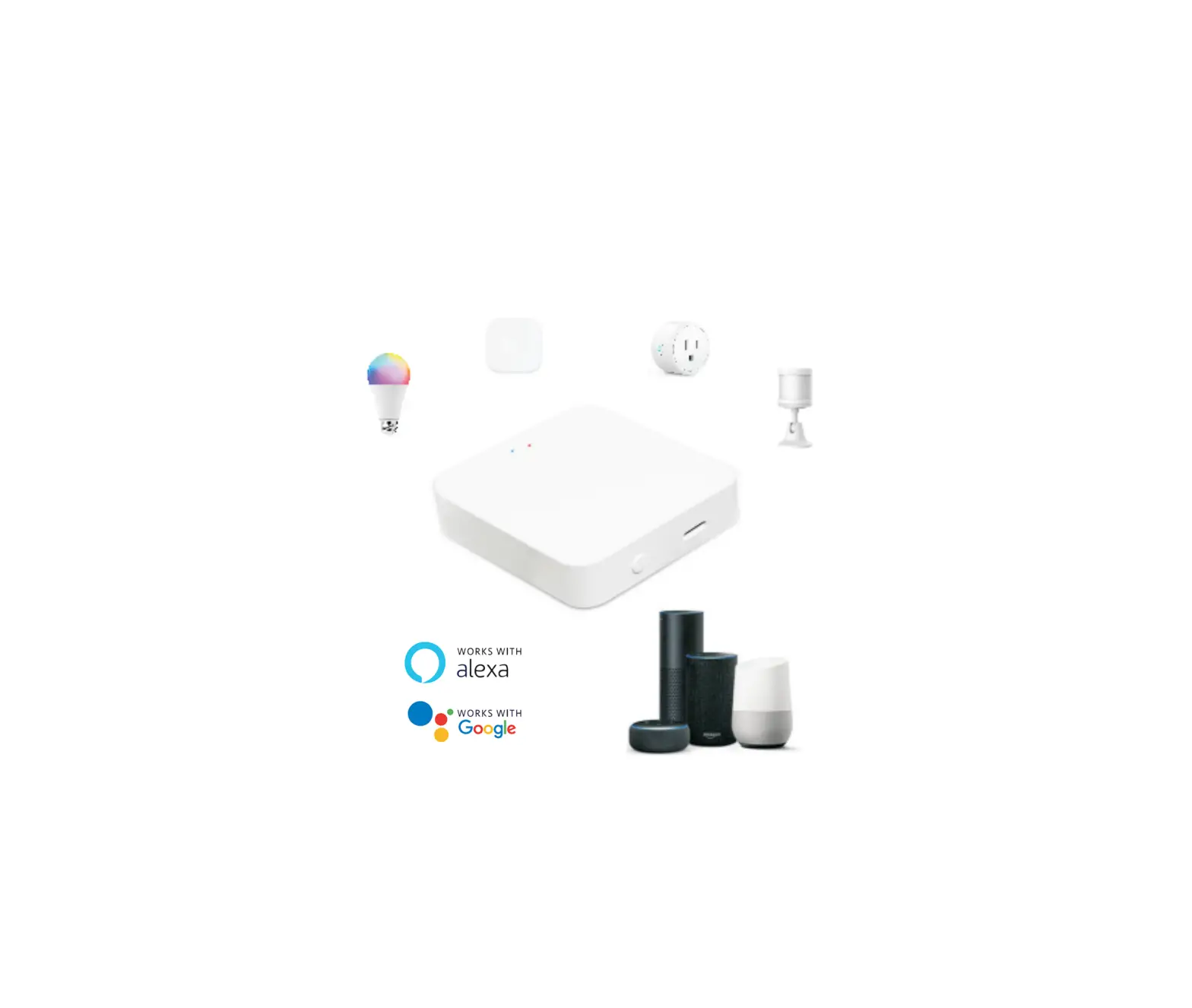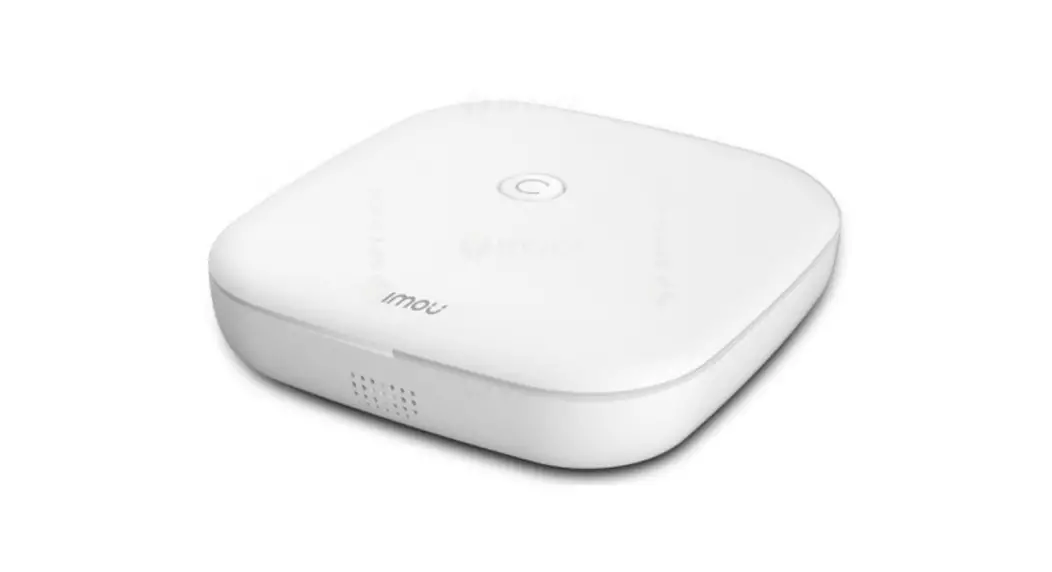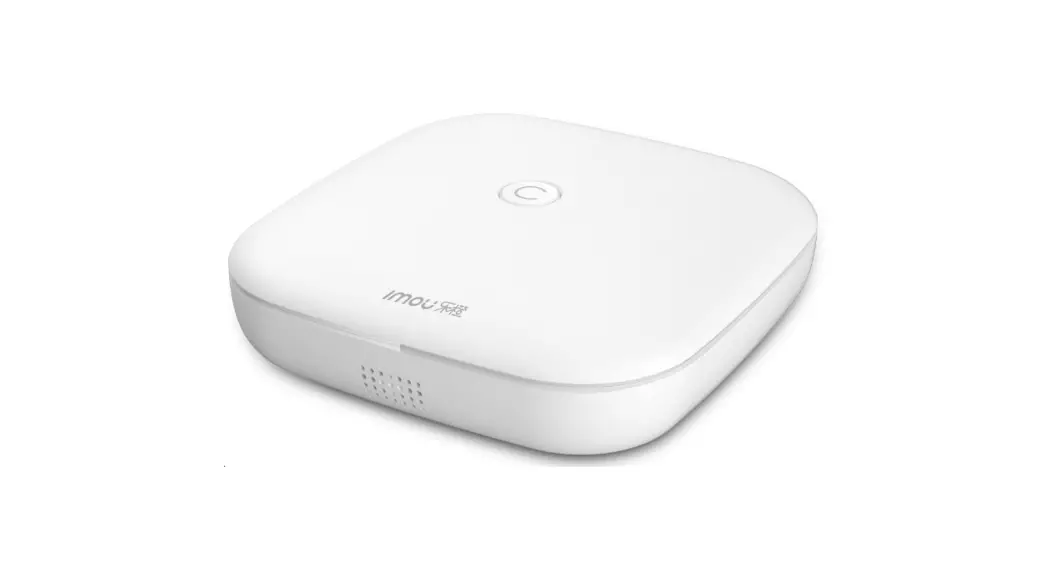
 ZG1 Zigbee Gateway
User Guide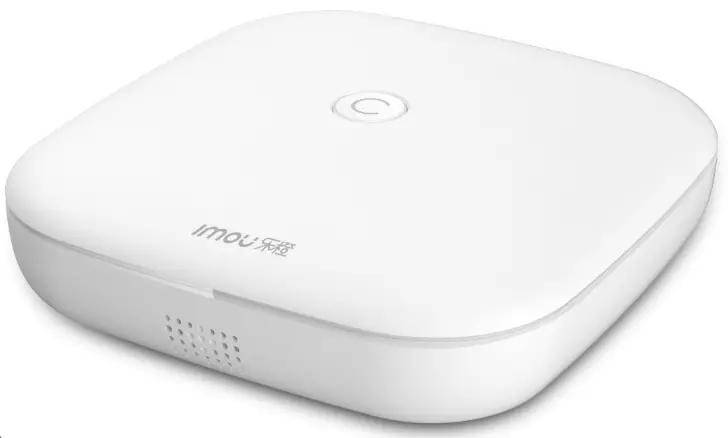
Package Contents
 | |||
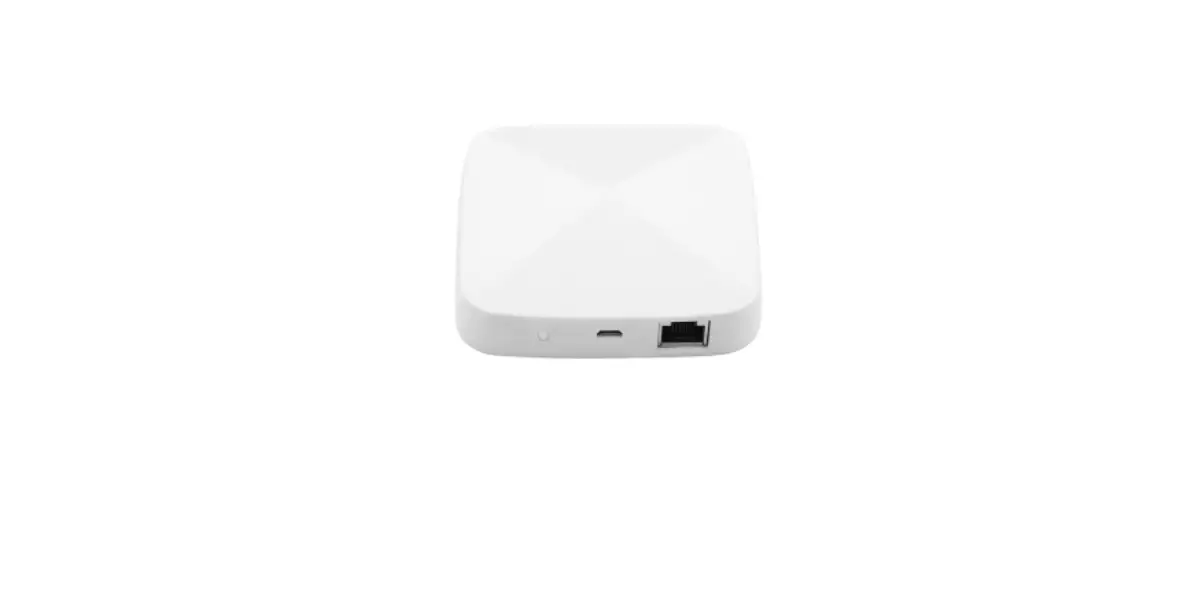
| Gateway ×1 | Power Adapter ×1 | USB Cable ×1 | Screw and Anchor Pack ×1 |
Overview
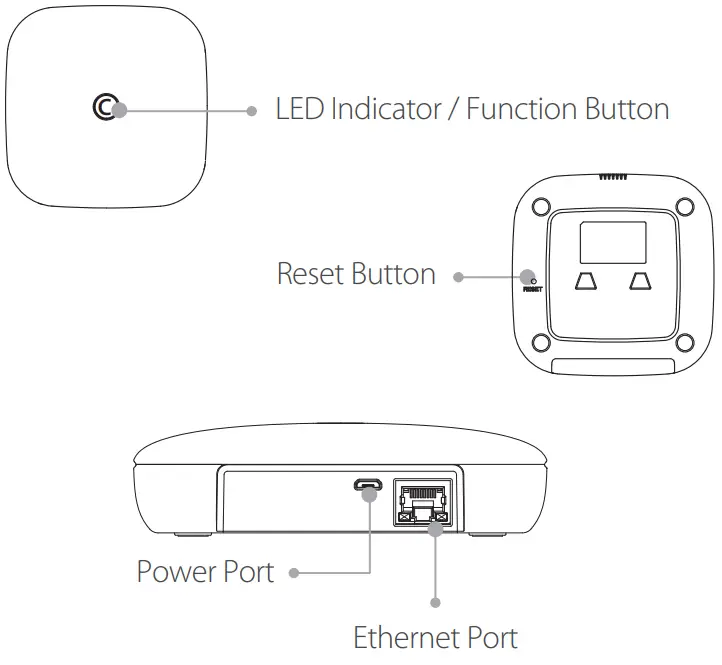
Device Setup
Step 1 Get Imou Life App
Scan the QR code below or search for “Imou Life” in the app store to download and install the app.
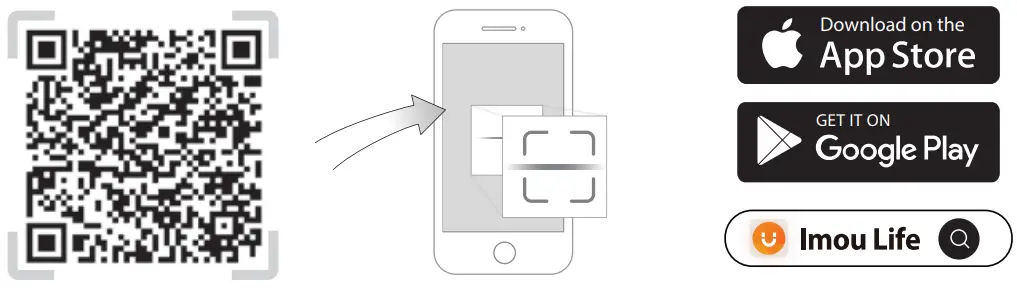 http://mobile.easy4ipcloud.com/imou/detect.html
 If you already use the app, make sure that you are using the latest version.
Step 2 Set Up the Device
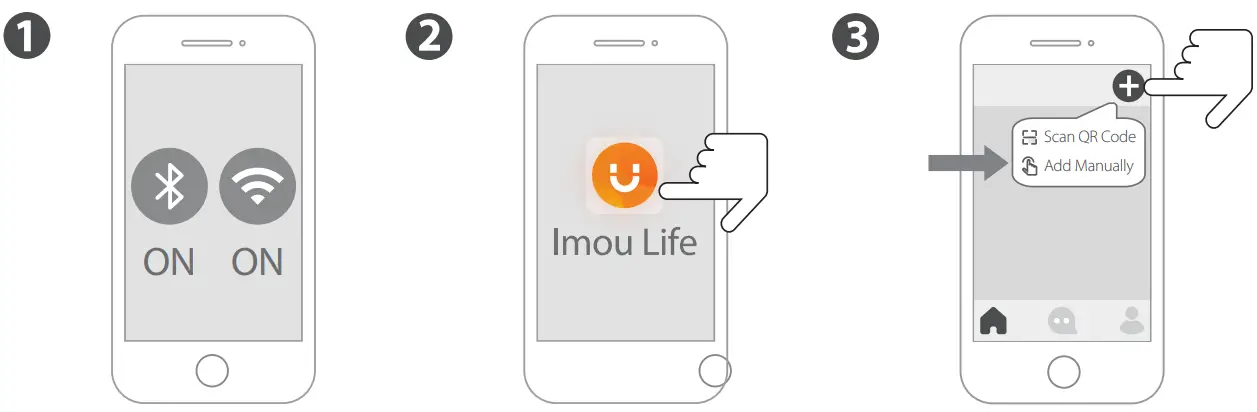
Pairing Setup
Method 1 Wired Pairing
Connect the device to the power supply socket and then connect it to a network cable.
Method 2 Soft AP Pairing
Press the function button on the front of the device until the LED flashes blue fast.
LED Indicator Patterns
| LED Indicator | Device Status |
| Flashing red fast | Alarm/malfunction |
| Flashing red | Offline |
| Solid red | Powering on |
| Flashing blue fast (2 times/s) | Pairing sensors |
| Flashing blue (1 time/s) | Start pairing setup |
| Solid blue | Paired and normal |
Additional Information
Troubleshooting
Q: What can I do if I fail to pair the device? Please make sure that you have entered the correct Wi-Fi password. The signal of Wi-Fi is strong. The device is connected to a 2.4 GHz Wi-Fi. Check your router whether it is working properly. You can set the router to 802.11 b/g mode. Q: Why am I not receiving push notications from Imou Life app? The reasons might be: Your devices have yet to be setup or the sensors have not been enabled. Your devices are offline. The devices battery ran low. Q: How can I reset the device? Power on the device and use a pin to press and hold the reset button for 5 s and release until your hear beep once. Reset is done when the LED indicator flashes red.
V1.0.0