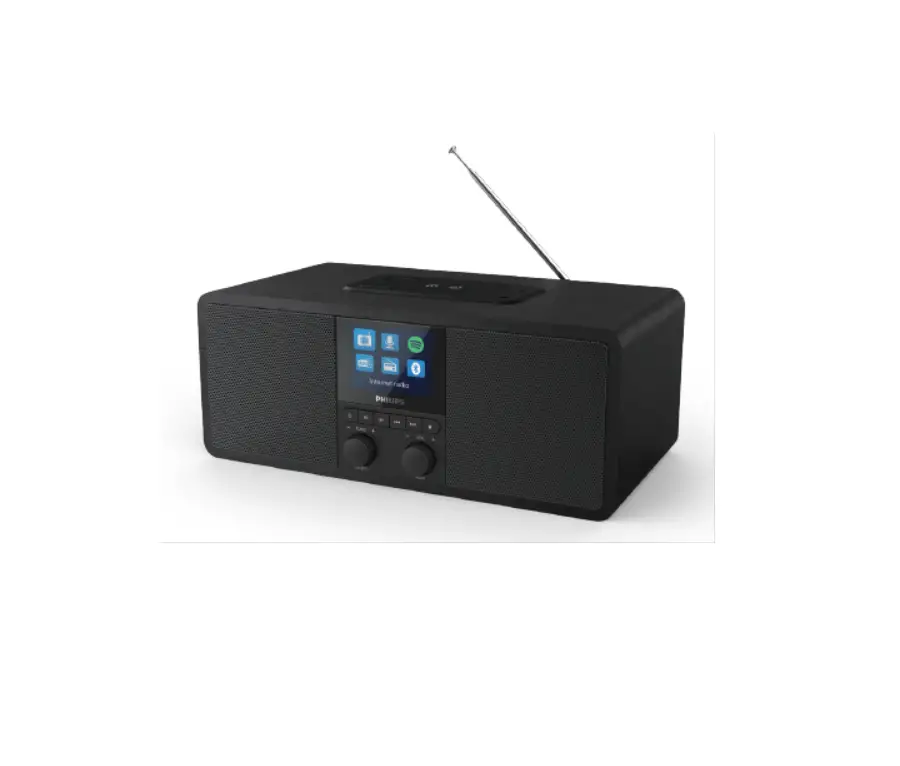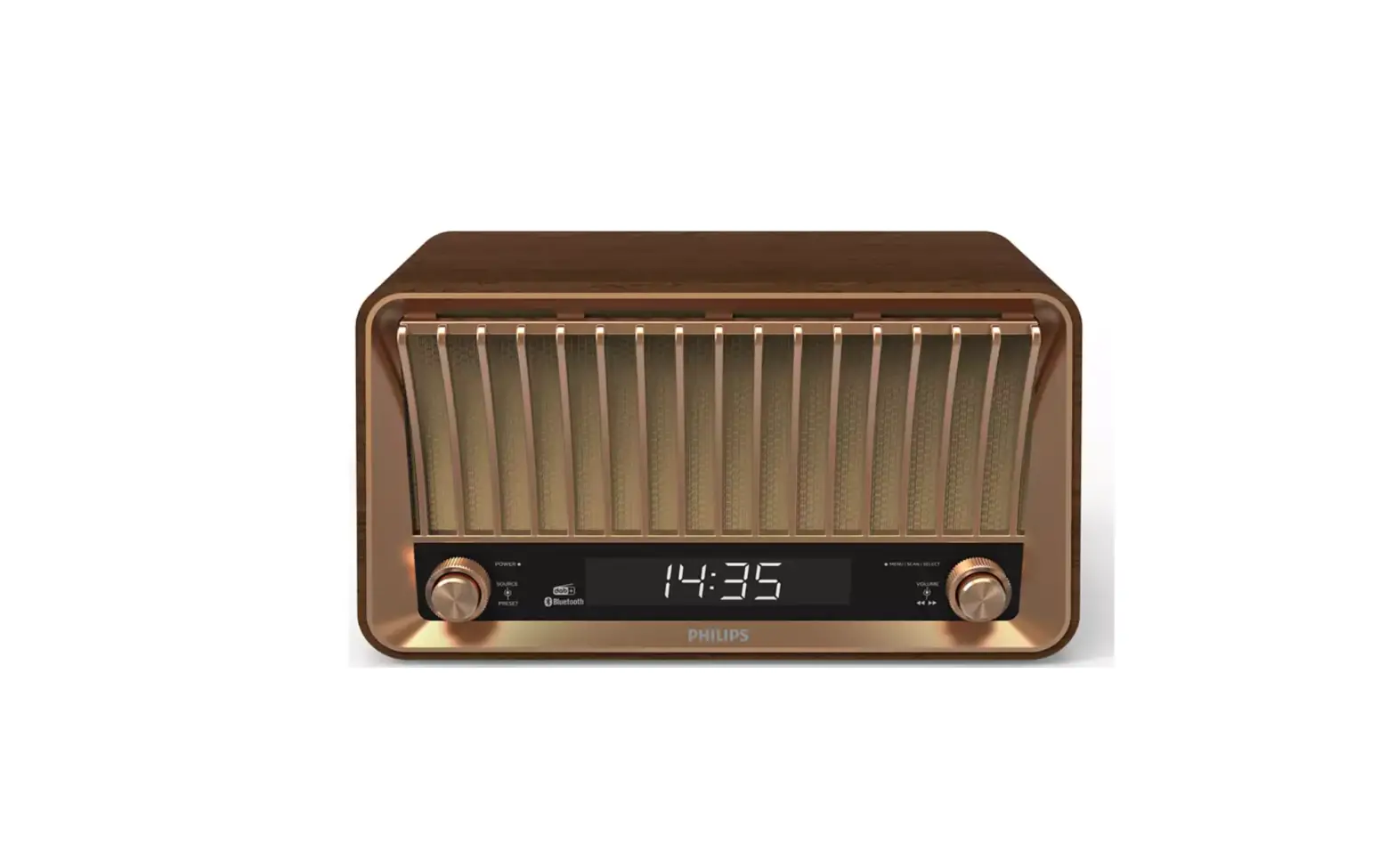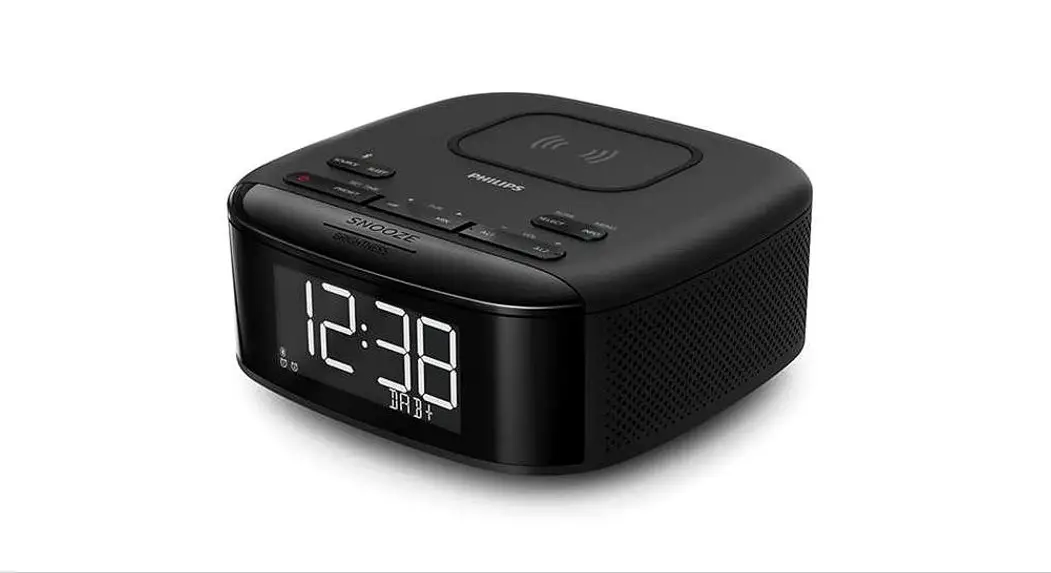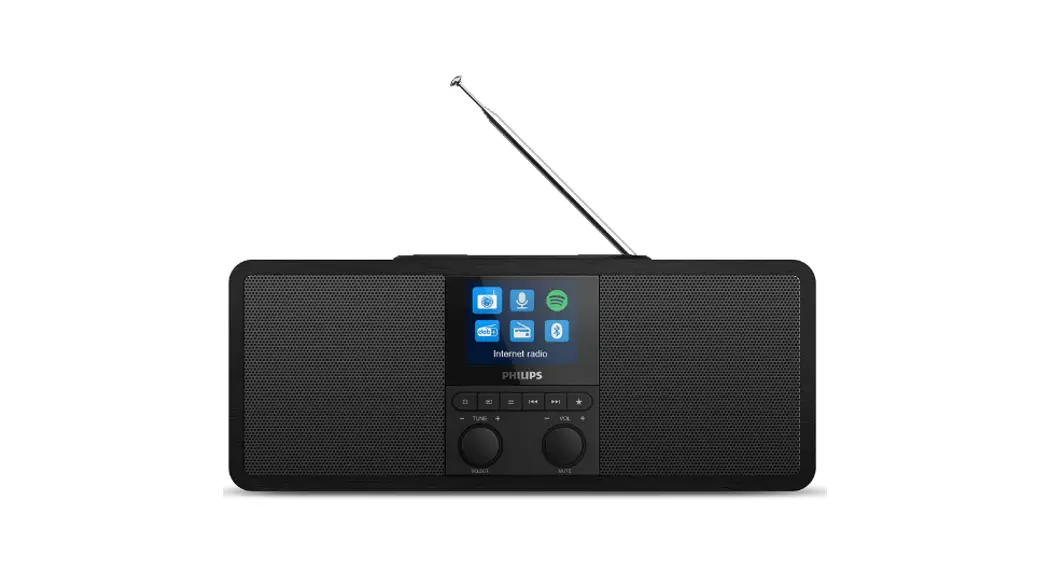
 TAR8805 Internet radio
User Manual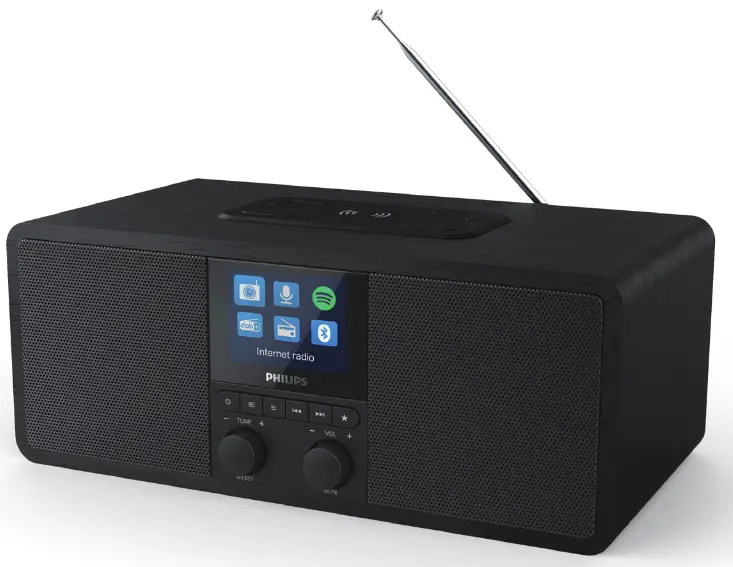
Register your product and get support at www.philips.com/support
Important
Safety Warning
- Never remove the casing of this internet radio.
- Never lubricate any part of this internet radio.
- Never place this internet radio on other electrical equipment
- Keep this internet radio away from direct sunlight, naked flames or heat
- Make sure that you always have easy access to the power cord, plug, or adaptor to disconnect the internet radio from the power.
- Read and follow these instructions.
- Make sure that there is enough free space around the product for ventilation.
- Refer all servicing to qualified service personnel. Servicing is required when the internet radio has been damaged in any way, such as power-supply cord or plug is damaged, liquid has been spilled or objects have fallen into the internet radio, the internet radio has been exposed to rain or moisture, does not operate normally, or has been dropped.
- Only use attachments/accessories specified by the manufacturer
- Use only power supplies listed in the user manual.
- Unplug this product during lightning storms or when unused for long periods of time.
- The product shall not be exposed to dripping or splashing.
- Do not place any sources of danger on the product (e.g. liquid filled objects, lighted candles).
- Where the plug of the Direct Plug-in Adapter is used as the disconnect device, the disconnect device shall remain readily operable.
- Do not use this apparatus near water
- Install in accordance with the manufacturer’s instructions.
- Do not install near any heat sources such as radiators, heat registers, stoves, or other apparatus (including amplifiers) that produce heat.
Your Internet radio
Congratulations on your purchase, and welcome to Philips! To fully benefit from the support that Philips offers, register your product at www.philips.com/welcome.
Introduction
With this radio, you can:
- listen to Internet radio through a network connection;
- listen to FM and Digital Audio Broadcasting (DAB) radio;
- play audio from Bluetooth-enabled devices.
- use your phone, tablet, or computer as a remote control for Spotify.
- know the time; and set two alarms.
- charge your mobile device with the wireless phone charger or USB.
What’s in the box
Check and identify the contents of your package:
- Internet radio
- Power adapter
- Short User Manual
- Safety & notice leaflet
Overview of the Internet radio
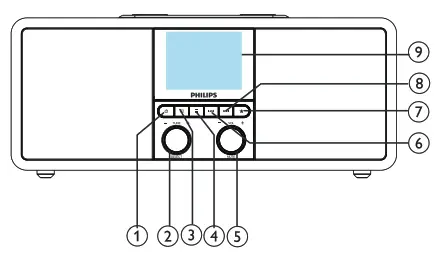

• Turn on the radio.
• Switch to standby mode. SELECT knob —
• Turn clockwise or anticlockwise to tune to radio stations.
• Turn clockwise or anticlockwise to navigate through the menu list
• Press to confirm a selection.
• Press and hold to auto scanning all stations in FM tuner mode. SOURCE
• Press to enter the source menu. MENU
MENU
• In wanting mode, access the top menu.
• Press and hold to display information in FM/DAB mode.- VOL knob/MUTE
• Turn to adjust the volume.
• Press to mute or resume sound.  PREVIOUS
• In Bluetooth mode: Press to skip to the previous track.
• InTuner mode: Press to skip to the previously preset station.
• InTuner mode: Press and hold to decrease the frequency continuously till tuning to a station. PRESET
• Store radio stations.
• Display the preset station list
 NEXT
NEXT
• In Bluetooth mode: Press to skip to the next track.
• InTuner mode: Press to skip to the next preset station. InTuner mode: Press and hold to increase the frequency continuously till tuning to a station.- Display screen
• Show current status. - Radio antenna/VVi-Fi antenna
• Improve radio reception.
• ImproveWi-Fi reception. - USB slot (for charging only)
• Charging external device(DCSV 1A). - DC IN
• Connect the AC power adaptor. - Wireless Qi Charging Pad
• Charge smartphone wirelessly. .

 SELECT knob —
 PRESET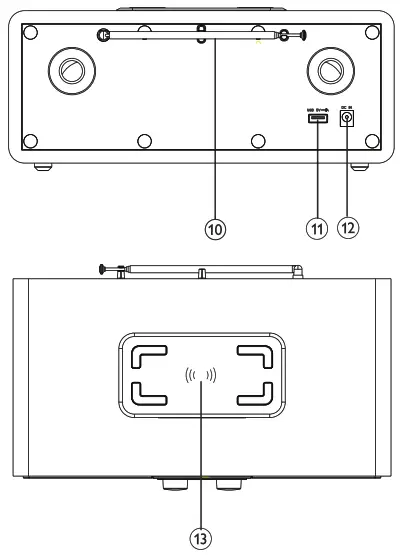
Get started
Always follow the instructions in this chapter in sequence.
Prepare radio antenna
For better radio reception, fully extend and adjust the position of the antenna. Note
Note
- To prevent interference, position the antenna as far as possible from any other radiation sources.
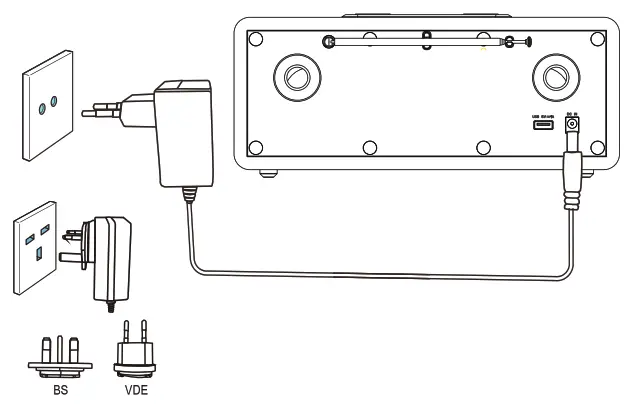
Connect power
 Caution
- Risk of product damage! Make sure that the power voltage corresponds to the voltage printed on the back or underside of the Internet radio.
- Risk of electric shock. When you unplug the AC plug, always pull the plug from the socket. Never pull the cord.
Connect the power adapter to:
- the DC IN socket on the back of the radio, and the wall socket.
Perform initial setup
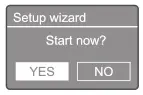
When the radio is powered on for the first time, the [Setup Wizard] appears on the display panel.
Follow the instructions below to configure some basic settings. To listen to Internet radio, you need to set up Wi-A connection first VVi-Fi Protected Setup (0/PS) is a standard created by Wi-Fi Alliance for easy establishment of a secure wireless home network If your wireless router supports WPS, you can quickly and securely connect the radio to the router through one of the two setup method Push Button Configuration (PBC), or Personal Identification Number (PIN). For those that do not support WPS, you have another option to connect the radio to the wireless router. Note
- Before you connect to a network familiarize yourself with the network router.
- Make sure that your home Wi-Fi network is enabled.
- For better Wi-Fi reception. rotate and adjust the position of the Wi-Fi antenna.
- When [Setup wizard] is displayed, turn the SELECT knob to select [YES] to start the setup. If you select [NO], you are asked to run the wizard next time.

- Press the SELECT knob to confirm.
 [12/24 hour format] is displayed.
 - Turn the SELECT knob to select 12 or 24-hour format
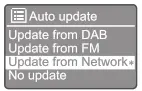
- Press the SELECT knob to confirm.The auto-update list is displayed
- Repeat steps 3 to 4 to select whether to synchronize time with radio stations.
 • [Update from DAB]: synchronize time with DAB stations.
• [Update from FM]: synchronize time with FM stations.
• [Update from Network]: synchronize time with Internet radio stations. If [Update from Network] is selected, repeat steps 3 to 4 to set the time zone, and then repeat steps 3 to 4 to set daylight saving time.
• [No update]: deactivate time synchronization. If [No update] is selected, repeat steps 3 to 4 to set the date and time. - Repeat steps 3 to 4 to select [YES]to keep the network connected.
- Repeat steps 3 to 4 to select the Wlan region.The radio begins to search for wireless networks automatically.A list of available Wi-Fi networks appears.
- Repeat steps 3 to 4 to select your Wi-Fi network
- Press the SELECT knob to select an option to connect your wireless router
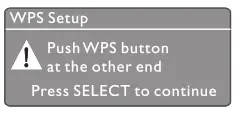
 • [Push Button]: select this option if your wireless router supports WPS and PBC setup methods. You are prompted to press the connect button on your router and then press OK to continue.
• [Pin]: select this option if your wireless router supports WPS and PIN setup methods. The radio generates an 8-digit code number that you can enter into the router
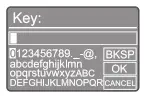
• [Skip WPS]: select this option if your wireless router does not support WPS. You are prompted to enter the key for your Wi-Fi network - As instructed on the display panel, press the WPS button or enter the pin on your wireless router, or enter the key to connect to your network (The options displayed depend on the type of your network and network protection used).
• When entering the key of the network to select a character, turn the SELECT knob, then press the SELECT knob to confirm. • To cancel, turn the SELECT knob to select [CANCEL]
• To confirm your entry, turn the SELECT knob to select[OK].
• To delete the entry, turn the SELECT knob to select [BKSP].
• To exit the process, press.If the network connection is established, [Connected] is displayed. - When [Setup wizard completed] appears, press OK to exit the setting.
 • [Update from DAB]: synchronize time with DAB stations.
 • [Push Button]: select this option if your wireless router supports WPS and PBC setup methods. You are prompted to press the connect button on your router and then press OK to continue.
 • To cancel, turn the SELECT knob to select [CANCEL]
 Tip
Tip
- For screen routers. you may need to hold the WPS bunco for-Fi connection. See the user manual of the speck routers for details
- To rumba setup wizard dais. select [System settings(Setup wined] menu (see the Chapter Use system settings menu ”).
Turn on
- Press
 . The radio switches to the last selected some.
Switch to standby mode
- Press again. The display panel is dimmed.The time and date (if set) are displayed.
Note
- If the system is idle for 15 minutes e radio switches to standby mode automatically.
Source menu
Press  to enter into the source menu.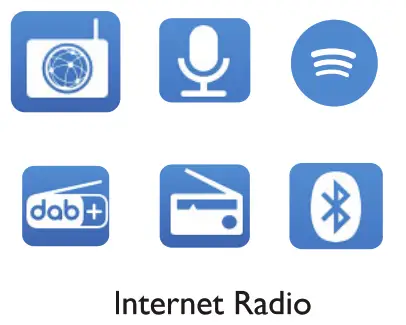
- Turn the SELECT knob to select the source
- Press the SELECT knob to confirm the selection
Listen to Internet radio
The radio can play thousands of radio stations and podcasts from around the world Through the Internet connection.
Use the menu in Internet radio mode
Once the Internet connection is established, you will find a list of stations displayed in the station list. Then select one to start broadcasting Note
- Make sure that your home VVi-R network is enabled.
- For better Wi-A reception. rotate and adjust the position of the WI-Fi antenna.
- PressSOURCE to select [Internet radio] mode. The radio starts connecting to the previously connected network and then tunes to your last listened Internet radio station. If a network connection has not been established before, the radio starts searching for wireless networks automatically (Refer to the section “Get started”>”Perform initial setup” or “Use system settings menu”>”Adjust network settings” to establish network connection).
- Press MENU to access the menu.
- Turn the SELECT knob to scroll through the menu options:
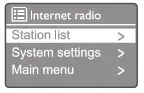 • [Station list]: tune to any available Internet radio stations.
• [System settings]: adjust system settings (the same menu option for all working modes. See the Chapter “Use system settings menu” for details).
• [Main menu]. access the main menu (the same menu option for all working modes. See the Chapter “Use main menu’ for details). - To select an option, press the SELECT knob.
- Repeat steps 3 to 4 if any sub-option is available under one option.
• To return to the previous menu, press.
[Station list]
- [Stations]:
• [ History]: browse Internet radio stations by history.
• [Search ]: search for Internet radio stations.To search, turn the SELECT knob to enter a keyword by selecting characters, then press the SELECT knob to continue.
• [Location: browse Internet radio stations by location.
• [Popular ]: tune to the most popular stations on the internet.
• [ Discover]: tune to the discover list for internet radio.
Store Internet radio stationsNote
- You can store a maximum of 20 preset radio stations.
- In Internet radio mode, tune to an Internet radio station.
- Press and hold* PRESET for two seconds. The preset station list is displayed.
- Turn the SELECT knob to select a preset number
- Press the SELECT knob to confirm.[Preset stored] is displayed. The station is stored in the selected position.
Select a preset Internet radio station
In Internet radio mode.
- Press* PRESET.
- Turn the SELECT knob to select a number
- Press the SELECT knob to confirm.
Show Internet radio information
While listening to Internet radio, press and hold repeatedly to scroll through the following information (if available):
 Station description Station genre and locationCodec and sampling rate Playback buffer Date
Note
- If no button is pressed within 15 seconds, the menu exits.
- Station lists and submenus may change from time to time and vary by location.
Listen to Podcasts
- Press SOURCE to select [ Podcasts] mode.
- Press MENU to access the menu.
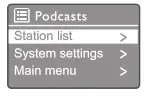
- Turn the SELECT knob to scroll through the menu options:
- To select an option, press the SELECT knob.
- Repeat steps 3 to 4 if any sub-option is available under one option. To return to the previous menu, press.

Listen to Spotify
Use your phone, tablet, or computer as a remote control for Spotify. Go to spotify.com/connect to learn how
The Spotify Software is subject to third-party licenses found here: www.spotify.com/connectithird-party-licenses.
Listen to DAB radio
Tune to DAB radio stations
The first time you select DAB radio mode, or if the station list is empty, the radio performs a full scan automatically.
- Press SOURCE to select [DAB radio] mode. [Scanning] is displayed. The radio scans and stores all the DAB radio stations automatically, and then broadcasts the first available station. The station list is memorized on the radio. Next time when you turn on the radio, the station scan does not take place.
To tune in to a station from the available station list
- In DAB mode, turn the SELECT knob to navigate through the available DAB stations.
Tip
- The stations may change from time to time. To update the station list select the [Scan] menu to perform a full scan.
Store DAB radio stationsNote
- You can store a maximum of 20 preset radio stations.
- In DAB mode, tune to a DAB radio station.
- Press and hold * PRESET for two seconds. The preset station list is displayed.
- Turn the SELECT knob to select a preset number
- Press the SELECT knob to confirm. [Preset stored] is displayed.The station is stored in the selected position.
Select a preset DAB radio station
In DAB mode, you have two ways to select a preset radio station.
Option A:
- Press* PRESET.
- Turn the SELECT knob to select a number
- Press the SELECT knob to confirm.
Option B:
- Press /to skip to the previous/next preset station.
Use the menu in DAB mode
- In DAB mode, press E MENU to access the DAB menu.
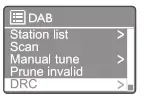
- Turn the SELECT knob to scroll through the menu options:
 • [Station list]: display all DAB radio stations If no station is found, the radio starts to scan DAB stations and add them to the station list.
• [Scan]: scan and store all the available DAB radio stations.
• [Manual tune]: tune to a specific channel/frequency manually and add it to the station list.
• [Prune invalid]: remove all the invalid stations from the station list.
• [DRC]: compress the dynamic range of a radio signal, so that the volume of quiet sounds is increased, and the volume of loud sounds is reduced.
• [Station order]: enable you to define how the stations are arranged when scrolling the station list.
• [System settings]: adjust system settings (see the Chapter “Use system settings menu”).
• [Main menu]: access the main menu (see the Chapter Use main menu”). - To select an option, press the SELECT knob.
- Repeat steps 2 to 3 if any sub-option is available under one option.
• To return to the previous menu, press.
 • [Station list]: display all DAB radio stations If no station is found, the radio starts to scan DAB stations and add them to the station list.
[Prune invalid]
- [YES]: remove all the invalid stations from the station list
- [No]: return to the previous menu.
[DRC]
- [DRC high]: switch DRC to a high level (the default option recommended for the noisy environments).
- [DRC low]: switch DRC to a low level.
- [DRC off]: switch DRC off.
[Station order]
- [Alphanumeric]: arrange the stations in alphabetical order (default setting).
- [Ensemble]: list groups of stations that are broadcast together on the same ensemble (i.e.: BBC or South Wales local).
- [Valid]: list valid stations first, then off-air stations.
Note
- If no button is pressed within 15 seconds. the menu exits.
Show DAB information
While listening to DAB radio, press and hold repeatedly to scroll through the following information (if available):Station nameDynamic Label Segment (DLS)Signal strength Program type (PTY) Ensemble NameFrequency Signal error rate Bit rate and audio statusCodeTime and date
Listen to FM radio
Tune to FM radio stations
1 Press SOURCE to select [FM radio] mode.
2 TurnSELECT knob clockwise or anticlockwise to tune to a radio station, or Press and hold / 1 for two seconds to tune to the next strongest radio station.
3 Repeat step 2 to tune to more radio stations.
Store FM radio stations
Note
• You can store a maximum of 20 FM radio stations,.
- In FM mode, tune to an FM radio station.
- Press and hold PRESET for two seconds. The preset station list is displayed.
- Turn the SELECT knob to select a preset number
- Press the SELECT knob to confirm.[Preset stored] is displayed.The station is stored in the selected position.
Store FM radio stations automatically
In FM mode, press and hold the SELECT knob L
*The unit stores all the available FM radio stations and broadcasts the first station.
Tip
• To remove a pre-stored station, store another station in its place.
Select a preset FM radio station In FM mode, you have two ways to select a preset radio station.
Option A:
- Press PRESET.
- Turn the SELECT knob to select a number
- Press the SELECT knob to confirm.
Option B:
Press / to skip the previous/next preset station.
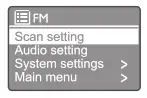
Use the menu in FM mode
- In FM mode, press E MENU to access FM menu.
- Turn the SELECT knob to scroll through the menu options
 • [Scan setting]
• [Audio setting]
• [System settings]: adjust system settings (see the Chapter Use system settings menu”).
• [Main menu]: access the main menu (see the Chapter “Use the main menu”. - To select an option, press the SELECT knob.
- Repeat steps 2 to 3 if any sub-option is available under one option.
• To return to the previous menu, press
 • [Scan setting]
[Scan setting]
• [Strong stations only?]-[YES]• scan FM radio stations with strong signals only. • [Strong stations only/ -[NO]: scan all the available FM radio stations.
[Audio setting]
• [Listen in Mono only?]-[YES]: select mono broadcast • [Listen in Mono only?]-[NO]: select stereo broadcast
Note• If no button is pressed within 15 seconds, the menu exits
Show RDS information
RDS (Radio Data System) is a service that allows FM stations to show additional information. If you listen to an FM station with RDS signal, an RDS icon and the station name are displayed.
- Tune in to an RDS station.
- Press and hold repeatedly to scroll through the following information (if available): Station name Radio text messages Program type Frequency Date
- In working mode, press = to access the menu.
- Turn the SELECT knob repeatedly to select [System settings].
- Press the SELECT knob to confirm.
- Repeat steps 2 to 3 to select an option.

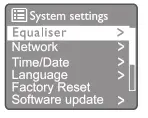
- [Equaliser]: select equaliser mode.
- [Network]: enable you to establish a network connection.
- [Time/Date]: set time and date.
- [Language]: select system language.
- [Factory Reset]: reset the radio to factory default status.
- [Software Update]: check the software update information.
- [Setup wizard]: instruct you to perform the initial setup.
- [Info]: know the software version.
- [Privacy policy ]: view privacy notice
- [Backlight]: adjust backlight settings.
Note
- If no button is pressed within 15 seconds, the menu vats.
Adjust network settings
- Select [System settings]>[Network].
- Turn the SELECT knob to select an option or sub-option, then press the SELECT knob to confirm. [Network wizard]: instruct you to establish a network connection.
- [PBC Wlan setup]: select this option if your wireless router supports WPS and PBC setup methods.
- [View settings]: view the current network information.
- [Manual settings]:
- [DHCP enable]: allocate an IP address automatically.
- [DHCP disable]: allocate IP address manually
- [NetRemote PIN Setup]: set up the net remote and enter the password.
- [Network profile]: display a list of the networks remembered by the radio.
- [Clear network settings]: clear network settings selection.
- [Keep network connected?]: select whether to keep the network connected.
Set time/date
- Select [System settings]>[Time/Date].
- Turn the SELECT knob to select an option or sub-option, then press the SELECT knob to confirm.

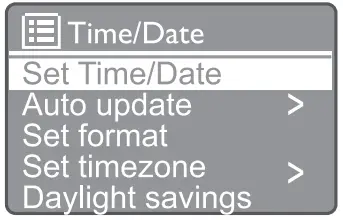
- [Set Time/Date]: set time and date.
- [Auto update]: [Update from DAB]: synchronize time with DAB stations.
- [Update from FM]: synchronize time with FM stations.
- [Update from Network]: synchronize time with Internet radio stations.
- [No update]: deactivate time synchronization.
- [Set format]: set 12/24 hour format
- [Set timezone]: set timezone.
- [Daylight savings]: activate or deactivate daylight saving time.
Note
- If you are updating time from DAB or FM, the daylight savings option has no effect
- If you are updating from the network set your time zone..
Set system language
- Select [System settings]>[Language]. A language list is displayed.
- Turn the SELECT knob to select a system language then press SELECT knob to confirm.
Reset all the settings
- Select [System settings]>[Factory Reset].
- Turn the SELECT knob to select an option, then press the SELECT knob to confirm.
• [Yes]: Reset the radio to factory default status.
. [No]: Return to the previous menu.
Check software update information
- Select [System settings]>[Software update].
- Turn the SELECT knob to select an option or sub-option, then press SELECT knob to confirm.
- [Auto-check setting]: select whether to check new software versions periodically.
- [Check now]: check new software versions immediately.
Note
- If the radio detects that new software is available, it asks if you want to go ahead with an update. If you agree. the new software is downloaded and installed
- Before the software upgrade, make sure that the radio is connected to a stable mains power connection. Disconnecting power during a software update may damage the product
Know the software version
• Select [System settings]>[Info]. The current software version is shown.
Adjust backlight settings
- Select [System settings]>[Backlight].
- Turn the SELECT knob to select an option or sub-option, then press SELECT knob to confirm.
- [Timeout]: select a timeout period for the display backlight.
- [On level]: select a brightness level for the backlight.
- [Dim level]: select a display brightness level among Medium, Low, and Off.
- In working mode, press= to access the top menu.
- Tum SELECT knob repeatedly to select [Main menu].
- Press the SELECT knob to confirm.
- Repeat steps 2 to 3 to select an option.
- [Internet radio]: select Internet radio mode.
- [ Podcasts]: select Podcasts radio mode.
- [ Spotify]: select Spotify mode.
- [DAB]: select DAB mode.
- [FM]: select FM mode.
- Bluetooth]: select Bluetooth mode.
- (Sleep]: set sleep timer:
- [Alarms]: set alarm timer
- [System settings]: adjust system settings (see the chapter “Use system settings menu”).
Note
- If no button is pressed within 15 seconds, the menu
- You can also press SOURCE to select a mode: Internet radio, Podcasts, Spotify DAB radio, FM radio or Bluetooth.
Set alarm Note
- You can set two alarms to ring at different times.
- To make the alarm work normally, make sure that the clock is set correctly.
- Select [Main menu]>(Alarms]. If the clock is not set, a message prompts you to set the clock
- Press OK to continue. The day digit blinks.
- Turn the SELECT knob to set the day, then press SELECT knob to confirm. ‘4 The month digit blinks
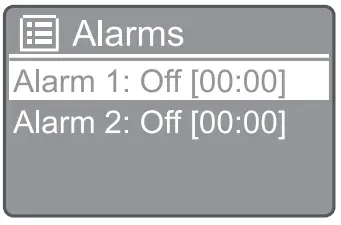
- Repeat step 3 to set the month, year, and time respectively. The [Alarm 1:off [00:00]] and [Alarm toff [MOO]] options are displayed.

- Repeat step 3 to select [Alarm 1:off (00:00)]>[Enablel (Off].
- Repeat step 3 to activate or deactivate the alarm timer
• [On deactivating the alarm timer
• [Daily]: the alarm sounds every day.
• [Once]: the alarm sounds only once.
• [Weekends]: the alarm sounds on Saturdays and Sundays.
• [Weekdays]: the alarm sounds each day from Monday to Friday. - Repeat step 3 to select [time], and then set the alarm time.
- Repeat step 3 to select [mode], and then set the alarm source.
• [Buzzer]: select a buzzer as an alarm source.
• [Internet radio]: select your last listened Internet radio station as an alarm source. [DAB]: select your last listened DAB radio station as an alarm source.
• [FM]: select your last listened FM radio station as an alarm source. - Repeat step 3 to select [preset), and then select your last listened station or a preset radio station as your alarm source.
- Repeat step 3 to select [Volume:), and then set the alarm volume.
- Repeat step 3 to select [Save]. Alarm 1 is set
- Repeat steps 5 to 11 to set Alarm 2.
Note
- When the alarm is activated, an alarm icon for Alarm 1 orAlarrn 2 is displayed.
- To stop the alarm, press 0 on the radio.
- You can also go to [System settings]>(Time/ Date]to set time and date (see ‘Use system settings menu”>”Set time/date”).
Set sleep timer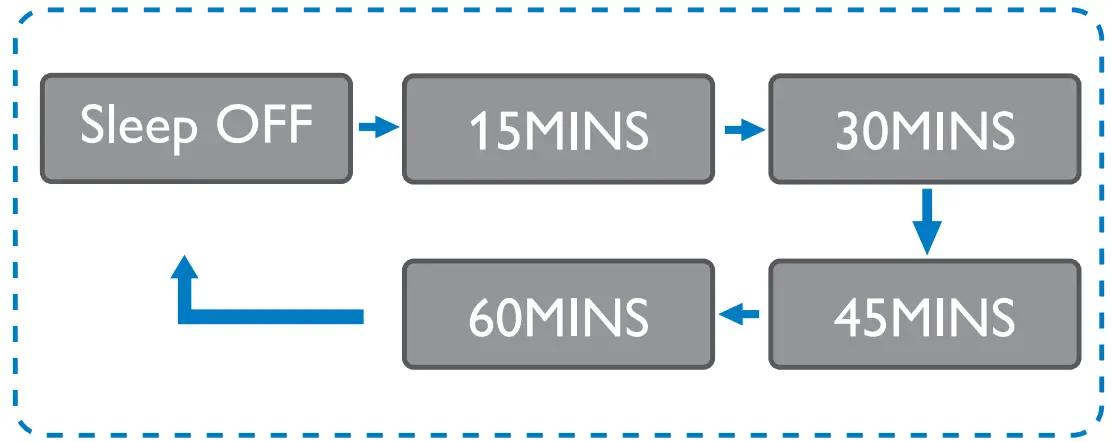
- Select [Main menu]>[SIeep].
- Press Turn SELECT knob repeatedly to select the sleep timer period (in minutes). When [Sleep OFF] is displayed, the sleep timer is deactivated.
Other features
Play audio through Bluetooth
- Press SOURCE to select Bluetooth] mode.
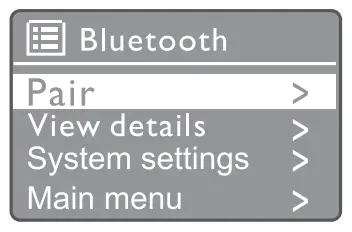
- Press MENU to access the menu.
- Turn the SELECT knob to scroll through the menu options:
• Select the pair menu option and press the SELECT knob.
• Prompt message “Please connect with a device to: Phil ipsTAR8805” appears with Bluetooth icon flashing.
• On your Bluetooth device. enable Bluetooth and search for Bluetooth devices that can be paired.
• Select [PhilipsTAR8805] displayed on your device for pairing.
• After a successful connection, the on-screen message will change to[Connected]and the Bluetooth icon will stop flashing. - To select an option, press the SELECT knob.
- Repeat steps 3 to 4 if any sub-option is available under one option.
To return to the previous menu, press
Adjust volume
- During music playback, turn-VOL+ the knob to adjust the volume.
Mute sound - During music playback, press MUTE to mute or resume sound.
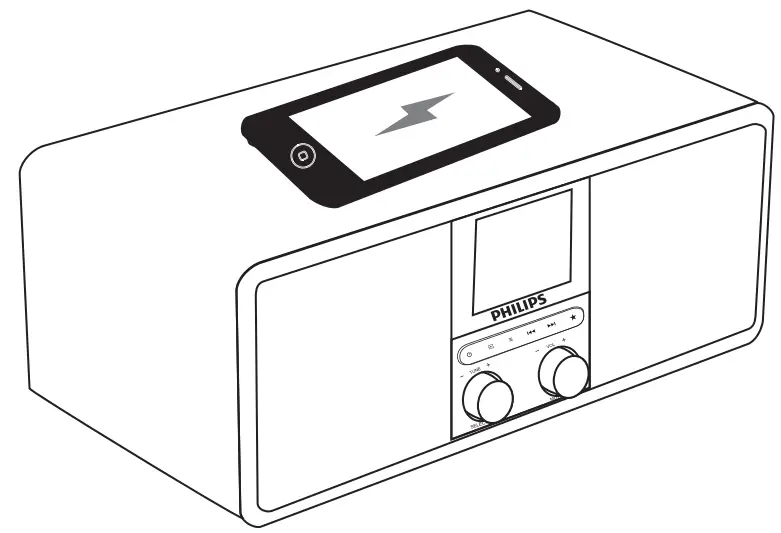
Wireless charging - The internet radio can charge wireless charging compatible phones by placing your phone on top of the wireless charging logo of the radio. The charging icon on display is on while charging.

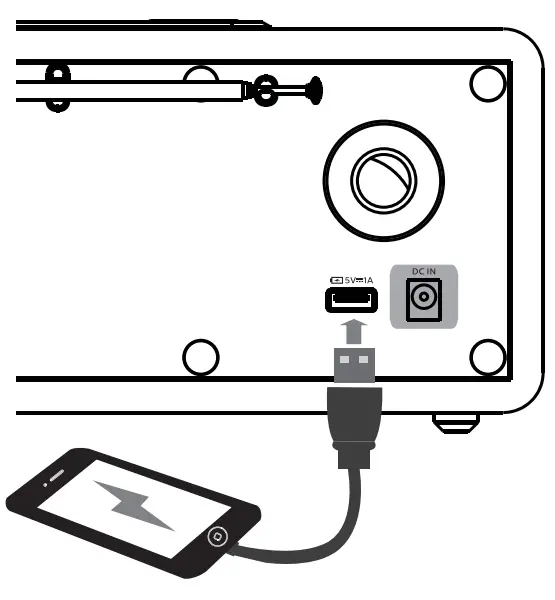
- You can also use the USB charging port at the back of the radio to charge other devices that do not support wireless charging.
Product information
Specifications
| Amplifier | |
| Rated Output Ramer | 3Wx2 RMS |
| Frequency Response | 03-20000 Hz. ± 3 d8 |
| Signal-to-Noise Ratio | > 65 dBA |
| Wi-Fi | |
| Wi-Fi protected | 802.11b/g/n |
| Tuner | |
| Tuning Range(FM) | 87.5-108 MH2 |
| Tuning Range(DAB) | 174.928-239.2MHz (Band III) |
| Speaker | |
| Speaker Impedance | 4 ohm |
| Sensitivity | 86 ± 3dB#mmm_w |
| Bluetooth | |
| Bluetooth Version | V4.2 a |
| Bluetooth Frequency Band | 2.4 Ghz – 2.48 GHz ISM Band |
| Maximum transit power Bluetooth Range | -4.1 darn 10 m(free space). |
| Wi-Fi | |
| Wi-Fi Frequency Band | 2412MHz to 2472MHz |
| Maximum transit power | 15.08 dBm |
| General information | |
| AC Power(power adapter) [nterchangeable sleeves. either 2 pin (EN 50075) or 3 pin (851363-1°r SASO 2203 )] | MODEL PG241-01025031 INPUT:100-240V-50/60Hz 08A OUTPUT:9.0V  2.54 22.5W 2.54 22.5W |
| Operation power Censtanplion | ≤ 424 |
| Standby Power Constrnpbon(without Wi-Fi) | ≤ 1w |
| Dimensions | |
| – Main Unit NV x H x D) | 268×113.5×159.3mm |
| Weight | |
| -Main Unit | 1.31kg |
Troubleshooting
Warning
- Never remove the casing of this device.
To keep the warranty valid, never try to repair the system yourself. If you encounter problems when using this device, check the following points before requesting service. If the problem remains unsolved, go to the Philips Web page (www.philips.com/support). When you contact Philips, make sure that the device is nearby and the model number and serial number are available.
No power
- Make sure that the AC power plug of the clock radio is connected properly
- Make sure that there is power at the AC outlet
No sound or poor sound
- Adjust the volume.
- Check whether the radio is muted or the radio station is still buffering.
- Fully extend and adjust the position of the radio antenna.
- Keep the radio away from other electronic devices to avoid radio interference. Check the Wi-Fi network connection. Rotate and adjust the position of the Wi-Fi antenna.
No response from the radio
- Disconnect and reconnect the AC power plug, then turn on the radio again.
- Check if the radio is in standby mode. If yes, turn on the radio.
Poor radio reception
- Keep the radio away from other electronic devices to avoid radio interference. Fully extend and adjust the position of the radio antenna.
- Check the Wi-Fi network connection.
- Rotate and adjust the position of the Wi-Fi antenna.
Insufficient Wi-Fi signal strength
- Check the distance between your router and the radio.
- Rotate and adjust the position of the Wi-Fi antenna.
Cannot connect to your Wi-Fi network
- Check if your wireless router is switched off.
- Check if your wireless router supports WPS. Use the correct setup method (PBC or PIN) to connect your WPS-supported router to the radio. If necessary, refer to the user manual of your wireless router for how to set up a Wi-Fi connection.
- Configure the ‘A/i-Fi settings again (see “Get started”>”Perform initial setup” and “Use system settings menu”>”Adjust network settings”).
Some stations do not work sometimes
- Some stations can only support a limited number of listeners. If you try again after a few minutes, you will be able to listen to the stations.
- The station is not broadcasting. Try again later.
Some stations disappear from the station list
- When a station stops broadcasting on the Internet it will be removed from the list the radio will check constantly if the station is on the air. If it restarts broadcasting, it will be brought back to the station list.
The alarm does not work
- Set the clock alarm correctly.
Notice
Any changes or modifications made to this device that are not expressly approved by MMD Hong Kong Holding Limited may void the users authority to operate the equipment. Compliance
Hereby, MMD Hong Kong Holding Limited declares that this product is in compliance with the essential requirements and other relevant provisions of Directive 2014/53/EU . You can find the Declaration of Conformity on www.philips.com/ support.
Care of the environment
Disposal of your old product and battery Your product is designed and manufactured with high-quality materials and components. which can be recycled and reused.
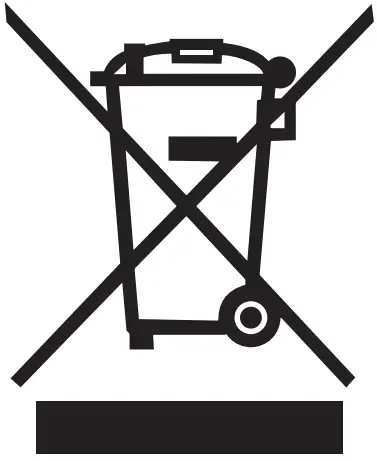 This symbol on a product means that the product is covered by European Directive 2012/19/EU.
 This symbol means that the product contains batteries covered by European Directive 2013/56/EU which cannot be disposed of with normal household waste. Inform yourself about the local separate collection system for electrical and electronic products and batteries. Follow local rules and never dispose of the product and batteries with normal household waste. Correct disposal of old products and batteries helps prevent negative consequences for the environment and human health.
Removing the disposable batteries
To remove the disposable batteries, see the battery installation section.
Environmental information
All unnecessary packaging has been omitted. We have tried to make the packaging easy to separate into three materials: cardboard (box). polystyrene foam (buffer) and polyethylene (bags, protective foam sheet.) Your system consist of materials that can be recycled and reused if disassembled by a specialized company. Please observe the local regulations regarding the disposal of packaging materials, exhausted batteries, and old equipment.
Trademark notice
The Bluetooth® word mark and logos are registered trademarks owned by Bluetooth SIG. Inc. and any use of such marks by MMD Hong Kong Holding Limited is under license. Other trademarks and trade names are those of their respective owners.
Specifications are subject to change without notice. Philips and the Philips Shield Emblem have registered trademarks of Koninklijke Philips N.V. and are used under license. This product has been manufactured by and is sold under the responsibility of MMD Hong Kong Holding Limited or one of its affiliates, and MMD Hong Kong Holding Limited is the warrantor in relation to this product. Register your product and get support at www.philips.com/support
![Philips Internet Radio [tar8805] User Manual](https://static-data1.manualsee.com/1/img/421/16118/2020/12/Philips-Internet-Radio-TAR8805.png "Philips Internet Radio [tar8805] User Manual")