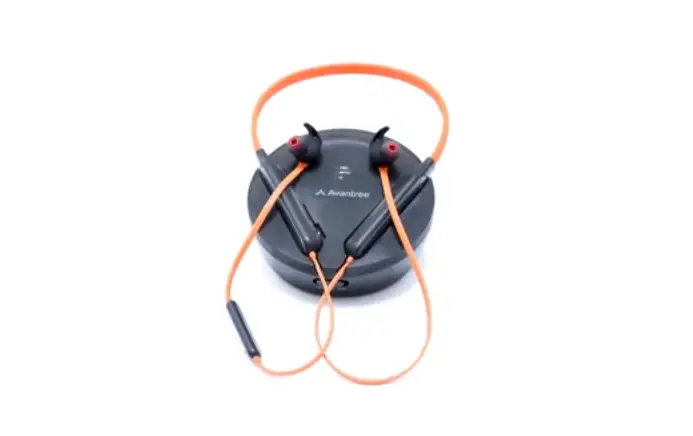
Avantree Medley User Manual
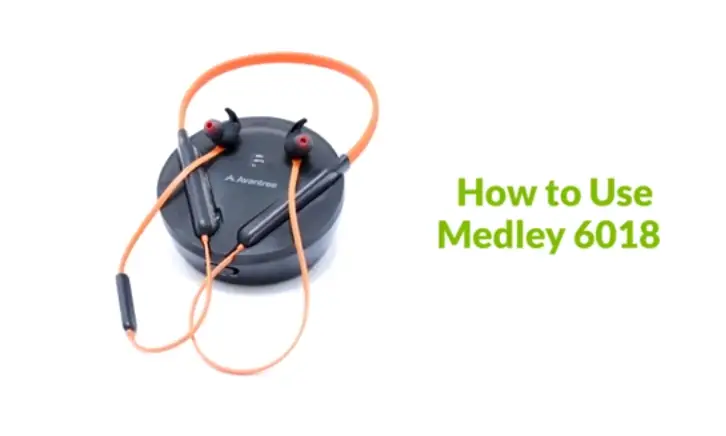
This is the Avantri medley 6018 wireless Bluetooth TV headphones that can work alongside your external TV speakers such as Soundbar or AV receiver.
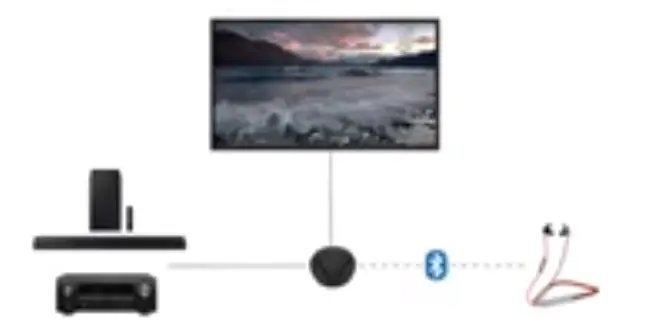
In this video, you will find these contents first:
- We will go over the medley and its components.
- Then we’ll discuss the setup procedure and the TV connection process.
- After that, We’ll show you how to use the medley with external tv speakers
- Then we’ll demonstrate how to add a second pair of headphones to your device.
- Following that, we’ll show you how to charge the headphones and to use them with a cell phone instead of a transmitter.
- Lastly, we’ll discuss the accessories and the warranty policy of the medley one.
Table of Components
- Box Content
- Product overview
- Setting Up
- Connecting to your TV
- Use with External TV Speaker
- Add a 2nd Pair of Headphones
- Charging The Headphones
- Use Headphone with Cell Phone
- Accessories and Warranty
Box Content
Here’s a look at the box contents inside the box you will receive the transmitter charging dock the neckband in-ear headphones and all the wires and cables.
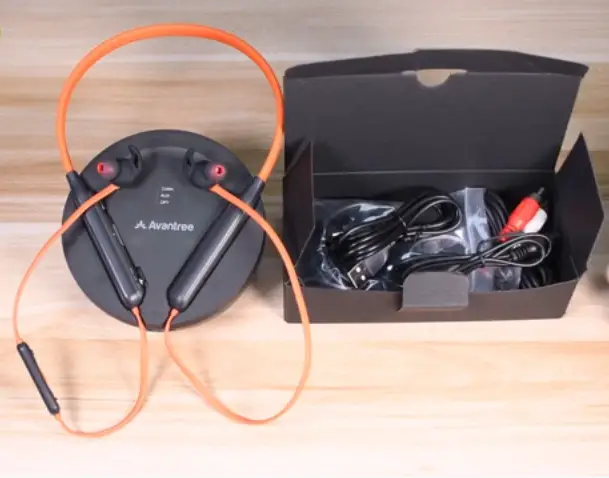
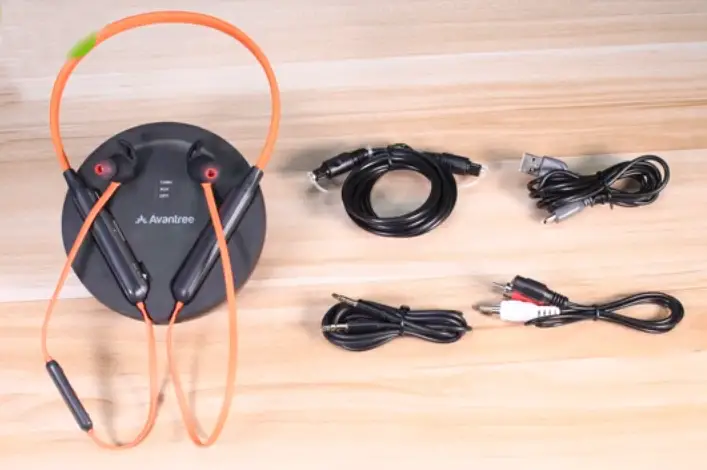
You need to connect the unit to your TV included in the box are an optical fiber cable a type C charging cable, a 3.5 millimeter aux audio cable and an aux to RCA cable.
Product overview
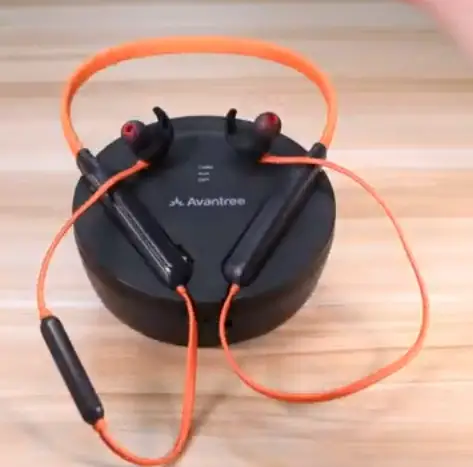
Introducing the avantri medley 6018 the transmitter and the headphones come prepared from the factory so you won’t need to pair them again.
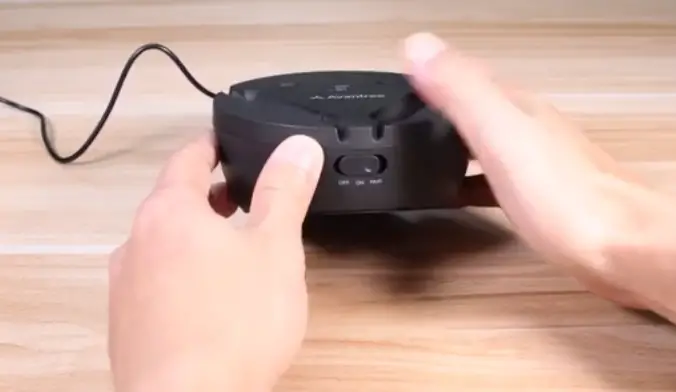
On the front of the transmitter is the power switch the transmitter doubles as a charging dock the light on the transmitter turns red.
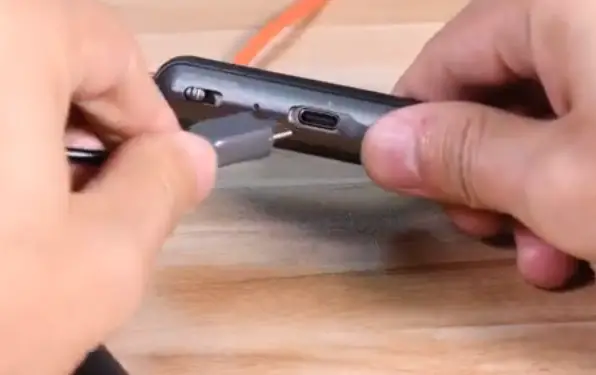
When the headphones are charging you can also charge the headphones directly using a type c cable.
The following lights on the transmitter are the codec indicator and the audio signal indicators a solid light on the ladder means that there’s a valid audio signal coming through the device.
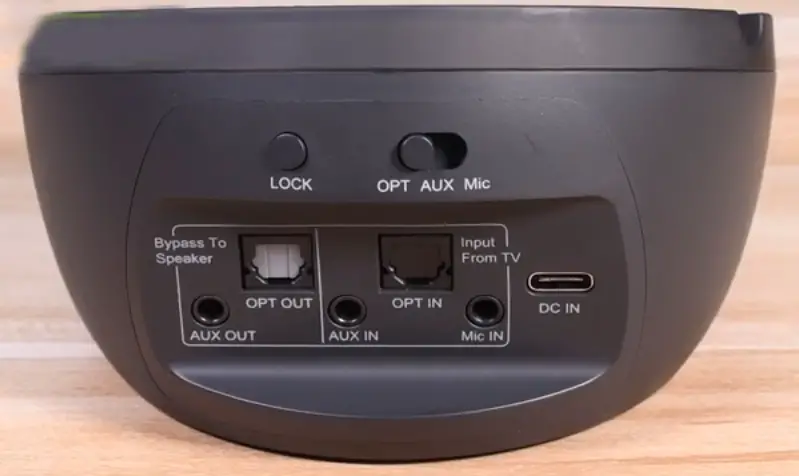
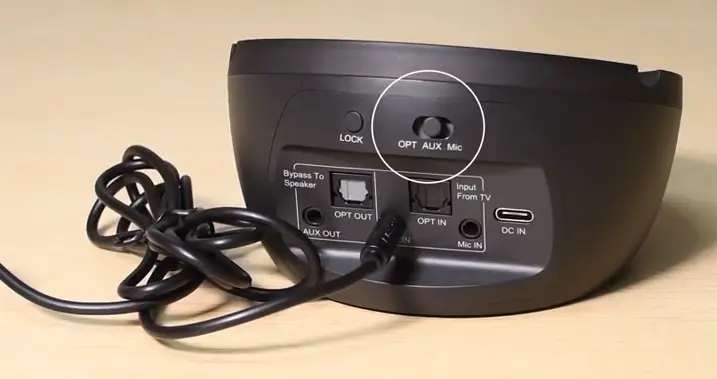
Now let’s look at the back of the transmitter, Here you can find, The audio output ports, The audio input ports and The power port which can be used with any phone USB charger you can use any of the three audio input ports to connect to your TV use the switch above to select the corresponding input mode lastly there’s the lock button which is only used when the headphones come unpaired.
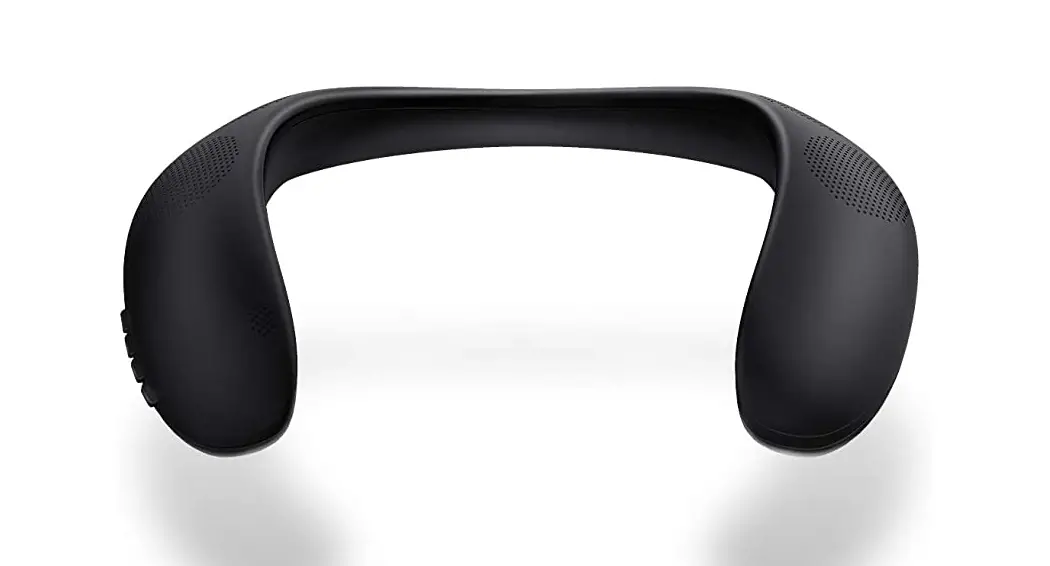
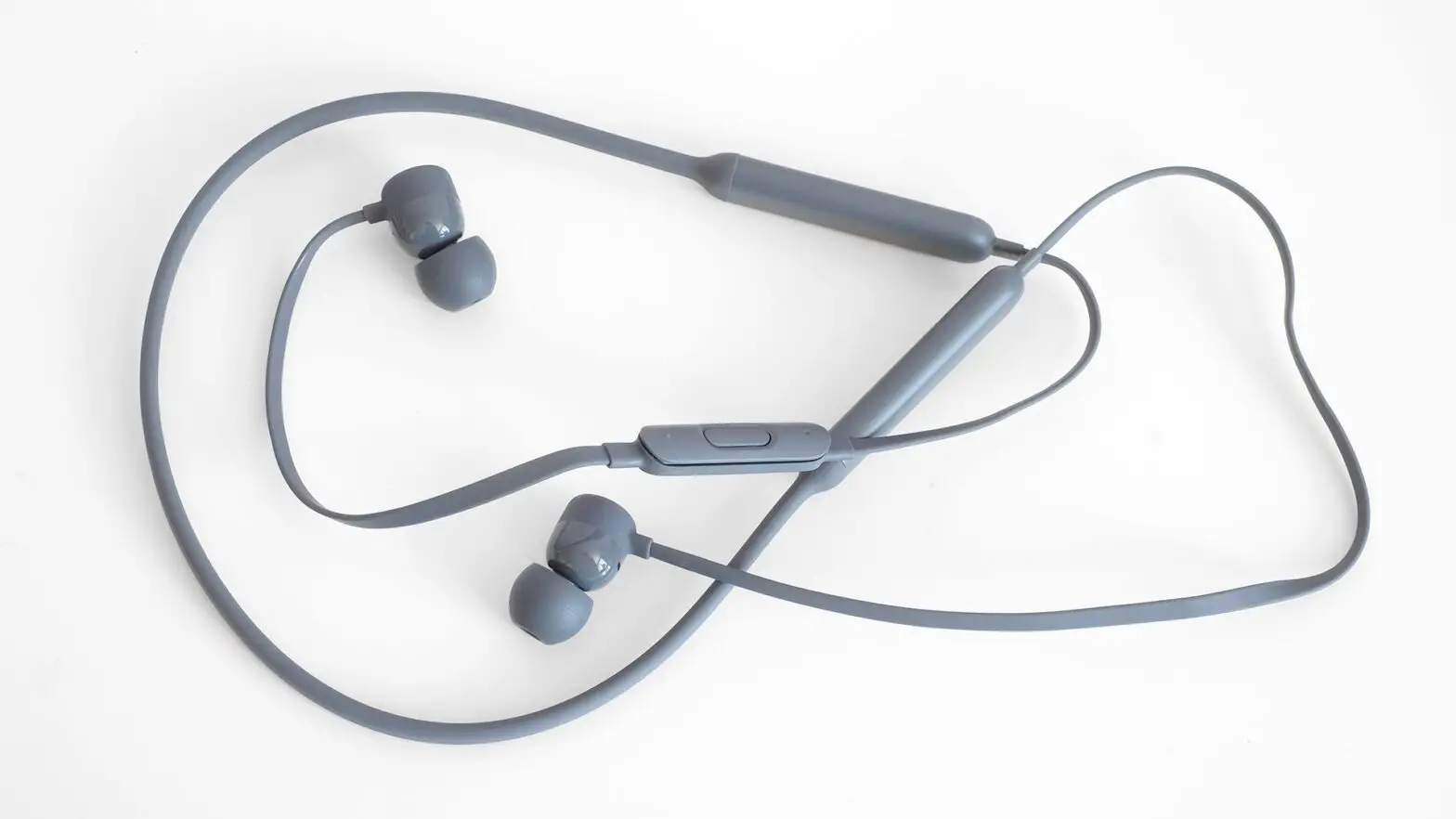
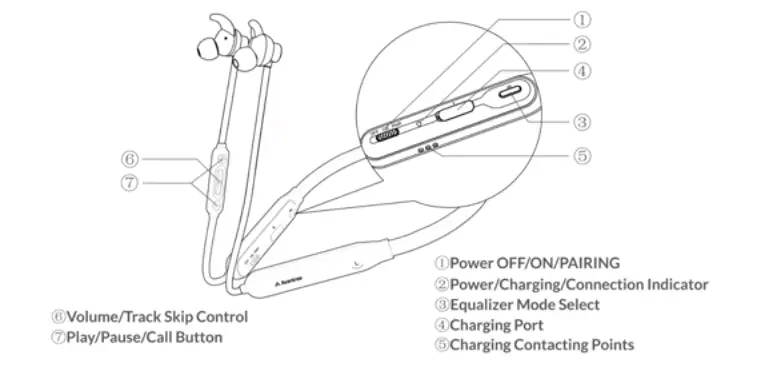
On the headphones, you will find these buttons and indicators the power switch power indicator and equalizer sound mode select are on the neck band while the buttons for adjusting volume and taking calls are in the inline remote.
Setting up
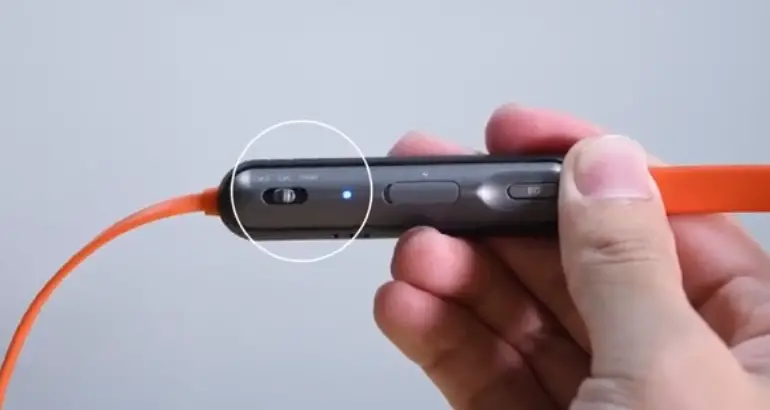
1. First power on the headphone
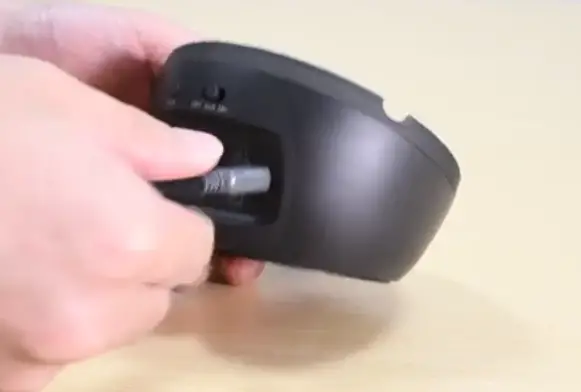
2. Next connect the transmitter to a power source using the type C cable we provided and flip the power switch to on.
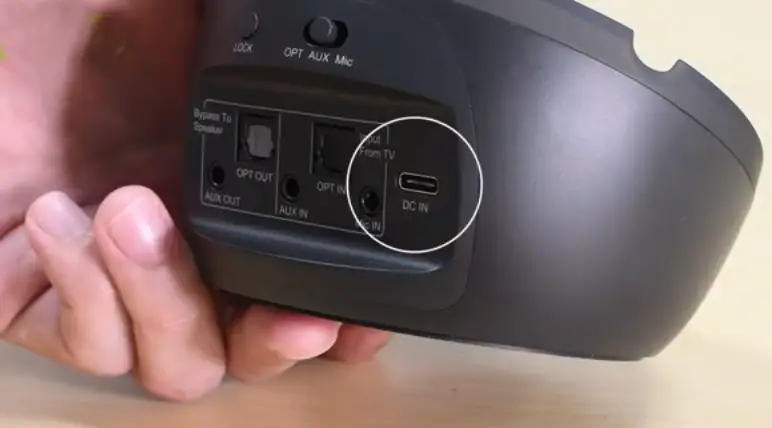
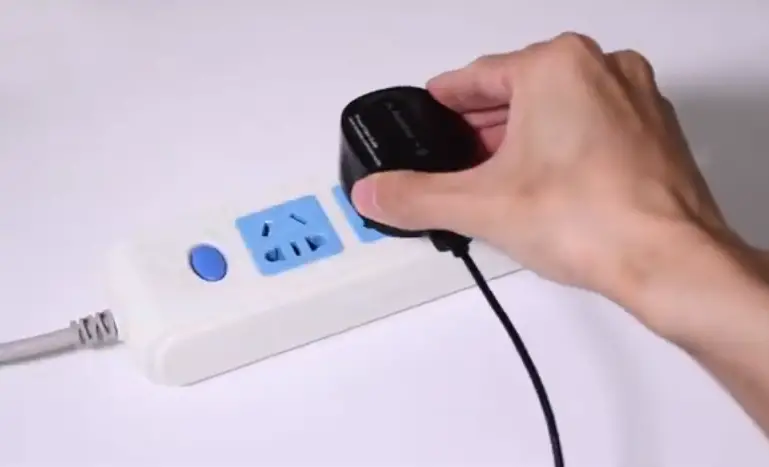
We recommend using a wall plug as a power source so that the base won’t stop charging even if you turn off the TV.
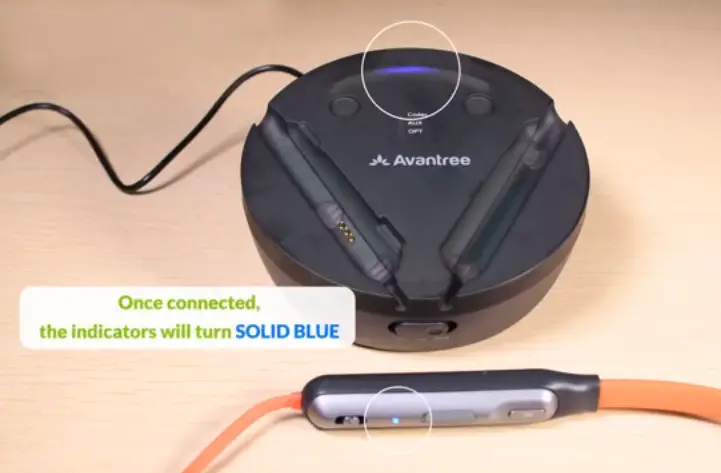
Once connected the indicators will turn solid blue.
Connecting to your TV
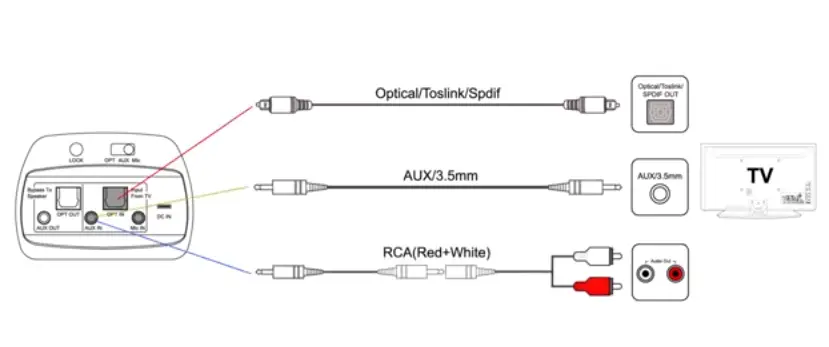
There are three ways to connect the medley 6018 to your TV optical 3.5 millimeter aux and RCA.
1. Optical Connection
- First let’s see how to connect using the optical cable
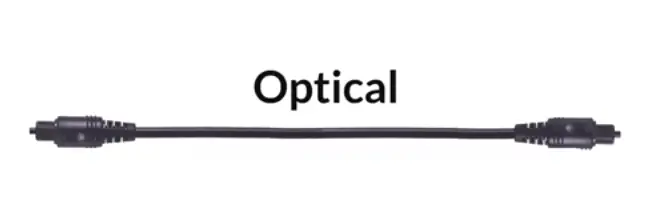
- If you have an optical port on your TV
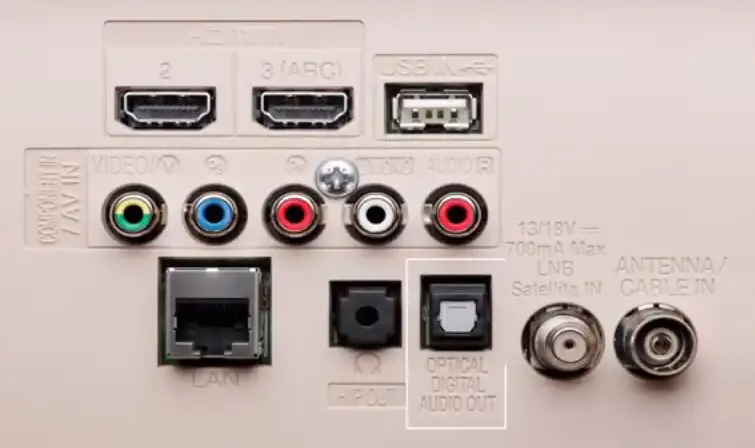
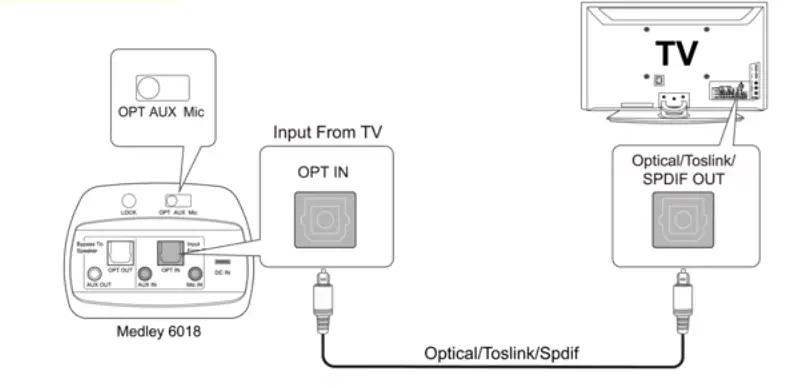
Simply connect the medley’s opt input port to your tv using the optical cable, we provided.
This is the port that connects to the TV.
Please be careful to make sure the cable is plugged into the opt in port.
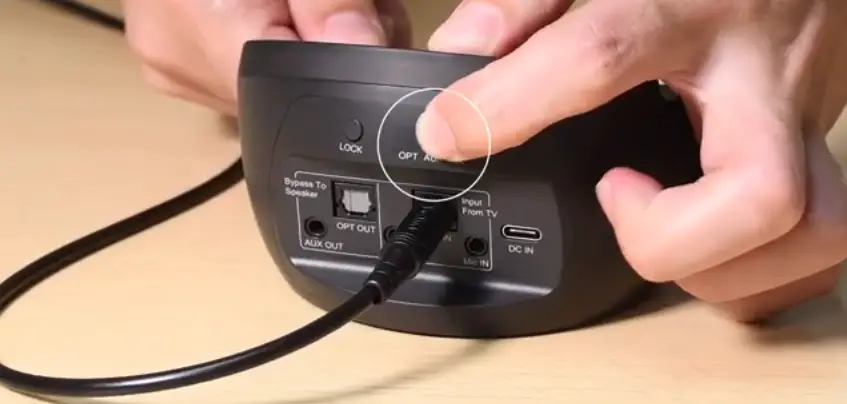
- On the right push the mode switch to opt position and connect the other end to the optical out port of your TV.
- Next, go to the sound settings menu on your TV and make sure that your sound format has been set to PCM
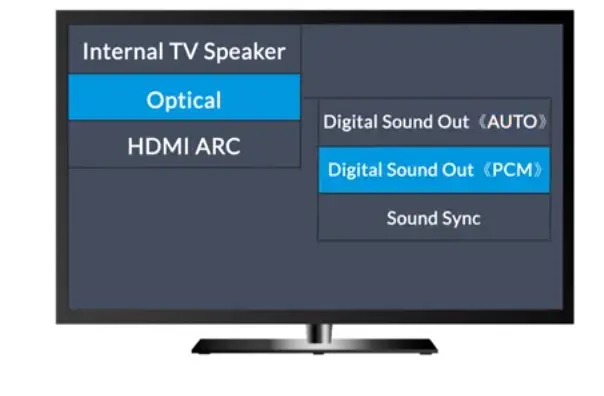
If your tv is one of the following brands and you’re having trouble setting the sound format on your TV to PCM.
Go to the Avontree website, where we have detailed steps for each tv brand. You can also contact your tv’s customer service and ask how to set up the tv’s optical output in audio format.
2. AUX Connection
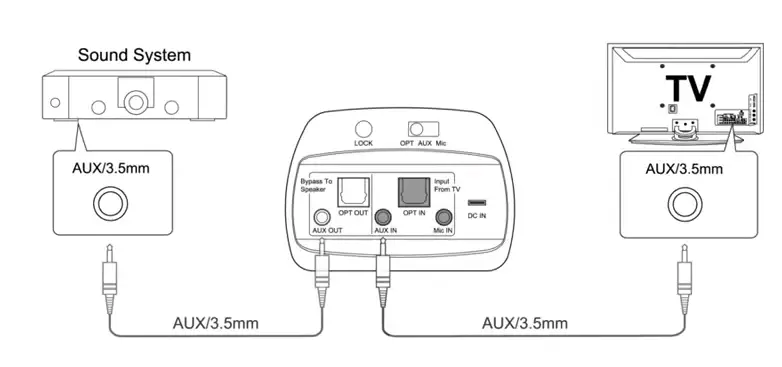
If you decide to go with AUX connect medley to your tv’s headphones jack using the auxiliary cable, we provided.
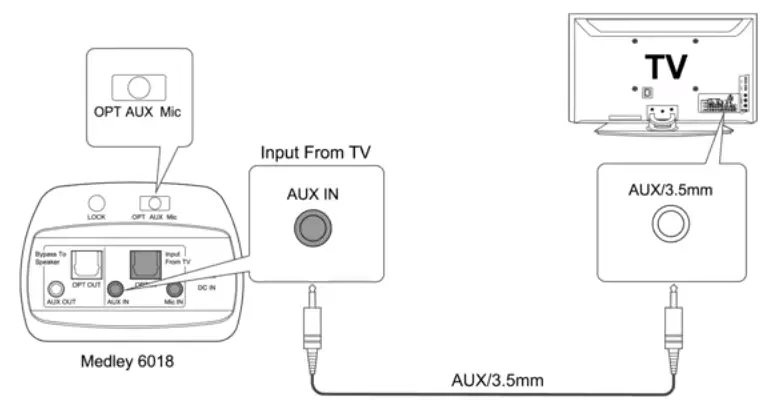
Make sure that you are inserting the auxiliary cable into the aux inport in the middle.
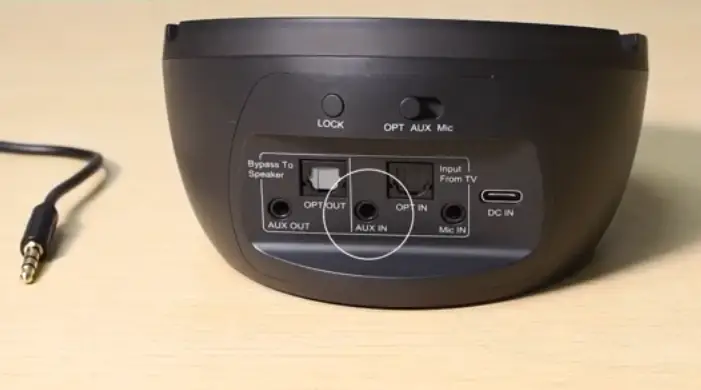
Push the mode switch to AUX position and connect the other end to the AUX out port of your TV.
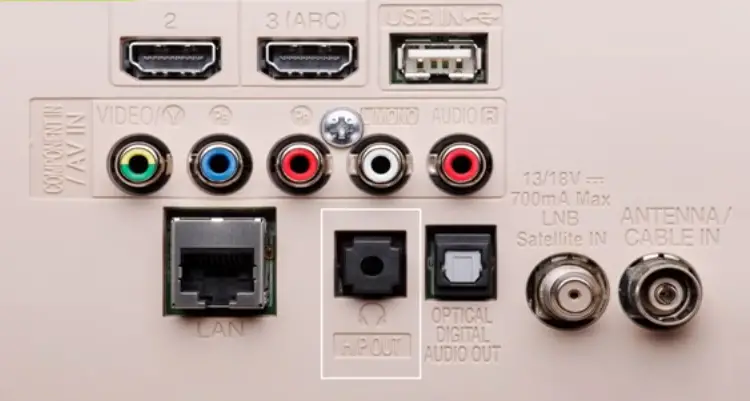
Next, Use your TV remote to access the settings on your TV and make sure you set your TV’s audio output to headset.
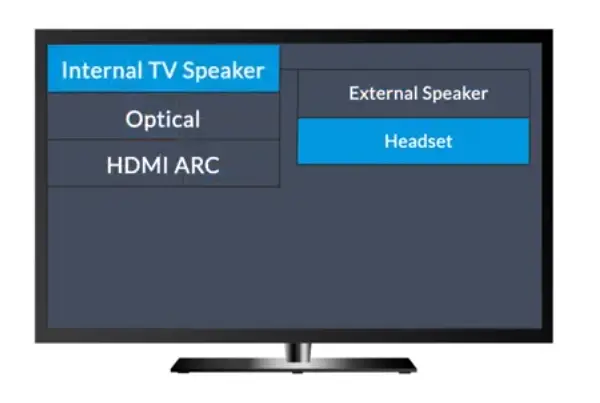
3. RCA Connection
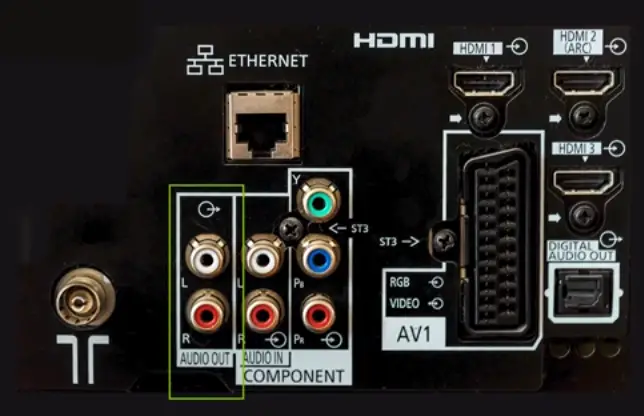
If you have an older TV with red and white audio ports please utilize.
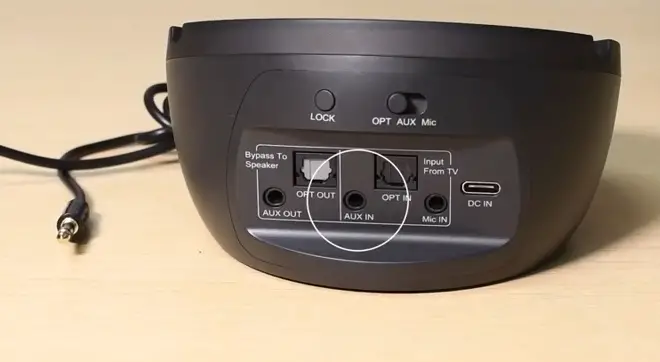
An RCA adapter and an auxiliary cable to connect the medley insert the cable with the adapter into the AUX in port in the middle.
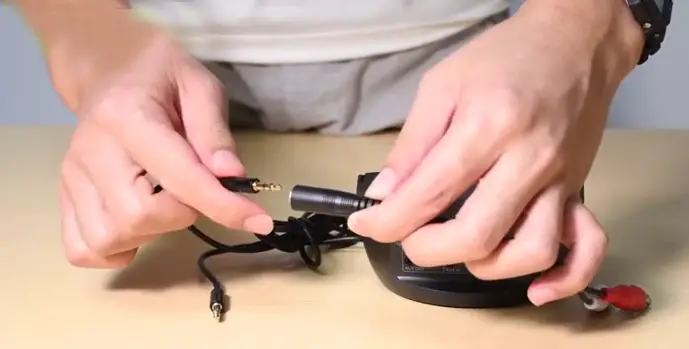
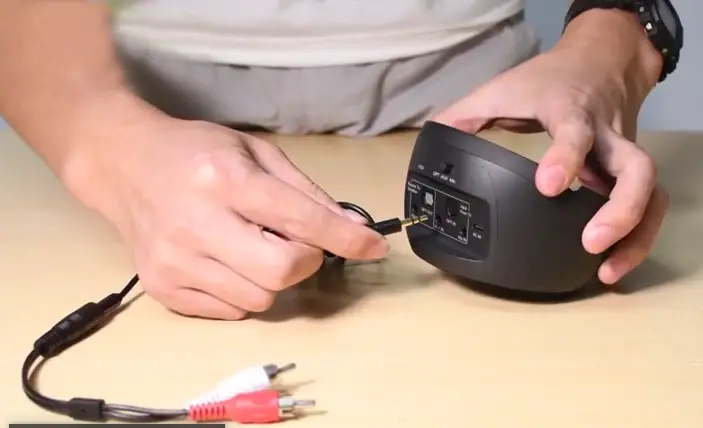
Push the mode switch to aux position and connect the other end to the rca out ports on your TV.
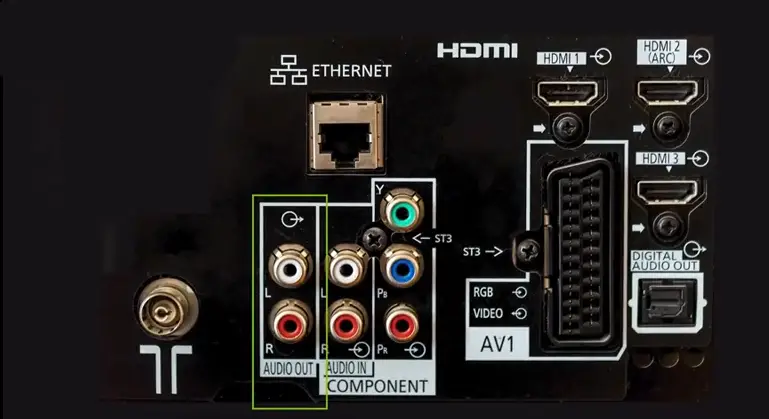
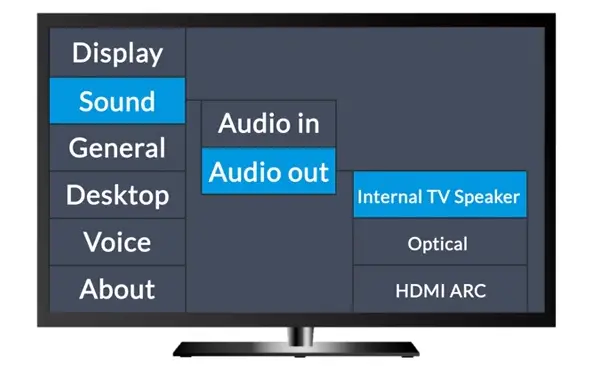
Now use your TV remote to access the settings menu on your TV and please make sure that you select external speaker in your sound settings menu.
Use with External TV speaker
Use with External TV speaker / AV Speaker
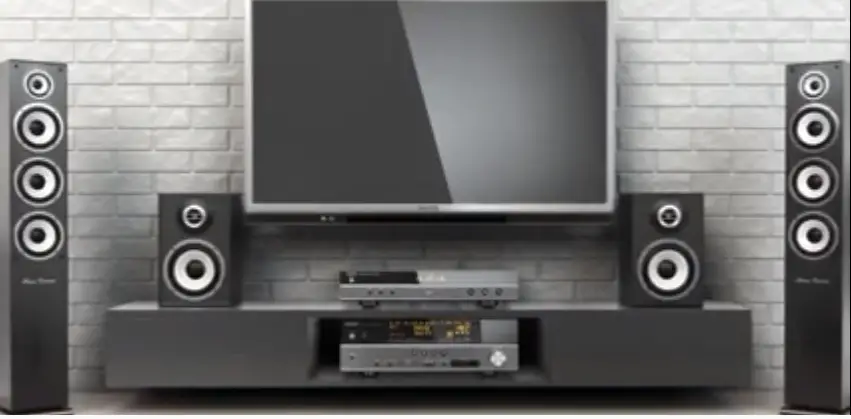
If you have a sound bar or stereo AVR.
You may connect it to the output port on your 6018
It’ll work simultaneously with the headphone
Add a 2nd Pair of Headphones
Please note that you must use the same connection type to pass through the external speaker and the TV .
For example…..
If you use an opt connection to connect the medley to the TV you must also use an opt cable to connect the medley to your speaker.
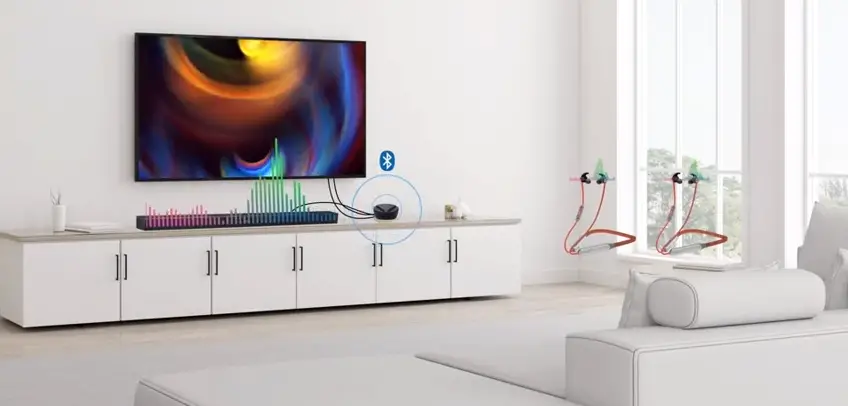
After the original pair has connected get the second pair of headphones into pairing mode and hold the medley base’s power switch at pair position until it starts flashing red and blue.
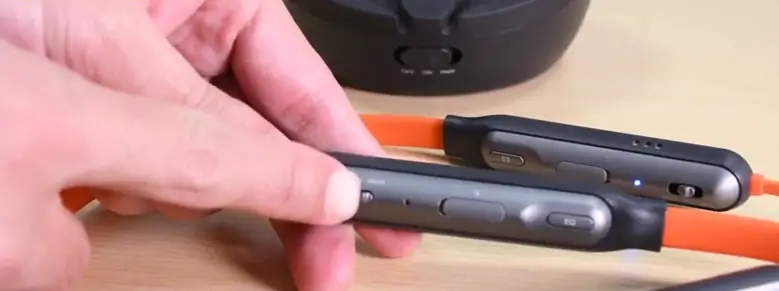
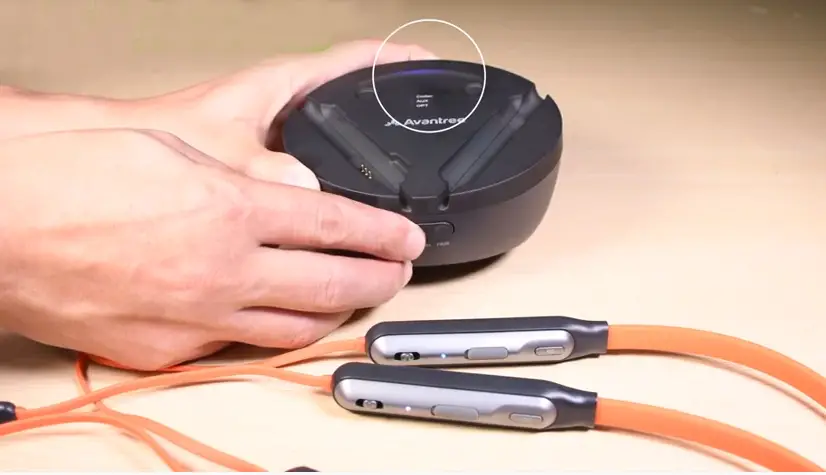
If you are having trouble…
Please see your headphones user manual regarding pairing mode give them a few seconds.
Once connected the indicators will turn solid blue now you should be good to go.
Charging the headphone
To charge the headphone simply place it back onto the base.
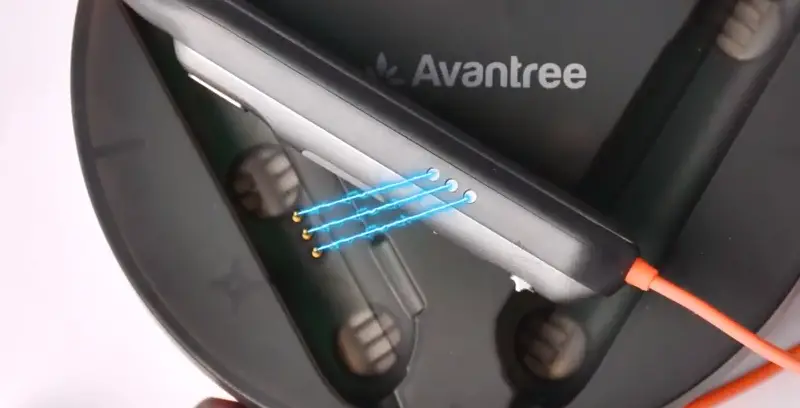
Please make sure that the metal pins are properly aligned the indicator light will turn red.
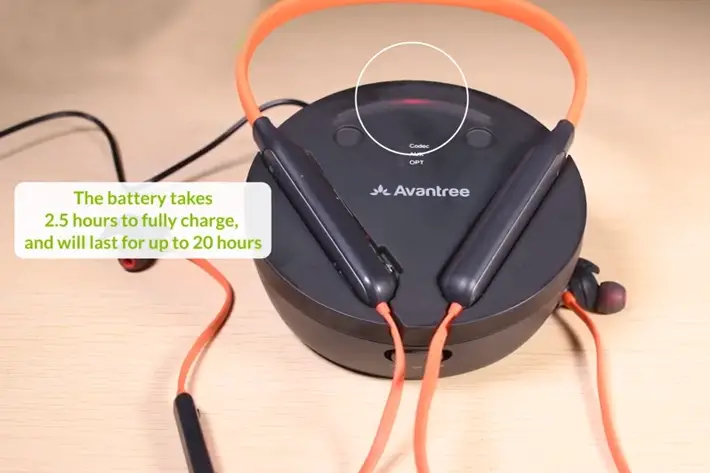
While charging and turn blue when the charging is complete.
Use headphones with cell phone
These headphones can only be connected to one device at a time and they always give priority to the transmitter base.
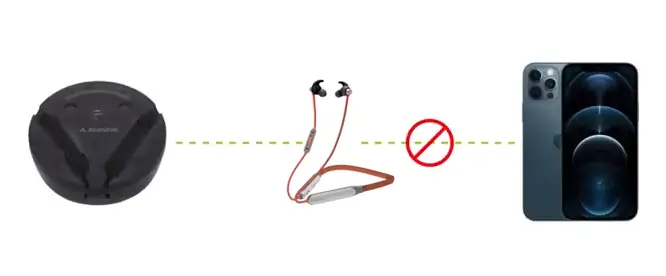
So don’t forget to turn off the base, when you want to use the headphones with other devices.
- First power off the transmitter base and power on the headset.
- Push and hold the power switch to the
- Pair position until the light flashes red and blue
- Next go to your device’s bluetooth settings, search for and select avontree mb18t to connect.
- Now you can listen to music and take calls with your headphones.
Accessories and warranty
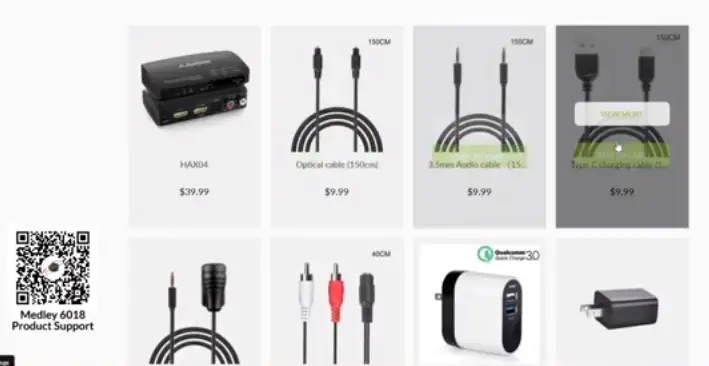
You can buy any accessories that you need on the avantree website including charging cables, audio cables, ear tips, a second headset microphones and more…
If you think this video was helpful please give us a like, If not feel free to leave us a comment below, or email us directly.

We respond to all messages..
All avontree products have a 24 month warranty when purchased directly from avontree.com.
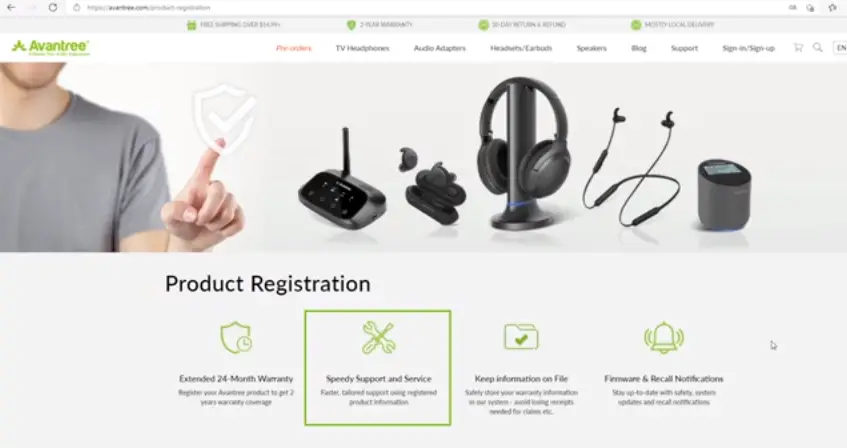
If you purchase through other channels such as amazon, you can extend the warranty to 24 months by registering on our official website.
Still not sure what to do click the link in the description below and visit our support site for more step-by-step instructions.
Thanks for watching……