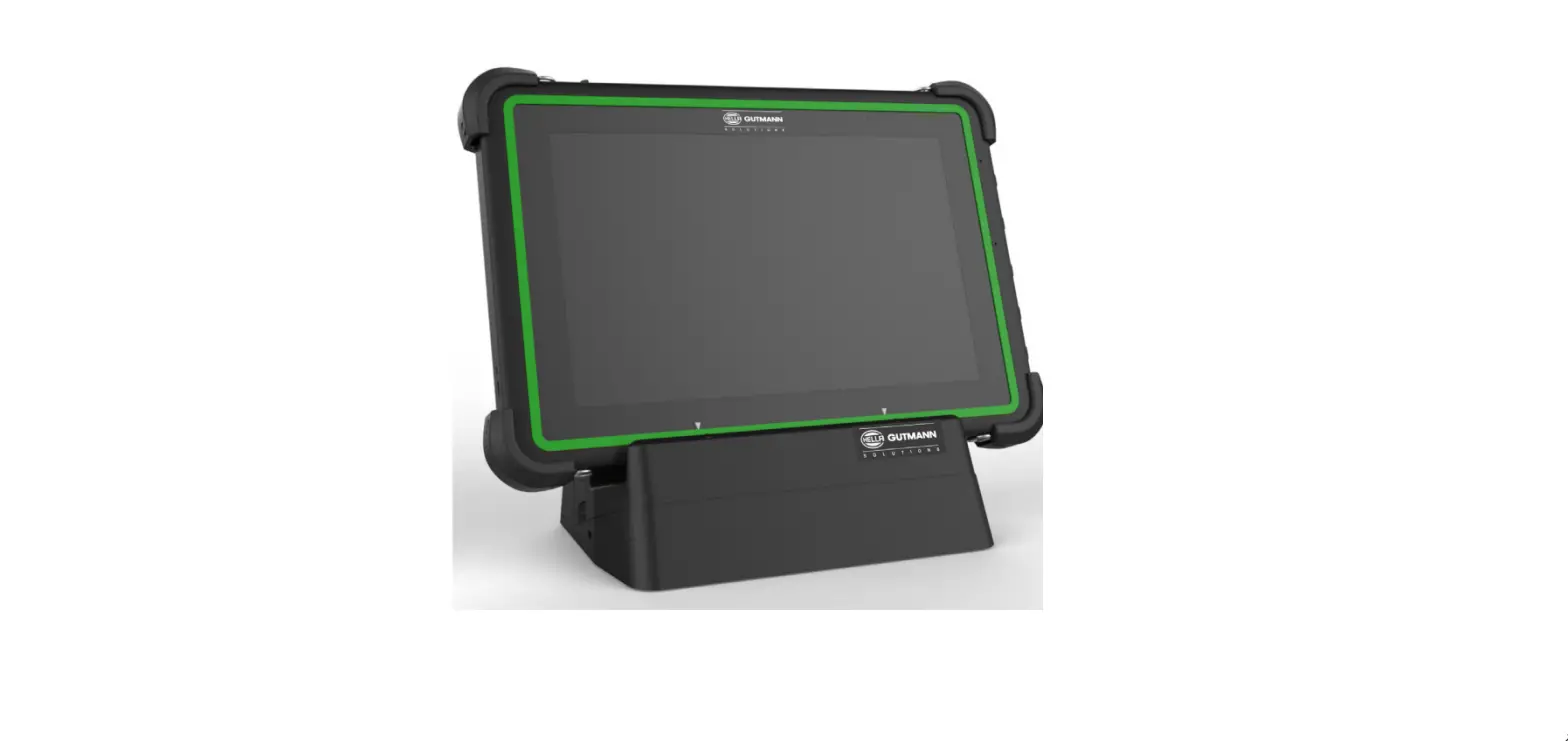

HELLA GUTMANN HGS Tablet
NOTE
Texts marked with NOTE contain important and helpful information. It is recommended to observe these texts.
About this Quick Start Guide
Translation of Original Operating Instructions The quick start guide comprises the most important information in a clearly visible form to facilitate the start with the Hella Gutmann Tablet. Please also visit our Hella Academy under www.hella-academy.com and expand your knowledge with various online tutorials and other training courses.
Notes for the Use of the Quick Start Guide The quick start guide shall be kept for the entire service life of the product and shall be accessible at any time.
Symbols Used
Marking of Text Parts
NOTE
Texts marked with NOTE contain important and helpful information. It is recommended to observe these texts.
Crossed out waste bin
This label indicates that the product must not be discarded as domestic waste. The bar underneath the waste bin indicates whether the product was “placed on the market” after August 13, 2005.
Product Description
Delivery Contents
| Quantity | Designation |
| 1 | Hella Gutmann Tablet |
| 1 | AC/DC adapter and AC power cord |
| 1 | Hand strap |
| 1 | Quick start guide |
Checking Delivery Contents
Please check the delivery contents upon receiving your device so that complaints can be issued immediately regarding potential damage or missing parts.
Proceed as follows to check the delivery contents:’
- Open the package supplied and check for completeness based on the delivery slip. Should you identify any damage to the package, then open the package in the presence of the delivery service and check the delivery contents for hidden damage. Any transport damage to the package supplied and damage to the delivery contents shall be registered in a damage report by the delivery service.
- Take the delivery contents out of the packaging.
- Check the delivery contents for damage.
Product Overview
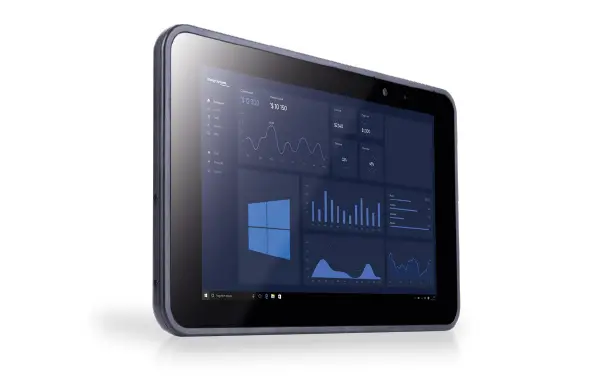
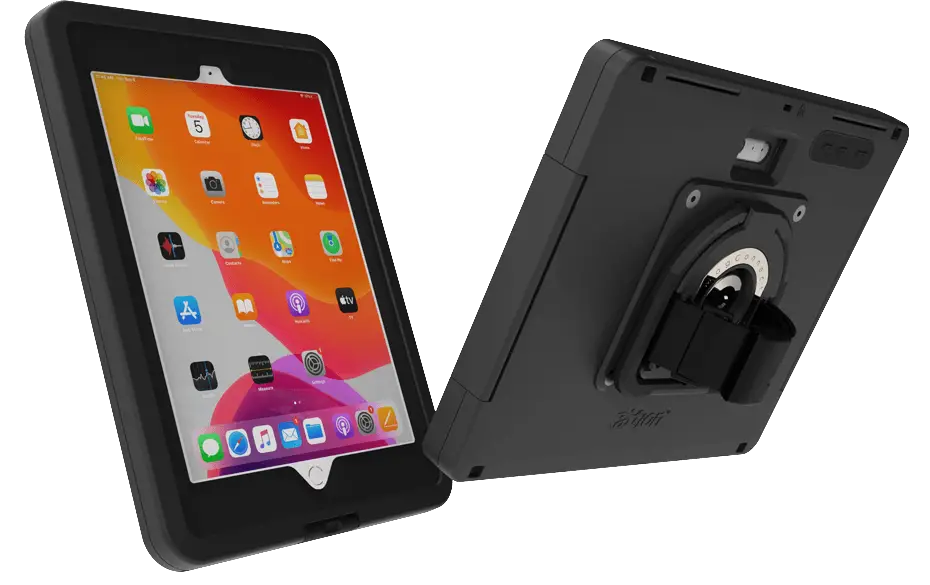
Hella Gutmann Tablet
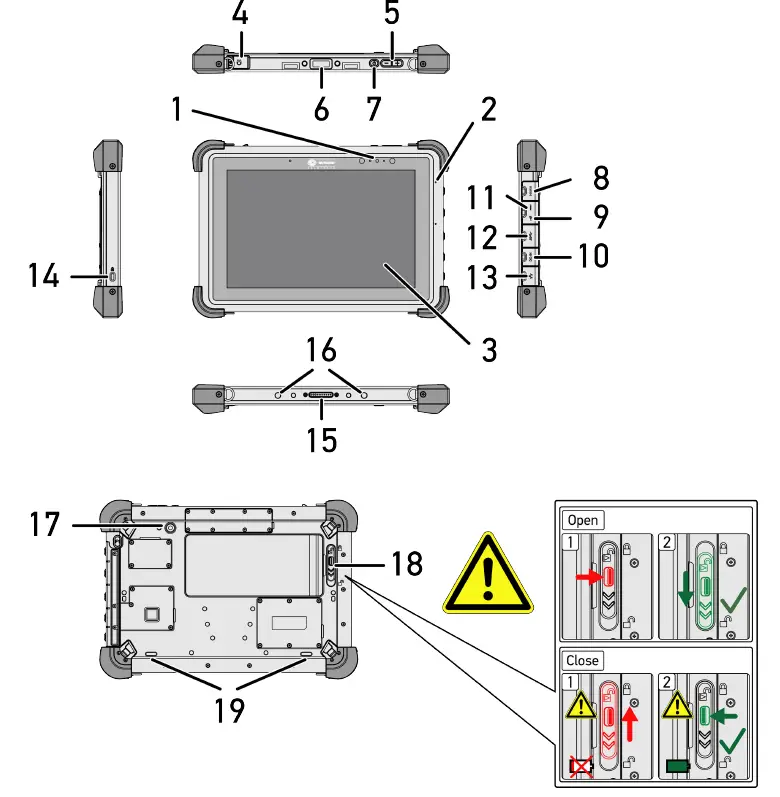
| Designation | |
| 1 | Front camera |
| 2 | Internal microphone |
| 3 | Touch screen |
| 4 | Headphone jack |
| 5 | Volume up / Volume down button |
| 6 | Scanner |
| 7 | ON/OFF button |
| 8 | Micro HDMI port |
| 9 | USB 3.0 port |
| 10 | DC-in Jack |
| 11 | Reset button |
| 12 | USB 3.0 port |
| 13 | RJ-45 connector |
| 14 | Kensington lock |
| 15 | Docking station port |
| 16 | Boss Hole |
| 17 | Rear camera |
| 18 | Battery unlocking |
| 19 | Speaker |
Docking Station
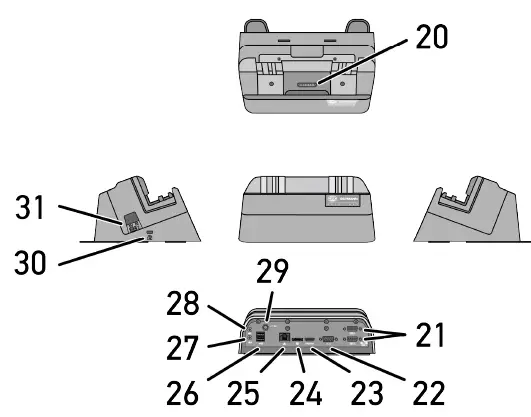
| Designation | |
| 20 | Interface to Hella Gutmann Tablet |
| 21 | RS232 port |
| 22 | VGA port |
| 23 | HDMI port |
| 24 | Display port |
| 25 | Ethernet interface |
| 26 | Power supply socket |
| 27 | USB 2.0 port (2x) |
| 28 | Microphone port |
| 29 | Headset plug socket |
| 30 | Kensington lock connection |
| 31 | Voltage supply 5V (power adapter/USB)
|
Taking the Hella Gutmann Tablet into Operation
NOTE
When taking the mega macs X into operation through the Hella Gutmann Tablet, the mega macs X creates a Wi-Fi access point. By scanning the QR-code on the mega macs X the Hella Gutmann Tablet establishes a Wi-Fi connection to the mega macs X.
A problem can arise under the following circumstances:
If the docking station of the Hella Gutmann Tablet or the Hella Gutmann Tablet itself respectively is connected with an Ethernet cable, the Hella Gutmann Tablet establishes a connection to the workshop router. As the router does not know the mega macs X, the Hella Gutmann Tablet cannot connect with the mega macs X.
Precondition for the Use of the Hella Gutmann Tablet
NOTE
Please find detailed information about the initial start-up and a description of the interfaces of the docking station in the mega macs X instructions or on the homepage of Hella Gutmann
www.hella-gutmann.com/manuals
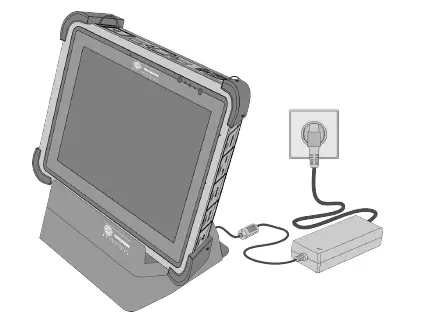
Ensure the following to be able to use the Hella Gutmann Tablet:
- The battery has been inserted properly.
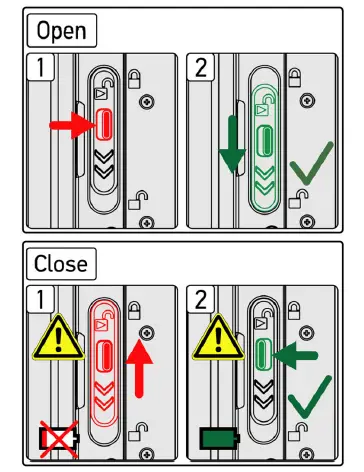
- The battery is fully charged.
- The mega macs X is switched on.
Switching On the Hella Gutmann Tablet
Proceed as follows to switch on the Hella Gutmann Tablet:
- Briefly push the ON/OFF button (7).
- Regard the window with information and instructions. Now you can start working with the Hella Gutmann Tablet.
Switching Off the Hella Gutmann Tablet
Proceed as follows to switch off the Hella Gutmann Tablet:\
- Briefly push the ON/OFF button (7).
- Regard the window with information and instructions. The Hella Gutmann Tablet is switched off now.
General Information
Disposal The guideline listed here is exclusively valid within the European Union.
In compliance with Directive 2012/19/EU of the European Parliament and Council of 4 July 2012 relating to Waste Electrical and Electronic Equipment (WEEE), and the German national statute governing the distribution, return and environmental disposal of electrical and electronic equipment (Electrical and Electronic Equipment Act – ElektroG) of 20 October 2015 in its current version, we are obliged to take back this device, distributed by us after 13 August 2005, at the end of its service life free of charge and to dispose of it in accordance with the above-mentioned directives.
The device can be disposed of at the following address (specifying the date of purchase and the serial number):
Hella Gutmann Solutions GmbH
Am Krebsbach 2
79241 Ihringen
GERMANY
WEEE reg. no. DE 25419042
Phone: +49 7668 9900-0
Fax: +49 7668 9900-3999
E-mail: [email protected]
Technical Data
Hella Gutmann Tablet
| Software | Android 9.0 |
| Processor | Rockchip RK3399 |
| Ambient temperature | • Working range: -10 to 50 °C • Storage temperature: -20 to 60 °C |
| Type of protection | IP65 |
| Main memory / data storage capacity | • 4 GB RAM • 64GB eMMC |
| Display | • Resolution: 1200 x 1920 • Size: 10.1″ |
| Cameras | • 8 MP camera • 2 MP front camera |
| Interfaces | • Docking station • USB 3.0 • USB 2.0 • Micro USB 2.0 • Micro HDMI • RJ45 |
| Remote interfaces | • Wi-Fi IEEE 802.11 a/b/g/n/ac • Bluetooth® 4.1 • Bluetooth® 4.2 |
| Battery charging voltage | 3.7 V |
| Battery capacity | 10800 Ah / 40 Wh |
| Battery life | up to 8.5 h |
| Dimensions | 283.4 mm x 192 mm x 21.9 mm |
| Weight | 1280 g |
Docking station
| Software | Supports Windows & Android |
| Interfaces | • HDMI x 1 • USB 2.0 x 2 • VGA x 1 • Display port x 1 • LAN x 1 • Audio MIC in x 1 • Audio line out x 1 • RS 232 • DC-IN x 1 |
| Supply voltage | AC 65 W (19 V / 3.42 A) |
References
 gutmann.com
-
gutmann.com/manuals
-
Hella Gutmann Solutions GmbH: Manuals
 Startseite | Trainingsportal
-
Hella Gutmann Solutions GmbH: Hella Gutmann Solutions
-
Hella Gutmann Solutions GmbH: Hella Gutmann Solutions
-
Hella Gutmann Solutions GmbH: Manuals
-
Startseite | Trainingsportal
-
Hella Gutmann Solutions GmbH: Manuals
 gutmann.com
 Hella Gutmann Solutions GmbH: Manuals
 Startseite | Trainingsportal
 Hella Gutmann Solutions GmbH: Hella Gutmann Solutions