After-Sales Service

User Manual
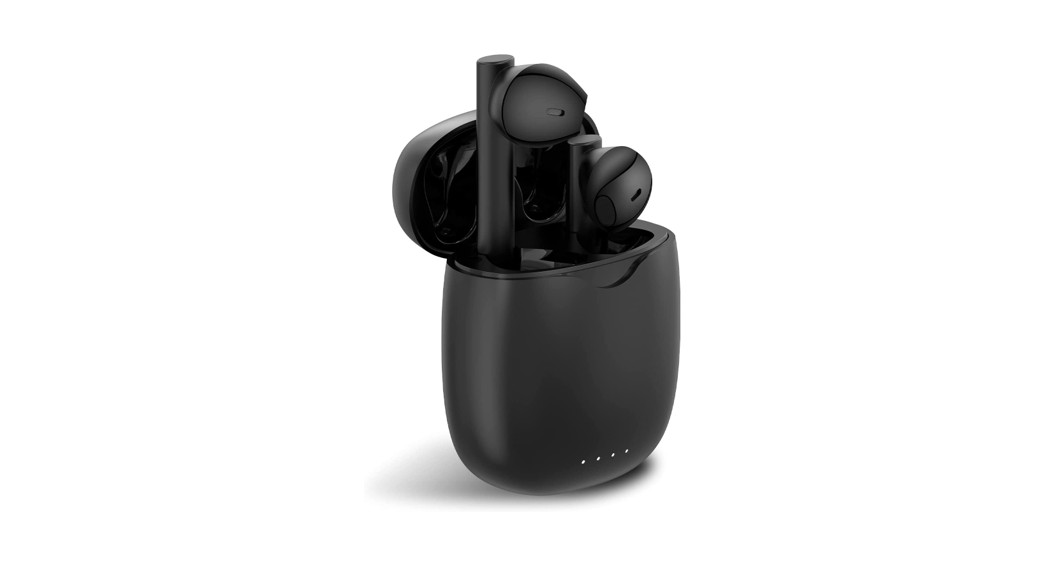
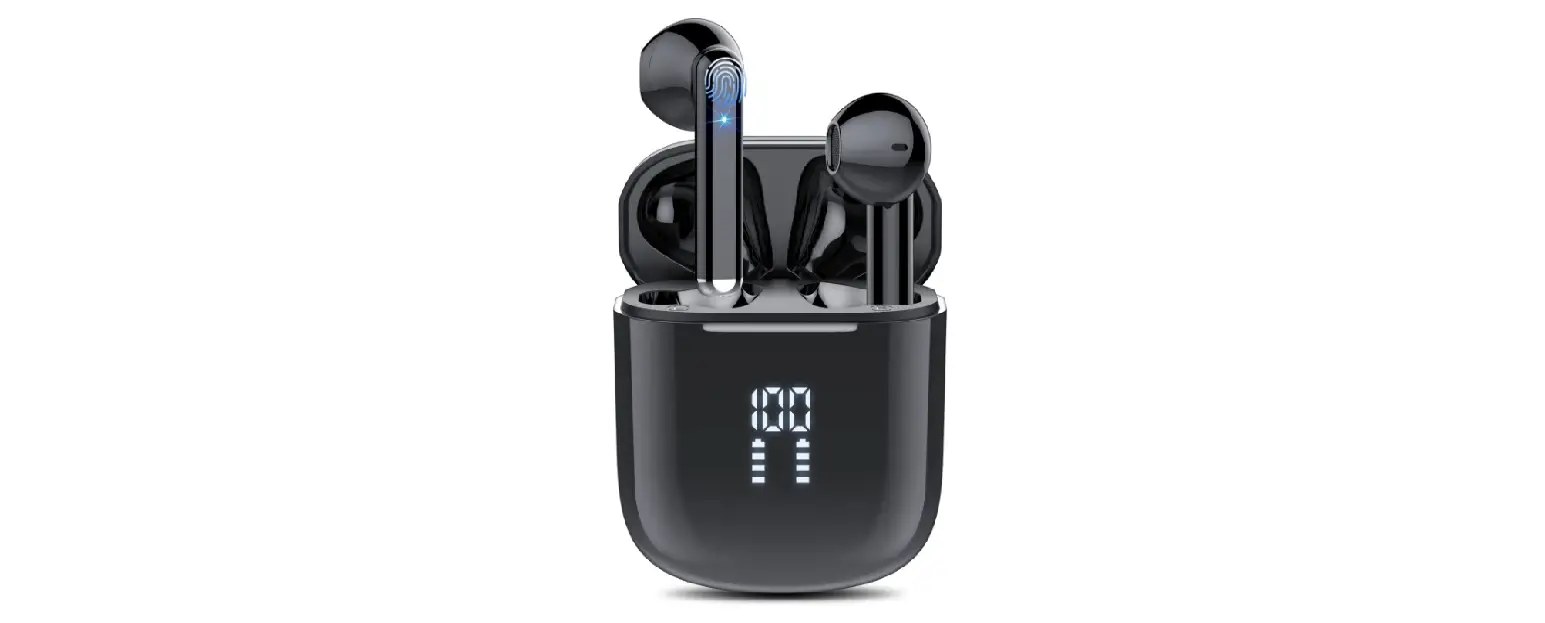
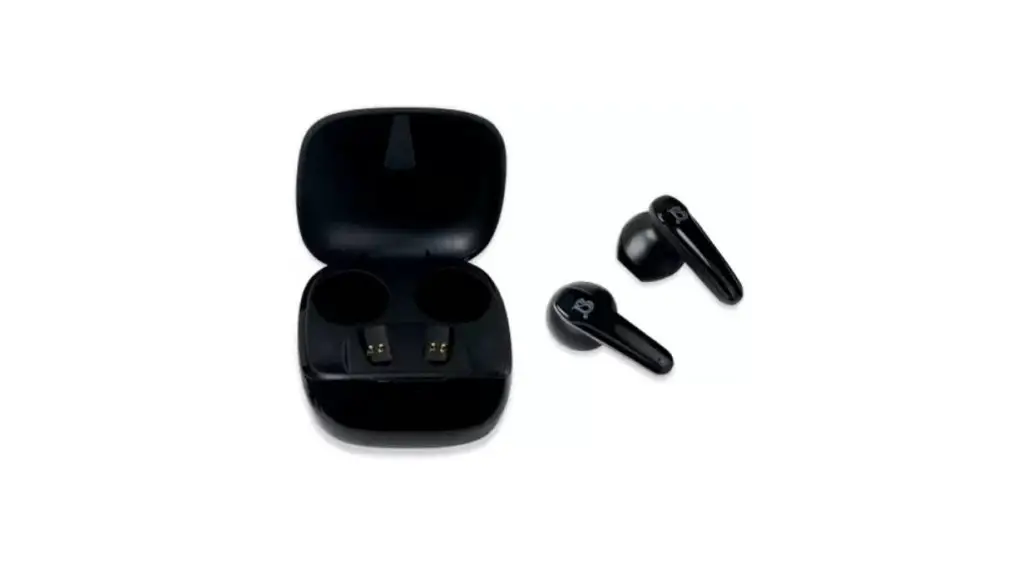
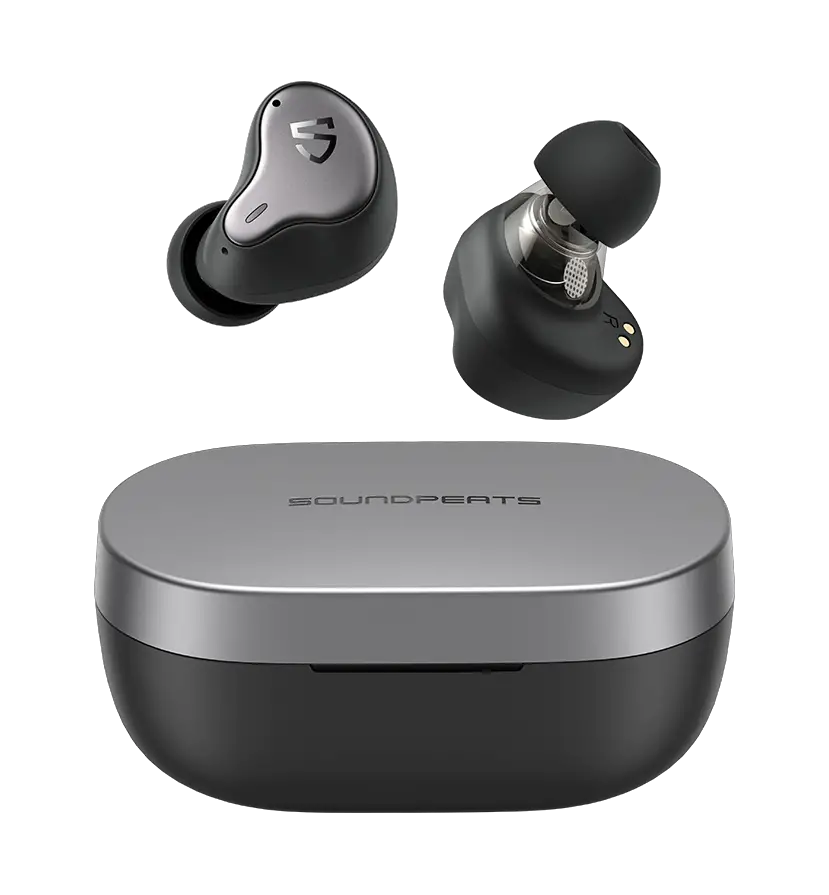
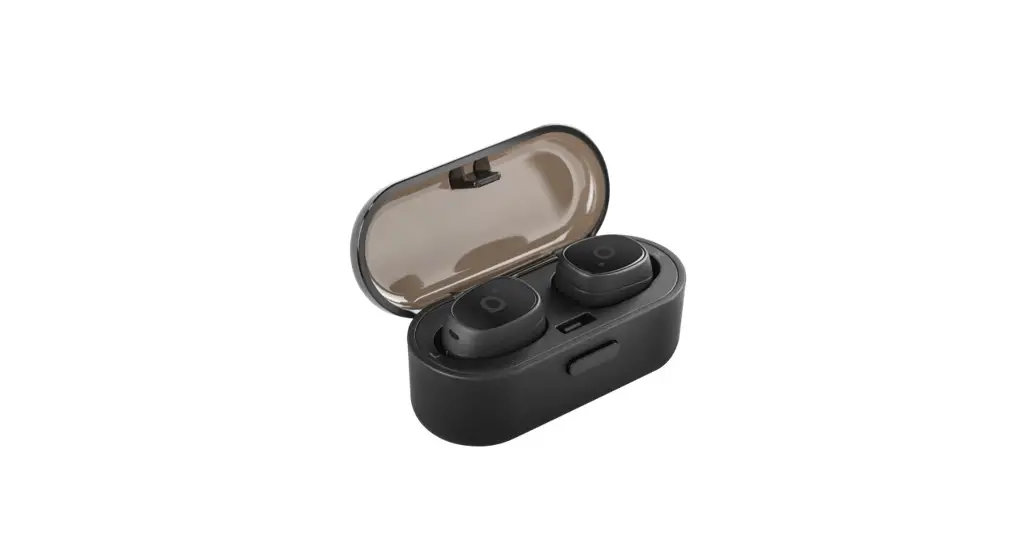
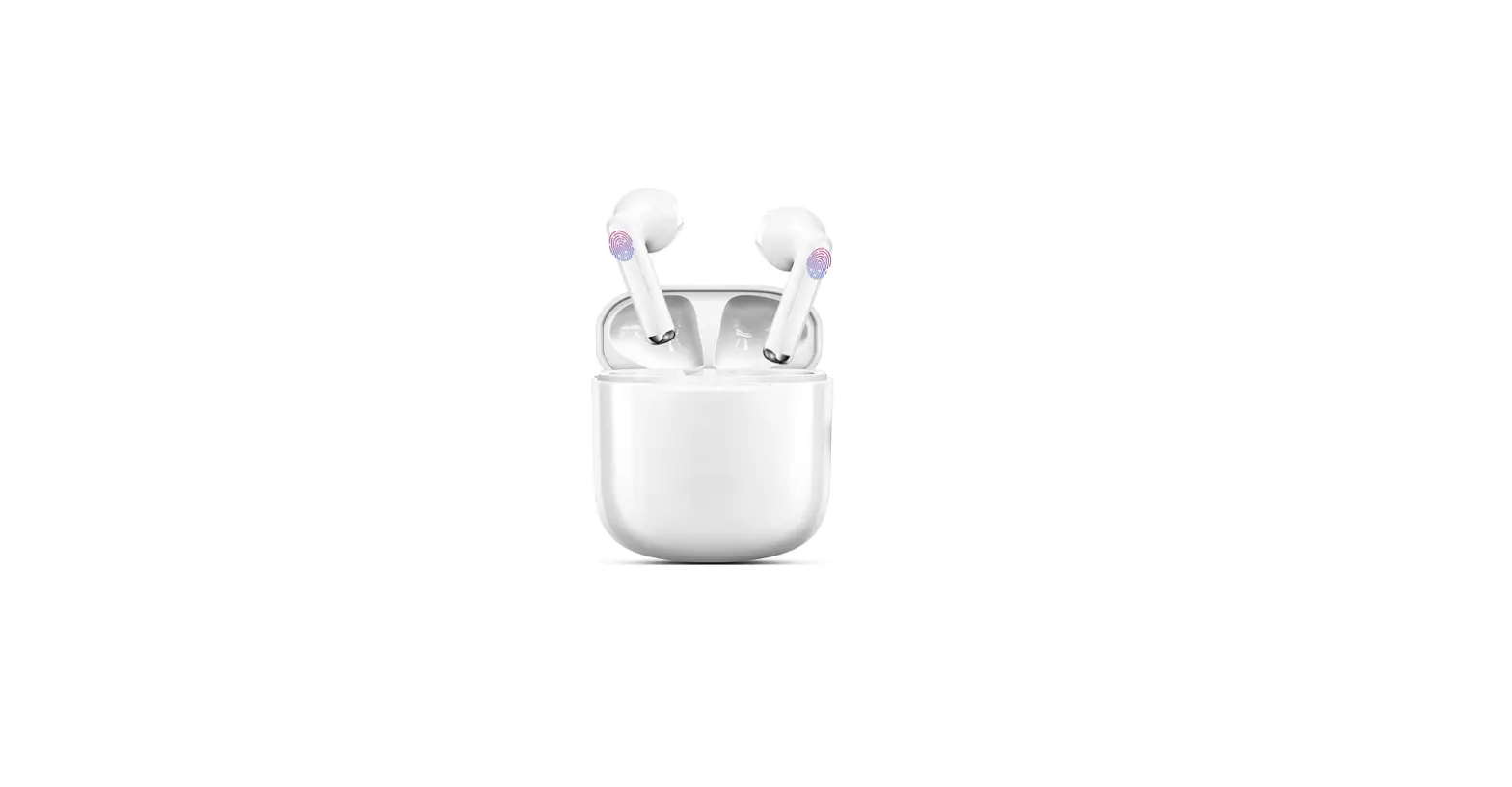
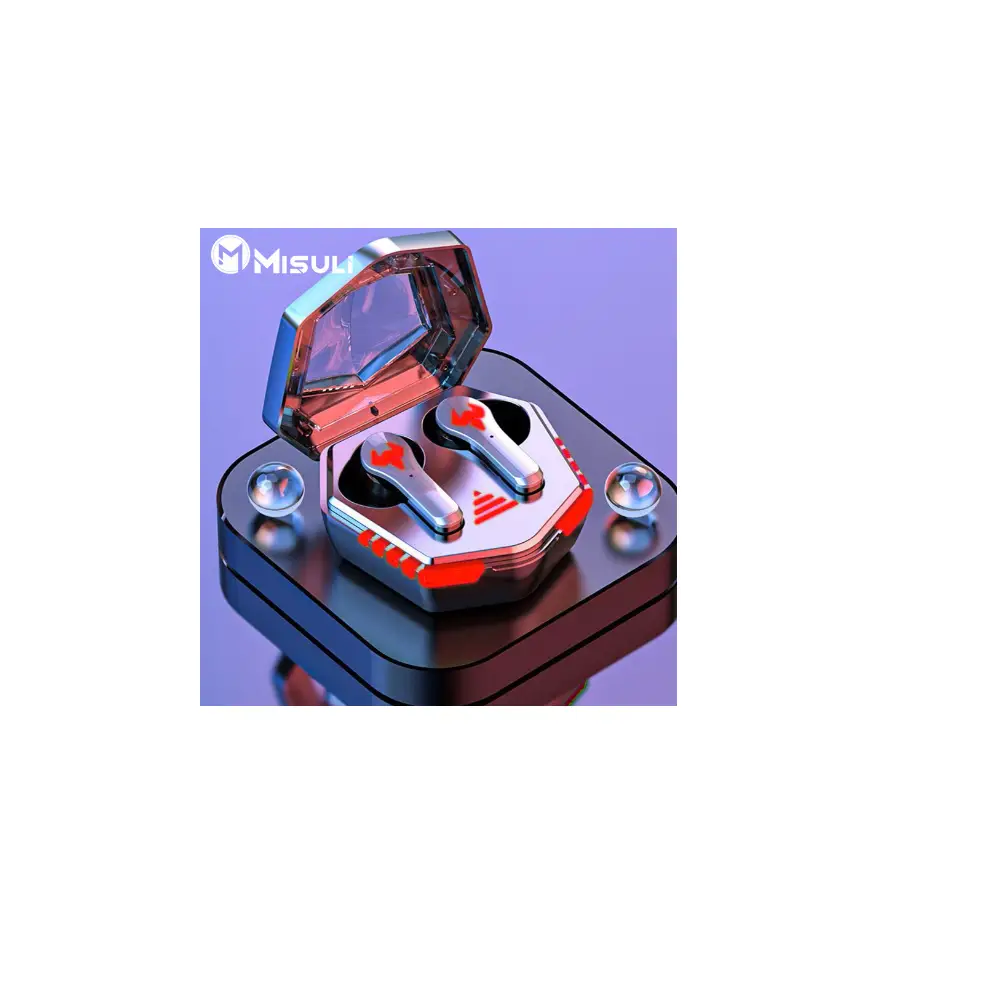
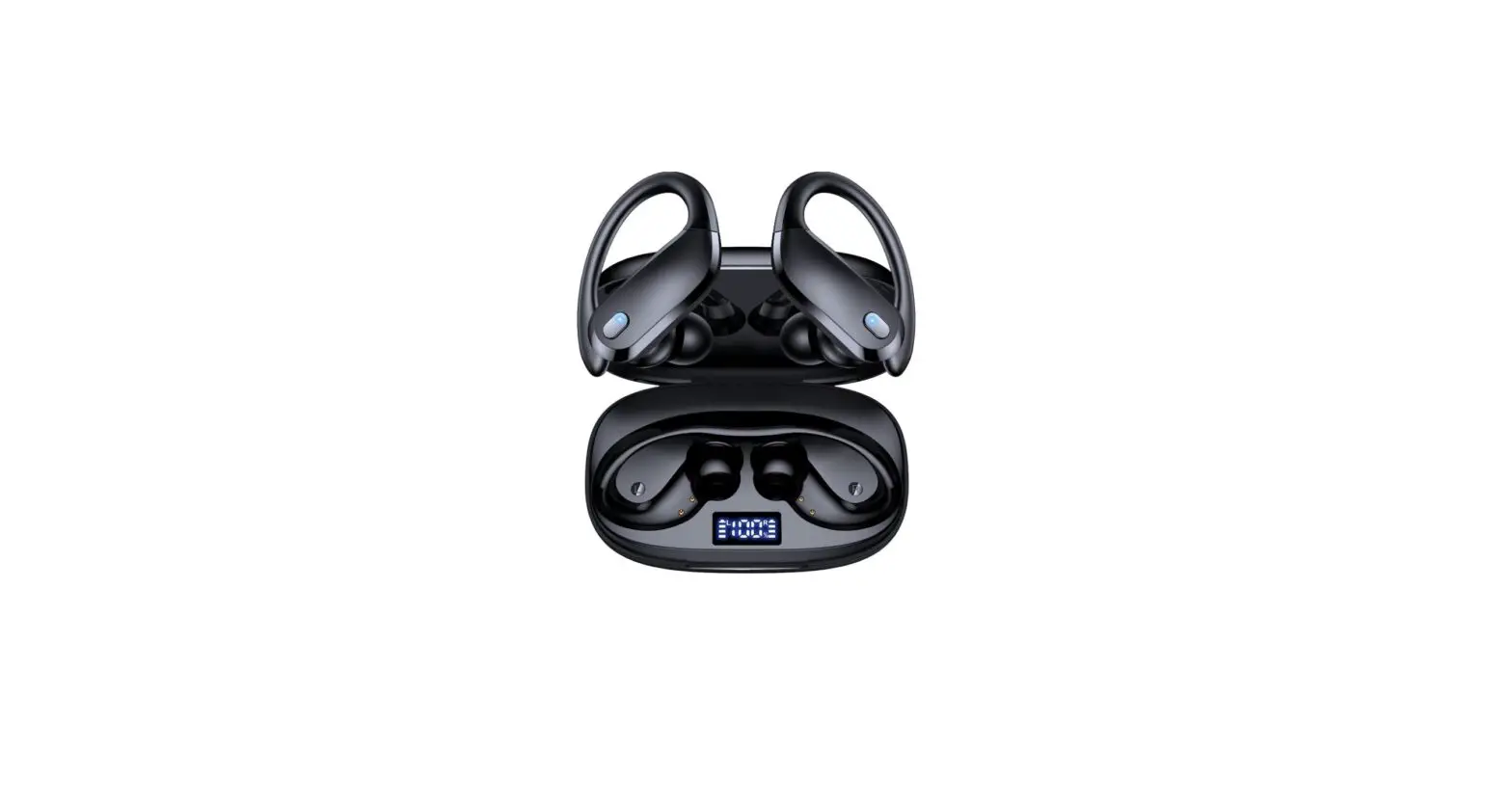
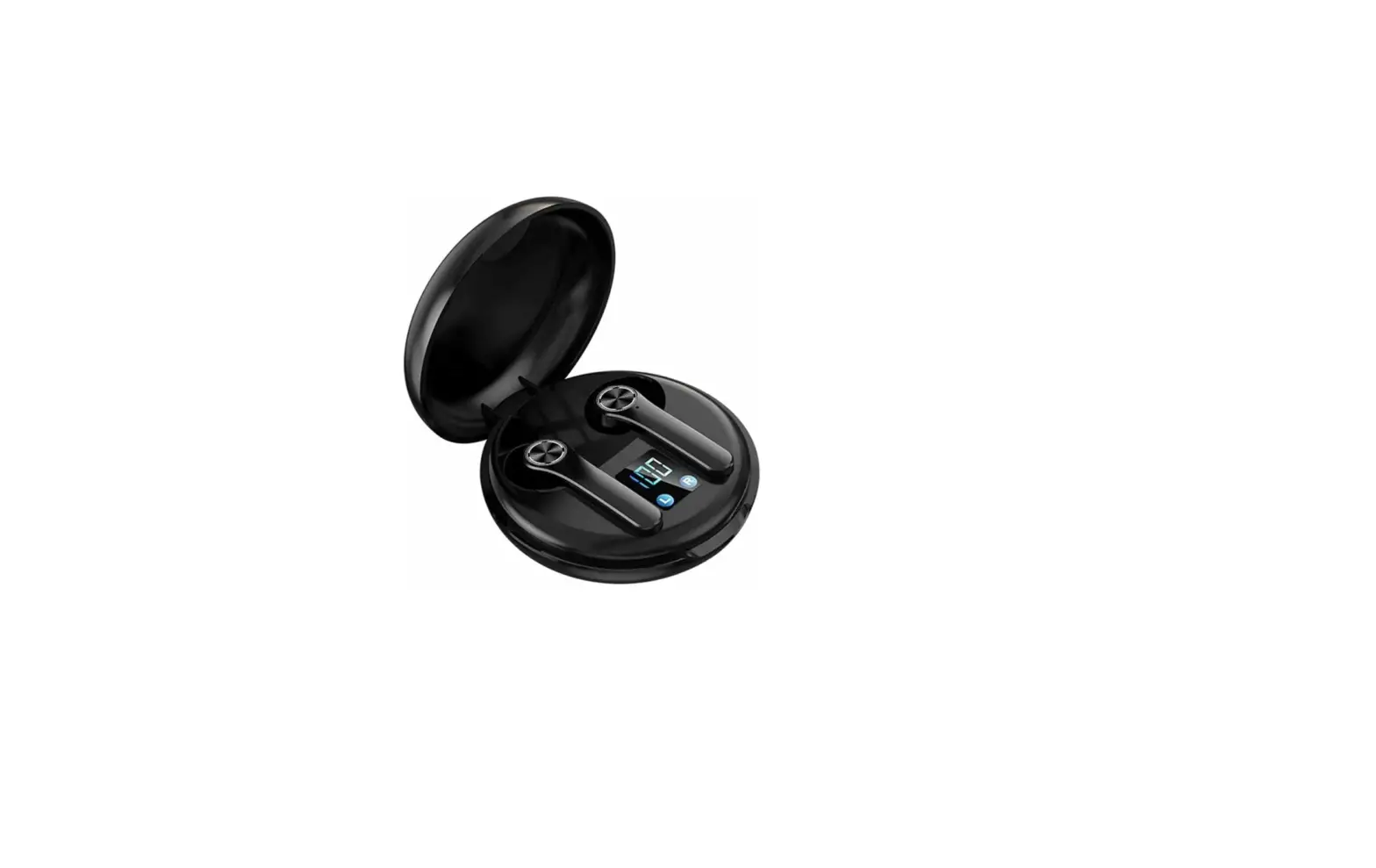
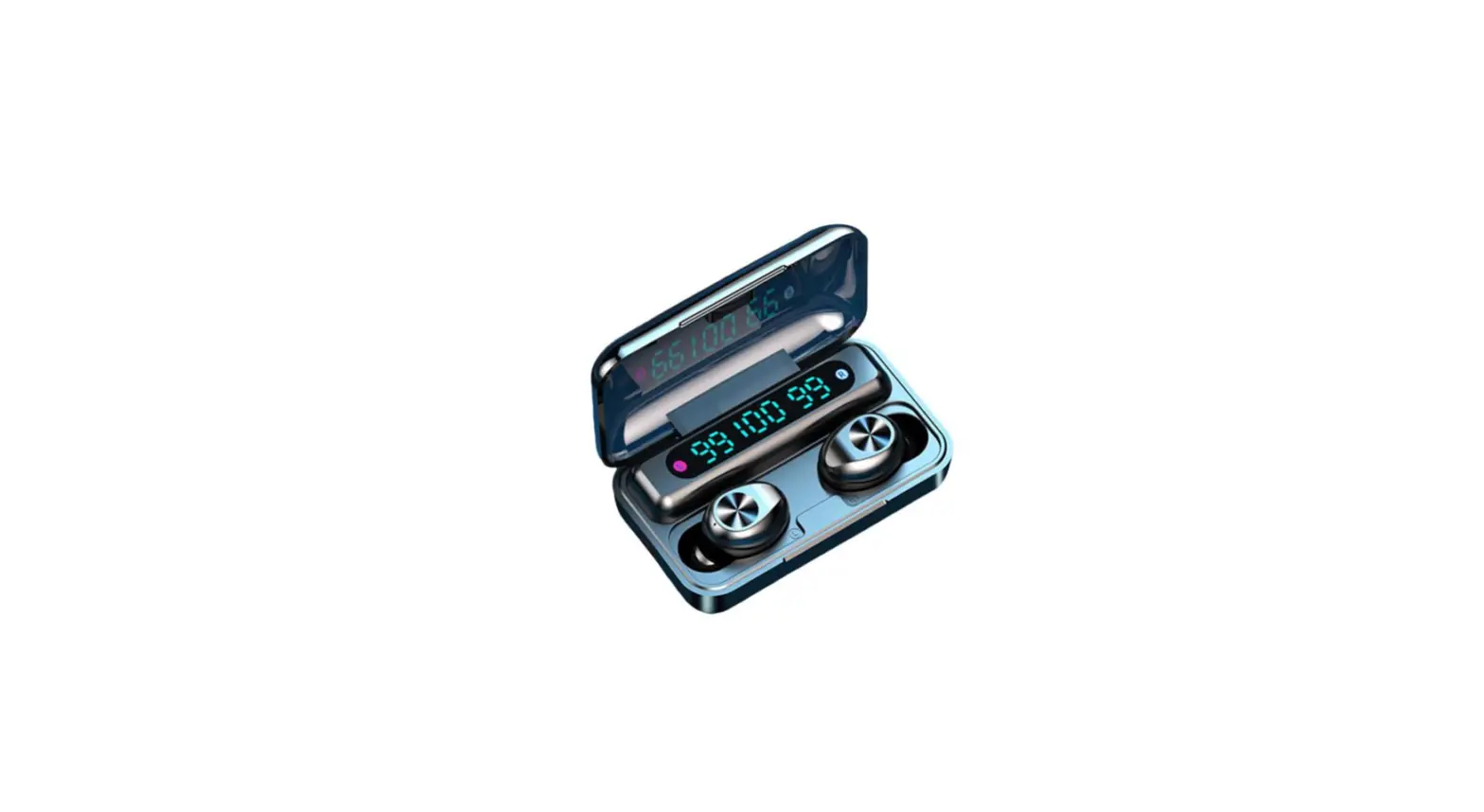
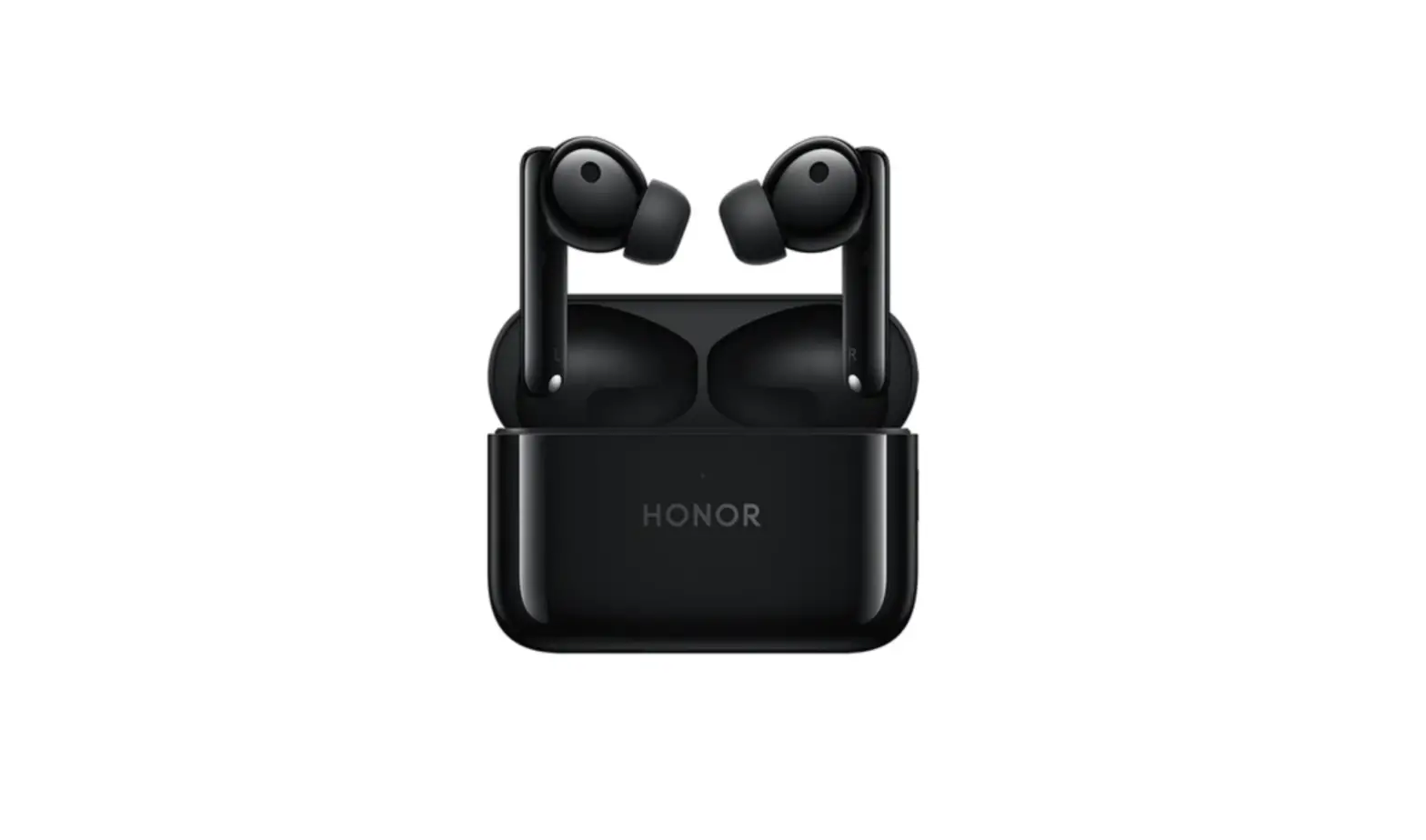
True Wireless Earbuds
Packing List
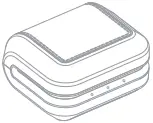
Charging Case x1
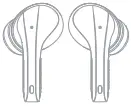
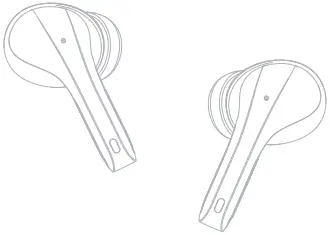
Earphone x2
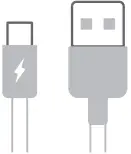
Type-C USB Cable x1
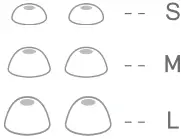
Ear Tips x3
Product Overview
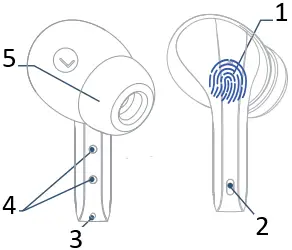
- Multifunction Touch Button
- Earbud LED Light
- Buit-in Mic
- Charging Point
- Eartips(M size)
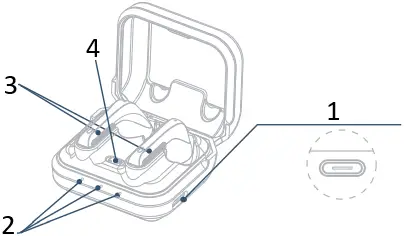
- Type-C USB Charging Port
- Charging Case Power Indicator
- Charging Point
- L/R logo
Charge
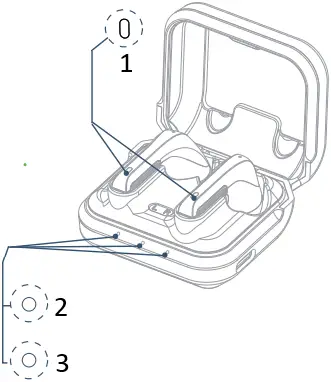
Charging Status of Earphones
1 When charging, the white indicator of earphones will illuminate and flash and then turn off after the charging is finished.
Battery indicator of Charging Case
2 When charging, the white indicators of charging case will light up and flash continuously showing the power level from one to three, and the three indicators will be constant on after the charging is finished.
3 When you put the earbuds into the charging case to charge, the indicators of charging case will light up 4 secs then off.
Power On
Auto Power On:
Take out the earphone from the charging case, it will turn on automatically.
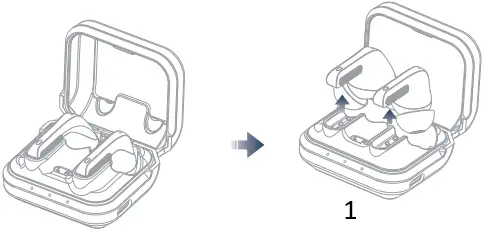
- power on
Manual Power On:
Press & hold MFB for about 3 secs, then earphones’ white indicator flashes, which means it turns on and is ready to pair.
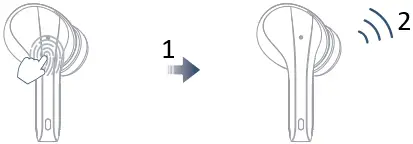
- 3 seconds
- power on
Power off
Auto Power Off:
Put the earphone back into the charging case, it will turn off automatically.
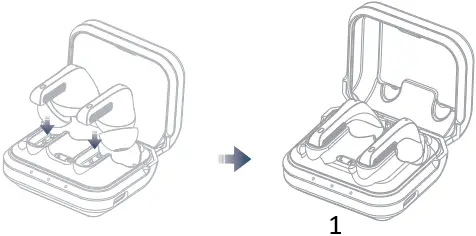
- power off
Manual Power Off:
Press & hold MFB about 6 secs , it will trun off with a prompt sound “power off “.
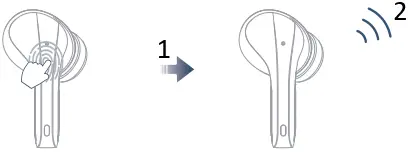
- 6seconds
- power off
Pair and Connection
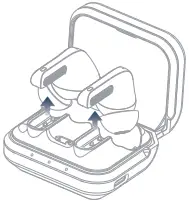
Step 1
Take out the earphones from the charging case, they will power on and pair with each other automatically.
(You should hear a prompt when first connection.)
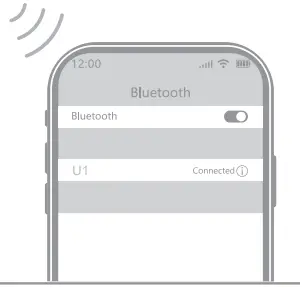
Step 2
Activate Bluetooth setting on your phone, search and click ” U1″ to connect.
(There should be a voice prompt “connected” if you wear the earphones.)
Switch Language
Quick tap right earbud button 4 times to switch the prompt voice language

Resetting
When should I reset?
- When only one side play music.
- When you can’t use the two earphones together.
- When both earphones fail to pair with each other or occur connection related issues.
How to pair Left & Right earphones?
1- Please take out the two earbuds, tap the button of each earphone 6 times quickly, the earbuds will flash and then turn off.
2- Put the two earbuds into charging case to charge.
3- Take out the two earbuds again, the left & right earbuds will be connected to each other in about 5 secs, then the indicator of left earbud will flash every 5 seconds, and the indicator of right earbud keeps flashing.
4- Turn on the device’s bluetooth function to reconnect it.
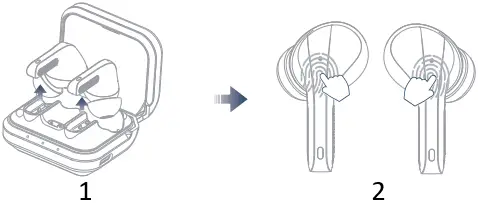
- Take out both earphones
- Tap each button 6 times quickly
Music
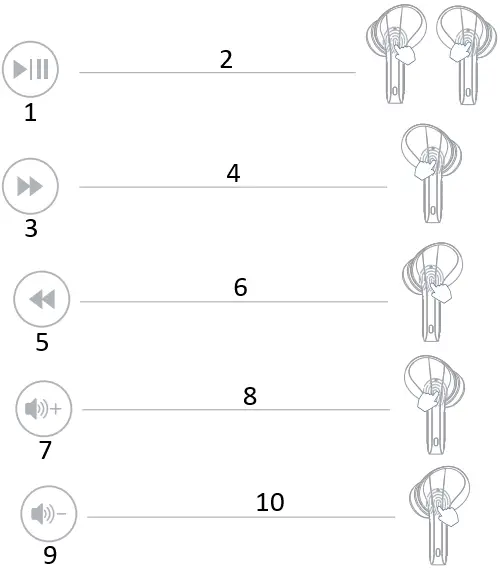
- Play/ Pause
- Touch once (L / R)
- Next Track
- Double-Touch (R)
- Previous Track
- Double-Touch (L)
- Volume up
- Long-Touch 2 sec(R)
- Volume down
- Long-Touch 2 sec(L)
Incoming Call
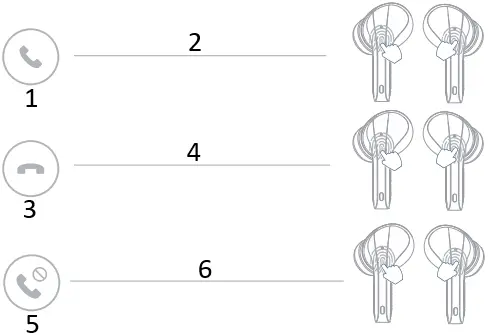
- Answer a call
- Touch once (L / R)
- End a call
- Double-Touch (L/R)
- Reject a call
- Long-Touch 2 sec(L/R)
Voice Assistant
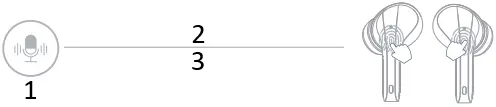
- Activate Siri
- Touch 3 times (L/R)
- In non-music mode
Specifications
- Model Name: U1
- Bluetooth Version: V5.1
- Support: HFP/HSP/A2DP/AVRCP
- Battery of Each Earphone:40mAH
- Battery of Charging Case: 300mAH
- Charging Port: TYPE-C
- Dimension of the Speaker: 10mm
Warnings
To ensure trouble -free operation, please read user manual carefully.
Fully charge both earphones and charging case when first-time use.
Do not throw/drop/disassemble/make any modifications to the structure or any part of it.
Please charge with a rated voltage charger.
Do not replace the built-in batteries of earphones and charging case.
Do not expose the product to fire, high temperature, direct sunlight, etc.
FAQ
1-Please make sure there is no obstacle between the earphones and your device.
2-Please make sure there is no Microwave oven/WiFi transmitter around you, which is more likely to produce electromagnetic interference and result in signal interruption.
* Note: Please keep the device and the earphones as close as possible to ensure a more stable Bluetooth connection.
1-We advise you to charge the earphones by using the supplied original charging cable.
2-Please make sure the charging pins and charging points are clean & dry before charging.
3-Please make sure the earphones battery is run out if sometimes it can’t be charged properly.
Vislla offers one year warranty, if there is any issue with your earphones, please don’t hesitate to contact us for help.
 Outlook – free personal email and calendar from Microsoft