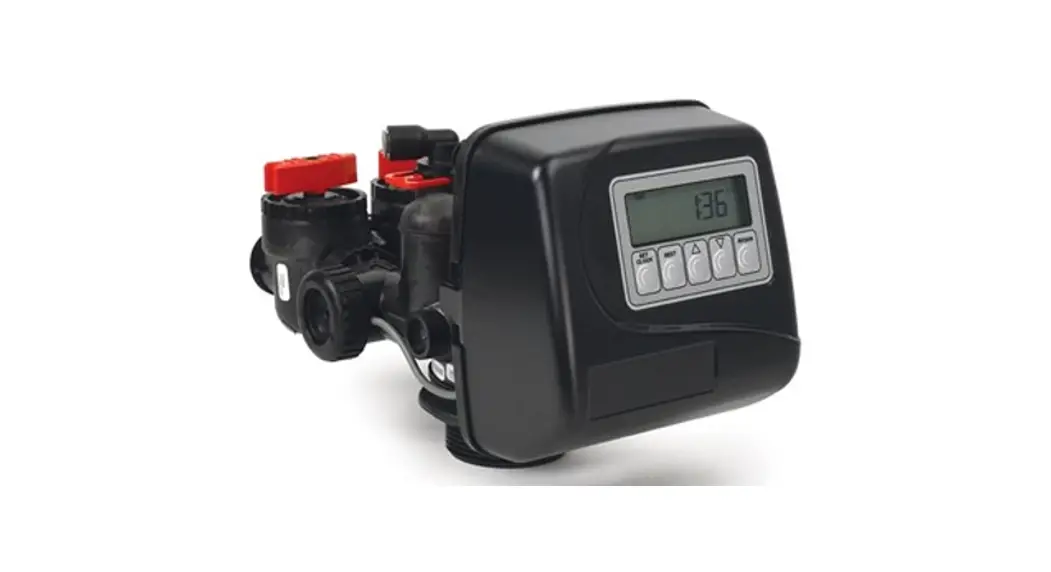
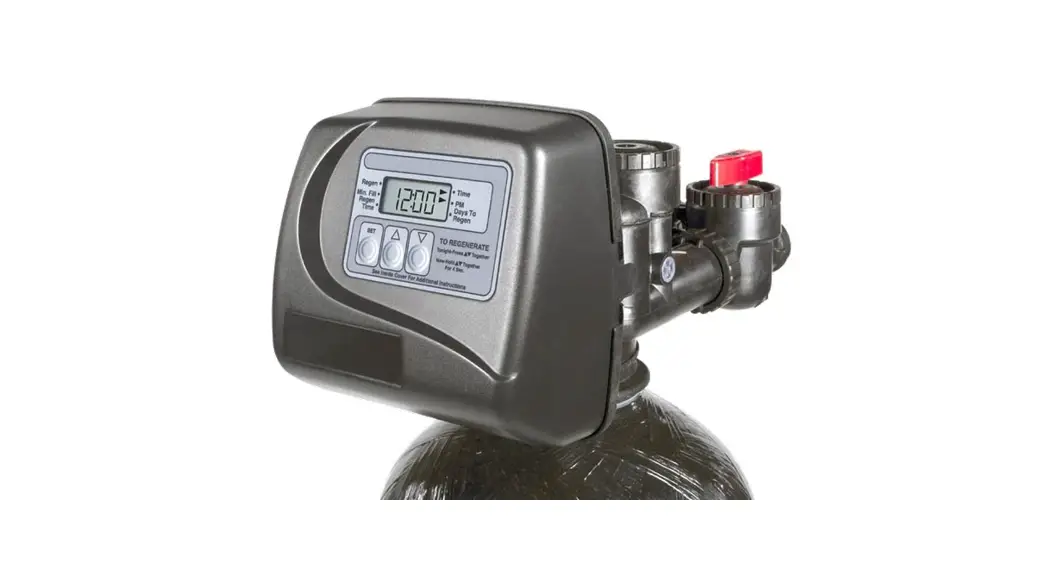
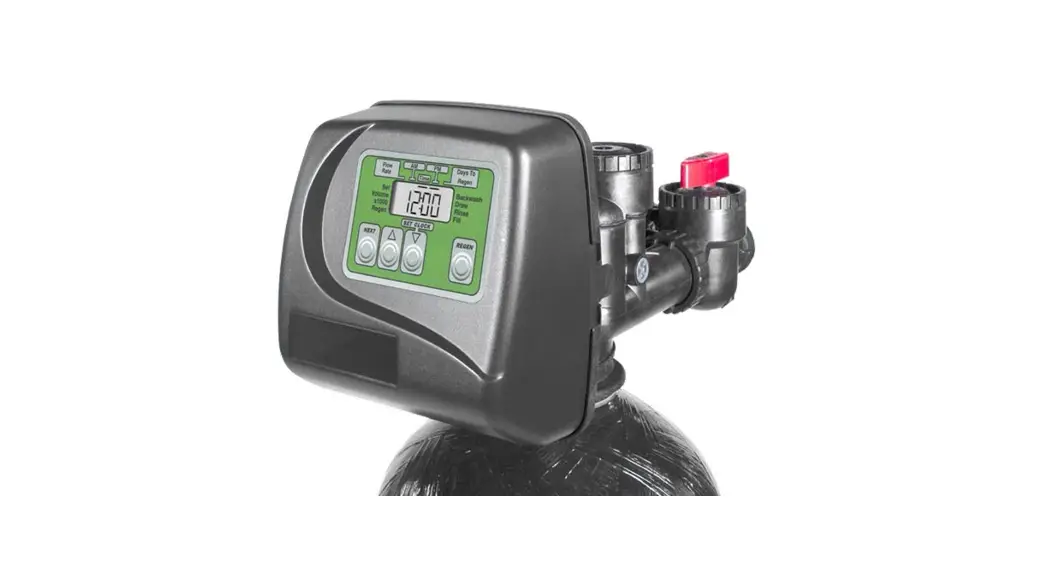
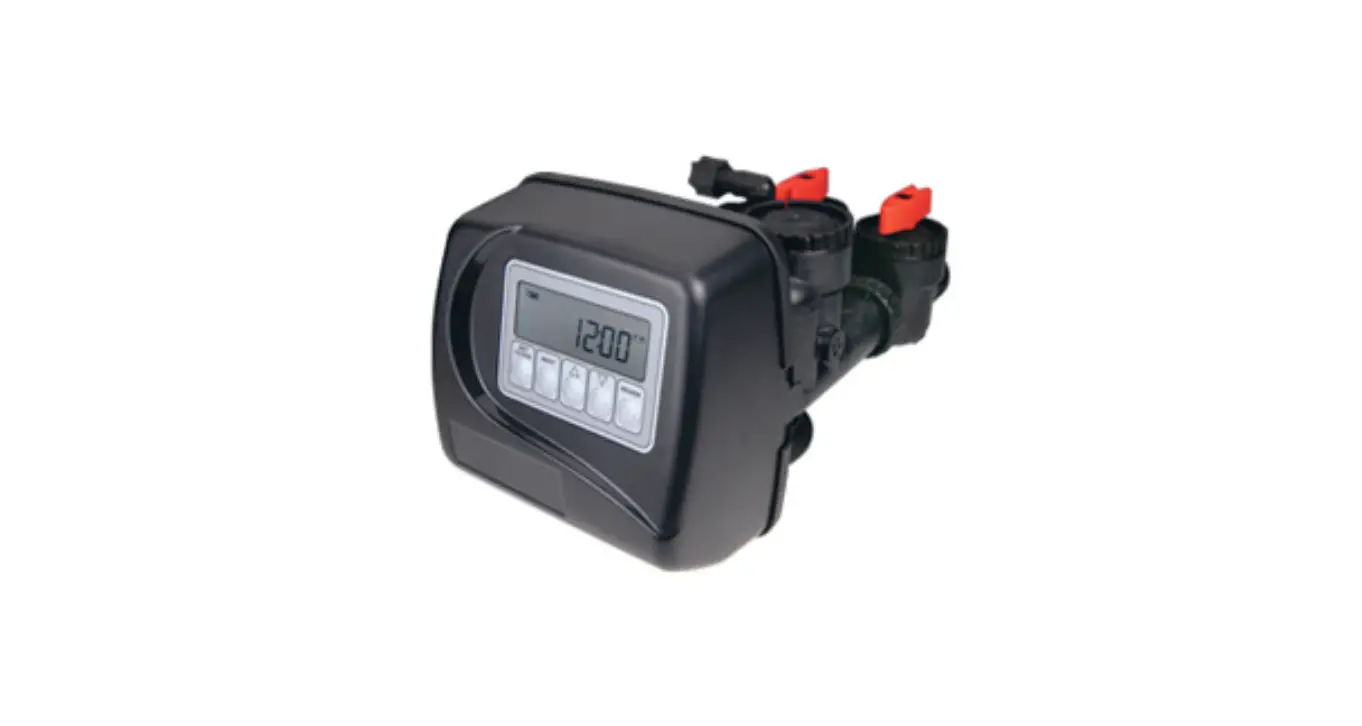
WS1CD Water Specialist CD Control Valve
Product Information:
The Water Specialist CD/CZ Control Valve is a programmable
control valve used for water treatment systems. It is designed to
regulate the operation of the system and provide various
regeneration cycles depending on the type of system being used,
such as softening or filtering.
The control valve comes with several components, including the
front cover assembly, motor assembly, drive bracket assembly, PCB
boards for CD and CZ models, drive reducing gear, drive gear cover,
and power supply. These components are essential for the proper
functioning of the control valve.
The power supply for the control valve is available in different
options depending on the region. For the U.S., it operates at a
supply voltage of 100-120VAC with a frequency of 50/60 Hz. For
international use, the supply voltage can range from 100-240VAC
with the same frequency. The power supply output is 15VDC with a
current rating of 500mA.
When replacing the battery in the control valve, it is important
to align the positive side correctly and push down to ensure a
secure fit. The recommended battery type for replacement is a
3-volt lithium coin cell type 2032.
Product Usage Instructions:
- To program the control valve, refer to the Control Valve
Service Manual for detailed instructions and other drawings and
part numbers. - Ensure that the power supply is connected correctly according
to the wiring diagram provided in the manual for proper on/off
operation. - Take caution when programming both Motorized Actuated Valves
(MAVs) and all three relay outputs to be active at the same time.
This may exceed the current rating of the supplied wall
adapter. - If using a control valve with a water meter, it can be set for
Demand Initiated Regeneration (DIR) only, Time Clock operation
only, or a combination of both. Refer to Table 3 in the manual for
specific settings based on Day Override and Gallon Capacity. - If the control valve does not have a meter, it can only
function as a time clock. In this case, set the Day Override to any
number and set the Gallon Capacity to off. - Use Tables 1 and 2 in the manual to determine the regeneration
cycles for softening or filtering, depending on the setup of the
valve.
Water Specialist CD/CZ Control Valve
Programming Manual
Page 2
CD Manual
CD Manual
Page 3
Table of Contents
Front Cover and Drive Assembly ……………………………………………………………………………………………. 4 OEM General Programming Instructions…………………………………………………………………………………. 5 OEM Configuration Setup……………………………………………………………………………………………………… 7 OEM Softener System Setup ………………………………………………………………………………………………….13 Setting Options Table ……………………………………………………………………………………………………………17 OEM Filter System Setup………………………………………………………………………………………………………18 Installer Display Settings ……………………………………………………………………………………………………….20 User Display Settings…………………………………………………………………………………………………………….21 Diagnostics ………………………………………………………………………………………………………………………….24 Valve History ……………………………………………………………………………………………………………………….26
Page 4
Drawing No. 1 2 3 4 5 6 7
Not Shown
Not Shown
Front Cover and Drive Assembly
Order No.
Description
V3984-01
WS1CD FRONT COVER ASSEMBLY
V3107-01
WS1 MOTOR ASY
V3002-A
WS1 DRIVE BRACKET ASY
V3985CD-04BOARD WS1 THRU 2 CD4 PCB REPL
V3985CZ-04BOARD WS1THRU2 CZ4 WIFI PCB REPLACE
V3110
WS1 DRIVE REDUCING GEAR 12X36
V3109
WS1 DRIVE GEAR COVER
V4228-01BOARD WS1THRU2 WIFI REV2 PCB REPLACE
V3186-06
WS1 POWER SUPPLY US 15VDC HOCP
V3186AUS-05OD WS1 POWER SUPPLY AUS 15VDC VI OUTDOOR
V3186EU-06 WS1 POWER SUPPLY EU 15VDC HOCP
V3186UK-06 WS1 POWER SUPPLY UK 15VDC HOCP
V3186-01
WS1 POWER CORD ONLY
V3946
WS1 WIDE DRIVE BACK PLATE
CD Manual
Quantity 1 1 1 1 3 1 1
1
1
Refer to Control Valve Service Manual for other drawings and part numbers.
Power Supply
U.S.
International
Supply Voltage 100-120VAC 100-240 VAC
Supply Frequency 50/60 Hz 50/60 Hz
Output Voltage
15 VDC
15 VDC
Output Current
500 mA
500 mA
When replacing the battery, align positives and push down to fully seat.
Correct Battery Orientation
Relay Driver Output Type Three Solid-State 12VDC “wet” contacts – N.O. Relay Driver Output Capacity – 12VDC @100mA per relay output (Total current through all three outputs not to exceed 200mA) NOTE: Check for proper mounting dimensions on valve back plate prior to mounting an external relay under control cover.
Wiring for correct on/off operation
PC Board Relay Terminal Block
Relay
RLY1/RLY2/RLY3
Coil –
V+
Coil+
Care must be taken when programming both MAVs and all three relay outputs to be active. If it will be possible for one motor and all three relay outputs to be energized at the same time during operation, the current rating of the supplied wall adapter may be exceeded.
Battery replacement is 3 volt lithium coin cell type 2032.
Battery Fully Seated
1
7
4
3 2
PC Board Relay Terminal Block 5
6
CD Manual
Page 5
OEM General Programming Instructions
The control valve offers multiple procedures that allow the valve to be modified to suit the needs of the installation. These procedures are:
· OEM Configuration Setup
· User Display Settings
· OEM Softener System Setup
· Diagnostics
· OEM Filter System Setup
· Valve History
· Installer Display Settings
Tables 1 and 2 show examples when the valve is set up as a softener or filter.
Downflow Regenerant Refill After Rinse
1st Cycle: 2nd Cycle: 3rd Cycle: 4th Cycle: 5th Cycle:
Backwash dn Brine Backwash Rinse Fill
Table 1: Regeneration Cycles Softening
Downflow Regenerant Prefill
1st Cycle: 2nd Cycle: 3rd Cycle: 4th Cycle: 5th Cycle: 6th Cycle:
Fill Softening Backwash dn Brine Backwash Rinse
Upflow Regenerant Refill After Rinse
1st Cycle: 2nd Cycle: 3rd Cycle: 4th Cycle:
UP Brine Backwash Rinse Fill
Upflow Regenerant Prefill
1st Cycle: 2nd Cycle: 3rd Cycle: 4th Cycle: 5th Cycle:
Fill Softening UP Brine Backwash Rinse
Table 2: Regeneration Cycles Filtering
Downflow Regenerant Refill After Rinse
1st Cycle: 2nd Cycle: 3rd Cycle: 4th Cycle: 5th Cycle:
Backwash dn Brine Backwash Rinse Fill
The control valve with a water meter can be set for Demand Initiated Regeneration (DIR) only, Time Clock operation only or DIR and Time Clock which ever comes first, depending upon what settings are selected for Day Override and Gallon Capacity.1 See Table 3.
If a control valve does not contain a meter, the valve can only act as a time clock, and day override should be set to any number and gallon capacity should be set to off.
DIR
Yes Yes Yes Yes
Time Clock
Yes Yes Yes
Reserve Capacity
Table 3 DIR/Time Clock Options
Filter
Softener
Regenerant Backwash Only
Automatically calculated
Yes
If desired enter a value less than estimated capacity
Yes
Yes
Yes
Automatically calculated
Yes
If desired enter a value less than estimated capacity
Yes
Yes
Yes
None
Yes
Yes
Yes
Settings2
Days to REGEN
Gallon Capacity
Off
Auto
Off
Any Number
Any Number
Auto
Any Number Any number
Any Number
Off
For DIR Softeners, there are two options for setting the Gallons Capacity. The Gallons Capacity is automatically calculated if set to AUTO. Reserve Capacity is automatically estimated based on water usage if AUTO is used. The other option is to set the Gallons Capacity to a specific number. If a specific number is set, reserve capacity is zero, unless the value is manually set (i.e. the manufacturer intentionally sets the gallon capacity number below the calculated capacity of the system). A unique feature of this control valve is the ability to display actual water usage for the last 63 days. The values are initially stored as “—-“. This means the value is unknown. As days pass values are stored as “0” for no flow or the actual number of gallons. The counting of the gallons starts at the regeneration time. If no regeneration time can be set (i.e. when the valve is set for immediate regeneration) the counting of gallons starts at 12 a.m. Day 1 is yesterday, day 2 the day before yesterday, etc. As new values are added the oldest history disappears.
Another unique feature is that the valve automatically calculates a reserve capacity when set up as a softener with “Gallons Capacity” set to “AUTO” and the “Regeneration Time Option” set to “DELAYED REGEN” or “DELAY + IMMEDIATE”. The actual reserve capacity is compared to the gallons capacity remaining immediately prior to the preset regeneration time. A regeneration will occur if the actual reserve capacity is less than the gallons capacity remaining. The actual reserve capacity is calculated by using the estimated reserve capacity and adjusting it up or down for actual usage.
The estimated reserve capacity for a given day of the week is the maximum value stored for the last three non-trivial water usages (i.e. more than 20 gallons/day) in seven day intervals.
1 See Installer Display Settings, OEM Softener System Setup and OEM Filter System Setup for explanations of Day Override and Gallon Capacity. 2 Days to REGEN and Gallon Capacity can not both be set to “OFF” at the same time.
Page 6
CD Manual
Once the OEM Cycle Sequence has been set, the other procedures can be accessed in any order. Details on each of the procedures are provided on the following pages.
To “lock out” access to diagnostic and valve history displays and modifications to settings except hardness, day override, time of regeneration and time of day by anyone but the manufacturer, press , NEXT, , and CLOCK in sequence after settings are made. To “unlock”, so other displays can be viewed and changes can be made, press , NEXT, , and CLOCK in sequence.
When in operation normal user displays such as time of day, volume remaining before regeneration, present flow rate or days remaining before regeneration are shown. If using a Wi-Fi enabled valve, another display showing connection information will also be available. When stepping through a procedure, if no buttons are pressed within five minutes, the display returns to a normal user display. Any changes made prior to the five minute time out are incorporated.
To quickly exit OEM Softener Setup, OEM Filter Setup, Installer Display Settings, Diagnostics or Valve History press CLOCK. Any changes made prior to the exit are incorporated.
If using a Wi-Fi enabled valve, pressing CLOCK and will put the Wi-Fi module into AP mode. Pressing CLOCK and again will take the module out of AP mode.
To clear the Service Call reminder, press and simultaneously while CALL is displayed.
When desired, all programming and information in Diagnostics may be reset to defaults when the valve is installed in a new location. To reset to defaults, press NEXT and simultaneously to go to the Softening/Filtering screen. Press and simultaneously to reset programming and diagnostic values to defaults. Screen will return to User Display.
Sometimes it is desirable to have the valve initiate and complete two regenerations within 24 hours and then return to the preset regeneration procedure. It is possible to do a double regeneration if the control valve is set to “DELAYED REGEN” or “DELAY + IMMEDIATE” in OEM Softener System Setup or OEM Filter System Setup. To do a double regeneration:
1. Press the “REGEN” button once. REGEN TODAY will flash on the display. 2. Press and hold the “REGEN” button for three seconds until the valve regeneration initiates.
Once the valve has completed the immediate regeneration, the valve will regenerate one more time at the preset regeneration time.
For Valve Type 1.0T, press and hold CLOCK and for about 3 seconds to initiate an exchange of the tank in Service without cycling the regeneration valve. After tank switch, days remaining and capacity remaining status is retained for each tank until the next regeneration.
Proportional Brining
If the system is set up as a prefill upflow softener the control valve can also be set to normal or proportional brining.
This step will appear after Step 8S and before Step 9S if the system is set up as a prefill upflow softener. The following options can be selected: · NORMAL FILL – System always prefills with the salt level selected. · PROPORTIONAL FILL – If proportional brining is selected, the actual salt fill time will
be calculated by dividing the actual volume of treated water used by the full volumetric capacity, then multiplying this value by the maximum salt fill time. Press NEXT to go to the next step. Press REGEN to return to the previous step.
CD Manual
Page 7
STEP 1CS
OEM Configuration Setup
Step 1CS Press NEXT and simultaneously for 3 seconds and release. Then press NEXT and simultaneously for 3 seconds and release. If screen in Step 2CS does not appear in 5 seconds the lock on the valve is activated. To unlock press , NEXT, , and CLOCK in sequence, then press NEXT and simultaneously for 3 seconds and release. Then press NEXT and simultaneously for 3 seconds and release.
STEP 2CS
Step 2CS Use or to select 1.0 for 1″ valve, 1.25 for 1.25″ valve, 1.5 for 1.5″ valve, 2.0 for 2″ valve or 1.0T for twin valve. Press NEXT to go to Step 3CS. Press REGEN to exit OEM cycle sequence.
STEP 3CS
Step 3CS When 1.5 or 2.0 is selected, an additional screen will appear. It is used to select which size flow meter is to be used with the valve: 1.0r, 1.5, 2.0 or 3.0. Variable meter pulses of 0.1-150.0 PPG can also be selected. Press NEXT to go to Step 4CS. Press REGEN to return to previous step.
Page 8
STEP 4CS
CD Manual
Step 4CS Allows selection of one of the following using or : · the Control Valve to act as an alternator; or · the Control Valve to have a no hard water bypass: or · the Control Valve to have a Separate Source during the regeneration cycle; or · the Control Valve to operate with Progressive Flow; or · the Control Valve to operate with the Clack System Controller. Select OFF when none of these features are used.
Only use Clack No Hard Water Bypass Valves or Clack Motorized Alternating Valves (MAV) with these selections. Clack No Hard Water Bypass Valves (1″ or 1.25″ V3070FF or V3070FM) are not designed to be used with the alternator function or separate source.
This display will not appear if 1.0T is selected in Step 2CS.
Selecting the Control Valve to act as an alternator:
Prior to starting the programming steps, connect the interconnect cable to each control valve board’s three pin connector labeled COMM CABLE. Also connect the meter cord to either control
valve to the three pin connector labeled METER.
Softener valve programming steps
Set to ALT A
Set to ALT B
Connect the outlet plumbing of Connect the outlet plumbing of
OEM Configuration
Setup
Step 4CS
the ALT A valve to the MAV’s A the ALT B valve to the MAV’s B port and connect the MAV’s two port.Noelectricalconnectionsare pin wire connector to the two pin requiredbetweentheALTBvalve
connector labeled MAV on the
and the MAV
ALT A valve
Softener Step System Setup 9S
Set to AUTO
Set to AUTO
Softener Step Set regeneration time option to Set regeneration time option to
System Setup 10S
IMMEDIATE.
IMMEDIATE.
Installer Display Setting
Step 4I
Set Day Override to OFF
Set Day Override to OFF
If set up for a filter, in Step 8F set Volume Capacity in Gallons; in Step 9F select Regeneration Time Option “Immediate”.
For Clack Corporation alternator systems using WS1, WS1.25 and WS1.5 valves there will be an option to delay the last two cycles of regeneration (only Rinse and Fill). This feature splits the regeneration into two portions. The first portion of the regeneration will start immediately and all programmed cycles before the Rinse and Fill cycles will be performed. After all programmed cycles before Rinse and Fill are completed the control valve will drive to the service position (displaying Delayed Rinse + Fill Pending). When the volume of the online unit is depleted to 10% of its programmed capacity, the control valve will be triggered to finish the second portion of the regeneration. OnceRinseandFillarecompleted,thevalvewillre-enter Standby mode until requested to come online for Service.
For Clack Corporation alternator systems using the WS2 valve, when NEXT is pressed after selecting ALT A or ALT B, a display will allow the user to set the amount of pre-service rinse time for the standby tank just prior to returning to service.
With 1.0T set, the same display appears and is set in a similar manner.
WS1, WS1.25 and WS1.5 Valves
WS2 Valve
CD Manual
Page 9
Retracted
Extended
Valve A in Service Position = MAV piston rod Retracted
Valve B in Service Position = MAV piston rod Extended
Note: Clack Twin Alternator Operations · Twin alternating systems can be programmed with a day override setting combined with the normal volume-based regeneration
programming. A twin alternating system in this configuration will then regenerate based on the volume used or the day override if there is a period of low water usage. · Twin alternating systems can be programmed as a time clock only based regenerating system. In this configuration, the days remaining are counted only on the unit that is in service. The unit in Standby Mode only notes days in diagnostics, which results in time clock only twin regeneration initiation. · Twin alternating systems can be programmed for a delayed regeneration time. The system will allow an immediate transfer of the MAV to switch tanks and place a fully regenerated unit in service once a unit becomes exhausted. The exhausted unit will then be placed into Standby Mode and allowed to have a delayed regeneration at the pre-set time.
Configuring the Control Valve for Separate Source Operation: Select SEPARATE SOURCE for control operation. For separate source operation, the three wire connector is not used. Selection requires that a connection to a Clack Motorized Alternator Valve (MAV) is made to the two pin connector labeled MAV located on the printed circuit board. The C port of the MAV must be connected to the valve inlet and the A port connected to the separate source used during regeneration. The B port must be connected to the feed water supply. When set to Separate Source the MAV will be driven closed before the first regeneration cycle, and be driven open after the last regeneration cycle. NOTE: If the control valve enters into an error state during regeneration mode, the MAV will remain in its current state until the error is corrected and reset.
Configuring the Control Valve for Progressive Flow operation: Select Progressive Flow for control operation. Operation in Progressive Flow Mode requires 2 to 4 valves plumbed in parallel, each with a separate flow meter and No Hard Water Bypass unit. The ADD ANOTHER UNIT setting will add or subtract the number of units currently in service, based on the overall flow rate through the system. The ADD ANOTHER UNIT screen will only appear on Valve 1. For communication between the valves, three-wire communication cables are required. Cables available: V4244-08 CABLE PROG FLOW TRIPLE 8 FT; V4244-12 CABLE PROG FLOW TRIPLE 12FT; V4245-08 CABLE PROG FLOW QUAD 8 FT; V4245-12 CABLE PROG FLOW QUAD 12 FT. NOTE: All cabling must be completed before starting programming.
Page 10
Configuring the Control Valve for No Hard Water Bypass Operation: Select NO HARD BYPASS for control operation. For no hard water bypass operation the three wire connector is not used. Selection requires that a connection to MAV or a Clack No Hard Water Bypass Valve is made to the two pin connector labeled MAV located on the printed circuit board. If using a MAV, the A port of the MAV must be plugged and the valve outlet connected to the B port. When set to No Hard Bypass the MAV will be driven closed before the first regeneration cycle that is not FILL or SOFTENING or FILTERING, and be driven open after the last regeneration cycle that is not FILL. NOTE: If the control valve enters into an error state during regeneration mode, the no hard water bypass valve will remain in its current state until the error is corrected and reset.
Configuring the Control Valve to operate with Clack System Controller: Select SYSTEM CONTROLLER to link the Control Valve to the Clack System Controller. For communication between the Control Valve and the System Controller a three wire communication cable is required. Press NEXT to go to Step 5CS. Press REGEN to return to previous step.
CD Manual
STEP 5CS
Step 5CS Set Auxiliary Drive Output (MAV only) to operate in one of two modes: · TIME Output is activated at a set time after the start of regeneration, for a specified length of time. · Set SEP SOURCE: Allows Auxiliary MAV to switch positions before the start of regeneration and then switch back at the end of regeneration. · Set OFF: Deactivates this output.
Only use Clack Motorized Alternating Valves (MAV) with these selections. Clack No Hard Water Bypass Valves (1″ or 1.25″ V3070FF or V3070FM) are not designed to be used with the TIME or SEPARATE SOURCE functions.
Press NEXT to go to Step 6CS. Press REGEN to return to previous step.
CD Manual
STEP 6CS
Page 11
Step 6CS This allows the use of an outside signal to control the initiation of a regeneration. Selection only matters if a connection is made to the two pin connector labeled DP SWITCH located on the printed circuit board. Following is an explanation of the options:
OFF Feature not used.
NOTE: In a twin alternating system each control must have a separate dP signal or dP switch. One dP signal or one dP switch cannot be used for both controls.
IMMED REG If the dP switch is closed for an accumulative time of 2 minutes a regeneration will be signaled to the unit. In a twin alternating system the MAV will transition first to switch units so that the signaled unit can start regeneration. After the MAV is fully transitioned the regeneration begins immediately. Note: For WS1 WS1.5 control valves programmed for twin alternating: if the dP function “IMMED REG” is set, the Delayed Rinse and Fill feature is not available.
DELAY REG If the dP switch is closed for an accumulative time of 2 minutes a regeneration will occur at the scheduled delayed regeneration time. In a twin alternating system once the dP switch is triggered the PC Board will display “REGEN TODAY” and when the delayed regen time comes the control will switch tanks and the triggered unit will then go into regeneration. Note: For WS1 WS1.5 control valves programmed for twin alternating: if the dP function “DELAY REG” is set, the Delayed Rinse and Fill feature is not available.
HOLD REG If the dP switch is closed a regeneration will be prevented from occurring while there is switch closure. In a twin alternating system the regeneration of a unit can be prevented upon switch closure. If the unit depletes the capacity down to zero it will not be allowed to switch tanks to regenerate until the switch is open. Note: For WS1 WS1.5 control valves programmed for twin alternating the Delayed Rinse and Fill feature can be set in conjunction with the “HOLD REG” if desired.
Press NEXT to go to Step 7CS or to exit Configuration Setup. Press REGEN to return to previous step.
STEP 7CS
Step 7CS If set as a softener, and 1.5 was selected in Step 2CS, this screen will appear, and FILL can be set to LBS or MIN by using or .
Press NEXT to go to Step 8CS. Press REGEN to return to previous step.
Page 12
STEP 8CS
CD Manual
Step 8CS Press or until BACKWASH appears. Press NEXT to go to Step 9CS. Press REGEN to return to previous step.
STEP 9CS
Step 9CS – Press or until Regenerant Draw DN appears. Press NEXT to go to Step 10CS. Press REGEN to return to previous step.
STEP 10CS Step10CS – Press or until RINSE appears. Press NEXT to go to Step 11CS. Press REGEN to return to previous step.
STEP 11CS Step11CS – Press or until FILL appears. Press NEXT to go to Step 12CS. Press REGEN to return to previous step.
STEP 12CS Step12CS – Press or until END appears. Press NEXT to go to Step 13CS. Press REGEN to return to previous step.
STEP 13CS Step13CS – Press or until END appears. Press NEXT to go to Step 14CS. Press REGEN to return to previous step.
RETURN TO NORMAL MODE
CD Manual
STEP 1S STEP 2S
Page 13
OEM Softener System Setup Step 1S Press NEXT and simultaneously for 3 seconds and release. If screen in Step 2S does not appear in 5 seconds the lock on the valve is activated. To unlock press , NEXT, , and CLOCK in sequence, then press NEXT and simultaneously for 3 seconds and release.
Step 2S Select SOFTENING DN or SOFTENING UP using or . Press NEXT to go to Step 3S. Press REGEN to exit OEM Softener System Setup.
STEP 3S
Step 3S Select the time for the first cycle using or . Press NEXT to go to Step 4S. Press REGEN to return to previous step.
STEP 4S
Step 4S Select the time for the second cycle using or . Press NEXT to go to Step 5S. Press REGEN to return to previous step.
STEP 5S
Step 5S Select the time for the third cycle using or . Press NEXT to go to Step 6S. Press REGEN to return to previous step.
STEP 6S
Step 6S Select the time for the fourth cycle using or . Press NEXT to go to Step 7S. Press REGEN to return to previous step.
STEP 7S
Step 7S Select the LBS for the fifth cycle using or . If 2.0 was selected in Step 2CS, or MIN was selected in Step 7CS, FILL is in minutes. Press NEXT to go to Step 8S. Press REGEN to return to previous step.
STEP 8S
Step 8S Set Grains Capacity using or . The ion exchange capacity is in grains of hardness as calcium carbonate for the system based on the pounds of salt that will be used. Calculate the pounds of salt using the fill time previously selected. Grains capacity is affected by the fill time. The grains capacity for the selected fill time should be confirmed by OEM testing. The capacity and hardness levels entered are used to automatically calculate reserve capacity when volume capacity is set to AUTO. Press NEXT to go to Step 9S. Press REGEN to return to previous step.
Page 14
STEP 9S
CD Manual
Step 9S Set Volume Capacity using or . If value is set to: · AUTO capacity will be automatically calculated and reserve capacity will be automatically estimated; · OFF regeneration will be based solely on the day override set (see Installer Display Settings Step 4I); or · a number, regeneration initiation will be based off the value specified. If OFF or a number is used, hardness display will not be allowed to be set in Installer Display Settings Step 3I. If OFF is selected, Regeneration Time is automatically “Delayed”, so Step 10S will not appear. See Setting Options Table for more detail. Press NEXT to go to Step 10S. Press REGEN to return to previous step.
STEP 10S
Step 10S Set Regeneration Time Options using or . If value is set to: · DELAYED REGENERATION means regeneration will occur at the preset time; · IMMEDIATE REGENERATION means regeneration will occur immediately when the volume capacity reaches
0 (zero); or · DELAY + IMMEDIATE REGENERATION means regeneration will occur at one of the following:
— the preset time when the volume capacity falls below the reserve or the specified number of days between regenerations is reached whichever comes first; or — immediately after 10 minutes of no water usage when the volume capacity reaches 0 (zero). DELAYED REGEN is the default if Step 4CS is set to ALTA or ALTB, and DELAY + IMMEDIATE REGENERATION will not be available. IMMEDIATE REGENERATION is the default if Step 2CS is set to 1.0T, and “DELAY + IMMEDIATE REGENERATION will not be available. This screen will not appear if OFF is selected in Step 9S. See Setting Options Table for more detail. Press NEXT to go to Step 11S. Press REGEN to return to previous step.
STEP 11S
Step 11S: Set Relay 1 operation using or . The choices are: · Set REGEN TIME: Relay activates after a set time at the beginning of a regeneration and then deactivates after a set period of time. The start of regeneration is defined as the first backwash cycle or Regenerant Draw UP (1″ only) or DN, which ever comes first. · Set VOLUME: Relay activates after a set volume has been used while in service, then deactivates after the meter stops registering flow and the set time period has expired. · Set REGEN VOLUME: Relay activates after a set volume has been used while in service or during regeneration, then deactivates after the meter stops registering flow and the set time period has expired. · Set HOLD VOLUME: The relay closes every set number of gallons and release when any button is pressed. ·SetLOWSALTLEVEL:Relay1isactivatedwhentheLowSaltTriggerLevelisreached. Oncetriggered,this relay will continue to be activated until the salt level is reset. This relay will continue operation during a power outage or during error mode. · Set OFF: If set to Off, Steps 12S and 13S will not be shown. Press NEXT to go to Step 12S. Press REGEN to return to previous step.
STEP 12S
Step 12S: Set Relay 1 SETPOINT Time or Volume using or . The choices are: · Relay Actuation Time: After the start of a regeneration the amount of time that should pass prior to activating the relay. The start of regeneration is defined as the first backwash cycle or Regenerant Draw UP (1” only) or DN, which ever comes first. Ranges from 0 to 500 minutes. · Relay Actuation Volume or Regen Volume: Relay activates after a set number of gallons have passed. Ranges from 1 to 20,000 gallons. · Relay Actuation Hold Volume: The relay and related display activate after the set number of gallons have passed. The relay output and related display are reset when any button is pressed. Press NEXT to go to Step 13S. Press REGEN to return to previous step.
CD Manual
STEP 13S
Page 15
Step 13S: Set Relay DURATION TIME using or . · If REGEN TIME is selected in Step 11S, the relay will deactivate after the time set has expired. Ranges from 0:01 to 500:00 minutes. · If VOLUME or REGEN VOLUME is selected in Step 11S, the relay will deactivate after the time set has expired. Press NEXT to go to Step 14S. Press REGEN to return to previous step.
STEP 14S
Step 14S: Set Relay 2 operation using or . The choices are the same as Step 11S, with the addition of ERROR MONITOR in place of LOW SALT LEVEL. If set to ERROR MONITOR, the relay closes whenever the valve enters error mode, and immediately deactivates when error mode is exited. If set to OFF, Steps 15S and 16S will not be shown. Press NEXT to go to Step 15S. Press REGEN to return to previous step.
STEP 15S
Step 15S: Set Relay 2 SETPOINT Time or Volume using or . The choices are the same as Step 12S. Press NEXT to go to Step 16S. Press REGEN to return to previous step.
STEP 16S
Step 16S: Set Relay DURATION TIME using or . · If REGEN TIME is selected in Step 14S the relay will deactivate after the time set has expired. · If VOLUME or REGEN VOLUME is selected in Step 14S the relay will deactivate after the time set has expired or after the meter stops registering flow, whichever comes first. Press NEXT to go to Step 17. Press REGEN to return to previous step.
STEP 17S
Step 17S: Set Relay 3 operation using or . The choices are the same as Step 14S. Press NEXT to go to Step 18S. Press REGEN to return to previous step
STEP 18S
Step 18S: Set scheduled service alarm using or . Available options are OFF, TIME, GALLONS or BOTH. Selecting OFF disables this feature. If OFF is selected, press NEXT to exit OEM Softener System Setup. If TIME, GALLONS or BOTH is selected, press NEXT to select the TIME and/or GALLONS values. See Steps 19S and/or 20S. Press REGEN to return to the previous step.
STEP 19S
Step 19S: Time remaining until Service Alarm generation. Only appears if TIME or BOTH is set in Step 18S. To change duration time, use or to select the new value. Press NEXT to exit OEM Softener System Setup or go to Step 20S if BOTH was selected in Step 18S. Press REGEN to return to the previous step.
STEP 20S
Step 20S: Volume remaining until Service Alarm generation. Only appears if GALLONS or BOTH is set in Step 18S. To change the volume between service calls, use or to select the new value. Press NEXT to go to Step 21S. Press REGEN to return to the previous step.
Page 16
STEP 21S
CD Manual
Step21S:Statusdisplayonly,ifStep18SissettoTIMEorBOTH. ShowstimeremainingtoServiceAlarm. Can be reset to the initial value by pressing and for approximately 3 seconds. Press NEXT to exit OEM Softener System Setup or to go to Step 22S. Press REGEN to return to previous step.
STEP 22S
Step22S:Statusdisplayonly,ifStep18SissettoTIMEorBOTH. ShowstimeremainingtoServiceAlarm. Can be reset to the initial value by pressing and for approximately 3 seconds. Press NEXT to go to Step 23S. Press REGEN to return to previous step.
STEP 23S
Step 23S: Set the trigger level for the activation of the Low Salt Display. Level is adjustable from 10-400 lbs. in 10lb.increments,orOFF. ThisdisplayisnotviewedofSettoFILTERING,2.0valve,or1.5valvewithminutes for FILL. Press NEXT to exit OEM Softener System Setup. Press REGEN to return to previous step.
RETURN TO NORMAL MODE
CD Manual
Page 17
Setting Options Table4
System Type
Softening
Softening Softening or
Filtering Softening or
Filtering Softening or
Filtering
Softening Softening or
Filtering
Softening
Softening or Filtering
Softening
Regeneration Option
Auto
Auto
20 1,500,000 Gallons
20 1,500,000 Gallons
OFF
Auto or 20 1,500,000
Gallons 20-1,500,000
Gallons
Auto
20 1,500,000 Gallons
Auto
Regeneration Type
Normal Normal Normal Normal Normal
On 0 On 0
Normal + On 0
Normal + On 0
Normal + On 0
Day Override
1-28 days OFF
1-28 days OFF
1-28 days 1-28 days
OFF 1-28 days
1-28 days
OFF
Regeneration occurs at the next regeneration time when volume capacity falls below the reserve capacity, or the specified number of days is reached, whichever comes first.
Regeneration occurs at the next regeneration time when volume capacity falls below the reserve capacity.
Regeneration occurs at the next regeneration time when volume capacity reaches 0, or the specified number of days is
reached, whichever comes first.
Regeneration occurs at the next regeneration time when volume capacity reaches 0.
Time Clock operation. Regeneration occurs at the next regeneration time the
specified number of days is reached.
Regeneration occurs immediately when volume capacity reaches 0, or the specified number of days is reached,
whichever comes first.
Regeneration occurs immediately when volume capacity reaches 0.
Regeneration occurs at the next regeneration time when volume capacity falls below the reserve capacity, or the specified number of days is reached, or regeneration occurs after 10 minutes of no water usage when volume capacity
reaches 0.
Regeneration occurs at the next regeneration time the specified number of days is reached or regeneration occurs after 10 minutes of no water usage when volume capacity
reaches 0.
Regeneration occurs at the next regeneration time when volume capacity falls below the reserve capacity, or
regeneration occurs after 10 minutes of no water usage when volume capacity reaches 0.
4 Reserve capacity estimate is based on history of water usage. Reserve Capacity estimate is not available with alternator systems or Twin Tank Valve.
Page 18
CD Manual
STEP 1F
OEM Filter System Setup
Step 1F Press NEXT and simultaneously for 3 seconds and release. If screen in Step 2F does not appear in 5 seconds the lock on the valve is activated. To unlock press , NEXT, , and CLOCK in sequence, then press NEXT and simultaneously for 3 seconds and release.
STEP 2F Step2F Choose FILTERING using or . Press NEXT to go to Step 3F. Press REGEN to exit OEM Filter System Setup.
STEP 3F Step 3F Select the time for the first cycle using or . Press NEXT to go to Step 4F. Press REGEN to return to previous step.
STEP 4F Step 4F Select the time for the second cycle using or . Press NEXT to go to Step 5F. Press REGEN to return to previous step.
STEP 5F Step 5F Select the time for the third cycle using or . Press NEXT to go to Step 6F. Press REGEN to return to previous step.
STEP 6F Step 6F Select the time for the fourth cycle using or . Press NEXT to go to Step 7F. Press REGEN to return to previous step.
STEP 7F Step7FSelectthegallonsforthefifthcycleusingor.When2.0isselectedinStep2CS,FILLis in minutes. Press NEXT to go to Step 8F. Press REGEN to return to previous step.
CD Manual
Page 19
STEP 8F
Step 8F Set Volume Capacity using or . If value is set to: · “OFF”regenerationwillbebasedsolelyonthedayoverrideset(seeInstallerDisplay/Settings
Step 4I); or · a number, regeneration initiation will be based off the value specified. See Setting Options Table for more detail. Press NEXT to go to Step 9F. Press REGEN to return to previous step.
STEP 9F
Step 9F Set Regeneration Time Options using or . If “OFF” was selected in Step 8F, this screen will not appear. If value is set to: · DELAYED REGENERATION means regeneration will occur at the preset time; · IMMEDIATE REGENERATION means regeneration will occur immediately when the volume capacity reaches 0 (zero); or · DELAY + IMMEDIATE REGENERATION means regeneration will occur at one of the following: -the preset time when the volume capacity falls below the reserve or the specified number of days between regenerations is reached whichever comes first; or -immediately after 10 minutes of no water usage when the volume capacity reaches 0 (zero). DELAYED REGENERATION is the default if Step 4CS is set to ALTA or ALTB, and DELAY + IMMEDIATE REGENERATION will not be available. IMMEDIATE REGENERATION is the default if Step 2CS is set to 1.0T, and DELAY + IMMEDIATE REGENERATION will not be available.
SeeSettingOptionsTableformoredetail. PressNEXTtogototheremainingFilterSystemSetup screens. RefertoSoftenerSystemSetupstartingatStep11Sfordetails. PressREGENtoreturnto previous step.
Page 20 Installer Display Settings
STEP 1I STEP 1I – Press NEXT and simultaneously for 3 seconds.
CD Manual
STEP 2I
STEP 2I Display Language: Choose between English and Spanish. Press NEXT to go to Step 3I. Press REGEN to exit Installer Display Settings.
STEP 3I
STEP 3I Hardness: Set the amount of hardness in grains of hardness as calcium carbonate per gallon using or . The default is 20 with value ranges from 1 to 150 in 1 grain increments. Note: The grains per gallon can be increased if soluble iron needs to be reduced. This display will not appear if “FILTERING” is selected in Step 2F or if OFF or a number is set in Step 9S. Press NEXT to go to step 4I. Press REGEN to return to the previous step.
STEP 4I
STEP 4I Day Override: When volume capacity is set to “OFF”, sets the number of days between regenerations. When volume capacity is set to AUTO or to a number, sets the maximum number of days between regenerations. If value set to “OFF”, regeneration initiation is based solely on volume used. If value is set as a number (allowable range from 1 to 28) a regeneration initiation will be called for on that day even if sufficient volume of water were not used to call for a regeneration. Set Day Override using or :
· number of days between regeneration (1 to 28); or · “OFF”. See Setting Options Table for more detail on setup. Press NEXT to go to step 5I. Press REGEN to return to previous step.
STEP 5I
STEP 5I Next Regeneration Time (hour): Set the hour of day for regeneration using or . AM/ PM toggles after 12. The default time is 2:00 AM. This display will not appear if IMMEDIATE is selected in Set Regeneration Time Option in OEM Softener System Setup Step 10S. Press NEXT to go to step 6I. Press REGEN to return to previous step.
STEP 6I
STEP 6I Next Regeneration Time (minutes): Set the minutes of day for regeneration using or . This display will not be shown if IMMEDIATE is selected in Set Regeneration Time Option in OEM Softener System Setup Step 10S. Press NEXT to go to Step 7I. Press REGEN to return to previous step.
STEP 7I
STEP 7I As an energy-saving feature, the control will automatically turn off the display illumination after 5 minutes of keypad inactivity. Any further keypad activity or water use will re-illuminate the display for 5 minutes. The Energy Saver feature default is ON. Press NEXT to exit Installer Display Settings. Press REGEN to return to previous step.
RETURN TO NORMAL MODE
CD Manual
User Display Settings
General Operation When the system is operating, one of several displays may be shown. The displays normally rotate, however pressing NEXT will pause on the selected display for 5 minutes. Pressing NEXT will alternate between the displays. One of the displays is always the current time of day. Days Remaining is the number of days left before the system goes through a regeneration cycle. Gallons Remaining is the gallons that will be treated before the system goes through a regeneration cycle. Pressing while in the Gallons Remaining display will decrease the capacity remaining in 10 gallon increments and will also increase the volume used impacting the recorded values in Diagnostics Steps 3D, 4D and 5D and Valve History, Step 5VH. Another display shows the current treated water flow rate through the system. Either REGENERATION DP or REGENERATION HOLD will be displayed if the dP switch is closed. To clear the Service Call reminder, press and simultaneously while the number and banner text screen is displayed.
Flow indicator will display while water is being treated.
If the system has called for a regeneration that will occur at the preset time of regeneration, the words REGEN TODAY will alternate with the header on the display. If a water meter is installed, the flow indicator flashes on the display when water is being treated (i.e. water is flowing through the system).
Wi-Fi Status and Signal Strength Top line indicates network connection name and signal strength and will show NOT CONNECTED when the network connection is lost. Lower right bar graph indicates the relative signal strength of the connection. Number in the lower left indicates the software revision of the attached radio module.
When operating in Progressive Flow mode, the lead valve indicator (L) will be activated on the lead valve.
REGEN PENDING will be displayed in Alternator Systems whenever a unit is waiting to initiate the first cycle step of regeneration. The name of an active MAV will also be indicated in this display.
STAND BY will be displayed in Alternator Systems when a valve is in Standby state. The name of an active MAV will also be indicated in this display.
DELAYED RINSE+FILL PENDING will be displayed whenever a zero-capacity tank has transferred to an off-line state and is currently waiting to initiate the second portion of a regeneration cycle. Viewed only when Delayed Rinse and Fill is set to ON.
Page 21
Page 22
CD Manual
Regeneration Mode Typically a system is set to regenerate at a time of low water usage. An example of a time with low water usage is when a household is asleep. If there is a demand for water when the system is regenerating, untreated water will be used.
When the system begins to regenerate, the display will change to include information about the step of the regeneration process and the time remaining for that step to be completed. The system runs through the steps automatically and will reset itself to provide treated water when the regeneration has been completed.
Manual Regeneration Sometimes there is a need to regenerate the system sooner than when the system calls for it, usually referred to as manual regeneration. There may be a period of heavy water usage because
of guests or a heavy laundry day.
To initiate a manual regeneration at the preset delayed regeneration time, when the regeneration time option is set to DELAYED REGENERATION or DELAY + IMMEDIATE REGENERATION, press and release REGEN. The words REGEN TODAY will periodically be shown on the display to indicate that the system will regenerate at the preset delayed regeneration time. If you pressed the REGEN button in error, pressing the button again will cancel the request. Note: If the regeneration time option is set to IMMEDIATE REGENERATION there is no set delayed regeneration time so REGEN TODAY will not activate if REGEN is pressed.
To initiate a manual regeneration immediately, press and hold the REGEN button for three seconds. The system will begin to regenerate immediately. The request cannot be cancelled.
Note: For softeners, if brine tank does not contain salt, fill with salt and wait at least two hours before regenerating.
Set Time of Day The user can also set the time of day. Time of day should only need to be set if the battery has been depleted because of extended power outages or when daylight saving time begins or ends. If an extended power outage occurs, the time of day will flash on and off which indicates the time of day should be reset. The non-rechargeable battery should also be replaced.
STEP 1U STEP 1U Press CLOCK.
STEP 2U
STEP 2U – Current Time (hour): Set the hour of the day using or . AM/PM toggles after 12. Press NEXT to go to Step 3U.
STEP 3U
STEP 3U – Current Time (minutes): Set the minutes of the day using or . Press NEXT to exit Set Time of Day. Press REGEN to return to previous step.
RETURN TO NORMAL MODE
CD Manual
Page 23
Power Loss If the power goes out the system will keep time until the battery is depleted. If an extended power outage occurs, the time of day will flash on and off which indicates the time of day should be reset and the non-rechargeable battery replaced. The system will remember the rest.
Error Message If the word “ERROR” and a number are displayed contact the OEM for help. This indicates that the valve was not able to function properly. If the number and banner text in the Contact Screens has been edited, the two displays below will alternate.
Salt Alarm If the Salt Level Alarm was set in Step 23S, the following screens will be viewed in the User Display.
When the salt remaining has gone below the set point, the display will show CHECK SALT LEVEL.
Resetting the salt level display:
STEP 1SA
STEP 1SA – Press NEXT until the Check Salt Level display appears. Press CLOCK.
STEP 2SA
STEP2SA-Setlbs.ofsalt.Adjustablefrom0-400lbs.in5lb.increments. PressCLOCKtoexit.
Page 24
STEP 1D
CD Manual
Diagnostics
STEP 1D Press and simultaneously for three seconds. If screen in step 2D does not appear in 5 seconds the lock on the valve is activated. To unlock press , NEXT, , and CLOCK in sequence, then press and simultaneously for 3 seconds.
STEP 2D
STEP2D Days,sincelastregeneration:Thisdisplayshowsthedayssincethelastregeneration occurred. Press NEXT to go to Step 3D. Press REGEN to exit Diagnostics.
STEP 3D
STEP 3D Volume, since last regeneration: This display shows the volume of water that has been treated since the last regeneration. This display will equal zero if a water meter is not installed. Press NEXT to go to Step 4D. Press REGEN to return to previous step.
STEP 4D STEP 5D
STEP 4D Reserve History Volume used for last 7 days: If the valve is set up as a softener, a meter is installed and Set Volume Capacity is set to “Auto,” this display shows 0 day (for today) and the reserve capacity. Pressing will show day 1 (which would be yesterday) and the reserve capacity used. Pressing again will show day 2 (the day before yesterday) and the reserve capacity. Keep pressing to show the capacity for days 3, 4, 5 and 6. can be pressed to move backwards in the day series. This screen is not displayed if filter, time clock, meter immediate, alternator or volume override regeneration is selected. Press NEXT at any time to go to Step 5D. Press REGEN to return to previous step.
STEP 5D – Volume, 63-day usage history: This display shows day 0 (for today), day 1 (for yesterday), etc., and the volume of water treated that day. Press to show the volume of water treated for the last 63 days. If a regeneration occurred on the day the letter “R” will also be displayed. This display will show dashes if a water meter is not installed. Press NEXT at any time to go to Step 6D. Press REGEN to return to previous step.
STEP 6D
STEP 6D – Tank Transfer History. Only displayed when 1.0T is selected in Step 2CS. Use or to scroll through the last 10 tank transfers. “1”= transfer number 10 transfers maximum. “A” = tank transferring. “3 DAYS” = days ago of transfer 99 days maximum. “0.00 GAL” = gallons used at time of tank transfer. “12:35 PM” = time of transfer. Press NEXT to go to Step 7D. Press REGEN to return to previous step.
CD Manual
STEP 7D
Page 25
STEP 7D Flow rate, maximum last seven days: Use or to display the maximum flow rate in gallons per minute that occurred in each of the last seven days. This display will equal zero if a water meter is not installed. Press NEXT to go to Step 8D. Press REGEN to return to previous step.
STEP 8D
RETURN TO NORMAL MODE
STEP 8D MAV Drive History: Displays the drive time histories of all active MAV drives. Use or to review the history of all active MAV outputs. TTT measured MAV drive time; VVV measured MAV drive voltage; CCC total number of drives (in or out); “+” indicates piston drive out of MAV; “-” indicates piston drive in to MAV. If a MAV is replaced, it is recommended that the diagnostics screen for that MAV be cleared. That is done by selecting the + or screen for that MAV. Press and hold and for about 3 seconds. Failure to do this may result in inconsistent MAV operation.
When a MAV error occurs, the Drive History will automatically be reset. To view previously recorded history, press and hold CLOCK and . The display will be similar to the normal MAV drive history display, with the addition of EEE MAV error code present at the time of reset. If the display shows “—“, there was no MAV error before the reset.
Press NEXT to exit Diagnostics. Press REGEN to return to previous step.
When desired, all programming and information in Diagnostics may be reset to defaults when the valve is installed in a new location. To reset to defaults, press NEXT and simultaneously to go to the Softening/Filtering screen. Press and simultaneously to reset programming and diagnostic values to defaults. Screen will return to User Display.
Page 26
CD Manual
Valve History
STEP 1VH
STEP 1VH Press and simultaneously for three seconds and release. Then press and simultaneously and release. If screen in step 2VH does not appear in 5 seconds the lock on the valve is activated. To unlock press , NEXT, , and CLOCK in sequence, then press and simultaneously for 3 seconds and release. Then press and simultaneously and release.
STEP 2VH STEP 2VH Software version. Displays the current software version. Press NEXT to go to Step 3VH. Press REGEN to exit Valve History.
STEP 3VH STEP3VH5Days,totalsincestart-up:Thisdisplayshowsthetotaldayssincestartup.PressNEXT to go to Step 4VH. Press REGEN to return to previous step.
STEP 4VH
STEP 4VH Regenerations, total number since start-up: This display shows the total number of regenerations that have occurred since startup. Press NEXT to go to Step 5VH. Press REGEN to return to previous step.
STEP 5VH
STEP 5VH Volume, total used since start-up: This display shows the total gallons treated since startup. This display will equal zero if a water meter is not installed. Press NEXT to go to Step 6VH. Press REGEN to return to previous step.
STEP 6VH
STEP 6VH Error Log. This display shows a history of the last 10 errors generated by the control during operation. The motor position count at the time of drive error detection is recorded in the top line of the display. Press or to view each error recorded. Press NEXT to exit Valve History. Press REGEN to return to previous step.
RETURN TO NORMAL MODE
5 Values in steps 3VH through 6VH cannot be reset.
CD Manual
Page 27
Revision History:
8/24/2022
COVER: CD/CZ
PAGE 4:
4
V3985CD-04BOARD WS1 THRU 2 CD4 PCB REPL V3985CZ-04BOARD WS1THRU2 CZ4 WIFI PCB REPLACE
1
7
V4228-01BOARD WS1THRU2 WIFI REV2 PCB REPLACE
1
Add Wi-Fi board drawing
PAGE 6: Add text: If using a Wi-Fi enabled valve, another display showing connection information will also be available. Add text: If using a Wi-Fi enabled valve, pressing CLOCK and …
PAGE 21: Add text: Wi-Fi Status and Signal Strength Add displays.
12/8/2022
TOC: OEM Softener System Setup…..13
PAGE 7: Step 2CS Use or to select Step 3CS When 1.5 or 2.0 is selected, an additional screen will appear. It is used to select which size flow meter is to be used with the valve:…
PAGE 8: [Selecting the Control Valve to act as an alternator:] (under the table) If set up for a filter, in Step 8F set Volume Capacity in Gallons; in Step 9F select Regeneration Time Option “Immediate”. change “on-line” to “online” (2 instances) change “stand-by” to “standby”
PAGE 9: change “stand-by” to “standby” (2 instances)
PAGE 14: Step 9S · OFF regeneration will be based solely on the day override set (see Installer Display Settings Step 4I); or
If OFF or a number is used, hardness display will not be allowed to be set in Installer Display Settings Step 3I.
PAGE 15: Step 13S · If REGEN TIME is selected…
Step 16S · If REGEN TIME is selected…
Step 18S If OFF is selected,… If TIME, GALLONS or BOTH is selected,…
PAGE 19: Step 8F “OFF” regeneration will be based solely on the day override set (see Installer Display/Settings Step 4I); or…
Step 9F Set Regeneration Time Options using or . If “OFF” was selected in Step 8F,…
CONTINUED ON NEXT PAGE…
Page 28
Revisions Continued:
PAGE 21: General Operation …Diagnostics Steps 3D, 4D and 5D and Valve History, Step 5VH.
PAGE 22: Set Time of Day The non-rechargeable battery should also be replaced.
PAGE 23: Under Power Loss: “the time of day should be reset and the non-rechargeable battery” Under Salt Alarm: “If the Salt Level Alarm was set in Step 23S”
PAGE 26: Step 2VH – updated display to current version 5 Values in steps 3VH through 6VH cannot be reset.
CD Manual
Form No. V3435CD · 12/8/2022
Charger Water Treatment Products 8150 N. Lehigh Ave, Morton Grove, IL 60053
www.chargerwater.com/FAQ
 FAQ - Wholesale Water Treatment Products