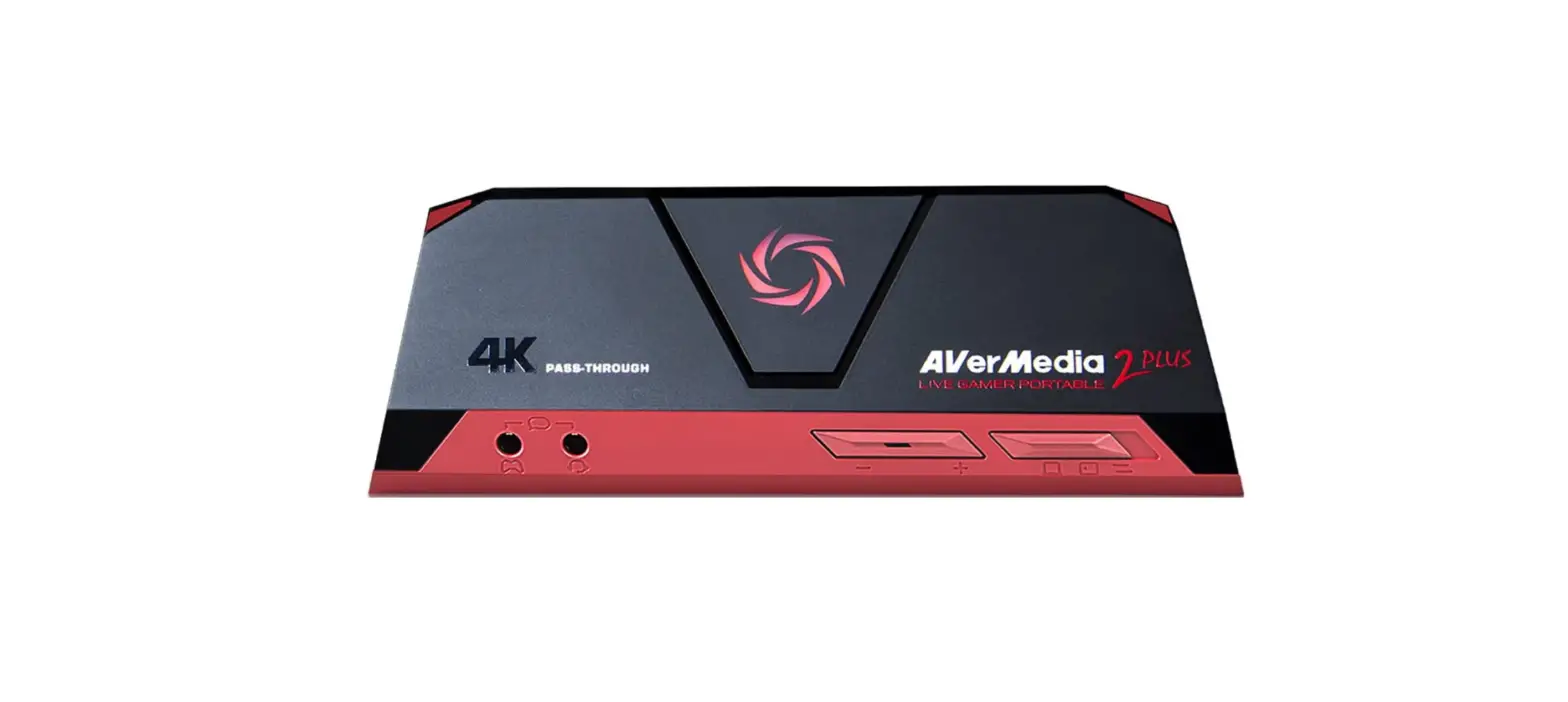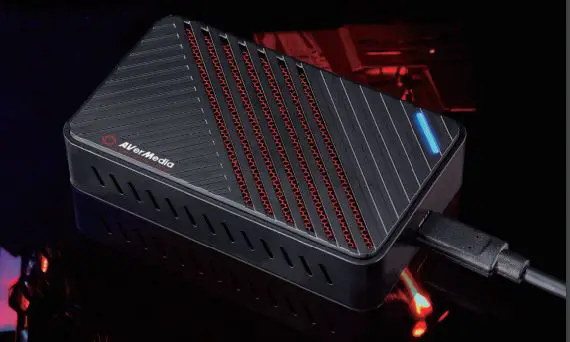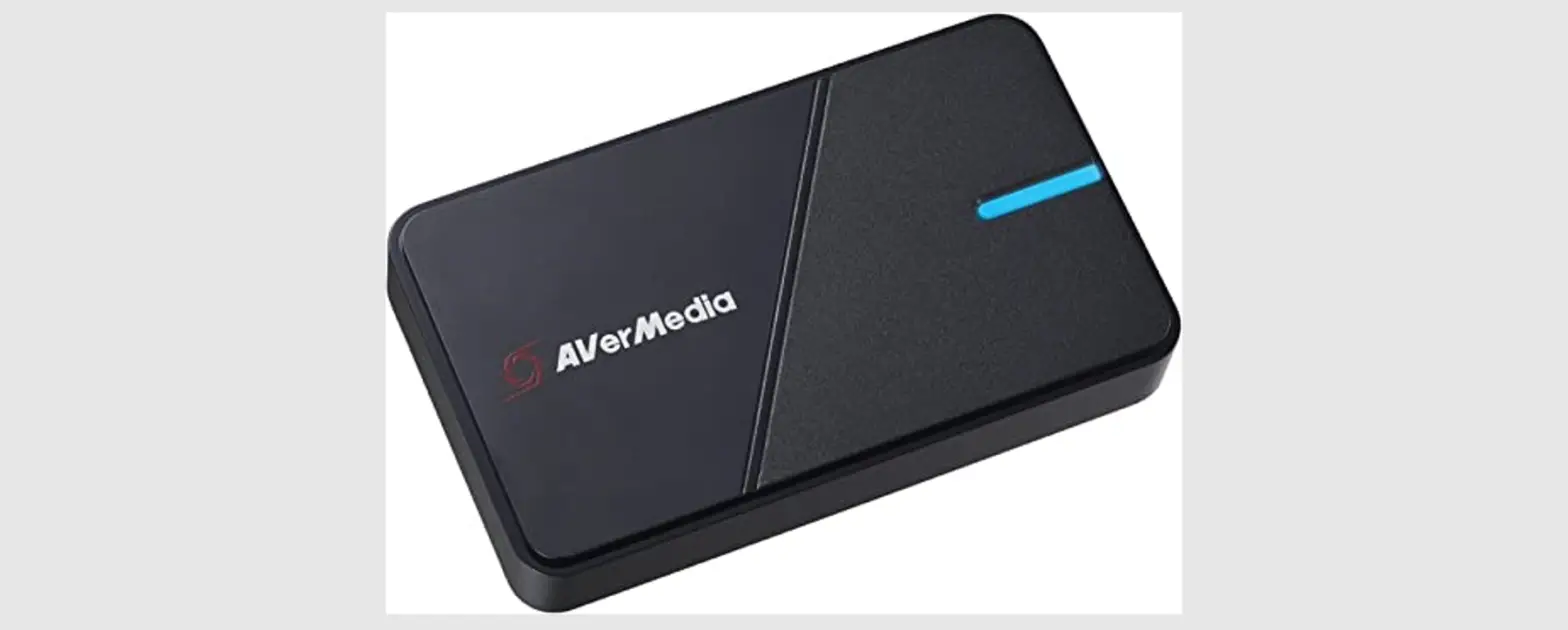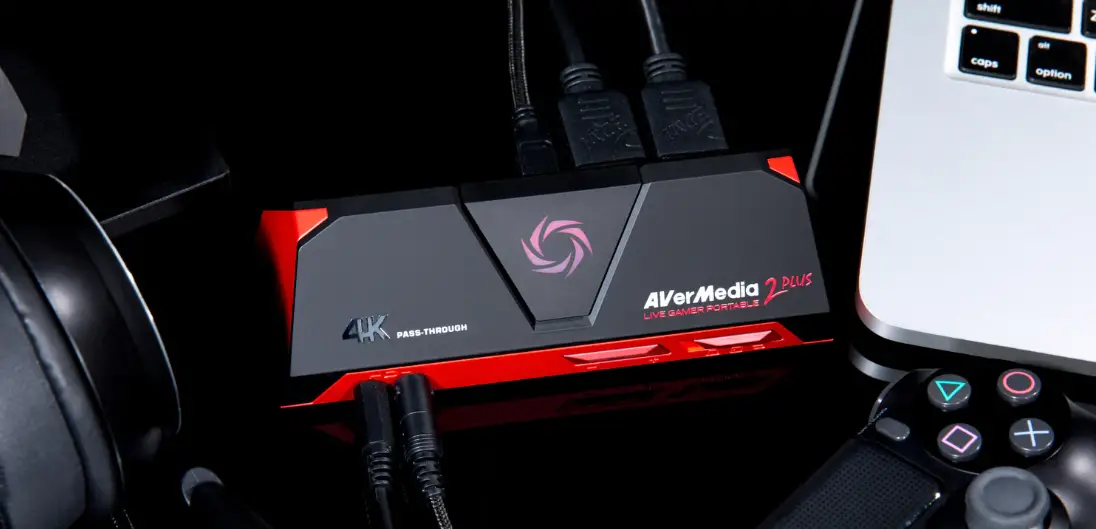

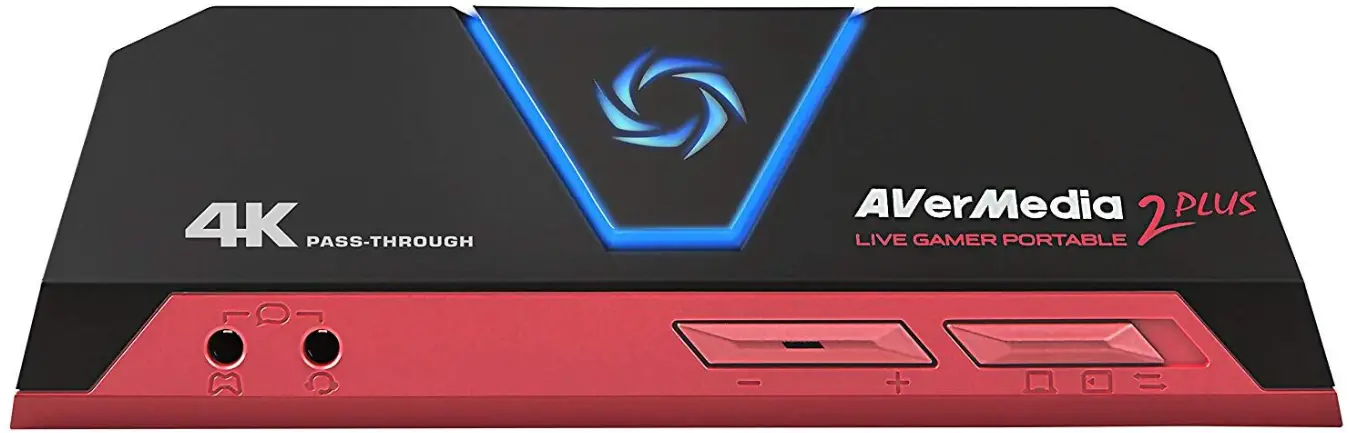
AVerMedia GC513 Live Gamer Portable 2 Plus
Date: 2022 Sept. For Amazon
AVerMedia Customer Service Team
[email protected]
System Requirements (For dedicated streaming PC)
https://www.avermedia.com/us/product-detail/GC513
Operating System : Windows ® 10 or later / 8.1/ 7 / macOS (Support UVC Protocol)
For 1080p60
Desktop:
- Intel® Core™ i5 CPU i5-3330 or comparable (i7 recommended)
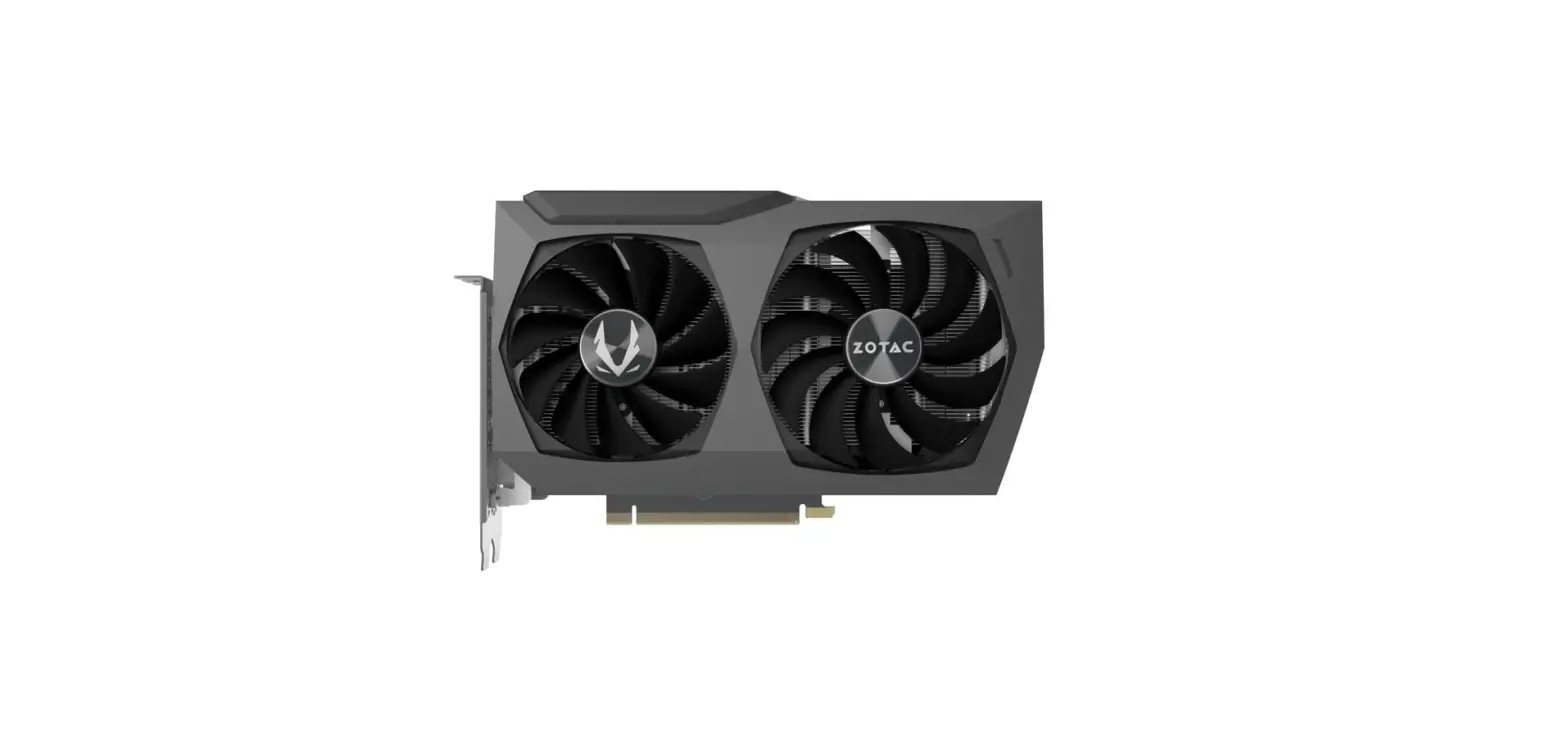
- NVIDIA® GTX 650 / AMD Radeon™ R7 250X or above are recommended
- 4GB RAM
Laptop:
- Intel® Core™ i7-4810MQ
- NVIDIA® GeForce® GTX 870M
- 4 GB RAM (8 GB recommended)
Operating System:
- Mac with an Intel processor: macOS 10.13 or later
- Mac with an Apple M1 processor: macOS 10.13 ~ macOS 11 (* Not compatible with macOS 12)
iMac 2013:
- 2.9GHz quad-core Intel Core i5 processor
- NVIDIA GeForce GT 750M graphics processor with 1GB of GDDR5 memory
- 16GB of 1600MHz DDR3L onboard memory
MacBook Pro 2013:
- 2.5GHz quad-core Intel Core i7 processor
- NVIDIA GeForce GT 750M with 2GB of GDDR5 memory and automatic graphics switching
- 16GB of 1600MHz DDR3L onboard memory
MacBook Pro 2017:
- 2.8GHz quad-core Intel Core i7 processor
- AMD Radeon Pro 555(2GB GDDR5) at least
- 16GB of 2133MHz LPDDR3 at least
Notes:
- LGP2 PLUS does not support viewing/recording/streaming of HDCP protected signals
- Micro SD Class 10 card is required for PC-Free recording, Micro SD card is not included.
- Micro SD maximum capacity support: 128GB
- Micro SD Supported formats: FAT32 format / exFAT format
- When using the “FAT32 format” microSD card, Due to the specification of FAT32, movies are divided and saved every 4 GB (about 25 minutes).
- Continuous recording is possible when using “exFAT format” microSD card
Typical issue trouble shooting
Question 1:
My GC513 does not power on, how can I fix it?
Answer:
Please try plugging into different USB ports or to an outlet by using our cable in the package.
To ensure your situation get resolved, please contact us: [email protected]
Question 2:
How do I make sure my GC513 can work on PC free mode?
Answer:
- Micro SD Class 10 card is required for PC-Free recording, Micro SD card is not included.
- Micro SD maximum capacity support: 128GB
- Micro SD Supported formats: FAT32 format / exFAT format
- To ensure your situation get resolved, please contact us: [email protected]
Question 3:
My GC513 does not record audio in OBS Studio, how can I do?
Answer:
You should also add Audio Output Source in your OBS and select your default playback device. Open Settings, and click on the Audio tab- >Select the audio device that monitored audio will playback over. To ensure to resolve your situation, please contact us: [email protected]
Question 4:
I receive sizzling sound when connect my controller on GC513 with audio jack adapter?
Answer:
Please make sure to not to power your game controller on your console while connecting it to AVerMedia GC513 this will cause audio interference issue.
 Live Gamer Portable 2 PLUS - GC513 | AVerMedia