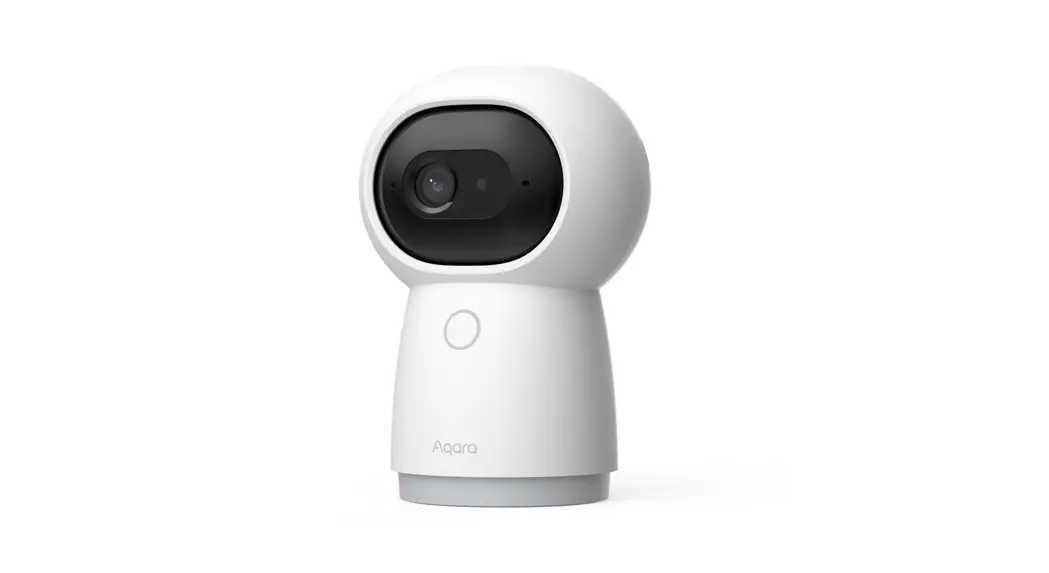
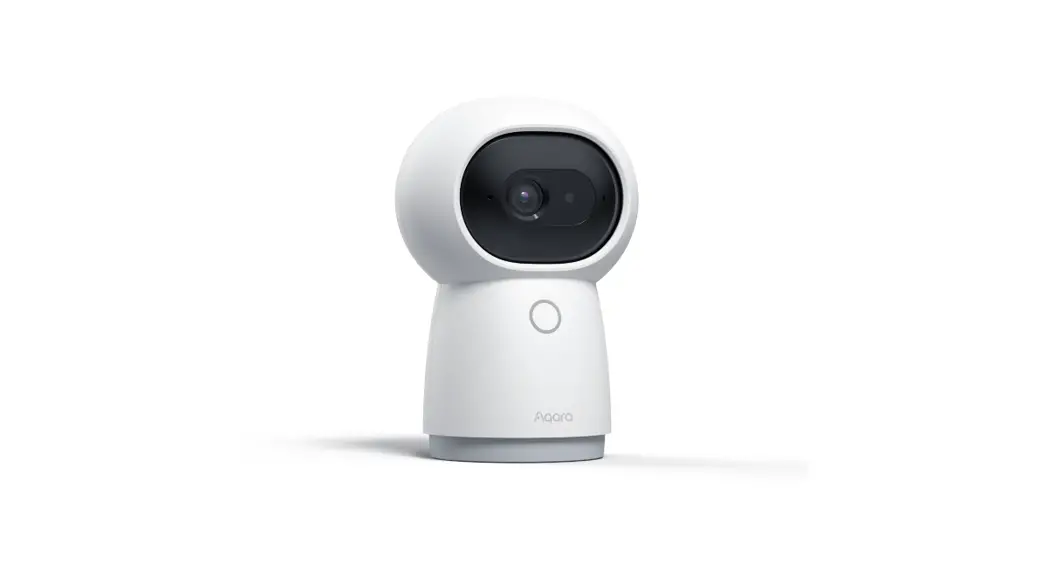
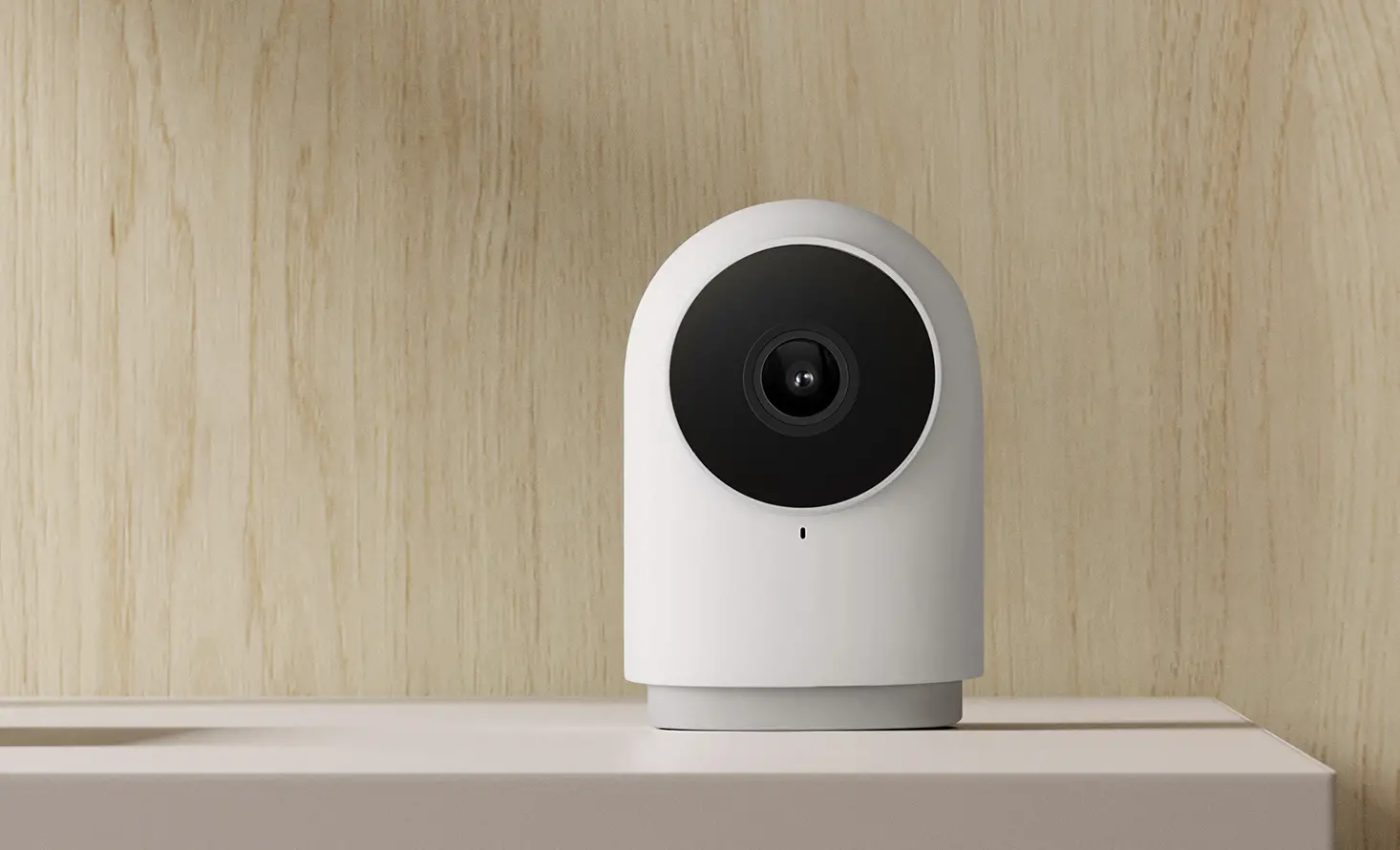
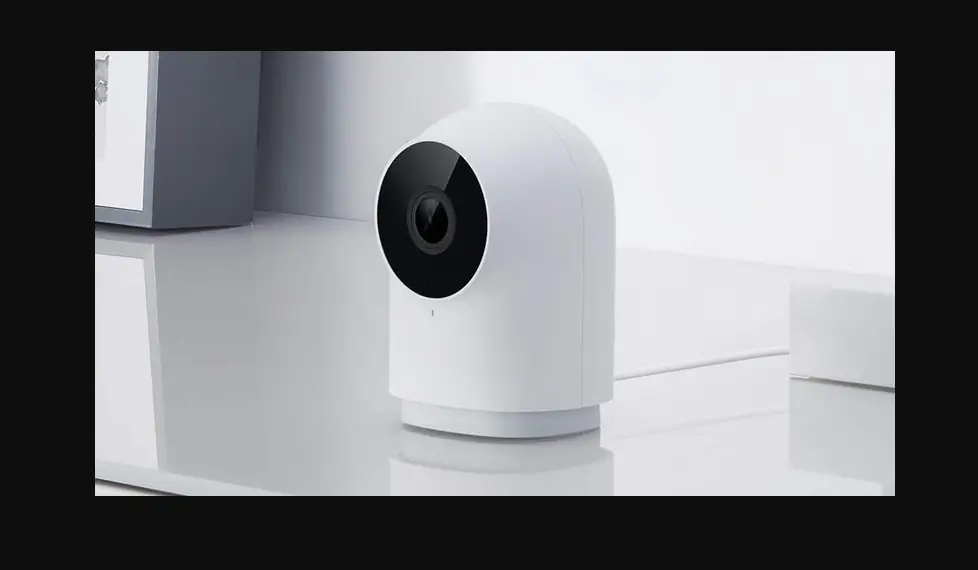
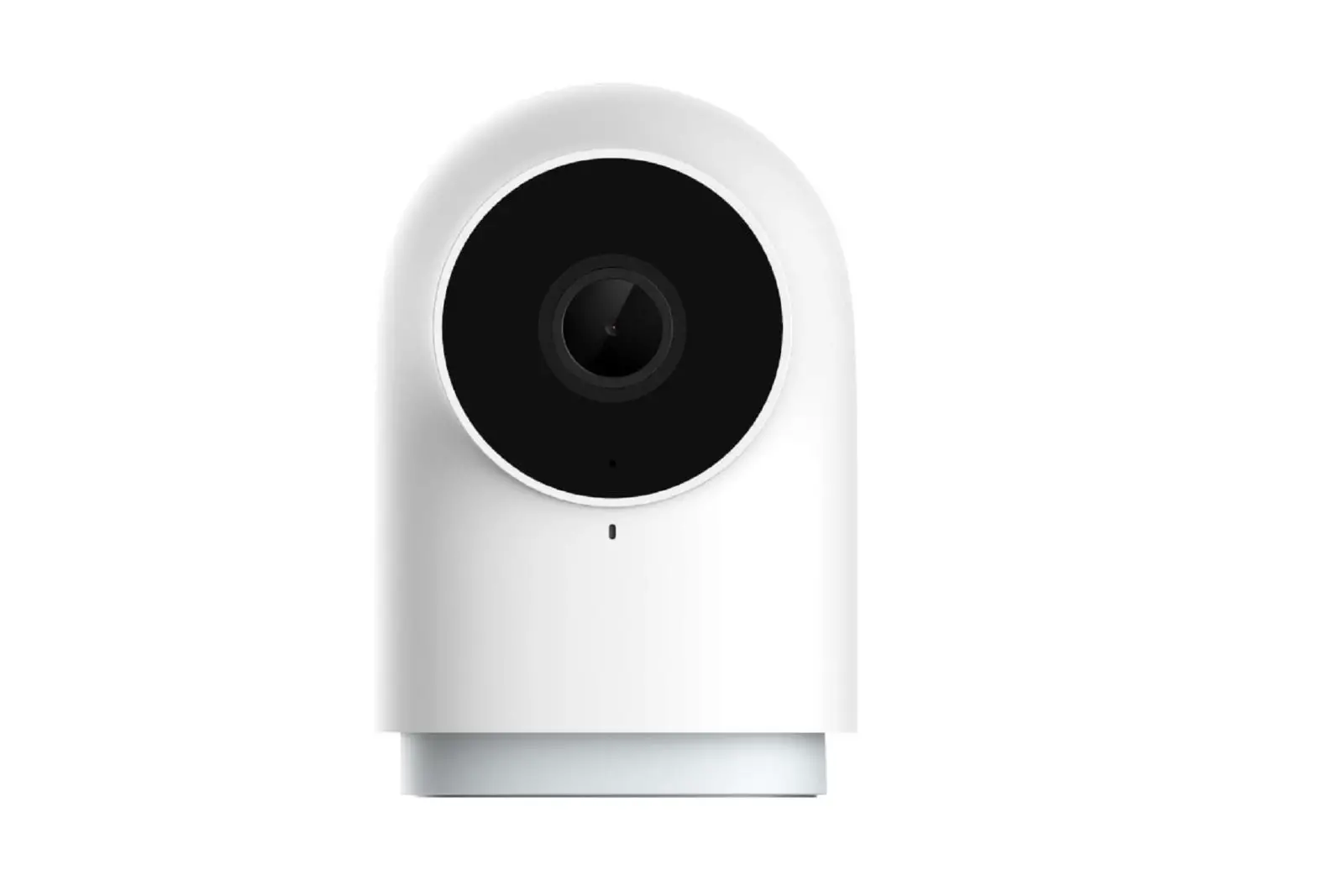
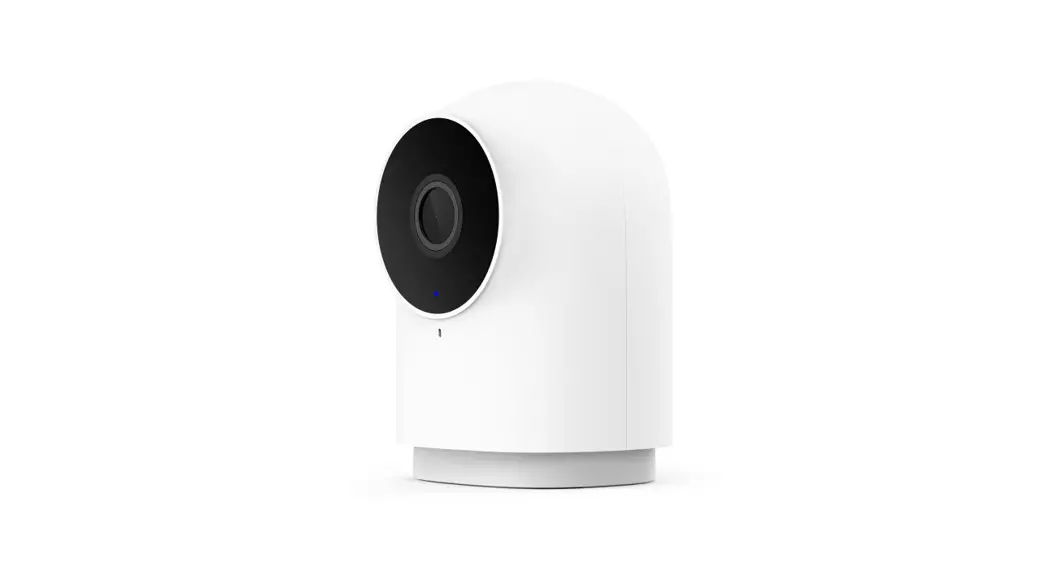
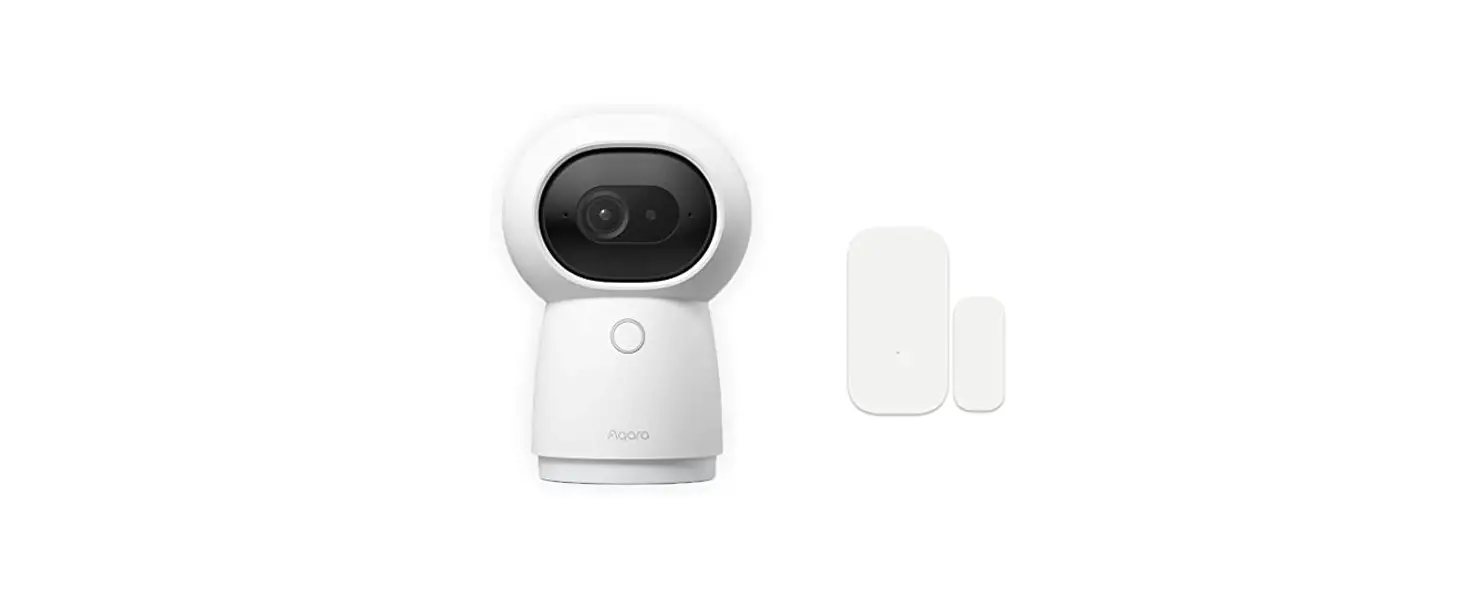
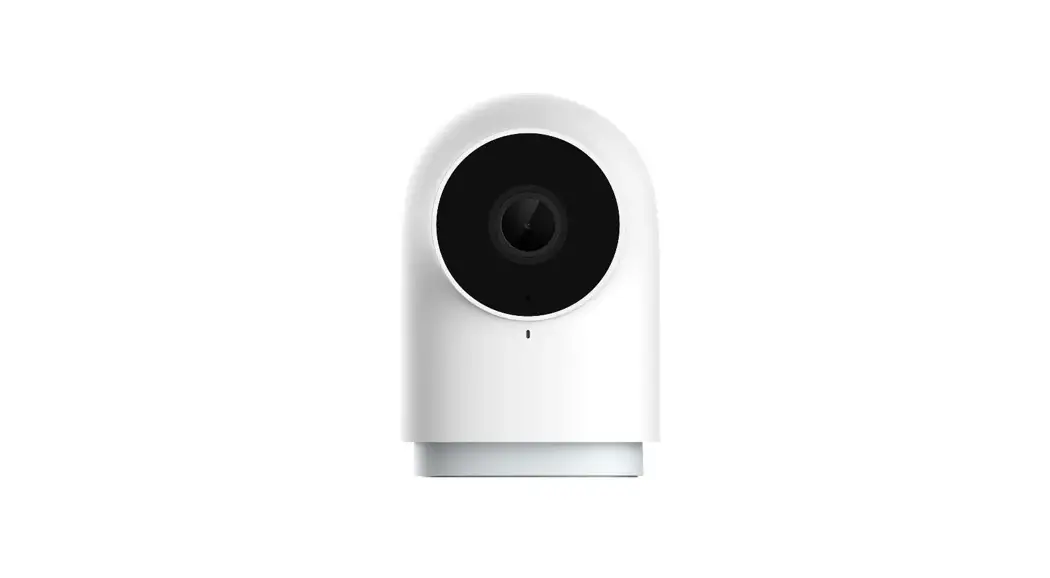
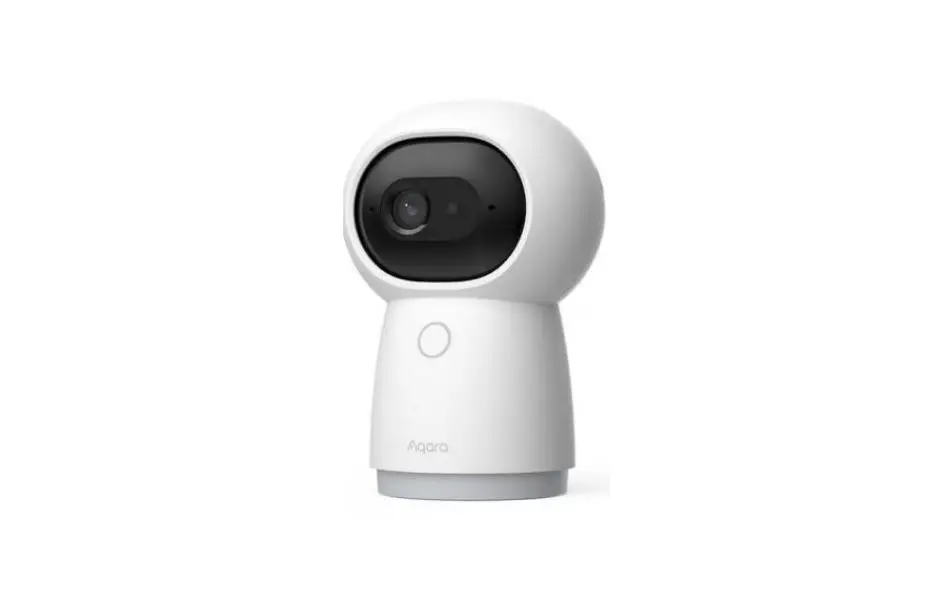
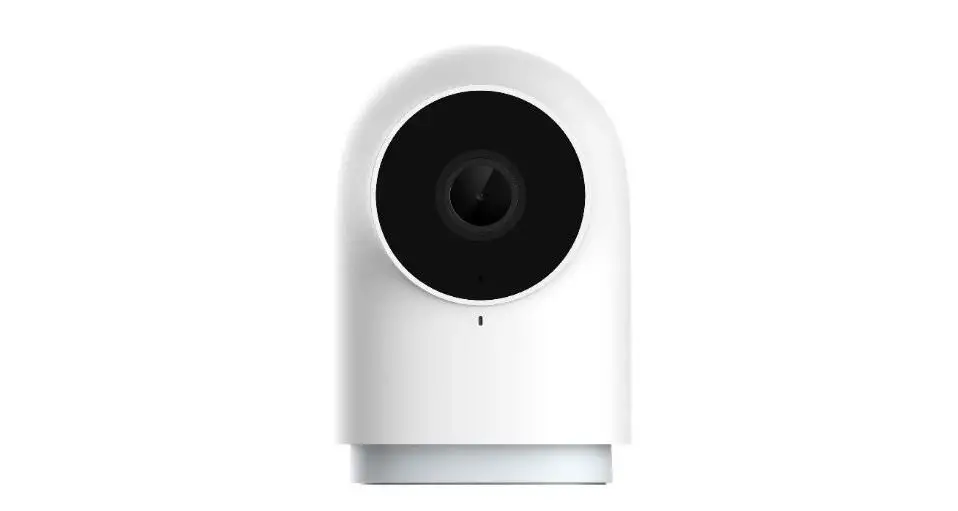
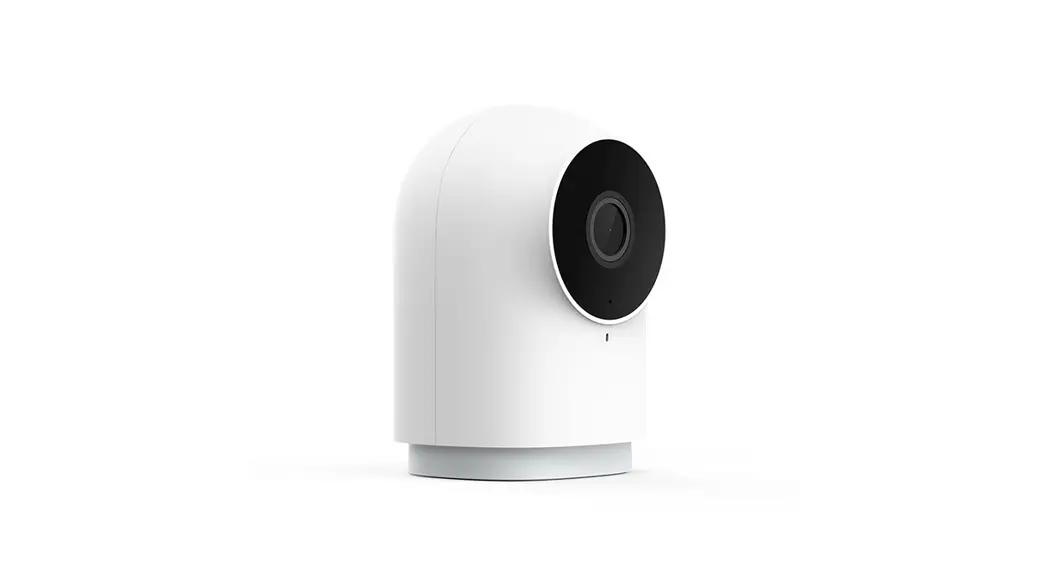
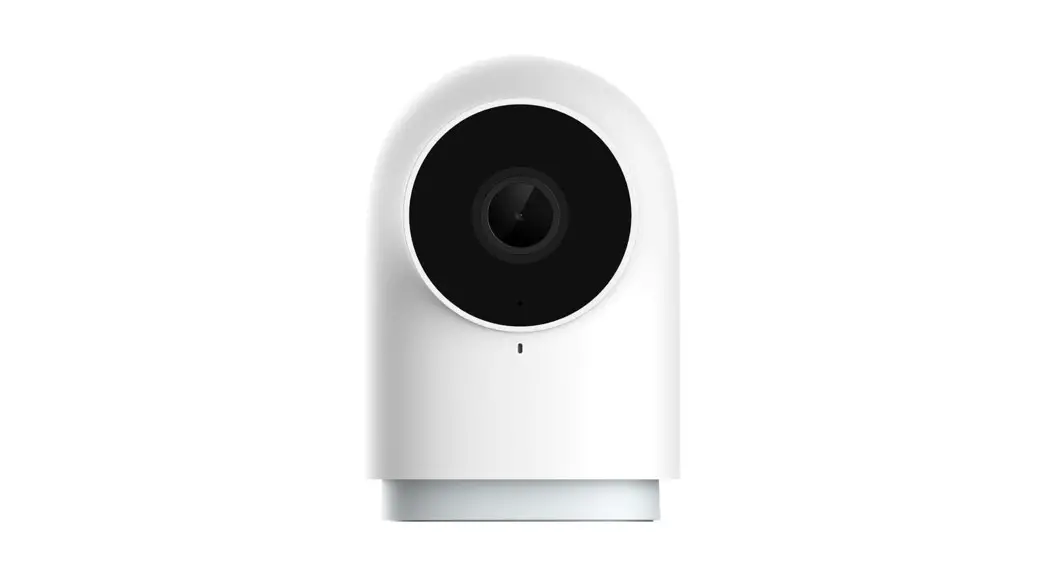
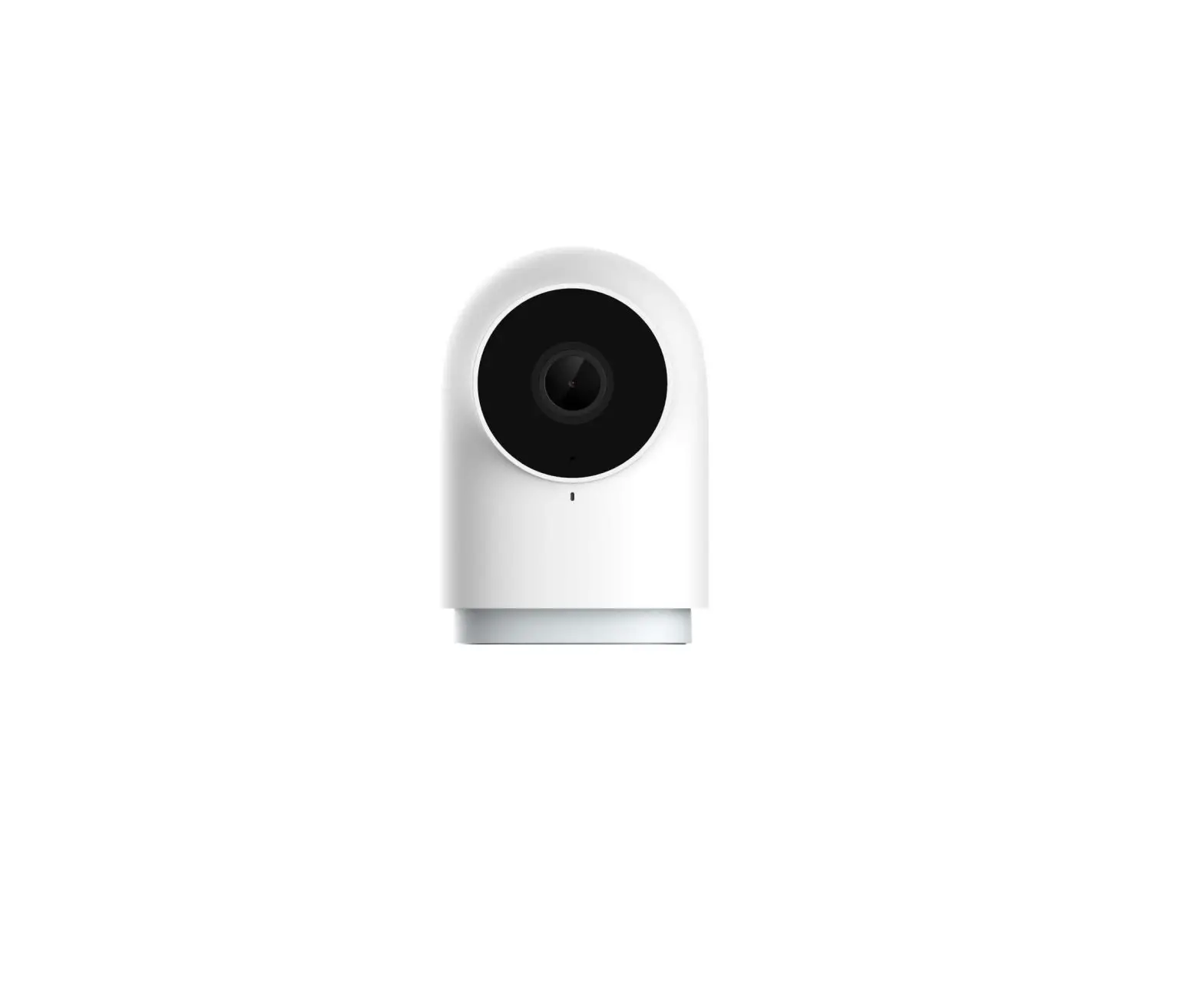
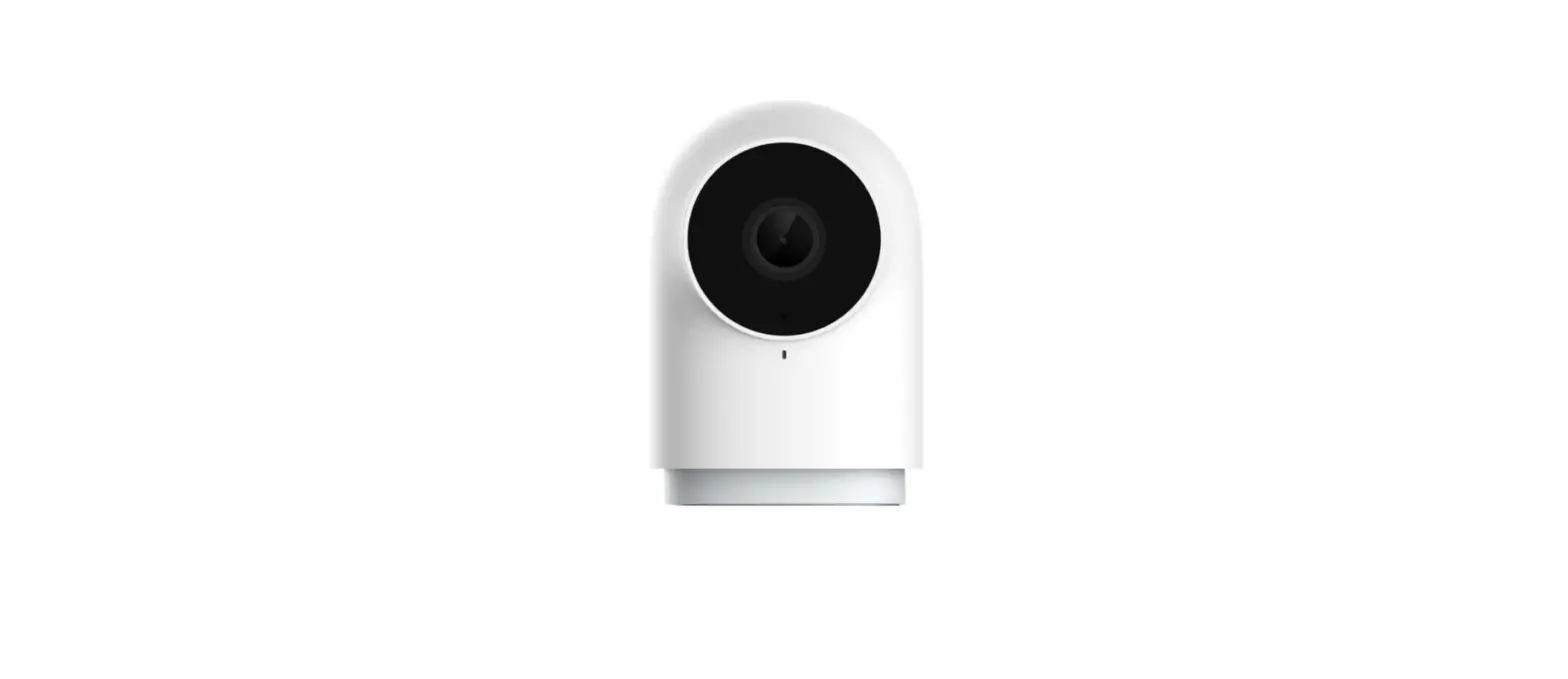
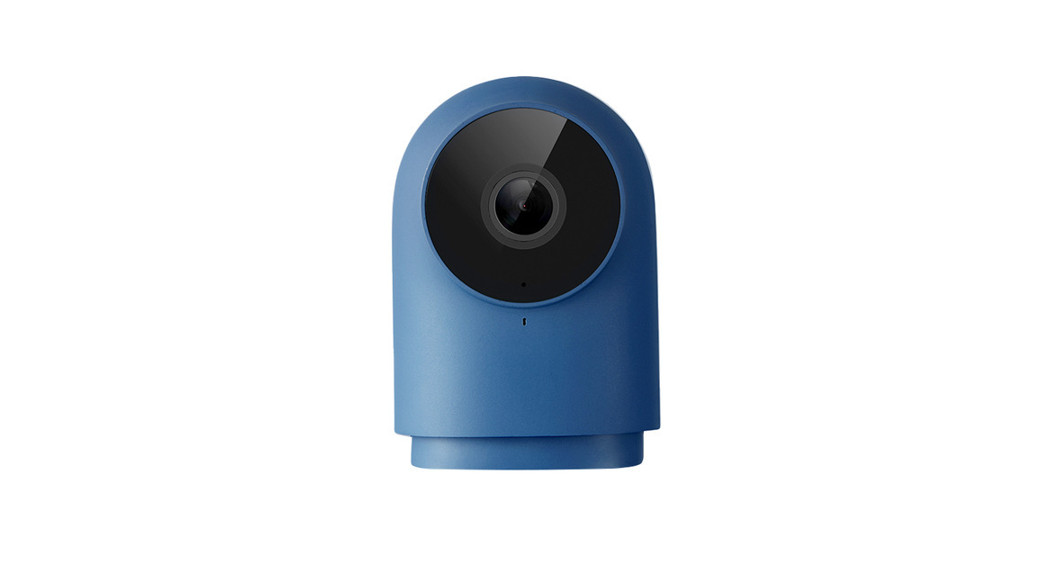
Hub G3 Pan and Tilt Surveillance Camera
Product Information
The Camera Hub G3 is a versatile camera hub that allows you to
monitor and record video footage. It features a microphone, lens,
function button, microphone illumination sensor, and status
indicator. The camera hub also has a speaker, PT (pan-tilt)
mechanism, and a microSD card slot for storage. It can be powered
using the Type-C 5V 2A power port or connected to a PC via USB for
video streaming.
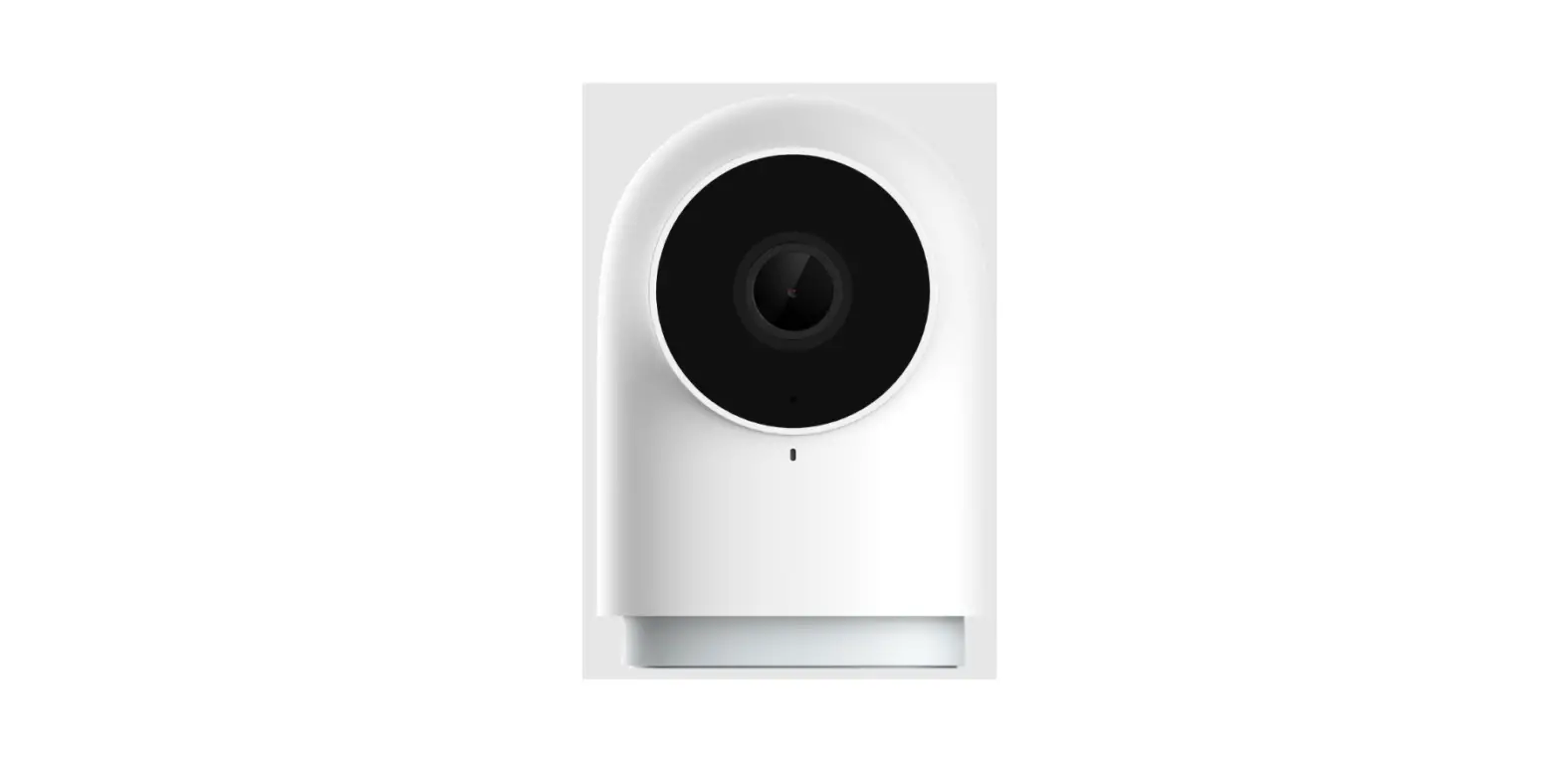
Front View:
- Microphone
- Lens
- Function Button
- Microphone Illumination Sensor
- Status Indicator
Rear View:
- Speaker
- PT and microSD card slot
- Type-C 5V 2A Power Port
- Vertical PT Mechanism
- Horizontal PT Mechanism
Product Usage Instructions
Quick Setup:
- Download the Aqara Home app from the Apple App Store, Google
Play, Xiaomi GetApps, Huawei App Gallery, or scan the provided QR
code. - Power up the camera by connecting the Type-C power cord to the
power adapter. The status indicator will turn yellow and flash
quickly.
- If the indicator does not turn yellow and flash quickly, press
the function button rapidly 10 times to restore the factory
settings.
steps:
- Open the Aqara Home app and click the “+” icon on the home
page. - Select “Camera Hub G3” and follow the app instructions.
- After a successful connection, the status indicator will turn
blue.
- If the device addition fails, please check the following:
- Ensure that the Wi-Fi name or password does not contain
unsupported special characters. - Make sure the mobile phone screen size is not less than 4.7
inches when scanning the QR code. - Check if the router has enabled Wi-Fi anti-squatter setting or
AP isolation, which may cause connection issues. - If no accessories are found, reset the camera, wait for 3
minutes, and manually enter the HomeKit setting code to add it
again.
operation manuals in the Aqara Home app.
Product Installation:
- The packaging box does not include a bracket, but the camera
supports a 1/4-inch threaded screw for mounting. Purchase a
compatible mount separately if wall mounting or lifting is
required. - Ensure that the camera is successfully added to the app before
mounting it on the wall. - The camera can be placed on horizontal surfaces such as a
writing desk, dining room table, bookcase, or coffee table. - If mounting the camera in an upright position, flip the image
in the Aqara Home app for normal viewing.
Camera Hub G3 User Manual
·1
G3: ·14
Caméra Hub G3 Manuel d’utilisation
·26
Kamera-Hub G3 Bedienungsanleitung
·38
Cámara Hub G3 Manual de Uso
·49
Camera Hub G3 Manuale di Istruzioni
·60
G3
·71
Product Introduction
The Camera Hub G3 is a pan and tilt (PT) surveillance camera, which integrates the hub function of the new generation of Zigbee and supports 2K (1296p) video. With the built-in NPU (neural network computing unit), it supports rich AI facial recognition functions, as well as HomeKit Secure Video. With automatic PT function, it supports fixed position setting, video cruise path planning, power-off memory, and other functions, and allows learning and replacing the remote control of various household appliances through the embedded infrared remote control module, which is a new generation of integrated hub camera product for home security and intelligent control of Aqara devices.
Front view of the Product:
Microphone Lens
Function Button
Microphone Illumination Sensor
Status Indicator
Button description: 1. Long press for 3 seconds: Push emergency alert message 2. Long press for 10 seconds: Reset the network and unbind the device 3. Press 10 times quickly: Restore the factory settings
1
Rear view of the product:
Speaker PT and microSD card slot:
Type-C 5V 2A Power Port Can also be connected to the PC USB port and used to stream the video to the computer.
Vertical PT Mechanism MicroSD Card Slot
Horizontal PT Mechanism
2
Quick Setup
1 Download the Aqara Home app Search for “Aqara Home” in the Apple App Store, Google Play, Xiaomi GetApps, Huawei App Gallery, or scan the following QR code to download the Aqara Home app.
2 Power up and turn on the camera Locate the power interface at the bottom of the product and plug the Type-C power cord to connect the power adapter. When the camera is started, the status indicator will turn yellow and flash quickly.
* If the indicator is not yellow and does not flash quickly, please try to press the function button rapidly 10 times to restore the factory settings. 3
3 Add camera
Connect to Aqara Home Open the Aqara Home app, click “+” in the upper right corner of the home page, select Camera Hub G3, and follow the instructions of the app to operate. A er a successful connection, the status indicator of the device will be blue. If the device addition fails, please confirm the following points:
* The Wi-Fi name or password contains an unsupported special character, such as, @, #, %, -, $, etc., resulting in a failure to connect to the router. Please change it to a commonly used character and try again.
* If the camera cannot recognize the QR code generated by the mobile phone. Please make sure that the screen size of the mobile phone is not less than 4.7 inches, and make sure that you don’t use the backlight of the camera to shoot the QR code.
* Check whether the router has enabled the Wi-Fi anti-squatter setting, which causes the camera to be unable to connect to the Internet.
* Check whether the router has enabled AP isolation, which leads to the failure to search the camera on the mobile phone in the LAN.
Connect to Apple HomeKit Open the Apple Home app, click the “+” in the upper right corner to go to the Add Accessories page, scan or manually enter the HomeKit setting code at the bottom of the camera, and bind the device to HomeKit. Instructions for HomeKit Addition Failures * It prompts that “Accessory failed to be added”. Due to repeated adding failure, the error message cached in the iOS system cannot be released. Please restart the iOS device and reset the camera and try again. * It prompts that “Accessories have been added”. A er restarting the iOS device and resetting the camera, manually enter the HomeKit setting code to add it again.
4
* It prompts that “No accessories are found”. Please reset the camera, wait for 3 minutes, and then manually enter the HomeKit setting code to add it again.
4 Add accessory A er the camera is added successfully, please open the Aqara Home app and refer to the operation manual of the accessory to add.
Product Installation
1 The packaging box of this product does not contain a bracket, but does support a 1/4-inch threaded screw. If wall mounting or li ing is required, the bracket or any other threaded screw-compatible mount shall be purchased separately.
2 Please ensure that the camera is successfully added to the app before mounting it on the wall.
3 The camera can be placed on a writing desk, dining room table, bookcase, coffee table or other horizontal surfaces for use.
4 A er mounting the camera in the li ing position, the image needs to be flipped in the Aqara Home app to be viewed normally.
* The camera should be placed within the range of wireless Wi-Fi signal coverage.
* Do not place it near a strong electromagnetic interference source. * Avoid a direct light source to camera lens at close range. * Make sure there are no obstructions around the device. * This product is only for indoor use.
5
Flatwise
Li ing
Wall mounting The above diagram shows the installation methods. In case of using a bracket/mount purchased separately, please refer to its installation guide.
6
Description of Status Indicator
Indicator status
Device status
The yellow indicator is on steady The camera is turning on
The yellow indicator flashes quickly
Waiting to connect to the network
The blue indicator flashes quickly Connecting to the network
Connected to the network The blue indicator flashes slowly successfully and the
account is being bound
The blue indicator is on steady
Working properly
The red indicator is on steady Live video is in progress
The white indicator is on steady
No network is connected in 10 minutes a er starting
The purple indicator flashes
Accessories are allowed to be added
The yellow indicator flashes slowly Upgrading the firmware
The indicator is turned
Off
off/the device sleeps/the
device is not powered on
7
Specifications
Product Model: CH-H03 Video Coding: H.264 Resolution: 2K (2304×1296p) Power supply Input: 5V2A Viewing Angle: 110° Overall Power Consumption: 10W (MAX) Product Dimensions: 123.4 × 85.1 × 67.8 mm (4.86 × 3.35 × 2.67 in.) Working Temperature: -10¥ ~ 40¥ (14°F ~ 104°F) Pan/Tilt Angle: Horizontal 340°, vertical 45° (upward 30°, downward 15°) Wireless Protocol: Wi-Fi IEEE 802.11b/g/n/a/ac 2.4/5GHz, Zigbee 3.0 Local Storage: MicroSD card (supports products with CLASS 4 or above, compatible with exFat and FAT32 file formats, and supports a maximum capacity of 128GB)
Notice
Use of the Works with Apple badge means that an accessory has been designed to work specifically with the technology identified in the badge and has been certified by the developer to meet Apple performance standards. Apple is not responsible for the operation of this device or its compliance with safety and regulatory standards. A 10-day recording history from your Camera Hub G3 is securely stored in iCloud and available to view in the Apple Home app on your iPhone, iPad, or Mac. You can add one camera to your 200GB plan or up to five cameras to your 2TB plan at no additional cost. Camera recordings don’t count against your iCloud storage limit.
8
Communication between iPhone, iPad, Apple Watch, HomePod, or Mac and the HomeKit- enabled Camera Hub G3 is secured by HomeKit technology.
Warnings
* This product is NOT a toy. Please keep children away from this product. * This product is designed for indoor use only. Do NOT use in humid
environments or outdoors. * Beware of moisture, do NOT spill water or other liquids onto the product. * Do NOT place this product near a heat source. Do NOT place it in an
enclosure unless there is normal ventilation. * Do NOT attempt to repair this product by yourself. All repairs should be
performed by an authorized professional. * This product is only suitable for improving the convenience of your home
life and reminding you about the status of your devices. It should NOT be used as security equipment for home, building, warehouse, or any other places. If a user violates the product use instructions, the manufacturer will NOT be liable for any risks and property losses.
Under normal use of condition, this equipment should be kept a separation distance of at least 20 cm between the antenna and the body of the user.
Wi-Fi Operation Frequency(2.4GHz)
Wi-Fi Operation Frequency(5GHz)
2412-2472 MHz
CH36-CH48 5150-5250 MHz CH52-CH64 5250-5350 MHz CH100-CH140 5470-5725 MHz CH149-CH165 5725-5850 MHz
Wi-Fi Maximum Output Power
20 dBm
Zigbee Operation Frequency
2405-2480 MHz
Zigbee Maximum Output Power
13 dBm
9
EU Declaration of Conformity Hereby, Lumi United Technology Co., Ltd declares that the radio equipment type Camera Hub G3, CH-H03 is in compliance with Directive 2014/53/EU. The full text of the EU declaration of conformity is available at the following internet address: https://www.aqara.com/DoC/.
UK Declaration of Conformity Hereby, Lumi United Technology Co., Ltd declares that the radio equipment type Camera Hub G3, CH-H03 is in compliance with Directive 2017 (SI 2017 No. 1206, as amended by SI 2019 No. 696). The full text of the UK declaration of conformity is available at the following internet address: http://www.aqara.com/DoC/.
WEEE Disposal and Recycling Information All products bearing this symbol are waste electrical and electronic equipment (WEEE as in directive 2012/19/EU) which should not be mixed with unsorted household waste. Instead, you should protect human health and the environment by handing over your waste equipment to a designated collection point for the recycling of waste electrical and electronic equipment, appointed by the government or local authorities. Correct disposal and recycling will help prevent potential negative consequences to the environment and human health. Please contact the installer or local authorities for more information about the location as well as the terms and conditions of such collection points.
10
FCC ID: 2AKIT- CHH03 Federal Communications Commission (FCC) compliance statement: 1. This device complies with part 15 of the FCC Rules. Operation
is subject to the following two conditions:
(1) This device may not cause harmful interference. (2) this device must accept any interference received, including
interference that may cause undesired operation.
2. Changes or modifications not expressly approved by the party responsible for compliance could void the user’s authority to operate the equipment.
Note: This equipment has been tested and found to comply with the limits for a Class B digital device, pursuant to part 15 of the FCC Rules. These limits are designed to provide reasonable protection against harmful interference in a residential installation. This equipment generates, uses, and can radiate radio frequency energy and, if not installed and used in accordance with the instructions, may cause harmful interference to radio communications. However, there is no guarantee that interference will not occur in a particular installation. If this equipment does cause harmful interference to radio or television reception, which can be determined by turning the equipment off and on, the user is encouraged to try to correct the interference by one or more of the following measures: -Reorient or relocate the receiving antenna.
11
-Increase the separation between the equipment and receiver. -Connect the equipment into an outlet on a circuit different from that to which the receiver is connected. -Consult the dealer or an experienced radio/TV technician for help.
RF Exposure statement: This equipment complies with FCC radiation exposure limits set forth for an uncontrolled environment. This equipment should be installed and operated with minimum distance of 20 cm between the radiator and your body. This transmitter must not be co-located or operating in conjunction with any other antenna or transmitter.
IC: 22635- CHH03 IC NOTICE TO CANADIAN USERS This device contains license-exempt transmitter(s)/receiver(s) that comply with Innovation, Science and Economic Development Canada’s license-exempt RSS(s). Operation is subject to the following two conditions: (1) This device may not cause interference. (2) This device must accept any interference, including
interference that may cause undesired operation of the device.
This Class B digital apparatus complies with Canadian ICES003. This device complies with RSS247 of Industry Canada. Operation is subject to the condition that this device does not cause harmful interference. This equipment complies with IC radiation exposure limits set forth for an uncontrolled environment. This equipment should be installed and operated with minimum distance of 20 cm
12
between the radiator and your body. This transmitter must not be co-located or operating in conjunction with any other antenna or transmitter. Manufacturer: Lumi United Technology Co., Ltd. Address: 8th Floor, JinQi Wisdom Valley, No.1 Tangling Road, Liuxian Ave, Taoyuan Residential District, Nanshan District, Shenzhen, China. Online Customer Service: www.aqara.com/support Email: [email protected]
13
G3 (PT), Zigbee 2K, NPU, – HomeKit Secure Video. , G3 , . – . G3 Aqara .
14
: 1. 3 :
2. 10 :
3. 10 :
PT TF
Type-C (5 2)
PT:
TF PT:
15
:
1 «Aqara Home» , App Store, Google Play, Huawei App Gallery Xiaomi GetApps QR- , «Aqara Home».
, Aqara Home 2 Type-C, . .
16
* , 10 , .
3
Aqara Home Aqara Home, «+», G3 . . , :
* Wi-Fi , , . .
* QR-, . , 4,7 QR- .
* , Wi-Fi, – .
* , AP, – .
Apple HomeKit Apple «», «+» ,
17
HomeKit (, ), HomeKit. HomeKit * « ». –
iOS . , iOS , . * « ». , iOS , Homekit, . * « ». , 3 , Homekit, .
4
Aqara Home .
1 . , .
2 , .
18
3 , , .
4 .
. , .
19
* Wi-Fi.
* .
* .
* , . *
.
.
10 ,
/ /
20
: CH-H03 : H.264 : 2K (2304×1296p) : 52 : 110° : 10 (.) : 123.4×85.1×67.8 : -10 ~ 40 PT: 340°, 45° ( 30°, 15°) : Wi-Fi 802.11b/g/n/a/ac 2.4/5, Zigbee 3.0 : MicroSD ( CLASS 4 , exFAT FAT32, 128 )
« Apple» , , , Apple. Apple . 10- Camera Hub G3
21
iCloud Apple Home iPhone, iPad Mac. 200 2 . iCloud. iPhone, iPad, Apple Watch, HomePod Mac Camera Hub G3 HomeKit HomeKit.
!
* – . , .
* . .
* , .
* . , .
* . .
* , . , .
22
* , , .
20 .
Wi-Fi(2.4)
Wi-Fi(5)
24122472
CH36-CH48 5150-5250 CH52-CH64 5250-5350 CH100-CH140 5470-5725 CH149-CH165 5725-5850
Wi-Fi
Zigbee
Zigbee
20 2405-2480
13
23
, . . -10°~40°C (14°F~104°F) : : 1. . 2.
*
.
24
: Lumi United Technology Co., Ltd. : 8th Floor, JinQi Wisdom Valley, No.1 Tangling Road, Liuxian Ave, Taoyuan Residential District, Nanshan District, ShenzhenChina – : www.aqara.com/support : [email protected]
25
Présentation du produit
Caméra Hub G3 est une caméra de surveillance PT, qui intègre la fonction de nouvelle génération pour le hub Zigbee, prend en charge la vidéo ultra-claire 2K, dispose d’une unité intégrée de traitement du réseau neuronal (NPU), prend en charge une fonction de reconnaissance riche en IA, et prend en charge la vidéo de sécurité HomeKit. S’appuyant sur la fonction PT automatique, il peut être utilisé pour définir la position habituelle, la planification de trajectoire de croisière vidéo et de soutenir des fonctions pratiques telles que la mémoire de coupure de courant, ainsi que d’apprendre et de remplacer l’opération de télécommande de divers appareils ménagers par le module de télécommande infrarouge intégré, c’est un produit de caméra hub complet pour la sécurité de toute la famille et le contrôle intelligent de toute nouvelle génération d’Aqara.
Vue avant du produit
Microphon Caméras lens Touche de fonction
Microphon Capteur photosensible Indicateur d’état
26
Description de la Touche de Fonction 1. Appuyez longuement pendant 3 secondes : Pour pousser le message
d’alarme d’urgence 2. Appuyez longuement pendant 10 secondes : Pour réinitialiser le réseau et
dissocier l’appareil 3. Appuyez rapidement 10 fois : Pour restaurer les paramètres de l’usine
Vue arrière du produit
Haut-parleur PT and microSD card slot:
Port d’alimentation de type C
PT vertical Fente pour carte TF
PT horizontal 27
Configuration Rapide
1 Télécharger le client Recherchez le « Aqara Home » dans l’App Store ou scannez le code QR ci-dessous pour télécharger l’application « Aqara Home ».
Scannez le code pour télécharger l’application Aqara Home 2 La caméra est allumée Recherchez l’interface d’alimentation en bas du produit, insérez le cordon d’alimentation de type C et allumez l’adaptateur secteur. Une fois l’appareil photo démarré, l’indicateur d’état se transforme en un voyant jaune clignotant rapidement.
28
* Si l’indicateur ne s’affiche pas en jaune clignotant rapidement, la touche de fonction essaiera d’appuyer et de la maintenir enfoncée pendant 10 secondes pour restaurer les paramètres d’usine.
3 Ajout de la caméra
Accès à Aqara Home. Ouvrez l’application Aqara Home, cliquez sur « + » dans le coin supérieur droit de la page d’accueil, sélectionnez les caméras intelligentes G3 (version hub) et suivez les instructions de l’application. Après une connexion réussie, l’indicateur d’état restera en bleu dans l’appareil. En cas d’échec de l’ajout de l’appareil, veuillez confirmer les points suivants :
* Le nom wi-fi ou le mot de passe contient des caractères spéciaux qui ne sont pas pris en charge, ce qui rend impossible de se connecter au routeur. Veuillez les modifier en caractères communs et essayer à nouveau.
* La caméra ne peut pas reconnaître le code QR généré par le téléphone mobile. S’il vous plaît assurez-vous que l’écran du téléphone mobile n’est pas moins de 4.7 pouces, et assurez-vous que la caméra ne tire pas le code QR contre la lumière.
* Vérifiez si le routeur allume le paramètre Wi-Fi pour le réseau anti-frottement, ce qui provoque la caméra d’être incapable de se connecter au réseau normalement.
* Vérifiez si le routeur allume l’isolement AP, de sorte que le téléphone mobile ne puisse pas trouver la caméra dans le LAN.
Accès à Apple HomeKit Ouvrez l’application Apple « home », cliquez sur « + » dans le coin supérieur droit, entrez la page d’ajout d’accessoires, scannez ou entrez manuellement le code de réglage HomeKit en bas de l’appareil photo (veuillez l’enregistrer correctement),
29
et liez l’appareil à HomeKit. Directive commune d’échec pour ajouter le HomeKit
* Invite « Impossible d’ajouter des accessoires ». Les informations d’erreur mises en cache dans le système iOS ne peuvent pas être publiées en raison d’échecs d’ajout répétés. Veuillez redémarrer l’appareil iOS , réinitialiser la caméra et essayer à nouveau.
* Invite « Accessoires ajoutés ». Veuillez redémarrer l’appareil iOS et réinitialiser la caméra, puis l’ajouter à nouveau en entrant manuellement le code de réglage HomeKit.
* Invite « Pas d’accessoires trouvés ». Veuillez réinitialiser l’appareil photo, attendre 3 minutes, puis l’ajouter à nouveau en entrant manuellement le code de réglage HomeKit.
4 Ajout des appareils enfants
Une fois la caméra ajoutée avec succès, ouvrez l’application Aqara Home et référez-vous au manuel d’instructions du sous-appareil pour les ajouter.
Installation du produit
1 Il n’y a pas de support dans la boîte d’emballage de ce produit. S’il doit être fixé au mur ou hissé, il devra être acheté séparément.
2 Veuillez vous assurer que la caméra est correctement ajoutée à l’application avant qu’elle ne soit installée sur le mur.
3 La caméra peut être placée sur le bureau horizontal tel qu’un bureau, une table à manger, une bibliothèque et une table basse.
4 Après avoir été hissé, il est nécessaire de retourner l’image dans l’APP avant de prendre une visualisation normale.
30
Installation à plat
Installation de levage
Installation murale
La figure ci-dessus est le diagramme d’installation, veuillez-vous référer à la méthode d’installation réelle du support. *L’emplacement de la caméra doit se trouver dans la plage de couverture du signal Wi-Fi sans fil. *Ne pas disposer près de fortes sources d’interférence électromagnétique. *Pas de source de lumière directe près de la caméra lens. *Assurez-vous qu’il n’y a pas d’obstacles étroits autour de l’équipement. *Ce produit est disponible uniquement pour une utilisation à l’intérieur.
31
Conseils par rapport à l’indicateur
État de l’indicateur Lumière jaune normalement
allumée Lumière jaune clignotant
rapidement
Lumière bleue clignotant rapidement
Lumière bleue clignotant lentement
Lumière bleue normalement allumée
Lumière rouge normalement allumée
Lumière blanche normalement allumée
Lumière violette clignotant
Lumière jaune clignotant lentement
Lumière éteinte
État de l’appareil
Démarrage
En attente d’une connexion réseau
Connexion au réseau
La connexion réseau est réussie et le compte est lié.
En fonctionnement normal
Dans la vidéo en direct
Démarrage pendant 10 minutes sans le réseau
configuré Autoriser et ajouter des
sous-équipements Mise à niveau du firmware
en cours TLa lumière de l’indicateur
est éteinte/l’appareil dort/l’appareil n’est pas
alimenté
32
Paramètre de base
Modèle de produit: CH-H03 Codage vidéo: H.264 Taux de résolution: 2K(2304×1296p) Entrée de puissance: 5V2A Angle de vision: 110° Consommation d’énergie: 10W (MAX) Taille du produit: 123.4×85.1×67.8mm (4.86×3.35×2.67 in.) Température de travail: -10¥~40¥ (14°F~104°F) Angle PT : Horizontale 340°, verticale 45° (vers le haut 30°, vers le bas 15°) Connexion sans fil:Wi-Fi IEEE 802.11b/g/n/a/ac 2.4/5GHz, Zigbee3.0 Stockage local : Carte MicroSD (support CLASS 4 ou plus, compatible avec les formats de fichiers exFat et FAT32, d’une capacité maximale de 128 Go)
Avis
L’utilisation du badge Works with Apple signifie qu’un accessoire a été conçu pour fonctionner spécifiquement avec la technologie identifiée dans l’insigne et a été certifié par le développeur pour répondre aux normes de performance d’Apple. Apple n’est pas responsable de l’exploitation de cet appareil ni de sa conformité aux normes de sécurité et de réglementation. Un historique d’enregistrement de 10 jours à partir de votre Camera Hub G3 est stocké en toute sécurité dans iCloud et peut être consulté dans l’app Apple Home sur votre iPhone, iPad ou Mac. Vous pouvez ajouter un appareil photo à votre plan de 200
33
Go ou jusqu’à cinq caméras à votre plan 2 To sans frais supplémentaires. Les enregistrements d’appareils photo ne comptent pas par rapport à votre limite de stockage iCloud. La communication entre iPhone, iPad, Apple Watch, HomePod ou Mac et le Camera Hub G3 compatible HomeKit est assurée par la technologie HomeKit.
Avertissements
* Ce produit N’EST PAS un jouet Maintenez-le hors de portée des enfants. * Cet appareil ne doit être utilisé qu’à l’intérieur. Ne l’utilisez PAS à
l’extérieur ou dans des environnements humides. * Méfiez-vous de l’humidité, et n’éclaboussez pas l’appareil d’eau ni
d’autres liquides. * Ne placez PAS ce produit près d’une source de chaleur. Ne le mettez PAS
dans un lieu clos, à moins qu’il ne soit suffisamment ventilé. * N’essayez PAS de réparer vous-même cet appareil. Toute réparation doit
être effectuée par un professionnel agréé. * Ce produit n’est destiné qu’à un usage domestique de divertissement, de
praticitéou d’aide-mémoire. Si un utilisateur enfreint les instructions d’utilisation du produit, le fabricant ne sera responsable d’AUCUN risque ni perte de biens. * Ce produit n’est conçu que pour améliorer les divertissements et la praticité dans votre vie à la maison, et pour vous rappeler le statut de l’appareil Il ne doit PAS être utilisé comme équipement de sécurité domiciliaire, d’immeubles, d’entrepôts, etc. Si un utilisateur enfreint les instructions d’utilisation du produit, le fabricant ne sera responsable d’AUCUN risque ni perte de biens.
34
Dans des conditions normales d’utilisation, cet équipement doit être maintenu à une distance d’au moins 20 cm entre l’antenne et le corps de l’utilisateur.
Fréquence de fonctionnement Wi-Fi(2.4GHz)
Fréquence de fonctionnement Wi-Fi(5GHz)
2412-2472 MHz
CH36-CH48 5150-5250 MHz CH52-CH64 5250-5350 MHz CH100-CH140 5470-5725 MHz CH149-CH165 5725-5850 MHz
Puissance maximale en sortie Wi-Fi
20 dBm
Fréquence de fonctionnement Zigbee
2405-2480 MHz
Puissance maximale en sortie Zigbee
13 dBm
Déclaration de conformité pour l’Union européenne Par la présente, Lumi United Technology Co., Ltd déclare que cet équipement radio de type Camera Hub G3, CH-H03 est conforme à la Directive européenne 2014/53/UE. L’intégralité de la déclaration de conformité pour l’UE est disponible à l’adresse suivante : https://www.aqara.com/DoC/
Informations sur la réglementation DEEE sur la mise au rebut et le recyclage Tous les produits portant ce symbole deviennent des déchets d’équipements électriques et électroniques (DEEE dans la Directive européenne 2012/19/UE) qui ne doivent pas être mélangés aux déchets ménagers non triés. Vous devez
35
contribuer à la protection de l’environnement et de la santé humaine en apportant l’équipement usagé à un point de collecte dédié au recyclage des équipements électriques et électroniques, agréé par le gouvernement ou les autorités locales. Le recyclage et la destruction appropriés permettront d’éviter tout impact potentiellement négatif sur l’environnement et la santé humaine. Contactez l’installateur ou les autorités locales pour obtenir plus d’informations concernant l’emplacement ainsi que les conditions d’utilisation de ce type de point de collecte.
IC: 22635-CHH03 L’émetteur/récepteur exempt de licence contenu dans le présent appareil est conforme aux CNR d’Innovation, Sciences et Développement économique Canada applicables aux appareils radio exempts de licence. L’exploitation est autorisée aux deux conditions suivantes: (1) L’appareil ne doit pas produire de brouillage. (2) L’appareil doit accepter tout brouillage radioélectrique subi,
même si le brouillage est susceptible d’en compromettre le fonctionnement.
Cet appareil numérique de la Classe B conforme à la norme NMB003 du Canada. Cet appareil est conforme à la norme RSS 247 d’Industrie Canada. Le fonctionnement est soumis à la condition que cet appareil ne provoque pas d’interférences nuisibles. Cet équipement est conforme aux limites d’exposition aux rayonnements de la IC établies pour unenvironnement non
36
contrôé. Cet équipement doit être installé et fonctionner à au moins 20cm de distance d’un radiateur ou de votre corps. Cet émetteur ne doit pas être co-localisé ou fonctionner en conjonction avec une autre antenne ou un autre émetteur. Fabricant: Lumi United Technology co., LTD. Adresse: Étage 8, Immeuble Jinqizhigu, 1 Route Tangling, Avenue Liuxian, Rue Taoyuan, District Nanshan, Shenzhen, Chine Website de service: www.aqara.com/support Email: [email protected]
37
Produkt-Einführung
Kamera-Hub G3 ist eine PT-Überwachungskamera, die die Funktion der neuen Generation für den Zigbee-Hub integriert, 2K-Ultra-Clear-Video unterstützt, eine eingebaute neuronale Netzwerkverarbeitungseinheit (NPU) hat, eine reichhaltige Erkennungsfunktion in AI unterstützt und HomeKit-Sicherheitsvideo unterstützt. Mit Hilfe der automatischen PT-Funktion kann die übliche Position eingestellt werden. Die Route der Videofahrt ist geplant. Es werden einige praktische Funktionen unterstützt, wie z. B. der Ausschaltspeicher. Die Fernbedienungsbedienung verschiedener Haushaltsgeräte wird durch das eingebettete Infrarot-Fernbedienungsmodul gelernt und ersetzt. Damit ist sie ein umfassendes Hub-Kamera-Produkt für Aqaras neue Generation der Heimsicherheit und intelligenten Steuerung.
Produkt Vorderansicht
Mikrofon Kameraobjektiv
Funktionstaste
Mikrofon Lichtempfindlicher Sensor
Statusanzeige
38
Beschreibung der Funktionstaste: 1. Langes Drücken für 3 Sekunden: Zum Pushen von Notfallalarm-Informa-
tionen 2. Langes Drücken für 10 Sekunden: Um das Netzwerk zurückzusetzen und
die Bindung des Geräts zu aufheben 3. 10-mal schnell drücken: Wiederherstellen der Werkseinstellungen
Rückansicht des Produkts
PT and microSD card slot:
Lautsprecher Typ-C-Netzeingang
Vertikal PT TF-Kartenschlitz
Horizontale PT 39
Schnelle Einrichtung
1 Download des Clients Suchen Sie im App-Store nach “Aqara Home” oder scannen Sie den untenstehenden QR-Code, um die App “Aqara Home” herunterzuladen.
Scannen Sie den Code, um die Aqara Home App herunterzuladen 2 Die Kamera ist eingeschaltet Suchen Sie die Stromversorgungsschnittstelle an der Unterseite des Produkts, stecken Sie das Typ-C-Netzkabel ein und schalten Sie den Stromadapter ein. Nach dem Start der Kamera wechselt die Statusanzeige in das gelbe Licht, das schnell blinkt.
40
* Wenn die Anzeige nicht in gelbem Licht erscheint schnell blinken, wird versucht, die Funktionstaste 10 Sekunden lang gedrückt zu halten, um die Werkseinstellungen wiederherzustellen.
3 Hinzufügen der Kamera
Zugang zum Aqara Home. Öffnen Sie die Aqara Home App, klicken Sie auf “+” in der oberen rechten Ecke der Homepage, wählen Sie die G3-Smart-Kameras (Hub-Version) und folgen Sie den Anweisungen der App. Nach einer erfolgreichen Verbindung leuchtet die Statusanzeige im Gerät blau. Wenn die Geräteaddition fehlschlägt, bestätigen Sie bitte die folgenden Punkte:
* Wi-Fi-Name oder -Passwort enthält Sonderzeichen, die nicht unterstützt werden, was eine Verbindung zum Router unmöglich macht. Bitte ändern Sie diese in gängige Zeichen und versuchen Sie es erneut.
* Die Kamera kann den vom Mobiltelefon generierten QR-Code nicht erkennen. Achten Sie darauf, dass der Bildschirm des Mobiltelefons nicht kleiner als 4.7 Zoll ist, und stellen Sie sicher, dass die Kamera den QR-Code nicht gegen das Licht aufnimmt.
* Prüfen Sie, ob der Router die Wi-Fi-Einstellung für das Anti-Rubber-Netzwerk aktiviert hat, was dazu führt, dass sich die Kamera nicht normal mit dem Netzwerk verbinden kann.
* Prüfen Sie, ob der Router die AP-Isolierung einschaltet, so dass das Mobiltelefon die Kamera im LAN nicht finden kann.
Zugriff auf Apple HomeKit Öffnen Sie die Apple-App “Home”, klicken Sie auf “+” in der oberen rechten Ecke, rufen Sie die Seite zum Hinzufügen von Zubehör auf, scannen Sie den HomeKit-Einstellungscode an der Unterseite der Kamera oder geben Sie ihn manuell ein (bitte ordnungsgemäß speichern), und binden Sie das Gerät an
41
HomeKit. Allgemeine Fehlerrichtlinie zum Hinzufügen des HomeKit * Aufforderung ,,Zubehör kann nicht hinzugefügt werden”. Die im iOS -System zwischengespeicherten Fehlerinformationen können aufgrund von wiederholten Additionsfehlern nicht freigegeben werden. Bitte starten Sie das iOS -Gerät neu, setzen Sie die Kamera zurück und versuchen Sie es erneut. * Aufforderung ,,Zubehör hinzugefügt”. Bitte starten Sie das iOS -Gerät neu und setzen Sie die Kamera zurück, und fügen Sie sie dann erneut hinzu, indem Si
4 Fügen Sie Untergeräte hinzu Nachdem die Kamera erfolgreich hinzugefügt wurde, öffnen Sie bitte die Aqara Home-App und lesen Sie die Bedienungsanleitung des Subgeräts, um das Subgerät hinzuzufügen.
Produkt-Installation
1 In der Verpackungsschachtel dieses Produkts befindet sich keine Halterung. Wenn es an der Wand montiert oder angehoben werden soll, muss es separat erworben warden.
2 Bitte stellen Sie sicher, dass die Kamera erfolgreich zur App hinzugefügt wurde, bevor sie an der Wand installiert wird.
3 Die Kamera kann auf der horizontalen Arbeitsfläche wie Schreibtisch, Esstisch, Bücherregal und Couchtisch platziert werden.
4 Nach dem Heben muss das Bild in der App gespiegelt werden, bevor eine normale Anzeige erfolgt.
42
Flach-Installation
Hebezeug-Installation
Wand-Installation
Die obige Abbildung ist das Installationsdiagramm, bitte beachten Sie die tatsächliche Installationsmethode der Halterung. *Der Standort der Kamera muss sich innerhalb des Abdeckungsbereichs des drahtlosen Wi-Fi-Signals befinden. *Nicht in der Nähe von starken elektromagnetischen Störquellen aufstellen. *Keine direkte Lichtquelle aus dem Nahbereich auf das Kameraobjektiv. *Stellen Sie sicher, dass sich in der Nähe des Geräts keine Hindernisse befinden. *Dieses Produkt ist nur für die Verwendung in Innenräumen verfügbar.
43
Beschreibung der Kontrollleuchte
Indikatorstatus Gelbes Licht normal-ein
Gelbes Licht schnell blinkend
Blaues Licht schnell blinkend
Blaues Licht blinkt langsam
Blaues Licht normal-ein
Gerätestatus Inbetriebnahme
Warten auf Netzwerkverbindung
Verbinden mit dem Netzwerk
Die Netzwerkverbindung ist erfolgreich und das Konto
wird gebunden.
Im Normalbetrieb
Rotes Licht normal-ein
In dem Live-Video
Weißes Licht normal-ein
Lila Licht blinkt Gelbes Licht blinkt
langsam
Licht aus
Inbetriebnahme für 10 Minuten ohne das
konfigurierte Netzwerk
Zulassen und Hinzufügen von untergeordneten Geräten
Firmware-Upgrade wird durchgeführt
Die Kontrollleuchte ist ausgeschaltet/das Gerät schlä /das Gerät ist nicht
eingeschaltet
44
Grundparameter
Produkt-Modell: CH-H03 Videocodierung: H.264 Auflösungsrate: 2K(2304×1296p) Leistungseingang: 5V2A Betrachtungswinkel: 110° Stromverbrauch: 10W (MAX) Abmessungen des Produkts: 123.4×85.1×67.8mm (4.86×3.35×2.67 in.) Arbeitstemperatur: -10¥~40¥ (14°F~104°F) PT-WinkelHorizontal 340°, vertikal 45 ° (30° nach oben, 15° nach unten) Drahtlose VerbindungWi-FiIEEE 802.11b/g/n/a/ac 2.4/5GHza Zigbee3.0 Lokaler SpeicherMicroSD-Karte (unterstützt CLASS 4 oder höher, kompatibel mit exFat- und FAT32-Dateiformaten, mit einer maximalen Kapazität von 128 GB)
Hinweis
Die Verwendung des Abzeichens “Works with Apple” bedeutet, dass ein Zubehörteil speziell für die in dem Abzeichen angegebene Technologie entwickelt wurde und vom Entwickler für die Einhaltung der Apple-Leistungsstandards zertifiziert wurde. Apple ist nicht verantwortlich für den Betrieb dieses Geräts oder die Einhaltung von Sicherheits- und Regulierungsstandards. Ein 10-Tage-Aufnahmeprotokoll Ihres Camera Hub G3 wird sicher in iCloud gespeichert und kann in der Apple Home App auf Ihrem iPhone, iPad oder Mac angezeigt werden. Sie können
45
eine Kamera zu Ihrem 200GB-Tarif oder bis zu fünf Kameras zu Ihrem 2TB-Tarif ohne zusätzliche Kosten hinzufügen. Kameraaufnahmen werden nicht auf Ihr iCloud-Speicherlimit angerechnet. Die Kommunikation zwischen iPhone, iPad, Apple Watch, HomePod oder Mac und dem HomeKit-fähigen Camera Hub G3 ist durch die HomeKit-Technologie gesichert.
Warnhinweise
* Dieses Produkt ist KEIN Spielzeug. Bewahren Sie das Produkt bitte außerhalb der Reichweite von Kindern auf.
* Dieses Produkt ist ausschließlich für die Anwendung in Innenräumen bestimmt. Verwenden Sie es NICHT in feuchten Umgebungen oder im Freien.
* Das Gerät darf nicht feucht werden; Wasser oder andere Flüssigkeiten dürfen KEINEN Kontakt mit dem Produkt haben.
* Stellen Sie dieses Produkt NICHT nahe einer Heizquelle auf. Platzieren Sie das Gerät ausschließlich Deutsch dann in einem Gehäuse, wenn für AUSREICHENDE Belü ung gesorgt wurde.
* Stellen Sie dieses Produkt NICHT nahe einer Heizquelle auf. Platzieren Sie das Gerät ausschließlich Deutsch dann in einem Gehäuse, wenn für AUSREICHENDE Belü ung gesorgt wurde.
* Dieses Produkt eignet sich lediglich für die Verbesserung von Unterhaltungsgeräten, es dient der Bequemlichkeit und verfügt über eine Erinnerungsfunk- tion für die Geräte im Heim. Bei Zuwiderhandlung gegen die Bedienungsleitung für das Produkt schließt der Hersteller jegliche Ha ung für Risiken sowie für Eigentumsverluste aus.
* Dieses Produkt eignet sich lediglich für die Verbesserung von Unterhaltungsgeräten, es dient der Bequemlichkeit und verfügt über eine Erinnerungsfunktion für die Geräte im Heim. Es darf NICHT als Sicherheitsvorrichtung für eine Wohnung, ein Gebäude, Lager oder andere Orte verwendet werden. Bei Zuwiderhandlung gegen die Bedienungsleitung für das Produkt schließt der Hersteller jegliche Ha ung für Risiken sowie für Eigentumsverluste aus.
46
Unter normalen Einsatzbedingungen muss dieses Gerät einen Abstand von mindestens 20 cm zwischen der Antenne und dem Körper des Benutzers einhalten.
WLANBetriebsfrequenz(2.4GHz)
2412-2472 MHz
CH36-CH48 5150-5250 MHz
WLAN-Betriebsfrequenz(5GHz)
CH52-CH64 5250-5350 MHz CH100-CH140 5470-5725 MHz
CH149-CH165 5725-5850 MHz
Maximale WLAN-Ausgangsleistung
20 dBm
Zigbee-Betriebsfrequenz
2405-2480 MHz
Maximale Zigbee-Ausgangsleistung
13 dBm
EU-Konformitätserklärung Hiermit bestätigt Lumi United Technology Co., Ltd, dass das Funkgerät des Typs Camera Hub G3, CH-H03 mit der Verordnung 2014/53/EU in Einklang steht. Der vollständige Wortlaut der EU-Konformitätserklärung ist unter der folgenden Internetadresse abrufbar: https://www.aqara.com/DoC/
WEEE-Informationen zur Entsorgung und zum Recycling Alle mit diesem Symbol gekennzeichneten Produkte sind Elektroschrott und Elektrogeräte (WEEE entsprechend EU-Richtlinie 2012/19/EU) und dürfen nicht mit unsortiertem Haushaltsmüll vermischt werden. Schützen Sie stattdessen Ihre Mitmenschen und die Umwelt, indem Sie Ihre zu entsorgenden
47
Geräte an eine dafür vorgesehene, von der Regierung oder einer lokalen Behörde eingerichtete Sammelstelle zum Recycling von Elektroschrott und Elektrogeräten bringen. Eine ordnungsgemäße Entsorgung und Recycling helfen, negative Auswirkungen auf die Gesundheit von Umwelt und Menschen zu vermeiden. Wenden Sie sich bitte an den Installateur oder lokale Behörden, um Informationen zum Standort und den allgemeinen Geschä sbedingungen solcher Sammelstellen zu erhalten. Hersteller: Lumi United Technology co., LTD. Anschri : 8/F, Jinqi Wisdom Valley Building, No.1 Tangling Road, Liuxian Avenue, Taoyuan Street, Nanshan District, Shenzhen, China Service-URL: www.aqara.com/support Email: [email protected]
48
Introducción del Producto
Cámara Hub G3 es una cámara de vigilancia PT, que integra la función de nueva generación para el hub Zigbee, soporta vídeo 2K ultra nítido, tiene una Unidad de Procesamiento de Red (NPU) neuronal incorporada, soporta una amplia función de reconocimiento en AI, y soporta vídeo de seguridad HomeKit. Gracias a la función PT automática, puede utilizarse para fijar la posición habitual. La ruta de recorrido del vídeo se planifica. Es compatible con algunas funciones muy útiles, como la memoria de apagado. El funcionamiento del mando a distancia de variOS dispositivos domésticos se adquiere y se sustituye a través del módulo de mando a distancia por infrarrojos integrado. Por lo tanto, es un producto de cámara central integral para la nueva generación de seguridad doméstica y control inteligente de Aqara.
Vista Frontal del Producto
Micrófono
Lente de la Cámara
Tecla de Función
Micrófono Sensor fotosensible
Indicador de Estado
49
Descripción de la Tecla de Función: 1. Pulsación larga durante 3 segundos: Para emitir el mensaje de alarma de
emergencia 2. Pulsación larga durante 10 segundos: Para reiniciar la red y desvincular el
dispositivo 3. Pulsación rápida 10 veces: Para restablecer los ajustes de fábrica
Vista Trasera del Producto
Ranura para tarjetas TF y PT
Altavoz Puerto de entrada de energía Tipo C
PT Vertical Ranura Tarjeta TF
PT Horizontal 50
Configuración rápida
1 Descargar el cliente Busque “Aqara Home” en la app store o escanee el código QR que aparece a continuación para descargar la aplicación “Aqara Home”.
Escanee el código para descargar la App Aqara Home 2 La cámara está encendida Localice la interfaz de alimentación en la parte inferior del producto, inserte el cable de alimentación Tipo C y encienda el adaptador de corriente. Después de encender la cámara, el indicador de estado cambia a la luz amarilla parpadeando rápidamente.
51
*Si el indicador no se muestra con luz amarilla parpadeante, habrá que intentar mantener pulsada la tecla de función durante 10 segundos para restaurar los ajustes de fábrica.
3 Añadir la cámara
Acceda a Aqara Home Abra la aplicación Aqara Home, haga clic en “+” en la esquina superior derecha de la página de inicio, seleccione G3 Smart Camera (versión hub) y siga las instrucciones de la aplicación. Después de una conexión exitosa, el indicador de estado permanecerá azul en el dispositivo. Si la conexión del dispositivo falla, compruebe los siguientes puntos:
* El nombre o la contraseña del Wi-Fi contiene caracteres especiales no admitidos, lo que hace imposible la conexión con el router. Por favor, modifíquelos a caracteres más habituales e inténtelo de nuevo.
* La cámara no puede reconocer el código QR generado por el teléfono móvil. Por favor, asegúrese de que la pantalla del teléfono móvil no es inferior a 4.7 pulgadas, y asegúrese de que la cámara no capta el código QR a contraluz.
* Compruebe si el router tiene activado el ajuste de Wi-Fi para la red antirrobo, lo que hace que la cámara no pueda conectarse a la red con normalidad.
* Compruebe si el router activa el aislamiento de AP, de manera que el teléfono móvil no pueda encontrar la cámara en la LAN.
Acceso a Apple HomeKit Abra la aplicación “Home” de Apple, haga clic en “+” en la esquina superior derecha, entre en la página de añadir accesoriOS , escanee o introduzca manualmente el código de configuración de HomeKit que se encuentra en la parte inferior de la cámara (por favor, guárdelo adecuadamente), y vincule el
52
dispositivo a HomeKit. Guía de Fallos Comunes al Añadir a HomeKit * Aviso “No se pueden añadir accesoriOS “. La información de error almacenada en la caché del sistema iOS no puede ser liberada debido a los repetidos fallos de adición. Por favor, reinicie el dispositivo iOS , restablezca la cámara y vuelva a intentarlo. * Aviso “AccesoriOS añadidos”. Por favor, reinicie el dispositivo iOS y restablezca la cámara, y luego vuelva a añadirlos introduciendo manualmente el código de configuración de HomeKit. * Aviso “No se han encontrado accesoriOS “. Por favor, reinicie la cámara, espere 3 minutos y vuelva a añadirla introduciendo manualmente el código de configuración de HomeKit.
4 Añadir dispositivos hijo Después de añadir la cámara con éxito, por favor, abra la aplicación Aqara Home y consulte el manual de instrucciones de los dispositivos hijo para añadirlos.
Instalación del Producto
1 No se incluye ningún soporte en la caja de embalaje de este producto. Si necesita montarlo en la pared o colgarlo, deberá adquirirlo por separado.
2 Por favor, asegúrese de que la cámara se ha añadido correctamente a la App antes de instalarla en la pared.
3 La cámara puede colocarse en una superficie horizontal, como un escritorio, una mesa de comedor, una estantería y una mesa de café.
4 Después de ser izada, es necesario voltear la imagen en el App antes de tomar una vista normal.
53
Instalación en plano
Instalación bocabajo
Instalación en pared
La imagen anterior es el diagrama de instalación, por favor, consulte el método de instalación real del soporte. * La ubicación de la cámara deberá estar dentro del rango de cobertura de la señal inalámbrica Wi-Fi. * No la coloque cerca de fuentes de interferencia electromagnética Fuertes. * No debe haber una fuente de luz directa a corta distancia de la lente de la cámara. * Asegúrese de que no hay obstáculos cercanos alrededor del equipo.
54
* Este producto es sólo para uso en interiores.
Significados del Indicador
Estado del Indicador Luz amarilla encendida Luz amarilla parpadeando
rápidamente
Luz azul parpadeando rápidamente
Luz azul parpadeando lentamente
Luz azul encendida
Estado del Dispositivo Iniciándose
Esperando la conexión a la red
Conectándose a la red
La conexión a la red se ha realizado con éxito y la
cuenta se está vinculando Funcionamiento normal
Luz roja encendida
En video en directo
Luz blanca encendida
Luz púrpura parpadeando Luz amarilla parpadeando
lentamente
Luz apagada
Arrancando durante 10 minutos sin red configurada
Permitiendo y añadiendo dispositivos hijos
Actualización del firmware en curso
El indicador luminoso está apagado/el aparato está en reposo/el aparato no está
encendido
55
Parámetros Básicos
Modelo del producto: CH-H03 Codificación de video: H.264 Resolucón: 2K(2304×1296p) Entrada de energía: 5V2A Ángulo de visión: 110° Consumo de energía: 10W (MAX) Tamaño del producto: 123.4×85.1×67.8mm (4.86×3.35×2.67 in.) Temperatura de trabajo: -10¥~40¥ (14°F~104°F) Ángulo PT: Horizontalmente 340º y verticalmente 45º (30º hacia arriba y 15º hacia abajo) Protocolo inalámbrico: Wi-Fi IEEE 802.11b/g/n/a/ac 2.4/5GHz, Zigbee 3.0 Almacenamiento local: Tarjeta microSD (admite CLASE 4 o superior, compatible con los formatos de archivo exFat y FAT32, con una capacidad máxima de 128GB)
Aviso
El uso de la insignia Works with Apple significa que un accesorio ha sido diseñado para funcionar específicamente con la tecnología indicada en la insignia y ha sido certificado por el desarrollador por cumplir con los estándares de rendimiento de Apple. Apple no es responsable del funcionamiento de este dispositivo ni de su cumplimiento de las normas de seguridad y reglamentarias. El historial de grabaciones de 10 días de su Camera Hub G3 se almacena de forma segura en iCloud y está disponible para su visualización en la aplicación Apple Home de su iPhone, iPad o Mac. Puede añadir una cámara a su plan de 200 GB o hasta
56
cinco cámaras a su plan de 2 TB sin coste adicional. Las grabaciones de las cámaras no cuentan para el límite de almacenamiento de iCloud. La comunicación entre el iPhone, el iPad, el Apple Watch, el HomePod o el Mac y el Camera Hub G3 habilitado para HomeKit está protegida por la tecnología HomeKit.
Advertencias
* Este producto NO es un juguete. Mantenga este producto fuera del alcance de los niños.
* Este producto ha sido diseñado únicamente para uso en interiores NO lo utilice en el exterior ni en entornos húmedos.
* Evite la humedad y NO vierta agua ni otro líquidos sobre el producto. * NO instale el producto cerca de una fuente de calor. NO lo instale en
lugares confinados, a menos que haya ventilación suficiente. * NO intente reparar este producto usted mismo. Las reparaciones deben
ser realizadas por un profesional autorizado. * Este producto ha sido diseñado para mejorar la vida en el hogar. Si el
usuario no sigue las instrucciones del producto, el fabricante NO se hace responsable de los daños o pérdidas que puedan originarse en consecuencia. * Este producto ha sido diseñado para mejorar la vida en el hogar. NO debe utilizarse como un equipo de seguridad para el hogar, edificiOS , almacenes u otros lugares. Si el usuario no sigue las instrucciones del producto, el fabricante NO se hace responsable de los daños o pérdidas que puedan originarse en consecuencia
57
En condiciones normales de uso, este equipo debe mantenerse a una distancia de, al menos, 20 cm entre la antena y el cuerpo del usuario.
Frecuencia de operación Wi-Fi(2.4GHz)
Frecuencia de operación Wi-Fi(5GHz)
Potencia máxima de salida Wi-Fi
2412-2472 MHz
CH36-CH48 5150-5250 MHz CH52-CH64 5250-5350 MHz CH100-CH140 5470-5725 MHz CH149-CH165 5725-5850 MHz
20 dBm
Frecuencia de operación Zigbee
2405-2480 MHz
Potencia máxima de salida Zigbee
13 dBm
Declaración de conformidad de la UE Por la presente, Lumi United Technology Co., Ltd declara que el tipo de equipo radioeléctrico Camera Hub G3, CH-H03 cumple con la Directiva 2014/53/UE. Encontrará el texto completo de la declaración de conformidad de la UE en esta dirección de Internet: https://www.aqara.com/DoC/
Directiva RAEE de información de eliminación y reciclaje Todos los productos que llevan este símbolo son residuos de aparatos eléctricos y electrónicos (RAEE según la directiva 2012/19/UE) que no deben mezclarse con residuos domésticos sin clasificar. En su lugar, debe proteger la salud humana y el medio ambiente entregando sus equipos de
58
desecho a un punto de recogida para el reciclaje de residuos de equipos eléctricos y electrónicos, designado por el gobierno o las autoridades locales. La eliminación y el reciclado correctos ayudarán a evitar posibles consecuencias negativas para el medio ambiente y la salud humana. Póngase en contacto con el instalador o con las autoridades locales para obtener más información sobre la ubicación y las condiciones de dichos puntos de recogida. Fabricante: Lumi United Technology co., LTD. Domicilio: Edificio 8, Edificio Jinqizhigu, No.1, Avenida Tangling, Avenida Liuxian, Calle Taoyuan, Distrito Nanshan, Ciudad Shenzhen,China URL de servicio: www.aqara.com/support Correo electrónico: [email protected]
59
Descrizione del prodotto
La Camera Hub G3 è una videocamera di sorveglianza con testa pan/tilt, integra una nuova generazione di funzioni Hub Zigbee, supporta video ad alta definizione 2K, unità di elaborazione di rete neurale NPU incorporata, supporta ricche funzioni di riconoscimento AI e supporta video sicuro HomeKit. Facendo affidamento sulla funzione della testa pan/tilt automatica, può eseguire l’impostazione della posizione di visualizzazione frequente, la pianificazione del percorso di crociera video e supportare funzioni pratiche come la memoria di spegnimento. Può anche apprendere e sostituire il funzionamento del telecomando di vari elettrodomestici tramite il modulo di controllo remoto a infrarossi integrato. È un prodotto completo di videocamera hub della nuova generazione di sicurezza domestica e controllo intelligente di Aqara.
Vista frontale del prodotto
Microfono Obiettivo
Tasto funzione
Microfono Sensore di luce
Indicatore luminoso di stato
60
Descrizione dei tasti 1. Premere a lungo per 3 secondi: inviare il messaggio di avviso di
emergenza 2. Premere a lungo per 10 secondi: resettare la rete e svincolare il
dispositivo 3. Premere rapidamente per 10 volte: resettare le impostazioni di fabbrica
Vista posteriore del prodotto
Testa pan/tilt e slot per scheda TF
Altoparlante Porta di ingresso di alimentazione di tipo C
Testa pan/tilt verticale Slot per scheda TF
Testa pan/tilt orizzontale 61
Configurazione rapida
1 Scaricare il terminare clienti Cercare “Aqara Home” nell’app store o scansionare il codice QR qui sotto per scaricare l’app “Aqara Home”.
Scansionare per scaricare Aqara Home App 2 Accensione della videocamera Trovare il connettore di alimentazione nella parte inferiore del prodotto e inserire il cavo di alimentazione di tipo C, dopo di che collegare l’adattatore di alimentazione. Dopo che la videocamera si è avviata, l’indicatore luminoso di stato diventerà giallo e lampeggerà rapidamente.
62
*Se l’indicatore non lampeggia velocemente in giallo, provare a ripristinare le impostazioni di fabbrica tenendo premuto il tasto funzione per 10 secondi.
3 Aggiungere la videocamera
Connessione ad Aqara Home Aprire l’app Aqara Home, cliccare su “+” nell’angolo in alto a destra della home page, selezionare la Camera Hub G3 e seguire le istruzioni dell’app. Dopo aver eseguito la connessione, l’indicatore luminoso di stato del dispositivo si accenderà con una luce blu fissa. Se l’aggiunta del dispositivo non riesce, confermare i seguenti punti:
* Il nome o la password Wi-Fi contiene caratteri speciali che non sono supportati, il che rende impossibile la connessione al router. Modificare con un carattere di uso comune e riprovare.
* La fotocamera non è in grado di riconoscere il codice QR generato dal cellulare, assicurarsi che lo schermo del cellulare non sia inferiore a 4.7 pollici e che la videocamera non riprenda il codice QR in controluce.
* Verificare se l’impostazione Wi-Fi anti utilizzo da parte di altri è abilitata sul router, impedendo alla videocamera di connettersi a Internet.
* Verificare se il router ha abilitato l’isolamento AP, che impedisce al telefono cellulare di cercare la videocamera nella LAN.
Connessione ad Apple HomeKit Aprire l’app Apple “Home”, cliccare su “+” nell’angolo in alto a destra per accedere alla pagina di aggiunta degli accessori, scansionare o inserire manualmente il codice di impostazione di HomeKit nella parte inferiore della fotocamera (si prega di conservarlo in maniera appropriata) e associare il dispositivo a HomeKit. Guida sui problemi comuni se l’aggiunta di HomeKit non riesce
63
* Appare il messaggio “Impossibile aggiungere accessori”. A causa di ripetute aggiunte non riuscite, il messaggio di errore memorizzato nella cache dal sistema iOS non può essere rilasciato. Riavviare il dispositivo iOS , resettare la videocamera e riprovare.
* Appare il messaggio “Sono stati aggiunti accessori”. Dopo aver riavviato il dispositivo iOS e resettare la videocamera, immettere manualmente il codice di impostazione di HomeKit e aggiungere di nuovo.
* Appare il messaggio “Nessun accessorio trovato”. Resettare la videocamera, attendere 3 minuti e aggiungere di nuovo inserendo manualmente il codice di impostazione di HomeKit.
4 Aggiunta di un sotto-dispositivo Dopo che la videocamera è stata aggiunta con successo, aprire l’app Aqara Home e fare riferimento al manuale di istruzioni del sotto-dispositivo per aggiungere un sotto-dispositivo.
Installazione del prodotto
1 Nella confezione del prodotto non è presente il supporto. Se è necessario montare a parete o appendere, è necessario acquistare il supporto separatamente.
2 Assicurarsi che la videocamera sia stata aggiunta con successo all’App prima di installarla a parete.
3 La videocamera può essere posizionata sulla scrivania, sul tavolo da pranzo, sulla libreria, sul tavolino da caffè e su altri piani orizzontali per l’uso.
4 Dopo averlo appeso, è necessario capovolgere l’immagine nell’App per visualizzarla normalmente.
64
Messo orizzontale
Agganciato
Appeso al muro
L’immagine sopra è lo schema di installazione, fare riferimento al metodo di installazione del supporto effettivo * La posizione della videocamera dovrebbe essere entro la copertura del segnale Wi-Fi wireless. * Non posizionare vicino alla fonte di forti interferenze elettromagnetiche. * Evitare che la sorgente di luce colpisca direttamente l’obiettivo della fotocamera a distanza ravvicinata. * Assicurarsi che non vi siano ostacoli vicini intorno al dispositivo.
65
* Questo prodotto è solo per uso interno.
Descrizione dell’indicatore luminoso
Stato degli indicatori luminosi Luce gialla fissa
Luce gialla che lampeggia velocemente
Luce blu che lampeggia velocemente
Luce blu che lampeggia lentamente
Luce blu fissa
Stato del dispositivo Si sta accendendo
In attesa di connettersi alla rete
Connessione alla rete in corso
Connessione alla rete riuscita, associazione dell’account in corso
Lavora normalmente
Luce rossa fissa
Video in diretta in corso
Luce bianca fissa
Luce viola lampeggiante Luce gialla che lampeggia
lentamente
Spenta
Avviato per 10 minuti, nessuna configurazione di
rete
Consentire l’aggiunta di sotto-dispositivi
Aggiornamento del firmware in corso
L’indicatore luminoso è stato spento/il dispositivo è
in stand-by/il dispositivo non ha corrente
66
Parametri di base
Modello del prodotto: CH-H03 Codifica video: H.264 Risoluzione: 2K(2304×1296p) Ingresso di alimentazione: 5V2A Angolo di visione: 110° Consumo energetico del dispositivo: 10W (MAX) Dimensioni del prodotto: 123.4×85.1×67.8mm (4.86×3.35×2.67 in.) Temperatura di lavoro: -10¥~40¥ (14°F~104°F) Angolo della testa pan/tiltOrizzontale 340°Verticale 45° cverso alto 30°verso basso 15° Protocollo wirelessWi-Fi IEEE 802.11b/g/n/a/ac 2.4/5GHz Zigbee 3.0 Memoria locale: scheda MicroSD (la velocità di supporto è di CLASSE 4 o prodotti superiori, compatibile con exFat, formato file FAT32, supporto di capacità massima 128 GB)
Nota
L’utilizzo di badge Works with Apple significa che un accessorio è stato progettato per funzionare specificamente con la tecnologia identificata nel badge ed è stato certificato dallo sviluppatore per soddisfare gli standard di prestazioni di Apple. Apple non è responsabile del funzionamento di questo dispositivo o della sua conformità con gli standard di sicurezza e normativi. La cronologia di registrazione di 10 giorni di Camera Hub G3 è stata archiviata in modo sicuro in iCloud e può essere visualizzata nell’app Apple Home su iPhone, iPad o Mac. Puoi aggiungere una videocamera al piano da 200 GB e possono
67
essere aggiunte fino a cinque videocamere al piano da 2 TB senza costi aggiuntivi. Le registrazioni della videocamera non contano ai fini del limite di archiviazione di iCloud. La comunicazione tra iPhone, iPad, Apple Watch, HomePod o Mac e la Camera Hub G3 abilitata per HomeKit è protetta dalla tecnologia HomeKit.
Avvertenze
* Questo prodotto NON è un giocattolo. Tenere i bambini lontani da questo prodotto.
* Questo prodotto è stato pensato unicamente per essere usato all’interno. NON usare in ambienti umidi o all’aperto.
* Attenzione all’umidità: non versare acqua o altri liquidi sul prodotto. * Non mettere il prodotto vicino a una sorgente di calore. Non mettere in
aree chiuse a meno che non vi sia un livello di ventilazione normale. * Non cercare di riparare il prodotto autonomamente. Tutti gli interventi di
riparazione dovrebbero essere eseguiti da professionisti autorizzati. * Questo prodotto è adatto solo per migliorare l’intrattenimento, la
comodità della vita in casa oltre che per comunicarvi lo stato del dispositivo. Qualora un utente violi le istruzioni d’uso del prodotto, il produttore NON sarà responsabile di eventuali rischi e perdite di proprietà. * Questo prodotto è adatto solo per migliorare l’intrattenimento, la comodità della vita in casa oltre che per comunicarvi lo stato del dispositivo. NON dovrebbe essere usato come strumentazione di sicurezza per la casa, edifici, magazzini o altri luoghi. Qualora un utente violi le istruzioni d’uso del prodotto, il produttore NON sarà responsabile di eventuali rischi e perdite di proprietà.
68
In condizioni d’uso normali, questa apparecchiatura deve essere tenuta a una distanza minima di 20 cm tra l’antenna e il corpo dell’utente.
Frequenza d’esercizio Wi-Fi(2.4GHz)
Frequenza d’esercizio Wi-Fi(5GHz)
Potenza in uscita massima Wi-Fi
Frequenza d’esercizio Zigbee Potenza in uscita massima
Zigbee
2412-2472 MHz
CH36-CH48 5150-5250 MHz CH52-CH64 5250-5350 MHz CH100-CH140 5470-5725 MHz CH149-CH165 5725-5850 MHz
20 dBm
2405-2480 MHz
13 dBm
Dichiarazione di conformità europea Con la presente, Lumi United Technology Co., Ltd dichiara che l’apparecchiatura radio di tipo Camera Hub G3, CH-H03 è conforme alla Direttiva 2014/53/UE. Il testo completo della dichiarazione di conformità UE è disponibile al seguente indirizzo Internet: https://www.aqara.com/DoC/
Informazioni sullo smaltimento e sul riciclaggio dei RAEE Tutti i prodotti contrassegnati da questo simbolo sono rifiuti di apparecchiature elettriche ed elettroniche (RAEE in base alla direttiva 2012/19/UE) che non devono essere smaltiti assieme a rifiuti domestici non differenziati. Al contrario, è necessario proteggere l’ambiente e la salute umana
69
consegnando i rifiuti a un punto di raccolta autorizzato al riciclaggio di rifiuti di apparecchiature elettriche ed elettroniche, predisposto dalla pubblica amministrazione o dalle autorità locali. Lo smaltimento e il riciclaggio corretti aiutano a prevenire conseguenze potenzialmente negative all’ambiente e alla salute umana. Contattare l’installatore o le autorità locali per ulteriori informazioni sulla sede e per i termini e le condizioni di tali punti di raccolta. Produttore: Lumi United Technology co., LTD. Indirizzo: Piano 8, Edificio Jinqi Zhigu, No.1 Via Tangling, Corso Liuxian, Taoyuan, Distretto Nanshan, Shenzhen, Cina Sito del servizio: www.aqara.com/support Email: [email protected]
70
G3 Zigbee2KNPU AIHomeKit Aqara
1.3 2.10 3.10
71
TF
Type-C
TF
72
1 “Aqara Home” “Aqara Home”app
Aqara Home app 2 Type-C
*10
73
3 Aqara Home Aqara Home app”+” G3app *Wi-Fi *4.7 *Wi-Fi *AP
Apple HomeKit Apple””app”+” HomeKit() HomeKit HomeKit *””iOS iOS *””iOS HomeKit * ” ” 3 HomeKit
4 Aqara Home app
74
1
2 APP 3
4 APP
75
* * * *
10 //
CH-H03
H.264
: 2K2304×1296p
5V2A
110°
10W (MAX)
123.4×85.1×67.8 mm (4.86×3.35×2.67 in.)
-10~40 (14°F~104°F)
340°45° 30°15°
Wi-Fi IEEE 802.11b/g/n/a/ac 2.4/5GHzZigbee 3.0
76
MicroSDCLASS 4 exFatFAT32128GB
“Works with Apple” Apple Apple G310iCloud iPhoneiPadMac 200GB 2TB iCloud iPhoneiPadApple WatchHomePodMacHomeKit G3HomeKit
* * * * * * *
77
20cm
Wi-Fi2.4GHz
2412-2472 MHz
Wi-Fi5GHz
CH36-CH48 5150-5250 MHz CH52-CH64 5250-5350 MHz CH100-CH140 5470-5725 MHz CH149-CH165 5725-5850 MHz
Wi-Fi
20 dBm
Zigbee
2405-2480 MHz
Zigbee
13 dBm
1 8 www.aqara.com/support [email protected]
78
 CE-DOC