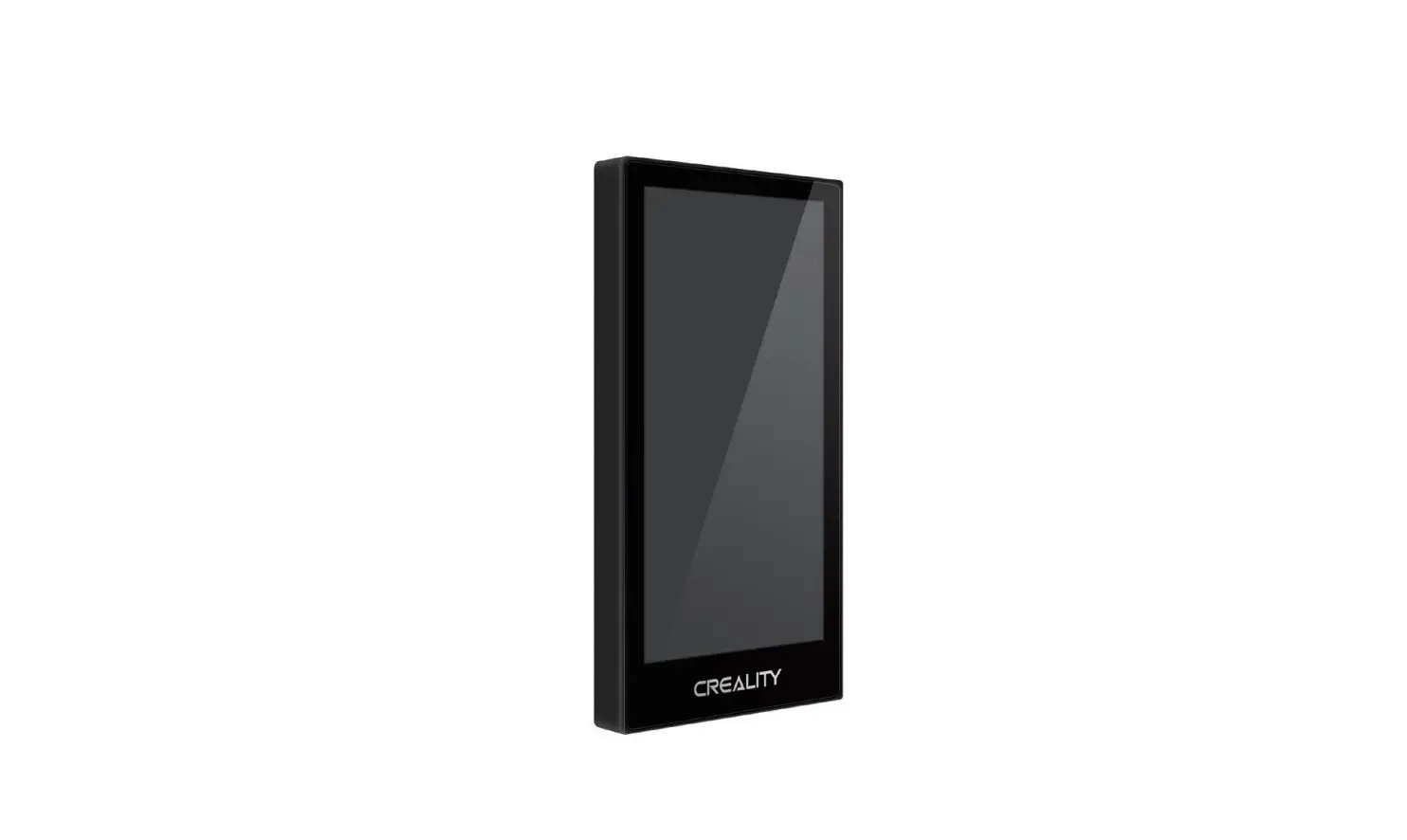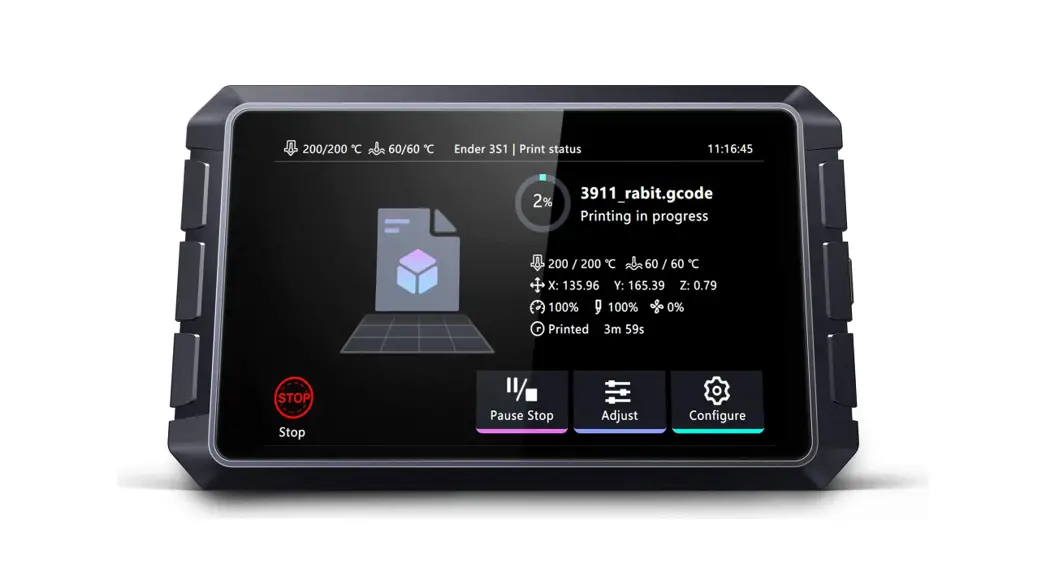

Creality Sonic Pad
User Manual
SHENZHEN CREALITY 3D TECHNOLOGY CO., LTD.
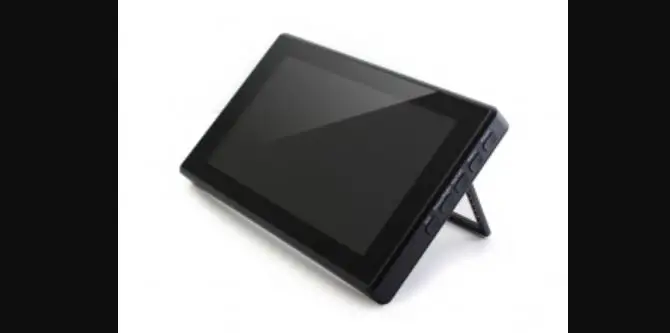
4005010052 Sonic Pad User-Friendly Touch Screen for FDM Printers
Thank you for choosing our products. For a better experience, please read the entire instruction before operating the product. Our teams will always be ready to provide you the best service. Please contact us by phone or email provided at the end of this document if you encounter any problem with our product. In addition, you can visit our official website at www.creality.com to find relevant software/hardware information, contact details, operation, and warranty instructions.
Product Description
When the Creality Sonic Pad is connected to the FDM printer via a USB cable, it becomes the core system of the printer.
Hardware Specifications
| CPU | T800 |
| RAM | 2GB |
| ROM | 8GB |
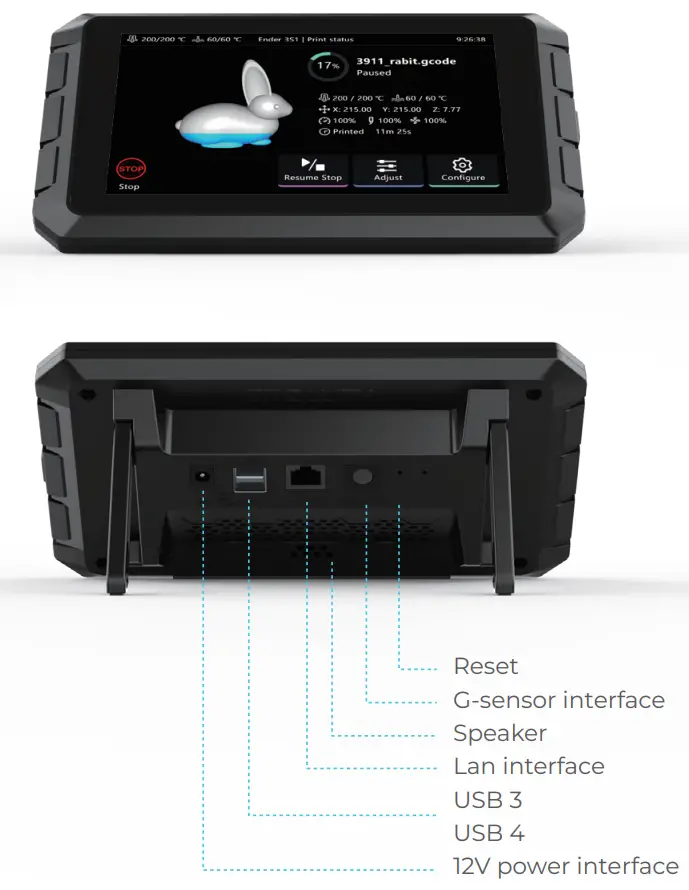
| USB 2.0 interface | 4 |
| Screen resolution & size | 1024×600 & 7 Inch |
| Wi-Fi protocol | IEEE 802.11b/g/n |
| LAN interface | 100M |
| Sensor interface | PS/2 |
| Power interface | DC 2.5 |
| Input voltage | 12V |
Packing list
- Creality Sonic Pad x1
- 12V power adapter (including adapter) x1
- G-sensor data cable x1
- G-sensor x1
- USB cable x1
- USB drive x1
- MicroUSB to MiniUSB connector x1
- MicroUSB to Type-C connector x1
- Instructions x1
- Screw Pack x1
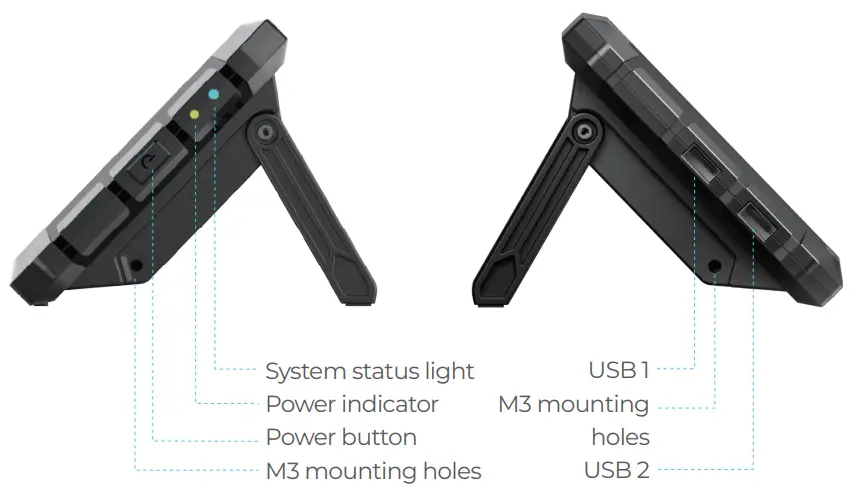
Operation Precautions
- Please use the product strictly in accordance with this manual to avoid personal injury and property damage.
- Do not place the machine near any heat source or flammable or explosive objects. We suggest placing it in a well-ventilated, low-dust environment.
- Please use the power adapter that comes with the machine to prevent damage to the machine.
- Do not place this product in a vibration or unstable environment.
- Please power off to clean the product regularly.
- Users should comply with the laws and regulations of the corresponding countries and regions where the equipment is located (used), abide by professional ethics, pay attention to safety obligations, and strictly prohibit the use of our products or equipment for any illegal purposes. Creality will not be responsible for any violators’ legal liability under any circumstance.
First use
- Device connection
1.1 Connect the Creality Sonic Pad to the AC110V/220V power supply using the power adapter. 1.2 Connect the Creality Sonic Pad and 3D printer with a USB cable to your printer (Use the correct adapter if necessary).
- Boot Settings
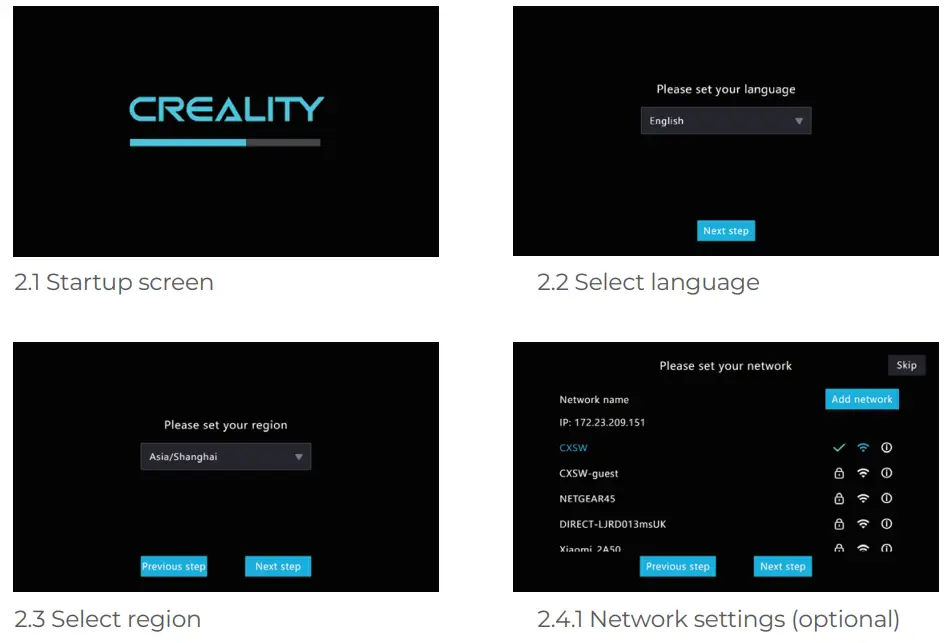
After the connection is completed, press the power button of the Creality Sonic Pad to enter the boot-up operation (follow the order of the guide instructions to configure the product).
 2.7 Printer firmware flashing
2.7.1 Select printer model(users need to open up the printer to check the motherboard chip model. 2.7.2 Taking the model Ender-3 S1 as an example, after selecting the model, you will enter the flashing guide page. Please prepare a card reader and memory card for the printer flashing.
 2.7.3 Write the firmware to the SD/TF card, then insert the SD/TF card into the printer, and click Next step.
 2.7.4 After the printer is powered on, the Creality Sonic Pad will automatically connect to the printer. (the firmware in SD/TF will be automatically flashed after the printer is powered on)
- Functional self-check
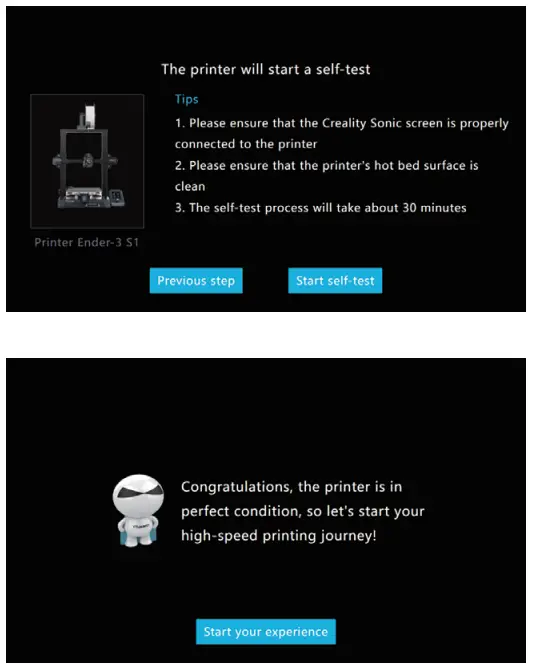
After the printer firmware is flashed, the Creality Sonic Pad will automatically restart the printer. After restarting, it will enter the function self-test and follow the on-screen
instructions. After the self-test is completed, click Experience Now, the screen will save the relevant user configuration, and the system will be reloaded. After entering the Home page, you can start using this product.
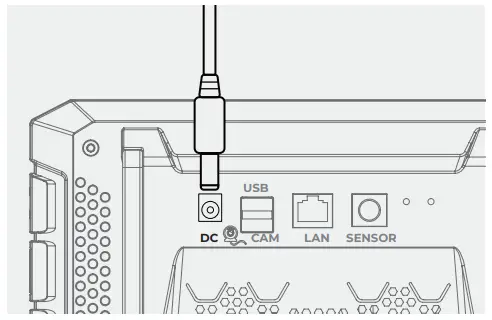 1.2 Connect the Creality Sonic Pad and 3D printer with a USB cable to your printer (Use the correct adapter if necessary).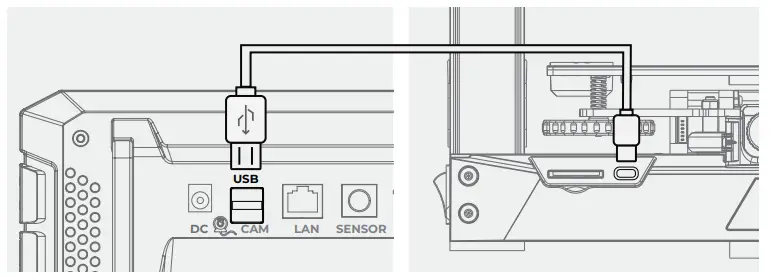
 2.7 Printer firmware flashing
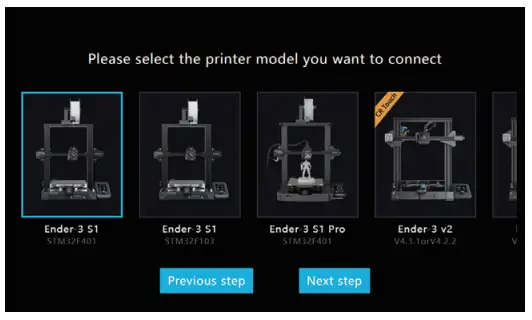 2.7.2 Taking the model Ender-3 S1 as an example, after selecting the model, you will enter the flashing guide page. Please prepare a card reader and memory card for the printer flashing.
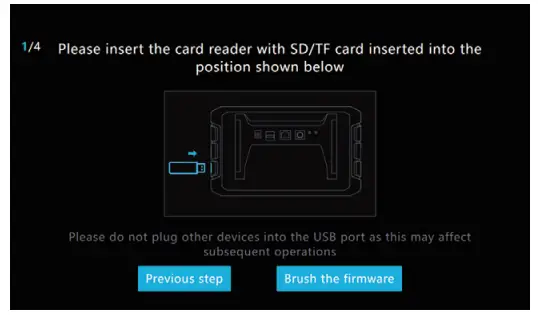 2.7.3 Write the firmware to the SD/TF card, then insert the SD/TF card into the printer, and click Next step.
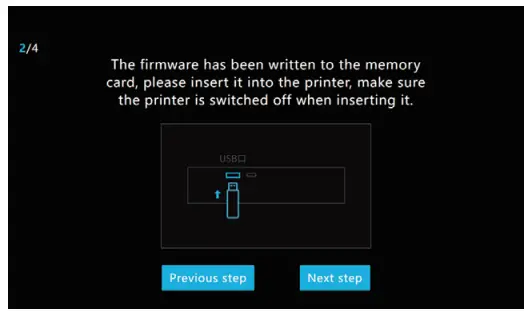 2.7.4 After the printer is powered on, the Creality Sonic Pad will automatically connect to the printer. (the firmware in SD/TF will be automatically flashed after the printer is powered on)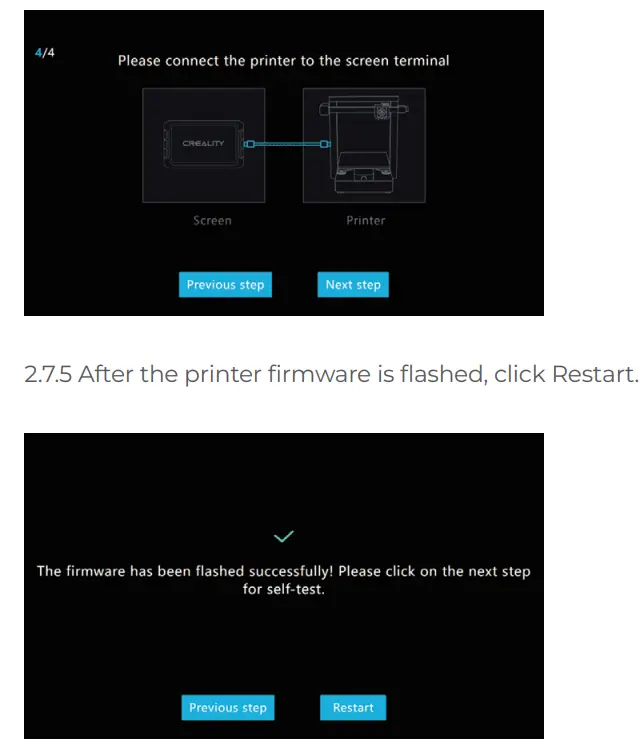
Daily use
- Print
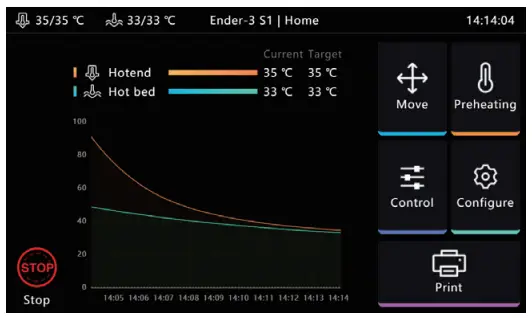
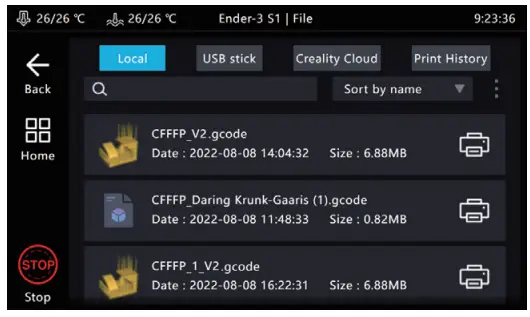
1.1 Enter the Home page and click “Print”. 1.2 Select the code file saved locally or in the USB drive, and click on the
  to print the file.
 1.3 Enter the printing interface, the printer starts to print, and the screen will display printing information such as estimated time.
 1.4 Parameters can be adjusted during the printing process, the specific parameters are shown in the figure.
 Note: Parameter adjustment can only be performed after the printer starts printing, and cannot be adjusted during the preparation process (such as heating).
1.5 During the printing process, you can choose to Pause/Stop printing.
It can resume after a pause, but it will exit the printing interface and go back to the Home page if you stop printing. 1.6 If you need to terminate the print process, you can click
 1.7 Creality Sonic Pad will jump to the following interface after Emergency Stop, you need to manually click Restart to restore the connection.
- Slicing file management
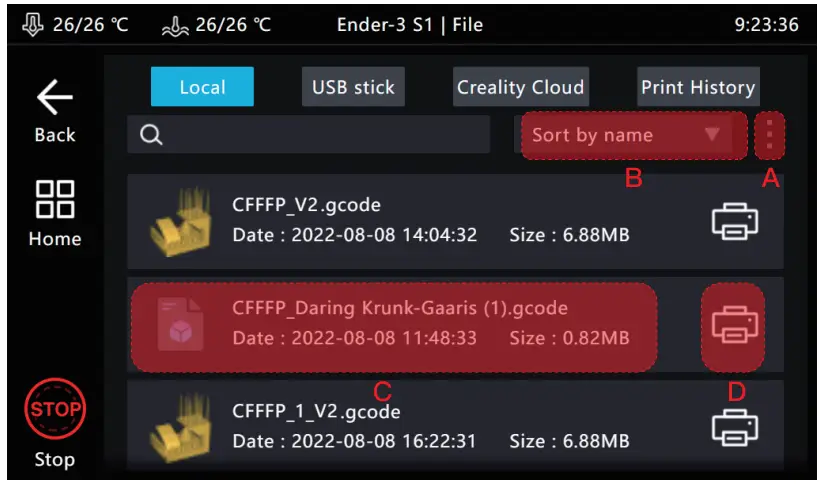
2.1 Enter the code selection page and perform the following operations.
A. Manage code files, USB drives, and local files can be copied from and to each other or vice versa. Files can also be deleted from here.
B. The sort type of the file.
C. In the model preview area, you can view the details of the slice file.
D. Click on to print the code file.
 1.2 Select the code file saved locally or in the USB drive, and click on the
  to print the file.
 1.3 Enter the printing interface, the printer starts to print, and the screen will display printing information such as estimated time.
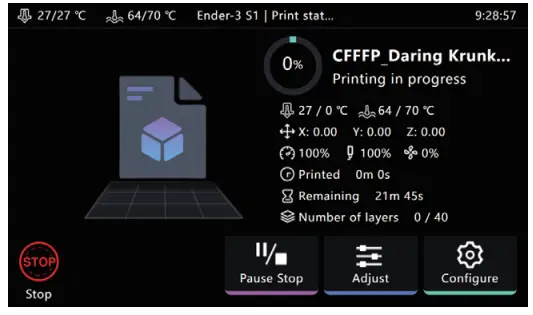 1.4 Parameters can be adjusted during the printing process, the specific parameters are shown in the figure.
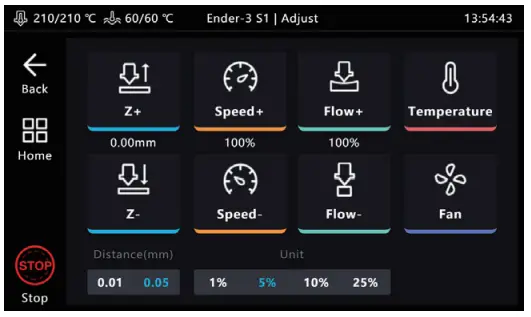 Note: Parameter adjustment can only be performed after the printer starts printing, and cannot be adjusted during the preparation process (such as heating).
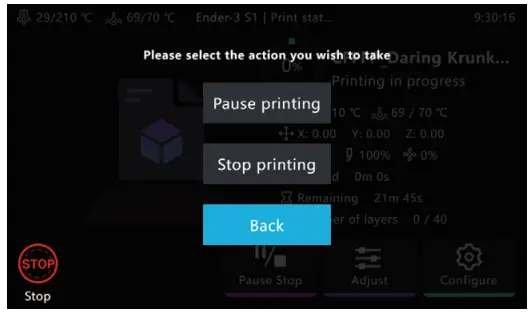 1.6 If you need to terminate the print process, you can click
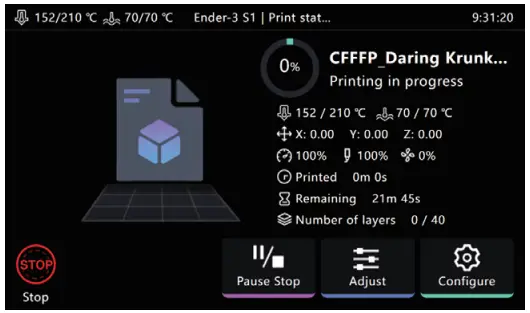 1.7 Creality Sonic Pad will jump to the following interface after Emergency Stop, you need to manually click Restart to restore the connection.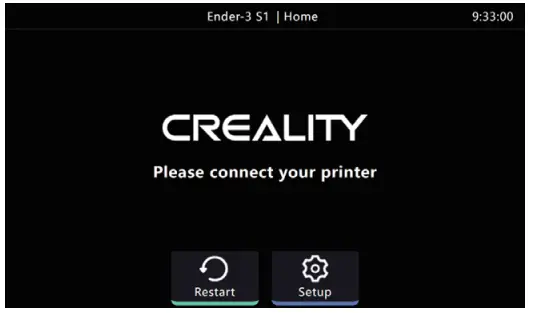
System upgrade
- Online upgrade
1.1 On the home page, go to “Configurate” > “Other Settings” to check for the new version. 1.2 Click System Upgrade and follow the on-screen prompts. After the upgrade is complete, the system will restart automatically.
 USB drive upgrade
2.1 Please go to https://www.creality.com/pages/download Ecosystem to download the corresponding upgrade file. Decompress it and copy it to the root directory of the USB drive. After inserting the machine, an upgrade prompt will pop up automatically. Follow the instructions to upgrade.
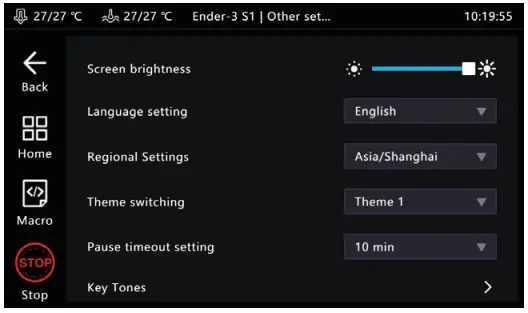 1.2 Click System Upgrade and follow the on-screen prompts. After the upgrade is complete, the system will restart automatically.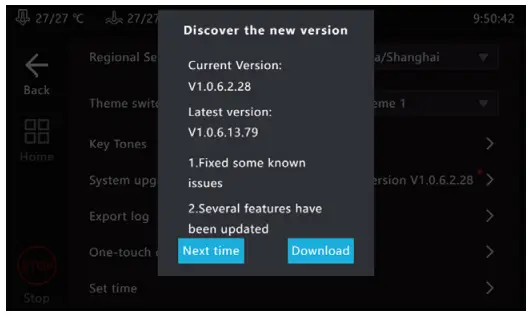
Advanced options
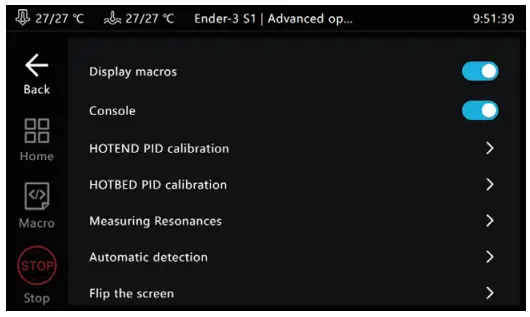
- Display macros
Click the button to display/hide the macro functions. (left sidebar and in the control interface).
- Console
Click the button to show/hide the console. - HOTEND PID calibration
Click to enter the calibration page, set the hot-end calibration temperature, click to start calibration, and confirm that the calibration is completed according to the prompts, the system will automatically save.
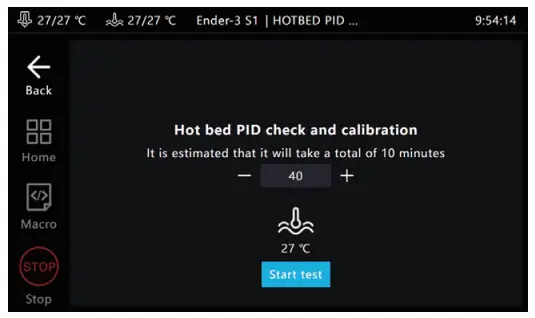
- HOTBED PID calibration
Click to enter the calibration page, after setting the calibration temperature of the hotbed, click to start the calibration, and confirm the completion of the calibration according to the prompt, the system will automatically save.
- Measuring resonances
Go to Other settings, Advanced options, and click Measuring resonances. 5.1 Enter the Measuring resonances page, connect and install the sensor as shown in the figure.
 5.2 After connecting the sensor and installing it, click the Next step to enter the detection page.5.3 Click the Start test to start detection, the printer will reset to zero, and then perform automatic detection.
 5.4 After the detection is completed, click Detection complete to exit the detection page. After saving the configuration, the Creality Sonic Pad will restart.
 - Automatic detection
The self-test items can be freely selected. After selecting, click to start the detection and follow the guidance to complete the detection. After completion, you need to save the configuration. - Flip the screen
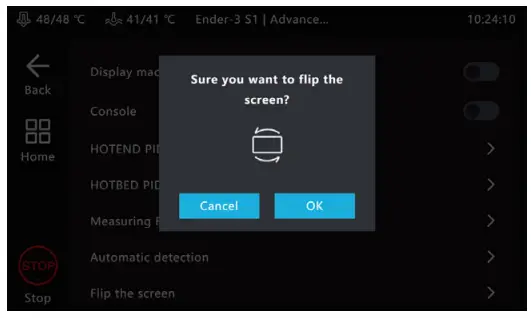
Click OK and the screen will flip 180°.
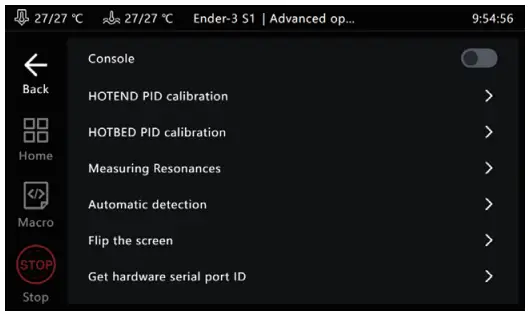
- Get hardware serial port ID
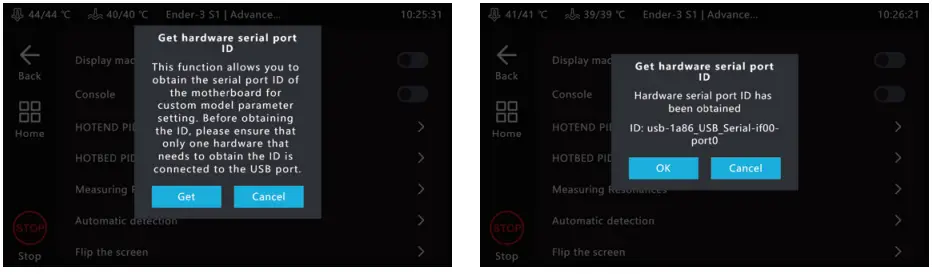
Click Get to get the serial port ID of the motherboard, which is used to customize the parameter settings of the printer model.
 button to display/hide the macro functions. (left sidebar and in the control interface).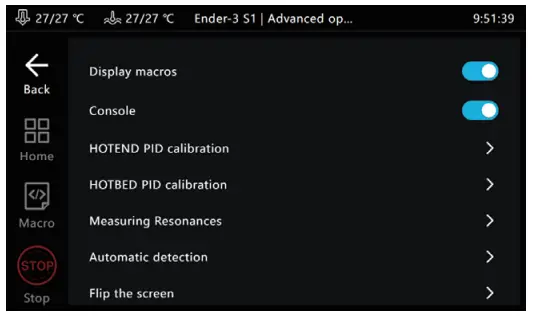

 5.1 Enter the Measuring resonances page, connect and install the sensor as shown in the figure.
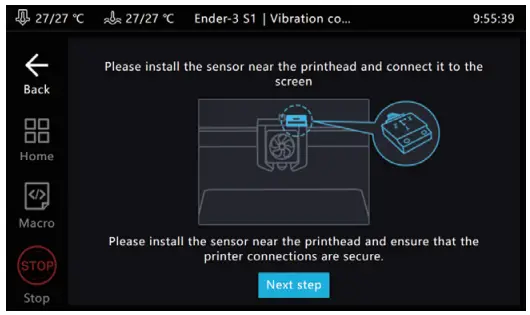 5.2 After connecting the sensor and installing it, click the Next step to enter the detection page.
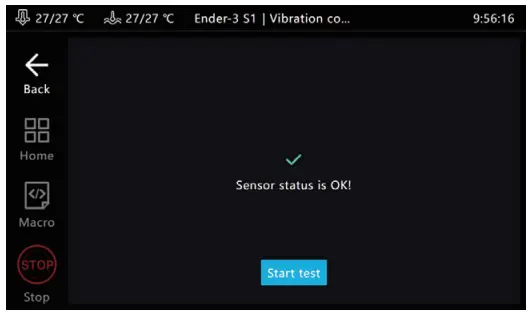 5.3 Click the Start test to start detection, the printer will reset to zero, and then perform automatic detection.
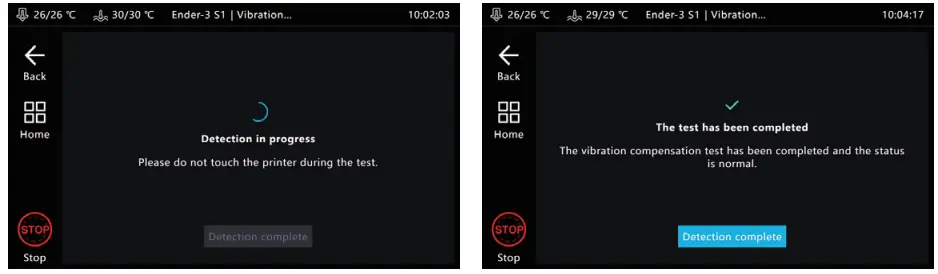 5.4 After the detection is completed, click Detection complete to exit the detection page. After saving the configuration, the Creality Sonic Pad will restart.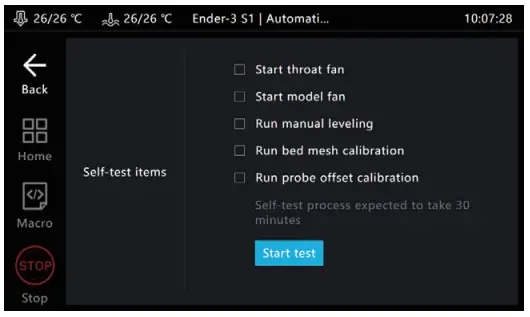
Time-lapse video
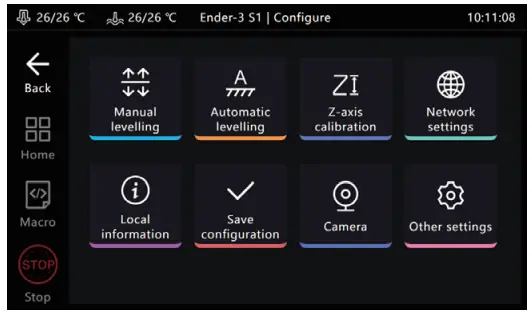
- Power off the Creality Sonic Pad before connecting the camera to the USB interface. Power it on then enter the Configure page and click the camera.

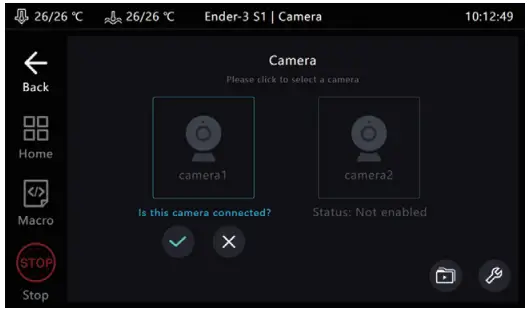
- Go to the Camera page, click the camera icon, and check Connect camera.
 3. Click the
  logo in the lower right corner of this page to enter the setting page.
 3. Click the
  logo in the lower right corner of this page to enter the setting page.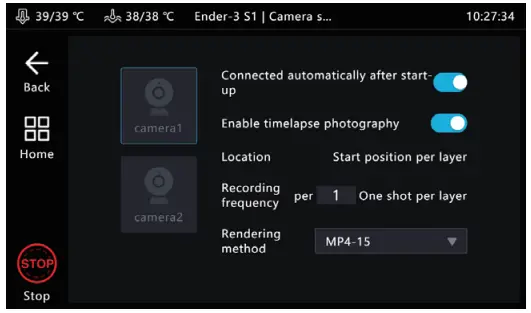
 CREALITY - Official Website, Leading 3D Printer Supplier & Manufacturer