Contents hide
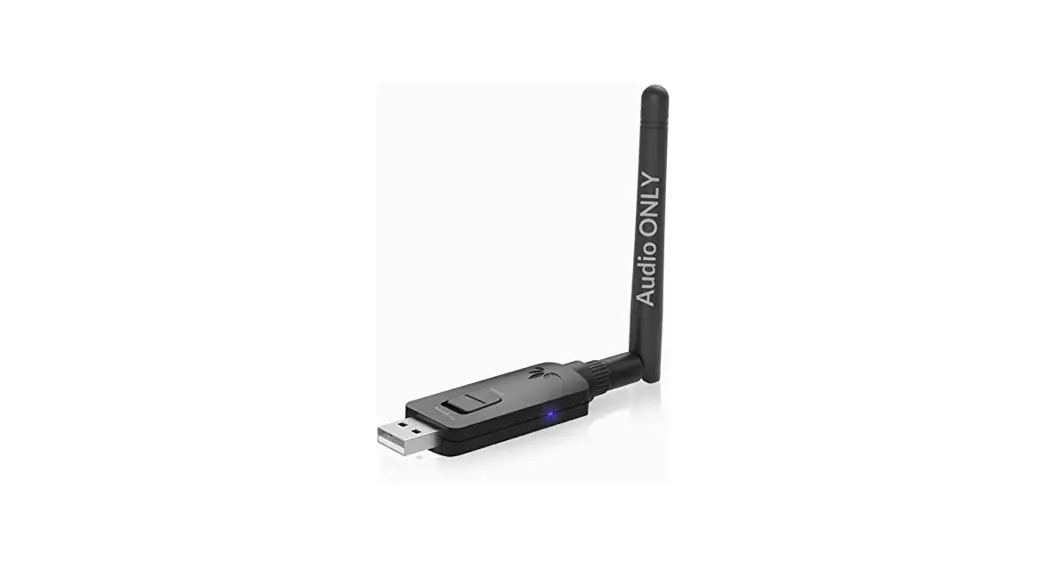
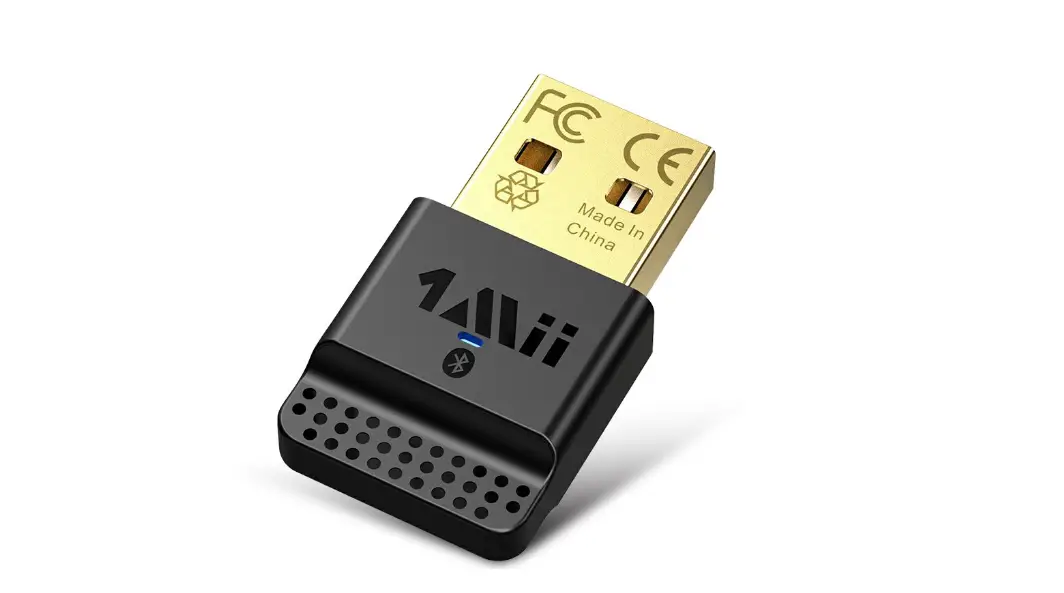
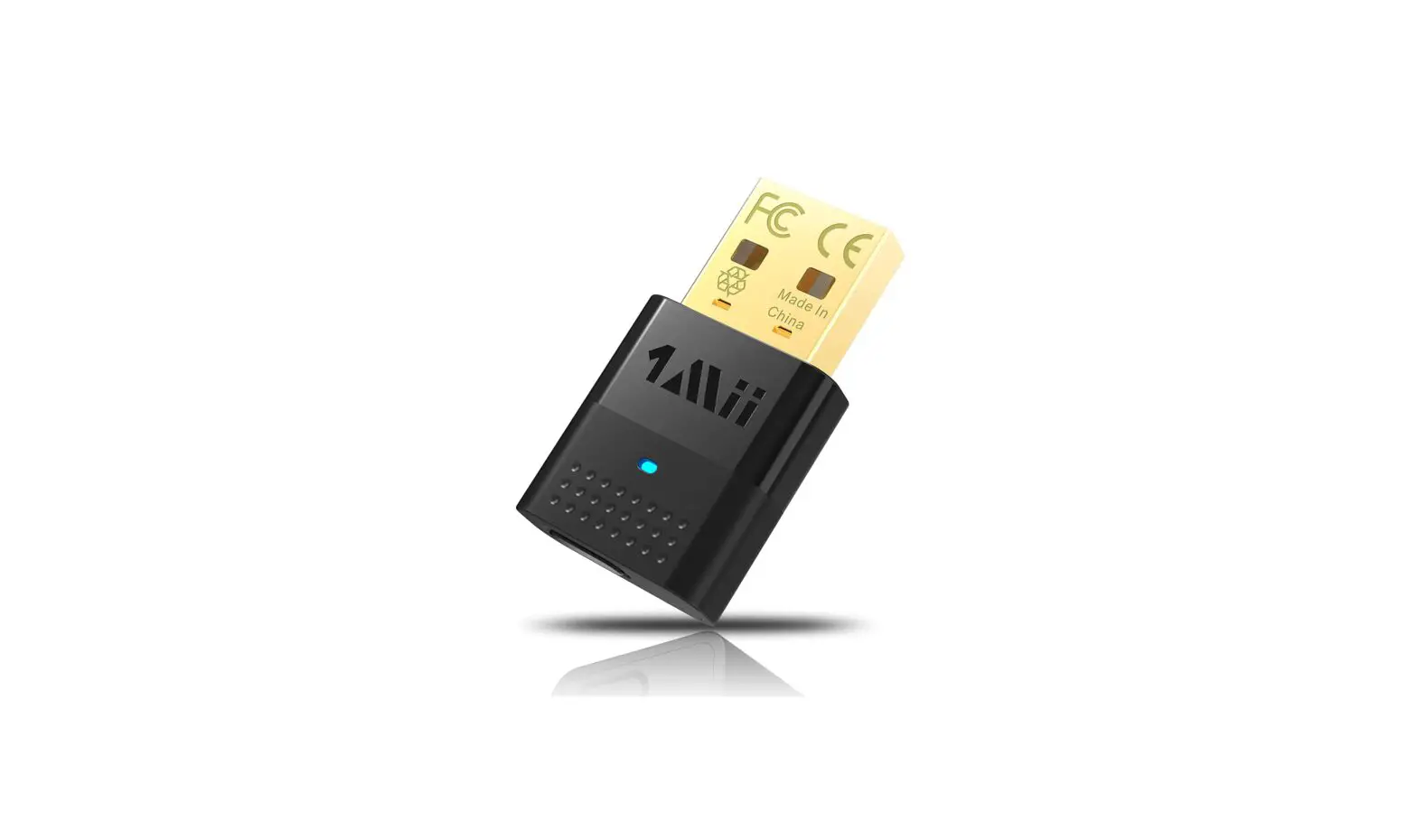
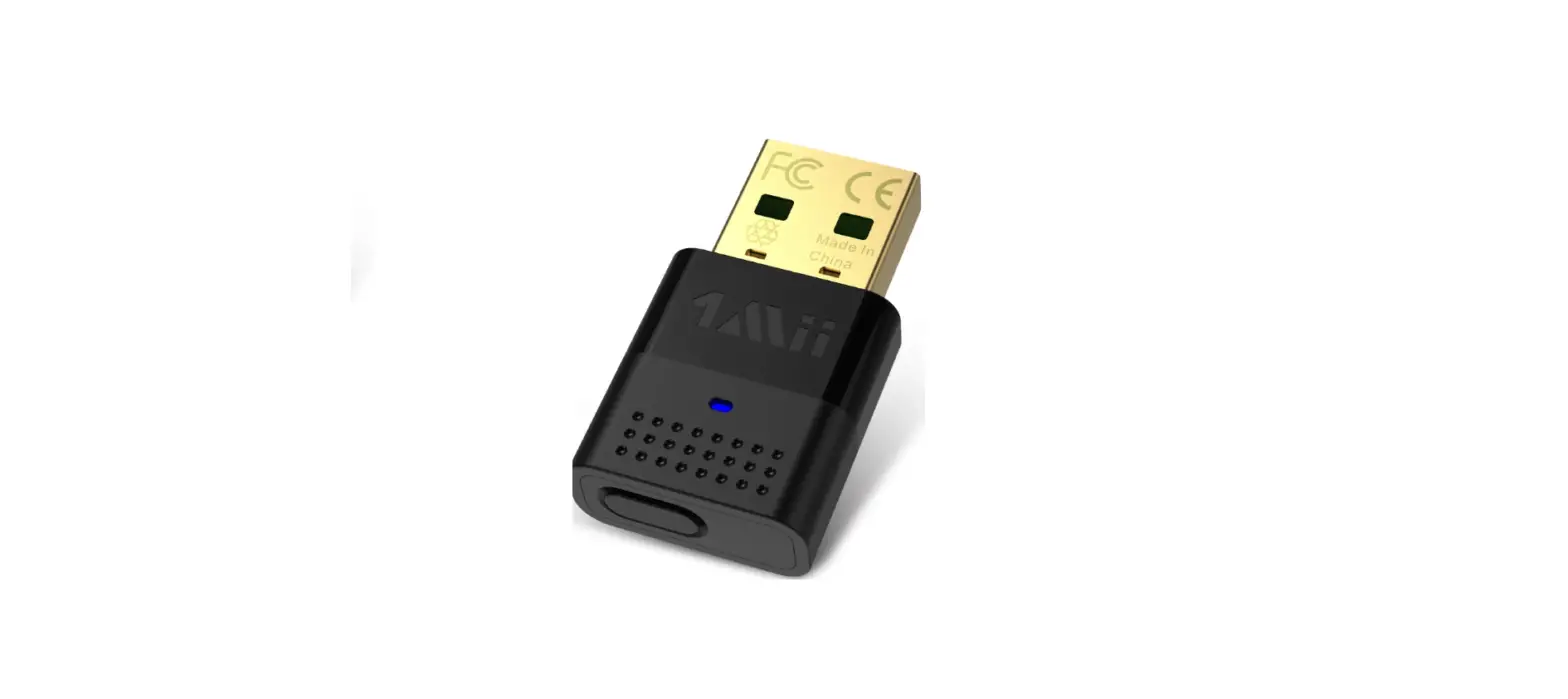
 1Mii B10 Bluetooth USB
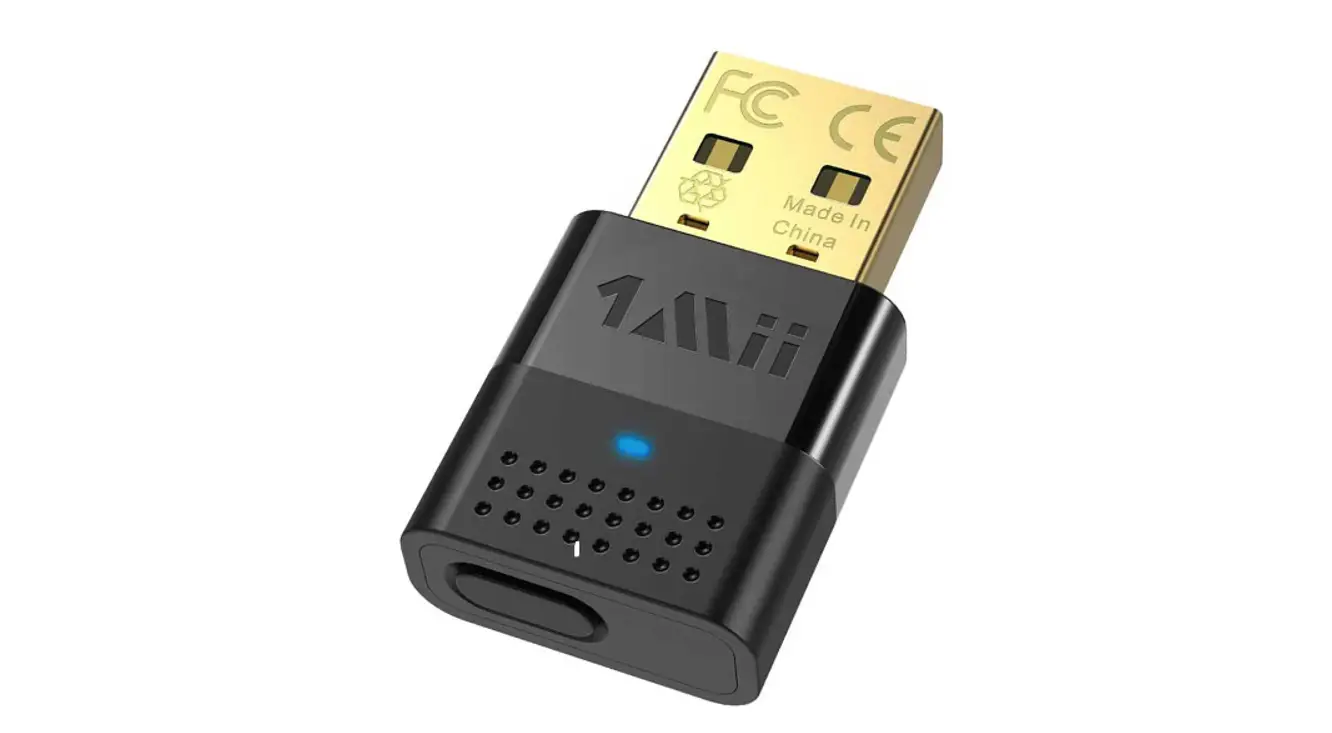
 1Mii B10 Bluetooth USB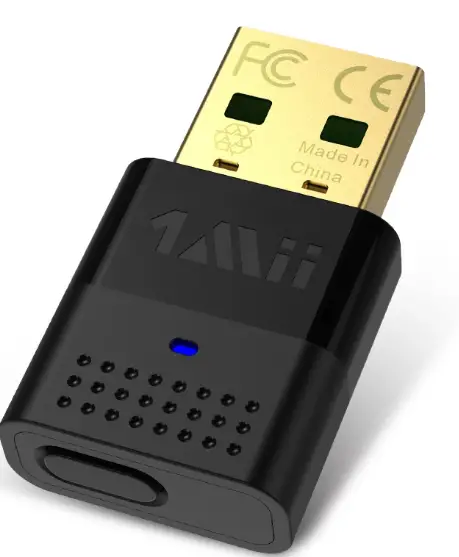
Get paired with your PC/Mac
- Plug B10 into USB port on your PC/Mac.
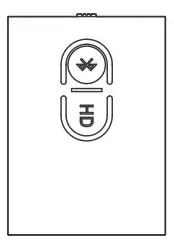
- Press and hold the multi-function button on B10 for 2~3 seconds to enter paring mode the LED indicator will alternatively flashes blue and red.
- Please ensure your Bluetooth headphone in paring mode.
- Get your Bluetooth headphone close to B10 audio adapter to complete paring(the LED indicator will stay on).
Use Microphone on your Bluetooth headphone
Double click the multi-function button on B10 to ENTER the “Hands free/Call mode(the LED indicator start pulsing blue every 3 seconds)” to use the Microphone. After using the Microphone, please double click the multi-function button to EXIT the”Hands free/Call mode”.(Note:Hands Free/call mode DOES NOT SUPPORT aptX LL & HD)
How to connect two Bluetooth headphones via B10?
- Plug B10 into USB2.0 or USB3.0 port on your PC/Mac.
- Press and hold the multi-function button on B10 for2~3 seconds to enter paring mode the LED indicator will alternatively flashes blue and red.
- Please ensure your Bluetooth headphone in paring mode.
- Get your Bluetooth headphone close to B10 audio adapter to complete paring(the LED indicator will stay on).
- Ensure your second Bluetooth headphone in paring mode.
- Press and hold the multi-function button on B10 for2~3 seconds to enter paring mode the LED indicator will alternatively flashes blue and red.
- Get your second Bluetooth headphone close to B10 audio adapter to complete paring(the LED indicator will stay on).
Status LED indicator Pairing mode LED alternatively flash blue and red Connected with aptX- HD codec LED stay green Connected with aptX- LL codec
LED stay white Connected with aptX- codec
LED stay cyan Connected with fast stream codec
LED stay yellow Connected with SBC LED stay blue Disconnected LED flash once every 3 seconds Connected 2 devices LED stay purple Call mode LED indicator pulse Blue every 3 seconds
Settings on your Operating Systems On macOS
- Open System Preferences > Sound

- Output, Choose “B10 USB”.

- Input, Choose ”B10 USB”(Note: If you need to use the microphone on your Bluetooth headphone, please follow below steps)

- Double click the multi-function button on B10 to enter the “Hands free/Call mode(the LED indicator start pulsing blue every 3 seconds)” to use the Microphone. After using the Microphone, please double click the multi-function button to EXIT the”Hands free/Call mode”.
Warning: VOIP call mode does NOT support aptX and aptX LL!!! Please EXIT VOIP CALL MODE AFTER USING THE MICROPHONE !!!
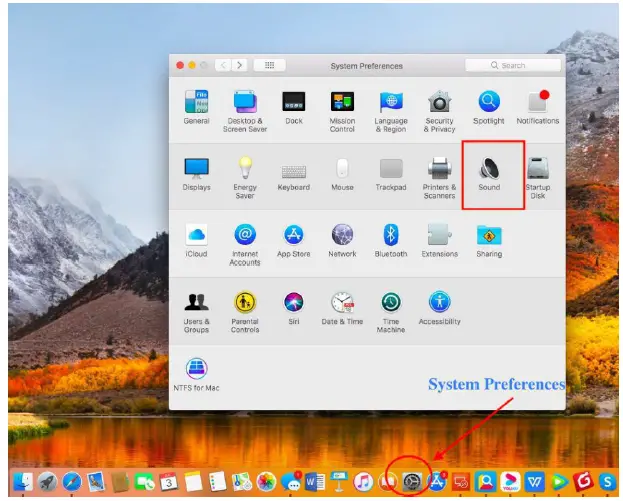
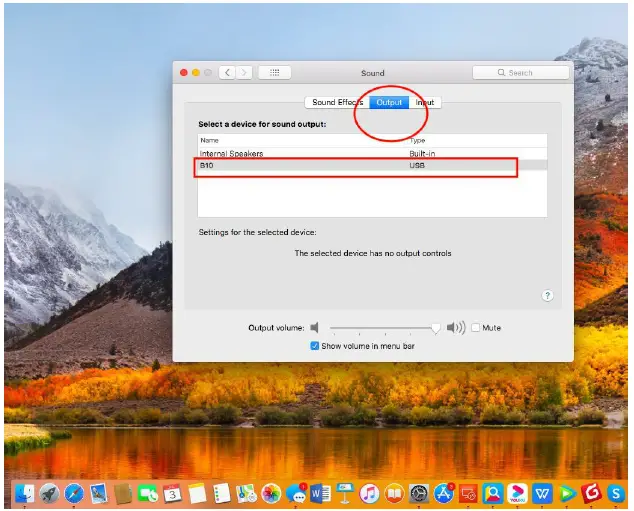
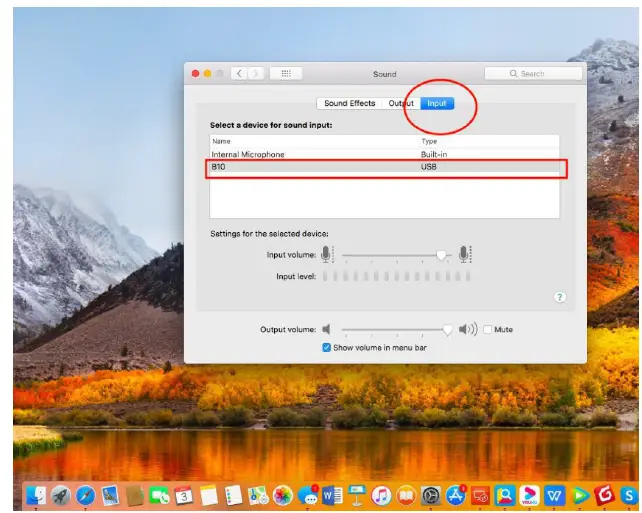
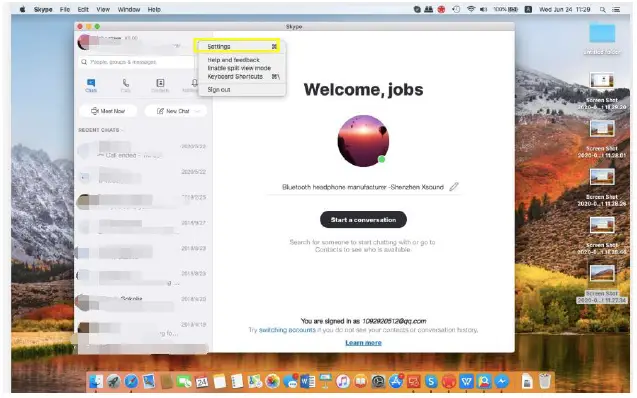
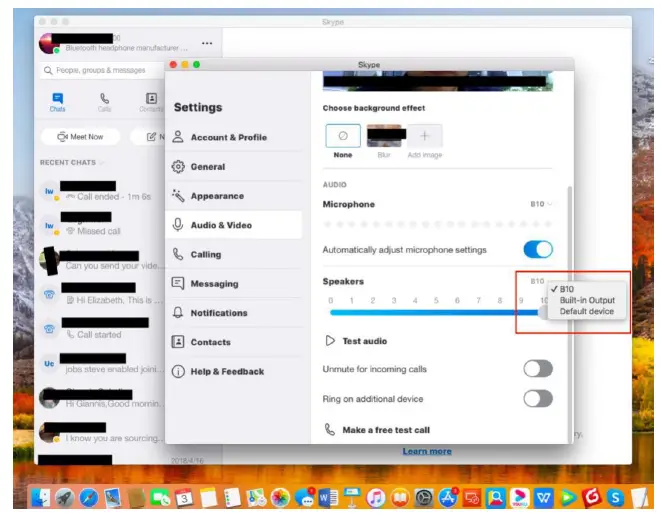
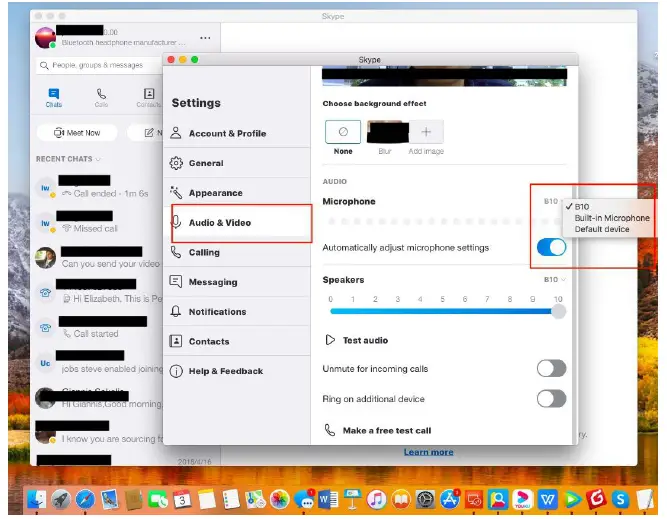
For Skype on macOS
- Open Skype, go “Settings”

- Audio & Video > Speakers> Choose”B10”

- Microphone>Choose”B10” Double click the multi-function button on B10 to enter the “Hands free/Call mode(the LED indicator start pulsing blue every 3 seconds)” to use the Microphone.

Warning: VOIP call mode does NOT support aptX and aptX LL!!! Please EXIT VOIP CALL MODE AFTER USING THE MICROPHONE !!!
How to connect your Airpods(First Generation) with B10?
- Plug B10 into USB2.0 or USB3.0 port on your Mac.
- Press and hold the multi-function button on B10 for2~3 seconds to enter paring mode the LED indicator will alternatively flashes blue and red.
- Put your Airpods in the case and open the lid, press and hold the button on the back of the case until you see the status light start pulsing white,then let go.
- Please go: System preferences>Sound>Output,please select B10 USB as the sound output device> Input,please select B10 USB as the sound input device.
- If you need to use the Microphone on your Airpods, Please double click the multi-function button on B10 to enter the “Hands free/Call mode(the LED indicator start pulsing blue every 3 seconds)” to use the Microphone.
Warning: VOIP call mode does NOT support aptX and aptX LL!!! Please EXIT VOIP CALL MODE AFTER USING THE MICROPHONE !!!
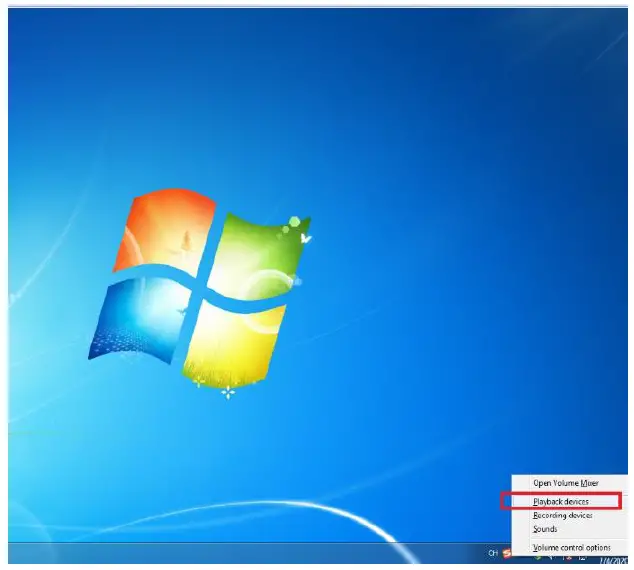
B10 On Windows 7 PC
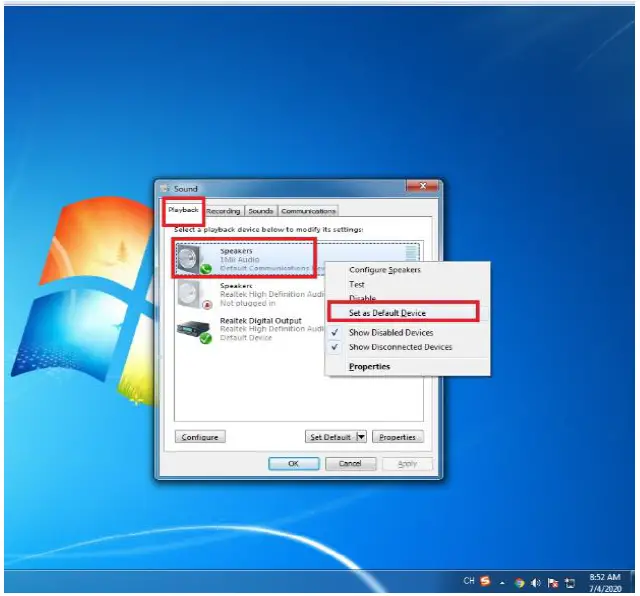
- Right Click “Speakers” icon, choose”Playback Devices”

- Choose”Speakers B10” Right click “Set as Default Device”

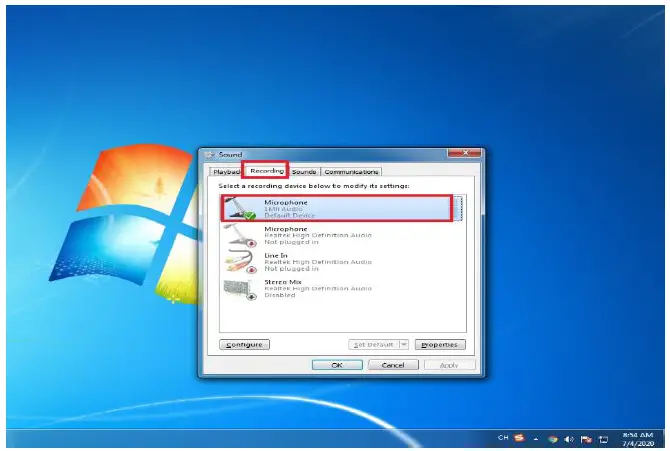
- Choose “Recording”tab, click”B10” Right Click “Set as Default Device”(Note: If you need to use the microphone on your Bluetooth headphone, please follow below steps)

- Double click the multi-function button on B10 to enter the “Hands free/Call mode(the LED indicator pulsing blue every 3 seconds)” to use the Microphone. After using the Microphone, please double click the multi-function button to EXIT the”Hands free/Call mode”.
Warning: VOIP call mode does NOT support aptX and aptX LL!!! Please EXIT VOIP CALL MODE AFTER USING THE MICROPHONE !!!
B10 For Windows 10 PC
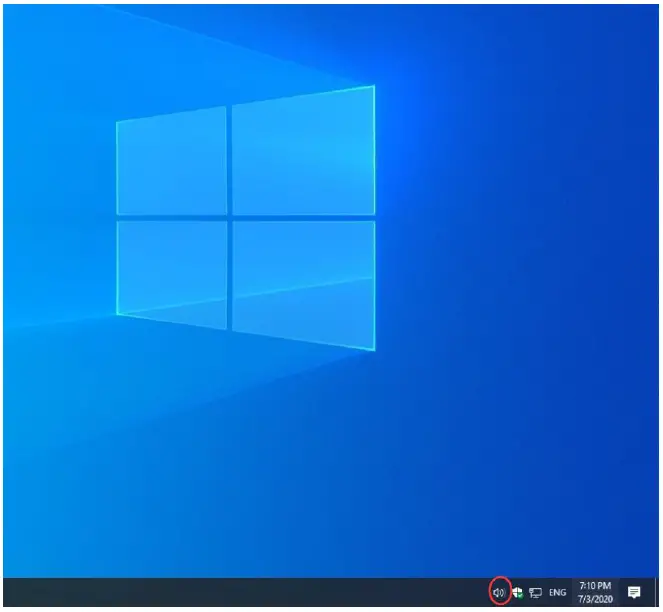
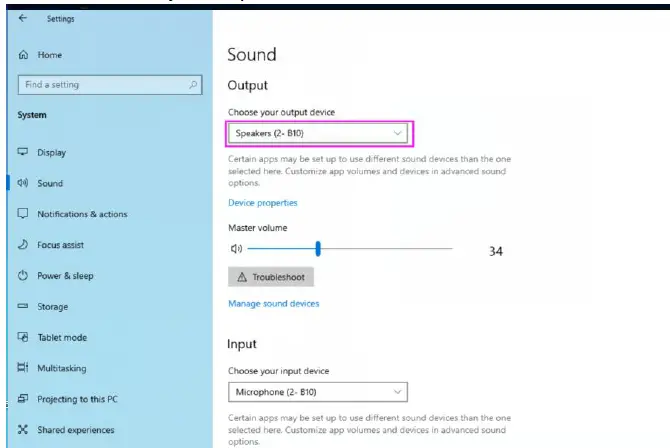
- Right click Speaker icon

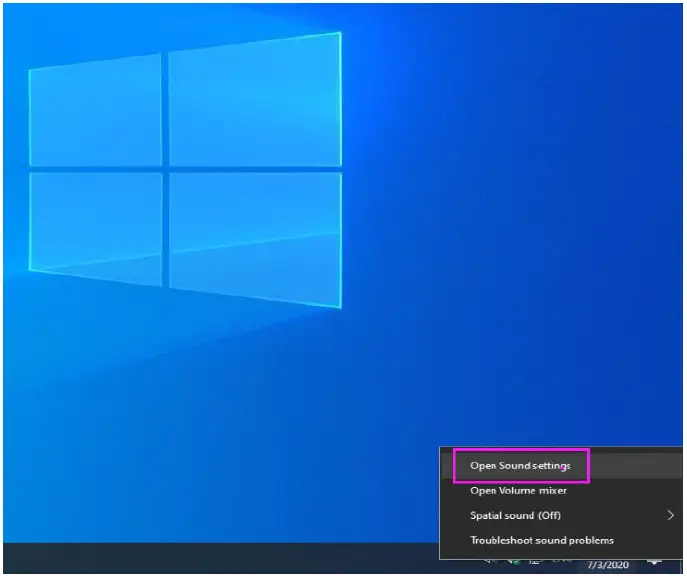
- Right Click, Choose”Open Sound Settings”

- Sound>Choose your output device>B10

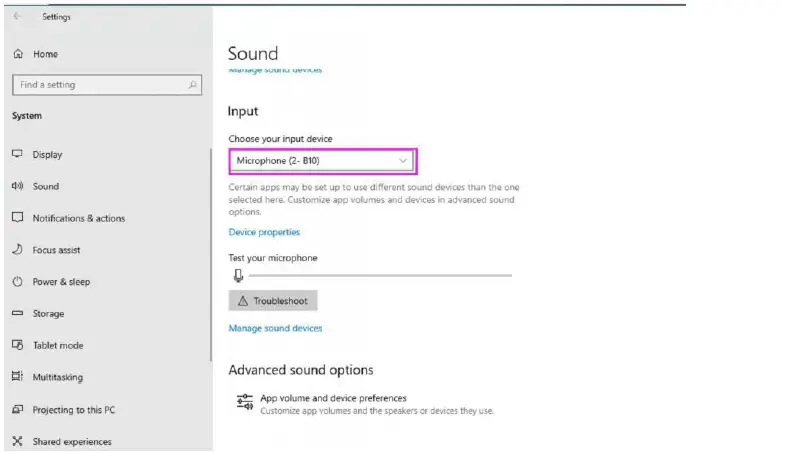
- Input>Choose your input Devices>B10

- Double click the multi-function button on B10 to enter the “Hands free/Call mode(the LED indicator pulsing blue every 3 seconds)” to use the Microphone. After using the Microphone, please double click the multi-function button to EXIT the”Hands free/Call mode”.
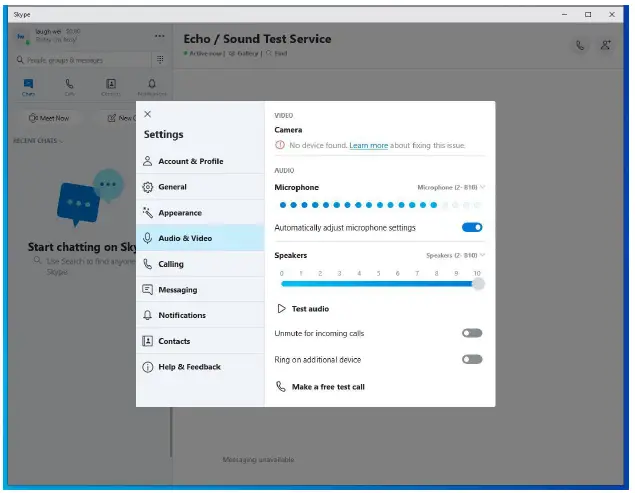
B10 on Skype(Win10 version)
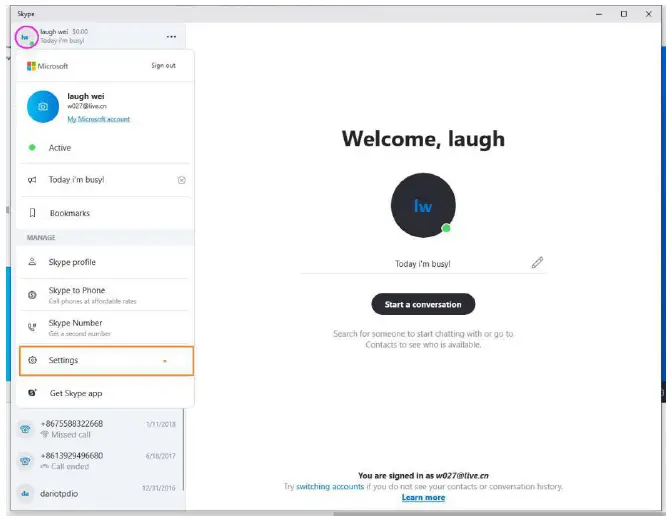
- Open Skype>go “Settings”

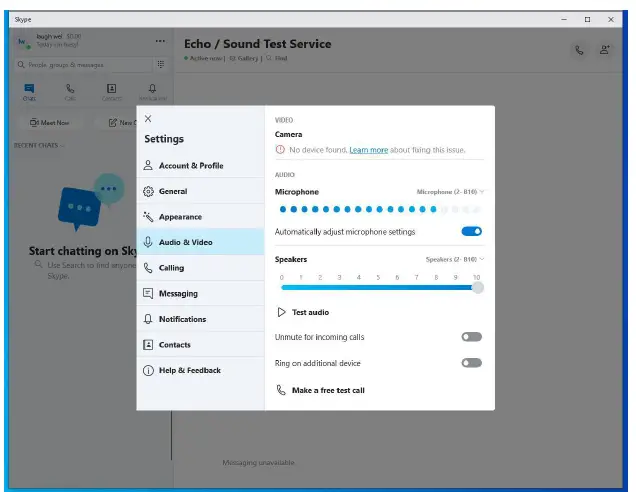
- Please choose”Audio & Video” Microphone, please choose “B10” toggle on” Automatically adjust microphone settings”

- Speakers,please choose”B10”

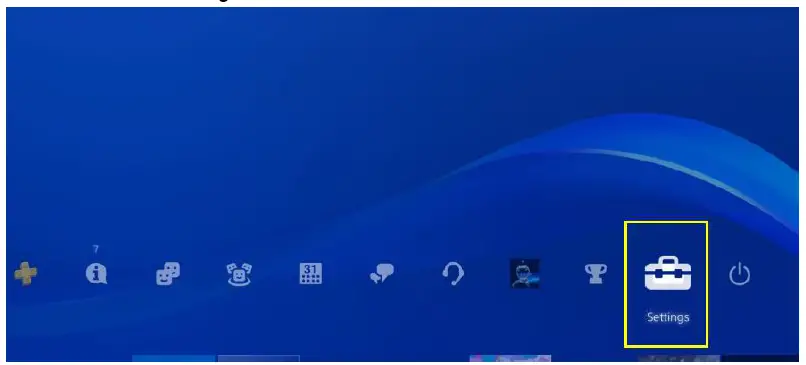
B10 on PS4
- Please choose “Settings”

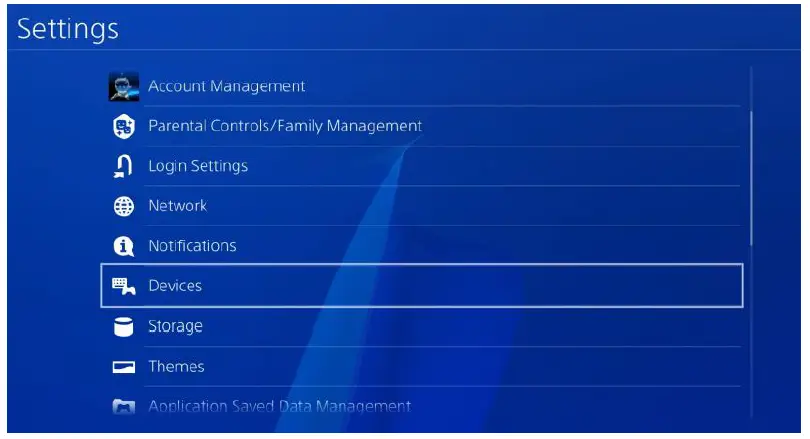
- Choose “Devices”

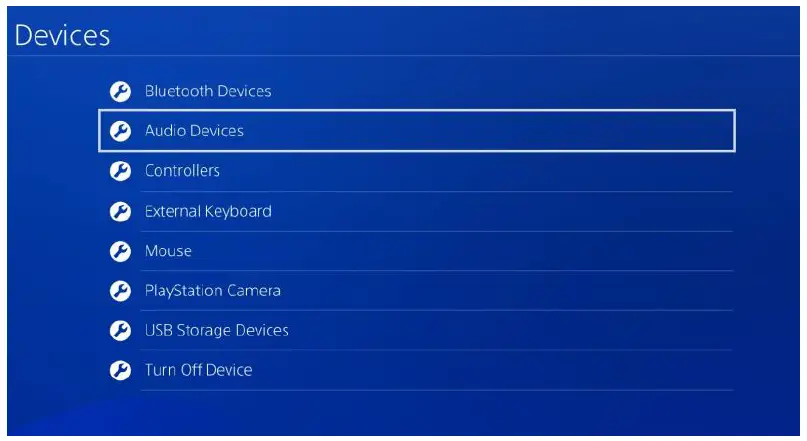
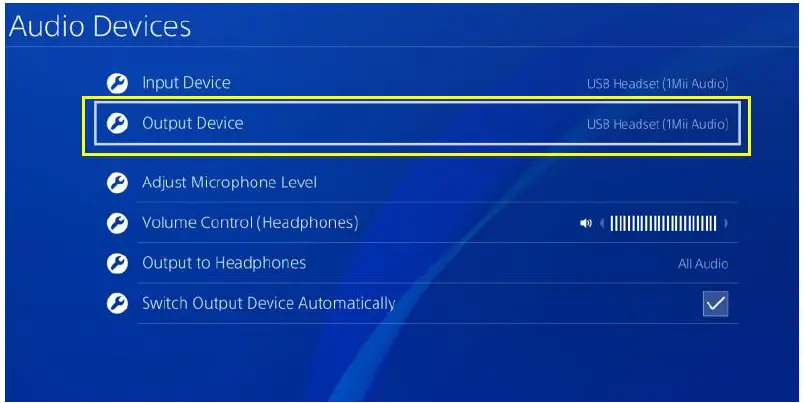
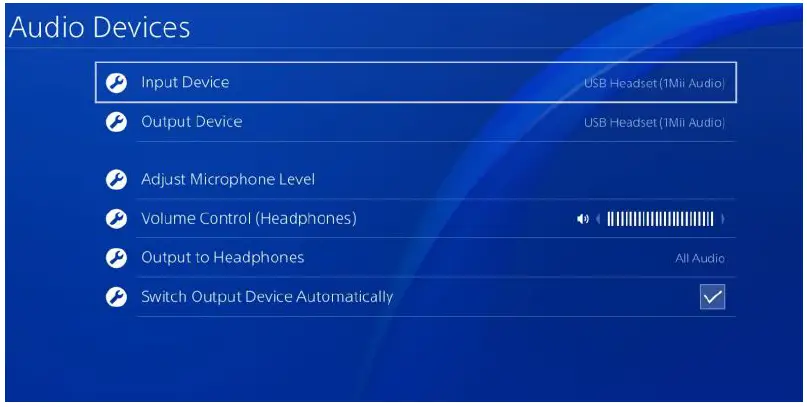
- Choose”Audio Devices”

- Choose “Output Devices” “USB Headset(B10)”

- If you need to use the microphone,please choose “Input Device””USB Headset(B10)”

- Double click the multi-function button on B10 to enter the “Hands free/Call mode(the LED indicator blinks blue every 6 seconds)” to use the Microphone. After using the Microphone, please double click the multi-function button to EXIT the”Hands free/Call mode”.
Warning: VOIP call mode does NOT support aptX and aptX LL!!! Please EXIT VOIP CALL MODE AFTER USING THE MICROPHONE !!!
B10 on Ubuntu
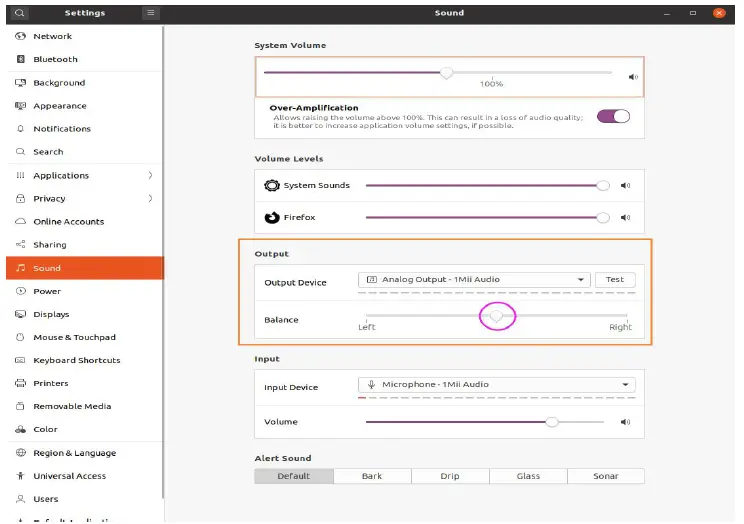
- Please go settings> Sound>Out put>Output Device,please choose “B10”, Balance,please drag the bar to the middle or you will get mono channel Sound!
- Input>Input Device,please choose”B10”
- Double click the multi-function button on B10 to enter the “Hands free/Call mode(the LED indicator pulsing blue every 3 seconds)” to use the Microphone. After using the Microphone, please double click the multi-function button to EXIT the”Hands free/Call mode”.
Warning: VOIP call mode does NOT support aptX and aptX LL!!! Please EXIT call mode after using the microphone.