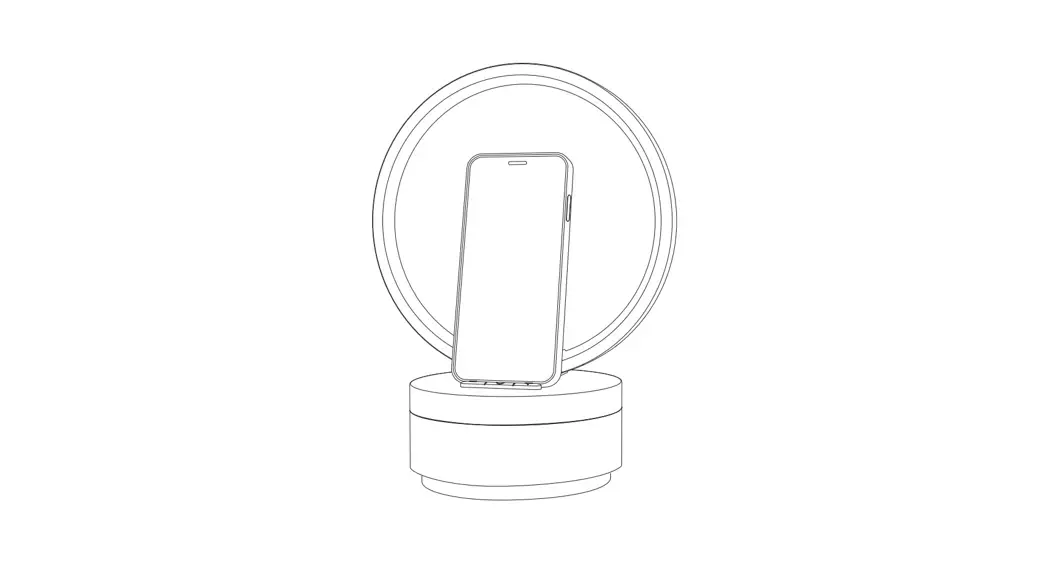
Smart Ambiance Lamp
With Alarm Clock User Guide
(SAC-WWBLR)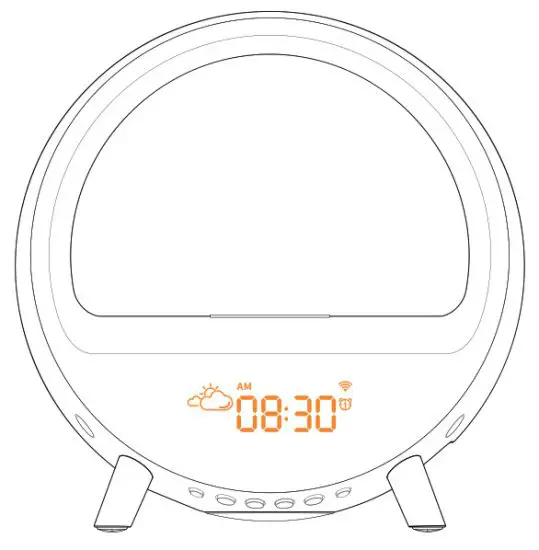
Please read this manual carefully before using the product and keep it in a safe place for future reference.
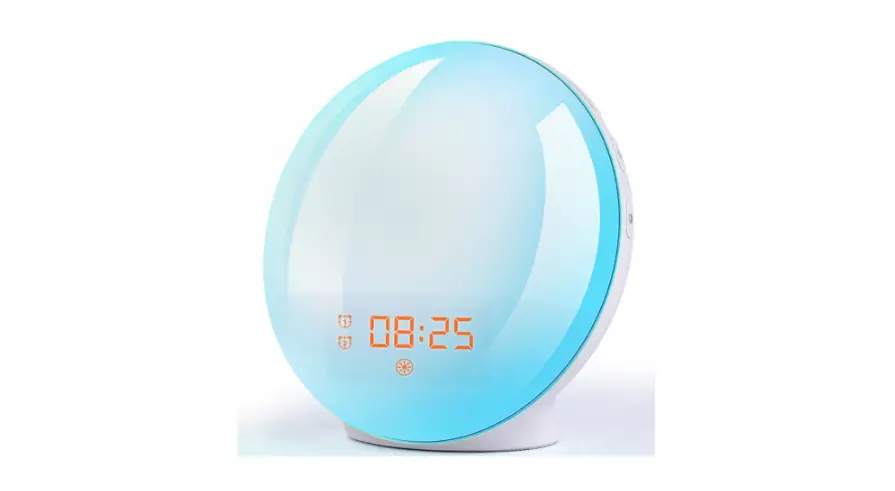
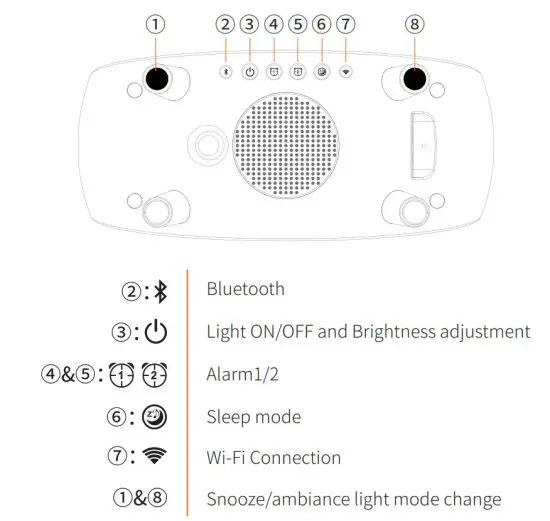
Product Overview
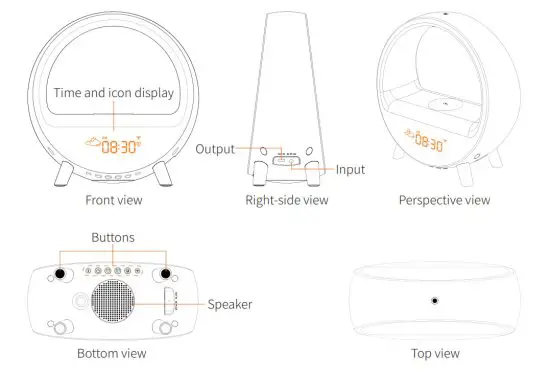
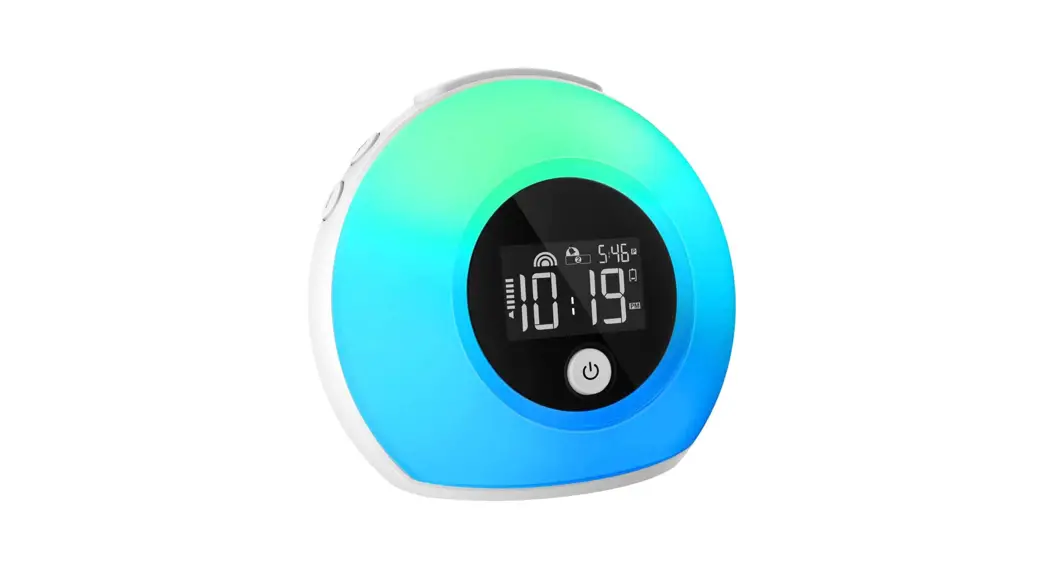
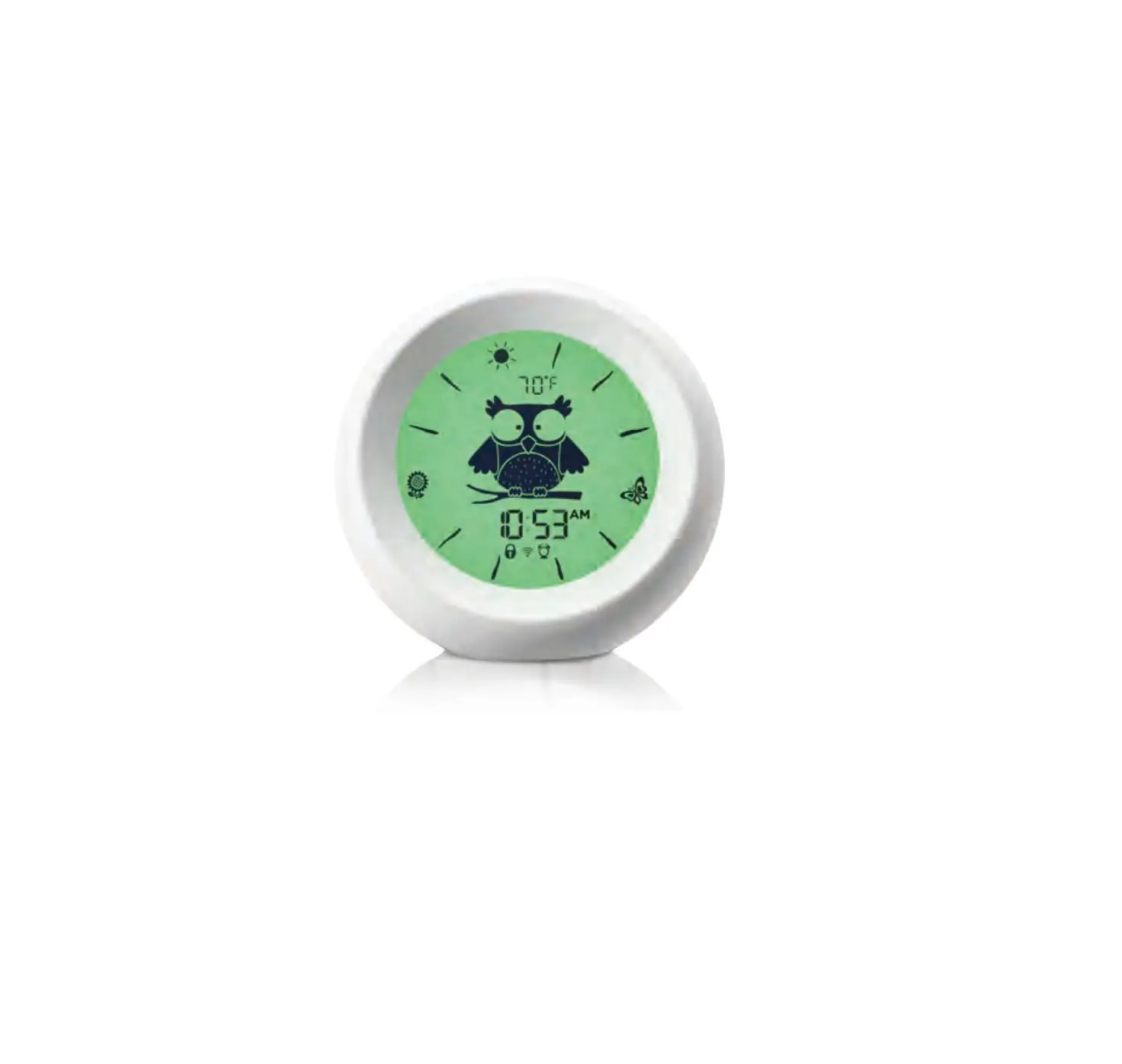
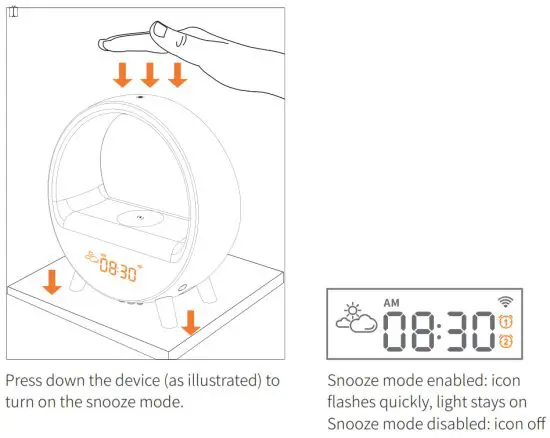
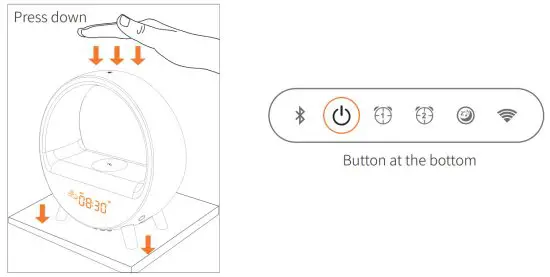
Press down the device (as illustrated) to turn on the snooze mode or change the ambience light modes (go to the APP for details).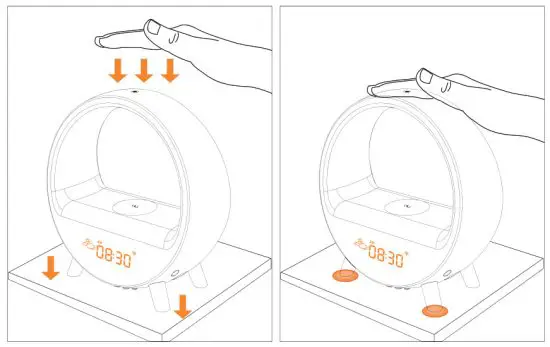
Display icons
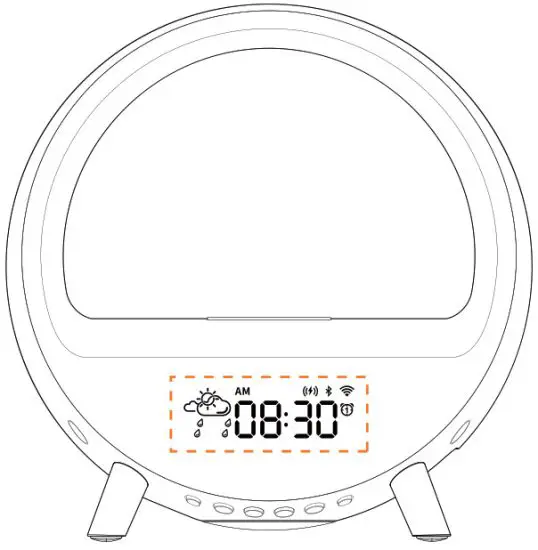
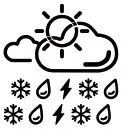 Weather status icon
Connect to the network, weather status updates in real-time.
Status: clear, cloudy, rain, snow, thunderstorm, cloud.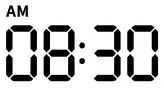
Time display icon
Synchronize network time; support time zone and daylight saving time.
Time format: 24H and 12H with AM/PM display.
Alarm clock 1/2 icon
The icon stays on/off when an alarm is enabled/disabled and flashes during the alarm. Wi-Fi icon
Fast connection network status: icon flashes rapidly
AP Mode network status: icon flashes slowly
Network connected: icon stays on
Network disconnected: icon off
Wireless charge icon
The icon stays on/off if a device is charged/not charged.
Icon flashes during FOD(Foreign body detection).
Bluetooth icon
Bluetooth enabled: icon flashes
Bluetooth paired: icon stays on
Bluetooth off: icon off
Features
- A smart product that integrates a digital alarm clock, colorful ambiance light, premium Bluetooth speaker, convenient wireless charger, and night light with sleep mode and white noise.
- The novel and chic arched look and brilliant ambiance light give a perfectly comfortable visual effect.
- Large 3.5-inch screen time display, 4-level brightness adjustment (brightness can be turned off completely).
- The unique design of the arch-shaped light with adjustable brightness between levels 1 to 10 gives you soft warm lighting.
- Two alarms with eight natu rat sounds can be set according to the working day or the rest day.
- Sleep mode allows you to fall asleep accompanied with soft light and the gentle white noise. The sound and light turn off automatically when the sleep mode is over.
- Time format: 24H and 12H with AM/PM display.
- Synchronize network time; support time zone and daylight saving time.
- Connect with Wi-Fi for APP control of the alarm, sleep mode and the light.
- Support Bluetooth connection for playing audio and video.
- Supports (up to) 15W wireless quick charge.
- Connect with the Amazon Alexa/Google Home/TmallGenie for voice control of the alarm, the sleep mode, and the light.
APP Control
Wi-Fi connection
Download APP Search “Sman Life” from APP Store or Android APP store or scan the QR code to download and install the APP. Register and log in.
https://smartapp.tuya.com/smartlife
Network connection requirement
Before the network connection, it is required to turn on the mobile phone location, Bluetooth and Wi-Fi (2.4G only), and allow the mobile phone to access the APP location permission.
Network connection mode:
(1) auto scan (the APP pops up the window automatically)/ (2) manually add (AP Mode, Bluetooth)
Enter the network connection state
(1) Power the device, the Wi-Fi icon “” on the screen will flash quickly, indicating that the device is ready to pair
(2) If the wi-Fi icon ““didn’t flash quickly, press and hold the Wi-Fi button at the bottom until the Wi-Fi icon flashes quickly to start pairing.
Take “Auto-scan” as an example
- Open the “Smart Life” APP, tap “+” in the upper right corner;
- A window prompts with the icon displayed indicating a device is found, tap “Go to add”;
- Go to the add page, confirm the icon
 is displayed, tap “+” in the upper right corner to add device;
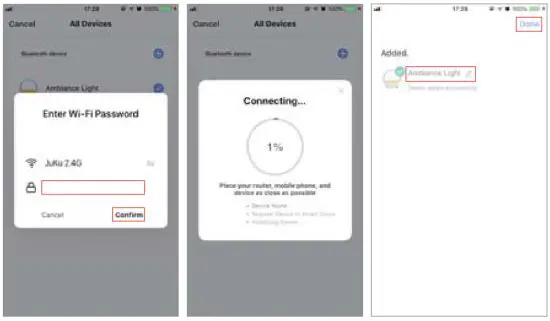
- A window prompts with “enter Wi-Fi password”; select2.4GHz Wi-Fi network (confirm that your phone and the device are in the same 2.4G Wi-Fi network), and then enter the Wi-Fi password and tap ”confirm”;
- A window prompts with “connecting” (please put the router, device and mobile phone as close as possible);
- After the network is successfully connected, the device added successfully page will be displayed; you can edit the device name now. Tap “Done” to complete connection and automatically enter the APP home page, the Wi-Fi icon “
 ” on the screen stays on.
 is displayed, tap “+” in the upper right corner to add device;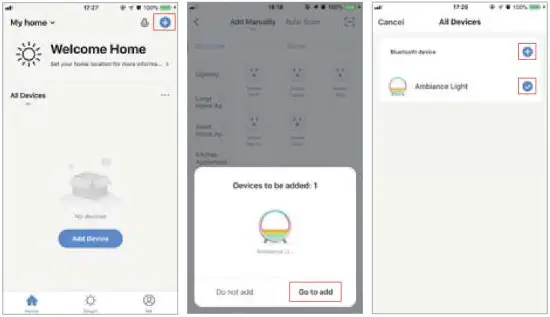
Home page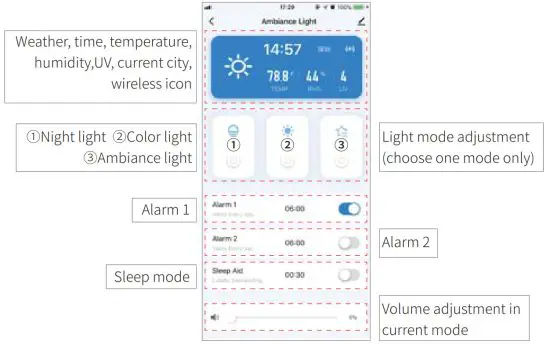
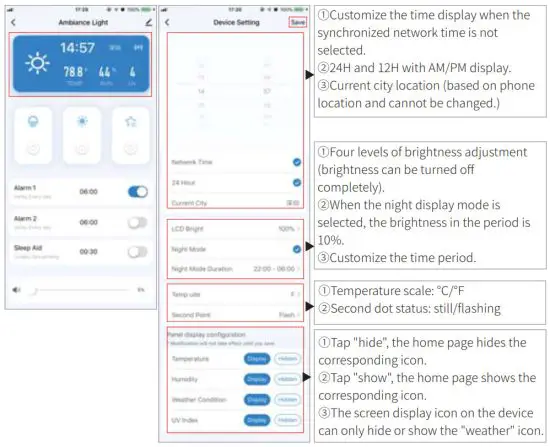
Time, brightness, temperature scale, and display setting
- Automatically synchronizes time after the network is connected; you can set the time and time format via APP;
- Tap the time display area, enter the “Device Settings” page to set the “time format, time display brightness, night time display mode, temperature scale, second dot status, and display settings”;
- Tap “Save” in the upper right corner to exit and save current settings.
Alarm setting
Alarm groups
You can set 2 alarms.
For example,”Alarm 1″ can be set as a weekday alarm, and “Alarm 2” can be set as a weekend alarm. The setting of alarms is the same. When an alarm is enable he icon on the screen display stays on.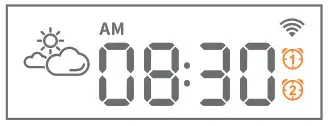 Alarm setting
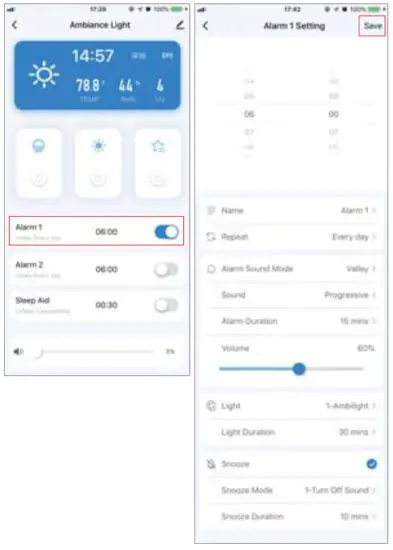
Take “Alarm 1” for example:
- Two alarms can be turned on/off directly on the APP home page;
- Tap “Alarm 1” area to enter the setting page. You can set the followings: alarm time, alarm name, repeat, alarm sound, sound duration, volume, light up ahead of time, snooze, etc;
- Tap “Save” in the upper right corner to exit and save the current settings page.
Night light
- After the network is connected, tap the icon “
 ” on the APP home page to turn on/off the night light;
 - Tap the night light icon
 to enter the setting page. You can edit the name or adjust the brightness.
 ” on the APP home page to turn on/off the night light;
 to enter the setting page. You can edit the name or adjust the brightness.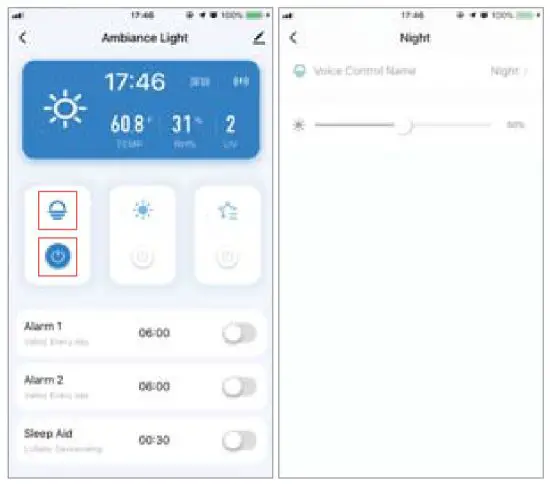
Color light
- After the network is connected, tap the icon “” on the APP home page to turn on/off the color light;
- Tap the color light icon
 to enter the setting page. You can edit the name and adjust the color or brightness.
 to enter the setting page. You can edit the name and adjust the color or brightness.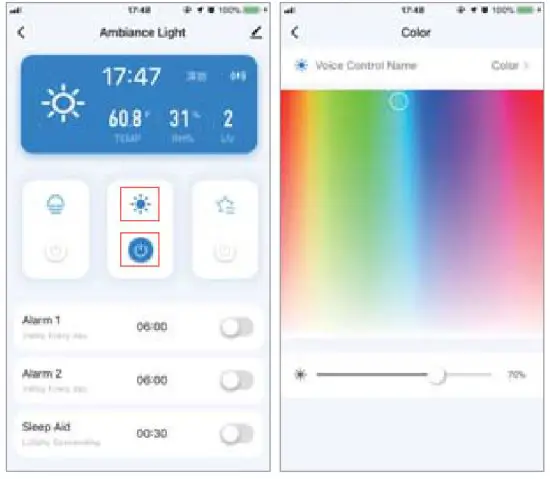
Ambience light
- After the network is connected, tap the icon “” to turn on/off the ambiance light;
- Tap the ambience light icon
 to enter the light effect setting page; you can edit the name, choose from 9 optional light effects, or adjust the brightness;
 - Tap “Edit” to set the color or speed of the light effect;
- Tap “Save” in the upper right corner to exit and save the current settings page.

 to enter the light effect setting page; you can edit the name, choose from 9 optional light effects, or adjust the brightness;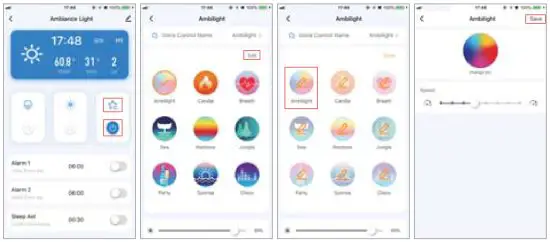
Sleep mode
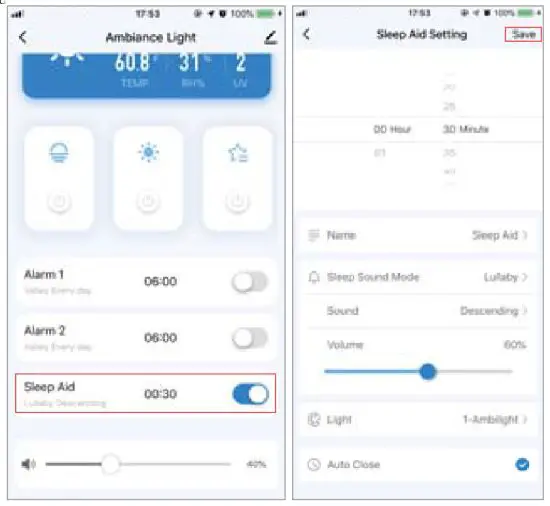
- Turn on or off the sleep mode directly on the APP home page;
- Tap the “Sleep Aid” area to enter the setting page. You can set the followings: duration, name, music, sound effect, volume, light, auto off, etc.;
- Tap “Save” in the upper right corner to exit and save the current settings page.

Voice Control
Connect with smart home system, users can control the device via Amazon Alexa, Google Home and TmallGenie.
Control the device via voice command:
- Turn on/off the night light
- Turn on/off the color light, adjust the brightness or color
- Turn on/off the ambiance light
- Turn on/off the sleep mode
- Turn on/off the alarm
Here are some things to try
“Alexa, set an alarm for 6 am”
“Alexa, set a timer for 20 minutes”
“Alexa, turn on night light”
“Alexa, turn sleep on”
Tips: To learn more and access additional features, download the Amazon Alexa App.
Third-party smart speaker connection
Go to the APP home page, tap the  button in the upper right corner, select your device name, and then follow the on screen instruction to add the device.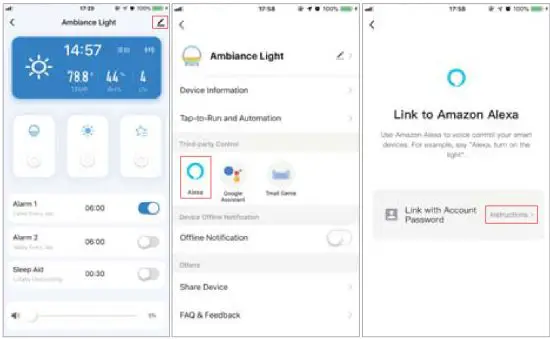
Functions instruction
Bluetooth
Turn on/off the Bluetooth speaker
- Tap “
 ” at the bottom to turn on/off the Bluetooth speaker
Bluetooth pairing
- Turn on the Bluetooth: tap “” at the bottom, the icon “” in the upper right corner flashes quickly; the device prompts with a “dong”
- Bluetooth pairing: go to your phone settings and choose Bluetooth, select “SAC” from the Bluetooth device list to pair. The device prompts with a “ding-dong” and the icon “” stays on, indicating the successful connection;
- Turn off the Bluetooth: sound: dong-dong-dong-dong; icon ““: off;
- After the successful connection, use your phone to open audio/video APP and play music or adjust the volume.

Time display (automatically synchronize network time after the Wi-Fi is connected; set the time via APP, go to the APP for details)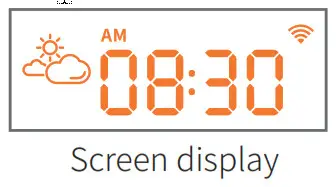
Alarm (set via APP only, go to the APP for details)
Turn on the alarm
- Tap
 at the bottom to turn on the alarm;
 at the bottom to turn on the alarm;
Turn off the alarm
- Press down the device during the alarm to stop the alarm and turn on the snooze mode;
- After the snooze mode is enabled, tap at the bottom to turn off the alarm completely;
- Durİng the alarm, if there is no operation within 30 minutes, the alarm will be automatically turned off.

Snooze mode (set via APP only, go to the APP for details)
- Turn on the snooze mode: when the alarm goes off, press down the device to turn on the snooze mode. The alarm icon flashes quickly and the alarm will go off again 9 minutes later (5 snooze times at most);
- Turn off the snooze mode: under the snooze mode, tap the corresponding alarm button to turn off the alarm clock;
- Set the snooze duration and snooze mode via APP only.

Night light (set via APP after Wi-Fi connection, go to the APP for details.)
- When the alarm is not activated, tap “
 “at the bottom of the device to turn on the night light;
 - If you reconnect the power, press down the device to turn on the night light;
- Brightness adjustment: press and hold the “” at the bottom of the device when the night light is turned on;
- Turn off the night light: tap “” at the bottom of the device again.
 “at the bottom of the device to turn on the night light;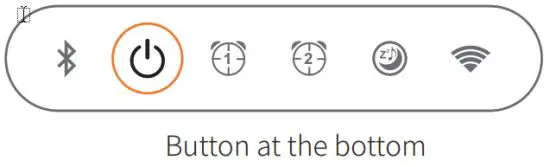
Ambiance light (set via APP only, go to the APP for details.)
- Turn on the ambiance light: after powered, oress down the device once to turn on the night light, press down the device again to turn on the ambiance light;
- Change the ambiance light effect: when the ambiance light is turned on, press down the device to change the light mode (9 modes);
- Brightness adjustment: press and hold the ” “to adjust the brightness when the ambiance light is turned on;
- Turn off the ambiance light: tap “ “at the bottom of the device again.
Sleep mode (set via APP only, go to the APP for details)
- Turn on the sleep mode: tap
 at the bottom to turn on the sleeo mode with its sound effect and sleep light;
 - Brightness adjustment: press and hold the ““at the bottom to adjust the brightness when the sleep mode is turned on;
- Turn off the sleep light: tap “ “at the bottom of the device.;
- Turn off the sleep mode: tap at the bottom of the device.
 at the bottom to turn on the sleeo mode with its sound effect and sleep light;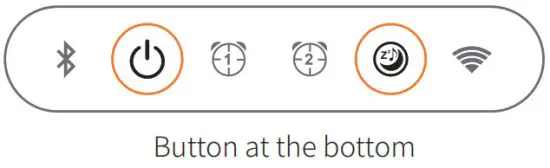
Wireless charge
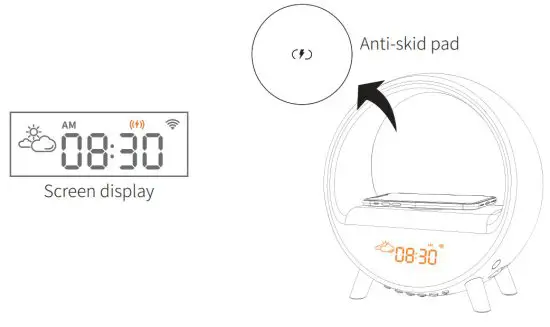
- Place your Qi-enabled device on the anti-skid pad to charge your device (support up to 15W). The icon “
 ” on the screen stays on.
 - FOD (Foreign body detection) Foreign object detected: when a non-wireless metal object is placed on the wireless charging area, the icon “” on the screen flashes quickly.
- When not being charged, the icon “” on the screen is off.

Support Qi-enabled devices, compatible device.
HUAWEI P40 Pro, Mate 30, Mate 30 Pro, P30 Pro, Mate 20 Pro; Xiaomi 9, mix2S, mix3, 10; iphone8/8Plus, XS, XR, SE, 11, 12, Airpods pro; Samsung S10, S10+, S9, S9+, S8, S8+, oppo ace2, etc
Charging output
A Type-C connector on the right of the device can charge your device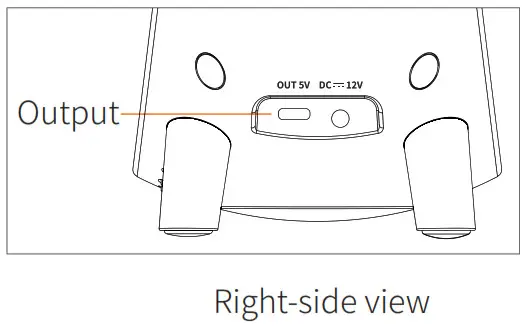
Specification
Model | SAC-WWBLR |
Size | 226 ×231×103.6mm |
| Weight | 700g |
Color | White |
Material | ABS. PC. metal |
| Communication mode | Wi-Fi (2.4G) + BLE module |
Control mode | Button control, APP control, Voice control (connect to the third-party smart speaker) |
| Input | Adapter 24W (12V 2A), DC input |
Output | Type-C output (5V 1A) |
Power | 24W (MAX) |
| Speaker | 4Ω5W |
Wireless charge | Ma×15W(maximum transmission distance: 3-8mm) |
| Working environment | Temperature: 0°C-45°C |
Storage environment | Temperature:-20°C-65°C |
Packing list | Smart Ambiance Lamp With Alarm Clock×1. |
Certification |  |
FAQ
- Device connection failed.
1. Please put the router, device and mobile phone as close as possible;
2. Please confirm whether the Wi-Fi signal is normal(support 2.4 GHz Wi-Fi network only);
3. If still fails to connect, please press and hold the Wi-Fi button at the bottom until the Wi-Fi icon “ “on the screen flashes to re-enter the pairing mode, and then try to connect to the network again - Bluetooth connection failed.
1. Please confirm whether the mobile phone Bluetooth is enabled;
2. Please confirm whether the device has been connected to another Bluetooth device. - APP cannot control the device.
It could be a network problem or the device is offline.
1. Please confirm whether the device is powered on;
2. lease confirm whether the Wi-Fi signal is normal(support 2.4 GHz Wi-Fi network only). It is suggested that you can keep the APP open and wait for about 2 minutes to check whether the device is still online;
3. If the device is still online, put your mobile phone next to the device, then connect to the same Wi-Fi as the device, and try to open the web page to see whether it is smooth to determine the network condition;
4. Exit the APP or clear cache in the APP settings, and then re-open the APP and try again. - How to reset Wi-Fi?
Press and hold the Wi-Fi button at the bottom until the Wi-Fi icon ”“on the screen flashes quickly, indicating that the Wi-Fi reset is successful. If failed, power off the device and try again.
* Resetting Wi-Fi will remove the connected device and the setting. - The device status cannot be synchronized with the APP.
1. Please confirm whether the device is connected to the network (Refer to troubleshoot- ing 3);
2. Confirm the network is successfu fly connected. Use the APP to control the device and check whether the device status is synchronized with the APP. - After the device is connected to the network, it can be controlled in the same place, but it cannot be remotely controlled if the phone is changed to another place or other network.
It is possible that the device and the phone are connected to the same LAN, but are not connected to the network.
1. Please put your mobile phone next to the device, and then connect to the same Wi-Fi as the device, try to open the web page to see whether it is smooth to determine if the Wi-Fi signal is normal;
2. If you cannot access the network, it is recommended to restart the router. - Others
If the device has been connected to the network and the problems above still occur, please enter the home page of the APP, tap in the upper right corner, enter the”FAQ & Feedback” page, tap”More” to enter the problems you have encountered and then submit.
Cautions
Please use the included power adapter (12V 2A) to avoid damage to the device.
Please use the product correctly according to the instructions. Disassembling and collision are strictly prohibited.
Please place the product on a stable, horizontal, and non-smooth surface.
Do not use it in high temperature, humidity and corrosive environment to avoid electric leakage due to circuit damage.
Please do not put cards (ID cards, credit cards, etc.) with magnetic strips or chips near the wireless charging area to avoid degaussing.
Please keep it in a proper place and out of reach of children to avoid accidents. this product is not fireproof, do not throw it into the fire, and do not place it close to any fire source. this product is not waterproof do not put it into the water to avoid damage.
Storage
Please wipe the product with a soft cloth.
Do not scrub the product with abrasive cleaner, rough chemical, alcohol or acetone detergent to avoid damage to the surface of the product.
Store the product in a safe, dry place where it will not be crushed, bruised or damaged.
Do not wrap the power cord around the appliance during storage.
FCC Statement
NOTE: This equipment has been tested and found to comply with the limits for a Class B digital device, pursuant to part I5 of the FCC Rules. These limits are designed to provide reasonable protection against harmful interference in a residential installation. This equipment generates uses and can radiate radio frequency energy and, if not installed and used in accordance with the instructions, may cause harmful interference to radio communications. However, there is no guarantee that interference will not occur in a particular installation. If this equipment does cause harmful interference to radio or television reception, which can be determined by turning the equipment off and on, the user is encouraged to try to correct the interference by one or more of the following measures:
- Reorient or relocate the receiving antenna.
- Increase the separation between the equipment and receiver.
- Connect the equipment into an outlet on a circuit different from that to which the receiver is connected.
- Consult the dealer or an experienced radio/TV technician for help
Changes or modifications not expressly approved by the party responsible for compliance could void the user’s authority to operate the equipment.
This device complies with Part 15 of the FCC Rules. Operation is subject to the following two conditions:
(1) this device may not cause harmful interference, and (2) this device must accept any interference received, including interference that may cause undesired operation.
RF Exposure Warning Statements:
This equipment complies with FCC radiation exposure limits set forth for an uncontrolled environment. This equipment shall be installed and operated with minimum distance 20cm between the radiator & body.