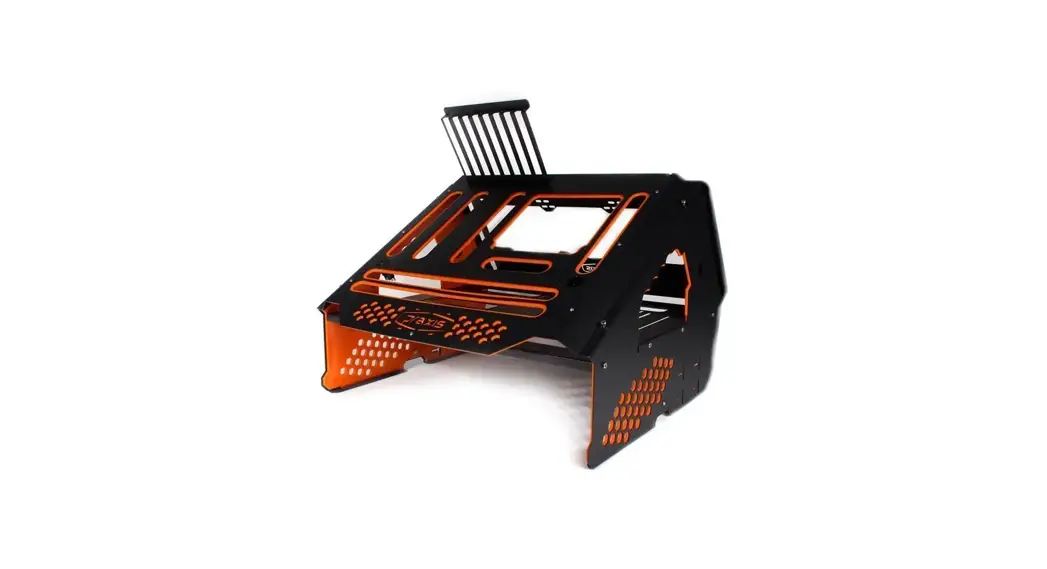
 WETBENCH
INSTRUCTION MANUAL
FOR THE ORIGINAL
WETBENCH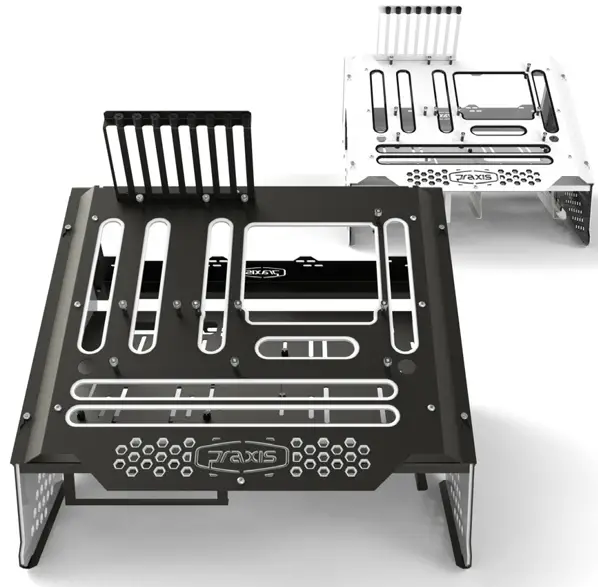
MOUNTING HARDWARE
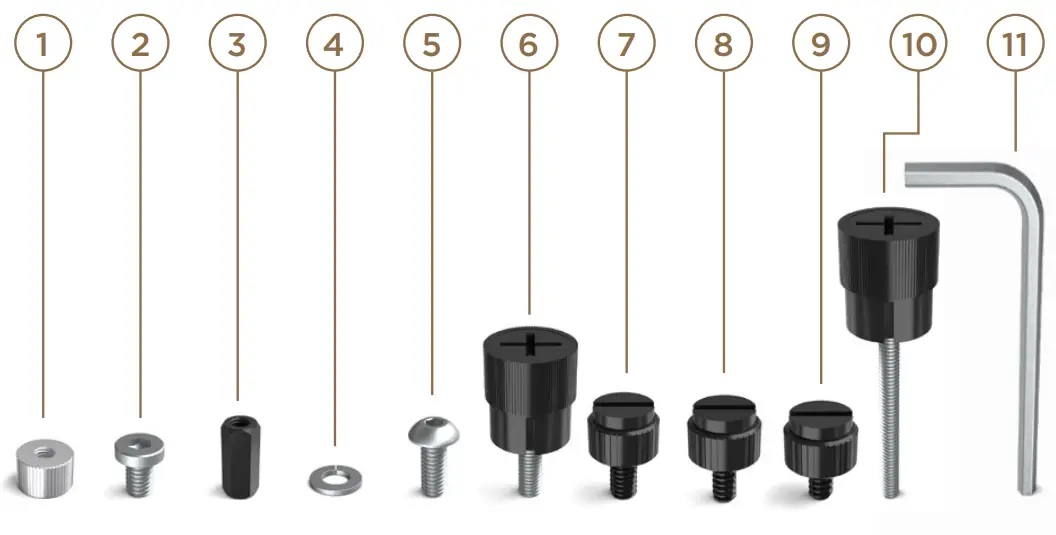
| PART # | PART NAME | QTY |
| 1 | M3 MOTHERBOARD NUT | 24 |
| 2 | M4X6 LOWHEAD SCREW | 20 |
| 3 | 12MM MOTHERBOARD STANDOFF | 14 |
| 4 | M3 SPLIT WASHER | 11 |
| 5 | M3X1OMM SOCKET CAP | 11 |
| 6 | M3x8MM GPU SCREWS | 10 |
| 7 | 6/32 .25″ HDD NYLON SCREW | 14 |
| 8 | M4X8MM MIDTRAY NYLON SCREW | 10 |
| 9 | M3x5MM SSD/DRIVE NYLON SCREW | 14 |
| 10 | M3 MOTHERBOARD SCREW | 14 |
| 11 | 2.5MM HEX KEY WRENCH | 1 |
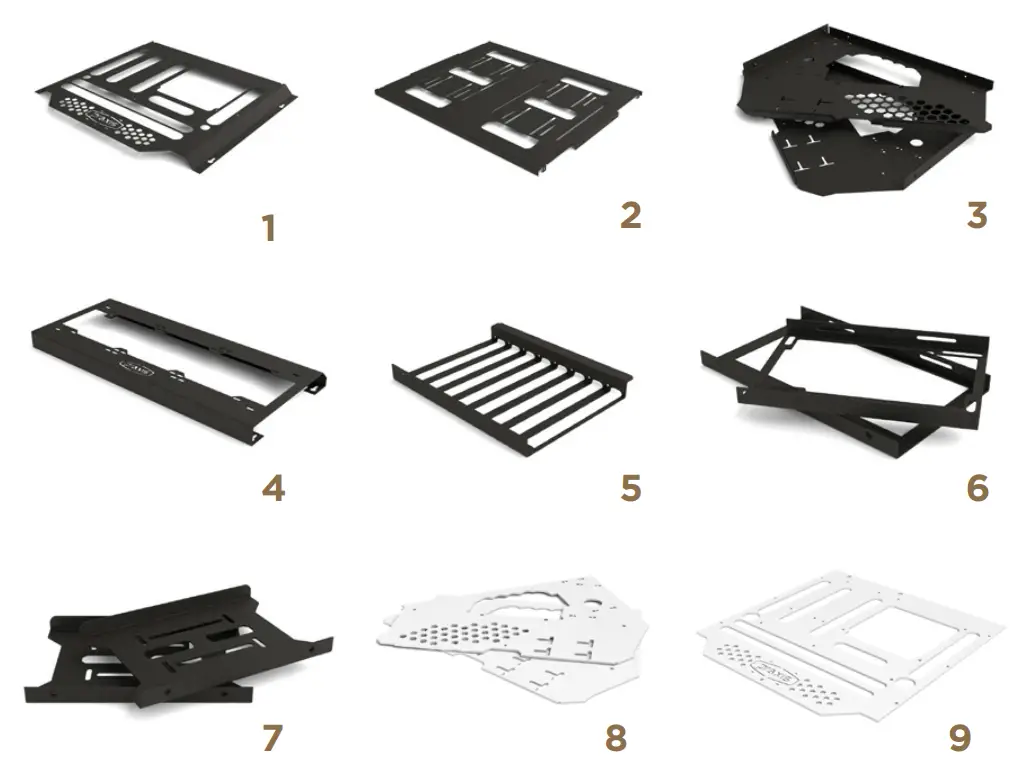
WETBENCH HARDWARE
| ITEM # | PART NAME | OTY |
| 1 | MOTHERBOARD TRAY | 1 |
| 2 | MID TRAY | 1 |
| 3 | LEFT & RIGHT SLANTED LEGS | 1 |
| 4 | BACK RADIATOR TRAY | 1 |
| 5 | GPU BRACKET | 1 |
| 6 | FRONT AND BACK PSU BRACKET | 1 |
| 7 | 5.25″ BAY BRACKET | 2 |
| 8 | ACRYLIC INSERTS FOR LEGS | 2 |
| 9 | ACRYLIC INSERTS FOR MOTHERBOARD | 1 |
STEP 1 | INSTALLING ACRYLIC TO LEGS
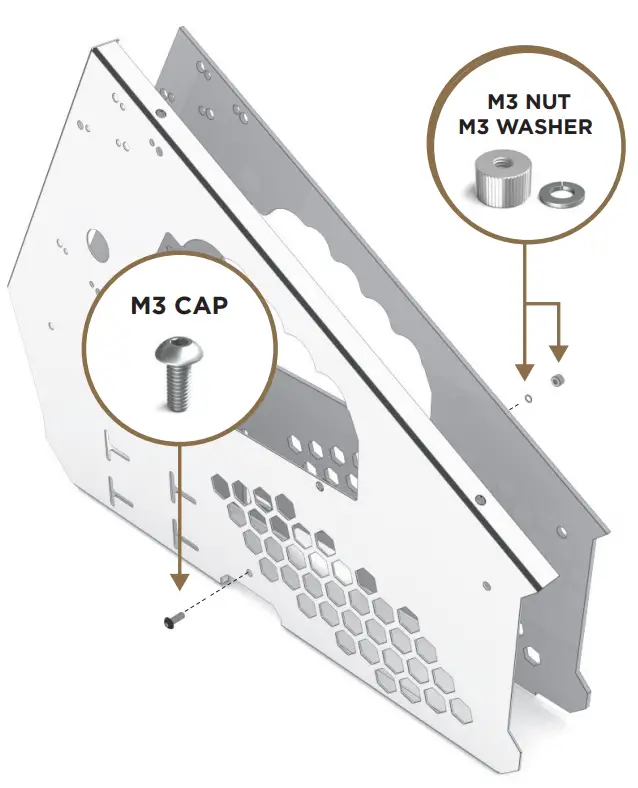
Grab your leg and acrylic insert. Be sure to pull off the brown protective paper from your acrylic. Attach your leg and acrylic using 1 M3X10MM SOCKET CAP (part 5), 1 M3 SPLIT WASHER (part 4), and 1 M3 MOTHERBOARD NUT (part 1).
STEP 2 | ATTACHING LEGS TO MIDTRAY
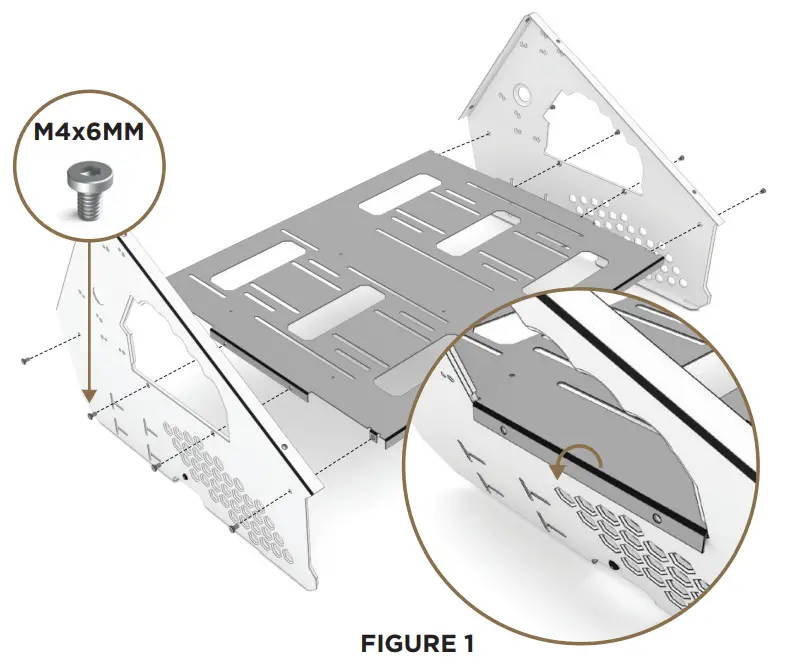
Gather the Midtray and both legs. Attach them using 4 M4X6 lowhead screws (part 2) on each side. Be sure that the midtray overlaps the leg and that you lean your leg at an angle and then straighten it into the midtray as Figure 1 shows.
STEP 3 | HARDDRIVE INSTALL
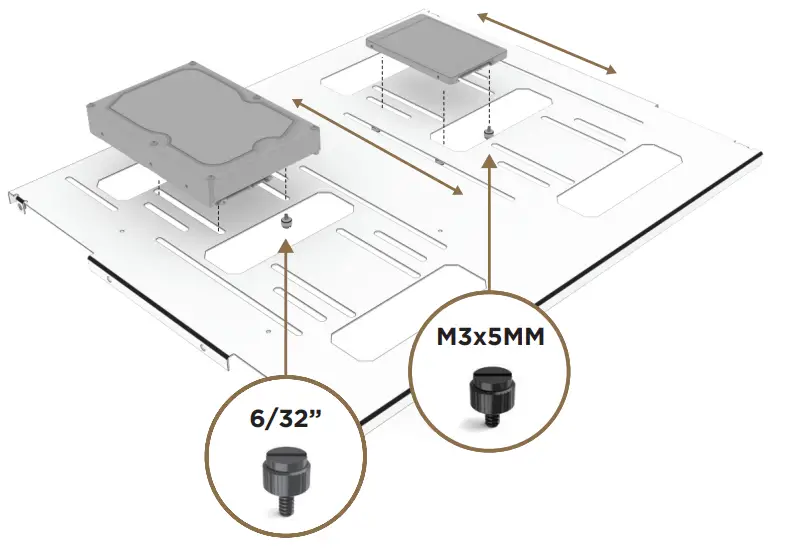
Install any HDD or SDD on top of the mid tray. These drives can be oriented on either front or back depending on your prefer- ence. SSD’s use M3x5 nylon screws (part 9) and HDD’s utilize 6/32” .25 nylon screws (part 7).
STEP 4 | PSU INSTALL
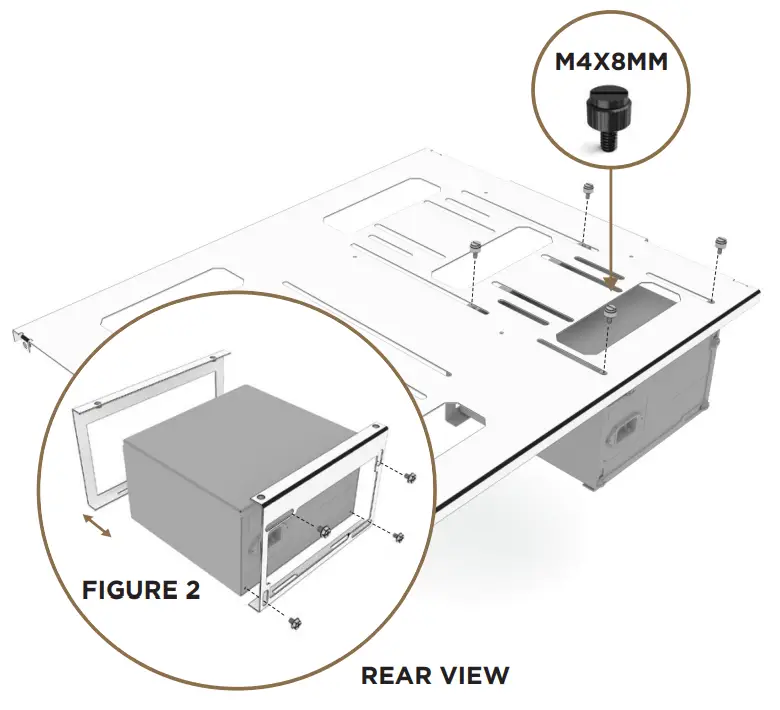
After your drives are installed you can screw in the back of your PSU to the bracket. Then connect it to the location of the midboard tray of your choosing. (Figure 2.2).
STEP 5 | OPTICAL DRIVE INSTALL
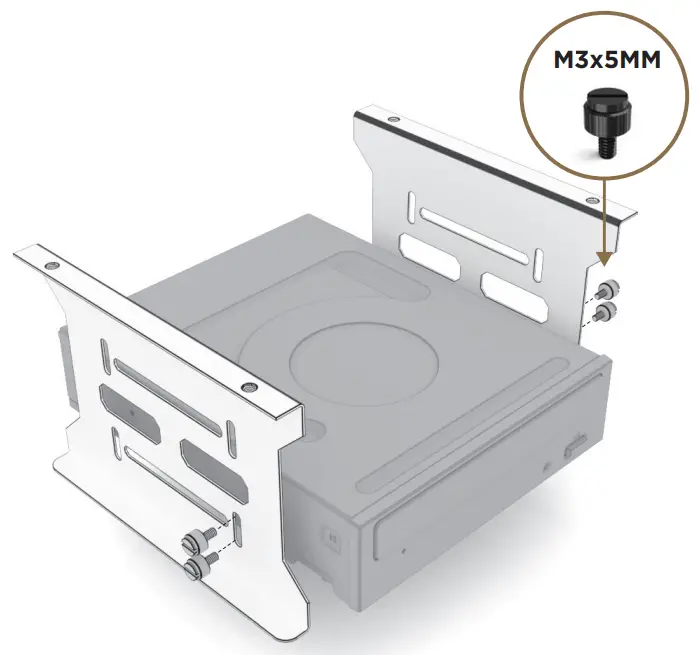
Use M3x5 nylon screws (part 8) to install your optical drive. If you’re not using one you can disregard this step.
STEP 6 | MIDTRAY BRACKETS INSTALL
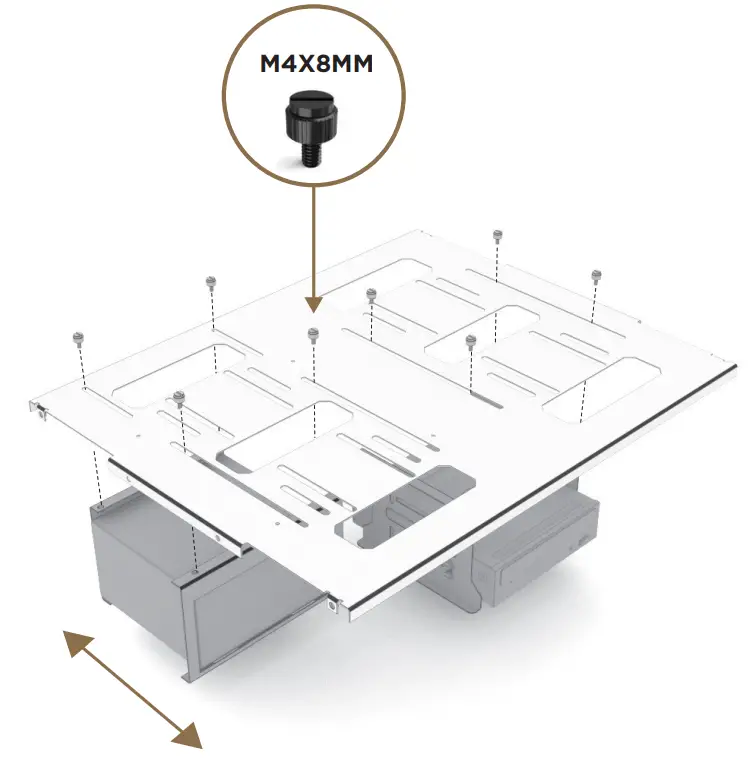
After your drives and/or ODD is installed you can install your brackets onto the midtray using M4x8 nylon screws (part 8).
Note: These brackets are modular and can be oriented on both the left and right side and slid forward and backwards.
STEP 7 | MB & ACYLIC INSTALL
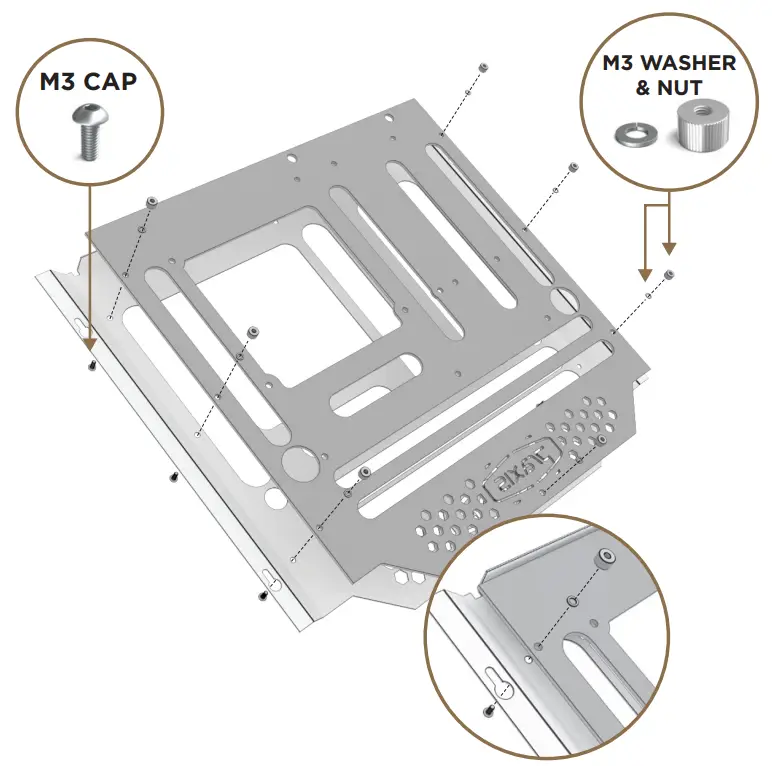
Grab your motherboard and acrylic insert. Be sure to pull off the brown protective paper from your acrylic. Attach your motherboard and acrylic using 7 M3X10MM SOCKET CAP (part 5), 7 M3 SPLIT WASHER (part 4), and 7 M3 MOTHERBOARD NUT (part 1).
STEP 8 | INSTALLING MB STANDOFFS
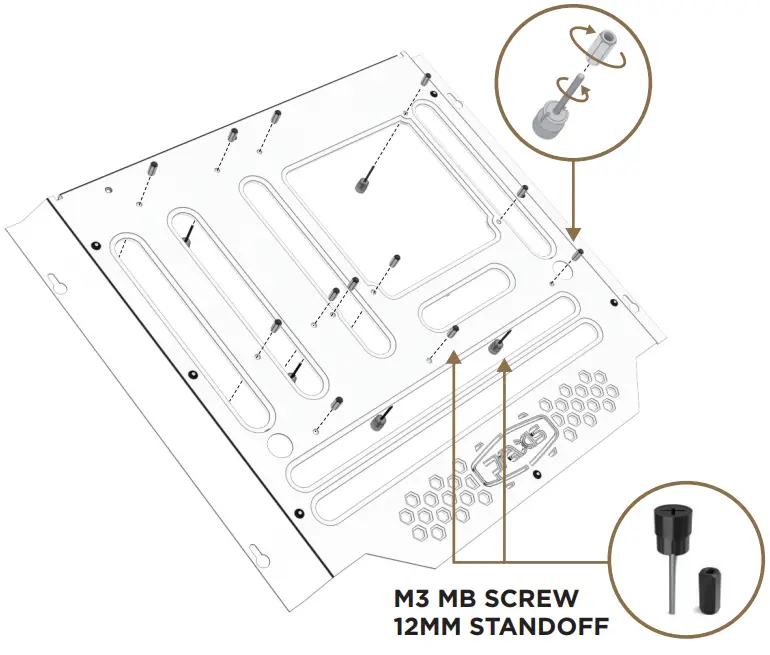
Install your 12mm standoffs (part 3) and your M3 motherboard screws (part 10) to the motherboard tray. Ensure that you’re placing them in the correct location according to your motherboard layout. You can also use a drill at it’s lowest setting to screw in the standoffs to the motherboard screws.
STEP 9 | GPU BRACKET INSTALL
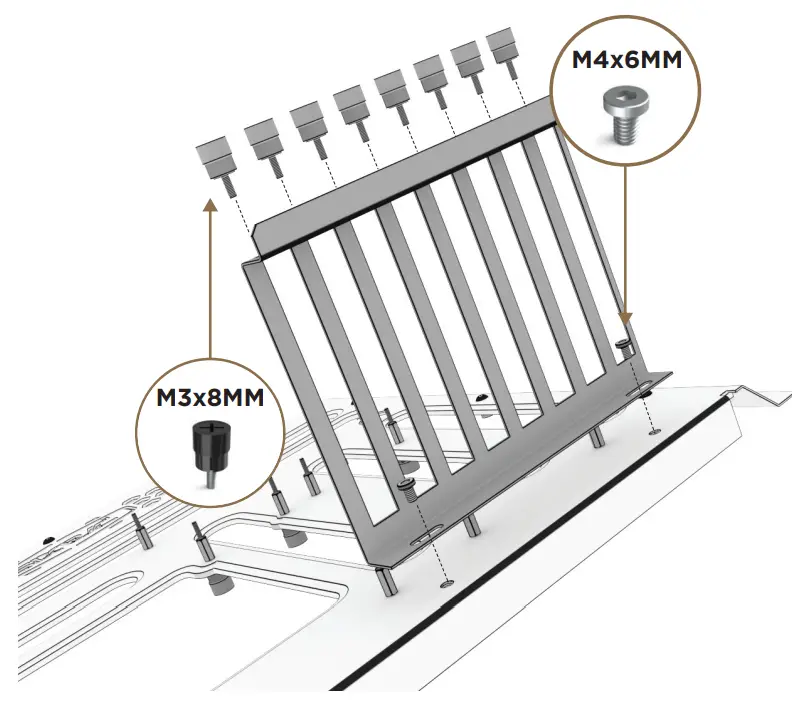
Install the GPU bracket as illustrated above using 2 M4x6 Lowhead screws (part 2). You can shift your GPU bracket left and right to align with your GPU. Use M3x8MM GPU screws (part 6) to secure your GPU into the bracket.
STEP 10 | INSTALLING MB TRAY
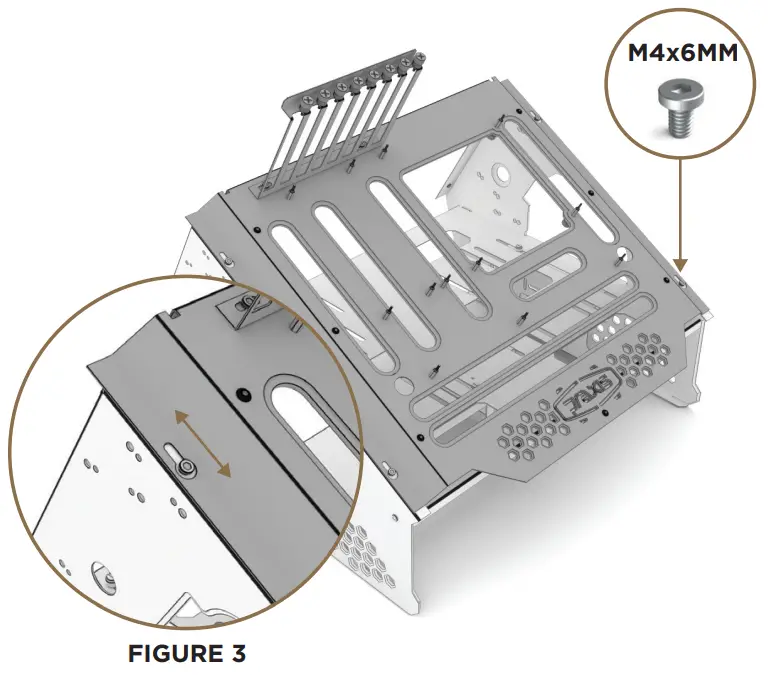
Screw in 2 M4x6 lowhead screws (part 2) to each leg (4 total screws). Don’t completely tighten these (figure 3) as the motherboard tray will slide under the screws as shown in figure 3. After installing the motherbord, you can either tighten the screws down or keep them loose for easy disconnect.
STEP 11 | INSTALLING MOTHERBOARD
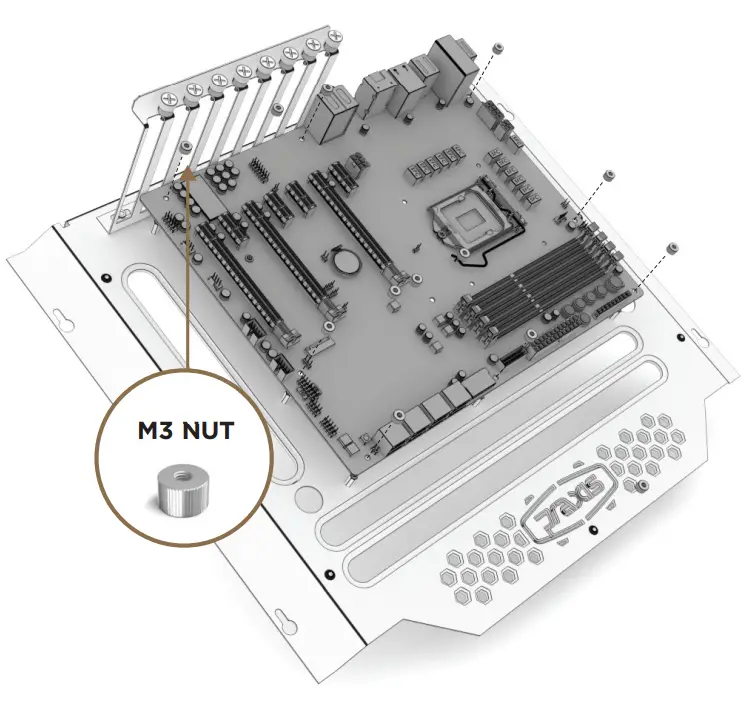
After your standoffs are installed, place your motherboard on the tray and hand tighten the M3 nuts (part 1) to properly secure your board. Make sure they are fully tightened ensuring no short will occur.
STEP 12 | RADIATOR INSTALL
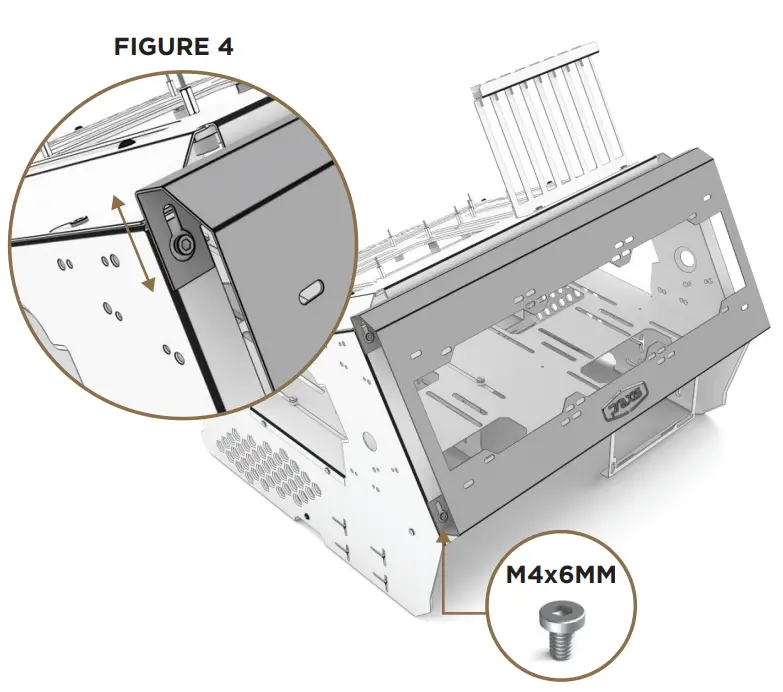
Spin your wetbench to the back and place 2 M4x6 lowhead screws (part 2) on each leg. Keep these loose so your radiator mount can slide on (figure 4). Once everything is installed you can tighten down the radiator bracket or keep it as is for easy disconnect.
STEP 12.1 | RADIATOR VARIATIONS
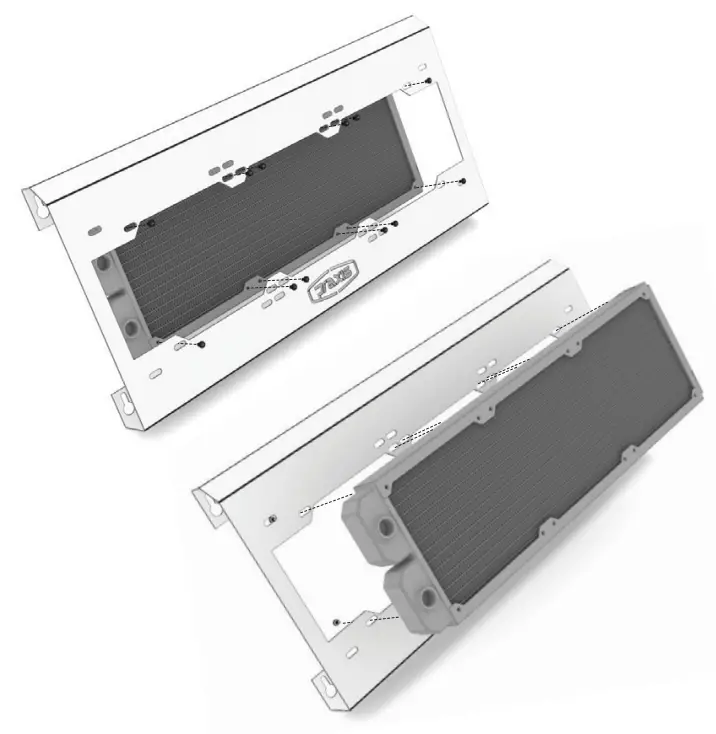
The radiator tray can hold up to a 360mm radiator internally or externally. We recommend utilizing the hardware that came with your radiator for install.
WIRING VANDAL SWITCH
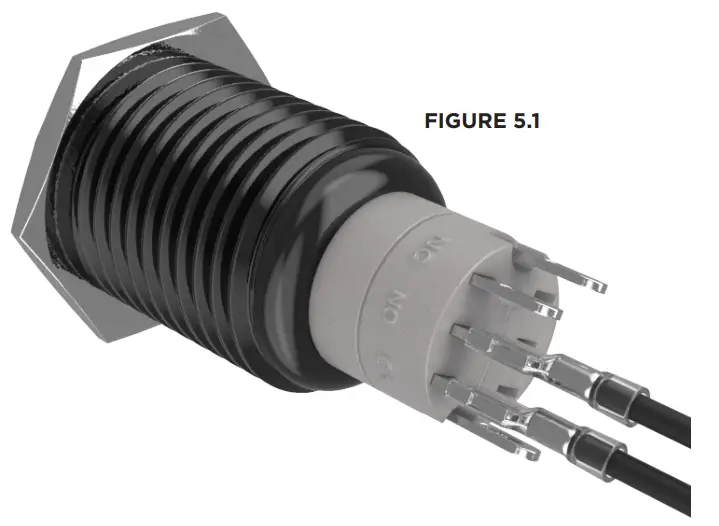
Wiring vandal switch for power:
Take the power SW cord and attach the NO and C prong. Then connect the other end to the POWER on the motherboard. Repeat for the RESET button.

INSTALLING VANDAL SWITCH
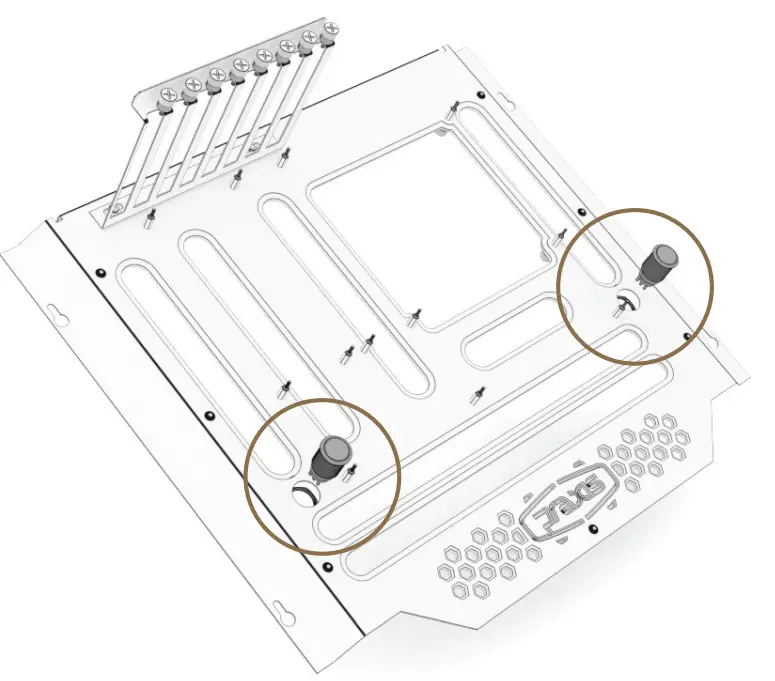
Your 22mm vandal switches can be installed on either the right or left side of the motherboard.. Use the supplied hardware to properly secure your vandal switch. We also recommend wiring the switches and testing before installing them to your wetbench.
WETBENCH
————-COMPATIBILITY————
MOTHERBOARD
MITX, mATX, ATX, eATX
OPTICAL DRIVES
Up to two 5.25” drives, can support dual 5.25” bay reservoir
STORAGE DRIVES
4 HDD or 4 SSD
3 HDD and 1 SSD
2 HDD and 2 SSD
1 HDD and 3 SSD
SSDs up to 2.5” and HDDs up to 3.5” are supported
PSU
ATX PSUs up to 300mm supported
SWITCHES
Up to 2x 22mm Vandal Switches
RADIATORS
Internal | 120mm or 140mm through 360mm or 280mm
External | 120mm or 140mm through 480mm or 420mm
Thick radiators mount outside. Some air restriction may occur when mounting larger radiators externally.
RESERVOIRS
PrimoChill CTR II SFF Reservoir
PrimoChill CTR II Low Profile Reservoir