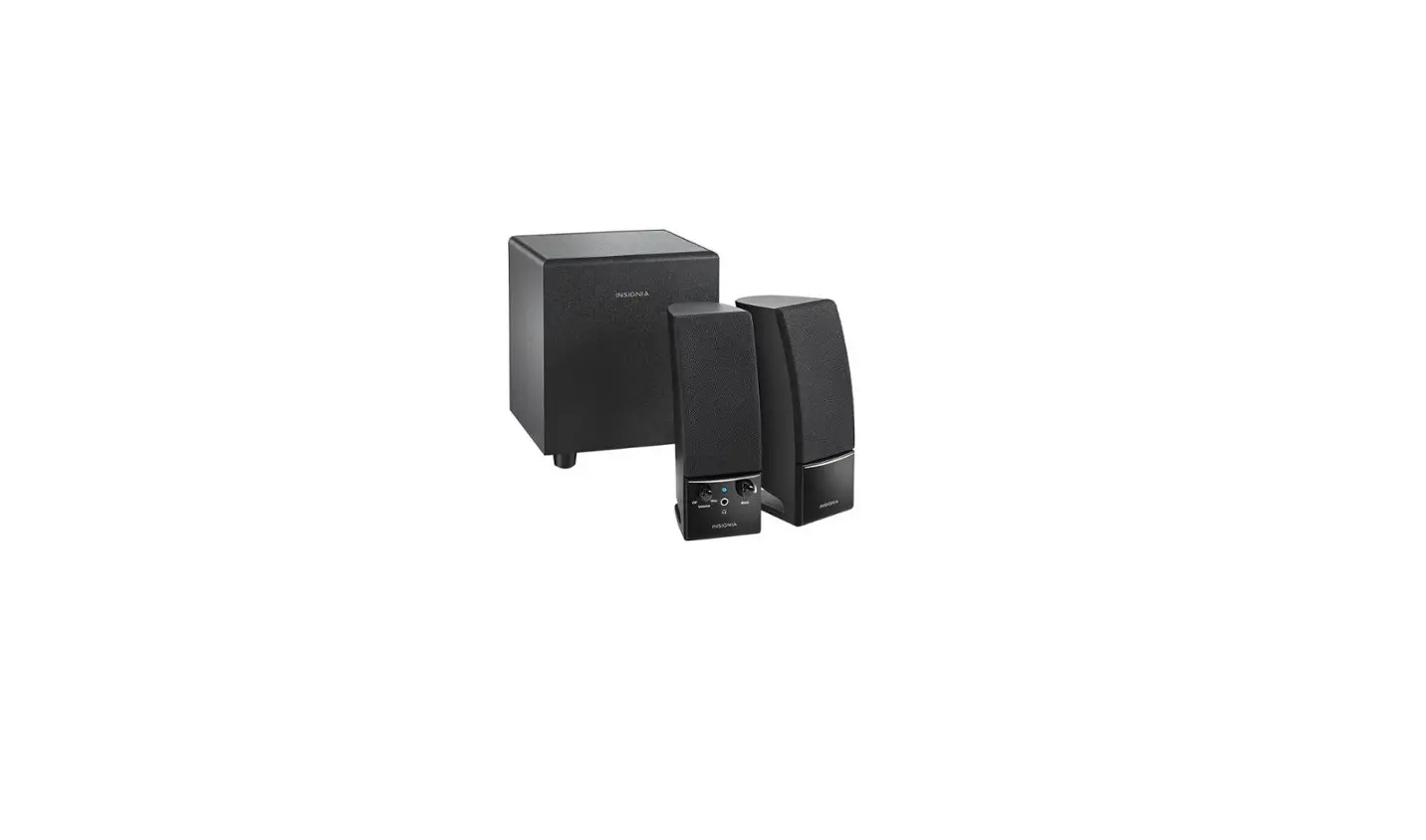
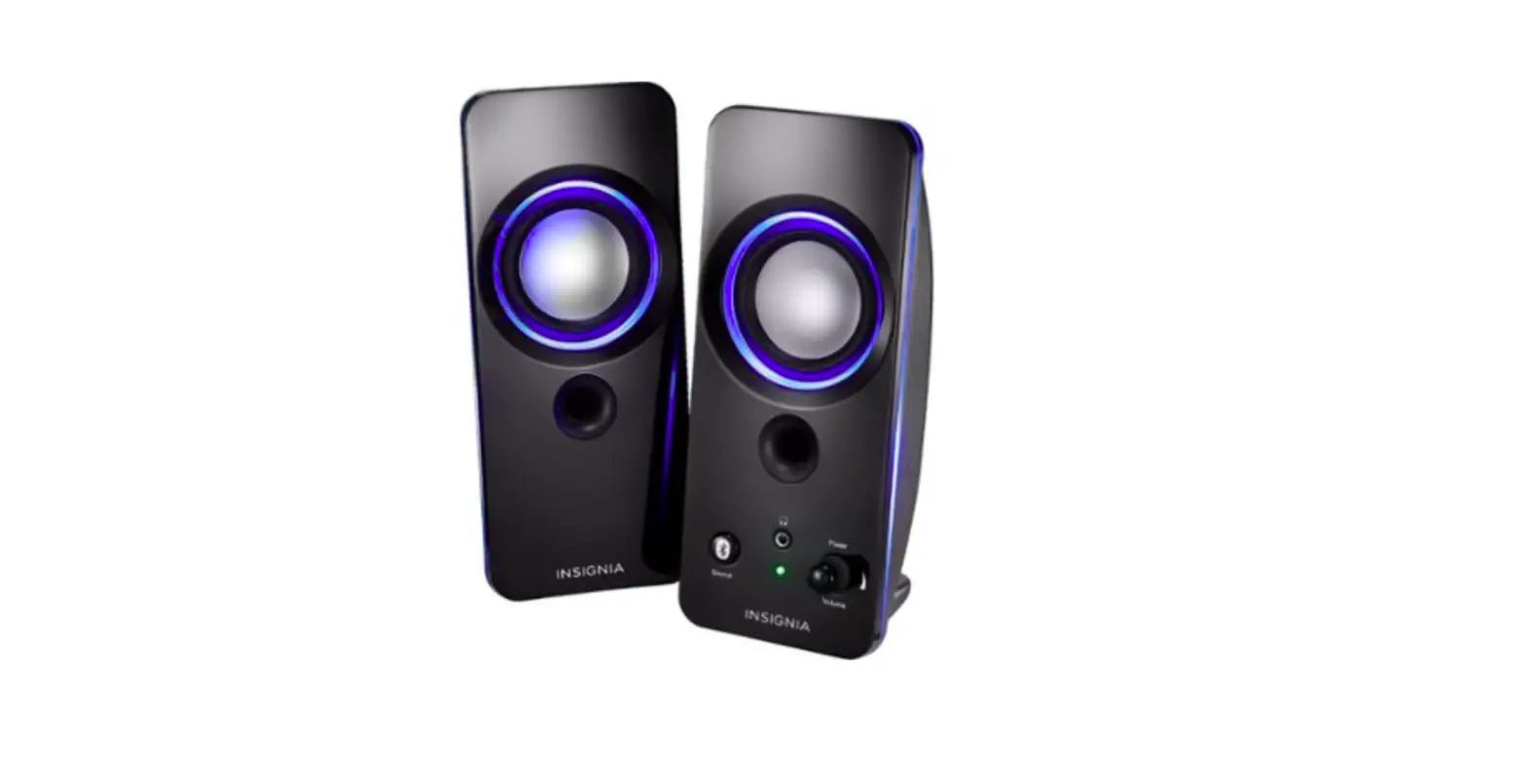
NS-PSB4521 2.1 Bluetooth Desktop Speaker System
Product Information
Congratulations on your purchase of the Insignia 2.1 Bluetooth
Desktop Speaker System. This high-quality speaker system is
designed for reliable and trouble-free performance. The system
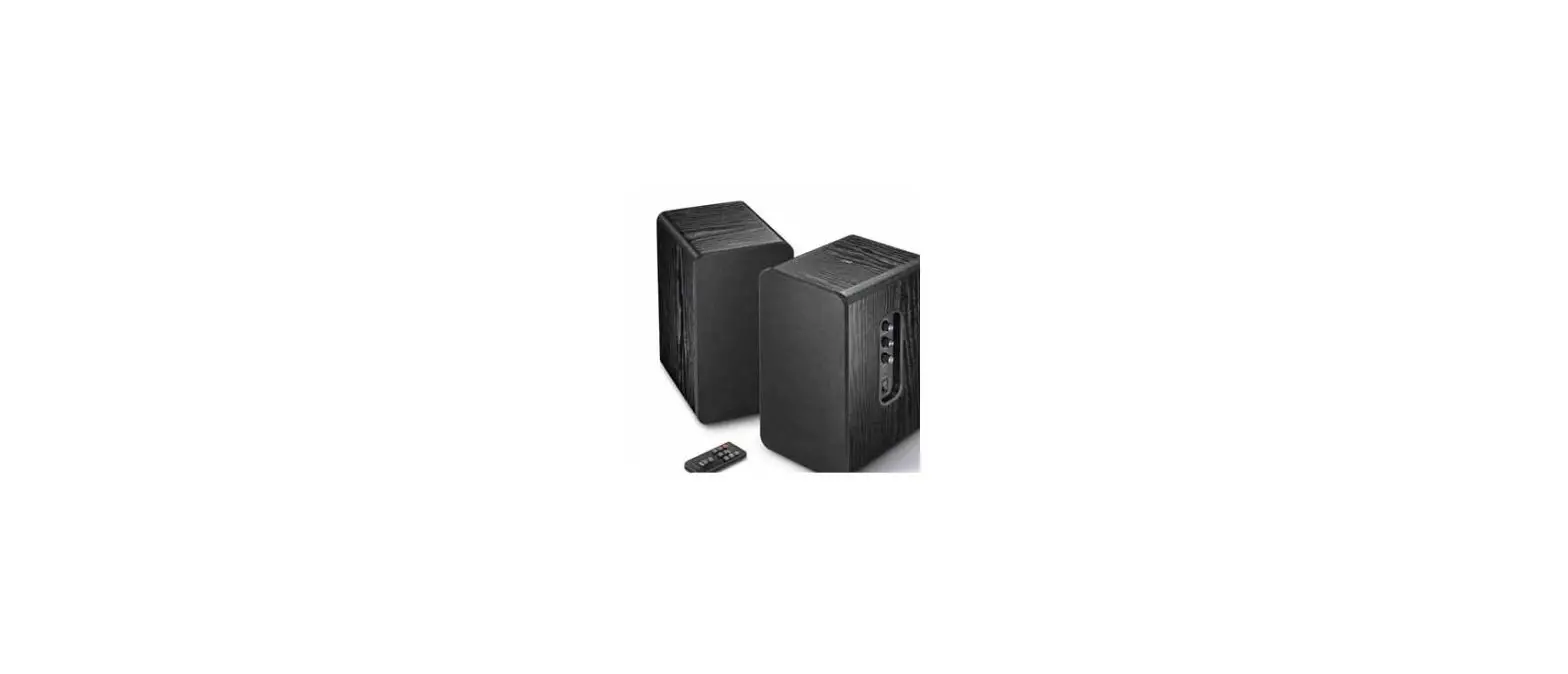
consists of a subwoofer, right speaker, and left speaker, offering
a powerful and immersive audio experience.
The speaker system features various controls and connectivity
options. The right speaker has volume and bass knobs for adjusting
the audio settings. The power/pairing button on the right speaker
allows you to turn on the system and connect it to your devices via
Bluetooth or wired connection. The subwoofer houses the necessary
ports and jacks for connecting the speakers and power cord.
Product Usage Instructions
Setting up and Turning On
- Plug the cable attached to the right speaker into the R jack on
the subwoofer. - Plug the cable attached to the left speaker into the L jack on
the subwoofer. - Plug the power cord attached to the subwoofer into a power
outlet. - Press the Power/pairing button for about half a second to turn
on the speaker system.
Connecting with a Bluetooth Device
- Make sure the speaker system is turned on. If no 3.5 mm cable
is connected to the AUX jack, the system is in Bluetooth mode. - If the blue LED is not blinking rapidly, press and hold the
Power/pairing button for three seconds to enter pairing mode. - Ensure that your Bluetooth device is within 33 feet (10 meters)
of the speaker system. - On your Bluetooth device, turn on the Bluetooth feature and set
it to pairing mode. Select “Insignia NS-PSB4521” from the available
devices. The speaker system will pair with your Bluetooth device,
and the blue LED will light continuously. - Note: If pairing with a computer, set the Bluetooth speaker as
the computer’s default playback device. Refer to your computer’s
documentation for instructions. Ensure that your Bluetooth device
supports Bluetooth 3.0 + EDR A2DP protocol and is not paired with
another device.
Reconnecting to a Paired Device
- If the speaker system is turned off, turn it on.
- Ensure that your Bluetooth device is turned on, the Bluetooth
feature is enabled, and there are no obstructions between the
device and the speaker system.
For more detailed information and troubleshooting, please refer
to the user guide available online at www.insigniaproducts.com.
Congratulations on your purchase of a high-quality Insignia product. Your 2.1 Bluetooth Desktop Speaker System is designed for reliable and trouble-free performance.
PACKAGE CONTENTS · Subwoofer with an attached 5-foot (1.5-meter)
power cord · Right satellite speaker with an attached 5-foot
(1.5-meter) cable · Left satellite speaker with an attached 5-foot
(1.5-meter) cable · 3.5 mm 5-foot (1.5-meter) stereo audio cable · Quick Setup Guide
FIND YOUR USER GUIDE ONLINE! We are going green so a copy of your User Guide is not provided in the box but is available online. To find your manual, touch the ? icon on your tablet or go to www.insigniaproducts.com, then click Support & Service. Enter your model number in the box under Manual, Firmware, Drivers & Product Information, then click .
Before using your new product, please read these instructions to prevent any damage.
FEATURES
Right speaker (front)
Volume knob Bass knob
Vol
Bass
Power/pairing
Right speaker (back)
Power/pairing button LED
Left speaker (back)
Audio cable
Subwoofer (right)
AUX jack Audio cable
R jack L jack
Power cord
Quick Setup Guide I NS-PSB4521/NS-PSB4521-C
2.1 Bluetooth Desktop Speaker System
SETTING UP AND TURNING ON
Subwoofer (right)
Right speaker (back)
Left speaker (back)
Bass Power/pairing
Right speaker (front)
1 Plug the cable attached to the right speaker into the R jack on the subwoofer.
2 Plug the cable attached to the left speaker into the L jack on the subwoofer.
3 Plug the power cord attached to the subwoofer into a power outlet.
4 Press the Power/pairing button for about half a second. Your speaker system turns on.
5 Follow one of the connection methods (Bluetooth or wired) to connect the speaker system to a source.
When the LED is…
Your speaker set is…
blue and blinks rapidly
in pairing mode
blue and lights continuously connected to a Bluetooth device
blue and blinks slowly
connecting to a Bluetooth device
green
in AUX IN mode
CONNECTING WITH A BLUETOOTH DEVICE
Pairing with a Bluetooth device
1 Make sure that your speaker system is turned on. If a 3.5 mm cable is not connected to the AUX jack, your speaker system is in Bluetooth mode. The blue LED blinks rapidly when your speaker system is in pairing mode and lights continuously when your speaker system is paired to a device.
2 If the blue LED is not blinking rapidly, press and hold the Power/pairing button for three seconds.
3 Make sure that your Bluetooth device is within 33 feet (10 meters) of your speaker system.
4 On your source device, turn on the Bluetooth feature, then set your device to pairing mode. (For instructions, see the documentation that came with your Bluetooth device.) On your Bluetooth device, select Insignia NS-PSB4521. Your speaker system pairs with the Bluetooth device and the blue LED lights continuously.
Note: If you are pairing with a computer, make sure that your Bluetooth speaker is selected as the computer’s default playback device. See the computer’s documentation for instructions. Make sure that your Bluetooth device supports the Bluetooth 3.0 + EDR A2DP protocol and that your device is not paired with another device. To determine what Bluetooth protocol your device supports, see the documentation that came with your device.
RECONNECTING TO A PAIRED DEVICE
1 If your speaker system is turned off, turn it on. 2 Make sure that your Bluetooth device is turned on,
the Bluetooth feature on the device is turned on, and the device is within range of your speaker system with no obstructions between your speaker system and the device.
Note: If your speaker system and your Bluetooth device do not automatically re-pair, select Insignia NS-PSB4521 on your Bluetooth device.
DISCONNECTING A PAIRED DEVICE
· Move the device out of range of your speaker system. OR · Turn off the Bluetooth function on the Bluetooth
device. OR · Unpair your speaker system in the Bluetooth device
list. OR · Turn off your speaker system or the Bluetooth device.
CONNECTING TO A WIRED DEVICE
Right speaker (back)
1 Make sure that the source device is powered on. 2 Connect one end of the included 3.5 mm stereo
audio cable to the AUX jack on the back of the right speaker, then connect the other end of the cable to the audio out or headphone jack on the audio device.
PLAYING FROM A WIRED DEVICE
· Use the controls on your audio device to control playback.
· When you connect a 3.5 mm cable to the AUX jack, your speaker system switches to AUX IN mode and the blue LED changes to green.
Note: Do not place within 5′ (1.5 m) of any CRT-based video source (such as a tube-style TV or monitor).
TROUBLESHOOTING
No power
· Make sure that the power cord is securely and correctly connected. · Make sure that the power outlet is working. Test the outlet by
plugging a device, such as a lamp, into it. · Your speaker system may be in sleep mode. Press the
Power/pairing button to wake your speaker system.
No sound or low volume in Bluetooth
· Turn up the volume on your speaker system. · Turn up the volume on your Bluetooth device.
mode
· Make sure that your Bluetooth device is not muted.
Bluetooth connection cannot be established
My speaker system and my Bluetooth device keep unpairing
· Make sure that the 3.5 mm stereo audio cable is NOT connected. · Turn up the volume on your speaker system. · Turn up the volume on your audio device. · Make sure that the connected audio device is not muted. · Shorten the distance between your Bluetooth device and your
speaker system. · Turn off your device, then turn it on again to clear the device name.
Make the connection again. · Make sure that your speaker system and Bluetooth device are both
in pairing mode. · Make sure that your Bluetooth device supports the
Bluetooth 3.0 + EDR A2DP protocol. · Make sure that your Bluetooth device is not connected to any other
device.
· Make sure that you have selected Insignia NS-PSB4521 on your Bluetooth device.
· Shorten the distance between your Bluetooth device and your speaker system.
· If battery charge level on your Bluetooth device is low, recharge the battery.
IMPORTANT SAFETY INSTRUCTIONS
1) Read these instructions. 2) Keep these instructions. 3) Heed all warnings. 4) Follow all instructions. 5) Do not use this apparatus near water. 6) Clean only with dry cloth. 7) Do not block any ventilation openings. Install in accordance with the manufacturer’s instructions. 8) Do not install near any heat sources such as radiators, heat registers, stoves, or other apparatus (including amplifiers) that produce heat. 9) Do not defeat the safety purpose of the polarized or grounding-type plug. A polarized plug has two blades with one wider than the other. A grounding type plug has two blades and a third grounding prong. The wide blade or the third prong are provided for your safety. If the provided plug does not fit into your outlet, consult an electrician for replacement of the obsolete outlet. 10) Protect the power cord from being walked on or pinched particularly at plugs, convenience receptacles, and the point where they exit from the apparatus. 11) Only use attachments/accessories specified by the manufacturer.
12) Use only with the cart, stand, tripod, bracket, or table specified by the manufacturer, or sold with the apparatus. When a cart is used, use caution when moving the cart/apparatus combination to avoid injury from tip-over. 13) Unplug this apparatus during lightning storms or when unused for long periods of time. 14) Refer all servicing to qualified service personnel. Servicing is required when the apparatus has been damaged in any way, such as power supply cord or plug is damaged, liquid has been spilled or objects have fallen into the apparatus, the apparatus has been exposed to rain or moisture, does not operate normally, or has been dropped. 15) The apparatus should not be exposed to dripping or splashing, and no objects filled with liquids, such as vases, should be placed on the apparatus.
Warning: To reduce the risk of fire or electric shock, do not expose this apparatus to rain or moisture.
The MAINS plug is used as the disconnect device, the disconnect device shall remain readily operable.
As the main plug is used to disconnect the system from the mains, connect the system to an easily accessible AC outlet. The system is not disconnected from the mains as long as it is connected to the AC outlet, even if the system itself has been turned off. Should you notice an abnormality in the system, disconnect the main plug from the AC outlet immediately.
CAUTION RISK OF ELECTRIC SHOCK
DO NOT OPEN
This symbol indicates that dangerous voltage constituting a risk of electric shock is present within your speaker system This label is located on the back of your speaker system.
This symbol indicates that there are important operating and maintenance instructions in the literature accompanying your speaker system.
FCC AND IC INFORMATION
This device complies with Part 15 of the FCC Rules. Operation is subject to the following two conditions: (1) this device may not cause harmful interference, and (2) this device must accept any interference received, including interference that may cause undesired operation. This equipment has been tested and found to comply with the limits for a Class B digital device, pursuant to Part 15 of the FCC Rules. These limits are designed to provide reasonable protection against harmful interference in a residential installation. This equipment generates, uses and can radiate radio frequency energy and, if not installed and used in accordance with the instructions, may cause harmful interference to radio communications. However, there is no guarantee that interference will not occur in a particular installation. If this equipment does cause harmful interference to radio or television reception, which can be determined by turning the equipment off and on, the user is encouraged to try to correct the interference by one or more of the following measure
· Reorient or relocate the receiving antenna · Increase the separation between the equipment and receiver. · Connect the equipment into an outlet on a circuit different from that to
which the receiver is connected. · Consult the dealer or an experienced radio/TV technician for help Warning:
Changes or modifications not expressly approved by the party responsible for compliance could void the user’s authority to operate the equipment. This device complies with Industry Canada licence-exempt RSS standard(s). Operation is subject to the following two conditions: (1) this device may not cause interference, and (2) this device must accept any interference, including interference that may cause undesired operation of the device. Le présent appareil est conforme aux CNR d’Industrie Canada applicables aux appareils radio exempts de licence. L’exploitation est autorisée aux deux conditions suivantes : (1) l’appareil ne doit pas produire de brouillage, et (2) l’utilisateur de l’appareil doit accepter tout brouillage radioélectrique subi, même si le brouillage est susceptible d’en compromettre le fonctionnement. This equipment complies with IC radiation exposure limits set forth for an uncontrolled environment. Cet équipement est conforme à l’exposition aux rayonnements IC limites établies pour un environnement non contrôlé.
ONE YEAR LIMITED WARRANTY
Visit www.insigniaproducts.com for details.
ONE YEAR PARTS AND LABOR
Visit www.insigniaproducts.com for details.
CONTACT INSIGNIA:
For customer service please call: US & Canada 1-877-467-4289 www.insigniaproducts.com
INSIGNIA is a trademark of Best Buy and its a liated companies. Registered in some countries. Distributed by Best Buy Purchasing, LLC 7601 Penn Ave South, Richfield, MN 55423 U.S.A. ©2014 Best Buy. All rights reserved. Made in China
V3 ENGLISH 14-0388
 Insignia Consumer Electronic Products
![Insignia Bluetooth Speaker [ns-cspbtf1] User Manual](https://static-data1.manualsee.com/1/img/414/18207/2020/12/insignia-bluetooth-speaker.png "Insignia Bluetooth Speaker [ns-cspbtf1] User Manual")