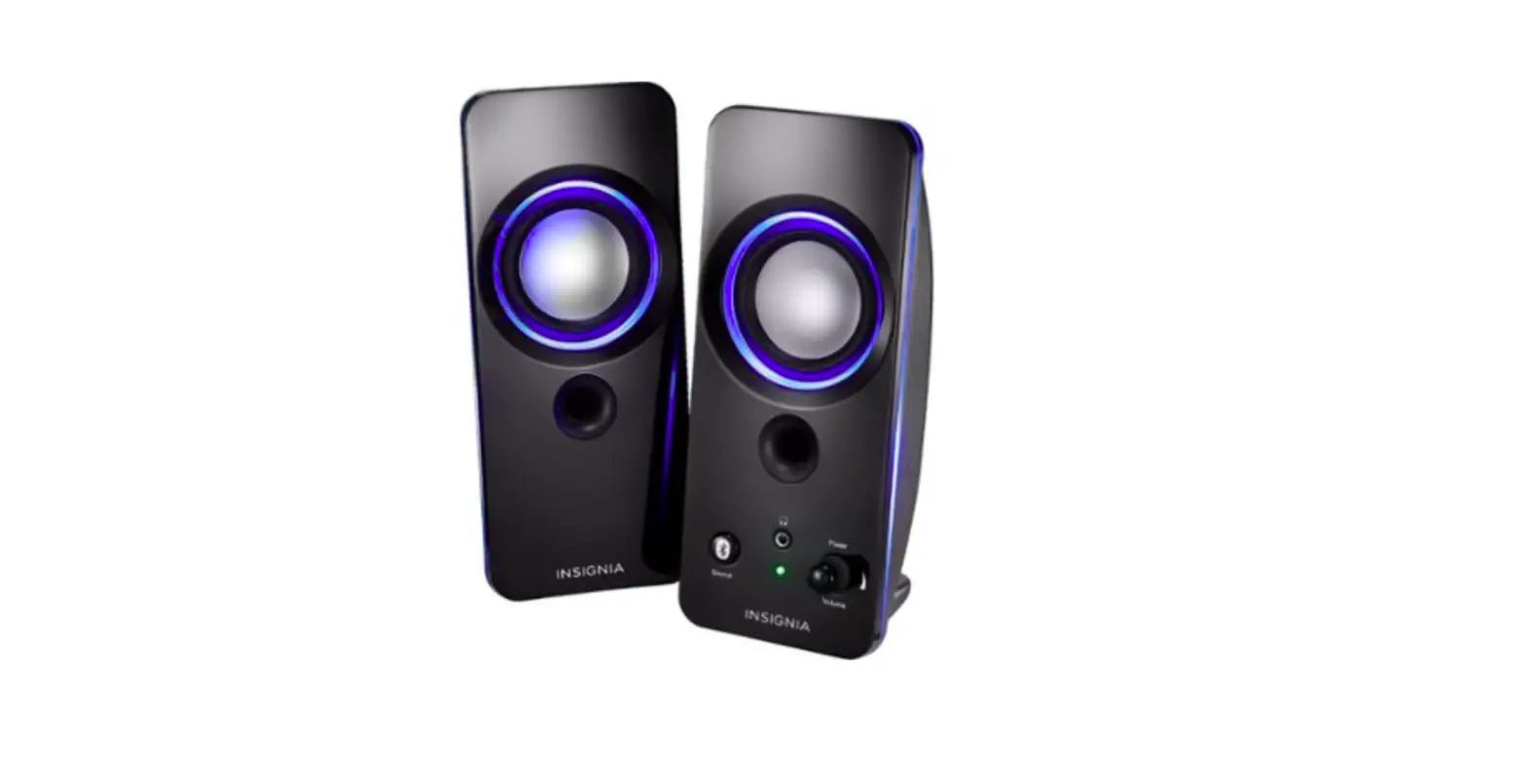
NS-5004BT 2.1 Computer Speakers
Product Information
Product Name: Color Changing 2.1 Computer
Speakers with Bluetooth (NS-5004BT)
Package Contents:
- 2 satellite speakers
- Subwoofer
- Control pod
- Power cable
- 3.5 mm audio cable
- User manual
Features:
- Bluetooth connectivity
- Color-changing lights
- Master volume control
- Bass volume control
- Headphone jack
- AUX input jack
- Status LED indicator
Specifications:
- Wattage: 25W total (16W sub, 4.5W for each satellite
speaker) - Range: 32.8 ft (10 m)
- Power cord length: 5.5 ft (1.67 m)
Product Usage Instructions
Connecting with Bluetooth
- Make sure that your Bluetooth device is turned on and within 33
feet (10 meters) of your speakers. - Turn on your speakers. The status LED blinks blue to indicate
that they are in pairing mode. If the status LED is red, press the
Input button once to switch to Bluetooth mode. - Turn on your Bluetooth device, then turn on Bluetooth. Set your
device to pairing mode, then select “Insignia NS-5004BT”. Refer to
the instructions that came with your Bluetooth device for
information about pairing. - If you are asked for a password, enter “0000”. When pairing is
complete, the status LED lights solid blue.
Connecting the Speakers
- Plug the satellite speakers into the “To Speaker” jack on the
back of the subwoofer. - Plug the power cable into a power outlet or surge
protector.
Reconnecting with a Previous Device
To reconnect with a previously paired device, simply turn on
your speakers and enable Bluetooth on your device. The speakers
will automatically connect if they are within range.
Force Pairing and Connecting with a New Device
If you want to pair and connect with a new device, follow the
steps mentioned in “Connecting with Bluetooth” section above.
Using a Wired Connection
- Connect an external sound source, such as an MP3 player, by
plugging the included audio cable into the AUX jack on the back of
your control pod and the sound source. - Press the Input button to enter AUX mode. The status LED lights
red.
Turning Your Speakers On and Off
To turn on your speakers, simply press the Power button. To turn
off your speakers, press and hold the Power button until the status
LED turns off.
Listening to Music
- Turn on your speakers, then connect to your audio device.
- Press the Input select button to choose either Bluetooth or
wired (AUX) connection. The status LED lights blue for Bluetooth or
red for AUX. - Begin playback on your device.
- Adjust the volume using the master volume control.
- Use the controls on your audio device to control playback.
Troubleshooting
| Problem | Solution |
|---|---|
| No power | Check if the power cable is securely connected and the power outlet is working. |
| No sound or low volume | Ensure that the volume is not muted and the master volume control is adjusted properly. |
| Cannot establish Bluetooth connection | Make sure that your Bluetooth device is within range and follow the pairing instructions. |
| My Bluetooth device keeps unpairing | Ensure that your device is not being paired with other Bluetooth devices simultaneously. Try re-pairing the device. |
| Insignia NS-5004BT does not appear on my Bluetooth device | Reset the speakers by turning them off and on. Follow the pairing instructions again. |
| Sound is distorted | Check if the audio source is functioning properly and adjust the master volume control. |
| Sound is coming from one speaker | Ensure that the satellite speakers are properly connected to the subwoofer. |
Additional Information
Can my speakers connect to a TV, monitor, soundbar, DVD
player?
Yes. Make sure that you select the correct source by pressing the
Input button.
Can my speakers be connected to more than one device
(3.5mm and Bluetooth)?
Yes, your speakers work with any Bluetooth device.
Do my speakers work with smart home
devices?
Yes, your speakers can work with smart home devices as long as they
support Bluetooth connectivity.
Safety Instructions
- Read, follow, and save all instructions and documentation.
- Do not use this apparatus near water.
- Clean only with a dry cloth.
- Do not block any ventilation openings. Install in accordance
with the manufacturer’s instructions. - Do not install near any heat sources such as radiators, heat
registers, stoves, or other apparatus (including amplifiers) that
produce heat. - Do not defeat the safety purpose of the polarized or
grounding-type plug. A
QUICK SETUP GUIDE
Color Changing 2.1 Computer Speakers with Bluetooth
NS-5004BT
PACKAGE CONTENTS
· Satellite speakers (2) · Subwoofer · Control pod · 5 ft. (1.52 m) 3.5 mm to 3.5 mm audio cable · Quick Setup Guide
FEATURES
· Eight color modes (blue, green, red, purple, yellow, light blue, repeating six colors, and off ) help set the mood
· 25W RMS: · 16W RMS subwoofer · 9W RMS satellites (4.5W + 4.5W)
· Bluetooth connectivity wirelessly streams audio from your Bluetooth-enabled devices
· 3.5 mm input jack lets you connect to external sound sources
· Headphone jack provides an easy connection option for private listening
Front
CONNECTING WITH BLUETOOTH
1 Make sure that your Bluetooth device is turned on and within 33 feet (10 meters) of your speakers.
2 Turn on your speakers. The status LED blinks blue to indicate that they are in pairing mode. If the status LED is red, press the Input button once to switch to Bluetooth mode.
3 Turn on your Bluetooth device, then turn on Bluetooth. Set your device to pairing mode, then select Insignia NS-5004BT. See the instructions that came with your Bluetooth device for information about pairing.
4 If you are asked for a password, enter 0000. When pairing is complete, the status LED lights solid blue.
Control pod
Status LED Power on/off
Headphone jack
Master volume control
Input button AUX input jack
CONNECTING THE SPEAKERS
1 Plug the satellite speakers into the To Speaker jack on the back of the subwoofer.
2 Plug the power cable into a power outlet or surge protector.
Bass volume control
Power cord
Back of speakers
RIGHT
LEFT
STATUS LED
STATUS LED Blinks blue Solid blue Solid red
DESCRIPTION Speakers are in pairing mode Speakers are paired AUX mode
RECONNECTING WITH A PREVIOUS DEVICE
· Make sure that the last paired Bluetooth device is near your speakers.
· When your speakers are on, they automatically search for and try to connect to the last paired device.
FORCE PAIRING AND CONNECTING WITH A NEW DEVICE
· If you have paired your speakers to a device and want to pair with a different device, press and hold the Input button for three seconds until the blue LED begins blinking. Search your new device’s Bluetooth list for Insignia NS-5004BT, then tap to pair and connect.
USING A WIRED CONNECTION
1 Connect an external sound source, such as an MP3 player, by plugging the included audio cable into the AUX jack on the back of your control pod and the sound source.
Light button
TURNING YOUR SPEAKERS ON AND OFF
· Slide the ON/OFF on the control pod to the left to turn on your speakers or right to turn off your speakers. When you first turn on your speakers, they are in Bluetooth pairing mode and the status LED blinks blue.
3.5 mm audio cable
2 Press the Input button to enter AUX mode. The status LED lights red.
Before using your new product, please read these instructions to prevent any damage.
LISTENING TO MUSIC
1 Turn on your speakers, then connect to your audio device.
2 Press the Input select button to select a Bluetooth or wired (AUX) connection. The status LED lights blue for Bluetooth or red for AUX.
3 Begin playback on your device. 4 Turn the master volume control to adjust the volume. 5 Use the controls on your audio device to control
playback.
LIGHT COLOR PATTERN
· Press the LIGHT button repeatedly to select a color for the LED lighting. The color options cycle as follows: Blue -> Green -> Red -> Purple -> Yellow -> Light blue -> Repeating six colors -> Lights off
· Press and hold the LIGHT button for three seconds to dim the LED lighting by 50%.
· Press the button again for three seconds to return the lighting to full brightness.
TROUBLESHOOTING
PROBLEM
SOLUTION
No power
· Make sure that your speakers are plugged in. · Make sure that your speakers are turned on.
No sound or low volume
· Make sure that your Bluetooth device is turned on, Bluetooth is turned on, and Insignia NS-5004BT is selected. · Turn up the volume on your speakers. · Turn up the volume on your Bluetooth device. · Make sure that your Bluetooth device is not muted. · Make sure that your speakers are not paired to another Bluetooth device. · Make sure that your Bluetooth device is not paired to another Bluetooth device.
Cannot establish Bluetooth connection
· Shorten the distance between your speakers and your Bluetooth device. · Turn your devices off, then on. Re-pair your speakers and your Bluetooth device. · Make sure that your speakers are not paired to another Bluetooth device. · Make sure that your speakers and Bluetooth device are both in pairing mode. · Make sure that your Bluetooth device supports Bluetooth v4.0 and below. · Make sure that your Bluetooth device is not connected to any other device. · Make sure that you have selected Insignia NS-5004BT on your Bluetooth device. · If a passcode is needed, enter 0000.
My Bluetooth device keeps unpairing
· Shorten the distance between your speakers and your Bluetooth device. · If the battery on your Bluetooth device is low, recharge the battery.
“Insignia NS-5004BT” does not appear on my Bluetooth device
· Shorten the distance between your speakers and your Bluetooth device. · Put your speakers into pairing mode, then refresh your list of Bluetooth devices. For more information, see the documentation that came with your Bluetooth device.
PROBLEM Sound is distorted
Sound is coming from one speaker
Can my speakers connect to a TV, monitor, soundbar, DVD player? Can my speakers be connected to more than one device (3.5mm and Bluetooth)? Do my speakers work with smart home devices?
SOLUTION · Adjust the master volume control to the ¼ or ½ level. · Adjust volume settings on the output device (computer or audio device). · Make sure that all connections are correct and secure. ·If your speaker system is connected to a computer, adjust your computer’s audio levels to balance the sound coming from the speakers. ·Make sure that all connections are correct and secure. Yes, if the device has a Bluetooth or an AUX connection.
Yes. Make sure that you select the correct source by pressing the Input button.
Yes, your speakers work with any Bluetooth device.
SPECIFICATIONS
Dimensions (H×W×D): 7.3 × 14 × 7.3 in. (185.4 × 355.6 × 185.4 mm)
Wattage: 25W total (16W sub, 4.5W for each satellite speaker) Range: 32.8 ft (10 m) Power cord length: 5.5 ft (1.67 m)
SAFETY INSTRUCTIONS
1 Read, follow, and save all instructions and documentation. 2 Do not use this apparatus near water. 3 Clean only with a dry cloth. 4 Do not block any ventilation openings. Install in accordance with the manufacturer’s
instructions. 5 Do not install near any heat sources such as radiators, heat registers, stoves, or other
apparatus (including amplifiers) that produce heat. 6 Do not defeat the safety purpose of the polarized or grounding-type plug. A
polarized plug has two blades with one wider than the other. A grounding type plug has two blades and a third grounding prong. The wide blade or the third prong are provided for your safety. If the provided plug does not fit into your outlet, consult an electrician for replacement of the obsolete outlet. 7 Protect the power cord from being walked on or pinched particularly at plugs, convenience receptacles, and the point where they exit from the apparatus. 8 Only use attachments/accessories specified by the manufacturer. 9 Use only with the cart, stand, tripod, bracket, or table specified by the manufacturer, or sold with the apparatus. When a cart is used, use caution when moving the cart/apparatus combination to avoid injury from tip-over. 10 Unplug this apparatus during lightning storms or when unused for long periods of time. 11 Refer all servicing to qualified service personnel. Servicing is required when the apparatus has been damaged in an way, such as power-supply cord or plug is damaged, liquid has been spilled or objects have fallen into the apparatus, the apparatus has been exposed to rain or moisture, does not operate normally, or has been dropped. 12 Keep the unit in a well-ventilated environment. Do not install this equipment in a confined space such as a bookcase. 13 WARNING: To reduce the risk of fire or electric shock, do not expose this device to rain, moisture, dripping, or splashing, and no objects filled with liquids, such as vases, shall be placed on it. 14 WARNING: The wall plug is the disconnecting device. The plug must remain readily operable. 15 The apparatus is classified as a class II apparatus.
WARNING: To reduce the risk of fire or electric shock, do not expose this appliance to rain or moisture.
CAUTION
RISK OF ELECTRIC SHOCK DO NOT OPEN
CAUTION: Use of controls or adjustments or performance of procedures other than those specified may result in hazardous radiation or exposure. CAUTION: TO REDUCE THE RISK OF ELECTRIC SHOCK, DO NOT REMOVE COVER (OR BACK). NO USER-SERVICING TO QUALIFIED SERVICE PERSONNEL.
The lightning flash with arrowhead symbol, within an equilateral triangle, is intended to alert the user to presence of uninsulated “dangerous voltage” within the product’s enclosure that may be sufficient magnitude to constitute a risk of electric shock to persons. The exclamation point within an equilateral triangle is intended to alert the user to the presence of important operating and maintenance (servicing) instructions in the literature accompanying the appliance.
LEGAL NOTICES
This device complies with Part 15 of the FCC Rules. Operation is subject to the following two conditions: (1) this device may not cause harmful interference, and (2) this device must accept any interference received, including interference that may cause undesired operation. FCC Caution: This device complies with Part 15 of the FCC Rules. Operation of this product is subject to the following two conditions: (1) this device may not cause harmful interference, and (2) this device must accept any interference received, including interference that may cause undesired operation. This equipment has been tested and found to comply within the limits for a class B digital device, pursuant to Part 15 of the FCC Rules. These limits are designed to provide reasonable protection against harmful interference in a residential installation. This equipment generates, uses, and can radiate radio frequency energy and, if not installed and used in accordance with the instructions, may cause harmful interference to radio communications. However, there is no guarantee that interference will not occur in a particular installation. If this equipment does cause harmful interference to radio or television reception, which can be determined by turning the equipment off and on, the user is encouraged to try to correct the interference by one or more of the following measures: · Reorient or relocate the receiving antenna. · Increase the separation between the equipment and receiver. · Connect the equipment into an outlet on a circuit different from that to which the reveiver is
connected. · Consult the dealer or an experienced radio/TV technician for help. FCC warning Changes or modifications not expressly approved by the party responsible for compliance with the FCC Rules could void the user’s authority to operate this equipment. The equipment complies with FCC Radiation exposure limits set forth for uncontrolled environment. This equipment should be installed and operated with minimum distance 20 cm between the radiator and your body. Canada ICES-003 statement This Class B digital apparatus complies with Canadian ICES-003. This device complies with Industry Canada licence-exempt RSS standard(s). Operation is subject to the following two conditions: (1) this device may not cause interference, and (2) this device must accept any interference, including interference that may cause undesired operation of the device.
ONE-YEAR LIMITED WARRANTY
Visit www.insigniaproducts.com for details.
CONTACT INSIGNIA:
1-877-467-4289 (U.S. and Canada) 01-800-926-3000 (Mexico) www.insigniaproducts.com
INSIGNIA is a trademark of Best Buy and its affiliated companies Distributed by Best Buy Purchasing, LLC 7601 Penn Ave South, Richfield, MN 55423 U.S.A. ©2019 Best Buy. All rights reserved. Made in China
V2 ENGLISH 19-0173
 Insignia Consumer Electronic Products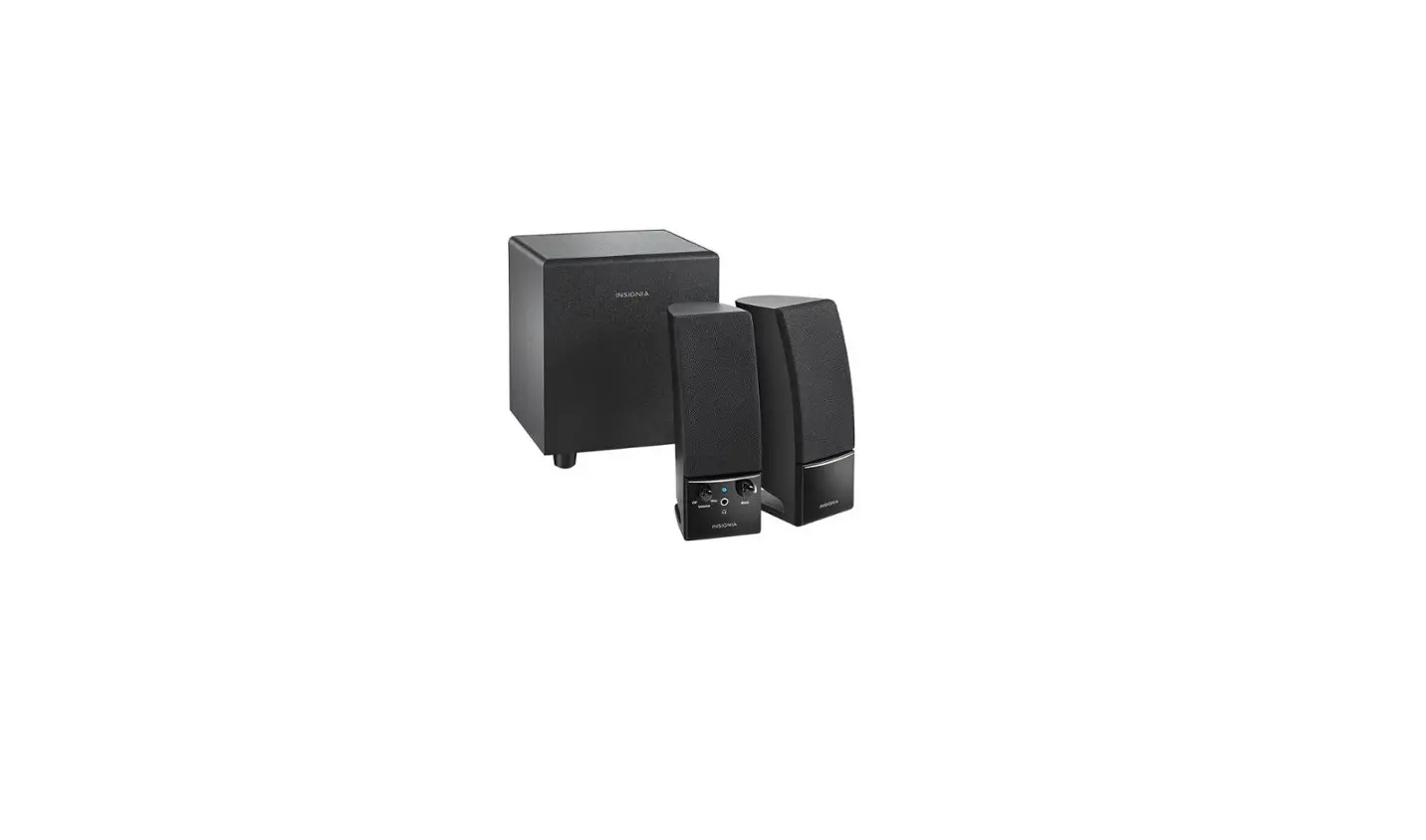
![Insignia Color Changing Computer Speakers [ns-2810bt] User Manual](https://static-data1.manualsee.com/1/img/48/16964/2020/12/81bLve1qhL._AC_SL1500_.jpg "Insignia Color Changing Computer Speakers [ns-2810bt] User Manual")



![Insignia Bluetooth Speaker [ns-cspbtf1] User Manual](https://static-data1.manualsee.com/1/img/414/18207/2020/12/insignia-bluetooth-speaker.png "Insignia Bluetooth Speaker [ns-cspbtf1] User Manual")