
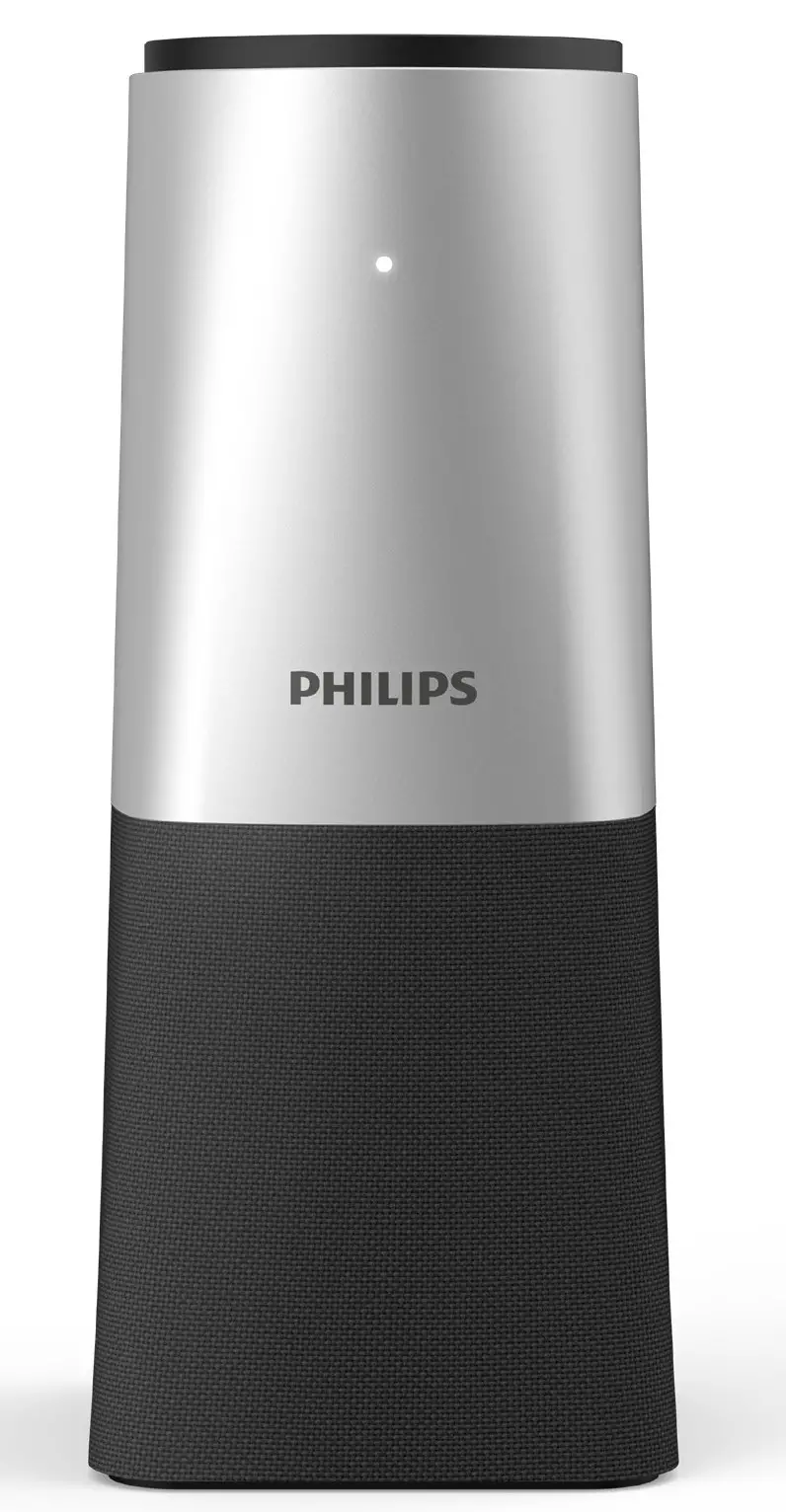
SmartMeeting
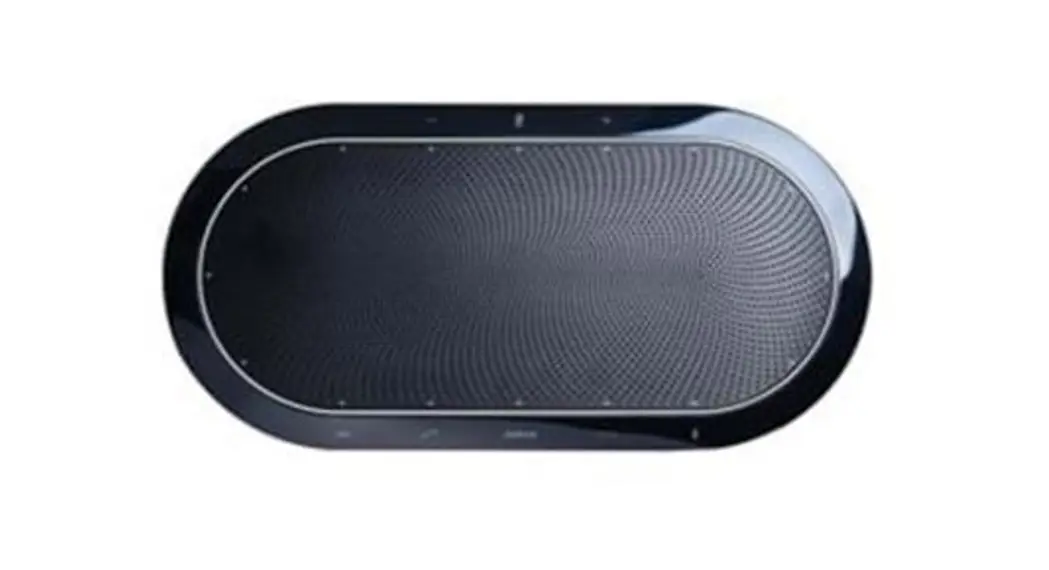
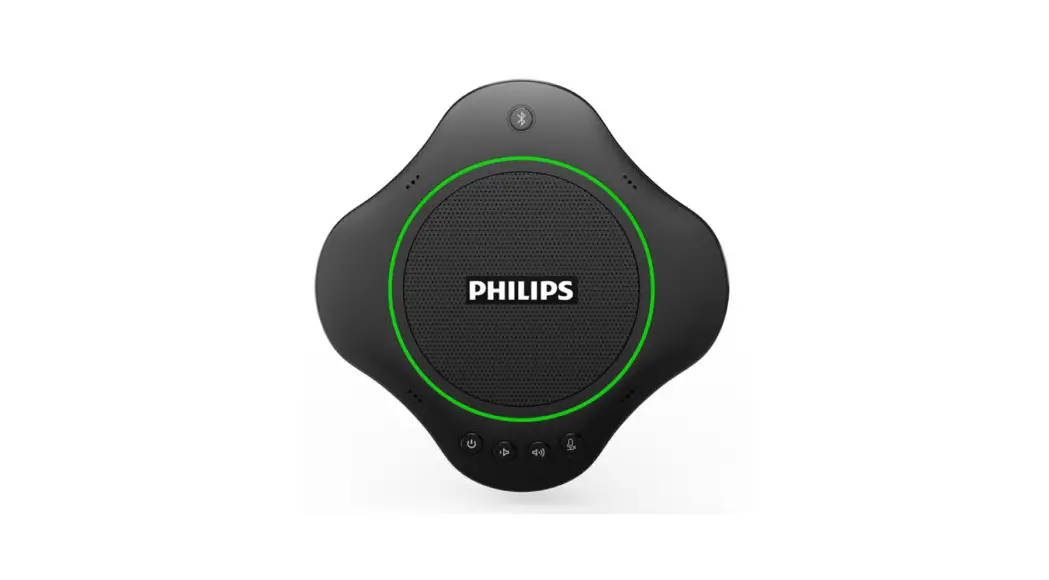
Portable Conference Microphone
with Sembly Meeting Assistant
PSE0540
User manual

For more support visit www.dictation.philips.com/pse0540help


Get your smart Al meeting assistant
Start your free trial now!
- Go to https://smartmeeting.sembly.ai
- Sign up
- Enter the serial number of your device (you can find it on the packaging or the device itself)
- Use the code “SM2022D1” to activate your Team Plus plan (unlimited number of meetings in the first month, then up to 4 meetings per month)

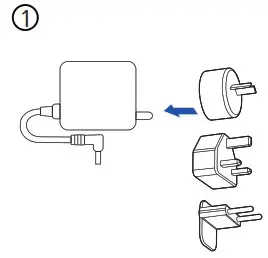 | 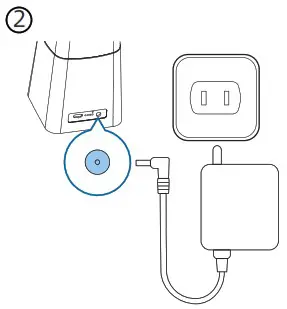 | 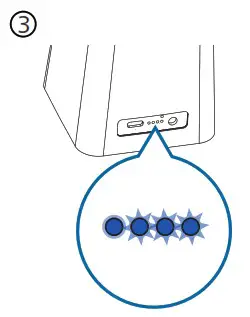 |
| Connect the correct plug to the AC adapter | Connect the AC adapter to the device and a power socket | The LEDs on the back indicate the battery status and stop blinking after the device is fully charged |

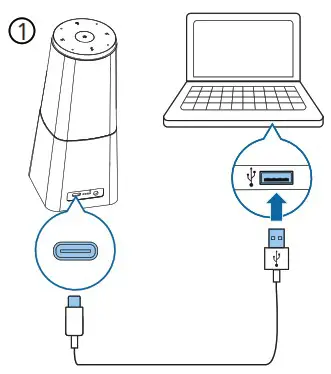 | 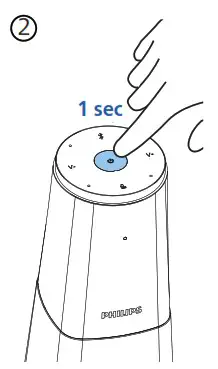 | 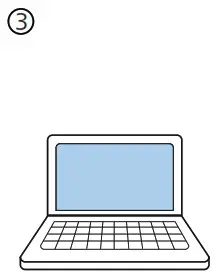 |
| Connect the device to a computer. Note: The device can only be charged via the AC adapter | Press  to turn the device on to turn the device on | You can now use the device with various meeting software, by selecting “PSE0540” |

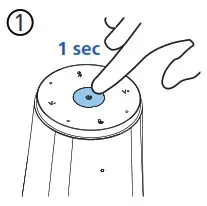 | 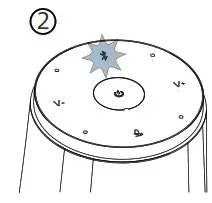 | 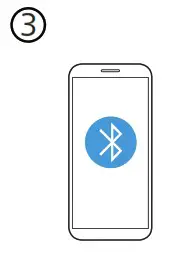 |
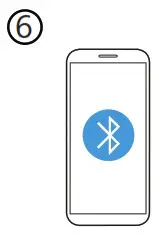
| Press to turn the device on |  starts blinking white and the speaker says “pairing” starts blinking white and the speaker says “pairing” | Go to the Bluetooth settings of your device and choose “PSE0540” in the list |
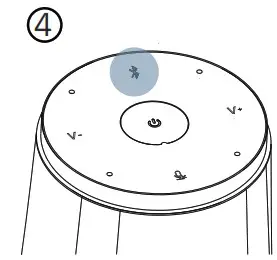 | 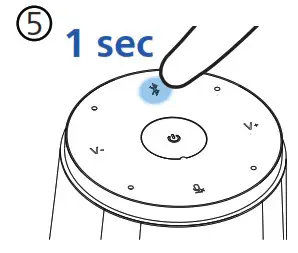 |  |
| stops blinking and lights up. The speaker says “connected” | Hold for 1 second, to disconnect from the current device | To fully unpair, go to the bluetooth settings of your device and remove “PSE0540” |

 |  | 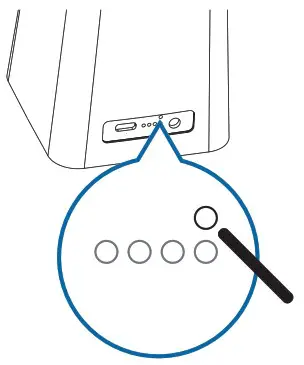 |
| Connect the device to a computer. Note: The device can only be charged via the AC adapter | Press  to turn the device on to turn the device on | To reset the device, press and hold the reset button on the back side of your device by using a small, pointed object, for example, a paper clip |
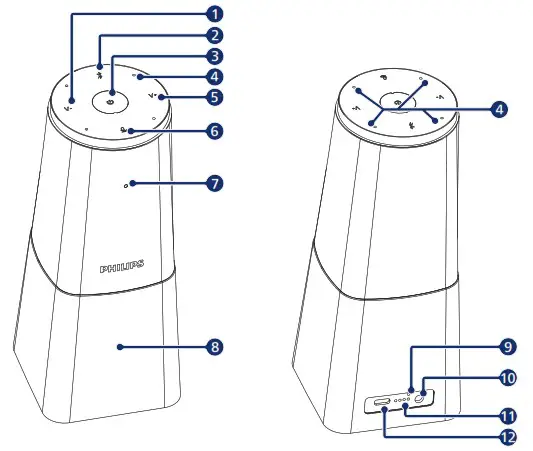
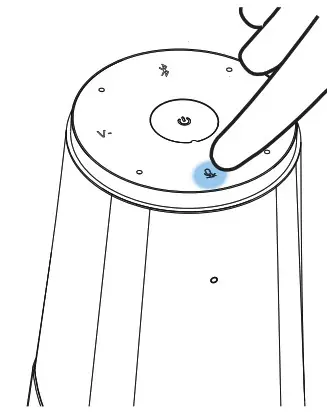
1.  Volume down Volume down2. Bluetooth3. Power4. Microphones 5.  Volume up Volume up6. Mute | 7. Status LED 8. Speaker 9. Reset 10. Power socket 11. Battery status LED 12. USB Type-C port |


 © 2022 Speech Processing Solutions GmbH. All rights reserved.
This product has been manufactured by and is sold under the responsibility of Speech Processing
Solutions GmbH, and Speech Processing Solutions GmbH is the warrantor in relation to this product.
Specifications are subject to change without notice. Philips and the Philips shield emblem are registered trademarks of Koninklijke Philips N.V. and are used under license.
Document version 1.0, 03/02/22

NOTE: This equipment has been tested and found to comply with the limits for a Class B digital device, pursuant to part 15 of the FCC Rules. These limits are designed to provide reasonable protection against harmful interference in a residential installation. This equipment generates uses and can radiate radio frequency energy and, if not installed and used in accordance with the instructions, may cause harmful interference to radio communications. However, there is no guarantee that interference will not occur in a particular installation. If this equipment does cause harmful interference to radio or television reception, which can be determined by turning the equipment off and on, the user is encouraged to try to correct the interference by one or more of the following measures:
- Reorient or relocate the receiving antenna.
- Increase the separation between the equipment and receiver.
- Connect the equipment into an outlet on a circuit different from that to which the receiver is connected.
- Consult the dealer or an experienced radio/TV technician for help
Changes or modifications not expressly approved by the party responsible for compliance could void the user’s authority to operate the equipment.
This device complies with Part 15 of the FCC Rules. Operation is subject to the following two conditions:
- this device may not cause harmful interference, and
- this device must accept any interference received, including interference that may cause undesired operation.

| Manufactured for: | Speech Processing Solutions GmbH, Gutheil-Schoder-Gasse 8–12, 1100 Wien, Österreich www.philips.com/dictation |
| Brand: | Philips |
| Product name: | Portable Conference Microphone |
| Model: | PSE0540 |
| Operating temperature: | 5° – 45° C / 41° – 113° F |
| Maximum Bluetooth transmit power: | +6 dBm |
The product shall only be connected to a USB interface of version USB2.0 or higher. Charging via USB is not supported, the device can only be charged via the included AC adapter.
For this device, Head SAR and Body SAR was performed with the device configured in the positions according to EN62209-1:2016 & EN622092:2010, and Body SAR was performed with the device 0mm from the phantom. Body SAR was also performed with the headset attached and without.
pse0501_fcc-ce_warning-card.indd 2
03/03/2022 13:54:53
 SmartMeeeting Portable Conference Microphone with Sembly Meeting Assistant PSE0540 | Philips
 Professional dictation solutions and voice recorders | Philips
 Sembly