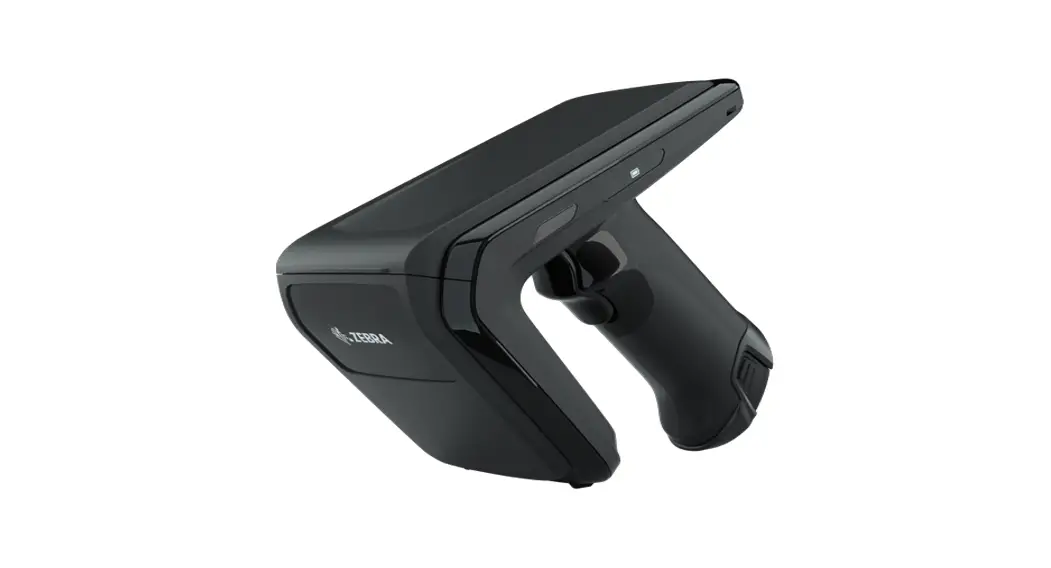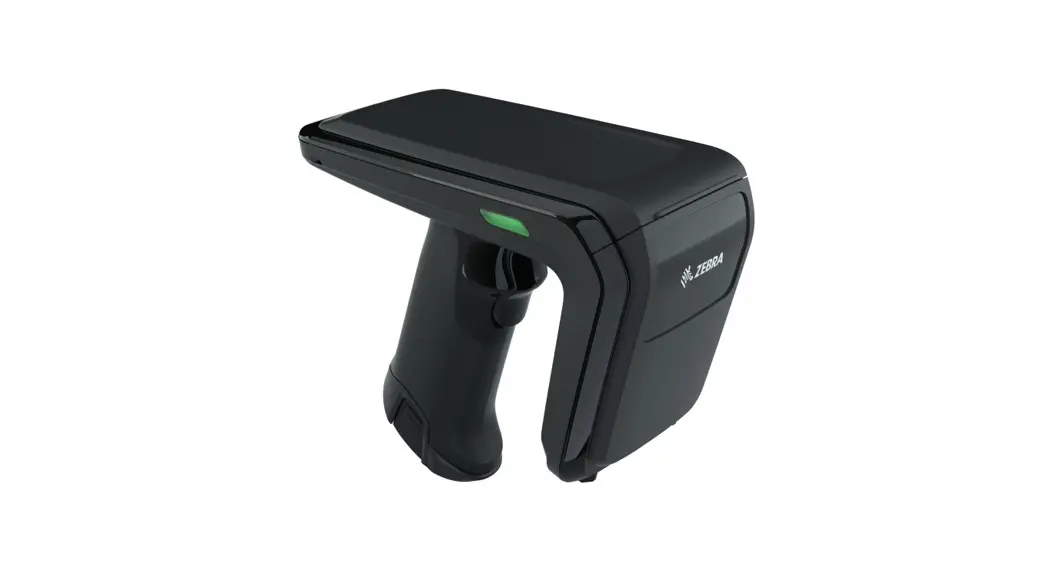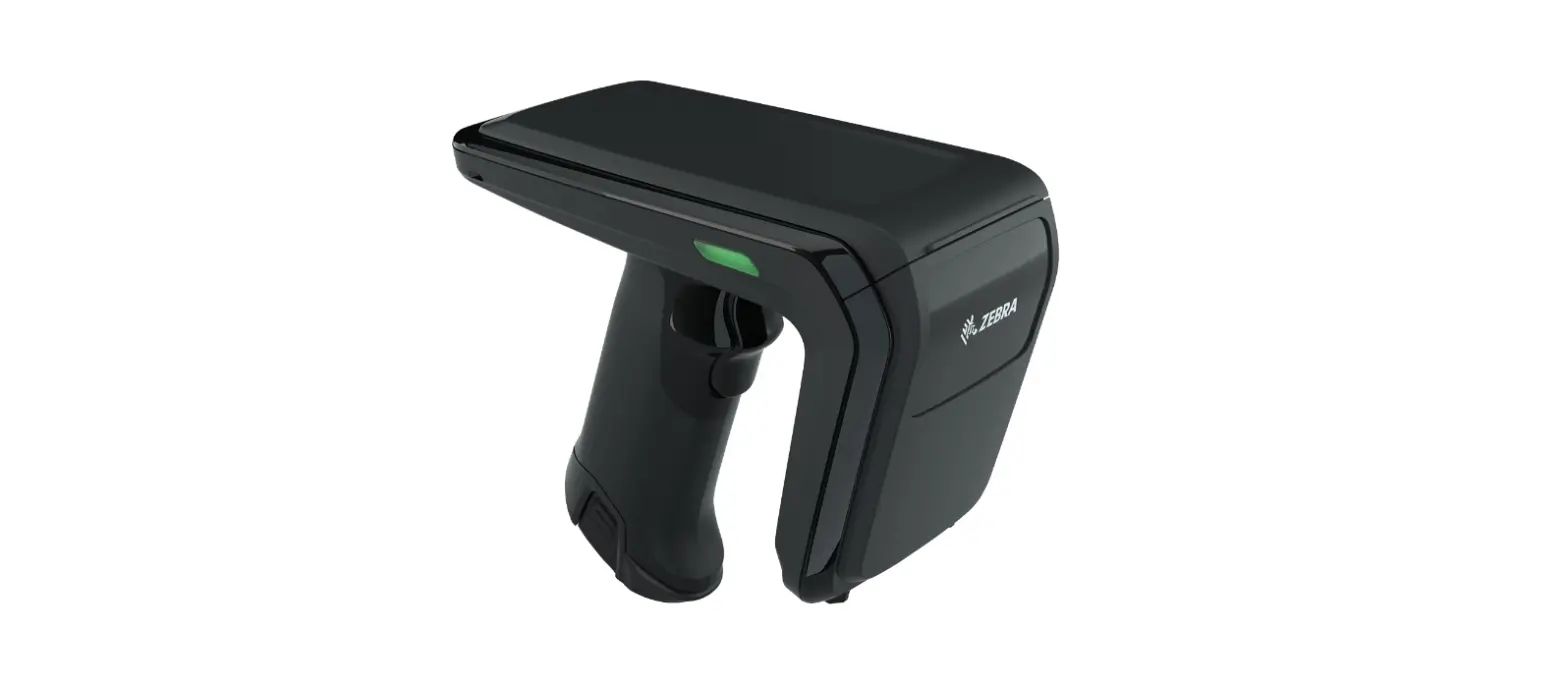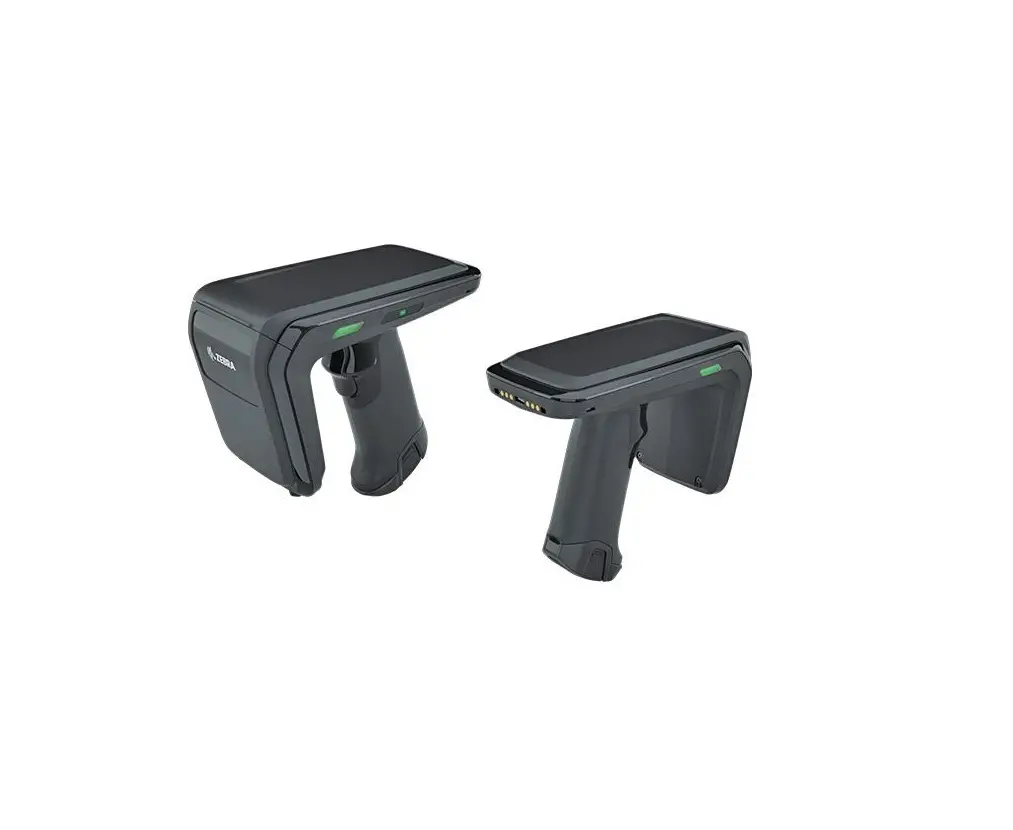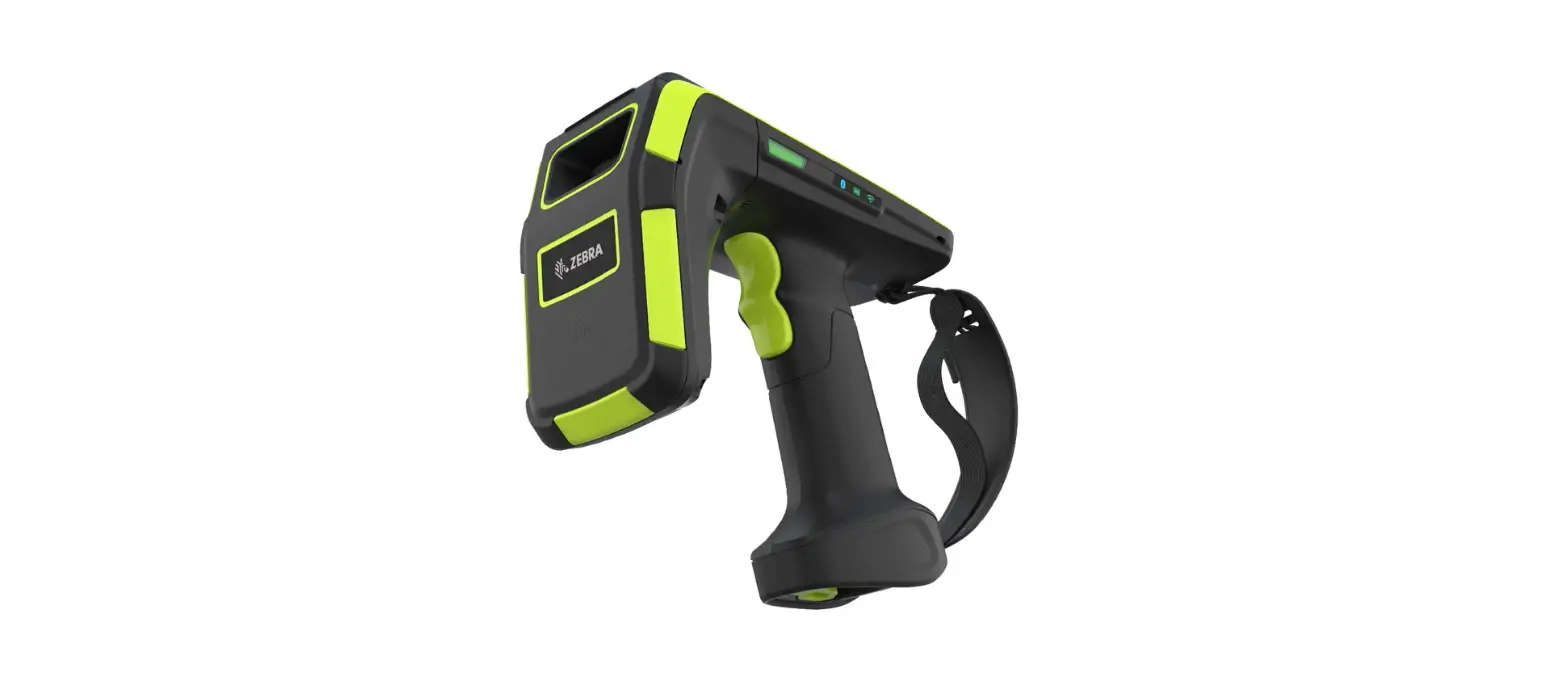

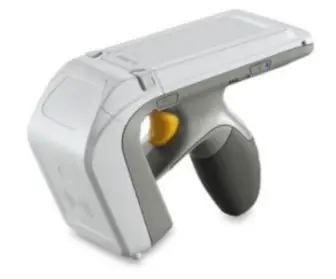
ZEBRA RFD8500 RFID (UHF) Reader
FEATURES
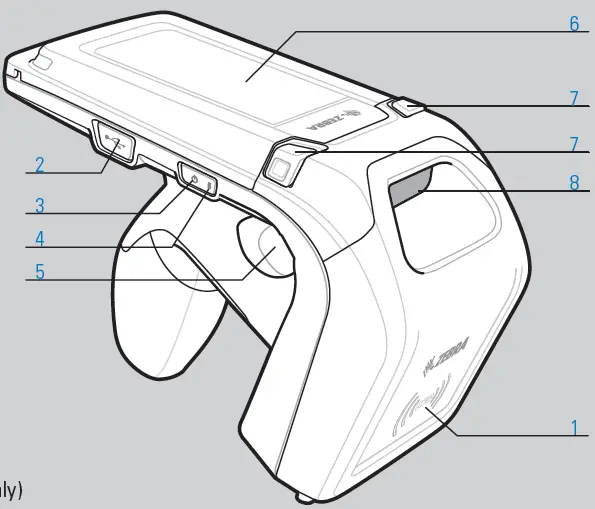
- RFID Antenna Compartment
- USB Port
- Power Button
- Power/Charging Indicator
- Trigger
- Battery Cover/Compartment
- Battery Cover Release Buttons
- Imager Window (imager units only)
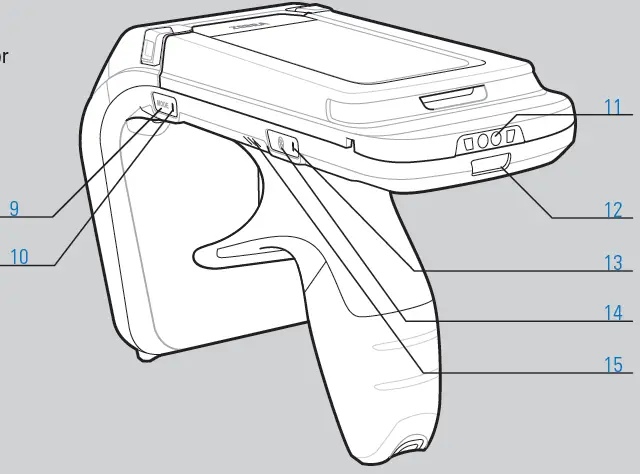
- Mode Button
- Mode Indicator
- Charging Contacts
- Decode/RFID Read Indicator
- Bluetooth Indicator
- Bluetooth Button
- Beeper
Introduction
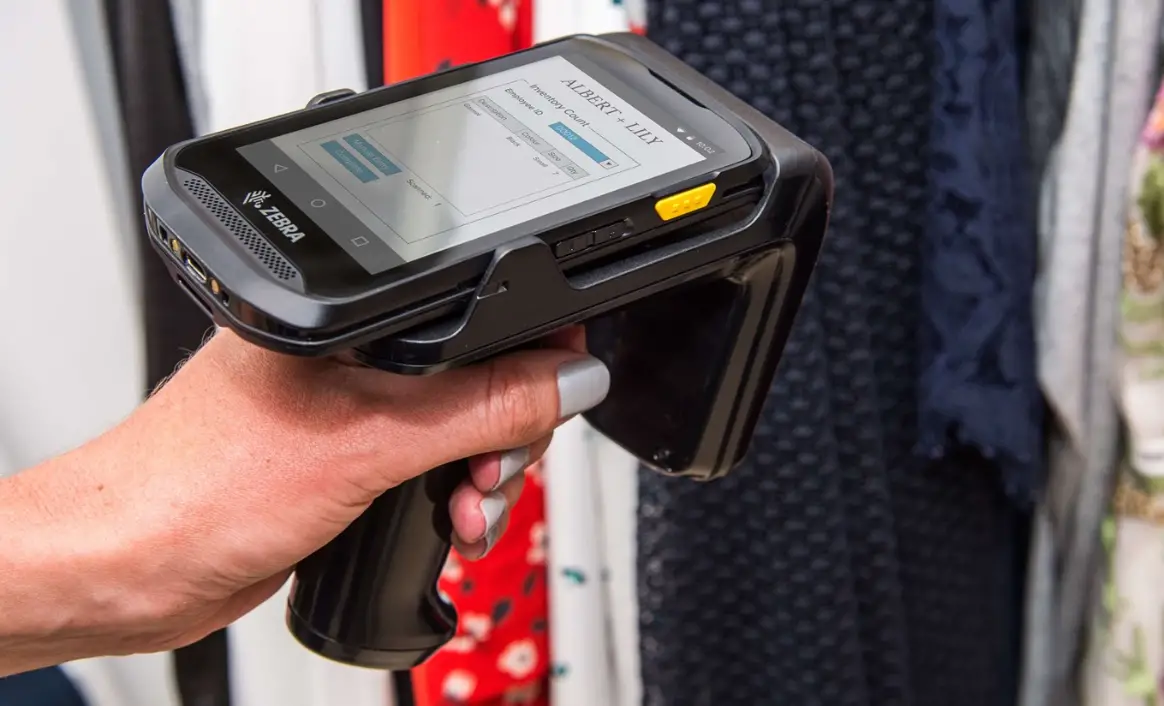
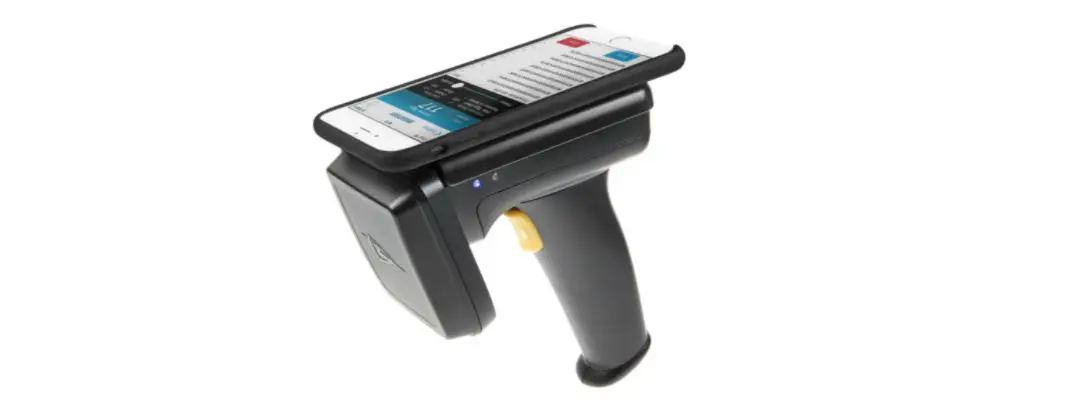
The RFD8500 reader provides Radio Frequency Identification (RFID), with optional barcode scanning functionality. The unit can be used stand alone, or paired with a Bluetooth® wireless technology enabled host device (such as a mobile computer and/or smartphone).
Using the RFD8500
To use the RFD8500 for the first time with a mobile computer, Android or iOS device:
- Install the battery.
- Charge the RFD8500.
- Power on the RFD8500.
- Pair the RFD8500 over Bluetooth with a mobile device (the RFD8500 can also be used with a USB connection).
- Install the Demo Application, or the partner application (Android or iOS).
- Set the region and power level (using the Demo Application, or the partner application).
GETTING STARTED – REMOVING THE BATTERY COVER
Removing the Battery Cover
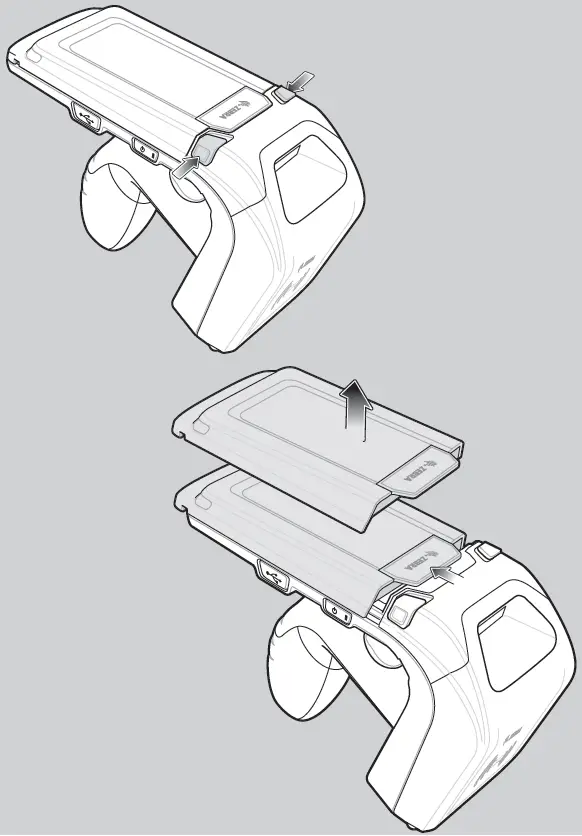
- Depress both battery cover release buttons.
- Slide back and remove battery cover.
BATTERY INSTALLATION
Inserting the Battery
- Align the three tabs on the bottom of the battery with the three slots in the battery compartment.
- Press battery towards three battery slots then press down until it locks into place.
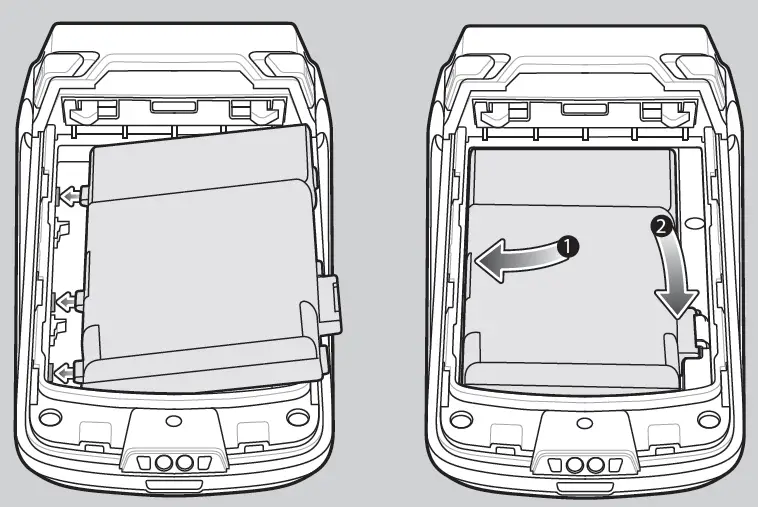
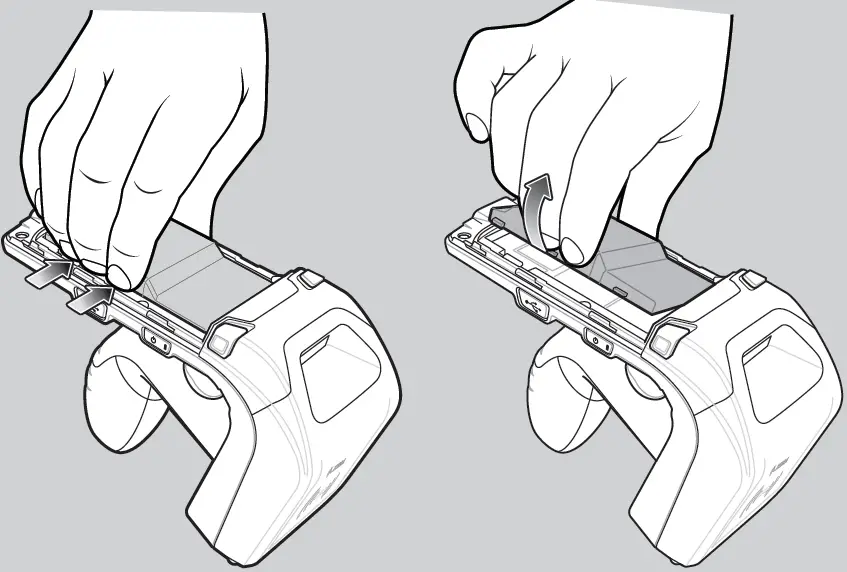
Remove the Battery
Press in and remove battery as shown.
DEVICE INSTALLATION
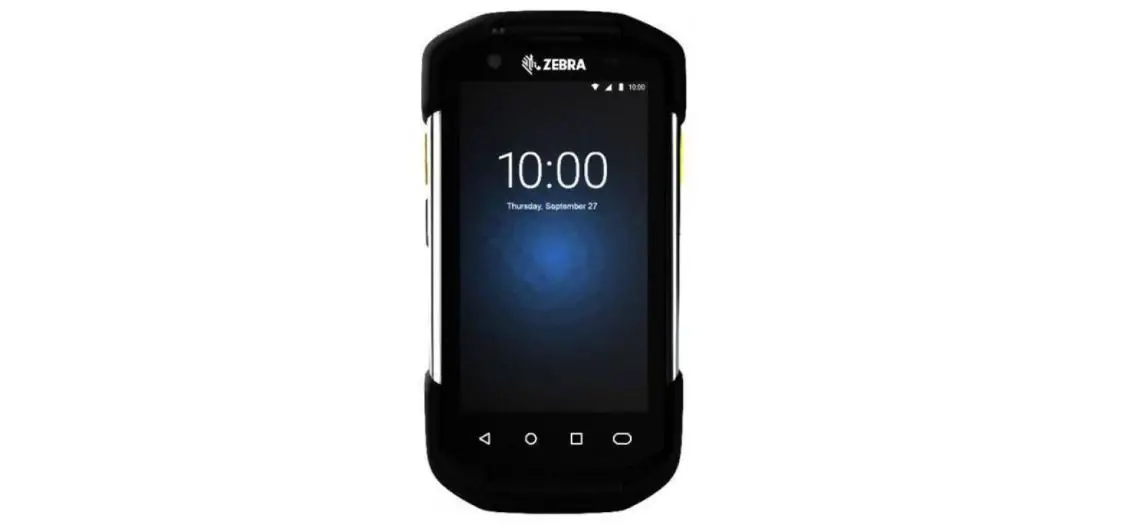
Inserting the Mobile Computer into the RFD8500
Remove the RFD8500 battery cover. Remove the plastic tip from the cover. Attach the mobile computer to its case accessory. Attach the mobile computer case to the RFD8500 battery cover. Slide the battery cover onto the RFD8500 until it locks in place. The battery cover buttons secure the mobile computer to the RFD8500.
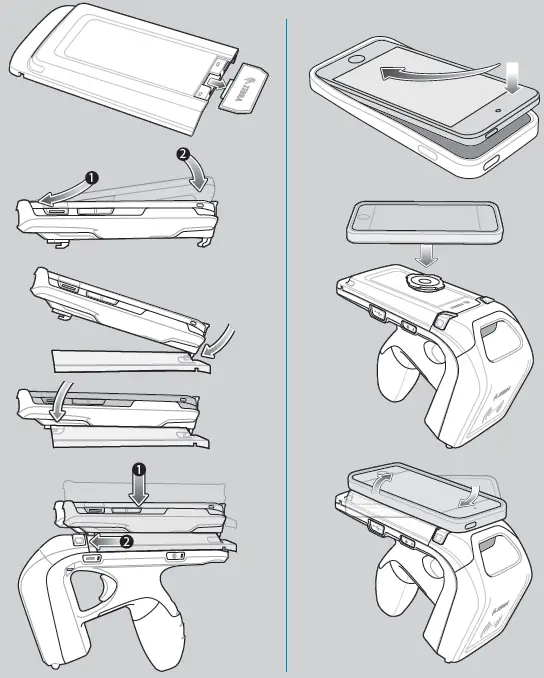
Removing the Mobile Computer from the RFD8500
To remove the mobile computer, press the battery cover release buttons, and pull the mobile computer back and up.
ACCESSORIES AND CHARGING
Charging
Before using the RFD8500 for the first time, charge the battery until the LED Power/Charging Indicator turns solid green. To charge the RFD8500, use a Zebra approved charging cradle or charging cup. Cradles available with the RFD8500 are, a Single-slot RFD8500 cradle, a Three-slot RFD8500 or a dual-spare battery charger cradle, a Four-slot RFD8500 cradle, and a Four-slot cradle that charges two RFD8500 devices and two TC5x devices.
The Micro USB port on the RFD8500 is not intended for charging. The Micro USB port is for data transfer and firmware upgrading only. For daily charging, use the cable cup or cradle.
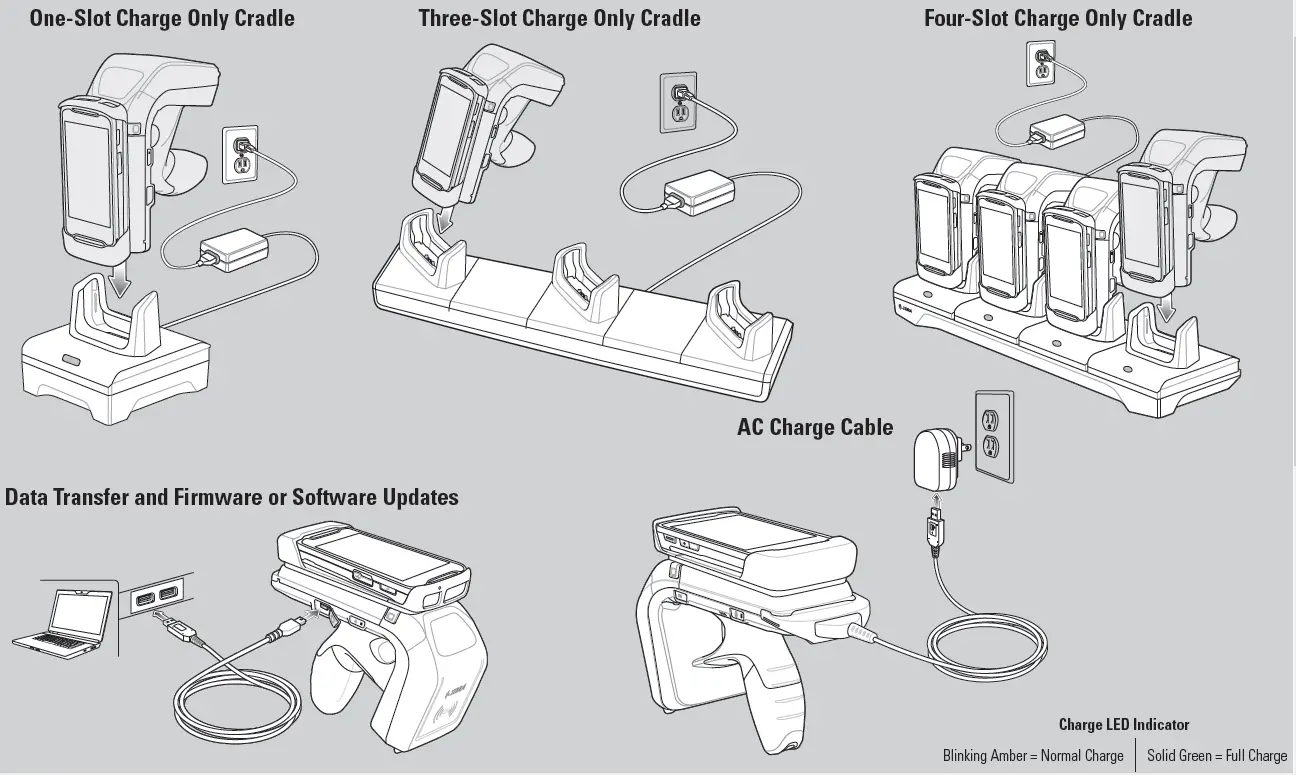
Charge LED Indicator
Blinking Amber = Normal Charge
Solid Green = Full Charge
PAIRING
Pairing with an Android Device
To pair with a TCXX or any compatible Android device:
- Power on the device.
- Touch the Settings icon.
- Turn Bluetooth on.
- Touch Search for Devices to display available discoverable devices.
- Turn the RFD8500 on and ensure Bluetooth is enabled. If not, press the Bluetooth button on the RFD8500 for one second to make it discoverable. When discoverable, the Bluetooth LED slowly flashes blue.
- Touch the RFD8500 in the list of available discoverable devices, and press the RFD8500 trigger to pair when the Bluetooth LED starts flashing fast.
- Exit the Device Settings screen, and run the Zebra 123RFID Mobile Application.
- From the 123RFID Mobile Application, select Settings > Readers List, and confirm the RFD8500 serial number with which you paired is displayed. Select it in the list of Available Readers to connect the RFD8500 to the device.
Pairing with an iOS Device
To pair with an iOS device, such as an iPhone or iPod Touch:
- Power on the iOS device.
- Touch the Settings icon.
- Touch Bluetooth to display the Bluetooth Settings screen, and ensure it is on.
- Turn the RFD8500 on and ensure Bluetooth is enabled. If not, press the Bluetooth button on the RFD8500 for one second to make it discoverable. When discoverable, the Bluetooth LED slowly flashes blue.
- Touch the RFD8500 in the list of available discoverable devices, and press the RFD8500 trigger to pair when the Bluetooth LED starts flashing fast.
- Exit the OS Device Settings screen and run the RFID Demo Application.
- From the Demo Application, select Settings > Readers List and confirm the RFD8500 serial number with which you paired is displayed. Select it in the list of Available Readers to connect the RFD8500 to the iOS device.
Using the Pairing/Locate Device Barcode
The Pairing/Locate Device barcode appears on the RFD8500 under the antenna compartment. When you pair several RFD8500 devices with your mobile device via Bluetooth, use the serial number represented by the Locate Device barcode to identify a specific paired RFD8500.
The barcode can also be used for pairing. Refer to the RFD8500 RFID Developer Guide for details.
Transferring Data Via USB
By default, the RFD8500 is not configured to transfer data via the USB port. Use the Cable connection page in 123Scan to configure either USB CDC or USB HID to do this. Note that USB CDC mode requires the Zebra CDC driver for Windows which can be obtained from the Barcode Scanner SDK Driver Utilities site. For detailed information about transferring data, refer to the RFD8500 User Guide, p/n MN002065AXX.
LED AND BEEPER INDICATORS
| Condition | Power LED | Beeper |
| Low battery (20%) | Solid amber | No beep |
| Lower battery (10%) | Solid red | Short beeps – repeated |
| Suspend | Solid red, then turns off | High/medium/low |
| Charging | Blinking amber | Short beep when charger is connected |
| Charged | Solid green | One beep |
| Charging error | Fast blink red | Three beeps |
| Power on | Green if battery charge > 20% Amber if battery charge between 10% – 20% Red if battery charge < 10% | Low/medium/high beeps |
Mode Indicator ( Mode Button)
| RFID mode | Off | Short high button confirmation beep |
| Barcode mode | Solid green | Short high button confirmation beep |
Decode/RFID Read Indicator
| Good decode | Solid green | Short low beep |
| Transmit error | Solid amber for 2 seconds | No beep for RFID/4 beeps for scanner read |
| Good RFID read | Solid green (for each read) | Short medium beep |
| RFID error | Amber | No beep |
| Other error message | Solid red | No beep |
BT Indicator ( BT Button)
| BT off | Off | No beep |
| BT on/not connected | Slow flash | No beep |
| BT discoverable | Medium flash | No beep |
| BT on/pairing in process | Fast flash | No beep |
| BT application connected | Solid blue | Short low/high beeps |
| BT out of range | Slow flash | Short high/low beeps |
OPTIMUM RFID TAG DECODING SCANNING
Scanning with the RFD8500 (Imager Units Only)
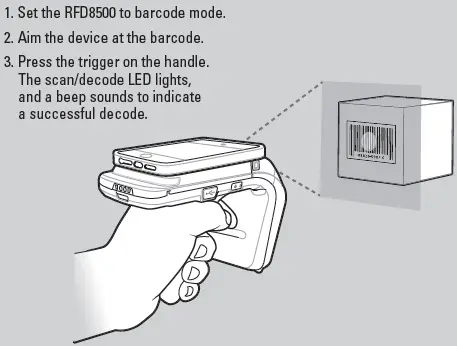
To scan barcodes:
- Set the RFD8500 to barcode mode.
- Aim the device at the barcode.
- Press the trigger on the handle.
The scan/decode LED lights, and a beep sounds to indicate a successful decode.
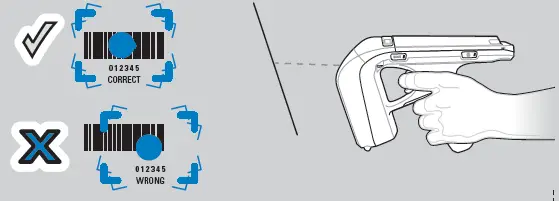
Optimum Scanning Positions
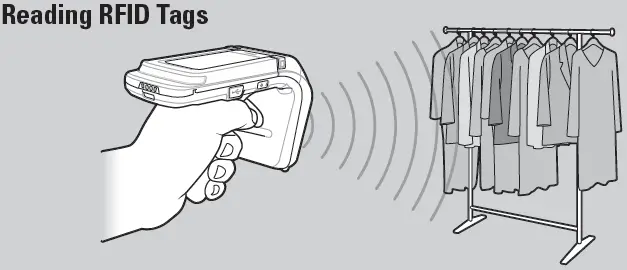
Reading RFID Tags
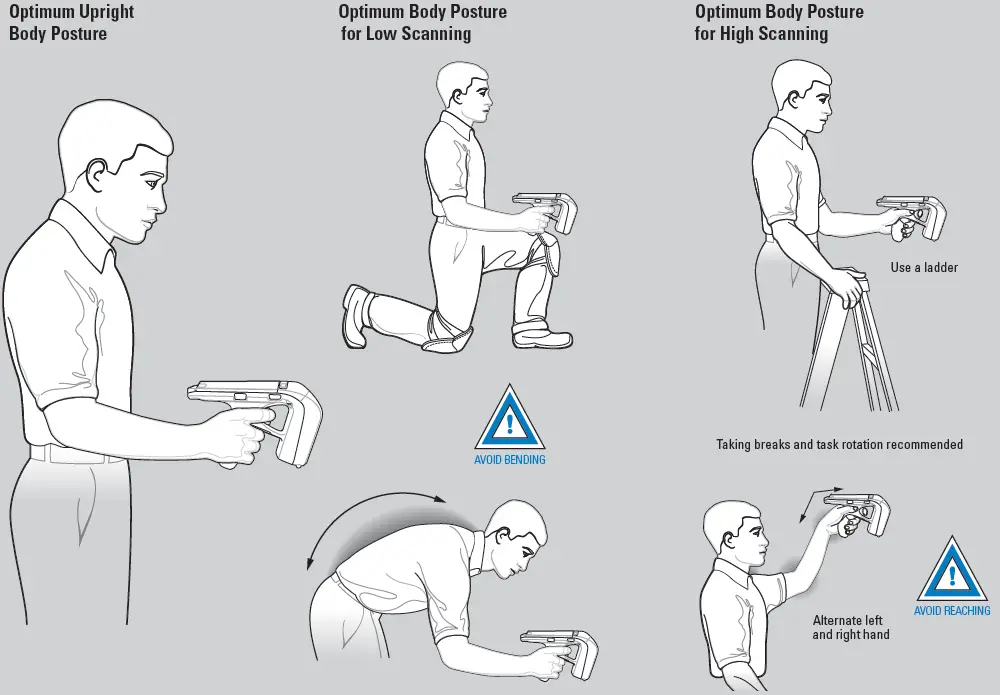
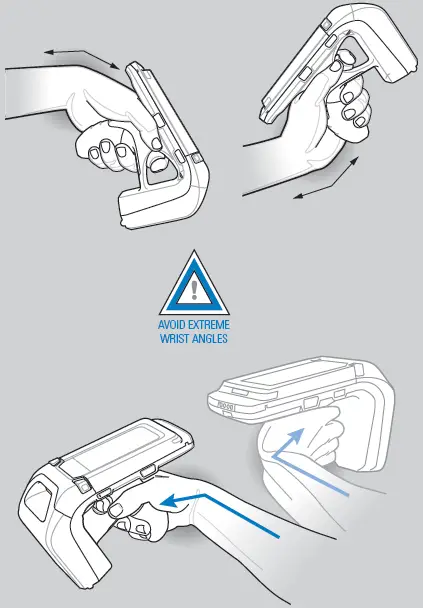
OPTIMUM RFID BODY POSTURE
AVOID EXTREME WRIST ANGLES
More Information About the RFD8500
For more information about the RFD8500, visit the Zebra website at: http://www.zebra.com/RFD8500.
For the latest version of this guide, localized translations, and related product guides, visit the Zebra website at: http://www.zebra.com/support.
Service
If you have a problem running your equipment, contact your facility’s Technical or Systems Support. If there is a problem with the equipment, they will contact Zebra support at: http://www.zebra.com/support
Warranty
For the complete Zebra hardware product warranty statement, go to: http://www.zebra.com/warranty.
Zebra Technologies Corporation
Lincolnshire, IL U.S.A.
ZEBRA and the stylized Zebra head are trademarks of Zebra Technologies Corporation, registered in many jurisdictions worldwide. All other trademarks are the property of their respective owners. ©2020 Zebra Technologies Corporation and/or its affiliates. All rights reserved.
MN002225A03 Revision A — April 2020