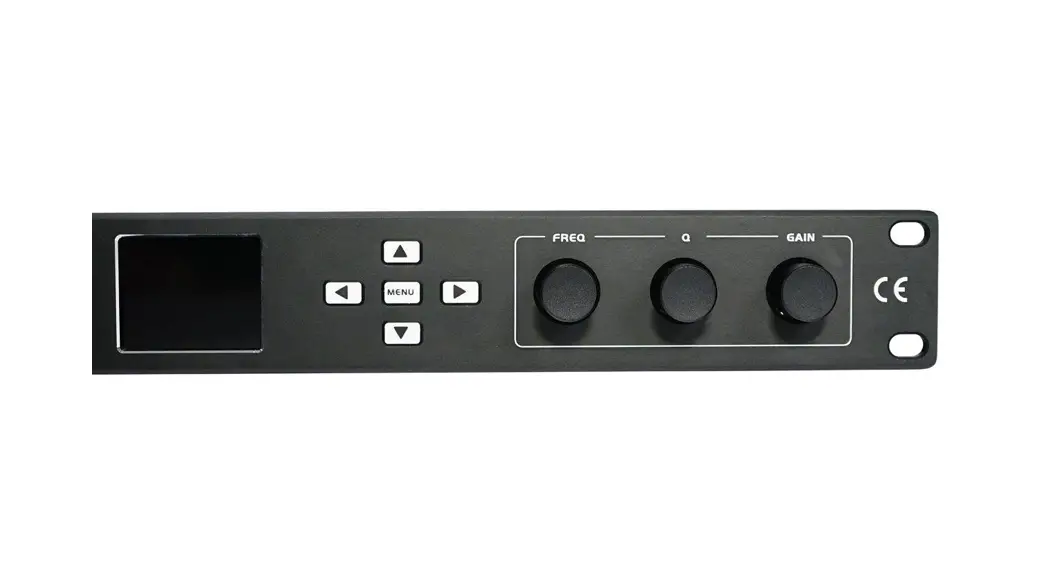
EDSP31-610 31 Band 10 Channel Digital Sound Processor
Product Information
The TM TM 31 BAND -10 CHANNEL DIGITAL SOUND PROCESSOR is a
high-quality audio processing device manufactured by EuphoriaTM. It
comes with a two-year warranty, covering defects in material and
workmanship under normal use. This warranty is applicable to the
original purchaser only and does not cover misuse, abuse, neglect,
or unauthorized alterations or modifications.
The product features a 31-band parametric equalizer, 10-channel
digital audio processing, separate gain controls, signal phasing,
input delays, and fully customizable frequency filters with
selectable filter slopes. It has a high-resolution 170MHz, 64-bit
dual floating point digital signal processor (DSP) with a sampling
rate of 48KHz.
The product can be controlled through the included remote dash
control (EDSP31-REM) or through PC software. The remote dash
control allows control over the system master gain control,
user-programmed presets, and subwoofer level output gain. The PC
software control requires a compatible Windows system computer and
automatically detects the hardware when connected via USB.
For wireless audio streaming and smartphone control, an optional
EDSP31-BTD dongle is available. The dongle enables streaming audio
from smartphones and allows the use of the downloadable EDSP31-610
DSP control app. The app is compatible with both iOS and Android
devices.
Product Usage Instructions
- Do not place the unit in wet or damp places to prevent a short
circuit. - Avoid exposure to high-power sound systems to prevent hearing
loss or damage. - Listening to the system at loud levels while driving may impair
your ability to hear traffic sounds and emergency vehicles. Use
common sense when using the system. - Ensure that all items are included in the package. If there is
a shortage, contact your retailer or the factory. - For high-level inputs and power connections, use the Molex
connector to connect your high-level speaker wires from your
factory head unit. Refer to the provided diagram for configuration
details. - To delete a preset setting you do not need, right-click the
preset number in the software interface and select “Delete DSP
preset” from the menu. - If you have purchased the optional EDSP31-REM remote dash
control, refer to its user manual for specific instructions on its
usage. - If you have purchased the optional EDSP31-BTD dongle, refer to
the Euphoria website for download links to the EDSP31-610 DSP
control app and further instructions on wireless audio streaming
and smartphone control.
TM TM
TM TM
31 BAND -10 CHANNEL DIGITAL SOUND PROCESSOR
EuphoriaTM warrants any products purchased in the U.S.A. from an authorized EuphoriaTM dealer.
All products are warranted to be free from defects in material and workmanship under normal use and service for a period of two (2) years. This warranty applies to the original purchaser only.
EuphoriaTM will either repair or replace (as its option) any unit that has been found to be defective and under warranty provided the defect occurs within the two (2) years warranty period.
This limited warranty does not extend to units that have been subjected to misuse, abuse, neglect, or accident. In EuphoriaTM ‘s judgment, products that show evidence of having been altered, modified, or serviced without EuphoriaTM `s authorization, will be ineligible under this warranty.
To obtain warranty service please contact your retailer or visit our website at www.euphoriacaraudio.com for more details.
Do not place the unit in wet or damp places to prevent a short circuit. Exposure to high power sound system can cause hearing loss or damage. Listening to your system at loud levels while driving will impair your ability to hear traffic sounds and emergency vehicles. Use common sense when listening to your system.
Every package should include the items below. If there is a shortage of the items, please get in touch with your retailer and factory.
connection
Introductions
settings
EDSP31-REM Remote dash control: An optional remote dash control is available. (Sold Separately) the EDSP31-REM remote allows you to control the system master gain control, select through the user programmed presets and control the subwoofer level output gain.
The Euphoria EDSP31-610 features a sampling rate of 48KHz. The Digital signal processor is a high resolution 170MHz, 64-bit dual floating point (DSP). It features 10 channel digital audio processing, separate gain controls, signal phasing, 31 Band parametric equalization, input, delays, and fully customizable frequency filters with selectable filter slopes.
PC software control: Please check (2.) for Software operation details Automatically detect whatever the hardware is connecting with the USB cable, if ready it will connect with the DSP unit automatically. Display resolution over 1280*760, or else the software will not show fully. Compatible with Windows system’s computers.
EDSP31-BTD Dongle: An optional Wireless audio streaming and smart phone control are available. (Sold Separately) the dongle will allow you to stream audio from your smartphone as well as allow you to use the downloadable EDSP31-610 DSP control app. The free apps are compatible with both iOS and Android devices. Please refer to the Euphoria website for the download links. www.euphoriacaraudio.com
Figure 3.2.1
progammable
settings
3.9.1 High – level inputs and power connections: Use the Molex connector to connect your high-level speaker wires from your factory head-unit. See the diagram below for the configuration
REM IN connect to aftermarket head unit REM out wire.
As shown in figure 3.4.9., right-click the preset #, and select “Delete DSP preset” from the menu to erase a preset setting you do not need.
(Figure 3.4.10)
Plug and play PC tuning software. Operating system compatibility: Suitable for Windows 8-10.
The installation procedure describes: Simply download the EDSP31-610 software from the website, double-click the installation file, and follow the on-screen guide. Once installed follow through with steps 2.2
The PC to EDSP31-610 connection must be made through a USB cable between the PC and the EDSP31-610. Ensure that the EDSP31-610 is powered on and connected with the supplied USB cable to the computer through the USB interface, the computer will find the new device and automatically install the equipment, after a few seconds the installation is complete. Double-click the EDSP31-610 icon on your PC to open the software. The main interface is shown in figure 3.2.1. Refer to the status icon in the top right corner. Blue is for a successful connection to the PC, and red is for unconnected to the PC.
Select the button on the top left corner of the GUI screen. A pop-up window (Figure 3.4.12) will allow users to route inputs to which outputs they prefer and adjust the input level to each output.
Software interface units are divided into the following sections: 1. As shown in figure 3.2.2, “1” (Input Signal Selection) 2. As shown in figure 3.2.2, “2” (Connection Status) 3. As shown in figure 3.2.2, “3” (Crossover Settings) 4. As shown in figure 3.2.2, “4” (Time Delay) 5. As shown in figure 3.2.2, “5” (Output Channel EQ Selection) 6. As shown in figure 3.2.2, “6” (Equalization Selection)
On figure 3.3.2 “1”, switch the audio input source to the audio input source of your choice.
Optional: High-Level, RCA, wireless streaming. The default audio source can be selected in the option of “1” zone. The default signal source is high level, but users can choose the RCA default signal source while setting up with the PC.
3.6 Loading presets: Select the preset you want to load and then click the preset button. A pop-up will appear to indicate the preset is loading, and the loading data window will show you the progress. (Figure 3.4.6)
Introductions
3.3 Lock output Configuration Click this button to configure the channels CH7 to CH10 to lock or unlock the operation, it indicates that the configuration settings are locked.
1. Computer-stored scene data operation: The amplifier can run in the scene data saved as a computer file or load a previously saved scene computer file.
*Select the corresponding channel in the “5” section of figure 3.2.2 (CH 1, CH2, CH4, etc.). You can switch the corresponding channel to adjust relevant parameters when editing channels. The crossover and equalization will vary depending on the channel and change in parameter values.
Figure 3.3.1 shows 10 output channels commonly used when parameters are displayed. The user can adjust the parameters here and customize the drive type of each output channel.
3.5 Naming Presets: Select “Save as DSP preset” (Figure 3.4.2) which will bring up a preset naming box (Figure 3.4.4). Enter a name (such as 4-abc) in the preset number you want displayed to save. Select the OK button in Figure 3.4.4 to complete the save as preset.
1. The output gain control for each channel can be set independently as well as the master gain.
2. Each channel can be muted, and the phase can also be aligned independently. This can be done by selecting the buttons under each channel section.
3. Delay selection units are in milliseconds, centimeters, or inches. The range of milliseconds is from 0.000~7.354; the Range of mm is from: 0~254; the Range of inches is from O to 100.
Introductions
Click on the “restore” button to allow all current equalizer channels back to the last activated state.
3.1 Reset EQ: To make all current channel equalizer parameters return to their initial state, select the button shown in Figure 3.3.8. Uniform frequency distribution, Q Value is 7.588, a gain of 0.0dB.
Simply drag the slider to adjust the equalizer frequency points; when the mouse is moved to the left and right of the small red box, press and drag left and right to adjust the equalizer Q. All parameters are displayed simultaneously and adjust the current real-time equalizer. The value EQ parameters are also updated.
The button shown in Figure 3.3.8, the current channel as long as there is an equalizer in the open state, this button will appear highlighted in a red state, indicating that you can click this button to make all the equalizer bypass. The button will change to Restore EQ in a white state after that and is ready to “return” back to the last activated state by clicking on it again.
The parameter value of the crossover for the given driver channel or channel selected is shown in the “frequency selection” column in Figure 3.3.9. Filter type setting: Drop-down menu to select the type, options are (Linkwitz- Riley), (Bessel), or (Butterworth). Frequency setting: You can directly type the input frequency value, select and scroll with the mouse, or use the up and down keys on your keyboard and other ways to adjust the low-cut or high-cut frequency. Slope (slope) settings: 6dB, 12dB, 18dB, 24dB, 30dB, 36dB, 42dB, 48dB per octave.